By Selena KomezUpdated on June 24, 2025
There are many reasons why you might need to remove the passcode from your iPhone. Maybe you forgot the passcode after not using your old device for a long time, or you bought a second-hand iPhone that’s locked. Sometimes the screen is broken and you can’t enter the passcode, or the device is stuck in recovery mode, DFU mode, or shows the message “iPhone is disabled, connect to iTunes.” No matter the situation, an iPhone unlocker tool can help you unlock your iPhone or iPad. In this article, we’ll introduce top 5 iPhone lock screen removal tools, along with their pros and cons, to help you find the best option for your needs.
CONTENTS
FoneLab iOS Unlocker is a great option if you’re looking for a free tool to unlock your iPhone. Whether you’ve forgotten your passcode or your device is locked, FoneLab can help. It supports removing different types of iPhone passcodes, including 4-digit codes, 6-digit codes, Face ID, and Touch ID. No matter which method your iPhone uses, you can regain access in just a few minutes and it offers a high success rate up to 99%.
But that’s not all. FoneLab iOS Unlocker can also remove the Apple ID and iCloud account linked to your device even if you don’t know the password. This is especially useful if you bought a second-hand iPhone or can’t remember your login details. Once the lock is removed, you’ll be able to fully use your iPhone again. Just sign in with a new Apple ID, download apps, and enjoy all features without restrictions.
Main Features of FoneLab iOS Unlocker
Step 1. Download and Install FoneLab iOS Unlocker
Start by downloading and installing FoneLab iOS Unlocker on your computer. Just click the Download button below to get started.




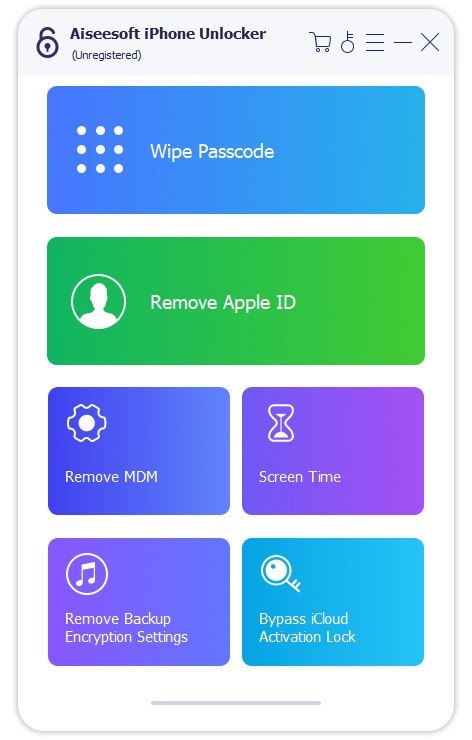
Step 2. Select “Wipe Passcode” Mode
Connect your iPhone or iPad to the computer, then choose the Wipe Passcode option from the main screen.
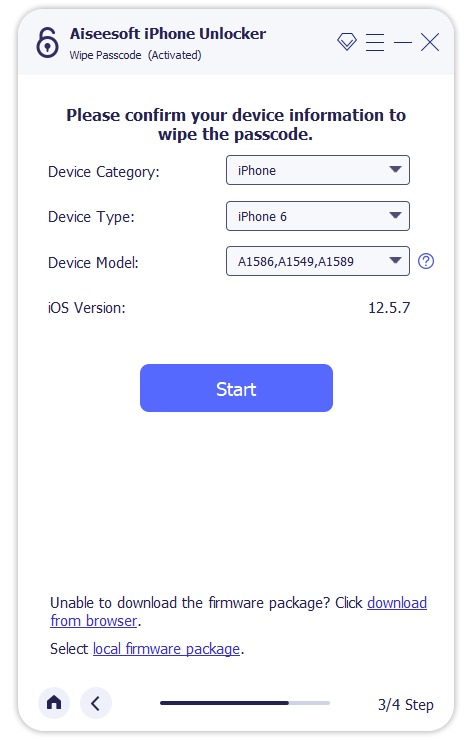
Step 3. Confirm Your Device Info
Check and confirm your device details, then click Start to begin downloading the necessary firmware.
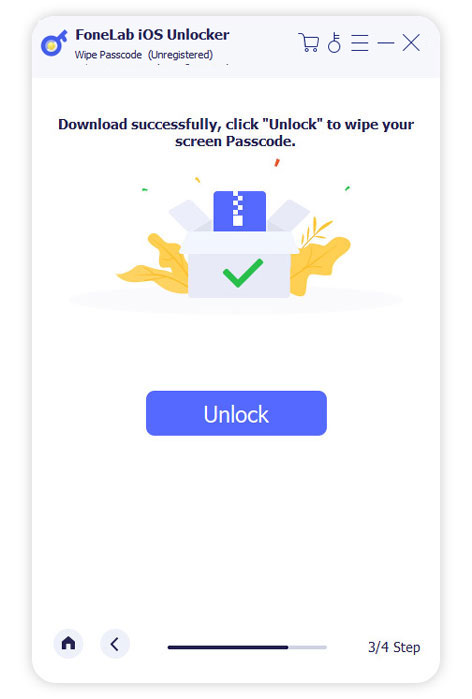
Step 4. Remove the Screen Passcode
Once the firmware is ready, click Unlock to start removing the passcode. To confirm, enter 0000 when prompted.
Pros:
Cons:
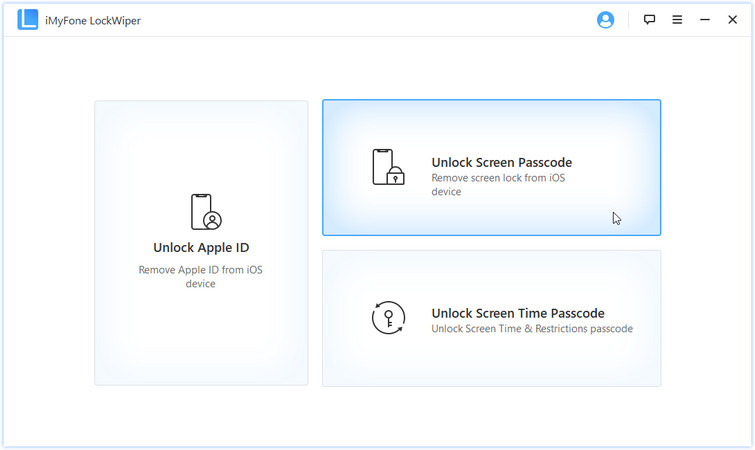
iMyFone LockWiper is another excellent iPhone unlocking tool, available for both Windows and Mac. It can unlock screen passcodes on iPhones and iPads, and also remove Apple ID without needing the password. In addition, it helps recover the Screen Time passcode, making it easy to bypass any restrictions. You can download the software for free on your Windows or Mac computer and use it to unlock your device with ease.
Pros:
Cons:
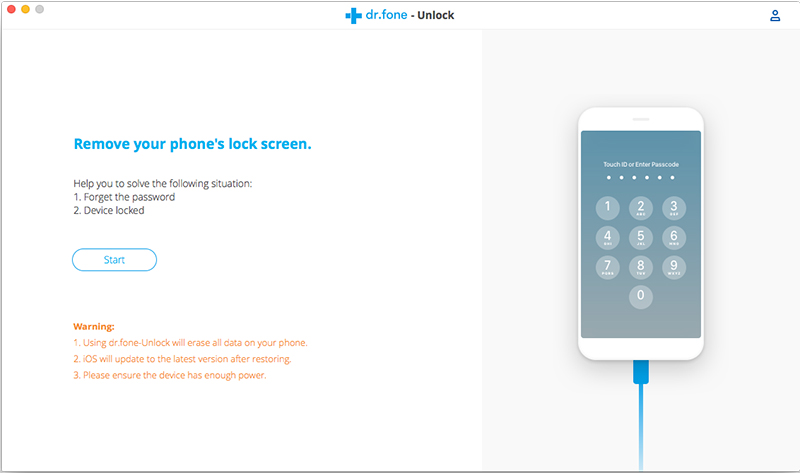
Dr.Fone – Unlock (iOS) is part of the Dr.Fone toolkit and offers powerful unlocking features for both iOS and Android devices. It can remove screen passcodes from iPhones and iPads, as well as unlock Android devices from brands like Samsung, LG, Huawei, Xiaomi, Lenovo, Motorola, and OnePlus. If you’ve forgotten your iPhone or iPad passcode, this tool helps you unlock it quickly. It can also remove Apple ID and iCloud activation lock without causing data loss.
However, keep in mind that the software package is quite large, so downloading and installing it may take some time. That’s because Dr.Fone is an all-in-one mobile solution offering data recovery, phone transfers, backups, system repair, data erasure, and more. It supports almost all iOS and Android devices.
Pros:
Cons:
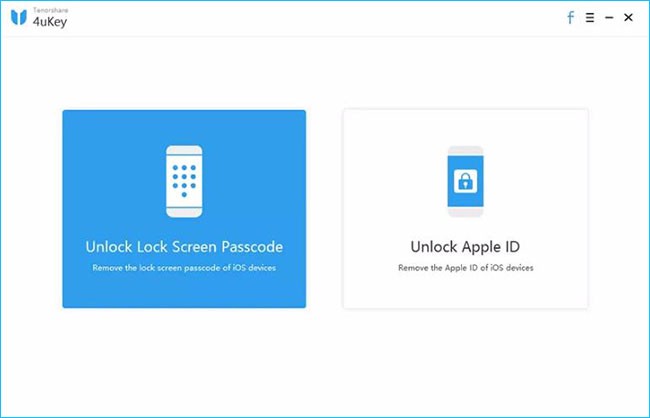
Tenorshare 4uKey is a straightforward iPhone unlock tool designed with two main features: removing the lock screen passcode and unlocking Apple ID. It supports all types of passcodes, including 4-digit, 6-digit, custom numeric codes, alphanumeric codes, as well as Touch ID and Face ID.
You can download 4uKey on a Windows PC and use it to unlock your iPhone. However, please note that this process will erase all data from your device.
Pros:
Cons:
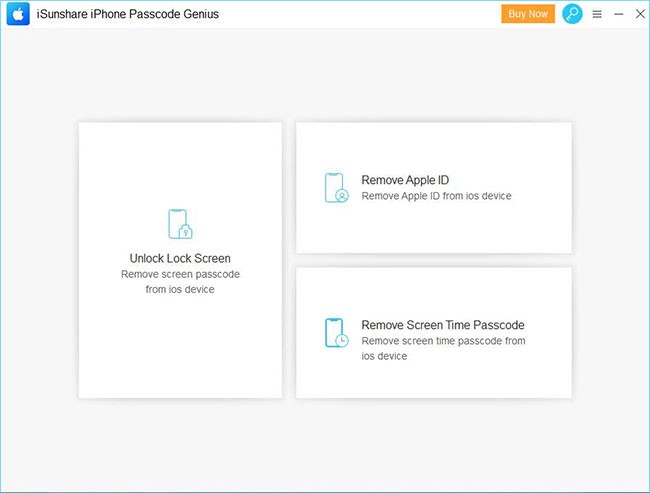
iSunshare iPhone Passcode Genius is an iPhone unlocking tool with an interface similar to iMyFone LockWiper. While the name might be a bit hard to remember, it can be helpful if you’ve forgotten your screen passcode or if Face ID/Touch ID is not working.
The software offers three main features: removing the lock screen passcode, removing Apple ID, and bypassing the Screen Time passcode. In testing, the unlocking process was a bit slow, and it’s important to note that it doesn’t support iOS 11.4 or later if Find My iPhone is enabled.
Pros:
Cons:
| FoneLab iOS Unlocker | iMyFone LockWiper | Dr.Fone – Unlock (iOS) | Tenorshare 4uKey | iSunshare iPhone Passcode Genius | |
|---|---|---|---|---|---|
| Security | Utmost level | Standard | Standard | Standard | Medium |
| Ease of Use | 3 steps | 3 steps | 4 steps | 4 steps | 5 steps |
| Recommendation | ***** | *** | *** | ** | *** |
| Technical Support | Yes | Yes | Yes | Yes | Yes |
Q1. Is It Possible to Unlock An iPhone Passcode?
Yes, it is. If you enter the wrong passcode too many times, your iPhone will show a message like “iPhone disabled, connect to iTunes.” In such cases, you can use professional iPhone unlock tools to regain access. In this article, we’ve listed 5 top iPhone unlocking tools, including FoneLab iOS Unlocker, iMyFone LockWiper, Dr.Fone – Unlock (iOS), Tenorshare 4uKey, and iSunshare iPhone Passcode Genius. These tools are known for their high success rates in unlocking iPhones.
Q2. Is It Legal to Unlock An iPhone on Your Own?
Yes, unlocking your iPhone by yourself is legal, as long as the device is fully paid off and you own it outright.
That wraps up our review of the top 5 iPhone unlock tools. As mentioned, each software has its own strengths and limitations. Overall, FoneLab iOS Unlocker stands out as the most recommended option thanks to its user-friendly design, strong performance, and ability to bypass different types of iPhone locks safely. If you ever find yourself locked out of your iPhone, this tool is definitely worth trying.
Prompt: you need to log in before you can comment.
No account yet. Please click here to register.

 (2 votes, average: 3.00 out of 5)
 Loading...
By Selena KomezUpdated on June 26, 2025
“I bought a second-hand iPhone online last week. But when it arrived, I realized it might be stolen. The screen is locked, and I can’t reach the seller anymore. Is there any way to unlock it?”
When buying a used iPhone, it’s very important to check if the screen passcode has been removed and whether the previous owner’s Apple ID and iCloud account are signed out. If not, the phone will be locked, and you won’t be able to use it, it’ll be as good as a brick. If you suspect that your iPhone is stolen, don’t worry. In this guide, we’ll share 4 ways to help you unlock a stolen iPhone without passcode. Keep reading to find out how.
You May Like:
CONTENTS
iOS Unlocker is a versatile unlocking tool designed for iPhone, iPad, and iPod touch users. It allows you to quickly remove various types of screen locks, including 4-digit/6-digit passcodes, Face ID, and Touch ID. In addition to unlocking the screen, it also helps you remove Apple ID, bypass iCloud Activation Lock, turn off backup encryption, and remove MDM profiles. With its simple and user-friendly interface, even beginners can unlock their iOS devices with ease, there is no technical skills required.
Key Features of IOS Unlocker
Step 1. Open iOS Unlocker
Download, install, and launch iOS Unlocker. Select the Wipe Passcode option from the main menu.
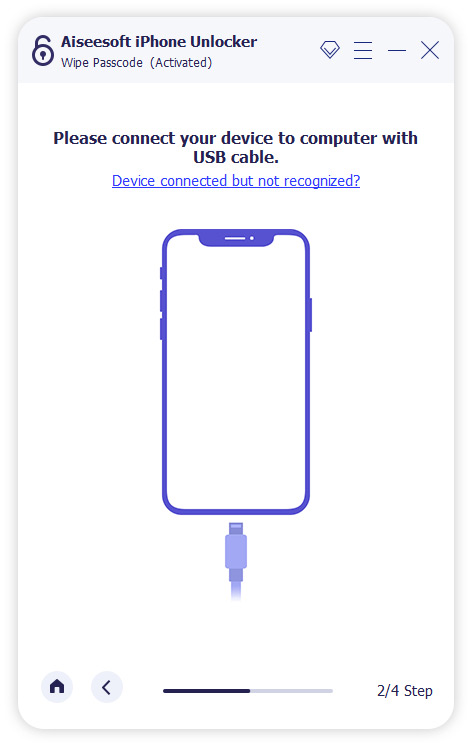
Step 2. Connect Your Device
Click Start, then connect your iPhone, iPad, or iPod to your computer using a USB cable.
Step 3. Confirm Device Details
Check that the device information shown is correct. Click Start to move on.
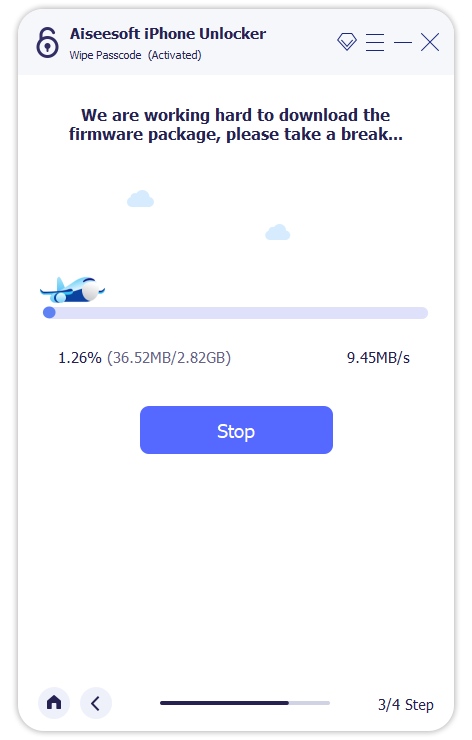
Step 4. Download the Firmware
The software will now download the required firmware to remove the passcode.
Once the download is complete, a confirmation window will appear. Follow the instructions on-screen, type “0000” to confirm, and click Unlock.
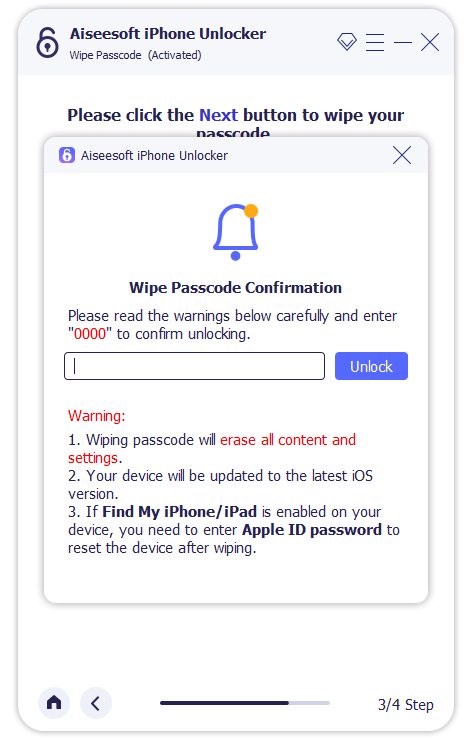
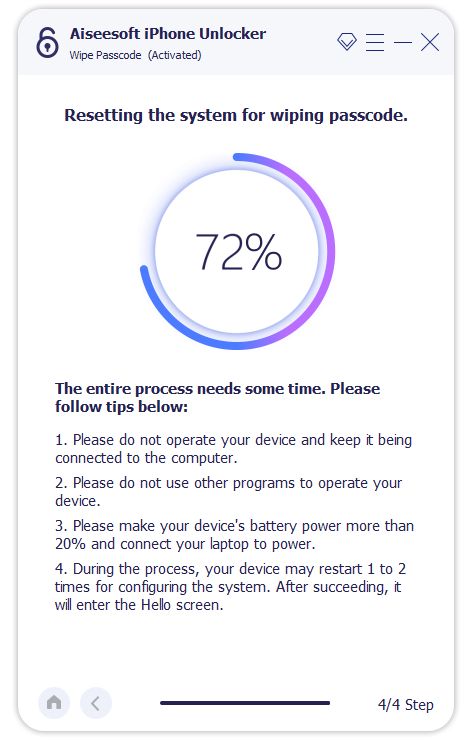
Next, click Next to begin wiping the passcode. Make sure your device stays connected throughout the process.
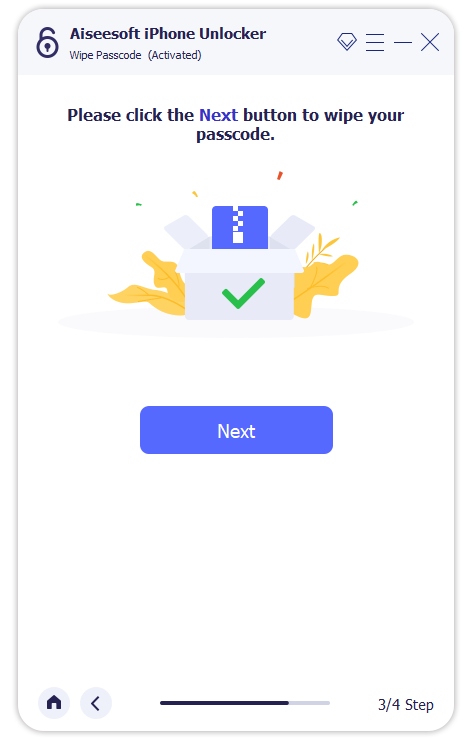
After a few minutes, the screen passcode will be successfully removed.
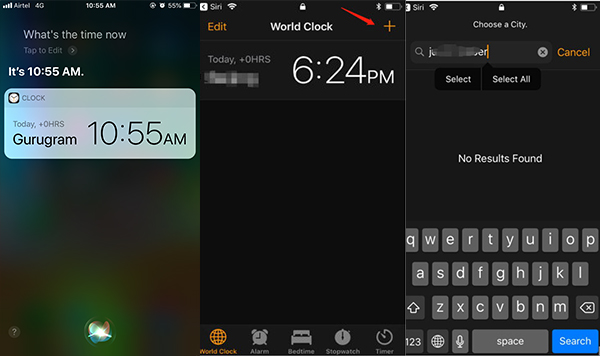
If the iPhone you’re trying to access is running iOS 10.3.2 or 10.3.3, you can try a Siri trick to get into the device. This method is a bit tricky but won’t cause any data loss. Just follow these steps:
Step 1. Press and hold the Home button to activate Siri, then ask, “What time is it?”
Step 2. Tap the clock icon to open the Clock app, then tap the + icon in the top-right corner.
Step 3. Type any random text, then press and hold the text to bring up the options, and select Share.
Step 4. From the sharing menu, choose the Messages app, type something in the “To” field, then tap Return on the keyboard.
Step 5. Tap the + icon to create a new contact, then press the Home button to go back to the Home screen.
If the Siri method doesn’t work, you can put the stolen iPhone into Recovery mode and restore it using iTunes. Keep in mind, restoring in Recovery mode will erase everything on the device, including the screen lock. If you’re unsure how to do this, follow these steps to unlock the iPhone without the passcode:
Step 1. Open iTunes on your computer and connect your iPhone with a USB cable.
Step 2. Turn off your iPhone, then enter Recovery mode:
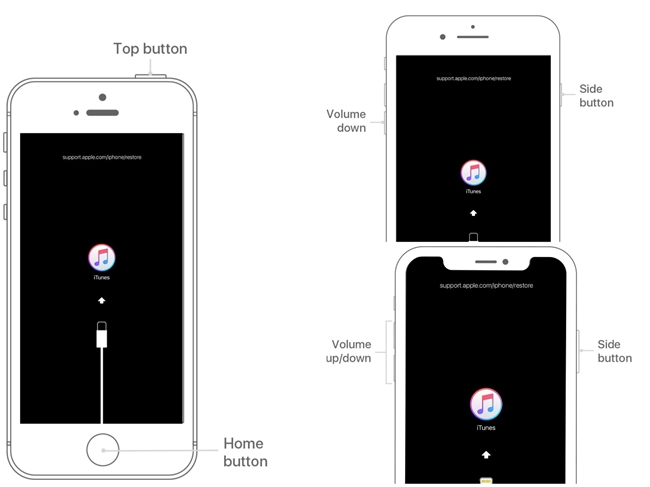
Step 3. Once your iPhone is in Recovery mode, iTunes will show a popup. Click Restore to erase and unlock the iPhone.

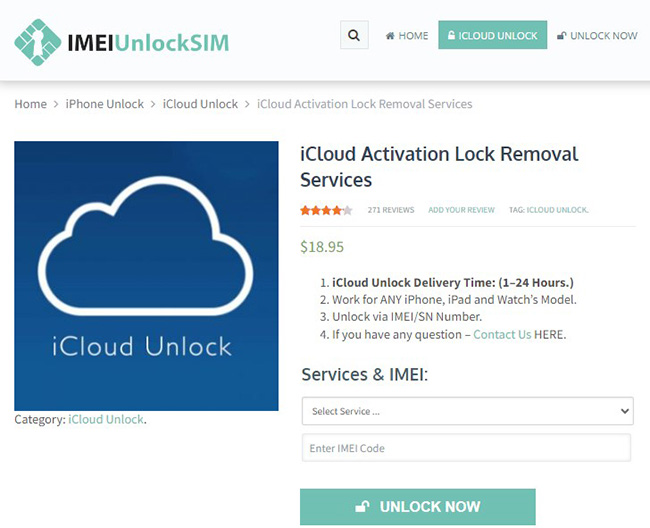
IMEI Unlock SIM is a website that offers services to remove different types of locks on iOS devices. For stolen iPhones, which usually have Activation Lock enabled, this site claims to help bypass those locks.
A thief could visit IMEI Unlock SIM, enter the stolen iPhone’s IMEI or serial number, and pay for an unlock service. After about five to ten days, the iPhone might be remotely unlocked and become usable.
While such services might help if you buy a second-hand iPhone and can’t reach the previous owner, they are not intended for stolen phones. If you report your iPhone as lost to Apple and it’s blacklisted, it becomes much harder—often impossible—for anyone to unlock it. Blacklisted iPhones are protected and rarely get unlocked.
Q1. Can a stolen iPhone be unlocked?
If you didn’t turn on Lost Mode before your iPhone was stolen, it might be possible for someone to unlock it using certain methods. That’s why it’s very important to enable Lost Mode as soon as your phone goes missing. If you have Find My iPhone turned on, the thief won’t be able to unlock it.
Q2. What should I do if I find a lost iPhone?
Check if Lost Mode is on. If it is, there should be contact info to reach the owner.
Q3. What to do if your iPhone or iPad is stolen?
Q4. How to check if a used iPhone you bought is stolen
Ask the seller for the IMEI number or find it yourself by dialing *#06#. Then use websites like Swappa.com to check if the phone is blacklisted or stolen.
That’s all you need to know about unlocking a stolen iPhone. If you think the iPhone you bought is stolen, the steps above can help you unlock it easily. Some methods may erase your data, so follow the instructions carefully. If you have questions or problems, feel free to leave a comment. You can also try using iOS Unlocker, a tool that makes unlocking iPhones simple and safe. We’re here to help you get your device working again without trouble!
Prompt: you need to log in before you can comment.
No account yet. Please click here to register.
 (11 votes, average: 2.36 out of 5)Loading...



