All posts by DHZ

How to Transfer Media Files from iPhone to Huawei P9

“I bought a Huawei P9 phone as the birthday gift for my mother,however,she want to switch the songs and videos from her old iPhone 5 to the new Android.I haven’t used Android phone ever,I have no ideas at all.Anyone give me the good advice?”-Alex

Huawei’s smartphones have been gaining in both quality and popularity in recent times.Huawei is gradually becoming a global smartphone contender due to its recent flagships that are well-received and raved about.The Huawei P9 sports a 3,000 mAh non-removable lithium-ion battery, which is just enough for a day’s worth of use. It doesn’t have either wireless or true fast charging support. The Huawei P9 provides over eight hours of video playback, over nine hours of web browsing and about 15 hours of 3G phone calls.If you need to switch between iPhone and Android,just read the passages following.Here is a one-click solution using a program step-by-step manual approach to transfer media files from iPhone to Huawei Android.

Export Media Files from iPhone to Huawei P9

Thanks to iOS & Android Manager,you are able to transfer files between iOS and Android device without hassle,switch media files from iPhone to Huawei P9 easily,including music,videos,photos,even contacts,SMS,and apps.iOS & Android Manager is capable of transferring files between iOS/Android device and computer,transferring files between iOS/Android device and iTunes.It’s a helpful data manage for iOS and Android device indeed.Supported Android devices:Huawei(P9/Mate 9),Google(Pixel,Nexus),Samsung(Galaxy S7/S6/S5,Note 5),HTC,Motorola,LG,ZTE,Sony and so on.Supported iOS devices:iPhone 7(Plus),iPhone 6S(Plus),iPhone 6(Plus),iPhone 5S/5C/5,iPad and iPod.


d_win d_mac

One Click to Switch Media Files from iPhone to Huawei P9

Step 1.Run Program and Connect Devices to Computer
Install and run iOS & Android Manager and connect both iPhone and Huawei P9 to the computer at the same time.
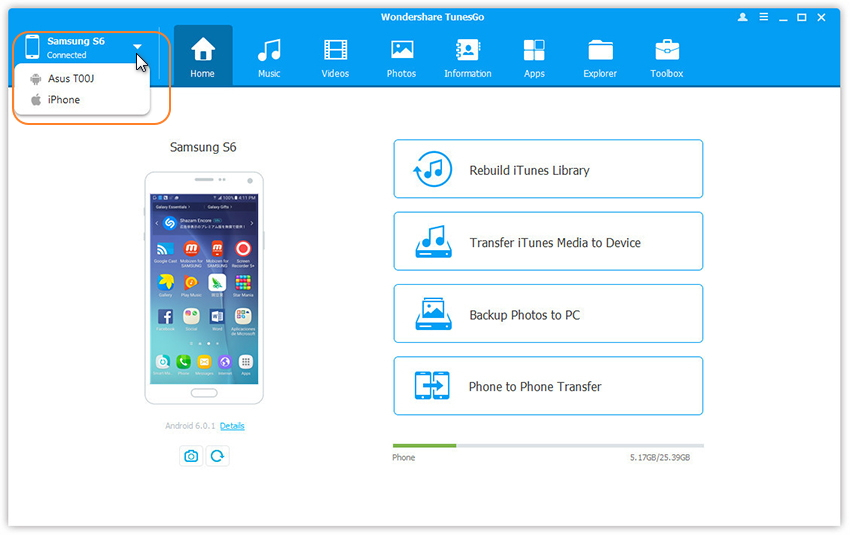
connect multiple devices

Step 2.Setting the Source Device on Program
You should select iPhone as the source device from which you want to transfer media files.

Step 3.Select the Transfer Option
Simply click Phone to Phone Transfer in the main interface of program.Or find the Phone Transfer option under Toolbox > Transfer Tools section.
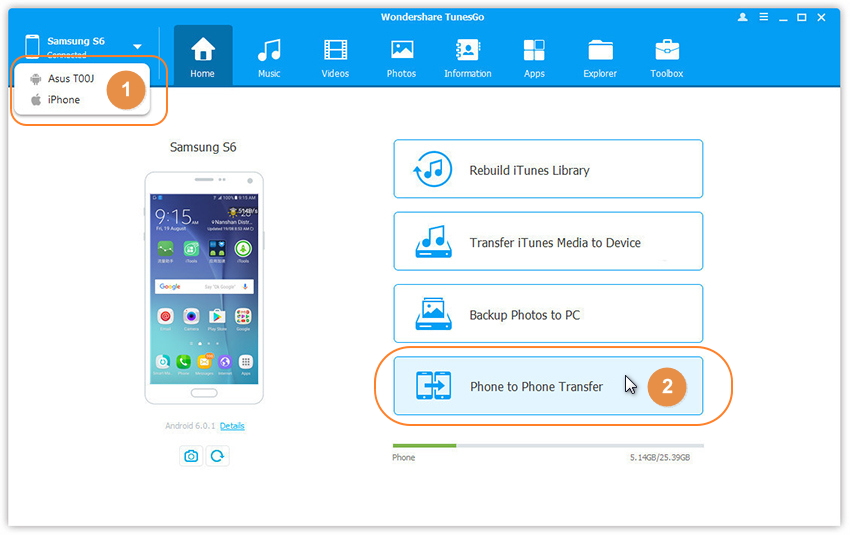
iphone to huawei transfer

Step 4.Setting the Target Device on Program
Once your devices are connected and detected by, you’ll get a window as following.Select Huawei P9 as the target device from the drop-down list and click Next.
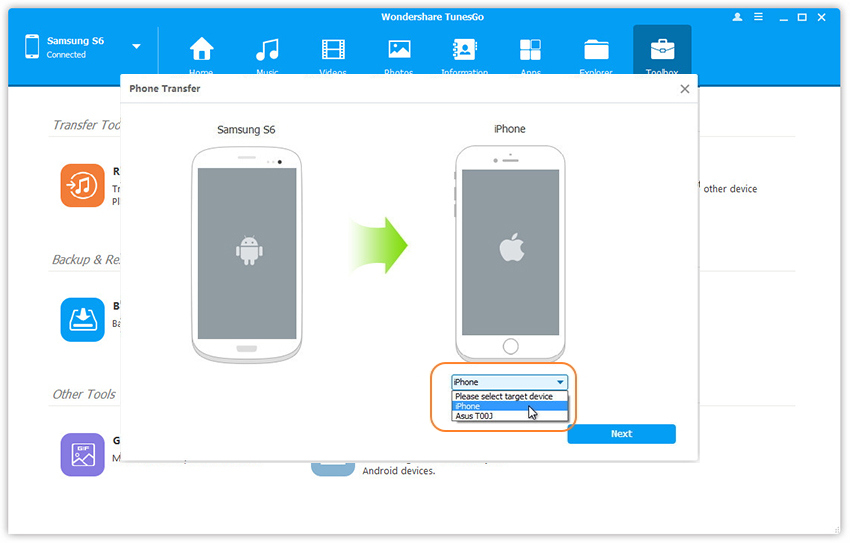
select phone transfer

Step 5.Transfer Media Files from iPhone to Huawei P9
All Files on your source device that can be transferred are ticked by default,contacts, photos, playlist, music and videos are included. You can untick the data you don’t need. Then,click Transfer.Please keep the connection of the devices and computer until the transfer process is end.Click OK when the transfer finished.
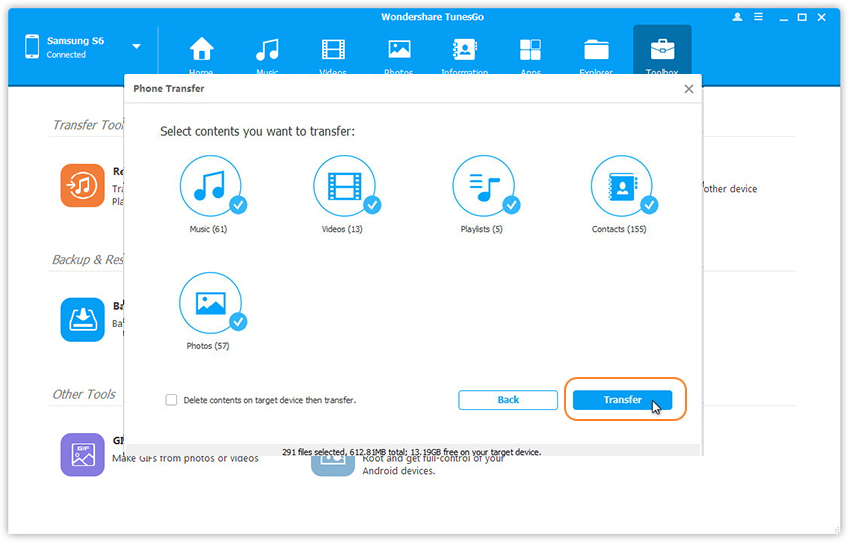
transfer iphone media files to huawei

Tips:
1. Contacts are not supported by Mac version.
2. Windows users can tick the option: Delete contents on target device then transfer, then the selected contents on the target device will be deleted firstly before the transfer. (Only for Windows version)

d_win d_mac

Related Article:

How to Transfer Media Files from Samsung Android to Huawei P9

How to Recover Deleted Data from Huawei P9

How to Manage Android on Computer

How to Recover Live Photos on iPhone 7/6S(Plus)

“I try to backup the live photos on my iPhone with iTunes library,however the I get the prompt that ‘iTunes cannot sync photos to the iPhone because your Photos Library is not yet available. Please try it again later’ .Last night I deleted the live photos on my iPhone 6S by mistaken operation,what really made me feel regret a lot.How can I recover the deleted live photos from device without backup?Thanks so much.”-Zoe

Apple live photo is a full-on 12-megapixel photo that animates 1.5 seconds of motion before and after the still.Sounds so cool, right?Apple released a new features – live photos for iPhone 6s (Plus),iPhone 7(Plus),which allow people to record the memorable moments more vividly and impressively.However,losing photos from iPhone always drive you crazy,especially when you have no backup.Take it easy,this article is showing you the simple steps to directly restore deleted live photos from iPhone.

Recover Live Photos from iPhone 6s/6s Plus/7/7 Plus

iPhone Data Recovery is your best choice to recover deleted files from iPhone,iPhone Data Recovery is capable of restoring deleted live photos on iPhone 6S/7 with any format,such as .jpg, .png and .gif.Besides photos and live photos,iPhone Data Recovery enables to recover different types of deleted iPhone data,including contacts,messages,video,calendar & reminder,apps & apps data,call history,voice memo,note,WhatsApp messages, Viber messages, Kik messages and more.It provides three recovery modes for you to get back deleted iPhone data:directly recover from iPhone,recover from iTunes backup,recover from iCloud backup.All models of iOS devices are applicable to iPhone Data Recovery,like iPhone 7(Plus),iPhone 6S(Plus),iPhone 6(Plus),iPhone SE,iPad Pro and iPad Mini 4.

d_win d_mac

How to Restore Deleted Live Photos from iPhone 7/7 Plus

iPhone Data Recovery provides the “Smart Recovery” function for you to recover data when you are not sure the circumstances of losing data on device,if you are in this case,here I suggest you click the “Smart Recovery” option to choose How You Lost Your Data,which will help to complete the data recovery efficiently.

smart iphone data recovery

Step 1.Connect iPhone 7/7 Plus to the Computer
Please download and run the iPhone Data Recovery on computer then click “Recover from iOS Device” recovery mode,then connect your iPhone to the computer via an USB cable.

connect iphone with computer

Step 2.Select the File Types to Restore from iPhone
Choose the file types you need to recover from iPhone,such as,contacts,SMS,photos,video,calendar & reminder,note,apps & apps data,call history,voice memo,etc,.If you just need photos recovery,just click “Photo” and then click “Next” to going on.

select file to recover

Step 3.Scan iPhone for Deleted Live Photos
Click “Scan” to search for your deleted data,then the program will begin to scan your device automatically for the existing and deleted data.

scan iphone for deleted data

Step 4.Selectively Preview and Recover Deleted Live Photos from iPhone 7
When the scanning is finishes,all found data will be displayed in categories,just click the data you need to preview,then click “Recover” to restore the selected data to computer.

directly recover deleted live photos from iphone

d_win d_mac

Related Article:

How to Recover Deleted Data from iPhone

How to Recover Deleted Photos from iPhone

How to Recover Lost Photos from iPhone after iOS 10 Update

How to Recover Deleted Call Logs from Google Pixel

“I erased the call logs on my Google Pixel phone last night,thinking they are of no use.Now I considered that I was wrong.I have been expecting an email from a travel company which hasn’t come.But,I had a call from them.How can I recover the deleted call number from my Google Android?”-Luck

Google released two Pixel series of mobile phones are used to replace the Nexus series models,they are using the flagship level of configuration, running the newest version of Android 7 Nougat system.With excellent camera,solid battery and unlimited storage for photos and videos, Google Pixel attracts a lot of Android users for its bright features after releasing.To many Android users,it is still worthy to buy a Google Pixel phone and enjoy the mobile trip on this smart phone.However,it is almost inevitable that personal data might get deleted before backing up.Here is a practical guide on recovering deleted call history from Google Pixel.

Restore Deleted Call Logs on Google Pixel

There are many data recover software you could choose in the market.Here I recommend Android Data Recovery for you.It has been reported that a good data recovery software can restore deleted data from Android mobile device without backup.Android Data Recovery enables to recover deleted call logs from Google Pixel completely and selectively.With this helpful software,you are allow to restore various of deleted Android data,such as,call logs,contacts,messages,photos,videos,audio,documents,etc,.Android Data Recovery works well for most brands of Android device,for instance,Google (Pixel,Nexus),Huawei (Mate 9,P9),Samsung (Galaxy S7/S6/S5,Note 5),HTC,Motorola,Lenovo,LG,ZTE,and so on.

d_win d_mac

How to Recover Deleted Call Logs on Google Pixel

Step 1.Run Android Data Recovery and Connect Google Pixel to the Computer
Download and install Android Data Recovery on your computer. Run it and then connect your Google Android phone to the computer via an USB cable.

connect google pixel with computer

Step 2.Enable USB Debugging on Google Pixel
When you see a message prompt on your phone, click “OK” to enable USB debugging. For different Android version, the steps are similar.If you had enabled USB debugging on it before,just skip this step. Then click on “Development” and tick “USB debugging”.

enable usb debugging on google pixel

Step 3.Select Deleted Data to Scan
Choose the file type you wanna recover from Google Pixel.For call history recovery,just click “Call Logs”.Then click on “Next”.

select file tpye to recover from google pixel

Step 4.Scan the Data on Google Pixel
Click “Allow” to allow the program to scan your phone. And then you will see the following window.

allow scan google pixel

Then the program will start analyzing data on your device with few minutes.

scan google pixel for deleted call logs

Step 5.Preview and Restore Lost Call Logs from Google Pixel
Preview and mark the data you want and click “Recover” to save the selected data to your computer.

recover deleted call history google pixel

d_win d_mac

Related Article:

How to Recover Deleted Data from Pixel

How to Recover Deleted Contacts from Pixel

How to Recover Deleted Photos on Pixel

How to Backup and Restore Google Pixel

How to Recover Data on Wiped iPhone

“Hello.My iPhone 6 was wiped completely after I attempting to iOS 10 update.I was regret doting it,now all the iPhone data were lost.Are there any ways to get my iPhone data back?Appreciated!”-Amy

Generally,there are many cases will lead to wipe data on iPhone,such as,restore device to factory resetting,iOS update,iOS jailbreak,device broken/damaged,etc,.It sounds impossible to recover wiped data from iPhone in common way.So it’s really a terrible situation that you get into the trouble of restoring a wiped iPhone.Have you ever encountered the similar situation? How do you recover data from wiped iPhone?In this page,I will show you the useful guide on recovering data from a wiped iPhone even though haven’t backup.

Restore Files from Wiped iPhone

In the introduction I strongly recommend this powerful data recovery for you- iPhone Data Recovery,which is a professional data recovery software designed to help iPhone, iPad and iPod touch users to get back lost files.With the help of iPhone Data Recovery,you are able to recover files from wiped iPhone selectively.The recoverable data including contacts,SMS,photos,video,calendar & reminder,note,apps & apps data,call history,voice memo,etc,.iPhone Data Recovery empowers to recover iPhone data with three recovery modes:directly recover from iPhone,recover from iTunes backup,recover from iCloud backup.

d_win d_mac

Part 1:How to Directly Recover Wiped Data from iPhone

The iOS Data Recovery provides the “Smart Recovery” function for you to recover data when you don’t know the circumstances of losing data on device,if you are in this case,we suggest you click the “Smart Recovery” option to choose How You Lost Your Data,which will improve the rate of data recovery.

smart iphone data recovery

Step 1.Connect iPhone to the Computer
To recover wiped data from iPhone directly,please download and run the iPhone Data Recovery then click “Recover from iOS Device” recovery mode,then connect your wiped iPhone to the computer via an USB cable.

connect iphone with computer

Step 2. Select the File Types You Wanna Restore
Choose the file types you need to recover from iPhone device,including contacts,SMS,photos,video,calendar & reminder,note,apps & apps data,call history,voice memo,etc,.If you want to recover all wiped data from iPhone at once,please click “Select all” option,then click “Next” going to.

select file to recover

Step 3.Scan Your iPhone for Wiped Data
Click “Scan” to search for your wiped data,then the program will begin to scan your device automatically for the existing or wiped data.

scan iphone and search wiped data

Step 4.Selectively Preview and Recover Wiped Data from iPhone
After the scanning,all found data are displayed in categories,just click the data you need to preview,then click “Recover” to restore the selected data to computer.

recover sms from iphone

d_win d_mac

Part 2:How to Recover Wiped iPhone Data from iTunes Backup

Step 1.Select iTunes Backup File to Scan
When launching the program, switch to the “Recover from iTunes Backup” mode to extract backup data from iTunes file.

select itunes backup file

All your iTunes backup files of iOS devices will be automatically found and listed here.Select one of your target and click “Scan” button to begin iTunes backup file extracting.

Step 2.Selectively Preview and Restore iPhone Wiped Data from iTunes Backup
When the scanning finishes,all your backup data by iTunes can be found and displayed in categories.You are allow to preview them one by one and complete data recovery.

recover wiped sms from itunes

Click “Recover” to restore the selected data to your computer after previewing.

d_win d_mac

Related Article:

3 Best Ways to Recover Deleted Data from iPhone

How to Restore iPhone Data from iTunes/iCloud Backup

How to Restore iPhone Data after iOS 10 Update

How to Restore iPhone Data after iOS 10 Jailbreak

How to Recover iPhone Contacts from iTunes, iCloud

“I lost my contacts on my iPhone 6S by the mistaken operation.I backup the data with iCloud a week ago.How do I restore the deleted contacts from icloud to my iphone?Can anyone advise please?”-Alice

“Owing to I have lost all my contacts after update my iPhone 5S to iOS 10, I want to know can I get my contacts from the iTunes backup.If it is possible,please send me a detailed guide to operate.”– An User from Cnet Forums

Contacts may disappear under many different circumstances,such as,mistaken deletion,iOS upgrade,iOS jailbreak,restore device to factory resetting,device lost or damage,etc,.It is relatively easy to restore lost contacts with iTunes/iCloud backup.However,if you have no backup of iPhone contacts,it is also have chance to restore lost contacts from iPhone directly.

Recover iPhone Contacts via iTunes,iCloud Backup

In this guide we recommend you an iOS data recovery tool named iOS Data Recovery, which allows you to restore lost contacts from iTunes/iCloud backup completely, and offer you a perfect solution on restoring lost contacts from iPhone directly.Not only contacts,but also other types of iPhone data are supported to be restored by iOS Data Recovery,including photos,messages,videos,note,calendars&reminder,call logs,apps data & attachments,and so on.iOS Data Recovery works well for almost all models of iOS devices,like iPhone 7(Plus),iPhone 6S(Plus),iPhone 6(Plus),iPhone 5S/5C/5,iPad Air 2,iPad Pro,iPad Mini 4/3.Let’s get it started!

d_win d_mac

Part 1:How to Recover iPhone Contacts via iTunes Backup

The iOS Data Recovery offers the “Smart Recovery” function for you to recover data quickly and easily.If you don’t know the circumstances of losing data on device,we suggest you click the “Smart Recovery” option to choose How You Lost Your Data,which will improve the rate of data recovery.

smart iphone data recovery

Step 1.Select iTunes Backup File to Scan
When launching the program, you’ll be lead to the “Recover from iOS Device” mode (the default mode).Switch to the “Recover from iTunes Backup” mode to extract previously data from iTunes backup file.

select itunes backup file

All your iTunes backup files of iOS devices which has ever synced with iTunes on your computer will be automatically found and listed here.Select the one of your wanna and click “Start Scan” button to begin iTunes backup extracting.

Step 2.Selectively Preview and Restore iPhone Contacts from iTunes Backup
When the scan finishes,all your backup files by iTunes can be found and displayed in categories.You are allow to preview them one by one and complete data recovery.

recover iphone contacts itunes backup

Please choose “Contacts” item and click “Recover” button to restore the selected contacts to your computer.

d_win d_mac

Part 2:How to Recover iPhone Contacts via iCloud Backup

Step 1.Sign in your iCloud Account to Login
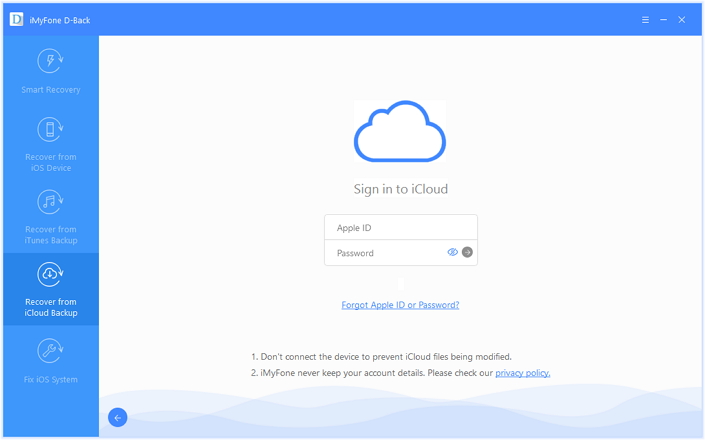
Install the iOS Data Recovery program on computer and select “Recover from iCloud Backup” mode.Enter your ID and Password to get the iCloud backup.

sign in icloud account to login

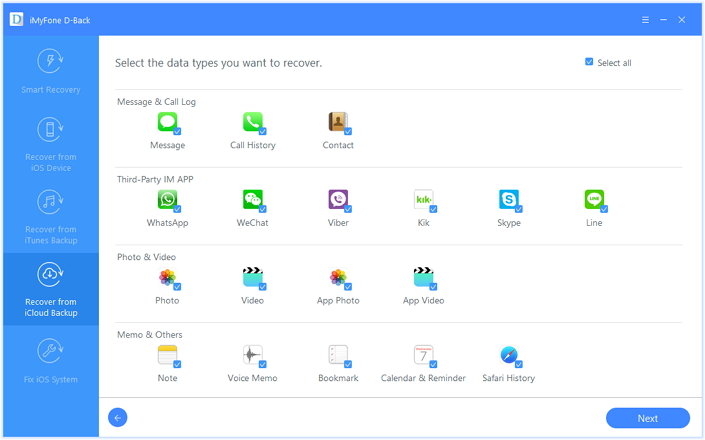
Step 2.Select Files to Restore from iCloud Backup File
The program help you to selectively recover data from iCloud backups,including contacts,photos,videos,notes,SMS,and more,please select the file types you need.

select the file types

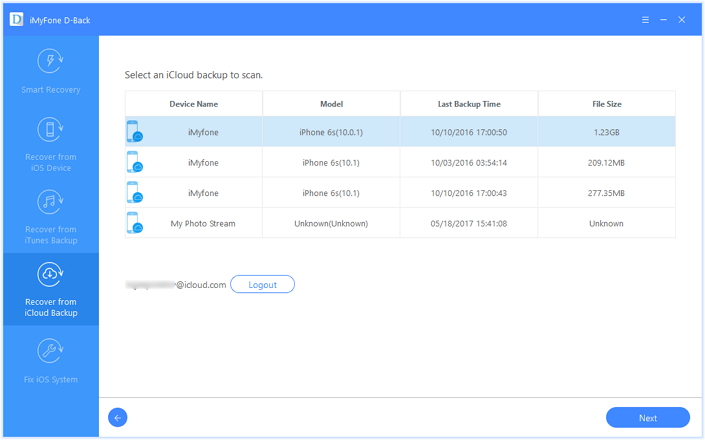
Step 3.Download iCloud Backup File
Click “Download” button to download your desire backup file from iCloud,and move on to the next step.

download icloud files

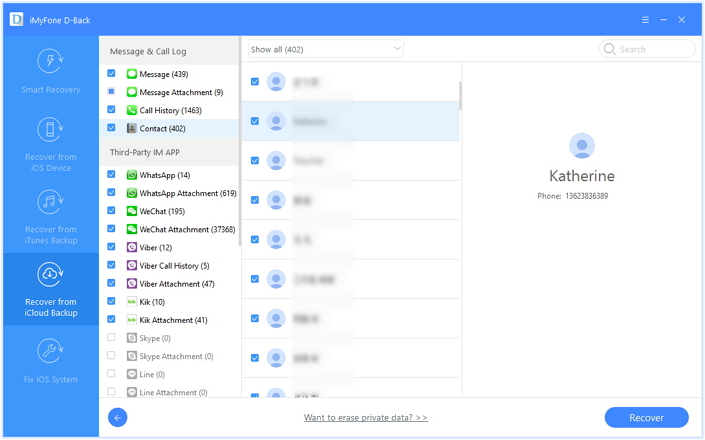
Step 4.Preview and Restore Lost iPhone Contacts from iCloud Backup
When the download process is completed,the program will scan and analyze the downloaded data,then it will search the results and list to you.Please select the data you need and preview them before recovery,and then click “Recover” button.

recover iphone contact icloud

d_win d_mac

Related Article:

How to Recover Deleted Contacts from iPhone

How to Recover Deleted Data from iPhone

How to Recover Lost Contacts on iPhone

How to Recover Lost Contacts on iPhone after iOS 10 Update

How to Recover Deleted Call History on iPhone

“Yesterday I got the phone call from my best phone Lily,at the end she told me that it was her new phone number,she let me keep it on my iPhone.However I hurried to go out to pick up my mother and forgot to save her new number.This morning my naughty daughter deleted all call history on my device,I was very angry with it.How can I restore the deleted number rapidly?”-Fiona

A part of iPhone users encounter such kind of problems:they delete the call history carelessly and eager to get back the lost number from device.It’s common case that sometimes you pick up the call and then forget to save the important phone number,then it lost.You may want to restore it that though you don’t need it anymore initially.To be honest,it’s possible to recover deleted call logs with the help of the useful software.Now you could stop searching for help if you are reading this page.Here is the detail guide on recovering deleted call logs from iPhone selectively.

Restore Deleted Call History on iPhone

iPhone Data Recovery is a reliable tool,designed for iPhone users to recover deleted call history from iPhone without backup,including incoming calls, outgoing calls and missed calls.iPhone Data Recovery enables to restore deleted files on iPhone,like call logs,contacts,photos,messages,notes,WhatsApp messages & attachments,voice memos,calendar & reminder,etc,.There are three recovery modes to be used to recover iPhone data – directly recover data from iPhone,recover from iTunes backup,recover from iCloud backup.Additionally,iPhone Data Recovery helps to recover data after losing data under any circumstances,such as deleted carelessly,device broken/damaged,restore device to factory resetting,iOS update,iOS jailbreak and others.

d_win d_mac

How to Directly Recover Deleted Call History from iPhone

The iPhone Data Recovery provides the different data recovery modes for restoring data,including “Recover from iOS Device”,”Recover from iTunes Backup”,”Recover from iCloud Backup”,and “Smart Recovery”.The “Smart Recovery” is designed for helping to restore data when you don’t know which is your circumstance of data loss on device.If you don’t know choose which recovery mode to restore lost iOS data,here we suggest you to click the “Smart Recovery” feature then choose How You Lost Your Data.

smart iphone data recovery

Tips:This recovery mode allows you to restore deleted files from your device without backup.

Step 1.Run Program on the Computer
Firstly,please install and run iPhone Data Recovery on computer.Select the “Recover from iOS Device” recovery mode.Click “Start” to start the recovery process.

connect iphone with computer

Step 2.Select Deleted File to Scan by Program
You should select the “Call History” to be scanned by program,then connect iPhone to the computer.You are allow to select more than one files to be scanned by program,then click “next”.

select file to recover

Then the program will begin scanning your device automatically for deleted data after clicking “Scan”.

scan iphone and search deleted data

Step 3.Preview and Directly Recover Deleted Call Logs from iPhone
When the scanning is completed,you are allow to preview and directly recover the deleted call logs from iPhone.Select the data you want and click “Recover to Computer” to save the selected data on computer.

recover deleted call log iphone

d_win d_mac

Related Article:

How to Recover Deleted Data from iPhone

How to Recover Deleted Contacts from iPhone

How to Recover Deleted Photos from iPhone

How to Recover Deleted Voice Memo from iPhone

How to Recover Lost Call History from Samsung Galaxy S7

“An important client called me last day I forgot to save the number and then I update the Android system on my phone and the call logs has gone.Now I need to get back the lost call history that related my to work.BTW,My phone is Samsung Galaxy S7.How?”– Nancy

Call history,one of the important personal data.It happens often that we forget to save the call numbers after he/she calls.And later when needed,the call logs may be gone forever.Well,at least that was common for me.The call history was one of the items that I always ignore.However,it was hard to recover deleted call logs on a Samsung Android device).But,now we can easily do that with the help of a powerful tool-Android Data Recovery.

Recover Lost Call History from Samsung Galaxy S7

Android Data Recovery-our strongly recommend for you,a professional data recovery tool for Android device,supports most of Android device and even rooted Android.With this wonderful Android Data Recovery,you are able to restore lost call logs from Samsung Galaxy S7 completely.Besides call logs,Android Data Recovery empowers to recover various of files type of Android:contacts,messages,photos,videos,audios,documents,etc,.Android Data Recovery works well for most of Android device,including Samsung(Galaxy S7/S6/S5,Note 5/4),HTC,Motorola,Google(Pixel,Nexus),Huawei (Mate 9,P9),ZTE,and so on.

d_win d_mac

How to Recover Lost Call History on Samsung Galaxy S7

Step 1.Run Android Data Recovery and Connect Samsung to the Computer
Download and install Android Data Recovery on your computer. Run it and then connect your Samsung phone to the computer via an USB cable.

connect samsung galaxy s7 with computer

Step 2.Enable USB Debugging on Samsung
When you see a message pop up on your phone, click “OK” to enable USB debugging. For different Android version, the steps are similar.If you had enabled USB debugging on it before,just skip this step. Then click on “Development” and tick “USB debugging”.

usb debugging samsung phone

Tips
:For Galaxy S7 or S7 edge,please click “Allow” on the phone and going  on.

allow to continue connect samsung s7

Step 3.Select Lost Data to Scan
Choose the file type you need to recover from Samsung.For call history recovery,just click “Call Logs”.Then click on “Next”.

select file tpye to recover from samsung s7

Step 4.Scan the Data on Samsung
Click “Allow” to allow the program to scan your phone. And then you will see the following window. Then the program will begin to analyze data on your device,it will take you a little time.

allow scan the samsung s7

scan samsung galaxy s7 for lost call logs

Step 5.Preview and Restore Lost Call Logs from Samsung
Android Data Recovery enables to restore data including text messages, contacts, photos and videos,etc, from your Samsung device.Preview and mark those you want and click “Recover” to save them to your computer.

recover call history samsung s7

d_win d_mac

Related Article:

How to Recover Lost Data from Samsung Galaxy S7

How to Recover Lost Photos on Samsung Galaxy S7

How to Recover Lost Data from Broken Samsung Galaxy S7

How to Enable USB Debugging on Android

“I need to transfer the favorite films from computer to my Samsung Android phone. It still stuck in the loop that reminds me to enable thee USB debugging on my device. I try to do it but failed.So how do I enable USB debugging on my Android device properly?”-Tina

Generally,USB debugging is off in the normal state of mobile device,so you should go to turn it on if necessary,while what USB debugging works for?Actually,USB debugging mode functions as a developer to allow you to copy data between phones/tablets and computer,install apps on devices with ease,and apply some programs on computer which cooperates with Android devices.The approaches of setting up USB debugging depend on the versions of Android OS.The following passages we are showing you how to enable USB debugging with different Android OS.

Tips:
1.Android 4.2 or later:
Samsung Galaxy S7/S6(Edge)/S5,Samsung Galaxy Note 5/4/3/2,Samsung Galaxy Tab S/Pro, LG G4/G3/G2, HTC M10/M9/M8,Google Nexus,Google Galaxy Nexus/Nexus S, Xperia Z3/Z2/T3/M2/Z1, etc,.

2.Android 3.0 – 4.1:
HTC ONE M7, HTC EVO 4G LTE, etc,.

3.Android 2.3 or earlier
Samsung Galaxy S2, Google Nexus One, etc,.

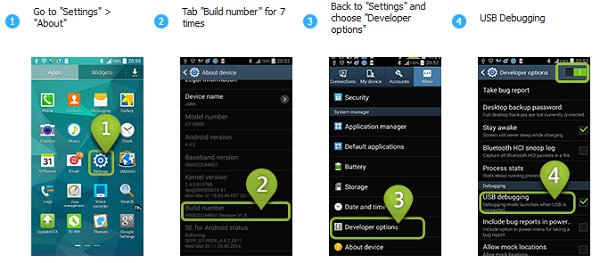
Part 1.Enable USB Debugging on Android 4.2 or later

Step 1.Go to “Settings” > “About phone”.

Step 2.Tap “Build number” for 7 times till “You are now a developer” pops up.

Step 3.Back to “Settings”.

Step 4.Click “Developer options” > “USB debugging”.

usb debugging 4.0

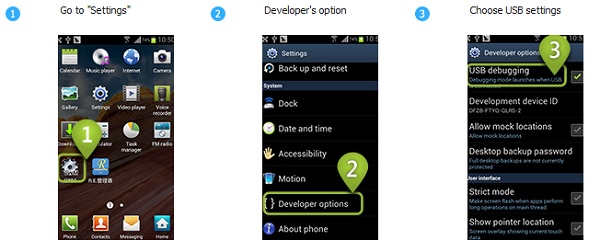
Part 2.Enable USB Debugging on Android 3.0 – 4.1

Go to “Settings” > “Developer options”, and then choose “USB debugging”.

usb debugging 3.0

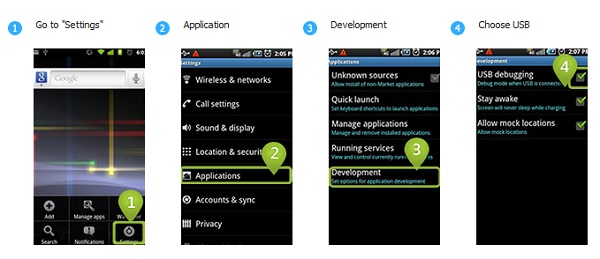
Part 3.Enable USB Debugging on Android 2.3 or earlier

Enter “Settings”, and tap “Applications” > “Development”, and click “USB debugging”.

usb debugging 2.0

Now the Android USB debugging has been enabled successfully,you could manage the Android data freely on computer,for instance,transfer files from computer to device,backup Android files.

How to Recover Deleted Messages from iPad

“Last night I deleted my some important messages on iPad accidently when I was switched to the game, I can’t find them anywhere on my device, I am wondering are there any ways I can get the deleted messages back from iPad?”-Paul

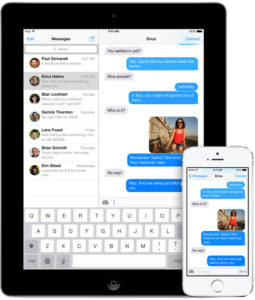
With the evolution of mobile device,text-based modes of communications have changed in the new century.Apple’s version of instant messaging (iMessages) provides the additional benefit of synchronising with other mobile devices – iPad, iPod Touch and even a smartphone. Message conversations have become one of the more valued bits of content saved on an iPad.You could sent messages on iPad and play games at the same time.It’s easily share your location so they know right where you are and it’s a more clear and convenient way for connecting with others.However, suddenly losing messages on device can easily occur through accidental deletion, failed iOS upgrades or even a damaged iPad that can no longer be accessed.

recover-messages-from-ipad

Recover Deleted Messages on iPad without Backup

One of the greatest data recovery called iOS Data Recovery can rescue your iOS device data effectively,help to recover deleted messages from iPad even without backup,including SMS/MMS/iMessage.With iOS Data Recovery,you are allow to easily recover deleted files from iPhone/iPad/iPod after losing data under different circumstances.The recoverable data including messages,contacts,photos,videos,notes,call logs,apps & apps data,voice memos,bookmark,calendar & reminder,etc,.It provide three recovery mode for you:directly recover from iOS device,recover from iTunes backup,recover from iCloud backup.iOS Data Recovery works well for all models of iOS devices,iPhone 7(Plus),iPhone 6S(Plus),iPhone 6(Plus),iPhone 5S/5C/5,iPad Pro,iPad Air 2/1,Pad Mini 4/3/2/1,iPod Touch are included.

d_win d_mac

Part 1:How to Directly Recover Deleted Messages from iPad

The iOS Data Recovery provides the different data recovery modes for restoring,including “Recover from iOS Device”,”Recover from iTunes Backup”,”Recover from iCloud Backup”,and “Smart Recovery”.The “Smart Recovery” is designed for helping to recover data when you don’t know which is your circumstance of data loss on device.If you don’t know choose which recovery mode to restore lost iOS data,here we suggest you to click the “Smart Recovery” feature to choose How You Lost Your Data.

smart iphone data recovery

Tips:This recovery mode allows you to scan your device directly to find all the lost files, or restore lost data from your lost/broken/inaccessible device.

Step 1.Run Program on the Computer
First of all,please install and run iOS Data Recovery on computer.Select the “Recover from iOS Device” recovery mode.Click “Start” to begin the recovery process.

connect ipad with computer

Step 2.Select Deleted File to Scan by Program
You should select the “Message” to be scanned by program,then connect iPad to the computer.You are allow to select more than one files to be scanned by program,then click “next”.

select file to recover

Click “Scan” to search the deleted data from iPad,then the program will begin scanning your device automatically for deleted data.

scan ipad and search lost data

Step 3.Preview and Directly Recover Deleted Messages from iPad
When the scanning is end,you are allow to preview and directly recover the deleted messages from iPad.Select the data you want and click “Recover” to save the selected data on computer.

directly recover deleted sms from ipad

d_win d_mac

Part 2:Recover Deleted Messages on iPad with iTunes Backup

Step 1.Run iOS Data Recovery and Select the iTunes Recovery Mode
Connect your device with your computer and launch iOS Data Recovery on computer.Choose “Recover from iTunes backup” mode and the program will show you all iTunes backups that are available.

Step 2.Extract Files from iTunes Backup
Choose the backup file you want and click on “scan”.When the scanning is completed,you will have a complete list of files that are available for recovering,including messages,contacts,photos,videos,notes,call logs,apps & apps data,voice memos,bookmark,calendar & reminder,etc,.

select recover from itunes mode

Step 3.Preview and Recover iPad Deleted Messages from iTunes Backup
In this step you are allow to select files you want to preview and recover.If you want to recover all files,just check all categories where the files are and click on “recover” .When it is done,you will have your recovered data on your computer.Note:Please do not disconnect your device from computer until the recovery process is end.

recover deleted sms from itunes backup

d_win d_mac

Related Article:

How to Recover Lost Data on iPad Air after iOS 9 Upgrade

How to Recover Lost Data on iPad after iOS 9 Jailbreak

How to Recover Deleted Data from iPhone

How to Recover Deleted SMS from iPhone

How to Recover Deleted Voice Memo from iPhone

“I deleted the voice memos from my iPhone 6 by pressing the deleted button accidently.Now I am searching the best ways to get back these impressive voice files in urgent.BTW,I haven’t backup the lost voice files.Anyone give me some available ways?Thx.”-Luca

In daily life you may have a habit of making the voice memo on iPhone to do the record or in remembrance of something important for you anywhere anytime.For example make the voice memo from your darling so that you can play it when you miss him.However,there will always be something that out of your expectation happen in your life.You may delete these voice files by mistaken operation.Perhaps,you lost them after the iOS update on your iPhone.It’s really a pity that you can’t get back the meaningful voice memos.You might ask:Can I restore the deleted voice memo from iPhone with some special ways?If yes,how can I recover?For most people,they never know how the regular backup is necessary for iPhone users until they lost data on their phone.Here is the solution come for you to recover deleted voice memo from iPhone without backup.

recover-iphone-voice-memos

Recover Deleted Voice Memo from iPhone without Backup

iPhone Data Recovery is a superior data recovery for recovering deleted data on iPhone/iPad/iPod completely,it’s able to restore deleted voice memos from iPhone without backup.Except voice memo,iPhone Data Recovery enables to recover various of deleted data,including contacts,photos,videos,messaging,call logs,documents,WhatsApp messages & attachments,etc,.iPhone Data Recovery empowers to recover deleted data on iOS device for three different modes:directly recover from device,recover from iTunes backup,recover from iCloud backup.Most of iOS device are applicable to iPhone Data Recovery,such as iPhone 7,iPhone 6S(Plus),iPhone 6(Plus),iPhone 5S/5C/5,iPad,iPod.

d_win d_mac

How to Directly Restore Deleted Voice Memo from iPhone without Backup

The iPhone Data Recovery provides the contains several data recovery modes,including “Recover from iOS Device”,”Recover from iTunes Backup”,”Recover from iCloud Backup”,”Smart Recovery”.The “Smart Recovery”help to recover data when you don’t know which is your data loss circumstance.

If you don’t know choose which recovery mode to get back lost data ,we suggest you click the “Smart Recovery” feature to choose How You Lost Your Data,which will improve the rate of data recovery.

smart iphone data recovery

Tips:This recovery mode allows you to scan your device directly to find all the lost files, or restore lost data from your lost/broken/inaccessible device.

Step 1.Run Program and Connect iPhone to the  Computer
Firstly install and run iPhone Data Recovery on computer.Select the “Recover from iOS Device” mode.

connect iphone with computer

Step 2.Select Deleted File to Scan by Program
Now you should select the “Voice Memos” to be scanned by program,then connect iPhone to the computer.You are allow to select more than one files to be scanned by program,then click “next”.

select file to recover

Click “Scan” to search for your deleted data,then the program begins scanning your device automatically for lost/deleted data.

scan iphone and search lost data

Step 3.Preview and Recover Voice Memos from iPhone without Backup
When the scanning is completed,you could preview and recover deleted voice memos from iPhone without backup.Select the data you want and click “Recover” to save the selected data on computer.

directly recover deleted voice memo from iphone

d_win d_mac

Related Article:

How to Recover Deleted Data from iPhone

How to Recover Deleted Contacts from iPhone

How to Recover Deleted SMS from iPhone

How to Recover Deleted Notes from iPhone