All posts by DHZ

How to Connect Google Pixel(XL) to Computer

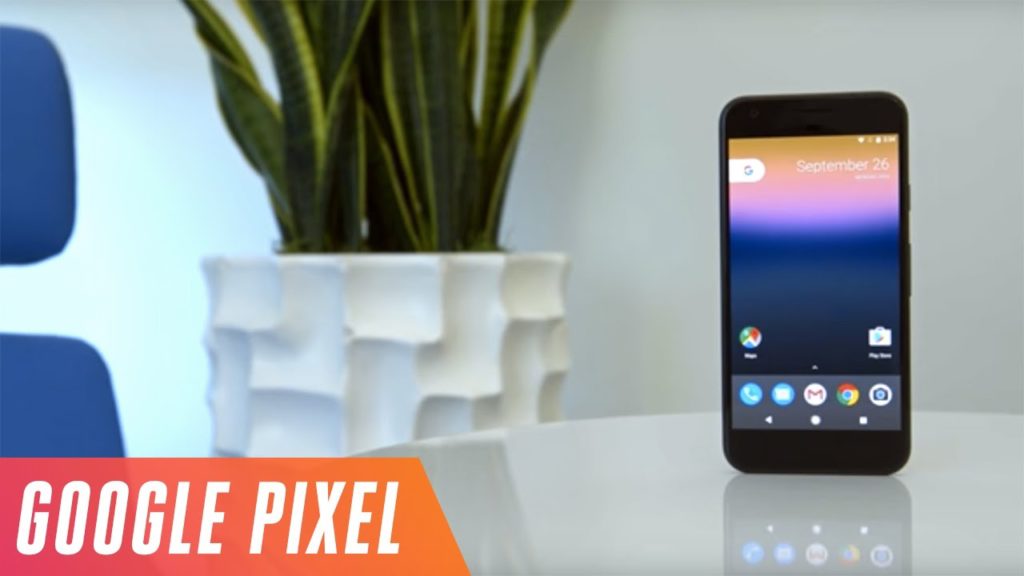
The Pixel (and its bigger counterpart the Pixel XL) has an incredibly capable camera,lightning-quick processor and stylish looks,making it one of our favorite phones.The phone also runs Android the freshest version of Android,Android Nougat.It includes the useful Google Assistant AI bot,who can answer (most) of your user queries using Google’s massive search database,and more.

google pixel

There are a lots of Android users ask the question that how to connect Google Pixel(XL) phone to the computer easily.This article showing you how to connect Google Pixel phone to PC/Mac with easy steps.There are two simple ways to connect Google Pixel to the computer in a short time,one is to use the USB drivers,one is use the normal USB cable.Let’s see how it work.

Part 1:Connect Google Pixel to the Computer via USB Drivers

To connect the Pixel(XL) to the Mac/PC,you can use a software that will allow for the transfer of music, photos, and videos between your Google Pixel and computer.To download this App,please visit the Google website.

Step 1.Download and install the USB drivers for the Pixel or Pixel XL.A window will show up on the Pixel phone screen.(If your computer device is Mac,no need to install any software.)

Step 2.Connect the Pixel to your computer with an USB cable.Drag the notification area down,and make a selection of your choice.

Note:
File Format Supported By Google Pixel or Pixel XL: The Pixel or Pixel XL supports audio files in WAV, MP3, AAC, AAC+, eAAC+, AMR-NB, AMR-WB, MIDI, XMF, EVRC, QCELP, WMA, FLAC, OGG formats and video files in Divx, H.263, H.264, MPEG4, VP8, VC–1 (Format: 3gp, 3g2, mp4, wmv)

Part 2:Connect Google Pixel to the Computer via USB Cable

Step 1.Connect the Pixel or Pixel XL to your computer with an USB cable.

Step 2.A window will show up on the Pixel phone screen.Drag the notification area down, and make a selection of your choice.

Step 3.Connect USB storage.

Step 4.Select, OK.Select the Open folder to view files option on your computer screen.
Done.

The two ways available is use for well connected Google Pixel to the computer for reference.You could choose the one depend on your situation.

Related Google Pixel Article You May Like:

How to Manage Google Pixel on Computer

How to Root Android Pixel Phone

Music Transfer from Samsung Android to Google Pixel/Pixel XL

How to Transfer Data from iPhone to Google Pixel

How to Recover Deleted Data from Pixel

How to Recover Deleted Photos on Pixel

How to Backup and Restore Google Pixel

Bypass Samsung Galaxy S6/S7 Lock Screen Pin/Pattern/Password

I forgot the lock screen password on my Samsung Galaxy S6 phone,how to access my phone without password?Many thanks.”-Lucas

Android comes with built-in protection feature to prevent the personal data that saved on your phone. You can use the medium (Pattern) or high (Password) security, according to your requirement to prevent people from accessing your phone data.The main reason to set up the lock screen pin/pattern/password on your device is aiming for avoid others get your privacy through accessing your phone.However,it’s unfortunate when you forget the lock screen pin/pattern/password.Actually,it’s really not a big deal with this things happen,and it’s not as so bad as you imagine.Though there are various of ways one can bypass the lock screen, all these ways are not effective for all the Samsung Android devices.The following passages will mention several practical solutions to bypass the Samsung Android lock screen when forgotten the pin/pattern/password.

Part 1:Bypass Samsung Lock Screen with Android Device Manager

To bypass Samsung lock screen without password via Android Device Manager,make sure Android Device Manager is enabled on your device.

• Visit google.com/android/devicemanager on other smartphone or computer.
• Log in your Google account that you used on your locked Samsung device.
• Choose the device you want to unlock in ADM interface.
• Click on “Lock” option.
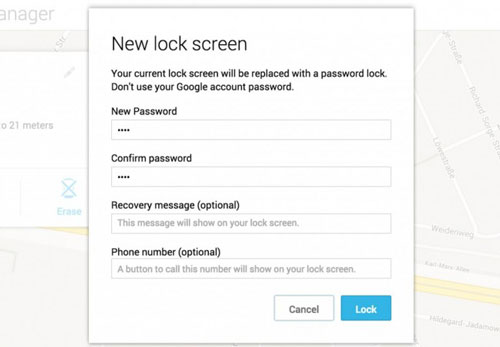
• Enter a password.There is no need to enter any recovery message.Select “Lock” again.
• You would see a confirmation below if it is successful,with “Ring, Lock and Erase” buttons.
• Now you must get the password field on your phone where you can enter your new password and your phone will be unlocked.
• Go to lock screen settings on your device and disable temporary password.

android device manager

Part 2:Bypass Samsung Lock Screen with “Find My Mobile” Service

One of the useful ways that allows to bypass Samsung Android lock screen without password is using the “Find My Mobile” service.You should log in the Samsung account to use this service.

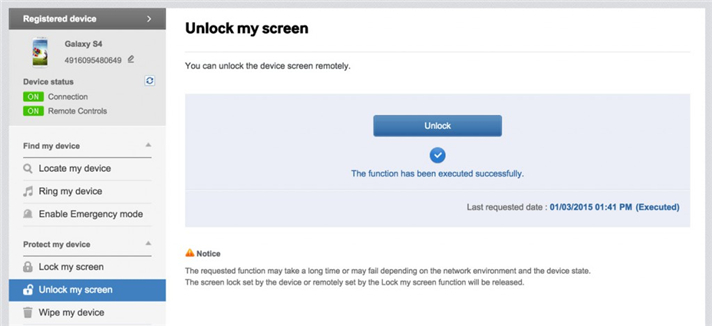
Once logged into the Samsung account, all one needs to do is click the “lock my screen” option on the left and enter the new pin followed by a click on “Lock” button which is present at the bottom.It will help to change the lock password within minutes.This helps bypass Samsung Android lock screen without Google account.

Firstly,set up your Samsung account and log in.
• Click “Lock My Screen” button
• Enter new PIN in the first field
• Click “Lock” button at the bottom
• Within few minutes, it will change lock screen password to the PIN so that you can unlock your device.

find my mobile

Part 3:Bypass Samsung Lock Screen with Google Login(Supports Only Android 4.4 or Lower)

If your device is running on Android 4.4 or lower,here’s the method to bypass Samsung lock screen fast with Google account.

• Enter the wrong pattern for five times
• Choose “Forgot Pattern
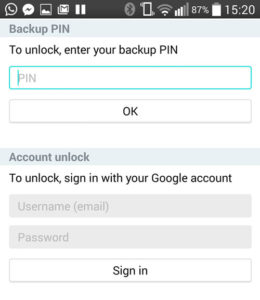
• Enter your Google account login or backup PIN
• Now your phone would be unlocked

log in google

Part 4:Bypass Samsung Lock Screen with Booting into Safe Mode

It is one of the simplest ways to bypass Samsung lock screen without password.Additionally,it is effective if the lock screen is a third party app and not stock.

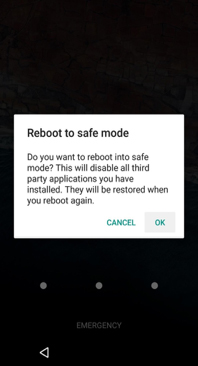
Boot into safe mode by using the power off button and choose “OK”.Open up the Power menu from the lock screen and press and hold “Power Off” option.It will ask if you want to boot in safe mode.Tap “OK“.

Then it ill uninstall the third-party lock screen or just reset the data.Now your device will reboot and get out of safe mode,the lock screen app is removed completely.

reboot to safe mode

Part 5:Bypass Samsung Lock Screen with Android Lock Screen Removal Tool

The 4 solutions below we discussed are not perfect enough,some may lead to data loss on your Samsung Android device.Here is our strongly recommendation for you-Android Lock Screen Removal tool.This wonderful program is famous for unlocking Samsung Android lock screen without data loss.It works well for bypassing Samsung Android lock screen pin/pattern/password effectively.

d_win d_mac

See more Feature of Android Lock Screen Removal Tool:
-Remove 4 lock screen types – pattern, PIN, password & fingerprints.
-Disable Samsung Android lock screen without any data loss.
-Simple and easy to use.
-Supports any carrier out there, including T-Mobile, AT&T, Sprint, Verizon, etc,.
-Work for Samsung Galaxy S/Note/Tab series.Such as Samsung Galaxy S6/S7. More is coming.

Step 1.Run Program and Choose “Android Lock Screen Removal” Option
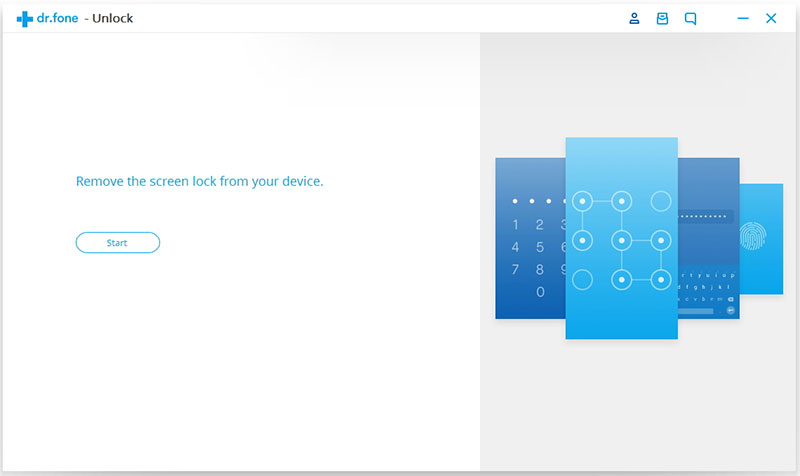
Firstly,launch Android Lock Screen Removal tool and go to “More Tools”.Then choose “Lock Screen Removal” option.

android lock screen removal

This Android Lock Screen Removal tool allows you to remove the password of PIN,patterns, password and fingerprint from Samsung Android.Connect your Samsung device and click “Start” to begin.

select mode

Step 2.Enter the Download Mode on Locked Samsung
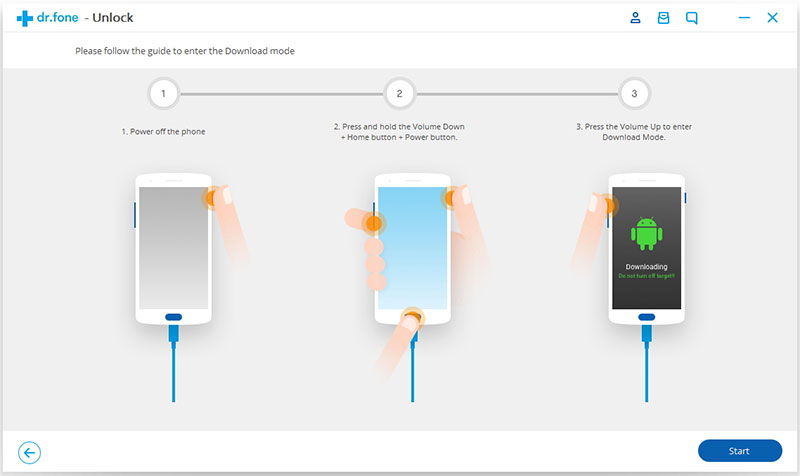
Follow the instructions on the program to get your Samsung phone into Download Mode.

-Power off the phone.
-Press and hold volume down + home button + power button at the same time.
-Press the volume up to enter download mode.

enter download mode lock samsung

Step 3.Download Recovery Package for Samsung
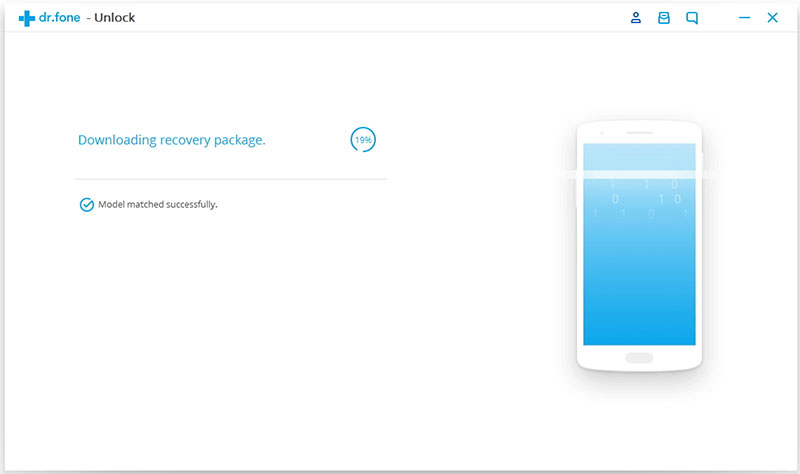
When you get your Samsung into the download mode,it will begin downloading recovery package for your device.Wait until it’s complete.

downloading recovery package for samsung

Step 4.Bypass Samsung Lock Screen Pin/Pattern/Password
When the recovery package downloading is complete,the Android Lock Screen Removal will begin to remove Samsung lock screen without losing data.Once the whole progress is finish after a while,the lock screen on your phone will be successfully removed and you can use your Samsung phone as usual freely.

remove samsung lock screen

d_win d_mac

Related Article

How to Unlock Samsung without Password

How to Unlock Android Lock Screen

Forget Android SIM Card Lock PIN and How to Remove

How to Recover Lost Data from Locked Samsung Phone

Unlock Samsung Galaxy Phone

How to Restore Deleted Photos from Vivo Phone

Help.I took a lots of photos on my birthday party,however,the photos were deleted by my little sister’s daughter carelessly,what really upset me and made me lost sleep these nights.Can you tell me the ways to recover the deleted files from my Vivo phone?Thanks!”-Kiko

Android is the leading operating system used in smartphone and tablets as of now in the market.Vivo phone,nowadays more and more Android users select to use Vivo phone than other brands of Android phone,especially the hot Vivo models,like V5Plus,V5,V5Lite,Y66,Y55,V3Max,V3,Y21,etc,.If you get the same situations like Kiko,maybe you are eager to get the suitable solution to retrieve your deleted files from Vivo Android device.

Recover Deleted Photos on Vivo Phone Directly

Android Data Recovery offers the best solutions for you to recover deleted photos from Vivo phone directly,for example,Vivo V5Plus,V5,V5Lite,Y66,Y55,V3Max,V3,Y21,etc,.Thanks to Android Data Recovery,you are able to restore deleted Android files under any unexpected situations.The recoverable data including photos,contacts,messages,videos,audio,call logs,notes,apps & apps data,documents and more data.In addition,Android Data Recovery supports to recover data from most of Android phones,for instance,Samsung(Galaxy S7/S6/S5,Note 5),Google(Pixel,Nexus),Huawei(Mate 9,P9),Sony,Xiaomi,Lenovo,ZTE,Motorola,LG,HTC.

d_win d_mac

How to Directly Restore Deleted Photos on Vivo Phone

First of all,please install Android Data Recovery on your computer,run it and connect your Vivo phone to the computer.It will take a few seconds to detect your phone automatically by Android Data Recovery.

connect vivo to the computer

Step 1.Enable USB Debugging on Vivo
Unlock your phone,go to Settings > Developer options > Allow USB debugging mode.If you have already allowed the USB debugging mode,you will see a pop-up window on the screen,mark Always allow from this computer and click OK.

usb debugging vivo phone

Step 2.Select Deleted Photo File to Restore from Vivo
When the connecting successfully,all types of Vivo files will be displayed in the interface of program.Select your wanna files and then tab Next.It will take several minutes to analyze the deleted and existent data on your Android.For photos recovery,you should click Gallery.

select vivo data to restore

Step 3.Preview and Restore Deleted Photos from Vivo
Once the scanning is completes,you are allows to preview and select the detail data to restore from your Vivo phone directly.Click Recover to recover your desired photos to your computer.

recover deleted photos from vivo

Done.Now you can view your recovered photos on your Vivo phone freely.Tips:We suggest you to backup your Vivo data regularly avoid losing data again.User-guide:How to Backup Android on Computer

d_win d_mac

Related Article:

How to Recover Deleted Data from Vivo Phone

How to Recover Data from Android Phone

How to Recover Lost Data from Android SD Card

How to Recover Data from Broken Android Phone

How to Recover Deleted Data from Vivo Android Phone

[Summary]:Data lost or deleted on your Vivo Android phone?This aritcle teach you how to directly recover deleted and lost data including contacts, photos, videos, text messages, call logs, WhatsApp messages, audios and more from ViVo Android phone with a click.

Hi,the contacts and the messages disappeared for no reason after I updated the Android OS system on my Vivo V5Plus phone.What happened?How can I get back the deleted files from my Vivo V5?Please let me know the vivo phone recovery software.Appreciated.”-Fancy

“I accientally deleted photos on my Vivo X21 mobile phone,I need an vivo photo recovery software to get the lost files back,is it possible to recovery deleted photos from Vivo X21 Android phone?”

recover data vivo phone

Vivo is a Chinese multinational technology company that designs,develops, and manufactures smartphones,smartphone accessories, software, and online services. It was founded in 2009 in Dongguan, Guangdong.It makes low-cost Android phones, and those in the mid-range segment of the market,Vivo company released the latest smartphone such as Vivo X21/Y71/X20/Y85 and Vivo 7+.Vivo Mobile provides users with superior audio experience,that is why it has become a major player in the mobile industry.With its prime overall quality,its owners are able to store a huge amount of data in the device, which is not limited to audio files.

Recover Deleted Data from Vivo Phone Directly

Android Data Recovery offers you the best solutions to recover deleted data from Vivo phone directly(V5Plus,V5,V5Lite,Y66,Y55,V3Max,V3,Y21,etc,.),including the contacts,messages,photos,videos,audio,notes,call logs,apps & apps data,documents and more.Android Data Recovery enables to restore deleted data from most of Android phones,such as,Samsung(Galaxy S7/S6/S5,Note 5),Google(Pixel,Nexus),Huawei(Mate 9,P9),Motorola,LG,HTC,Sony,Xiaomi,Lenovo,ZTE.

d_win d_mac

How to Restore Deleted Files from Vivo Phone Directly

Step 1.Launch Android Data Recovery
Please launch Android Data Recovery on your computer.

Step 2.Connect Vivo Phone to the Computer
Connect your Lenovo phone to the computer with USB cable.It will take a few seconds to install the device driver,then the Android Data Recovery will automatically detect your phone.

connect vivo to the computer

Step 3.Enable USB Debugging on Vivo
In this step,you should allow USB debugging mode on your Vivo device.Unlock your phone,go to Settings > Developer options > Allow USB debugging mode.If you have already allowed the USB debugging mode,you will see a pop-up window on the screen,mark Always allow from this computer and click OK.

usb debugging vivo phone

Step 4.Select Deleted Files to Recover from Vivo
Once the connecting successfully,all types of Vivo files will be displayed in the interface of program.Select the files you want to recover and then tab Next.It will take several minutes to analyze the deleted and existent data from your phone.

select vivo data to recover

Step 5.Recover Deleted Data from Vivo
After scanning,this Android Data Recovery allows you to preview the detailed data of selected files.You are allow to easily check the deleted and extent data in the preview window.Choose the data you want to recover and then click Recover.Just one click,the selected data will be restored to your computer directly.

recover deleted data from vivo

d_win d_mac

Check Supported Devices of Vivo Data Recovery App

Vivo Xplay: Vivo Xplay6, Vivo Xplay5, Vivo Xplay3S and Vivo Xplay

Vivo X: Vivo X21, Vivo X20, Vivo X20 Plus, Vivo X9s, Vivo X9i and Vivo X9s Plus

Vivo Y: Y85, Y79, Y75, Y71, Y67, Y66i, Y66, Y55, Y53, Y51A, Y37, Y35, Y33, Y31, Y29, Y28, Y27, Y22, Y22L, Y22iL, Y20, Y19t, Y18L, Y17, Y15, Y13, Y11, V3/V5/V7+ and other Vivo smartphone model.

Support almost all Android phone like Vivo, Samsung, HTC, LG, Motorola, Google Pixel/Nexus, OnePlus, SONY, HUAWEI, OPPO, Xiaomi, ZET, etc.

Related Articles:

How to Recover Data from Android Phone

How to Recover Lost Data from Android SD Card

How to Recover Data from Broken Android Phone

How to Backup and Restore Android

How to Recover Deleted Photos from Lenovo Phone

I used the Lenovo mobile phone which runs on Android OS system for already 3 years.Last night I deleted the photos carelessly from my device,then I realized that I accidentally deleted the photos file which I never intended to delete.I was wonder that if there any ways I can recover the deleted data from my Android?Help me,please.”-Scott

Lenovo is well known for its highly quality Android devices.However,we should be aware of the fact that Android data loss is inevitable at the some time under the unexpected circumstances.If you encounter the similar situations that loss data on Android device by mistaken,you may need to read this tutorial below patiently,these passages will going to share you the best ways to recover deleted photos and other kinds of data from Lenovo phone selectively.

Restore Deleted Photos from Lenovo Phone

Thanks to Android Data Recovery,you are allows to directly recover deleted photos from Lenovo(K5 Plus,K5 Note,K6 Note,K5,Phab2,Phab2 Plus,Phab2 Pro).Not only photos,but also other types of Android data are recoverable,such as,contacts,messages,video,call logs,notes,apps & apps data,documents and more.Android Data Recovery makes use of recovering deleted data from most of Android phones,including Samsung(Galaxy S7/S6/S5,Note 5),Google (Pixel,Nexus),Huawei(Mate 9,P9),Sony,HTC,ZTE,Xiaomi,Motorola,LG,etc,.Furthermore,this powerful Android Data Recovery enables to restore deleted Android data under different situations after losing data,for example,deleted carelessly,Android system update,Android system rooting,restore Android device to factory resetting.

d_win d_mac

How to Directly Recover Deleted Photos from Lenovo

Please install Android Data Recovery on your computer,run it and connect your Lenovo phone to the computer.It will take a few seconds to detect your phone automatically by Android Data Recovery.

connect lenovo to the computer

Step 1.Enable USB Debugging on Lenovo
Firstly,you should allow USB debugging mode on your Lenovo device.Unlock your phone,go to Settings > Developer options > Allow USB debugging mode.If you have already allowed the USB debugging mode,you will see a pop-up window on the screen,mark Always allow from this computer and click OK.

usb debugging lenovo phone

Step 2.Select Deleted Photo File to Recover from Lenovo
Once the connecting successfully,all types of Lenovo files will be displayed in the interface of program.Select your wanna files and then tab Next.It will take several minutes to analyze the deleted and existent data on your Android.For photos recovery,you should click Gallery.

select lenovo data to restore

Step 3.Preview and Restore Deleted Photos from Lenovo
When the scanning is completes,you are allows to preview and select the detail data to restore from your Lenovo phone directly.Click Recover to recover your desired data to your computer.

recover deleted photos from lenovo

Done.Now you can view your recovered photos on your Lenovo phone freely.Note:We suggest you to backup your Lenovo data regularly avoid losing data again.User-guide:How to Backup Lenovo on Computer

d_win d_mac

Related Article:

How to Recover Deleted Files from Lenovo Phone

How to Recover Data from Water Damaged Lenovo Phone

How to Recover Data from Android Phone

How to Recover Lost Data from Android SD Card

How to Recover Deleted Files from Lenovo Phone

My son just deleted the contacts and messages from my Lenovo K5 Note phone by pressing the deletion button.How can I recover the deleted data from my Lenovo Android phone?Any data recovery suggestion?Thanks advanced.”-Grace

recover-deleted-data-from-lenovo

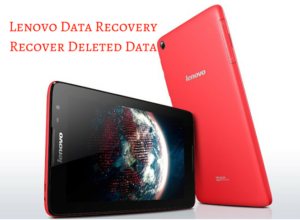
Lenovo Android phones and tablets are more and more popular around the world.In mobile, Lenovo is pinning its hopes on premium phones,such as the one with augmented reality capabilities, to breathe life into the loss-making division.When you delete or lose data from your Lenovo phone, you may ask how to do Lenovo data recovery as quickly as possible? You need calm down and search for the help of professional data recovery tool.

Directly Restore Deleted Files from Lenovo Phone

Here we kindly recommend this powerful data recovery for you,which called Android Data Recovery-Lenovo Data Recovery,it capable of recovering deleted data from Lenovo phone completely(K5 Plus,K5 Note,K6 Note,K5,Phab2,Phab2 Plus,Phab2 Pro),including contacts,messages,photos,call logs,videos,audio,notes,apps & apps data,documents and more.Not only Lenovo phone,but also other most Android devices are applicable to Android Data Recovery,such as,Samsung(Galaxy S7/S6/S5,Note 5),Motorola,LG,Sony,HTC,ZTE,Xiaomi,and more.In addition,Android Data Recovery supports to recover deleted Android files after losing data under any circumstances,for example,deleted carelessly,Android system update,Android system rooting,restore Android to factory resetting.

d_win d_mac

How to Recover Deleted Data from Lenovo Phone

Step 1.Launch Android Data Recovery
Please launch Android Data Recovery on your computer.

Step 2.Connect Lenovo Phone to the Computer
Connect your Lenovo phone to the computer with USB cable.It will take a few seconds to install the device driver,then the Android Data Recovery will automatically detect your phone.

connect lenovo to the computer

Step 3.Enable USB Debugging on your Lenovo
In order to connect your Lenovo successfully,you should allow USB debugging mode on your device.Unlock your phone,go to Settings > Developer options > Allow USB debugging mode.If you have already allowed the USB debugging mode,you will see a pop-up window on the screen,mark Always allow from this computer and click OK.

usb debugging lenovo phone

Step 4.Select Deleted Files to Recover from Lenovo
Once the connecting successfully,all types of Lenovo files will be displayed in the interface of program.Select your wanna files and then tab Next.It will take several minutes to analyze the deleted and existent data from your phone.

select lenovo data to restore

Step 5.Recover Deleted Data from Lenovo
After scanning,this Android Data Recovery allows you to preview the detailed data of selected files.You are allow to easily check the deleted and extent data in the preview window.Choose the data you want to recover and then click Recover.Just one click,the selected data will be restored to your computer directly.

recover deleted data from lenovo

d_win d_mac

Related Article:

How to Recover Data from Water Damaged Lenovo Phone

How to Backup and Restore Lenovo Phone

How to Recover Data from Android Phone

How to Recover Lost Data from Android SD Card

How to Recover Deleted Photos from Xiaomi Phone

Hello my friend,I’m a college student,recently I bought the new Xiaomi Redmi Note 4X phone to replace my old LG phone.Unfortunately,I deleted some photos from the Xiaomi phone carelessly.How can I recover the deleted data from my new Android device directly?BTW,I have no backup.:( “-Sheeran

Lots of people use Xiaomi phones because of the high quality camera,people like to take photos and videos using Xiaomi device.However,it is extremely disturbing when you lose the saved photos from your Xiaomi phone and you have no idea that how to get the photos back.Some people used to backup the precious photos from Xiaomi to the computer regularly so that they can easily extract the lost pictures from the backup.But how can you deal with this data recovery if you have no backup files?Take it easy,the following passages will show you the best ways to recover deleted photos from Xiaomi even without backup.

Recover Deleted Photos from Xiaomi Phone Directly

Android Data Recovery capable of recovering deleted Android data selectively,helpful to restore deleted photos from Xiaomi phone directly(Redmi Note 4X,Mi Mix,Mi Note 2,Mi 5s (Plus),Mi Max,Redmi Pro,Redmi 3S,Redmi Note 3).Android Data Recovery allows to recover various of Android deleted data,including photos,contacts,messages,call logs,videos,audio,apps & apps data,documents and more types of files.Most Android devices are compatible with Android Data Recovery,such as,Samsung(Galaxy S7/S6/S5,Note 5),Motorola,Huawei(P9,Mate 9),HTC,Sony,Lenovo,LG,Sony,etc,.

d_win d_mac

How to Restore Deleted Photos from Xiaomi Phone Directly

Step 1.Connect Your Xiaomi to the Computer
After you installing and running the Android Data Recovery software on the computer, you will see the page below. Then please connect your Xiaomi phone to the computer via an USB.

connect xiaomi to the computer

Step 2.Enable USB debugging on Device
If your Xiaomi phone hasn’t detected by the program, you need to enable USB debugging on your phone. Check what Android OS is your device and then choose the right way to open USB debugging follow below steps:

1) For Android 5.0 or newer: Tap “Settings” > “About Phone” to tap “Build number” seven times for “You are now a developer!” signal. Then, move to “Settings” > “Developer options” to turn on “USB debugging”
2) For Android 4.2 or newer: Enter “Settings” > Click “About Phone” > Tap “Build number” for several times until getting a note “You are under developer mode” > Back to “Settings” > Click “Developer options” > Check “USB debugging”
3) For Android 3.0 to 4.1: Enter “Settings” > Click “Developer options” > Check “USB debugging”
4) For Android 2.3 or earlier: Enter “Settings” > Click “Applications” > Click “Development” > Check “USB debugging”

usb debugging xiaomi phone

Step 3.Select “Gallery” to Restore from Xiaomi
After enabling USB debugging, connect your Xiaomi phone
to the computer via USB cable, you’ll see this window,different types of files can be chose to be scan here.If you lost almost all types of Xiaomi data, you can tick “Select all” to have all your Android data scanned.Here,you should select “Gallery” that is to be scanned then “Next” to enter to next step.

select file tpye to recover from xiaomi

Step 4.Allow to Scan and Analyze Data on Xiaomi
Tap “Allow” on your device to enable the program to scan your Xiaomi for deleted photos.

allow scan the xiaomi

Note:Before starting,please make sure that your phone battery is more than 20% charged.

Step 5.Start to Scan Xiaomi for Deleted Photos
The scanning process will take some time due to your request. When everything is done, you will see a list of deleted files, including gallery, appear on the screen of program as below,preview them one by one before recovery.

scan xiaomi for deleted photos

Step 6.Preview and Recover Deleted Photos from Xiaomi
After finishing the scanning process, a list of recoverable files including the deleted photos have been found from your Xiaomi will be shown.There will be a preview window of files where you can preview(contacts, SMS and Gallery,etc)from Xiaomi.Mark the data you want and click “Recover“. You can selectively the deleted photos and restore them to your computer.

recover deleted photos from xiaomi

d_win d_mac

Related Article:

How to Recover Deleted Files from Xiaomi Phone

How to Recover Data from Android Phones

How to Recover Deleted Photos on Android Phone

How to Restore Data from Broken Android

How to Recover Lost Data from Android SD Card

How to Recover Deleted Files from Xiaomi Phone

Summary:When you lost data from Xiaomi phone,you may be eager to find some ways available to recover the deleted files from Xiaomi phone to avoid losing personal data from your device.The terrific Android Data Recovery can do the favor for you after losing data under any unexpected circumstances.

recover data xiaomi

Xiaomi is a privately owned company that designs, develops, and sells smartphones, an Android-based OS,and other consumer electronics.Xiaomi also makes fitness trackers, TVs, air purifiers, and tablets. It has a skin for its Android phones and tablets – MIUI. The company largely sells its phones via flash sales in India.Xiaomi’s latest mobile launch is the Redmi Note 4X.The smartphone was launched in February 2017. The phone comes with a 5.50-inch touchscreen display with a resolution of 1080 pixels by 1920 pixels at a PPI of 403 pixels per inch.

Recover Deleted Files from Xiaomi Phone Directly

Android Data Recovery provides with most advanced technique to allows you to recover deleted files from Xiaomi phone selectively(Mi Mix,Mi Note 2,Mi 5s (Plus),Mi Max,Redmi Pro,Redmi 3S,Redmi Note 4X,Redmi Note 3),including contacts,messages,photos,call logs,videos,audio,apps & apps data,documents and more types of files.Besides Xiaomi phones,Android Data Recovery works well for most Android devices,such as Samsung(Galaxy S7/S6/S5,Note 5),Motorola,HTC,Sony,Lenovo,LG,Sony,Huawei(P9,Mate 9),etc,.Android Data Recovery perfectly help to solve any Android data loss issues,for instances,deleted mistaken,Android system update,Android system rooting,restore device to factory resetting,and more other situations.

d_win d_mac

How to Restore Deleted Files from Xiaomi Phone Directly

Step 1.Launch Android Data Recovery
Please launch Android Data Recovery on your computer.

Step 2.Connect Xiaomi Phone to the Computer
Connect your Xiaomi phone to the computer with USB cable.It will take a few seconds to install the device driver,then the Android Data Recovery will automatically detect your phone.

connect xiaomi to the computer

Step 3.Enable USB Debugging on your Xiaomi
In order to connect your Xiaomi successfully,you should allow USB debugging mode on your device.Unlock your phone, go to Settings > Developer options > Allow USB debugging mode. If you have already allowed the USB debugging mode, you will see a pop-up window on the screen, mark Always allow from this computer and click OK.

usb debugging xiaomi phone

Step 4.Select Files to Recover from Xiaomi
After connecting successfully,all types of files will be displayed in the interface of program.Choose your desire files for example Contacts and then tab Next.It will take several minutes to analyze the deleted and existent data from your phone.

select xiaomi data to restore

Step 5.Recover Deleted Data from Xiaomi
After scanning,this Android Data Recovery enables you to preview the detailed data of selected files.You are allow to easily check the deleted and extent data in the preview window.Choose the data you want to recover and then clickRecover.Just one click,the selected data will be restored to your computer directly.

recover deleted data from xiaomi

d_win d_mac

Related Article:

How to Recover Data from Android Phones

How to Recover Lost Contacts from Android Phone

How to Recover Deleted Photos on Android Phone

How to Restore Data from Broken Android

How to Recover Lost Data from Samsung Galaxy Phone

How to Recover Lost Data from Android SD Card

How to Recover Deleted Notes from Samsung Galaxy S8

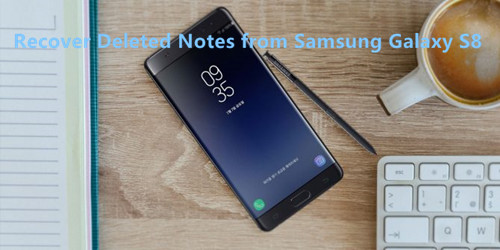
[Summary]:In this tutorial we are going to recommend an easy and fast way for you to recover deleted notes on Samsung Galaxy S8.If you lost some memo notes files on your Samsung Galaxy S8 or S9/S7/S6 phone and unfortunately have no memo backups, just read this page to take a reference. Simply download the best Android Data Recovery software to recover deleted notes and all other types of files from Samsung device directly.

recover-notes-on-samsung

Samsung users should be very familiar with these two memo apps:S Memo & S Note. The apps are so popular that almost all Samsung users are using them everywhere.In other words,once note files were deleted from the app, it’ll soon disappear from both the app & its memo file location on the phone.Here comes the question that how to recover deleted notes from Samsung Galaxy S8(Plus),how to undelete the lost notes from Samsung Galaxy S8(Plus).

Recover Deleted Notes on Samsung Galaxy S8 (Plus)

A powerful data recovery which is called Android Data Recovery,perfectly help to directly recover deleted notes from Samsung Galaxy S8 (Plus).Android Data Recovery is known as third-party data recovery to restore various types of deleted Android data without data loss,including notes,contacts,photos,messages,call logs,apps & apps data,documents and more.Android Data Recovery works well for most popular Android devices,such as,Samsung (Galaxy S9/S8/S7/S6/S5,Note 9/8/5/4/3),HTC,Lenovo,HTC,Sony,ZTE,Huawei (Mate 10/9,P10/P9),Xiaomi,OPPO, LG,Motorola,etc,.

d_win d_mac
d_win d_mac

Part 1: Situations for the Deletion of Notes from Galaxy S8

1)Accidental Deletion: This is one of the major reasons through which a user lost the notes files, including memo, notes. They may accidentally press “delete” button.

2)Formatting: There are some time where user need to format their phone and when anyone perform format option then everything gets erased from the phone.

3)Virus/Malware Attack: If your phone gets infected with malware or virus then your stored data will get corrupted and lead to data loss.

4)Factory Reset: If you perform factory reset on your phone then everything on your device will get deleted and your phone will have only those files and apps that were available at the time of purchasing the phone.

Part 2: How to Find the Deleted Notes in “Trash” Notebook

-To view the contents of your “Trash” notebook:

-Scroll to the bottom of your notebooks list. The “Trash” notebook is the last notebook in the list.

-Open the “Trash” notebook to look for your deleted notes. (Notes in the trash do not appear in search results.)

-Click “Restore” to recover the deleted notes on your device.

Part 3: How to Restore Deleted Notes from Samsung Galaxy S8

Step 1.Install and launch Program on Computer
After downloading the app,install and launch it on your computer,then connect your Samsung Galaxy S8 phone to the computer via an USB cable,the program will automatically detect your device soon.

connect samsung to the computer

Step 2.Enable USB Debugging on Samsung Phone
If Android Data Recovery did not detect your phone,please tap “OK” to enable the Android USB debugging on your device.According to the reminder on the program,go to your phone and ensure it is USB debugging mode.

allow scanning galaxy s8

Step 3.Scan Samsung Files
When your phone and all phone data have shown on the program,just choose the data you want to recover,and click “Next” to scan.

select note file to recover from Galaxy S8

Step 4.Recover Deleted Note from Samsung Galaxy S8 Directly
After scanning,you will see all the recoverable Android files are listed in the left menu,including the deleted and existing ones.Please find your deleted notes or memo,and choose the ones you want to restore.Next,tap “Recover” to restore Samsung data selectively.

recover note from Galaxy S8

When finishes the recovering process,you will get all deleted notes for Samsung on your computer,and then you could transfer them to your Android devices or just save them on your computer for backup.

d_win d_mac
d_win d_mac

Part 4:How to Backup Samsung Galaxy S8 Notes on Computer

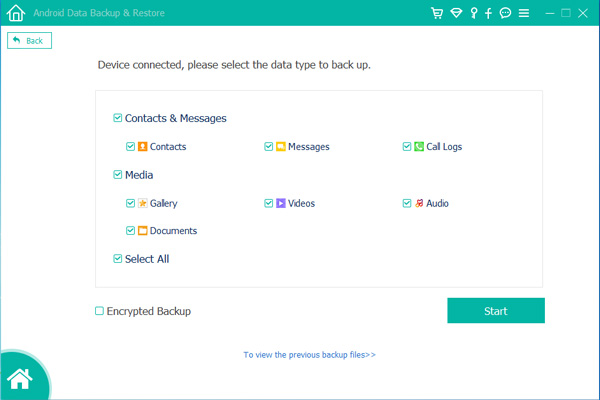
Selection A: Android Backup & Restore – A popular data manager for Android. With the help of Android Backup & Restore, you can easily backup & restore data for Galaxy S8 on computer safely, including notes, contacts, gallery, SMS, apps and more.

backup Galaxy S8 data

d_win d_mac
d_win d_mac

Selection B: Android Manager – A famous data manager for Android. With the help of Android Manager, you can simply backup data from Galaxy S8 to the computer, also restoring data for Galaxy S8 on computer. The supported types of data including notes, contacts, gallery, SMS, apps and more.

Android manager home page

d_win d_mac
d_win d_mac

Related Articles:

How to Recover Deleted Note/Memo from Samsung Android

How to Recover Data from Samsung Galaxy S8

How to Recover Lost Photos from Samsung Galaxy S8

How to Recover Deleted WhatsApp Chat History from Samsung Galaxy S8

How to Backup & Restore Samsung Galaxy S8

How to Root Samsung Galaxy S8 on Computer Safely

Recover Notes/Memos on S8

How to Manage Samsung Galaxy S8 on Computer

How to manage SMS for my Samsung Galaxy S8 on computer?How to transfer media files from computer to my Samsung device?”-Jennifer

Samsung’s upcoming flagship Galaxy S8 smartphone could give users the ability to plug it into a screen and turn it into a desktop personal computer,according to a media report.The S8 is being released ahead of Apple’s flagship iPhone, which is expected to be a special tenth anniversary edition.Both will be battling for smartphone dominance in 2017 looking to convince users with new features.According to reports,the Galaxy S8 will sport a 5.5-inch AMOLED screen with 4K display and feature an iris scanner,the device will feature dual-rear camera–a 12 MP S5K2L2 sensor and a 13 MP sensor made by Sony,and an 8MP front-snapper.When you get the new Samsung Galaxy S8 phone,you may need an useful data manage tool to manage data on your Samsung device.

Manage Samsung Galaxy S8 on Computer Freely

In order to manage Samsung Galaxy S8 on computer freely,you can choose this helpful data manage tool to have a try,which is named Android Manager tool,it enables to transfer & manage Samsung Galaxy S8 on computer,including videos,music,photos,contacts,SMS,apps.With Android Manager,you are allow to transfer files between computer and Android,transfer files between iTunes and Android,transfer files between Android and iOS devices.Android Manager works well for almost all models of Android devices,such as Samsung(Galaxy S10/S9/S8/S7/S6/S5,Note 9),Google(Pixel, Nexus), Huawei(Mate 20/P20), Motorola, HTC, LG, Xiaomi, Lenovo, ZTE, Sony, etc.


d_win d_mac
d_win d_mac

Part 1:Manage Samsung Galaxy S8 Videos on Computer

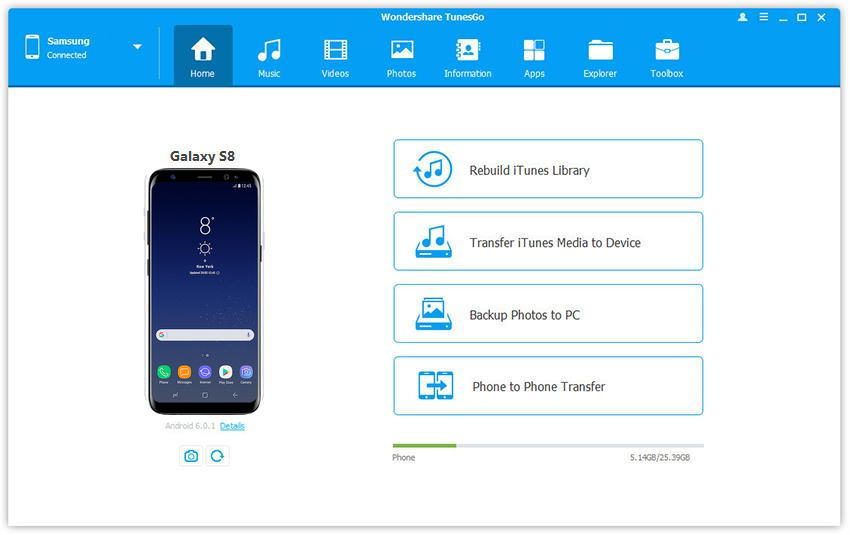
Launch Android Manager and connect your Samsung to the computer.Your device will be detected and displayed in the primary window.
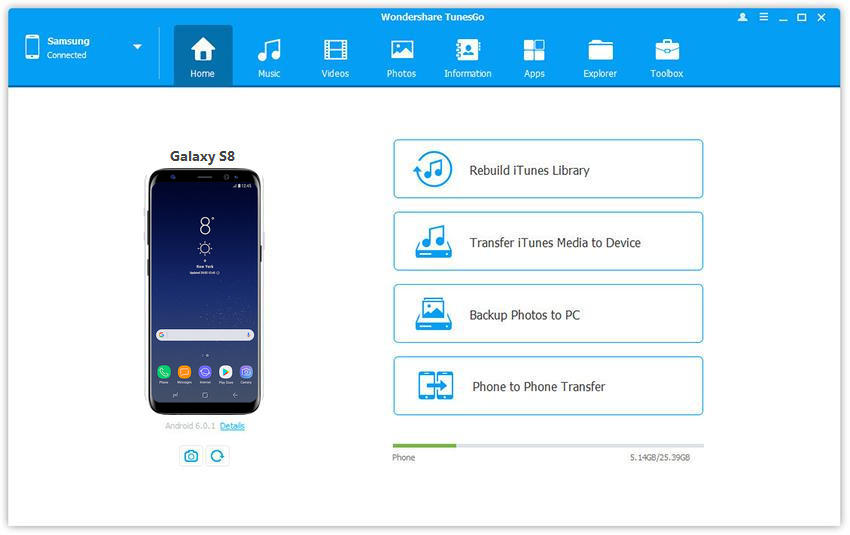
android manager

Step 1.Select Videos Files to Transfer
Select Videos tab.Once your media loads,click Add > Add File or Add Folder.
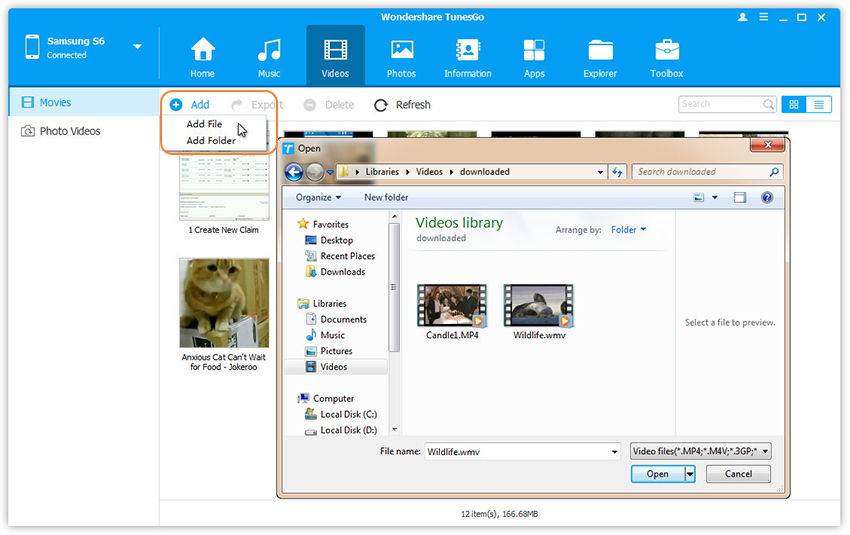
add videos from pc-to android

Step 2.Transfer Videos from Computer to Samsung Galaxy S8
This brings up your file browser window,from which you can select videos to import from your computer.All videos imported can be watched with the built-in player.You can simply Drag and Drop videos from computer to Samsung.

Part 2:Manage Samsung Galaxy S8 Music on Computer

Launch Android Manager and connect your Samsung Galaxy S8 to  the computer.Your device will be detected and displayed in the primary window.

android manager

Step 1.Select Music File to Transfer
Select Music tab.Once your media loads, click Add > Add File or Add Folder.

sync music from pc to android

Step 2.Sync Songs from Computer to Samsung Galaxy S8
This brings up your file browser window, from which you can select songs to export from your computer.And you can also create new playlist by right clicking Music to save the imported songs.You can simply Drag and Drop music files from computer to your Samsung.

Part 3:Manage Samsung Galaxy S8 Contacts on Computer

Android Manager makes it extremely easy to add and edit contacts, group contacts, merge duplicate contacts and delete useless contacts in batches.Android Manager also allows you to manage contacts on your Phone, SIM card, iCloud, Exchange, Yahoo! and other accounts. In the following passages, we would like to show you the detailed tutorial.

Launch Android Manager and connect your Samsung Galaxy S8 to the computer.

android manager

Manage Contact Groups
Step 1. Click Information tab.
In the contact management window, select and expand account from which you want to add and edit contacts, including your phone Contacts, SIM Contacts and Google Contacts.

Step 2. Right-click the contact groups on the left panel.
You can select to create New Group, Rename Group, or Delete Group.
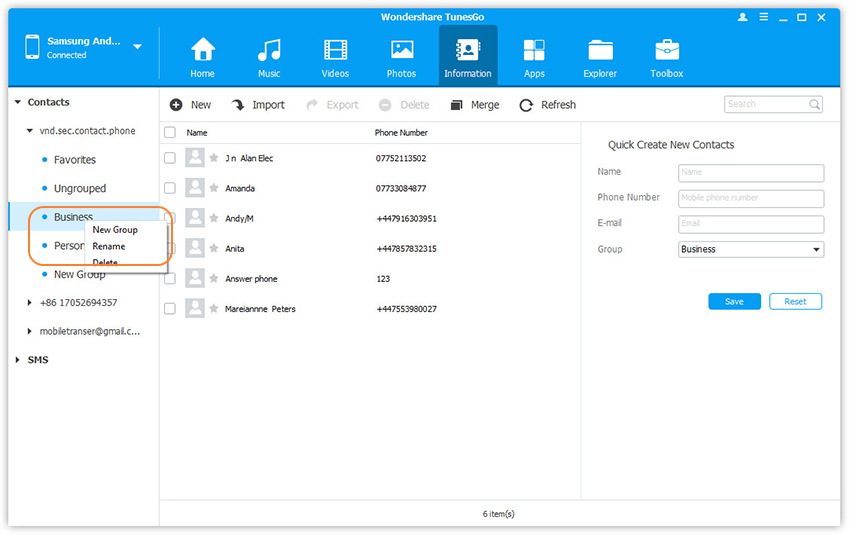
select option

Step 3. Right-click on selected contacts, you can add contacts to specified group.

android manager

Merge Duplicates
Step 1. Click Information tab.
In the contact management window, click Merge.
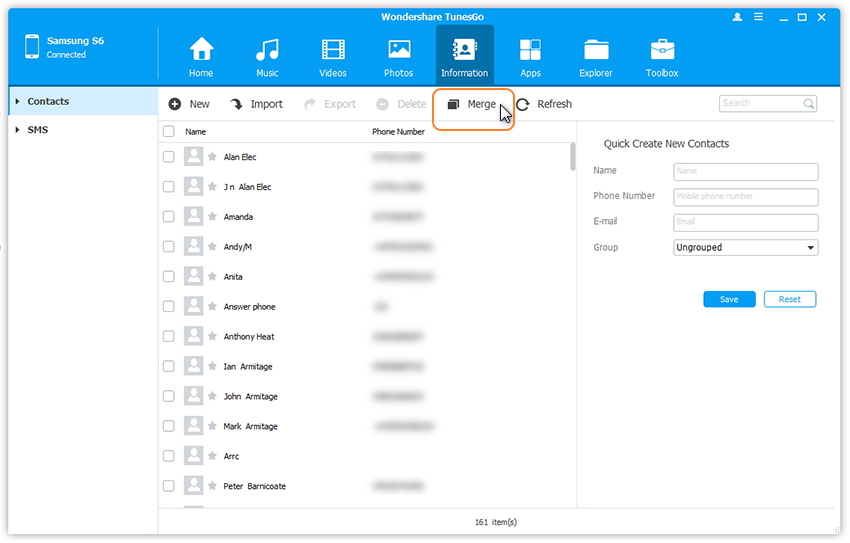
merge option

Step 2. Select account(s) from which you want to search duplicate contacts, including your phone Contacts, SIM Contacts and Google Contacts.
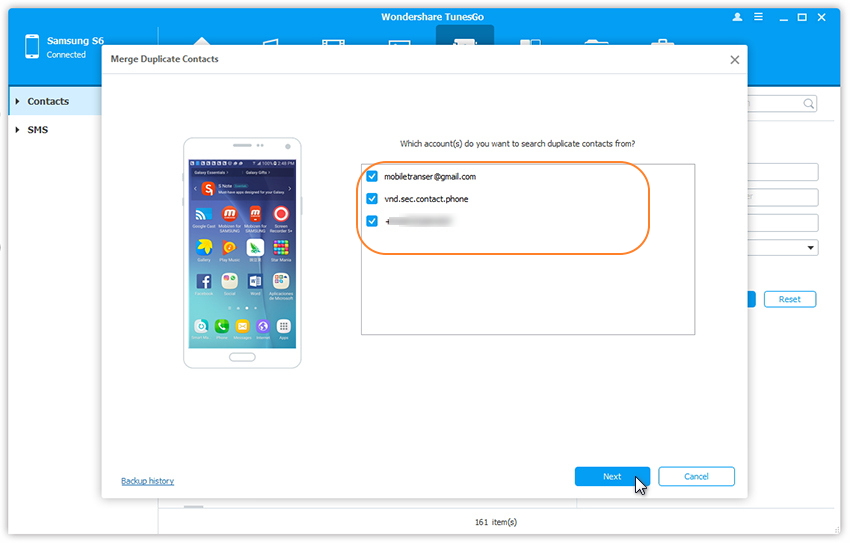
select account to merge duplicate contacts on android

Step 3. All duplicate contacts that have the same name, phone number or email will appear for your review.Select a match type to find duplicate contacts.
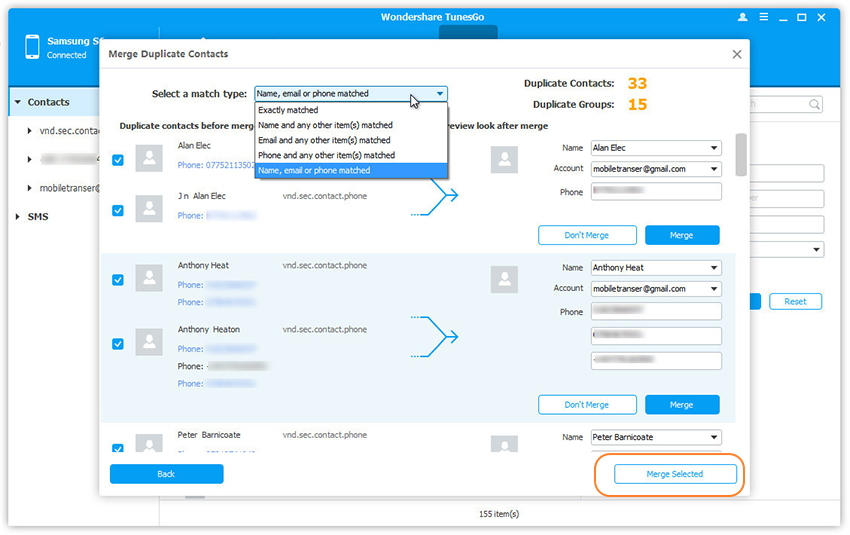
merge duplicate contacts on android

Step 4. Click Merge Selected to merge all the contacts or Merge selected contacts one by one.

How to Add & Edit Contacts
Step 1. Click Information tab.
In the contact management window, select account and group from which you want to add and edit contacts, including your Phone Contacts, SIM Contacts and Google Contacts.

Step 2. Click New to open the Add to contact window.
As you can see, you can edit name, email, phone number, website, address, middle name, etc. You can also search and Edit selected contacts.
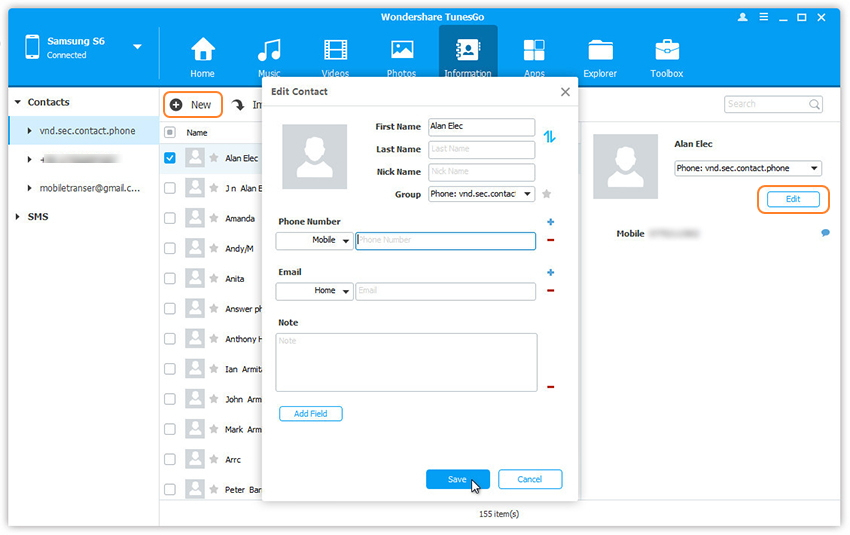
add and edit android contacts

Delete Contacts in Batches
Step 1. Click Information tab.
In the contact management window, select group from which you want to delete unwanted contacts, including your Phone Contacts, SIM Contacts and Google Contacts.

Step 2. Tick Contacts you want to delete and click Delete.
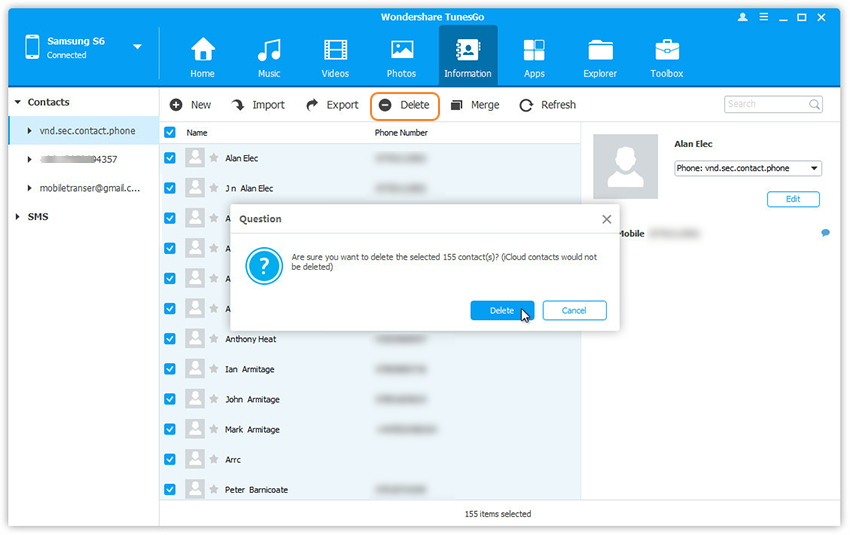
delete android contacts

Step 3. In the pop-up dialog, click Yes.

d_win d_mac
d_win d_mac

Part 4:Manage Samsung Galaxy S8 SMS on Computer

Android Manager works like a desktop SMS assistant, helping to manage all SMS of your Samsung device on computer. With it, you could save SMS and transfer to computer, send and receive SMS on computer, and mark unread SMS as read.

Launch Android Manager and connect your Samsung Galaxy S8 to  the computer.

android manager

Delete Messages in Batches
Step 1. Click Information tab.
Select SMS on the left panel. All messages will be shown on the right.
Step 2. Tick Messages you want to delete and click Delete.
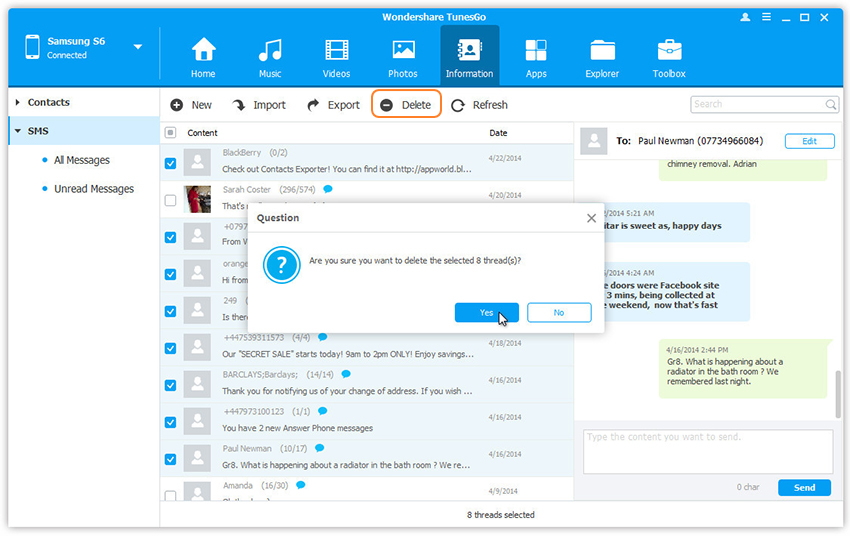
delete android sms

Step 3. In the pop-up dialog, click Yes.
Note: The program may ask you to set MobileGoConnect as your default messaging application, as shown below. Tap on Yes on your device first, and then confirm it on your computer.
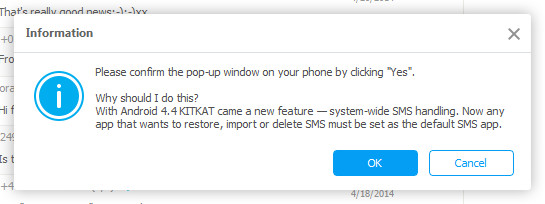
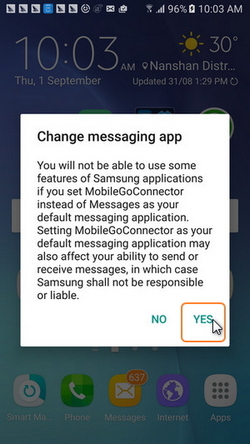
set default sms app

change messaging app

Send Messages via PC
Step 1. Click Information tab.
Select SMS on the left panel. All messages will be shown on the right.
Step 2. Search and read selected messages.
You can simply type the content and click Send to send messages via Android Manager on the computer.
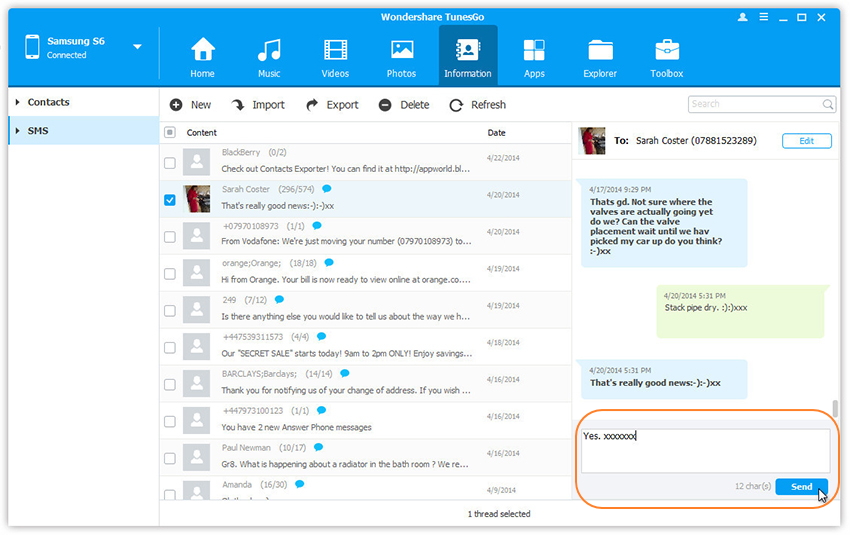
send message on pc

Or you can click New SMS on the right column to create and send a new message to multiple recipients.
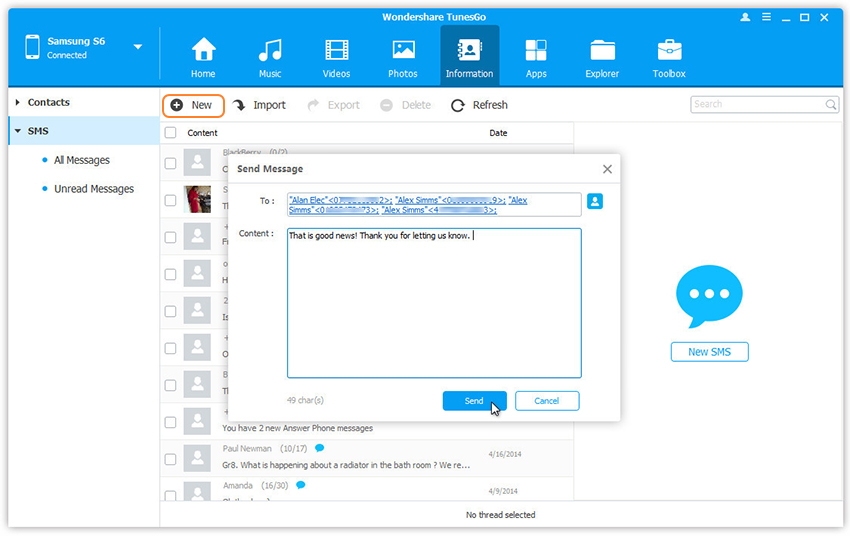
create and send new message on pc

d_win d_mac
d_win d_mac

Related Article:

How to Manage Samsung Phone on Computer

How to Manage Android on Computer

How to Recover Data from Samsung Galaxy S8

How to Backup & Restore Samsung Galaxy S8

How to Transfer iTunes Music to Samsung Galaxy S8

Samsung Galaxy S8 Manager