All posts by DHZ

How to Connect Android Phone to Car Audio

Most of us enjoy music while we’re driving,but radio doesn’t always play the right tunes.At sometime the obvious choice would have been a CD,but of course you can play your selected music on Android by connecting with car audio.As long as you have a safe place to send a signal to your car audio system,you can use an Android phone as your mobile audio entertainment system while in transit.

car-audio

There are a few different ways to approach connecting an Android device to your car stereo.The one you choose to use depends on the features your car stereo has.Three options are possible which will allow you to playback music stored on or streamed via your Android phone to the car audio system.

1.USB Cable
If your car has an USB cable, it is likely that the stereo will play music through it. You can usually store music on your Android phone, or other USB device like a flash drive. Simply copy music files to your Android, then connect it using the USB cable provided with your device, and your stereo should have a mode you can place it in that plays the music files from the device.

This method usually does not work if your music is streamed via the Internet. The files usually must be physically stored on the Android. It likely also won’t usually work for phone calls.

2.Bluetooth
If your car stereo supports a Bluetooth connection,you can simply enable Bluetooth on your Android under “Settings” > “Network Connections“. Then make your Android “discoverable” or “visible”. Set your car stereo to find the device, then you should be prompted to enter a PIN. Once connected, you can enjoy playing all of your music or making phone calls wirelessly.

3.FM Transmitter
If you don’t have one of the above options, you’ll need to pony up a bit more cash for an FM Transmitter. An FM Transmitter will broadcast audio from your Android over FM frequencies, allowing you to listen through a selected radio station on your car stereo. Prices for such devices can range from $15 to $100. From experience I can say that an FM Transmitter is not a thing you want to cheap out on. Going mid-range is a best bet. I personally invested in the Belkin TuneCast and am very happy with it. This particular transmitter charges my Android as well.
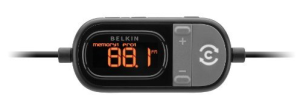
FM-Transmitter

The problem with this is that if your car has a digital sound system you’re not getting the best use out of it by relying on the analogue solutions.What do you think?Have you come across any better options?

Read more:

How to Fix Top 5 Android Problems

How to Play Pokemon Go on Android Phone
How to Fix WhatsApp Programs on Android Phone

How to Get More Internal Storage from Android

How to Fix Top 5 Android Problems

Got problems with Android? Android offers great reliability, stability and protection from malware -but sometimes you’re going to run into problems.Thankfully,Android users can correct 99% of failures with a few simple tips.Here’s a quick rundown of some of the most top 5 common problems reported in Android forum and how to solve them.

How to fix phones that won’t turn on?

For almost any issue where an Android device won’t start, it is always feasible to pull the battery and reinstall it to see if the issue persists. In other cases when you plug your device into the USB port on computer and the device doesn’t turn on. It may simply just because the device not have enough power. Charge your battery for more than 30 minutes or see if you can borrow a battery with a similar device and give that a try. If none of the above steps work, you may want to perform a factory hard reset on your Android.

Why my phone keeps turning on and off by itself?

Automatic switch off is nothing new. Technically a lot of reasons can be attributed to unscheduled restart of the phone.The first reason we should look for is a loose connection between the mobile and its battery points.We can change the battery and see how it works.At times this didn’t work out, you should stat to see if you installed software that isn’t compatible with your device and causes the system to hang at a blank screen or shut down the device.The easiest solution is to remove whatever app may be causing the issue.

How to avoid Android overheating issues?

To fix Android heating problem, you need to:
• Reduce your gaming obsessions.
• Disable functions when you don’t need them.
• Dust off your smartphone.
• Simply turn off your phone when you are sleep or in a business meeting, so your techno friend could “take a break”.

How to improve the battery life of Android phone?

The most effective and simple way probably is to setting your gadget into flight mode, if you don’t plan on answering the phone in a long period of time. Also, charge your phone before its battery running all the way down. Lithium-based batteries are designed to be charged early and often. There are still other things you could do to prolong battery life: avoid using unnecessary features (using moving or animated pictures for background is not suggested),turn off Bluetooth/WIFI/GPS and avoid leaving your phone in a hot car or direct sunlight.

Why my phone screen turns itself off during calls?

The most likely cause to this issue could be a screen protector.Luckily,it’s easy to fix. Simply remove your screen protector or get a different one.

That’s it for common Android phone problems and suggested solutions.Did we solve your issue?
What problems have you been having?Have we failed to solve your problem?Leave a comment here or share the solutions with your friends.

Read more:

How to Fix WhatsApp Programs on Android Phones

How to Play Pokemon Go on Android Phones

How to Get More Internal Storage from Android

How to Completely Remove Contacts from Android SIM Card

How to Recover Data from Android Phones

Top 5 Best Android Phone to Play Pokemon Go

Pokemon GO is everywhere, and it’s a fun game that’s accessible to anyone, in any city.You can now play the famous creature-collecting game on your Android device.If you’re looking to play Pokemon GO,the first place to check is the Google Play Store.However,for the many countries where the app is not available through Google Play,there is also a third-party method allow you to download the game without using the Play Store.Additionally, hardcore fans can use Game Boy and DS emulators just to play other Pokemon games on their Androids.Game Boy versions of Pokemon GO are light enough to work well on Android devices.

pokemon go

Maybe you have played Pokemon GO know that the game can use quite a bit of your phone battery.Those that are really into the game,may be looking at buying a phone with a massive battery and performance,so they are able to play the game on phone longer.Or perhaps, they want a battery pack so they can charge on and always play the game everywhere everytime.Nevertheless, these are the best Android phones for playing Pokemon GO.Let me introduce you the more thing about playing Pokemon Go in order to let more person enjoy the funny of playing this lovely game.

Part 1:Top 5 Best Android Phone to Play Pokemon Go

Top 1.Samsung Galaxy S7/S7 Edge
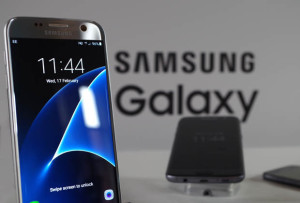
The Galaxy S7 and Galaxy S7 Edge really need no introduction.They are currently some of the best Android phones on the market,and only get better with each passing software update.Both of them have the big screen and powerful battery capacitance.Currently the best processor among various of Android phones.What that means is your experience in playing Pokemon GO is going to be pretty incredible.

galaxy-s7-samsung

Top 2.Samsung Galaxy Note 5
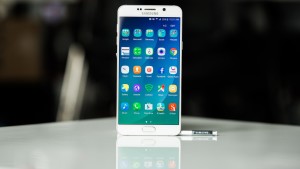
If a stylus is more your style,then check out the Galaxy Note 5.It’s Samsung’s Galaxy Note from 2015,which is still one of the best smartphones available right now. The Galaxy Note 5 sports the Exynos 7420 processor with 4GB of RAM.That’s plenty of speed to give you a great experience when playing Pokemon GO on Android phone.

android-samsung-galaxy-note-5

Top 3.Moto X Pure Edition
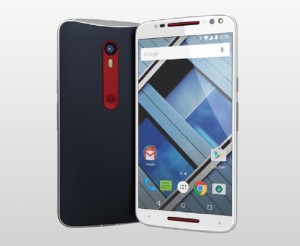
Another fine choice, the Moto X Pure Edition rounds out our list here.It’s a great choice,since it has flagship specs which leads to a great Pokemon GO experience. But on top of that,the Moto X Pure Edition also supports all four carriers in the US. Meaning you can take it to any carrier and pop in your SIM card and you’re good to go.

motorola-moto-x-pure-edition

Top 4.Google Nexus 5X
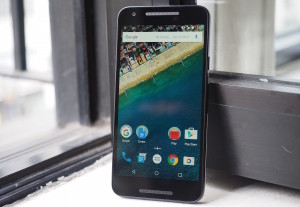
Nexus 5X is another fine choice.It’s a rather small smartphone,coming in with a 5.2-inch display,but it’s still what many would consider a “flagship” despite it having just 2GB of RAM.The Nexus 5X has been dropping in price quite a bit lately, another reason why it’s a great choice for Pokemon GO. Additionally, it can play the game with ease, without any lag-at least due to the hardware.

OLYMPUS DIGITAL CAMERA

Top 5.Honor 5X
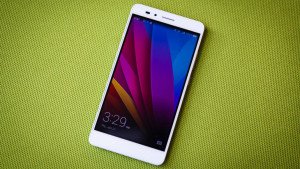
Honor made a splash in the US earlier this year with the Honor 5X,bringing a pretty stellar smartphone experience to the masses for just $199.It’s got great battery life,a great 5.5-inch 1080p display,and amazing performance as well.All of which are important when playing Pokemon GO. As the last thing you’ll want to do is run out of battery.

huawei-honor-5x

Part 2:How to Play Pokemon Go on Android Phone Right Now
Give your phone permission to download Pokemon Go app.The first thing you need is to allow your phone to install content from unknown sources.

1.Boot up your Android phone or tablet,and tap the device settings.
2.Under “Security” (this is different parts of the settings menu depending on your device and Android version, but keep looking and you’ll find it).
3.Scroll down until you find the “Unknown sources” toggle.
4.It should read: “Allow installation of apps from sources other than Google Play Store.”
5.If it is unchecked,make sure you check it.

Download and install the Pokemon Go app.Now,we need to download Pokemon Go app.You have multiple options for downloading Pokemon Go.

1.Download Pokemon Go app on APK mirror website.
2.If you downloaded it on computer,transfer it to your phone using an USB,Google Drive,or some other service.
3.Once it’s on your phone,find the APK.It’s likely in your Download folder.You can get to your downloads by clicking on “Downloads” in your app drawer.
4.Run through the installation process.
5.Make sure you have GPS location services turned on.
You should be all set now. I caught a Pokemon in my house,but I haven’t started looking around my neighborhood for any more.So I’m not sure if all that works yet.If you have problems,let me know by leaving the messages for me.

Read more:

How to Get More Internal Storage from Android

How to Fix WhatsApp Programs on Android Phones

How to Recover Data from Android Phones

How to Get More Internal Storage from Android

[Summary]: Want to speed up your Samsung Galaxy, Huawei Mate/P, Google Pixel, Sony, HTC, Motorola and more Android smart phones? This article teach you three methods to speed up your Android phone.

“Recently,I always received a prompt “insufficient storage available” on my android phone when I am try to open the app on it.It remind me free up my storage on phone.Anybody provide the simple and convenient way for me to fix it?”-Lina

Want to take more photos and videos by phone?Want to download apps on phone?Due to the limit storage on Android phone and it doesn’t allow to?You will find it’s really an annoy thing that the less internal storage space on Android phone you have.You might get mad at the slow speed while using your Android.

free up space Android

When we use our Android phone like Samsung Galaxy S6,we will install some apps, some movies, and other program on phone.And thus the internal storage of our Android phone is less and less and finally it will get slower and slower.What’s indeed a trouble for Android users.Let’s see how to get more internal storage on Android.

Method 1:Uninstall Apps on Android

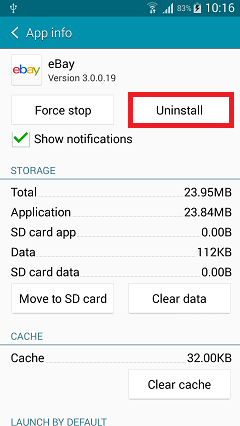
Release more internal space on Android is to uninstall the apps that you seldom use.It can not only save your Android internal space but also save battery power of Android phone.

uninstall-app-android

Method 2:Move Apps to Android SD Card

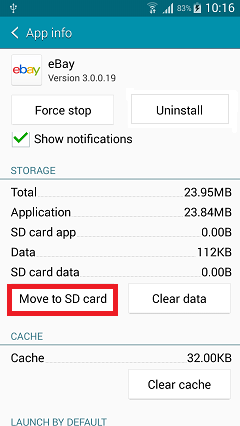
If you haven’t root your Android yet,you can root your Android first and get the file manager app on your phone to move the apps to the SD card or delete them if you don’t need to use.

move-app-to-android-sd-card

Method 3:Erase Data on Android with Android Data Eraser

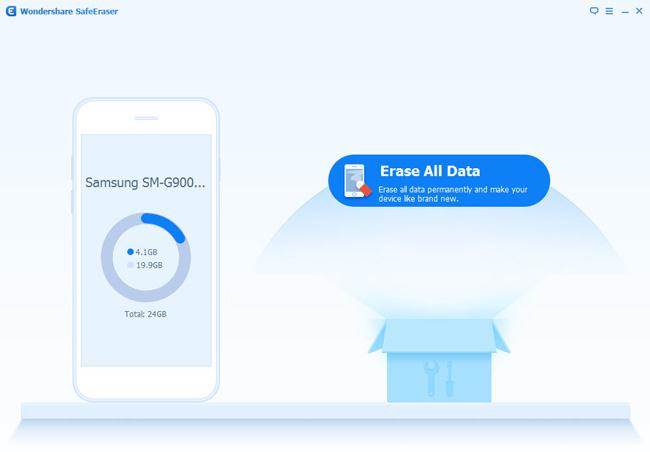
If you think all the above methods still cannot satisfy your need and want to release more storage on your Android phone,you can turn to Android Data Eraser.Android Data Eraser help to free up storage on Android phone by easing all data completely and permanently,such as contacts,SMS,photos,call logs,notes,document and more.Supported Android devices:Samsung,HTC,LG,Lenovo,Motorola,Huawei,Xiaomi,etc.Read on and check how it works.

d_win d_mac
d_win d_mac

ATTENTION: The program will DELETE ALL DATA stored on your device and give a brand new phone to you. Suggest you to back up phone data before using it.

Step 1.Run Android Data Eraser and Connect Android
Run the program after installation and connect your Android device to computer.Don’t forget to enable USB debugging so that the program can soon detect Android phone.

android-data-eraser

Step 2.Select the Data Erasing Option
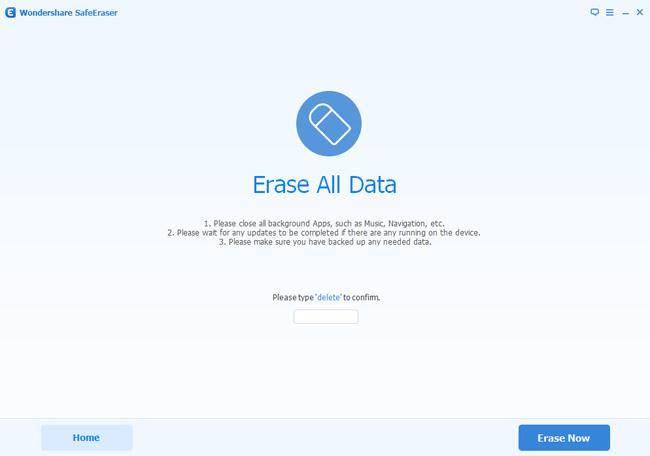
When your phone is well connected,you will see the interface as below.Click the “Erase All Data” option in the homepage,then type “delete” in the box to confirm it and tap “Erase Now” at the lower-right corner,then,the program will start deleting all data stored on your phone and releasing phone storage.

free-up-storage-android

Step 3.Perform a Factory Reset on Android
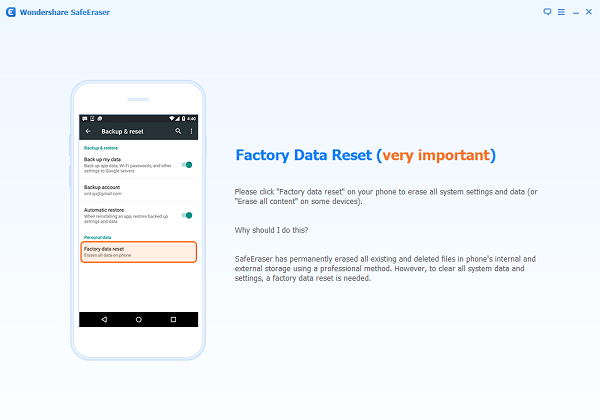
The program is now freeing up space on your phone.When the process completed,you should perform a factory reset on Android to erase all system data and settings on your Android phone.

restore-factory-resetting-android

d_win d_mac
d_win d_mac

Related Article:

How to Permanently Erase Samsung Data before Selling

How to Completely Remove Contacts from Android SIM Card

How to Erase Text Messages on Android Phone
How to Delete Photos from Android Device without Restoring

How to Delete Apps from Android Phone

Phone Eraser

How to Delete Apps from Android Phone

“How to delete apps in Lenovo a5000?It can’t be uninstalled it seems to had a virus ..and all the applications are porn..my gosh I don’t know how it happened..help me..thanks…:(“-Gracia

When your Android phone prompt you “Not enough storage”,or your want to clean the phone rubbish,you should remove apps from your Android phone completely.Uninstalling apps that you have installed on your Android device from Google Play is simple -but what if you didn’t install it? What if the app you’re trying to remove is one of those that came pre-installed on your device, provided by the manufacturer, your mobile network,or as a part of Android itself?Here are two different solutions we provide you for reference to permanently and safely delete Android apps.

Solution 1:Uninstall Apps from Android

In the following instruction,we’ll show you how to easily remove unwanted application from Android mobile device without any extra program.
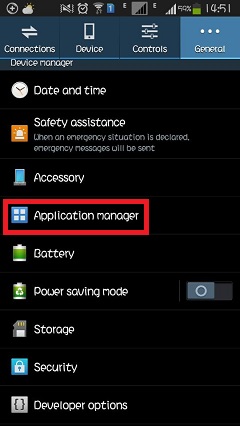
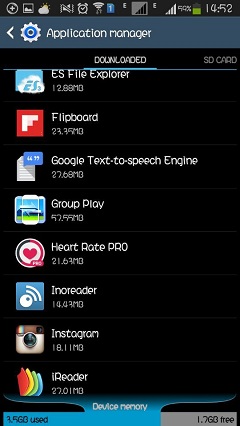
Step 1.Go to Setting > General. Tap “Application Manager” option to open the application list.

select-application-manager

application-list

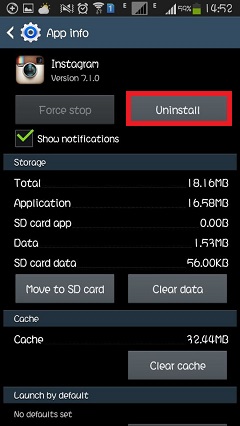
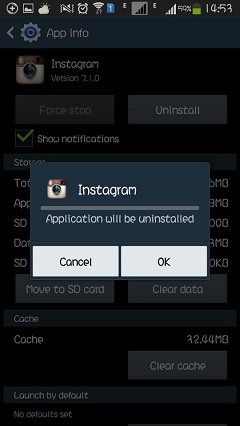
Step 2.Select the apps you want to delete and then you will enter the app info interface.Click the “Uninstall” button to remove the app from your Android device.

select-uninstall

confirm-uninstall

Note: The operation to delete downloaded applications from Android devices may differ a little bit according to the different versions of the running Android systems.

Solution 2:Remove Apps from Android Phone via Android Data Eraser

Android Data Eraser is one of the professional program to completely delete apps from Android phone.When you erase apps from the device,all data such as photos, contacts, music, videos, SMS and more will be erased from Android without restoring.So we remind you to make a backup of Android data first before you get started.This program is compatible with almost all Android devices including Samsung Galaxy S7/S6//S5/S4, HTC One M10/9/8, Nexus 6/5, Huawei Horner 5X, One Plus 3/2/1 and more.You can follow the instructions below and see how to do that.

d_win d_mac

Step 1.Connect Android Phone to Computer
Install and launch the program,then connect your Android device to PC.Make sure that the USB debugging option on your device is enable.Once it’s done,the program will detect your phone very soon.

android-data-eraser

Step 2.Select Erase Data Option
Select “Erase All Data” in the main interface and the next window will show up.You should enter “delete” to confirm that the program is allow to erase all data from Android. After that,tap “Erase Now” to go on.

wipe-android-apps

Step 3.Factory Data Reset on Android
It’ll take a few minutes for the program to complete the erasing.When it finished,you need to do a “Factory Data Reset” on Android to completely erase all system data and settings.Once it’s done,all data stored on Android will been gone.

restore-factory-resetting-android

d_win d_mac
Read more:

How to Permanently Erase Samsung Data before Selling

How to Completely Remove Contacts from Android SIM Card

How to Erase Text Messages on Android Phone
How to Delete Photos from Android Device without Restoring

How to Fix WhatsApp Programs on Android Phones

Permanently Delete Photos from Android Phone

“The Samsung Galaxy Note 7 is coming soon,I wanna buy one to replace my old Samsung phone,I am going to sell it to someone.But how can I delete the thousands of photos stored on Samsung without restoring?”-Alfred

Android phones become one of the most popular mobile devices in the world.Android phones are famous for its outstanding camera,especially Samsung.People love taking photos and videos using Android phone,record the memories on phone so that they can play it everywhere and everytime.However,if you are plan to give up your Android phone or ready to sell it,how can you permanently delete photos from Android to protect your privacy?

Permanently Remove Photos from Android Phone

We’re here to help.There are a number of apps you can use to delete photos from Android device.An best app I ever used to erase Android data- Android Data Eraser-It can automatically remove pictures on Android phone without restoring.One last thing that you need to consider before using this program is that other files such contact,messages,music, movies, videos and so on will be erased in one time too. All content stored on your Android device will be cleaned up, you should back up the Android data before deleting by Android Data Eraser.If you want to make sure that permanently deleted pictures are recoverable from Android devices like Motorola, Samsung, LG, HTC, Sony, etc., you are suggested to use the program called Android Data Eraser.

d_win d_mac

How to Fully Delete Photos from Android before Selling

Step 1.Launch Android Data Eraser on PC
After installation,please run Android Data Eraser on your computer.Then connect Android phone to PC and enable the USB debugging on it to let the program fully connect with your device.Very soon the device will be detected.

android-data-eraser

Step 2.Select Erase All Data Option
From the main interface,select “Erase All Data” option and you will be lead to an interface which asks you to enter “delete” to confirm the action.After that,tap “Erase Now” to begin the process.

wipe-android-photos

Previewing the pictures is not available.When the process starts,it will take you a no long time to finish the erasing process.

Step 3.Restore Factory Reset on Android
When the program finished erasing the photos and other data,you should restore factory reset on your Android.It will finally clean all system data and settings on your phone.

restore-factory-resetting-android

I’m sure the whole process of erasing photos from Android is easy and safe.Just download then use it to delete your phone data and please share this program with your friends if it is work.

d_win d_mac

Related Article:

How to Delete Text Messages on Android Phone without Restoring

How to Permanently Delete Samsung Data before Selling

How to Completely Remove Contacts from Android SIM Card

The Best Way to Erase Text Messages on Android Phone
Nowadays sending Text Messages become the more important communication way among young people or the middle-age people even elder.It’s no doubt that SMS provide the convenient manner for person to connect with each other.Most of us like to save the important messages on our phone,the messages may be come from lovely friends,dearest families or lover.

Want to give away your old Android phone for a new one?Decide to give the old Android phone to other persons,or sell it?Whatever the situation is,the thing you must be careful to is that permanently eraser SMS on Android.Even if you don’t mind someone stealing your private information from SMS,you may need to remove text messages to free up space of phone.

How to wipe Android text messages without restoring?A simple “delete” can’t solve the problem,manually deleting data from Android is not the best way to against leakage of personal information.There’s a reliable way that enables you to fully delete messages and other personal information from Android with no risk hide.In this circumstance you should get the help of Android Data Eraser.

Permanently Wipe SMS from Android Phone
Android Data Eraser,which is a special data manager to eraser SMS on Android phone completely,not only the SMS,but also the photos,videos,contacts,call logs,document and more personal data.It provides full protection for your private content in comprehensive way:permanently erase the deleted data as well as the existing files from Android.This program can be applied to almost all Android brands, including Samsung, HTC, LG, ZTE, Huawei, Sony, Motorola and so on.

d_win d_mac

How to Permanently Erase Text Messages from Android Phone

Step 1.Connect Android Phone to Computer
After the installation,run the program first and then connect your Android to the computer.To fully setting the connection between Android and the program, you need to firstly enable the USB debugging on your device.When your device is detected,you will see the below interface.Select “Erase All Data” option and move on.

android-data-eraser

Step 2.Confirm the Order of Wiping Android SMS
In this step,you should type “delete” on the program to allow the program to wipe all data on your Android device.Then click on “Erase Now” if you’re ready.

wipe-android-sms

Step 3.Restore to Factory Reset on Android Phone
When the process is completed,follow the tips to restore the factory reset on your Android device to clear all system data and settings completely.

restore-factory-resetting-android

d_win d_mac

Related Article:

How to Permanently Erase Samsung Data before Selling

How to Completely Remove Contacts from Android SIM Card

How to Fix WhatsApp Programs on Android Phones

How to Recover Deleted Text Messages from Android Phone

Solutions to Fix WhatsApp Programs on Android Phones

WhatsApp is one of the best messaging apps available for mobile phone users and it’s no wonder that a lot of people like to use it.WhatsApp Messenger is a cross platform mobile messaging app for smart phones such as the iPhone,Android phones,Windows Mobile or Blackberry.Whatsapp allows users to send and receive messages, photos, and other information and is considered an alternative to text messages or iMessages.

There are a part of WhatsApp Androuid users reported that they encounter the circumstances that something wrong when using WhatsApp.According to the report,we list most common programs below:


Issue 1.Fail in Connecting to WhatsApp

If your Android phone is fail in connecting to WhatsApp.Check the list and diagnose what kind of issues it is.Then find a troubleshooting plan to solve the problem.

Diagnosis
Cannot receive or send WhatsApp messages.
A clock occurs next to messages you sent.
See “local connection timeout” error.
See “awaiting network”.

Troubleshooting
Tips 1.Please check if it is the latest version of WhatsApp in your Android phone,if not,upgrade it.
Tips 2.Check the network if it is properly working,check if is it make something wrong with the network on your phone.
Tips 4.Check the permission of WhatsApp Messenger.
Tips 5.Reboot your Android phone and try it again.

Note:
If you have tried all the solutions above but the problem still can’t be solved,you may be experiencing a temporary connection issue.Just try connecting to WhatsApp later.

Issue 2.Contacts Cannot Be Recognized

Sometimes WhatsApp may fail to recognize contacts on your phone.There are some reasons and solutions in the below section.

Troubleshooting
Tips 1. Ensure that numbers used for WhatsApp in your phone is correct.
Tips 2. Make sure that they are currently using WhatsApp.
Tips 3.Upgrade WhatsApp to the latest version.
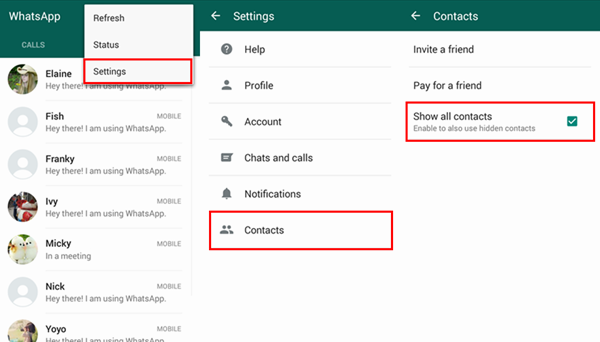
Tips 4.In the contact list,make sure that all of your contacts groups are “visible”. Act as below:

• Run WhatsApp on your Android phone.
• Go to “Contacts” > menu (three-dot icon) at the upper-right corner > “Settings”.
• Select “Contacts”.
• Check “Show all contacts”.

fix contacts cannot be recognized

Issue 3.Unable to Send or Receive Messages on WhatsApp

There are various reasons why your WhatsApp messenger is unable to send or receive messages, bad Internet connection,uncompleted verification,wrong phone number format and being blocked by friends for example. Here is the solve tips below.

Troubleshooting
Tips 1.You need to reboot your Android phone.Restart your phone after turn it off and wait for some 30 seconds.
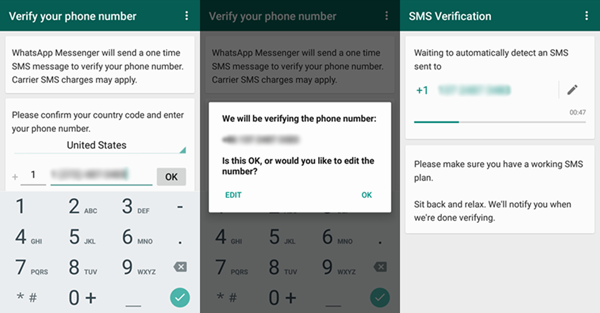
Tips 2.Complete the initial verification process.

fix unable to send or receive WhatsApp messages

Tips 3.Correct the format of each phone number that has entered on your phone.

Issue 4.Message is Always Delayed to Sent or Receive

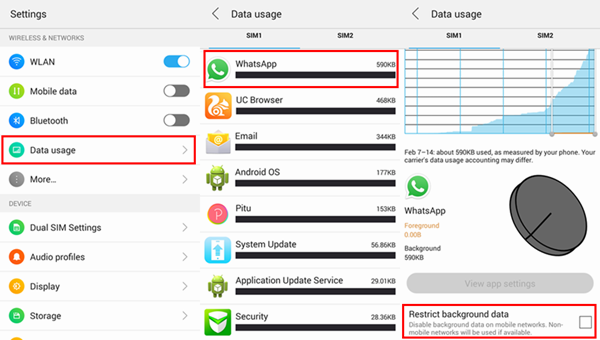
The delaying issued can be caused by bad network and the setting of “Restrict background data”. Here are two tips on fixing the errors.

Troubleshooting
Tips 1.Connect the network on Android phone.
Tips 2.Turn off “Restrict background data”.
Please go to “Settings” > “Data usage”.Then choose “WhatsApp” and disable “Restrict background data”.

fix-whatsapp-messages-delay

Issue 5.Phone Stuck at the WhatsApp Initial Screen

If your WhatsApp is not working, WhatsApp crash and WhatsApp not responding for example, try the below steps to fix it.

Troubleshooting
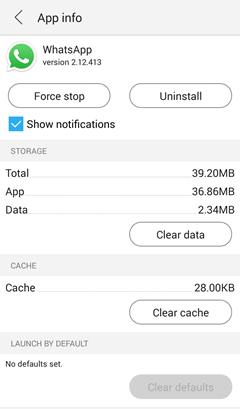
Tips 1.Uninstall and install WhatsApp again.But please note that before uninstalling,you need to back up chat history of WhatsApp.

fix-whatapp-crash

Tips 2.Maybe the WhatsApp is not applicable to your phone.Upgrade WhatsApp to the newest version.
Tips 3.Click the option of Facebook Sync if you use Facebook.

Read more:

How to Backup,Restore and Transfer WhatsApp Messages

How to Restore WhatsApp Messages Backup to Android Devices

How to Transfer WhatsApp Messages from iPhone to Samsung Galaxy

How to Backup Android Data to Computer

How to Completely Remove Contacts from Android SIM Card

“My brother is a blank manager,he save thousands of client name and phone numbers on his Android SIM card.However,nowadays for protecting the privacy of the client,he need to transfer the contacts to computer and keep a secret file,the blank require him to permanently delete all the client contacts from his Android SIM card.However,he heard that simple deletion can be recovered by some professional data recovery.He ask help for me.Now I have the same request for you all.Anybody have the best ways?Please let me know.Thanks advance.”-Paul Chou

Many person encounter the same circumstance with the Paul Chou’s brother,need to properly erase all the contacts from Android SIM card without restoring.Most of them have no idea at all and ask for help on the Internet.As we know,privacy security would be the one that concerns most,the contacts especially.To make sure all the name and phone numbers be wiped permanently from Android SIM card,you should turn to Android Data Eraser for help.

Android Data Eraser-An excellent data eraser for permanently erase contacts from Android SIM card completely with easy steps.Furthermore, it features the functionality to erase all data from Android phone will be cleared with just one simple click,including contacts,photos,browser history,caches and cookies,messages, etc.Supported Android device:Samsung,HTC,LG,Motorola,Lenovo,Huawei,Xiaomi,and more.With the help of the Android Data Eraser, you are allow to freely erase existing data or the deleted data from Android device.

d_win d_mac

How to Completely Wipe Contacts from Android SIM Card

Step 1.Run Android Data Eraser on Computer
Run the program and connect your Android device to computer.Then enable the USB debugging option on your device.Once connected,you will see the main interface as follows.Tap on “Erase All Data” option and move on.

android-data-eraser

Step 2.Erase All Contacts from Android SIM Card
In this step,you will be asked to enter “delete” to confirm the program to erase data.Click on “Erase Now” to get started.

wipe-contacts-android-sim-card

Step 3.Restore the Factory Resetting on Android
To clear all systems data and settings completely,a factory resetting is necessary.Follow the instructions below to complete it.

restore-factory-resetting

Note:It is important to backup your personal and useful data before the data erasing process.

d_win d_mac

Read more:

How to Permanently Erase Samsung Data before Selling

How to Transfer Android Data to Computer

How to Recover Data from Android Phones

How to Permanently Erase Samsung Data before Selling

“Recently I just bought the new Samsung Galaxy S7 phone to upgrade my old Samsung device.However now I wanna sell my old Samsung Galaxy S5 phone to the resell phone store.What upset me is the data saved on my old phone.I ever heard from my friend that even if I restore the phone to factory resetting,the erased data can be recovered by professional data recovery.Any ways to erase all the data from it without restoring?I really worry about expose my privacy to someone who will get my phone from the phone store.”-Alessia Cara

As we know,the phone data mean to our personal information and it’s indeed need to protect the privacy and avoid leaking to anyone,especially the contacts,messages,photos,credit card account,etc.When you get a new phone to replace the old one you should ensure that all of data is completely wiped from the old device before selling it or giving it up.

However,there are so much powerful phone data recovery program enable to recover the deleted data even if you have deleted it on phone by clicking the “Deleted” option or restore device to factory resetting.Here we provide you two simple useful methods to help permanently wipe data from Samsung before selling by the powerful data eraser programs.

Solution 1:Permanently Erase Samsung Data before Selling with Android Data Eraser

My first recommendation is a data eraser named Android Data Eraser,which allow to erase all data from Android without restoring,including contacts,messages,call history,apps,system setting, photo, video, etc.To be honest, Android Data Eraser worth trusting and it makes the work more effective.Almost all Samsung phone models are applicable to this program,including Samsung Galaxy S8/S7/S6/S5/S4/S3,Samsung Galaxy Note 7/5/4/3/2 and more.

d_win d_mac

Step 1.Connect Samsung Device to the Computer
Enable USB debugging on your Samsung device after the connection.Then the program window will display as below.Click on “Erase All Data” option on the window.
android-data-eraser

Step 2.Confirm to Deleted Data by Android Data Eraser

1)Please close all Apps on device,such as Music.
2)Please make sure you have backed up data from the device.

Please type “delete” to confirm the order and click on “Erase Now” to move on.

wipe-samsung-data

Note:You are allow to choose the data types to erase by this program If you don’t need to delete all data.

Step 3.Start to Permanently Erase Data on Samsung Phone
Now the program will start to wipe your personal data on phone like contacts, SMS, photos, apps, and other personal information.The process will take you a little time, the time depending on the data storage on the device.

The Android Data Eraser has permanently erased all existing and deleted files on Samsung phone.Now you could resell it without any trepidation.

d_win d_mac

Solution 2:Permanently Erase Samsung Data before Selling with Phone Transfer

The second top data eraser is a superior program called Phone Transfer.It is your ideal choose of permanently wiping data from Samsung device as well as Android device,such as HTC, LG, Sony, Motorola, Google, Acer, ZTE, HuaWei and so on.With the help of the Phone Transfer, you are support to easily erase existing data or the deleted data from Android with a click, and ensure the erased data 100% can not being recovered.

d_win d_mac

Step 1.Run the Phone Transfer and Connect Samsung with Computer
Download and install the Phone Transfer on your computer,launch it and connect your old Samsung with computer via the USB cable.

phone-tansfer
When the connection is successfully,your Phone will be detected by program and show in the program interface as below.

Step 2.Select the Date Eraser Mode
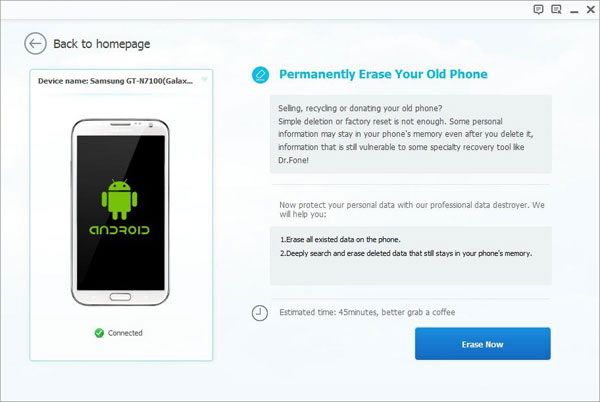
Now you should click “Erase Your Old Phone” option in the homepage of program.
erase-Samsung-data-phone-transfer

Then click “Erase All Data” option,this deletion mode allow you to wipe all data from device without recovering,like SMS,call logs,contacts,safari bookmarks,photos.

Step 3.Begin to Wipe All Data on Samsung
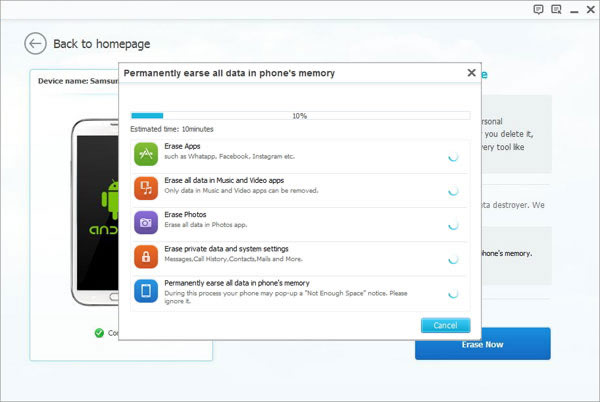
The data erasing process may take you some time,please be patient,keep device connecting with the computer until it is end.

eras_Samsung-data

d_win d_mac

Related Article:

How to Transfer Samsung Data to iPhone 7

How to Transfer Samsung Data to Samsung Galaxy S8

How to Transfer Samsung Data to Samsung Galaxy Note 7

How to Backup Samsung Data to Computer

How to Backup and Restore Samsung Data

How to Backup and Restore Data on Samsung Galaxy S7