All posts by DHZ

14 New Features You Need to Know about Samsung Galaxy S7 and S7 edge

South Korean tech major Samsung finally took the wraps off its next-generation flagship phones – the Galaxy S7 and Galaxy S7 Edge – at its MWC 2016 keynote on Sunday. On the face of it, nothing has changed at all. Both the new Galaxy S phones look ridiculously similar to last year’s Galaxy S6 (and Galaxy S6 Edge). But that’s necessarily not a bad thing. The Galaxy S6 brought Samsung back into the game and a lot of this had to do with its design, which in a word was fantastic. Samsung deciding to retain much of its design elements in the Galaxy S7 is in fact a well-thought out plan.

While nothing has changed on the outside, Samsung has made sure that almost every internal aspect of the new phones gets a boost some way or the other. Moreover, the new Galaxy S phones see the return of the microSD card slot and water-proofing capabilities, after they were stripped off in the Galaxy S6. These two features alone are capable to spark a renewed interest in Samsung’s Galaxy S7 and Galaxy S7 Edge even though they look a lot like last year’s phones.

Here are the 14 useful features of Samsung’s new Galaxy S7 and Galaxy S7 Edge phone:

1. Customizable App Shortcuts on Lock Screen
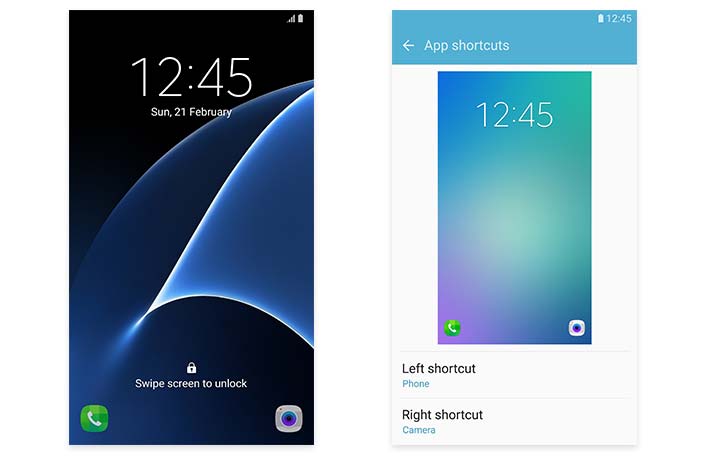
When the Galaxy S7 and S7 edge are locked, two apps can be placed in the lower corners for easy access. Choose the apps you use the most-whether the camera, phone, photo gallery, S Health or even third-party apps-and the Galaxy S7 and S7 edge can provide you with faster access.
Lockscreen-2

How to Set Up: Setting > Lock screen and security > Info and app shortcuts > App shortcuts

2. Multiple Lock Screen Images
For your Lock screen’s wallpaper,you can now select multiple images from your Gallery to change the look each time you check your lock screen. It allows you to choose up to 30 images.

In addition,if you long press the display while the lock screen is on,the time and other information on the display disappear leaving only the wallpaper image.That allows you to see your lock screen image without interference from any on-screen information.

How to Set Up: Settings > Wallpaper > Lock screen > Select From Gallery and choose the photos (up to 30)

3.More Ways to Manage Apps from Home Screen
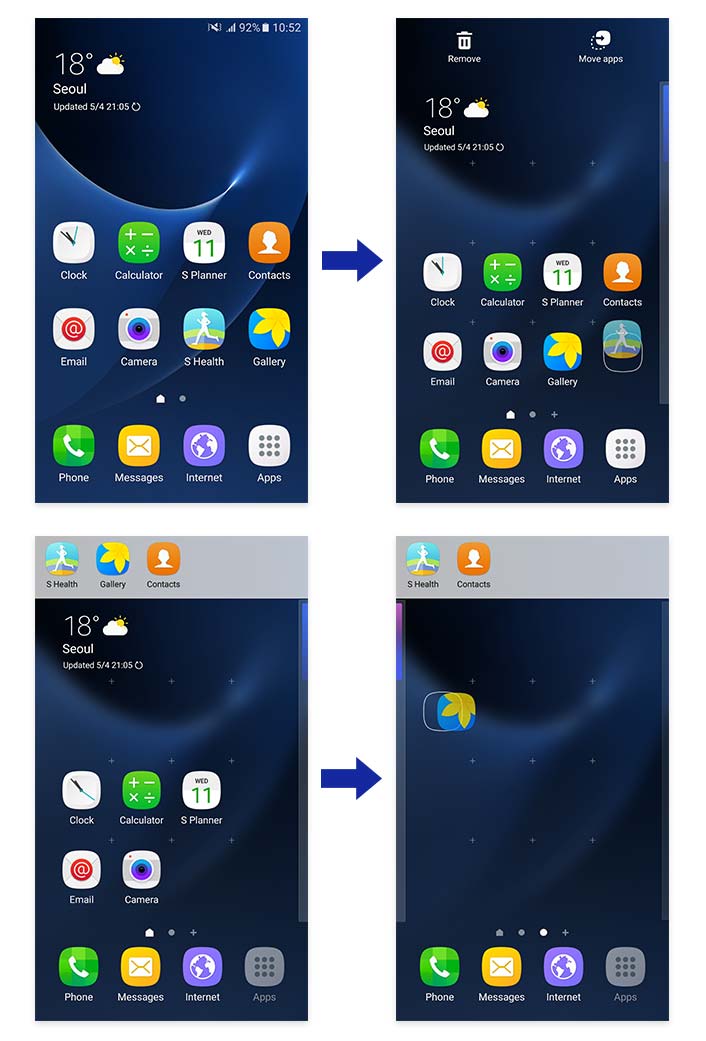
With the Galaxy S7 and S7 edge,you can now easily move apps around your home screens and search for apps more simply.

To move icons to different Home screens,long press an icon, and then drag it to the Move apps icon on the upper right.The Move apps is a temporary container for managing several applications at once.Then tap or drag it to move it to another page.
Manage Apps from Home Screen-1

In addition,you can look for an app by name in the app tray by selecting “Search” at the top of the screen.

4.Show All Apps on Home Screen
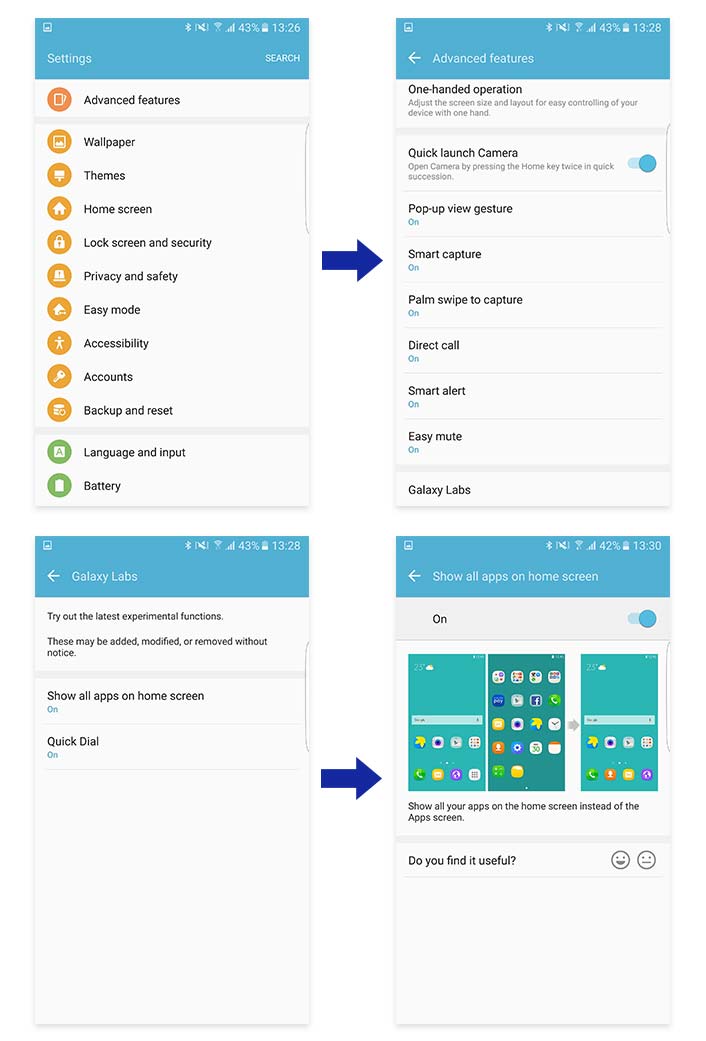
Usually downloads all go to an app tray, but if you don’t like that way of organizing them,the Galaxy S7 and S7 edge give you an alternative method.Choosing “Show all apps on home screen” gets rid of the app tray, and moves all the apps to the Home screens.
Show All Apps on Home Screen-1

How to Set Up: Settings > Advanced features > Galaxy Labs

5. Identify Unsaved Callers
When you receive a call from a number not in your address book,the Galaxy S7 and S7 edge can check to see if that phone number is suspected of being a spammer or even a fraud-related number, and what the risk level is.Depending on that analysis, you can choose to block or report the number.
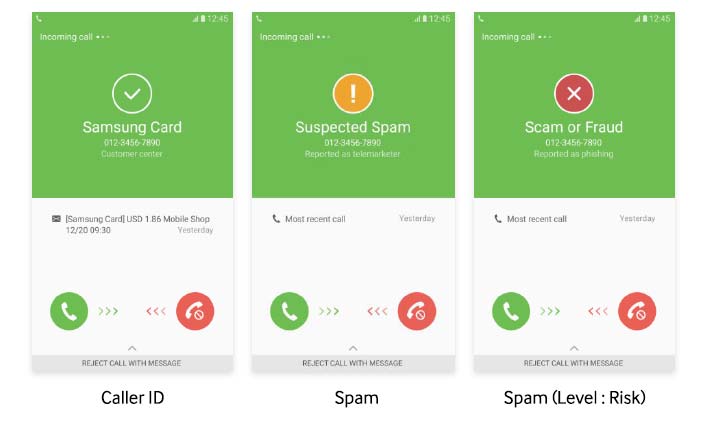
Identify Unsaved Callers

How to Set Up: Settings > Advanced features > Identify unsaved numbers

6. Display Scaling
Display scaling lets you optimize the DPI (Dots Per Inch) settings of your display.You can either choose to stay as Standard or change to Condensed.Condensing your display lets you view more content on the screen at one time with smaller icons,controls, and text.
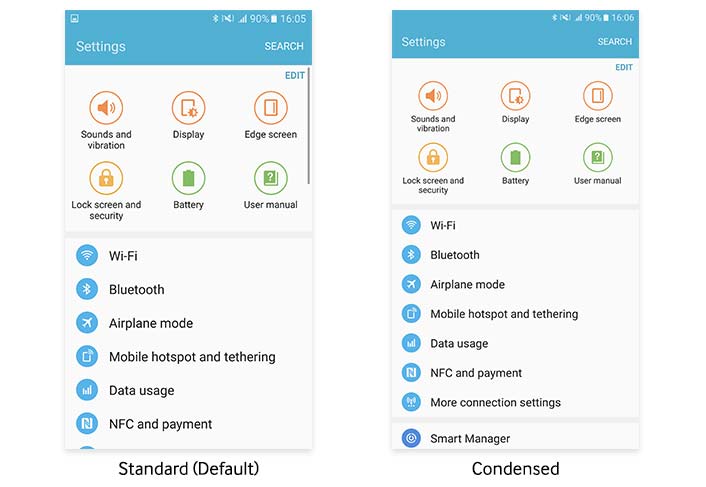
Display Scaling

How to Set Up: Settings > Display > Display scaling

7. Icon Backgrounds
For the Galaxy S7 and S7 edge,the look of the icons has been updated to be more unified and natural. For native apps, the icons all come in a “squircle” shape (a square with rounded edges), creating a pleasing and organized appearance. For third-party apps, users can turn on the Icon background, which creates a squircle container background for all those icons, too, unifying the look of all of a user’s apps. In addition, many icons now offer two different styles—a traditional flat look, and a more 3D look.

How to Set Up: Settings > Display > Icon backgrounds

8.Schedule Auto Restart
Often restarting a device is one of the best ways to keep it running efficiently,as it clears out the system and ensure new apps and updates are operating properly.Auto restart ensures that your Galaxy S7 or S7 edge gets a regular restarting,so you don’t have to worry about remembering to do it manually. The function also takes care to prevent restarting from happening at inconvenient times,so it only occurs when the screen is turned off and the device is not in use, but there is at least 30 percent of the battery power remaining.

How to Set Up: Settings > Backup and reset > Auto restart

In addition to these innovative features newly added to the Galaxy S7 and S7 edge,a variety of other useful functions are also available on these flagship Galaxy devices.

9. Always On Display
Now you can check on notifications, missed calls,the time,date and more without ever unlocking your display.Always On Display puts that information right on your screen,freeing you from activating your display to check them, and without draining your battery.

How to Set Up: Settings > Display > Always On Display

10. Cross App
With Cross App,you can use apps from within certain other apps.For example,while chatting with a friend in the Messages app,you can access photos and videos and share them,or open a URL and check out a web page, all without exiting the messenger first.

Cross App is automatically integrated with the Galaxy S7 and S7 edge.When using the Messages app, just click on the paperclip icon on the left of the Enter message panel.That gives you the choice of Camera, Gallery or Other.Camera lets you take photos or record video and send it directly to the person you are chatting with. Gallery lets you select photos and videos saved on your device.Other offers a range of apps, including Audio, Voice recorder, Memo and more.
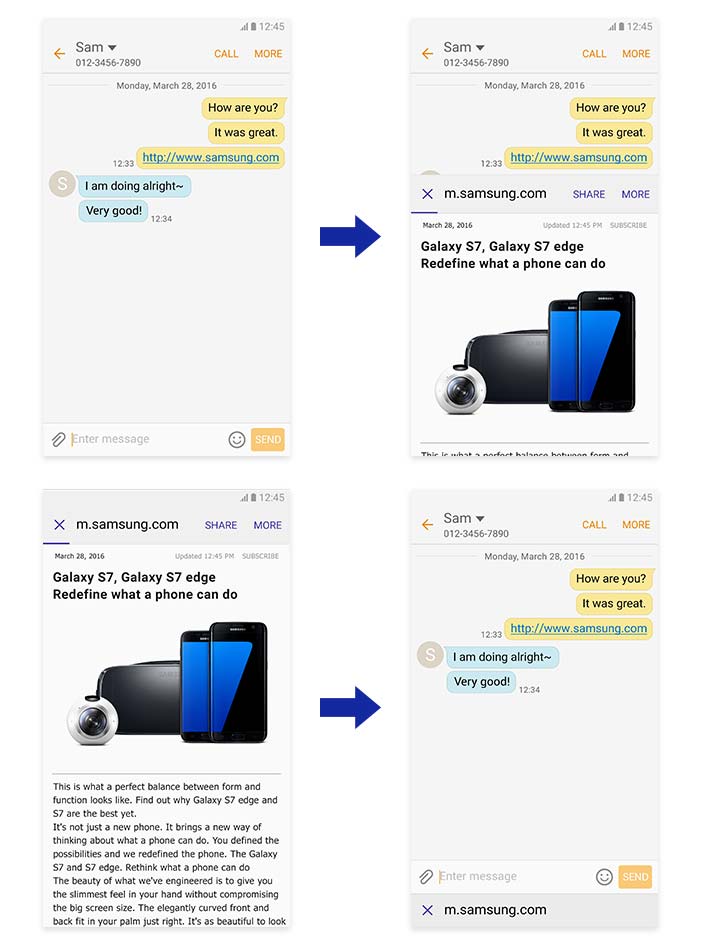
Cross App1

11. Game Launcher
The Galaxy S7 and S7 edge are gamer-friendly devices,and both come with an app that makes gaming even better.Game Launcher lets you maximize your game-playing time through a variety of power-saving options.You can also turn off all notifications so nothing interrupts your gaming and lock the Recent and Back keys to prevent accidentally exiting a game.In addition,you can also take screen shots, record games and share them with friends.

How to Set Up: Settings > Advanced features > Game > Game Launcher

12. Smart Switch
Smart Switch, which makes it easy to transfer your old data to a new Galaxy device, has gotten an upgrade for the Galaxy S7 and S7 edge,with a new home layout, better app data recovery,and other improvements. A USB connector (On-The-Go Adapter) also comes with the Galaxy S7 and S7 edge,ensuring you can transmit data easily from the moment you unbox your device. Allowing transfers from devices with different operating systems,Smart Switch is a convenient way to move all your files, including contacts, chat messages, photos,calendar, apps and music.

How to Set Up: Settings > Backup and reset > Open Smart Switch

13. Quick Dial
Quick Dial makes calling your contacts faster and easier.Once enabled,you just need to give the home key a long press (even if the display is off),and then speak the name of the person you want to call.Quick Dial takes care of the rest.Also,the feature’s machine learning allows your device to become more familiar with your voice over time,thus increasing the device’s functionality as you use it more often.

How to Set Up: Settings > Advanced features > Galaxy Labs > Quick Dial

14. Tasks edge
This is a function only on the Galaxy S7 edge model.Just as People edge puts your most important contacts right into the curved edge screen for easy access,and Apps edge does the same for your favorite apps,Tasks edge lets you assign a shortcut for your most common tasks.Setting an alarm, composing a text message or creating an event can be assigned to the edge of the display,for fast, easy access.

How to Set Up: Settings > Edge screen > Edge panels

Read more:

How to Make Full Use of Samsung Galaxy S7(Edge) Camera

How to Recover Data from Samsung Galaxy Samsung Galaxy S7(Edge)

How to Get More Internal Storage from Samsung Galaxy S7(Edge)

How to Fix Top 5 Android Problems

Solutions to Fix WhatsApp Programs on Android Phones

Two Solutions to Factory Reset iPhone

When you wanna selling your iPhone,give it to someone or sent it to repair store,you may need to restore the factory reset on iPhone.To remove all data and reset the iPhone previous setting,avoid to expose any personal information from iPhone.Most iPhone users will choose the original method to achieve the goal,it’s no doubt that it’s an easy way to complete the factory reset job with it.However,we are going to describe both the simple way and another safely way on restoring factory reset iPhone.

A factory reset can help resolve issues with your iPhone if it’s crashing or freezing,but it is also what you’ll want to do if you need to wipe your iPhone before selling it,or passing it on to a family member or friend.When selling an iPhone,it’s absolutely vital that you delete all the sensitive data stored on it.If not, an unscrupulous buyer could gain access to your social media profiles,your financial information and even your personal photos and videos, enabling them to browse through your private moments or steal your identity.

Tips:If you want to start iPhone with a clean state,then there are two solutions to take.First of all make sure you have a backup ready.Because all data and settings will be wiped completely from your device after performing factory reset on it,here we strongly recommend you to do a backup for your iPhone first.The iOS System Recovery enables to  backup iPhone safely before restoring it to factory settings,and we’re about to show you how to do so.

Guide:How to Safely Backup iPhone before Factory Reset

Part 1:Restore iPhone to Factory Settings with iTunes

If you need to restore the iPhone to its original state the process requires iTunes.This can be useful for troubleshooting to see if a problem is hardware or software related.

Step 1. Connect your iPhone to the computer and run iTunes.
Step 2. Make sure your iPhone is selected from the left menu in iTunes.
Step 3. Click the Restore button in the center of the iTunes Summary tab.
Step 4. You can choose to Back Up the contents of your iPhone to the computer.
Step 5. iTunes will ask if you’re ready to Restore the iPhone, this will wipe all of your data and settings from the device. Click Restore.

itunes-iphone-restore-reset

Step 6. iTunes will download, prepare and restore the software on your iPhone. Do not unplug the iPhone from the computer during this process.
Step 7. When it finished, iTunes will ask if you want to restore from backup. Choose “Set up as a new iPhone” to start fresh with factory settings.
Step 8. Enter a name for your iPhone and the process is complete.

Part 2:Restore iPhone to Factory Settings with iOS System Recovery

This way works when you couldn’t use iTunes to enter iPhone recovery mode successfully and then restore it to factory default.

iOS System Recovery is available for restoring iPhone to factory resetting,completely wipe all data and setting on iPhone.In addition,iOS System Recovery allow to fix iPhone system to normal with various iOS system issues like recovery mode,white Apple logo,black screen,looping on start, and so on.iOS System Recovery work for all models of iPhone(iPhone 7,iPhone SE,iPhone 6S/6,iPhone 5S/5C/5,iPhone 4S/4), iPad(iPad Air,iPad Pro,iPad Mini) and iPod touch.Fully compatible with Windows 10 or Mac 10.11, iOS 8,iOS 9/9.3,iOS 10,etc.

What’s iOS System Recovery can do for you:
-Restore iPhone to factory reset when iPhone freezes.
-Restore iPhone to factory reset when iPhone couldn’t work right.
-Restore iPhone to factory reset when iPhone has been attacked by virus.
-Restore iPhone to factory reset before selling it or giving it to someone.
-Restore iPhone to factory reset when you want to erase iPhone personal data.
-Restore iPhone to factory reset when you forget the password of iPhone.

d_win d_mac

Step 1.Run iOS System Recovery and Select the Recovery Option
Run the iOS System Recovery and click “More Tools” > “iOS System Recovery” in the program main interface.Connect iPhone with computer.

restore iphone to factory resetting

On the next window,read the instructions and warnings carefully,click “Start”.

Step 2.Download the Firmware for iPhone
When on the next window,make sure that your iPhone is connected to the computer and select your iPhone model and other information.Then click “Download”.

restore iphone to factory resetting

Then the program will start to download the suitable firmware for your iPhone.

download the firmware for iPhone

Step 3.Restore iPhone to Factory Resetting
When the firmware downloading process is finish,iOS System Recovery will begin to restore your iPhone to factory resetting.

restore iphone to factory resetting

When the process is complete,you can start using your iPhone normally when done.

restore iphone to factory resetting

d_win d_mac

Related Article:

How to Erase All Content and Settings on iPhone Permanently

Three Situations to Erase iPhone Data and Settings

Permanently Erase Data from iPhone/iPad without Recovery

How to Fix “Verifying Update”/”Slide to Upgrade” Error on iPhone

Since iOS 10 is coming on the way,a lot of iOS fans are interested in the newest iOS version and ready to do the iOS upgrade.In a General,there are two practical ways to upgrade device to iOS 10, but either OTA or through iTunes,it is easy to encounter some errors in updating.In fact, Apple website has given solutions to fix some common bugs of iOS 10.Here we are going to talk about the two cases:”Verifying Update” and “Slide to Upgrade” error while installing iOS 10 or the beta version.

Part 1:Tips to Fix “Verifying Update”/”Slide to Upgrade” Error on iPhone

Status One: iDevice Stuck in “Verifying Update” Screen
From iOS users communication,part of users reported the pop-up of “Verifying update” still occurs all the day and nothing changes.Some advise to restore iPhone in order to exit the error screen while it is in vain. Just try these tricks to fix your case to check the results.

Tips 1: Undoubtedly, waiting for several minutes is what should be done firstly. Because here may be network mistake, just be patient to wait for 10-20 minutes.

Tips 2: Stay pressing the power button to get your device locked and it would take more than 5 times. As you see the loading screen, the process of downloading would start right now.

Tips 3: Go to open the newest version of iTunes and use it to get iOS updated on the computer.

Tips 4: Try to hard reboot on iPhone/iPad. At first, just hold the “Home” and “Sleep/Wake” button at the same time. Then, when you see apple logo appear, please release the buttons.

Status Two:iDevice Stuck in “Slide to Upgrade”Screen
Another case about stuck screen also annoys users,”Slide to Upgrade” signal stays on the device interface and it seems to get frozen. At this time, for getting iPhone/iPad back to normal status, we found some steps which work for this situation.

Step 1.Use USB cable to get iDevice and PC connected. Then run iTunes on computer.
Step 2.Pressing “Home” and Power button at the same time for several seconds once the PC cannot detect the mobile device. As iPhone/iPad restart, you can select the device on iTunes.
Step 3.Click “Restore” to restore your iOS device.If you have no any backup before upgrading iOS 10 or public beta version. Please do a backup immediately and choose it to restore.

Note:If you have enabled “Find My iPhone” before,official Apple Support may assist you to fix your need.

Hope the helpful tips above can do a great help for restoring your device to normal.To thankful, these cases will only occur on iPhone6S/iPad mini 4/iPad Air 2 or the former device.Wish you have a good experience with iOS10.

Part 2:Solve iPhone “Verifying Update”/”Slide to Upgrade” Error via iOS System Recovery

iOS System Recovery,a third-party tool which is excellent on restoring iOS system to normal for iPhone(iPad).This program works well for fixing iPhone/iPad stuck on “Verifying Update”/”Slide to Upgrade”screen while installing iOS 10.Additionally,it enables you to fix iOS frozen/crashed status during or after iOS update/jailbreak,fix recovery mode stuck,DFU stuck,red iTunes logo stuck,etc.iPhone SE/6S/6/5S/5/4S,iPad,iPod are supported.One point can’t be ignored is that this wonderful program empower to restore lost data from iPhone/iPad after iOS 10/iOS 9.3.3 upgrade.Use guide on:How to Recover Lost Data on iPhone/iPad after iOS 9/iOS 10 Upgrade.

d_win d_mac

Step 1.Select the Repair iOS System Feature
Click “Fix iOS to normal” from “More Tools” in the homepage of iOS System Recovery.Then connect your iPhone/iPad to computer with its USB cable.When iOS System Recovery detects your device,click “Start” to go on.

iphone-system-fix-tools

fix-verifying-update-error-on-iphone

Step 2.Download and Select Firmware for Device
To fix the abnormal operating system of iPhone/iPad,you need to download the suitable firmware for your device first.iOS System Recovery will recognize your device very soon,offering the latest iOS version for downloading.You should click “Download” and wait a second.The program will finish it automatically.

select iPhone model

download the firmware for iPhone

Step 3.Get iPhone/iPad out of “Verifying Update”/”Slide to Upgrade” Screen
When the download is complete,the program will continuously start repairing your device to restore device system to normal,and get your device to work properly.In a few minutes,it will tell you that your device is restarting to normal mode.The whole process of fixing the operating system of iPhone/iPad only takes you less than 10 minutes.

fix-verifying-update-error-on-iphone

fix-verifying-update-error-on-iphone

d_win d_mac

Related Article:

How to fix Bug on iPhone/iPad after iOS 10 Upgrade

How to Restore iPhone System to Normal without Firmware Upgrade to iOS 10

How to Get iPhone Out of Recovery Mode after iOS 10 Update

4 Ways to Transfer Photos from Computer to Mobile Phone

You probably use your mobile phone primarily for making calls,but it also works as a portable storage device for photos.Now that every smartphone has at least one camera built into it,we’re taking more photos than ever.So may be it is necessary for you to transfer photos between computer and mobile phone to manage your photos.You’ve got plenty of options for moving photos to your phone,including Bluetooth, USB transfer or email attachment.Each transfer method takes just a few minutes to complete,and none require any expensive or complicated equipment.

transfer photo to  phone

Way 1:Transfer Photos from Computer to Mobile Phone via USB Transfer

Your cell phone likely came with an USB cable for connecting the device to your computer.Once connected,your phone may automatically enter mass-storage mode.In this mode, you can’t make or receive calls,using the phone only as a storage device until it’s disconnected.Your phone may also prompt you to enable mass-storage mode upon connection.Depending on your phone model,tap “Yes,” “OK” or “Mass Storage” to confirm.

Browse the photos on your computer that you want to transfer to your phone.Drag pictures into your phone’s Pictures, Photos or Media folder. To save time, you can highlight multiple photos and drag all of them to your phone’s folder at once. After you’re done, disconnect the phone from the computer and USB cable.You may need to tap “Done” or “Exit” on the phone to exit mass-storage mode.

Way 2:Transfer Photos from Computer to Mobile Phone via Bluetooth

Bluetooth enables you to transfer photos between devices across short distances. Nearly all cell phones and computer operating systems support Bluetooth transfer. To get started, you’ll need to enable Bluetooth on your cell phone and make the device discoverable.Instructions vary depending on your phone, so consult your user manual, if necessary.

Once your phone is ready, click the Bluetooth icon in your computer’s notification area, and then select “Send File.” Your phone should appear in the Bluetooth File Transfer window. Select it, and then browse to the location of your photos. Click a photo and select “Next” to transfer it. When you finish transferring, remember to turn off Bluetooth on your phone. Leaving it on will drain the device’s battery.

Way 3:Transfer Photos from Computer to Mobile Phone via Email Attachment

If you want to send photos to a friend’s phone,try transferring the images via email. You can also email the pictures to yourself.

To start it,sign in to your email account and open a new message.Click the “Attachment” icon or button. In the window that opens, locate the photo you want to transfer. Double-click the picture to attach it to the email. In the Recipient field, enter your phone’s email address.

Once you’ve sent the photo, check your email on your phone. Open the attachment and download the photo to phone or phone’s memory card.

Way 4:Transfer Photos from Computer to Mobile Phone via Transfer Apps

Android Transfer and Android & iOS Manager, both is a perfect data manager to freely transfer photos from computer to Android phone.Android Transfer is designed to manage data between computer and Android. With this program,users can freely transfer photos/contacts/SMS/music/video/apps/files from computer to Android phones with simple clicks.It is such a convenient transfer tool help to manage data on mobile devices.The powerful program support to all Android mobile phones(Samsung,HTC,LG,Lenovo,Huawei,Xiaomi,Motorola,etc).What’s more,the user-friendly interface makes it possible to be easily used by both professionals or home users.

d_win d_mac
d_win d_mac

Step 1.Run the Android Transfer
After downloading the program,please install and launch it on your computer.

connect android by qr code

Step 2.Connect Android and Computer
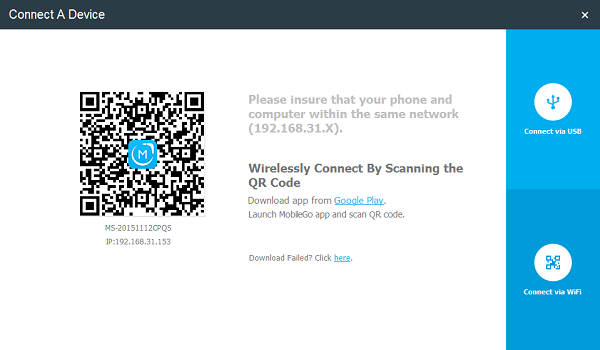
Use an USB cable to connect the devices or simply scan the QR code on screen.Then you will see your phone captured and shown as a thumbnail.

android transfer photos

Step 3.Transfer Photos to Android from Computer
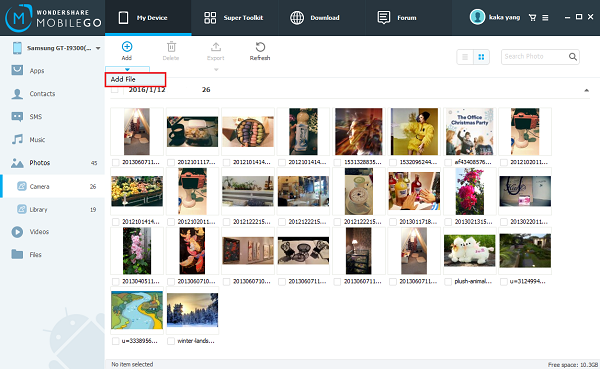
Click “Photos” on the left.You can choose one of the listed folders to locate your imported images and photos.Otherwise,create a new folder by right clicking your mouse within photos.

add photo to mobile phone

Tick “Add” button as the photos it show you.Browse your file on the computer, then select photos to import to the Android phone.

Note:Do not disconnect your phone and PC during the whole progress.

d_win d_mac
d_win d_mac

With only 3 steps,you can easily import photos from computer to Android with Android Transfer.Besides transferring data between Android and computer,it can also help to backup files on computer,restore Android data with one click,easily manage phone apps, etc.

Read More:

How to Convert YouTube FLV Video to Samsung Galaxy

How to Transfer Video from Computer to Samsung Galaxy S7/S6

How to Backup Android Phone or Tablet Data to Computer

How to Transfer Android Data to Computer

How to Get More Internal Storage from Android

How to Connect Android Phone to Car Audio

iOS 9.3.3 :The Things You Need to Know

In May,just a few weeks after iOS 9.3.1 arrived, Apple replaced it with a new iOS 9.3.2 update for iPhone, iPad and iPod touch models.Apple’s finally pulled the iOS 9.3.3 update out of the beta and released it to iPhone 6s users around the world.

ios-9.3.3

Apple has released iOS 9.3.3 on July 18 and iOS 9.3.2 or previous users currently can grab the new software over the air or download it from iTunes. The new iOS 9.3.3 fixes a handful of minor bugs and brings security enhancements. Unfortunately, some users reported that they are having problems with Apple Music, Bluetooth and battery life after updating to iOS 9.3.3.

To help you upgrade to new iOS 9.3.3 and enjoy with new features brought by the new iOS, here in this article show you the currently most common things about iOS 9.3.3.Hope it is helpful to you.

Part 1:What’s iOS 9.3.3 Included

Apple iOS 9.3.3 Is Now Available: What is Included in the Update?

The major features that were added to iOS 9.3 back in March included Night Shift, Touch ID support for Notes, additional News app personalization, new Health app categories, enhancements to the Music app on CarPlay and new Education apps.

9.3-features

iOS 9.3.3 primarily contains bug fixes, security enhancements and under-the-hood improvements rather than new features. Apple did not specify the bug fixes in the software update change-log. However, Apple did publish a security content document in regards to iOS 9.3.3.

Apple is expected to release iOS 10 along with the new line of iPhones in September or October. iOS 10 will include many innovative features, including a new user experience on the lock screen, additional Siri functionalities, contextual response options in the QuickType keyboard, a new Memories feature within the Photos app, a redesigned Maps application with third-party development extensions, an Apple Music and News app redesign, a new Home app and an iMessage app store.

You can download iOS 9.3.3 from Settings > General > Software Update. Or you can update the software by connecting your device to iTunes.

Part 2:The Common Problems of iOS 9.3.3

iOS 9.3.3 Problems:5 Things You Need to Know

iOS 9.3.3 is a small update for iOS 9 users with a short list of bug fixes and patches for problems and exploits. It’s much bigger (thanks to iOS 9.3, iOS 9.3.1 and iOS 9.3.2) if you’re coming from iOS 9.2.1 or older.

ios-9-bugs

Some of the bugs that have been fixed were reported on the Apple Support forums. A bug that appears to be fixed in iOS 9.3.3 is the removal of a blank space where the Beats 1 logo should be displayed in the Music app for users that noticed it was missing in the previous version of iOS. There also appears to be a fix that caused firmware images to become corrupted while using Apple Configurator. Unfortunately, some users reported that they are having problems with Apple Music, Bluetooth and battery life following the software update.

While the iOS 9.3.3 is working fine for some users, others are already running into trouble after downloading and installing the new update.The iOS 9.3.3 update has been out for a week now and we continue to see complaints about iOS 9.3.3 problems on the iPhone and iPad.

iOS 9.3.3 users are complaining about issues with Bluetooth, battery life, random reboots (we’ve seen one on the iPhone 6s), Wi-Fi, problems with Apple Music, issues with Touch ID, problems syncing photo albums, installation issues, and more.

Read more:

How to fix Bug on iPhone/iPad after iOS 10 Upgrade

How to Restore iPhone System to Normal

How to free Up Space on iPhone/iPad/iPod

How to Optimize Slow iPhone For Best Performance

How to Recover iPhone/iPad/iPod Data After iOS 9.3 Upgrade

How to Backup and Restore iPhone/iPad Files after iOS 10 Upgrade

How to Convert YouTube FLV Video to Samsung Galaxy

[Summary]:Have downloaded Youtube video or movie and want to watch Youtube FLY video on Samsung Galaxy S8/S7/S6/Note 8,etc. at any time any place?This tutorial will teach you how to use a Youtube to Samsung Video Converter to convert Youtube video from FLV to MP4 for playing on Samsung Galaxy S/Note easily.

“How can I use my Samsung Galaxy S6 to watch YouTube FLV without wasting too much traffic?”-Emily

It’s a great idea to watching YouTube videos on Samsung Galaxy phone for enjoyment anytime and anywhere.However,it’ll cost you a lot of 3G/4G traffic if there is no WiFi Internet,and the YouTube video will always buffer because of its unstable network.So,you’re strongly advised to convert downloaded YouTube FLV videos to Galaxy phone for playback at any time and in any place.No extra money and no video buffering.We will show you how to solve this problem.

convert youtube video to Samsung

Android Video Converter is absolutely the right tool for you.It’s not only a powerful video converter,but also a great video downloader.With it,you can convert local YouTube FLV videos to Samsung Galaxy phone with compatible formats after downloading online YouTube videos.It can transfer your video format to any type that you like including YouTube FLV.To sum up,this wonderful converter can make YouTube lovers enjoy any YouTube video on Samsung phone freely.

Know More Features of Android Video Converter:
-Convert,transfer videos 30X faster with 100% quality retained.
-Convert 2D Moives to 3D, Convert 4K videos and Play on Android phones or tablets.
-Support 158 formats for Android video,audio conversion.
-Edit Android video and audio more quickly and easily.
-One-click to download and capture web video.
-Convert DVD moives to Android devices; burn and copy home DVD, edit and download videos to Android files.
-Better results with native code when using iMovie, Final Cut Pro, Adobe Premiere, etc.

Part 1:How to Convert YouTube FLV to Samsung Galaxy

Step 1.Drag YouTube FLV Video into the Converter
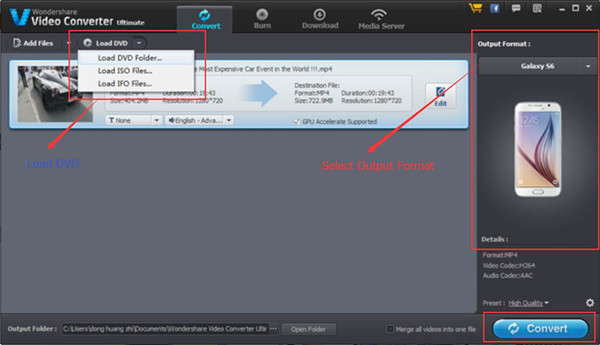
Firstly you are required to import the FLV files that need converted after running Converter.You should click “Add File” button to add files or you can drag the files from the video folder to the converter interface.

Convert YouTube FLV to Samsung Galaxy

Step 2.Select the Output Format and Your Phone Model
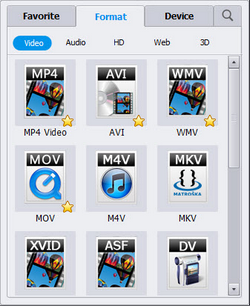
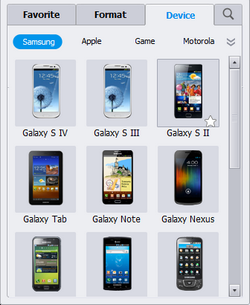
In the second step,you will be asked to select one of the supported formats after clicking “Output format”.Then,click the “Device”,and select your Samsung Galaxy model.

select-output-format

select-android-device

Step 3.Start to Convert the YouTube FLV Video
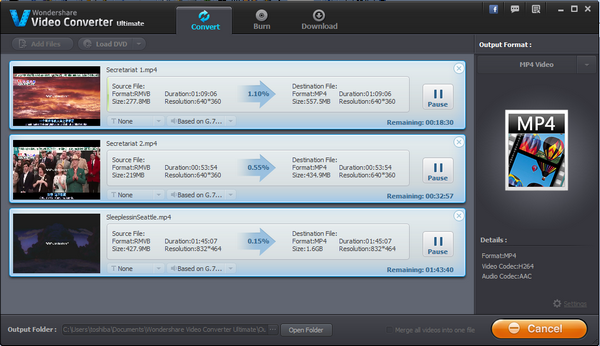
The last step you just need to click the “Convert” button and wait.Then the converter will begin to convert your YouTube FLV video to the selected format.The process bar will show you the process of the conversion.

Convert YouTube FLV to Samsung Galaxy

As the conversion completed,you can connect your computer with your Samsung Galaxy via cable to transfer the converted video to Samsung.

Part 2:How to Download YouTube FLV for Samsung Galaxy

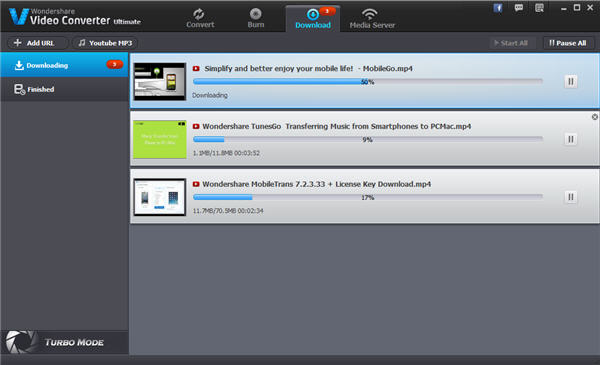
After you run this Android Video Converter,you should tab the “Download” button at the top of this window.When you’ve entered into the “Download” interface,you need to click the “Add URL” button on the left side,and then copy the YouTube video URL you want to download in the pop-up window.Easy,Done.

download-yutube-video

Related Article:

How to Convert and Play DVD Movies on Samsung

How to Rip and Convert DVD Movies for iPhone/iPad

How to Transfer Videos from Samsung Phone to Computer

How to Backup and Restore Videos on Samsung Phone

How to Restore Deleted Videos from Samsung Galaxy

How to Restore Deleted Picture from Digital Camera

More and more people get a digital camera these days.Many of them use digital cameras to record wonderful moments.But it seems digital pictures are easier to lose than traditional film pictures because the digital camera has an useful but dangerous delete button.An operation mishap may delete one or all of the pictures instantly.

If you’ve ever accidentally deleted pictures from your digital cameras memory card,you’re not alone.That feeling of dread when you forever lose photographic evidence of memories and experiences in digital can be resolved- whether your digital camera fell into the wrong (toddler’s) hands,or you had a momentary lapse of eye-hand coordination when faced with a “Delete All” photos,don’t be crazy please be quite yet.

Android Data Recovery recently has released a new feature that support to recover deleted pictures from SD card completely.Both deleted photos and videos on SD memory card can be restored by this powerful Android SD Card Data Recovery.Additionally,this program also allow to recover files from hard drive,hardware RAID,external drives,etc.After scanning for the deleted files, you can selectively select the images you want to restore.To know more details,please follow the steps.

d_win d_mac

How to Recover Deleted Picture from Digital Camera

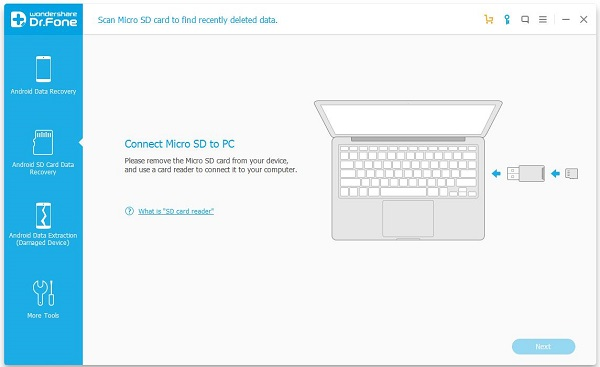
Step 1.Connect Memory Card to the PC
Please download the Android Data Recovery for the first time to use.Run the program and insert your camera’s SD card to PC.
Android SD Card Data Recovery

Step 2.Scan for Deleted Picture from SD Card
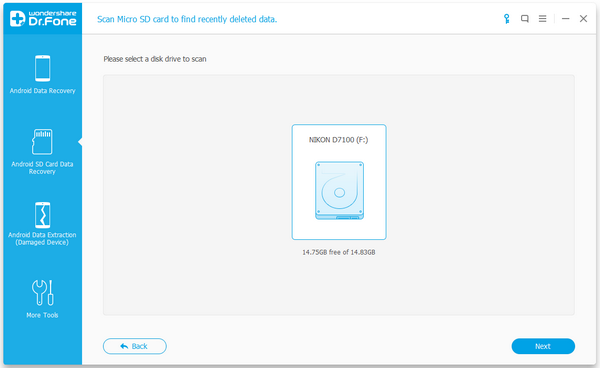
From the left sidebar,please tap on “Android SD Card Data Recovery” option.Then,you will be prompted that your SD card has been detected by program.After that,tap on “Next” to enter the next step.

detect-sd-card

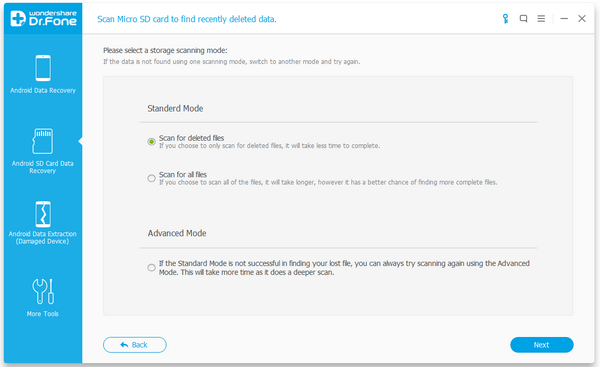
Now,you need to select a storage scanning mode,of which are Standard Mode and Advanced Mode.Normally,you can get deleted picture back by choosing “Scan for deleted filed”,which takes much shorter time.Then you have to wait for a second until the scanning process is finished.

scan-mode

Step 3.Restore Deleted Picture from SD Card
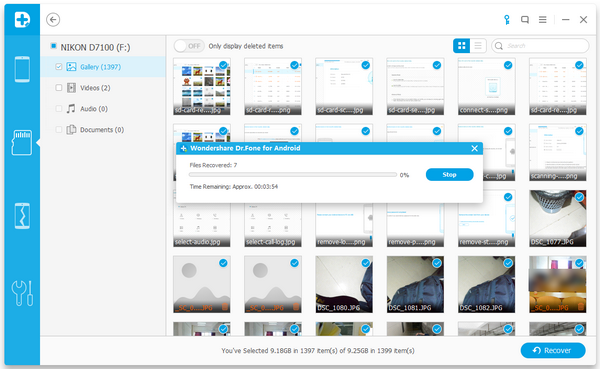
After scanning,you are able to see the deleted picture listed on the program.Select those you want to recover and tap the “Recover” button,then save the selected picture to computer.

recover-deleted-photo-sd-card

d_win d_mac

Related Article:

How to Make Full Use of Samsung Galaxy S7(Edge) Camera
How to Get More Internal Storage from Samsung

How to Delete Photos from Samsung without Restoring

How to Recover Lost Data from Android SD Card

How to Recover Lost Data from Samsung SD Card

Tips to Make Full Use of Samsung Galaxy S7(Edge) Camera

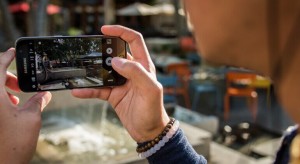
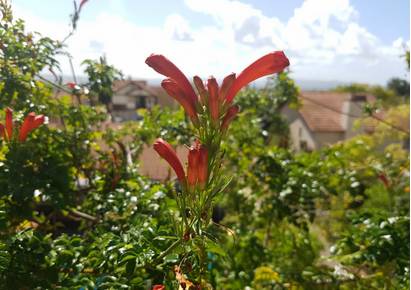
Phone cameras are getting so good companies like LG and Huawei are pulling all sorts of tricks out of the bag to stand out.The Huawei P9 has two cameras just on the back,the LG G5 has a GoPro strapped to it.The Samsung Galaxy S7 doesn’t make any such moves,opting instead for a single,pretty wonderful camera that can take shots that will beat some dedicated compacts in many conditions. Who’d have thought Samsung was capable of such restraint?

If you are a photo shooter, then you definitely want to know about the skills of managing Samsung Galaxy S7’s photos on the computer. Then don’t missing:  How to Manage/Import Photos between PC and Galaxy S7(Edge)

s7-camera-tour

* How to Recover Deleted Data from Samsung Galaxy S7

* How to Manage Samsung Galaxy S7 on Computer

Its hardware is pure class,but as ever,Samsung has packed the software with enough half-hidden extras to fill a GCSE course.Consider this your personal cheat sheet.These are the camera tips you need to get the best results out of a Samsung Galaxy S7 or Samsung Galaxy S7 Edge.

Part 1:Samsung Galaxy S7 Camera:Feature Focus

QHD recording on the front, 4K on the back
Now, one thing I did enjoy was that the Samsung Galaxy S7’s front-facing camera can record videos at QHD resolution. This is incredibly handy for anyone looking to vlog. In my case, it was helpful to know I could set the phone down and frame the image properly. It was simple to use the front-facing shooter and the phone’s screen as a guide, while still keeping a high resolution.

QHD

The rear camera is capable of recording at a higher 4K resolution. The only caveat here is that you do lose some cool functions when you turn this feature on. This includes the software-enhanced video stabilization, but OIS (optical image stabilization) does still tend to do a pretty good job.

Auto-focus in video
I do like taking advantage of auto-focus in video. It works great before taking a picture, but really stands out in videos, as it allows for a very clean way of focusing on a subject.

Why use Pro mode instead of just Auto
It is after stepping into a video installation when I realized this was the perfect environment to showcase the phone’s Pro mode and its advantages. After taking a picture of my brother looking at a screen, one can notice the Galaxy S7 is trying to expose for the whole frame. However, I would like to apply another effect and show more of a silhouette. Achieving this was as simple as going into Pro mode and speeding up the shutter.

auto-1 auto-2

Panorama mode
Things get more lit as you move to the top floor of The Broad Museum. I decided to take advantage of Panorama mode and things looked quite great. One thing to point out is that, in the picture below, the gentleman in the hat was walking as I was panning from right to left to take the shot. The Galaxy S7 was able to stitch him just fine. There are no deformed body parts or blurry spots to be seen.

panorama mode

A bit on the sensor’s aspect ratio
You may notice these images are almost square, as opposed to adopting the 16:9 ratio most mobile screens tout. This is because I wanted to take full advantage of the 12 MP sensor, which is built with a 4:3 aspect ratio. The image would otherwise be cropped and information would be lost.

4-3-3

4-3

4-3-2

One weird thing I did notice is that by taking a photo in the 4:3 ratio and then hitting record, the video had a zoomed in effect. The camera had to zoom in and crop the sensor, so it seemed like everything was suddenly closer.

HDR
HDR is not something you should be using all the time, as it slows down the camera and the expected effect is not always noticeable. You can set HDR to auto and the phone will try and figure out when it’s right to use it, though. As you can see in the images, it is best to take advantage of it in high contrast situations in which one area of the photo is much more lit than others.

HDR-1 NON-HDR

Handling lower light situations
It was here we were also able to see how images get warmer and less crisp as the light starts to become less dominant. Most whites looked more yellow, and my tasty burrito wasn’t as crisp due to the camera trying to compensate for noise.

handing lower light situation

Wrapping up
Overall, The Galaxy S7 is a great shooter to have as a companion for your daily adventures. Sure, the details may not be as sharp, but that is something you will only notice if you are pixel peeping. On the other hand, you will really enjoy the much improved low-light performance and the overall general performance.

Part 2:Tips to Make Full Use of Samsung Galaxy S7 Camera

1. Virtual shot
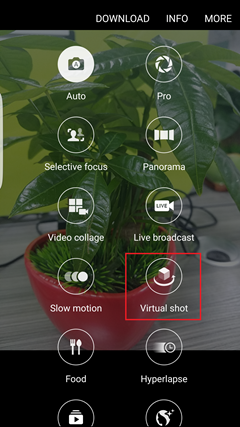
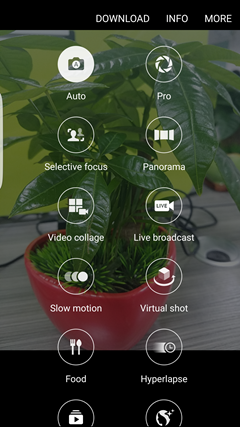
Samsung Galaxy S7 Edge features the camera functionality “Virtual shot”. In this mode, you can create a 360-degree movement, which can be seen in different angles. Open the camera app. Then go to “MODE”. Select “Virtual shot”. After that, tap the shutter button. Then circle around an object while keeping it in the center of the frame.

Virtual shot

2. Animated GIF
To create an animated GIF photo (for graphics interchange format photo), you don’t need to turn to a piece of software. Now, with Samsung Galaxy S7 camera, you can achieve the goal. Press and hold the shutter button take continuously picture.

Animated GIF

3. Adjust Brightness
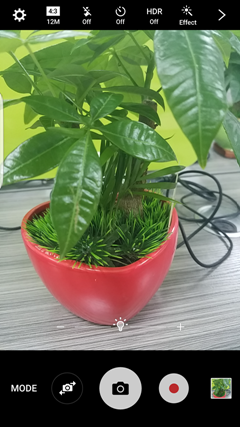
This functionary is quite useful. When capturing snaps in low-light environment, you can automatically adjust the brightness. Randomly tap the screen. Then there will be a bar. You can touch slide it to adjust the brightness.

Adjust Brightness

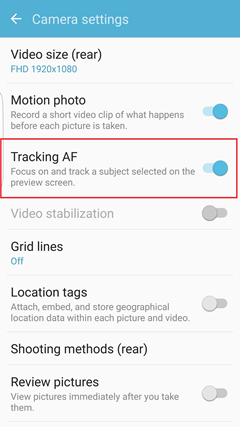
4. Tracking AF
The feature tracking auto-focus (AF) refers to focusing on and tracking a subject selected on the preview screen. Launch the camera. Then tap the gear icon (setting button). In the Camera Settings page, locate “Tracking AF”. Then you can switch on the feature.

Tracking AF

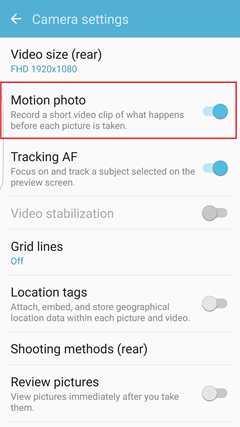
5. Motion Photo
Motion Photo is able to help record a short video clip of what happens before each picture is taken. Open the camera. Then tap the gear icon to enter the Setting page. Switch on the feature “Motion Photo”. Then every time you tap a photo, the Android camera will record a very short video before you press the shutter button.

Motion Photo

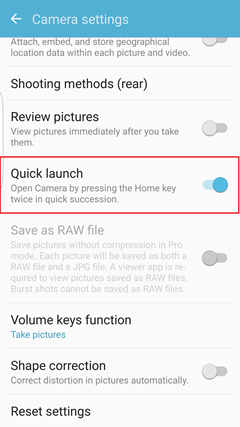
6. Quick Launch
Have you ever met a situation where you were going like to capture fireworks but they disappeared but after activating the camera. Now the issue is fixed. You can double click the Home button quickly and capture the moment in time. Go to the Setting page. Then you can switch on the feature.

Quick Launch

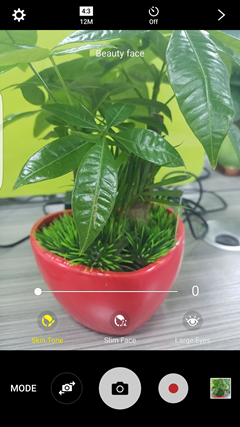
7. Beautify Your Photos
Download the “Beautify face” mode. Then you can beautify the selfie before capturing it. Run the app and go to MODE. Then tap and download “Beauty face”. When shooting photos, you can slide the bar to adjust Skin Tone, slim face and enlarge eyes.

Beautify Your Photos

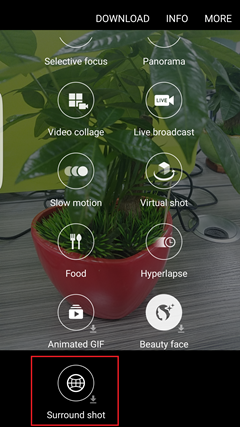
8. Surround Shot
Surround Shot mode, which helps include more objects in the frame, is available on Samsung Galaxy S7. You’ll take a bunch of captures to fill up a 360-degree view of the world, from the top to the bottom, from the left to the right. And you have the option to stop at any time, or undo your last capture.

Surround Shot

That’s all.Now you can make full use of your Samsung Galaxy S7(Edge) camera.Just enjoy it!If you need to backup photos from Samsung to computer,please check this link:How to Backup Samsung Data to Computer.

Read more:

How to Recover Photos/Videos from Galaxy S7/S7 Edge

How to Recover Deleted Photos from Galaxy S7/S7 Edge

How to Get More Internal Storage from Samsung

How to Delete Photos from Samsung without Restoring

How to Permanently Erase Samsung Data before Selling

How to Fix An Wet Android Phone

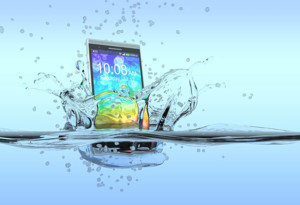
It’s a common thing the mobile phone get wet in daily life,accidently dropped your phone into the toilet,sink or pool?Getting your phone wet may mean that it have already get the water damaged.However,if you know something rescue point about how to deal with it,you can still save your wet phone instead of giving it up.Here are several simple tips to fix an Android phone dropped in water.

Rescue wet android phone

Part 1.Tips to Rescue Wet Android Phone

Remove your phone from the water as quickly as possible.The longer it stays in water,the more water or liquid will seep through the cracks and openings of your phone.Once it’s out of the water, there are certain things you need to do right away,and certain things you should absolutely avoid doing in order to prevent water damage of Android phone.

What not to do
-Do not turn it on.
-Do not press any buttons or keys(unless this is to immediately switch off the phone. See below).
-Do not shake, tap or bang the phone.
-Do not take the phone apart.Your device comes with a Liquid Damage Indicator (LDI) which, when activated, could void your warranty, and this could be triggered when you open your phone. Only take it apart if you absolutely need to and you have experience.

-Do not blow on it.This could send water into other internal parts of the phone that it hadn’t already reached, causing more damage in the process.
-Do not heat it up (that includes using a blow dryer or microwaving it).
-Do not cool it down (that includes sticking it in the freezer).

10 steps to save your water damaged Android phone
1.Turn it off quickly.

2.Remove any protective casing and,if your phone has them,remove your SIM and microSD cards from their slots.

3.Open up the back and remove the battery, SIM card(s) and microSD card if you are able to (note that this won’t be possible with all phone models).

4.Use a cloth, sleeve or paper towel to dab your phone dry. Avoid spreading the liquid around, because that could push it into more of the phone’s openings. Just soak up as much as possible.

5.If the water damage is more extensive, you can use a vacuum to carefully suck out water stuck from the cracks that are harder to get at.Make sure any small parts, such as the microSD card, SIM card, or battery, are out of the way before attempting this.

6.Bury the phone in a ziplock bag full of uncooked rice. Rice is great for absorbing liquid and this is actually a common method for drying smartphones and tablets.You can also buy dedicated phone drying pouches, which are worth having in reserve if you’re a clumsy type. Don’t wait to get hold of one if you don’t already have one to hand though – get your phone in the rice!

7. Let your phone dry for a day or two.Do not be tempted to switch it on see if it still works.Put your SIM card in an old phone, or ask a friend or family if they have a spare that you can borrow.

8.After a couple of days,you can remove the phone from the rice back, insert the battery into the phone and switch the phone on.

9.If your phone doesn’t turn on,try charging it. If it doesn’t charge,the battery may be damaged. You could try a replacement battery,or consider taking your phone to a repair shop to be checked by a professional.

10.If your phone has turned on and it is running as it should, you should still keep a close eye on it for the next few days, to see if you notice anything out of the ordinary.Play some music to check the speakers and ensure the touch screen still responds as it should.

In the future,avoid taking the phone with you when you go to the pool, use the bathroom or do the dishes.

Part 2.Steps for Recovering Data from Wet Android Phone

Android Damaged Recovery-An excellent Android data recovery to restore data from wet Android phone as well as water damaged Android phone.No matter the lost data or existing data,this program enable to get them back from your Android which was get in water.Contacts,SMS,WhatsApp messages,photos,videos,notes,call logs,document and more data are included.Various brands of Android devices are supported by this program,such as Samsung,HTC,LG,Lenovo,Motorola,Huawei,Xiaomi,ZTE,etc.

d_win d_mac

Step 1.Connect Android and Run Program
Connect the wet phone to the computer and focus on the option at the bottom which is displayed as “Android Broken Data Recovery” after running this program.

connect wet android to pc

Select the file type you want and click “start” button if you want to restore data from the phone.

scan wet android

Step 2.Select the Fault Type of Wet Android
There are two options to choose from the system-“touch cannot to used or cannot enter the system”, another is “Black screen (or the screen is broken)”.

Choose Broken Types

As your see,I think you should click “Black screen” which is on the right to try.

Step 3.Select the Model of Wet Android Phone
In this step you have to select the proper version of the wet Android and the exact model you are using.

select device model

Note:You can check your device models with pressing the guide in the middle of the next screen and select the proper version of your mobile phone.

Step 4.Enter the Download Mode and Analyze on Wet Android
1.Power off your device.
2.Press the Volume down button, Home and Power button at the same time.
3.Press the Volume up button to enter Download mode.

water damaged android download mode

It will start to download “recovery package” and then analyze your wet Android,it will take you a few minutes,please wait patiently.

scanning data wet android

Step 5.Preview and Recover Data from Wet Android
Once the analyzing process is done,the results all are listed,it is OK to preview and restore selected data and save these files on the computer.Before that,you need to choose a path to keep those files with clicking “Recover”.

recover data wet android

d_win d_mac

Dropping phone into the water is quite troublesome.Hope the introduction in the article above can help you deal with the situation and keep your phone in good condition again.If you want to get more tips and tricks on Android phone,you can check them in the “Android Recovery”Tips.

Related Article:

How to Recover Data from Water Damaged Android

How to Unlock Android Lock Screen

How to Fix Top 5 Android Problems

How to Fix WhatsApp Programs on Android

How to Connect Android Phone to Car Audio

How to Get More Internal Storage from Android

Top 5 Music Player for Android Phone

Music has a great influence on people.A lot of music lovers these days have focused to some sort of music streaming service like Pandora,Spotify,Google Play Music,or Apple Music.However,there are those of us left that hang on to our collection of media because streaming isn’t quite good enough yet.For some music fans,they prefer enjoy whatever tunes on Android devices anywhere anytime.If you have your own music collection and the music player isn’t doing it for you,then here are our picks for the best music player apps on Android.So join us in taking a look at the best music player apps for Android.

Top 1.Google Play Music
Google Play Music is a unique music player in that it’s both a streaming service and a standalone music player.It can read the files on your device and act as a regular player,or you can upload up to 50,000 of your songs to Google Play Music and stream them if you prefer.Of course,it also comes with an optional subscription that gives you access to all the content on Google Play Music. It’s a sublime mixture that allows people to use their existing music as part of the streaming experience.If you’re in the market for both,this is a great option.

google-music-player

Top 2.N7 Player
n7player is an app that tries to do something a little different and succeeds.Instead of having lists of music sorted in various ways,n7player creates a giant collage style list of your music which you can scroll through and listen to.It also comes with a 10-band equalizer,volume normalization,a tag editor,scrobbling,and plenty of other features.A lot of this is definitely form over function so those looking for more powerful music management may need to look elsewhere.However,if you want something that looks awesome,this works.

n7-player

Top 3.Shuttle Music Player
Shuttle Music Player had been growing steadily for a while.However,the developer took some time off to work on a rebuild of the app and, thus, Shuttle has been a little light on updates for a little while.Currently,it comes with a Material Designed interface, a six band equalizer, support for lyrics, gapless playback,a sleep timer,and customizable widgets.It also comes with quite a few theme options for those who like to make stuff look good.It’s a viable option,but keep an eye out for that rebuild!

Shuttle-Music-Player

Top 4.Poweramp
If you got some music in FLAC format and looking for ways to play the songs in your Android mobile phone,Poweramp is your first choice,which handles FLAC files like a champ,as well as other slightly less common files like OGG,WMA, ALAC and so on.In addition to just playing all of your odd music formats,built-in 10-band equalizer,you can enhance the tunes for better sound with the app.These features may be a bit overwhelming for extremely casual music listeners,but for the power user,they’re extremely useful to have.Poweramp is free to try for 15 days,after which you need to pay for the full version.

poweramp-player

Top 5.doubleTwist
doubleTwist has the function like other player apps did. What makes it particular and popular is that it can help you sync your iTunes library to Android device.doubleTwist premium also throws in a customizable equalizer,auto-fetching album art,and automatic podcast downloading.Magic Radio,is a new feature of doubleTwist,which creates custom radio stations based on the usual artist/song selections.You can experience this cool feature with a 7-day trial,but after that,it runs a relatively steep $24.99 per year.

doubletwist-player

What’s your favorite music player for Android,and which features do you find most important?Tell us in the comments.

Read more:

How to Connect Android Phone to Car Audio

How to Get More Internal Storage from Android

How to Fix Top 5 Android Problems

How to Play Pokemon Go on Android Phone

How to Fix WhatsApp Programs on Android Phone