All posts by DHZ

How to Backup and Restore your Android on Computer

Summary:
It is necessary to backup contacts, sms, photos, videos and other data from Android to computer,regularly,so you can keep and restore data back to Android device from computer whenever the original files is deleted or lost during the process of rooting phone, Android OS upgrading, factory reset Android, formatting SD card, etc.In this tutorial, I will guide you the most easiest and most reliable way to completely and efficiently backup and restore your Android phone or tablet on computer.Find out how to back up your valuable apps, contacts, messages, and more with just a few easy steps.

backup restore android data

Galaxy Note 7 Recall:Back up your Galaxy Note 7 Data before exchanging it
“Samsung Galaxy Note7 Battery Safety Recall”.Now that Samsung has recall all Galaxy Note 7 smartphones sold for it’s battery explosion,before recalling your issued Note 7 and exchange your current Galaxy Note 7 for a Galaxy S7 or Galaxy S7 edge, you must to backup data from Galaxy Note 7 to computer before recalled, then permanently erase all data and settings,so you’re ready for the Galaxy Note 7 recall,in order to protect your private data never be stolen by others.When you getting the new phone,then restore previous data to new phone from backup.

Here is the benefit of being able to perform full backups:
Android doesn’t offer a native backup service, so it’s easy to ignore the need to do so. But don’t wait until it’s too late to start thinking about backing up your Android.For example,many of us rely on our phone cameras to snap day-to-day photos of our lives and save text messages to have some of the most important conversations.

Everything that is valuable on a smartphone or tablet,so before a thief swipes that phone,or a spilled cup of coffee bricks it,backup Android data is required.Here we’ll be going over the best way to backup Android smartphones or tablets to keep data safe.This will prevent the headache of dealing with a lost, stolen, or new device situation.

How to Backup and Restore Android Data on Computer

Android Data Recovery– recently release a newest feature “Android Data Backup & Restore” that allow to do the Android data backup & restore task,backup and restore Android data to computer has never been easier. The program makes it simple to backup Android data to computer and even selectively restore backed up data to Android device.Enables to backup and restore almost every Android data type,such as contacts, text messages, videos, music, photos, calendar, call logs, playlists info and applications.It is compatible to almost all brands of Android device:Samsung, HTC, LG, Sony, Motorola, ZTE,Lenovo,Huawei,Xiaomi,etc,.


d_win d_mac

Part 1:How to Backup Data from Android to Computer

Step 1.Connect Android Device to Computer and Run Program
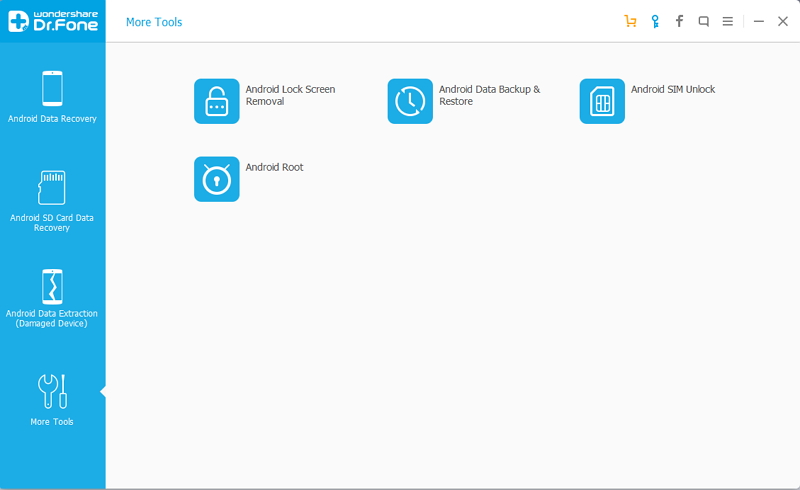
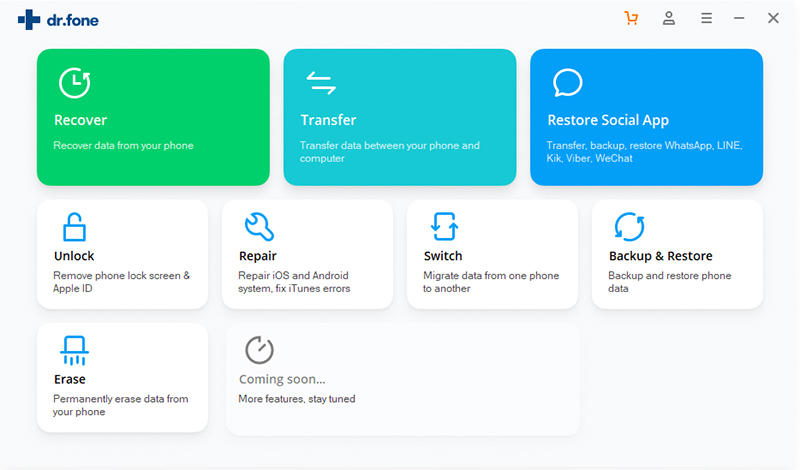
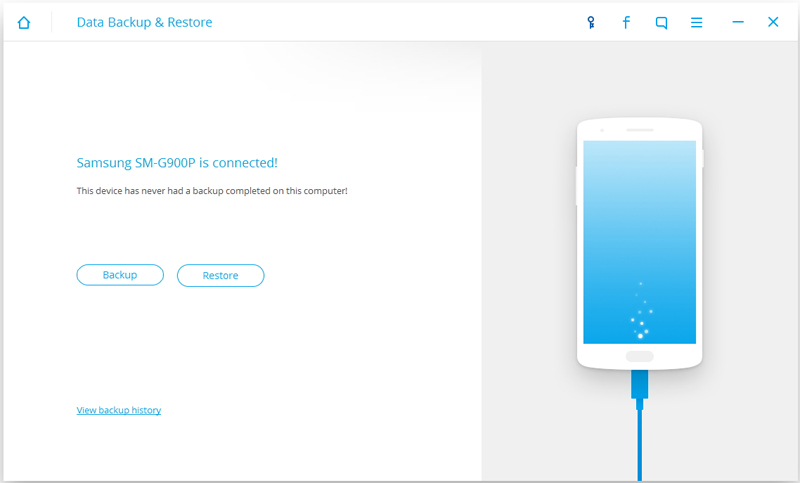
Launch Android Data Recovery and from the “More Tools” section,select “Android Data Backup & Restore” option.Then connect the Android device to your computer using USB cables.The program will detect the device soon.
backup restore android phone

backup and restore android data

Note:If you have other Android management program on your computer,make sure none of them is running.

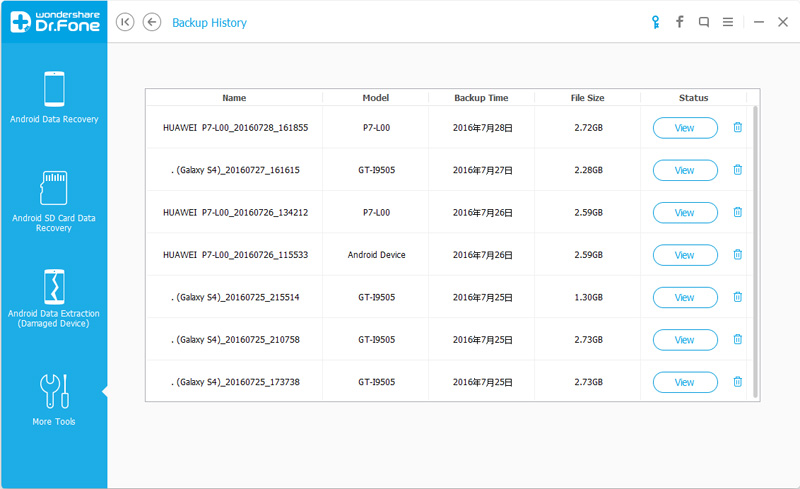
Tips:If you have used this program to back up your device previous,you are allow to view your past backup by clicking on “View backup history”.

Step 2. Select File Types to Backup
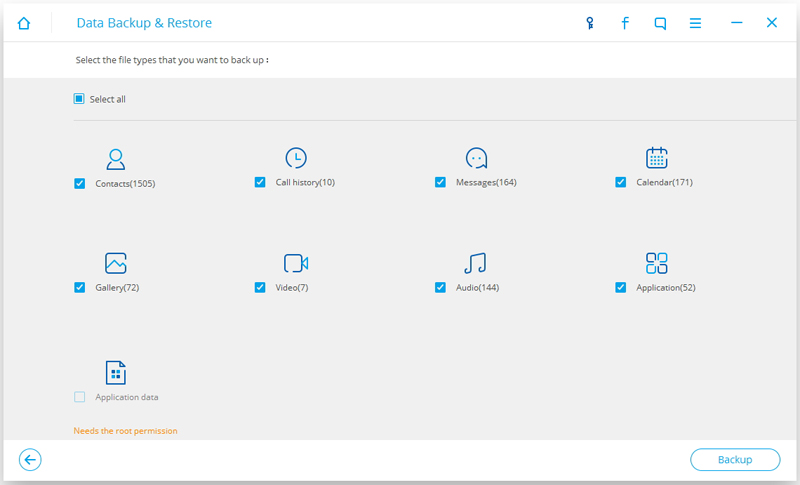
Once program has detected your device,click on “Backup” to select the data you want to backup(include in the past backup).Android Data Recovery can be used to back up 9 different file types including messages, call history, calendar, gallery, audio, video, applications and application data.Please note that to backup app data requires your Android device to be rooted.
select data restore to android from backup files

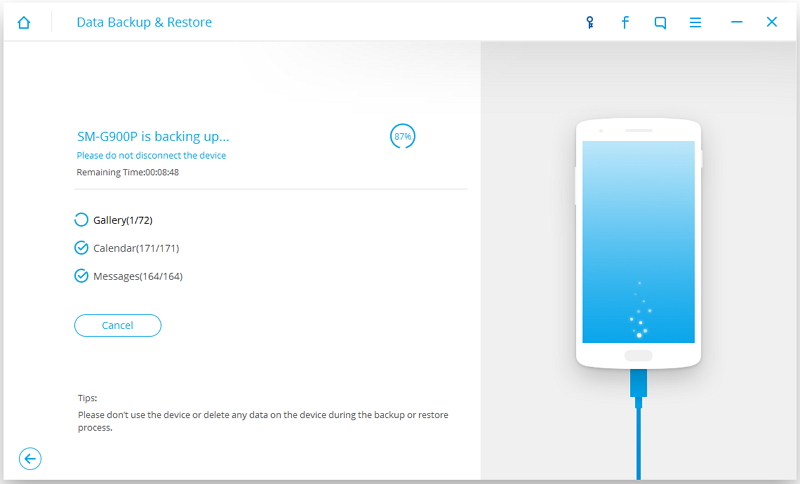
After you have selected the file which you want to backup,click the button “Backup” to start the process.The entire process will take no more than a few minutes.
backup android data to computer

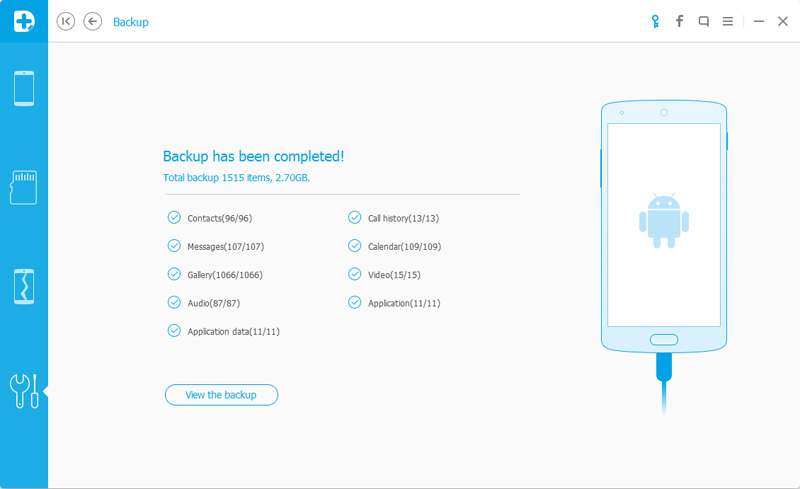
When the backup is complete,you can click on “View the backup” on the lower left corner of the window to see the details of the backup file.
restore data to android phone

Now you can view your backup file by clicking on “View” to view all of your backed up contents.

Part 2:How to Restore Backed up Content to Android from Computer

Step 1.Connect Android Device to Computer and Run Program
Launch Android Data Recovery and from the “More Tools” section,select “Android Data Backup & Restore” option.Then connect the Android device to your computer using USB cables.The program will detect the device soon.

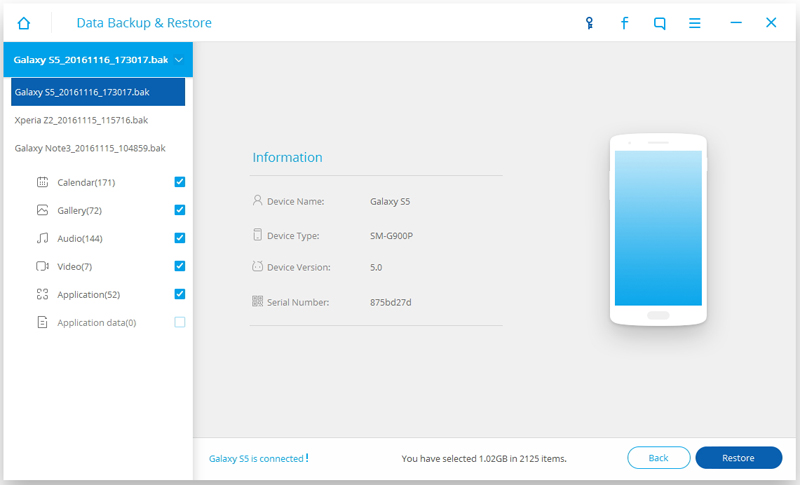
Click on “Restore” and choose from the older backup file on your computer. These backups can either be of this Android device or any other device.
restore files to android from backups

backup file and restore to android

back up and restore android contents

Step 2.Select Backup Data to Restore on Android
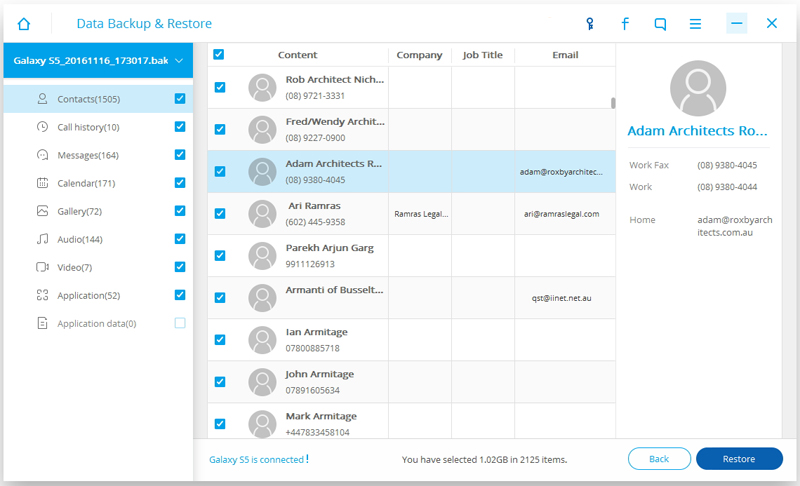
You are allow to selected the data you want to restore.Select the different file types on the left and then select the files you want.Click on “Restore” to start.
restore backup files to android

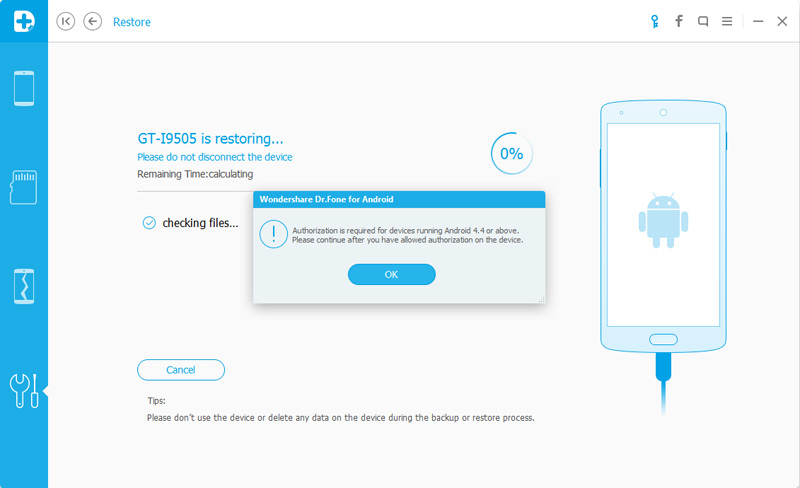
On restoring process,Android Data Recovery will require authorization during the restore process.Allow authorization and then click “OK” to continue.
transfer backed up contents to android

The whole process should last only a few minutes,Android Data Recovery will prompt you that the restore process has been completed along with a detailed account of which types of data have been successfully restored and which ones have not.
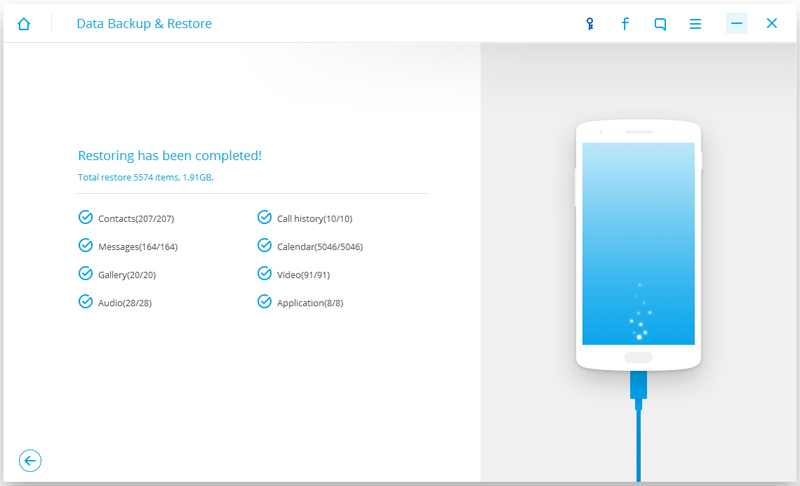
restore backed up files to android phone

Tips:In order to preventing your phone from unexpected exploding, stolen or damaged.We recommend you should backup your phone data,regularly. In case the explosion damages your phone and data in it.

Free download the Android Data Recovery:

d_win d_mac

The last but not least,Android Data Recovery provide you the functions that recover lost data from Android device,restore lost data on Android SD card,retrieve lost data from broken Android,fix Android stuck issues such as fix Android stuck in locked screen,etc,.Please read more in the homepage to learn Android useful tips.

Related Article:

How to Backup and Restore Android Phone or Tablet

How to Backup Android Phone or Tablet Data to Computer

How to Transfer Android Data to Computer

How to Backup and Restore Motorola Phones

How to Backup and Restore Samsung Galaxy Note 7

How to Backup and Restore Samsung Data

How to Enter,Use and Exit Recovery Mode on Android

[Summary]: Tutorial to access, hard reset, soft reset, exit Recovery Mode on Android, and guide to help your fix crashed, frozen or locked Android phone to normal and extract data from bricked Android phone by Broken Android Data Extraction & Fix tool.

Recovery mode in Android provides a number of additional actions that you can perform on an Android phone and tablets. You can manually install system updates, wipe data / factory reset or wipe cache partition. And if you have a custom recovery installed on your phone, you get more options to install custom ROMs, perform Nandroid backups and even modify your phone with various system tweaks.

fix bricked android phone

People also read:

* How to Fix Bricked Android Phone or Tablet

* How to Manage Android on Computer

If you own an Android phone, then it is very important for you to learn how to access this mode and how to utilize it. You can access recovery mode with various methods.There are easy methods instead of some complicated,The process to access this mode depends on the manufacturer of your device and the model of your device. The options available in the Recovery mode may also vary, however, the basic concept is same for all Android phones.In this tutorial, we are going to show you how you can access recovery mode on most Android phones and how you can use the available option to exit your phone of recovery mode.

Part 1:How to Access Android Recovery Mode

As we said, the basic concept is same, all you need to do is turn off the phone and turn it on by pressing specific keys (depending on the phone). On some phones you will enter recovery mode directly and on others you may need to navigate through the different options to access recovery mode.

Samsung Galaxy Series
Step 1.Turn off the phone (hold power button and select “Power Off” from the menu)
Step 2.Now, press and hold Power+Home+Volume Up buttons..
Step 3.Keep holding until device logo shows up and phone restarts again, you should enter recovery mode.

If you see a menu instead, then navigate (like mentioned above ) to “Recovery mode” option and press power button to enter.

Nexus Series
Step 1.Turn off the phone
Step 2.Press and hold Power+Volume Up+Volume Down buttons.
Step 3.Keep holding until you see a menu with Recovery mode option.
Step 4.Navigate to Recovery mode option and press Power button.

LG G Series
Step 1.Turn off the phone
Step 2.Press and hold Power+Volume down key until you see LG logo, and the menu to enter your phone recovery mode will show up.
Step 3.Just Navigate to Recovery mode option and press Power button.

HTC one Series
Step 1.First disable Fastboot by going to Settings > Battery and disabling Fastboot.
Step 2.Turn off the phone
Step 3.Press and Hold Power+Volume down key until you see a menu where you can navigate to “Recovery mode” and enter with Power button.

Motorola Droid Series
Step 1.Turn off the phone
Step 2.Press and hold Power+Home buttons.
Step 3.The phone will turn on and menu to enter recovery mode will show up.
Step 4.Navigate to “Recovery mode” option and press Power Button.

If your phone or manufacturer is not mentioned above, then try all of the methods mentioned above and one of them should work. If nothing works, then it is better to contact your manufacturer or check out your Phone’s official support page to see if you could get the key combination.

Part 2:How to Use Android Recovery Mode

Recovery Mode Available options
The options available in recovery mode are different from manufacturer to manufacturer, however, there are some options that are common in all phones.

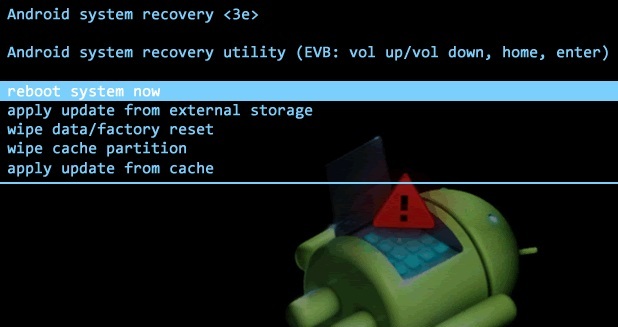
android-recovery-mode

reboot system now
This is a plain reboot, which will restart your phone normally.

apply update from ADB
Using Android Debug Bridge (ADB) you can connect your phone to PC and provide commands right from your PC. This feature is mostly used by developers to fix bugs in applications.

wipe data/factory reset
Factory reset is the last resort for most android issues, you can just factory reset your phone and start over. However, this will also delete all your data, so make sure your phone data is backed up. This option is available from phone settings as well, but if you are locked out or can’t access the OS, then you can also reset from “Recovery mode”.

wipe cache partition
Wipe cache partition is not same as Application cache and cannot be deleted the same way. These are temporary files used in application installation mostly, no personal data is deleted along with them. However, they can sometime make the phone not work properly, so you can wipe them from “Recovery mode”.

Part 3:How to Get Out of Android Recovery Mode

Broken Android Data Extraction & Fix tool,which is a recovery tool to perfectly fix Android stuck issues,download recovery package for Android and fix Android system to normal,such as fix Android stuck in recovery mode/download mode,fix Android stuck at the start screen,fix Android stuck at locked screen,fix Android frozen on Android logo,fix Android black screen problem,etc,.This program help to get back lost data from Android under any unexpected situations.

d_win d_mac

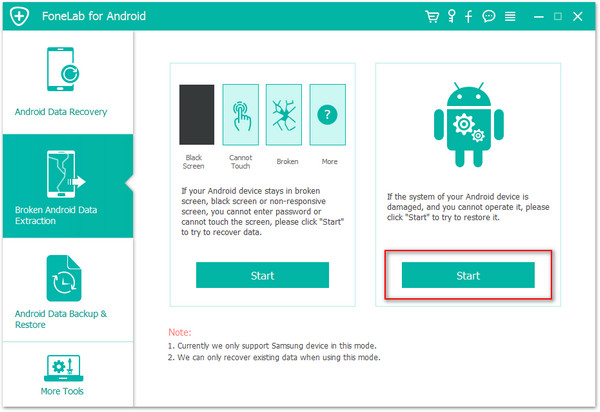
Before starting the restoring task,you should download and install the Android Data Recovery on your computer. Once it has completed scan, you fill find a button named with “Broken Android Data Extraction” which you need to click.

Step 1.Connect Android which Stuck in Recovery Mode to PC
Firstly,please connect the your Android which stuck in Recovery Mode to the computer.

recover data from frozen samsung
Step 2.Choose the File Types to Restore
You now should select the files and the items you actually want to restore. The recovery option however includes contacts, text messages, photos, gallery, music, video and documents among others from Android.

select frozen type of android

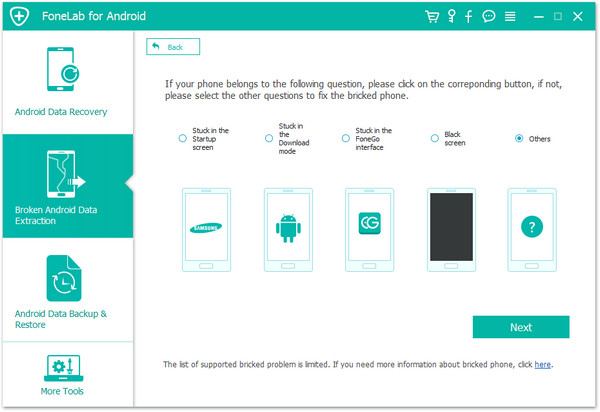
Step 3.Select the Stuck Type of your Android
You should select the stuck situation that match your device.

bricked choose fault type of android

Here you should select “Stuck in the download mode”.

Step 4.Select the Phone Fault Type
The program will enter the interface as the screenshot shows.Please select a kind of problems that matches your Android state.

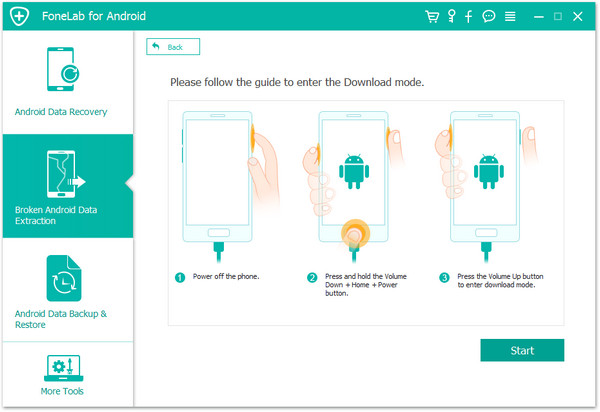
Step 5.Enter Android into Download Mode
Follow the guide to enter Android to the Download mode: Power off the phone > Press the volume down + Home button + Power button > Press the volume up to enter download mode.

get android into download mode

After that,your phone will enter “Download Mode” successfully.

recover data from android

Step 6.Restart Android Device
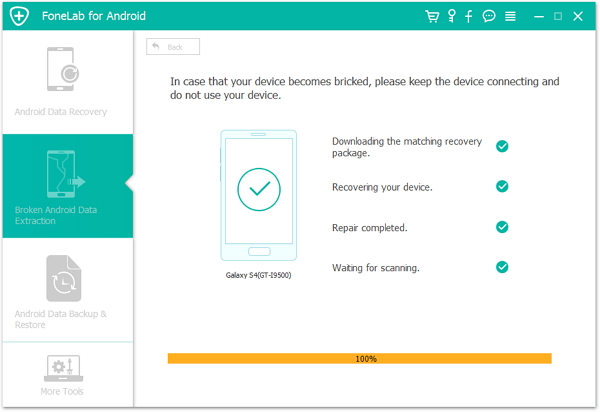
Android Data Recovery program will download the recovery package for restoring your stucked Android device,which helps you enable it back to the normal state.Seconds later,the phone will restart as the normal one.Then you should check whether the device works or not.

restart android device

Step 7.Preview and Restore Data from Android
Now you should select data to preview and restore the selected data to your computer.

recover data from android

d_win d_mac

If there are any questions or you need help with finding the key combination for your specific device, let us know in the comments, we might be able to help. Know more detail please contact us or follow Android tips on our homepages for some information about Android will update regularly.

Read More:

How to Fix Bricked Samsung Phone

How To Fix Samsung Galaxy Stuck in Download Mode

How To Fix Samsung Galaxy Black Screen Problem

How to Fix Samsung Frozen on Samsung Logo

Fix Android to Normal

How to Backup and Restore Android Phone or Tablet

Backup is essential.Whether your Android smart phone or Android tablet,the backup at the appropriate time come to save the unnecessary trouble.It’s no more worse than you find that you have backed up anything on device after losing data.So here are several ways to make a backup of Android for reference.

You should back up your Android data often as you never know when you might accidentally delete/lost something valuable.It could also happen when you perform updates or clean out your files to save space,device lost/stolen,etc,. Whatever the reason,you should keep your data backed up as frequently as possible.

Part 1:Backup Android Phone or Tablet with USB

I recommend making the first backup of your Android data be a copy of the SD card you keep on your computer. I’ll list the basic steps here, but note that, with Android devices, there may be slight variations in the exact wording or steps.

Step 1.Connect your Android device to your computer (Windows or Mac should both work) via the USB cable.

Step 2.On your Android, pull down the main menu (swipe down from the top of the screen) and select “USB connection.”

Step 3.On the next page, choose USB Mass Storage and hit OK.

Step 4.You’ll see a new drive or “Removable Disk” appear on your computer for the SD card. Open it up,and copy all the files inside to a new location on your computer.I would put the date right into the name of the folder-something like “130815_ANDROID-SD-CARD-BACKUP”-so you can very easily identify it and when it was created.

This first backup copy is all well and easy, and you’ll be thankful you have it if anything goes wrong,but it’s not likely to be updated too often.So for your second backup,I recommend choosing a method that will update more frequently to ensure you have all the most recent photos, texts, settings, and everything else stored on your Android.

But seeing as Android is all about giving users choice, there are a few different options.

Part 2:Backup Android Phone or Tablet with Google

Luckily,Google automatically syncs things like your contacts, calendar appointments, docs, and even app purchases-as long as you give it permission to do so.

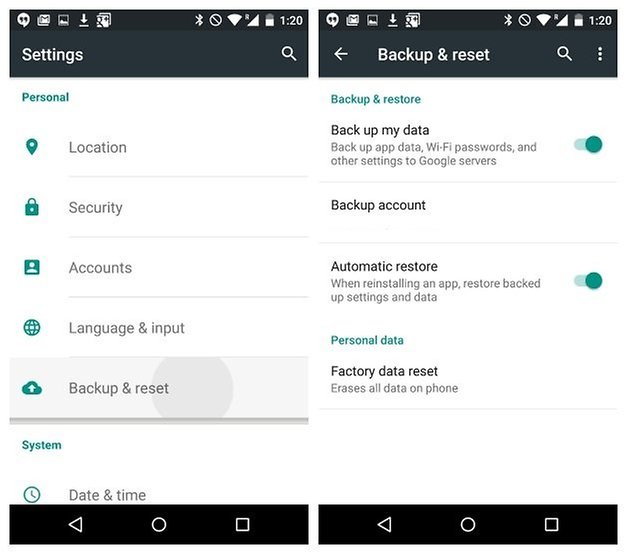
If you go into your phone’s settings, you’ll find a section called Backup & Reset. In here you’ll find an option for backing up your data, including Wi-Fi passwords, preferences and app data. All of this will be tied to your Google account, which you can set to automatically restore when you re-install an app.

android google backup

While Google will preserve a lot of your data, there are other programs help to backup data on Android as well.

Part 3:Backup Android Data to Computer with Phone Transfer

For me,I prefer a more simple,convenient,safe way to backup and restore Android data.Here provides you an useful solution I used Android Transfer,which is a multifunction mobile transfer program for backup and restore data of Android device,including contacts, text messages, videos, music, photos, calendars, call logs,apps.It supports you to backup data efficiently,restore the backed up files to device due to your device is damaged,deleted by mistaken,restore to factory setting,device rooting,etc,.The brands of Android devices including Samsung,HTC,LG,Lenovo,Motorola,Huawei,Xiaomi,ZTE,etc,.Let’s see how it works in detail.

d_win d_mac

Step 1.Connect Android to Computer and Run Phone Transfer
To begin with,run the Phone Transfer on the computer.Use USB cables to connect your Android to the computer.Then the device will be quickly detected and shown in the primary window.

backup mode

Step 2.Select Android Data to Backup on Computer
Select the “Backup Your Phone” mode in the homepage of program.It will bring up the backup window.By default,all contents you can backup are clicked.You can also just click your wanted ones.

select files to backup android

Step 3.Backup Data from Android to Computer
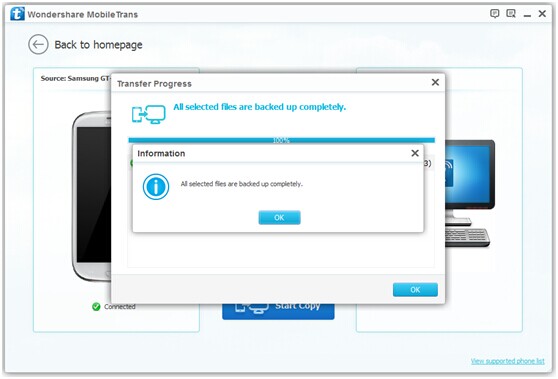
Make sure the ticked files are the ones you’re going to backup.Then,click “Start Copy”.The files transfer begins.Please pay attention not to disconnect device during the whole backup process.

backup android data

d_win d_mac

Part 4:Restore Backed up Data from Computer to Android with Phone Transfer

Step 1.Select Phone Transfer Mode
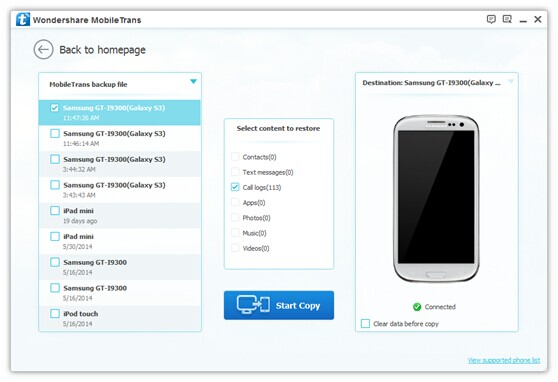
Click “Restore from Backups” in homepage of Phone Transfer.All backups you have made with this program will be listed on the left panel, just select your previous backup files from it,click files you want to restore to your Android.

restore-mode

select-restore-files-on-android

Step 2.Restore Files to Android
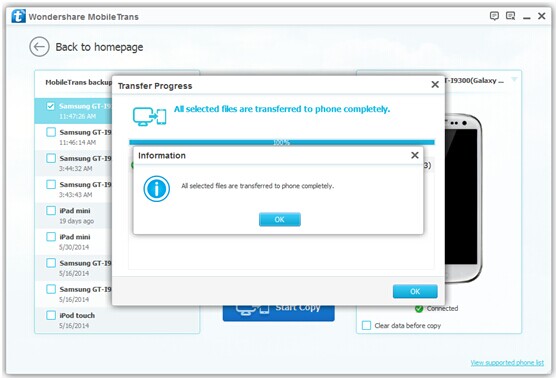
Press “Start Copy”button,then all of your selected files will be restored to Android completely.

restore-android-files

Phone Transfer enable to backup contacts, text messages,call logs, music,apps, photos, and videos from Android device with a short time.On the other hand,Phone Transfer provide you the function that restore backup on Android without any data loss.

d_win d_mac

Part 5:Backup Android Data to Computer with Android Data Recovery

Android Data Recovery,another data manager tool here our strongly recommendation,which is an useful tool to backup Android data to computer as well as restore backed up data from computer to Android.The program makes it easy to backup and restore data of Android phone or tablet,such as contacts, text messages, videos, music, photos, calendars, call logs, playlists info and applications.You never need to lost data under any situations accidentally anymore.

d_win d_mac
d_win d_mac

Step 1.Connect Android Device to Computer and Run Program
Launch Android Data Recovery and from the “More Tools” section,select “Android Data Backup & Restore” option.Then connect the Android device to your computer using USB cables.The program will detect the device soon.

Backup Android data to pc

Backup Android data to pc

Note:If you have other Android management program on your computer,make sure none of them is running.

Tips:If you have used this program to back up your device previous,you are allow to view your past backup by clicking on “View backup history”.

Step 2. Select File Types to Backup
Once program has detected your device,click on “Backup” to select the data you want to backup(include in the past backup).Android Data Recovery can be used to back up 9 different file types including messages, call history, calendar, gallery, audio, video, applications and application data.Please note that to backup app data requires your Android device to be rooted.

Backup Android data to pc

After you have selected the file which you want to backup,click the button “Backup” to start the process.The entire process will take no more than a few minutes.

Backup Android data to pc

When the backup is complete,you can click on “View the backup” on the lower left corner of the window to see the details of the backup file.

Backup Android data to pc

Now you can view your backup file by clicking on “View”.

Backup Android data to pc

d_win d_mac

Part 6:Restore Backed up Data from Computer to Android with Android Data Recovery

Step 1.Connect Android Device to Computer and Run Program
Launch Android Data Recovery and from the “More Tools” section,select “Android Data Backup & Restore” option.Then connect the Android device to your computer using USB cables.The program will detect the device soon.

Click on “Restore” and choose from the older backup file on your computer. These backups can either be of this Android device or any other device.

restore backed up data to Android from pc

restore backed up data to Android from pc

restore backed up data to Android from pc

Step 2.Select Backup Data to Restore on Android
You are allow to selected the data you want to restore.Select the different file types on the left and then select the files you want.Click on “Restore” to start.

restore backed up data to Android from pc

On restoring process,Android Data Recovery will require authorization during the restore process.Allow authorization and then click “OK” to continue.

restore backed up data to Android from pc

The whole process should last only a few minutes,Android Data Recovery will prompt you that the restore process has been completed along with a detailed account of which types of data have been successfully restored and which ones have not.

restore backed up data to Android from pc

Free download the Android Data Recovery:

d_win d_mac
d_win d_mac

Related Article:

How to Backup and Restore Samsung

How to Backup and Restore Lenovo

How to Backup and Restore Motorola

How to Backup and Restore LG

How to Backup and Restore Huawei

Backup and Restore Android Data

Samsung Pay:What You Need to Know

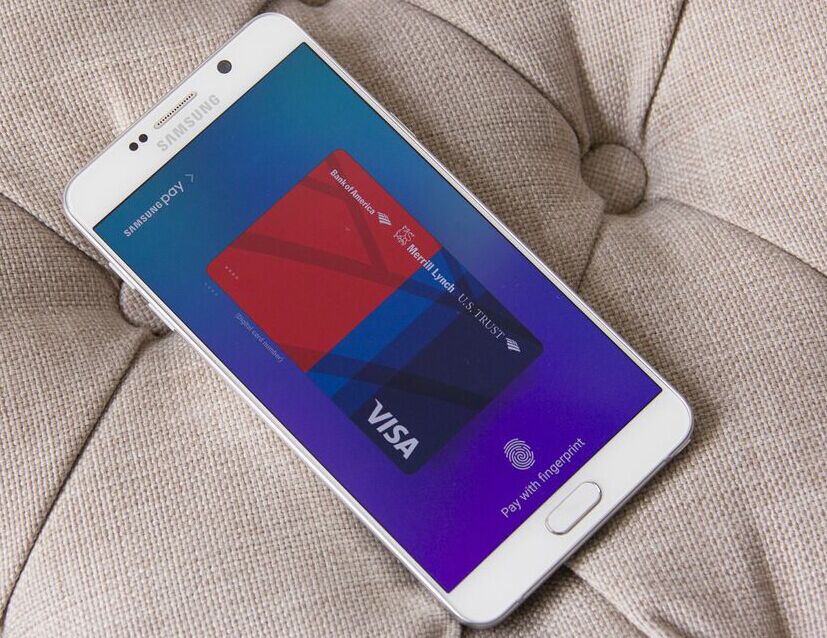
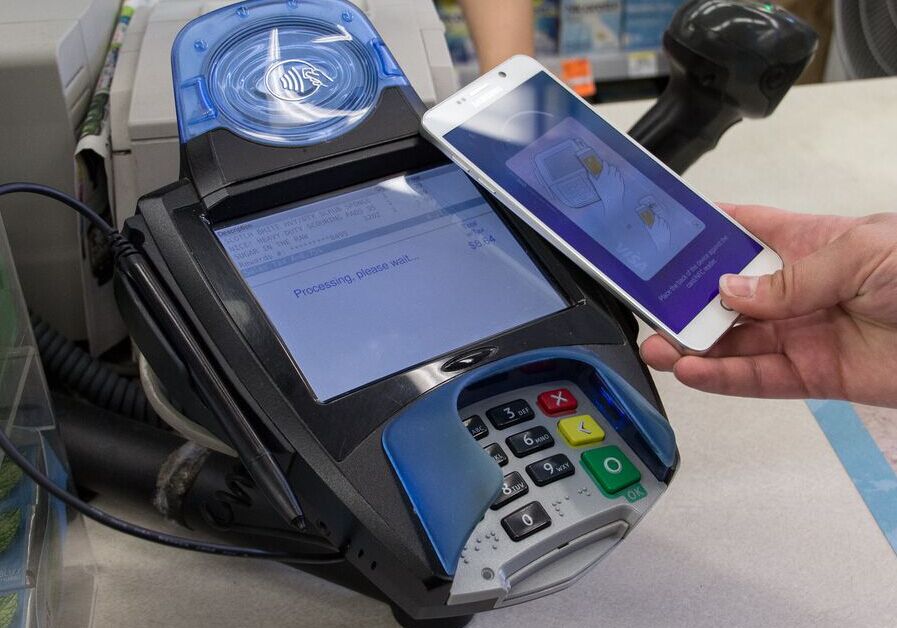
Samsung Pay is now available in the US. Here’s how it works and what you need to use the mobile payment system.Samsung’s mobile payment system Samsung Pay is now available in the United States after an earlier deployment in the electronic giant’s home country of South Korea.

It works in almost all stores — including those that use older magnetic stripe point-of-sale terminals — without merchants needing to opt-in to any program or update hardware.

Where is Samsung Pay available?
It’s currently available in South Korea and the US. Samsung Pay will be available in China in March, with the service launching in Australia, Brazil, Canada, Singapore, Spain and the UK later in 2016.

samsung-pay

What phone/bank/card/carrier do I need?
Samsung Pay works with higher-end Samsung phones: the Galaxy S7, S7 Edge, S6 Edge+, S6, S6 Edge, S6 Active and Galaxy Note 5. It is also available on the Gear S2 smartwatch, but only for transactions on NFC terminals.

The phone also needs to be on one of the following carriers in the United States: AT&T, Sprint, T-Mobile, US Cellular or Verizon.You will need a Visa, MasterCard or American Express issued by Bank of America, Chase, Citibank, PNC, Synchrony Financial, US Bank or Wells Fargo.

For Australia, there’s no information about which carriers Samsung Pay will be partnered with and so far the only financial institution partnership that has been announced is American Express.

Where can I use Samsung Pay?
Samsung claims that its system will work with almost all point of sale systems: NFC, magnetic stripe and EMV (Europay, MasterCard and Visa) terminals for chip-based cards.

However, it won’t work with readers where you need to physically insert your card into a slot such as those found at gas stations and on an ATM.

In two weeks of using Samsung Pay in stores around San Francisco, I found that it was accepted almost everywhere. These included vendors using Square readers; NFC terminals in major chain retailers like Trader Joe’s and Walgreens; and magnetic stripe readers in smaller stores. Merchants may still require you to sign a receipt for the transaction.

One point-of-sale system that did not work with Samsung Pay was an iPad-based payment terminal called Shopkeep. It recognized that I was trying to make a payment but it said that Samsung Pay wasn’t a valid credit card. A Samsung spokesperson said that “We are constantly updating Samsung Pay to work with the vast majority of card readers — unlike every other mobile payment option which only work with a limited number.”

What does the setup process involve?
Once the Samsung Pay app is installed, register your fingerprint on the device if you haven’t done so already. The camera will launch so you can scan your credit or debit card. Check that the number, name and expiration date are all correct. Finally, the app will need to verify the card by sending you an SMS or email from your bank.A total of 10 cards can be added to Samsung Pay.

How does it work?
Samsung Pay uses near-field communication (NFC) technology to process payments at tap-to-pay terminals.

However, the system also works with almost all other magnetic stripe terminals as well. These older systems are widely deployed throughout retailers in the US. Samsung Pay uses magnetic secure transmission (MST) when the phone is held against one of these registers. The phone emits a magnetic signal that simulates the magnetic strip found on the back of a credit or debit card.

Earlier in 2015 Samsung acquired mobile payment company LoopPay which developed the specific MST technology used for Samsung Pay.

samsung-pay2

How do I make a payment with Samsung Pay?
From the lock screen, swipe up from the small Samsung Pay bar just above the home button. Then place your finger on the home button to verify your fingerprint and hold the back of the phone against the payment terminal.

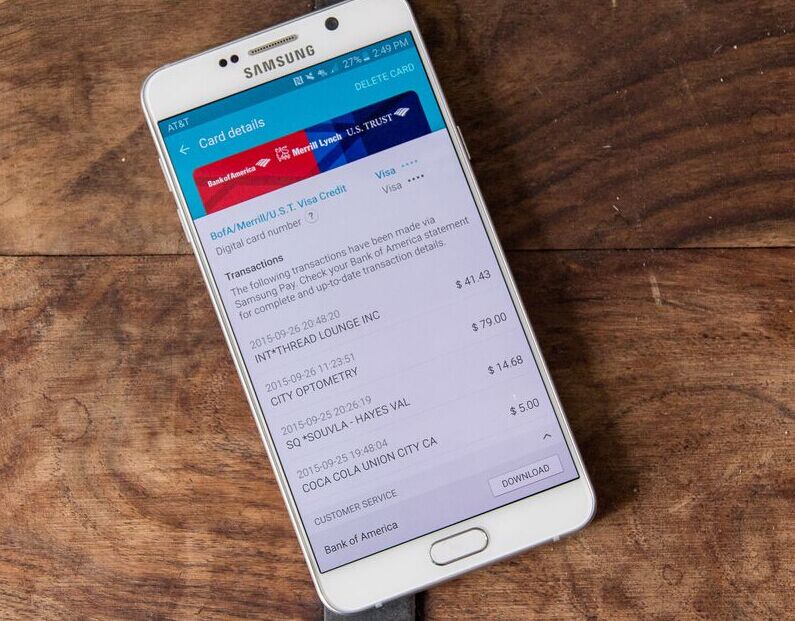
Once the payment is made you will get an Android notification that confirms the merchant name and the amount of your purchase. This information is also documented in the Samsung Pay app.

samsungpay

How does it differ from Apple Pay or Android Pay?
The main difference is that Samsung Pay works at almost all stores that accept credit or debit cards, not just those with tap-to-pay NFC terminals.

Is it secure?
Samsung Pay does not store the account or credit card numbers of cards on the device, instead using tokenization for transactions. Each time a purchase is made, the Samsung Pay handset sends two pieces of data to the payment terminal. The first is a 16-digit token that represents the credit or debit card number, while the second piece is a one-time code or cryptogram that’s generated by the phone’s encryption key.

What if I lose my phone?
Payments can’t be made from your phone without being authorized via fingerprint or the PIN chosen during the setup process. If you register with Samsung’s Find My Mobile service you can remotely erase information on the phone, including any cards stored in Samsung Pay.

Can I use Samsung Pay even without a Wi-Fi/cellular connection?
Yes, although you will only be able to make 10 payments without the device being on Wi-Fi or cellular data. You will also need to have an active internet connection to add a card and to access transaction history.

Does Samsung Pay also work for returns?
Yes. Merchants may require you to hold the phone against the payment terminal in the same way as when you make a payment to process the return. Also, you will be asked to match the payment information on the receipt with the last four digits of your virtual card number. This is accessed through the Samsung Pay app.

Read more:

Apple Pay:Everything We Should Know

How to Fix Top 5 Samsung Problems

How to Get More Internal Storage from Samsung

Top 5 Music Player for Samsung Phone

Tips to Make Full Use of Samsung Galaxy S7(Edge) Camera

Apple Pay:Everything We Should Know

Apple Pay now available in the US, UK, China, Canada, Singapore, Switzerland, France, Hong Kong, and Australia in participating retail stores and apps.

AT A GLANCE
Apple Pay is Apple’s mobile payment service, which lets iPhone 6, 6s, 6 Plus, 6s Plus, SE, and Apple Watch owners make payments using NFC with their devices.

FEATURES
-NFC Integration.
-Touch ID for Security.
-Available in the U.S., UK, China, Australia, Canada, Switzerland, France, Hong Kong, and Singapore.
-Accepted at more than 2.5 million locations in the U.S..
-Supported by iPhone 6, 6s, 6 Plus, 6s Plus, and Apple Watch.

applepay

Setting Up Apple Pay
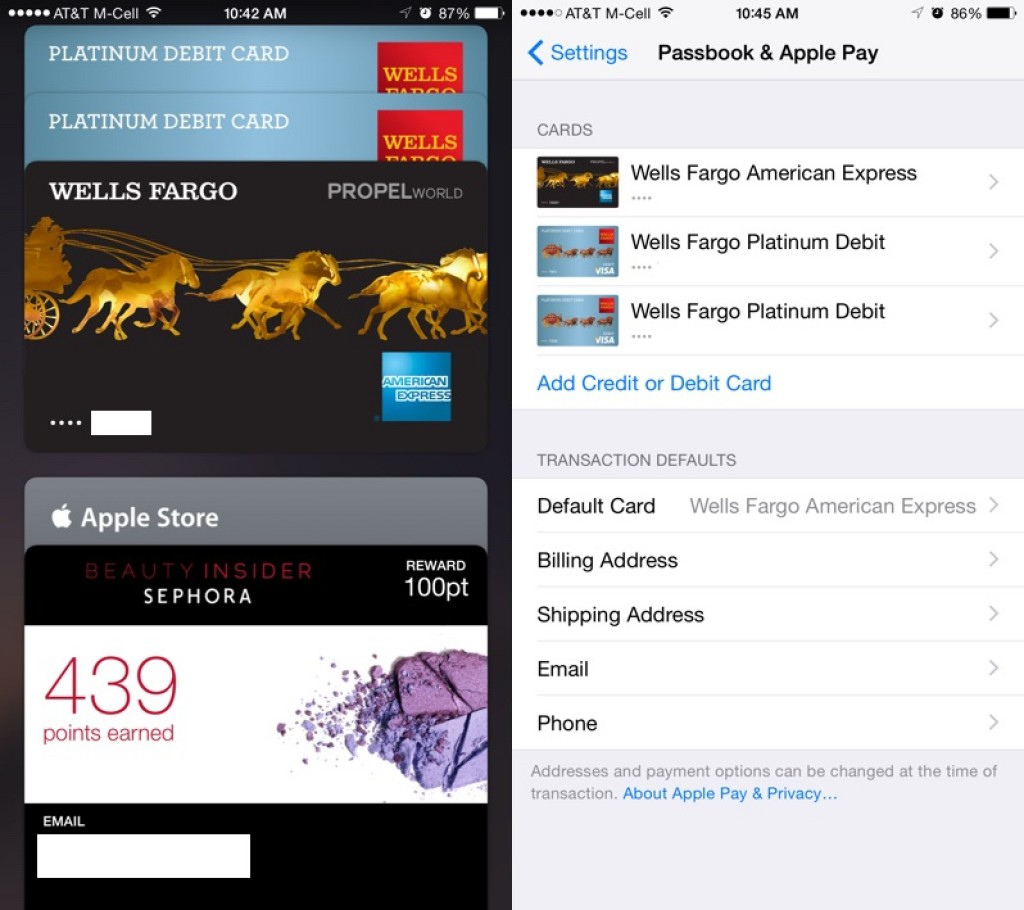
After installing iOS 8.1 or later, Apple Pay can be set up in the Wallet app (called Passbook in earlier versions of iOS). Tapping the “+” icon in Wallet lets users to add a credit or debit card to Apple Pay, either selecting a card already on file with iTunes or scanning one in with the camera.

applepay-settings

Credit and debit cards are verified in just a few seconds, but some cards require a phone call, app download, or an email to verify a card before it can be added to Apple Pay. Once a card is verified, it is immediately available for purchases both in stores and within apps. Up to eight cards can be registered with Apple Pay at one time.

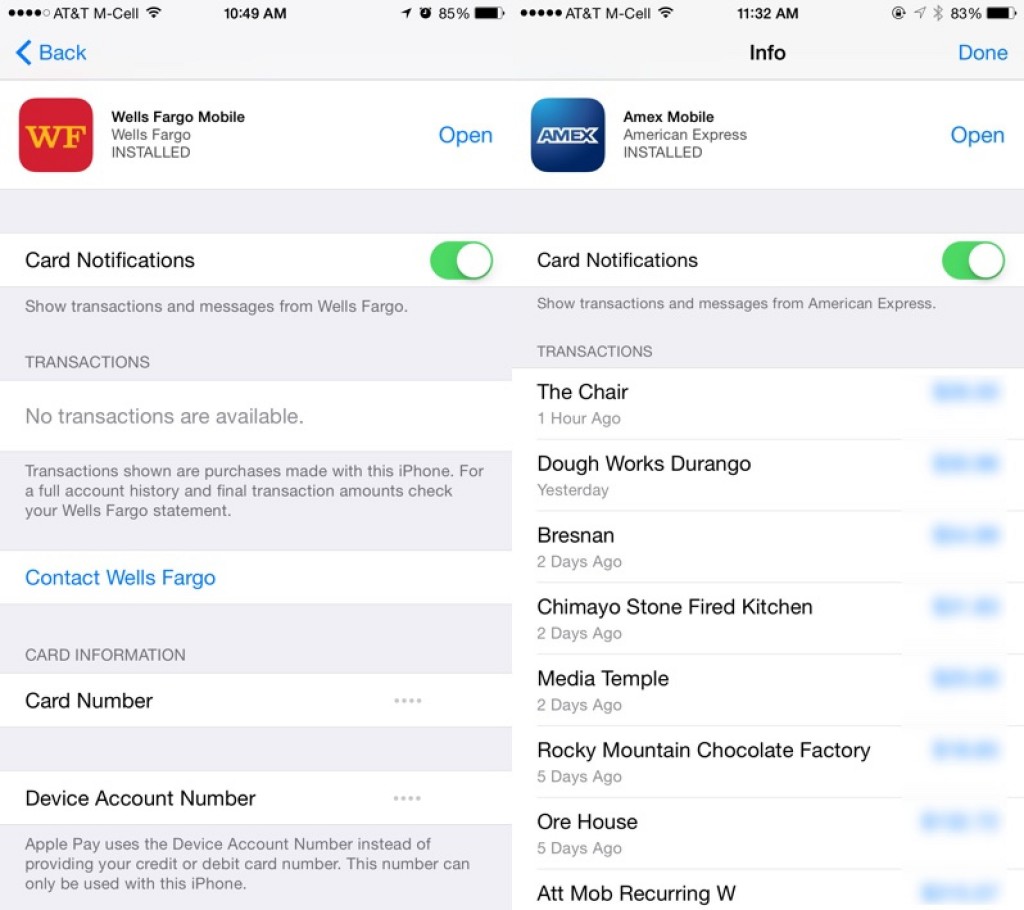
Apple Pay can be managed in the Settings app, located in the “Wallet and Apple Pay” section. Each card added to Wallet is listed in that section, along with information like billing address, email, and phone number. Tapping on a card offers specific information like last digits of the card number, last digits of the Device Account Number that replaces the card number in transactions, and it also provides contact information for the bank that issued the card.

applepay-settings-2

Some cards are also able to display transaction information, offering a list of recent transactions that have been made.

How It Works
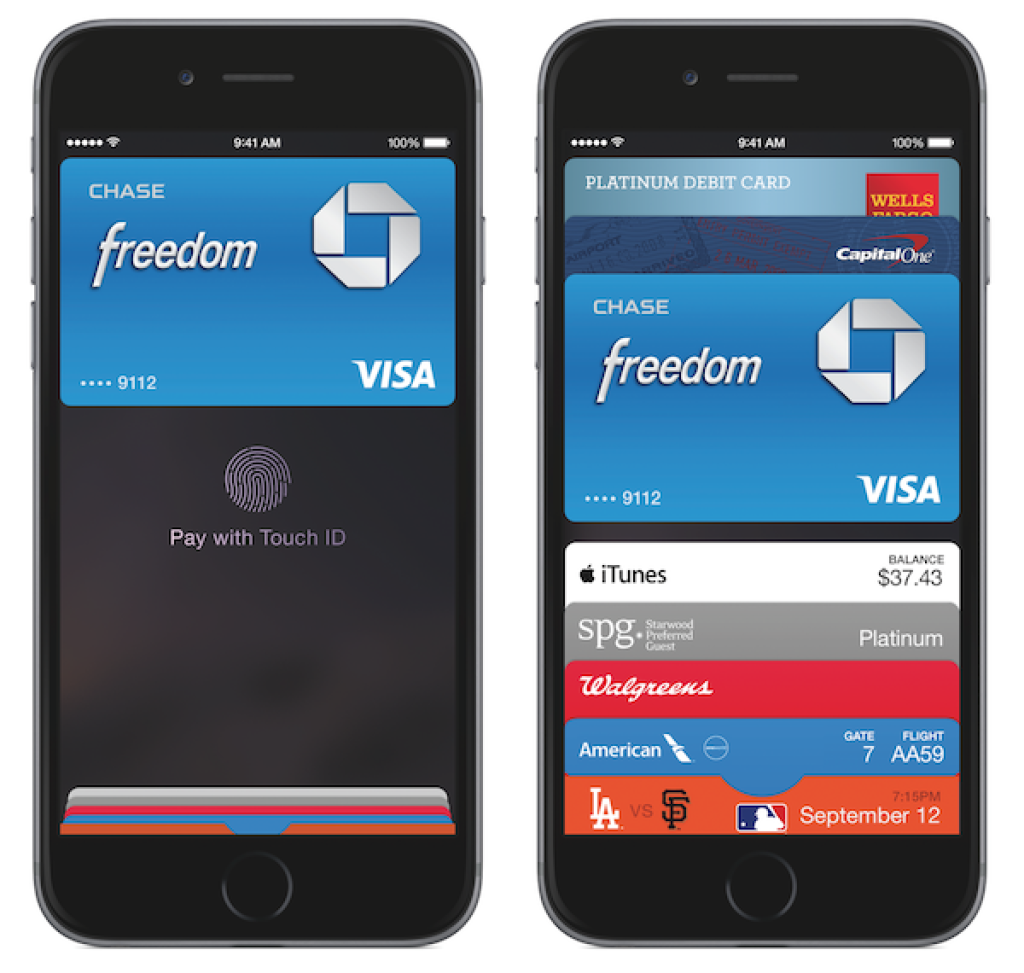
In a retail store, when approaching a point-of-sale system compatible with Apple Pay, the screen of the iPhone will light up and open Wallet automatically, where a user can tap on a credit card to be used or pay with the default card.

A payment is made by holding a compatible iPhone or Apple Watch near a checkout system that includes NFC, most of which look like standard card checkout terminals within stores. A finger registered with Touch ID must be kept on the home button for a short amount of time (or the Apple Watch must be kept on the wrist), after which a payment is authenticated and the transaction is completed. A completed payment is denoted by a slight vibration, a check mark on the screen, and a beep.

In some stores, users may still be asked for a PIN code or to sign for a purchase due to older point-of-sale machines, but in other retail locations, checking out with Apple Pay is an easy one-step process.

At times, Apple Pay may not be much more convenient than swiping a card, but it’s important to recognize that Apple Pay is still more secure than a traditional card-based transaction. With Apple Pay, a cashier does not see a credit card number, a name, an address, or any other personally identifying information. There is no need to take out a credit card or confirm the authenticity of a credit card with a driver’s license or ID card, because all of that information is stored on the iPhone and protected by several built-in security systems, including Touch ID.

Stores are also not given a credit card number (as card numbers are replaced with unique Device Account Numbers) so store security breaches involving leaked credit card numbers will no longer affect Apple Pay users.

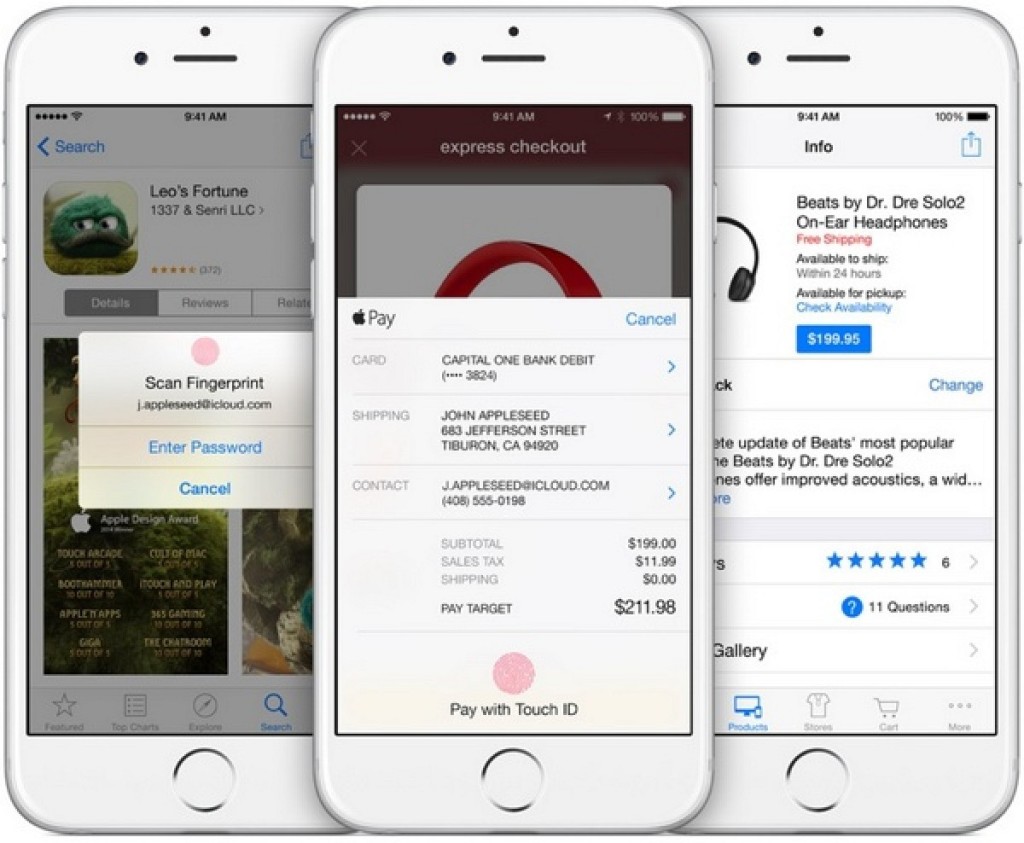
Making a payment online via Apple Pay is equally as simple, as it uses the same credit card and authenticates with Touch ID in participating apps that have adopted the Apple Pay API. Using Apple Pay in an app bypasses all of the steps that are usually required when making an online purchase, including entering shipping and payment information.

After an item is added to an online cart and a user initiates the checkout process, Apple Pay can be selected as the payment method. The shipping/billing address associated with the credit or debit card on file is automatically entered, as is a user’s name, and the purchase is confirmed via Touch ID. During this process, information like shipping address can be altered, which is useful when ordering a gift.

applepay-apps

In-store returns are almost as simple as payments. As described by Apple, when returning an item purchased via Apple Pay in an Apple Store, users can tap their Apple Pay-compatible iPhone against a payment terminal which displays their recent in-store transaction information.

Online and retail payments are both limited to participating merchants. Apple Pay is only available within apps that have adopted the Apple Pay API and to make a payment in a retail location, the shop will need to support Apple Pay directly or allow NFC payments.

PRIVACY
Apple has been careful to point out the company does not store or monitor the transactions that people make with Apple Pay. Apple says it does not know what people are purchasing, nor does it save transaction information.

“We are not in the business of collecting your data,” said Eddy Cue during the keynote speech introducing Apple Pay. “Apple doesn’t know what you bought, where you bought it, or how much you paid. The transaction is between you, the merchant, and the bank.”

Upcoming Features and Partnerships

PARTNERSHIPS
Beginning in late 2015, a select number of Starbucks stores will begin accepting Apple Pay. A wider launch will come in 2016, with Apple Pay support planned for approximately 7,500 corporate-owned stores.

Bank of America and Wells Fargo may begin accepting Apple Pay at their ATM locations in 2016.

FEATURES
In the future, Apple Pay may expand to allow person to person payments much like Square Cash or Venmo. In late 2015, The Wall Street Journal reported Apple is in talks with banks over a potential mobile-to-mobile payments service. Such a service could launch at some point in 2016.

Read more:

iPhone 7:Everything You Need to Know

iOS 9.3.3 :The Things You Need to Know

How to Factory Reset an Locked iPhone

How to Recover Data from iPhone/iPad with iOS 10

How to Recover Lost Data on iPhone 7

How to Recover Data from Samsung Galaxy J2/J3/J5/J7

[Summary]:Samsung data recovery helps you recover lost/deleted/erased data such as photos, videos, SMS messages, contacts,phone numbers, WhatsApp chat history and other documents from Samsung Galaxy J2/J3/J5/J7,as well as Galaxy S and Note series smartphone.

Samsung Galaxy J series smartphone including Galaxy J2, J3, J5 and J7,although the Galaxy J series not Samsung’s flagship phone like Samsung Galaxy S9/S8/S7/S6/Note 8,but many people using Samsung Galaxy J series smartphone.When data get deleted or lost from Samsung galaxy J3 smartphone, the raw data of deleted files are not permanently deleted.Some users may ask how to recover lost data from Galaxy J3;how to retireve deleted photos on Galaxy J7;is it possbile to restore contacts on Samsung J5?

samsung galaxy j3

You may want to know:

* How to Transfer WhatsApp Chat History from iPhone to Samsung Galaxy

* How to Manage Samsung Data on Computer

The J3 is likable enough in its looks and feel, and its battery kept going long after I expected the phone to conk out.However,a lot of users reported that they lost data from Samsung Galaxy J3 under several circumstances,such as restore device to factory resetting,reboot device,poisoning,deleted by mistaken,device damaged,rooting,etc.To be honest,there are millions of satisfied users around the world that has used this tool called Samsung Data Recovery to fix Samsung Galaxy J2/J3/J5/J7 data recovery issues and easily recover all data from the Samsung J series phones.

How to Recover Lost File on Samsung Galaxy J3

Android Data Recovery enable to restore lost data from Samsung Galaxy J2/J3/J5/J7 phones easily,including SMS,contacts, text messages,photos,call history,WhatsApp chats & attachments, audios, videos and documents.Almost all models of Samsung devices are applicable to this smart program,like Samsung Galaxy J2/J3/J5/J7,Galaxy Note 8/5/4/3,Galaxy S9/S8/S7/S6/S5/S4 and other Android devices.In other words, it can be said that this is the useful recommended and secure ways through which you can restore lost data from any Samsung phone & tablet in simple steps.

d_win d_mac

Android Data Recovery Features:

-Retrieve deleted/lost photos, videos, music, contacts, messaging, call logs, WhatsApp data and many more.
-Fix and extract data from damaged or locked Samsung devices(Galaxy S6 to S4 and Galaxy Note 5 to Note 3).
-If you have experienced system crash or a black screen, still you can recover your data with the help of this data recovery tool.
-Backup your Android data and restore them to the device later.
-Compatible with 6000+ Android devices.

Simple Steps to Retrieve Deleted Files from Samsung Galaxy J3

Step 1.Connect Samsung Galaxy J3 to Computer
Run the Samsung Data Recovery program on your PC/Mac after downloading and installing,you need to connect your Samsung Galaxy J3 to computer via an USB cable.

connect samsung with the computer

Step 2.Enable USB Debugging on Samsung Galaxy J3
The program may require that you enable USB debugging on Samsung Galaxy J3 before scanning process begin.Simply follow the instructions in the next window to complete the process.

usb debugging samsung phone

Step 3.Scan Data on Samsung Galaxy J3
Once your Samsung Galaxy J3 is detected,the program will scan the device for all data.You should select the file you want scanned in the next window.Such as “Contacts”, “Messaging”,”Call History”,”Gallery”,and so on.You can choose the one you want to recover and click “Next” button.

select file tpye to recover from Samsung

If there is a prompt on your Samsung phone as follow,tap “Allow” and permit the program to access and scan the selected files on your Samsung smart phone.

allow scan the samsung

Now the program will begin to scan and analyze data stored on your Galaxy J3.

scan samsung for lost data

Step 4.Preview and Recover Data from Galaxy J3
When the scanning process is complete,all the files will be displayed as shown below.Choose the ones you to preview and click on “Recover” button to save them on your PC.

recover lost data from samsung galaxy j3

d_win d_mac

Have to say,Samsung Data Recovery is a powerful and efficient data recovery for Android as well as Samsung,it can also retrieve lost data from broken device/Android SD card.The complementary function of program is that support to fix bricked Samsung/Android phone,fix the stuck issues on phone,for example fix Samsung stuck in download mode/stuck in the start screen,remove the locked screen on phone,etc,.

Related Article

How to Recover Data from Samsung SD Card

How to Recover Data from Water Damaged Samsung Phone

How to Backup and Restore Samsung Data

How to Fix Samsung Frozen on Samsung Logo

How to Fix Samsung Touch Screen Cannot be Used Issue

How to Set the Smart Lock of Samsung Phone

Most people like to secure smartphones with screen lock.So do I.However,Screen lock may be inconvenient in some time.If we urgent to make a phone call, it seems redundant.It is moreover annoying that we have to enter password/pattern every time we turn on the screen.Smart Lock is a new feature on Samsung devices later than Galaxy S5,which can automatically unlock your mobile device as long as you are at trusted location or using your phone on trusted device.Galaxy S7 currently enables users to set up Trusted devices,Trusted places,Trusted voice and On-body detection.Follow the steps below and see how to do it.

Part 1:How to Set up a Trusted Device for Smart Lock

Step 1.Tap”Settings” on Home screen or Notification Bar.
Step 2.Go to “Lock screen and security” > “Secure lock settings” > “Smart Lock”.
Step 3.Draw the current pattern or enter current password/pin.
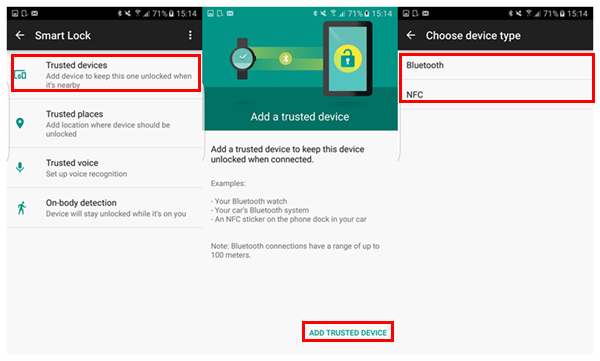
Step 4.Tap “Trusted devices” > “ADD TRUSTED DEVICE” > “Bluetooth” or “NFC”.
Step 5.Select the device you want to trust,and tap “YES, ADD”

smart-lock-s7-trusted-device

You can set your trusted devices,such as Bluetooth watch,car Bluetooth system,an NFC sticker on the phone dock in your car and so on.Once your Samsung phone detects the trusted device,it will keep unlocked.

Part 2:How to Set up a Trusted Place for Smart Lock

Step 1.Tap”Settings”on Home screen or Notification Bar.
Step 2.Go to “Lock screen and security” > “Secure lock settings” > “Smart Lock”.
Step 3.Draw the current pattern or enter current password/pin.
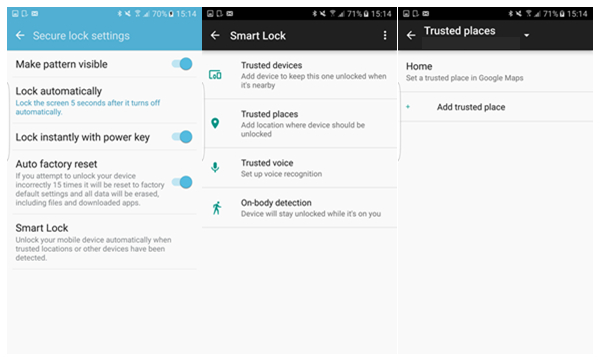
Step 4.Tap “Trusted places” > “Add trusted place”.
Step 5.Choose “YES” to allow access to GPS and pick a place.
You can position your home or company,so the device will stay unlocked when it detects via GPS that you are at these places.

smart-lock-s7-trusted-place

Part 3:How to Set up On-body Detection for Smart Lock

Step 1.Launch “Settings” app on Home screen or Notification Bar.
Step 2.Go to “Lock screen and security” > “Secure lock settings” > “Smart Lock”.
Step 3.Draw the current pattern or enter current password/pin.
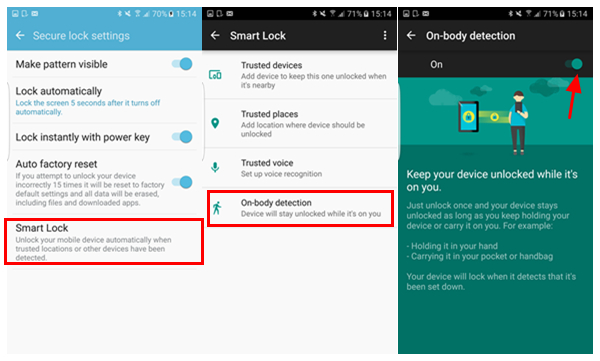
Step 4.Tap “On-body detection”.
Step 5.Switch “On” the bar.

This function allows you phone to stay unlocked when it’s being held or carried by you.However,from where I stand,I don’t think this is good for protecting your privacy,because it cannot detect whether it’s exactly you who is using the device.Thus,it’s not recommended to keep this option on.

smart-lock-s7-onbody-detection

Part 4:How to Set up a Trusted Voice for Smart Lock

Step 1.Launch “Settings” app on Home screen or Notification Bar.
Step 2.Go to “Lock screen and security” > “Secure lock settings” > “Smart Lock”.
Step 3.Draw the current pattern or enter current password/pin.
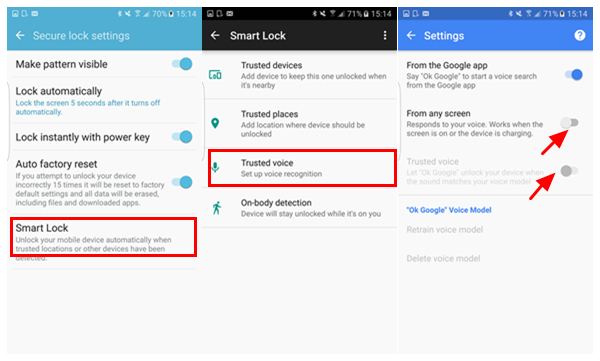
Step 4.Tap “Trusted voice”.
Step 5.Toggle on the “From any screen” switch.You will need to log in your Google account to do the next.
Step 6.Tap the “Get Started” button and follow the instructions,and then tap “FINISH”.
Step 7.Turn on the “Trusted voice” switch.

As long as you set up voice recognition,your Samsung phone keeps unlocked by detecting that it’s you who is speaking.I personally regard this option as the best choice,for nobody can pretend the voice of yours.

smart-lock-s7-trusted-voice

Part 5:How to Remove Screen Lock

unlock-samsung

Way 1.Try to unlock your device with Google Account.
Way 2.Restore Phone to Factory Resetting.
Way 3.Remove Screen lock with Android Data Recovery.

Read more:

How to Fix Top 5 Samsung Problems

How to Fix WhatsApp Programs on Samsung Phones
How to Fix Samsung Frozen on Samsung Logo

How To Fix Samsung Stuck in Download Mode

How to Get More Internal Storage from Samsung

How to Restore Lost Data from Samsung

How to Backup and Restore Samsung Galaxy Note 8

Samsung Galaxy Note 8-What’s New
Samsung has used previous Galaxy Note handsets to test out new design concepts. In fact, we first saw Samsung’s curved ‘Edge’-style display on a Note phone, and it’s now a staple of the core Galaxy S series. Importantly, the ‘Infinity Display’ also means that much more screen can be packed into the same size body. For instance, the Galaxy S8+ is only marginally bigger than the Galaxy S7 Edge, but the screen size moved from 5.5 inches to 6.2 inches with the Galaxy Note 8. Considering that the Galaxy Note 7 used a 5.7-inch display, we’d expect to see similar screen size gains.

Why Should You Backup Samsung Galaxy Note 8
In case of accidently data loss you should backup Samsung phone data as often as possible,such as phone stolen,deleted by mistaken,Android system upgrade,factory settings or water damage.Backing up your Samsung Galaxy Note 8 is important if you want to avoid losing personal data and media files under any circumstances.

How to Backup and Restore Samsung Galaxy Note 8

Tool 1:Phone Transfer
However Android doesn’t offer a native backup service and Google hasn’t implemented a native photos and text messages backup service yet.Phone Transfer offer you the best way to backup and restore data on Samsung Galaxy Note 8,to protect the privacy perfectly,including:contacts,text messages,call logs,calendars, music,apps,photos,videos.Phone Transfer work well for Samsung Galaxy Note 8/5/4/3,Galaxy S8/S7/S6/S5/S4 data backup and restore.Not only Samsung phone and Android phone(HTC,Motorola,Lenovo,Huawei,etc),but also iPhone,Nokia,and blackberry are supported by this program.

d_win d_mac

Tool 2:Android Data Backup & Restore
Another helpful Samsung data manager tool our strongly recommend for you is the Android Toolkit – Android Data Backup & Restore tool,which help to effectively backup & restore data for Samsung Galaxy Note 8.Android Data Backup & Restore tool,backing up your Android data has never been easier.The program makes it easy to backup your Android data to computer and even selectively restore backed up data to your Android device.Almost all types of Android files are applicable,such as contacts,messages,call logs,calendars,gallery,video,audio,application,application data(WhatsApp,Line,Viber,Kik,etc,.).In additionally,Android Data Backup & Restore tool provide you extra function that allow to restore deleted data from Android easily with simple steps.Detail tutorial:How to Restore Deleted Data from Samsung Galaxy Note 8.

d_win d_mac

Part 1:Backup Samsung Galaxy Note 8 Data to Computer

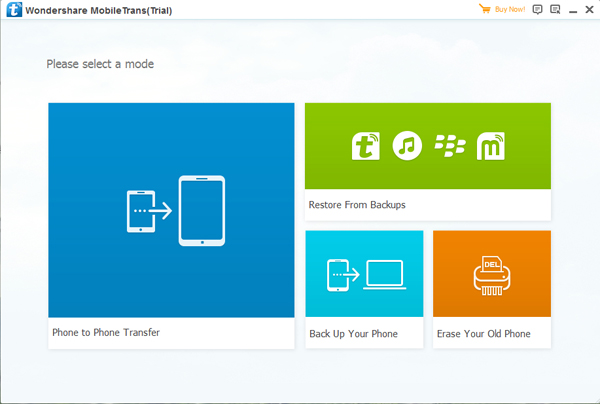
Step 1.Select Backup Mode under Phone Transfer
As you see,there are four mode in the homepage of Phone Transfer.Select the one “Back Up Your Phone”.Then connect your Samsung Galaxy Note 7 phone with PC/Mac.

backup samsung galaxy note 8 to computer

Step 2.Start Backup Samsung Data to Computer
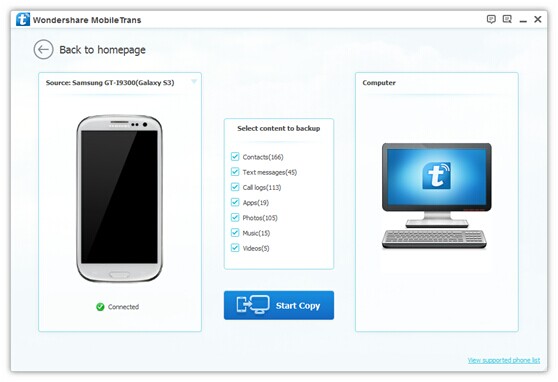
When the phone is connected,you will enter the interface as below.Click all the data to backup in the middle column(contacts,photos,SMS,etc,.)and click “Start Copy” button.If you don’t need to backup all data you can select data to backup.

backup samsung galaxy note 8 to computer

Only a few minute later,all selected data will be all copy to computer.

backup data from note 8 to computer

d_win d_mac

Part 2:Restore Samsung Galaxy Note 8 from Backup File

Step 1.Select Recovery Mode under Phone Transfer
Please firstly select “Restore From Backups” mode in the homepage of Phone Transfer.

restore backup to galaxy note 8

Step 2.Restore Data from Backup to Samsung Phone
Click the backup files of your phone after connecting the Samsung phone with computer.Then,choose the file you want to restore in the middle column and tap “Start Copy” button.

restore backup to galaxy note 8

The program will complete the restoring task on your Samsung phone in a short time.

restore backup to galaxy note 8

d_win d_mac

Everyone should realize how important it is to backup data on phone.Fortunately,with the wonderful Phone Transfer-a phone data manager,you can finish the backup and restore task easily and quickly.There is no need to worry about losing phone data any more. Just download and share it with your friends right now.

Part 3: Backup and Restore Samsung Galaxy Note 8 via Android Data Backup & Restore

Step 1. Connect your Galaxy Note 8 to Computer
Launch Android Data Backup & Restore and from the “More Tools” section,select “Android Data Backup & Restore” option.Then connect the Samsung device to your computer using USB cables.

Android Data Backup & Restore

Step 2.Select File Types to Backup
Android Data Backup & Restore can be used to back up 9 different file types including messages, call history, calendar, gallery, audio, video, Applications and Application data(WhatsApp,Line,Viber,Kik,etc,.).Please note that to backup app data requires your Samsung device to be rooted.

select note 8 data to backup

When the backup is complete, you can click on “View the backup” on the lower left corner of the window to see the contents of the backup file.

Step 3. Selectively Restore Backed up Content to Device
You are allow to choose the data you want to restore. Select the different file types on the left and then select the files you want. Click on “Restore” to start.

restore backup files to samsung

d_win d_mac

Part 4: Backup and Restore S Memo, S Note and Memo Files on Samsung Galaxy Note 8 by Samsung Kies

Many users using Samsung Galaxy Note’s Memo apps to record some important things everyday,once your Galaxy Note 8/Note 5/Note 4/Note 3 phone is broken, crashed or stolen,how can you recover lost Memo from Samsung Galaxy S/Note/Ace/J2? However,to avoiding memo files lost or deleted,it’s very necessary to backup memos from Samsung to computer to avoid important data loss. This part teach you how to backup and restore Samsung Galaxy Note 8 phone memos to PC with Samsung Kies on Windows or Mac PC. You can easy to backup S Memo, S Note or Memos to computer, and restore the data to your device by Kies or Kies 3,when need it.

Backup S Memo, S Note and Memo files from Samsung Galaxy Note 8 to Computer

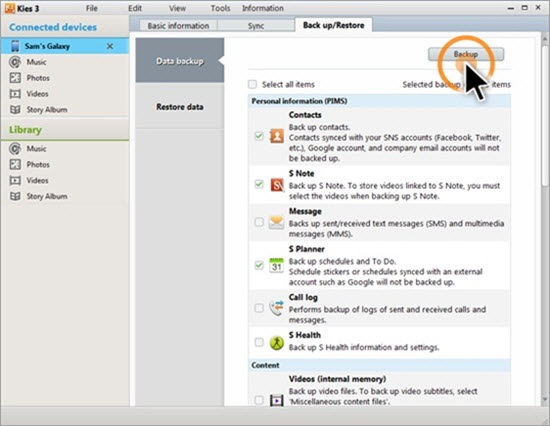
Step 1. Run the Samsung Kies or Kies 3 on computer, then connect your Galaxy Note 8 to computer via USB cable, and select your Note 7 under Connected devices.
Step 2. Select the Files to backup tab from the “Back up/Restore” tab at the top right of the Kies or Kies 3 screen.
Step 3. Select the Memo files type you want to back up and click the “Back up” button and begin to backup Phone S Memo, S Note and Memo App Files from Samsung Galaxy Note 8 to computer.
Note: Please do not disconnect your phone to computer during the backup process.

backup restore memos on Samsung Galaxy Note 8

Restore S Memo, S Note and Memo Files to Samsung Note 8 or Note 5/4/3 from Backup Files

Above steps,you have backup Memo files from Samsung to computer,if you want to restore memos to Samsung Galaxy Note 8/5/4/3, Galaxy S7/S6/S5/A9,please follow the easy steps as below to restore Samsung Galaxy Note 8 Phone S Memo, S Note and Memo Apps from the list of backup files.

Step 1: Connect your Samsung Galaxy phone to computer and Launch the Kies or Kies 3
Step 2: Select a data file (Memo files) you want to restore from the list of backup files
Tips:You can click “Find file” button at the bottom to browse and select a file manually, then select “Memo” item and click the “Restore” button.
Step 3: Only few minutes to restore all backed up memo files back to your Samsung Galaxy Note 8 easily.

Note: If Memo files lost or deleted on your Samsung Galaxy,you can use this Android Data Recovery to recover deleted memo from Android Samsung phone directly.What’s more,the Broken Android Data Recovery also allows you extract and recover lost data from broken Samsung phone with broken screen or black screen.

Related Article:

How to Backup and Restore Samsung

How to Transfer Samsung Data to Computer

How to Backup and Restore Samsung Galaxy S7

How to Transfer iPhone Data to Samsung Galaxy Note 8

How to Transfer Samsung Data to Samsung Galaxy Note 8

iPhone 7:Everything You Need to Know

The iPhone 7 is edging ever nearer and there’s already rumours flying around about Apple’s upcoming phone.

Most recent news: Looks like the iPhone 7 will be available to pre-order on September 9, and released on September 16. Head down to Section 7 for a possible glimpse of the fabled lightning-to-35mm adapter.

iphone-7-concept

iPhone 7 cheat sheet:
September 9 pre-order, September 16 release date
Similar metal unibody design, antennas moved
Screen improvement
No headphone jack
It’ll have a slightly larger battery
No 16GB option
Dark Blue, and darker ‘Black’ option
Before we get started, we to guess what it’ll be called. Tradition is that after the iPhone 6S, the next iPhone will be called the iPhone 7 and iPhone 7 Plus. Of course, Apple could switch things up, some rumours suggesting the larger iPhone will now be called the iPhone 7 Pro.

Maybe there will be three models, the iPhone 7 Mini, iPhone 7 Plus and iPhone 7 Pro?

1. The iPhone 7 release date is September 16
This one’s a no-brainer. Every iPhone going back to the iPhone 5 was released in September, so it doesn’t take a genius to work out that the iPhone 7 should present itself in September (but it WILL make me look foolish if that’s not the case).

According to a ‘reliable source’, Apple may be bringing the iPhone 7 out earlier than previous years, but this was likely relating to the smaller, cheaper iPhone SE.

It’s now pretty much confirmed that the iPhone 7 will ready for pre-order on September 9, and then fully released on September 16 . Add it to your diaries folks!

2. The iPhone 7 price will be the same as the current 6S
The cost of a new iPhone generally follows the same convention every new model. If that’s the case this year, the iPhone 7 will cost around the same as the current iPhone 6S (and the iPhone 6S will get a £80/$100 price decrease).

Following that logic, the iPhone 7 will cost around £539/$649 for the cheapest option with the least memory. And range up to £699/$849 for the top spec model.

3. iPhone 7 will have iOS 10
Previous new iPhones have shipped with brand new versions of iOS, the iPhone 7 will come running iOS 10 (we’re currently on iOS 9.3).
We heard more about the new version of Apple’s mobile OS at Apple’s developer conference WWDC in June so check out our full feature rundown: iOS 10: the new Apple iPhone features set to slay Android come September

4. The rear case will be sleeker
Whereas the iPhone 6S looked a lot like the iPhone 6, the iPhone 7 should be sporting a new design. Exactly how different is difficult to imagine, however, as the iPhone 6 seems like peak Apple design.

Early rumours suggested Apple will ditch the camera bump and antenna lines. This will make the rear casing completely smooth and uninterrupted. That makes complete sense in our eyes.

But as we get closer to the launch, and more leaks around the phone design appear, it looks like the redesign won’t be too drastic at all. Take a look at this supposed image of the iPhone 7:

It certainly lacks imagination. The key difference here is that the antenna lines have moved. While this probably isn’t a real iPhone 7 out in the wild, it certainly mirrors most of the rumours and leaks coming from Cupertino.

Elsewhere, it seems Apple could lose a few pounds thanks to a new slimmer LCD panel. What’s more, Apple is said to be shrinking some of the internal components to make more room for a larger battery.

Meanwhile, the leaks we’ve seen so far can’t agree on whether the iPhone 7 is going to be waterproof or not – some say yes, some say no. Sounds like this one could go either way at the moment.

Maybe it’s RIP for the iconic home button? A new supply chain link suggests the iPhone 7 will have a capacitive button which also has 3D Touch. This was first rumoured back in June 2015 when it was reported that Apple was developing a touchscreen with an integrated fingerprint sensor. Take this with a pinch of salt, though, there’s not much evidence out there yet.

It seems there will be some new colour options as well! Introducing the sexy new black and blue models:

iphone-7-leak

While these are renders from Martin Hajek, we think they look great, and can’t decide which we prefer!

5. The iPhone 7 screen will be sharper with no bezel
Most of Apple’s rivals have a QHD or 4K display whereas the iPhone 6S doesn’t even have a 1080p HD screen, so a bump in resolution for the iPhone 7 would make sense.

This rumour comes from a supply chain source speaking to DigiTimes, who suggests that Apple will make a jump back to glass-on-glass screens. This would allow a boost in resolution, and the ability to have a bezel-less display. iPhone 7 Edge, anyone?

That streamlined bezel could lead to Apple ditching the ‘clicky’ home button in favour of a capacitive touch button instead. This would result in fewer parts which could break, and take up less physical space. Sounds like a no-brainer to us.

6. Did someone say hexacore? and that the iPhone 7 battery will be bigger?
Every iPhone comes with a speed boost, and we can’t see that changing with the iPhone 7. There have been rumours on Weibo that the next iPhone will come packing the hexacore A10 chip (up from the dual-core processor in the 6S).

Whether those turn out to be the exact details, who knows… But it will be faster than the current model, that’s for sure.

We can also expect to see 2GB RAM, but that’s it for internal specs – there’s not much else nailed down yet.

Images of the iPhone 7 and iPhone 7 Plus’s batteries have surfaced on Chinese social network Weibo. The codes on the cells indicate the iPhone 7 will have a 1735 mAh capacity, and the iPhone 7 Plus will have a 2810 mAh capacity. That’s up, very slightly, from the iPhone 6S which contains a 1715mAh battery, and the iPhone 6S Plus holds a 2750mAh battery.

While Apple is refreshing the internals, it seems they may get rid of that useless 16GB storage option from the range. This rumour comes from Chinese social media, and suggests that 32GB will be the new minimum.

7.There won’t be an iPhone 7 headphone jack
Some reports suggest the iPhone 7 will be the thinnest device Apple has ever made, and that involves ditching the bulky 3.5mm headphone jack.

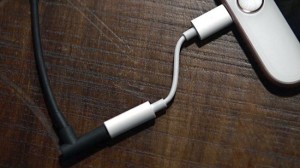
iPhone 7 headphone jack

Now, that means there are three options for listening to music:

1. You’d have to buy Bluetooth headphones, which would annoy a lot of people
2. Apple will include a pair of lightning connector headphones with the iPhone 7
3. Apple will include a lightning to 35mm adapter with the iPhone (pictured above)

Does Apple think the consumer is ready for the jump to Bluetooth or Lightning? It’s certainly a bold move, but the plus side is you might get a second speaker out of it for better audio.

Other rumours suggest Apple may opt to include a smaller, 2mm headphone jack, which Apple has a patent for – and which would then require you to use an adapter, or buy new headphones… which is even more of a pain.

The iPhone 7 could also go without a charging port! Logitech has just let slip that smart connector in place on the iPad Pro models usually used for keyboard cases, can also transfer power. Seems unlikely this will feature here, but there is one reason this could pop up. If there was no headphone jack, Apple would HAVE to include a lightning cable adapter in the box. But then users should have to occasionally choose between charging and listening to music. The would be a slightly over-complicated way to solve that problem.

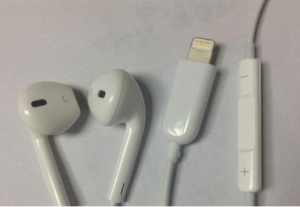
Are these the new standard iPhone-bundled headphones?

iphone-bundled-headphone

Probably not. The ear buds and in-line remote look genuine, but the lightning connector looks as fake a Gucci handbag sold on the street for £20.

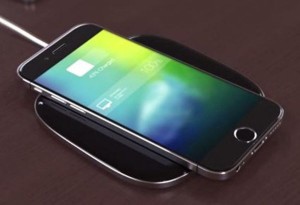
8. You’ll be able to charge iPhone 7 wirelessly
Apple is apparently testing a prototype with wireless charging, a rumour that comes straight from Chinese social network Weibo.

But that’s not the only model Apple is testing. Other prototypes include multi-Force Touch, a fingerprint scanner in the screen, and USB-C connector. No one knows which of these will make it to the market… if any.

The wireless charging is certainly the most likely, even if it’s not true wireless charging like the S7 has. Logitech let slip there might be an iPhone model which includes a smart connector similar to the iPad Pro. This would allow charging through it, possibly.

9. Could iPhone 7 have a dual camera?
Trusted analyst Ming-Chi Kuo at KGI Securities believes the larger iPhone 7 Plus (or iPhone 7 Pro) may have a dual camera setup. And while that’s just speculation, we can certainly see it happening.

Apple tends to keep camera components for a long time, so expect the same 12MP camera module carried over from the iPhone 6S.

It seems very likely that the camera will be improved in some way, so maybe optical image stabilisation will be standard across the range?

Leaks from the supply chain seem to back up that rumour that the iPhone 7 Pro will have a dual camera, and a sizable camera bump.

10. People will start queuing in July
This one’s a guess. In 2014, we saw a Japanese blogger start queuing in February for the iPhone 6, but anticipation for the 6S was somewhat less extreme.

Considering the iPhone 7 is a major update, people could get really excited… we’ll see. Care to hazard a guess?

Read more:

iOS 9.3.3 :The Things You Need to Know

How to fix Bug on iPhone/iPad after iOS 10 Upgrade

How to Transfer Samsung Data to iPhone 7

How to Transfer Android Data to iPhone 7

How to Backup and Restore Files on iPhone 7

How to Factory Reset an Locked iPhone

Forgot iPhone password?iPhone stuck at the locked screen?Few things are more frustrating than a forgotten password on iPhone.If you’ve been locked out of your iPhone,the only way to unlock it is by restoring iPhone to factory resetting and wiping all of your data.The effective way to get access to your locked iPhone is to reset iPhone without password.

If you own an iPhone and you want to restore it to factory setting,the process is easy.But if you want all the personal information and data saved, it is best if you can backup your data with your computer.Restoring iPhone to factory setting is going to delete everything and the setting will be restore to original status.There are only 2 workable methods on how to factory reset iPhone without password:Restore iPhone to factory reset with iTunes;Restore iPhone to factory reset with iOS System Recovery.

Remind:If you factory reset iPhone without password with iTunes, all data on your iPhone will be erased and your iPhone would be like a new one.Remember to backup your data first to avoid losing data after restoring iPhone to factory reset.Before preparing to factory reset iPhone,what should we do first?

1.Backup iPhone
We had better back up iPhone.You will know this backup is so important if you want to restore iPhone after hard reset.

2. Take out iPhone SIM
This action can protect iPhone SIM card.

Part 1:Factory Reset iPhone without Password via iTunes

Step 1.Open iTunes on your Mac or PC. If you can’t access a computer and your device still works, you can erase and restore your device without a computer.
Step 2.Connect your iPhone to your computer with USB.
Step 3.If a message asks for your device password or to Trust This Computer, follow the onscreen steps. If you forgot your password,get help.
Step 4.Select your iPhone when it appears in iTunes.For an unresponsive device or one that won’t turn on,learn what to do.Or get help if your device doesn’t appear in iTunes.
Step 5.In the Summary panel, click Restore [iPhone].

itunes-iphone-restore-reset

Step 6.Click Restore again to confirm.Then iTunes erases your device and installs the latest iOS system on iPhone.
Step 7.After your device restores to factory settings, it restarts. Now you can set it up as new.

Part 2:Factory Reset iPhone without Password via iOS System Recovery

Another better selection is the iOS System Recovery.iOS System Recovery is used for restoring iPhone to factory resetting without password,hard reset a locked iPhone and help to delete all data on iPhone and reset it as an new iPhone without password.Furthermore,this perfect program is available to fix iPhone system to normal,such as fix iPhone stuck issues:iPhone stuck in recovery mode,iPhone stuck in DFU mode,iPhone stuck at Apple logo screen,etc.Out of many ways to restore a locked iPhone,the ones given are simplest, and quickest.Where iTunes gives you a free solution, iOS System Recovery makes the entire process effortless and simply.
d_win d_mac

Step 1.Run iOS System Recovery and Select the Recovery Option
Firstly please run the iOS System Recovery and click “More Tools” >”iOS System Recovery” in the program homepage.Connect iPhone with computer,then click “Start” to continue.

restore iphone to factory resetting

Step 2.Download the Firmware for iPhone
Make sure that your iPhone is connected to the computer and now iOS System Recovery will recognize your iPhone very soon,offering the latest iOS version for you to download.Then click “Download”,the program will begin to download the suitable firmware for your iPhone.

restore iphone to factory resetting

download the firmware for iPhone

Step 3.Restore Locked iPhone to Factory Resetting
Once the firmware downloading process is finish,iOS System Recovery will start to restore your locked iPhone to factory resetting.

restore iphone to factory resetting

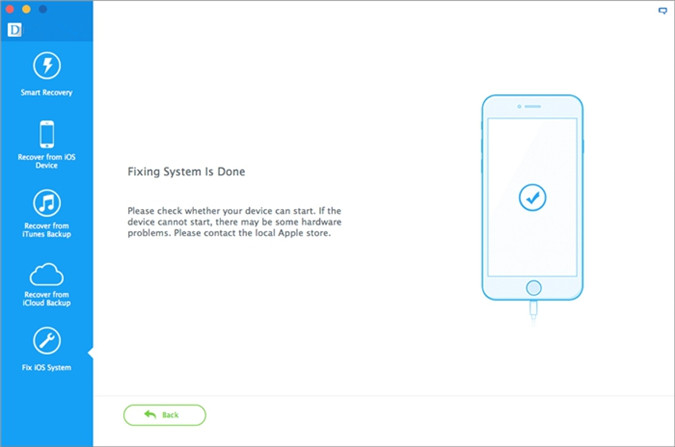
When the process is complete,your iPhone will be as a new phone without any data,you can start using it normally as usual.

restore iphone to factory resetting

d_win d_mac

Related Article:

Two Solutions to Factory Reset iPhone

How to Erase All Content and Settings on iPhone Permanently

Three Situations to Erase iPhone Data and Settings