All posts by DHZ

How to Transfer Samsung Data to iPhone 6s and iPhone 6

You may be not an Apple fan, but the iPhone is a brilliant phone indeed, you should better have one, because it is perfect for mobile user to have a try. Now iPhone 6s has just been released besides the iPhone 6s plus, it is possible to mobile phone users buy one to replace the old Samsung phone. But firstly, let us transfer your contacts, text messages, music, videos, calendars and other kinds of personal data from old Samsung phone to the new iPhone 6s with a simple method.

Move Contacts,SMS from Samsung Galaxy to iPhone 6s,iPhone 6,iPhone SE/5SE

You will find that it is so easy to synchronize all data from the old Samsung phone to iPhone 6s through professional mobile data transfer tool. The Mobile Transfer allow you to synchronize your Samsung phone data for Windows or Mac, it’s a simple tool to handle.

Mobile Transfer – With the help of phone transfer,all the data can be copy and transfer contacts,sms,photos,videos,music,ect between iPhone, and Android phone. Just read the guide below, you could learn it in a short time to transfer data from Samsung phone to iPhone 6s/6 and iPhone SE/5SE.


d_win d_mac

Easy Tutorial to Transfer Contacts from Samsung to iPhone 6s/6/SE

Step 1:Connect your Samsung phone and iPhone 6s to computer
First of all,please run the Mobile Transfer on your computer,then connect your Samsung phone and iPhone 6s to your computer. If you don’t have iTunes on the computer, you will be asked to install it. Then click the Start under the Phone to Phone Transfer.

samsung to iPhone data transfer

After you get the primary interface, please connect both your Samsung phone and iPhone 6s to the computer via USB cables.
transfer samsung contacts to iPhone

Step 2:Select and start to transfer data from Samsung phone to iPhone 6s

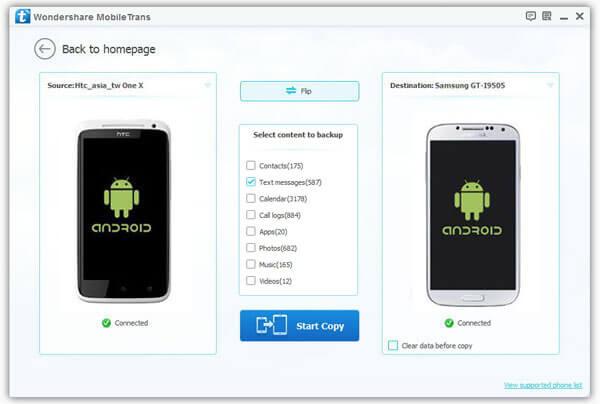
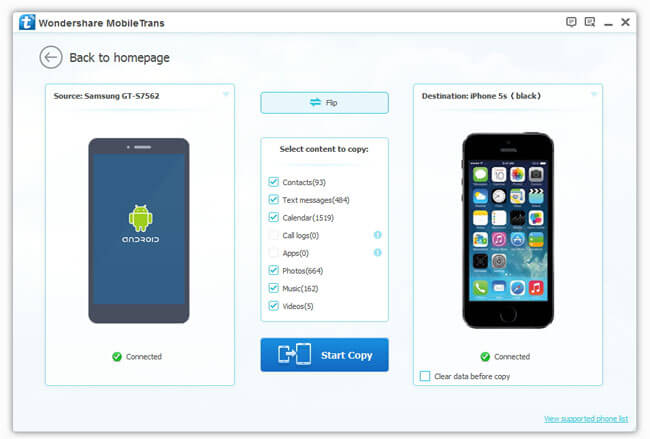
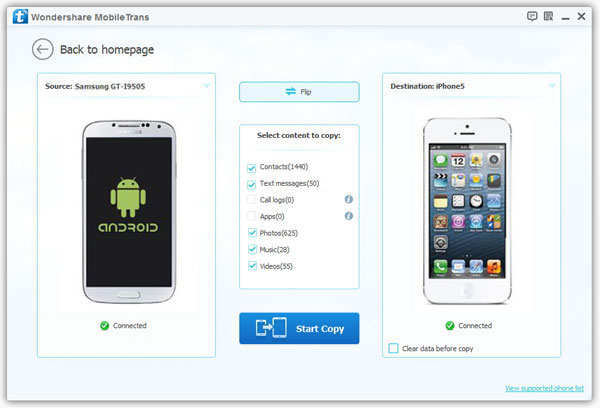
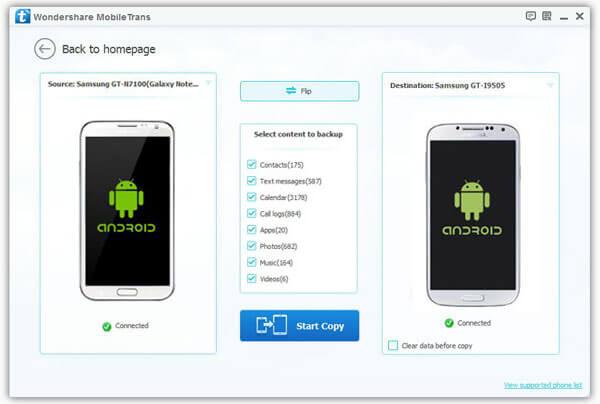
After your phones are detected by the program, you will see them show up in the window. Make sure they’re put on the right places, or you can click on “Flip” to exchange their positions.
copy sms from samsung to iPhone 6s

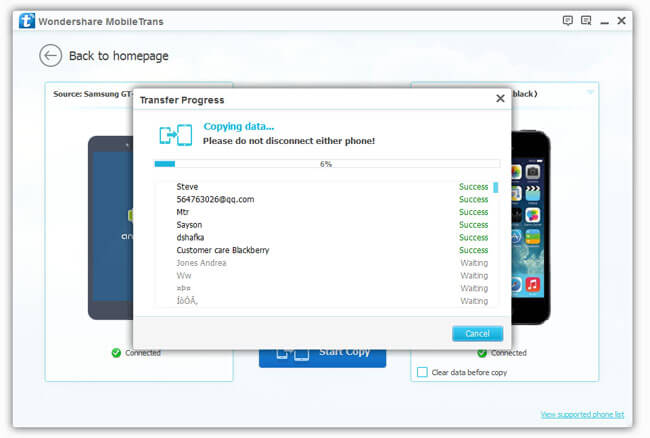
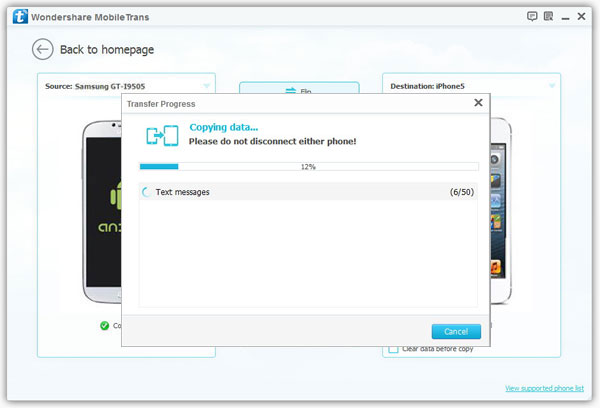
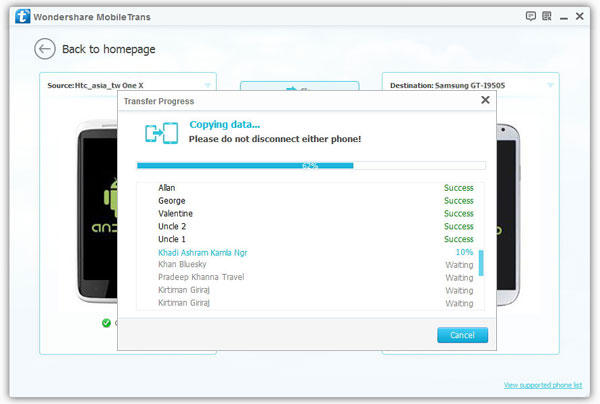
Now you have to select content to copy in the middle column, where you can check or uncheck the content to decide what you want to switch and what you don’t. Then click on “Start Copy” to begin data transferring.

OK,you have copy the files to your new iPhone 6s without data losing. With the help of Mobile Transfer, you can feel free to copy music, text messages, contacts and photos to your new iPhone 6s.

In additional, if you want to resell the old Samsung phone,the Mobile transfer also can help you erase all data on Samsung phone permanently before selling.

The Mobile Transfer is special in many features. It is capable to transfer various types of data, such as text messages, photos, apps, contacts, etc. It provides customers with clear operation instructions and user-friendly interface. This program also ensures the integrity and security of the transferring content. It’s easily to transfer data between different operating systems—Android, iOS, BlackBerry and Symbian OS.Moreover, the Mobile Transfer supports you to backup and recover your phone data: Back up your phone data to computer,restore data from backup.

d_win d_mac

Extra phone data transfer tips you may be interested:

How to Transfer Text Messages from Samsung phone to iPhone 6s:
When you buy a new iPhone 6s,the first thing you need to do is transfer important contacts,SMS from old phone to iPhone 6s.Mobile Transfer is now universally needed because nowadays people use more than one cell phone, one Samsung phone and one iPhone, for example. It is a little inconvenient if you can’t sync the data of two phones and you may have to check both your phones and find which phone you stored your contact in. So a mobile phone data transfer tool for Samsung and iPhone will be much popular no matter you use Android or iOS Phone, you can just try to transfer the data between the phones.Let’s teach you how to copy text messages from Samsung phone to iPhone 6s directly.
How to Move All Contents from Android to iPhone

Transfer Contacts from Samsung to iPhone 6S/6/SE

Transfer Everything between Samsung Galaxy and Samsung Galaxy S6

Bought yourself a new Samsung GalaxyS6 to replace the old Samsung phone, or for some reasons, you need to transfer or sync your Samsung phone data to the other, just like: How to transfer everything from old Samsung phone to Samsung Galaxy s6? What you pressing need now is a helpful and easy way to transfer your large number of data like contacts, SMS, documents and more without huge workload. So, what is it you first think of?

In modern time, people change their phone frequently which cause inconvenience when you need to copy and transfer data between old Samsung to new Samsung. Are you looking for a simple way to solve the problem? So far, we already find the best transfer software for phone users to transfer data between phone to phone. You are free to transfer data from Android to Android, iOS to Android, Symbian to iOS, etc. What’s more, no matter you copy or transfer any data, Mobile Transfer also can help you which is designed to transfer contacts, text messages, photos,videos and apps from old Samsung phone to Samsung Galaxy s6. The best part is it’s free-risk and won’t cause any quality problem.

This Mobile Transfer is a popular phone to phone transfer tool helps you to transfer everything from old Samsung phone to Samsung Galaxy s6 without losing data. Its one-click user interface makes its a useful tool when you need to replace your old phone.One-Click Transfer Phone Data across Different OS Phone.It supports the phone system including Android, Symbian,iOS and more common mobile system.

How to Transfer Old Samsung Contents to Galaxy S6

Step 1:Run the Mobile Transfer and connect old Samsung phone both Samsung Galaxy s6 to computer

Install Mobile Transfer on your PC and launch it. Then click the Start under the Phone to Phone Transfer .

Copy Samsung Messages to iPhone 6s

After you get the primary interface, please connect both your old Samsung phone and Samsung Galaxy s6 to the computer via USB cables.

Step 2:Select and start transfer content from old Samsung phone to Samsung Galaxy s6

After your phones are detected by the program, you will see them show up in the window. Make sure they’re put on the right places, or you can click on “Flip” to exchange their positions.

copy samsung s4 data to samsung galaxy s6

Now you have to select content to copy in the middle column, where you can check or uncheck the content to decide what you want to switch and what you don’t. Then click on “Start Copy” to begin data transferring.

transfer samsung s5/s4/s3 contacts to galaxy s6
That’s it. Have you solved your data transferring problem? I bet you have. With Mobile Transfer , you can feel free to transfer all data ( text messages, contacts and photos) to your new Samsung Galaxy s6 safely, easily and effectively from your old Samsung phone before you resell it.

Key Features About Phone Transfer:
1)Transfer Data between Two Phone on Your PC with One Click
2)Back up and recover Data for Your old phone
It is an easy process and you can use the backup file to restore the lost data when there’re some data lost with your Android, iPhone/iPad/iPod, Blackberry and Symbian. Extract BlackBerry Backup for Android Device/iDevice;Get iTunes Music and Backups for Android Device /iDevice;Retrieve Data from iCloud Backup to Android
3)Wipe the Data without restoring from Your mobile Phone
Mobile Transfer software helps to protect your personal data by erasing all of them from your old iPhone, iPad, iPod touch or Android phone, safely and permanently.

Extra phone transfer tips you may be interested:

Transfer SMS from old Samsung to Samsung Galaxy s6:
Many people change their phones frequently and they are in great need of transferring phone SMS between from old Samsung to new Samsung phones for example the Samsung Galaxy s6. If you have need to cope your old Samsung phone SMS to the new Samsung Galaxy S6, you come to the right place.This Phone to Phone Transfer can help you cope SMS between two Samsung phones directly.

How to Transfer SMS from Samsung Galaxy S/Note to Galaxy S6

I used my Samsung Galaxy s4 have been 2 years,I wanna buy a new Galaxy s6 and sell the old Samsung phone to phone shop.I mean to copy and transfer my text messages from the old Samsung phone to Samsung Galaxy S6. However, it will be a big task to transfer thousands of text messages from Samsung to PC, and then from PC to another Samsung! “said by Victoria

How to transfer SMS from your previous Samsung device to Galaxy S6,S7 without complicate steps?Here I introduce a workable Samsung to Galaxy S6 SMS Transfer tool for you which is the Mobile Transfer.

What’s Mobile Transfer?

After the excitement of getting your Samsung Galaxy S6, you may wonder how can you transfer data from your old Galaxy S3/S4/S5 to Galaxy S6. For example, you may want to transfer text messages,contacts, call logs, photos, media files, documents, and many other staff, from the old Samsung to the shining Samsung Galaxy S6.The Mobile Transfer makes it very easy for you to transfer SMS from Galaxy S5/S4/S3/Note 4/3 to Samsung Galaxy S6. It is the replacement for Samsung users.

Main functions of The Mobile Transfer:

Transfer Contacts, SMS and more between Android, iPhone, BlackBerry, Symbian and Galaxy S7/S6

-Transfer contacts, text messages, call logs, calendar, photos, music, video and apps between iPhone, Android, Nokia (Symbian) phones and BlackBerry – in one click!
-Comprehensive contact copy, including job title, email addresses, company name, etc.
-Works with over 2,000 phones including Droid, Symbian (Nokia), and all models of iPhone, including the newest iPhone SE, iPhone 6S(Plus), iPhone 6(Plus).
-Erase all data on your iPhone or Android phone in 1 click.

d_win d_mac

How to Transfer SMS from Galaxy S4 to Galaxy S6,S7

Step 1. Launch the Mobile Transfer and connect both your Samsung Galaxy S4 and new Samsung Galaxy S6 to computer

Copy Samsung Messages to iPhone 6s
To start with it, launch this Mobile Transfer program after installing it. The primary window will pop up, select “Phone to Phone Transfer”, click “Start”. Connect both of your old Galaxy phone and new Galaxy phone to computer via 2 USB cables. This program will automatically detect your devices and shows it in the primary window.

Step 2. Transfer SMS to from your old Samsung Galaxy S4 to your new Galaxy S6

As you see, this program allows you to transfer everything from your old Samsung Galaxy phone to the new one. For those who only want to cope SMS, please remove marks before the corresponding content. Then click “Start Copy” button to begin the transfer. When the transfer over, don’t forget to click “Completed” button.

transfer-android-sms-to-android

You can click “Clear data before copy“, if you want to empty the phone book on your destination phone.

transfer-samsung-contacts

You’ve just did a good job to achieve your target and now all your SMS have been finished copy to your new Samsung Galaxy s6.It sounds so great!

The brief features of The Mobile Transfer you can’t miss:

1.One-Click to Transfer Phone Data across Different OS Phone
This Mobile Transfer is a popular phone to phone transfer tool helps you transfer content from the old phone to new one without losing data. Its one-click user interface makes its a must-have tool when you need to replace your old phone.

2.Supported All Mobile Phones(iOS,Android,Symbian,BlackBerry)

3.Backup&Restore Phone Data
Besides file transfer between different mobile devices, this software also provides en easy solution for you to backup your phone data to computer,including Text messages, contacts, photos, media files and documents, even apps . You can even restore data to your phone with the mobile transfer.

4.Wipe Data from Your Phone without restoring
Mobile Transfer software helps you to protect your personal data by erasing all of them from your old iPhone, iPad, iPod touch or Android phone, safely and permanently.
For ios users: Permanently erase data from iPhone

d_win d_mac

The other phone transfer tips you can choice to have a look:

How to transfer contacts from old Samsung to Galaxy S6:
As we have seen, Samsung mobile is growing in popularity. An increasing number of mobile users can’t wait to abandon their old Samsung and switch to a new Samsung galaxy S6. However, when they got their Android in hand, many of them fall into the predicament of transferring their contacts from old Samsung phone to Samsung Galaxy S6. Of course, it’s unpractical to input countless contacts in your old Samsung mobile phone one by one. Here I want to share a powerful app called Mobile Transfer with you.

How to Transfer SMS from iPhone to Galaxy S6,S6 Edge

How to Transfer Files from Nokia to Galaxy S7

How to Transfer Text Messages from Samsung to iPhone 6S/6

More and more people willing to buy iPhone 6s(plus),iPhone 6(plus),because it’s better etter user reflect, smooth operating experience and high configuration hardware,ect. If you buy a new iPhone 6s change for the Samsung phone, In addition, you may not know how to copy SMS messages from the old Samsung phone to the new iPhone 6S. The most direct way to you is to plug Samsung phone in the PC or Mac and drag the images from device to the computer. Then, connect iPhone 6s to the computer, add the contents in iTunes, and sync the iOS device with it. It is possible, but not easy to run. Therefore, in the following article, we will introduce you a more convenient way to help you transfer SMS from Samsung Galaxy to iPhone 6s.

Transfer Text Messages/SMS between iPhone and Samsung Galaxy with 1 Click

It is easy to copy your precious messages from Samsung to iPhone 6s. The tool you can use is this Android to iPhone SMS TransferMobile Transfer, which can read the SMS from the your Samsung Galaxy S3/S4/S5/S6/S7/S8 and transfer them to your iPhone 6s, iPhone 6s plus, iPhone 6/SE without complex steps.Mobile Transfer allows you transfer photos, contacts, text messages, call logs, videos and more between Samsung phone and iPhone 6s/6(plus) in just one click! It also can help you back up and restore data from Samsung phone on computer quickly and safely; erase all data on mobile phone permanently.

d_win d_mac

All the steps mentioned below for transfer text messages from Samsung Galaxy S5 to iPhone 6s are available to almost any latest Android phones running in Android Lollipop and iPhone running in iOS 9/iOS 8/iOS 7, including iPhone 6s/6/SE/5S/5/4s/4.No matter you use which phone brand, Samsung, HTC, LG, Sony, Motorola, iPhone, iPad, iPod touch, Blackberry and even Symbian phone such as iPhone 7/7 Plus, Samsung Galaxy S7 Edge/S7, HTC One M9/M8, LG G4/G3, Sony Xperia Z3, Motorola X, Nokia Lumia 920/820/520 and so on.If you have a new iPhone, feel free to use the ways to transfer data from Android Samsung phone to your new iPhone 6s/6 directly.

How to Transfer SMS from Samsung Galaxy S5 to iPhone 6S

Note: iTunes should be installed in your computer first before use this phone transfer to copy contents between iPhone and other mobile phone, or Mobile Transfer could not work with iPhone.

Step 1. Launch the Mobile Transfer on computer
Download, install and launch the program on your computer. Then the following window will pop up, select “Phone to Phone Transfer”, click “Start”.

Copy Samsung Messages to iPhone 6s
Step 2. Connect both Samsung phone and iPhone 6s to PC
Connect both your iPhone 6s and Samsung phone to PC via USB cables. After that, this transfer will display them on the main interface, named as “Source” and “Destination”. You can change the place of phones by pressing the rectangle button “Flip”.

Transfer Samsung Messages to iPhone 6s

Step 3. Transfer SMS between Samsung phone and iPhone 6s

To sync the photos from one phone to another, please mark the “photos”, then click the green button “Start Copy”. If you have a need, you also can mark “Text message”, “Contacts”, “Music” , etc. to transfer them to another phone. Make sure neither of phones is disconnected during the data transferring process. After the transfer, click “OK” button.

android to iphone sms transfer

The Mobile Transfer not only can help you transfer photos between Samsung and iPhone,but also supports copy your SMS, call log, music, and videos from Samsung to iPhone.

d_win d_mac

What’s more,this all-in-one phone transfer allows you backup phone’s data to computer, restore data from mobile phone, erase data on your phone permanently before selling.Once lost SMS on iPhone or Samsung phone,you can recover lost SMS on iPhone and recover lost messages from Samsung.

Here we supply the other phone transfer tutorial you can check:

How to Transfer Contacts from Android to iPhone 6S

How to Transfer Contacts iPhone to Samsung Galaxy S7/S6

How to Transfer Text Messages from Android to iPhone 6S/6/SE

How to Transfer SMS from Samsung to Galaxy S6/S7/S8

How to Optimize Slow iPhone For Best Performance

iPhone is equipped with powerful and latest specs which makes it become one of the most popular Smartphone arround the world. Just owning a iPhone is not enough you have to keep it with care. Apple’s app store iTunes offering thousands of apps, games, music and videos for iPhone which you can easily download and use all this app and games runs smoothly on your iPhone. With the time your iPhone might have slowed down. What’s more, the longer time the iPhone be used, the more junk files will be generated, so you need to clean up junk files to speed up your iPhone. Clearing out files and apps that you don’t use anymore can keep your iPhone device performing well and give you plenty of room for fun new apps and new memories.

Optimize-iPhone-best-performance

Further more, the software update includes bug fixes, so if your iPhone is still working with any iOS version earlier than iOS 8, you can upgrade your device to the latest iOS 9.1.

However, the data just on the surface to be cleaned which hidden in places you can not see, and have not been completely cleaned up. If you want a simpler and safer way to optimize your iPhone, ensure your iPhone running quickly. You need to download iPhone Data EraseriPhone Optimizer tool,which can clear junk files on your iPhone, and remove cache of photo, video, app cookie, etc.

What’s more, with iPhone Data Eraser, you can permanently delete the files you deleted and some unwanted files to free up your iPhone, so that your iPhone can run faster. Now free download this software and try to clean up and optimize your iPhone for best performance in a easy ways.

Free Download the iPhone data eraser tool:

d_win d_mac

Simple Ways to Speed Up iPhone – Clean Up Junk Files On iPhone

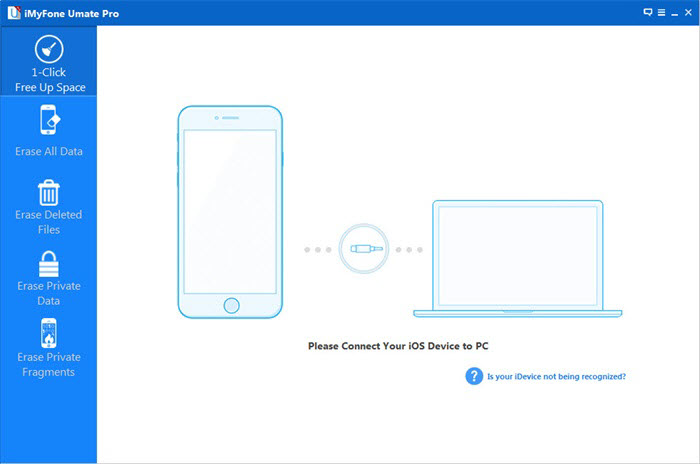
Step 1. Launch the program and get your iPhone connected

After installation, the program will automatically run, at the same time connect your iPhone iPad to PC by using its USB cable.

se-cleanup-sc01

se-cleanup-sc02

Step 2. Choose a mode you want to scan and clean up your device

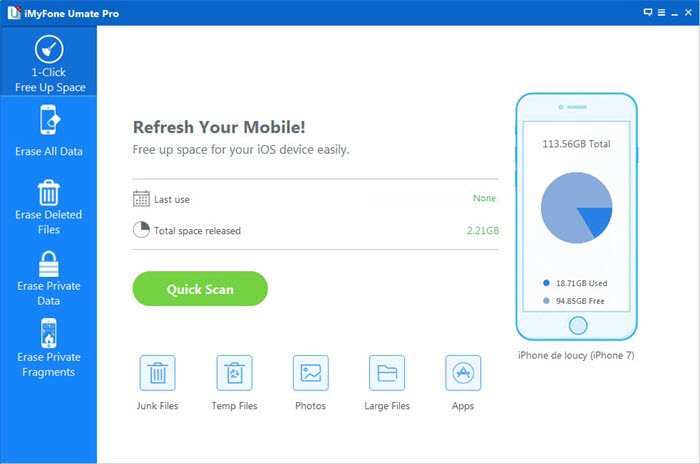
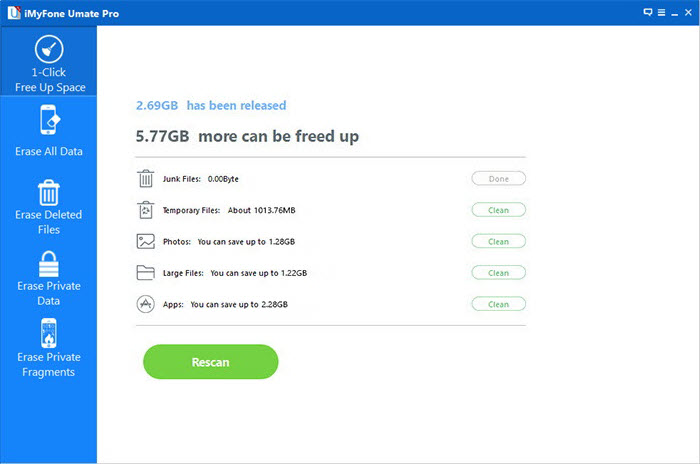
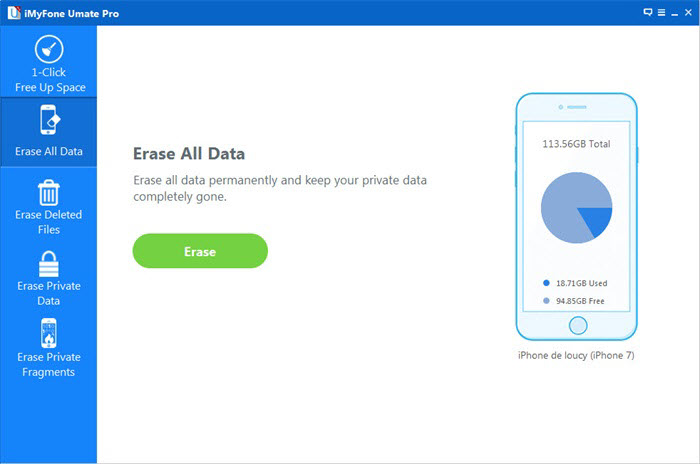
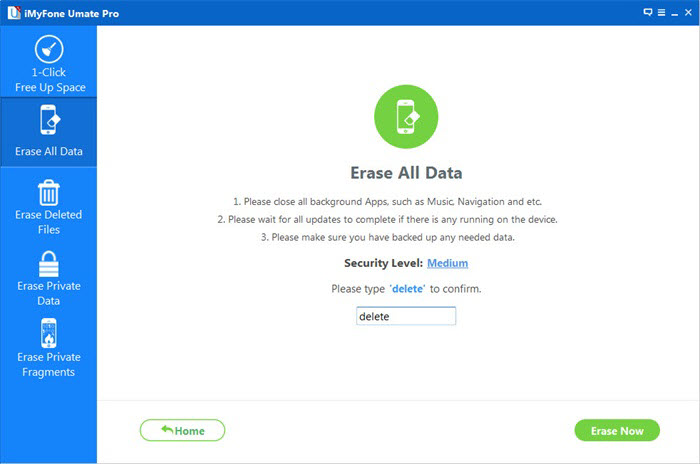
In the left sidebar, all features for this tool are listed. You can use it to erase junk files, private data, deleted files or even all data on your iPhone. Choose the right feature you need.

se-cleanup-sc03

-Express Cleanup: clean junk files, like log files, photo/video cache, iTunes syncing cache, download temp files, app cache, app cookies, app temp files and more.

-Photo Compress: compress your iOS device captured photos to reclaim more storage.

-Unused App Eliminator: UNINSTALL UNUSED APP – Uninstall not used apps from your iPhone to get more storage.

-Erase Private Data: safari cache, safari history, safari cookies, keyboard cache, message, message attachments, call history, notes, photos, etc.

-Erase Deleted Files: messages, iMessage, contacts, call history, facetime, calendar, reminders, notes, safari bookmarks, photos, videos and so on.

-Erase All Data: erase all data on your iPhone, setting it as a new phone.

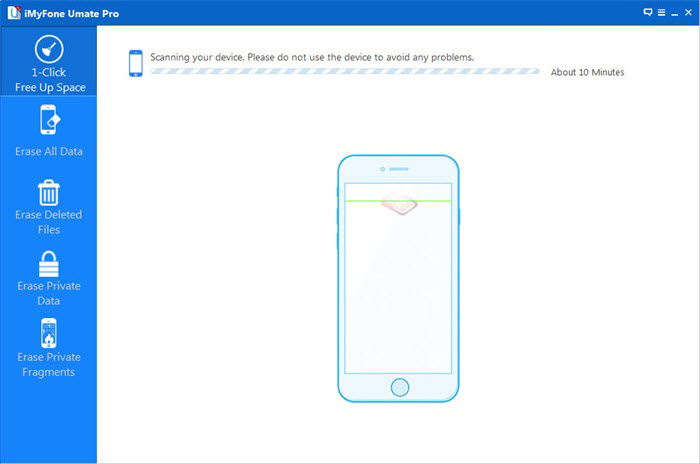
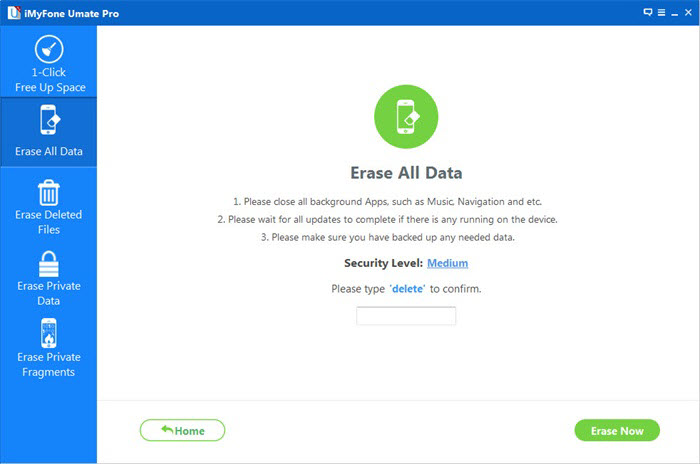
To ensure that the junk files are cleaned up totally, keep your device connected during the whole process.

se-cleanup-sc04

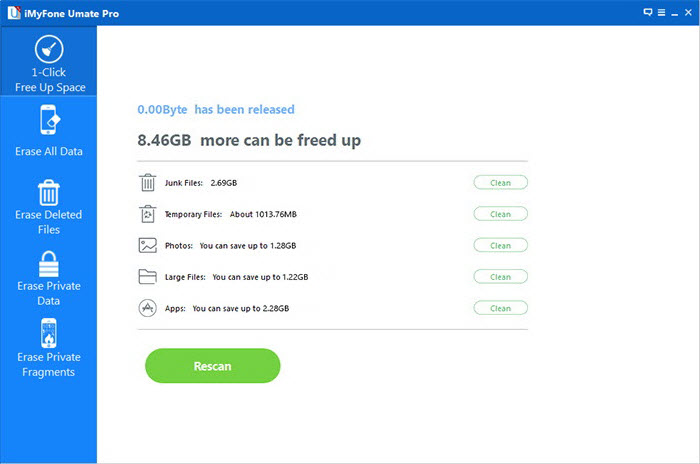
When the clean finished, you will see the window as follows: displaying the space information of your device.

se-cleanup-sc05

This software supports iPhone devices, such as iPhone 6S/6/5S/5/4S and so forth.Once deletion is complete, you will see the corresponding completed screen, and you will get a fully new iPhone, but please remember that if deleted files are erased, no way to recover them, even some data recovery programs. So, please remember to backup data from iPhone to PC before wiping your device.

Free Download the iPhone data eraser program:

d_win d_mac

Read More Use Guide About iOS Eraser:

How to clean iPhone and iPad junk files to Optimize iPhone, iPad and iPod Performance for Free
Just owning an iPhone is not enough you have to keep it with care. Apple’s app store offers thousands of apps, games and videos for you to easily download and use on your iPhone, iPad, iPod. Over the time your iPhone might have slowed down and you need to optimize iOS so that the apps, music, games, etc. could run smoothly. In this case, you can read on to learn how to free optimize iOS.

How to erase all contents on iPad to Free Up iPad Space
I don’t get enough memory for iOS 9.1 update, how to free up space on my iPad? Running out of storage space on your iOS devices is annoying, and if you encounter with the following situations, you should be aware. They are signs that your iPad is short of space.

How To Permanently Delete All Content on iPad Before Selling it

After the release of the iPad Pro, many iPad users choose to sell their old iPad, to buy the new version. Before you selling the old iPad, it is necessary to delete all stored sensitive data and information. You can go to Settings> General> Reset> Erase all content and settings, so your iPad in the factory default settings. However, someone even can recover the data from your old iPad by using some iPad Data Recovery.

Make sure all personal data on your iPad can be deleted permanently without restoring, you can use the iPad Data Eraser, which can help iPad users to wipe iPad data permanently 100 percent. You will never have to worry about information leakage on your iPad before selling it.

The iPad Data Eraser tool allows you wipe data from your iPad permanently before selling. Such as Text Messages, Call History, Contacts, Calendar, Reminders, Notes, Voice, Memos, Safari Bookmarks,etc.

d_win d_mac

Tips: All iPad models are supported by this software, including iPad Pro, iPad Air, iPad Mini, iPad 4/3/2/1.

Permanently Erase All Content on iPad Before Selling it

Step 1: Run iPad Data Eraser and Connect iPad to PC

Run the tool after you download and install it. Then, connect your iPad to the computer via iPad provided USB cable and you will see the program detect the iPad automatically once the connection is successful.

se-all-sc01

Step 2: Choose Lever of Data Erasing as You Want

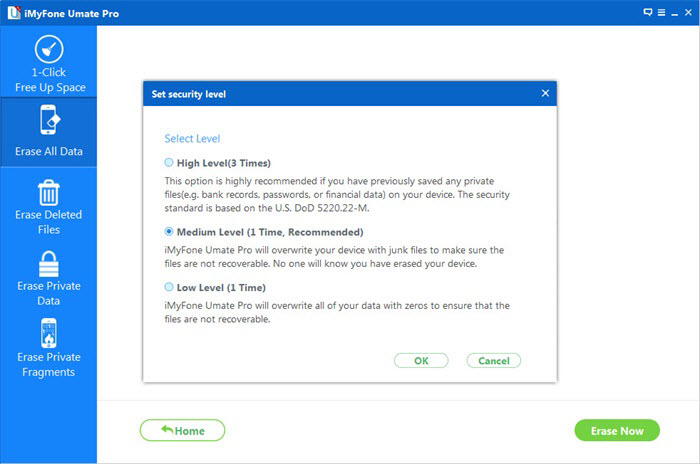
The program provides you with three different levers for erasing data: Low – Medium – High. You can directly choose the default second Medium lever, which will leave no traceability of data erasure and use random data to overwrite all existing and deleted data on your iPad.

se-all-sc02

Step 3: Start to Erase Your iPad Content Before Selling it

On the left directory tree, all iPad content is displayed here. Choose the files you want to delete from your iPad and click the option of erase all data and settings to delete them all.

se-all-sc03

After the data removal, you’ll get a totally new iPad. No matter how powerful the data recovery software you use, you can’t recover any data from the iPad.Now you can make sure all personal data on your iPad can be deleted permanently without restoring.

se-all-sc05

More information about The iPad Data Eraser:

Speed Up Your iPad-Clear Junk File and Uninstall Apps Permanently with the iPad Data Eraser,and Speed Up your iPad devices You can use this iPad Data Eraser to clean up the junk files permanently,and make your device working as quickly as a new one.

How to erase data on iPhone Before Selling it:

How to delete the contacts,sms,photos data permanently on iPhone before selling? iPad users are afraid that the deleted data can be retrieved from some data recovery tool. Is there any way to totally delete the information on the iPhone? The answer is “Yes”.When you want to sell your old iPad, it is of vital importance for protecting your privacy. In fact, The iOS Data Eraser tool can easily clean all your old iPad data. iPhone Data Eraser is such a wonderful data-cleaning software for you.

How to Restore Deleted Notes on iPhone 6S and iPhone 6

Can I get the my deleted iPhone 6s notes back? When I was taking a new note, the iPhone
6S stopped to work a few minutes, and then everything seems OK. But all the notes I have taken lost. This has never happened before and I’ve had some notes in there for over 2 months. Does anyone know how this happened, and more importantly how to Restore Deleted Notes on iPhone 6S and iPhone 6? The notes are meaningful for me, I must restore them from my iPhone 6S.” A question from discussions.apple.com.

A lot of things can lead to iPhone 6s data loss. Sometimes, when you try to jailbreak your iPhone 6s, this could cause data loss. And sometimes, when you download an unknown software and try to install on your iPhone 6s, this may also cause data loss. This article will introduce you how to recover accidentally deleted notes to iPhone 6S, give you some useful tips to keep your iPhone data safe.

The iPhone 6S/6 Recovery supports restore all kinds of lost data, including notes,contacts, messages, call history, calendars, reminders and Safari bookmarks directly from iPhone 6S/6.

To recover deleted Notes on iPhone 6S/6, you need to download the iPhone 6S Data Recovery, which provides two options for iPhone 6S/6 users to recover the notes from the iPhone directly or extracted notes from the iTunes backup. If you always back up your notes to iTunes, you can use The iPhone 6S/6 Data Recovery to extracted notes from the iTunes backup. If not, you can use this iPhone Data Recovery directly recover deleted notes from the iPhone 6S/6. Download The iPhone 6s/6 Data Recovery for free, please follow the instructions below to Restore Deleted Notes on iPhone 6S/6.

d_win d_mac

How to Restore Deleted Notes From iPhone 6S and iPhone 6 Directly

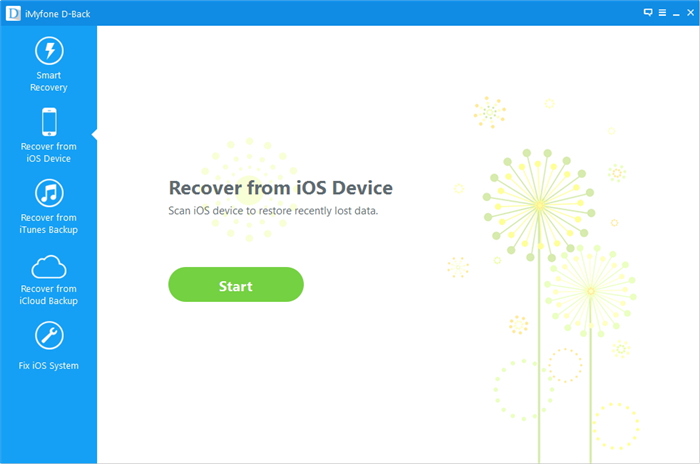
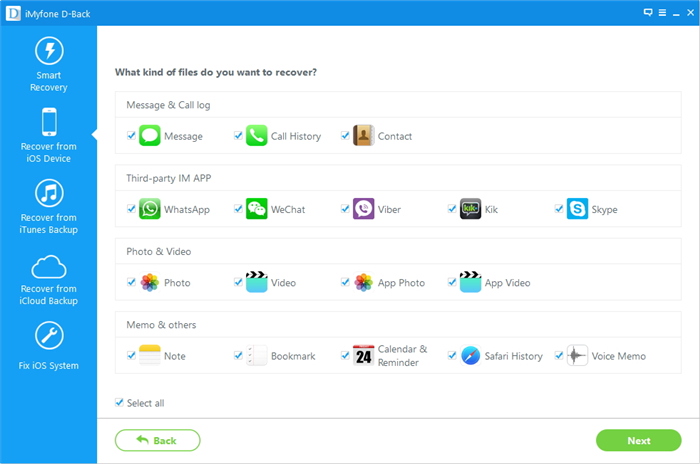
Step 1. Open the iPhone 6S/6 Data Recovery, and connect your iPhone 6/6S to the computer. On the homepage, click “Recover from an iOS Device”.

ios-data-recovery

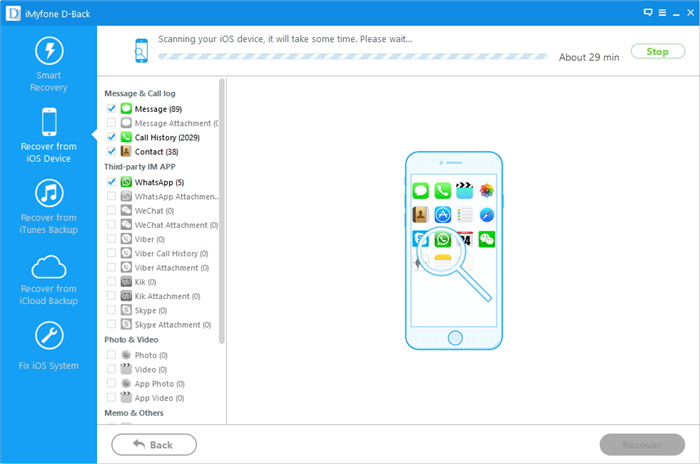
Step 2. Select the notes you want to recover , and click “Start Scan” button.

select-iphone-note-restore

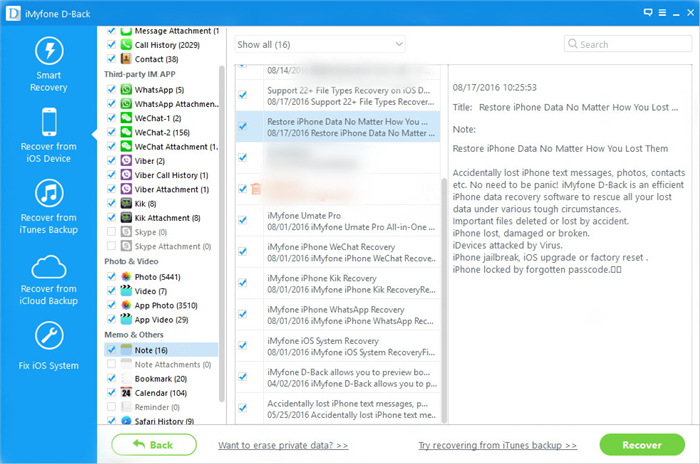
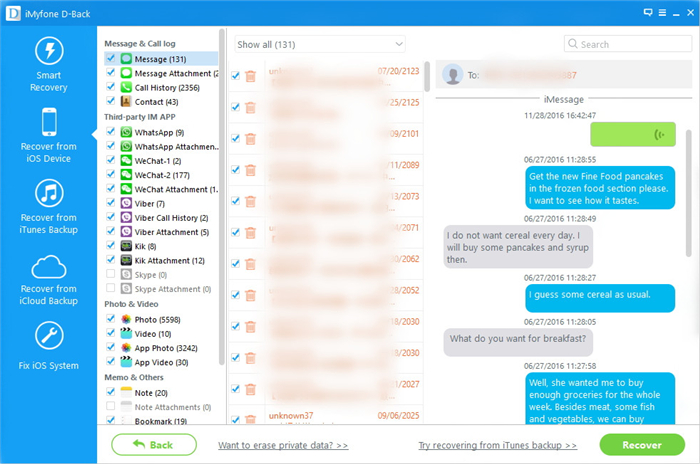
Step 3. View the deleted data, and choose the notes you want to retrieve, and then click the “Recover” button on the bottom-right of the window.

recover notes from iPhone 6s

As you see,just 3 simple steps,all your lost notes have been restored from the iPhone!It is so easy!
You don’t need to worry about that you will lose the important data on your iPhone ever.

d_win d_mac

More information about iPhone 6S/6 Data Recovery:

iPhone 6S/6 Data Recovery supports recover data lost due to accidental deletion, device crashed, smashed, broken, iOS device loss, jailbreaking or factory settings restore. iPhone 6S/6 Data Recovery can help you get lost or erased files back easily.

If you download the iPhone 6S/6 Data Recovery, You can get back the lost data with no worries anytime.This powerful iPhone 6S/6 Data Recovery software protect your precious photos, contacts and any other data when iPhone is lost, stolen,erased careless or physically damaged without a backup.Moreover,The iPhone 6S/6 Data Recovery can also recover your iPhone data from the iTunes back up files to your iPhone.

Read more:

How to Recover Deleted Contacts from iPhone 6S/6

How to Recover Deleted SMS/iMessages/MMS on iPhone 6S/6

How to Directly Recover Lost Data from iPhone 6S/6


How to Recover Data from iPad after Reset Factory Settings

After using iPad for a while time,I feeling some settings do not meet their current requirements for me, and then I rest the factory setting.What’s surprise me is that all the data on the iPad has gone!Oh my god!Someone please help me!Can anybody tell me how to recover data from iPad after reset factory settings?The lost data on the iPad were such precious for me!“Asked by Tom

Your iPad reset factory settings default and lose your data? Well, if you already sync your iPad with iTunes, your iPad data and files will be automatically backed up. If anyone encountered such a situation, perhaps the first thought on his mind was to find data from iTunes backups back. However, if you can not access anything for backup or extract for back up. All you need is a iPad Data Recovery software, it can help you recover lost data from iPad after factory settings restore.

d_win d_mac

The iPad Data Recovery Software Can Help Users Do:
– Newly support data recovery from iCloud backup and iTunes backup (including encrypted one).
– Retrieve data up to 18 types like photos, videos, contacts, messages, notes, call log,voice memos, calendars, reminders, etc.
-Works for iPhone 7/6S/6/ 5S/5C/5/4S/4/3GS, all iPad and iPod.
– Get back data lost due to accidental or intentional deletion, device damage or system crash, etc,.

Now, let’s take the Windows version of iPad Data Recovery as an example to get lost data back from a iPad Air or iPad Pro.

Recover Data from iPad after Reset Factory Settings

Step 1: Launch iPad Data Recovery and Scan Data

Download, install and run iPad Data Recovery and you will see the primary window on your computer. Then turn to “Recover from iOS Device” and choose the data you want to recover and click “Start Scan” button in the bottom right corner.

ipad data recovery main page

select data to scan on ipad

Step 2: Preview and Recover Lost Data from iPad

When the scan completes, you will see all backup files displayed in a list. In left column of the below window, you can see that camera Roll, Notes, Contacts, Calendar and other files are included. Before recovering the data, you can preview all the details. You can mark the data you want to get back, then click “Recover” button and save them on your computer.

preview and recover lost data from ipad

Finished!Congratulations!

iPad Data Recovery allows you recover call logs, contacts, text messages, photos, music, videos and apps from back up to your iPhone in just one click! It also can help you back up phone data to computer quickly and safely.What’s more,iPad Data Recovery can restore the lost/deleted data from iPad without back up!Is it sound great?Download and have a try!

d_win d_mac

How to Extract iTunes Data Backup for Your iPad

How to Recover Lost Data on iPad after iOS 9 Jailbreak

How to Recover Lost Data on iPad Air after iOS 9 Upgrade

How to Recover Data on iPhone after iOS 9 jailbreak

How to Extract iTunes Backup for Your iPhone and iPad

Last week my mom’s iPhone was stolen by a thief when she was shopping in a market.So I gave my iPhone for her to use instead the stolen one.And then I buy a new iPhone 6s for myself.Now I want to Extract iTunes Backup for my new iPhone,how can I do?”–asked by Miss Lee

If you back up your iPhone or iPad, you’ll have a copy of your information to use if your device is ever replaced, lost, or damaged. Backups let you transfer data from your last device to your new one.

Why We Can Ertract Previous Backup Contents from iTunes?

When you sync the iPhone device to iTunes,the iTunes can automatically backup the contents,here is the location of iTunes backup files on your computer: ~/Library/Application Support/MobileSync/Backup/. And the iTunes backup is a kind of SQLITEDB file, which doesn’t allow anyone to access or preview,we must to use third-part tool to extract those backup files.
However,no matter your iPhone device was lost or stolen,you still have chance to restore your lost iPhone data from the previous backup any time you want.

The iPhone has quickly become the necessity for us, storing thousands of memories and moments in our mobile phone. But if you need an iPhone backup file and want to extract the data from back up. The good news is, as long as you have regular backups made of your iPhone, you can probably extract the data from backup to your iPhone from iTunes.

Here I recommend the iPhone/iPad Data Recovery to you.The iPhone/iPad Data Recovery is an smart and professional data recovery program which allows you to restore your lost or deleted data from iTunes backup files for your iPhone, as well as iPad and iPod touch in one click.The most important thing is that you also can use the program to extract and restore data from iTunes backup to your iPhone directly.

d_win d_mac

Tips: Both of them work well with iPhone 6s, iPhone 6,iPhone 5s, iPhone 5, iPhone 4S, iPhone 4/3GS and other iOS devices.

Step by Step to Extract iTunes Backup Files for Your iPhone

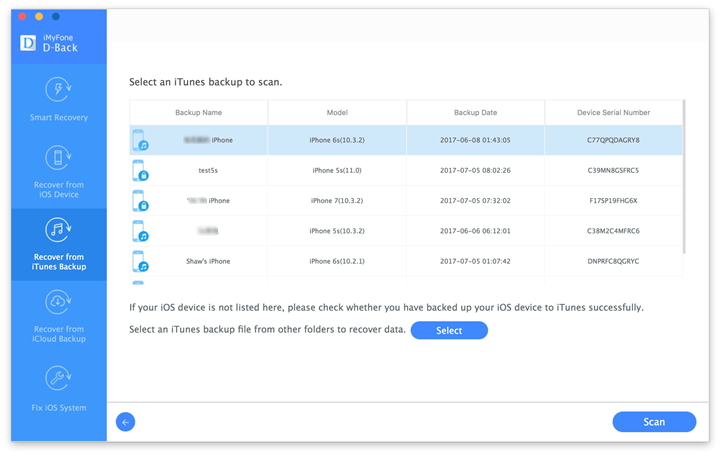
Step 1. Run the iPhone/iPad Data Recovery and select “Recover from iTunes Backup File” Recovery Mode

recover iphone data from iTunes backup files

Step 2. Begin to scan all lost data from iTunes Backup
Then the software begins scanning your data have been backed up on the iTunes, and you’ll get the interface as follow.

Preview and restore previous data

Step 3. Preview and extract data to your Mac from iTunes back up
After finish scanning the device, the program will display all data you saved on the iTunes f in the categories, including photos,contacts, text messages, call history, whatsapp messages, calendar, notes, reminders, voice memos and safari bookmark etc. Before recovery,you can preview them one by one.

restore iphone sms from iTunes after iOS 9 update

After your extract the data from iTunes to your iPhone 6s, you need to Synchronize all your new iPhone files which contains including all your data, photos, contacts, calendar, SMS, recordings, videos, notes, and call history on the iTunes,in case the unexpected situation will be happened.

To recover lost data from your iPhone, iPad or extract the data from iTunes back up to your iPhone iPad, the iPhone/iPad Data Recovery for Mac is the most useful iOS data recovery for you! With this iPhone data recovery, you can recover any lost data directly from iPhone 6S/6/5S/5C/5/4S/4 and iPhone 3GS, iPad and iPod ,as well as extract data from iTunes backup of all Apple devices, including iPhone, iPad, iPod, etc.

d_win d_mac

More iOS data extract tips you may be interested:

How to extract Deleted Pictures from iTunes to iPhone:

Many iPhone users would like to take a lot of photos and videos in their daily life and store them on the iOS devices. Have you ever accidentally deleted your pictures, videos and other media data from iPhone, or formatted the media storage? Don’t panic! iPhone Data Recovery can solve your problem in a simple and secure way.

How to Recover iPad Lost Data After iOS 9 Jailbreak

The hot discussion of jailbreaking iPad:
Every year, it seems jailbreaking loses a little bit of its appeal. It’s not that the community is dying. It’s just that hardware and software upgrades brought to iOS devices can make it a little less compelling to jailbreak.

If you are on the fence about jailbreaking, you may be thinking
Is it worth it to you? This is probably the most important thing to consider! Is jailbreaking still worth it to you? What are the main reasons to jailbreak? Whether you are jailbreaking for adding functionality to your device, for customizing it, or simply for the feeling of freedom that comes with it, you have to ask yourself if it’s worth it to you. iOS 9 and iPad Pro come with both hardware and software improvements that might make jailbreaking less appealing to you. Take that into consideration and figure things out.

ipad data recovery

Security concerns: by jailbreaking your device, you effectively remove the walls Apple has built to protect you. If done responsibly, jailbreaking can be safe, but there are certain basic rules to keep in mind. Theoretically, jailbreaking makes your device much more vulnerable to a possible hack. There is no arguing that. But in practice, we’ve seen many times before the jailbreak community can be faster than Apple at offering fixes for major vulnerabilities.

However,there are so many iPad users would like to try to jailbreak their iPad.Here is an example.

Last weekend I jailbreak my iPad Pro to iOS 9 by using a iPad Data jailbreaking tool then I lost my all data including the photos, text messages, contacts, It were all my important
personal information,that made me feel crazy!Help!It is possible for me to recover the content from my jailbroken iPad Pro?”-asked by Nick

Are you can’t wait to upgrade you iPad to the latest iOS 9? It sounds really exciting! However, so many examples told us that lots of users lost theirs data from iPad during or after iOS 9 upgrading, ever if they have did some backup before the update. Don’t want to lose your data from iPad, or just wanting a way to restore lost data from iPad after iOS 9 jailbreaking? Please keep reading the following article.

iPad Data Recovery is an smart and professional data recovery program which allows you to restore lost data from iPad after jailbreaking, as well as iPhone and iPod touch in one click.No matter you lose your iPad data for jailbraking,upgrading or any other reason,you can easily recover the lost data by using the iPad Data Recovery.

d_win d_mac

Tips: iPad Data Recovery Software supports restore all kinds of lost data, including contacts, text messages, call history, notes, photos,bookmarks and more directly from iPad Pro, iPad Mini,iPad Air,and iPad 4/3/2/1.

How to Restore iPad Lost Data after iOS 9 Jailbreaking

Step 1: Connect your iPad to the computer

After installing and running the iPad Data Recovery,then connect your iPad to your computer,click “Star Scan” to begin

connect ipad to pc
Step 2: Analysis and Scan lost data from your iPad

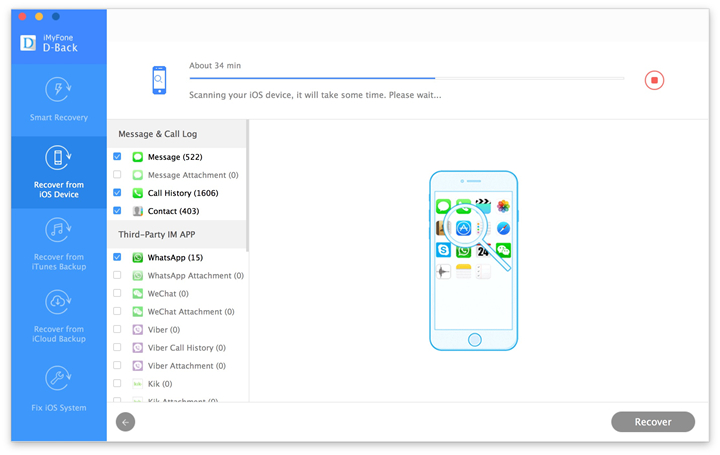
When the program is scanning your iPad, it may take you a few minutes, please don’t disconnect your iPad and computer connections

restore data from iPad after iOS 9 jailbreak
Step 3: Preview and select which files you want to get back from iOS 9 iPad device

After scanning, the iPad Data Recovery tool may shows all lost data from your devices,you will be able to see all recovered data listed on the left side of the window. For example, you can preview lost videos, photos , contacts,text messages, etc from the result, then choose what files you want to get back and click “Recover” to restore and save to your computer.

preview all deleted files on iPad

Warm tips: Remember to backup your iPad as often as possible. Backup is very important that to protect your data on iPad, no matter you’re using iPad Pro, iPad Mini,iPad Air,and iPad 4/3/2/1 or other versions. It only takes you a few minutes, so please remember to backup your iPad as often as possible.
Here,we recommend you use this iPhone iPad Data Transfer to backup your iPad data to computer or iTunes.

The iPad Data Recovery software is worth you to having for it powerful recovery functions by the customers of all ages.If the loss of your important data, first, must wait on the Internet to find a solution, here are a powerful tool for recovery, allow you to recover all the iPad data after jailbreaking, including Contacts, Photos, SMS, Videos, Call history, etc.

d_win d_mac

More about iOS Data Recovery tips you may want to read:

How to Recover Data from iPhone after iOS 9 Jailbreak:
Most of the iPhone,iPad users like to take a jailbreak on their devices. However it is such a lot of disadvantages,such a as many Apple users will lose their iPhone data after iOS 9 jailbreaking.How to recover the photos from iPad is a hot topic around the iPad jailbreaking users.The iOS 9 Data Recovery is an easy-to-used and powerful data recovery tool. It can retrieve lost photos,contacts, notes, videos, etc from all iOS devices.If you don’t want to pay for the expensive price to recover your important files from iPad, use the iOS 9 Data Recovery is your best choice.

How to Recover iPad Air Data after iOS 9 Upgrade:
iOS 9 Data Recovery can help you recover deleted/lost contacts, text messages, photos, calendar, notes, call history, videos and more from your iPad after update to iOS 9 successfully. With this data recovery, you can restore lost iPad data by extracting iTunes backup, retrieve iPad data from iCloud or even recover lost data from your iPad directly without backup file. Better still, if your iPhone get stuck in recovery mode or DFU mode after failing to update your iPad Air/iPad 4/3/2, iPad Mini to iOS 9,it also allows you recover data from iPad Pro directly.