By Selena KomezUpdated on June 25, 2025
U.Fone Android Data Backup &Restore can help to selectively backup and restore Android data, including contacts, messages, call Logs, photos, videos, audio, documents and so on. It enables to backup data from Android to the computer, and restore backup files to Android on the computer. It is compatible to almost all brands of Android device: Samsung, HUAWEI, HTC, LG, Motorola, Nokia, Sony, Xiaomi, Pixel, Lenovo, etc.


See more Features of Android Data Backup &Restore:
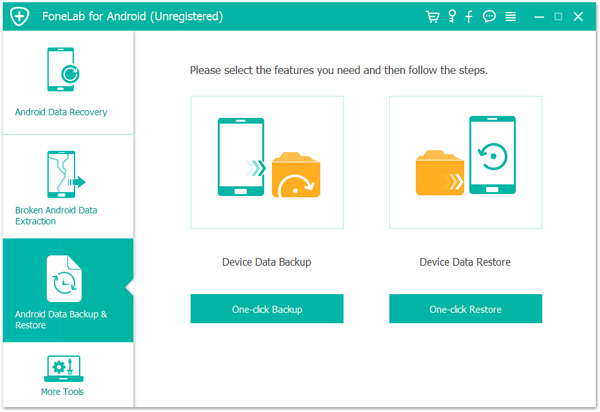
Step 1. Launch the Software and Select the Mode
Firstly, run Android Data Backup & Restore tool on the computer and select “Android Data Backup &Restore” mode. Then click “One-click Backup” feature. Now connect your Android to the computer using a USB.
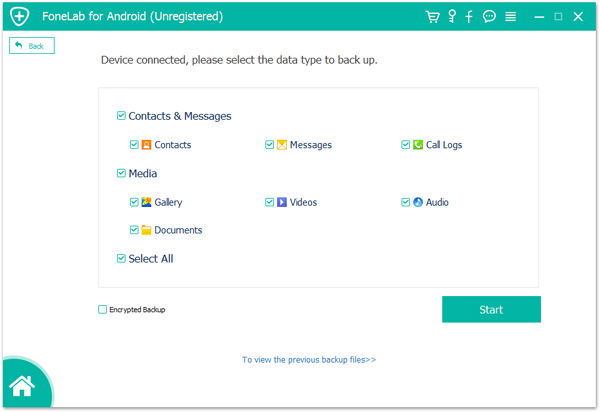
Step 2. Select the File Type to Backup
Select the file or more than one file to backup, contacts, messages,gallery, and more are included. Then click “Start“.
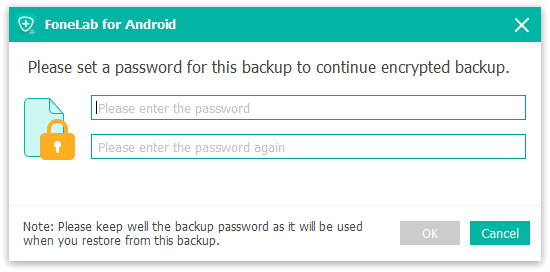
Note: The program will prompt you to set a password for the backup to continue encrypted backup. You can set it or not depend on your situation. After setting the password for the backup file, click “OK” to go on.
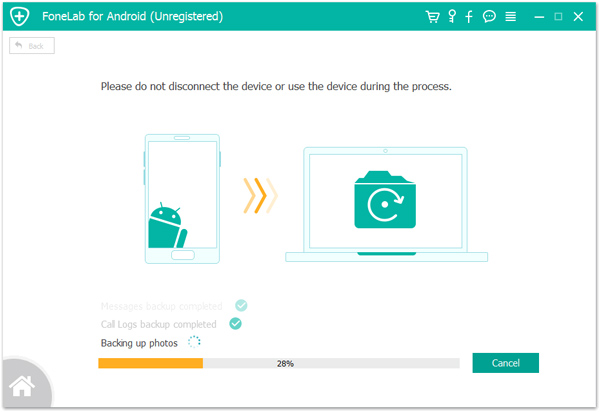
Step 3. Begin to Backup Data for Android
The program will begin to backup data for your Android on the computer efficiently, please don’t disconnect the device or use it during the process.
Done. Now you could view the backup file for Android on your computer.
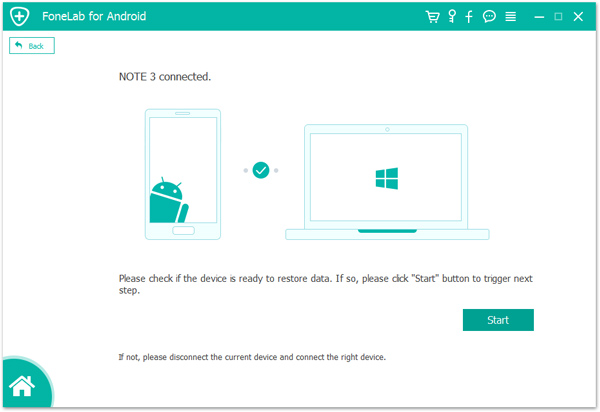
Step 1. Run Android Data Recovery on the Computer and Select the Mode
Firstly, run Android Data Recovery on the computer and select “Android Data Backup &Restore” mode. Then click “One-click Restore” feature. Now connect your Android to the computer using a USB, click “Start”.
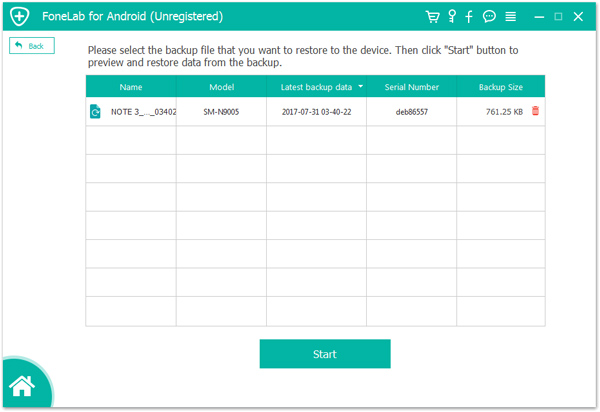
Step 2. Select Backup File to Restore
The program will list several backup files for selecting to restore.Select the backup file that you want to restore to the device. Then click “Start” button to preview and restore data from the backup.
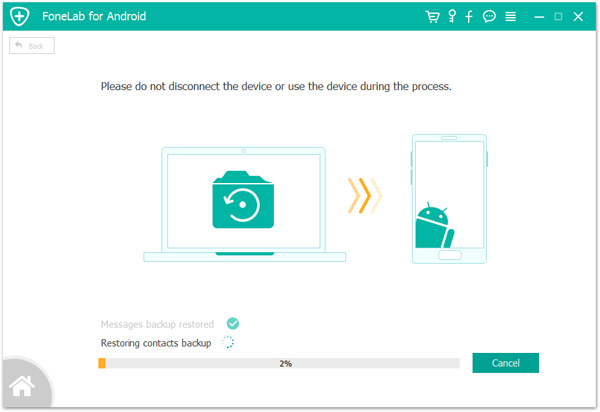
Step 3. Begin to Restore Backup File for Android
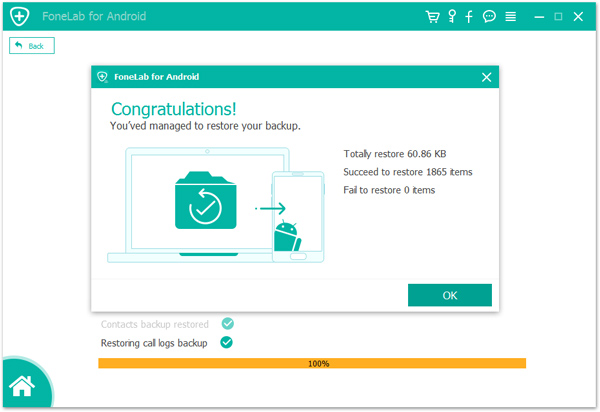
The program will begin to restore backup file for your Android on the computer efficiently, please don’t disconnect the device or use it during the process.
Restored completed. You’ve managed to restore your backup. Click “OK” to end the process.
Now you could view the file for Android on your computer.
Prompt: you need to log in before you can comment.
No account yet. Please click here to register.
 (No Ratings Yet)
 Loading...






No comment yet. Say something...