By Selena KomezUpdated on June 26, 2025
After you set a password to encrypt your iPhone backup in iTunes, all future backups will be encrypted automatically. Over time, it’s easy to forget that password. Unfortunately, there’s no way to reset it. So, how can you turn off iTunes backup encryption or remove the backup password? This guide will show you how to remove iTunes backup encryption without password. Keep reading to find out how.
CONTENTS
When you check the ‘Encrypt local backup’ option while backing up your iPhone using iTunes or Finder, your backup will be protected with a password. Encrypted backups include extra sensitive data, like saved passwords, Health data, Wi-Fi settings, call history, and browsing history, which isn’t saved in regular backups.
Once you set an encryption password, all future backups for that device will be encrypted automatically. If you ever want to restore your iPhone from an encrypted backup, you’ll need to enter the password. In short, encrypting your iPhone backup helps you save more personal data and adds extra security to your backup.
The encrypted backup password is essential, without it, you won’t be able to restore your iPhone from an encrypted backup. But since it’s rarely used and future backups are encrypted automatically without needing to re-enter the password, it’s easy to forget if you didn’t write it down.
Unlike other passwords, there’s no ‘Forgot Password’ option to reset it. So, what can you do if you’ve forgotten it? In this part, we’ll show you two ways to remove the iTunes backup encryption password from your iPhone. After that, you’ll be able to back up your iPhone without encryption.
FoneLab iOS Unlocker is a trusted tool for unlocking iPhones without a password and removing iTunes backup encryption. Once your iPhone is connected to a PC via USB, you can easily remove the backup password in just a few simple steps—without any risk of data loss. Beyond removing encryption, FoneLab iOS Unlocker includes a range of helpful features to solve common iOS issues. It can unlock a locked iPhone without a passcode, bypass Activation Lock, and even disable Screen Time when you’ve forgotten the password. Check out its full list of features below.
Key Features of FoneLab iOS Unlocker
Step 1. Download and Install FoneLab iOS Unlocker
Begin by downloading and installing FoneLab iOS Unlocker on your computer. Click the Download button below to get started.




Step 2. Select “Remove iTunes Backup Password”
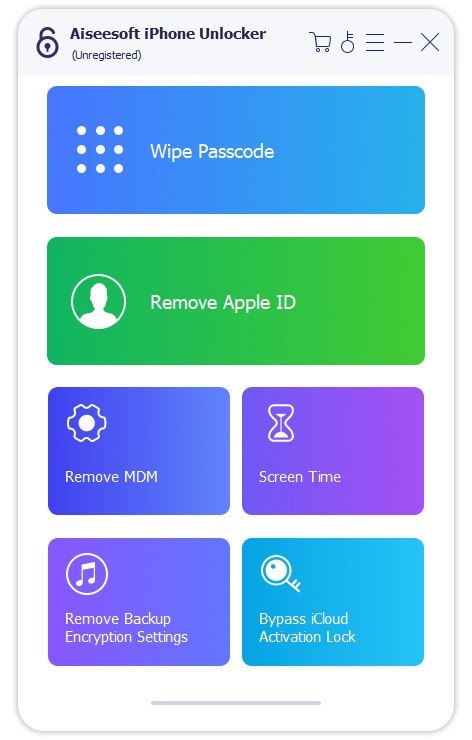
Launch the program and choose the “Remove iTunes Backup Password” option. Connect your iPhone or iPad to your computer using a USB cable. When prompted on your device, tap “Trust” and enter your screen passcode.
Step 3. Erase All Content and Settings
If Find My iPhone is turned on, go to Settings > General > Transfer or Reset iPhone > Erase All Content and Settings. If not, you can simply click the Start button in the software.

Step 4. Remove the iTunes Backup Password
The software will now begin removing the iTunes backup password from your device.

Step 5. Restart Your Device
Once the process is complete, click OK to restart your iPhone or iPad.

If your iPhone is running iOS 11 or later, there’s a simple way to turn off iTunes backup encryption by resetting all settings on your device. This method removes the backup encryption password without deleting your data. However, keep in mind that it will reset some settings, such as display brightness, wallpaper, and Home Screen layout.
Follow these steps:
Step 1. On your iPhone, go to Settings > General > Transfer or Reset iPhone > Reset.
Step 2. Tap Reset All Settings, enter your device passcode, and confirm.
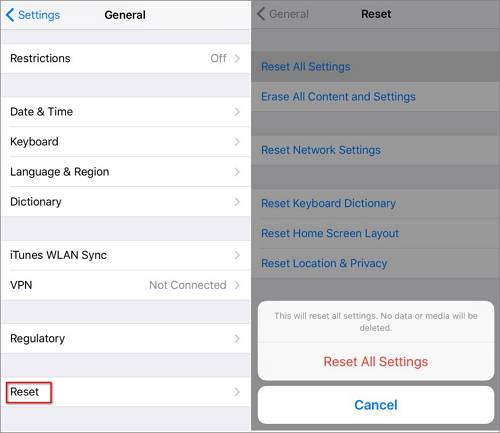
Once done, the iTunes backup encryption will be turned off. This method only works on iOS 11 or later. If you’re using iOS 10 or earlier, you’ll need to try another solution.
If you no longer want to encrypt your iPhone backups, you can easily turn off the encryption setting in iTunes. Just follow the steps below:
Step 1. Connect your iPhone to your computer and launch iTunes. Click the phone icon to access your device.
Step 2. In the ‘Backups’ section, uncheck the ‘Encrypt local backup’ option and enter your encryption password.

That’s it! You’ve now disabled backup encryption for your iPhone in iTunes.
In this article, we’ve put together 3 effective methods to turn off iTunes backup encryption, making it easy for you to create unencrypted backups on your PC. One of the recommended tools is FoneLab iOS Unlocker, which can help you remove the backup password without losing any data if you’ve forgotten it.
Prompt: you need to log in before you can comment.
No account yet. Please click here to register.
 (No Ratings Yet)
 Loading...






No comment yet. Say something...