By Selena KomezUpdated on June 26, 2025
MDM (Mobile Device Management) is used by organizations to control company-owned iPhones and iPads. There are several times you need to remove DRM profiles. For example, you purchased a second-hand iPhone or iPad with MDM still enabled. The MDM profile was misconfigured or remained after a factory reset. Or, you left a company but still have a device enrolled in MDM. Or, you forgot the MDM password can can’t access the features, etc.
Whatever the reason, if you’re stuck with an MDM profile you can’t bypass, you’ve come to the right place. This guide will show you how to remove MDM from iPhone/iPad with/without password in three effective methods, by using DFU Mode, a powerful MDM Lock Removal tool, and iOS Settings Reset. Let’s explore!
MDM (Mobile Device Management) is a security protocol used by businesses, schools, and institutions to remotely manage Apple devices (including iPhones, iPads). It allows administrators to control app installations, enforce security policies, restrict device functions, and even remotely lock or wipe data with ease.
However, like the situations we mentioned above, if you’re stuck with an MDM profile you can’t bypass, you need to completely remove MDM from iPad/ iPhone. Now, explore the three methods to learn how to bypass MDM lock on your iPhone or iPad, even without password.
DFU allows you to completely restore or downgrade iOS without loading the current operating system. Unlike standard Recovery Mode, DFU mode bypasses the bootloader, making it a powerful troubleshooting tool. Using it, you can remove MDM from iPhone, iCloud lock or passcode, fix various iOS issues, or even downgrade iOS version.
Note: The DFU mode performs a full factory reset, it will wipe all apps and data on your device. You’d better backup your device before getting started.
Step 1. Backup Your Data (Optional)
Connect your iPhone/iPad to your computer using USB cable, and use iTunes or Finder to create a backup.
Step 2. Install the Latest Version of iTunes
Download and install the latest version of iTunes on your computer, then launch iTunes.
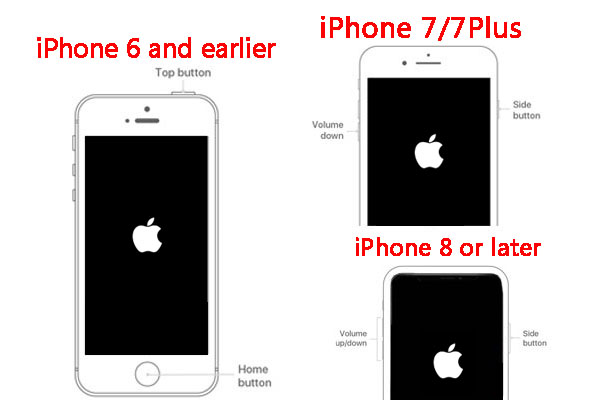
Step 3. Put Your Device in DFU Mode
Enter DFU Mode on your iPhone.
iPhone 8 & Later:
Press Volume Up → Volume Down → Hold Side Button (10 sec).
Release the Side Button but keep holding Volume Down (5 sec).
iPhone 7/7 Plus:
Hold Side + Volume Down (10 sec).
Release Side Button but keep holding Volume Down (5 sec).
iPhone 6s & Earlier:
Hold Home + Power (10 sec).
Release Power Button but keep holding Home (5 sec).
Step 4. Restore the Device
Open iTunes (Windows/macOS Mojave) or Finder (macOS Catalina and later). iTunes/Finder will detect a device in recovery mode. When prompted, click “Restore“.
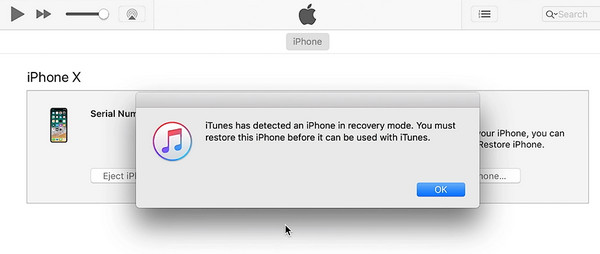
iTunes will erase MDM, and download the latest firmware and reinstall iOS.
Step 5. Reactivate and Check for MDM
After restoring, skip MDM enrollment during setup.
Note: This method does not guarantee complete MDM removal if your device is supervised via Apple School Manager or Apple Business Manager. If it doesn’t work, you can ask help from a professional MDM removal. Keeping reading to learn more effective methods to unlock MDM lock.
✅ Pros:
❌ Cons:
If DFU mode doesn’t work or you want a guaranteed solution, a dedicated MDM Lock Removal Tool like iOS Unlocker is highly recommended. This powerful software is designed specifically to remove MDM from iPhone/iPad without password in just a few clicks. It supports all iOS devices & iOS/iPadOS versions, from iPhone 6 to iPhone 16, iPad (A16, 2025), and the lasted iOS 26/18 or iPad OS. It can also be used to remove iPhone screen passcode, Apple ID, iCloud Activation Lock, etc.
Key Features of iOS Unlocker:
Whether your device is stuck on the MDM Remote Management screen or restricted from accessing basic features, the iOS Unlocker can bypass MDM lock quickly and safely. Here’s how it works:
Step 1. Download and Install iOS Unlocker
First, download and install the iOS Unlocker on your Windows or Mac. You can click the Download button below.




Step 2. Choose Remove MDM Mode
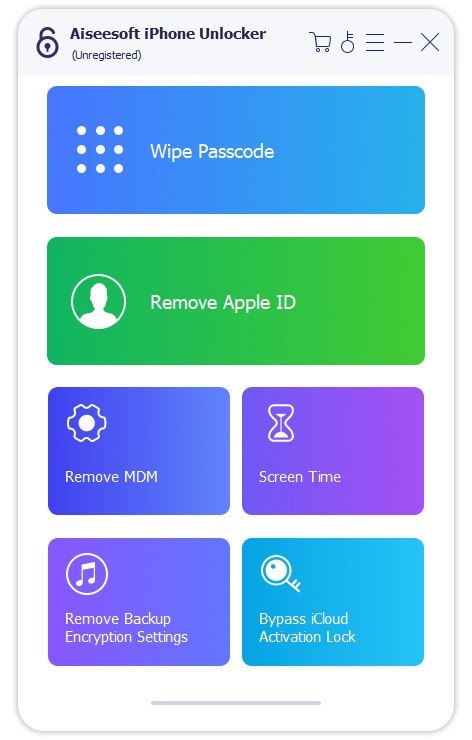
Fire up the iOS Unlocker, and select “Remove MDM” function in the main interface.
Step 3. Connect Your iPhone/iPad
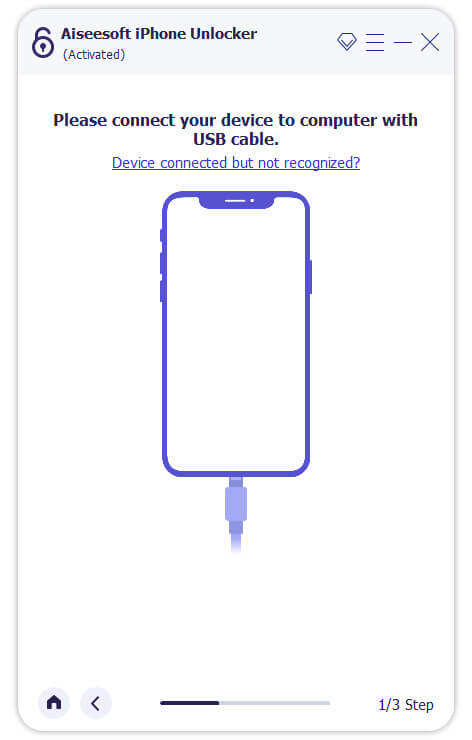
Connect your iOS device to your computer via a USB cable. Tap “Trust” on your iOS device.
Step 4. Begin MDM Bypass Process
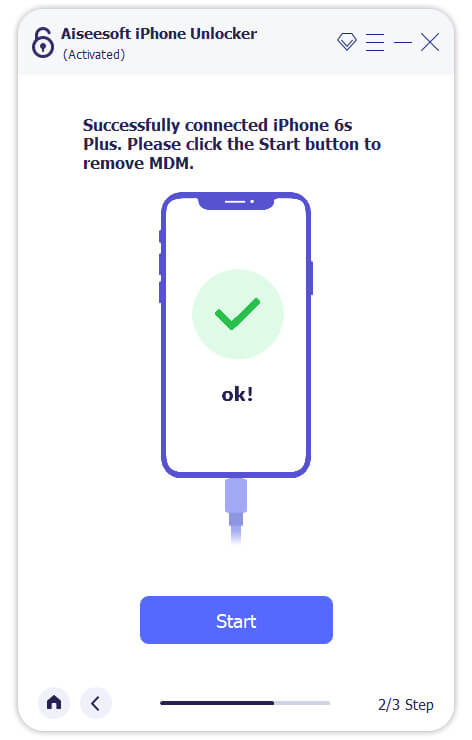
When connected successfully, click “Start” button to initiate the MDM removal bypass.
Step 5. Remove MDM from iPhone Successfully
If Find My iPhone is already disabled on your iOS device, removing the MDM is straightforward, no password is required. Within minutes, MDM will be removed from your iOS device, and your device will restart with full access.
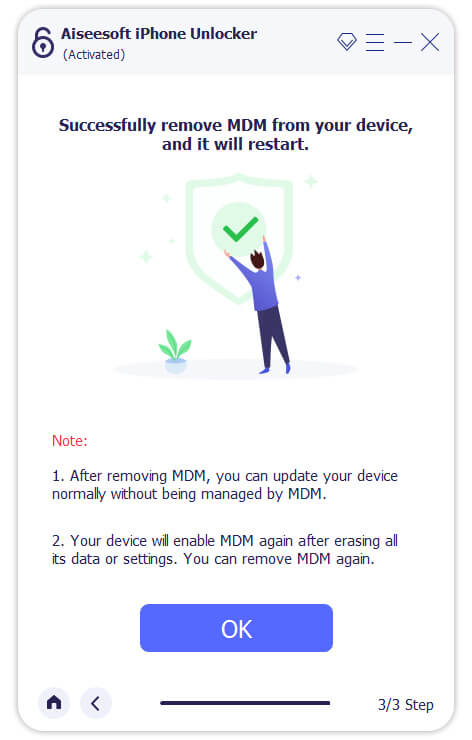
Note: If Find My iPhone is enabled on your iOS, you need to turn off Find My iPhone first, follow below instructions to disable it, then you can continue use the iOS Unlocker to erase MDM.

✅ Pros:
❌ Cons:
If you don’t have access to a computer, you might still be able to remove MDM from iPhone or iPad without computer, but only if you know the correct MDM username and password. This method works directly on the device, but access MDM credentials are required.
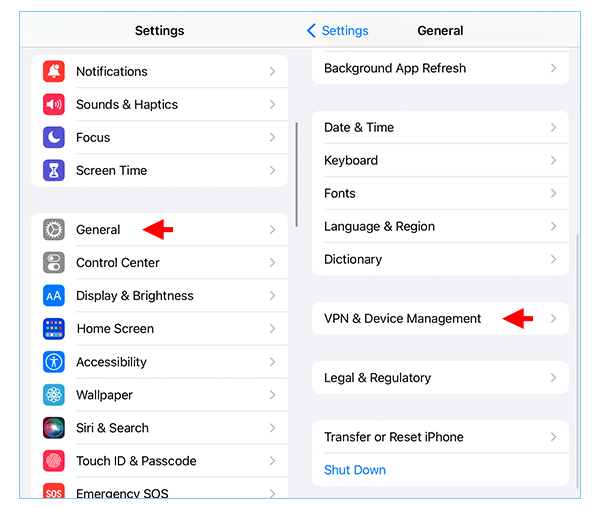
Step 1. Open your iPhone/iPad, go to “Settings” > “General” > “VPN & Device Management“.
Step 2. Locate the “MDM Profile“.
Step 3. Then tap “Remove Management“.
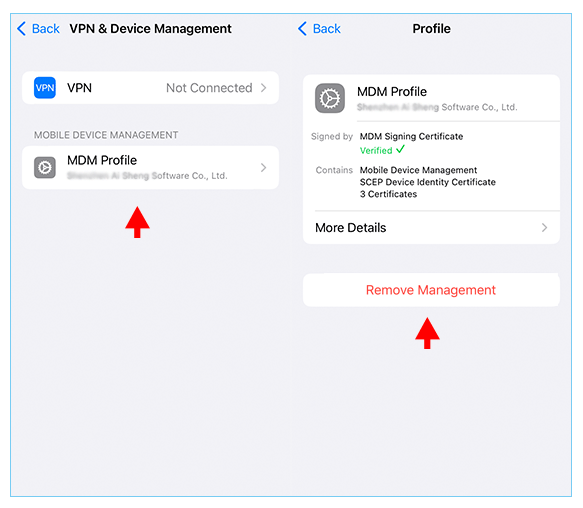
Step 4. Enter the MDM password or admin credentials.
Step 5. Wait a few seconds for the MDM profile to be removed.
✅ Pros:
❌ Cons:
In short, more iPhones and iPads are being managed remotely using Mobile Device Management (MDM). After reading this guide, have you got the method to remove iPhone MDM when you don’t have the correct MDM password? Whether you need to remove MDM from iPhone/iPhone without password or you’re trying to bypass MDM lock after a factory reset, these methods and iOS Unlocker tool can help you regain full access. Give it a try right now!
Prompt: you need to log in before you can comment.
No account yet. Please click here to register.
 (No Ratings Yet)
 Loading...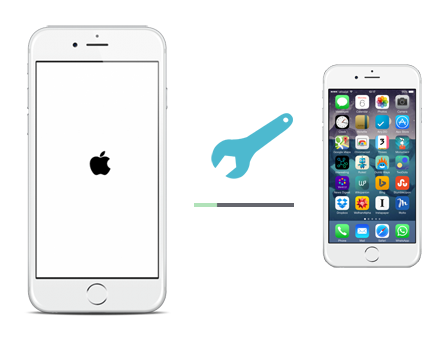






No comment yet. Say something...