By Selena KomezUpdated on June 26, 2025
You might have enabled Screen Time and set a passcode on your iPhone or your child’s device to manage app usage, set time limits, or block certain content. But over time, it’s easy to forget that Screen Time passcode, especially if you don’t use it often. Once forgotten, you won’t be able to turn off Screen Time or change any of its settings, which can be frustrating.
The good news is that there are ways to remove or reset the Screen Time passcode, even if you don’t remember it. In this article, we’ll walk you through step-by-step solutions to help you remove Screen Time on your iPhone or iPad without passcode. Whether you’re a parent managing a child’s device or just trying to regain control of your own, this guide will make the process simple and stress-free.
CONTENTS
Screen Time on iPhone and iPad is a useful feature that helps you monitor and manage how you or your child use the device. It provides weekly reports and lets you set limits on app usage, screen time, and content access. Here are four main ways Screen Time can help:
With Screen Time, you can better understand and improve your digital habits. If you’re using it for your child, it’s a great way to control how long they use the device, what apps they access, and when they should take a break—like setting downtime during bedtime or homework hours.
Whether you know the Apple ID password or not, there are three different ways to remove Screen Time without passcode. We will show you the detailed operations in the following paragraphs.
If you get a second-hand iPhone/iPad with Screen Time enabled or you are the child who wants to get rid of Screen Time set by parents, you can use the third-party application – iOS Unlocker. It not only helps to unlock iPhone without a password but also works to turn off Screen Time without passcode and Apple ID. iOS Unlocker is the right and handy tool for you. iOS Unlocker can help you remove the Screen Time Passcode set on your iPhone/iPad. Then you can easily turn it off. Within several steps, you can disable Screen Time on your iPhone and iPad without knowing the password.
Key features of iOS Unlocker




Step 1. Launch iOS Unlocker
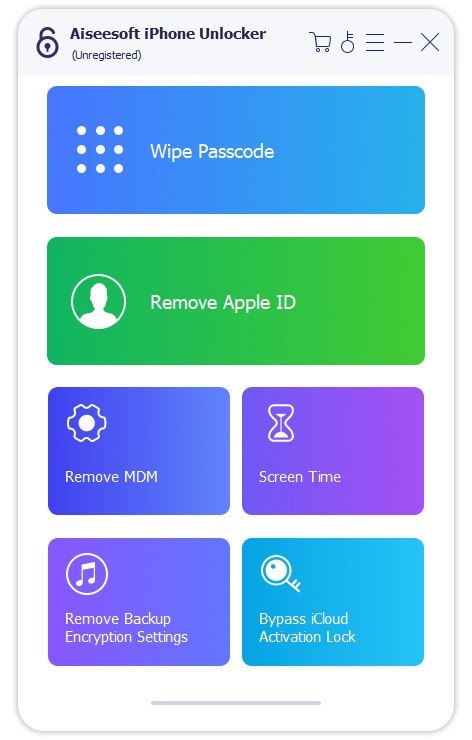
Open iOS Unlocker on your computer and select the “Screen Time” mode from the main interface.
Step 2. Connect Your iPhone or iPad
Use a USB cable to connect your iOS device to the computer. Make sure your device is recognized by the program.
Step 3. Start Removing the Screen Time Passcode
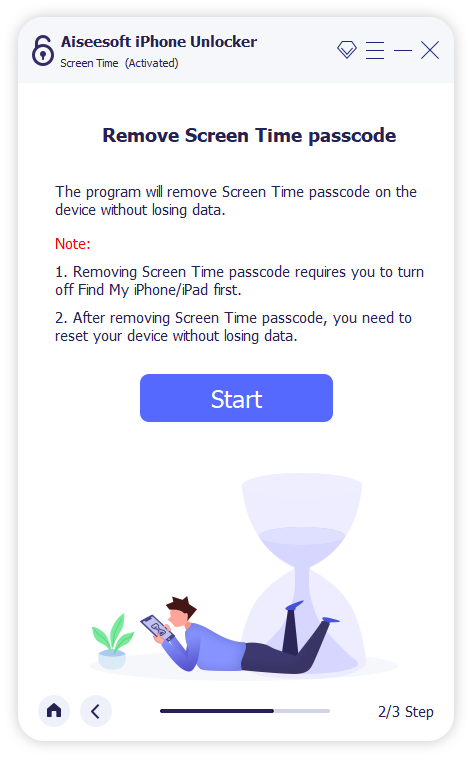
Click the “Start” button to begin the removal process.
Scenario 1. For iOS 12 or Later (with Find My iPhone Off)
If your device is running iOS 12 or newer and Find My iPhone is turned off, the program will automatically start removing the Screen Time passcode. Wait a few moments while the software unlocks the device.
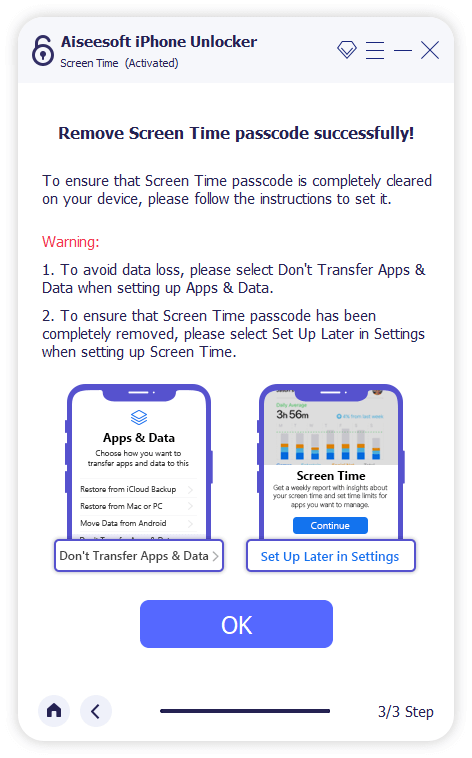
Once done, follow the on-screen instructions to re-set up your device to ensure the Screen Time passcode is completely removed.
Scenario 2. For iOS 11 or Earlier
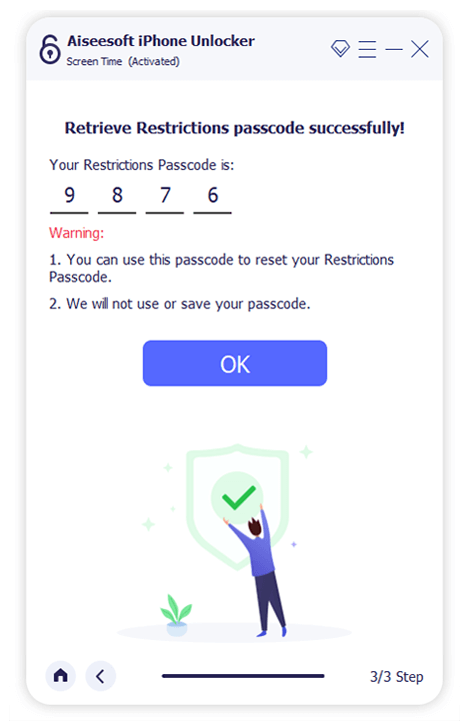
If your device is running iOS 11 or earlier and your iTunes backup is not encrypted, the program can retrieve the Restrictions passcode directly.
If your iTunes backup is encrypted, you’ll need to enter the encryption password to proceed. The process will take just a few seconds. Once the Restrictions passcode is recovered, you can reset it as needed.
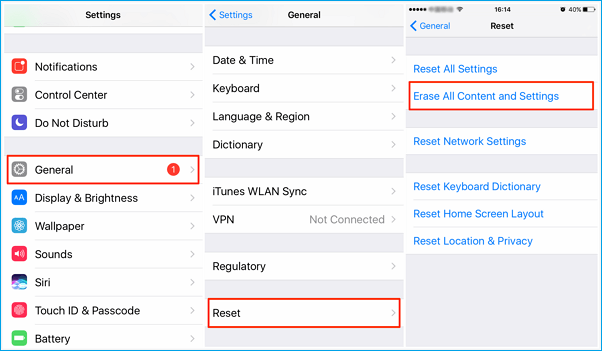
Using the “Erase All Content and Settings” option is one way to remove Screen Time restrictions, especially if they were set by a parent. This method works only if you know the Apple ID and password currently signed in on the device, but not the passcode used to set up Screen Time.
Important: This process will erase everything from your iPhone, including photos, videos, and apps. To avoid losing data, make sure to back up your iPhone first. You can refer to a guide on how to back up your iPhone without using iTunes.
Here’s how to erase all content and remove Screen Time:
Step 1. Open your iPhone and go to Settings > General > Transfer or Reset iPhone.
Step 2. Tap Erase All Content and Settings, then choose Erase Now.
Step 3. Confirm by tapping Erase iPhone. Enter your Apple ID and password if prompted, and tap Erase again.
Once the reset is complete, Screen Time will be turned off, and your iPhone will be restored to its factory settings. You can then follow the on-screen instructions to set it up as new.
When setting up a Screen Time passcode on your or your child’s iPhone or iPad, you’re asked to enter an Apple ID and password. This step helps you recover or reset the passcode if you ever forget it. If you completed this step, you can easily remove the Screen Time passcode using your Apple ID.
Follow these steps to reset and remove the Screen Time passcode:
Step 1. Open the Settings app and tap Screen Time.
Step 2. Scroll down and select Change Screen Time Passcode, then choose Turn Off Screen Time Passcode.
Step 3. When prompted, tap Forgot Passcode? Then enter your Apple ID and password to verify.
Step 4. After the passcode is removed, scroll to the bottom and tap Turn Off Screen Time to fully disable the feature.

These are three effective methods to turn off Screen Time on your iPhone if you’ve forgotten the passcode. If you still remember your Apple ID and password, you can simply reset or remove the Screen Time passcode through your device settings. However, if you don’t have access to the Apple ID credentials, you can use a third-party tool like iOS Unlocker to remove the Screen Time passcode without erasing any data. This offers a quick and secure solution when other methods aren’t available.
Prompt: you need to log in before you can comment.
No account yet. Please click here to register.
 (No Ratings Yet)
 Loading...






No comment yet. Say something...