“It took me a couple of months to finally purchase my own Google Pixel XL so I could try out the newest Google phone with the latest Android software.However,some important text messages still save on my iPhone 6.I want to import these messages to my new device.Any suggestions with easy ways? Thanks.” – Fred
Why Choose The Google Pixel(XL)
Here are a few reasons that readers may want to choose the Google Pixel (XL).The primary reason to purchase a Pixel phone is to make sure your phone receives the latest and greatest version of Android before anyone else. You also get the monthly Android security updates, and that means a lot for those looking for the most secure Android phone.One function in Nougat that may stay exclusive to the Pixel is Google Assistant. You can experience this service in the Google Allo app on other devices, but it is integrated on the Pixel. Hands-free assistants can be very helpful and Google’s may just be the best.
Transfer iPhone SMS to Google Pixel
SMS,plays an important role in daily communication.It will be a pity if we cannot have these messages with us just because we replace our iPhone with the new Android, for example,the Google Pixel.Are you making a switch from an iOS devices to Android operating system smartphone? If you are, this trick is good for you.
Thanks to Phone Transfer,you are able to transfer SMS from iPhone to Google Pixel with one click.Besides SMS,the contacts,photos,videos,music,call logs,apps,calendars are also supported to transfer between iOS device and Android device.Applicable iOS device including iPhone 7,iPhone 6S/6,iPhone 5S/5C/5,as well as iPad and iPod.Applicable Android device including Google Pixel, Nexus,Samsung,HTC, LG, Motorola,Sony,Amazon Fire Phone,Lenovo,ZTE, Xiaomi, Huawei,OPPO,OnePlus,Vivi,etc,.What’s more,Phone Transfer allow to backup data from mobile device to computer safely,restore backup to mobile device completely.
How to Sync iPhone SMS to Google Pixel
Step 1.Run Phone Transfer and Connect Devices on Computer
First of all,you should install and run this Phone Transfer tool on your computer.Then, the primary window appears.Select the “Phone to Phone Transfer” option and click Start.
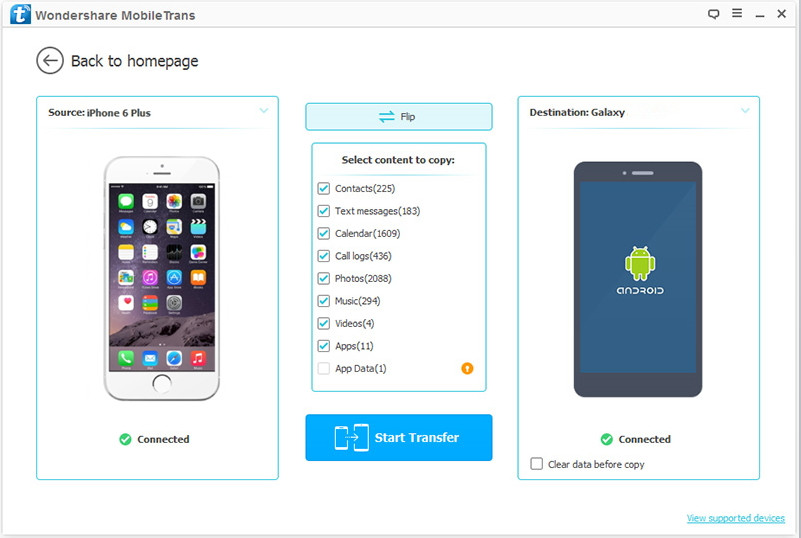
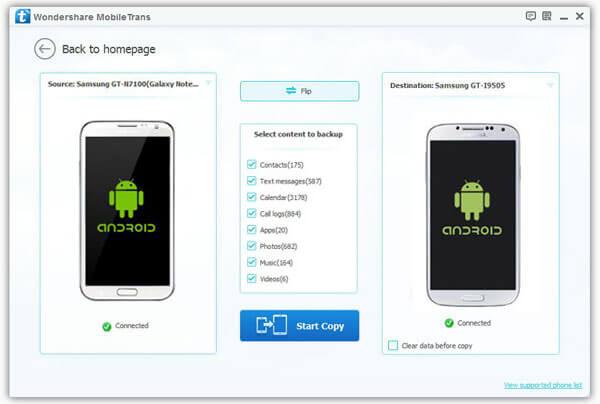
Then connect both iPhone and Pixel phone to the computer in the same time.The program will automatically detect your devices once they’re connected. And the devices will appear in the places of “Source” and “Destination” separately.You can change the places of two devices by clicking “Flip” when you need.
Note: You need to install iTunes on your computer.
Step 2.Select the Data Type to Transfer
Now you are allow to select more than one data file to transfer between iPhone and Pixel phone,including SMS,photos,videos,music,call logs,apps,calendars.If you only need to transfer the SMS,you should only click “Text messages”.
Step 3.Sync SMS from iPhone to Pixel Phone
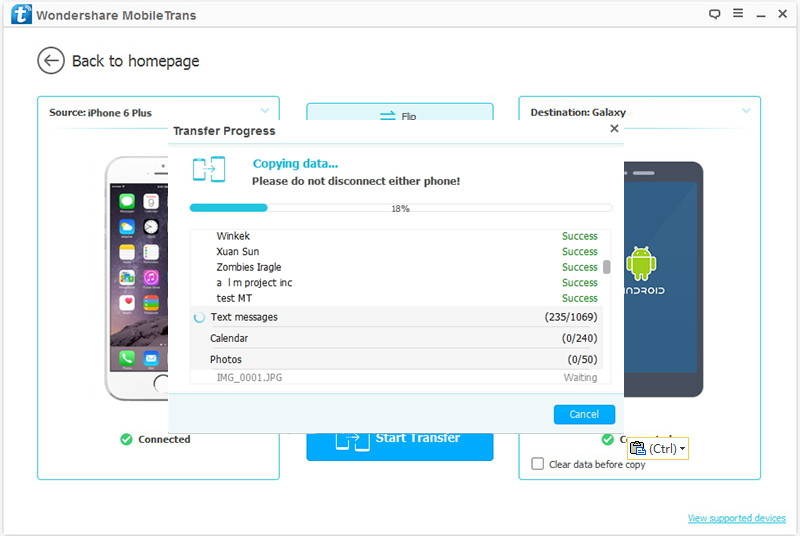
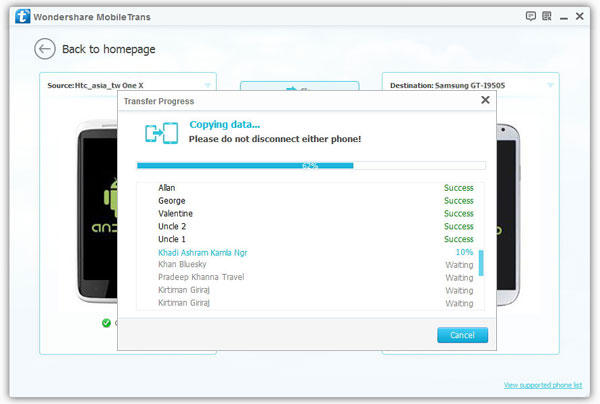
In the last step,you should click “Start Copy” to start transferring file.Keep your two devices are connected until the transfer process is end.When it finishes,click “OK”.
Summary:If your Google Pixel (XL) is slowing down or facing issues with the device like lot of force close app errors and want to start fresh with the device(perform the hard reset on it).Then here is the total tutorial for you,in this use guide we have listed steps on how to hard reset Google Pixel smartphone with two different methods.We can perform the hard reset on Pixel phone like we do on other Android devices and similarly.We have listed both the methods below.
What is Android Hard Reset
A hard reset, also known as a factory reset or master reset, is the restoration of a device to the state it was in when it left the factory. All settings, applications and data added by the user are removed.The term is often heard in reference to smartphones and tablets but laptop and desktop computers, as well as most other electronic devices, can usually be restored to factory conditions.
Preparation:Make Sure the Device is Powered Off
Most of these hard resets require that your phone is completely powered off, so make sure that your phone is powered off all the way not just locked. If you’re phone isn’t responding and you can’t power off the phone with the power button, then you might need to pull the battery out, count to ten, and then put the battery back in. Just don’t power the phone back on if you have to reinsert the battery. Keep the device powered off.Also make sure that your phone is not plugged into a charger. If the phone is plugged into a charger or if the device is not fully powered off, the reset is not going to work.
How to Perform Hard Reset on Google Pixel-Method 1
Step 1.Turn off the Pixel or Pixel XL phone.
Step 2.Press and hold at the same time: Volume Up + Home button + Power button, until you see Google logo.
Step 3.Then select from Recovery Mode menu “wipe data / factory reset” using Volume buttons to navigate and Power button to confirm.
Step 4.Select “Yes — delete all user data” to confirm the whole operation.
Step 5.After that select option “reboot system now”.
How to Perform Hard Reset on Google Pixel-Method 2
Step 1.Turn on the Pixel or Pixel XL phone.
Step 2.Once you get to the Home Screen go to Menu and then to Settings.
Step 3.Select Backup & reset and then Reset device.
Step 4.To confirm your choice select Erase everything.
Conclusion
Using these two methods, you can perform the hard reset on your Google Pixel as well as the Android device.If you do the above two ways and your device still doesn’t work, then most likely you’re experiencing a hardware issue. In that case,you may need to sent it to the repair shop or buy a replacement.
Summary:The waiting is finally over.Android tinkerers can now go ahead and root your Pixel, Pixel XL smartphones on your own.Here’s how to go about it.
When you get the new Google Pixel phone,are you consider that root the new Android phone to enjoy more functions on it?Bootloader,encryption,new partitions,and security systems all present new challenges for modders.Here, we’ll show you the new process for rooting Pixel phones, and explain what you will need to consider with this system.While there were reports that Google may not allow users to tinker around with the Pixel and Pixel XL, but the developers at mobile forum have come up with the required tools to let you root your Pixel smartphones. The tool even works on most Android smartphones in the market.
One Click to Safely Root Google Pixel Phone
With such extensive popularity, rooting Android becomes the hottest concern among its users, fans, and developers.The tool is made by a popular Android developer going by the name Android Root.I shared details about the required tools and rooting method on this post for all Google Pixel users.Android Root enable to safely root Google Pixel phone with one click.Almost all brands of Android are compatible with this program,including Google Pixel, Nexus,Samsung, HTC, LG, Motorola, Huawei,OPPO,OnePlus,Lenovo,ZTE,Xiaomi,Meizu,etc,.
How to Root Android Pixel on Computer Safely
Firstly,please download and run Android Root on your computer then click on “More Tools” in the home page of program.Select “Android Root” option on it.
Step 1.Connect Google Pixel Phone to the computer
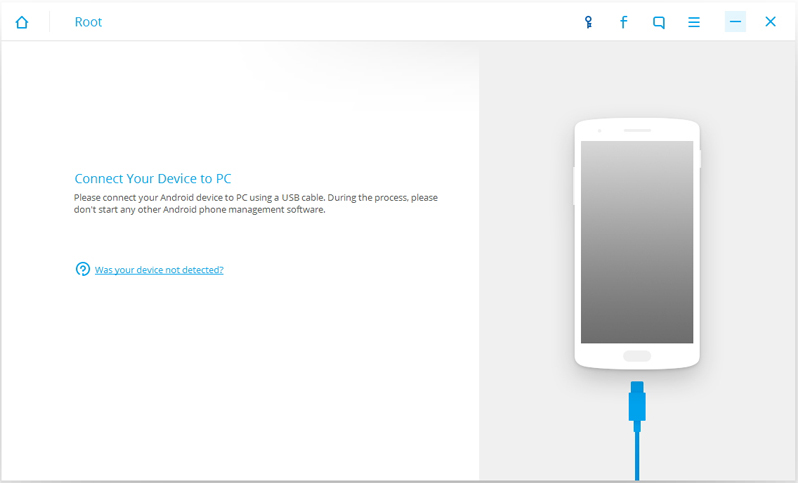
Connect Google Pixel phone to the computer with an USB cable.You should enabled the USB Debugging mode on your Android device.Then Android Root will automatically connect your device.
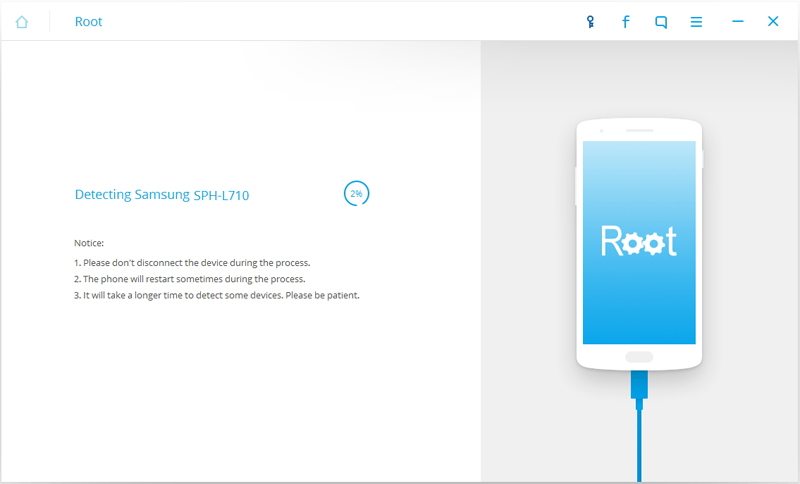
Once your Pixel Phone is connected,Android Root will offer a proper solution to root your phone.Click on Start to go on.
Tips:
1.Please don’t interrupt the connection of the device and computer until the whole process is end.
2.The phone will restart sometimes when detecting.
3.It may cost you some time to detect your device.Please be patient.
Step 2.One Click to Root Google Pixel Phone on Computer
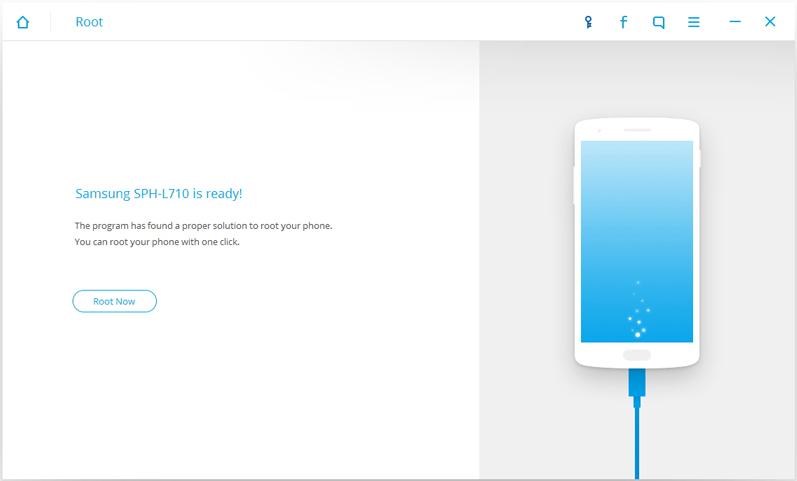
It will take you a little while for the program to detect your Android phone.Then it will be ready for you to root your device.Just click on Root Now to safely root your Google Pixel phone on computer.
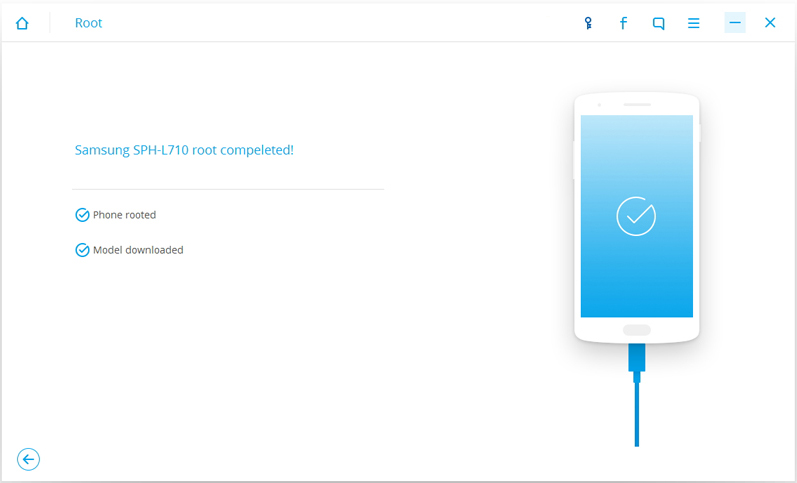
Note:During the rooting process,the phone will pop up a message to prompt whether you would like to root the phone.Tap on Confirm to continue the rooting process.You phone will be complete rooting in minutes.
“I deleted some SMS which were sent from my girlfriend last night carelessly,how can I restore the deleted data from my Google Pixel phone?Please let me know ASAP.Thank you so much.Appreciated!”-Ted
Google made huge strides this fall in the hardware sector, most of it as a push to get its new digital assistant, dubbed the Google Assistant, into the world.There is no doubt the Pixel, Google’s first ever smartphone, is a monumental device in the history of the industry, but the more important gadget for Mountain View might be its Amazon Echo competitor, the Google Home. At $130, it’s the most affordable entry into a world with Google Assistant and, unlike the Pixel, it is all about the Assistant.
Android Data Recovery – Restore SMS on Google Pixel
There are many unfortunate events that can lead to accidentally deleting text messages under unexpected circumstances – one wrong move, navigating too quickly or an evil bug.Coupled with simple operation and efficiency,Android Data Recovery is qualified enough to recover deleted text messages on Google Pixel. With this program, you can easily recover deleted Android data including SMS,contacts,photos,videos,audio,call logs,documents,WhatsApp messages & attachments.Furthermore,the program works perfectly in most of popular Android brands, such as Google Nexus,Samsung, HTC, Motorola, LG, Sony, Huawei, etc,. Just free download the trial version and have a try now.
How to Restore Deleted SMS from Google Pixel
Step 1.Run the Android Data Recovery on Computer
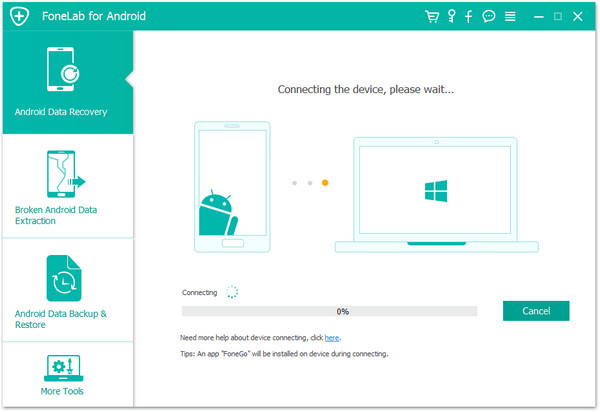
Install the program on your computer and run it, you will be asked to connect your Android Google device to computer via USB.
Step 2.Enable Pixel Phone to USB Debugging
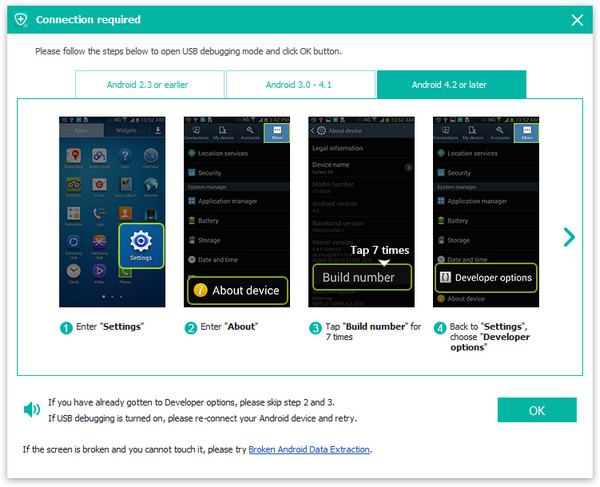
Once connecting your Pixel phone to the computer,now your should enable USB debugging on it.Here you have different ways to do it according to different Android OS version:
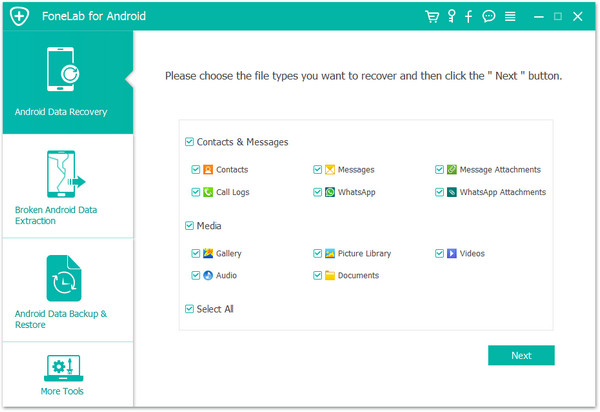
After you enabling USB debugging for your Google Pixel phone,it will be detected by the program soon.In the latest version of Android Data Recovery,you are allow to selectively choose which type of files to be scanned by program.If you need to recover all type of files,you can just skip it and move on.Then click “Next” to go on.For SMS recovery,you should click”Messages”.
Step 3.Start to Scan Pixel Phone for Deleted SMS
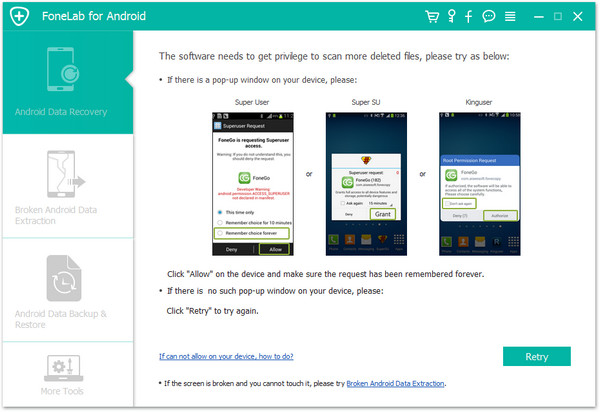
When you see the window below,you should move to your device again,tap on the “Allow” icon,then turn back to the computer and click on the “Start” button to continue.
Then Android Data Recovery will analyze the data of your Google Pixel phone.
Step 4.Preview and Restore Deleted SMS from Pixel Phone
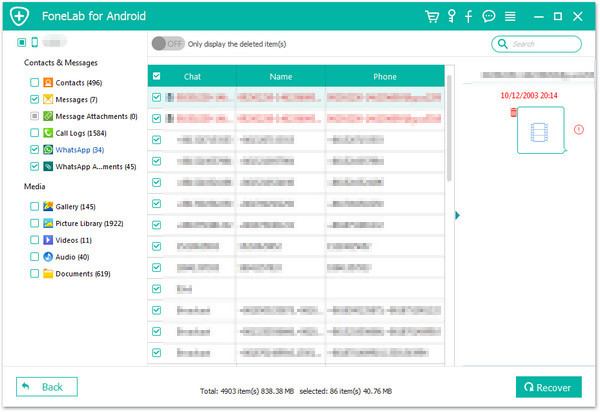
Android Data Recovery enable to restore data including text messages, contacts, photos and videos,etc, from your Android device.You are allow to preview messages, contacts and photos data before recovery.
In the last step,select and mark data you want and click “Recover” to save them to your computer.
The Pixel is Google’s answer to the premium mobile market,battling the likes of Apple’s iPhone and the Samsung Galaxy series. However, it is “noticeably faster than a Galaxy S7”, says The Verge, and it and its big brother the Pixel XL are “the best Android phones you can buy”.
Ever since device makers armed mobile phones with top-of-the-line cameras, many have not stopped snapping and capturing those precious life moments. And, when easy Internet connectivity came to the mobile phone,many also started sharing their photos to friends, family, and in many cases also to the world at large.After getting the new Google Pixel phone,you may wonder how to transfer the photos to your new device from the old one,for example exporting iPhone photos to Google Pixel.
A Quick Way to Transfer iPhone Photos to Google Pixel
It’s no more quicker way to sync photos from iPhone to Google Pixel with the help of Phone Transfer.Phone Transfer is an excellent transferring tool for smart phone users.It is high-efficiency and can move data between iPhone and Google Pixel even if they support the different operating system.By the way, you can also choose the type of data that you want to transfer,including photos,contacts,SMS,videos,call logs,calendars,music,apps(WhatsApp/Viber/Kik,etc,.).Supported iOS devices:iPhone 7,iPhone 6S/6,iPhone 5S/5C/5,as well as iPad and iPod.
How to Transfer Photos from iPhone to Google Pixel
Step 1.Launch Phone Transfer on PC after Installation
To start with,you will be asked to run Phone Transfer on your computer after you download and install Phone Transfer on your computer.Then, select a mode -“Phone to Phone Transfer”.
Step 2.Connect iPhone and Google Pixel to the Computer via USB Cable
Once you connect both your phones to the computer with USB cable, Phone Transfer will start detected your iPhone and Pixel simultaneously and automatically list them as source device and destination device if your devices are detected successfully.
Note:If you want to exchange the position of destination device and the source device, you can simply click “Flip” button in the interface.
Step 3.Transfer Photos from iPhone to Google Pixel
After successfully detected, all the transferable data will be displayed in the interface, photos,contacts, SMS, videos, music, etc are all included. If you want to copy photos only, you can tick off the box in front of other data. If you have chosen all the data that you want, you can simply click “Start Copy” to begin. Make sure that the USB cables are well connected to the computer during the process. Click “OK” after finishing.
As you see, with these 3 easy steps, we can have our iPhone photos transferred to your new Google Pixel seamlessly.With Phone Transfer,you can also move videos, SMS, music and contacts as well between smart phones without difficulty. Why not try Phone Transfer on your own.
Meet Pixel,Phone by Google
When Google announced the Pixel on October 4, it did so knowing it was about the shake up the smartphone market. For the first time, it was primed to release a phone that was designed, both hardware and software, in house. No equal partnership with a manufacturer like Huawei or Samsung, just HTC tightening the nuts and bolts.
Have you just bought a new Android phone like Google Pixel or Pixel XL with improved operating system, design and performance? You must be very happy as you can enjoy all the latest games, Apps, on it.The excitement of getting a new phone often diminishes as the hassle of setting it up. While it might seem like a daunting task to sync contacts, it is actually a quick and painless task on the Android operating system.
Transfer Contacts from Android to Google Pixel with One Click
The easiest way to transfer Android contacts to Google Pixel is with the help of Phone Transfer.The superior data transfer program not only help to transfer Android contacts to Google Pixel with one click,but also allow to transfer various of data between Android and Google Pixel,including SMS,photos,videos,call logs,calendars,music,apps.In addition,Phone Transfer support to transfer data between mobile devices even though they are running different operating systems,iOS system,Symbiam system,and Android system are included.
How to Transfer Android Contacts to Google Pixel
Step 1.Run Program and Connect Device to Computer
Firstly,please run Phone Transfer on computer and connect both two Android devices with the computer.Select “Phone to Phone Transfer” option.
Step 2.Select Contacts File to Transfer
You should select the file type to transfer,you are allow to select more than one file for transferring, contacts,SMS,photos,videos,music,call logs,calendars,apps(WhatsApp/Line/Viber/Kik),apps data are included.If you just need to sync contacts between Android,just click “Contacts” file.
Note:Make sure the Android and Google Pixel phone are on the right position,as the source device and target device,the Android should be on the left and Pixel phone on the right.You can click “Flip” to exchange the position of them if they are not on the correct place.
Step 3.Transfer Android Contacts to Google Pixel Phone
Once everything is setting completed,simply click “Start Copy” to start the data transfer process.
Done.Only 3 easy steps,your Android contacts now is finished transferring to your new Google Pixel phone.Please don’t forget to share this useful data transfer tool – Phone Transfer with your dear friends if you are satisfied with using it.Thanks.
“I’ m planning to sell my old iPhone 6 and ready to buy the iPhone 7 to take place.How to delete individual conversations and group chats permanently from my iPhone before selling it?”-Judy
WhatsApp is an instant messaging app that can send and receive messages, photos, videos, stickers, emoticons and all others straight on your phone with others. It’s like the usual SMS and MMS but the only difference is that it lets you send messages without text plan, instead it send messages by connecting to the internet or Wi-Fi.WhatsApp is free to download and use, making it a worldwide hit to many iPhone users.However,before you are giving up or selling your iPhone,you be better to remove the WhatsApp chat history(including the contacts,text,attachments) from your device without restoring.
Part 1: How to Erase Entire WhatsApp Chat History from iPhone
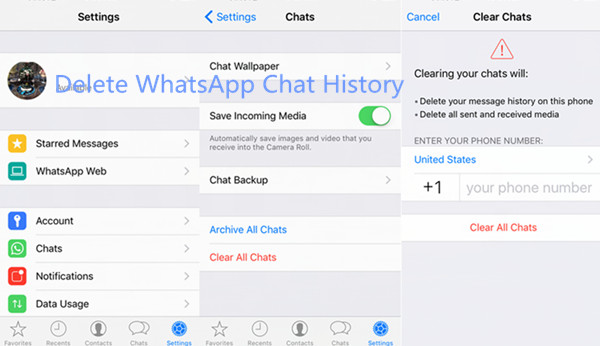
Step 1. Run WhatsApp app on your iPhone and go to Settings.
Step 2. Tap Chats and then select Clear All Chats.
Step 3. You will be required to enter WhatsApp number to accomplish your order. Confirm your action by taping on Delete All Chats. That’s it. All WhatsApp messages are removed permanently from your iPhone, but you can continue to participate in groups or individual conversation.
Part 2: How to Delete WhatsApp Chat Content and SMS from iPhone Permanently
To complete the WhatsApp messages deleting task effectively,we want to introduce you the best iPhone data eraser software in the market – iOS Data Eraser-a practical feature of Dr.Fone iOS Data Recovery :iOS Private Data Eraser and iOS Full Data Eraser. It is an useful and perfect data eraser tool to delete WhatsApp messages,photos,videos,attachments from iPhone permanently.Expect the WhatsApp data,iOS Data Eraser enable to wipe various of data from iPhone without restoring,such as contacts,messages,photos,videos,call logs,notes,calendars,etc,.You can wipe iPhone data selectively or erase all data from iPhone at once.All iPhone models are supported,including iPhone 7,iPhone 6S/6,iPhone 5S/5C/5,iPad and iPod.
Step 1.Launch iOS Data Eraser on Computer
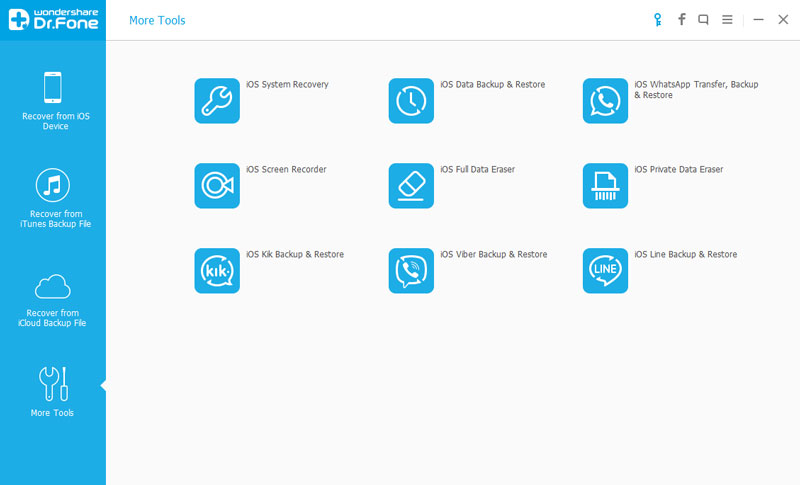
Launch the program after you have successfully installed it and select “More Tools”.
Choose “iOS Private Data Eraser” and then click “Start Scan” to begin scanning your device automatically and also show you the scan progress.
Step 2.Select the Data Type to Delete
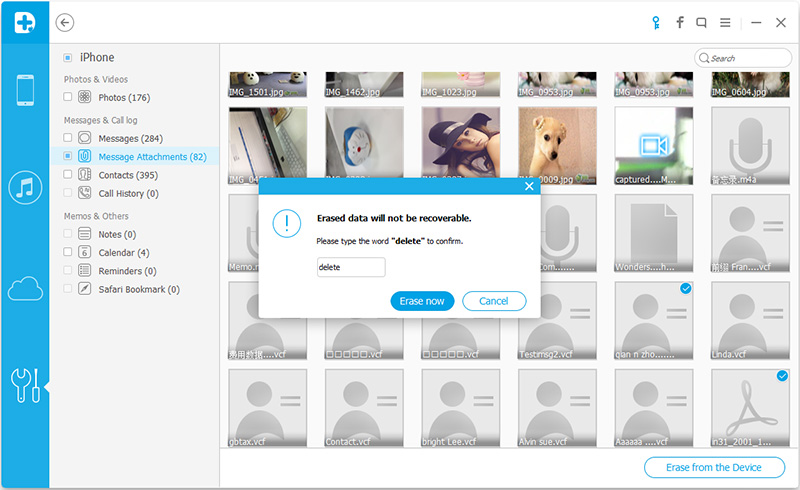
Once the scanning is done in a few minutes, the program will list all of your private data on its screen. You can then select the option of “Messages” from the left hand side and then press on the button “Erase from the Device”.
Step 3.Confirm the Erasing Process
The program will ask you to confirm now that you want all of the data in your messages deleted, so type in “delete” and click on the button “Erase now” once again.
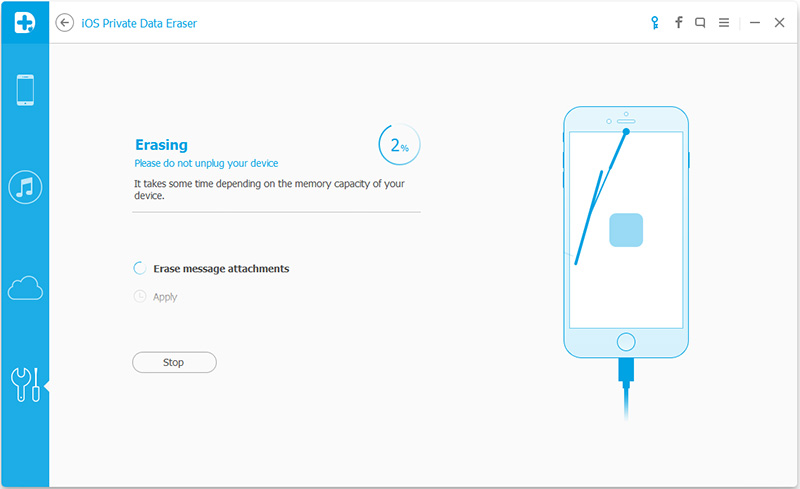
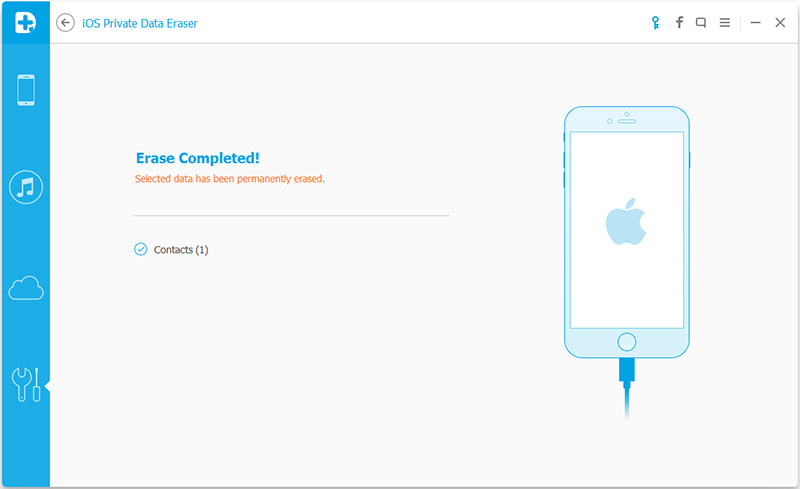
Once the data is deleted, you should see a screen in the picture given below.
Now all your WhatsApp messages and attachments are removed completely from your iPhone without restoring.
Part 3: How to Remove WhatsApp App on iPhone Permanently
With iPhone Data Eraser,you are able to remove WhatsApp app from iPhone permanently before selling it,as well as other iPhone apps,such as Viber,Kik,Line.iPhone Data Eraser is used to permanently erase everything safely as well as securely on an iPhone, iPad or an iPod. It prevents identity theft when selling your old device with 1 click “Clean Slate” privacy safeguard.It keeps you personal information safe and permanently removes it with iPhone Data Eraser before your dispose your old device.
Features of iPhone Data Eraser:
1.Permanently Erases Device -When you are recycling, trading or selling your iPhone, the 1-Click phone erase option can play the trick for you and delete everything permanently before passing on the device.
2.Clears Private Data & Free Up Space – Ensures that the data that is stored in your phone while browsing the web, using apps, sending messages, etc stays private. It will keep your private data safe, freeing the space.
3.Clean Junk File – 1-Click cleanup will perform all the optimal speeds by removing all the junk files and other unnecessary data.
Step 1.Download iPhone Data Erser and Install it
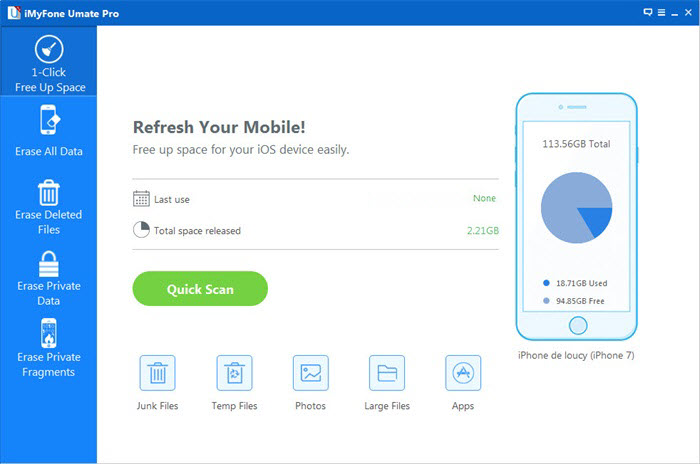
After the installation, run iPhone Data Eraser on your Computer. Connect your iPhone via USB cable to your computer. After the device is detected, you will see main window pop up.In the pop up window, you will see the space information of your device along with other 5 features on the right.
Step 2.Remove WhatsApp App from iPhone without Restoring
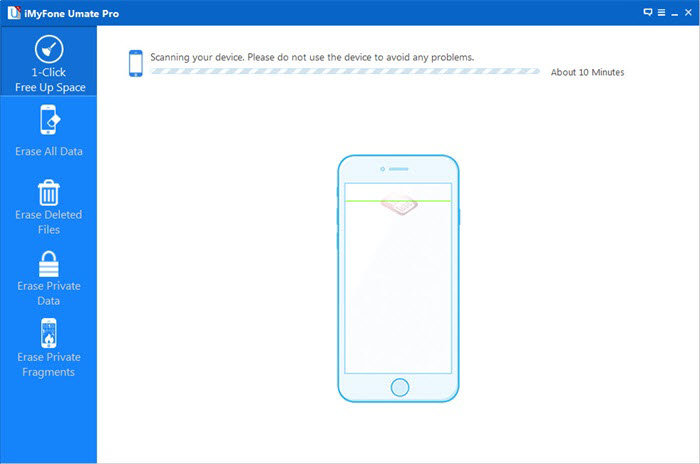
The first feature is 1-Click Cleanup. You just need to click on it and the scanning will begin on your device automatically.
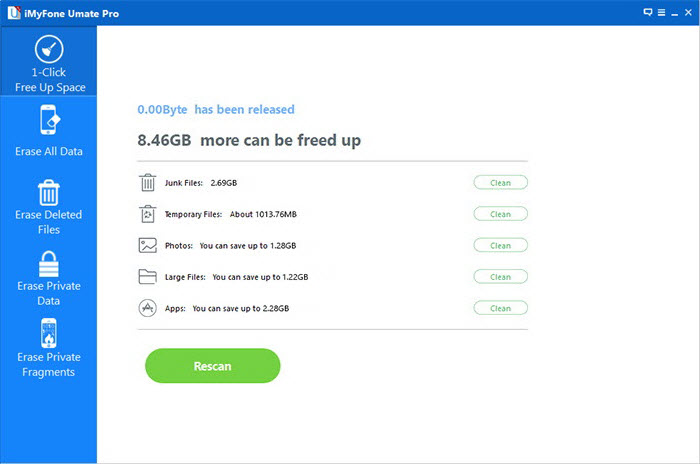
After the scanning is completed, you will see the total number of files displayed. Now you need to click the “Unused Apps” and tap on “CleanUp” for delete WhatsApp app from iPhone.
Make sure you keep your device connected while the scanning process completes, so that you ensure that the files are cleaned up totally.
When you will be done with the cleanup, you will see that the window will appear as follows, displaying the space information of your device.
After this, you can either go back to Home page by clicking on “Home” or click on “Rescan” to scan your device once again.
Samsung Phone with not Working Screen Problem
Blank screen issues are very common not just to Samsung phone but any other Android phones in the market. They can either be caused by a firmware error or a hardware problem. The best thing an owner can do is try to find out the cause so that it would be easier to formulate a solution.Samsung Galaxy phones,especially the Samsung Galaxy S3, S4 and S5, are known for their problematic screens. Many users either experience black screen despite the fact that the phone is fully charged, the touch screen stopped responding or unidentified dots appearing on screen. If you just using one of these Samsung phone and ever encounter the similar screen problems,you are in the right place here. In this article, we will inform you the reasons behind these failures, and how you can extract your personal data from the Samsung phone with not working screen.
Part 1: The Common Situations that Samsung Screens Not Working
There could be several reasons that caused the Samsung phone screen problem.Look the common situations below and check which match your Samsung phone.
1. Blank Screen
This is a very common problem for all smartphones, not just Samsung Galaxy phones. It is usually caused by the following:
• An app or feature on your Samsung froze;
• There is not enough battery to power the device
• An actual physical damage to the touch screen.
2. Unresponsive Screen
An unresponsive screen is usually caused by a system error, be it software or hardware. A software issue will be easier to fix. Here are some of the causes of an unresponsive screen:
• A problematic third-party app;
• Your Samsung phone froze
• There is a fault in one of the hardware inside the device.
Part 2: How to Restore Data from Samsung Phone with not Working Screen
Broken Android Data Recovery enable to restore files on Samsung phone with not working screen and broken Samsung/Android device freely,for example the Samsung with broken/damaged/black screen,water damaged Samsung.You can use it to extract the existing data from the your broken device,restore the deleted data from the broken device as well.Various of data are supported,including contacts,messaging,photos,videos,call logs,audio,WhatsApp messages & attachments and documents.Furthermore,Broken Android Data Restore allow to restore data from Android after losing data under any circumstances:Android system update,Android system rooting,restore Android to factory reset,etc,.
Step 1.Run Broken Android Data Recovery
Firstly,you need to download and launch Broken Android Data Recovery on PC and you will see the option” Android Broken Data Recovery“,then connect the Samsung phone with not working screen to computer with USB cable,and click “scan it” button.
Step 2.Select the File Types to Recover
Now you need to select the files you need to recover from the Samsung with not working screen.Including all file of recovery option(Contacts,Call History,Gallery,Messaging,etc,).
Step 3.Select the Fault Type of Samsung Phone with not Working Screen
Before recovering your Samsung phone,there are two options to choose from the system- “touch cannot to used or cannot enter the system” as well as “Black screen (or the screen is broken)”.You need to choose the appropriate one depends on your phone(here you should click the “2.Black screen”option and then click on “NEXT”.
Step 4.Select the Model of Your Samsung Phone
Now you should select the proper version of the Android as well as the exact model you are using.
Step 5.Enter Download Mode on Samsung
Here you need to follow three individual steps to enter Samsung to download mode which include:
· Hold the Power key to power off the Phone
· You next have to press the volume down key,the Power key as well as the Home key at the same time
· Next up leave all the keys and press the volume up key to enter the download mode of the phone
Step 6.Analysis of the Samsung Phone with not Working Screen
You should connect Samsung to computer again and the Broken Android Data Recovery will automatically analyze it.After entered the “Download mode”, the software will start to download “recovery package” for it,it will take you a few minutes,please wait patiently.
When the downloading finish,the selected data from Samsung will be list.
Step 7.Preview and Extract Data from Samsung with not Working Screen
You are allow to preview all deleted/lost or existing data before recover it on Samsung,including the detailed messages,photos,videos and more types of files.Then just click “Recover” option to go on the data recovery process.
Summary
Do you want to recover contacts from Android phone with broken screen or black screen? Read on this guide to learn how to recover contacts from broken Android Samsung phone effortlessly.
“My Samsung phone is not working as normal,it will always suddenly power off itself under expected moment.Sometimes when I try to turn it on but it still stuck at the black screen.Now I just wanna extract the friend number and the client number from it,in case I need the contacts anytime.How?”
“How to retrieve contacts from broken phone? My Samsung Galaxy S6 was broken screen, I want to extract contacts for backup.”
Nowadays, smartphone have totally occupied the hearts of person in today’s new world. It is very common to see more and more Android users around our life. If your Android phone is broken, damaged or death, it seems impossible that you can recover contacts from a broken Android phone, we all know that the contacts are stored in the device’s internal memory. Therefore unlike other data such as photos, music and videos that can be stored on an SD card, you cannot simply remove the SD card and then insert it in another device to get them back. It is also a common accepted fact that many of the data recovery software in the market are unable to effectively extract data from a broken device. But with an professional Broken Android Contacts Recovery tool and the right processes, you are allow to easily recover contacts from broken screen Android Samsung phone.
Part 1: Can I Extract Contacts from Broken Android Phone
If you accidentally have your Android phone broken, it is possible to restore contacts from a broken Android since most data are saved in internal or external memory and they are likely to be safe even though the device is physically damaged. But it is troublesome to access the data on a damaged Android. if you have ever backed up your Android with Google Account, you can restore the backup contacts to device easily. But to deal with that you have no backup?
In this case, you will need to think about get some help of professional data recovery to recover contacts from your broken Android phone. It is almost impossible to recover the contacts from broken Android phone by yourself. It is the best way to select a reliable software which is able to access your broken phone content without limitations and recover it successfully. Keep on reading and we would show you the possible way to recover contacts from a broken Android device with ease.
Part 2: Recover Android Contacts from Google Account and Samsung Account(for Backup Users)
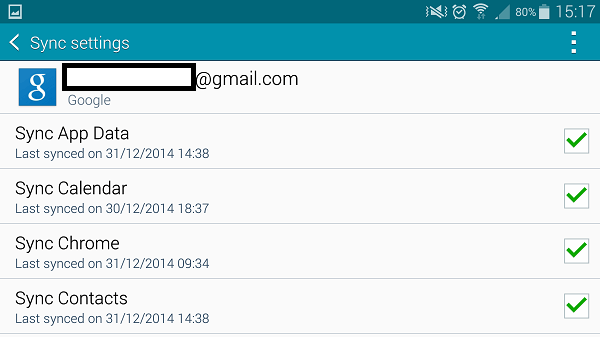
If you have synced the contact to your Google account, you can restore deleted contacts from Google account even when your phone is broken or death.
Steps to recover deleted contacts from Google account:
1. From the home screen, tap Settings.
2. Scroll to ‘USER AND BACKUP‘, then tap Accounts.
3. If you have backup contacts to Google account before, please tap Google and go to Google account.
4. Enter your Google account email and click NEXT.
5. Enter your account password, and then click NEXT.
– View the terms of service and privacy policy, and then click “Accept“.
6. Click to select or deselect your preferred Google services, and then click on the “Next” button.
7. Select the Sync contacts check box.
8. Tap Sync now start to restore contacts from Google account.
Then it will begin to sync the contacts from the Google account to your phone.
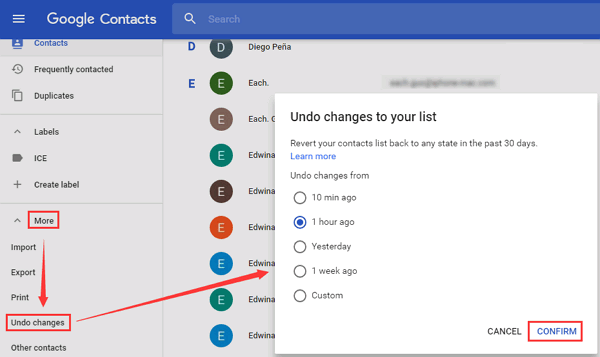
If you have sync contacts to Google Contacts web, you can restore Google Contacts from Gmail easily.
Step 1. Open Google Contacts on a browser and log in your Google account.
Step 2. Then, click “More” option on the left panel.
Step 3. Select “Undo changes“, at this time a new window pops up.
Step 4. Just select a time or customize the time, then click “Confirm“.
Step 5. Tap “Google” or “Accounts” > “Google“.
Step 6. Click “Restore contacts” and start to restore contacts.
Recover Deleted Contacts from Samsung Account (for Backup Users)
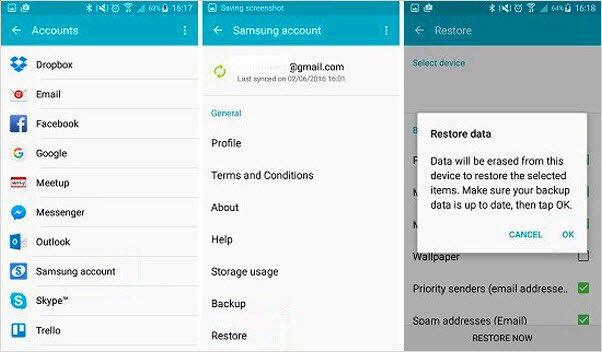
If you backed up your contacts with a Samsung Account previously, once you deleted contacts or lost phone numbers by careless, dont worry, you can easily to get the deleted contacts backupfrom Samsung account. Here are the specific steps:
1. From the Samsung phone Home scree, please go to Settings and scroll down to the “Personalisation” section, then tap Accounts.
2. Then, log into your Samsung Account with your email address and password.
3. Tap “ Restore” and “OK” to restore deleted contacts from Samsung phone.
To sum up: Restoring contacts from Google account backups,this method is easy to recover the Android backed up contacts, no matter what’s brand of phones you using, such as Samsung Galaxy S10/S9/S8/S7/Note 9/Note 8, Huawei Mate 20/10/P30/P20, LG, HTC, Sony, Google Pixel, Motorola, OnePlus, Xiaomi, etc. However, make sure you have backed up your previous contacts to Google account.
Note: If you hanve’t sync contacts to your Google account before, how to recover contacts if your Samsung phone is broken screen or screen-black? Don’t worry, you can extract contacts from broken Samsung phone internal memory by a third-party broken Android contacts extraction, please keep reading the Part 3, you can easily get contacts back from a broken screen Android phone.
Part 3: How to Recover Contacts from Broken Android via Broken Android Data Recovery
To solve this problem, this Broken Android Data Recovery is the ideal data recovery helper for you, it helps to extract and recover contacts from broken Android phone. With Broken Android Data Recovery,you are able to recover contacts from broken Android, besides contacts, various of data are supported to be extracted by this powerful program, including photos, videos, text messages, audio, WhatsApp messages & attachments, call logs and documents. The Broken Android Data Extraction works well with the broken/damaged Samsung Galaxy S6/S5/S4, Galaxy Note 5, Note 4 and Note 3.
In addition, if your Android phone works fine, if you deleted contacts on Android phone by by mistake. Don’t worry, you can use the Android Data Recovery function to recover deleted contacts, SMS, photos, etc. from Android phone, the Android data recovery works will with almost all brands of Android,such as Samsung, HTC, Motorola, Google Pixel, Google Nexus, LG,Sony, Huawei, Xiaomi, etc,.
More Features:
Extract contacts and save them as VCF, CSV or HTML to your computer for your use or print.
Recover Android contact information: contacts name, phone number, email, job title, address, companies and more
Recover Android data lost due to mistaken deletion, factory reset, system crash, forgotten password, flashing ROM, rooting, ect.
Recover data from dead/broken Samsung Galaxy S/Note smartphone.
Fix Samsung stuck on recovery mode, black-screen, startup status, etc.
Preview & selectively recover contacts and more before recovery.
Supports recover deleted data from Samsung Galaxy S, Samsung Galaxy Note, Samsung Galaxy A, Samsung Galaxy C, Samsung Galaxy Grand and more Samsung models.
Recover Contacts from Broken Screen Android Phone with Ease
The broken Android data extraction function only works for Windows computer, please download the Android Toolkit for Windows version. Let’s take how to recover contacts from a broken screen Samsung phone as example, you can also follow the same steps to extract messages, WhatsApp messages, photos and more from broken Android Samsung phone.
Step 1. Download and Install Android Toolkit on PC
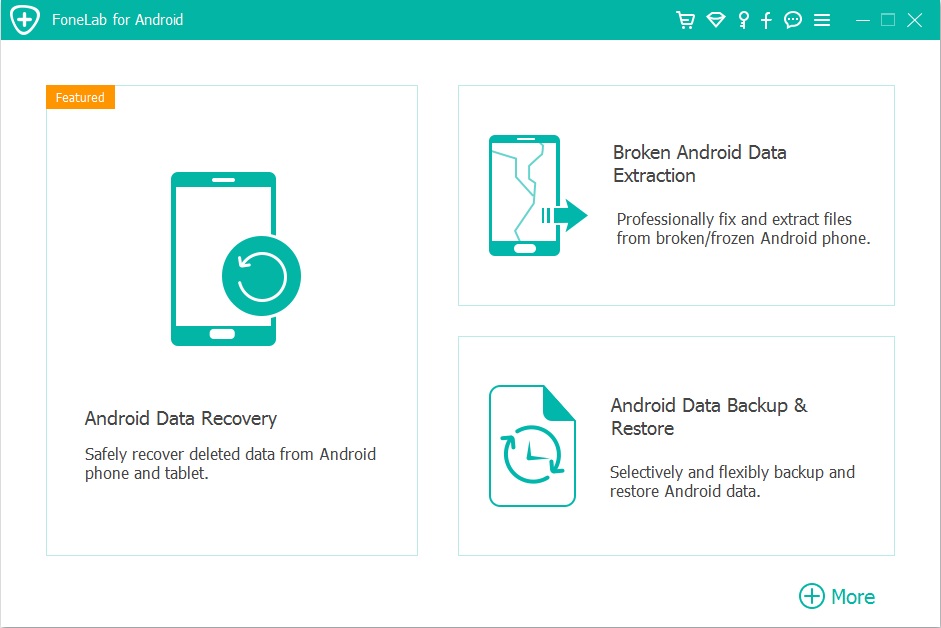
Launch the Android Toolkit on the Windows computer, you can see three are three main function in the main window: “Android Data Recovery”, “Broken Android Data Extraction” and “Android Data Backup & Restore”. To recover/extract data from broken Android phone, please click on “Broken Android Data Extraction” function.
Step 2. Connect Broken Screen Samsung Phone to PC
Then, please connect your broken Samsung phone to the computer via a USB cable and click the left side “Start” button.
Step 3.Choose the Fault Type (Fix-Option)
If your Samsung phone is frozen, crashed, black-screen, virus-attack or screen-locked, you can fix the phone at firstly, please select the option at the right side and select one as you need based on what type of issues you meet, including the startup screen, dead screen, black screen, password forgot, and more.
Step 4. Select the Model of your Android
In the next window, you need to select the correct “Device Name” and “Device Model” of the broken Android. If you don’t know your device’s model, click on “How to Confirm the device model” to get assistance.
Tips: Currently, this broken Android data extraction & fix feature is only available for the Samsung Galaxy S6, Samsung Galaxy S5, Samsung Galaxy S4, Samsung Galaxy Note 5, Samsung Galaxy Note 4, Samsung Galaxy Note 3 and Galaxy Tab Pro 10.1: SM-T525. For other Samsung models and other brands of Android smartphones, please waiting for the software updates, we do our best to repair more brands of mobile phones.
Step 5. Get Broken Android Phone into Download Mode
You will be provided with instructions on how to enter your Samsung phone into “Download Mode.” Simply follow the instructions on the next window.
How to Enter Download Mode on the broken phone?
1) Power off the phone.
2) Press and hold Volume “-“, “Home” and “Power” button on the phone.
3) Press “Volume +” button to enter download mode.
Step 6. Download Recovery Package and Fix it
After the broken Android phone get into Download mode, the software will analyze it and download the matching recovery package. When the software download the recovery package successfully, it will recover your phone and repair it automatically.
After fixing the broken phone completed, the software will scan all existing data from the broken phone, including contacts, photos, text messages and more.
Step 7. Restore Contacts from Broken Samsung Phone
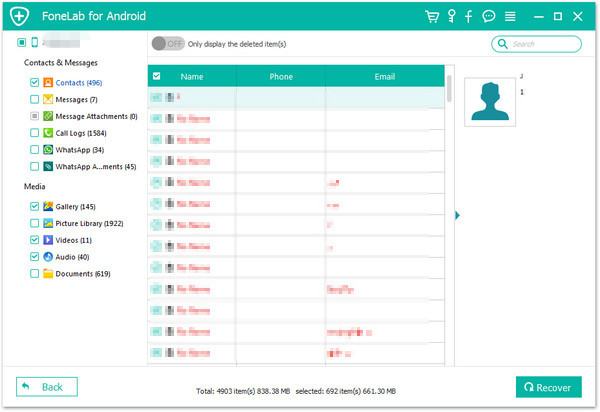
After the scan, all existing contents not only the Contacts will be shown in the window as follow, you can preview them one by one and mark those data you want, please select the contacts you want to recover and then click on “Recover” to recover them on your computer.
Tips: You can extract the contacts with full information like contacts name, phone number, Email, job title, address, and more which you fill on your phone. And the extracted contacts will be saved as VCF, CSV or HTML for your use. If you want to import the contacts to your Android or iPhone for using again, please save them as VCF file, then use this Android & iOS Manager tool to transfer contacts from PC to Android or iPhone.
Youtube video guide to recover data from broken Android phone.
To sum up: Above is the detail guide on how to recover existing contacts from broken screen Samsung phone, the Broken Android data extraction function not only can help you extract messages, contacts, call history, WhatsApp, photos, etc. from broken Samsung phone, but also allows you fix bricked, crashed, frozen or locked Android phone to normal. If you want to recover deleted and lost contacts from Android phone, please learn the below guide on how to recover deleted contacts from Android phone by using Android Data Recovery function, this Android recovery function works well with all normal Android phone, you can easily recover deleted contacts, sms, photos, WhatsApp data from almost all Android device, no matter rooted or not.
Part 4: How to Restore Deleted Contacts from Android
Android Data Recovery (Mac & Windows) is designed to recover deleted data on Android, it help to restore deleted contacts and other types of data from Android easily. It enables to recover deleted contacts from Android under any data loss situations, such as, deleted accidentally, Android OS updated, factory reset restoring, virus attacked, system crash, forgotten password, flashing ROM, rooting, etc.
The Features of Android Data Recovery Software
Recover deleted/lost contacts with full information such as contacts name, phone number, email, job title, address, companies and more which you fill on your phone. And saving the deleted contacts as VCF, CSV or HTML to your computer.
Preview and selectively recover deleted contacts from Android phone.
Deep scan and recover data from a rooted Android device.
Rrecover photos, videos, contacts, messages, messages Attachments, call history, audios, whatsApp, documents from andorid phone or SD card.
Compatible with 6000+ Android phone, such as Samsung, HTC, LG, Huawei, Sony, Windows phone, Google Pixel, Motorila, Xiaomi, Redmi, OnePlus, Oppo, etc.
Steps to Recover Deleted Contacts from Android
Step 1. Connect Android Phone to the computer
Download, install and run Android Toolkit on your computer, select “Android Data Recovery” and you’ll get the main window below.
Then connect your Android phone to the computer and move to the next step.
Step 2. Enable USB debugging
If you didn’t enable USB debugging on your device, you’ll see the window below. Follow the detailed expression below. There are three different ways to finish this job for different Android system:
1) For Android 2.3 or earlier: Enter “Settings” < Click “Applications” < Click “Development” < Check “USB debugging”
2) For Android 3.0 to 4.1: Enter “Settings” < Click “Developer options” < Check “USB debugging”
3) For Android 4.2 or newer: Enter “Settings” < Click “About Phone” < Tap “Build number” for several times until getting a note “You are under developer mode” < Back to “Settings” < Click “Developer options” < Check “USB debugging”.
Note: If you have already enabled USB debugging on your device before, you can skip this step.
Step 3. Select Contacts to Scan With
An interface will pop up for you to select what to restore. Since only contacts are to be retrieved, we tick “Contacts” in order to save time.
After that, you’ll get a window as follows. As the window shows, click “Allow” button on your Android device’s screen to permit the Superuser Request.
Step 4. Analyze and Scan the Deleted and Lost Contacts from Android Phone
After the program detected your Android phone, the program start to analyze your Android phone by clicking “Next” button, the analysis will take you a few seconds.
Step 5. Preview and Recover Deleted Contacts from Android Phone
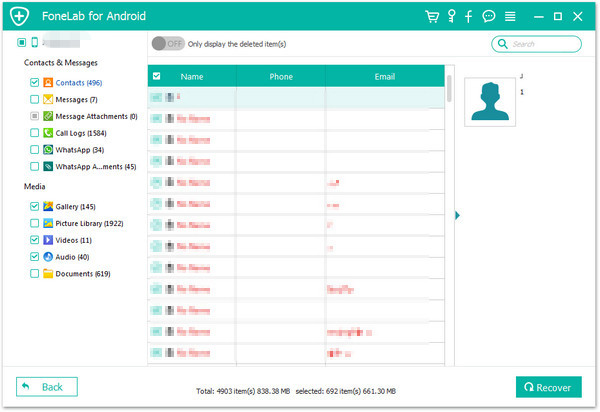
After the scan, the program will find and display all scanned contacts for you, if you find the contacts you need, then you can stop it and preview all your contacts.
Note: Contacts in the scan result are displayed in different colors. Actually,those in orange are the contacts deleted recently, and the black ones are those existing contacts on your Android phone. If you have such a need, you can use the button above (Only display deleted items) to separate them.
Finally, please mark the contacts those you want to get back and click “Recover” button to save them on your computer.
Tips A. Sync and save your contacts on Android phone with your Google account.
Tips B. Take regular backup of Android contacts to avoid data loss.
Tips C. Upload Android contacts to cloud services.
Tips D. Handle your phone carely so that it will not get damaged or broken.
[Summary]: This article teach you two userful methods to restore iPhone, the first method shows you how to use iTunes restore iPhone device(cause data loss), the second method teach you how to use iOS System Restore tool to manually install the iOS 13/iOS 12/iOS 11 IPSW file to restore your iPhone, no data loss at all.
“Yesterday my iPhone 7 was suddenly stuck at the black screen and I try to powered it on, it still nothing, no response at all. I don’t know what happened on it.Can anyone help me to rescue my device without data loss? Thank you so much.” -Christy
“After installing iOS 12.3.1 on iPhone X via iTunes, my iPhone stuck in recoery mode, how to get iPhone out of recovery mode and restall iOS 12.3.1 to iPhone without using iTunes application?” – Jone
As we know,iPhone may meet some unexpected situations that lead to the error occur on iPhone,that means iPhone system get into the abnormal state for any reasons.I researched a lot methods and then I came to the conclusion that we can rely on installing IPSW file on iPhone to restore iPhone system to normal with several effective solutions to solve it.So here are the step-by-step guides about how to restore iPhone system to normal in details.Just read the passages below and select one match your circumstance.Hope it really do a great help for you all.
What is IPSW File
IPSW file is the raw iOS software for iPhone/iPad/iPod touch, which is normally used in iTunes to install iOS firmware. And iTunes utilizes the IPSW file format to store iOS firmware to restore any device to its original state.
Part 1:Restoring iPhone using IPSW File with iTunes
The IPSW is very important since it contains everything that you would need to run the core iOS system on your iPhone, thereby restoring it to a state where you can use it without having any password.Using IPSW file to restore iPhone with iTunes is such an easy and convenient job for all iPhone users.Before start the restore process,we suggest you do a backup for your iPhone.
Step 1.Download the iOS IPSW file[ links below ] that relates to your specific iOS device.
Step 2.Run iTunes.
Step 3.Connect your device to the computer.
Step 4.Open Device Summary for the iOS device you are updating.
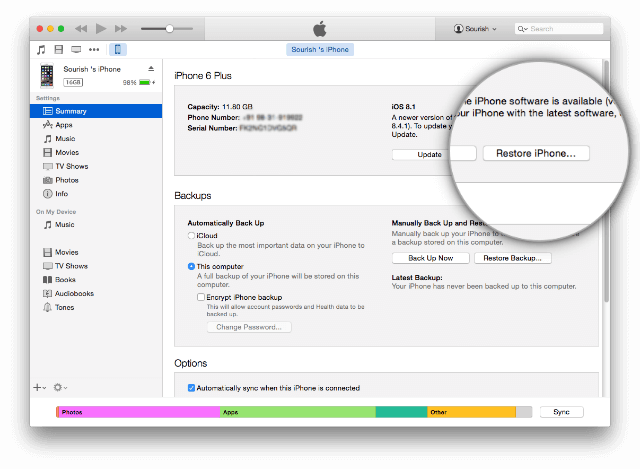
Step 5.Hold down the SHIFT [ Windows ] or ALT [ Mac ] key and click Restore in iTunes simultaneously iTunes restore.
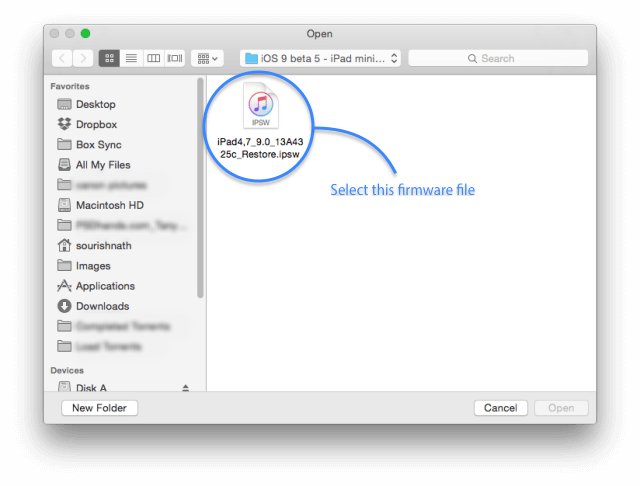
Step 6.Locate the iOS IPSW file you downloaded and select it.
Step 7.Follow the on onscreen instructions and iTunes will begin the update process.
Step 8.When the update has finished, your iOS device will reboot into the iOS you select.
Part 2:Install IPSW File to Restore iPhone without Data Loss
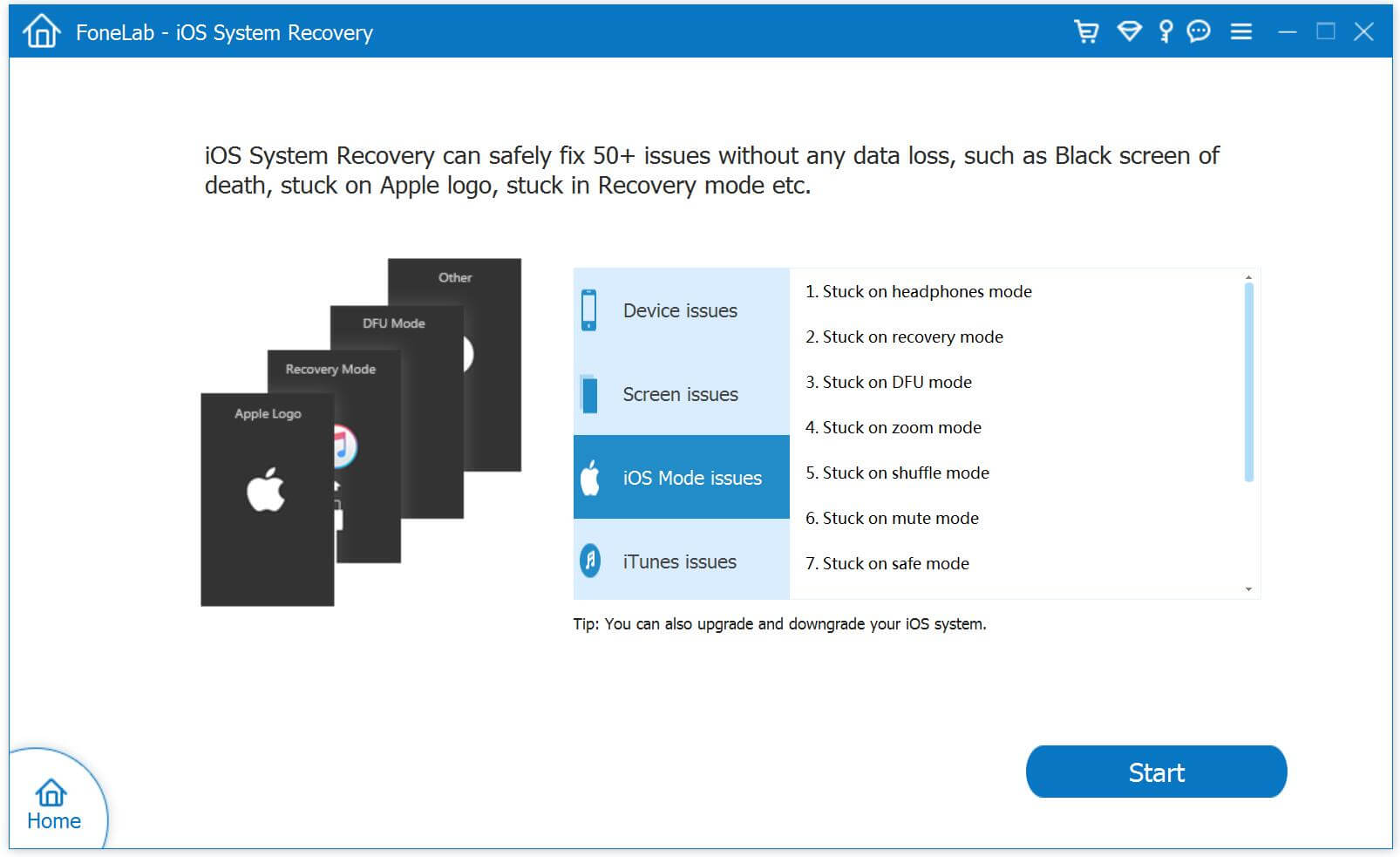
To be honest,download and use IPSW file to restore iPhone with iTunes will lead to lost data on your precious device.If you wanna another better solutions,just focus on this part.We are going to introduce this best way to you-IPSW Files Installation Tools – iOS System Recovery.As its name,this program work well for installing IPSW file to restore iPhone system to normal state without data loss,no need to run iTunes.It’s a quick and safe tool for helping you finish the iPhone restore task.iOS System Recovery perfectly empower to install the IPSW file for iPhone and restore iPhone system to normal,making it easy for users to get iPhone,iPad out of white/black screen,recovery mode,Apple logo,connect to iTunes screen,etc;help to fix the issues on iOS device perform abnormally.Supported iOS device:iPhone XS/XR/X/8/7/6S/6S Plus/6/6 Plus/5S/5C/5/4S, iPad Air 2/3, iPad Pro 3, iPad Mini, iPod Touch 4/5, etc,.
Step 1.Run the IPSW Files Installation Tools and Connect iPhone to Computer
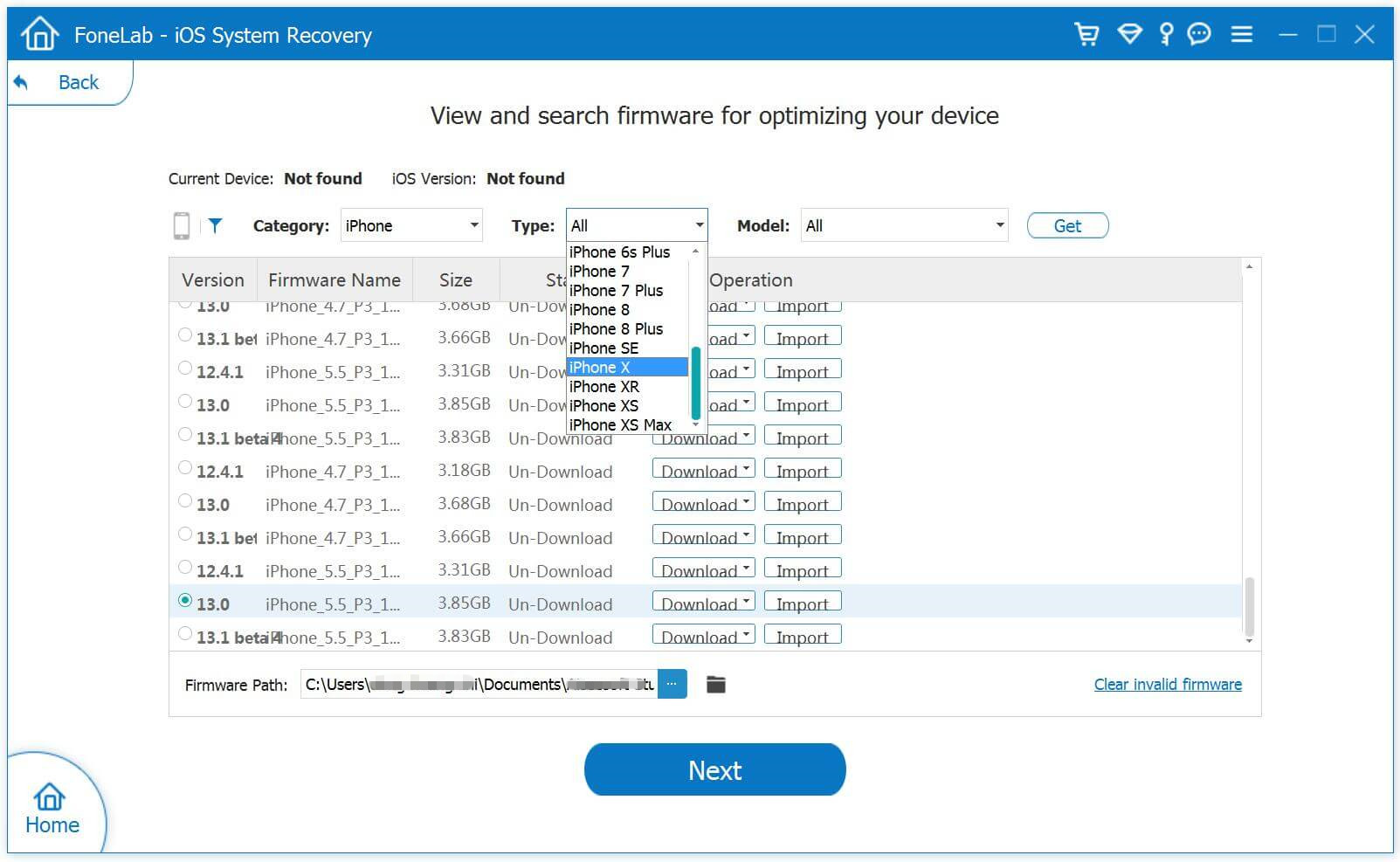
Step 2.Select iOS 9/iOS 10 IPSW Files and Download for iPhone
iOS 9 IPSW File for iPhone:
iOS 10 IPSW File for iPhone:
Tips:The program provides the newest iOS 10.1.1 firmware file package for download.
Note:If you want to install iOS 10 on your iPhone directly,please click the “Download” button to download the iOS 10.1.1 IPSW file for your iPhone.If you want to install iOS 9 or other older IPSW file on iPhone,please select and install the .IPSW files on your iPhone via IPSW Files Installation Tools(no data loss),then save it on your computer.
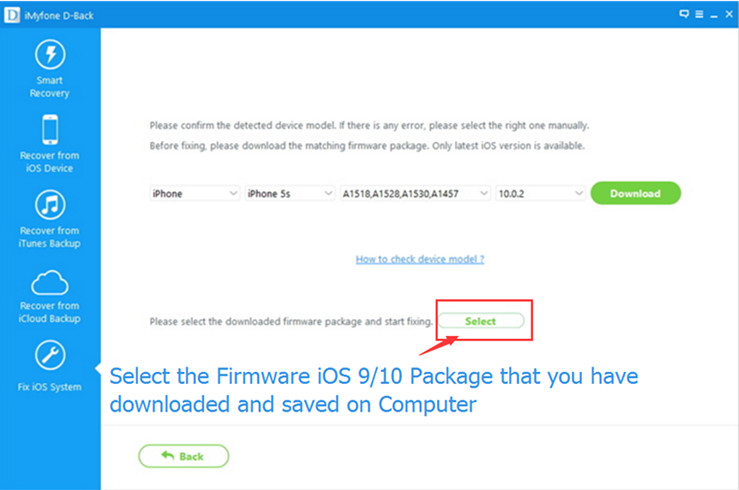
Locate the iOS IPSW file you downloaded and select it:
To install the iOS IPSW file on your iPhone,please click the “Select” button the import the files to the IPSW Files Installation Tools and going on.
Step 3.Install the iOS IPSW File to Restore iPhone without Data Loss
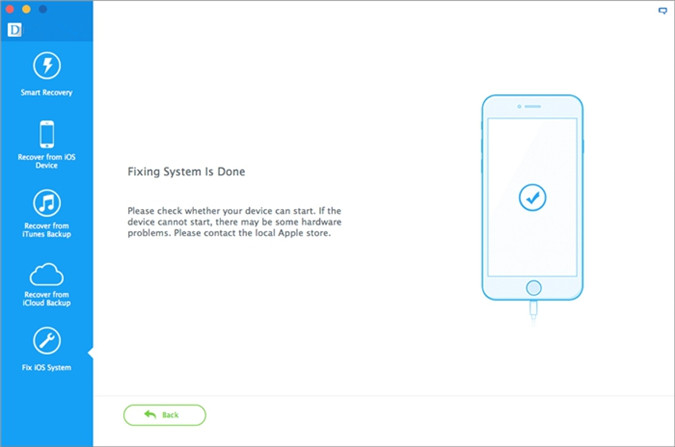
As soon as the restoing completes,you will get a message prompt that your iOS device has restored to normal state,and it will reboot into the iOS version which you select.
Note:When this restoring job is end, your iPhone/iPad/iPod Touch will be updated to the iOS version which you select. If your iOS device is a jailbroken one, then it will be updated to non-jailbroken.If you have unlocked your iOS device before, then it will be re-locked again.