All posts by DHZ

How to Recover SMS from Broken Samsung Galaxy S6/S7

“I hope this is the right place with in this forum to ask this question and I hope that someone may have an answer.I am needing to recover text messages from my damaged Galaxy S7 phone.The screen is broken and the battery has been disconnected. I am hoping for maybe some program that will allow my to plug it into my computer and pull my old text messages off of it or any other ideas on how to extract the files.Thank you.”-A man of mystery

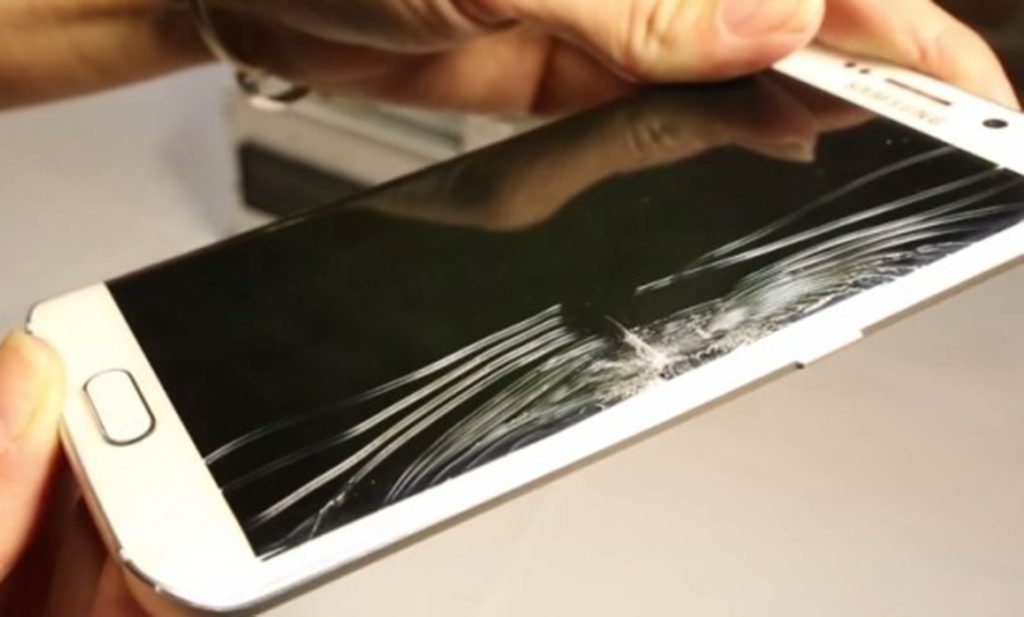
Sometimes, the Samsung users may have encountered hardware or software issues like phone screen broken,the touch screen not working, and you cannot access the valuable personal data.If your phone is damaged for example the screen was broken, and you are urgent to restore/extract the data from the broken Samsung phone, then, this article should help you somewhat.

Restore SMS from Broken Samsung Galaxy S6/S7

Broken Android Data Recovery enable to download recovery package for broken Samsung Android devices and restore SMS from broken Samsung Galaxy S6/S7.Here I’ll share the detailed features of this Broken Android Date Recovery with you.It supports to extract and restore SMS,contacts,photos,videos,audio,call logs,WhatsApp messages & attachments,documents from broken Samsung Android device.Broken Android Data Recovery work well for restore data from broken Android device under any broken circumstances,for instance broken screen,black screen,water damaged,touch screen not working,and more.It can be compatible with all Android mobile devices,such as Samsung,HTC,LG,Sony,Motorola, ZTE,Google,Huawei,Xiaomi, etc,.


d_win d_mac

Extract SMS from Broken Samsung Galaxy S6/S7

Download,launch and run Android data recovery on your computer,then select “Broken Android Data Extraction” option of the main interface.

Step 1.Connect your Broken Samsung to the Computer
Please connect the broken Samsung Galaxy S6/S7 phone to the computer with USB cable.

connect broken samsung to computer

Step 2.Select the File Types you Need to Restore for Broken Samsung Phone
A screen with all kinds of recoverable file types from your broken Samsung Galaxy phone will appear.Select “Messaging” if you want to restore SMS.Then, click the “Next” button to enter the next step.

scan broken samsung galaxy phone

Step 3.Choose a Phone Fault Type of Samsung
You need to select a phone fault type of your broken Samsung.”Touch doesn’t work or cannot access the phone” or “Black/broken screen” are selectable.

Choose Phone Broken Types

Then you should select your device’s name and model.If you are not sure of the Samsung mobile phone model you own, click the “How to confirm the device model” to check it.

Choose Samsung Model

Step 4.Enter Broken Samsung Phone into Download Mode
When you have choose the phone name and model, you will be asked to get your broken Samsung phone into the Download Mode.Just follow the three steps displayed on the window to finish it. After you finished the 3 steps of the guide and hit the “Start” button to go on.
> Power off your device
> Press the volume down, Home and Power button at the same at the same time
> Press the volume up button to enter “Download Mode”

broken samsung download mode

Step 5.Download Recovery Package and Analyze Broken Samsung
After entering Samsung into download mode,the program will download recovery package for your broken Samsung Galaxy phone.Then it will analyze the data of your device.

scanning data broken samsung galaxy

Step 6.Restore SMS from Samsung Galaxy S6/S7
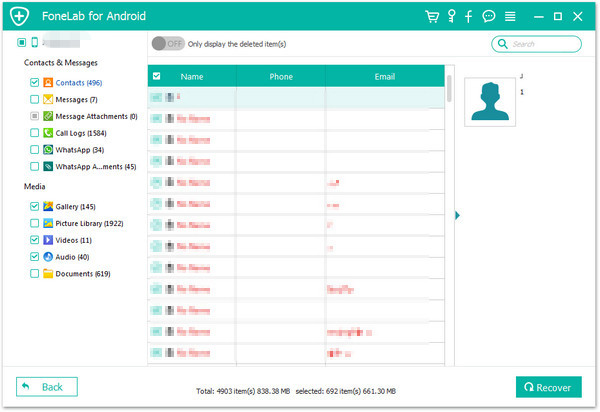
The coming screen will show all recoverable files from the Samsung phone.Preview them one by one and mark down those you need.At last, click “Recover” to save all of the selected data on your computer.
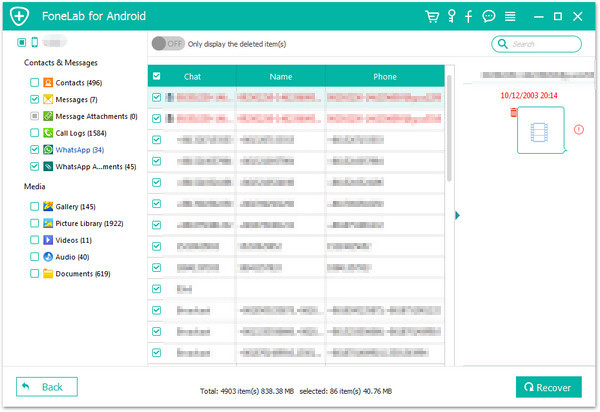
recover-sms-broken-samsung-galaxy

d_win d_mac

Related Article:

How to Recover Data from Broken Samsung Galaxy S6/S7

How to Recover Photos from Broken Samsung Galaxy S6/S7
How to Recover Deleted Text Messages from Broken Android

How to Recover SMS from Samsung Phone

How to Transfer Music between iTunes Library and iPad

Have bought an new iPad Pro 2, iPad Pro, iPad Air, iPad mini and wanna enjoy previous purchaed Apple Music on your new iPad?Finding a way to sync songs and playlist from iTunes library to iPad for playing at any time any place?Don’t worry,this article will recommend your a iTunes to iPad Music Transfer tool to sync music,playlist between iTunes and iPad Pro/Air/Mini/4/3/2,etc. directly without iTunes.We’ll also teach you how to remove DRM from Apple Music and play Apple Music any ios devices,even the iPhone 4 without jailbreak, the iPad in 1st generation, iPod touch in 4th/5th/6th generation, iPod nano, iPod shuffle and other iOS devices which aren’t built-with Wi-Fi capabilities.

“I try to export the songs from iTunes to my new iPad,but it failed for unknown reason.How can I do to fix this issue?How to transfer music between iTunes and my iPad?”-Tina

Music could make us feel relax and peaceful even we are in a bad mood.Just like other tablet devices,iPad is often seen as a tool for surfing the Internet,besides playing music, running apps, and watching movies.Yes, this smart device is also great at being a digital music player nowadays.iTunes is always the primary choice for syncing files with iPad/iPod/iPhone.However,there are a part of iOS users ask the question that are there any other ways to sync music from iTunes with iPad.The guidance below will introduce you the solution on how to transfer music files between iTunes and iPad in detail.

Transfer Song between iTunes and iPad with One Click

Luckily,iOS Manager had created the feature that help to transfer music between iTunes and iPad with one click,so you are able to listen to the loved music anytime with your iPad you wanted.iOS Manager work well for transferring media files between iTunes and iPod,transferring media files between PC/Mac and iPod,transferring media files between Android and iOS device.Expect music,videos and photos are supported by iOS Manager.Furthermore,all models of iOS device are applicable to iOS Manager,including iPad 4/3/2,iPad Pro,iPad Air,iPad Mini,iPhone 7,iPhone 6S(Plus),iPhone 6(Plus),iPhone SE,iPhone 5S/5C/5,iPod touch,etc,.

d_win d_mac

Part 1:How to Sync Music from iTunes to iPad

Step 1.Run Program and Connect iPad with the Computer
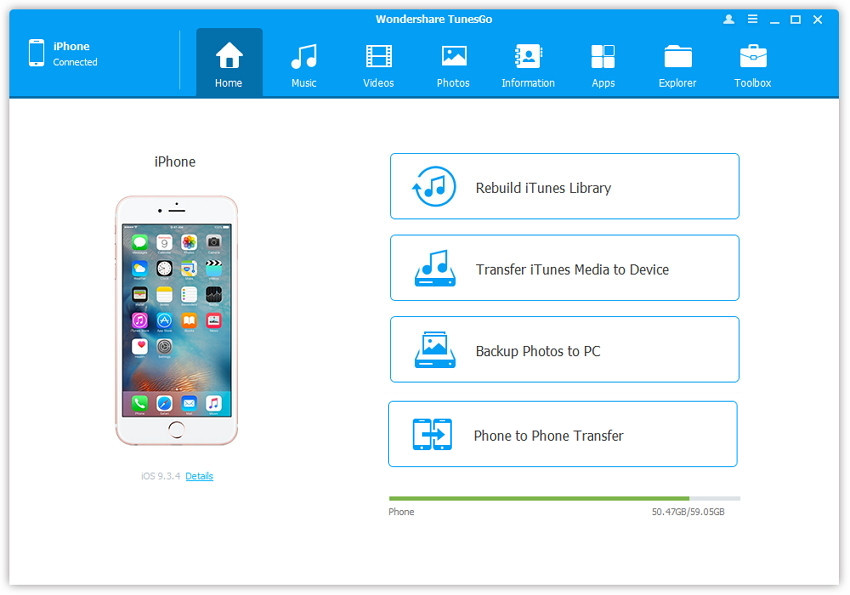
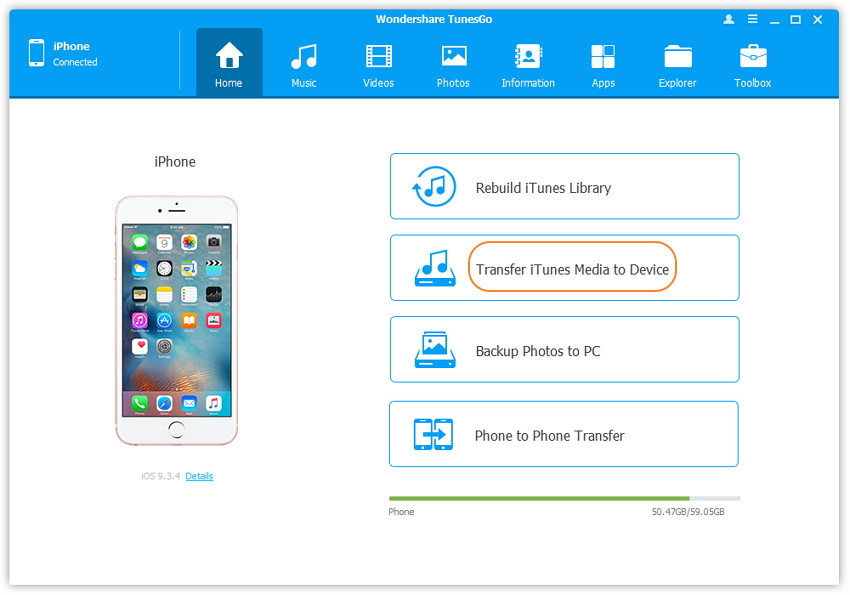
Install and run iOS Manager and connect your iPad with the computer.Then click Transfer iTunes Media to Device option on the main interface of iOS Manager.

ios manager main page

Step 2.Select the Music Item to Transfer
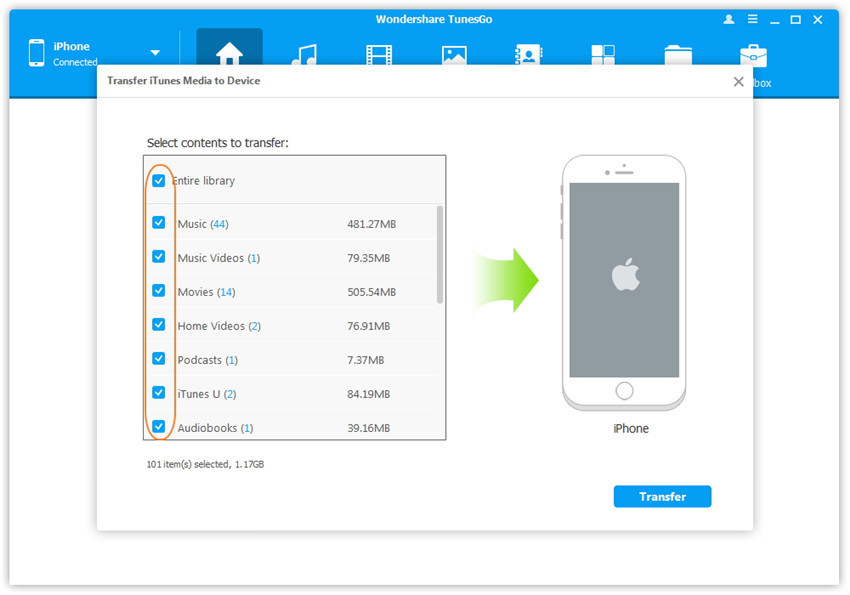
iOS Manager will detect all the media files in iTunes and show them by list on the pop-up window.By default,the entire library files has been checked.You could uncheck the files that you don’t need to transfer to your iPad.

select-transfer-itunes-media-to-ipad

Step 3.Transfer Music from iTunes Library to iPad
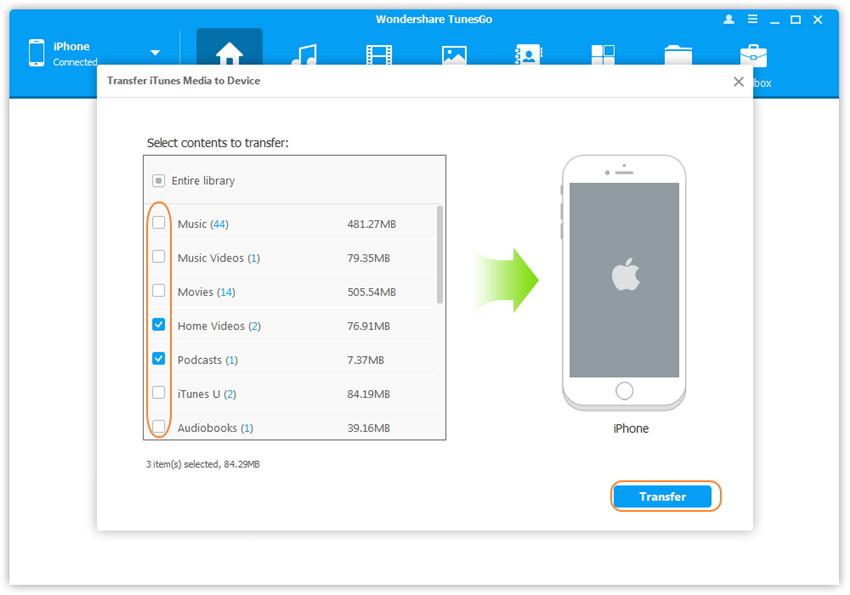
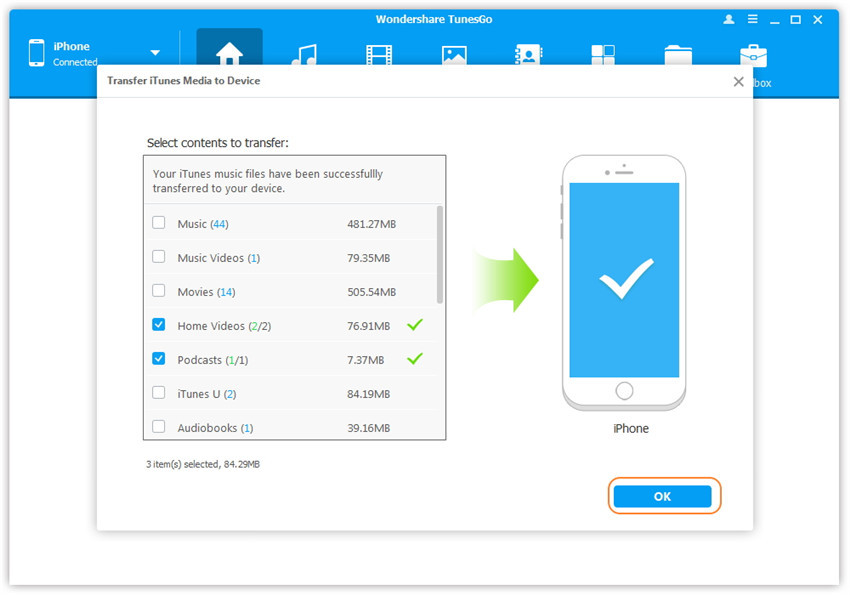
Click Transfer to start transferring selected files to your iPad and then click OK to finish the process.

Note:You don’t need to worry about duplicate files as iOS Manager enables to automatically detect the duplicates and only transfer the exclusive data from iTunes to your iPad.

click-transfer-button

transfer-music-to-ipad

d_win d_mac

Part 2:How to Transfer Music from iPad to iTunes

Step 1.Run Program and Connect iPad with the Computer
Install and run iOS Manager and connect your iPad with the computer.

connect-ipad-with-computer

Step 2.Sync Music from iPad to iTunes Library
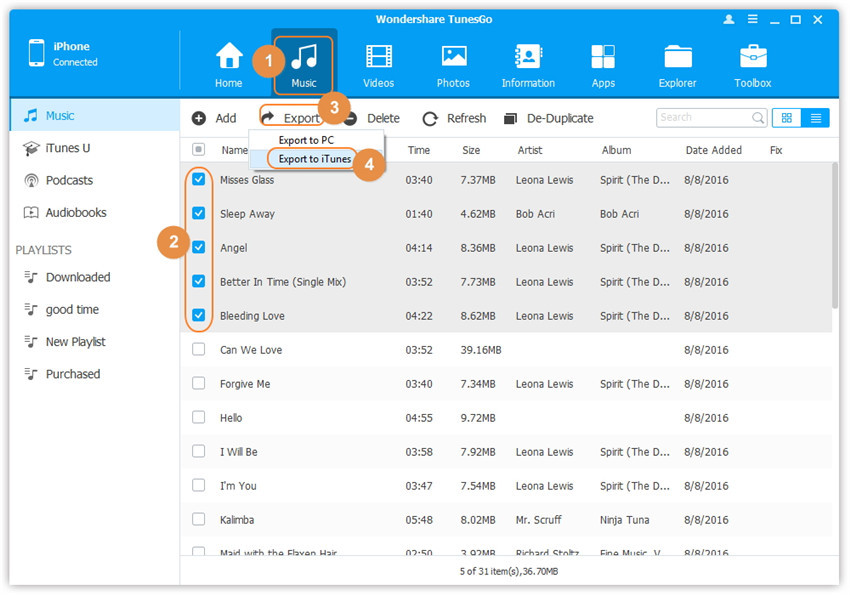
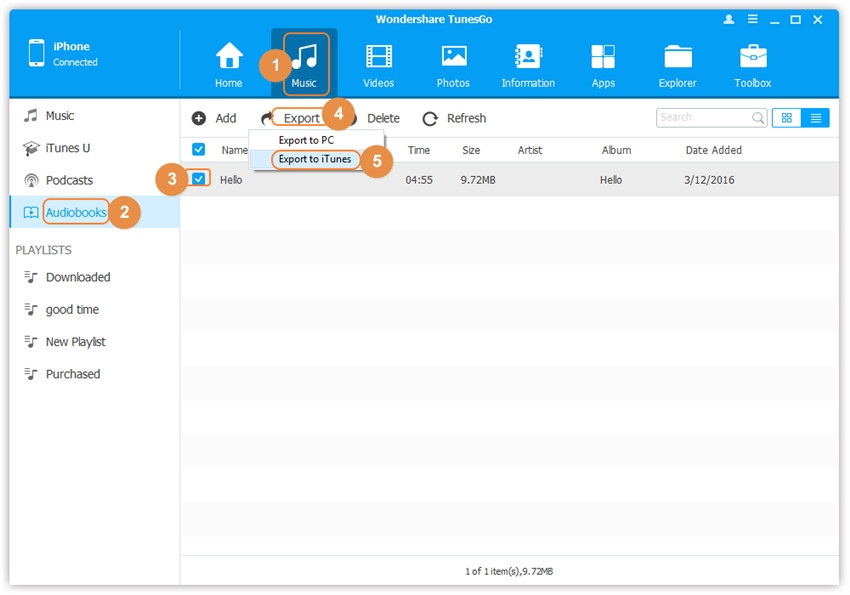
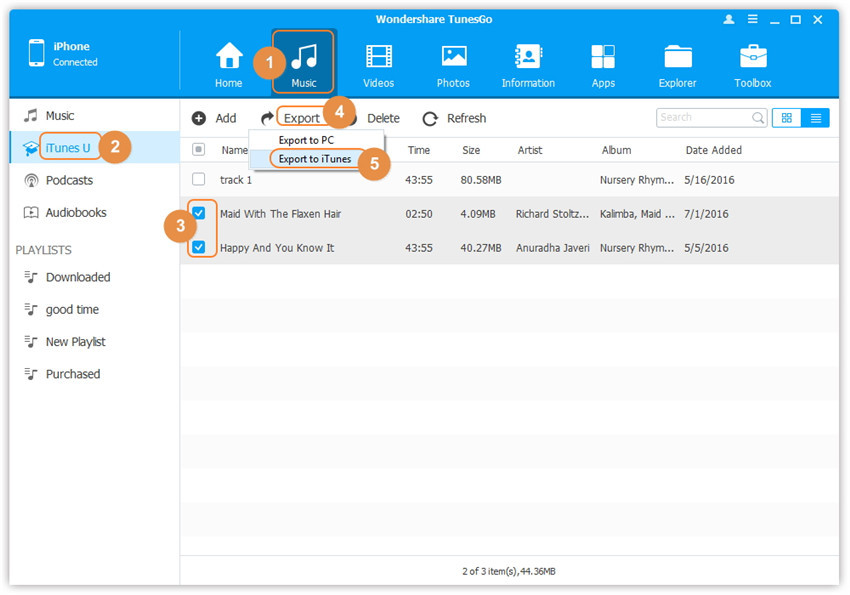
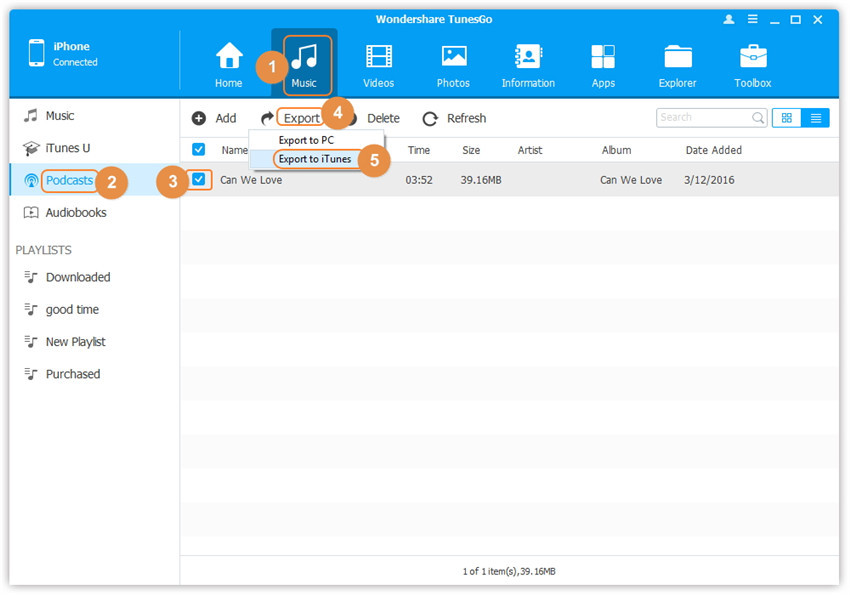
At the top of the interface of program click Music icon,then select the specific option Music (Music is the default option).Please note that iTunes U/Audiobooks/Podcasts is available to select here too.Then check the files you wanna transfer to iTunes,and click Export > Export to iTunes.

select-music-transfer-to-itunes

select-itunes-u-transfer-to-itunes

select-podcasts-music-transfer-to-itunes

select-audiobooks-transfer-to-itunes

Step 3.Complete the Syncing Job
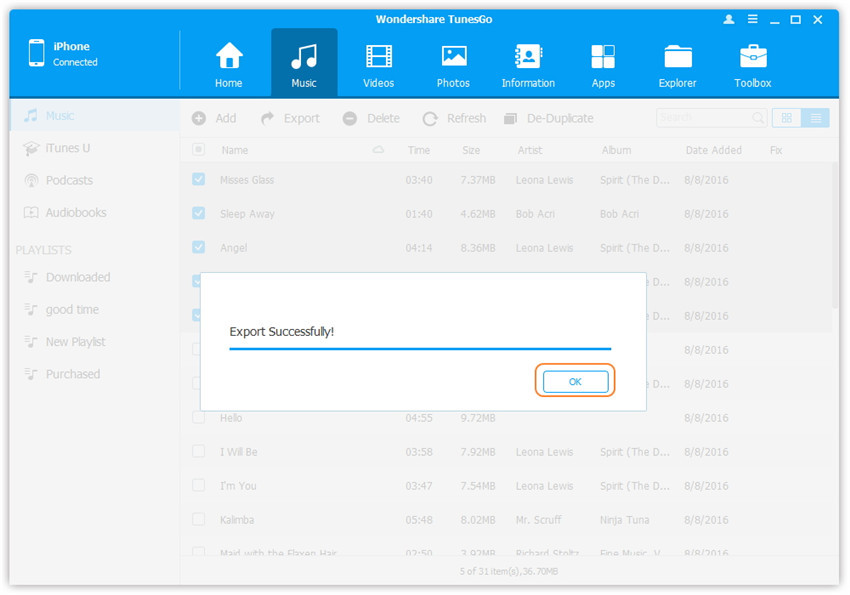
Music files syncing successfully,click OK to end the data transferring process.

transfer-ipad-music-to-itunes-complete

d_win d_mac

Part 3: How to Play Apple Music on iPhone/iPod/iPad for Free

As we all know that Apple Music requires iOS 8.4 or iTunes 12.2 for a computer, and Apple Music can only work on Wi-Fi-enabled iOS devices now to authenticate an Apple Music subscription.However,how to play Apple music songs on any iOS devices in the offline state?Especially for iPad Air, iPad Pro, iPad mini, iPad 4/3/2, iPhone 4 without Jailbreak, iPod classic, iPod nano, iPod shuffle and iPod touch 4th generation.Don’t worry,in this part we will show you how to get Apple Music songs playable iPhone/iPad/iPod without jailbreak,you can play Apple Music songs on any iOS devices for free after removing DRM from Apple Music M4P files.

Apple Music Converter helps you easily remove DRM from Apple Music songs and output to DRM-free MP3, M4A, etc. for playing without iTunes on PC/Mac and other devices such as iPod/iPad/iPhone, MP3 player, Android devices, etc. Besides, this Apple Music converter can also convert iTunes M4P songs, Audiobooks and Audible Audiobooks to DRM free formats.Now let’s see how to convert Apple Music to DRM-free MP3 for iPad for example.

d_win d_mac

Step 1.Launch the Apple Music Converter
First of all,please download and launch the Apple Music Converter program after the installation. The iTunes will be launched automatically,you can see all the music and playlists will be loaded onto the program.

run apple music converter for mac

Step 2.Select Apple Music Songs Your Want to Convert
Now you can select the Apple Music files you want to convert.You can also quickly find the songs you want with the search feature.

select apple music songs

Step 3.Select Output Format
To play Apple Music on your iOS devices,here please select the MP3 as output format,you can select AC3, FLAC, AIFF or other audio formats available as the output format,then customize bitrate, sample rate, filename format if you like.

select Apple music to convert

Step 4.Convert Apple Music to iPad/iPod/iPhone Supported Format
After setting the MP3 as output format,then click on the “Convert” button start converting Apple Music to MP3 file for free playing without the limitation.

convert apple music to iPod/iPad/iPhone

When the conversion is done,you can enjoy the converted Apple Music songs on PC or Mac without iTunes for offline playback without DRM limitation.

Step 5.Transfer Converted Apple Music in MP3 Format to iOS Devices
Now,your Apple music songs saved on the computer as DRM-free MP3 files,you can now copy and transfer the MP3 files to your iPhone/iPad/iPad devices via iTunes or iOS Manager.
Note: If you need help of transferring music from computer to your iOS device.
Please read this guide about how to transfer music from computer to iPhone for example.

transfer Apple music to iOS devices

Free download the Apple Music Converter for Mac and Windows:

d_win d_mac

Related Article:

How to Download iOS Firmware File for iPad

How to Transfer Music from iTunes Library to iPod

How to Transfer iTunes Music to iPhone 7/6S/6

How to Transfer Music from Computer to iPhone 7/6S/6

How to Transfer Music to iPhone 7

How to Manage iPhone 7 on Computer

How to Transfer iTunes Music to iPhone/iPad/iPod

[Summary]: Do you want to sync music including Apple Music songs from iTunes library to iPhone/iPad/iPod? This article share you two easy ways to directly transfer music from iTunes to iPhone XS(Max/XR)/X/8/7/6S/6/5S/5/SE/5/4S/4, iPod Touch, iPod Nano/Classic/shuffle and iPod without iTunes.

itunes music to iPhone transfer

CONTENTS

It has been some months since the release of iPhone XS Max. Absolutely, now many people are flocking to get a brand new iPhone and can’t wait to enjoy the new functions on it. For some new iPhone users who have just switched to an new iPhone XS, iPhone XS Max or iPhone X, the question may rock in their mind: How to add music from iTunes to iPhone directly? How to transfer the songs between iTunes and iPhone without iTunes?

It’s no doubt that to keep all the iPhone data safe during syncing, you need to use some third-party software.After all, you even can’t view or manage iPhone contents on computer directly without iTunes.Here this highly recommend tool is iOS Manager, which is a great manager to manage music and other files on your iPhone without covering data.

Transfer Music from iTunes to iPhone, iPod and iPad

It’s easy to do on your own. The iOS Manager is just for you. This media transferring tool is a smart tool for transferring music from iTunes to iPhone 7/6S/6 . It’s the ideal iPhone manager to backup media files to PC/iTunes,transfer media files from PC/iTunes to iPhone.Moreover,this program allow to transfer files between iOS device and Android device freely.The transferable data including music,videos,photos.Not only the media files,but also the contacts and SMS are supported to be managed by program on computer,you could delete contacts and SMS on computer conveniently.Most iOS devices are compatible with iOS Manager,iPhone 7,iPhone 6S(Plus),iPhone 6(Plus),iPhone 5S/5,iPad,iPod are included.

d_win d_mac

Part 1: Transfer Music from iTunes to iPhone/iPad/iPod with iOS Manager

Step 1.Run Program and Connect iPhone with the Computer
Launch iOS Manager and connect your iPhone 7/6S/6 with the computer.Then click Transfer iTunes Media to Device icon on the main interface of program.

ios manager main page

Step 2.Select the Music Item to Transfer
iOS Manager will detect all the media files in iTunes and show them by list on the pop-up window.By default,the entire library has been checked.But you can uncheck some items that you won’t transfer to your iPhone.

select transfer itunes media to iphone

Step 3.Transfer Music from iTunes Library to iPhone
Click Transfer to start transferring selected files to your iPhone and then click OK to complete the process.

Note:You don’t need to worry about duplicate files as iOS Manager enables to automatically detect the duplicates and only transfer the exclusive contents from iTunes to iPhone.

click transfer button

transfer-music-to-iphone

d_win d_mac

Part 2: Transfer Music from iPhone/iPad/iPod to iTunes Library with iOS Manager

Step 1.Run Program and Connect iPhone with the Computer
Launch iOS Manager and connect your iPhone 7/6S/6 with the computer.

connect iphone with computer

Step 2.Export Music from iPhone to iTunes Library
Click Music icon at the top of the interface,then select the specific option Music (Music is the default option).Please note that iTunes U/Audiobooks/Podcasts is available to select here too.Then check the files you want to transfer to iTunes,and click Export > Export to iTunes.

select music transfer to itunes

select itunes u transfer to itunes

select podcasts music transfer to itunes

select audiobooks transfer to itunes

Step 3.Complete the Exporting Job
Export successfully,click OK to finish the export process.

transfer iphone music to itunes complete

Part 3: How to Keep Apple Music Songs Playable on iPhone/iPad/iPod after Canceling Subscription?

Here is another good solution we are strongly suggest to you. A wonderful Apple Music Converter, which enables to convert Apple music to MP3, M4A, AC3, AU, AC3, FLAC, AIFF or MKA, and remove the DRM encryption from Apple music, then you can enjoy Apple Music tracks with more freedom and convenience and play the converted music on iPhone/iPad/iPod for free forever. After converting the DRM-protected Apple Music to MP3, you are able to play them on any computers or transfer to any devices for playing offline, such as MP3 player, iPhone, iPod, iPad, PSP, Zune, Windows Phone, Nokia, Sharp and other Android devices.

d_win d_mac

A guide you may be interested in:
How to Play Apple Music on iPhone XS/X/8/7/6S/6 for Free

Step 1. Install and Run Apple Music Converter on the Computer

To begin with, please install and run Apple Music Converter on the computer.

launch apple music converter

Step 2. Choose Apple Music to Convert
Select the Apple music you need to convert, music, playlists, Audiobooks, M4P Audio, iTunes movies and TV shows are available. Then click “Download“.

Step 3. Choose MP3 – Output Format for Converted Music
Select MP3 as the format for the converted music.

Step 4. Convert Apple Music to MP3 for iPhone 7/6S/6
Click “Start Convert” to begin the music conversion on the computer.

convert itunes music to mp3 for iphone

Step 5. View the Converted Apple Music on Computer
Once the conversion is end, you could explore the output files and folders by clicking “Open Output File” button to view the converted music file on the computer.

Step 6. Import Converted Apple Music to iPhone via iOS Manager
In the last step you should import the converted music to your iPhone 7/6S/6 via iOS Manager.

Related Article

How to Transfer Music from Computer to iPhone 7/6S/6

How to Transfer Music to iPhone 7

How to Transfer Music from iPhone to iPhone 7

How to Transfer Media Files from Samsung to iPhone 7

How to Manage iPhone 7 on Computer

How to Transfer Music to Samsung Galaxy S6/S7 on Mac

Summary:This complete guide is showing you the way to transfer your favorite music to your Samsung Galaxy S6 or Galaxy S7 phone on Mac,from your computer/Apple’s iTunes or old mobile device.

“WOW!!! This music file transfer app is such AWESOME!It helped me and was exceedingly simple.As well as convenient!No downloads with viruses or all the junk websites.I used the amazing app to complete my music transferring task within minutes.So I want to share this useful app with you all.”-American girl

Samsung Android phones are widely developed and used nowadays.A helpful tool to transfer your music to Samsung Android is of great necessity.You may want to move the pleasing music from your PC/iTunes/old device to your Samsung so that you can listen to the loved songs anywhere.It will be comfortable for you to listen to music with your Samsung device in a quiet cafe and enjoy your weekend afternoon.

One Click to Transfer Music to Samsung Galaxy S6/S7

An easy and safe solution to transfer music to Samsung Galaxy S6/S7 on Mac is with the help of Samsung Manager,which is a wonderful data manage tool to transfer media files to Samsung freely,including the music,videos,photos.It help to transfer files between computer and Samsung,transfer files between iTunes and Samsung,transfer files between Android/iOS device and Samsung.Additionally,This program allow to manage contacts and SMS for Samsung on computer.Samsung Manager work well for almost all models of Samsung phone,such as Samsung Galaxy S4/S5/S6/S7,Note 3/4/5/7,A5/A7/A9,etc,.

d_win d_mac

Part 1:Transfer Music from Computer to Samsung Galaxy S6/S7

Launch Samsung Manager and connect your Samsung to Mac.Your Samsung device will be detected and displayed in the primary window.

samsung-manager-mian-page

Step 1.Select Music File to Transfer
Select Music tab.Once your media loads, click Add > Add File or Add Folder.

sync-music-from-pc-to-samsung-galaxy-s6-s7

Step 2.Sync Songs from Mac to Samsung Galaxy S6/S7
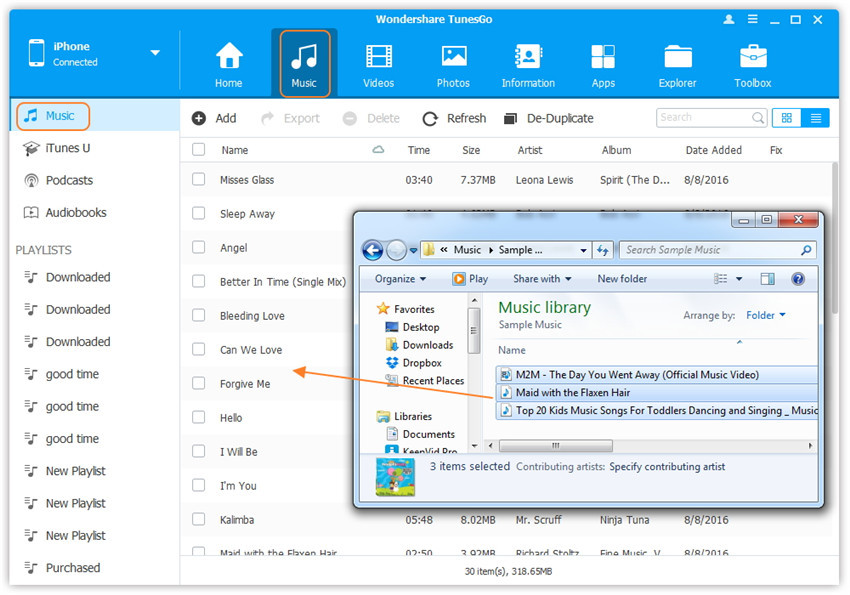
This brings up your file browser window, from which you can select songs to export from your Mac.And you can also create new playlist by right clicking Music to save the imported songs.You can simply Drag and Drop music files from Mac to your Samsung.

d_win d_mac

Part 2:Transfer Music from iTunes to Samsung Galaxy S6/S7

Step 1.Launch Samsung Manager and Connect Samsung to Mac
Run Samsung Manager on Mac and then connect Samsung to Mac.Click Transfer iTunes Media to Device on the main interface.Or find the Transfer iTunes to Device option under Toolbox > Transfer Tools section.

samsung-manager-mian-page

Step 2.Transfer Music from iTunes to Samsung Galaxy S6/S7
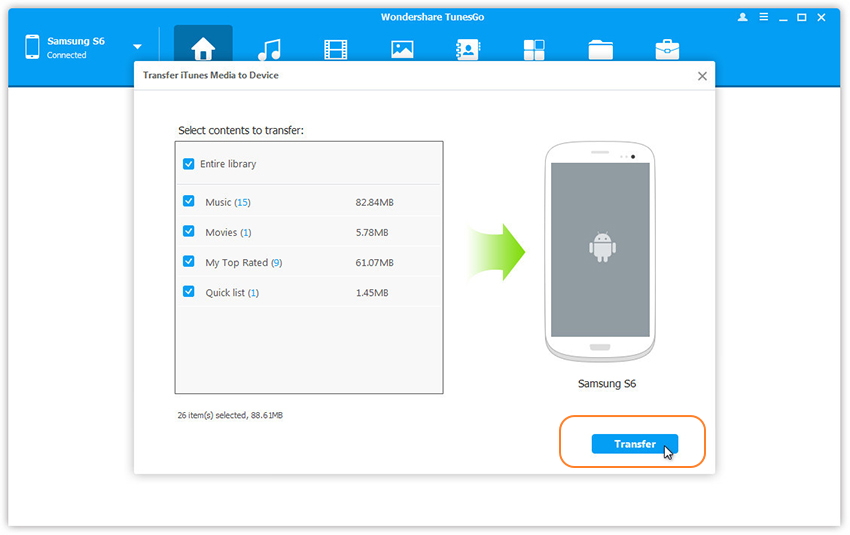
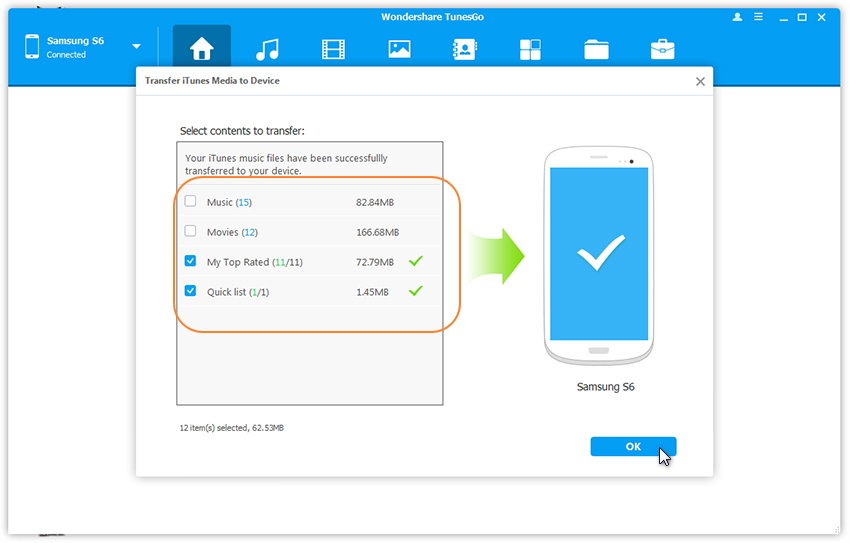
Check options and start to copy media from iTunes to Android. All the iTunes files will be scanned and will be shown under different categories like music, movies, podcasts and others. By default, all the file types will be selected but to transfer only the music files, you can uncheck the others. Click Transfer to start transferring.

select-music-file-transfer-samsung

transfer-music-itunes-to-samsung

Note:It is no worry about duplicate files as Samsung Manager enables to automatically detect the duplicates and only transfer the exclusive contents from iTunes to your Samsung.

d_win d_mac

Part 3:Transfer Music between Old Phone and Samsung Galaxy S6/S7

Step 1.Launch Samsung Manager and Connect Devices
Please run Samsung Manager on Mac and connect your old phone and Samsung to computer.

Step 2.Select the Source Device
Select the source device from which you want to transfer music files.Then click Music tab.

samsung-manager-mian-page

Step 3.Select Music to Transfer to Samsung
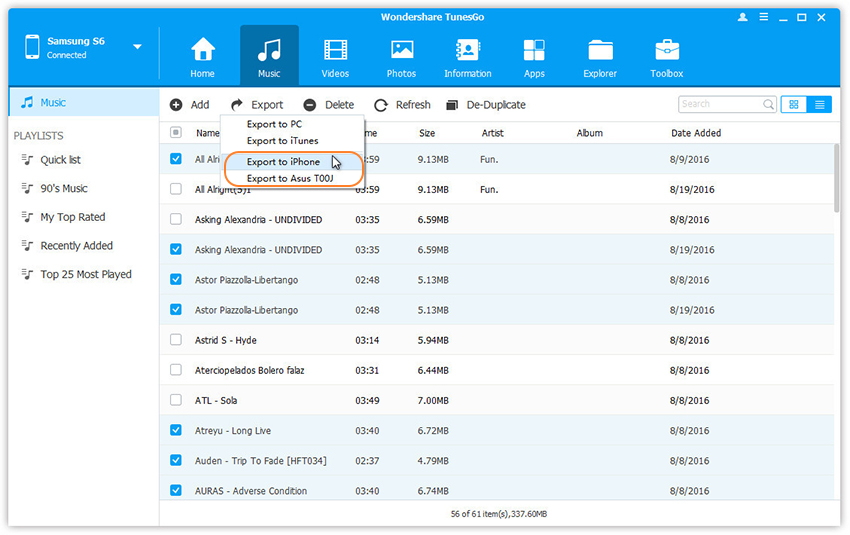
Choose your wanted songs and click Export. Select another device from the list. For example, you can transfer music from iPhone to Samsung by selecting Export > Export to Samsung directly.

select-samsung-device-to-export

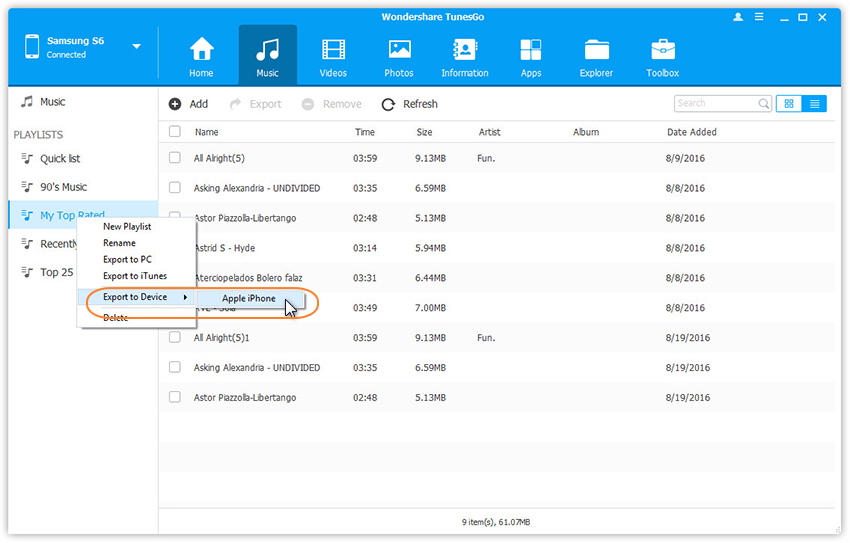
You can also transfer the whole music playlist from Samsung to another in one click.

export-music-to-samsung

d_win d_mac

Related Article:

How to Transfer Music from Computer to Samsung Galaxy S6/S7

How to Transfer Videos to Samsung Galaxy S7

How to Transfer Photos between Computer and Samsung Galaxy S7/S7 Edge

How to Manage Samsung Galaxy S7 on Computer

How to Manage Samsung Galaxy S6/S5/S4/S3/Note on PC/Mac

How to Recover Pictures from Broken Samsung Galaxy Note 5/4/3/2

“A couple days ago, I finally made it to recover the accidentally deleted pictures for my wife’s Galaxy Note 5 by following the above step-by-step tutorial.The tool is so powerful that can restore a couple of data from broken Samsung device,such as pictures,contacts,text messages, etc,… I just got the whole photo gallery back thanks to this great app.”-Kelly

A common situation that we often encounter: You have taken a large number of meaningful pictures to record the interesting moment in life with your Samsung Galaxy Note phone.All of a sudden, your device get broken by carelessly,and sometimes you even don’t know why.If you wanna restore the pictures from the broken device without complicated steps,you have came to the right place.Read on this post to get the best solution to extract data like pictures,contacts, text messages, call logs, videos, and more data from your broken Samsung Galaxy Note 5/4/3/2.

Restore Pictures from Broken Samsung Galaxy Note 5/4/3/2

The simplest way to recover data from broken Samsung is using Broken Android Data Recovery.This program empowers you to download recovery package for broken Samsung devices and restore pictures from broken Samsung Galaxy Note 5/4/3/2 with one click.Except pictures,contacts,messaging,videos,call logs,audio,WhatsApp messages & attachments,documents are also allow to extracted from broken Samsung device by Broken Android Data Recovery.Even if your phone cannot be turned on or the touch screen is unusable completely,the program can make the data on the phone accessible and recoverable.Additionally,Broken Android Data Recovery works well for most models of Samsung devices,including Note 7/5/4/3,Galaxy S7/S6/S5/S4/S3,A9/A8/A7/A5,etc,.

d_win d_mac

Check Supported Broken Samsung Galaxy Note Devices:

Note 3: SM-N900, SM-N9002, SM-N9005, SM-N9006, SM-N9007, SM-N9008 SM-N9008V, SM-N900S

Note 4: SM-N9100, SM-N9106W, SM-N9108V, SM-N9109W, SM-N910C, SM-N910F, SM-N910G, SM-N910H, SM-N910K, SM-N910L, SM-N910P, SM-N910R4, SM-N910S, SM-N910T, SM-N910U, SM-N910V, SM-N910W8

Note 5: SM-N920C, SM-N920G, SM-N920I, SM-N920K, SM-N920L, SM-N920P, SM-N920R4, SM-N920S, SM-N920T, SM-N920W8

How to Recover Pictures from Broken Samsung Galaxy Note 5/4/3/2

Download and launch Android data recovery on your computer,then select “Broken Android Data Extraction“.

Step 1.Connect your Broken Samsung to the Computer
Please connect the broken Samsung Galaxy Note phone to the computer with USB cable.

connect broken samsung to computer

Step 2.Select the File Types you Need to Restore from Broken Samsung Phone
You’ll be taken to a screen with all kinds of supported file types that you can recover from your broken Samsung Galaxy Note 5/4/3/2 phone.Select “Gallery” if you want to recover pictures.Then, click the “Next” button.

scan broken samsung galaxy note phone

Step 3.Choose a Phone Fault Type
Now,you need to select a phone fault type of your device.Please select “Touch doesn’t work or cannot access the phone” or “black/broken screen” option.

choose phone broken types

Then you need to select your device’s name and model.If you are not sure of the Samsung mobile phone model you own, hit the “How to confirm the device model” to check it.

choose samsung model

Step 4.Enter Broken Samsung Phone into Download Mode
Once you choose the phone name and model, you will be asked to get your broken Samsung phone into the Download Mode. Just follow the three steps displayed on the window to finish it. After you finished the 3 steps of the guide and hit the “Start” button to go on.

> Power off your device
> Press the volume down, Home and Power button at the same at the same time
> Press the volume up button to enter “Download Mode”

broken samsung download mode

Step 5.Analyze Broken Samsung Galaxy Note Phone
After entering Samsung into download mode,the program will download recovery package to your broken Samsung Galaxy Note phone.

scanning data broken samsung galaxy note

Step 6.Restore Pictures from Samsung Galaxy Note 5/4/3/2
Upcoming screen shows all recoverable files from the Samsung phone.Preview them one by one and mark down those you need.Finally, click “Recover” to save all of them on your computer.

recover pictures broken samsung galaxy note

d_win d_mac

Related Article:

How to Recover Data from Broken Samsung Galaxy Note 5/4/3/2

How to Recover Photos from Broken Samsung Phone

How to Recover Data from Broken Samsung Phone

How to Recover Lost Data from Broken Samsung Galaxy

How to Restore Contacts from Broken Samsung Phone

How to Recover Deleted SMS from Broken Samsung Phone

How to Recover Photos from Broken Samsung Galaxy S6/S6 Edge

Summary:We always receive questions like that “How to recover photos or files from a phone with a broken screen?” and in this post, I will provide the best solution to you, to solve this issue with the broken Samsung Galaxy phone S6 as the example.

“I accidentally dropped my phone carelessly this morning.The screen and the back glass are both heavily damaged.I can power it on as usual but the screen still black.What’s up?I just want to get back my precious photos from this broken phone.Any suggestions?My phone is Samsung Galaxy S6.”-Phoebe

recover photos from broken s6

Would you be anxious if your Samsung mobile phone turns into blank screen?Get broken/damaged?Water damaged?Probably most of us would say yes.Take me for example,when facing with this troublesome situation,I remembered that I was rely on the extra professional data recovery to complete the recovery job.Broken Android Data Recovery would be a helper for you to recover the photos from broken Samsung phone.

Recover Photos on Broken Samsung Galaxy S6/S6 Edge

When it comes to Broken Android Data Recovery,it enable to download recovery package for broken Samsung devices and restore photos from broken Samsung Galaxy S6/S6 Edge.Broken Android Data Recovery is an ideal data recovery for retrieving data from broken Samsung device,including photos,contacts,messaging,videos,call logs,audio,WhatsApp messages & attachments,documents.It’s just a piece of cake to get back the data from broken Android device under any circumstances:black screen,broken/damaged screen,water damaged,etc,.Supported Android devices for example Samsung (Galaxy S3/S4/S5/S6/S7,Note 3/4/5/8),Google(Pixel,Nexus),Motorola,HTC,LG,Sony,Huawei,Xiaomi,and so on.

d_win d_mac

Check Supported Broken Galaxy S6 Mode:

Galaxy S6:SM-G9200, SM-G920F, SM-G920P, SM-G920T, SM-G925F, SM-G925P, SM-G925T, SM-G928P, SM-G928T

Restore Photos on Broken Samsung Galaxy S6/S6 Edge

Download and launch the program on your computer,then select “Broken Android Data Extraction” mode in the home page of program.

Step 1.Connect your Broken Samsung to Computer
Firstly please connect your broken Samsung Galaxy S6/S6 Edge to the computer with USB cable. Click “Start”  on the left side to go on.

broken android data recovery home page

Step 2.Select File to Scan by Program
Next,you should select the types of files to scan for by program,contacts,messages,photos,videos,audio,call logs,WhatsApp messages & attachments,documents are included.Just simply click “Select all” if you want to scan all data from broken Samsung.If you only need to restore the photos,just click “Gallery“.

select gallery file to scan

Step 3.Select the Broken Style of your Samsung
In this step,Broken Android Data Recovery will request to know exactly what is wrong with the device.Choose one situation that match your device and click “Next” to go on.

choose broken type of Samsung

Step 4.Choose the Model of Samsung
In the next window,select the correct name and model of your device.In this case,you can click “Galaxy S6” then clicking “confirm“.If you are unsure you could click on “How to confirm the device model” for help.

choose samsung model

Step 5.Get Broken Samsung into Download Mode
Follow the instruction on how to enter “Download Mode” for your broken Samsung.

get broken samsung into the download mode

Step 6.Analyze Data of the Broken Samsung
Once the phone entering to the “Download mode” successfully,the program will start to download “recovery package” for the device within a few minutes,please wait patiently.When the downloading is completed,the selected data from broken Samsung will be list.

analyze data of broken samsung

Step 7.Preview and Extract Photos from Samsung Galaxy S6/S6 Edge
After analyzing and scanning,all the data on the device will be displayed in the resultant window. Select the photos under the “Gallery” file you would like to extract from the phone and then click on “Recover” button to save it on your computer.Finished.

recover photos from broken samsung galaxy s6

d_win d_mac

Related Articles:

How to Recover Data from Broken Samsung Galaxy S6

How to Recover Photos from Broken Samsung Phone

How to Recover Data from Broken Samsung Phone

How to Recover Lost Data from Broken Samsung Galaxy

How to Recover Data from Broken Samsung Galaxy Note 5/4/3/2

How to Recover Deleted SMS from Broken Samsung Phone

How to Manage Samsung Galaxy S6/S5/S4/S3/Note on PC/Mac

“Hello.I just switch my Samsung Galaxy Note 4 phone to the Galaxy S7 phone,however,some videos and songs saved on my computer,now I am searching the easiest way to transfer the media files to my new device at once.Do you have any good idea to help me complete this job? I’ll greatly appreciate it!”Nancy

If you are one of the Samsung fans,you must be interested in searching the useful data manage tool to manage your Samsung device conveniently.To old Samsung fans, they are perhaps very familiar with Samsung Kies.But to some new users,little did they know about this app.Samsung Kies, a freeware developed by Samsung Inc, works as a data manager for Samsung phones.It enables you to manage the content stored in your handset through computer.But if you wanna a better tool to manage your device more effectively,you should be focus on the following passages.

Samsung Manager-Manage Samsung Galaxy/Note on Computer

Samsung Manager can lead you to a life enhancing experience on your Samsung device in nowadays. Sounds cool and specially.Right?Now I’m going to introduce the features of Samsung Manager to you all Samsung users.Samsung Manager is a product which comes to Samsung Android device data managing.With this program,you are allow to transfer and manage data for Samsung Galaxy/Note phone on computer,including music,videos,photos,contacts,SMS.Generally speaking,Samsung Manager enable to transfer data between Samsung and computer,transfer data between Samsung and iTunes,transfer data between Android device and iOS device.Samsung Manager compatible with almost all models of Samsung phones,including Galaxy S7(Edge)/S6(Edge)/S5/S4,Note 5/Note 4/Note 3,A9/A7/A5,etc,.

d_win d_mac

Part 1:Manage Samsung Galaxy S6/S5/S4/S3/Note Videos on Computer

Launch Samsung Manager and connect your Samsung phone to computer.Your Samsung phone will be detected and displayed in the primary window.

samsung-galaxy-s7-manager-mian-page

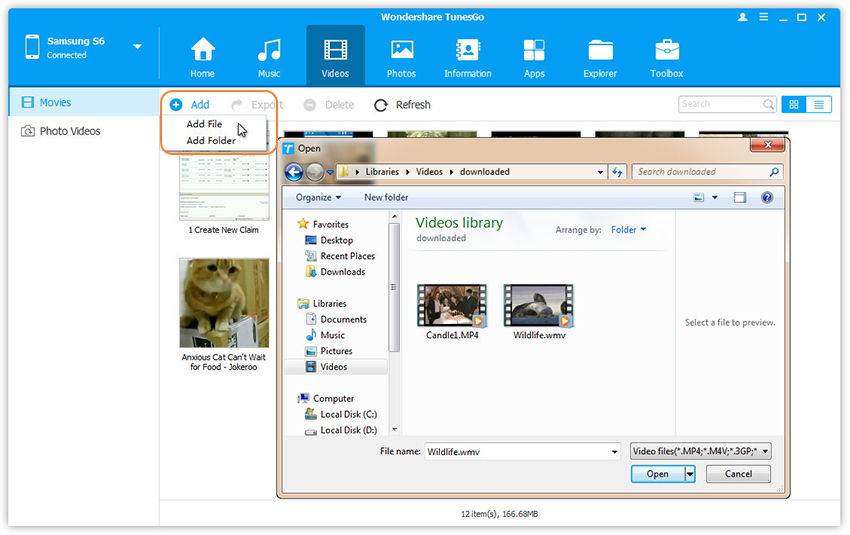
Step 1.Select Videos tab.Once your media loads,click Add > Add File or Add Folder.

add-videos-from-pc-to-samsung

Step 2.This brings up your file browser window,from which you can select videos to import from your computer.All videos imported can be watched with the built-in player.You can simply Drag and Drop videos from computer to Samsung phone.

d_win d_mac

Part 2:Manage Samsung Galaxy S6/S5/S4/S3/Note Music on Computer

Launch Samsung Manager and connect your Samsung phone to computer.Your Samsung device will be detected and displayed in the primary window.

samsung-manager-mian-page

Step 1.Select Music File to Transfer
Select Music tab.Once your media loads, click Add > Add File or Add Folder.

sync-music-from-pc-to-samsung

Step 2.Sync Songs from Computer to Samsung Phone
This brings up your file browser window, from which you can select songs to export from your computer.And you can also create new playlist by right clicking Music to save the imported songs.You can simply Drag and Drop music files from computer to your Samsung.

d_win d_mac

Part 3:Manage Samsung Galaxy S6/S5/S4/S3/Note Contacts on Computer

Samsung Manager makes it extremely easy to add and edit contacts, group contacts, merge duplicate contacts and delete useless contacts in batches.Samsung Manager also allows you to manage contacts on your Phone, SIM card, iCloud, Exchange, Yahoo! and other accounts. In the following part, we would like to show you the detailed tutorial.

Launch Samsung Manager and connect your Samsung phone to PC.

samsung-manager-main-page

Manage Contact Groups
Step 1. Click Information tab. In the contact management window, select and expand account from which you want to add and edit contacts, including your phone Contacts, SIM Contacts and Google Contacts.

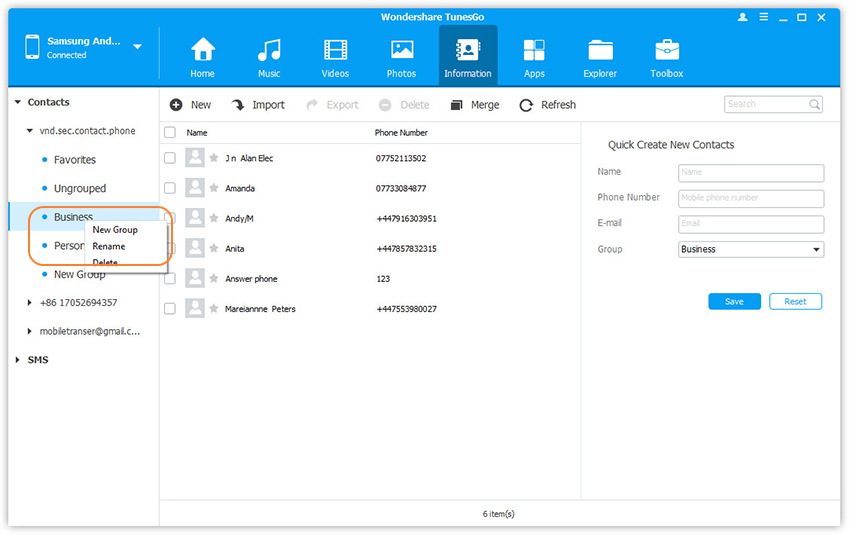
Step 2. Right-click the contact groups on the left panel.
You can select to create New Group, Rename Group, or Delete Group.
select-option

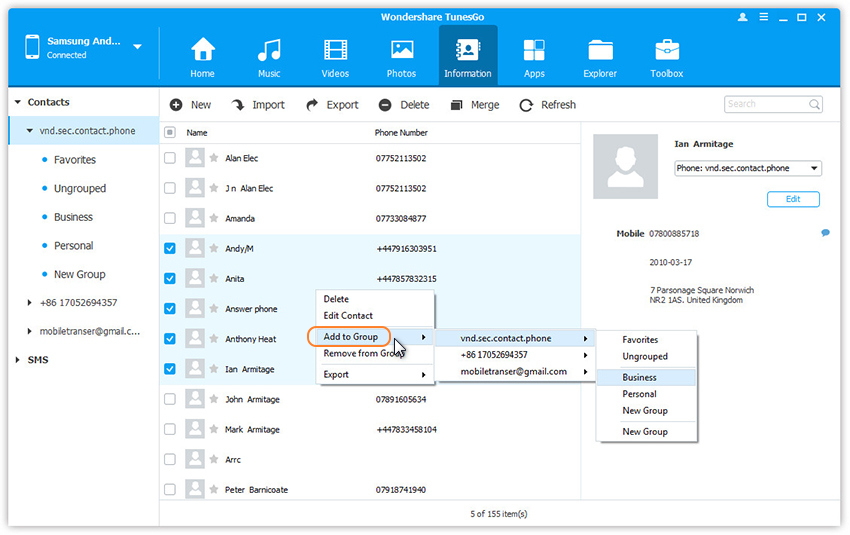
Step 3. Right-click on selected contacts, you can add contacts to specified group.

add-contacts-to-groups

Merge Duplicates
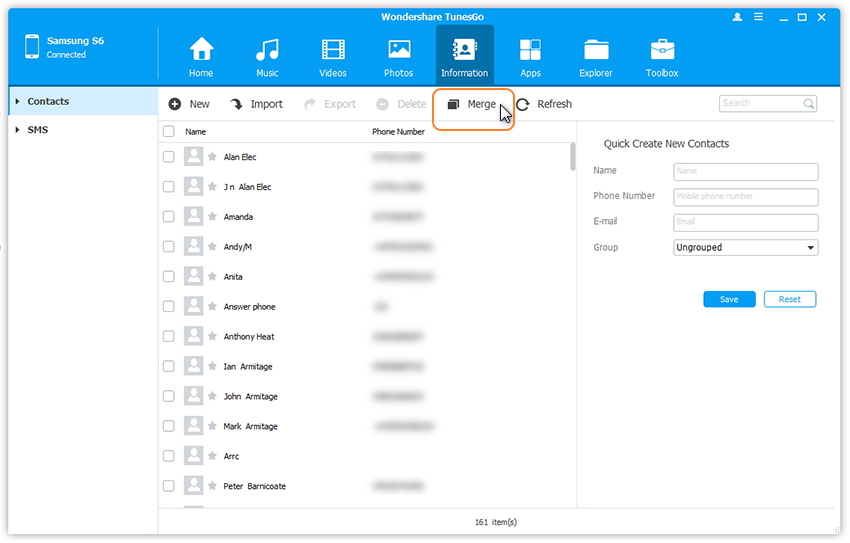
Step 1. Click Information tab. In the contact management window, click Merge.
merge option

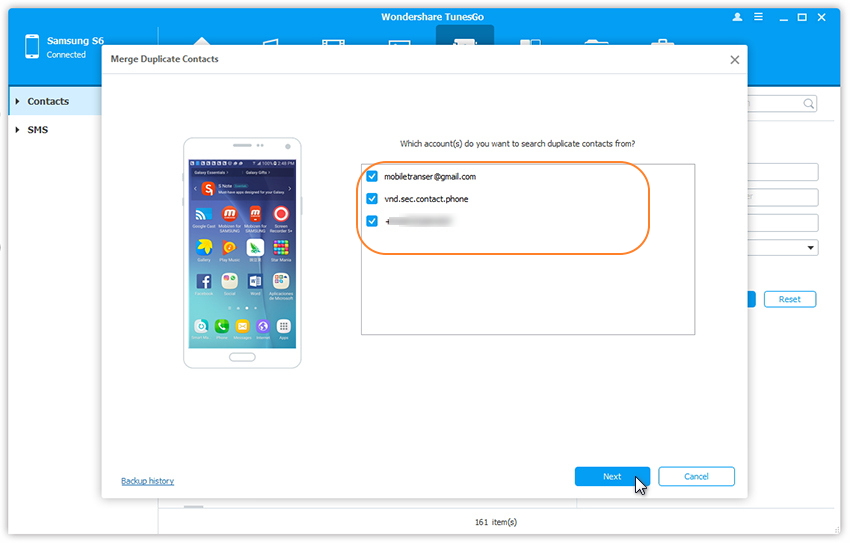
Step 2. Select account(s) from which you want to search duplicate contacts, including your phone Contacts, SIM Contacts and Google Contacts.

select-account-to-merge-duplicate-contacts-on-samsung

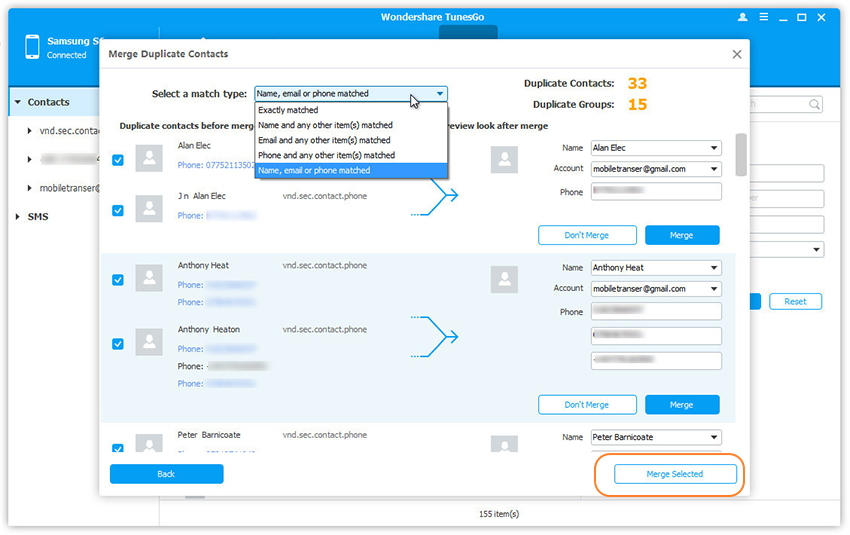
Step 3. All duplicate contacts that have the same name, phone number or email will appear for your review.

Step 4. Select a match type to find duplicate contacts.

merge-duplicate-contacts-on-samsung

Step 5. Click Merge Selected to merge all the contacts or Merge selected contacts one by one.

How to Add & Edit Contacts
Step 1. Click Information tab. In the contact management window, select account and group from which you want to add and edit contacts, including your Phone Contacts, SIM Contacts and Google Contacts.

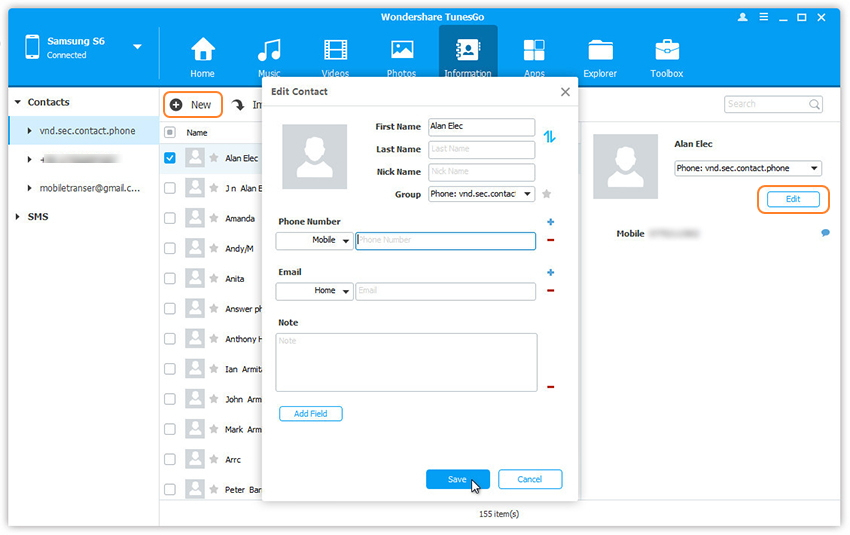
Step 2. Click New to open the Add to contact window. As you can see, you can edit name, email, phone number, website, address, middle name, etc. You can also search and Edit selected contacts.
add-and-edit-samsung-contacts

Delete Contacts in Batches
Step 1. Click Information tab. In the contact management window, select group from which you want to delete unwanted contacts, including your Phone Contacts, SIM Contacts and Google Contacts.

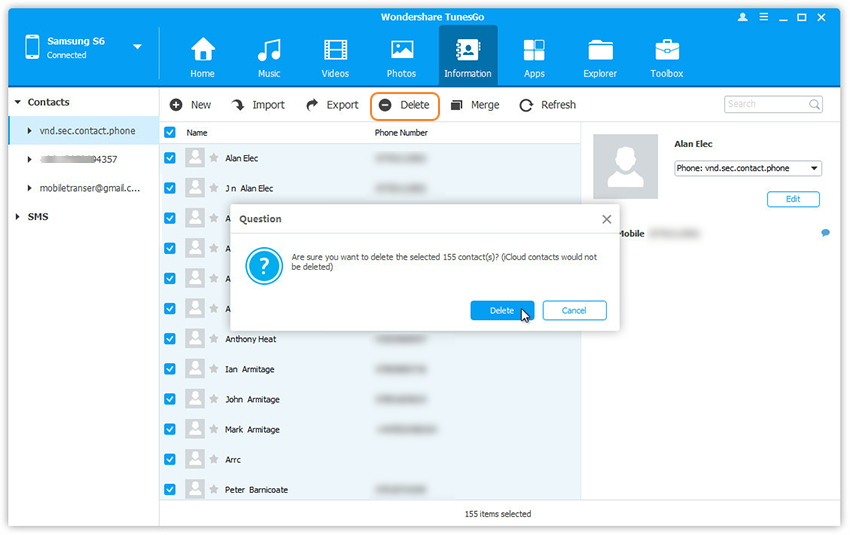
Step 2. Tick Contacts you want to delete and click Delete.

delete-samsung-contacts

Step 3. In the pop-up dialog, click Yes.

d_win d_mac

Part 4:Manage Samsung Galaxy S6/S5/S4/S3/Note SMS on Computer

Samsung Manager works like a desktop SMS assistant, helping to manage all SMS of your Samsung phone on computer. With it, you can save SMS and transfer to computer, send and receive SMS on computer, and mark unread SMS as read.

Launch Samsung Manager and connect your Samsung phone to PC.

samsung-manager-main-page

Delete Messages in Batches
Step 1. Click Information tab, then select SMS on the left panel. All messages will be shown on the right.
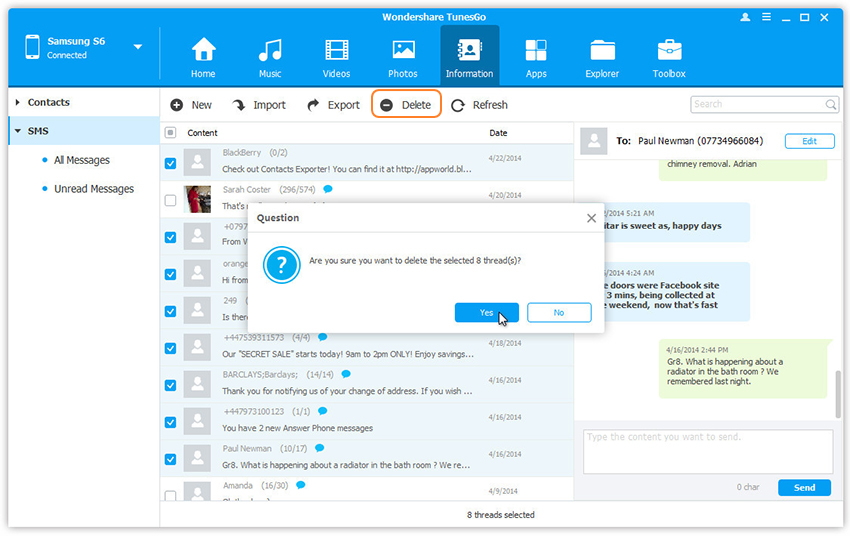
Step 2. Tick Messages you want to delete and click Delete.

delete-samsung-sms
Step 3. In the pop-up dialog, click Yes.
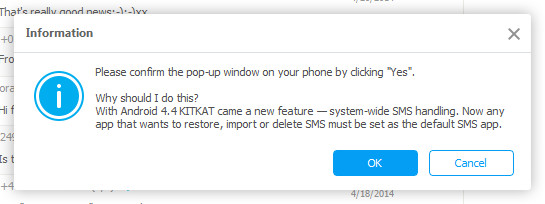
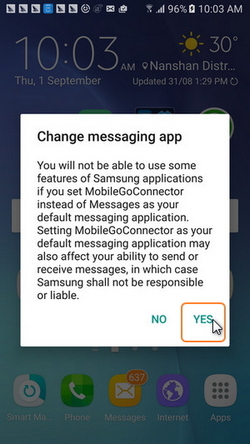
Note: The program may ask you to set MobileGoConnect as your default messaging application, as shown below. Tap on Yes on your device first, and then confirm it on your PC.

set-default-sms-app

change-messaging-app

Send Messages via PC
Step 1. Click Information tab, then select SMS on the left panel. All messages will be shown on the right.
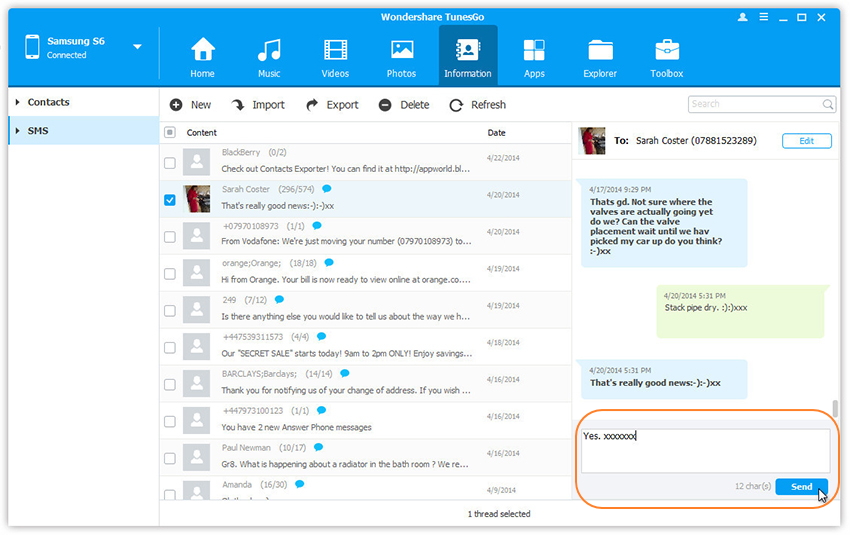
Step 2. Search and read selected messages. You can simply type the content and click Send to send messages via Samsung Manager on the computer.
send-message-on-pc

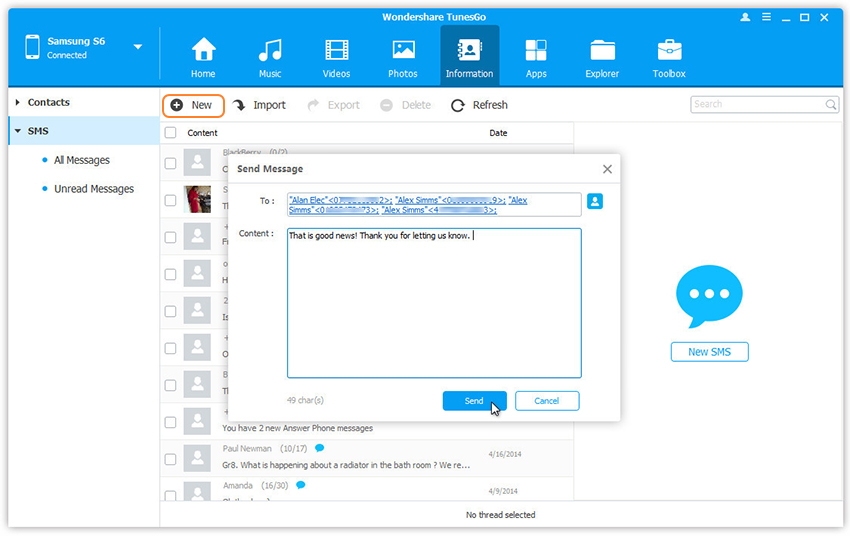
Or you can click New SMS on the right column to create and send a new message to multiple recipients.

create-and-send-new-message-on-pc

d_win d_mac

Related Article:

How to Manage Samsung Galaxy S7 on Computer

How to Manage Google Pixel on Computer

How to Transfer Videos to Samsung Galaxy S7

How to Transfer Photos between Computer and Samsung Galaxy S7

How to Transfer Music from Computer to Samsung Galaxy S6/S7

How to Restore Contacts from Broken Samsung Phone

“I just dropped my phone to the floor when I was laughing and talking with my friend.Some goes wrong with my Samsung Galaxy S6,which has been used for some years.I feel so sad about it,and the most frustrating thing is that I can’t get all the contacts from the broken Samsung device.What can I do now? Please send me your help.”-Lisa

To assume that your Samsung is dropped to the ground by you carelessly,then the phone screen is cracked;or the device is dead due to other reasons like virus attack.If the unfortunate situation is happen to you,please take it easy.Many people must ever be feel confuse that when your device is broken in daily life.Any possible malfunctioning factors may trigger the issue such as device broken or damaged.It is totally possible to use a data recovery to help your extract the contacts from the broken device.The solution to solve the problem must be the Broken Android Data Recovery.

Restore Contact from Broken Samsung

Broken Android Data Recovery-a perfect data recovery for broken Android device,including broken screen device,black screen device,water damaged device,device with touch screen not working,etc,.With this program,you are allow to download recovery package for broken Samsung and restore contacts from broken Samsung completely,not only contacts,but also photos,videos,messages,audio,call logs,WhatsApp messages & attachments,documents,are supported to restored by Broken Android Data Recovery.Almost all models of Samsung devices are compatible with this program,such as Samsung Galaxy S4/S5/S6/S7,Note 3/4/5/7,A7/A8/A9,and so forth.

d_win d_mac

How to Restore Contacts on Broken Samsung Phone

Step 1.Connect your Broken Samsung Phone to Computer
Run program on computer then select ” Broken Android Phone Data Extraction ” mode.After clicking the option,you will get the following main window,now you should connect your broken phone to the computer.Click “Start” to begin the data extraction process.

connect broken samsung to pc

Step 2.Select the File Types to Restore from Broken Samsung
Select the files you need to restore from broken Samsung.Including all file of recovery option from Samsung(contacts,photos,videos,messages,audio,call logs,WhatsApp messages & attachments,documents) and click “scan it” button.You can click “select all” to select all file at once.Or if you just wanna restore contacts from device,you can only click “contacts”.

scan broken samsung

Step 3.Select the Fault Type of Broken Samsung Phone
Before restoring your broken Samsung phone,there are two options to choose from the system- “touch doesn’t work or can not access the phone” and “black/broken screen”.You should choose the appropriate one depends on your phone.

choose broken types

Step 4.Select the Model of Your Phone
Select the proper Android version and phone models that you are using.

select device model

Step 5.Enter Samsung into Download Mode
· Hold the Power key to power off the Phone
· You next have to press the volume down key,the Power key as well as the Home key at the same time
· Next up leave all the keys and press the volume up key to enter the download mode of the phone

broken samsung download mode

Step 6.Analysis of the Broken Samsung Phone
Note:You should keep connecting your Samsung to the computer.
After the Samsung entered the “Download mode” successfully,the program will start to download “recovery package” for it,it will take you a few minutes,please wait patiently.
When the downloading is end,the selected data from broken Samsung will be list.

scanning data broken samsung

Step 7.Preview and Restore Contacts from Samsung
When finish scanning your Samsung,you are allow to preview and restore selected contacts from Samsung.Just simply click “Recover” button and save them on the computer or to your Samsung device.

restore contacts broken samsung

d_win d_mac

Related Article:

How to Recover Data from Broken Samsung Phone

How to Recover Photos from Broken Samsung Phone

How to Recover Deleted SMS from Broken Samsung Phone

How to Recover Data from Broken Android Phone

How to Recover Photos from Broken Samsung Phone

“My Samsung Galaxy S5 phone was get into the washing machine carelessly by my mother,now the device is water damaged.I can’t power it on for trying several times.I just wanna get back the photos from the broken phone.Any possible and easy ways?”– Nikki

There are many unfortunately circumstances you may encounter in life that due to damage your Samsung phone,for example accident dropping, water damaged.Then you are in consensus at the result: My Samsung phone is broken.When your phone is broken/damaged/smashed/cracked,it can cause the pity for losing precious data especially the meaningful photos on your broken phone if you haven’t backup.Now the question is coming:How to restore/extract photos from your broken Samsung phone?

Recover photos on Broken Samsung Phone

Thankfully,Broken Android Data Recovery now is come to save your data from broken device,it enable to download recovery package for broken Samsung and restore photos from broken Samsung completely.Besides photos,this program help to restore various of data on broken device,including contacts,messages,videos,audio,call logs,WhatsApp messages & attachments,documents.Supported Samsung models:Samsung Galaxy S4/S5/S6/S7/S8,Note 3/4/5/8, Galaxy A7/A8/A9,and so on.Additionally,it works well with Android device from almost all popular brands,like Samsung, Google Pixel,Nexus,Huawei,Xiaomi,Motorola, LG, Sony, HTC, ZTE, etc,.

d_win d_mac

How to Recover Photos from Samsung with Broken Screen

Download and launch Android data recovery on your computer,then select “Broken Android Data Extraction” in the main page of the program.

Step 1.Connect your broken Samsung phone to Computer
You will get the following main window,now you should connect your phone to the computer.

connect broken samsung to computer

Step 2.Select the Data Type you need to Restore
Now the program will start to scan the data on your broken Samsung.The scan will take you a little time to waiting. After that, you can preview all recoverable data found in the scan result one by one. Actually, the current including the deleted/lost or existing data are also scanned out in the result. You can distinguish them by different color.Now you can click the option which is the type data name.If you want to recover all files at once,please click on “Select All”.For photos recovery,you should click “Gallery”.

choose photos

Step 3.Select What Fault Types of Your broken Samsung
In this step,then the program will guide you to another screen,you will see the following screen.There are two fault types of phone choices: “touch doesn’t work or can not access the phone” and “black/broken screen”.Select one depend on your broken Samsung.

choose phone broken types

Step 4.Select Your Broken Samsung Device Model
According to option to select the brand and model of your phone.If you are not sure what model of your Samsung device,please click the “How to confirm the device model” option.

choose samsung model

Step 5.Enter Download Mode for Broken Samsung
In this step,you will follow different steps to enter download mode.

broken samsung download mode

Then,please click the “Start” button,the countdown will display on the phone screen in the program to tell you how to download mode for the device.

Note: During the process of getting into “Download mode”,remember keep connecting your broken Samsung to the computer via USB cable.

Step 6.Analyze Data on Broken Samsung
After entered the “Download mode”,the program will start downloading “recovery package” to restore your Samsung phone with a short time.

scanning data broken samsung

When the downloading finish,the selected data stored in the device will scanned out.

Step 7.Preview and Restore Photos from Samsung
Once finish scanning the your Samsung,you are allow to preview and restore selected photos from Samsung.Just simply click “Recover” button at the lower-right corner and save them on the computer or recover back to your Samsung device.

recover photos broken samsung

d_win d_mac

Related Article:

How to Recover Data from Broken Samsung Phone

How to Recover Lost Data from Broken Samsung Galaxy

How to Recover Data from Broken Samsung Galaxy S6/S7
How to Recover Deleted SMS from Broken Samsung Phone

How to Recover Data from Samsung with Broken Screen

How to Recover Data from Broken Android Phone

How to Recover Data from Broken Samsung Galaxy S6/S7
“I cracked my Galaxy S6 screen due to my carelessness. When I tried to turn it on the screen was completely black. The phone still vibrates and lights up when I get a message or turn it on but the screen remains black. I decide to buy a new Android phone, and want to know how can I access and restore contacts,messages on my old Galaxy S6.”-Bill

It is frustrating when your Samsung phone is broken, for example, black screen,broken screen,unable to enter the system or the touch screen not working. Nobody wants to be in a situation that your Samsung phone is broken.However, unexpected accident always comes without your permission.If your Samsung device is broken, you may eager to get back all important data like contacts and text messages from this damaged device,especially when you didn’t backup your data.This page introduces you the best way to recover data from broken Samsung phone in simple steps.

recover data on broken Samsung S7

Restore Data from Broken Samsung Galaxy S6/S6 Edge

Fortunately,Broken Android Data Recovery have the ability to help download recovery package for broken Samsung devices and restore data from broken Samsung Galaxy S6/S7,as well as all models of Samsung and Android device.The recoverable data including contacts,messages,photos,videos,audio,call logs,WhatsApp messages & attachments,documents.With the help of this application,you can effectively retrieve files from Android phone with broken screen,black screen,unable to enter the system or the touch screen not working,etc,.Supported Samsung models:Samsung Galaxy S4/S5/S6/S7,Note 3/4/5/7,A7/A8/A9,and so on.

d_win d_mac

How to Restore Data on Broken Samsung Galaxy S6

Download and launch Android tool kit on your computer,then select “Broken Android Data Extraction” in the main page of Android tool kit

Step 1.Connect your Broken Samsung to Computer
Please connect the broken Samsung Galaxy S6 to computer with USB cable.

connect broken samsung to computer

Step 2.Select File to Scan
Next,you should select the types of files to scan for,such as contacts,messages,photos,videos,audio,call logs,WhatsApp messages & attachments,documents.Just simply click “Select all” if you want to scan all data from broken Samsung.

scan broken samsung galaxy phone

Step 3.Select the Broken Style of your Samsung
Broken Android Data Recovery will then request to know exactly what is wrong with the device.Choose one situation that match your device to proceed.

choose phone broken types

Step 4.Choose the Model of Samsung
In the next window,you should select the correct name and model of your device.If you are unsure you can click on “How to confirm the device model”.

choose samsung model

Step 5.Get Broken Samsung into Download Mode
In this step,you will be provided with instructions on how to enter “Download Mode” for your broken Samsung.

broken samsung download mode

Step 6.Analyze Data of the Broken Samsung
When entered the “Download mode” successfully,the program will start to download “recovery package” for your Samsung,it will take you a few minutes,please wait patiently.When the downloading is completed,the selected data from broken Samsung will be list.

analyze data broken samsung galaxy

Step 7.Preview and Extract Data from Broken Samsung Galaxy S6
After analyzing and scanning,all the data on the device will be displayed in the resultant window. Select the ones you would like to extract and then click on “Recover” button.Done.

recover data broken samsung galaxy s6

d_win d_mac

Related Article

How to Recover Data from Broken Samsung Phone

How to Recover Lost Data from Broken Samsung Galaxy

How to Recover Data from Broken Samsung Galaxy Note 5/4/3/2

How to Recover Deleted SMS from Broken Samsung Phone

How to Recover Data from Samsung with Broken Screen

How to Recover Data from Broken Android Phone