All posts by DHZ

How to Transfer iTunes Music to Huawei Mate 9

Huawei Mate 9 is the big-screened phone worth to buy.The Huawei Mate 9 has more power than you’ll need, a camera that’s great for arty shots and a battery that won’t quit on you by dinner.The P9 may well be one of the best-selling phones Huawei has ever made, but it lacked the power needed to go head-to-head with flagship devices from Samsung, HTC or OnePlus.With an even better dual-sensor Leica camera and the incredibly powerful Kirin 955 processor, Huawei hopes the Mate 9 will set a new bar for flagship smartphones.

Purchased multiple songs in iTunes,but what do you do when you buy a new Huawei Mate 9 phone to replace?As you know,it’s really a little bit hard to transfer the music between iTunes library and Android device normally.Feel frustrated?How to transfer music from iTunes to Huawei Android phone?In this guide,we are teaching you the solution on how to transfer iTunes music to Huawei Android phone step by step.

Transfer Music from iTunes Library to Huawei Mate 9

Android Manager is a popular phone data manager for managing and transferring data for Huawei Mate 9 Android phone,enable to transfer music from iTunes to Huawei Mate 9 seamlessly,including the songs,playlists,and attachments.Android Manager provide you an easy way to transfer data between iTunes and Android device,transfer data between computer and Android device,transfer data between Android device and iOS device.The transferable data including music,videos,photos,contacts and SMS.It is possible to manage and transfer data for most of Android devices,for instance Huawei (Mate 9,Honor P9, Honor P8, Honor 5X, Honor 6, Honor 6 Plus, Honor 3X,Honor 4X),Samsung(Galaxy S7/S6,Note 5/4/3,A7/A5),Sony,Google(Pixel,Nexus),HTC,Xiaomi,ZTE,Motorola,etc,.


d_win d_mac

Selection A: Export iTunes Music to Huawei Mate 9 with Android Manager

Launch Android Manager and connect your Huawei Mate 9 phone to computer.Your Android device will be detected and displayed in the primary window very soon.

Step 1.Select the Transfer Selection of Program
Simply click Transfer iTunes Media to Device on the main interface of Android Manager.Or find the Transfer iTunes to Device option under Toolbox > Transfer Tools section.
android manager main page

Step 2.Select Music File to Transfer to Huawei
Check options and start to copy media from iTunes to Huawei Mate 9.All the iTunes files will be scanned and will be shown under different categories like music, movies, podcasts and others.By default,all the file types will be selected but to transfer only the music files,you can uncheck the others.Click Transfer to begin transferring.

select itunes music to huawei

transfer itunes music to huawei

d_win d_mac

Selection B: Convert and Play iTunes Music on Huawei Mate 9 with Apple Music Converter

With the helps of Apple Music Converter, you are able to convert Apple music from M4P to MP3 and play on Huawei Mate 9 without time limitation. This software is an excellent tool which empowers to load a collection of Apple M4P songs(iTunes songs) then easily remove Apple Music DRM and output DRM-free MP3, M4A, etc,. for playing on any computer and audio devices such as, Android device, iPod, PSP, Zune, MP3 player, mobile phones, etc,. Apple Music Converter works well for most popular brands of Android, including Huawei, Samsung, HTC, Sony, LG, Lenovo, Motorola, OnePlus.

d_win d_mac

Let’s Sum up the Features of Apple Music Converter:
-Remove DRM from Apple Music songs and convert Apple Music M4P songs to DRM-free MP3, M4A, etc.
-Convert Apple Music songs at up to 16X speed.
-Enjoy Apple Music tracks in anywhere and at anytime.
-Convert iTunes/Audible audiobooks to MP3/M4A, etc.
-Preserve Audiobook chapter information to M4A output.
-Keep original data to MP3, M4A audio files.

A guide you may be interested in:

How to Play Apple Music on Huawei Phone

Step 1. Run Apple Music Converter on PC or Mac
To begin with, please run Apple Music Converter program on your computer.

launch apple music converter

Step 2. Choose Apple Music to Convert
Select the Apple music you want to convert, like music, playlists, Audiobooks, M4P Audio, iTunes movies and TV shows. Click “Download“.

Step 3. Choose MP3 – Output Format to Convert
Select MP3 as the format for the converted iTunes music.

Step 4. Convert iTunes Music to MP3 for Huawei Mate 9
Click “Start Convert” to start the conversion on the computer.

convert itunes music to mp3 for huawei

Step 5. View the Converted Apple Music on the Computer
When the conversion is completed, you could explore the output files and folders by clicking “Open Output File” button to view the converted music file on the computer.

Step 6. Transfer Converted Apple Music to Huawei via Android Manager
Last bust not least, you should transfer the converted music to your Huawei phone via Android Manager.

Related Article:

How to Restore Data from Huawei Mate 9

How to Recover Data from Huawei Phone

How to Backup and Restore Huawei Phone

How to Transfer Music between iTunes Library and Google Pixel
How to Transfer Music from Samsung Galaxy to iPhone 7/6S/6

How to Unlock Samsung Galaxy without Passcode

[Summary]: Forgot Password (Pattern/PIN Code) on Samsung phone? Here is the most effective ways to easily bypass the password of your Samsung Galaxy S10/S9/S8/S7/Note 10/Note 9/Note 8/Note 5/Note 4/J7/J6/J5/J4/J3 and LG phone.

How Can I Unlock Samsung Galaxy S6 Locked Screen?

“I can’t access my Galaxy S6 phone from this morning.I don’t know what’ happened to me.May be I entered the wrong passcode but I’m not sure.Can anyone help me?Thank you so much.Appreciated!”-Zara

How to Unlock the Screen Lock on Samsung Galaxy S8?

I forgot the password on my Samsung Galaxy S8 with new passcode that I setted in the morning,any way to unlock/bypass Lock screen passcode on Samsung Galaxy S8?” – Simi

unlock samsung galaxy s6 locked screen

How to Unlock Samsung Galaxy Lock Screen If Forgot Passcode?

It is such terrible when you lock your Samsung phone carelessly.It is usually recommended to setup lock screen security for your mobile device for protect the personal data on the phone and avoid possible data loss of the phone.Anyway,the stupid unlock policy is here to protect your data from unauthorized access.Recently we can see too much question like this ”How to unlock my phone without passcode”,”How to remove the Samsung locked screen without passcode”.When you eager to looking for the solution to solve the locked problem,just come to join us with this topic,we are going to show you the detail steps on how to remove Samsung locked screen without passcode.

Unlock Samsung Galaxy Locked Screen with 1 Click

The best way to remove Samsung Galaxy S7/S6 locked screen without data loss is using this ideal tool : Android ToolKitAndroid Lock Screen Removal. It help Samsung users disable the passcode and pattern lock issues on Samsung device within several simple steps, useful for unlocking Samsung device without passcode in minutes. This powerful program work well for most of Android devices, like Samsung (Galaxy S10/S9/S8/S7/S6,Note 8/5/4/3,A7/A5),vSony,vGoogle(Pixel,Nexus), Huawei(Mate 30/P30), Motorola, HTC,Xiaomi, ZTE, etc,. In addition, this Android Toolkit enable to recover data from Android device after losing data under any circumstances.

d_win d_mac
d_win d_mac

  • Remove pattern, PIN, password & fingerprints on Samsung phone.
  • Ony unlock Samsung Galaxy phone, no data loss at all.
  • Everyone can unlock Samsung phone and LG phone, no skills required.
  • Work for Samsung Galaxy S/Note/Tab series, and LG G2/G3/G4. You phone bought from any carriers including T-Mobile, AT&T, Sprint, Verizon, etc.
  • Unlock Android locked screen on Windows or Mac computer.

How to Unlock Samsung Lock Screen Pattern, Pin, Password

Specially, Android Unlock tool supports to unlock the below models of Samsung phone, WITHOUT data loss.

Unlock almost all Samsung models, for example: SM-G9280, SM-G928F, SM-G928FD, SM-G928G, SM-G928I, SM-N9008V, SM-N900P, SM-N915FY, Optimus L70D320F8, G Flex 2AS995, G Flex 2H950, SM-G920F, SM-G9280, SM-G900P, SM-G9008W, SCH-I605, SM-N910K, SM-G900R6, SCH-R970C, SGH-M919, GT-I9505, etc.

Step 1.Run Android Toolkit on Computer
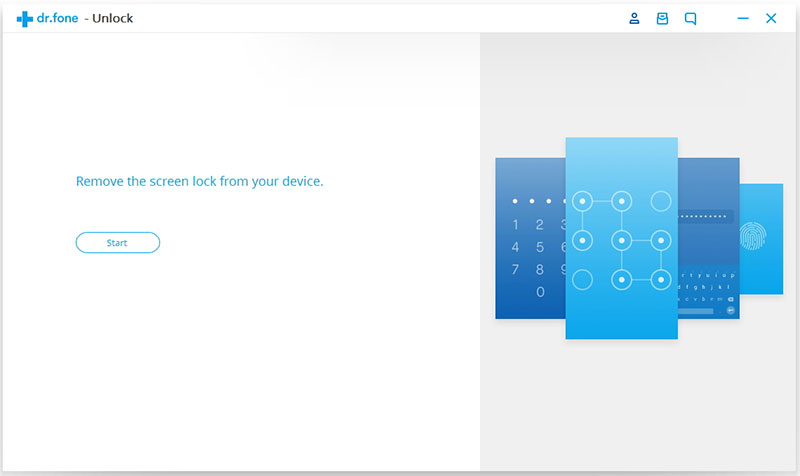
Download,install and run Android Lock Screen Removal program on your PC/Mac, and then click “Unlock” option.

samsung lock screen removal

Step 2.Start the Removal Process of Samsung
Click the Start button to start the removal process on Samsung Galaxy phone.

select mode

Please connect your Samsung to computer via USB cable.Note that the USB debugging mode on your device should be enable on first.

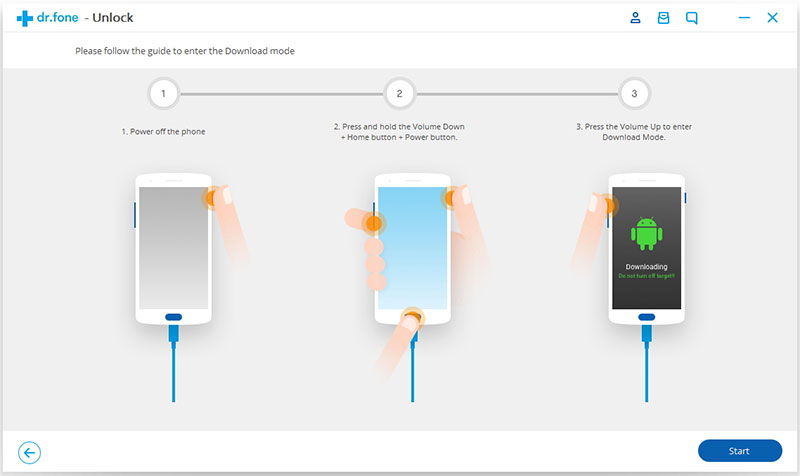
Follow the instructions on the program to enter the download mode on Locked Samsung.
-Power off the phone.
-Press and hold volume down + home button + power button at the same time.
-Press the volume up to enter download mode.

enter download mode lock samsung

Step 3.Download Recovery Package for Samsung
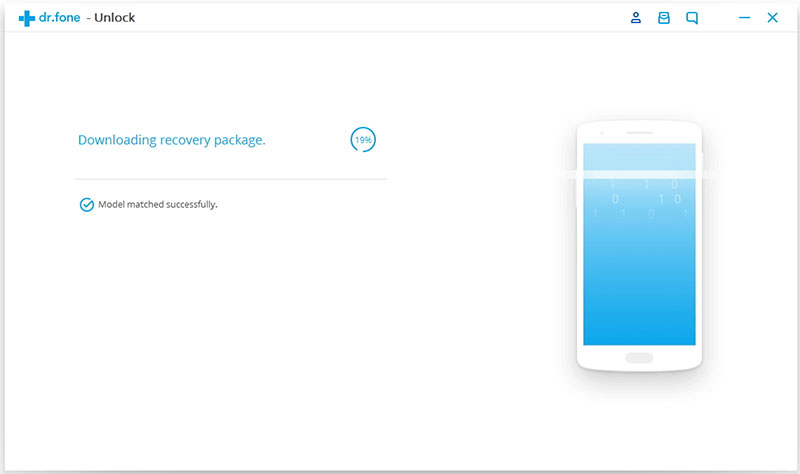
Now Android Lock Screen Removal will download recovery package for Samsung phone and match the phone model after checking the agreements.Then it will begin to restore your device.Please be patient and wait until the restoring process is completed.

downloading recovery package for samsung

Step 4.Remove Samsung Locked Screen Completed
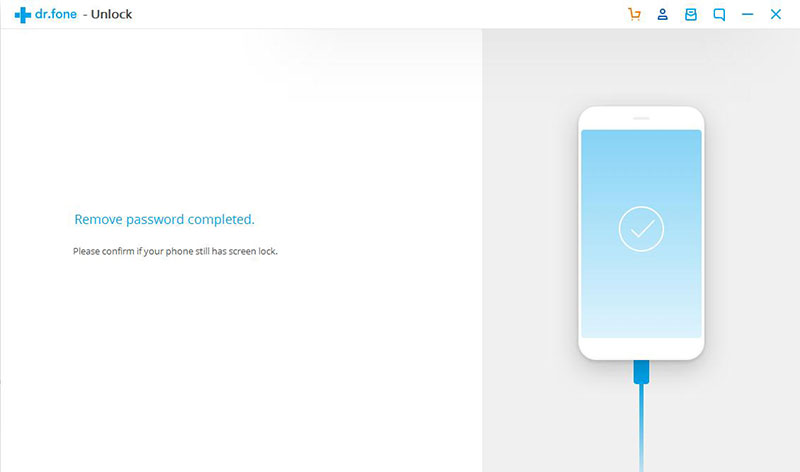
Just a few minutes, Android Lock Screen Removal has unlocked your Samsung without password.You can confirm and check your device,view all your data on the device as you like.

remove samsung lock screen

d_win d_mac
d_win d_mac

Related Article

How to Unlock Samsung without Password

[Android Lock Screen Removal]How to Unlock Android Lock Screen

Forget Android SIM Card Lock PIN and How to Remove it

How to Recover Lost Data from Locked Samsung

How to Recover Deleted Files from Samsung

Unlock Samsung Galaxy

How to Convert 2D Videos to 3D and Playing on iPad/iPhone

“I searched some converters tool on the Internet,fortunately I found this 3D Converter when I want to freely convert 2D movies to 3D MP4 formats and then play the 3D movies on my iPad Pro through 3D glasses. Very nice.”-Claudia Miller

How to convert 2D movies to 3D and watch 3D movies on iPhone X with VR headsets?” – Lucy

As we know,most of us like to prepare some movies on mobile device so that enjoy it on the trip way.With the development of 3D technology,it is time to shift our focus on the 3D videos.Are you confuse about playing 3D videos with your iPad?Are you confuse about converting 2D videos to 3D for your iPad?From now on,you could enjoy 3D videos on iPad with the help of the 2D to 3D Converter.What is 2D to 3D Converter?Let me give you a detailed introduction.

Create and Convert 2D Videos to 3D for iPad and iPhone

2D to 3D Converter provide a perfect solution to convert 2D videos to 3D for iPad with all popular formats,such as AVI,MPEG,WMV,MP4,AVCHD Video,MPEG2 HD Video,etc.This program can help you solve this problem by converting Anaglyph (Red/Cyan), Side by Side, Side by Side (Half-Width),Top and Bottom or Top and Bottom (Half-Height) with outstanding output video quality.This superior 2D to 3D Converter support to all iOS device and most Android devices,including iPad Pro,iPad Air,iPad Mini,iPad 4/3/2,iPhone X, iPhone 8, iPhone 7,iPhone 6S(Plus),iPhone 6(Plus),iPhone 5S/5C/5;Samsung (Galaxy S9/S8/S7/S6/S5),HTC,Sony,Motorola,Google,and so on.

d_win d_mac

How to Convert 2D Videos to 3D for iPad

Step 1.Select the Conversion Option of Program
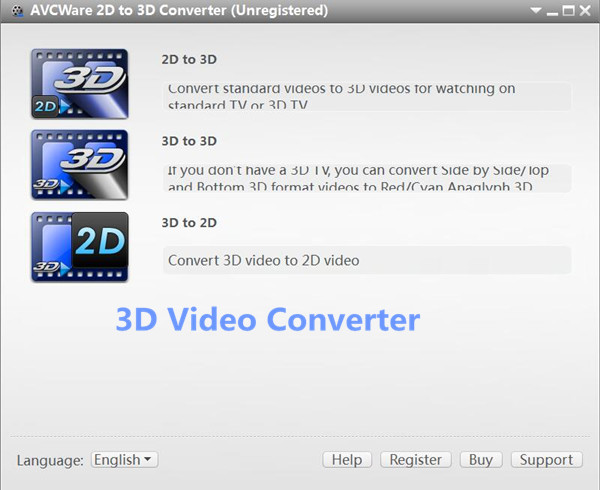
First of all please install and run the 2D to 3D Converter on your computer, click “2D to 3D” function to open settings interface of 2D to 3D Converter.

click convert 2d to 3D option

Step 2.Select the 2D Video to Convert
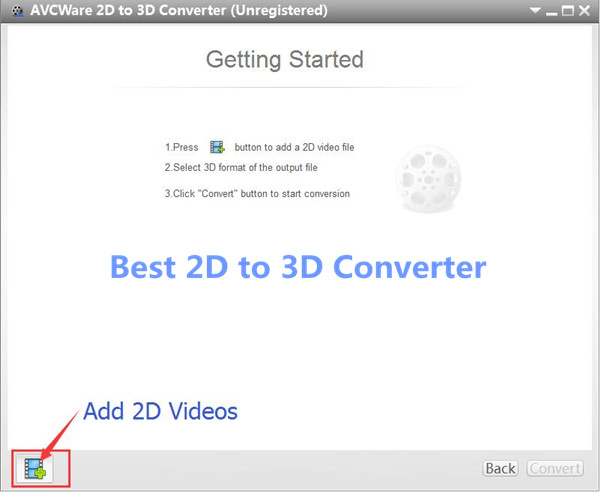
Now you should choose and add a 2D video of the 2D to 3D Converter.

add 2d video

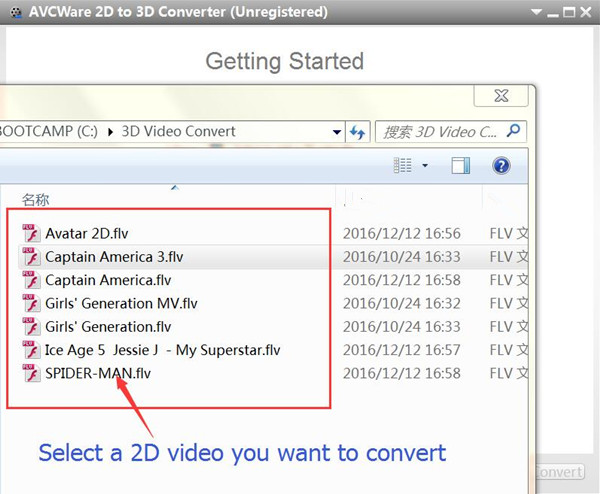
Import a 2D video to convert in the video file list.

select 2d videos

Step 3.Setting 3D Format to Convert for iPad
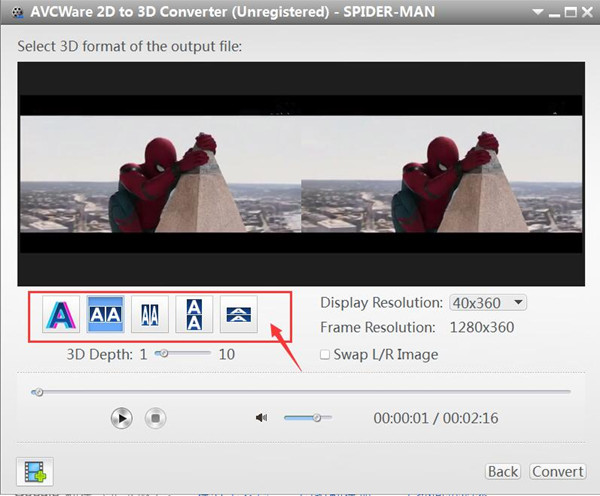
The 2D to 3D Converter program support to different 3D video outputting format,such as “Anaglyph (Red/Cyan)”, “Side by Side”, “Side by Side (Half-Width)”, “Top and Bottom” and “Top and Bottom (Half-Height)”,you can select an output mode under the preview area.

set 3d format

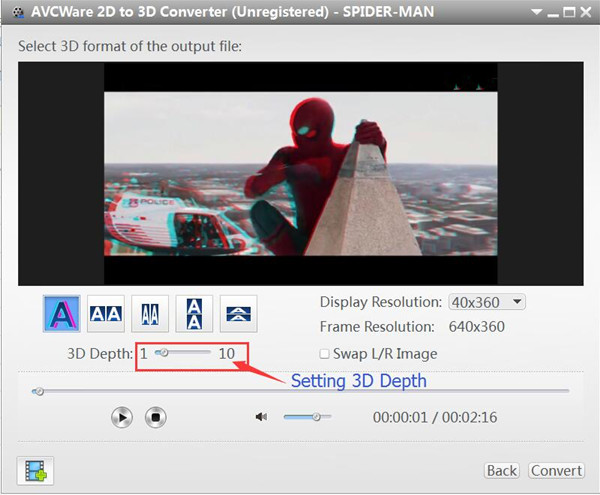
Setting the 3D Depth of the video for converting.

set 3d depth

Notes:
1:Drag the “3D Depth” control slider to set the depth of video.
2:Check the “Swap L/R Image” option, you could switch left and right eye’s image.
3:If you want to return to the main window,click “Finish”.

Click “Convert” button and go to the next step when finish setting the preferred 3D format for video,the program will pop up a new output setting windows.

Step 4.Setting Output Format for iPad
In the output settings interface,you will see the program support to convert 2D video to 3D for several different mobile devices,such as iPad, iPhone,Apple TV, Android phones, Android Pad, TV/Mac/PC with 3D player and more other devices.To convert 2D to 3D for iPad device,please click “iPad & Apple device” then the iPad model for example “iPad 4” under the “Profile” options,then select the profile optimized for iPad devices.You are also allow to set the output “video size” and “video quality” in this windows,then click “OK” button to start to create and convert 3D video for your iPad.

setting out put format for ipad

Step 5.Convert 3D Video for iPad
The whole process to create and convert 3D video for iPad just will take you a few minutes.Then you can freely play 3D Videos on your iPad and enjoy it anywhere anytime.

convert 2d video to 3d for ipad

d_win d_mac

Here is the video guide shows you how to convert 2D videos to 3D and playing on iPad/iPhone:

Related Articles:

How to Play 3D Video on iPhone

How to Convert 2D Movies to 3D

How to Convert 2D Movies to 3D on Mac

How to Rip and Convert DVD Movies for iPhone/iPad

How to Convert 2D Videos to 3D for Android

Convert 2D Videos to 3D

How to Play 3D Video on iPhone

[Summary]:An useful tutorial on how to convert 2D movies to 3D and play 3D movie/video on iPhone with VR headsets,like Samsung Gear VR, Oculus Rift, VR One, HTC ViVe, Google Cardboard, etc.

“I played the 3D movie on my iPhone 7 but failed,which I download from the Internet.I heard that iPhone 7 support to play the 3D video but what’s happened to me?Have any ways to play 3D video on my device smoothly?”-Rick

Virtual reality artificially empowers you to interact with mobile devices for an immersive and sensory experience.So more and more people prefer watching 3D movies in the cinema to watching TV.Watching 3D movies which has triggered an incredible storm around the world.It’s no double that it may be the lucky thing that if you can watch your loved 3D movies on your mobile device for instance iPhone 7.However,the popular 3D videos formats are not supported by some popular media player of iPhone,you still need a 3D videos converter.

Create and Play 3D Video on iPhone

As a matter of fact,it’s no better ways than creating and converting 3D videos for iPhone with the 2D to 3D Converter and then you could play 3D videos on your iPhone freely.2D to 3D Converter perfectly help to convert 2D videos to 3D for iPhone with different format,AVI,MP4,MKV,FLV,M2TS,TS,etc,are included.This powerful 2D to 3D Converter support to almost all models of iOS device,such as iPhone X, iPhone 8, iPhone 7,iPhone 6S(Plus),iPhone 6(Plus),iPhone 5S/5C/5,iPad Air,iPad Pro,iPad Mini,iPod touch.

d_win d_mac

Kind Tips: As for the online video downloader, 4kFinder Video Downloader is a time-saving and reliable solution. Copy and paste the video URL to download the video from YouTube or other popular online streaming sites (Facebook, Instagram, Twitter, Bilibili, NicoNico, BBC, Vimeo, VLive, Tumblr) to MP4 at 360p, 720p, 1080p, 1080p HD , 4K, 8K quality.

How to Convert 2D Video to 3D MP4 for iPhone

Step 1.Select the Convert Option of 2D to 3D Converter
Firstly please install and run the 2D to 3D Converter on your PC or Mac, click “2D to 3D”slection to open settings interface of program.

click convert 2d to 3D option

Step 2.Select the 2D Video to Convert
Select and add a 2D video on the 2D to 3D Converter.

add 2d video

Import a 2D video to convert in the video file list.

select 2d videos

Step 3.Set the 3D Format to Convert for iPhone
The 2D to 3D Converter program support to outputting Red/Cyan Anaglyph 3D video format that you can enjoy 3D effect on a standard 2D TV, it also support to Side-by-Side 3D and Top and Bottom 3D,please click “Anaglyph (Red/Cyan)”, “Side by Side”, “Side by Side (Half-Width)”, “Top and Bottom” or “Top and Bottom (Half-Height)” under the preview area to select an output mode.

set 3d format

Setting the 3D Depth of the video for converting.

set 3d depth

Notes:
One:Drag the “3D Depth” control slider to set the depth.
Two:Check the “Swap L/R Image” option, you could switch left and right eye’s image.
Three:If you want to return to the main window,just click “Finish”.

Click “Convert” button and enter the next step when finish setting the preferred 3D format,the program will pop up a new output setting windows.

Step 4.Setting Output Format for iPhone
In the output settings interface,youwill see the program support to convert 2D video to 3D for several different mobile devices,such as iPhone, iPad, Apple TV, Android phones, Android Pad, TV/Mac/PC with 3D player and other devices.To convert 2D to 3D for iPhone device,please click “iPhone” then the iPhone model for example “iPhone 7” under the “Profile” options,then select the profile optimized for iPhone devices.You can also setting the output “video size” and “video quality” in this windows,then click “OK” button start creating and converting the 2D video to 3D for your iPhone.

setting out put format iphone

Step 5.Convert 3D Video for iPhone
The whole process of converting 3D video for iPhone just will cost you a little time within minutes.Now you can freely play 3D Videos on your iPhone.

begin convert 2d to 3d for iphone

d_win d_mac

Watch the video tutorial to learn how to convert 2D video to 3D:

Related Articles

How to Convert 2D Movies to 3D

How to Convert 2D Movies to 3D on Mac

How to Rip and Convert DVD Movies for iPhone/iPad

How to Convert 2D Video to 3D for Android

How to Play 3D Videos on Gear VR with Samsung Galaxy

How to Convert and Play DVD Movies on Samsung

Play 3D Video on iPhone

How to Convert 2D Video to 3D for Android

“I am looking for the best tool to convert 2D videos to 3D so that I can watch it on my Samsung phone.What a convenient thing.Any good suggestions?”-Vincy

convert 3d video to android

Recently,with the 3D movies development,it is quite easy for us to watch 3D movies in cinema.Well,now the good news coming.Various of mobile devices that support playing 3D movies like LG and HTC mobile phones or Mac/PC with 3D player.It’s coming true that you can watch the 3D videos at home even anywhere.It’s such a good idea that convert the 2D video to 3D then enjoy the 3D video anytime.

Convert 2D Video to 3D for Android on Computer

With the help of 2D to 3D Converter,you could freely convert 2D video to 3D for Android without complicated steps then you can enjoy the 3D video on Gear VR with Android.This program support to convert 2D video to 3D with several format,including AVI, MP4, MKV, FLV, etc,.Most of Android devices are compatible with this 2D to 3D Converter,like Samsung Galaxy S7/S6,LG Optimus 3D P920, HTC EVO 3D, Sharp SH-12C Aquos 3D,and so forth.

d_win d_mac

Kind Tips: Want to download HD videos from YouTube? 4kFinder Online YouTube Downloader is the ultimate one-click downloader that can easily download YouTube HD videos to MP4 format without quality loss. 4kFinder supports batch download and faster download speed. With its help, you can play YouTube videos offline on any HD media player. Other than YouTube, it also supports Facebook, Twitter, Dailymotion, Bilibili, NicoNico and many other sites.

How to Convert 2D Video to 3D for Android

Step 1.Select the “2D to 3D” Convert Option of Program
Please run the 2D to 3D Converter on your computer, click “2D to 3D” selection to open settings interface.

click convert 2d to 3D option

Step 2.Select a 2D Video to Convert
Select and add a 2D video on the 2D to 3D Converter.

add 2d video

Import a 2D video you wanna convert in the video file list.

select 2d videos

Step 3.Set the 3D Format for Converting
The 2D to 3D Converter program not only support to outputting Red/Cyan Anaglyph 3D video format that you can enjoy 3D effect on a standard 2D TV, but it also support to Side-by-Side 3D and Top and Bottom 3D,please click “Anaglyph (Red/Cyan)”, “Side by Side”, “Side by Side (Half-Width)”, “Top and Bottom” or “Top and Bottom (Half-Height)” under the preview area to select an output mode.

set 3d format

Setting the 3D Depth of the video.

set 3d depth

Tips:
1)You could drag the “3D Depth” control slider to set the depth.
2)Check the “Swap L/R Image” option, you could switch left and right eye’s image.
3)Click “Finish” to return to the main window.

After finish setting the preferred 3D format for video,then click “Convert” button and go on,the program will pop up a new output setting windows.

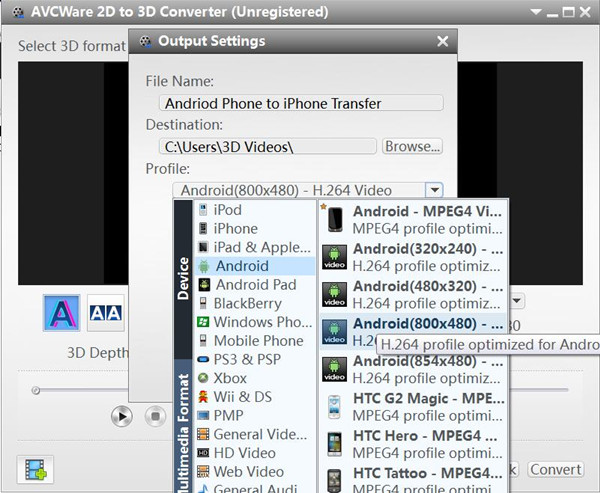
Step 4.Setting Output Format for Android
In the output settings interface,you could see the program support to convert 2D video to 3D for any mobile devices,such as iPhone, iPad, Apple TV, Android phones, Android Pad, TV/Mac/PC with 3D player and other devices.To convert 2D to 3D for Android device,please click “Android” then the model of Android device for example“Samsung Galaxy XXX” under the “Profile” options,then select the profile optimized for Android devices.You can also setting the output “video size” and “video quality” in this windows,then click “OK” button begin to created and convert the 2D video to 3D for Android.

output 3d video android

Step 5.Begin Converting 2D Video to 3D for Android
The program will cost you a few minutes to complete the video conversion process.Now you can freely play 3D Videos on Gear VR with your Android device.

begin convert 2d to 3d for android

d_win d_mac

Please watch this video guide to learn how to convert 2D video to 3D for Android:

Related Article:

How to Convert 2D Movies to 3D

How to Play 3D Videos on Gear VR with Samsung Galaxy

How to Convert 2D Movies to 3D on Mac

How to Convert and Play DVD Movies on Samsung

How to Rip and Convert DVD Movies for iPhone/iPad

Convert 2D Movies/Videos to 3D

How to Convert 2D Movies to 3D on Mac

“I would like to transfer the 2D film to 3D on my Mac,in order to sync the 3D movie with my Android device.However,I search the ways for a long time and I can’t find the best one.Could you give me some advice?Thanks a lot.”-Sara

Are you looking for best 3D video converter like Sara?Or, want a professional but easy to use program to create 3D movies on Mac by yourself? Or you just need some tips to convert the 2D movies to 3D?Check the steps in detail, you will find all solutions to create and convert 3D videos.We are showing the perfect solution for Mac users to convert 2D movies to 3D without hassle.

Freely Convert 2D Movies to 3D on Mac

2D to 3D Converter is the best video converter which our strongly recommend for you,help to convert 2D movies to 3D on Mac ones available in various formats like AVI, MP4, MKV, FLV, etc,. including Anaglyph (ten types), Side by Side (Half-Width/Full), Top and Bottom (Half-Height/Full) on Mac and play 3D video files on Mac, standard TV/3D TV, even glasses-free 3D smartphones like Samsung Galaxy S9/S8/S7/S6,HTC EVO 3D, Sharp SH-12C Aquos 3D, LG Optimus 3D P920, and other compatible 3D display devices,such as iPhone X, iPhone 8/8 Plus, iPhone 7/7 Plus,iPad,iPod,and so on.

d_win d_mac

How to Convert 2D Movies to 3D on Mac

Step 1.Click the Convert Selection of Program
First of all, run the 2D to 3D Converter on your Mac, click “2D to 3D” selection to open settings interface.

click convert 2d to 3D feature

Step 2.Add a 2D Video to Convert
Select and add a 2D video on the 2D to 3D Converter.

add 2d video

Import the 2D video to convert in the video file list.

select 2d videos

Step 3.Set the 3D Format for Converting on Video
The 2D to 3D Converter program not only support to outputting Red/Cyan Anaglyph 3D video format that you can enjoy 3D effect on a standard 2D TV, but it also support to Side-by-Side 3D and Top and Bottom 3D,you are allow to click “Anaglyph (Red/Cyan)”, “Side by Side”, “Side by Side (Half-Width)”, “Top and Bottom” or “Top and Bottom (Half-Height)” under the preview area to choose an output mode.

set 3d format

Setting the 3D Depth for the video.

set 3d depth

Tips:
1)You could drag the “3D Depth” control slider to set the depth.
2)Check the “Swap L/R Image” option, you could switch left and right eye’s image.
3)Click “Finish” to return to the main window.

After finish setting the preferred 3D format for video,click “Convert” button and go on,the program will pop up a new output setting windows.

Step 4.Setting Output Format for Video on Mac
The program support to convert 2D video to 3D for any mobile devices,such as iPhone, iPad, Apple TV, Android phones, Android Pad, TV/Mac/PC with 3D player and other devices.To convert 2D to 3D for Android devices,please click “Android” then the device model such as”Samsung Galaxy XXX” under the “Profile” options,then select the profile optimized for Android devices.You can also setting the output “video size” and “video quality” in this windows,then click “OK” button begin to created and convert the 2D video to 3D on Mac for mobile device.

setting out put format on mac

Step 5.Begin Converting 2D Video to 3D on Mac
All the thing is ready,now the program will begin to convert 2D video to 3D on Mac with a little while.

begin convert 2d to 3d on mac

d_win d_mac

Video Guide Shows you How to Convert 2D Movies to 3D on Mac:

Related Articles

How to Convert 2D Movies to 3D

How to Play 3D Videos on Gear VR with Samsung Galaxy

How to Rip and Convert DVD Movies for iPhone/iPad

How to Convert and Play DVD Movies on Samsung

How to Transfer Video from Computer to Samsung Galaxy S7/S6

Convert 2D Movies/Videos to 3D

How to Play 3D Videos on Samsung Galaxy with Gear VR

“Hi.I’m a college student.I heard the news that now we can play 3D videos on Gear VR with Samsung Galaxy phone.How to achieve it?Can anybody provide the available ways for me?I’d like to watch the 3D film on my Samsung Galaxy S7 phone.Thanks.”-Tracy

One of the hit topic is that play 3D videos on Gear VR.Samsung Gear VR makes you enjoy the wonderful movies with best audio/video effects and make the experience more impressive.To play 3D videos on Gear VR with Samsung,you should get one helpful 3D video Converter and convert the videos with suitable format then you can play it on your Samsung.Are you searching the useful 3D Converter for Gear VR with Samsung Galaxy phone?Just read these passages following,you will get the best answer from it.

Create 3D Videos on Gear VR with Samsung Galaxy

Take 2D to 3D Converter for example,it’s an outstanding videos converter to create and convert 2D videos to 3D on Gear VR with Samsung Galaxy immediately with various of format:AVI, WMV, MP4, MOV, M4V, MTS/M2TS, AVCHD, DVD, VOB, MKV, MOD, TOD etc.2D to 3D Converter is applicable to almost all brands of Android device and iOS device,Samsung (Galaxy S7/S6/S5,Note 5/4/3),HTC,Motorola,Sony,LG,Huawei,Google,iPhone 7(Plus),iPhone 6S(Plus),iPhone SE,iPad,iPod are supported.

d_win d_mac

How to Play 3D Videos on Samsung Phone with Gear VR

Step 1.Select the Convert Option of Program
Firstly run the 2D to 3D Converter on your PC or Mac, click “2D to 3D” option to open settings interface.

click convert 2d to 3D option

Step 2.Select the 2D Video to Convert
Select and add a 2D video on the 2D to 3D Converter.

add 2d video

Import a 2D video you need to convert in the video file list.

select 2d videos

Step 3.Set the Preferred 3D Format for Converting
The 2D to 3D Converter program not only support to outputting Red/Cyan Anaglyph 3D video format that you can enjoy 3D effect on a standard 2D TV, but it also support to Side-by-Side 3D and Top and Bottom 3D,please click “Anaglyph (Red/Cyan)”, “Side by Side”, “Side by Side (Half-Width)”, “Top and Bottom” or “Top and Bottom (Half-Height)” under the preview area to select an output mode.

set 3d format

Setting the 3D Depth of the video.

set 3d depth

Tips:
1)You are allow to drag the “3D Depth” control slider to set the depth.
2)Check the “Swap L/R Image” option, you can switch left and right eye’s image.
3)Click “Finish” to return to the main window.

When finish setting the preferred 3D format,then click “Convert” button and enter the next step,the program will pop up a new output setting windows.

Step 4.Setting Output Format for Samsung
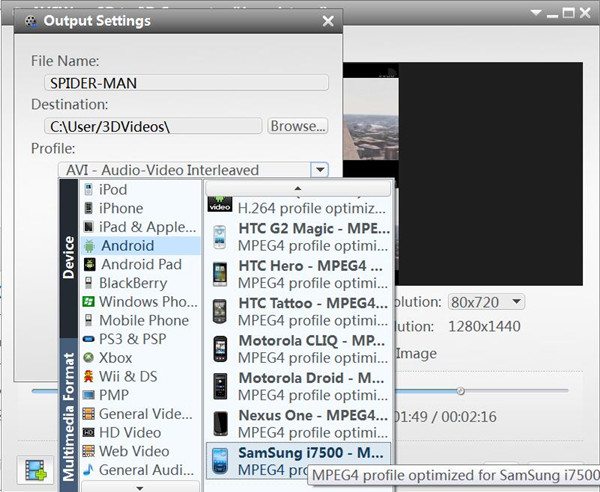
In the output settings interface,you can see the program support to convert 2D video to 3D for any mobile devices,such as iPhone, iPad, Apple TV, Android phones, Android Pad, TV/Mac/PC with 3D player and other devices.To convert 2D to 3D for Samsung device,please click “Android” then “Samsung Galaxy XXX” under the “Profile” options,then select the profile optimized for Android devices.You can also setting the output “video size” and “video quality” in this windows,then click “OK” button begin to created and convert the 2D video to 3D for Samsung Galaxy.

setting out put format samsung

Step 5.Start to Convert 2D Video to 3D for Samsung
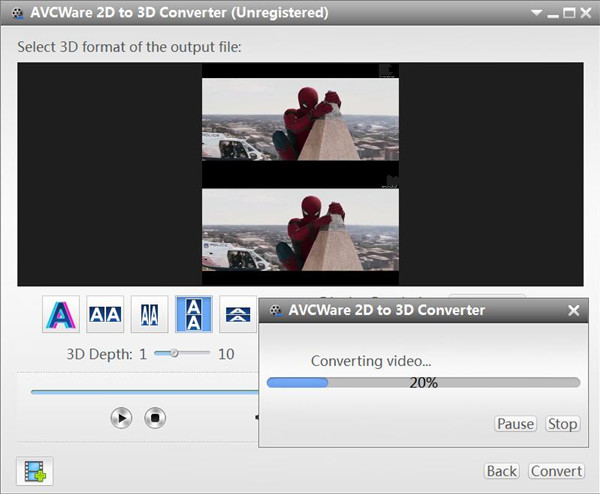
It will just cost you a few minutes to finish the video conversion process.Completed.Now you can freely play 3D Videos on Gear VR with Samsung Galaxy.

begin convert 2d to 3d

d_win d_mac

Related Article

How to Convert 2D Movies to 3D

How to Rip and Convert DVD Movies for iPhone/iPad

How to Convert and Play DVD Movies on Samsung

How to Transfer Video from Computer to Samsung Galaxy S7/S6

Play 3D Videos on Samsung Galaxy

How to Convert 2D Movies to 3D

“Hey.I’m the a film lover.I like to download the loved film from Youtube and then transfer it to my iPad.However,recently I heard that the 3D movies are popular with the youngsters.So I wanna watch the favorite movies with 3D format.How can I convert the 2D videos to 3D?Thanks for your help.”-Rebecca

Watching a great VR-3D effects video with VR headsets, you can get the feelings of watching a 2d/3d film in a movie theater. Virtual reality may seem like a hobby reserved for hardcore gamers, but it still makes it pretty easy to wath 3D movies at home if you get the enough 3D resources. Supposed that you have a 3D VR heasdet like Gear VR, Oculus Rift, VR One, Google Cardboard, etc and lots of 2D movies, do you want to convert 2D videos to 3D VR format for enjoying with VR heasdets? If you want to, only get a 2D normal video to vr converter, then following this guide, i promise you could enjoy them.

3D movies are fantastic with vivid colors and life-like video effect, and now they are not limited in the theaters,they can be in your home, be anywhere you like to watch,be any time you like to watch.3D movies is amazingly almost the same with the real 3D in audiovisual effect.Are you one of the people who are eager to convert the 2D movies to 3D?Just come to join us in this practical tutorial on how to convert the 2D movies to 3D with easy steps.
2D to 3D

Best 2D to 3D Converter to Convert 2D Movies to 3D

2D to 3D Converter is the best solution to solve your problem,as a powerful 3D videos converter,this program perfectly help to convert 2D videos to 3D videos that can be played on computer.The output 3D videos can be different format,including AVI,MP4,MKV,FLV,M2TS,TS,etc,.The 2D to 3D Converter support to various devices like Android phones/tables, Samsung Galaxy,Motorola, Nexus, Google Pixel,HTC,Sony, iPhone 7/7 Plus, iPhone SE, iPhone 6s/6s Plus, iPad Pro,iPad Air,iPad Mini,and more.

2D to 3D Converer helps you convert 2D video to VR-3D effect video format,after converting 2D moives to 3D,you can enjoy the converted 3D movies with with VR headsets,like Gear VR, Oculus Rift, VR One, HTC ViVe, Google Cardboard, Google DayDream VR,etc, with it, you can convert all kinds of normal 2D/3D video including 2D or 3d MKV, AVI, MP4, MXF, MPG, FLV, VOB, 3GP, TS, RMVB, WTV, WebM, MTS, M2TS, etc to VR heasdets supported 3D effect video format like Top-Bottom, Side-by-Side 3D MP4 and MKV. Once you start the 2D videos to Gear VR/Oculus Rift/VR One/HTC ViVe/Google Cardboard, etc conversion, you can soon get your output files cause its fast conversion speed. To enhance and personalize your movies like trimming, cropping, adding special effect, inserting subtitles are also allowed. In addition, it can convert the video formats to enables us to play the videos on Gear VR via Galaxy Note 4/5/6/8, Galaxy S9/S8/S7 (Edge)/S6/S (Edge/Edge+).

d_win d_mac

More Features of 2D to 3D Converter You May be Interested:
-Convert standard video to 3D video.
-Convert 3D video to other type of 3D video.
-Convert 3D video to standard video.
-Five types of 3D video are supported including Anaglyph, Side by Side, Side by Side (half-width), Top and Bottom, Top and Bottom (half-height).
-Preview the video before converting.
-Change settings to get high-quality videos.

How to Convert 2D Movies to 3D

Step 1.Select the Convert Feature of Program
Please firstly run the 2D to 3D Converter on your computer,then click “2D to 3D” button to open settings interface.

click convert 2d to 3D feature

Step 2.Import a 2D Video
Select and add a 2D video on the 2D to 3D Converter.

add 2d video

Import a 2D video you wanna convert in the video file list.

select 2d videos

Step 3.Set Your Preferred 3D Format Directly
This 2D to 3D Converter program not only support to outputting Red/Cyan Anaglyph 3D video format so you can enjoy 3D effect on a standard 2D TV, but it also support to Side-by-Side 3D and Top and Bottom 3D,please click “Anaglyph (Red/Cyan)”, “Side by Side”, “Side by Side (Half-Width)”, “Top and Bottom” or “Top and Bottom (Half-Height)” under the preview area to select an output mode.

set 3d format

Then setting the 3D Depth of the video.

set 3d depth

Note:
1)You can drag the “3D Depth” control slider to set the depth.
2)Check the “Swap L/R Image” option, you can switch left and right eye’s image.
3)Click “Finish” to return to the main window.

Once finish setting the preferred 3D format,then click “Convert” button and going on,the program will pop up a new output setting windows.

Step 4.Setting Output Format for Device
In the output settings interface,you can see the program support to convert 2D video to 3D for any mobile devices,such as iPhone, iPad, Apple TV, Android phones, Android Pad, TV/Mac/PC with 3D player and other devices.To convert 2D to 3D for Android devices,please click “Android” or “Android Pad” under the “Profile” options,then select the profile optimized for Android devices.You can also setting the output “video size” and “video quality” in this windows,then click “Ok” button start to convert your favorite 2D movie to 3D for Android.

setting out put format android

Step 5.Start to convert 2D video to 3D for Device
It will only take you a little time to complete the conversion process within minutes.Done.

begin convert 2d to 3d

d_win d_mac

Video Guide to Show you how to Convert 2D Movies to 3D:

Related Articles

How to Rip and Convert DVD Movies for iPhone/iPad

How to Convert and Play DVD Movies on Samsung

How to Transfer Video from Computer to Samsung Galaxy S7/S6

Convert 2D Videos to 3D

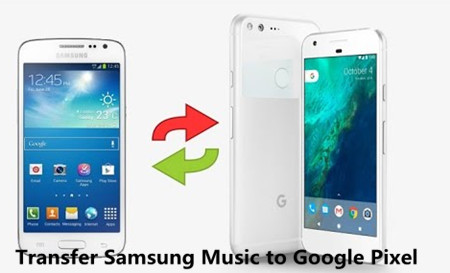
Music Transfer from Samsung Android to Google Pixel/Pixel XL

Google Pixel and Google Pixel XL are the one of popular Android smartphone in the market. The release of the two phones offers an alternative to the popular Samsung Galaxy S7/S7 Edge and iPhone 7/7 plus. Pixel phone made by Google as the first phone by Google,this is different from Nexus.The Google Pixel/Pixel XL running the latest Android 7.1.1 Nougat,it’s the latest news about Android 7.1.1 came out for Nexus and Pixel devices, and while the Pixels just got a minor update from 7.1 to 7.1.1, the Nexus devices are moving from 7.0 to 7.1.1. This finally brings the older Nexus phones on par with Google’s new flagships, the Pixel and Pixel XL.However,many people give up old Samsung phones and buy new Google Pixel/Pixel XL.
transfer samsung music to google pixel

Tired of using Samsung phone all the time,because of various problems,like Samsung Galaxy Note 7 catching fire,as we all know that Samsung may permanently disable Galaxy Note 7 phones in the US.However,some Samsung fans have finally decided to pick up Google Pixel phone.When you have got a new phone,the first time you may want to enjoy music, movie with it; downloading some popular games to feel the latest embodiment;taking better photos with your new Google Pixel smartphone. Now,you have two Android phones – Samsung phone and Google Pixel,and now you want to transfer all music on your Google Pixel, so that you can enjoy lovely previous Samsung music on the Pixel phone. It is easy to transfer songs from computer to Google Pixel, but how about the songs on your old Samsung phone?

Transfer and Convert the incompatible Music from old Android to Google Pixel

Want to transfer Samsung music to Google Pixel smartphone and enjoy listening to your music wherever you go? There is an easy way you can sync music from old Android to your Pixel phone. Before get started, make sure you’ve installed the Google Pixel Music Transfer on your computer.

Google Pixel Music Transfer – iOS & Android Manager supports transfer music between Android devices.However,with the help of this program,you can import your phone data such as contacts, text messages, songs, pictures, videos and other files to from old Samsung Android to Google Pixel by this software and also you can export music from PC/Mac to Google Pixel, as well as other phone base on Android operating system like Samsung Galaxy S4/S5/S6/S7/Note 5/Note 4, LG, HTC, Huawei, Xiaomi, Motorola, Sony etc..

d_win d_mac

How to Transfer Music from Samsung to Google Pixel

Step 1.Install and Launch iOS & Android Manager on PC
After downloading and installing iOS & Android Manager on your PC.

Step 2.Connect Samsung and Pixel Phone with TunesGo
In this step,you need to use two USB cable to connect the two Android phone to your computer,when the two phones connected,the program will read the phone data and you can see more detailed information about the Samsung and Google Pixel, you can click “Details” on the main interface.

Androd to Google Pixel Music Transfer

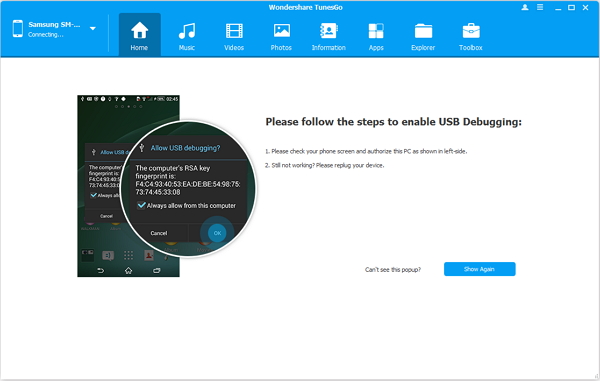
Step 2.Enable USB Debug on your Android device
To make the two Android devices and computer connected successfully, you should turn on USB debugging.

For Android 6.0+ or newer:On your Android device, go to Settings > About device > Software info > Build number (tap 7 times) > Develop Options > USB Debugging

For Android 4.2-5.1:On your Android device, go to Settings > About Phone > Build number (tap 7 times) > Develop Options > USB Debugging

For Android 3.0-4.1:On your Android device, tap Settings > Develop Options > USB Debugging

For Android 2.0-2.3:On your Android device, tap Settings > Applications > Development > USB Debugging

transfer Samsung music to Google Pixel

Note: For some Android phones,ensure that you have allowed or checked MTP connection on the connected Android device,please pull down the dropdown menu, then switch mode in between “MTP” and “PTP”.

Step 3. Transfer Samsung Galaxy S3 Music to Google Pixel
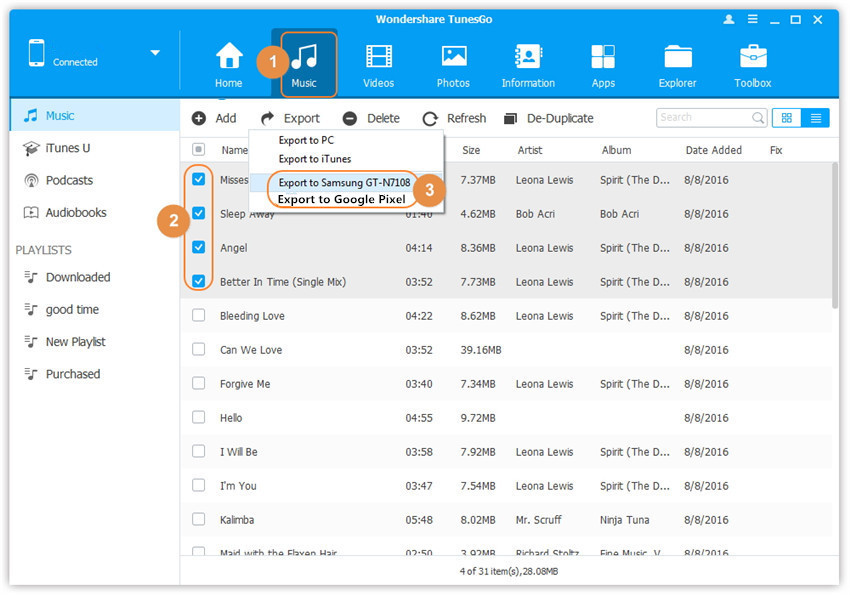
When your Samsung and Google Pixel phone connected, your device will be detected and listed in the interface. Then click “Music” tab and choose your wanted songs and click “Export” > “Export to Google Pixel directly,only few minutes,all selected music exported to Google Pixel from Samsung Galaxy.Also,other type of files can be move from Samsung to Google Pixel,like “Videos”, “Photos” and etc. Please select the file you want to transfer.
export Samsung music to google pixel

Note: This program support different Android OS from Android 2.1 to Android 7.0/7.1.1,you can also transfer the whole music playlist between Android device and Google Pixel with this software.If you use iPhone before,it also allows you transfer music,videos,photos between iPhone and Google Pixel.
d_win d_mac

Related Articles:

How to Transfer Files from Android to Google Pixel

How to Transfer Data from iPhone to Google Pixel
How to Transfer Music from iTunes to Google Pixel
How to Transfer Music from Samsung Galaxy to iPhone 7/6S/6

“I just bought the new iPhone 7 last weekend.I was searching the best ways to transfer my favorite songs from my old Samsung Galaxy S5 phone to the new iPhone,but still nothing.Anybody have the good suggestions?”-Ricky

It’s convenient that people saved hundreds of songs on mobile device that in order to enjoy the music anywhere anytime.However,it will become a big headache if people switch the old device to a new phone, which is become more and more common now.If you buy a new iPhone 7/6S/6 and you want to transfer the loved music from your old Samsung device to your new iPhone,how could you get it done?I guess you have try several methods but it still make you feel satisfied with.Here is another better solution helping you directly transfer music from Samsung to iPhone perfectly.

Further Reading:

* How to Play Apple Music on Galaxy S8/S7/S6

* Remove DRM from Apple Music and Playing on iOS Device for Free

Freely Transfer Music from Samsung Galaxy to iPhone 7/6S/6

iOS & Android Manager is a professional desktop software for managing and transferring data between iOS device and Android device,which is freely enable to transfer music between Samsung Galaxy and iPhone 7/6S/6.Other transferable data including videos,photos.Moreover,iOS & Android Manager empower to manage contacts and SMS for iOS and Android device as well.In addition,this program allow to transfer data between iOS/Android device and computer,transfer data between iOS/Android device and iTunes.It supports almost all Android devices, like Samsung, HTC, LG, Sony,ZTE, OnePlus,Motorola, Huawei, etc., and iOS devices, like iPhone 7(Plus),iPhone 6S(Plus),iPhone 6(Plus),iPhone SE,iPhone 5S/5C/5, as well as iPad Pro, iPad Air 2, iPad mini 4/2, etc,.

d_win d_mac

Way 1:Transfer all the Music and Playlists from Samsung Galaxy to iPhone 7/6S/6

Step 1.Run Program and Connect Devices to Computer
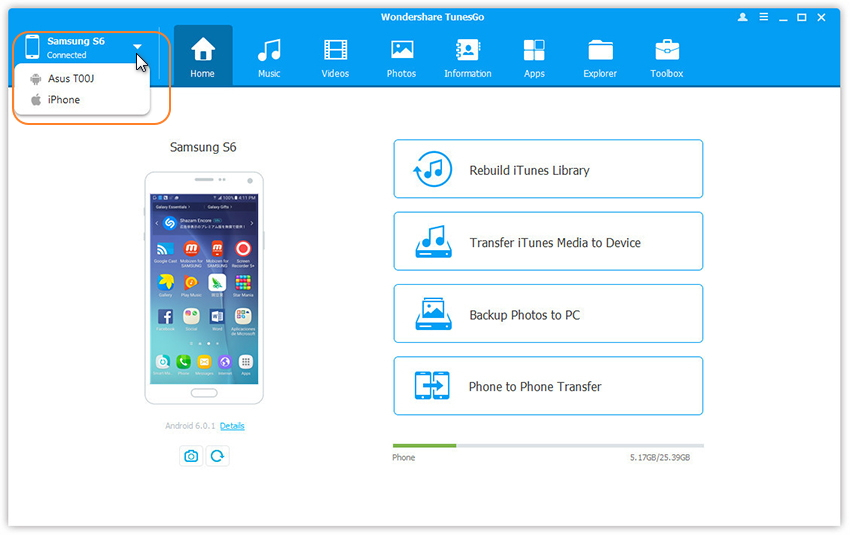
Launch iOS & Android Manager and connect both Samsung and iPhone devices to computer.

connect-multiple-devices

Step 2.Select the Source Device
Select the source device from which you want to transfer music files.

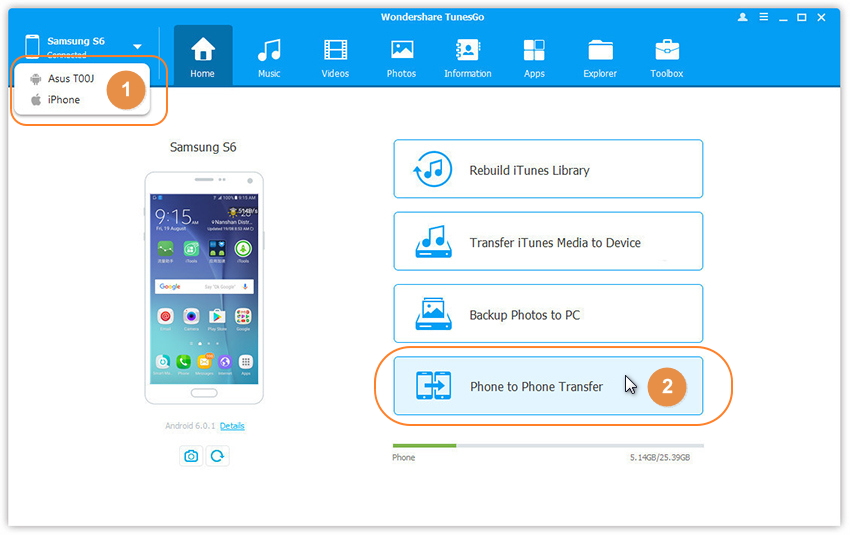
Step 3.Select the Transfer Option
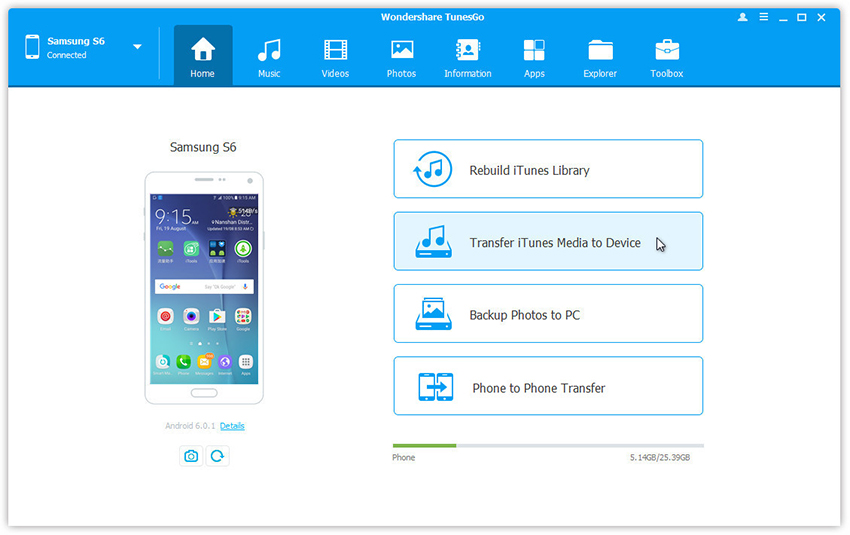
Simply click Phone to Phone Transfer on the main interface. Or find the Phone Transfer option under Toolbox > Transfer Tools section.

samsung-phone-to-iphone-transfer

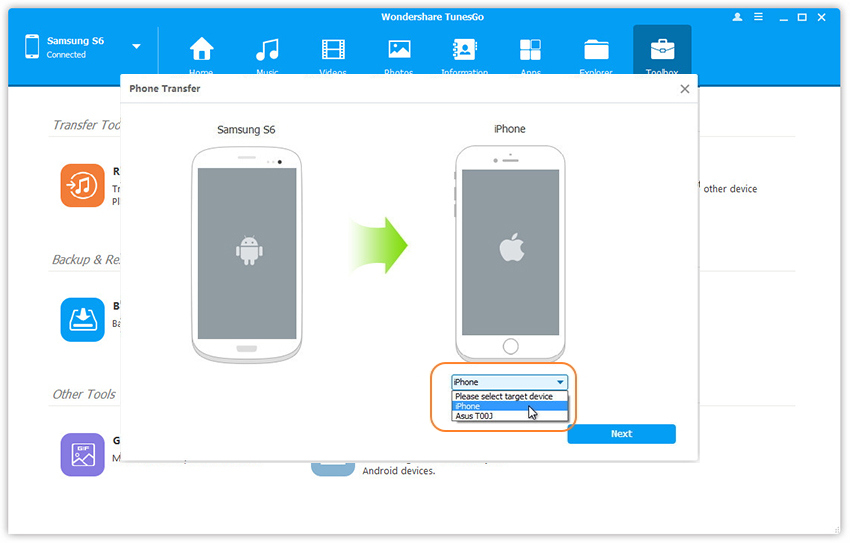
Step 4.Select the Target Device
When your devices are connected and detected by, you’ll get a window as follow. Select the target device from the drop-down list and click Next.

select-phone-transfer

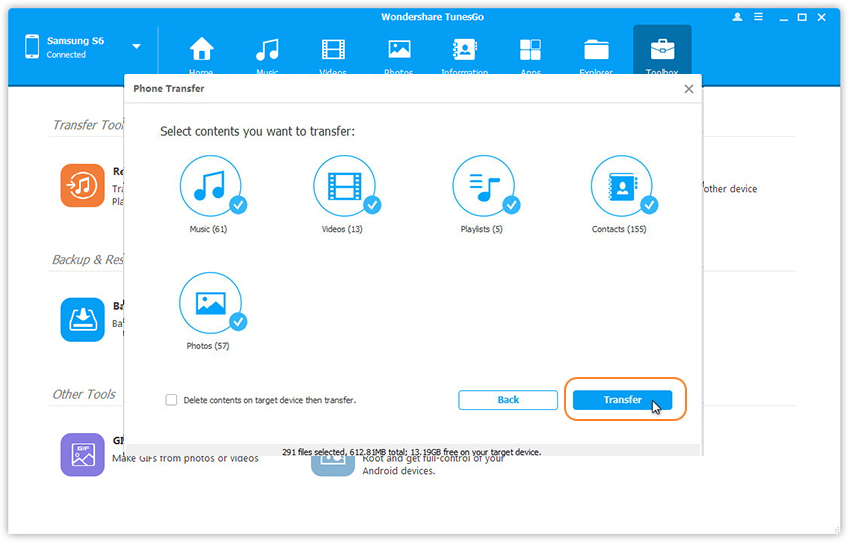
Step 5.Transfer Music from Samsung to iPhone
By default,all data on your source device that can be transferred are ticked, namely contacts, photos, playlist, music and videos. You can also tick your wanted data. Then, click Transfer. In the whole transfer process, DO NOT disconnect either device. When the transfer completes, click OK.

transfer-samsung-music-to-iphone

Note:
1. Contacts are not supported by Mac version.
2. Windows users can tick the option: Delete contents on target device then transfer, then the selected contents on the target device will be deleted firstly before the transfer. (Only for Windows version)

d_win d_mac

Way 2:Transfer Music Selectively from Samsung Galaxy to iPhone 7/6S/6

Step 1.Run Program and Connect Devices to Computer
Launch iOS & Android Manager and connect both Samsung and iPhone devices to computer.

Step 2.Select the Source Device
Select the source device from which you want to transfer music files.

connect-multiple-devices

Click Music tab.

Step 3.Select Music and Begin to Transfer
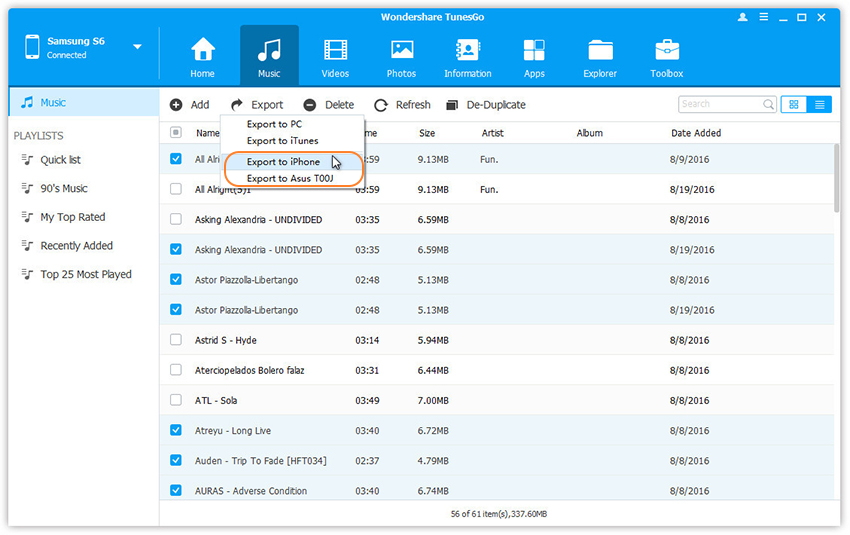
Choose your wanted songs and click Export. Select another device from the list.Here, you can transfer music from Samsung phone to iPhone by selecting Export > Export to iPhone directly.

select-samsung-device-to-export

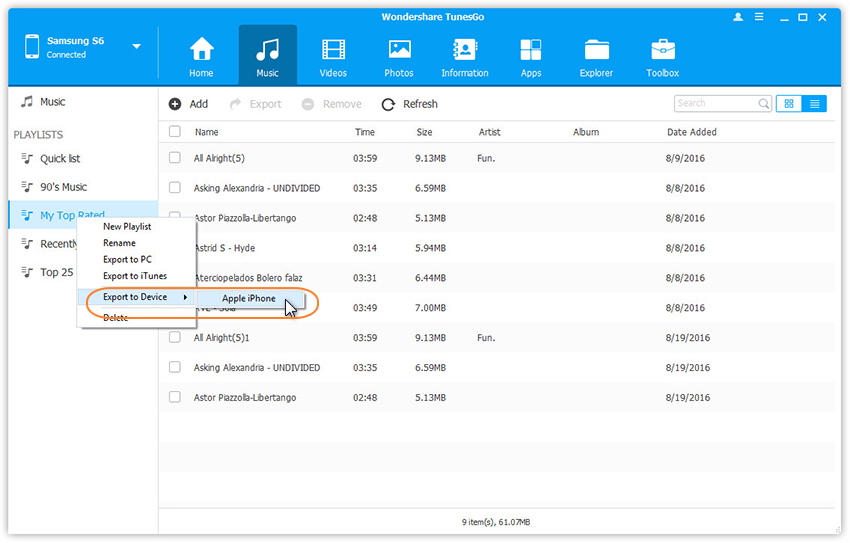
You can also transfer the whole music playlist from Samsung to other devices in one click.

export-samsung-music-to-iphone

d_win d_mac

Related Article:

How to Transfer Music to Samsung Galaxy S6/S7 on Mac

How to Manage Samsung Galaxy S6/S5/S4/S3/Note on PC/Mac

How to Manage Samsung Galaxy S7 on Computer

How to Transfer iTunes Music to iPhone 7/6S/6

How to Transfer Music from iPhone to iPhone 7

How to Manage iPhone 7 on Computer