All posts by DHZ

How to Fix Bricked Samsung Phone

A Bricked phone means that it does not turn on any way; just like the phone as a brick you can’t do anything on it.

Why Does Samsung Phone Get Bricked?

You will face this problem mostly during rooting your Samsung mobile. These are some of the main reasons for Samsung device getting bricked:

-Rooting erases some of the important code programs
-Device getting switched off during flashing
-Deleting some important application by mistake from your rooted Samsung device

These are some of the prime reasons for Samsung device getting bricked. Now if you try to fix it by visiting a service center then it will cost you a lot.The following passages we will talk about how to do if Samsung phone get bricked and fix it to normal with 2 simple solutions.

Wipe Data to Fix Bricked Samsung Phone

The first thing to do is put your bricked Samsung into Recovery Mode. You do this by holding down Home, Volume Up and Power. You’ll be presented with a menu, which is controlled not by the touchscreen, but by the volume controls and the Menu or Power buttons (depending on the version, trial and error is your friend) to select. So, with that in mind, scroll down to ‘wipe data/factory reset’.

Press Menu/Power and you’ll be presented with a slightly daunting ‘are you sure?’ screen, with loads of No options and a single Yes. Scroll to the Yes, then power off your phone with the power button.

Fix Bricked Samsung Phone with Android Fix & Data Recovery Tool

The method we mention above is a fast way to save your bricked Samsung,however,this way actually is not the best way we recommend to you cause it will have a chance that lead to data loss during the rescue process. Here is a software using which you can easily get this task done.

The Bricked Samsung phone can be “unbricked” with a software called Android Fix & Data Recovery Tool even if it freezes immediately under any unexpected situation.Using it to download recovery package for Samsung devices and fix bricked Samsung to normal with 4 simple steps.Have the software and the right firmware ready(download on the button following),connect the turned of phone.Then start the Android Fix & Data Recovery Tool and repair the bricked Samsung.There are instructions how to do it as well. It worked for all kinds of Samsung devices,including Galaxy S7/S6/S5,Note 5/4,and more.


d_win d_mac

The first step that you should do is to download and install the Android recovery on your computer and then going for the scan option. Once it has completed scan, there is a option named with Broken Android Data Extraction which you should click.

Step 1.Connect the Bricked Samsung Phone to the Computer
Download and Run the Broken Android Fix & Data Recovery Tool program on your computer and then connect your bricked Samsung phone to computer using a data cable, the program will now detect your phone soon. Click on “Broken Android Phone Data Extraction” when the following screen appears.Then click “Fix Device” button.
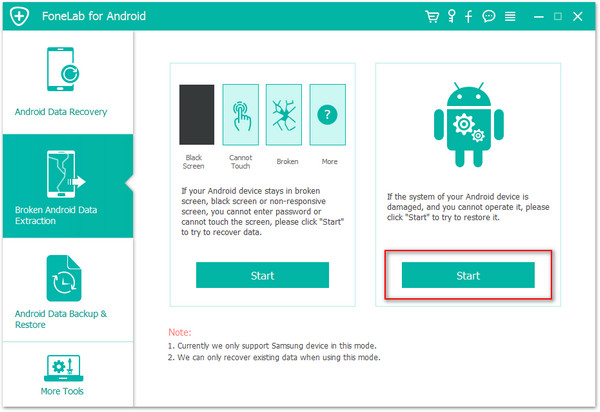
fix bricked samsung

Step 2.Select the Bricked Type of your Samsung Galaxy
You should select the bricked situation that match your device.The program will enter the following interface. Please choose a kind of situation depends on your Samsung.
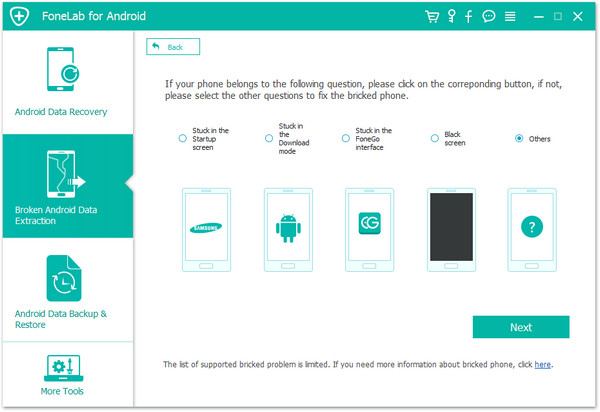
bricked choose fault type

Step 3.Choose the Phone Name and Model
You should select the proper version of the android as well as the exact model of Samsung you are using.

select the model of bricked samsung

Step 4.Get Samsung into Download Mode
Now the screen will ask you to get the bricked Samsung into Download Mode manually. Power off your bricked Samsung phone completely. Then press and hold “Volume Down + Home + Power” button on your phone together. After that, your phone will enter “Download Mode” successfully.
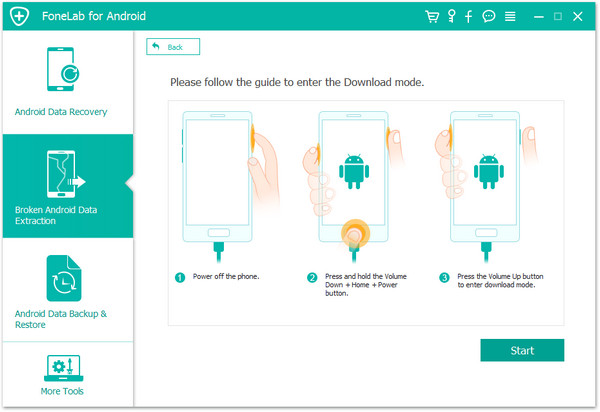
get bricked samsung into download mode

Step 5.Analyze the Bricked Samsung Devices and Download Recovery Package to Fix it
Your Samsung will be detected in this step and it is necessary to keep connecting the device with computer so that the software will display the device model and Android version on the interface.
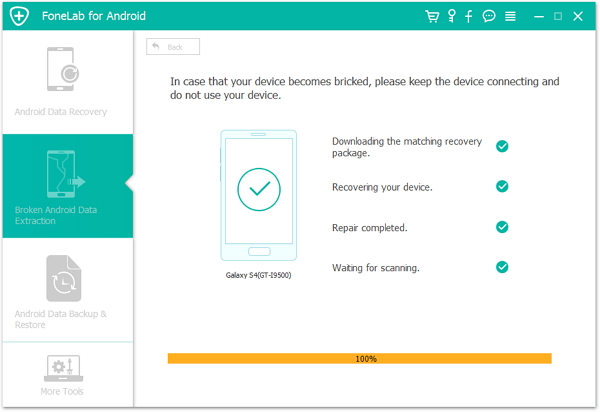
detect bricked samsung

After download the recovery package complete,the program begin fix your bricked Samsung to normal state. After a few seconds, your device will restart as usual. Now, you can check your Samsung and make sure whether it can work or not.

Step 6.Choose the File Types your want to Extract from Bricked Samsung
After fixing the bricked phone to normal state,if you want to recover lost data from Samsung Galaxy phone,please switch to “Android Data Recovery” feautre,then connect your phone to the computer via USB cable,and select the files and the items you actually want to extract from the bricked Samsung. The recovery option however includes contacts, text messages, photos, gallery, music, video,documents and others from bricked Samsung.

choose data to restore from bricked samsung

Step 7.Recover Lost Data from Bricked Samsung after Fixed
The program will help you to extract the existing data and recover the lost data from your Samsung phone.

Please keep the connection of the Samsung and the computer,switch to the data recovery mode,enable USB debugging on Samsung,scan data from Samsung.Select the data you want and click “Recover” button to extract and save the lost data on computer.
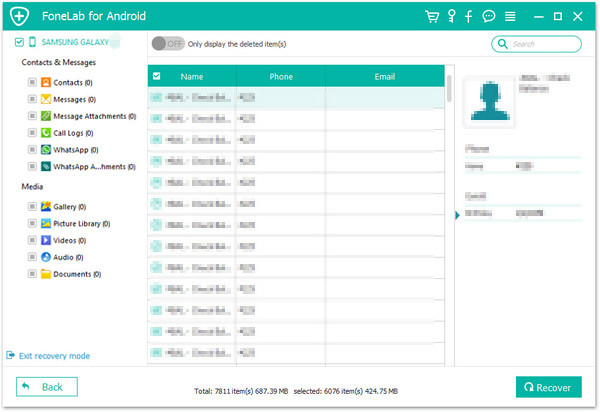
extract data from bricked samsung

Extra Tips:How to Recover Lost Data from Samsung

It’s the best way to repair bricked Samsung by using Android Fix & Data Recovery Tool,instead of sending it for repairs and spending more money for an new expensive phone.Besides,this program can also allows you to restore files from black-screen,stuck in download mode or cracked Samsung phone.Please use this software and have a try yourself.

d_win d_mac

Read More:

How to Fix Bricked iPhone to Normal

How to Fix iPhone System to Normal

How to Recover Data from Broken Android Phone

How to Transfer Contacts from Samsung to iPhone SE/6S/6

Focus on iPhone SE
Though initial reports suggested Apple had planned to name the new model the iPhone SE, to align it with the 5s and 5c, it now appears the company has decided to name it the iPhone SE, meaning ‘special edition’.It is widely expected to keep the same 4-inch display as the 5s, but include a number of new features to bring the smaller phone up to date, coupled with the smooth curved glass sides of the 6 and 6s’ screen.

It is very common for us to buy a new Samsung phone or iPhone in nowadays. As we know, Samsung and iPhone work on two different operating systems for different features.Transfer contacts saved on the previous phone to the new iPhone 5SE is the first important thing to do,when you need to buy a new iPhone 5SE.You don’t need to manually inputting your contacts on the new phone one by one.

Any Way to Transfer Contacts between Android Phone and iOS Phone

Transfer Samsung Contacts to iPhone SEPhone Transfer helps to copy contacts from Samsung Galaxy S/Note to iPhone SE/6S/6 efficiently and easily.Besides contacts,Phone Transfer allows to transfer SMS, photos, songs, videos, etc. between Samsung and iPhone,which only needs you one click in the whole process.iPhone 6s/6/5s/5SE/5/4s,Samsung Galaxy S7/S6/S5,Note 6/5/4 etc,are supported.

Download the free trail version of the Phone Transfer program on your computer to have a try.

d_win d_mac

Easy Way to Transfer Contacts from Samsung Galaxy S4/S5/S6 to iPhone SE

Step 1.Install and Run the Phone Transfer on computer
After you downloading the right version of Phone Transfer,install and lunch it on computer.Then, you will be able to see the following home window.Tap the “Phone to Phone Transfer”mode.

Transfer Contacts from Samsung to iPhone SE

Note:Please make sure you have installed iTunes on computer.

Step 2.Connect Samsung phone and iPhone SE to PC
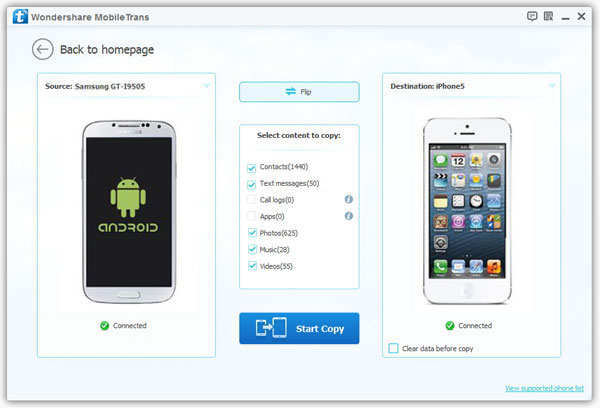
Connect your Samsung and iPhone SE to your computer via two USB cables. After the transfer program detect your phones successfully, they will be displayed on the main interface, named as “Source” and “Destination”. Or you can tap the “Flip” button in the middle of the two phones to change the place of phones.

transfer data from samsung to iphone SE

Step 3.Copy Contacts from Samsung to iPhone SE
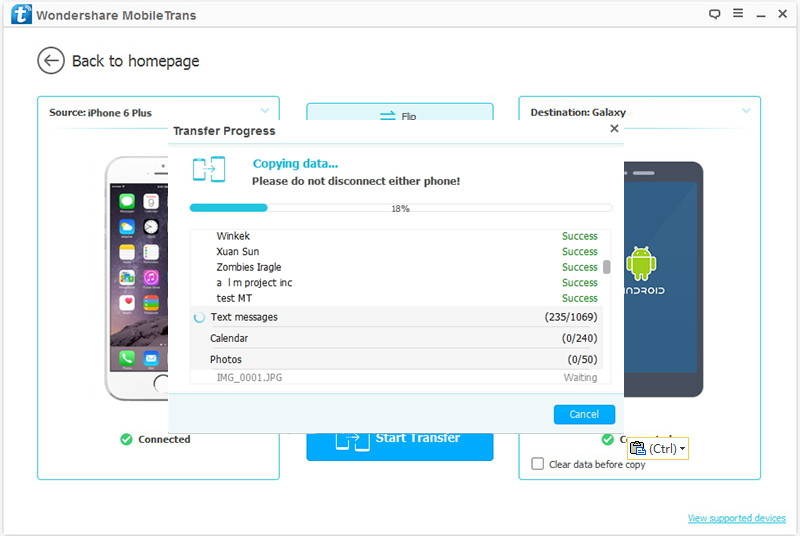
Besides Contacts,this transfer program can also move other data like Photos,Text Messages,Music,Videos between Samsung and iPhone. If you only want to transfer contacts, just mark “Contacts” and transfer them between your phones by clicking “Start Copy” button.

move sms,contacts from samsung to iphone SE/5SE/6/6s

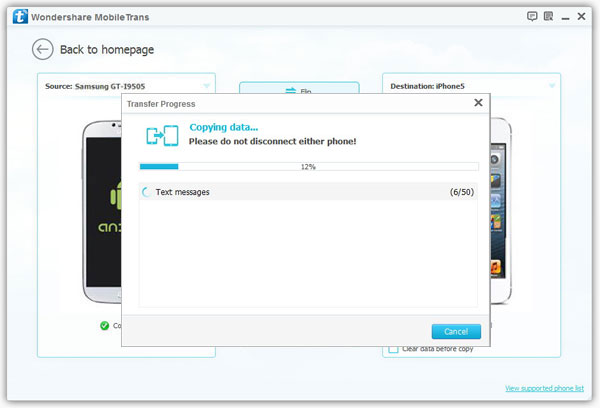
When the transfer progress is over,click “OK”.

Note: Please keep both your phones connected to the computer all the time during the transfer progress.

In most situations,we can’t simply say which one is better than another. And this is also not the focus in this page. We can see that Samsung and iPhone have their own management tool, but this kinds of program can’t help you move data between two different operating system. So if you’re encountered the question of transferring data like contacts, photos, SMS, etc. between Samsung and iPhone, then you can take a free trial on this Phone Transfer for Mobile program.

d_win d_mac

Read more:

How to Transfer Data from Samsung to iPhone SE/6S/6

How to Transfer iPhone Contacts to Samsung Galaxy S7/S7 Edge

How to Transfer Contacts between Samsung Galaxy and iPhone 6/5S/5

How to Transfer iPhone Data to Samsung Galaxy S7

“I am currently used an iPhone 6 and about to get something new. But I am not sure how to copy my data (songs, contacts, messages, etc.) from iPhone 6 to new Samsung Galaxy S7.Is any method to transfer iPhone data to Samsung Galaxy S7,please inform me. Yeah, there is one more thing that I want to move these files directly with no complicated step”-David Yang

Sync Everything from iPhone to Samsung Galaxy S7

transfer iphone to Samsung Galaxy S7

In fact, this can be performed in an easy way that you can never imagine: Two phones connected to computer can exchange files with this free software, iPhone to Android Transfer. Most Samsung and iOS devices are supported, including Galaxy S7/S6/S5,Note 6/5/4, iPhone 6s/6/5/5c/4s/4, etc.Phone Transfer is a trustable tool to transfer files from iPhone to Samsung Galaxy S7 completely. The “data” mentioned here consist of music, videos, photos, SMS, contacts,calendars,call history and so forth. Only a few clicks are needed in the process.

Can’t wait to wanna know if is such an amazing program?Just download and try it for yourself.

d_win d_mac

Part 1:Transfer iPhone 6 Data to Samsung Galaxy S7 with Phone Transfer

Step1.Download and Run Phone Transfer
When you installed this app, double click to open it.Soon, the window will pop up, with four modes for you to choose from. Here need to select the blue one, “Phone to Phone transfer”.

Transfer Contacts from iPhone to galaxy S7

Step 2.Plug iPhone 6 and Galaxy S7 to Computer with USB
The interface can be seen in this way, which says that you must connect the phones to PC.

Transfer Photos,Videos,Music from iPhone to Samsung Galaxy S6

Note:
1)The button “Flip” can be used if you’d like to remove things from Samsung to iPhone in contrast.
2)Data erasure before copying is also available by checking the box in the lower right corner.

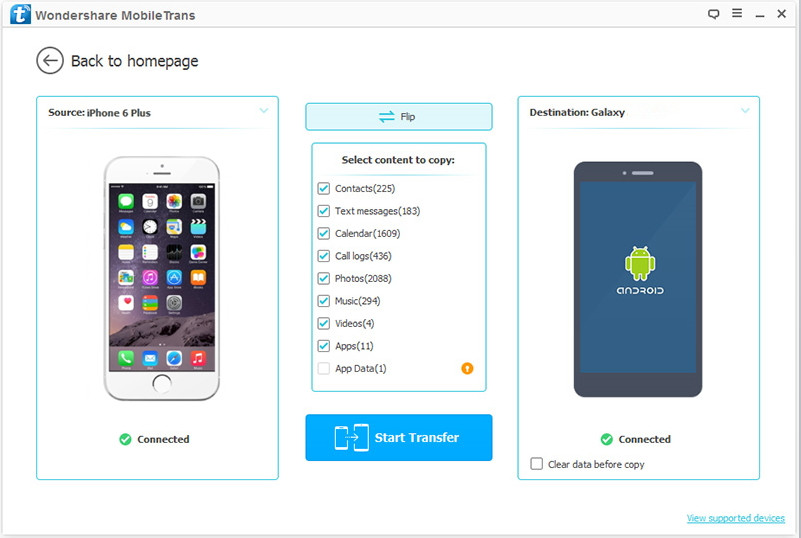
Step 3.Select the items that You Want to Transfer from iPhone 6 to Galaxy S7
As you can,seven of them are listed in the middle.Check those that are to be copied, and click “Start Copy”.Contacts,Photos,Text messages,Calendar,Music,Videos are fallback options you can click.

Transfer SMS from iPhone to Galaxy S6

When the process bar reaches the end, press “OK” to finish the process.

With Phone Transfer,you can copy files from iPhone to Samsung with simple steps,it allows to switch content between iOS devices,Android devices,Symbian OS devices,such as Motorola,HTC,Nokia.This program provides more functions that for instance backup files and restore files on mobile device,as well as wipe data on mobile devices permanently.

d_win d_mac

Phone Transfer Supported Devices:

iOS:iPhone 7/7 Plus,iPhone SE,iPhone 6S/6S Plus,iPhone 6/6 Plus,iPhone 5S/5C/5,iPhone 4S/4,iPad Mini,iPad Air,iPad Pro,iPod Touch,etc,.

Samsung:Galaxy S8,Galaxy S7/S7 Edge,Galaxy S6/S6 Edge,Galaxy S5/S5 Active,Galaxy S4/S4 Mini/S4 Active/S4 Zoom,Galaxy S3/S3 Mini,Galaxy S2,Galaxy Note 7,Galaxy Note 5,Galaxy Note 4,Galaxy Note 3,Galaxy Note 2,Galaxy Nexus,Galaxy S,Galaxy Tab,etc,.

Part 2:Transfer iPhone 6 Data to Samsung Galaxy S7 with iOS & Android Manager

iOS & Android Manager is the second data manage tool that our strongly recommend for you,which effectively help to manage & transfer data between iPhone and Samsung Galaxy S7 with easy steps,including videos,music,photos,contacts and SMS.What’s more,iOS & Android Manager allow to transfer data between computer and mobile device,transfer data between iTunes and mobile device.All iOS devices are supported,such as iPhone 7/6S/6/SE/5S/5C/5,iPad and iPod.Amost all Android devices are supported,such as Samsung(Galaxy S7/S6/S5,Note 5/4/3),HTC,Motorola,Sony,Google,ZTE,etc,.

d_win d_mac

Step 1.Launch iOS & Android Manager and Connect Devices with the Computer
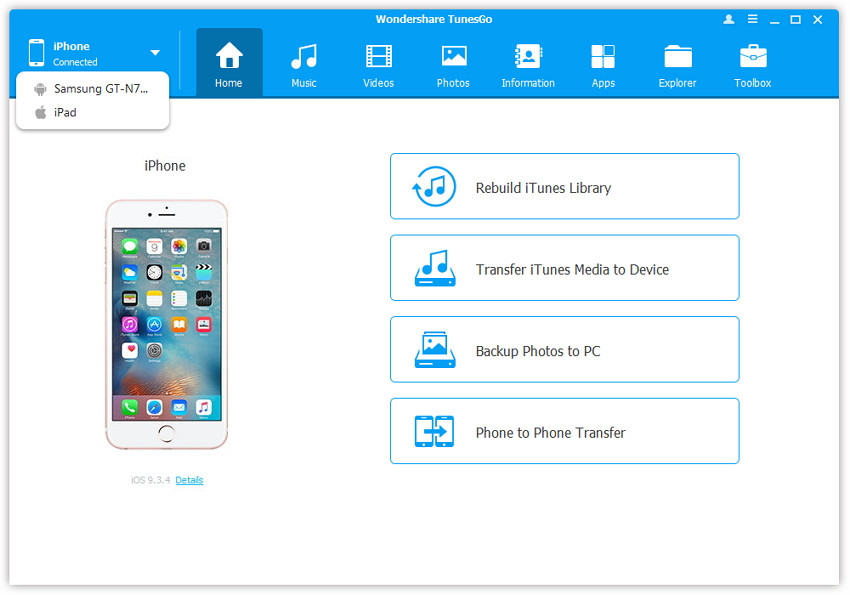
Launch iOS & Android Manager and connect both iPhone and Samsung Galaxy S7 or one more device with the computer, here we name the connected devices: A, B, C.

transfer data from iPhone to samsung

Step 2.Select the Source Device from which you want to Transfer Data
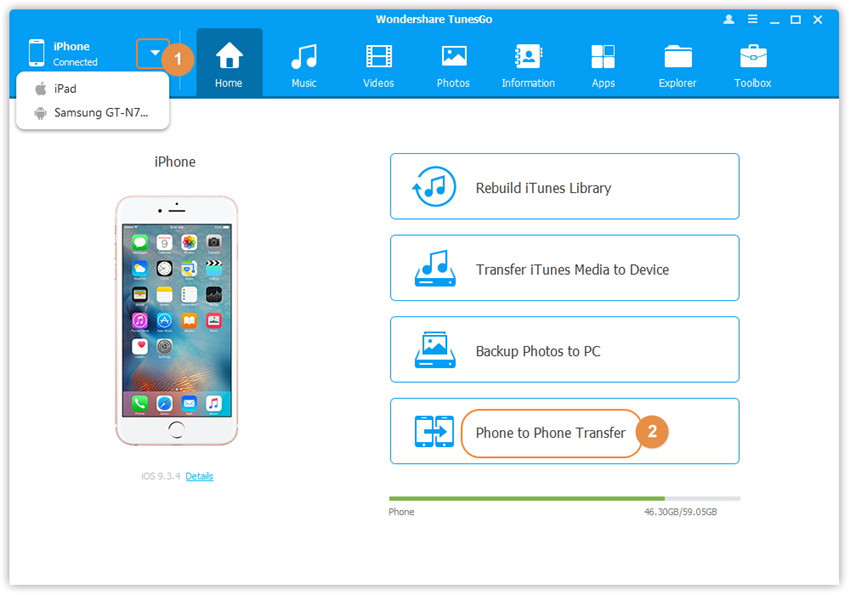
Select the source device A, and click Phone to Phone Transfer option on the main interface. Then a new window will pop up.

select devices to transfer

Step 3.Select the Target Device to which you want to Transfer Data
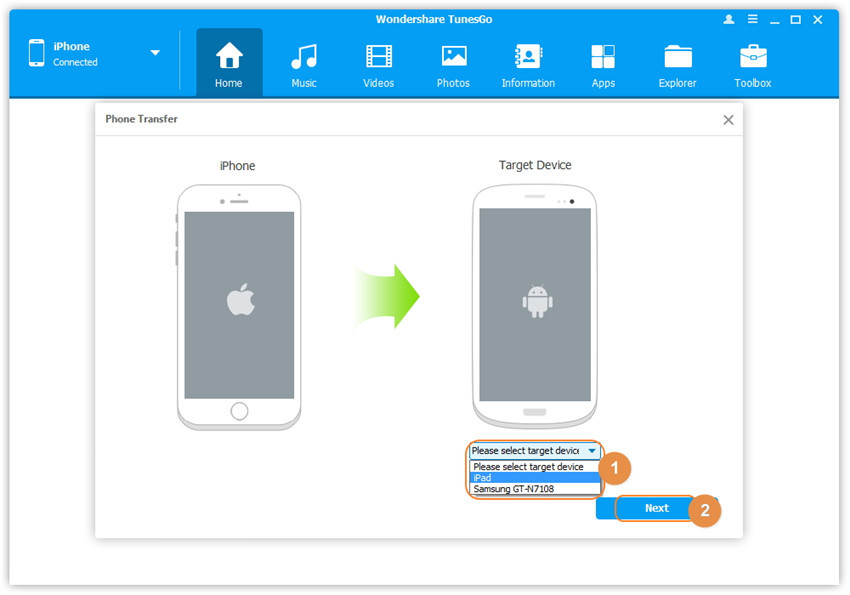
From the pop-up window, select the target device B or C from the drop-down list and click Next.

select device to transfer

Step 4. Transfer Data from one Device to another
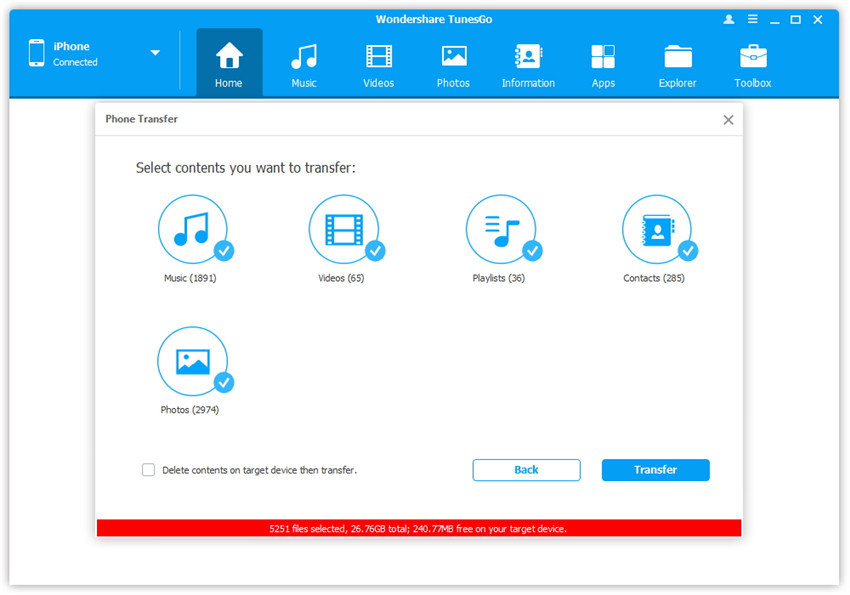
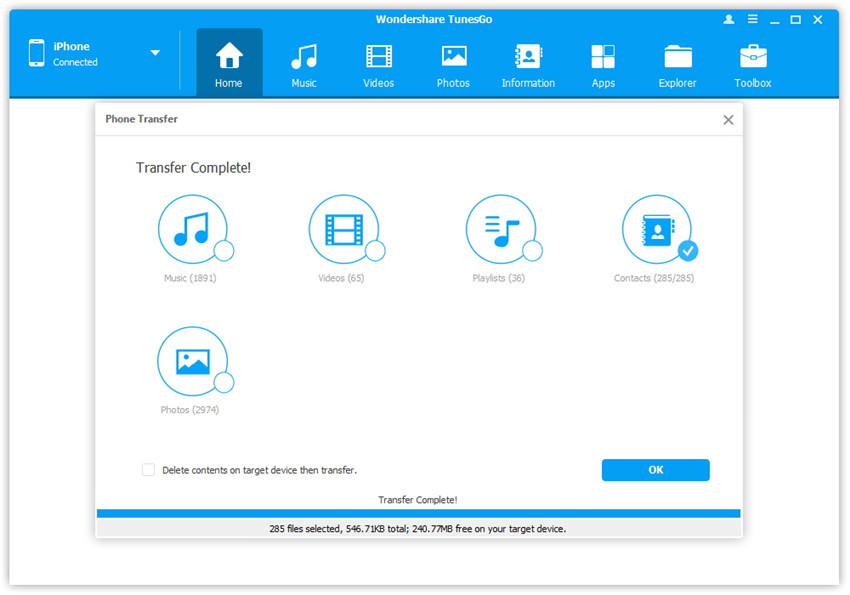
By default, all the content on your source device A that can be transferred are checked, namely Music and Videos, Playlists, Photos, Contacts( Note: Contacts are not supported by Mac version). You can uncheck the contents which you don’t want to transfer. Then, click Transfer. In the whole transfer process, DO NOT disconnect either of the devices. When the transfer completes, click OK.

select file to transfer

1-click-phone-to-phone-transfer

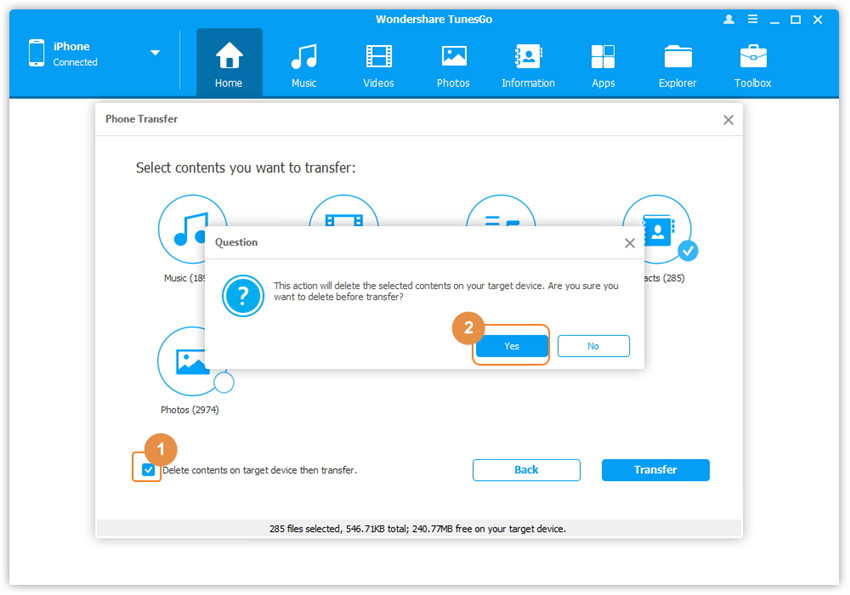
Note: Only for Windows version, you’re enabled to tick the option: “Delete contents on target device then transfer” before clicking Transfer button, then the selected contents on the target device will be deleted firstly before the transfer.

confirm to delete data on target device

d_win d_mac

Read more:

How to Transfer Photos from iPhone to Samsung Galaxy S7

How to Transfer Text Messages from iPhone to Samsung Galaxy S7

How to Manage Samsung Galaxy S7 on PC/Mac

How to Transfer Photos from iPhone to Samsung Galaxy S7

Due to the great photograph function,iPhone is beyond a communication tool for many people, say it can be regarded as a camera which reserves precious memory for users.Well,the Galaxy S7 and the Galaxy S6 both have a 5.1-inch Super AMOLED Display with 2560 x 1440 pixels Quad HD resolution.However, the Galaxy S7 has waterproof technology that is IP68 certified to last up to 30 minutes underwater in a meter deep submersion.The Galaxy S7 display also features an Always-ON display technology.The Galaxy S7 measures 142.4 mm tall, 69.6 mm wide, and 7.9 mm thin, whereas the Galaxy S6 measures 143.4 mm tall, 70.5 wide, and 6.8 mm thin.

A amount of iPhone users focus on the new Galaxy S7 for the highlight of its camera.Planning to get a new Galaxy S7 to take place of iPhone.But it’s afraid that it takes a lot of time to transfer iPhone photos to Galaxy S7. Indeed, there is a wonderful tool for you to solve this problem in efficiency- Phone Transfer,which is quite useful especially when it needs to switch large amount of images between iPhone and Samsung.Phone Transfer supports to switch iPhone photos to Galaxy S7 with only three simple steps, Phone Transfer serves your convenient process to transfer photos from iPhone to Galaxy S7 quickly and comprehensively.

d_win d_mac

How to Sync Photos from iPhone to Samsung Galaxy S7

Step 1.Install and Run Phone Transfer
Set up the software onto your computer by clicking the “Free Download” button above.After installing it correctly, open it and tap on “Phone to Phone Transfer” to get to the next step.

Transfer Photos from iPhone to galaxy S6

Note:To make sure the data transfer program goes smoothly, you should install iTunes first.

Step 2.Connect both iPhone and Galaxy S7 to computer
Plug both iPhone and Galaxy S7 to your computer with USB cables and they will be detected by the program and presenting as “Source” and “Destination”.If you want to exchange the position of the two devices, click the “Flip” button right above.

Transfer Content from iPhone to Samsung Galaxy S6

Step 3.Transfer Photos from iPhone to Galaxy S7
Check the “Photos” button in the middle column and then click “Start Copy” to begin the transfer process. Wait for a moment (which depends on the amount of photos) and it will done by tapping on “OK”.

Transfer Music, Photos from iPhone to Galaxy S6

With the assistance of Phone Transfer, you can transfer photos from iPhone to Samsung Galaxy S7 with no efforts.What’s more,the software is so considerate to arrange the transferred pictures on the Samsung to the correspondent folders as those on the iPhone.Isn’t it amazing? Just download it and have a try!

Being a specialized phone data transfer tool, Phone Transfer is praised for offering great user experience in photo transmission between mobile phones.Besides,this program supports to various formats of images including JPG, PNG, GIF etc., Phone Transfer is also compatible with the iOS devices model (iPhone 6s/iPad Mini/iPod) as well as Android (Galaxy S7/S6/Note 6/A9),Symbian OS(Nokia).

d_win d_mac

The Moile Phones are Applicable to Phone Transfer:

iOS:iPhone 7/7 Plus,iPhone SE,iPhone 6S/6S Plus,iPhone 6/6 Plus,iPhone 5S/5C/5,iPhone 4S/4,iPad Mini,iPad Air,iPad Pro,iPod Touch,etc,.

Samsung:Galaxy S8,Galaxy S7/S7 Edge,Galaxy S6/S6 Edge,Galaxy S5/S5 Active,Galaxy S4/S4 Mini/S4 Active/S4 Zoom,Galaxy S3/S3 Mini,Galaxy S2,Galaxy Note 7,Galaxy Note 5,Galaxy Note 4,Galaxy Note 3,Galaxy Note 2,Galaxy Nexus,Galaxy S,Galaxy Tab,etc,.

HTC:HTC One M9,HTC One M8,HTC Nexus 9,HTC One X,One S,One V,HTC Wildfire S,HTC Desire,HTC One,HTC Butterfly S,etc,.

Motorola:Moto X 2,Moto X,Moto G2,Moto G,Moto E,Nexus 6,Droid RAZR M,Droid RAZR MAXX HD,ATRIX HD,ELECTRIFY M,Droid BIONIC,etc,.

Sony:Xperia Z4/Z3/Z2/Z,Xperia M,Xperia SP,Xperia L,Xperia ZL,Xperia E,Xperia T,Xperia TX,Xperia SL,Xperia J,etc,.

LG:Nexue 5X,Nexus 6P,Nexus 5,Motion 4G MS770,Optimus L9,Optimus G,Lucid VS840,Nitro P930,Viper LS840,Spectrum VS920,Intuition VS950,etc,.

Other Phones:Huawei,ZTE,Acer,ASUS,AT,Amazon,Archos,Dell,Google,HP, Kyocera, Lenovo,Xiaomi,etc,.

Part 2:Transfer Photos from iPhone to Samsung Galaxy S7 with iOS & Android Manager

Another powerful data manage tool is iOS & Android Manager,which is a helpful tool to transfer photos between iPhone and Samsung Galaxy S7 in minutes.Besides photos,this program allow to manage and transfer several data between iPhone and Android,SMS,videos,music,contacts are included.All the functions of iOS & Android Manager is applicable to all models of iOS and Android devices,such as iPhone 7,iPhone SE,iPhone 6S/6/5S/5,iPad & iPod;Samsung(Galaxy S7/S6/S5,Note 5/4/3),Google,Sony,ZTE,HTC,Motorola,and more.

d_win d_mac

Step 1.Launch iOS & Android Manager and Connect iPhone and Samsung with the Computer

Step 2.Select the iPhone as Source Device from which you want to Transfer Data

Step 3.Select the Samsung as Target Device to which you want to Transfer Data

Step 4.Transfer Photos from iPhone to Samsung

select file to transfer

d_win d_mac

Read more:

How to Transfer Text Messages from iPhone to Samsung Galaxy S7

How to Transfer Contacts from iPhone to Samsung Galaxy S7

How to Transfer Photos from iPhone to Samsung Galaxy S6

How to Transfer Android Contact to Samsung Galaxy S7

Please help, I am going to buy a new Samsung galaxy s7, and my old phone is Lenovo. but I don’t know the easy way to move all contacts from the old Android to new Samsung galaxy s7, who can help me?-Linda Lam

Highlight of Samsung Galaxy S7:
Samsung started shipping its new Galaxy S7 devices.Besides wasting a perfectly fine bottle of bubbly, the ad illustrates one of the S7’s new features: it’s water resistant. Samsung says the phone, which officially launched last week, can survive submersion in water as deep as five feet for up to 30 minutes.In other words, if you jump in the pool with your phone in your pocket (like I did a couple summers ago), you might not kill your phone as long as it’s a Galaxy S7 (mine, on the other hand, was a goner). More simply, the S7 is built to survive everyday accidents, such as it falling into the sink or someone spilling their drink on it.

Are you intending to get the new Samsung Galaxy S7 to replace old phone but being annoying by methods of switching data from old phone to the new one? Generally, there is really a piece of cake if you find the correct way.How to move contacts from Android to Samsung Galaxy S7 by yourself without anyone help or any professional skills?

That is Phone Transfer.With this effective tool, you don’t have to root your smartphone, find ways to export the contacts or input them to new Samsung Galaxy S7 with just one click.Phone transfer allows users sync data between iOS, Symbian and Android,it works well with iPhone 7, iPhone 6S, iPhone 6, iPhone 5S, iPhone 5C, iPhone 4S/4 and Samsung Galaxy S7/S6/S5/S4, Samsung Galaxy Note 6/5/4/3, Nokia, WinPhone, Blaceberry,etc.Let’s see how to sync Android contacts to Samsung Galaxy S7 with detail steps.

d_win d_mac

Switch Android Contact to Samsung Galaxy S7

Step 1.Install and Run Phone Transfer
Connect both Android and Samsung Galaxy S7 to your computer and launch the Phone Transfer.To transfer files to Galaxy S7 from Android, click “start” button under “Phone to Phone Transfer” section.

transfer Samsung phone to Samsung Galaxy S6

Step 2.Select Files Style to Transfer on Samsung Galaxy S7
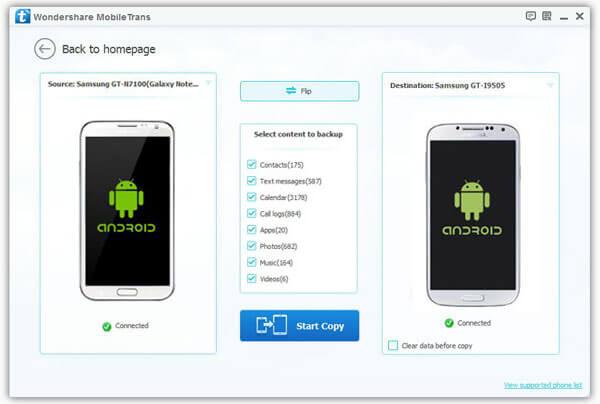
It will display all the contents between the two phones you can switch.All of transferable data would be automatically checked such as contacts, music, apps, etc. You can uncheck any content you won’t need to transfer.Here ,you should click “Contacts”item.Then, click “Start Copy”.

copy samsung photos to samsung galaxy s6

Note:The Galaxy S7 would be showed in right panel.You can click on “Flip” button to exchange the source and target device.

Step 3.Start to Switch Contacts from Android to Galaxy S7
The transferring process would be launched automatically.When the transfer progress is over,click “OK” to end it.

transfer photos from old Samsung phone to Samsung Galaxy S6

Well done! You have already synced your old Android contacts to Samsung Galaxy S7 with these 3 simple steps.

Phone Transfer allows to transfer files between mobile devices with sleek interface and no complex steps, only 1 click, it enable to switches data between two devices of different operating system.It transfers up to 12 types of data-apps, SMS, contacts, calendar, call logs, music, video,photos and more to Galaxy S7 from Android,iOS device,as well as Symbian.

d_win d_mac

More Mobile Phones Models Supported by Phone Transfer:

iOS:iPhone 7/7 Plus,iPhone SE,iPhone 6S/6S Plus,iPhone 6/6 Plus,iPhone 5S/5C/5,iPhone 4S/4,iPad Mini,iPad Air,iPad Pro,iPod Touch,etc,.

Samsung:Galaxy S8,Galaxy S7/S7 Edge,Galaxy S6/S6 Edge,Galaxy S5/S5 Active,Galaxy S4/S4 Mini/S4 Active/S4 Zoom,Galaxy S3/S3 Mini,Galaxy S2,Galaxy Note 7,Galaxy Note 5,Galaxy Note 4,Galaxy Note 3,Galaxy Note 2,Galaxy Nexus,Galaxy S,Galaxy Tab,etc,.

LG:Nexue 5X,Nexus 6P,Nexus 5,Motion 4G MS770,Optimus L9,Optimus G,Lucid VS840,Nitro P930,Viper LS840,Spectrum VS920,Intuition VS950,etc,.

HTC:HTC One M9,HTC One M8,HTC Nexus 9,HTC One X,One S,One V,HTC Wildfire S,HTC Desire,HTC One,HTC Butterfly S,etc,.

Sony:Xperia Z4/Z3/Z2/Z,Xperia M,Xperia SP,Xperia L,Xperia ZL,Xperia E,Xperia T,Xperia TX,Xperia SL,Xperia J,etc,.

Motorola:Moto X 2,Moto X,Moto G2,Moto G,Moto E,Nexus 6,Droid RAZR M,Droid RAZR MAXX HD,ATRIX HD,ELECTRIFY M,Droid BIONIC,etc,.

Nokia Symbian:Nokia N9,N8,E6,5230,5800 XpressMusic,N97,N97 mini,X6,5320 XpressMusic.

Other Phones:Acer,ASUS,AT,Amazon,Archos,Dell,Google,Huawei,HP,Kyocera,Lenovo,Xiaomi,ZTE,etc,.

Read more:

How to Transfer Messages from Android to Samsung Galaxy S7

How to Transfer Photos from Android to Samsung Galaxy S7

How to Transfer Data from Android to Samsung Galaxy S7

How to Transfer Data from Samsung to iPhone SE/5SE/6S/6

It is said that iPhone SE/iPhone 5SE/iPhone 6C will be equipped with 4.0-inch 2.5D glass, A9 processor, but in terms of memory will become 1GB compared to the 6S, rear camera 12 million, and it will support the latest Apple pay, built-in NFC function. Gay, silver, gold, gold rose four colors give all mobile phone users to choose. Moreover, the domestic price is at around between 400-500 US dollars. It has a great appeal for a man who falls in love with small screens and iPhone device. According to rumors, Apple is expected to release 4 inches of new intelligent machine called “iPhone SE” and “9.7 inches version of iPad Pro” at the press conference of March 21,2016.

Move All Contents from Samsung to New iPhone SE/5SE/6S/6

As we can see, every time Apple releases new products, there are many mobile phone users go online to make an appointment to buy new iOS device, or even lining up to buy it at the Apple Store in advance. I do believe that this will be carried out as usual. By the way, if you used Samsung Galaxy phones, such as Samsung Galaxy S4, Samsung Galaxy S5, Samsung Galaxy S6, Samsung Galaxy Note 4, Samsung Galaxy Note 3 or other Samsung Galaxy smartphones and now want to purchase the new iPhone SE/5SE, what you can do to transfer all from the old Samsung Galaxy to iPhone SE or iPhone 5SE without complex operation? Since the two different operating systems, transferring Samsung contacts, text messages, pictures, videos, app and other files to iPhone SE/5SE is not a piece of cake. However, this does not mean impossible.

The good news is that you can transfer data from Samsung Galaxy S3/S4/S4 to iPhone SE/5SE with the Samsung Galaxy to iPhone Transfer Tool – Phone Transfer. Moving all contacts, videos, music, text messages, ebooks, call history, notes from Samsung Galaxy to iPhone SE or iPhone 5SE, iPhone 6C , iPhone 6S/6/5S/5/4S/4 with a few clicks!

d_win d_mac

Supported Mobile Models:

Samsung Devices: Samsung Galaxy S7 (Edge)/S6 (Edge)/S5S4/S3, Galaxy A9/A8/A7, Galaxy Note 5/4/3, Galaxy Grand, Galaxy Tap, Galaxy Rugby, Galaxy Fame, and more samsung phones or tablets.

iOS Devices: iPhone SE/5SE, iPhone 6S/6S Plus/6/6 Plus/5S/5C/5/4S/4, iPad, iPad Pro, iPod Touch.

How to Transfer Everything from Samsung to iPhone SE/5SE

Step 1. Launch Phone Transfer Tool on PC

After installing, you should run the Phone Transfer tool on your computer. At the meanwhile, you should connect your Samsung Galaxy smartphones and iPhone SE or iPhone 5SE to computer. Then click “Start” button.

Transfer Contacts from Samsung to iPhone SE

Step 2. Select Data and Scan

transfer data from samsung to iphone SE
The software will show all your files in the window. You can tick “Select All” box if you want to sync all files from Samsung device. Please note that Samsung is aelect as the source phone on the left and iPhone 5SE is selected as the target phone is on the right. Or you can click “Flip” button to change positions of Samsung phone and iPhone.

Step 3: Start transferring from Samsung Galaxy to iPhone

Hit the “Start Copy” button. All data will be moved from Samsung to iPhone 5SE, please do not disconnect neither your iPhone nor Samsung Galaxy phones while transferring, or the transfer will stop.

move sms,contacts from samsung to iphone SE/5SE/6/6s
Free download the Android to iPhone Transfer and have a try!

d_win d_mac

Related Articles:

How to Move Contacts from Samsung to iPhone SE/5SE

How to Sync Data from iPhone 4/4S/5/5S/5C to iPhone SE/5SE

Transfer Contacts from iPhone 4/4S/5/5S/5C to iPhone SE/5SE

How to Recover Deleted Data from iPhone SE/5SE

How to Restore Deleted SMS from iPhone SE/5SE

How to Retrieve Deleted Photos on iPhone SE/5SE

Restore Lost or Deleted Contacts from iPhone SE/5SE/6C

How to Restore Deleted Text Messages on Samsung Galaxy S5

How can I recover my Samsung Galaxy S5 lost text messages? Last night, I lost my SMS due to accidental deletion. I want to restore my important SMS which recorded a large number of customer information and transaction information, is it possible to retrieve text messages data on Samsung Galaxy S5? Heartfelt thanks!

Is it Possible to Recover Deleted Samsung Text Messages?

Accidentally deleted important text messages on your Samsung Galaxy S5? Or lost SMS data due to restoring to factory reset, SD card formation, rooting, flashing ROM or Samsung device crash? Recovery may be required due to physical damage to the storage device or logical damage to the file system that prevents it from being mounted by the host operating system. Actually, when text messages are lost or deleted, the actual SMS data are not erased from Galaxy S5, they are still saved on the phone’s internal memory. Don’t worry, you still have chance to recover deleted text messages on Samsung Galaxy S5 with a Samsung Galaxy S5 Data Recovery software.

You can use a professional Samsung Galaxy S5 Data Recovery app – Android Data Recovery to get access to the phone’s internal memory and conduct a deeply scanning on it directly, display the found deleted and existed text messages on your Samsung Galaxy S5 phone, then you can go through the found files and select the SMS you want to restore. And if you wish to restore photos, videos, music from the external SD card inside of the Galaxy S5, you only need to turn on USB storage before the scan, then files on it will also be found. Now, just click the below icons to start the process officially.

d_win d_mac

Tips: This Android Data Recovery also can help you recover text messages on most Samsung smartphones such as Galaxy S7/S7 Edge ,Galaxy S6/S6 Edge and Galaxy A9/A7/A5.

Steps to Retrieve Deleted SMS from Samsung Galaxy S5

Step 1. Connect Samsung Galaxy S5 to PC

Clicking the above icon to download the free trail version. Then launch Samsung S5 Data Recovery on your computer. Then please connect your Galaxy S5 to PC via USB.

recover samsung galaxy s5 sms

Step 2. Turn on USB Debugging on Samsung Galaxy S5

you should make it possible in advance. Here is the right way to open USB debugging follow below steps:
1) For Android 5.1: Enter “Settings” > Click “About Phone” > Tap “Build number” for several times until getting a note “You are under developer mode” > Back to “Settings” > Click “Developer options” > Check “USB debugging”
2) For Android 4.2 or 5.0: Enter “Settings” > Click “About Phone” > Tap “Build number” for several times until getting a note “You are under developer mode” > Back to “Settings” > Click “Developer options” > Check “USB debugging”
3) For Android 4.2 or earlier: Enter “Settings” > Click “Developer options” > Check “USB debugging”

Retrieve Deleted SMS from Galaxy S5

Step 3. Select File Types to Recover

If you want to recover text messages data on S5, you can select “Text Messages” types from category. Then click the “Next” button.

samsung sms recovery

If there is a prompt on your device as follow, tap “Allow” and permit the program to access and scan deleted text messages on your Samsung Galaxy S5.

Restore Text Messages from Galaxy S5

Begin to scan lost data stored on your Samsung Galaxy S5 before

Recover Deleted SMS from Galaxy S5

Step 4. Preview and Recover Lost SMS from Galaxy S5

Once the scanning is finished, all data will be displayed in the table. Preview them in details. After that, select ”Text Messages” you are going to recover and click “Recover” to get them back.

Restore Deleted SMS from Galaxy S5

With Samsung Data Recovery, you are able to restore lost text messages from Samsung phones, as well as contacts, photos, videos, WhatsApp messages, call logs, ect. Moreover, if you are an Samsung fan and have several Samsung phones of different models or your families are using Samsung phones, this software is also useful as it can be perfectly compatible with all Samsung phones, including Samsung Galaxy S7/S6/S5/S4, Galaxy A9/A8/A7, Galaxy Note 4/5, etc. Why not give a try right now!

d_win d_mac

Related Articles:

How to Recover Deleted Contacts from Samsung Galaxy S5

How to Restore Deleted Photos from Galaxy S5/S6/S4

How to Retrieve Deleted Data from Galaxy S5

How to Transfer Messages from Android to Samsung Galaxy S6/S7

“I need help!!! What trouble me a lot is I recently broken my HTC phone and I have to buy a new phone to take the place of this smart phone. But what can I do to get my Samsung Galaxy S6 messages to my new Samsung Galaxy S6? Is it possible? These messages are quite important for my business, if I can’t have them back to me, it will cause me a great loss!!!”-Carrie

Samsung announced two versions of the Samsung Galaxy S6 earlier this year, the standard plain version and the Galaxy S6 Edge.The two flagships are the most advanced and powerful phones on the market, which are comfortably better than the HTC One M9, the LG G4 and even the iPhone 6. Are you planning to make switch to the Galaxy S6 or the S6 Edge from Android?Are you worry about transfer messages from HTC to Samsung Galaxy S6?

Indeed, the Android to Android Transfer – Mobile Transfer can help.It is a time-saving and outstanding transferring program that you can use it to transfer android data to new Galaxy S7,S7 Edge, Galaxy S6,S6 Edge(+),like text messages, contacts, videos, pictures, songs, call logs and apps, and more to Samsung.You don’t need to know more about some professional knowledge of smart phones, what you need is just to download Android to Android Transfer on your computer and read the instruction below carefully. The steps below can be described in brief as download, connect both andorid devices and transfer data to Samsung Galaxy. It sounds easy, isn’t it?

d_win d_mac

How to Copy Text Messages from Android to Samsung Galaxy S6/S7

Step 1.Launch Mobile Transfer on PC
Download and install Mobile Transfer on your computer and launch it.

transfer Samsung phone to Samsung Galaxy S6

Step 2.Connect the Android and Samsung Galaxy S6 to the PC
After launching Mobile Transfer,connect your Android and your S6 to the computer via USB cables.The program will automatically detect your two phones.Then you should click”Phone to Phone Transfer”.

The messages will be transfer from the source phone (left) to the destination one (right) in next step.If you find that they are on the wrong place, you can click “Flip” on the middle of the interface to exchange their place.

copy samsung photos to samsung galaxy s6

Step 3.Begin to Copy Text Messages from Android to Galaxy S6
Mobile Transfer enables you to sync messages,contacts, call logs,call history, pictures, videos, apps, and so forth.You can select what you want to transfer and click “Start Copy”. You can check how far the transferring progress goes with the help of the progress bar on the window. After the transferring finish,click “OK” to end it.

transfer photos from old Samsung phone to Samsung Galaxy S6

It will be very convenient if you sync messages from Android to Samsung phones with Android to Android Transfer.Which is a news that a useful program can help you make the dream of transferring data from phone to phone come true.The steps to operate it are not that complex as you think.You need only 3 steps:Firstly, connect your two android phones;secondly, choose the SMS data that you want to sync; last but not least,transfer.

d_win d_mac

Read more:
Transfer Data from iPhone to Galaxy Note 6/S6/S7

Transfer Contacts from iPhone to Galaxy S7/S7 Edge

How to Transfer Data from Android to Galaxy S7/S7 Edge

Transfer Data from Galaxy S3/S4/S5 to Galaxy S6/S7

How to Transfer Photos from Android to Samsung Galaxy S6/S7

The curved screen technology has been playing a very mature in the last year, Samsung will use it in the mainstream series Note above, last year on the larger sales GALAXY S series to reproduce again,the introduction of the double curve side of the screen GALAXY S6 (parameter Forum software); perhaps feel the pressure of trying to help Samsung also introduced two models complement each other to retain the market, so the pressure does bring something good, metal frame + glass composition after the shell so that they become the color values Samsung highest double curve side of the screen brings us more customization possibilities.

Are you attract by Samsung Galaxy S6 smart phone and want to buy one to have a try?And,you are suffer for copying the memory such as the photos from old Android phone to the new Samsung?Here I will show you how to transfer photos from Android to Galaxy S6,S6 Edge or Galaxy S7/S6 Edge in just one click on Mac or Windows.You can now try the program Android to Android Transfer,either version of the program enables you to transfer pictures between the two Samsung Galaxy smart phones in an easy way. In addition,it also enable you to copy photos, contacts,videos, music, apps, SMS and more between two Samsung Galaxy moible phone.

d_win d_mac

Easy Steps to Transfer Photos from Android to Samsung Galaxy S6/S7

Step 1.Install and Run Android to Android Transfer
Download the program from its official site to your computer,and follow the on-screen instructions to complete the installation.Then launch it.

transfer Samsung phone to Samsung Galaxy S6

Step 2.Connect Android and Galaxy S6/S7 to Computer
Plug both your old Android phone and new Samsung Galaxy S6 or S7 to the computer via USB cables.The mobile transfer software will automatically detect the devices and display them.Please make sure the new Galaxy phone connected as “Destination”.If not, click “Flip”.

copy samsung photos to samsung galaxy s6

Step 3.Transfer Photos from Android to Samsung
You will see all the file types you can move in the source phone panel.Just check “Photos” in the option and tap on “Start Copy” to begin the transfer process. Click “OK” to end the data transfer process after everything is done.

transfer photos from old Samsung phone to Samsung Galaxy S6

Indeed, this can be performed in an easy way that you can never imagine: utilizing PC as a “transit point”. Two phones connected to the computer can exchange files with this free software, Android to Android Transfer.Most Android devices are supported,including Samsung Galaxy Note 6/5/4,Samsung Galaxy S7/S6/S5,HTC One A9/M9,LG,etc.

d_win d_mac

Read more:
Transfer Data from Android to Samsung Galaxy S6/S7

How to Transfer iPhone Contacts to Galaxy S7

Transfer Contacts from iPhone to Galaxy S6/S7

How to Transfer Everything from Android to Samsung Galaxy S5/S6/S7

Having a new Samsung Galaxy mobile phone? Used to use iPhone or other types of Android smart phones? Wanting to transfer contacts, photos and other documents from your old Android devices to the new Samsung Galaxy S5/S6/S7? As Samsung becoming more and more popular, Samsung Galaxy attracted quite a number of users and fans to buy it.However, how to transfer all files from Android to a full-new Samsung Galaxy S5/S6/S7 and no need to do one by one manually?Read the passages below patiently and you will get satisfied answer from it.

Android to Android Transfer – Phone to Phone Transfer can transfer data including text messages (SMS), contacts, call logs, pictures, music, videos and apps between Android, iPhone, and Symbian Nokia devices. So, you can easily and effectively transfer data from Android to Samsung Galaxy S5/S6/S7 with one click with this program.In addition, you can backup you phone data to computer with this program, and extract them to restore your device from the backup files.

d_win d_mac

The Way to Transfer Data from Android to Galaxy S7/S6/S5

Step 1.Running Phone to Phone Transfer on your PC
Install and launch the Phone to Phone Transfer software on your PC. Then the main interface will pop up.

transfer Samsung phone to Samsung Galaxy S6

Step 2.Connect both of Android phone and Samsung phone with the PC
Connect both your old phone and Galaxy S5/S6/S7 to PC by using two USB cables, then transfer program will automatically detect them immediately.Then you can see the window as below picture.

copy samsung photos to samsung galaxy s6

Step 3.Transfer Everything to new Galaxy S5/S6/S7
As you see,data like contacts,text messages, photos and music etc can be transfer from Android to Samsung with the help of Phone to Phone Transfer. Please remove the marks files you don’t need to transfer.

transfer photos from old Samsung phone to Samsung Galaxy S6

At the last step, you just need to click “Start Copy” to begin transfer process, it will take seconds during the process. When it finish, click “OK”.

d_win d_mac

More About the Phone to Phone Transfer Tool:

1)Supports to transfer different types of files,including text messages (SMS), call logs, pictures, music, videos, apps and more.
2)More than 2,000 phones are supported:Transfer data between multiple phones,including Android, Symbian and iOS devices.
3)Except for transferring data between mobile phones,the program supports to back up your phone content,restore data to phone from backup files and erase your phone data permanently.

Read more:

Transfer Contacts from Samsung to Samsung Galaxy Note 6/S7/A9

How to Transfer Contacts from iPhone to Galaxy S7/S6

How to Transfer Data from iPhone to Galaxy S7/S6