All posts by DHZ

How to Recover Contacts/Photos/SMS from OnePlus Phone

Summary: OnePlus phone is one of the popular Android devices. When we use OnePlus phone, we will encounter some phone data problems. For example, you lost data on it and being wondering how to recover contacts/photos/SMS from OnePlus? In this post I will tell you how to fix the issue when you get into the same trouble.

OnePlus is a newly developing phone brand of Android in china. OnePlus has really taken over the market in 2017 due to its high specifications and latest Android OS installed on it. Most of OnePlus models has a very powerful configuration, such as the latest OnePlus 5/5T, OnePlus 3/3T, which gain a larger numbers of users. However, no matter how powerful the phone you use, you may be lost data on device in daily life due to different circumstances. It’s easy to replace a damaged phone but restore data from a phone is not as simple as you think. So how to recover deleted contacts/photos/SMS from OnePlus phone? Please keep calm. Here we will help you by providing you with a program that to recover deleted file from OnePlus phone.

Recover Data from OnePlus Phone

Protect yourself from possible data loss by installing Android Data Recovery, a program that can recover any files that you have unintentionally deleted or removed from Android device. It is designed for restore data from Android device under any data loss circumstances, like deleted accidentally, Android system update, Android system root, restore to factory reset, device get broken/damaged, etc,. You can use it to recover data from OneOlus phone with easy steps. The recoverable types of data including contacts, photos, SMS, videos, call logs, notes, WhatsApp messages, documents and more.

d_win d_mac

Supported OnePlus Devices: OnePlus 5/5T, OnePlus 3/3T, OnePlus X, OnePlus 2, OnePlus One.

How to Restore Deleted Data from OnePlus Phone

Step 1. Run the Android Data Recovery Software on Computer
Firstly, please install and run Android Data Recovery software on computer.

Step 2. Connect OnePlus Phone to Computer
Click “Android Data Recovery” mode in the home page of software to open a new window. The software will ask you connecting your phone to the computer with an Android USB cable.

connect OnePlus to the computer

Step 3. Turn on USB Debugging on OnePlus Phone
USB debugging allows computer software to access Android device in a more advanced manner for further operations. Tap “OK” on your phone to enable USB debugging on it when the software prompt your to do. If you are not sure how to do it, please follow the instruction below.

usb debugging on OnePlus

Step 4. Scan and Analyze Your OnePlus Phone
Click the files you need to restore. Then clicking the “Next” button to let the software scan the data you lost previously on your phone. (Please make sure the battery capacity is more than 20% as it takes some time to complete the scanning.) Maybe the software needs you to grant super user permission to proceed to the next step.

select files to recover from OnePlus

allow scanning OnePlus

Now the software will begin to analyze data from your OnePlus phone.

scan OnePlus for deleted data

Step 5. Preview and Recover Data from OnePlus Phone
A list of files will be displayed on different categories after the scan ended. Click the options on the left menu bar, and then it will list all of the data stored on your device, including the current list and deleted ones. Click “Recover” button at the bottom of the screen to start the recovering process.

recover deleted photos from OnePlus

d_win d_mac

Related Articles:

How to Restore Deleted Data from OnePlus 3T

How to Transfer iPhone Data to OnePlus Phone

How to Recover Lost Data from Android

How to Root Android on Computer with One Click

How to Manage Android on Computer

How to Play Apple Music on Samsung Tablet

I bought a new Samsung Galaxy tablet to replace my broken screen iPad. I subscribed some favorite Apple Music songs last week. Is there any way to sync the Apple Music with my new tablet? I want listen to the songs on it. Any recommendations?

Apple Music songs are DRM protected M4P files, that’s why you can’t play subscribed Apple Music on non-iOS device, and you can’t play Apple Music for offline after canceling the subscription. Although Apple Music is available on Android devices now, the “Apple Music for Android” app can be downloaded on Google Play, there are still many problems while using this app. According to the report, many users met the same issue on Android tablets, when they sign in with the app, it run slowly during the sign up process. What’s more, Apple Music always stuck on Android devices after downloading. It is almost useless. Used to play Apple Music on iOS device then switching to a Samsung tablet? Want to play Apple Music on Samsung tablet? Here this article will walk you through of how to stream Apple Music on Android tablet perfectly.

Convert Apple Music for Playing on Samsung Tablet

To play Apple Music on your Samsung tablet, you have to remove the DRM protection from Apple Music files and convert it to normal MP3 files. Apple Music Converter will help you legally remove DRM protection from Apple Music songs/playlists, convert Apple Music files to MP3, so that you can freely play the converted Apple Music on Samsung tablet for offline even after canceling the subscription. Moreover, Apple Music Converter allows to convert Apple Music files/audiobooks to FLAC/AAC/WAV and more free format. After the conversion, you can play back the converted Apple Music files on any compatible audio devices with its original quality, such as, Android device, iOS device, PSP, MP3 player, etc,.

d_win d_mac

How to Stream Apple Music on Samsung Tablet

Step 1. Download and Run Apple Music Converter
Firstly, download and run the Apple Music Converter on the PC/Mac Computer.

Step 2. Select Apple Music to Convert
After running the program on the computer, you will see the program will load iTunes playlists in the home page of program. Click on “Library” and select the Apple music that you need to convert. You can choose a few songs even the whole music library as this program supports batch conversion.

Add Apple Music to convert

Step 3. Choose MP3 as the Output Format
Click “Output Settings” tab at the bottom of the main interface of program. Go to “Output Format” and you can choose to output the audio as MP3, M4A, MKA, AIFF, FLAC, etc,. In this case, you should choose “MP3” option. You can also specify the location for saving the converted Apple music tracks.

select mp3 format to Convert

Step 4. Convert Apple Music to MP3 for Samsung Tablet
Click on “Start Convert” button to begin the conversion process. Now the program will begin to remove DRM restriction from Apple music, convert Apple Music to free MP3 files. The conversion will be done without minutes.

convert Apple Music to MP3

d_win d_mac

Step 5. Play Converted Apple Music on Samsung Tablet
Now you have all the output MP3 files saved in the location you specified. All the selected Apple Music have been converted to the free MP3 files without DRM restriction. Now you can freely play the converted Apple Music on your Samsung tablet without limits after transferring the music from computer to it via Android Data Manager.

sync music from pc to samsung

Free download Android Data Manager:

d_win d_mac

Related Articles:

How to Play Apple Music on Samsung Galaxy without Limits

How to Listen to Apple Music without iTunes

How to Rip Apple Music For Free

How to Play Apple Music on MP3 Player

How to Play Apple Music on Android

How to Play Apple Music on Google Play Music

I was just wondering if is there any way to get Apple Music on Google Play Music Manager, because I can’t download iTunes.

What is Google Play Music
If you used to listen to music via Google Play Music Manager, maybe you have met the same question like above. Google Play Music Manager is a kind of music player for Android device, Android TV, and computer. Upload your favorite songs from your computer to your Google Play library, then you can play the songs on Google Play Music Manager. Both of Apple Music service and Google Play Music service provide excellent music streaming services. There are differences in some features, but they cover all the major features of the same ground.

People who used Apple Music switch to Google Play Music or just simply need to store Apple Music on Google Play for playing will encounter the same question about how to move and play Apple Music on Google Play and keep them playable on any device? Actually, Apple Music is DRM protection, to avoid people copy the Apple Music as an illegal use. To legally transfer and play Apple Music on Google Play Music, you should remove DRM protection from Apple Music songs, convert Apple Music to free MP3 files, then you could freely play the converted Apple Music songs on Google Play Music after transferring it.

Convert Apple Music to MP3 for Playing on Google Play Music

The one we are using in the following tutorial is Apple Music Converter, which is a professional music converter for removing DRM protection from Apple Music, convert Apple music to free MP3/M4R/AAC or other format. The save ID tags such as song name, Artist name, Album, Album artist, Genre and Artwork to the output files perfectly. The most important things is that the output files will be save with its original quality. The conversion is up to 16x speed. Once the conversion is finish, you could play the converted music on Google Play Music without limits. Furthermore, the converted music are supported to be play back on any compatible audio players, including iOS device, Android device, PSP, MP3 players and more.

d_win d_mac

How to Play Apple Music on Google Play Music without Limits

Step 1. Download and Run Apple Music Converter
To get started, download and run the Apple Music Converter on the PC/Mac Computer.

Step 2. Select Apple Music Songs to Convert
After running the program on the computer, you will see it will load iTunes playlists in the home page of program. Click on “Library” and select the Apple music that you need to convert. You can choose a few songs even the whole music library as this program supports batch conversion.

Add Apple Music to convert

Step 3. Select MP3 as the Output Format
Click “Output Settings” tab at the bottom of the main interface of program. Go to “Output Format” and you can choose to output the audio as MP3, M4A, MKA, AIFF, FLAC, etc,. In this case, you should choose “MP3” option. Moreover, you can specify the location for saving the converted Apple music tracks.

select mp3 format to Convert

Step 4. Convert Apple Music to MP3 for Google Play Music
Click on “Start Convert” button and the program will immediately pop up the conversion window, it will start to remove DRM restriction from Apple Music, convert Apple Music to free MP3. The conversion will be done without minutes.

convert Apple Music to MP3

Now you will have all the output MP3 files saved in the location you specified. All the selected Apple music have been converted to the free MP3 files without DRM restriction. Now find the output audio files and upload them Google Play library with Google Play Music Manager.

d_win d_mac

Related Articles:

How to Listen to Apple Music Offline

How to Record Apple Music M4P Streams as MP3

How to Remove DRM from Apple Music Completely

How to Play Apple Music on Android

How to Play Apple Music on iOS Device

How to Convert iTunes M4V Videos to MP4

How to Recover Deleted Text Messages after Android 8.0 Update

Summary: Congratulations on installing Android Oreo. Once you’ve completed the Android system update on your Android device, your device should now reboot and be running the latest, but not yet greatest software from Google. Every coin has two sides. Install the newest Android system on Android device may be lead to data loss, for example, text messages, contacts, photos. This page is going to show you how to restore deleted SMS after Android 8.0 update.

Google has released its developer preview for Android Oreo, its eighth operating system to follow the lettered naming convention that will see a full release soon. Android Oreo brings along the key to unlock the Pixel 2 and Pixel 2 XL’s Visual Core, as well as AR Stickers. We gathered the questions about how to recover deleted data after Android 8.0 update. It is a trouble thing that the SMS accidentally disappeared after performing Android system update on it. I ever lost 50+ important SMS of my business partners due to the Android system update. Now I am willing to share a helpful data recovery software with you guys, to help you who get into the same trouble like me, to restore deleted data after Android 8.0 update with a safe solution.

Restore Deleted Text Messages after Android 8.0 Update

Android Data Recovery is an all-in-one data recovery solution developed for Android device owners. All your lost SMS, contacts, media files and documents can be selectively restored to your device with the help of this tool. You can recover your precious deleted SMS after Android 8.0 update in minutes. It scans your Android phone to find all recoverable data including the existing files and the deleted ones. Before recovery, you are allowed to preview the data one by one and you are able to decide which one need to be recovered. Android Data Recovery compatible with all brands of Android devices, such as, Samsung, Lenovo, HTC, Huawei, Google, LG, Sony, OPPO, Xiaomi, OnePlus, etc,.

d_win d_mac

How to Recover Disappeared Text Messages after Android 8.0 Update

Step 1. Install and Run the Android Data Recovery Software
Please install and run Android Data Recovery software on computer first.

Step 2. Plug Android Device to Computer
Click “Android Data Recovery” mode in the home page of software to bring up a new window. The program asks you connecting Android device to the computer. You can do this with an Android USB cable.

connect android to the computer

Step 3. Turn on Android USB Debugging
USB debugging allows computer software to access Android device in a more advanced manner for further operations. Tap “OK” on your Android phone to enable USB debugging on your device when the software asks at start up. If you don’t know how to do it, please follow the instruction list below.

usb debugging on android

Step 4. Scan and Analyze Your Android Phone
Click “Messages” & “Messages Attachments” files. Then clicking the “Next” button to let the software scan the deleted text messages you lost previously after Android 8.0 update. (Please make sure the battery capacity is more than 20% as it takes some time to complete the scanning.) In addition, the software needs you to grant super user permission to proceed to the next step.

select messages files to recover from android

allow scanning android

Now the software will begin to analyze data from your Android.

scan android for deleted data

Step 5. Preview and Start Recovering SMS from Android
A list of items will be displayed on different categories after the scan ended. Click “Messages” & “Messages Attachments” options on the left menu bar, and then it will list all of the text messages stored on your device, including the current list and deleted ones. Click “Recover” button at the bottom of the screen to start the recovering process.

recover deleted sms from android

d_win d_mac

Related Articles:

How to Recover Deleted Data after Android 8.0 Update

How to Recover Deleted Contacts after Android 8.0 Update

How to Recover Deleted Photos after Android 8.0 Update

How to Recover Deleted Data from Android

How to Recover Data from Android after Factory Reset

How to Manage Android on Computer

How to Recover Deleted Photos after Android 8.0 Update

Summary: When a new version of Android OS is available, most of people would want to make an update especially when the new version contain outstanding features and increased performance, right? This page is going to show you how to restore deleted photos after Android 8.0 update with a reliable solution.

Good news is that Android announced Android 8.0 Oreo for downloading. As soon as it released, it also got a bad news. After updating the system on Android, some of Android users reported that some of the photos stored on device were gone, disappeared suddenly. Then they tried to search the loss using installed apps like Google photo and file manager, unfortunately they didn’t get the perfect solution to rescue the lost photos. Android users felt strange that losing the photos after updating to Android 8.0 system, while contacts, messages and apps are still keeping well. If you encounter the same problems as them, you could now stop being anxious.

Rescue Deleted Photos after Android 8.0 Update

If you find a helpful Android data recovery tool, the anxiety can be greatly reduced. Android Data Recovery supports 100% Android data recovery, it enables to restore deleted photos from Android after Android 8.0 update. Not only photos, but also other kinds of Android data are available, including videos, text messages, contacts, call logs, WhatsApp messages, and more. Android Data Recovery is famous for recovering data from Android after losing data under any cases, such as, Android system update, Android system root, deleted accidentally, factory reset restoring. It work for all popular Android devices from Samsung, LG, HTC, Lenovo, Sony, OPPO, Huawei, Sony, ZTE, etc,. Now you can read the detailed guide to learn how to perform the data recovery job.

d_win d_mac

How to Restore Deleted Photos after Android 8.0 Update

Step 1. Run Android Data Recovery on Computer and Connect Device
To get started, run Android Data Recovery on the computer, connect your Android device to PC via USB cable.

connect android to the computer

Step 2. Enable USB Debugging on Android
In the second step, you should enable USB debugging on your device by clicking “OK“.

usb debugging on android

Step 3. Select Gallery File to Recover from Android
Now select the files contain the data you want to restore from Android. For photos recovery, you should click “Gallery ” then clicking “Next“.

select gallery file to recover from android

Step 4. Scanning Android for Deleted Gallery
Once you enabling USB debugging on Android, it will be detected by the program soon. Then click on the button “allow” to authorize program analyze the deleted data from Android.

allow scanning android

Now the program will begin to analyze data from Android, including the deleted one and the existent one.

scan android for deleted data

Step 5. Preview and Recover Deleted Gallery from Android
After the scan, Android Data Recovery will list all the recoverable data for restoring. (But you can only preview gallery, contacts, and messages files.) At last, check and mark the wanted photos and click “Recover” under “Gallery” file to save the recovered data on your computer.

recover deleted photos after android 8.0 update

d_win d_mac

Related Articles:

How to Recover Deleted Data after Android 8.0 Update

How to Recover Deleted Contacts after Android 8.0 Update

How to Recover Lost Data after Android 7.2 Update

How to Recover Deleted Data after Android 6.0, Android 7.0/7.1 Update

How to Recover Deleted Data from Android

How to Recover Data from Android after Factory Reset

How to Manage Android on Computer

How to Recover Deleted Contacts after Android 8.0 Update

I updated my phone to the latest Android 8.0 system then some of the phone numbers in contact list were lost. How to recover deleted contacts from my Android device directly? I need to get them back as soon as possible. Thanks.”

Recently, after Android 7.0, the new Android system has been officially that named Android Oreo (8.0) which is now available for Android users now. The newest Android 8.0 system is smarter, faster, more powerful and sweeter than ever. The world’s favorite cookie is your new favorite Android release. However, after updating the Android system on your device, it may lead to data loss, especially the phone numbers, E-mail address, or other information. Most of us fervently want to recover the deleted data, as they are very important for us. Actually, there are various tools and software through which you can easily recover deleted contacts from Android within few minutes, without taking expert’s help.

Restore Deleted Contacts from Android 8.0 Device

The key is Android Data Recovery. This advanced program can help you restore deleted contacts from Android after Android 8.0 update, including the internal memory and SIM card. The contacts insist of phone numbers, E-mail address, and other information. Moreover, you can preview data before recovery on Android. Other types of Android data are also supported be restored, such as, text messages, photos, videos, call logs, WhatsApp messages, etc,. Android Data Recovery allows to recover deleted Android data for any data loss situations, like Android system update, Android system root, deleted accidentally, factory reset restoring. Compatible with most of Android brands, for instance, Samsung, HTC, Huawei, Google, Lenovo, OnePlus, OPPO, Xiaomi, Sony and more.

d_win d_mac

How to Restore Deleted Contacts after Android 8.0 Update

Step 1. Run Android Data Recovery on computer and Connect Device
To begin with, run Android Data Recovery on the computer, connect your Android device to PC via USB.

connect android to the computer

Step 2. Enable USB Debugging on Android
After connecting your Android to the computer, now you should enable USB debugging on your device by clicking “OK“.

usb debugging on android

Step 3. Select Contacts File to Recover from Android
Now select the files contain the data you need to restore from Android. For contacts recovery, you should click “Contacts” then clicking “Next“.

select contacts file to recover from android

Step 4. Scanning Android for Deleted Contacts
Once you enabling USB debugging on Android, it will be detected by the program soon. Then click on the button “allow” to authorize program analyze the deleted data from Android.

allow scanning android

Now the program begin to analyze data on Android.

scan android for deleted data

Step 5. Preview and Recover Deleted Contacts from Android
After the scan, Android Data Recovery will list all the data for recovery. (But you can only preview contacts, messages and gallery files.) Finally, check and mark those you want and click “Recover” under “Contacts” file to save the recovered data on your computer.

recover deleted contacts from Android

d_win d_mac

Related Articles:

How to Recover Deleted Data after Android 8.0 Update

How to Recover Lost Data after Android 7.2 Update

How to Recover Deleted Data after Android 6.0, Android 7.0/7.1 Update

How to Recover Deleted Data from Android

How to Recover Deleted Contacts on Android

How to Recover Data from Android after Factory Reset

How to Manage Android on Computer

How to Listen to Apple Music without iTunes

I purchased some loved songs in iTunes. However, I want to listen to the music offline on my computer. How to listen to Apple music without iTunes?

Do you want to listen to Apple music without iTunes? Unfortunately, Apple doesn’t allow you to listen to Apple music for offline since Apple music is DRM-protected, you must play Apple music online under the subscription. Apple always makes everything so proprietary that it’s impossible for us to enjoy Apple music on media player without iTunes. iTunes seems to be the only way to play Apple music on computer. Then, how to play Apple music on computer without iTunes? Fortunately, although you can’t play Apple music through browser, you can play Apple music on common media players without iTunes after removing DRM restriction from Apple music.

Remove DRM Restriction from Apple Music for Offline Listening

Apple Music Converter could be the best choice to remove DRM restriction from Apple music songs/playlists, convert Apple music files, audiobooks, or other downloaded music from iTunes or Apple music to MP3, FLAC, AAC or WAV format. And it is capable of converting any Apple music files, iTunes audio files at 16x faster speeds with keeping lossless audio quality. After the conversion, you can play Apple music without iTunes for free. In addition, you can play back the converted Apple music on any compatible media players after transferring, including iPod, iPhone, Android device, PSP, MP3 players, etc,.

d_win d_mac

How to Play Apple Music without iTunes

Step 1. Download and Run Apple Music Converter
First of all, download and run the Apple Music Converter on the PC/Mac Computer.

Step 2. Select Apple Music Songs to Convert
After running the program on the computer, you will see it will load iTunes playlists in the home page of program. Click on “Library” and select the Apple music that you need to convert. You can choose a few songs even the whole music library as this program supports batch conversion.

Add Apple Music to convert

Step 3. Choose MP3 as the Output Format
Click “Output Settings” tab at the bottom of the main interface of program. Go to “Output Format” and you can choose to output the audio as MP3, M4A, MKA, AIFF, FLAC, etc,. In this case, you should choose “MP3” option. Moreover, you can specify the location for saving the converted Apple music tracks.

select mp3 format to Convert

Step 4. Remove DRM from Apple Music and Convert to MP3
Click on “Start Convert” button and the program will immediately pop up the conversion window, begin to remove DRM restriction from Apple music, then converting Apple music to MP3. The conversion will be done without minutes.

convert Apple Music to MP3

Now you will have all the output MP3 files saved in the location you specified. All the selected Apple music have been converted to the free MP3 files without DRM restriction. Now you can freely play the converted Apple music on computer without iTunes.

d_win d_mac

Related Articles:

How to Listen to Apple Music Offline

How to Record Apple Music M4P Streams as MP3

How to Convert the iTunes Videos to MP3 Files

How to Remove DRM from Apple Music Completely

How to Play Apple Music on Android

How to Play Apple Music on Samsung Galaxy without Limits

I would like to play Apple music tracks on my Samsung Galaxy S8 phone yet they are limited by the DRM protection. What a pity! I’ve tried some of the online programs which claim that they can convert M4P to DRM-free MP3, but none of them work. Any good suggestions?

Though you’ve purchased the Apple music songs but you don’t actually own the music you listen to. Apple music can’t be played on non-iOS device due to the DRM-protected, that really make people crazy especially the Apple music fans who use Samsung device. Some of Samsung users are wondering that how to play Apple music on their Android device without limits. Lucky for you, there’s a tricky way to remove DRM protection from Apple music/iTunes music/audiobooks. First of all, you need to download this powerful Apple music DRM removal tool – Apple Music Converter.

Remove DRM Protection from Samsung Galaxy Phone

Apple Music Converter serves as a professional and powerful Apple music DRM removal. Unlike other DRM removal software, the advantage of this software is that it is able to convert DRM-protected files to several different free audio formats with its original quality, including MP3, M4A, M4R, FLAC, MKA, etc,. Better yet, it can easily recognize and save music information like title, artist, album, and genre during the conversion. With using this software, you can easily remove DRM protection from Samsung Galaxy phone legally, then play the converted Apple music on Samsung Galaxy phone without limits. Additionally, you can freely play back the converted Apple music on any compatible audio devices without subscription, such as, Android device, iPod/iPhone, PSP, MP3 players.

d_win d_mac

How to Play Apple Music on Samsung Galaxy

Step 1. Download and Run Apple Music Converter
To begin with, download and run the Apple Music Converter on the Computer.

run Apple Music Converter

Step 2. Select Apple Music Files to Convert
After running the program on the computer, you will see it will load iTunes playlists in the main interface of program. Click on “Library” and select the Apple music that you want to convert. You can choose a few songs even the whole music library as this program supports batch conversion.

Add Apple Music to convert

Step 3. Choose MP3 as the Output Format
You will see “Output Settings” option at the bottom of the main interface. Go to “Output Format” and you can choose to output the audio as MP3, M4A, MKA, AIFF, FLAC, etc,. In this case, you should choose “MP3” option. Moreover, you can specify the location for saving the converted Apple music tracks.

select mp3 format to Convert

Step 4. Convert Apple Music from M4P to MP3
Click on “Start Convert” button and the program will immediately pop up the conversion window, begin to convert Apple music to MP3. Wait for minutes until the conversion is end.

convert Apple Music to MP3

d_win d_mac

At last, you will have all the output MP3 files saved in the location you specified. To listen the converted Apple music on Samsung Galaxy phone, you should transfer the music from computer to your Samsung device via Android Data Manager first. Now you can freely play the converted Apple music on Samsung Galaxy phone for free without limits.

Related Articles:

How to Record Apple Music M4P Streams as MP3

How to Convert the iTunes Videos to MP3 Files

How to Remove DRM from Apple Music Completely

How to Stream Apple Music on Galaxy S8/S7/S6

How to Manage Android on Computer

How to Play Apple Music on Android

How to Play Apple Music on Nokia 8/7/6

[Summary]: If you want to play Apple Music songs on Nokia phone offline, here is the best solution for you convert Apple Music to MP3 and transfer to Nokia phone for listening offline.

I was an Apple fans, I like to purchase Apple music for listening. Recently, I switched to the new Nokia phone. How to play my favorite Apple music songs on the non-iOS device? Any help will be appreciated.”

Apple music is DRM-protected. It causes you a lot of troubles when you want to play these subscribed Apple music files in other non-iOS media players. More worse , if you end your Apple music subscription, you are no longer allowed to get access to any Apple music stream you previously downloaded. Apple music is not available for Android phone, but it is not difficult to access Apple music songs on your Android system based smartphone. All you need to do is to download Apple music songs on the computer, remove DRM protection from Apple music, convert Apple music to free MP3 files and then transfer them to your device.

Convert Apple Music for Playing on Nokia Phone

To play Apple music on Nokia phone, you’ll need the help of a smart Apple music converter. Here we are talking about Apple Music Converter. As a top DRM removal tool, it enable to legally remove DRM protection from Apple music, convert Apple music to MP3 format or other free format, then you can play the converted Apple music on Nokia 8/7/6 phone for free without subscription. What’s more, the converted music will be output without any quality loss. The conversion up to 16x speed. Once the conversion is completed, you can play back the converted Apple music on any compatible mobile devices, including Android device, iPod/iPhone, PSP, MP3 players.

d_win d_mac

Main Features of Apple Music Converter:
-Remove DRM protection from Apple(iTunes) Music songs.
-Convert Apple Music M4P songs to DRM-free MP3, M4A, etc,.
-Convert iTunes songs and Audiobooks to MP3, M4A, etc,.
-Keep original quality to MP3, M4A audio files.
-Convert Apple Music songs at up to 16X speed.

How to Stream Apple Music on Nokia 8/7/6

Step 1. Download and Run Apple Music Converter
To get started, download and run the Apple Music Converter on the Computer.

run Apple Music Converter

Step 2. Select Apple Music Files to Convert
After running the program on the computer, you will see it will load iTunes playlists in the main interface of program. Click on “Library” and select the Apple music that you want to convert. You can choose a few songs even the whole music library as this program supports batch conversion.

Add Apple Music to convert

Step 3. Setting MP3 as the Output Format
You will see “Output Settings” tab at the bottom of the main interface. Go to “Output Format” and you can choose to output the audio as MP3, M4A, MKA, AIFF, FLAC, etc,. In this case, you should choose “MP3” option. Moreover, you can specify the location for saving the converted Apple music tracks.

select mp3 format to Convert

Step 4. Convert Apple Music to Free MP3
Click on “Start Convert” button and the program will immediately pop up the conversion window, begin to convert Apple music to MP3. Wait for minutes until the conversion is end.

convert Apple Music to MP3

d_win d_mac

Finally, you will have all the output MP3 files saved in the location you specified. To listen the converted Apple music on Nokia phone, you should transfer the music from computer to your Nokia device via Android Data Manager first. Now you can freely play the converted Apple music on Nokia phone for free without subscription.

Free Download Android Data Manager:

d_win d_mac

Related Articles:

How to Transfer iTunes Videos to Nokia 8/7/6

How to Transfer iTunes Music to Nokia 8/7/6

How to Recover Deleted Data from Nokia 8/7/6

How to Recover Deleted Photos from Nokia 8/7/6

How to Manage Android on Computer

How to Play Apple Music on Android

How to Recover Android Data If USB Debugging Fails

[Summary]: Your Android phone is damaged like water damaged, broken screen, black screen of death and can not perform USB debugging? This tutorial will tell you the easiest and very effective solution on how to recover lost or inaccessible data from Android phone if USB debugging fails with the help of Broken Android Data Recovery software.
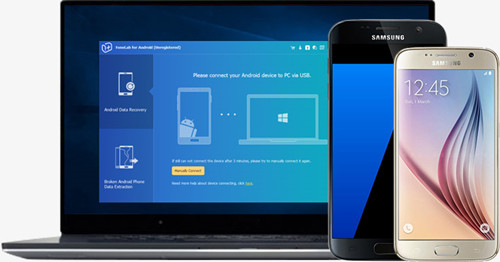
android data recovery without usb debugging

How to Recover Files from Broken Screen Samsung Galaxy S6 without USB Debugging turned on?

My Samsung Galaxy S6 screen is completely cracked (damaged),I want to backup photos from my broken screen Galaxy S6 to computer and take my phone to repaired,but my computer doesn’t recognize my phone and ask turning on USB debugging,since my Samsung S6 touch screen was seriously damaged and it’s screen cannot be used,I can’t turn on the phone and it makes all the usual noises therefore indicating that it is working.I want to know how to recover photo, contacts and messages from broken screen Galaxy S6 without USB debugging turned on?” – Original Post from Samsung Forums

How to Extract Data from a Black Screen Samsung Phone without USB Debugging?

I don’t know what’s wrong,my Galaxy Note 5 stuck in black screen of death and I can’t access the phone,it seems that I need USB Debugging turned on for me to do anything with the phon– but this is impossible without a working screen,any way helps me extract Samsung data without USB debugging?Any Android data recovery without usb debugging?” – Original Post from CNET Forums

You Might Also Be Interested In:

* How to Fix Bricked Android

* Recover Lost Files from Broken Samsung Galaxy

* Unlock Samsung Phone with a Broken Screen

What is USB Debugging?

USB Debugging is a way to enable connection between your Android device and computer,so that you can access and manage your Android device on computer, manage and transfer data from Android device to PC and vice versa; root your Android devices; recover lost or deleted Android files on computer and readies it for deeper-level actions.For example, getting into USB debugging mode is necessary when you have to recover/transfer/manage contacts, videos, text messages, photos and other personal data by third-party tool computer.

When you have got a new Android phone,if this is the first time connecting your phone with your computer,you need to turn on USB debugging in order to access the phone’s data on computer and manage your phone on the computer,but if your phone gets locked due to forgotten screen lock password, lock PIN, pattern lock, fingerprints fails or phone screen is broken, black, frozen with USB debugging off, on responding to any touch. Of course, USB debugging cannot be enabled,is it possible to get android data back without USB debugging enabled?

USB Debugging Fails or Disabled/Turned Off – How to Retrieve Data from Android device without USB debugging?

Of course “Yes”! Broken Android Data Recovery – Broken Andorid Phone Data Extraction can help you fix your frozen, crashed, black-screen or screen-locked Android system to normal and extract existing data back easily.You can recover data such as photos, contacts, SMS, whatsapp messages, videos, audio, call history, documents and more. from a disabled Android phone,even if USB debugging keeps failing or is unable to be turned on because of broken screen, black screen, system crash, locked screen, virus infection, blank screen, Samsung logo-screen,etc.
You don’t need to enable USB debugging as long as you installed the Broken Android Data Recovery on your computer to work,just download the Broken Andorid Phone Data Extraction and follow the below steps to extract data from Android phones and tablets without USB Debugging.


d_win d_mac

Android Data Recovery Key Features:

-General “Android Data Recovery” functions compatible with 6000+ Android devices like Samsung Galaxy S8/S8+, S7/S7 Edge, Google Pixel, HTC, LG, Sony, Motorola, HUAWEI,OPPO, Vivo, Lenovo, Xiaomi, ZTE, etc.And this functions allow users directly recover deleted files or lost data from Android internal storage, SD cards
-“Broken Andorid Phone Data Extraction” functions compatible with almost all Samsung Galaxy devices such as Samsung Galaxy S6/S5/S4/Note 5/Note 4/Note 3, etc.
-Retrieve lost or inaccessible data from water damaged, broken screen, black screen of death issue Android phone without USB debugging.
-Retrieve photos, text messages, whatsapp data, videos, contacts, audio, call logs, documents, etc.
-Selectively backup data on Android and restore them later, including WhatsApp, Contacts, Text Messages, Photos, Videos, App data.
-Preview recoverable files within software before final recovery.
-100% read only. Safe and secure to use.

Steps to Recover Data from Samsung Phone without USB Debugging

USB debugging disabled due to your mobile phone’s touch screen becomes unresponsive, locked screen or damaged device?Follow this ease steps to extract data from Samsung Galaxy phone without USB Debugging.

Step 1. Launch the program on your computer
Install and launch the Android Toolkit – Broken Phone Data Extraction on your computer.

d_win d_mac

Use a USB wire to connect your Samsung Galaxy phone to the computer. Then, select the functions of “Broken Android Phone Data Extraction” in the main interface.

Step 2. Connect Samsung to Computer and Select your Phone Info
Then connecting your disable Samsung phone to the computer via USB cable.
If the your phone is broken due to black, broken or unresponsive touching screen, you can click “Start” button in the right side to confirm your phone’s name and model;

connect broken samsung to pc

But if your Android is crashed or something wrong in the Android OS,or if the system of your phone is damaged,and you cannot operate it,please click “start” on the right side to fix Android system to normal status for continuing.
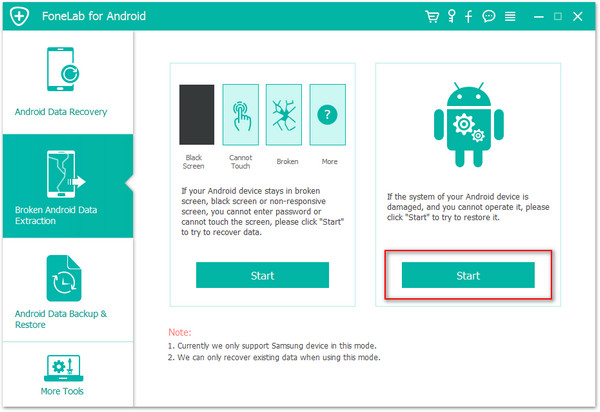
fix android OS to normal

Then select your phone’s“Device Name” and “Device Model”and go to next step.

select phone model

Step 3. Enter the Download Mode

Hold your Android in hand and enter download mode for ready download the fix backage,please follow the on screen prompts to enter the Download mode.
1).Power off Android.
2).Press “Home”, “Power” and “Volume-” at the same time.
3).Press “Volume+”.

boot into download mode

Step 4. Begin Download Necessary Recovery Package
Then you can click “Start” button to begin download the necessary package to fixing the disable Android system issues.After then the program will scan all exiting files on Samsung phone.

boot into download mode

Note: If your Android phone is broken due to system issues,or your phone fixed to normal status, you can swich to “Android Data Recovery” functions to scan and recover lost or deleted Android files again.

Step 5. Recover Data from Samsung with USB Debugging Off
After fixing and scanning exiting files on your phone complete,all the data will display on the software interface on the left panel. Tap the data type you want to recover and preview them,such as photos, contacts, text messages, WhatsApp data and more.Here take recovering photos from Samsung without USB debutting for example,please click on “Gallery“, “Picture Library” and the photos will be listed in thumbnails,selecting the photos you want and click “Recover” to retrieve photos from your Samsung phone with USB debugging off,and save them on the computer for backup.

recover data on broken Samsung

Free download the Broken Android Data Recovery and try to recover files from Android phone if USB debugging fails.

d_win d_mac

Related Articles

How to Unlock Android Screen Locked

How to Unlock Android Phone with Broken Screen

How to Recover Deleted Files on Android Phone and Tablet

Recover Lost Data from Broken Samsung Galaxy

How to Recover Contacts from Broken Samsung Phone

How to Manage, Transfer, Backup Samsung Data on Computer
















