All posts by DHZ

How to View HEIC Photos on Android

I got a new Android phone as the new years gift. How to sync the iOS 11 photos from my iPhone 8 with the Android device? Any way to view the HEIC photos on the new phone easily? Please let me know if you have ideas. Thanks.

HEIC is a special format of iOS 11 photos, we just can view the HEIC photos on iOS 11 device.Taking HEIC photos can save storage on iOS device, in the meanwhile, keeping the high quality of photos. HEIF format is said to be on half size and better quality as compared to the same JPEG file. Ever since the introduction of HEIF format with iOS 11, the iOS users have started worrying about the compatibility of this new file format with the Android devices and other platforms. If you want to view HEIC photos on Android, you have to consider employing an HEIC photos converter. In this post, we will show you the best efficient way to convert HEIC photos to JPEG for freely view on Android.

Convert HEIC Photos to JPEG for Android

If you are looking for an useful converter to selectively convert HEIF photos to Android device and view it in JPEG format, then the HEIC Photos to JPG Converter tool is that you need. This helpful photos converter tool is designed for converting iOS 11 photos with HEIC format to normal JPEG format files, then you can view the converted photos on any device without limits, like Android device, computer, and other compatible device. It provides you with two modes for converting, including Convert Single Photo/Convert Photos in Batch. What’s more, it can adjust photos quality without damaging to the quality of converted JPEG files.

d_win d_mac

How to View HEIC Photos to JPEG on Android

Step 1. Install Program on Computer
Download and install the HEIC Photos to JPG Converter and launch it on computer.

Step 2. Select the Conversion Mode
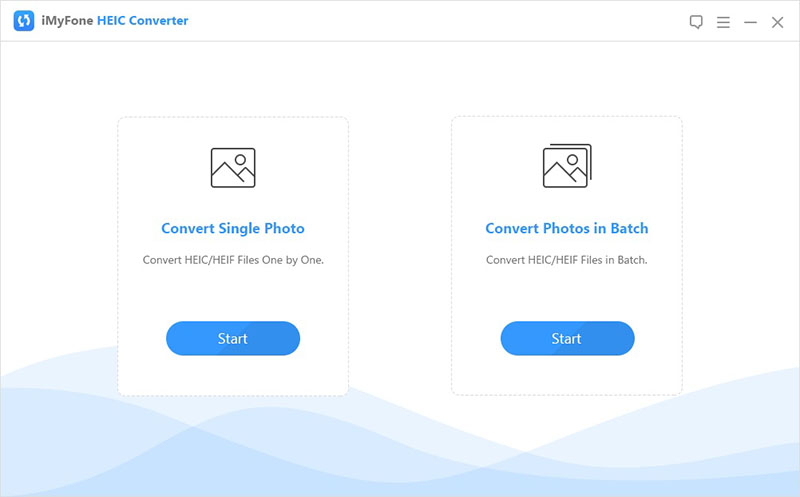
Select the conversion mode that suit you either convert single photo or convert photos to batch.

select the conversion mode

Step 3. Select Photos to Convert
Click on “Select files” to select the files you want to convert.

Step 4. Select the Quality of Converted Photos
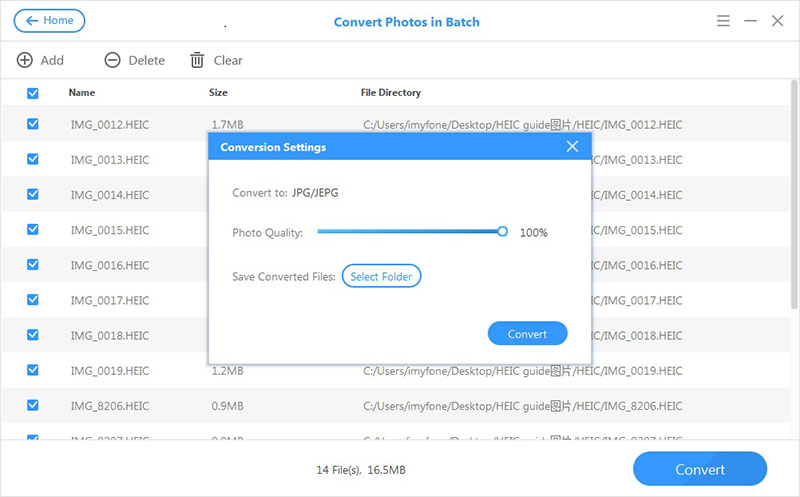
Click on “Convert” and then select the photo quality.

select the photos quality

Step 5. Select the Target Folder
Select the target folder to save the converted photos.

Step 6. Start to Convert Photos from HEIC to JPEG
Simply click “Convert” to start the conversion.

Step 7. View the Converted Photos on Computer
Now you can view the converted JPEG photos in the folder on computer when you are done.

d_win d_mac

Step 8. Transfer Photos from Computer to Android for Free Viewing
In the last step, import the photos from computer to your Android device for viewing freely via Android Manager.

Related Articles:

How to Open HEIC Files on Computer

How to Convert HEIC to JPG Windows

How to Convert iOS 11 Photos from HEIC to JPG

4 Ways to Transfer Photos from Computer to Mobile Phone

How to Transfer Photos between Computer and Samsung

How to Manage Files on Android

How to Unlock Samsung Galaxy S/Note/Tab Screen Lock

Andriod Samsung, LG, HTC and Apple iPhone is the most popupar smartphone currently,most smartphone with pattern, PIN, password & fingerprints lock screen,it is necessary to set passcode, pattern or fingerprints to protect your privacy! But once the lock screen pattern or passcode is forgotten, you are not crazy? Not in a hurry, problem are always solved, this article provides a simple method to solve your forgotten unlock pattern/passcode on Android phone,fix it can not access the phone issues!

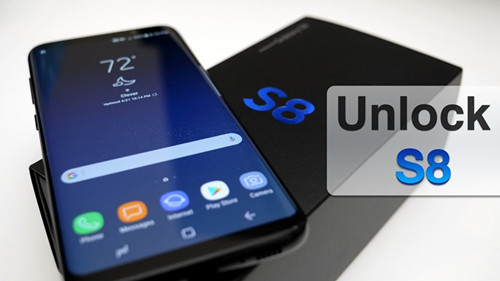
unlock samsung galaxy s8

Locked your Samsung Phone in Different Situations?

-Locked your Samsung Phone in Different Situations?
-Forgot the password after setting Samsung phone long before
-Got a second-hand Samsung phone with locked screen
-The password was set by your son or others
-Phone touch screen is locked due to entering wrong passcode for many times
-The Samsung phone screen did not respond
-Samsung phone screen is broken/cracked and can’t enter the password
-Stolen a phone with screen locked and don’t know it’s passcode

Remove Samsung Lock Screen in Different Screen Lock Types

No matter you forgot the password on your Samsung Galaxy phone lock screen or just get a second-hand Android phone and don’t know the lock screen’s passcode?

Android Lock Screen Removal enables you remove the lock screen from any kind of Android smartphone,such as Samsung Galaxy S8/S7/S6/S5/S4/S3, Samsung Galaxy Note 8/Note 7/Note 5/Note 4/Note 3/Note 2, Galaxy Nexus, Galaxy Asus, Galaxy Tab series and LG G5/G4/G3/G2,etc.You can easily unlock your Samsung phone screen locked if you unknown passcode,including pattern, PIN, password and fingerprint. Whatever the passcode you choose,it is guaranteed that no data or documents will be erased from your phone,so you won’t lose any data on your phone after removing it by this Android UnLock tool.

Just download Android Toolkit – Android Unlock tool to bypass the lock screen on your phone safely.

d_win d_mac

How to Unlock Samsung Phone Lock Screen If Forgot Password

Step 1.Download and install Android Unlock Program
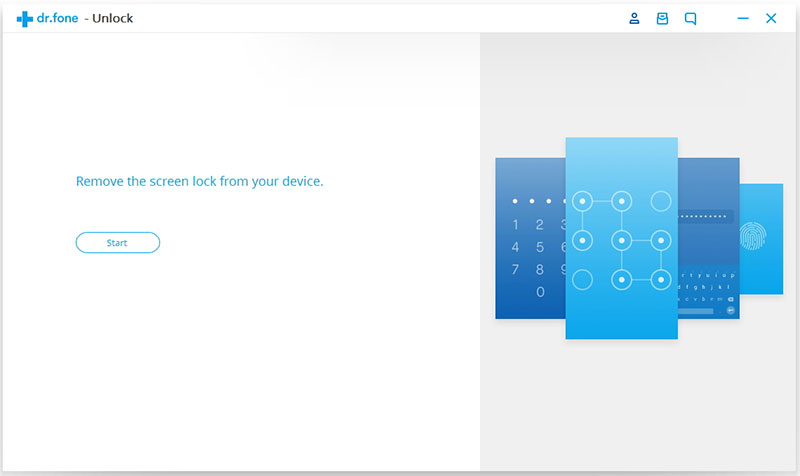
First of all,please free download and install the Android Unlock tool on your computer. As soon the installation is done, launch the program on your PC to and click “Unlock – Remove your phone’s lock screen” start unlocking the lock screen on Samsung Galaxy phone.

>android screen unlock main

Step 2.Connect your Samsung Phone to PC
Using a USB data cable, you should be easily able to connect your phone with PC and to make a successful operation, kindly enable the USB debugging mode in your Galaxy S8/S7/S6/S5/S4/Note.

samsung screen removal start

Step 3.Enter Download Mode
Now you need to ensure that your Samsung phone is switched to Download Mode. To do this, you have to:
1. Power off your Samsung Galaxy phone.
2. Press and hold Volume down, the Home button and the Power button concomitantly.
3. To enter Download Mode, press the Volume Up button.

unlock samsung screen download mode

Step 4.Download Necessary Recovery Package
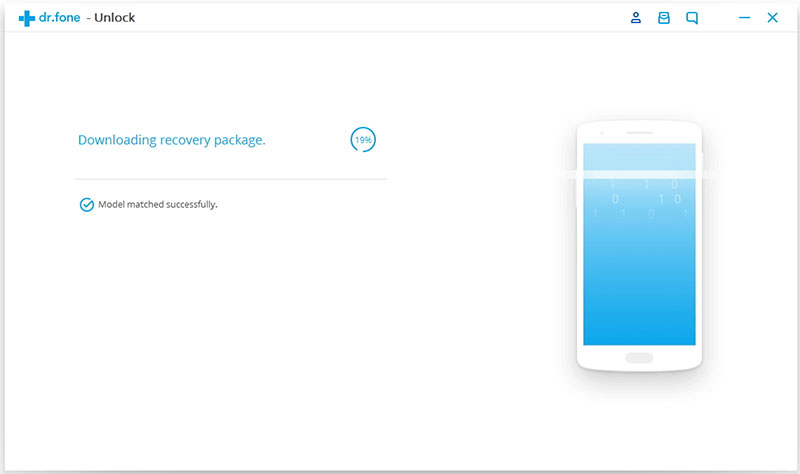
The software will automatically will start to download the recovery package so that the operation can be finished successfully.

android screen removal download recovery package

Step 5.Remove Samsung Phone’s Lock Screen Passcode without Resetting
Android Unlock tool will automatically start removing the passcode from your Samsung smartphone after downloading the recovery package. It is recommended to keep connecting your phone with the PC until the process is finished successfully.

remove Samsung phone's Password

What’s great about Android Toolkit is that using it, you don’t need to worry about losing your data, you can safely to unlock your Samsung Galaxy S/Note/Tab series and it’s also very fast to acces the phone. In additional,this Android Toolkit also can help you recover lost data from Samsung with broken screen, locked screen, black screen,et.Thank you for reading this tutorial and wish you the best.

d_win d_mac

Related Article

Recover Deleted Messages on Android

How to Retrieve Photos from Samsung Galaxy

Broken Android Data Recovery, Backup and Restore

Recover Lost Data from Android SD Card

Recover Deleted Contacts from Samsung Phone

Unlock Samsung Phone

How to Transfer Data from Samsung Note 4/Note 5 to Galaxy Note 8

As long as you have got a new Samsung Galaxy Note 8 and want to give up your old Samsung Galaxy Note/S phone, you would face a new problem. The problem is that you have to transfer data from old Samsung to new Samsung. However,you may encounter data leakage, software inappropriate, time wasted, software crashes and other issues when you tend to move everything significance data in different systems.Therefore, the way you move data must without accident and efficiently. For example,to make it easier for you to transfer files including contacts, SMS,music and App data between Samsung devices, this article may focuses on providing you the best way to how to switch data from Samsung Note 3/4/5 to Galaxy Note 8 without Samsung Smart Switch.

As we know, Samsung Smart Switch requires data transfer via USB cable, Wi-Fi or PC,which can be troublesome when we do not have these aids. In this case, our software can help you complete transfer everything between Samsung perfectly with only one click.There are some procedure to ensure you may not loss valuable files in any ways.

Samsung to Samsung Galaxy Note 8 TransferPhone Transfer,which not only can help you solve the data transfer from old Samsung to new Samsung phone quickly and easily, but also can guarantee the safety and reliability of the data including contacts, phone numbers, text messages, photos, videos, music, WhatsApp messages and other App data without any worries.This is really a software worth downloading and sharing. When we want to transfer the data from Samsung Galaxy Note 5/Note 4/Note 3 to Samsung Galaxy Note 8, we can take a look at the following simple steps to help you solve the problem easily.

d_win d_mac

Tips:If you using iPhone and want to sync your iPhone to Samsung Galaxy Note 8,this program also enables you transfer all data such as music, videos, photos, SMS, contacts,etc.from iPhone 7/6s/6/SE/5s/5/4 to Galaxy Note 8 without data lossing.Let’s shows you the easy guide to switch contacts from Note 5 to Note 8 as example in 3 steps.

One Click to Transfer Contacts from Galaxy Note 5 to Galaxy Note 8

Step 1. Launch Phone Transfer and Note 5 and Note 8 to PC
To start with, download Phone transfer on your computer from its official website right here. In this part, we will show a few pictures to guide you to the correct procedure. You will be able to see the below picture in the front of your window.When the download shows success, click on the “Phone to Phone Transfer” button and start the process.

phone transfer home page

Step 2. Select Files to Transfer from Note 5 to Note 8
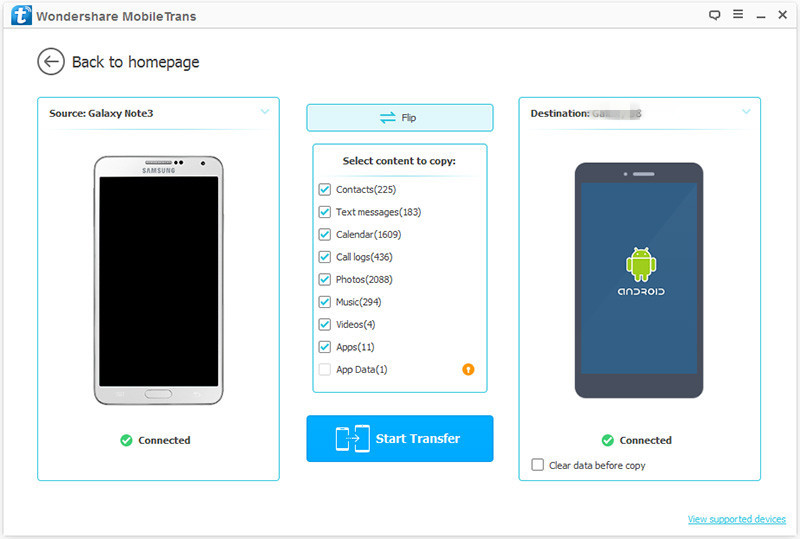
You need to use two devices simultaneously linked to the same phone phone, wait a few minutes, when the screen shows the connection is successful.In order to move data from old Samsung Galaxy Note 5 to Galaxy Note 8,please make sure your Note 8 in right side as target devices,then select the files you want to switch.

select file to transfer

Step 3. Simply Start Note 4/Note 5 to Note 8 Transfer
The easiest last step , select all the data you want to transfer, complete the transfer with just one click.You just have to click the green button“Start Transfer”to begin the transfer.

Attention:make sure that the connection under no accident.

transfer Samsung data to Galaxy Note 8

After finish these steps, you would discover it’s especially easy to transfer everything from Android Samsung to Galaxy Note 8.What’s more, you don’t have to worry about complexity or unclear. It’s super easy ,isn’t it ?

d_win d_mac

To Sum Up:
After taking a new device, you must, of course, have to transfer data from old phone to Galaxy Note 8. More importantly, you would want to seek some safe and efficient ways.

More Samsung Galaxy Note 8 Tutorials You can check:

How to Recover Deleted Data from Samsung Galaxy Note 8

How to Recover Deleted Photos from Samsung Galaxy Note 8

How to Transfer Data from iPhone to Samsung Galaxy Note 8

How to Transfer Music to Samsung Galaxy Note 8

How to Transfer Videos to Samsung Galaxy Note 8

How to Manage Samsung Galaxy S6/S5/S4/S3/Note 8 on the Computer

How to Unlock LG Phones If You Forgot Password, PIN, Pattern

[Summary]: If you forgot lock screen password, PIN or pattern on your LG phone, here four methods teaches you how to unlock LG phone if forgot password.

Forgotten pattern! My son resets the pattern on my LG G4 and now I can’t access my phone. How to unlock LG G4 mobile phone with locked screen? For Android users,we can hard reset a phone to remove the lock screen,but it will cause erase all data from the phone,I want to know how to unlock LG phone lock screen pattern without losing data?” – Posted on T-Mobile Support

I forget the passcode of my LG G3 Android phone,but a lot of important data including contacts, messages, photos, videos on my phone,is there any ways to bypass lock screen password on LG G3 without reset?” – Posted on CNET Forums

In order to ensure that the important information and privacy of our mobile phone will not be stolen or peeped,no matter you using Android phone or iOS iPhone,it is necessary to set pattern, PIN, password & fingerprints on the phone,in daily life many users forget the passcode of our smartphones.However,how to unlock an Android phone like LG G3/G4/G5 even when you have forgotten its password/pin/pattern/fingerprints lock?This article will teach you how to bypass forgotten lock screen password/Pin on LG Android smartphone easily,you will know how easy to remove the Android screen lock without losing any data in just a few minutes.

Way 1: Hard Reset LG phone to Bypass LG Phone PIN/Pattern (erases all phone data)

If you want to know how to unlock a LG phone screen locked, then you can always put it in recovery mode and perform a factory reset.Before reseting your phone,making sure you already backed up the phone, then you can factory reset the device and restore from backup,because However, if you didn’t backup your phone and hard reset it,it will erase everything on Android phone.Let’s learn the detailed steps to reset your LG phone in in recovery mode.

Step 1.Turn off your LG phone and Restart it for a few seconds.
Step 2.Press the Power and Volume Down button at the same time for a few seconds, until the LG logo would appear.
Step 3.Release the buttons for a second and press them again simultaneously. Keep pressing it until the recovery mode menu will appear on your screen,now your phone alreday entered into the recovery mode menu.
Step 4.Move to the “Wipe data/factory reset” option by using the Volume up and down button and select it.
Step 5.Select “Yes” to reset the phone,during this process,it wil delete all data from your phone.
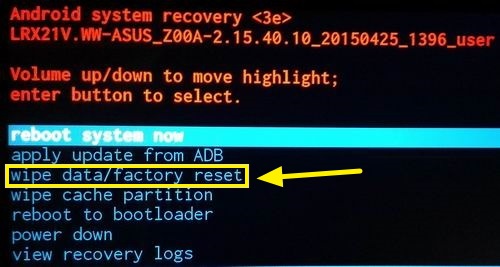
unlock lg - hard reset

Step 6.Restart it by selecting the “Reboot system now” option and let your LG phone restart after performing the factory reset operation.
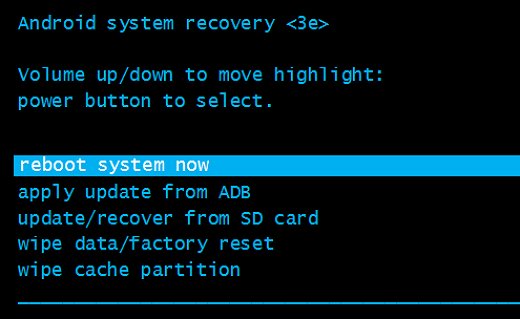
hard reset LG to unlock lg screen lock

Way 2: Unlock your LG Phone Screen Locked with Google Account

If it is actually your own phone,you can bypass the lock screen by accessing to your Google account to verify it,please follow below steps:

Step 1. Turn on your LG G5/G4/G3/G2 and enter the wrong passcode over five times.

Step 2. Now, tap on “Forgot Password” and the phone will ask you sign in to your Google account.

Step 3. Enter the email and password of your Gmail account and verify that it is your phone.

Step 4.Once it logging into your Gmail account then the phone’s lock screen passcode will be bypassed automatically.
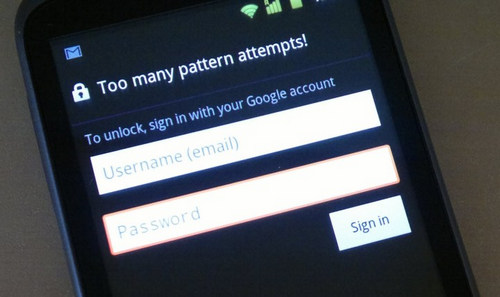
reset lg lock screen password google account

Note: This method doesn’t work if you are using any third party app to protect your LG G4/G3. In additional, it just works well with your Android phone with an active Google account.

Way 3: Using Android Device Manager to Reset your LG Phone Screen Passcode

If you are already connected to your phone and Google Account before,you can reset LG G5/G4/G3/G2 screen passcode.When you signed in with Google account, then it is highly possible you already turned on Android Device Manager service. It is a Google remote web service to help you reset lock screen password/pattern/pin without lost any data. And the steps are quite simple to follow.

Step 1.Log in your Google Account to enter Android Device Manager page.
Step 2: Find your LG phone on the screen and turn on “Lock & Erase” feature.
Step 3: Follow the screen instructions to lock the phone screen.
Step 4: Set a temporary password for the phone.
Step 5: Input the password to unlock the phone.
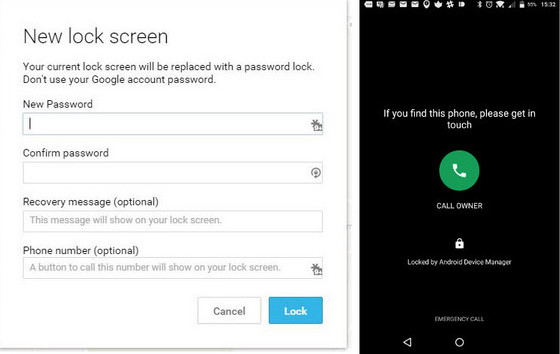
Reset LG G5/G4/G3 Screen Passcode with Google Android Device Manager

Way 4: Remove LG Phone Screen Password/Pattern/PIN/Fingerprints with Android Unlocker(safest)

Android Unlock is designed to remove 4 screen lock types – pattern, PIN, password & fingerprints from Android phone like LG G2/G3/G4/G5, Samsung Galaxy S/Note/Tab series, Nexus, Asus,etc. What’s more,it allows users unlock Android phone with a broken screen,and make your phone backup, restore, recovery, switch, transfer, data recovery from broken phone,etc.If you using this program unlock your LG or other Android devices, it won’t eraser your data on LG phone during unlocing process. No matter what your password or pattern is, you will not lose any data on your LG smartphone.


d_win d_mac
d_win d_mac

Tips: This Android Unlock tool can help you unlock most models of LG phone, such as LG G2, LG G3, LG G4, Optimus L70D320, G Flex D950, G Flex D959, Tribute LS675, Tribute LS676, G Flex LS995, etc.

Android Unlock Features:

  • Directly Unlock Android Phone Screen Lock Password, Pattern and PIN in 7 Minutes without Deleteing Your Data. Easy and Safe!
  • The ability to bypass 4 screen lock types including pattern, password, pin & fingerprints., safe and effective.
  • Just unlock your Android phone’s screen, never damage your device and need to perform factory reset a device.
  • Built-in algorithms can bypass Android’s system password mechanism.
  • Works well on Windows and Mac computer

4 Steps to Unlock an LG Phone

Step 1. Run Android Toolkit and Select Unlock function
Download Android Toolkit – Android Lock Screen Removal under below download button.

d_win d_mac
d_win d_mac

After launching it on your computer, you will get the below interface.

android toolkit - android unlocker

Then select “Unlock” function.

select mode

Step 2. Connect your LG phone with Computer
Connecting your LG phone with your computer via a USB cable.,then click on “Start” button.

Step 3. Select LG phone model
In this step,the program will ask you select the phone model,please select the correct phone brand and model information from the dropdown list.
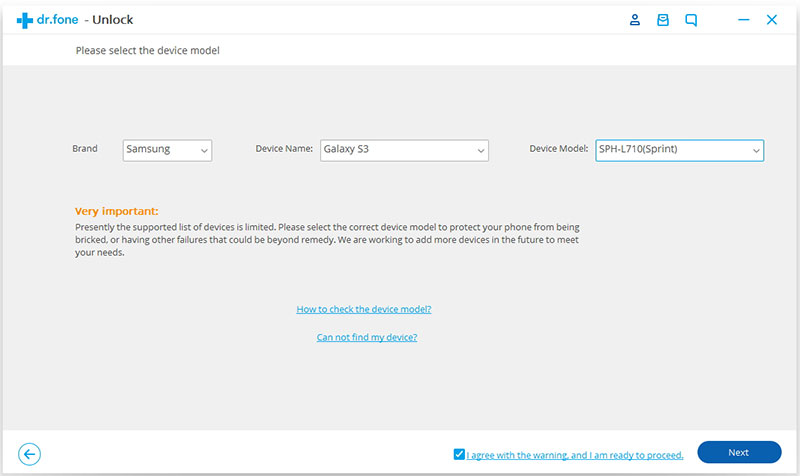
unlock LG phone - Select LG phone model

Note: Currently the program support to remove lock screen on LG and Samsung devices.

Step 4. Put LG Phone in Download Mode
To download the recovery package and remove the lock screen from your phone,please follow the instruction on the program to enter Download Mode

1)Disconnect your LG phone and power it off.
2)Press the Power Up button. While you are holding the Power Up button, plug in the USB cable.
3)Keep pressing the Power Up button until the Download Mode appears.
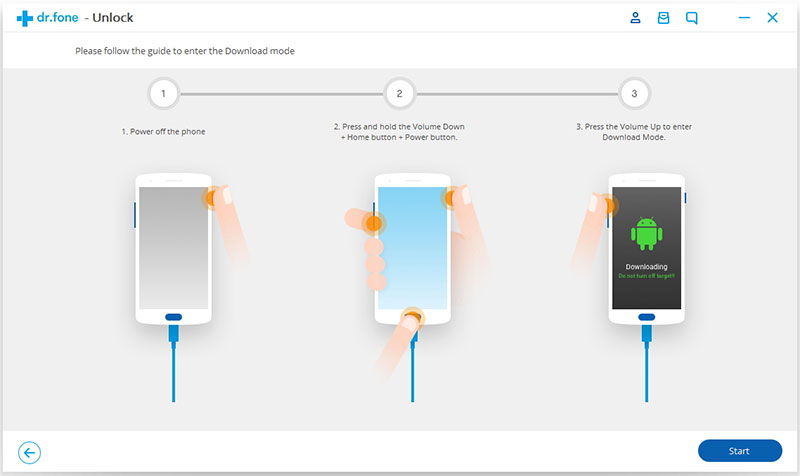
unlock lg phone - boot in download mode

Step 5. Remove LG Phone Lock Screen Passcode without Resetting
After your phone boot in download mode, click on “Remove” to start remove the lock screen.It will automatically start removing the passcode from your LG smartphone. It is recommended to keep your LG phone connected to PC until the process is finished successfully.Then your phone will restart in normal mode without any lock screen.
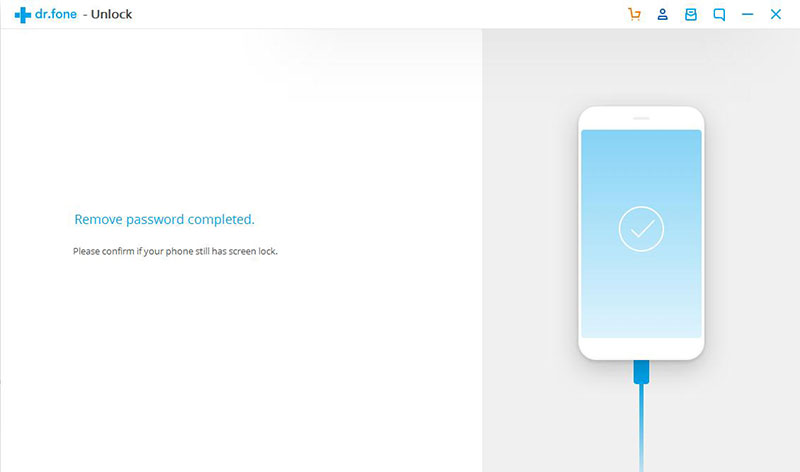
remove lg lock screen

Free download the Android Toolkit – Unlock Android to bypass/break Android phone lock screen without data loss.

d_win d_mac
d_win d_mac

Android Toolkit has other features as well: Android Lock Screen Removal, Android Data Recovery, Android Data Backup & Restore, Android Root, Android Eraser and Phone Data Switch, Transfer,etc. It is guaranteed 100% safe to use because you will be the only person who can access both your data and your account. There is 0% of data breach as well as data loss.It works well with various Android devices including LG, Samsung, Google Pixel, Sony, HTC, HUAWEI, Motorola, etc.

Related Articles

Extract Data from Android with Lock Screen

Restore Data from an Rooted Android Phone

Recover Deleted Data from LG Phone

How to Recover Text Messages from Android Phone

Recover Files from Android SD Card

Transfer Data from Android to Computer

How to Unlock LG Phones

How to Recover Data from LG G5/G4/G3/G2 with Broken Screen

Summary: The screen of smartphone is the most important part of device – after all, we use the screen to chat with others, send text messages, check email, watch videos or doing more things. When the phone screen is broken, it can be a huge pain. This tutorial is going to show you how to recover data from the broken screen LG phone.

Many of us have ever get into these situations like device with cracked screen,device with black screen, device with the unresponsive screen. When one of these situations happens, the worst thing is that we are unable to access the personal data save on device, such as contacts, messages, gallery and more other important files. For most people, the first thing they will do is to send the broken screen device to the repair store, to repair the damaged screen. However, before sending it to the repair store, you should remind extracting the data from the device with broken screen first, in order to protect your privacy and avoid leaking data to strangers.

Extract Data from LG Phone with Broken Screen

Broken Android Data ExtractionAndroid Data Recovery is a powerful program help to extract data from LG G5/G4/G3/G2 with Broken Screen after downloading recovery package for fixing the Android system on it. It allow to easily access your Android device even when the device is broken without data loss, such as, device with broken screen, device with black screen, device stuck in Download Mode, water damaged device, and other broken situations. In addition, Android Data Recovery enable to recover deleted data from Android device after losing data due to any causes, for example, restore deleted data from LG phone; backup & restore Android on computer with a safe solution. Compatible with almost all Android models, including LG (G5/G4/G3/G2), Samsung (Galaxy S9/S8/S7/S6), HTC, Lenovo, Motorola, Google (Pixel/Nexus), Huawei (P10/P9, Mate 10/Mate 9), OnePlus, OPPO, Xiaomi, etc,.

d_win d_mac

Part 1: Recover Data from Broken Screen LG Phone Manually with a USB Cable

If your LG smartphone still can be connected using a USB cable then here is a way suggest you to use to recover data from the broken device manually by connecting your device to the PC. For dead or bricked LG phone, you can pull off the SD card and insert it to a card reader. Here are the steps on how to recover data from LG with broken screen with using a USB cable:

Step 1. Connect the LG phone with broken screen to PC via USB cable or if you are only need to extract data from SD card then import the SD card to a card reader and connect the card reader to the computer using a USB cable.

Step 2. Open “My Computer” by double clicking on the icon located on your desktop and find the new driver installed with your phone’s name.

Step 3. Enter into the new driver by double clicking on it and manually copy data from your broken device to the computer.

recover data from broken lg via usb

Tip: If the data transferring process is interpreted then it is assured that the data is corrupted and you should move on to the next file.

Cons:

A. Cannot extract data from Android internal memory, such as contacts, text messages.

B. Most of the data will be shown as corrupted or inaccessible.

C. It will cost you a lot of time to search the internal folders.

Part 2: Recover Data from Broken Screen LG via Broken Android Data Extraction

If you need to recover data from LG with broken screen selectively, you are recommended to try this Broken Android Data Extraction. This wonderful program enable to several types of data from broken Android device, including contacts, text messages, photos, videos, WhatsApp messages, apps data, etc,. Let’s see how it works for restoring data from LG phone with broken screen.

d_win d_mac

Step 1. Run Program and Connect Device
After running Broken Android Data Extraction on the computer, you will get the following main window. Then you should select the “Broken Android Data Extraction” option,then connect the broken screen LG phone to computer via USB cable, and click the “Start” button next to on the left of the program interface.

connect broken lg to pc

Step 2. Select the Files Type you need to Recover
Select the files contain the data you want to recover, the data including the deleted/lost or existing messages, contacts, photos, video are available. If you want to recover all files at once, please click “Select All” item, then clicking “Next“.

select file to recover

Step 3. Select the Fault Type of the Broken LG Phone
Then the program will guide you to another screen, you will see the following screen. In this case, you should click “Others“.

Choose Broken Types

Step 4. Select the Broken LG Model
Then according to option to select the brand and model of your phone. If there is no type of your device in the list, please click the “No my device in the list” option.

select lg model

Step 5. Enter Download Mode for Broken LG Phone
In this step, you will follow the steps to enter your phone into the Download Mode.

1) If your Android touch screen can’t be used or can’t enter the system, you can follow the guide displayed in the below interface to get into “Download Mode“.
2) If your Android is black screen or the phone screen is broken, you can also do the three steps to enter “Download Mode“.

enter lg into the download mode

Then,please click the “Start” button,the countdown will display on the screen in the program to tell you how to enter Download Mode for the device.

Note:During the process of getting into “Download Mode“,please keep connecting your broken screen LG phone with computer.

Step 6.Analyze Data on Broken LG Phone
After entered the “Download Mode” on LG phone, the program will start downloading “recovery package” for it with a little time.

analyze data on LG phone

When the downloading is finish, the selected data item stored in the device will scanned out.

Step 7. Preview and Recover Data from LG Phone
In the last step, please select the data to preview and mark the items you want to recover and click “Recover” to save the selected data on the computer.

recover data from LG phone

d_win d_mac

Conclusion: Accident always come without any expection, you should be prepared and take accurate precautions by backing up your phone with a reliable solution. In this guide, we show you how to restore/extract data from Android with broken screen. Broken Android Data Extraction can be a very useful tool for rescuing data on your damaged device in urgent, I hope it will give you a grate help.

Related Articles:

How to Unlock LG Lock Screen

How to Recover Data from Water Damaged LG Phone

How to Backup and Restore LG Phone

How to Recover Deleted Photos from LG Phone

How to Recover Deleted WhatsApp History from LG Phone

How to Unlock LG G5/G4/G3 Screen Passcode without Losing Data

“How do I unlock my LG G5 without a code? My LG phone is locked out after too many pattern attempts. I forget the passcode and finding a way to get my LG G5 unlocked. Can you help me?”

Once you forgot password, PIN, Pattern or fingerprint lock on LG G5/G4/G3, it is annoying that you cannot use your LG phone anymore. You will not be able to access your phone and data stored within it. Here in this post, we gonna discuss the easiest way to get rid of such problems to unlock LG phone’s lock screen.

As we all know, hard reset to unlock your phone will erase all the existing data. If you did not back up before, I regret to inform you that your personal information has been erased, such as contacts, text messages, images, videos, music, call logs, whatsapp chat history, documents and so forth. Don’t worry, you still can easily reset password of your LG G5/G4/G3/G2 phone with Google Account and Android Password Removal. Below we are going to share you a step-by-step guide will help you bypass the lock screen even if you forgot.

Method 1: Unlock Screen Password on LG Phone with Google Account

If you have locked your LG phone with a default lock passcode or pattern lock, in fact, you can bypass your lock screen on LG G5/G4/G3 by verifying your phone with your Google Account. To do this, follow these steps:

Step 1. Enter the wrong password more than five times and your LG device is locked.

Step 2. Tap on “Forgot Password” and the phone will let you sign in to your Google account.

Step 3. Sign in your Google account with a correct email and password and verify that it is your phone.

Step 4. Once the login is successful, the lock screen password will be automatically removed.

reset-lock-screen-password

Method 2: Remove LG G5/G4/G3 Lock Screen without Losing Data

Here comes out with a trusted software – Android Password Removal toolkit. This software allows you to bypass Pattern lock, PINs lock, Password lock and Fingerprint lock. It is legal, safe and secure method to unlock screen lock on Android phones/tablets. So you can use it to unlock LG G5/G4/G3 screen password without losing any data. Now look at this Android Password Removal specializes in:

Removing 4 screen lock types including pattern, password, pin & fingerprints.
Unlocking Android screen passcode without losing data.
Working for Samsung Galaxy S/Note/Tab series, and LG G2/G3/G4/G5, etc.
Fully compatible the latest Android OS Android 7.1.
Supporting Windows 10/8.1/8/7/XP/Vista or Mac version.

d_win d_mac

Step-by-step to Remove LG G5/G4/G3 Lock Screen without Losing Data

Step 1. Run Android Password Removal Toolkit on PC

According to the download link provided above, select the appropriate version to download and install to your computer. Then run Android Password Removal toolkit on PC and select “Unlock” mode.

select unlock mode

After getting the following page, please connect your LG device to the computer. Click “Start” to open the procedure.

connect lg g5/g4/g3

Step 2. Force LG Phone into Download Mode

You don’t have to manually download anything as the software will be doing everything for you. Follow the steps displayed in the window to enter into download mode.

enter download mode

Step 3. Download Recovery Package on LG Phone

The software will automatically attempt to download the recovery package so that the operation can be finished successfully.

downloading recovery package for lg g5/g4/g3

Step 4. Bypass Lock Screen Passcode on LG G5/G4/G3without Resetting

Android Password Removal will automatically start removing the passcode from your LG phone after downloading the recovery package. When it finishes, a thrilling prompt will inform you as “Remove password completed”.

unlock lg screen password without losing data

d_win d_mac

Related Article

How to Remove LG G5/G4/G3 Lock Screen

How to Unlock LG G3/G4/G5 with a Broken/Cracked Screen

Unlock Samsung Phone with Broken Screen(Galaxy S6/S7)

How to Restore Deleted Gallery Data from LG Phone

How to Recover Data from Water Damaged LG Phone

How to Restore Deleted WhatsApp Data from LG Phone

Remove LG Lock Screen

How to Remove LG G5/G4/G3 Lock Screen

“My kid resets my lock screen password naughty, and now I’m locked out of my LG G4 phone, what should I do, and now I have absolutely no ability to access my phone data, do you have any good suggestions to remove lock screen on LG G4?”

It must be a terrible experience to be locked out and stopped from accessing our own mobile devices like LG G3/G4/G5. Maybe some users will come up with a hard factory reset method, but all the data stored in your LG phone will be completely removed. Obviously, this is not a sensible solution.

Using Hard Reset to unlock your LG G3/G4/G5 device will lead to data loss, so I recommend the powerful Android Lock Screen Removal toolkit to bypass the LG G5/G4/G3 lock screen without data losing. Let’s take a look at what this software can do for you:

Remove/disable/bypass/unlock locked screen in just few minutes.
Unlock 4 types of screen lock – PIN, Pattern, Passwords and Fingerprints.
3 easy steps to remove lock screen without data loss.
Supports to bypass lock screen on LG G3/G4/G5, as well as other Android phones like Samsung Galaxy S5/S6/S7/S8/Note, HTC, Sony, etc.
Applies to computer and Mac versions.
Safe, secure & easy to use.

d_win d_mac

How to Bypass the Lock Screen on LG G3/G4/G5 Safely

Step 1. Launch Android Lock Screen Removal on Computer

First of all, install and launch the Android Lock Screen Removal program on your computer. Choose “Unlock” option on the main screen.

select unlock mode

Next, simply connect your screen locked LG phone to PC with its USB cable and click “Start” to begin unlocking.

connect lg g5/g4/g3

Step 2. Enter LG Phone into Download Mode

Download mode is a special state on Android based devices. Please follow the instructions shown on the screen to get your LG G5/G4/G3 into download mode.

enter download mode

Once your LG phone enters the download mode, it will automatically start downloading recovery package. There is a progress bar indicating the whole process. Please wait until the procedure is finished.

downloading recovery package for lg g5/g4/g3

Step 3. Bypass the Lock Screen on LG G3/G4/G5 Easily

After downloading, the toolkit begins the password removal process. Once the procedure is over, you can easily start accessing your LG G5/G4/G3 without putting any password.

remove lg phone lock screen

d_win d_mac

Related Article:

How to Bypass LG Lock Screen When Forgetting Password

Forget Android SIM Card Lock PIN and How to Remove it

Unlock Samsung Phone with Broken Screen(Galaxy S6/S7)

How to Restore Deleted Gallery Data from LG Phone

How to Recover Data from Water Damaged LG Phone

How to Backup and Restore LG Phone

How to Unlock LG G3/G4/G5 with a Broken/Cracked Screen

Hi. My LG phone get a broken screen after I slipped it to the floor when I was taking a bath. Now I can’t unlock the device in normal. Is there any way to unlock and access the broken phone with a helpful solution?

When the screen of your phone is broken or cracked, it might be a problem that you can’t unlock your phone with the damaged screen. If your device is broken, there will be no way to enter your device without password. Before selling it to the repair store, you may be think that the personal data stored on the device will be lose. This could be a real issue because you won’t be able to recover the data from your phone which is your last hope to save the important data from your locked phone. How to unlock LG with a broken/cracked screen? You can stop worrying about this, we write this tutorial to help you solve it with a simple solution. Here are the best tool and Android data recovery tips that might help!

Unlock LG with a Broken/Cracked Screen

If you are looking for a tool help to remove the lock screen of your Android phone without password, you are recommended to use this Android ToolKitAndroid UnLock. It can unlock LG phone with a broken/cracked screen in 5 minutes, without data loss. Android Lock Screen Removal supports to removal lock screen on Android with 4 screen lock types – pattern, PIN, password & fingerprints. No tech knowledge required, everybody can handle it. What’s more, Android ToolKit provide you other features to manage your Android data, for example, you can use it to recover deleted data from LG phone, backup & restore LG phone safely. Work for LG G2/G3/G4/G5; Samsung Galaxy S/Note/Tab series, etc,.

d_win d_mac

Method 1: Unlock LG Phone with a Broken/Cracked Screen via USB Mouse

Actually, a USB mouse can’t be connected with Android smartphone directly with an OTG adapter. So, in order to set a connection between your locked LG phone and mouse, you will have to use an OTG adapter to connect with the two devices. Here are the step by step details:

Step 1. Connect the OTG adapter with your LG phone first.

Step 2. Connect the mouse with the OTG adapter to connect your phone with the mouse.

Step 3. When your mouse and LG phone is successfully connected, now you can use your mouse to draw the pattern and unlock your device.

Step 4. Now, you can back up your entire phone to PC and restore them on your new bought smartphone.

android otg mouse

Note: This method can only crack pattern locks. It won’t work if you setup PIN or text password as your lock screen password. And many smartphones can’t detect USB mouse as an internal device.

Method 2: Unlock LG Phone with a Broken/Cracked Screen via Android Lock Screen Removal

Step 1. Run Program and Connect your Android phone
Run Android ToolKit – Android Lock Screen Removal on your computer and select “Unlock” among all the tools.

android toolkit home page

Connect your locked LG phone to the computer using a USB cable. Then click “Start” on the program.

select mode

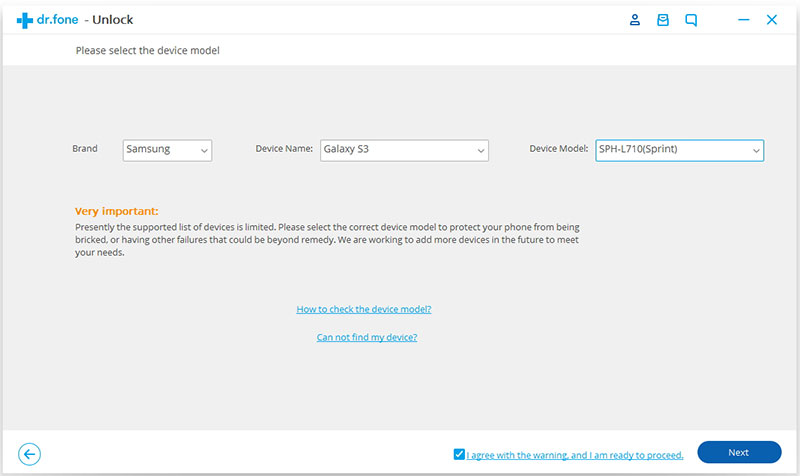
Step 2. Select Device Model
Since the recovery package for different phone models is different, it’s very important to select the correct phone model. You can find all the supported device models in the list.

select the android model

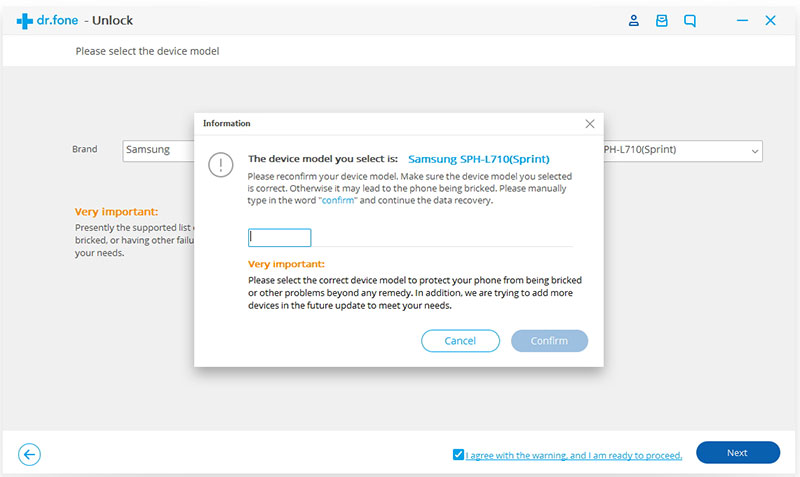
Begin your start, please enter “confirm” to make sure that you have chosen the right model of the device that you need to unlock.

confirm to unlock

Step 3. Enter LG Phone into the Download Mode
Then follow the instructions on the program to get the LG phone into Download Mode.

-Power off the phone.
-Press and hold Volume Down + Home button + Power button at the same time.
-Press the Volume Up to enter Download Mode.

enter download mode lock lg

Step 4. Download Recovery Package for LG Phone
After you get the Android device into the Download Mode, it will begin downloading recovery package for it. Just wait until it’s completed.

downloading recovery package for lg

Step 5. Remove Lock Screen on LG Phone without Losing Data
When the recovery package downloading is completed, the program will start to remove the screen lock from LG phone without any data loss. Once the whole progress is over, you can access your LG device without entering any password and view all your data on the device without limitation.

remove lg lock screen

d_win d_mac

Related Articles

How to Bypass LG Lock Screen When Forgetting Password

Forget Android SIM Card Lock PIN and How to Remove it

How to Unlock Samsung without Password

How to Recover Data from Water Damaged LG Phone

How to Backup and Restore LG Phone

Unlock LG G3/G4/G5

How to Open HEIC Files on Computer

How to view the iOS 11 photos on my computer like the regulars photos?
How to view the HEIC photos on Android device normally?

HEIC is known as HEIF (High-Efficiency Image Format) built on the HVEC video technology which enables it to be able to produce sequence images. HEIC is a new image format that allows users take high-quality pictures on their devices while saving storage. It is common to apple devices running on iOS 11 and above. With HEIC, people can take a lot of pictures without having to worry about space.

HEIC Photos Can be Open in iOS 11 or MacOS High Sierra (10.13)
Apple has announced the iOS 11 to a new modern file system which makes use of a new image file format that can cause problems for Windows users. The new HEIC format photos files is compatible with the iOS 11, and it is designed to save storage space on your iDevice. It can be also open in MacOS High Sierra (10.13) and allows for the automatic transfer of photos and videos.

HEIC Photos Cannot be Open in Android, Windows, MacOS Sierra (10.12) or Lower
Although HEIC is a significant improvement for iPhone with limited storage, it does not support any Android devices. It is also not compatible with Windows computer, however, HEIC photos can be viewed with the some wonderful programs.

Convert HEIC Photos for Viewing on Computer

If you want to open and view HEIC photos files on computer normally, this HEIC/HEIF Photos to JPG Converter is your best option. It is special designed for HEIC photos management. There are two modes available to meet all your needs: Convert Single Photo/Convert Photos in Batch. With the help of HEIC/HEIF Photos to JPG Converter, you can simply convert HEIC photos to JPEG files without quality loss. After the conversion, you can view the converted photos on others non-iOS 11 device, like computer, Android device, and other compatible device.

d_win d_mac

Keys Features of HEIC/HEIF Photos to JPG Converter:
-Two modes to convert HEIC photos to JPEG.
-No damage to the quality of converted JPEG(can also adjust photo quality).
-Convert faster than online converters.
-Directly drop the HEIC photos to the converter or select files.

How to View HEIC Files on Computer

Step 1. Install Program on Computer
Download and install the HEIC/HEIF Photos to JPG Converter and launch it on computer.

Step 2. Select the Conversion Mode
Select the conversion mode that suit you either convert single photo or convert photos to batch.

select the conversion mode

Step 3. Select Photos to Convert
Click on “Select files” to select the files you want to convert.

Step 4. Select the Quality of Converted Photos
Click on “Convert” and then select the photo quality.

select the photos quality

Step 5. Select the Target Folder
Select the target folder to save the converted photos.

Step 6. Start to Convert Photos from HEIC to JPEG
Simply click “Convert” to begin the conversion.

Step 7. View the Converted Photos on Computer
Now you can view the converted JPEG photos freely in the folder on computer when you are done.

d_win d_mac

Related Articles:

How to Convert HEIC to JPG Windows

How to Convert iOS 11 Photos from HEIC to JPG

4 Ways to Transfer Photos from Computer to Mobile Phone

How to Transfer Photos from Computer to iPhone

How to Transfer Photos from Computer to iPod

How to Transfer Photos between Computer and Samsung

How to Manage Files on iPhone X/8/7/6S/6