All posts by DHZ

How to Transfer Music to Sony Xperia XZ

I got a new Sony Xperia XZ as the birthday gift which is my father send me. Now I want to know how to transfer my favorite music from the computer to my Android phone. Any good ideas?

It is no doubt that music is playing an important part of our daily life. Most of us like enjoying wonderful songs using Android phones. So it’s common for people to import favorite music files from computer to their Android devices. Actually, to transfer several songs from PC to Android can be easy via Bluetooth or Wi-Fi. But what if you got a large number of music files need to transfer? How can you make the transfer become more quickly and efficiently? Here we will introduce the best ways to you, help to transfer music to Sony Xperia XZ with easy steps.

Import Music to Sony Xperia XZ

Once upon a time, the tradition ways to transfer music from your PC to Android was Bluetooth or Wi-Fi. Nowadays, there are more options. For example, Android Manager allows you to transfer files between computer and your Android phone efficiently. With the help of Android Manager, you can easily transfer & manage data for Android on the computer freely, including music, photos, videos, contacts, SMS, apps. You can not only transfer music between Sony Xperia XZ and computer, but also transferring other files between Sony Xperia XZ and iTunes, transferring files between Sony Xperia XZ and Android/iOS devices.


d_win d_mac

Part 1: How to Import Music from Computer to Sony Xperia XZ

Step 1. Run Android Manager on PC and Connect Sony Xperia XZ
Run Android Manager on your PC and connect your Sony Xperia XZ phone to the PC via USB.
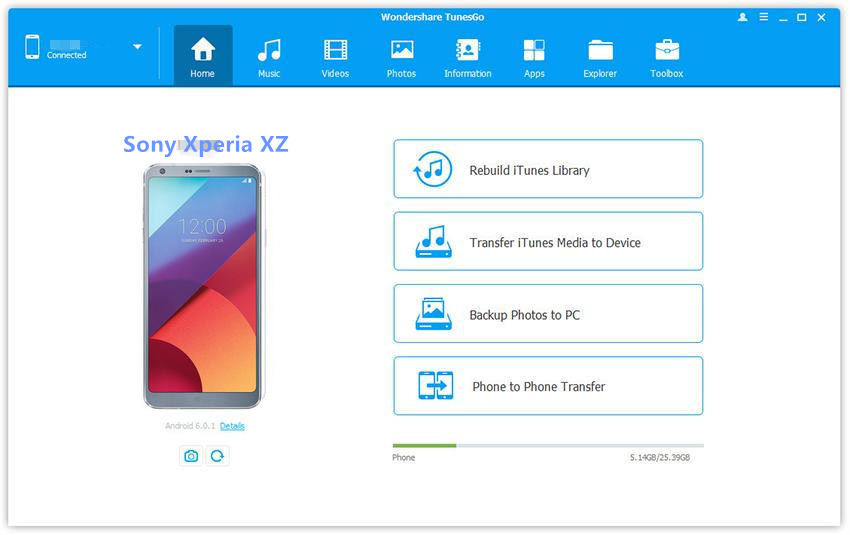
android manager main page

Step 2. Transfer Music from Computer to Sony Xperia XZ
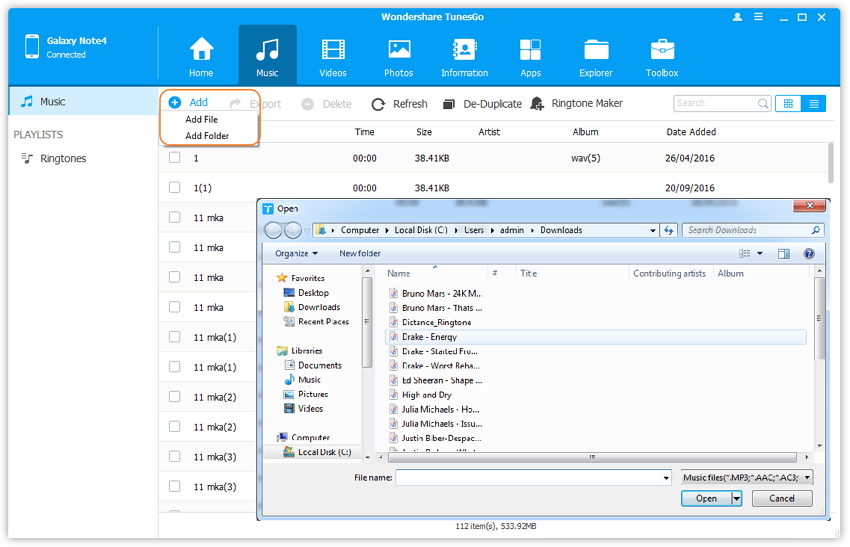
To transfer music from PC to Sony Xperia XZ, from the menu displayed on the top, click the “Music” tab. Once the media loads, hit “Add” and then click “Add File” or “Add Folder” to add more music or songs to transfer.

The option above will bring you to a browser window where you can select the songs that you need to import to your computer. You can select as many files you want, or you can still choose a whole album. Once you are okay with the list, you can click “Open” and pick a location to save the music to your phone. Alternatively, you can just drag and drop music from your PC to the Sony Xperia XZ.
add music from pc to sony

d_win d_mac

Part 2: How to Import Music form iTunes to Sony Xperia XZ

Step 1. Run Android Manager on PC and Connect Sony Xperia XZ
Run Android Manager on your PC and connect your Sony phone to the PC via USB. The Phone will be detected and displayed in the primary window. On the main window, click “Transfer iTunes Media to Device”.

android manager main page

Step 2. Transfer Music from iTunes to Sony Xperia XZ
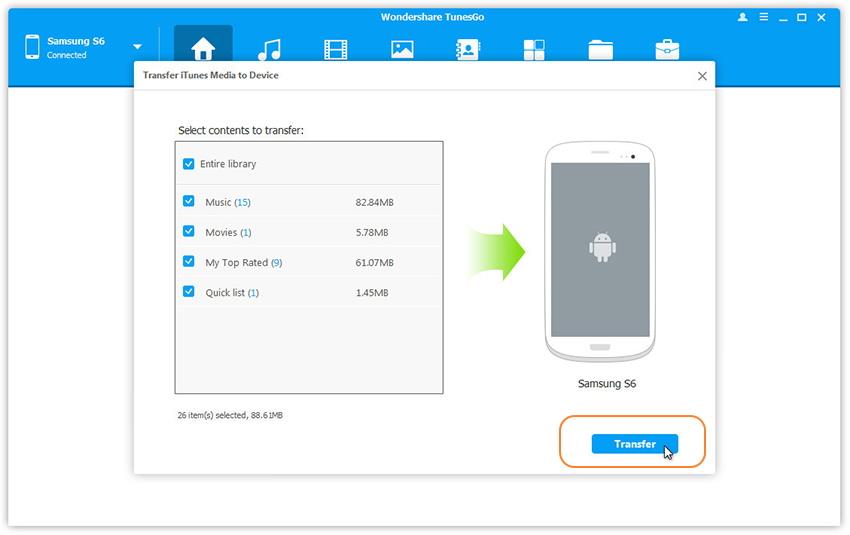
Check options and then start copying your music from the iTunes to the Sony device. All files in the iTunes will be scanned and will be shown under different categories such as movies, music podcasts and others. All files are selected by default, but you can uncheck all of them to make sure that you only transfer the music files. Then click “Transfer” to begin transferring the music from iTunes on PC to your Sony phone. Android Manager can detect duplicate content, and it enhances the transfer of exclusive content from iTunes.
transfer itunes music to sony

d_win d_mac

Related Article:

How to Transfer Samsung Data to Sony Xperia XZ

How to Switch iPhone Data to Sony Xperia XZ

How to Transfer Android Data to Sony Xperia XZ

How to Recover Deleted Data from Sony Xperia XZ

How to Recover Deleted Photos from Android

How to Root Android on Computer with One Click

How to Manage Android on Computer

How to Transfer Android Data to Motorola Z

I heard that Motorola Z is the top 9 popular phones in 2017, according to the report. Now I want to buy one to replace my old Android, how to complete the transfer without complicated steps?

As nowadays smartphone users change their Android phones frequently, it’s a common case that people get a new Android phone to replace the old one. There grows a need of a data transferring tool. These kinds of software should have a function of transferring various kinds of data such as contacts, text messages, call history, apps and other files. Today I will recommend you with a outstanding data transferring program – Phone Transfer, which will help to switch Android data to Motorola Z directly without complicated steps.

Phone Transfer – Switch Android Data to Motorola Z

Phone Transfer, a famous data manage tool which can help to switch Android data to Motorola Z directly, including contacts, SMS, videos, photos, call logs, music, calendars, apps. Phone Transfer allows to transfer data among Android device, iOS device, Symbian device with one click. Besides transferring data between devices, Phone Transfer enables to backup data from mobile device to computer, restore data from backup for mobile device on computer. In addition to Motorola, most of Android devices are compatible with Phone Transfer, like LG, Samsung, HTC, Huawei, Lenovo.

d_win d_mac

How to Migrate Android Data to Motorola Z

Step 1. Install and Launch Phone Transfer on Computer
First of all, download and install Phone Transfer on your computer. After running the program, you will see the main interface as follow, click “Phone to Phone Transfer” option in the main page of program.

phone transfer main page

Step 2. Connect Android and Motorola Z to the Computer
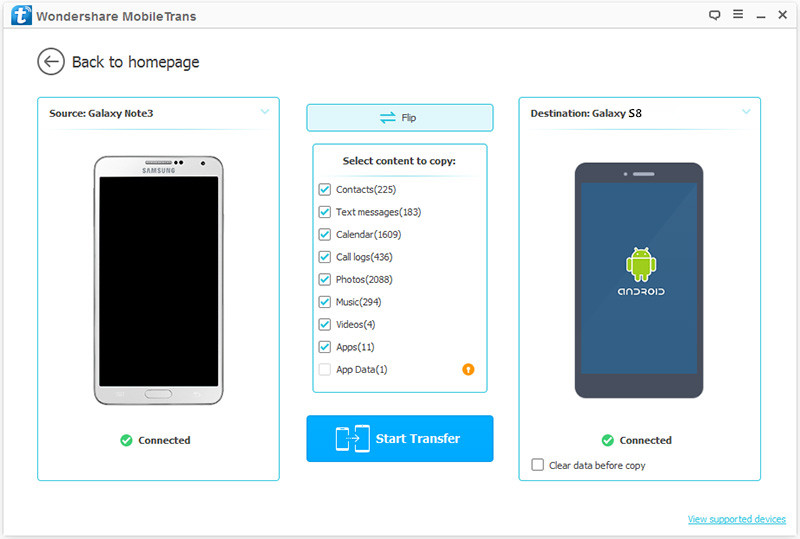
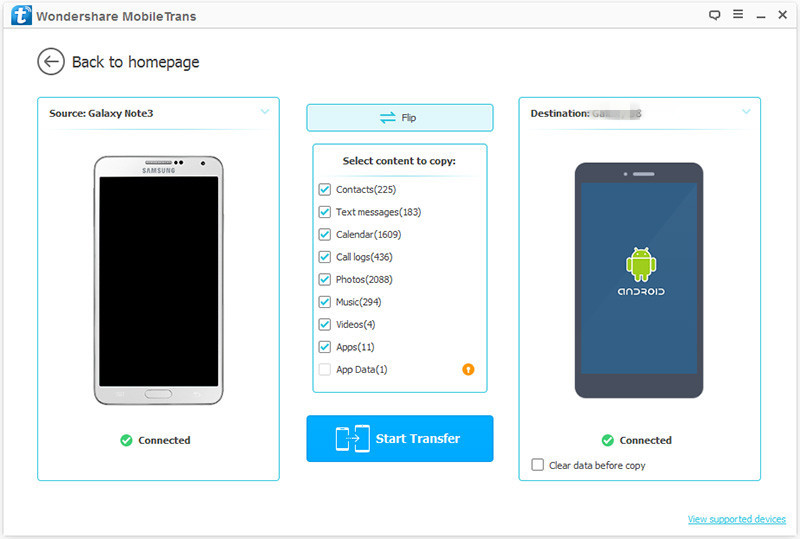
Now you will be asked to connect the both your Android and Motorola phone to the computer at the same time via USB cables. Then, within few seconds, both your phones will be detected by the program and will be displayed as follow.

select file to transfer

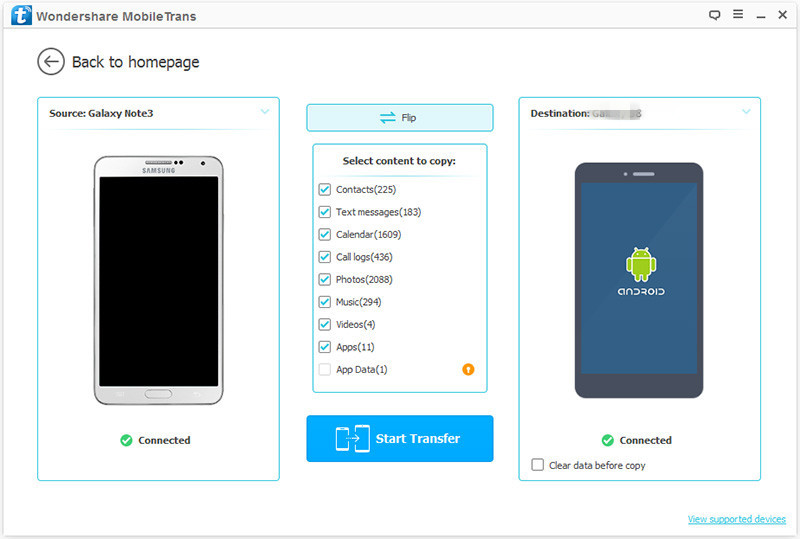
Note: You can click “Flip” button to change the places of the two devices to transfer data from Moto to Android.

Step 3. Transfer Data from Android to Motorola
Next step you can choose the data you want to transfer between the two phones, such as, contacts, SMS, videos, photos, call logs, music, calendars, apps. Lastly, just click “Start Transfer” button to start the data transfer process. When finish, click “OK“.

transfer android data to moto z

Tips:
1. Make sure that both of your Android are well connected. Otherwise, if the USB cables fail to be connected well during the transfer, the data transferring may get lost.
2. You are allowed to clear all the data that stored on your destination phone before transferring data to it.

d_win d_mac

Related Article:

How to Transfer iPhone Data to Motorola Z

How to Transfer Samsung Data to Motorola Z

How to Backup and Restore Motorola Phones

How to Recover Deleted Data from Motorola Z

How to Recover Data from Water Damaged Motorola

How to Recover Deleted Photos from Android

How to Root Android on Computer with One Click

How to Manage Android on Computer

How to Transfer Samsung Data to Motorola Z

Motorola Z, a new-released mobile phone of Motorola, thin, light, well-made, with up-to-date specs and a whole lot of innovation thrown in there — and an ecosystem of modular components that can attach to the back to augment the core functionality. To me, it was one of the more exciting announcements of the year, and I still think the phone is an gem. It’s worth to get a new Motorola Z to have a try, and I think you may like it among so many Android phones.

When you get a new Motorola phone, you may need to transfer data between the old device and the new one, for example, Samsung phone. As the rapid development of modern technology, transferring data between phones becomes easier and easier, it is not that difficult as you think if you want to migrate Samsung data to Motorola phone like Moto Z. However, fortunately, you can transfer Android data with Phone Transfer with easy-operating steps.

Migrate Samsung Data to Motorola Z

To migrate Samsung data to Motorola Z, you could try this Phone Transfer. Phone Transfer is a program developed for switching data between two mobile devices. It empowers you to transfer Android data such as contacts, messages, photos, call history and other files. You can easily switch Samsung data to Motorola Z with only three steps once you try Phone Transfer. Not only Samsung and Motorola, but also other brands of Android phones are supported by Phone Transfer, like HTC, Lenovo, Huawei, LG, and more.

d_win d_mac

How to Switch Samsung Data to Motorola Z

Step 1. Connect Samsung and Motorola to a Computer
Install and run Phone Transfer on your computer. Then choose the mode “Phone to Phone Transfer“. Connect your Samsung and Motorola to the computer with USB cable.

phone transfer main page

Step 2. Choose File Types to Transfer
Make sure that the source phone is your Samsung and the destination is your Motorola Z. If not, click the button “Flip” to exchange their places. Next, choose file types to transfer, for example, contacts, text messages, photos, videos, etc,. Then click the button “Start Transfer“.

select file to transfer

Step 3. Transfer Data from Samsung to Motorola
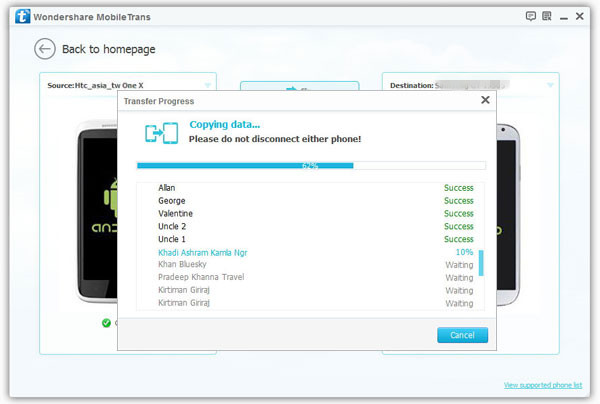
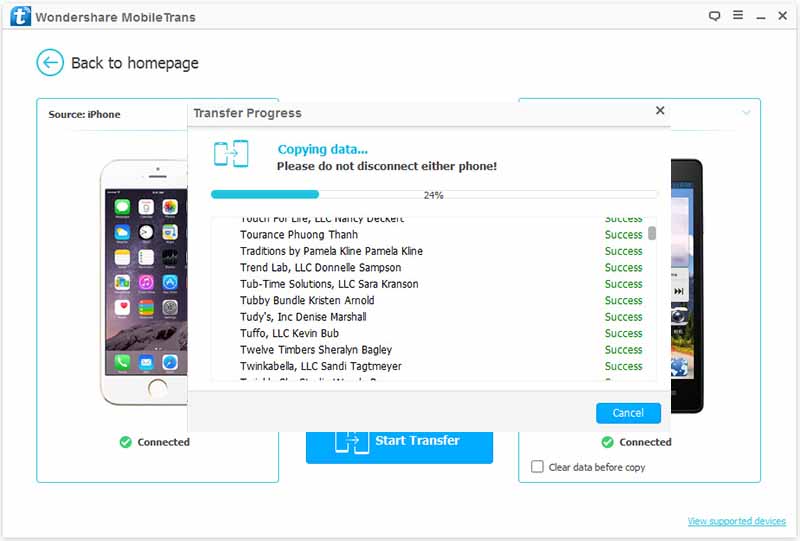
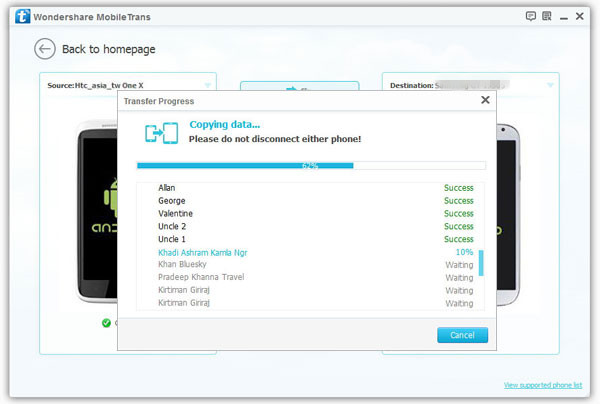
Now the program is start transferring data from Samsung to Motorola. You can view the progress. Please don’t unplug either phone from the computer under it’s end. When the transmission is done, click the button “OK” to finish the process.

transfer samsung data to motorola

d_win d_mac

Related Article:

How to Transfer iPhone Data to Motorola Z

How to Transfer Android Data to Motorola Z

How to Backup and Restore Motorola Phones

How to Recover Deleted Data from Motorola Z

How to Recover Data from Water Damaged Motorola

How to Recover Deleted Photos from Android

How to Root Android on Computer with One Click

How to Manage Android on Computer

How to Transfer Music to OnePlus 3T

I purchased a new OnePlus 3T phone recently. Now I have a question need to be fixed: How to import music from the computer to my new device? By the way, I need an easy way only. Thanks very much.

OnePlus 3T — a phone that comes just five months after the company launched its OnePlus 3 flagship in June. The OnePlus 3 was our favorite mid-price phone until this 3T came along. Compared to the 3, the 3T has a darker grey color and a new 128GB storage option (there’s also a special-edition black version too). It’s got a faster processor, a bigger battery and a better front-facing camera.The OnePlus 3T delivers the best user experience, thanks to the latest hardware upgrades and carefully tested software enhancements. According to the report, OnePlus 3T is the top 6 popular phone in 2017. It sounds so great.

Transfer Music to OnePlus 3T from Computer

Android Manager is your ideal tool which will help to transfer & manage data for OnePlus 3T and other brands of Android on the computer. With using Android Manager, you are allowed to transfer music between OnePlus 3T and computer easily. Besides, this wonderful program enables to transfer several files between among Android and computer, iTunes, mobile device, including music, videos, photos, SMS, contacts, apps. Most of Android brands are supported by program, including OnePlus, LG, Samsung, Lenovo, HTC, Sony, Motorola, Huawei, etc,.

d_win d_mac

How to Import Music from Computer to OnePlus 3T

Step 1. Run Android Manager on PC and Connect OnePlus 3T
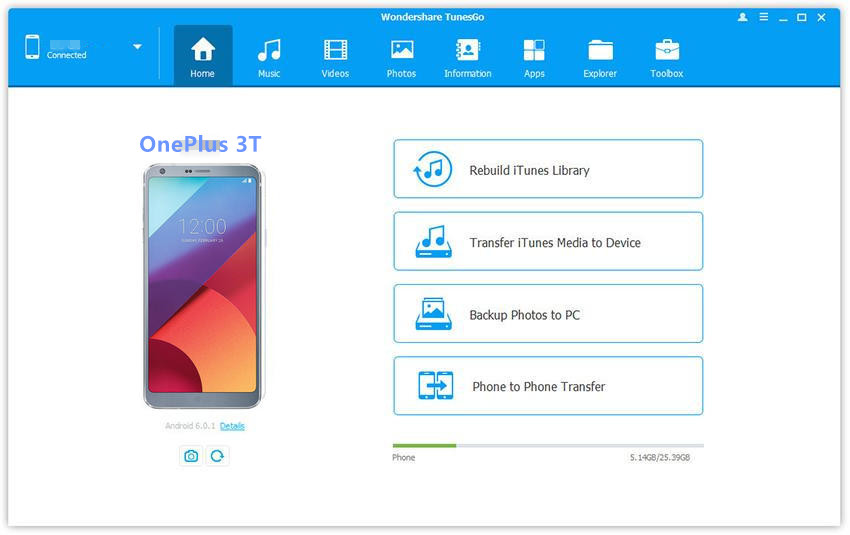
Run Android Manager on your PC and connect your OnePlus phone to the PC via USB.

android manager home page

Step 2. Transfer Music from Computer to OnePlus 3T
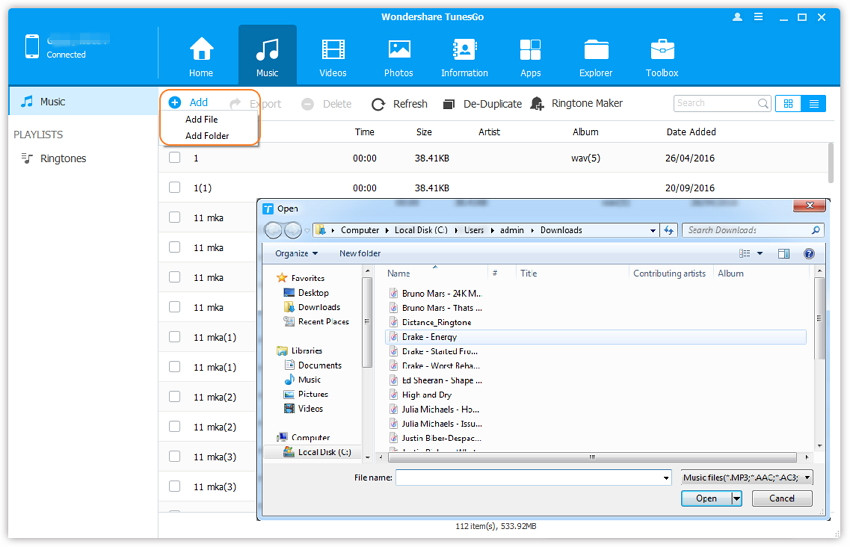
To transfer music from PC to OnePlus, from the menu displayed on the top, click the “Music” tab. Once the media loads, hit “Add” and then click “Add File” or “Add Folder” to add more music or songs to transfer.

The option above will bring you to a browser window where you can select the songs that you need to import to your computer. You can select as many files you want, or you can still choose a whole album. Once you are okay with the list, you can click “Open” and pick a location to save the music to your phone. Alternatively, you can just drag and drop music from your PC to the OnePlus phone.

add music from pc to oneplus

d_win d_mac

Related Article:

How to Restore Deleted Data from OnePlus 3T

How to Transfer Samsung Data to OnePlus 3T

How to Transfer iPhone Data to OnePlus 3T

How to Transfer Android Data to OnePlus 3T

How to Recover Lost Data from Android

How to Recover Deleted Photos from Android

How to Root Android on Computer with One Click

How to Manage Android on Computer

How to Transfer iPhone Data to Motorola Z

Hi. I am asking for help. Any good suggestions to transfer all data from iPhone to the new Motorola Z directly? Any help will be welcomed.

The Moto Z family is Motorola’s take on modular phones, a concept that other manufacturers have failed to make popular. Since the Moto Z line was born last year, Motorola has promised to release 12 Moto Mod accessories each year. Motorola Z is one of the popular phones of Z series. It’s hot after releasing on the mobile market. There are a lot of iPhone users may focus on the new-announced Motorola Z phone and wanna try the Android phone, while using iOS system for a long time. If you are one of them, just read these passages following, to learn how to transfer iPhone data to Motorola Z within 2 steps.

Transfer iPhone Data to Motorola Z

Phone Transfer is a useful program which enables you to transfer files between iPhone and Motorola Z, including contacts, messages, photos, videos, music, call logs, calendars, and apps. Phone Transfer works well on transferring data between devices running Android, iOS, Symbian, Windows, Blackberry OS systems. In addition to transfer data, Phone Transfer allows to backup & restore data for mobile device on PC safely. Most of Android devices are compatible with Phone Transfer, such as, Motorola, HTC, Samsung, Lenovo, LG, etc,.

d_win d_mac

How to Directly Migrate iPhone Data to Motorola Z

Step 1. Download and Install Phone Transfer and Connect Devices
Download Phone Transfer on your PC/Mac. Then, install the program. After installation, run Phone Transfer on the computer and select “Phone to Phone Transfer” mode.

phone transfer main page

Plug iPhone and Moto Z to the computer via USB cables. When the two devices are detected, the software will start scanning the plug-in phones.

Step 2. Transfer Data from iPhone to Moto Z
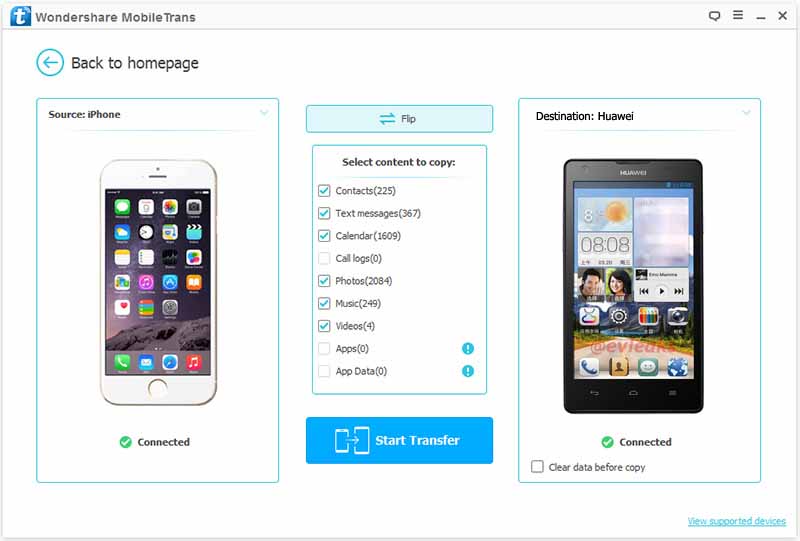
Select the data that you want to transfer in the middle column. After selection, hit the “Start Transfer” button in blue. The chosen content will begin to transfer from iPhone to Moto.

Note: If you want to transfer data from Moto to iPhone, you can click the “Flip” button at the top-middle to change the position of source and destination phones.

select file to transfer

transfer iphone data to moto z

As you see, with Phone Transfer, you can directly transfer data from iPhone to Moto within 2 simple steps. So easy, right?

d_win d_mac

Related Article:

How to Backup and Restore Motorola Phones

How to Recover Deleted Data from Motorola Z

How to Recover Data from Water Damaged Motorola

How to Recover Lost Data from Android

How to Recover Deleted Photos from Android

How to Root Android on Computer with One Click

How to Manage Android on Computer

How to Transfer Samsung Data to HTC 10

HTC’s 2016 flagship is a confident return to form, and a reason for high-end buyers to start paying attention to the company once again. This impressive all-rounder gets a lot of important things right — performance, build quality and, for the most part, the camera. And although it’s trumped by the Galaxy S7 in some key metrics, the HTC 10 is arguably the closest competitor Samsung has right now.

htc 10

If you just get tired of your old Samsung phone and ready to switch to a new HTC phone, like HTC 10, you must want to transfer all the important files from your old phone to the new mobile for continued using, so that you can make calls, send messages and emails or do anything on the new phone without hassle. Well, it is easy to copy data between Samsung and HTC indeed, it is not as hard as you think if you ask help of the professional tool-Phone Transfer.

Switch Samsung Data to HTC 10

If you have no idea about how to select a phone data transfer tool, we would like to introduce you with the best one – Phone Transfer, which is specially designed for you to transfer data between two mobile device, for example, transfer files from Samsung to HTC 10. Contacts, text messages, photos, videos, music, apps, calendars and call logs are included. In addition to transferring data between Samsung and HTC, it can also help you transfer data between any other mobile phones of iOS system, Android system, Symbian system, like Lenovo, LG, Motorola, Sony, Huawei, iPhone, etc,.

d_win d_mac

How to Migrate Samsung Data to HTC 10

Step 1. Launch Phone Transfer on PC
After you download and install the Phone Transfer program, launch it and you will see its primary interface pops up like the following picture shows. Just choose “Phone to Phone Transfer” mode to go to the next step.

phone transfer main page

Step 2. Connect Samsung and HTC Phones with Computer
Now, connect both Samsung and HTC phones with your computer via two USB cables. They will be detected by the transfer program once they are connected. Then, you can see them displayed in the “Source” and “Destination“. You can click “Flip” button if you need to switch their positions.

select file to transfer

Step 3. Directly Transfer Samsung Files to HTC
In the process, you could uncheck the file types you don’t need to transfer and then click the button of “Start Transfer” to begin the process. When the transfer finishes, you can interrupt the connection of the phones and computer and check the transferred data.

transfer samsung data to htc 10

Note: You should keep the two phones connected with your computer during the whole transferring process.

d_win d_mac

Related Article:

How to Transfer Android Data to HTC 10

How to Transfer iPhone Data to HTC 10

How to Recover Deleted Data from HTC 10

How to Recover Deleted Data from HTC 

How to Recover Deleted Contact from HTC

How to Recover Deleted Photos from Android

How to Root Android on Computer with One Click

How to Manage Android on Computer

How to Transfer Android Data to HTC 10

The HTC 10 was launched in the U.S. in May 2016, running Android 6.0.1 Marshmallow and was upgraded to Android 7.0 Nougat earlier this year. The phone is equipped with the a 5-megapixel camera module which also takes advantage of OIS, with the device itself boasting a 5.2-inch Super LCD5 display with a resolution of 2560 by 1440 pixels and having a fingerprint recognition sensor embedded into its physical Home key.

HTC 10 has done everything they can to make it is better than many models of Android phone, in the design and specifications simultaneously to beyond it. Are you be interested in the new-released HTC 10 phone? Are you want to buy a new one HTC to replace your old Android? If you need to migrate data from Android to HTC 10, you should consider to get a reliable solution to finish the data transfer job. Here is a complete guide on switching data between Android and HTC 10 directly.

Phone Transfer – Copy Android Data to HTC 10

Using the Phone Transfer, you’ll only need a few minutes and a computer with iTunes installed to get your data transferred from Android to HTC 10 directly. It enables you to transfer several kinds of files between Android and HTC without any quality loss, contacts, SMS, photos, videos, call logs, music, calendars, apps are included. What’s more, Phone Transfer enables to transfer files between two mobile devices even though it run different system, among Android OS system, iOS system, Symbian system. Phone Transfer is compatible with all Android phones, like HTC (10, U11, One S9), Lenovo (P2, Z2 Plus, A Plus, K6), Samsung (Galaxy S8/S7/S6), Motorola Z/Z2, Google Pixel, LG (G6,G5,V20), and more.

d_win d_mac

How to Switch Android Data to HTC 10

Step 1. Install and Run Phone Transfer on PC
To get started, you’ll need to install Phone Transfer on your Windows/Mac PC. Once the software is installed and running, with your HTC 10 and Android connected to your computer, navigate to “Phone to Phone Transfer” by clicking “Start” button.

phone transfer main page

Step 2. Selected File Transfer from Android to HTC 10
To switch contacts, SMS, photos, videos, call logs, music, calendars, apps from Android to HTC 10, you are allowed to tick items on middle panel. Then, click “Start Transfer“.

select file to transfer

The Android would be showed on left panel and HTC 10 would be showed on right panel. You can click on “Flip” button to exchange the source and target device.

Step 3. Migrate Data from Android to HTC 10
The transferring process would be launched automatically. When the transfer progress is over, click “OK” to end it.

transfer android data to htc 10

Now, you can see the the selected files have been transferred on HTC 10.

d_win d_mac

Related Article:

How to Transfer iPhone Data to HTC 10

How to Recover Deleted Data from HTC 10

How to Recover Deleted Data from HTC 

How to Recover Deleted Contact from HTC

How to Recover Deleted Photos from Android

How to Root Android on Computer with One Click

How to Manage Android on Computer

How to Transfer iPhone Data to HTC 10

I just switch to the new HTC 10 phone, and now I am wondering is it possible to transfer all the iPhone data to HTC 10 directly? Thank you very much.

Are you tired of using the over-popular iPhone ? Are you want to switch from iOS system to Android system? Have you ever considered buying a new mobile phone like the new HTC 10 or HTC One M9/M8 to replace your old iPhone? However, what are you going to do with your data on your iPhone? So you must make sure that you have got the a powerful tool for transferring that all contacts, SMS, music, videos, photos and other files to the the new HTC from iPhone. Still have no idea of how to switch data? Here is the right place for you. Today we will offer a program here to help you fix this problem.

Transfer Data from iPhone to HTC 10 Directly

Phone Transfer can copy and transfer all data from iPhone to the HTC 10 (U11, One S9, One M8/M8 Eye, One M9/M9 Plus), including contacts, photos, music, SMS, videos and more files. Phone Transfer is designed for transferring files between two mobile devices among iOS device, Android device, Symbian device and Blackberry device. It fully supports all iPhone on iOS 7/8/9/10 and HTC Android 2.1 to Android 6.0 systems such as HTC 10, U11, One S9, HTC One (M8/M8 Eye,M9/M9 Plus), HTC One Remix, HTC One mini, HTC One Max, HTC ONE S, HTC ONE V, HTC One X, HTC Desire, etc,.

d_win d_mac

How to Migrate iPhone Data to HTC 10

Step 1. Download and Run Phone Transfer on Computer
The first step, download Phone Transfer on your computer and then install it. After that, launch it. Then you will see the primary window. Click “Phone to Phone Transfer” selection.

phone transfer main page

Note: Make sure that you have already installed iTunes on your computer, if not, the job will never be finished.

Step 2. Connect Both Devices to the Computer and Select File to Transfer
Connect to the computer with both your iPhone & the new HTC 10. After this Phone Transfer tool finishes detecting your devices, they would be shown in the window. iPhone as the source phone should be on the left, HTC as the target phone should be on the right. You can click “Flip” to change the position of them if you need.

select file to transfer

Now you should select the file(s) to transfer from iPhone to HTC 10. Please remember to remove the marks before the files that you don’t want to transfer.

Step 3. Transfer iPhone Data to HTC 10
Now you can begin to transfer the data from your iPhone to the new HTC 10 by clicking “Start Transfer“. When it finishes, click “OK“.

transfer iphone data to htc 10

Note: Please make sure that both of your phones should be connected to the computer during the transfer progress.

d_win d_mac

Related Article:

How to Recover Deleted Data from HTC 10

How to Recover Deleted Data from HTC 

How to Recover Deleted Contact from HTC

How to Recover Data from Water Damaged Android

How to Recover Deleted Photos from Android

How to Root Android on Computer with One Click

How to Manage Android on Computer

How to Recover Deleted Data from Lenovo P2

The P2 is Lenovo’s biggest phone launch to date in the UK that doesn’t feature the Moto branding. The P2 making it one of the most impressive phones we’ve seen in the past year. The Lenovo P2 has a 13-megapixel camera with dual-LED flash on the back and a 5-megapixel camera on its front panel. It also has a fingerprint sensor. The handset measures 153 x 76 x 8.2mm and weighs 179 grams. The connectivity options include 4G LTE support, Wi-Fi, Bluetooth, FM Radio.

lenovo p2

Even though Lenovo makes a great android phone, however it’s common for users to lose data that are important to them. For example, deleted data from device by mistake, device system update, restore device to factory reset, etc,. Whatever the reason, these deleted files will need to be recovered because they usually contain important information or special memories that the user does not want to lose permanently. The follow passages will teach you how to restore deleted data from Lenovo phone directly.

Restore Deleted Data from Lenovo P2

Android Data Recovery – a reliable Android data recovery program to help you recover deleted data from Lenovo P2, including most of file types, such as contacts, SMS, photos, videos, call logs, documents and more. When you find a file is deleted on the phone and you want to recover it back, you must stop using the phone until it is retrieved. This Android Data Recovery software supports to all Lenovo devices, including Z2 Plus, A Plus, K6, K5 Note, Vibe Shot, and more.

d_win d_mac

How to Restore Deleted Data on Lenovo P2

Step 1.Run Program on the Computer
First of all,please download and run Android Data Recovery on the computer. Connect Lenovo P2 to the computer.

connect lenovo p2 with computer

Step 2.Enable the USB Debugging on Lenovo P2
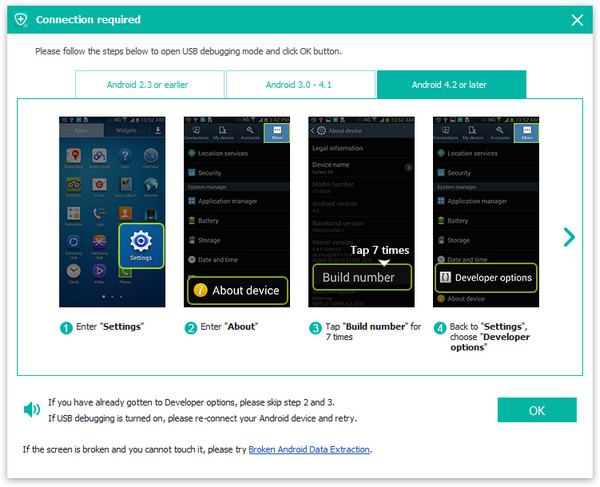
You should enable USB debugging on your Lenovo P2 after connecting the device to the computer.There are several ways for you to enable the USB debugging for your Android.

enable usb debugging on lenovo p2

Step 3.Select File to Scan by Program
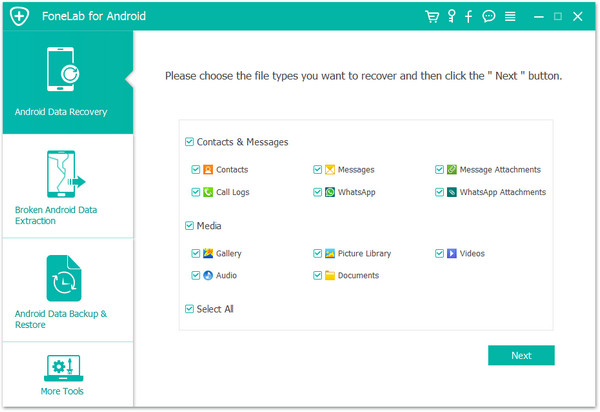
After you enabled USB debugging for your Lenovo,it will be detected by the program in seconds.Now you are allowed to selectively choose which type of files to be scanned by program.Then click “Next” to go on.

select data to scan on lenovo p2

Step 4.Begin to Scan Deleted Deleted Data from Lenovo P2
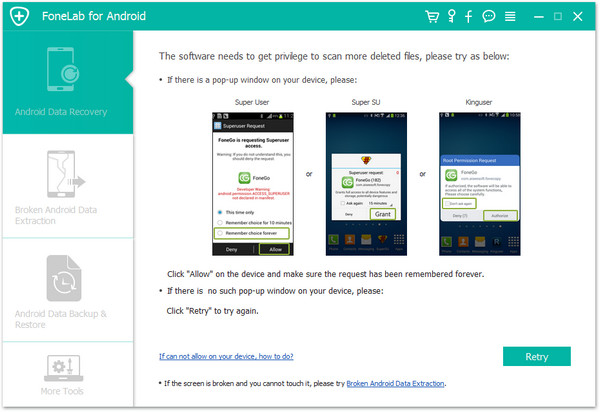
Once you see the window below,you should move to your phone,tap on the “Allow” on the phone screen,then back to the computer and click on the “Start” button to continue.

allow scanning data on lenovo p2

Now the program will analyze the data on your Lenovo P2.

analyze data on lenovo p2

Step 5.Preview and Selectively Restore Deleted Data from Lenovo P2
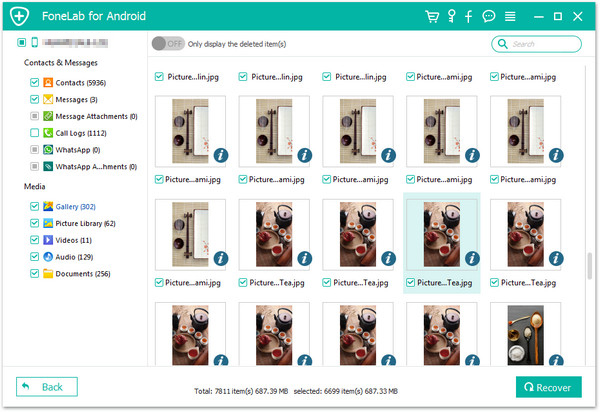
In the last step,all data will be scanned out by program,now you are allowed to select the detail data to preview and choose data for recovery by clicking “Recover”.Done.

restore deleted data from lenovo p2

d_win d_mac

Related Article:

How to Recover Deleted Data from Lenovo

How to Recover Deleted Photos from Lenovo

How to Recover Data from Water Damaged Lenovo

How to Backup and Restore Lenovo

How to Root Android on Computer with One Click

How to Manage Android on Computer

How to Transfer Samsung Data to Sony Xperia XZ

I heard that Sony Xperia XZ is one of the top 10 mobile phones in 2017, according to the report. So I decide to buy a new one for replace my old Samsung phone which is used for 2 years. But there is a question that confuse me, how to transfer data from Samsung to Sony directly? I need an easy way. Thanks.

transfer samsung data to sony

The 10 top smartphones we’ve tested in 2017,all the best smartphone are running Android and iOS operating system,these are 10 of the best smartphones available now on the market,and the No.7 smartphone right now is the Sony Xperia XZ. Since Sony has launched the Xperia X Performance, Xperia XZ, Xperia XZs and Xperia XZ Premium flagships, plus a bunch of other phones lower down the range with random product names that all include the letter X.

Switch Samsung Data to Sony Xperia XZ

All you need is a 1 click phone to phone data transfer tool – Phone Transfer. It is developed for transferring data between almost all popular mobile phones which are based on Android, iOS operating system, including contacts, messages, photos, videos, call logs, calendars, music, apps. In another word, it supports transfer data from Samsung to Sony Xperia XZ and other models of Sony phones, such as such as Sony Xperia XZ Premium, Sony Xperia XZs, Sony Xperia XA1, Sony Xperia XA1 Ultra, Sony Xperia L1, etc,. Let’s see how it works on switching data between Samsung and Sony Xperia XZ directly.

d_win d_mac

How to Transfer Data from Samsung to Sony Xperia XZ

Step 1. Run Phone Transfer on PC and Connect Devices
Download and install Phone Transfer on your PC according to your computer OS (Windows Version/Mac Version ), click “Phone to Phone Transfer” mode on it.

Connect your Samsung and Sony phones on to computer via its USB cables.

phone transfer main page

Step 2. Select Data for Transferring from Samsung to Sony
Select the files you want to switch from Samsung to Sony on middle check box, here contacts, messages, photos, videos, call logs, calendars, music, apps are available. After selected, click “Start Transfer” button to begin the transferring process.

select data to transfer to sony

Step 3. Transfer Samsung Data to Sony Xperia XZ
Now it will start the data transfer job, it should be done in a few minutes, depending on the data size. Make sure that your phones are connected until the transferring is over. When finishing transferring, just click “OK” to end it.

transfer samsung data to sony

d_win d_mac

Related Article:

How to Switch iPhone Data to Sony Xperia XZ

How to Transfer Android Data to Sony Xperia XZ

How to Recover Deleted Data from Sony Xperia XZ

How to Recover Deleted Photos from Android
How to Root Android on Computer with One Click

How to Manage Android on Computer