All posts by DHZ

How to Backup Messages for Sony Xperia

My Sony phone used for 3 years, recently I want to sell it to the phone store and switch to a new Samsung phone. However, I know I should do a SMS backup job on my old device first. But how to complete the backup job on the PC with the most easily solutions?

Why we should Backup our Phone
For most of smartphone users, data backup is always an important process in order to prevent the loss of important files and data on the phone. The backup job means to the act of copying your personal data to a safe place. It would be on a computer or cloud drive. To sum up, it is a very crucial task to backup your phone. However, you will get several of different recommendations for data backup. Hard to decide to go with which method? In this article, I will list it with two parts. You could select the one that works best for you.

Part 1: Backup SMS for Sony Xperia with Phone Transfer

Phone Transfer is an effective program that allows you to backup files for Sony Xperia phone. This software is highly compatible with Sony Xperia, including Z5/Z3/Z2 and all other Android phones. You can backup SMS for Sony phone on the computer safely. Other types of data are also supported to be backup, such as contacts, photos, call logs, music, calendars, apps. In addition, Phone Transfer enables to restore backup for mobile device on the computer. What’s more, Phone Transfer allows to transfer files between two mobile device conveniently. In short, it is one of the best apps you should take a copy if you own an Android phone.


d_win d_mac

Step 1. Install Phone Transfer and Connect Sony Device
Firstly run Phone Transfer on the computer and then connect Sony phone to it via USB.

Next, click “Back Up Your Phone” mode in the home page of program.

phone transfer main page

Step 2. Transfer Text Messages from Sony to PC
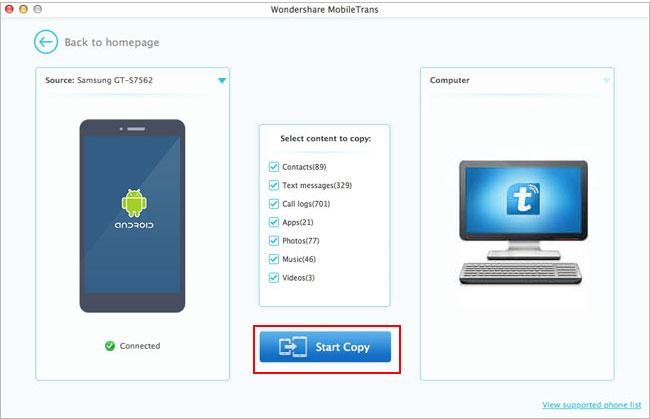
The name of your phone will be shown on the left. There are seven items for your choice. Check the second one, “Text messages” and press the button “Start Copy“. It will be done after a while.
backup sony sms to pc

d_win d_mac

Part 2: Backup SMS for Sony Xperia with Android Manager

Another excellent program here we want to recommend for you calls Android Manager, which is a useful data manage tool for Android. Android Manager empowers to easily transfer & manage data for Android on the computer. With Android Manager, you could backup SMS from Sony to computer with easy steps. Besides SMS, other types of Android files are supported to be backup and restore by program, like contacts, photos, call logs, music, calendars, apps & apps data. Android Manager allows to transfer files between Android and computer, transfer files between Android and iTunes, transfer files between Android and mobile device.

d_win d_mac

Step 1. Run Android Manager on the PC and Connect Sony
Download and launch Android Manager on PC, connect your Sony phone to PC via USB cable.
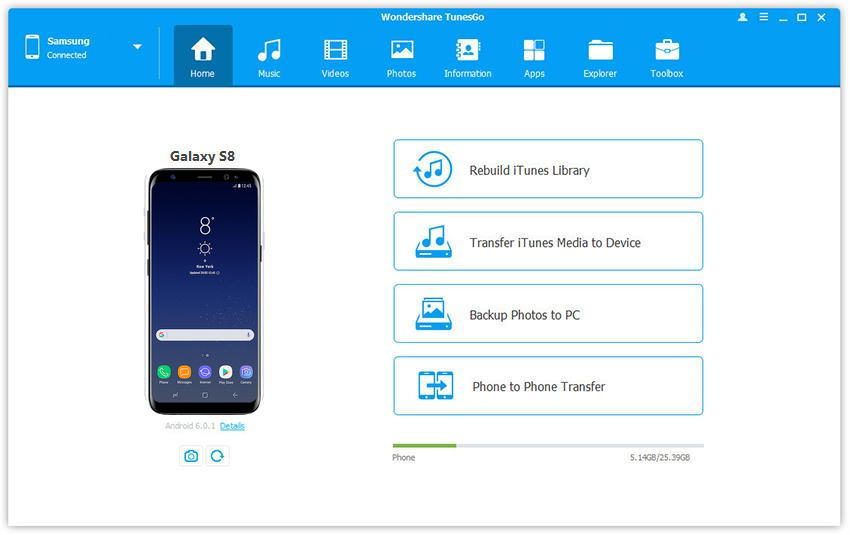
android manager

Step 2. One-click Backup Sony Phone to PC
In the top bar, select “Toolbox” tab. In the “Backup & Restore” section, click “Backup Device” to backup your Android device to PC.
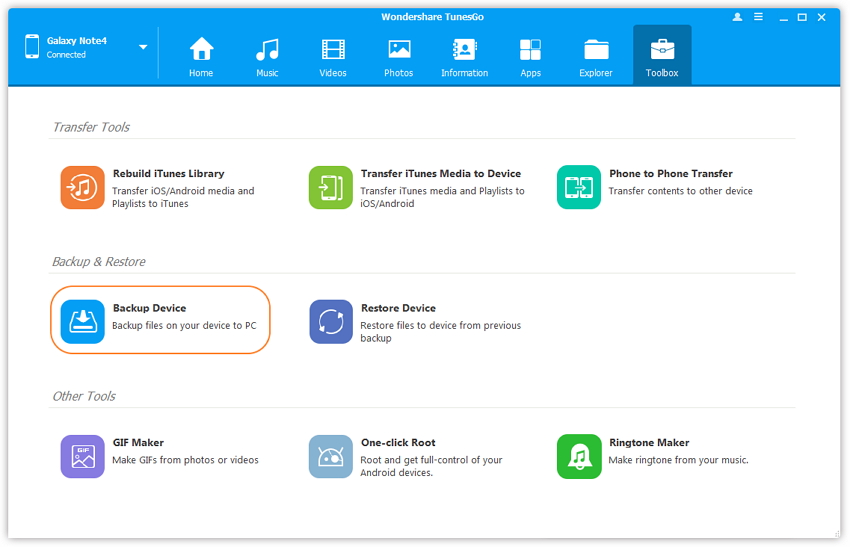
one click backup android to pc

Step 3. Select SMS File to Backup
By default, all data on your device that can be backed up are ticked. You could remove the items you don’t need to backup.
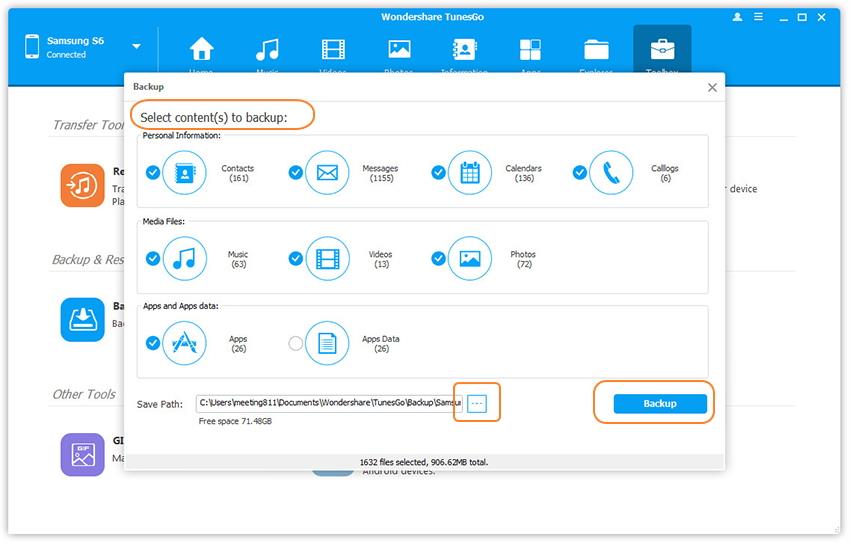
select contents to backup

Step 4. Backup SMS from Sony to PC
Click “Backup” to complete the process. Click “Open Backup” files and you can find the backed files on your computer.

d_win d_mac

Related Article:

How to Transfer Music to Sony Xperia XZ

How to Recover Deleted Data from Sony Xperia XZ

How to Manage Android on Computer

4 Ways to Backup and Restore Android Phone or Tablet

How to Backup and Restore your Android on Computer

The Complete Guide to Backup Android Phone

How to Backup and Restore Media File on Android

How to Stream DRM-free Apple Music to Samsung Galaxy

[Summary]:Knowledge – Samsung phone does not support M4P music songs,even you use the latest Samsung Galaxy S9/S8 and Note 8,so Apple music is not compatible with Android Samsung devices.Looking for a way to stream Apple music to your Samsung Galaxy S/Note?This article will teach you how to play Apple music M4P on Samsung devices for free forever:Just convert M4P to MP3 and transfer the converted Apple Music songs to Samsung phones or tables for offline playback without DRM limitation.

I want to transfer Apple music bought from iTunes store to my Samsung Galaxy S8,but the Samsung phone does not support M4P files,I need to transfer Apple Music to Samsung Galaxy S8,how can I stream DRM-free Apple Music to Galaxy S8?Any good suggestions?

You may like:

*How to Burn Samsung Videos to Blu-ray

*How to Convert M4V Videos to MP4

How to Play M4P on Samsung Devices

As we know,Apple Music is M4P format protected with DRM encryption,these M4P songs are limited by Apple on usage,we can only play Apple Music songs on iOS devices and iTunes players,all playlists and music songs we downloaded from Apple Music stored will not allowed to play once the subscription service is canceled.The M4P format is not compatible with MP3 players, Car players, PSP, Samsung, HTC, Sony, Huawei and other Android devices.

Since the release of Apple iTunes Music, many music lovers have been looking for a solution to convert the downloaded Apple Music tracks to DRM-free MP3 or other common audio formats which match their mobile device. Because Apple Music are protected with Apple’s FairPlay DRM – M4P, so the music are only allowed to download from iTunes and play on Apple’s devices. Although later the Android version of Apple Music was released, it’s still depressed that the streaming music downloaded with Apple Music are not permit from copying to other devices and all music streams will become invalid if the subscription is canceled.To stream DRM-free Apple Music to Android Samsung phone,you must to remove DRM from Apple Music M4P songs,and transfer them to Samsung Galaxy for playing.

Convert M4P to MP3 for Samsung Phone

Apple Music Converter is a professional iTunes DRM file converter to remove Apple Music DRM and convert M4P music files to MP3. It allows you to convert Apple Music songs at up to 16X speed, you could enjoy Apple Music tracks without time limitation after conversion, play the iTunes music on device lifetime free. Apple Music converter can also convert iTunes M4P songs, Audiobooks and Audible Audiobooks to DRM free formats, such as, MP3/M4A. Most of popular models of Samsung devices are compatible with Apple Music Converter, Galaxy S8/S7/S6/S5, Note 8/5/4/3, A9/A7 are included.

d_win d_mac

Easy Steps to Stream Apple Music on Samsung Galaxy

Step 1. Install and Run Apple Music Converter on PC
To begin with, please download and install the latest Apple Music Converter program on your computer and then run it. iTunes would be launched at the same time and a whole iTunes library would be synced to the program.

run apple music converter

Step 2. Select Apple Music You Like to Convert
On the interface of Apple Music Converter, you are allowed to select the songs you want to convert and play on your Samsung device. Note: You could select a number of songs at one time.

select music to convert

Step 3. Setting the MP3 as Output Format for Converted Songs
After selecting the desired songs, you need to select the related settings on the “Output Setting” option. Please choose “MP3” as the output format from the drop-down list and then you can also select the location of the folder for output music, rename the file and more.

select MP3

Step 4. Convert Apple Music from M4P to MP3
Now just simply tap on the “Strat Convert” button on the interface to activate the conversion and after the job is finished, the selected songs would be converted to DRM-free MP3 format, which can be played on Samsung devices or other Android devices freely.

convert apple music to mp3 for Samsung

Step 5. View the Converted MP3 Files
After converting the DRM-Protected Apple Music from M4P to DRM-free MP3,please click “Open Output File” button to view the converted files in MP3 format.Congratulations,now you can play Apple Music on more media devices with more freedom and convenience.

view mp3 files

Download the Apple Music Converter and start to convert Apple music songs to MP3 for Samsung phone.

d_win d_mac

Step 6. Transfer the Converted Apple Musics(DRM-free MP3) to Samsung Galaxy
In the last step, you could connect your Samsung device via its USB cable and then switch all the converted Apple music from computer to your Samsung Galaxy S8/S7/S6/S5/Note 5/Note 4/Note 3/A9,etc. as you like.

move the converted Apple Music in MP3 format to Samsung Galaxy

Learn the guide about how to transfer music from computer to Samsung Galaxy

It’s over! It is a pretty simple guide to deal with, isn’t it?

Related Article:

Remove DRM and Convert iTunes M4P Music to MP3 on Android

How to Transfer iTunes Music to Samsung Galaxy S8

How to Transfer Music from Computer to Samsung Galaxy S6/S7

How to Transfer iTunes Music to Android Phone

How to Manage Android on Computer
 

How to Play Apple Music on Android Offline

[Summary]:Want to play Apple music songs on Android devices for free?This article will tell you how to remove DRM protect from purchased Apple Music and play M4P on any Android devices without quality loss.

I want to play M4P songs on Samsung Galaxy S8,but the Android phone failed to play Apple music in M4P format,how can I convert M4P songs downloaded from iTunes to MP3 files,then transfer it to my Android device? The music in iTunes are generally in ACC and M4P format. Could anyone help me with some tools for easy conversion of music for my Android with the compatible format?

convert apple music to mp3

What M4P File?

M4P is a protected AAC file extension that protected by DRM,Apple iTunes purchased songs with DRM (digital rights management) protect,iTunes M4P is an encoded audio file format which limits the number of computers that can share a given file. MP3 is a much less restrictive file format that features similar sound quality. If you pay for iTunes music, you can enjoy the music files with M4P format in a limit time. However, you can’t continue to listen the payed music out of the stated time. So it’s doubt that you may ask that how to convert iTunes M4P music to MP3, so that you can play Apple Music on Android without limitation, play the iTunes music on device lifetime free.

How to Play M4P on Android

As we all know that the Android devices does not supported M4P and ACC format,however,how to play Apple music songs in M4P on Android devices for free,like Samsung Galaxy S8, S7, S6, Note 8, Google Pixel, Nexus 6, Huawei P10/Mate 9, HTC 10,etc.

Download Apple Music onn Android Devices

Apple Music Converter enables to easily remove Apple Music DRM and output DRM-free MP3, M4A, etc. for playing on any computer and audio devices such as iPod, PSP, Zune, MP3 player, mobile phones, etc. Additionally, this Apple Music converter can also convert iTunes M4P songs, Audiobooks and Audible Audiobooks to DRM free formats. With the help of this smart program, you could remove the DRM for iTunes music and convert iTunes M4P music to MP3, so that you can listen to iTunes music lifetime free. Apple Music Converter works well for most popular brands of Android, including Samsung, HTC, Huawei, Sony, LG, Lenovo, Motorola, OnePlus.

More Features of Apple Music Converter:

-Convert Apple Music songs at up to 16X speed.
-Enjoy Apple Music tracks in anywhere and at anytime.
-Convert iTunes/Audible audiobooks to MP3/M4A, etc.
-Preserve Audiobook chapter information to M4A output.
-Keep original data to MP3, M4A audio files.

How to Convert M4P to Android

Step 1. Download and Install Apple Music Converter on Computer
Firstly, please download and install Apple Music Converter on PC/Mac.

launch apple music converter for mac

Note: When you run Apple Music Converter on the computer, iTunes will be launched automatically at the same time.

Step 2. Select Music to Convert
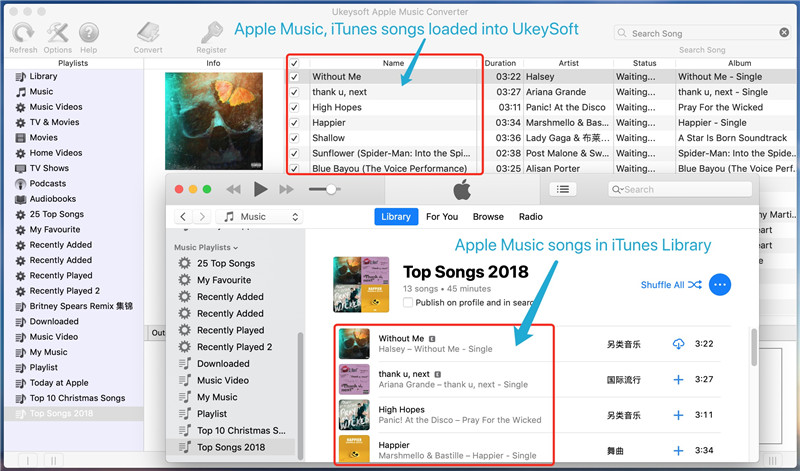
On the interface of Apple Music Converter, you could find all you Apple Music songs and playlists you have added to iTunes library, which are iTunes songs, movies, TV shows, audiobooks, etc,. Click the checkbox before the Apple Music songs you want to convert to MP3. You can also search the Apple Music songs you want with the searchbox.

select music to convert

Step 3. Select the Output Format for Converted Music
Now you should choose the output format, customize profile, name format for the converted music. Apple Music converter allows you to convert Apple Music M4P songs to different format: MP3, M4A, AC3, AAC, AIFF, AU, FLAC, M4R and MKA. Select the format you need. It provides 3 profile settings for each output format: Normal, High and Low with different Bitrate, SampleRate and Channels. You can also customize the values as you like.

select mp3 output format for Android

Step 4. Remove iTunes Music DRM and Convert it to MP3 for Android
Simply click “Start Convert” button to begin converting the selected Apple Music songs to MP3. After conversion, locate the songs and transfer them with MP3 format.

convert apple music to mp3

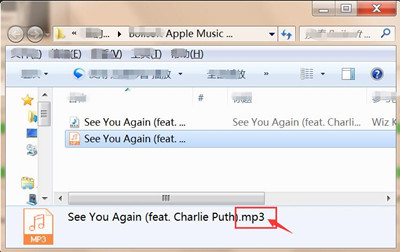
Clicking on the “Explore Output File” button to find the converted .MP3 files on the computer.

find the converted mp3 files

Step 5. Transfer All Converted iTunes Music to Android
A: Connect your Android device via the USB cable and then transfer all the Apple music to your Android phone or tablet.

B: Migrate Apple music from computer to Android via Android Manager. As its name, Android Manager is used for transferring & managing files for Android simply on the computer.

import converted MP3 Apple music to Android

Free download the Android Manager tool to import the converted MP3 Apple songs to your Android devices:

d_win d_mac

(Read more: How to Transfer Music from Computer to Android)

Done. Now you could enjoy the converted iTunes music for free on your Android and without time limitation.

Related Article:

How to Transfer iTunes Music to Android Phone

How to Transfer Music from Computer to Samsung Galaxy S6/S7

How to Manage Android on Computer
How to Transfer Music from iTunes Library to iPod

How to Transfer iTunes Music to iPhone 7/6S/6

How to Transfer iCloud Music to iPhone

I need to download the iCloud music on my iPhone. But I can’t import it to my device from iCloud directly. Is it any ways to transfer the iCloud music to iPhone without iCloud? Thanks advanced.

If you have an Apple device such as iPhone 7 and Apple provides many ways to transfer music to iOS device, it can easily be downloaded on iOS device via iCloud sync. You are allowed to sync music from iCloud with the tradition way. However, what if you can’t transfer iCloud music to iPhone directly? Now that you’re not even considering the iCloud sync method and you still need to figure out a way to transfer all of the precious music from iCloud to your iPhone.

Phone Transfer – Sync iCloud Music with iPhone

Phone Transfer is an useful apps which designed to make all of your iTunes/iCloud music to Android/iPhone with a few clicks conveniently. With the help of Phone Transfer, you could transfer iCloud music to iPhone without iCloud, with its original quality.

d_win d_mac

See More Features of Phone Transfer:
-Easily transfer photos, videos, calendars, contacts, messages, music and apps from among Android device, iOS device, Symbian device and Blackberry device.
-Backup and restore data on your device to a computer with one click.
-Works perfectly with Apple, Samsung, HTC, Lenovo, OnePlus, LG, Sony, Google, Huawei, Motorola, ZTE, Nokia, Blackberry and more smartphones and tablets.
-Fully compatible with iOS 11 and Android 7.0 or lower.

How to Download iCloud Music on iPhone 7/6S/6

Step 1. Connect iPhone after Choosing Restore Mode
Download Phone Transfer on your computer and install it on your computer. After that, launch the program and choose “Restore from Backups“. Then choose “iCloud” icon. Plug in your iPhone after that, and it will be displayed on the right.

phone transfer main page

Step 2. Log in iCloud and Download Backup
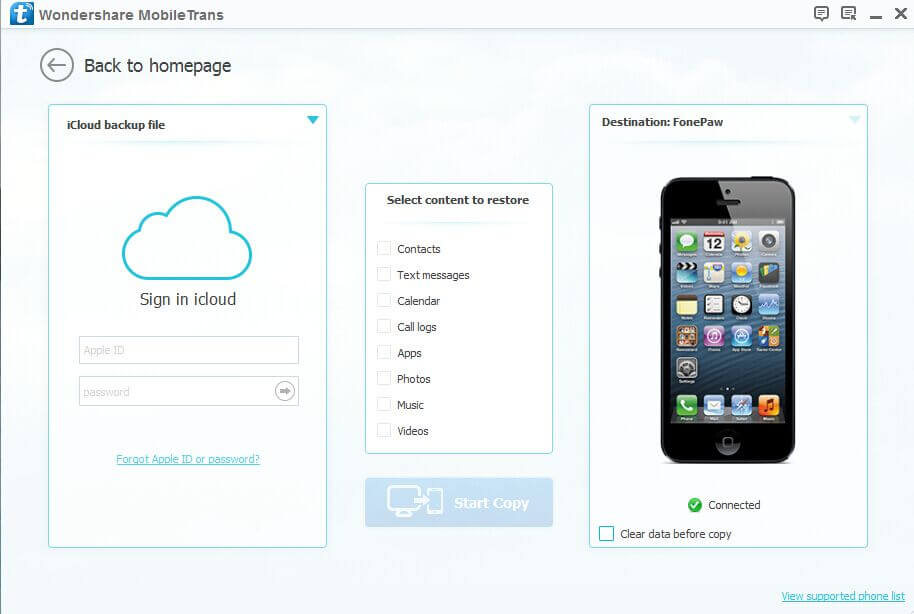
You will be asked to sign in Apple ID and password as the below window shows.
sign in icloud

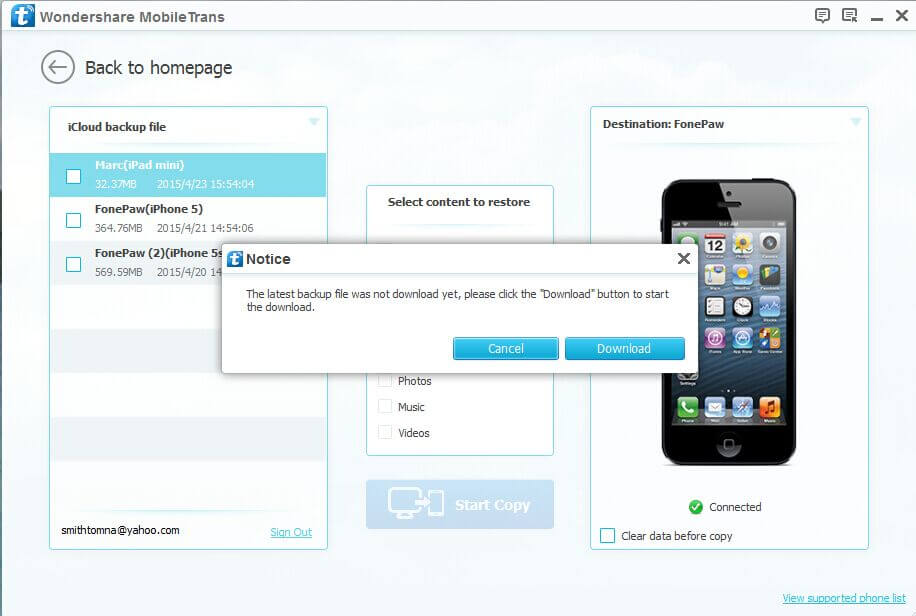
After that, the backup files will be listed on the left side of the interface. Then, choose the one you want, and click “Download“.

select icloud backup to download

Step 3. Copy and Transfer iCloud Music to iPhone
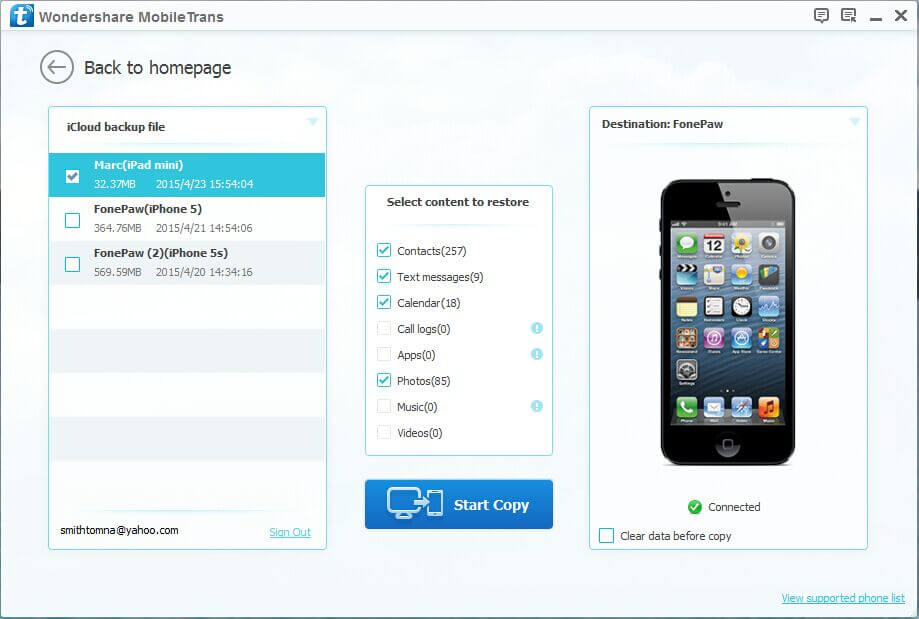
After downloading the backup, the data type in your iCloud backup will be shown: Contacts, text messages, call logs, photos, videos, music, and more. Tick the box next to “Music” and click “Start Copy“.

download icloud music to iphone

Note: Make sure that your iPhone is well connected by the USB cable during the process.

d_win d_mac

Related Article:

How to Transfer iTunes Music to iPhone 8

How to Transfer iTunes Music to iPhone 7/6S/6

How to Transfer Music from Computer to iPhone 7/6S/6

How to Transfer Music to iPhone 7/6S/6

How to Manage iPhone 7/6S/6 on Computer

How to Import Music from Zenfone to iPhone 7/6S/6

I used Zenfone for already 3 years. Now I want to switch to the new iPhone 7, but all the favorite songs still on the old device. How to import the music between it and the new iPhone?

It is a common situation that when you switch your old Android like Zenfone to new iPhone, for example iPhone 7, then you would need to import the personal data from the old phone to the new one including music – your favorite songs. No matter you are facing this similar situations, or in case you will face it one day, it is good for you to continue to read the following passages. By reading this post, you will get tips on how to import music from Zenfone to iPhone directly.

Further Reading:

* How to play Apple Music on iPhone without DRM

* How to Sync Music from iTunes to Android

Switch Music from Zenfone to iPhone Directly

An outstanding program here we want to recommend for you is Android Manager. With the help of Android Manager, you can easily transfer music between Zenfone and iPhone. Android Manager is a practical tool help for managing and transferring files of Android on the computer freely, including music, videos, photos, contacts, SMS, apps. What can Android Manager do for you, transfer files between Android and mobile device, transfer files between Android and iTunes, transfer files between Android and computer. Except for Zenfone (4 Max, Zoom 5, Live), other models of Android are also supported by this program, like Samsung, Motorola, Lenovo, HTC, Sony, LG, OnePlus, and so on.

d_win d_mac

How to Migrate Music from Zenfone to iPhone 7/6S/6

Step 1. Launch Android Manager and Connect Devices to PC
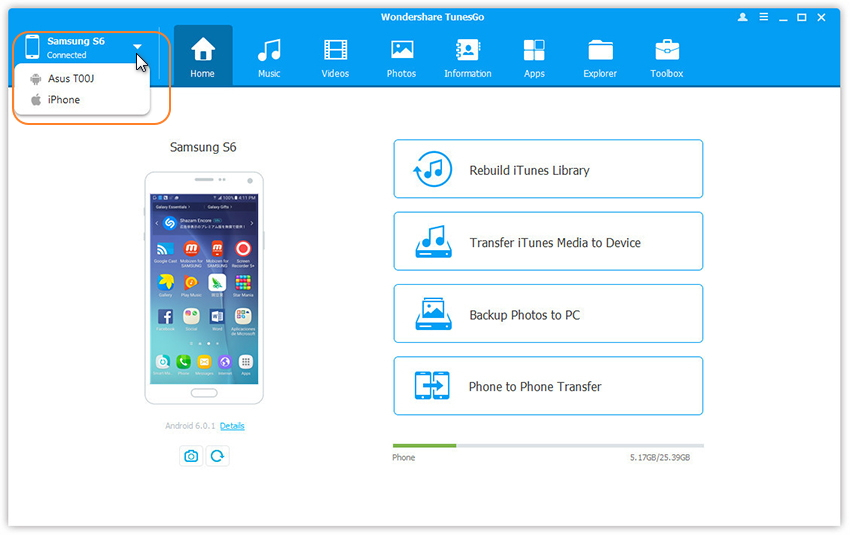
Once you download and install Android Manager program, please launch it on your computer. Then connect both Zenfone and iPhone 7/6S/6 to PC via the USB cables. Please note that you need to enable USB debugging on your Zenfone and tap “Trust” on your iPhone so that the computer can detect devices.

connect multiple devices

Step 2. Select Music transfer from Zenfone to iPhone
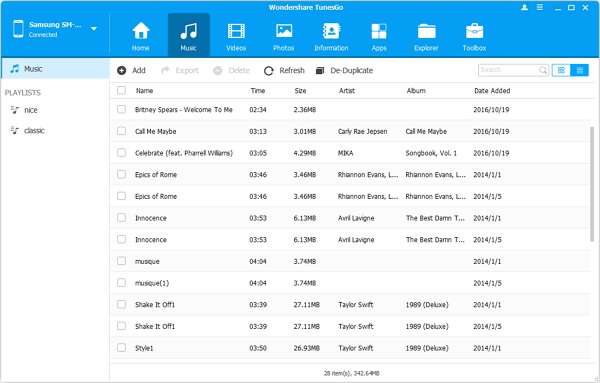
Go to “Music” on the top pane of the program and you can see the music on your Zenfone would be displayed on the interface. Please select the ones you want to transfer.

transfer music to transfer

Step 3. Import Songs from Zenfone to iPhone
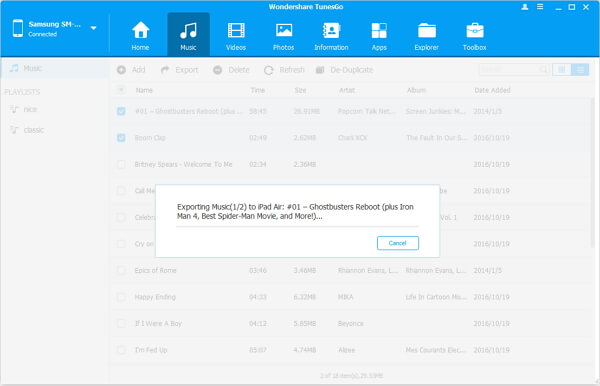
After you choose the songs you want to transfer to iPhone from Zenfone, please press “Export” button on the top and choose iOS device to transfer to. Done! Now you could check the songs that you just export on your iPhone.

exporting music to iphone

d_win d_mac

Related Article:

How to Transfer Music to iPhone 7/6S/6

How to Transfer Music from Samsung Galaxy to iPhone 7/6S/6

How to Transfer Music from Android to iPhone 7/6S/6

How to Transfer Music from Computer to iPhone 7/6S/6

How to Manage iPhone 7/6S/6 on Computer

How to Transfer Music/Videos Files to Motorola Z

I am searching the ways on import music, videos to the Moto Z phone from computer. But I am not sure which are the best one. Any good ideas?

What’s New on Motorola Z Phone:
According to the report, Motorola Z is one of the top 10 popular mobile phones around the world. While announcing the latest phone, the Moto Z2 Force, Motorola ynveiled its latest Moto Mod: a 360-degree camera. Called the Moto 360 Camera mod, it features two camera lenses. The actual camera attachment sits on top of a plastic back plate, which attaches to a Moto Z phone just like any other Moto Mod. However, when you get a new Moto Z series phone, you may be wondering how to transfer media files to it so that enjoy the music/videos and more media files on it without hassle.

Android Manager – Transfer Media Files to Motorola Z

To transfer media file to Motorola Z, you could try this Android Manager, which is a helpful data manage program used to manage & transfer media files for Android on the computer efficiently. With the help of Android Manager, you are allowed to transfer media files from computer to Motorola Z with easy steps, including videos, music, photos and contacts, SMS, apps.

d_win d_mac

See More Features of Android Manager:
-Backup music, photos, videos, contacts, SMS, Apps to computer and restore them easily.
-Manage, export/import music, photos, videos, contacts, SMS, Apps on Android.
-Phone to Phone Transfer: Transfer files between two mobiles.
– Highlighted features such as 1-click root, gif maker, ringtone maker.
– Fully compatible with 3000+ Android devices (Android 2.2 – Android 7.0) from Motorola, Samsung, LG, HTC, Huawei, Lenovo, Sony, etc,.

Part 1: How to Transfer Music Files from PC to Motorola Z

Step 1. Run Android Manager on PC and Connect Moto Z
Run Android Manager on your PC and connect your Moto phone to the PC via USB.
android manager home page

Step 2. Transfer Music from Computer to Motorola Z
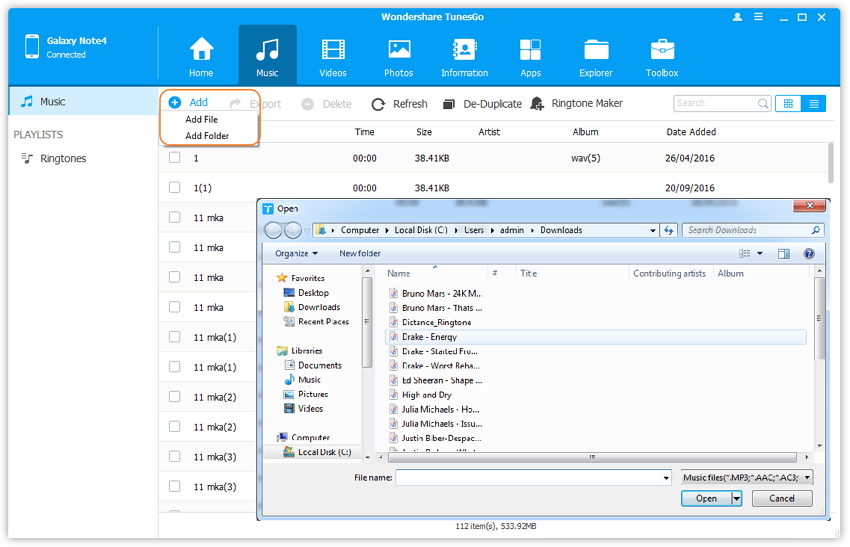
To transfer music from PC to Moto, from the menu displayed on the top, click the “Music” tab. Once the media loads, hit “Add” and then click “Add File” or “Add Folder” to add more music or songs to transfer.

The option above will bring you to a browser window where you can select the songs that you need to import to your computer. You can select as many files you want, or you can still choose a whole album. Once you are okay with the list, you can click “Open” and pick a location to save the music to your phone. Alternatively, you can just drag and drop music from your PC to the Moto phone.

add music from pc to moto

d_win d_mac

Part 2: How to Transfer Videos Files from PC to Motorola Z

Firstly run Android Manager on the computer, then connect your Moto Z device to the computer. Your Android device will be detected and displayed in the primary window.

android manager home page

Step 1. Select Videos to Transfer
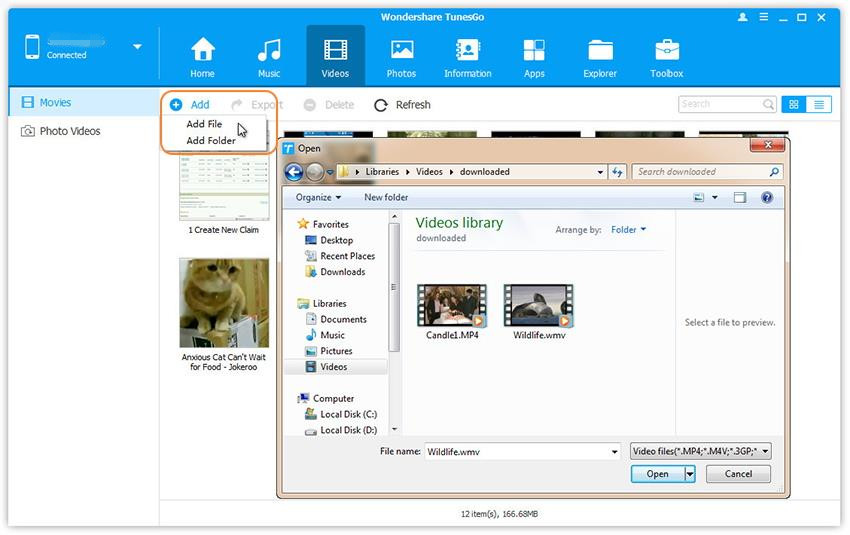
Select Videos tab. Once your media loads, click Add > Add File or Add Folder.

import videos from pc to moto

Step 2. Transfer Videos from Computer to Moto Z
This brings up your file browser window, from which you can select videos to import from your computer. All videos imported can be watched with the built-in player.

You can simply Drag and Drop videos from computer to Moto.

Done.

d_win d_mac

Related Article:

How to Recover Deleted Data from Motorola Z

How to Backup and Restore Motorola Phones

How to Recover Data from Water Damaged Motorola

How to Transfer Android Data to Motorola Z

How to Transfer Samsung Data to Motorola Z

How to Transfer iPhone Data to Motorola Z

How to Root Android on Computer with One Click
How to Manage Android on Computer
How to Transfer Videos to LG G6

I get some trouble. I switched the new LG phone however the data still on my old Android phone. Are there any ways to transfer my football videos from the old phone to my new Android directly? By the way, my phone is LG G6. Thanks advanced.

As life becomes more colorful, people like to sync their favorite videos with the mobile phone. Whenever you are, you can watch the video at anytime. With the rapid development of film and television career, new movie and TV shows are shown every day. What if you want to transfer the videos between two mobile devices effortless? What if you want to transfer the videos from computer to the mobile device efficiently? By reading this post, you will get tips on how to import videos to LG G6 Android device without hassle, and with only few simple steps.

Android Manager – Transfer & Manage Files on Android

Android Manager can be a good choice for you, which is design for transferring and managing files on Android, including videos, photos, contacts, SMS, apps. With using Android Manager, you could help yourself to transfer files between Android and Android/iOS device, transfer files between Android and computer, transfer files between Android and iTunes. Though using this program, you can transfer videos between Android and LG G6 phone easily. In addition to LG phone, Android Manager supports to other Android devices, such as, HTC 10, Samsung(Galaxy S8/S7/S6), Lenovo P2, Motorola Z, OnePlus 3T and so on. Let’s see how the smart program works.

d_win d_mac

Part 1: How to Transfer Videos between Android and LG G6

Step 1.Run Android Manager and Connect Devices to the Computer
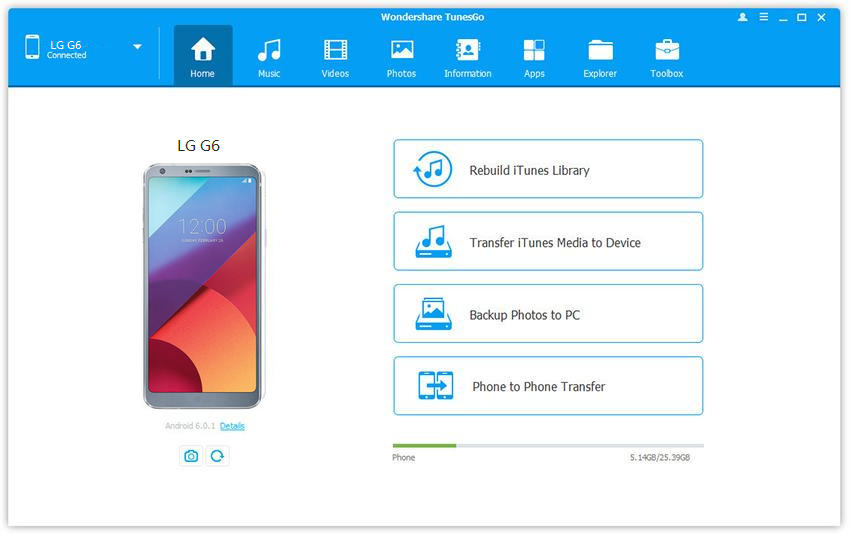
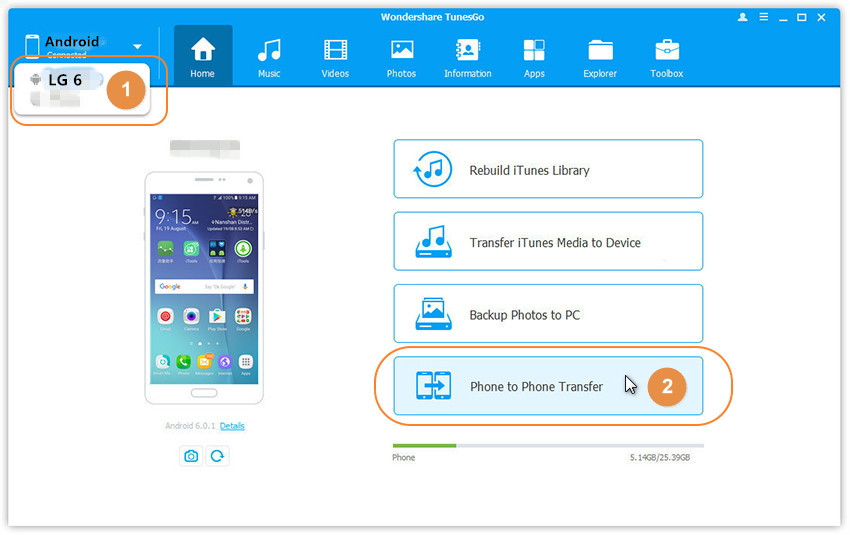
Firstly,install and run Android Manager and connect both Android and LG 6 to the computer at once.

android manager home page

Step 2.Select the Source Device on Program
Setting your Android as the source device from which you want to transfer files.

Step 3.Select the Transfer Option
Simply click “Phone to Phone Transfer” in the main interface of program.Or find the Phone Transfer option under Toolbox > Transfer Tools section.

connect android and lg

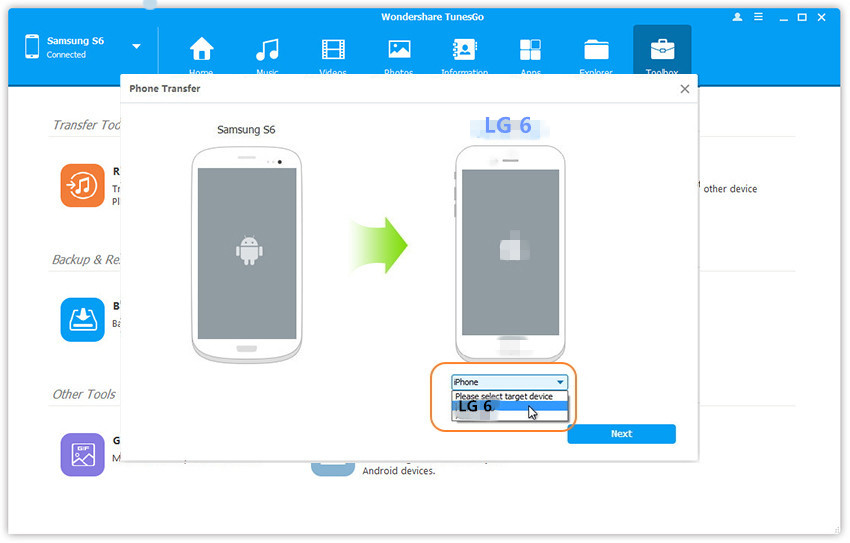
Step 4.Select the Target Device on Program
You’ll get a window as follow when your devices are connected and detected by,select LG 6 as the target device and click “Next“.

transfer video to lg

Step 5.Transfer Videos from Android to LG 6
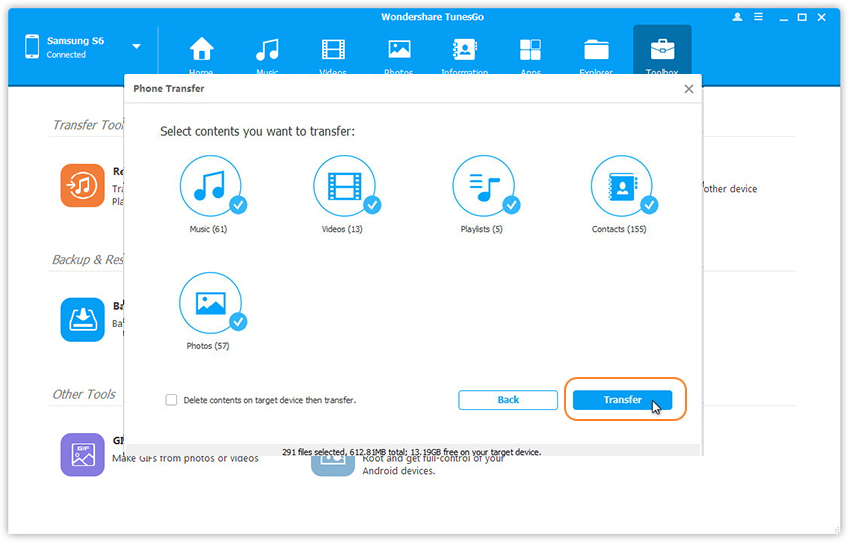
All data on your Android device that can be transferred are ticked by default,contacts, photos, playlist, music and videos are included.You are allow to remove the data you don’t need to transfer.Then,click “Transfer“.Please keep the connection of two devices and the computer in the whole the transfer process.Click “OK” when the transfer is completed.

transfer android videos to lg

Note:
1: Contacts are not supported by Mac version.
2: Windows users can tick the option: Delete contents on target device then transfer, then the selected contents on the target device will be deleted before the transfer. (Only for Windows version)

d_win d_mac

Part 2: How to Transfer Videos from Computer to LG G6

Firstly run Android Manager on the computer, then connect your LG 6 device to the computer. Your Android device will be detected and displayed in the primary window.

android manager home page

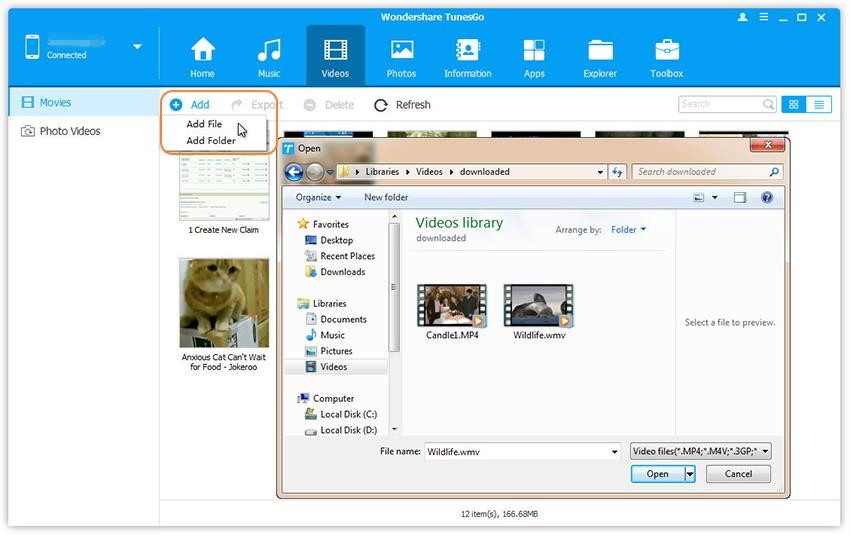
Step 1. Select Videos to Transfer
Select Videos tab. Once your media loads, click Add > Add File or Add Folder.

import videos from pc to lg

Step 2. Transfer Videos from Computer to LG 6
This brings up your file browser window, from which you can select videos to import from your computer. All videos imported can be watched with the built-in player.

You can simply Drag and Drop videos from computer to LG.

Done.

d_win d_mac

Related Article:

How to Transfer Samsung Data to LG G6

How to Transfer Android Data to LG G6

How to Transfer iPhone Data to LG G6

How to Backup and Restore LG Phones

How to Transfer Music to LG G6

How to Recover Deleted Data from LG G6

How to Root LG G6 on the Computer Safely

How to Recover Data from Water Damaged LG Phone

How to Manage Android on Computer
How to Transfer Music to HTC 10

I get a new HTC 10 phone as the anniversary gift from my husband. Now I need to transfer the music from my old Android phone to the new device. But I have no idea on how to switch the files between the two Android directly. Any recommendations?

For me, music is very import in my life. I will enjoy music when I was happy or sad. I will enjoy music when I was driving home, when I was bathing. I like to listen to music all the time. However, every time when we get a new phone we will wonder how to import our favorite songs or other files to the new phone from the old one with ease so that we can freely enjoy them. If you are faced with such a similar situation, then this article is what you are looking for. Actually, it is quite easy to transfer music from Android to HTC 10 directly with the help of Android Manager.

Android Manager – Manage & Transfer Music for HTC 10 Easily

Android Manager is a multi-file manager that makes it super simple for you to manage files for Android device in one convenient location. It lets you import files as well as export on Android. With the help of Android, you are allowed to transfer music between Android and HTC 10, also iOS device. Not only music, but also videos, photos, contacts, SMS, apps can be manage and transfer for Android on the computer. Besides, Android Manager allows to transfer files between Android and iTunes, transfer files between Android and iOS devices. Android Manager works well on all models of Android, such as, HTC 10, Samsung(Galaxy S8/S7/S6), Lenovo P2, Motorola Z, OnePlus 3T, LG G6 etc,.

d_win d_mac

Part 1: How to Transfer Music from Android to HTC 10

Step 1.Run Android Manager and Connect Devices to the Computer
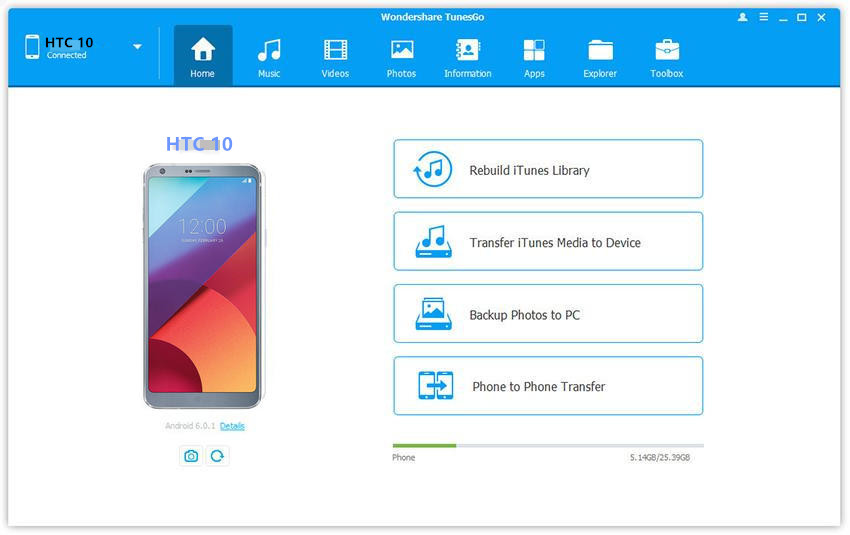
Firstly,install and run Android Manager and connect both Android and HTC 10 to the computer at once.

android manager main page

Step 2.Select the Source Device on Program
Setting your Android as the source device from which you want to transfer files.

Step 3.Select the Transfer Option
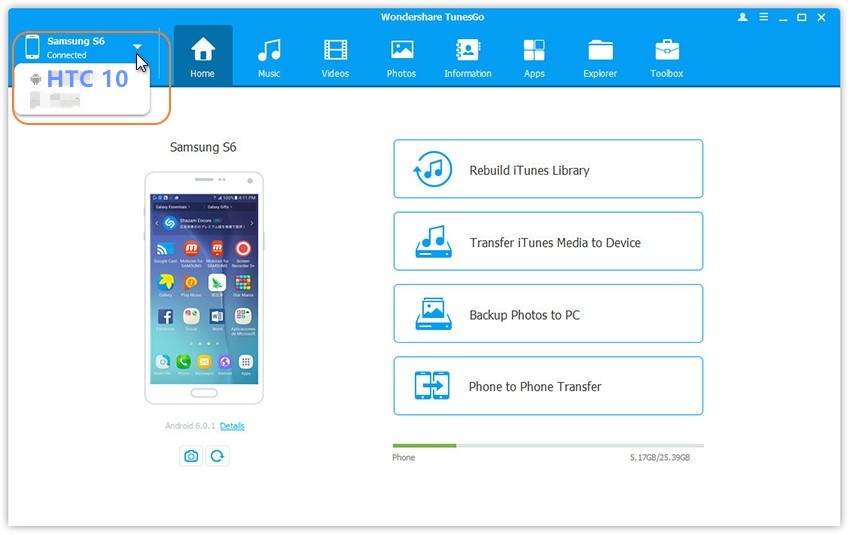
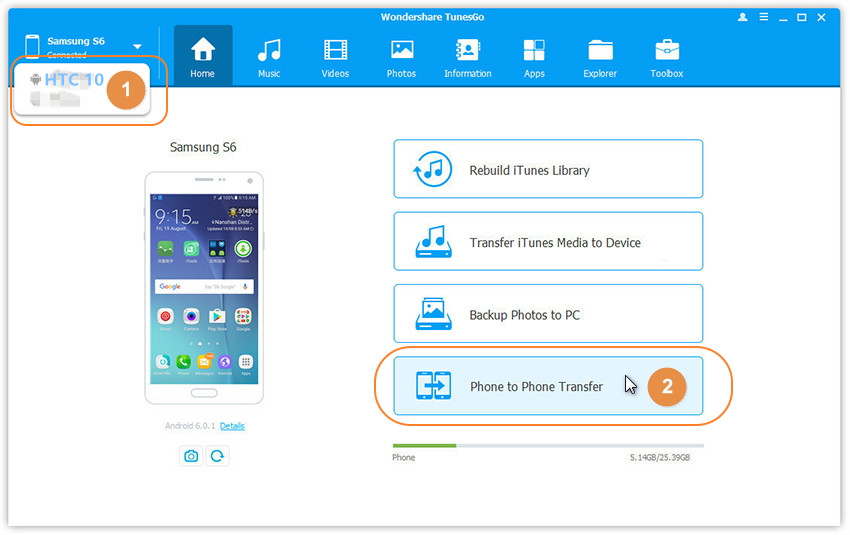
Simply click “Phone to Phone Transfer” in the main interface of program.Or find the Phone Transfer option under Toolbox > Transfer Tools section.

connect android and htc

Step 4.Select the Target Device on Program
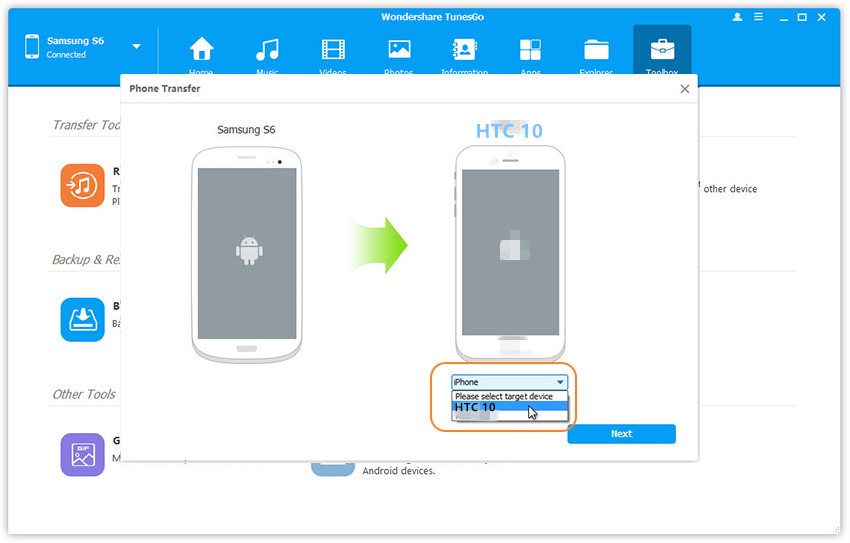
You’ll get a window as follow when your devices are connected and detected by,select HTC 10 as the target device and click “Next“.

transfer music to htc

Step 5.Transfer Files from Android to HTC 10
All data on your Android device that can be transferred are ticked by default,contacts, photos, playlist, music and videos are included.You are allow to remove the data you don’t need to transfer.Then,click “Transfer“.Please keep the connection of two devices and the computer in the whole the transfer process.Click “OK” when the transfer is completed.

transfer android music to htc

Note:
1: Contacts are not supported by Mac version.
2: Windows users can tick the option: Delete contents on target device then transfer, then the selected contents on the target device will be deleted before the transfer. (Only for Windows version)

d_win d_mac

Part 2: How to Transfer Music from iTunes to HTC 10

Launch Android Manager and connect your HTC 10 to the computer.Your device will be detected and displayed in the primary window soon.

Step 1.Select Transfer Option
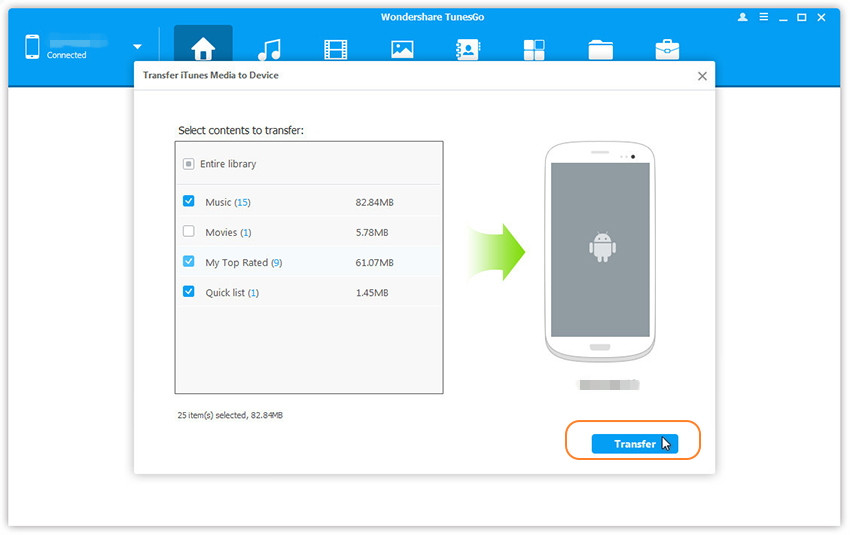
Simply click Transfer iTunes Media to Device on the main interface.Or find the Transfer iTunes to Device option under Toolbox > Transfer Tools section.

android manager home page

Step 2.Transfer iTunes Music to HTC 10
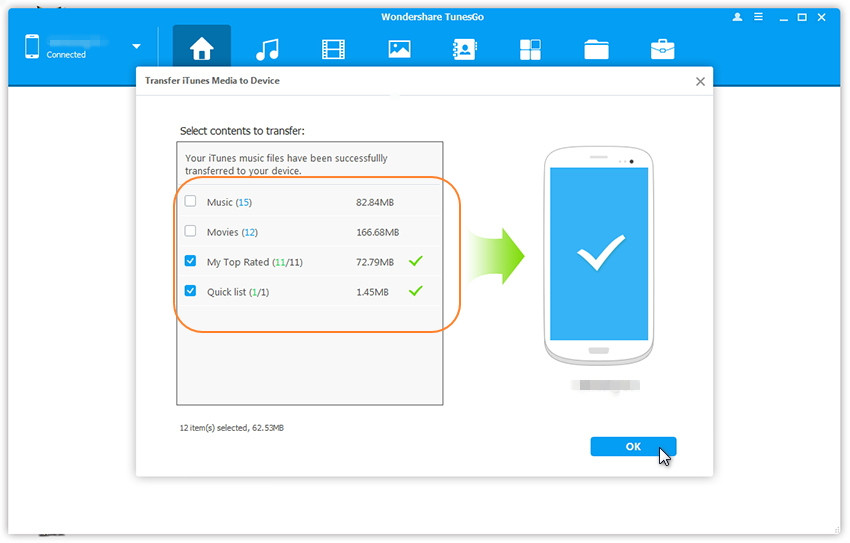
Check options and start to copy media from iTunes to HTC.All the iTunes files will be scanned and will be shown under different categories like music, movies, podcasts and others.By default,all the file types will be selected,you can uncheck the files which you don’t need.Click “Transfer” to start transferring.

select itunes music to transfer

transfer itunes music to htc 10

d_win d_mac

Related Article:

How to Transfer Samsung Data to HTC 10

How to Transfer Android Data to HTC 10

How to Transfer iPhone Data to HTC 10

How to Recover Deleted Data from HTC 10

How to Recover Deleted Data from HTC 

How to Recover Deleted Contact from HTC

How to Recover Deleted Photos from Android

How to Root Android on Computer with One Click
How to Manage Android on Computer
Recover and Transfer Data from Broken Samsung to Android

I need some help. My Galaxy S6 phone is turn into black screen, I am not sure why would it happen. Now I am wondering is it possible to recover the contacts, photos and other files from the broken Samsung phone and then transfer it to my new Android phone. Any suggestions?

As we know, unexpected accident always comes without your permission. If your are a Samsung phone user, get the situation that Samsung phone is broken, how to deal with your broken Samsung phone? Most people will repair or replace them, others will continue using the broken device before it was time to switch to a new one. Keeping phone data complete is important once your phone broken, and here we will recommend an excellent way for you to recover data from your broken Samsung, then transferring the data from computer to new Android.

Part 1: How to Extract Data from Broken Samsung

Broken Android Data Extraction can recover data from broken Samsung and other Android devices, including contacts, SMS, videos, audio, call logs, documents, WhatsApp & WhatsApp Attachments, etc,. The newly-released Galaxy S7 and S7 Edge are supported. Broken Android Data Extraction supports recover Android data in almost all broken situations:
-Broken screen – recover the data if Android phone screen get broken.
-Black screen – recover the data when Android phone with black screen (can’t restart to normal).
-Damaged Android devices – recover the data if it can’t access to Android  system.
-More.
-Most of Android devices are compatible with the Broken Android Data Extraction, insist of Samsung (Galaxy S8/S7/S6, Note 5/4/3), HTC, Lenovo, Motorola, LG, Sony, OnePlus, and so on.

d_win d_mac

Step 1. Connect Broken Samsung  to the Computer
Firstly, please connect the broken Samsung to the computer, run iOS Manager on the computer. Click “Start“ under the “Broken Android Phone Data Extraction“.

connect broken samsung to computer

Step 2. Select the File to Export
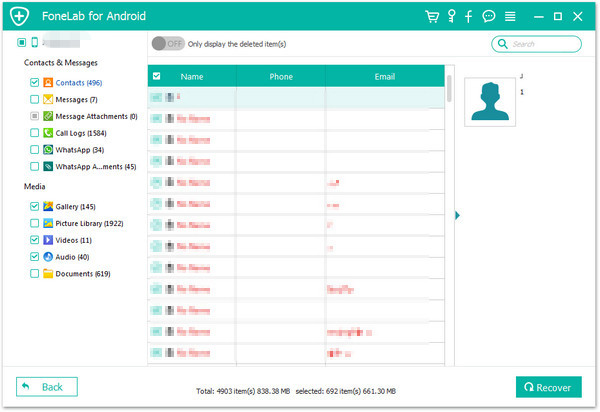
Now click the option which is the type data name that you want to export. If you want to recover all files at once, please click on “Select All”. Then click “Next“.

select file to export

Step 3. Select the Fault Type of broken Samsung
In this step, the program will guide you to another screen, select one situation depend on your broken Samsung. Then click “Next“.

choose phone broken type

Step 4. Select the Device Model of Broken Samsung
According to the option to select the brand and model of your phone. If you are not sure what model of your Samsung device, please click the “How to confirm the device model” option.

choose samsung model

Step 5. Enter Download Mode for Broken Samsung
Follow the below steps to enter your phone into download mode.

enter samsung into download mode

Note: Please remember keep connecting your broken Samsung to the computer via USB cable during the process of getting device into “Download mode”, .

Step 6. Fix Broken Samsung and Analyze Data on Samsung
After entered Samsung into the “Download mode”, the program will start downloading “recovery package” to restore your Samsung phone and then analyze data on your device with a little while.

scanning data on broken samsung

Once the downloading is finished, the selected data stored on the device will be scanned out.

Step 7. Preview and Export Data from Samsung
When finish scanning the your Samsung, you are allowed to preview and export selected data from Samsung to the computer. Just simply click “Recover” button at the lower-right corner and save them on the computer.

export photos from samsung

d_win d_mac

Part 2: How to Transfer Data from Computer to Android

Android Manager is an ideal tool help to transfer data from computer to Android efficiently. This professional Android Manager program, which is designed for managing Android videos, music, photos, apps, contacts, SMS on the computer with simple steps. With the help of Android Manager, you are allowed to transfer data between Android and computer, transfer files between Android and iTunes, transfer files between Android and iOS device. Almost all brands of Android are supported by this program, Samsung, HTC, Lenovo, Motorola, LG, Sony, Huawei, Xiaomi, ZTE, OnePlus are included.

d_win d_mac

How to Import Photos from Computer to Android

Step 1. Connect Samsung to the PC
First of all, run Android Manager on PC, then connect your Android  phone to the computer via a USB cable.

This program works well in Windows 10/8/7/2003/XP/Vista. When your device is detected, all contents on your device will be displayed in the primary window of program.

android manager mian page

Step 2. Import Photos from Computer to Android
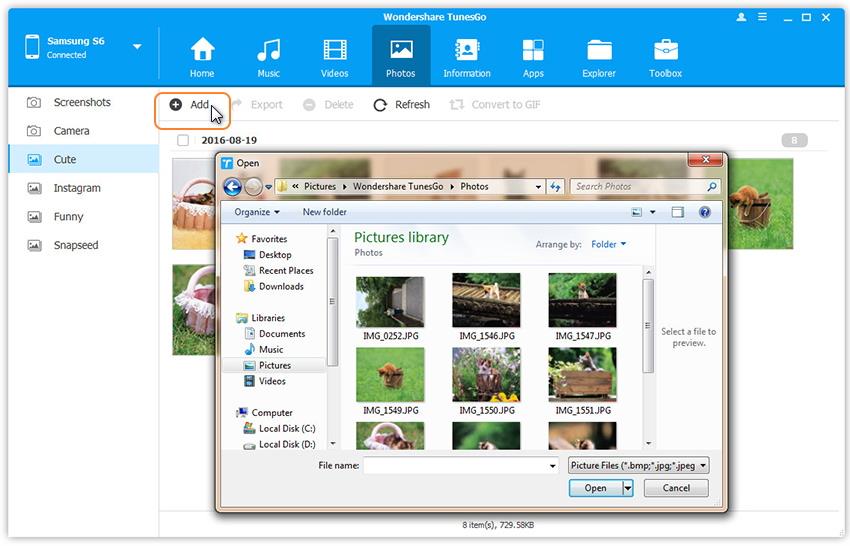
In the primary window, click “Photos” from the top menu. All albums on your Android will show up. Choose one album to save the importing photos.

Then, click “Add” and choose “Add file” or “Add folder“. When the file browser window pops up, find your desired photos or photo album and then import them.

transfer data from pc to android

That’s the simple steps on how to move photos from computer to Android.

d_win d_mac

Related Article:

How to Transfer Photos from Broken Samsung to Galaxy S6/S7

How to Transfer Contacts from Broken Samsung to Galaxy S7/S6

How to Recover and Transfer Data from Broken Samsung to iPhone

How to Transfer Data from Broken Samsung to iPhone

How to Recover Data from Broken Samsung Phone

How to Manage Android on Computer
Recover and Transfer Data from Broken Samsung to iPhone

My Samsung Galaxy S5 screen is cracked and the LCD is not working. Replacement screen assembly is not cheap. I would like to just recover the data from my broken S5 and transfer to another phone. Are there any data recovery programs available? How would I recover the data from broken Samsung and be transferred to the new iPhone?

Did you ever meet the similar situations like cracked screen, water-damaged, black screen or other worse circumstances when you use Android phones such as Samsung phone? When facing these situations, probably we consider the most urgent thing is how to access the precious data like contacts, messages and more data that stored on the broken phone before transferring data to the new device, which are of great importance to us. In order to extract the data from the broken Samsung phone, we are attempt to find a reliable way to help us with this problem. This user-guide will offer the best ways for you, which help to restore data from broken phone and then transfer the recovered data to another phone. Now we will take the broken Samsung and iPhone for an example, to explain how to recover and transfer data from broken Samsung phone to iPhone with easy steps.

Part 1: How to Extract Data from Broken Samsung

Broken Android Data Extraction is an excellent data extraction program for extracting data from broken Samsung or Android device directly. This program enables to extract several types of data from broken Android device, including contacts, SMS, videos, audio, call logs, documents, WhatsApp & WhatsApp Attachments, etc,. Broken Android Data Extraction helps to extract data from Android for any broken circumstances, such as, device with cracked screen, device with black/white screen, water damaged device, device stuck reboot loop or others. Most of Samsung Android are compatible with the Broken Android Data Extraction, insist of Samsung (Galaxy S8/S7/S6, Note 5/4/3), HTC, Lenovo, Motorola, LG, Sony, OnePlus, and so on.

d_win d_mac

Step 1. Connect Broken Samsung  to the Computer
Firstly, please connect the broken Samsung to the computer, run iOS Manager on the computer. Click “Start“ under the “Broken Android Phone Data Extraction“.

connect broken samsung to computer

Step 2. Select the Desired File to Extract
Now click the option which is the type data name that you want to export. If you want to recover all files at once, please click on “Select All”. Then click “Next“.

select file type to export

Step 3. Select the Fault Type of Your broken Samsung
In this step, the program will guide you to another screen, select one situation depend on your broken Samsung. Then click “Next“.

choose phone broken type

Step 4. Select Your Broken Samsung Device Model
According to option to select the brand and model of your phone. If you are not sure what model of your Samsung device, please click the “How to confirm the device model” option.

choose samsung model

Step 5. Enter Download Mode for Broken Samsung
In this step, you should follow the steps below to enter your phone into download mode.

enter samsung into download mode

Note: During the process of getting device into “Download mode”, remember keep connecting your broken Samsung to the computer via USB cable.

Step 6. Fix Broken Samsung and Analyze Data on Samsung
After Samsung entered the “Download mode” is completed, the program will start downloading “recovery package” to restore your Samsung phone and then analyze data on your device.

scanning data on broken samsung

When the downloading is finished, the selected data stored in the device will scanned out.

Step 7. Preview and Export Selected Data from Samsung
Once finish scanning your Samsung, you are allowed to preview and export selected data from Samsung to the computer. Just simply click “Recover” button at the lower-right corner and save them on the computer.

extract data from samsung

d_win d_mac

Part 2: How to Transfer Data from Computer to iPhone

To transfer data from computer to iPhone, you can try this iOS Manager, which is a useful data manager for iPhone/iPad/iPod. It can be used to transfer & manage data for iPhone on the computer freely, including videos, music, photos, contacts, SMS and apps. With using iOS Manager, you are allowed to transfer files between iPhone and computer, transfer files between iPhone and iTunes, transfer files between iPhone and iOS/Android device. All iOS models are applicable to the iOS Manager, such as iPhone 7, iPhone 6S/6, iPhone 5S/5C/5, iPad and iPod.

d_win d_mac

How to Transfer Contacts from Computer to iPhone

Step 1. Connect iPhone to the Computer
Installing and running the iOS Manager program on the computer, then connect your iPhone to the computer. You will see the interface below.

ios manager main page

Step 2. Preview and Import Contacts to the iPhone
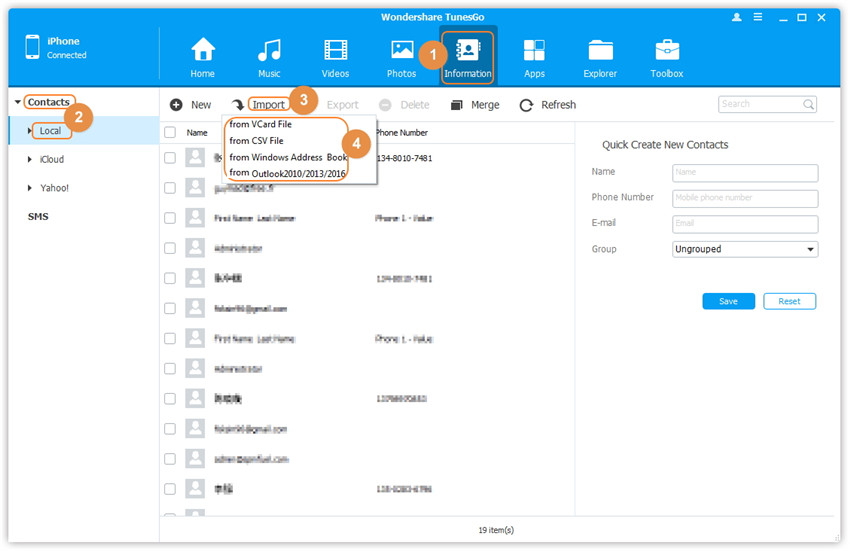
Click “Information” at the top of the the main interface, you’re expected to enter Contacts > Local by default. Select the file type you want to import, then waiting for minutes, the contacts can be on the iPhone.

transer data from computer to iphone

d_win d_mac

Related Article:

How to Transfer Data from Broken Samsung to iPhone

How to Transfer Contacts from Broken Samsung to iPhone

How to Transfer Contacts from Broken Samsung to Galaxy S7/S6

How to Recover Data from Broken Samsung Phone

How to Manage iPhone on Computer
How to Recover Lost Data on iPhone