All posts by DHZ

How to Transfer Samsung Photos to iPhone 8

I bought a new iPhone 8 to replace my old Samsung Galaxy S5 phone.Now I get the problem that how to transfer the data from my old Samsung to the new iPhone device with the different operating systems.Any helps will be appreciated.”

Most of mobile phones released with quality cameras, people can not stopped snapping and capturing those precious life moments with mobile devices especially smartphones. When easy Internet connectivity came to the mobile phone, many of us also started sharing photos with our friends, family, and on the Internet or apps.How easy is it to share photos between devices, especially those running different platforms — for example, between the Samsung phone iPhone? If you own both — or are switching over from Samsung Android to iPhone— you will eventually need to know how to transfer photos between Samsung and iPhone.

Transfer Samsung Photos to iPhone 8 Directly

Phone Transfer provides an efficient way helping transfer data between phones seamlessly.With Phone Transfer,you can easily transfer photos from Samsung to iPhone 8,or other data such as contacts,videos,music,SMS,etc,.No matter which brand of Android phone you use, Samsung Galaxy S7/S6/S5,Note 5/4/3, Galaxy A9/A7/A5, HTC M8/M9, LG G5/G4/G3, Sony Z3, Acer, Huawei, ZTE,Motorola,Nexus 5X/Nexus 6P, iPhone 7/6S/6/5S, etc,.What’s more,the software also allow to backup data and restore data from mobile device conveniently.


d_win d_mac

How to Transfer Samsung Photos to iPhone 8

Step 1.Install and Run Phone Transfer on Computer
Now download Phone Transfer and run it on computer.The screen will automatically appear after the installation.Select the “Phone to Phone Transfer” option in the homepage of program.

samsung to iphone 8 data transfer

Step 2.Connect Samsung and iPhone 8 to the Computer
You need to connect both the devices to computer via USB.Once detected,both your Samsung phone and iPhone will be shown in the window.Make sure the iTunes are installed on your computer.
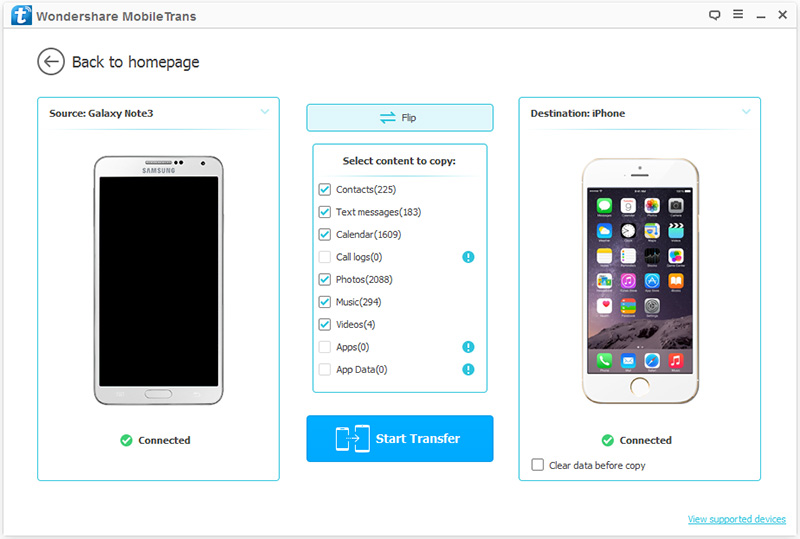
select photo file transfer from samsung to iphone 8

Then just select the data you need to transfer from the content list,for photos transfer,you should click “Photos“.

Note:There is a “Flip” button in the middle of the program,which allows users to switch the destination or source device.

Step 3.Began Analyzing and Transferring Samsung Photos to iPhone 8
Click “Start Transfer” button located at the bottom of the app,minutes later,you will see a small window pop up and tell you all work is done.Just note that the connection can not be interrupt during the transferring.
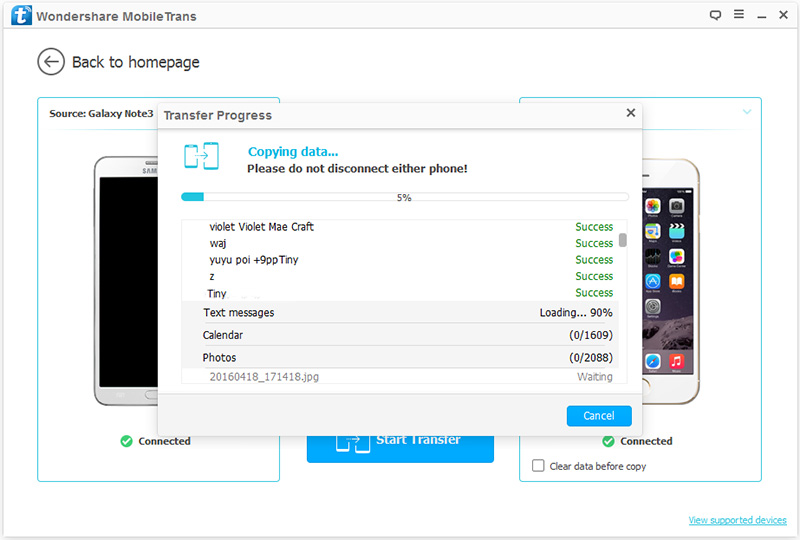
transfer samsung photos to iPhone 8

d_win d_mac

Related Article:

How to Transfer iPhone Data to iPhone 8

How to Transfer Samsung Data to iPhone 8

How to Transfer Samsung Contacts to iPhone 8

How to Transfer Android Data to iPhone 8

How to Recover Deleted Data from iPhone 8

How to Restore Deleted Contacts from iPhone 8

How to Recover Deleted SMS from iPhone 8

How to Recover Deleted Photos from iPhone 8

How to Transfer Samsung Contacts to iPhone 8/iPhone X

Summary:It’s really easy to transfer contacts and other data from Samsung to iPhone 8/iPhone X using Phone Transfer.The method described in this article works for all Android phones such as Samsung,HTC,Motorola,Sony,Huawei,etc,. and for all iPhone models (iPhone X,iPhone 8,iPhone 7,iPhone 6S/6,iPhone SE/5S/5C/5,etc,.) running iOS 11 or lower.

If you previously used an Samsung phone and have switched to iPhone, one of the first things you will wish to do is transfer contacts from the your old Samsung to the new iPhone. If you’re trying to find out how to do so, you’ve come to the right place.In this article we shows you the most simple ways to switch contacts from Samsung to iPhone.Unlike other methods,Phone Transfer enables to transfer all contact details including photos, addresses, emails, notes, phone number types, etc. between Samsung and iPhone.In this case we take an example for Samsung and iPhone 8/iPhone X.

Copy Samsung Contacts to iPhone 8/iPhone X Directly

Phone Transfer is a great data transfer program used for transferring contacts from Samsung to iPhone 8/iPhone X with only simple clicks.Not only contacts,but also other types of file are supported to be transferred,such as,SMS,photos,video,calendars,music,call logs,apps.What’s more,Phone Transfer allow to backup & restore data for mobile device on computer freely.Phone Transfer work well for almost all Samsung devices,including Galaxy S7/S6/S5,Note 5/4/3,A9/A7,etc,.

d_win d_mac

How to Switch Samsung Contacts to iPhone 8/iPhone X

Step 1.Run Program and Connect Device to Computer
First of all,please run Phone Transfer on computer and connect both two devices with the computer.Select “Phone to Phone Transfer” option.

phone transfer main page

Step 2.Select Contacts File to Transfer
You should select the file type to transfer,you are allow to select more than one file for transferring,contacts,SMS,photos,videos,music,call logs,calendars,apps(WhatsApp/Line/Viber/Kik),apps data are included.If you just need to sync contacts between Samsung and iPhone,just click “Contacts” file.

select data to transfer to iphone 8

Note:Make sure the Samsung and iPhone 8/iPhone X are on the right position,as the source device and target device,the Samsung should be on the left and iPhone 8/iPhone X on the right.(You can click “Flip” to exchange the position of them if they are not on the right place.)

Step 3.Transfer Samsung Contacts to iPhone 8/iPhone X
When everything is setting completed,simply click “Start Transfer” to start the data transfer process.

transfer samsung contacts to iphone 8

Done.Only 3 easy steps,your Samsung contacts now is finished transferring to your new iPhone 8/iPhone X.

d_win d_mac

Related Article:

How to Transfer iPhone Data to iPhone 8/iPhone X

How to Transfer Samsung Data to iPhone 8/iPhone X

How to Transfer Android Data to iPhone 8/iPhone X

How to Recover Deleted Data from iPhone 8

How to Restore Deleted Contacts from iPhone 8

How to Recover Deleted SMS from iPhone 8

How to Recover Deleted Photos from iPhone 8

How to Transfer Android Data to iPhone 8/iPhone X

Lately, the Apple rumor mill has been speculating that the company is working on two new iPhone models: an overhauled iPhone 8, said to have a new bezel-less design, OLED display, wireless charging, some sort of augmented reality features, and a more pedestrian iPhone 7S model. But while there have been reports that the iPhone 8 would be delayed until later in the fall than usual, a new research that the new iPhone might not be out until as early as 2017.

When you get a new iPhone 8 or iPhone X you must be considering that how to switch the files between your old device and the new one.If you’re an Android user thinking about moving data to iPhone X/8/7/6S/6,you may be concerned about transferring all your data – photos, contacts, SMS,calendar ,music and so on,to make sure nothing is lost in the process.Luckily you’ve come to the right place.Here’s how to transfer all your Android data to iPhone 8/iPhone X so you can start enjoying your new device right now!

Switch Data between Android and iPhone 8/iPhone X

We’d like to introduce you one easy-to-use phone data transfer tool-Phone Transfer,which is a powerful data transfer tool for transferring data between Android and iPhone 8/iPhone X directly.The transferable data including contacts,SMS,photos,video,calendars,music,call logs,apps.Phone Transfer allow to transfer files between mobile devices even though it run different operating system.Most of iPhone and Android phones are applicable to Phone Transfer,like iPhone X, iPhone 8,iPhone 7,iPhone 6S/6,iPhone SE/5S/5C/5;Samsung,HTC,Lenovo,Motorola,Sony,LG,etc,.

d_win d_mac

How to Transfer Android Files to iPhone 8/iPhone X

Step 1.Run Phone Transfer on Computer
Download and install Phone Transfer on your PC/Mac.Launch it after the installation.Tap the section “Phone to Phone Transfer” to enter the data transfer mode.

phone transfer main page

Step 2.Connect Devices to the Computer
After launching Phone Transfer,you will be asked to connect your Android phone and iPhone 8/iPhone X to the computer via USB cables.After the connection,both of your two phone model will be listed in the interface of program.

select data to transfer to iphone 8

Please make sure that your Android is displayed in the box on the left as a source device and your iPhone 8/iPhone X on the right as a destination one.

Step 3.Transfer Files from Android to iPhone 8/iPhone X
Once both your devices detected,the program will begin to scan the files on your source device.After the scanning,the data stored on old Android will be scanned out.You can choose the data files you need to transfer,for example,click “Photos”.After that,click on “Start Transfer” to transfer data from Android to iPhone 8/iPhone X.

transfer android data to iphone 8

d_win d_mac

Related Article:

How to Transfer iPhone Data to iPhone 8

How to Transfer Samsung Data to iPhone 8

How to Recover Deleted Data from iPhone 8

How to Restore Deleted Contacts from iPhone 8

How to Recover Deleted SMS from iPhone 8

How to Recover Deleted Photos from iPhone 8

How to Recover Deleted Notes from iPhone 8

How to Recover Deleted SMS from Huawei Mate 9

I deleted some personal SMS on my Huwei Mata 9 phone accidentally,anyone offers me the available ways to recover deleted SMS from Huawei Mate 9?I am hurry to get it back.Thanks a lot.

Huawei used to avoid releasing high-end phones in the US, but no more. The Mate 9 was launched in the US several months ago, and it was announced as the very first phone to have Amazon’s Alexa built in.This device is powered by Huawei’s custom Kirin 960 SoC, which is an octa-core chip with four Cortex-A73 cores (the latest from ARM) and four Cortex-A53 cores. Performance in benchmarks is close to the Snapdragon 821, and it feels about as fast as most Huawei devices.

Directly Restore Deleted SMS from Huawei Mate 9

Android Data Recovery provides you the best ways to recover deleted SMS from Huawei Mate 9 directly,including SMS,contacts,gallery,video,audio,call logs,apps data,etc,.Android Data Recovery allow to restore deleted Android data under any data loss cases,for instances,deleted accidentally,Android system update,Android system rooting,restore to factory reset,and so on.The smart program works perfectly in most of popular Android brands, such as Huawei,Samsung, HTC, Motorola, LG, Sony, Google Nexus, OnePlus, ASUS,and more.

d_win d_mac

How to Directly Restore Deleted SMS from Huawei Mate 9

First of all,please install Android Data Recovery on computer,run it and connect Huawei phone to the computer.It will some time to detect your phone automatically by Android Data Recovery.

connect huawei to the computer

Step 1.Enable Huawei into USB Debugging
Unlock your phone,go to Settings > Developer options > Allow USB debugging mode.If you have already allowed the USB debugging mode,you will see a pop-up window on the screen,mark Always allow from this computer and click OK.

usb debugging huawei phone

Step 2.Select Deleted SMS to Recover from Huawei
Once the connecting successfully,all types of Huawei data will be displayed in the interface of program.Select your wanna data and then tab Next.It will take few minutes to analyze the deleted and existent data on your Android.For SMS recovery,you should click “Messages“ & “Message Attachments“.

select huawei data to recover

Step 3.Scan Data of Huawei Phone
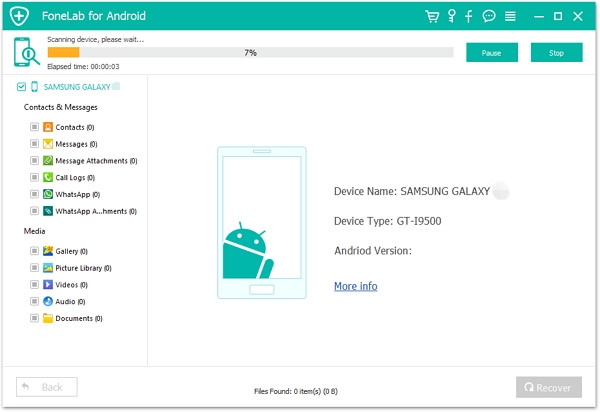
The first time you connect your phone with this program, there will be a request popping up to ask you for getting privilege of your device.You should click “Allow” on the interface of your phone,so that the program will begin to scan and analyze the data of your phone.

allow scan huawei

Now the program start to scan and analyze the data on your device.

scan huawei data

Step 4.Preview and Restore Deleted SMS from Huawei
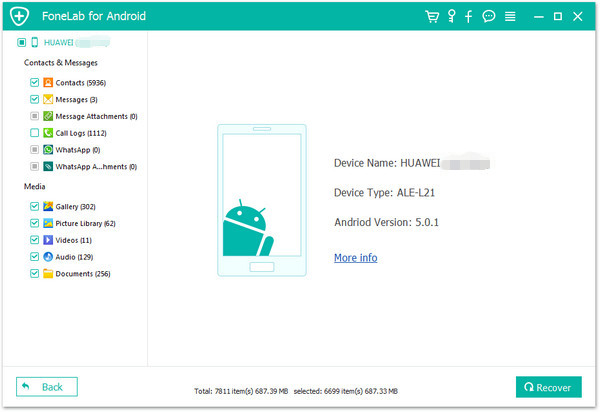
When the scanning is completes,you are allows to preview and select the detail contacts data to recover from your Huawei Android phone directly.Click Recover to save the selected data to your computer.

recover deleted sms from Huawei Mate 9

d_win d_mac

Related Article:

How to Restore Deleted Data from Huawei Mate 9

How to Restore Deleted Contacts from Huawei Mate 9

How to Recover Deleted Photos from Huawei Mate 9

How to Transfer iPhone Files to Huawei Mate 9

How to Root Huawei Mate 9 Safely

How to Restore Deleted Contacts from Huawei Mate 9

“I just lost my contact list. Please send me your phone number here.” Have you ever receive this similar message on Facebook or WeChat? If you have, you probably get the trouble when you are trying to build a new contact list.The situation becomes worse if you do not have the person on your Facebook/WeChat friends list.

Huawei has released the Mate 9 with Leica dual-camera, Kirin 960 SoC and massive battery cell.Meanwhile, onboard storage is 64GB, there’s a fingerprint scanner on the back panel, and the phone supports dual-SIM input.Huawei has now announced its latest handset in the firm’s prominent Android “Mate” series,obviously the Mate 9 follows on from the Mate 8 from 2015, which came out of left field as a surprisingly brilliant bit of kit, with some of the best battery life on the market at the time.

Recover Deleted Contacts from Huawei Mate 9

An excellent program is recommended for you-Android Data Recovery,which is famous for recovering deleted data from Android phone and tablet.With Android Data Recovery,you are able to restore deleted contacts from Huawei Mate 9 directly.Besides contacts,you are allow to retrieve other types of Android data via this smart data recovery,for instances,photos,call logs,audio,video,WhatsApp data,documents,etc,.Android Data Recovery works well for almost All Huawei phones,including Mate series(Mate 9/Mate 8/Mate 7),Huawei P series(P10/P9/P8),Honor series(Honor 9/Honor 8/Honor 7),Huawei Nova(Plus).

d_win d_mac

How to Directly Restore Deleted Contacts from Huawei Mate 9

First of all,please install Android Data Recovery on computer,run it and connect Huawei phone to the computer.It will take  a little while to detect your phone automatically by Android Data Recovery.

connect huawei to the computer

Step 1.Enable Huawei into USB Debugging
Unlock your phone,go to Settings > Developer options > Allow USB debugging mode.If you have already allowed the USB debugging mode,you will see a pop-up window on the screen,mark Always allow from this computer and click OK.

usb debugging huawei phone

Step 2.Select Deleted Contacts to Recover from Huawei
Once the connecting successfully,all types of Huawei data will be displayed in the interface of program.Select your wanna data and then tab Next.It will take few minutes to analyze the deleted and existent data on your Android.For contacts recovery,you should click “Contacts“.

select huawei data to recover

Step 3.Scan Data of Huawei Phone
The first time you connect your phone with this program, there will be a request popping up to ask you for getting privilege of your device.With safety,you should click “Allow” on the interface of your phone,so that the program will begin to scan and read your phone data.

allow scan huawei

scan huawei data

Step 4.Preview and Restore Deleted Contacts from Huawei
Once the scanning is completes,you are allows to preview and select the detail contacts data to recover from your Huawei Android phone directly.Click Recover to save the selected data to your computer.

recover deleted contacts from huawei mate 9

d_win d_mac

Related Article:

How to Restore Data from Huawei Mate 9

How to Recover Photos from Huawei Mate 9

How to Backup & Restore Huawei Mate 9

How to Transfer Data from iPhone to Huawei Mate 9

How to Transfer Data from Samsung to Huawei Mate 9

How to Transfer Data from Android to Huawei Mate 9

How to Root Huawei Mate 9 on Computer Safely

How to Recover Lost SMS from Huawei P10

I am eager to get the reliable way to recover lost text messages from my Huawei P10 phone,the lost SMS related to my work.Any recommendations are welcomed.

Accidentally deleting a text message on an Android phone can be a disaster of your life.But due to different reasons like deletion, formatting, rooting, update crash, software failure, virus attack, etc , some or all of your saved messages on Android can get lost/deleted.There is a common case that you lost SMS on Android smartphone.Take it easy, you can get them back with great chances of success. What you need is a professional Android Data Recovery tool.

Recover Lost SMS on Huawei P10

Android Data Recovery available to directly recover lost SMS from Huawei P10.Not only SMS,but also other kinds of Android data are supported to be recovered by program,such as,photos,contacts,call logs,audio,video,WhatsApp data,documents,etc,.All Huawei phones are compatible with Android Data Recovery,including Huawei P series(P10/P9/P8),Mate series(Mate 9/Mate 8/Mate 7),Honor series(Honor 9/Honor 8/Honor 7),Huawei Nova(Plus).

d_win d_mac

How to Directly Restore Lost SMS from Huawei P10

Step 1.Run the Android Data Recovery on Computer
Install the program on your computer and run it, you will be asked to connect your Android device to computer via USB.

connect huawei to the computer

Step 2.Enable Huawei Phone to USB Debugging
Once connecting your Huawei P10 phone to the computer,now your should enable USB debugging on it.Here you have different ways to do it according to different Android OS version:

usb debugging huawei phone

After you enabling USB debugging for your Huawei phone,it will be detected by the program soon.In the latest version of Android Data Recovery,you are allow to selectively choose which type of files to be scanned by program.If you need to recover all type of files,you could click “Select All”.Then click “Next” to go on.For SMS recovery,you should click”Messages” & “Message Attachments“.

select huawei sms file to recover

Step 3.Start to Scan Huawei Phone for Lost SMS
When you see the window below,you should move to your device again,tap on the “Allow” icon to allow the program to scan data from your device.

allow scan huawei

Then Android Data Recovery will analyze the data of your Huawei P10 phone.

scan huawei data

Step 4.Preview and Restore Lost SMS from Huawei P10 Phone
Android Data Recovery enables to restore data including text messages, contacts, photos and videos,etc, from your Android device.You are allow to preview messages, contacts and photos data before recovery.In the last step,select and mark data you want and click “Recover” to save them to your computer.

recover huawei sms

d_win d_mac

Related Article:

How to Recover Lost Data from Huawei P10

How to Recover Lost Contacts from Huawei P10

How to Recover Lost Photos from Huawei P10

How to Recover Data from Huawei Phone

How to Backup and Restore Huawei Phone

How to Root Huawei P10/P9/P8 on Computer

How to Transfer Text Messages from Huawei to Mac

How to Recover Lost Photos from Huawei P10

How to restore lost photos from the new Huawei P10 phone?Last night my little sister carelessly deleted some photos from my Huawei Android phone.How to restore these lost data?

Huawei hopes that its latest flagship smartphone, the P10, will help secure it as the world’s third-largest smartphone manufacturer. But has this Leica dual camera-equipped device got what it takes to compete?The P10 is Huawei’s most attractive and best made smartphone yet, with a very solid and smooth feel in the hand in an interesting variety of colours.It has a 5.1in full HD LCD display, which is 0.1in smaller than last year’s P9, making it one of the more compact flat designs.

Recover Lost Photos from Huawei P10

Android Data Recovery can help you get out of the suffering from losing photos from Huawei Android phone,that you lose your photos accidentally,enables to recover lost photos from Huawei P10.The program help you recover lost data from Android phone and tablets with several steps,including photos,contacts,SMS,call logs,audio,video,WhatsApp data,documents,etc,.And it fully compatible with most Android brands, for instance, Samsung Galaxy, HTC, LG , Sony,Motorola,Lenovo and so on.

d_win d_mac

How to Directly Recover Lost Photos from Huawei P10

Step 1.Run and Install the Program on Computer
Download Android Data Recovery on your computer, install the program on it.Then, connect your Huawei P10 phone to the computer.

connect huawei to the computer

Step 2.Enable USB Debugging on Huawei
Next,you are required to enable USB debugging on your phone so that the program scan data of your phone.

usb debugging huawei phone

Step 3.Select Gallery File to Scan
Now you could choose what files you want to recover,and then,hit on Next button to scan the device for the lost files.For Photos recovery,you should click “Gallery“.If you wanna scan all data from device,you could click”Select All”.

select huawei photo file to recover

The program needs to get privilege to scan the data from your phone.Tap Allow/Grant/Authorize to allow program to scan your device.

allow scan huawei

Now the program will begin to scan data on your Huawei P10 phone.

scan huawei data

Step 4.Preview and Restore Lost Photos from Huawei P10
In this step, when the scanning is finished, you can preview the photos and other files in the scan result. And meanwhile, you can tick the items you need, click on “Recover” button to recover the selected data from your Huawei Android phone.

recover lost photos from huawei p10

d_win d_mac

Related Article:

How to Recover Lost Data from Huawei P10

How to Recover Lost Contacts from Huawei P10

How to Recover Data from Huawei Phone

How to Backup and Restore Huawei Phone

How to Sync iTunes Music to Huawei P10

How to Transfer Photos from Huawei to Huawei P10

How to Transfer Photos from Samsung to Huawei P10

How to Transfer Photos from iPhone to Huawei P10

How to Recover Lost Contacts from Huawei P10

Huawei has been focusing on selling more higher-end smartphones and it gained more and more fans in recent years. Its latest phones like Huawei P10,P9, Huawei mate 9 are highly praised as the top 20 popular phones in 2017. However, lots of Huawei users may fact the data stored on phone that get lost no matter how excellent the smart phone is. And many of them lost their data and came to us for help.

There are many other reasons may cause data loss, like accidental deletion,virus attack, OS update, etc. If you are the one who are suffering from the trouble of Huawei data loss as mentioned above, this page is exactly what you are looking for.This page shows you how to recover lost contacts and other kinds of data from Huawei Android phone directly.Just follow the steps following and try to get back the lost data from your Huawei phone on your own.

Recover Lost Contacts from Huawei P10 Directly

Thanks to Android Data Recovery,you are able to recover lost contacts from Huawei P10 directly.Besides,Android Data Recovery empowers to restore various types of Android data,including messages,photo,video,call logs,calendar,note,apps data and so on.Moreover,all Huawei phones are applicable to Android Data Recovery,for example, Huawei P series(P10/P9/P8),Mate series(Mate 9/Mate 8/Mate 7),Honor series(Honor 9/Honor 8/Honor 7),Huawei Nova(Plus).

d_win d_mac

How to Recover Lost Contacts from Huawei P10 Directly

Step 1.Install the Program on Computer
Download Android Data Recovery on your computer, install the program.Then, connect your Huawei P10 phone to the computer.

connect huawei to the computer

Step 2.Enable USB Debugging on Huawei
Next,you are required to enable USB debugging on your phone so that the program scan data of your phone.

usb debugging huawei phone

Step 3.Select Contacts File to Scan
Now you could choose what files you want to recover,and then,hit on Scan button to scan the device for the lost files.For contacts recovery,you should click “Contacts“.

select huawei contacts file to recover

The program needs to get privilege to scan the data from your phone.Tap Allow/Grant/Authorize to allow program to scan your device.

allow scan huawei

Now the program will begin to scan data on your Huawei P10 phone.

scan huawei data

Step 4.Preview and Restore Lost Contacts from Huawei P10
In the end, when the scanning is finished, you can preview the contacts and other files in the scan result. And meanwhile, you can tick the items you need, click on “Recover” button to recover the selected data from your Huawei Android phone.

recover contacts from huawei p10

d_win d_mac

Related Article:

How to Recover Lost Data from Huawei P10

How to Recover Data from Huawei Phone

How to Backup and Restore Huawei Phone

How to Transfer Data from Huawei to Huawei P10

How to Transfer Contacts from iPhone to Huawei P10

How to Sync iTunes Music to Huawei P10

How to Recover Lost Data from Huawei P10

I deleted some text messages and photos carelessly from my Huawei P10 phone.It is possible to get back these lost data from device?The data are so important for me.Any help are welcomed.

huawei p10

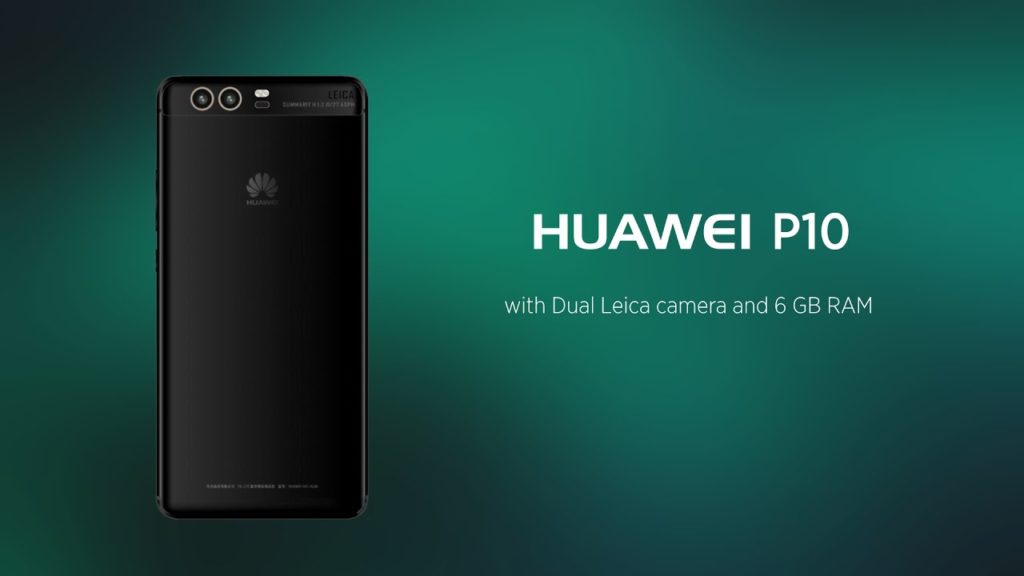
Huawei took to the stage during MWC 2017 to showcase not only the Huawei Watch 2, but also to reveal its 2017 flagship, the Huawei P10. It’s shiny, colourful and boasts features ideal for selfie takers.The Huawei P10 is reminiscent of the P9 in design, but with a few subtle changes, including moving the fingerprint scanner to the front of the smartphone, coupled with more obvious changes.It uses the same Kirin 960 processor, Mali G71 GPU, same amount of RAM (4GB) and even boasts the same amount of storage, at 64GB.

Directly Restore Lost Data from Huawei P10

Android Data Recovery could assist you to directly recover lost data from Huawei P10 phone without backup,including contacts,messages,photo,video,call logs,calendar,note,apps data and more.Android Data Recovery enables to restore lost Android data under any data loss circumstances,such as,deleted carelessly,Android system update,Android system rooting,factory restore reset.Android Data Recovery works well for almost all Android phone:Huawei P10/P9/P8,Samsung (Galaxy S8/S7/S6/S5),HTC,Lenovo,Xiaomi,Sony,etc,.

d_win d_mac

How to Directly Recover Lost Data from Huawei P10

First of all,please install Android Data Recovery on computer,run it and connect Huawei P10 phone to the computer.It will take  few seconds to detect your phone automatically by Android Data Recovery.

connect huawei to the computer

Step 1.Enable USB Debugging on Huawei P10
Unlock your phone,go to Settings > Developer options > Allow USB debugging mode.If you have already allowed the USB debugging mode,you will see a pop-up window on the screen,mark Always allow from this computer and click OK.

usb debugging huawei phone

Step 2.Select Lost Data to Recover from Huawei P10
Once the connecting successfully,all types of Huawei data will be displayed in the interface of program.Select your wanna data and then tab Next.It will take few minutes to analyze the lost and existent data on your Android.

select huawei data to recover

Step 3.Scan Data of Huawei P10 Phone
The first time you connect your phone with this program, there will be a request popping up to ask you for getting privilege of your device.With safety,you should click “Allow” on the interface of your phone,so that the program will begin to scan and read your phone data.

get privilege

scan huawei lost data

Step 4.Preview and Restore Lost Data from Huawei P10
Once the scanning is completes,you are allows to preview and select the detail data to recover from your Huawei P10 phone directly.Click Recover to restore your selected data to computer.

Recover Lost Contacts from Huawei P10

recover contacts from huawei

Recover Lost Messages from Huawei P10

recover sms from huawei

Recover Lost Photos from Huawei P10

recover photo from huawei

d_win d_mac

Related Article:

How to Recover Lost Contacts from Huawei P10

How to Recover Data from Huawei Phone

How to Backup and Restore Huawei Phone

How to Transfer Data from Huawei to Huawei P10

How to Sync iTunes Music to Huawei P10/P9/P8

Transfer Data to New iPhone XS (Max)/XR/X/8/7/6s

[Summary]: If you got a new iPhone 8/8 Plus/X/XS Max/XR and want to transfer Everything from your old iPhone to new iPhone, then this guide teach you an easy way to transfer all data including contacts, text messages, photos, videos, music and more from old iPhone to new iPhone 8/9/X and iPhone Xs/Xs Max moothly, don’t miss this post.

You may want to read:

* Transfer WhatsApp Messages to iPhone X/Xs (Plus)
* Transfer Data from Android to iPhone 8/X/Xs (Plus)

With days to go until the next iPhone launch on Sept. 12, it seems like we’re still don’t know the named of latest iPhone in 2019 version, and the latest rumor has an iPhone Max replacing the Plus. iPhone XS Max or iPhone XS Plus? But the giant XS could play second fiddle this year to that rumored cheaper 6.1-inch LCD version of the iPhone X. As for the naming method, MobileFun also gives a specific name. The 6.5-inch iPhone is the iPhone XS Plus, the 6.1-inch iPhone (2018), and the 5.8-inch iPhone is the iPhone XS. Can’t wait to have a bite of the new iPhone? After getting the new iPhone, you’ll need the guide on how to sync data to new iPhone X/Xs (Plus).

I am wondering how to to transfer the files between my iPhone 6s and the new iPhone 8.Is it possible to switch the data between two iPhone 8 directly?

I have upgrade to new iPhone X, I use iPhone 6s for over 3 years before, when I got the new iPhone X, the fist thing I need to do is backing up data from old phone, set up and activate new iPhone X/Xs (Plus), then transfer data to new iPhone X, but I don’t know to how to migrate messages from your iPhone 6s to iPhone X with the Move to iOS app

This post is aimed at giving you solutions on how to transfer everything from Android to iPhone X. If you have trouble in transferring files or just don’t know how to achieve it, please keep reading on this post and learn more.

Switch Old iPhone Files to iPhone 8/X/Xs (Plus)

In order to switch files between old iPhone and new iPhone, you could try this Phone Transfer, Phone Switch or MobileSync,which is a perfect data transfer tool for transferring files between iPhone and iPhone 8/iPhone X directly,contacts,SMS,photos,videos,calendars,call logs,music,apps are included.Phone Transfer works well for almost all iPhone,insist of iPhone XS Max or iPhone XS Plus, iPhone X, iPhone 8, iPhone 7,iPhone 6S/6,iPhone SE/5S/5C/5. In addition,this smart data manage tool allows to backup & restore data for mobile phone on PC/Mac completely.

d_win d_mac

Simple Steps to Transfer Data from Old iPhone to iPhone 8/X/Xs (Plus)

Step 1.Launch Phone Transfer on Computer
Download and install Phone Transfer on your computer.Launch it after the installation.Tap on the blue section called “Phone to Phone Transfer”.

iPhone to iPhone Switch

Note:Choose “Switch” will be required in this case.You can also back up,restore files on phone with the help of iOS Backup & Restore function.

Step 2.Connect Two iPhone to Computer
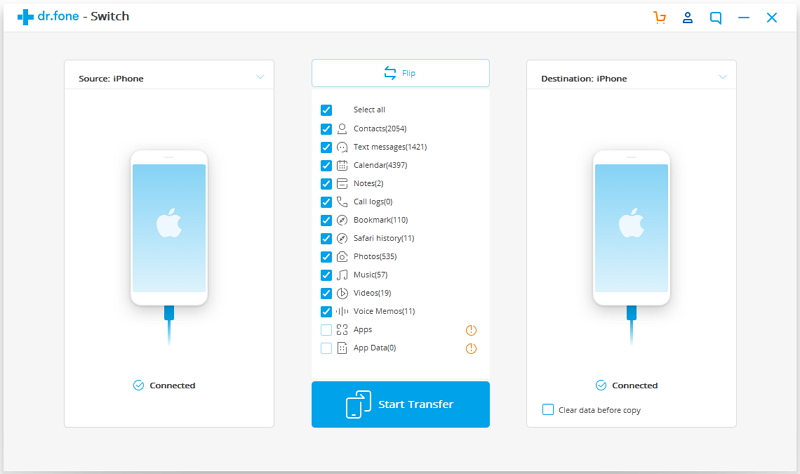
After launching Phone Transfer,you will be asked to connect your old iPhone and iPhone 8/iPhone X to the computer via USB cables.After the connection,both of your two iPhone model will be listed in the interface.Please make sure that your old iPhone is displayed in the box on the left as a source device and your iPhone 8/iPhone X on the right as a destination one.

transfer iPhone to iPhone XS/X/8

Step 3.Sync Files from iPhone to iPhone 8/iPhone X
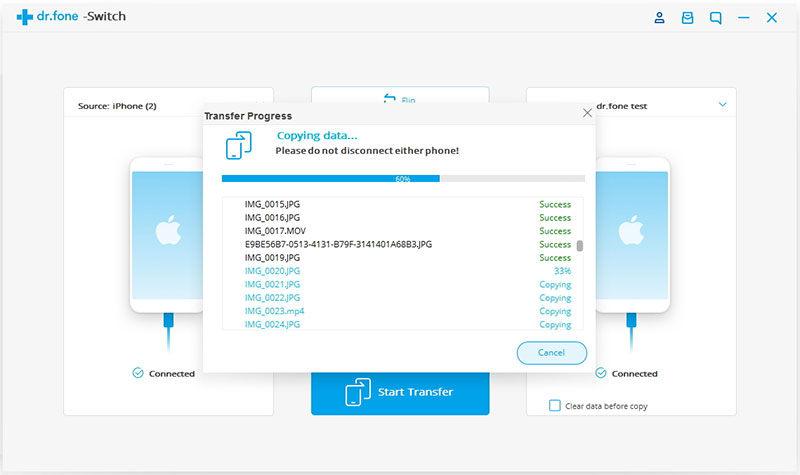
When both your devices detected,the program will start scanning the files on your source device.After the scanning,the data stored on old iPhone will be scanned out.You can choose the data types you need to transfer,for example,click “Contacts”.After that,click on “Start Transfer” to transfer contacts from old iPhone to iPhone 8/iPhone X.

iPhone to iPhone transfer

d_win d_mac

Another Outstanding iOS Data Transfer

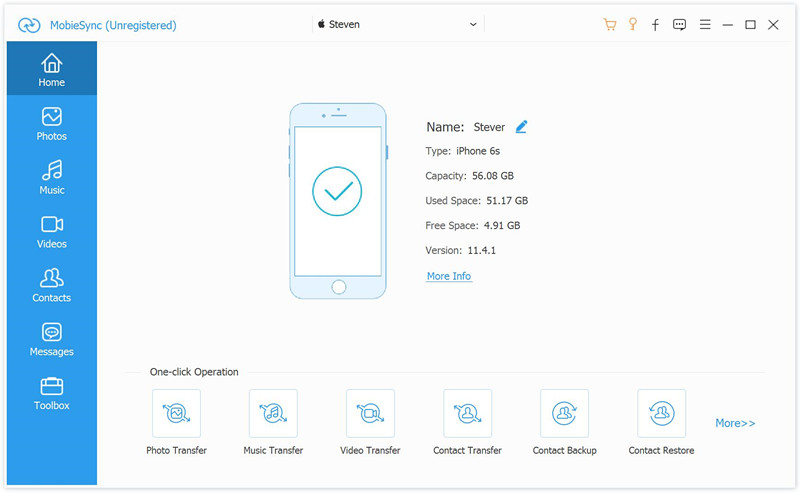
Mobile Sync has the capability to directly transfer various iOS files between iPhone and iPhone. Whether you want to transfer pictures, videos, music, contacts or other data, it can always be a great helper. Besides to transfer files between iOS devices, it supports to switch files between iOS device and the computer with one click. Moreover, it can help you create your own ringtones for iOS device. What a smart iOS data transfer tool you should have.

Main Features of MobileSync:
-Transfer Data between iOS Devices
-Transfer iOS Files to Computer
-Add Files from Computer
-Ringtone Maker
-HEIC Converter

mobile sync home page

Related Article:

How to Transfer Samsung Data to iPhone 8

How to Recover Deleted Data from iPhone 8

How to Restore Deleted Contacts from iPhone 8
How to Recover Deleted SMS from iPhone 8

How to Recover Deleted Photos from iPhone 8

How to Recover Deleted Notes from iPhone 8

Transfer Data Between iPhone and iPhone 8