All posts by DHZ

How to Recover Deleted Videos and Photos from Samsung Galaxy S8

Summary:It’s a step-by-step guide talks about how to recover deleted videos and photos from Samsung Galaxy S8/S8 Plus,as well as S9/S7/S6/S5/S4/Note 9/Note 8/Note 5/Note 4 and so on with Samsung data recovery tool.

You may feel really depressed when you lost your videos from Samsung Galaxy S8 phone due to accident causes. Not like the situation that you delete the shortcut on the desktop of computer, which you can still get the file back by yourself, it is normally impossible to find out the deleted data on your device anymore.However,the deleted data could be recovered easily if you get the right way.If you never use your device when the data is deleted accidentally (prevent the data to be overwritten), you can get back the deleted videos files with the help of Android Data Recovery.

Part 1. Recover Deleted Videos and Photos from Cloud Backup – Google Drive

If you have used some cloud storages such as Google photos and Dropbox, it will be super convenient to restore photos from trash of such cloud drive. Next, I would take Google photos as an example to explain how to complete this operation.

Step 1.Open Google Photos and tap on “Trash”.
Step 2.Select the deleted items that you want to restore.
Step 3.Finally tap on the “recover” button to get back deleted photos. Finished.
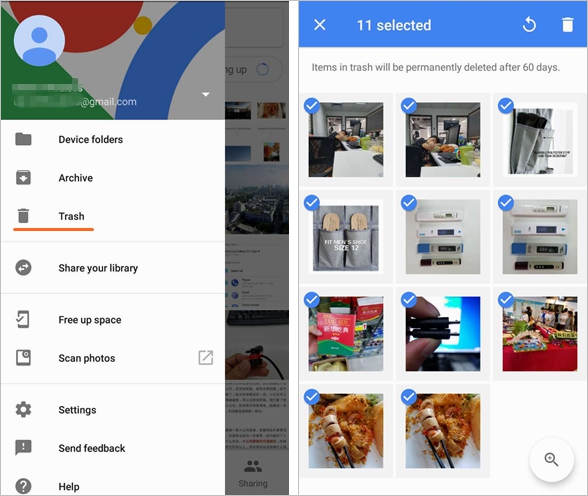
recover from google photo

Part 2. How to Deleted Videos,Photos from Samsung Galaxy S8

This Samsung Video RecoveryAndroid Data Recovery is an effective program which allows you to recover the deleted videos from Samsung Galaxy S8 and S8+ in a simple way.Not only restore deleted Media files, Android Data Recovery but also can recover several Android files from various Android mobile phones,including SMS,gallery,notes,call logs,apps data and more.Android Data Recovery works well for any Android data loss cases,for example,deleted mistaken,Android system update,Android system rooting,restore to factory reset.Most of Android phones are compatible with Android Data Recovery,such as,Samsung (Galaxy S9/S8/S7/S6/S5,Note 9/8/5/4/3,A9/A7),HTC, Google Pixel,Lenovo,OPPO,Motorola,LG,Sony,Huawei(P10/P9,Mate 10/9),Xiaomi,etc,.


d_win d_mac

Kind Tips: Looking for a way to download videos from YouTube? 4kFinder YouTube Video Downloader provides everything you expect. This is an excellent online video downloader dedicated to downloading 1080p 60fps videos, 720p HD, 1080p HD, 4K, 8K videos, etc. from YouTube to MP4 without image quality loss. In addition, extracting MP3 audio from YouTube is also one of its features. Apart from YouTube, it is also able to download videos from more than 1,000 popular online streaming sites, like Facebook, Instagram, Twitter, Bilibili, NicoNico, BBC, Vimeo, VLive, Tumblr, Fmovies, etc.

Easy Steps to Retrieve Deleted Videos and Pictures from Samsung Galaxy S8

Note: Once you deleted photos and videos from your Samsung phone, please don’t take any new photo, videos or add new files to it. Before you find an easy approach to get your Samsung missing files back, be sure that you didn’t do any update if you want to recover pictures and videos file on Android devices. In this way, you can prevent your data from being overwritten. Now, let’s show you how easy to recover videos, photos and other media files on Galaxy S8 step-by-step:

Step 1.Connect Samsung Galaxy S8 to computer and Run Program
First of all,please connect Samsung Galaxy S8 phone to your computer.Then run Android Data Recovery on the computer.

connect Galaxy S8 to the computer

Step 2.Enable USB Debugging on Samsung
If you didn’t enable the USB debugging on your device before,you will get a pop-up message on your device and need to enable it now.If you’ve done it already,just skip this step.

usb debugging on Galaxy S8

Step 3.Choose Videos File to Restore from Samsung
You will now be asked to choose the file types that you want to recover.You should choose “Videos” for retrieving deleted videos only.

select file to recover from Galaxy S8

The program will automatically detect your device,if detection is successful,there will be a window appear,you need to click”Allow” to begin analyzing scans your Samsung.

allow scan Galaxy S8

Once your Samsung phone has been successfully scan,the next step is to analyze the data on your Samsung device.

scan Galaxy S8 for deleted videos

Step 4.Preview and Recover Deleted Videos from Galaxy S8
Once the scan is complete,please click “Videos” and “Photos” item,the program itshow a complete list of recovered videos/pictures which you can preview before restoring them to computer.Simply click “Recover” to restore the selected data on your computer.

recover deleted videos from Galaxy S8

Retrieved Samsung Pictures and Videos Presenting

The recovered media files will be saved on your computer for you view,including images, pictures, App photos(WhatsApp photos), videos and music.Also,the text files be can be saved on the computer,such as text messages, contacts, call logs, WhatsApp messages.
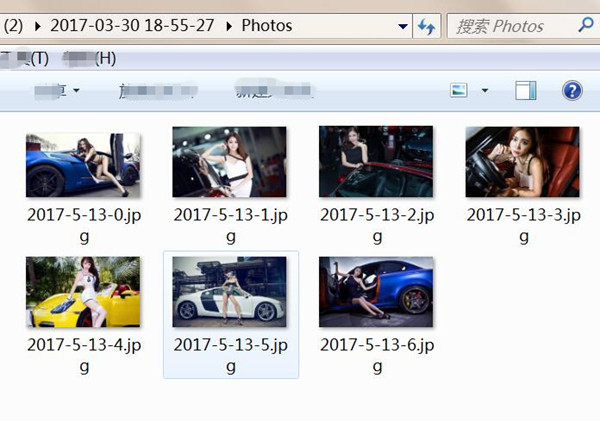
recover videos,photos on Galaxy S8

The image formats supported by the software, include BMP, JPEG, GIF, TIFF,Mamiya (MOS, MEF), Paint Shop Pro Image File (PSP),Picture File (PCT).

The videos formats will be retrieved,included MP4/3GP/AVI/WMV/FLV/RMVB/M4V/MOV

Please click the below buttons to free download Android Data Recovery to preview and get you lost video and photos files back.

d_win d_mac

Part 3. Ways to Avoid Galaxy S8 Videos & Photos Loss

Option A: Samsung Transfer – Android & iOS Manager could help you transfer and manage videos, photos, music, contacts and messages on Samsung Galaxy S8,you can use this program transfer videos/pictures from Samsung Galaxy S8 to computer for backup,and import videos, movies, photos from computer to Samsung Galaxy S8 directly.
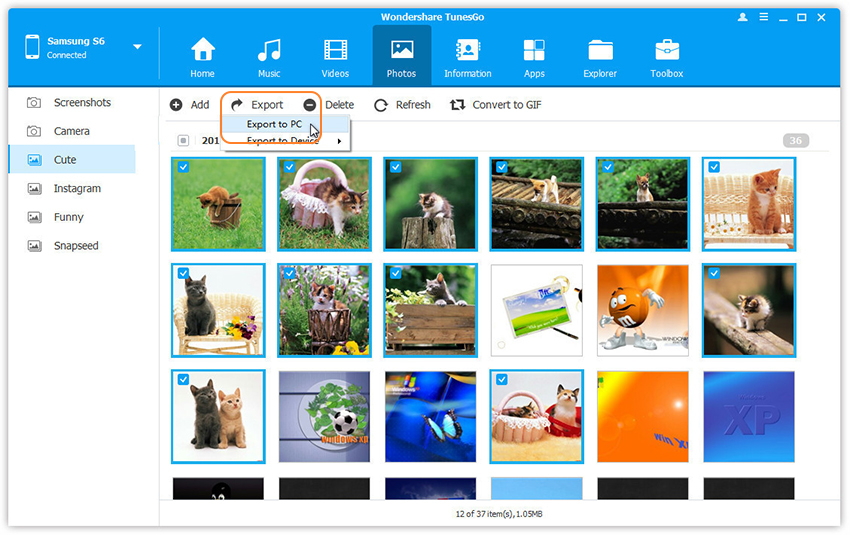
backup Samsung Galaxy S8 photos and videos

d_win d_mac

Learn more:
How to Backup Videos/Photos on Samsung Galaxy S8

How to Manage Samsung Galaxy S8 on Computer

Option B: Android Data Backup & Restore is another good helper to backup and restore Android on computer safely, it enable to backup Samsung Galaxy S8 on computer with a reliable solution, restore backed up to the original device or other Android device.
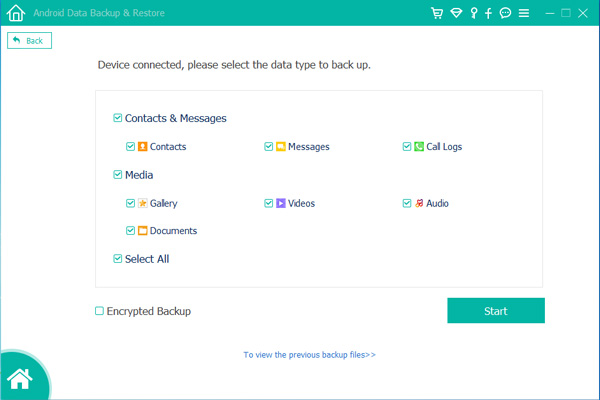
backup Galaxy S8 data

d_win d_mac

Related Galaxy S8 Guide

How to Recover Deleted Data from Samsung Galaxy S8

How to Recover Deleted Photos from Samsung Galaxy S8

How to Recover Deleted SMS from Samsung Galaxy S8

How to Transfer iPhone Data to Samsung Galaxy S8

How to Transfer Samsung Data to Samsung Galaxy S8

How to Transfer Videos to Samsung Galaxy S8

How to Backup & Restore Samsung Galaxy S8

How to Root Samsung Galaxy S8 without Data Loss

Recover Videos/Photos from Samsung Galaxy S8

How to Transfer Messages from iPhone to iPhone 8/X/Xs (Max)

[Summary]: When you got a new iPhone and want to transfer messages from iPhone to iPhone 8/X/Xs (Plus), then this guide will show you the easiest way to transfer text messages/iMessages from old iPhone 6/6s/7 to new iPhone 8/X/Xs(Max)/XR.

I plan to buy a new-released iPhone 8 in this September. Meanwhile, I have an old iPhone 6. And all my text messages still saved on the old device. Can I transfer text messages from my iPhone 6 to iPhone 8? Is it possible to transfer only messages selectively instead of the whole device files during the restoring process?

You may want to read:

* iPhone WhatsApp Transfer: Transfer WhatsApp Messages from old iPhone to iPhone XR/Xs(Max)/X

* 3 Ways to Transfer Contacts from old iPhone to new iPhone

Let’s suppose that you get a new iPhone, no matter the new released iPhone 8 or iPhone X, or other models of iPhone like iPhone Xs, the first thing you need to do is to switch data from the old iPhone to the new one,of course the text messages or MMS/iMessages are always something you don’t want to leave behind.Certainly you can sync the messages to the new iPhone via iTunes or iCloud.However, not only messages, some other data that you don’t want anymore may be transferred between old device and your new device.So if you get one iPhone 8/iPhone X, how can you easily transfer messages from old iPhone to the new iPhone 8/iPhone X selectively?

Transfer SMS between old iPhone and new iPhone 8/iPhone X/Xs Selectively

Phone Transfer is a professional phone to phone file transfer software, which can be used to transfer data between iPhones,including SMS,contacts,photos,music,notes,call logs,videos and more.With it, you can easily transfer SMS/MMS/iMessages between iPhone and iPhone 8/iPhone X/Xs(Plus) selectively.The software supports all the popular iPhone devices, such as iPhone 7/7 Plus, iPhone 6S/6S Plus,iPhone 6/6 Plus, iPhone SE, iPhone 5S/5C/5,iPhone 4S, as well as iPad Pro, iPad Air 2, iPad mini 4/2, and so on.

d_win d_mac

How to Copy SMS from Old iPhone to iPhone 8/X and iPhone XR/Xs(Max)

Step1.Install and Launch Phone Transfer
Download this Phone Transfer software on PC/Mac, and then install and launch it on your computer.Connect both the old iPhone and the new iPhone 8/iPhone X to the computer using USB.

iphone to iphone sms transfer

Step 2.Select SMS File to Transfer
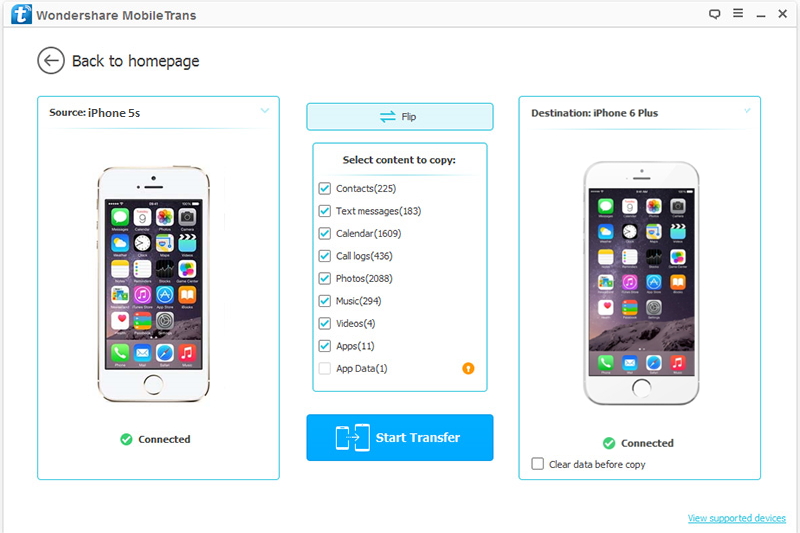
When the two iPhones are connected successfully,the name of files will be shown on the interface of program.For SMS transfer,you should click “Text messages“.The old iPhone as the export device should be on the left side,and the new iPhone 8/iPhone X as the import device should be on the right side.You can press “Flip” to change their places.

select sms file transfer from old iphone to iphone 8

Note:Make sure that the iTunes has been installed on your computer so that the iPhone can be detected by the computer.

Step3.Transfer Messages from iPhone to iPhone 8/iPhone X
When all things are ready,simply click “Start Transfer” to transfer messages between iPhone and iPhone 8/iPhone X.

transfer iphone sms to iphone 8

d_win d_mac

Related Article:

How to Transfer iPhone Data to iPhone 8/iPhone X

How to Transfer Samsung Data to iPhone 8/iPhone X

How to Transfer Android Data to iPhone 8/iPhone X

How to Recover Deleted Data from iPhone 8

How to Restore Deleted Contacts from iPhone 8

How to Recover Deleted SMS from iPhone 8

How to Recover Deleted Photos from iPhone 8

How to Recover Deleted Notes from iPhone 8

Transfer SMS from iPhone to iPhone

How to Transfer GoPro Photos and Videos to Mobile Phone

My husband bought a Gopro Hero 5 camera for me as the birthday gift.I took some birthday party videos with this super GoPro camera.I want to watch the videos on my Samsung phone.How to transfer these videos to my Android?

The GoPro short video is a post-literate diary, a stop on the way to a future in which everything will be filmed from every point of view. The pervasiveness of cameras, seemingly playful and benign.GoPro is the most powerful and easy to use camera that enables to take 4K videos with voice control, one-button simplicity, touch display and waterproof design.The most popular GoPro models list here,Gopro Hero 5,GoPro HERO5 Black,GoPro HERO5 Session,GoPro Session,Gopro Hero 4,Gopro Hero 3.It’s never been faster or more fun to create GoPro videos.Access your footage in the cloud, then use Quik to create stunning edits on your phone or computer.

Copy GoPro Photos and Videos to Mobile Phone

Here comes the Mobile Manager for you,which is a wonderful data manager tool for mobile phone(iPhone phone and Android phone).With the help of Mobile Manager,you are able to transfer&manage data for mobile phone on computer freely.To be honest,it can do a great help of transferring GoPro photos and videos between computer and mobile phone with original quality.What’s more,Mobile Manager enables to transfer data between iTunes and Android,transfer data between mobile devices with one click.The transferable data including videos,photos,music,Contacts,SMS,app.Almost all mobile phones are applicable to Mobile Manager,such as,iPhone 7,iPhone 6S/6,iPhone 5S/5C/5;Samsung(Galaxy S7/S6/S5,Note 5/4/3),Huawei(P10/P9,Mate 9),HTC,Lenovo,Motorola,Sony,etc,.The next part we will take Android phone for example to show you how to transfer GoPro photos and videos to Android phone.

d_win d_mac

Tips:Before transferring GoPro photos and videos to Android phone,you should export the video to your computer from GoPro camera.One way to transfer GoPro photos and videos to computer is using USB cable.Another way is pull out the GoPro micro SD card and set into the card reader,then insert the card reader into the computer,sync the photos and videos to computer directly.

Kind Tips: Looking for a way to download videos from YouTube? 4kFinder YouTube Video Downloader provides everything you expect. This is an excellent online video downloader dedicated to downloading 1080p 60fps videos, 720p HD, 1080p HD, 4K, 8K videos, etc. from YouTube to MP4 without image quality loss. In addition, extracting MP3 audio from YouTube is also one of its features. Apart from YouTube, it is also able to download videos from more than 1,000 popular online streaming sites, like Facebook, Instagram, Twitter, Bilibili, NicoNico, BBC, Vimeo, VLive, Tumblr, Fmovies, etc.

Part 1:How to Transfer GoPro Photos to Android Phone

Launch Mobile Manager and connect your Android phone to the computer.Your Android device will be detected and displayed in the primary window of program.

mobile manager mian page

Step 1.Select the Photos Option
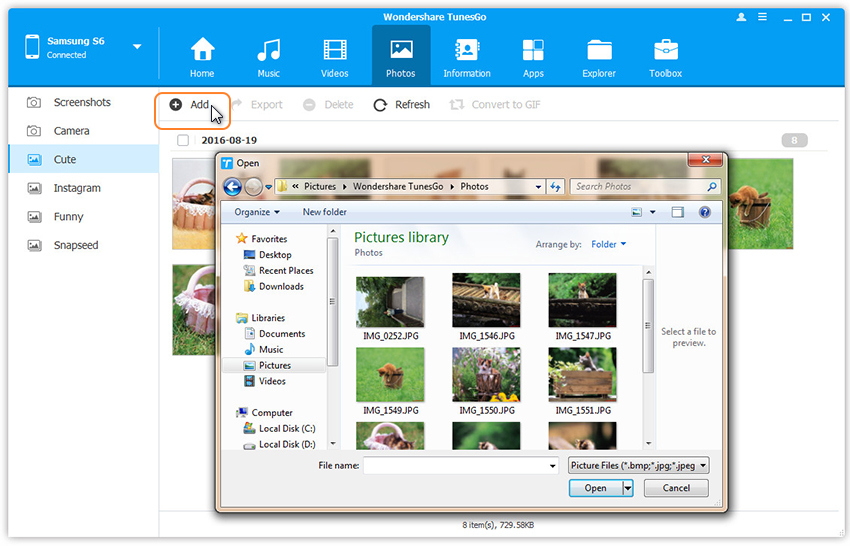
Click Photos tab.All the albums will be displayed on the left.Choose the file contain the GoPro photos you need.Select one to import photos from computer to selected Android photo album.

Step 2.Select Photo Folder to Transfer
Click Add > Add File or Add Folder.

add photos from computer to mobile phone

If you only want to select some photos,then click Add File.You can create new albums and add photos in it.Simply right-click the photos category on the left panel, then click New Album.If you want to transfer all the photos in one folder,then click Add Folder.

Step 3.Transfer Photos from Computer to Android
Select photos or photo folders and add to your Android device.Hold down Shift or Ctrl key to choose multiple photos.

d_win d_mac

Part 2:How to Transfer GoPro Videos to Android Phone

Launch Mobile Manager and connect your Android phone to the computer.Your Android device will be detected and displayed in the primary window of program.

mobile manager mian page

Step 1.Select Videos Tab
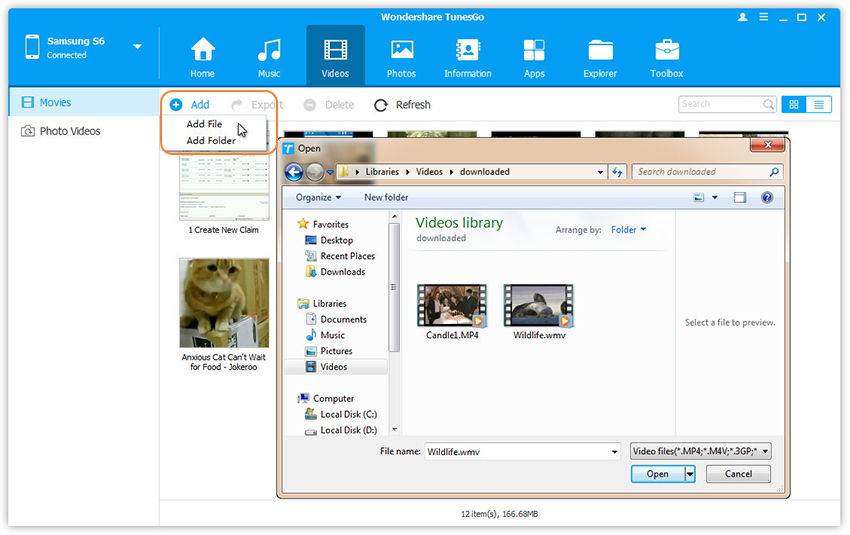
Select Videos tab.Once your media loads,click Add > Add File or Add Folder.

add videos from pc to mobile phone

Step 2.Transfer the Selected Videos from Computer to Android
This brings up your file browser window, from which you can select videos to import from your computer. All videos imported can be watched with the built-in player.Select the videos contain the GoPro videos you need.You can simply Drag and Drop videos from computer to Android.

d_win d_mac

Related Article:

How to Transfer Video from Computer to Samsung Galaxy

How to Transfer Photos between Computer and Samsung Galaxy

How to Sync Videos from Computer to iPhone

How to Manage Android on Computer

How to Manage iPhone on Computer

How to Transfer Android SMS to iPhone 8/iPhone X

I bought a new iPhone 8 for my wife as the anniversary gift.She was so glad to get it but now she is wondering how to transfer the SMS from her old Android phone to the new iPhone.”

Apple’s upcoming iPhone 8 is without question the company’s most anticipated product in years. Said to feature an edge-to-edge OLED display, the hype surrounding Apple’s next-gen iPhone seems to get more intense with each passing month. And with good reason: the iPhone 8 will introduce a radical new form factor, a welcome change in light of the fact that the current iPhone design has more or less remained unchanged since Apple rolled out the iPhone 6 in 2014.

Part 1:Transfer Android SMS to iPhone 8/iPhone X via Phone Transfer

Among all the data transfer programs, Phone Transfer is regarded one of the best.This software is used for transferring files among Android and iOS devices, and it enables users to transfer various kinds of files without the sync of iTunes.With the help of Phone Transfer,you are allow to transfer SMS between Android and iPhone 8/iPhone X directly.Except SMS,more other types of data are supported to be switched between mobile devices,including contacts,photos,videos,call logs,music,calendar,apps.Phone Transfer works well for most of Android phones,such as,Samsung (Galaxy S7/S6/S5/S4,Note 5/4/3/2,A9/A7),HTC,Lenovo,Motorola,Sony,Huawei (Mate 9,P9/P10),Xiaomi,LG and more.

d_win d_mac

Step 1.Run Program and Connect Devices to the Computer
Download,install and run the Phone Transfer on your computer.Connect both Android and iPhone 8/iPhone X to the computer via USB cables.

phone transfer main page

Step 2.Select SMS File to Transfer between Android and iPhone 8/iPhone X
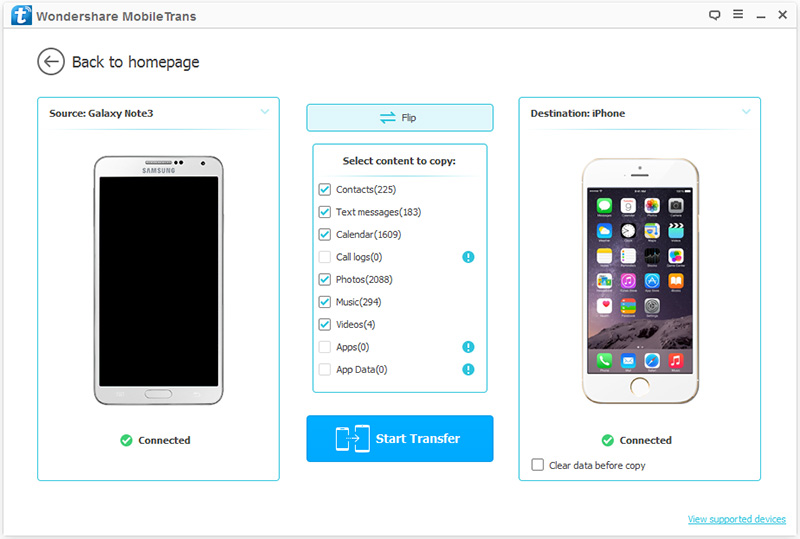
Now you are allow to select the file to transfer between Android and iPhone 8/iPhone X,here SMS,contacts,photos,videos,call logs,music,calendar,apps are included.For SMS transfer,you should click “Text messages“.

select data to transfer to iphone 8

Note:Click “Flip” to exchange the phone place if the two phones are in the wrong position.(Ensure Android listed as Source and iPhone as Destination.)

Step 3.Transfer Android SMS to iPhone 8/iPhone X
Tap on “Start Transfer” to begin transferring messages from Android to iPhone.

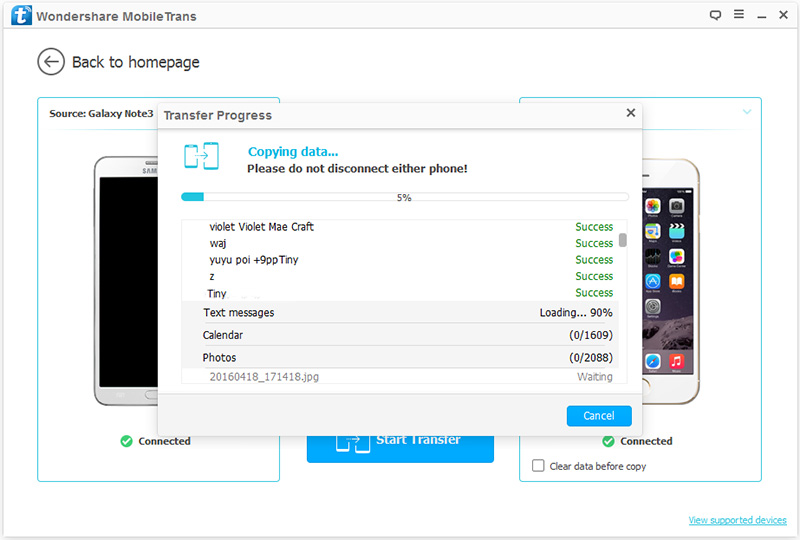
transfer android sms to iphone 8

d_win d_mac

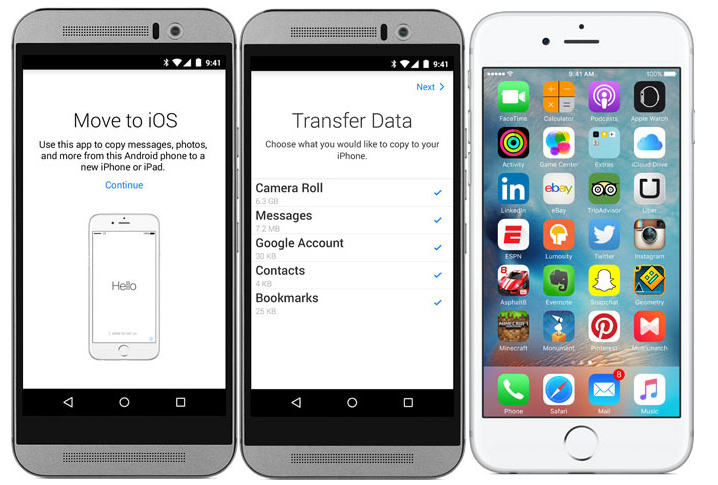
Part 2:Copy SMS from Android to iPhone with Move to iOS

Step 1.Download and install the app on the Android phone after you make sure the Android and iPhone 8/iPhone X be connected to the stable Wi-Fi and be plugged to the power.Then just start it.

Step 2.Run the app and when you choose to transfer the messages,the iPhone 8/iPhone X will create a private Wi-Fi network.Then iPhone will find the Android device running the Move to iOS and when you enter the security code, the files will be exported to the iPhone.

Step 3.Find the SMS you just transferred on the iPhone 8/iPhone X.This is the whole process.

move to ios

Related Article:

How to Transfer Android Data to iPhone 8/iPhone X

How to Transfer Samsung Data to iPhone 8/iPhone X

How to Transfer iPhone Data to iPhone 8/iPhone X

How to Recover Deleted Data from iPhone 8

How to Restore Deleted Contacts from iPhone 8

How to Recover Deleted SMS from iPhone 8

How to Recover Deleted Photos from iPhone 8

How to Transfer Samsung SMS to iPhone 8/iPhone X

Can I ask how to copy my SMS from Samsung to iPhone 8 with an easy way?The SMS contain some business data that are so important for me.Thx.

The iPhone 8 is coming with its smart functions,I guess there will be a large Samsung users may switch to the new iPhone model.If you are one of them, or just have an Samsung phone and get the new iPhone 8 at the same time, you will may to know how to copy personal messages between the old phone and the new one,which is related to your work or life. The problem is, how?This tutorial will show you the best ways to switch SMS between Samsung and iPhone 8 in a coffee time.

Sync Samsung SMS to iPhone 8/iPhone X

Phone Transfer is an useful tool that make data transfer workable from phone to phone even if they run the different operating system, for example,Samsung to iPhone 8, HTC, Motorola,Sony,LG ,Lenovo and more Android phones are compatible to this program.You can also use it to transfer various of data like messages, contacts,videos, pictures,call history,calendars,music,apps and so on.Thanks to Phone Transfer,you are able to sync SMS from Samsung to iPhone 8/iPhone X efficiently and simply.

d_win d_mac

How to Import Samsung SMS to iPhone 8/iPhone X

Step 1.Run Phone Transfer on the Computer
After downloading and installing the software on your computer, launch it, by double click its icon. Then the interface as follow will be showed on your computer.

phone transfer main page

Step 2.Connect Samsung and iPhone 8/iPhone X Via USB Cable
Connect Samsung and iPhone 8/iPhone X to your computer with USB cables. Then the program will detect for your phones. Samsung is shown on the left side of the interface and iPhone 8/iPhone X on the right. It means to move data from your Samsung to iPhone 8/iPhone X.

Note:There’s a “Flip” tab between your two devices. You can click it to change the position of these two devices so as to transfer iPhone data to Samsung ones.

select sms to transfer to iphone 8

Step 3.Transfer Text Messages from Samsung to iPhone 8/iPhone X
SMS,contacts,photos,videos,music and more can be transferred to iPhone 8/iPhone X from Samsung with the help of Phone Transfer. Tick off the marks before the files except text messages. Then, start the text messages transferring process by clicking “Start Transfer“. After the process finished, click “OK“.

transfer samsung sms to iphone 8

Note:This software works well for most Samsung phones,such as,Galaxy S7/S6/S5/A9/A7,etc,.

Related Article:

How to Transfer Samsung Data to iPhone 8/iPhone X

How to Transfer Samsung Photos to iPhone 8/iPhone X

How to Transfer Samsung Contacts to iPhone 8/iPhone X

How to Transfer Android Data to iPhone 8/iPhone X

How to Transfer iPhone Data to iPhone 8/iPhone X

How to Recover Deleted Data from iPhone 8

How to Restore Deleted Contacts from iPhone 8

How to Recover Deleted SMS from iPhone 8

How to Recover Deleted Photos from iPhone 8

How to Transfer Contacts between iPhone and iPhone 8/iPhone X

The latest rumor about the iPhone 8 could make audiophiles very happy and one-up its biggest rival — even if it raises the cost of the already potentially super-expensive flagship.It’s no double that iPhone 8 will become the hottest iPhone among all the models of iPhone.Are you one of the iPhone users going to buy a new released iPhone 8 for replace the old one?When switch to the new device,you may need to transfer the data between the old one and the new one,especially the contacts.

With iCloud and iTunes, transferring contacts from your old iPhone to iPhone 8/iPhone X is not a big deal.In fact,if you’ve backup data correctly (on your old iPhone), you don’t have to worry about transferring contacts between the old one to the new one.But how to transfer contacts between iPhone without backup?Here are some general tips to show you how to transfer contacts from old iPhone to iPhone 8/iPhone X with a few clicks.

Switch Contacts between iPhone and iPhone 8/iPhone X

Phone Transfer is a safe and effective data manage tool used for transferring data between iOS and Android devices.With the help of Phone Transfer,you are allow to transfer contacts between iPhone and iPhone 8/iPhone X.It can also transfer SMS, photos, videos, music,call logs,calendar and apps between mobile devices.Just follow the steps below to transfer contacts to your new iPhone with simple steps.Phone Transfer works well for all models of iPhone,like iPhone X,iPhone 8,iPhone 7,iPhone 6S/6,iPhone 5S/5C/5,etc,.

d_win d_mac

Part 1: Transfer Contacts from old iPhone to iPhone 8/X with Phone Transfer

Step 1.Launch Phone Transfer on Computer
Download and install Phone Transfer on your computer.Launch it after the installation.Tap on the blue section called “Phone to Phone Transfer”.

phone transfer main page

Step 2.Connect Two iPhone to Computer
After launching Phone Transfer,you will be asked to connect your old iPhone and iPhone 8/iPhone X to the computer via USB cables.After the connection,both of your two iPhone model will be listed in the interface of program.Please make sure that your old iPhone is displayed in the box on the left as a source device and your iPhone 8/iPhone X on the right as a destination one.

select file transfer from old iphone to iphone 8

Step 3.Sync Contacts from iPhone to iPhone 8/iPhone X
When both your devices detected,the program will begin scanning the files on your source device.After the scanning,the data stored on old iPhone will be scanned out.You can choose the data types you need to transfer,for contacts recovery,click “Contacts”.After that,click on “Start Transfer” to transfer contacts from old iPhone to iPhone 8/iPhone X.

transfer contacts from old iphone to iphone 8

d_win d_mac

Part 2: Transfer Contacts from old iPhone to iPhone 8/X with iCloud Syncing

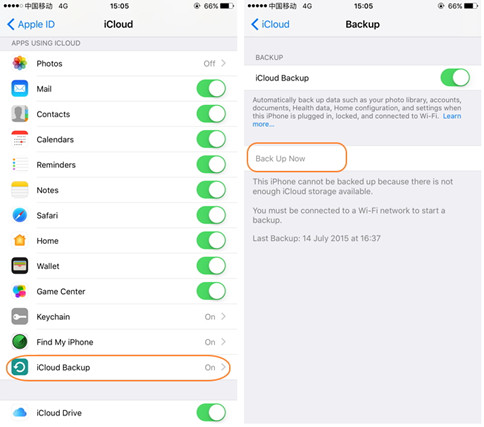
Another method can also enable transfer contacts old iPhone to iPhone 8/X is usning iCloud syncing.Here is steps how to do:

Step 1.Firstly you should log-in to iCloud on your old iPhone.
Step 2.Then go to settings and click on to “iCloud”.
Step 3.Select “Back up” option and then click on to “Back up now”.
backup iphone contacts icloud

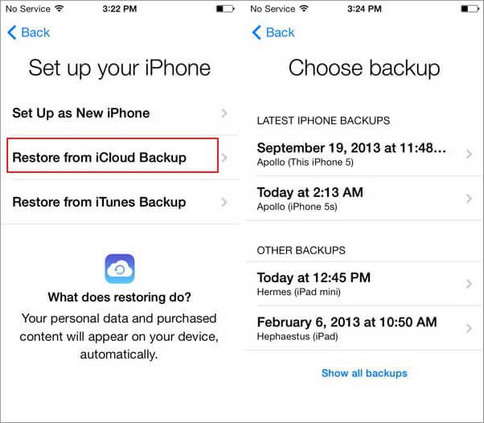
Step 4.Now take out the SIM card from your old iPhone and transfer it to your new iPhone 8/X.
Step 5.Switch on your new iPhone 8/X.
Step 6.Press the “Home Screen” once a Hello screen comes on your phone. Turn on the Wi-Fi.
Step 7.When the screen with “Apps and Data” comes on, click on “Restore from iCloud backup” and then click on to “Next”.

restore iphone contacts icloud

Step 8.Login your Apple ID and password on the iCloud.
Step 9.Choose the backup very carefully by checking the date and time.
Step 10.Keep your iPhone 8/X connected to the Wi-Fi until the process is completed.

Related Article:

How to Transfer iPhone Data to iPhone 8

How to Transfer Android Data to iPhone 8

How to Transfer Samsung Data to iPhone 8

How to Recover Deleted Data from iPhone 8

How to Recover Deleted Contacts from iPhone 8

How to Transfer Android Photos to iPhone 8/iPhone X

I’m wondering are there any available ways to transfer all photos from my Android phone to iPhone?I am planning to buy iPhone 8 as long as it releasing.

News about iPhone 8:Apple’s next iPhone isn’t supposed to arrive until much later in 2017,but that hasn’t stopped legions of fans from fervently speculating about it.Things may be a little different this year, as it’s the 10th anniversary of the iPhone.Rumors suggest we may see up to three models — the iPhone 7S,the 7S Plus,and the iPhone X (aka, the iPhone 8).The latter is expected to be an expensive,technical showcase phone released as a celebratory model.

Transfer Android Photos to iPhone 8/iPhone X

To switch photos from Android to iPhone 8/iPhone X,you can try this iOS & Android Manager,which is a smart data manage tool for transferring and managing iOS/Android data with one click.The transferable files including photos,videos,music,contacts,SMS,apps.iOS & Android Manager enables to transfer data between Android and iOS device,transfer data between Android device and iTunes,transfer data between iOS/Android device and computer.Supported iOS/Android device insist of iPhone X,iPhone 8,iPhone 7,iPhone 6S/6;Samsung,HTC,Huawei,Xiaomi,LG,Motorola,etc,.

d_win d_mac

How to Copy Android Photos to iPhone 8/iPhone X

Step 1. Launch iOS & Android Manager on Computer
Launch iOS & Android Manager and connect your devices with the computer.Connect Android and iPhone 8/iPhone X to the computer at the same time.

ios android manager main page

Step 2.Setting the Source Device
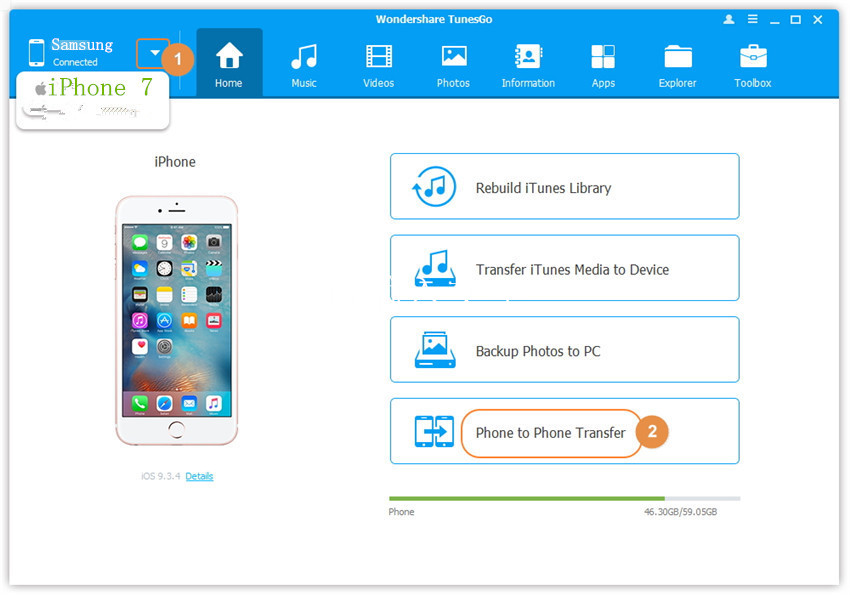
Select Android as the source device from which you want to transfer photos.Click Phone to Phone Transfer option on the main interface of program. Then a new window will pop up.

Step 3. Setting the Target Device
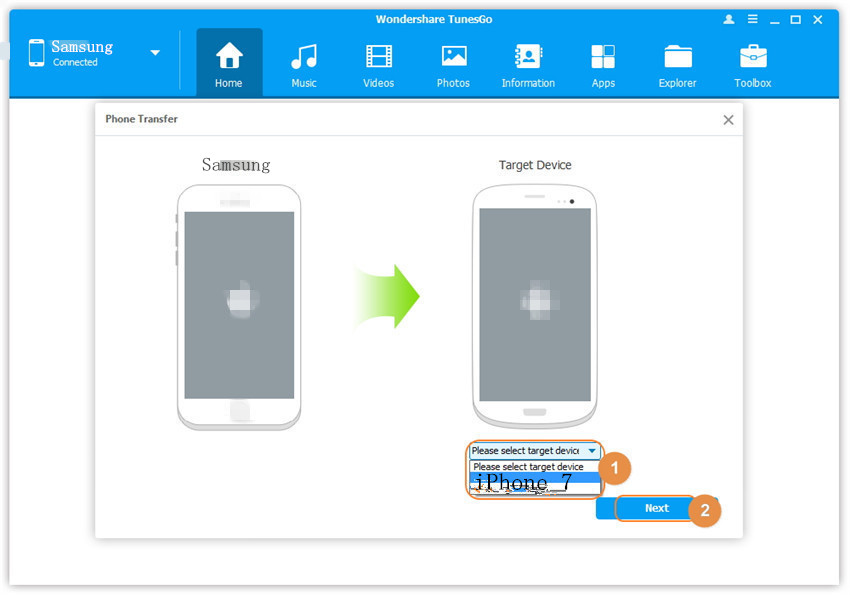
Select iPhone 8/iPhone X as the target device to which you want to transfer photos to,click Next.

select target device

Step 4. Transfer Photo File from Android to iPhone 8/iPhone X
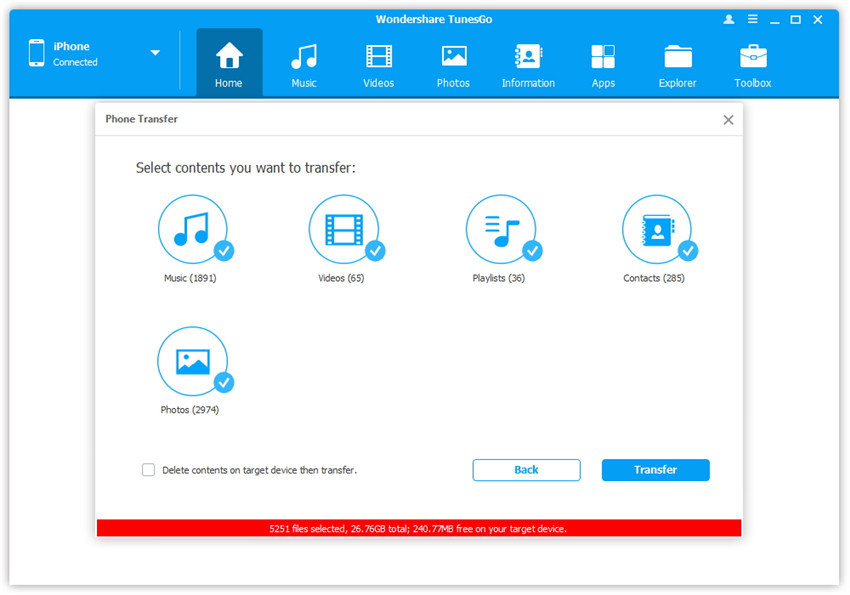
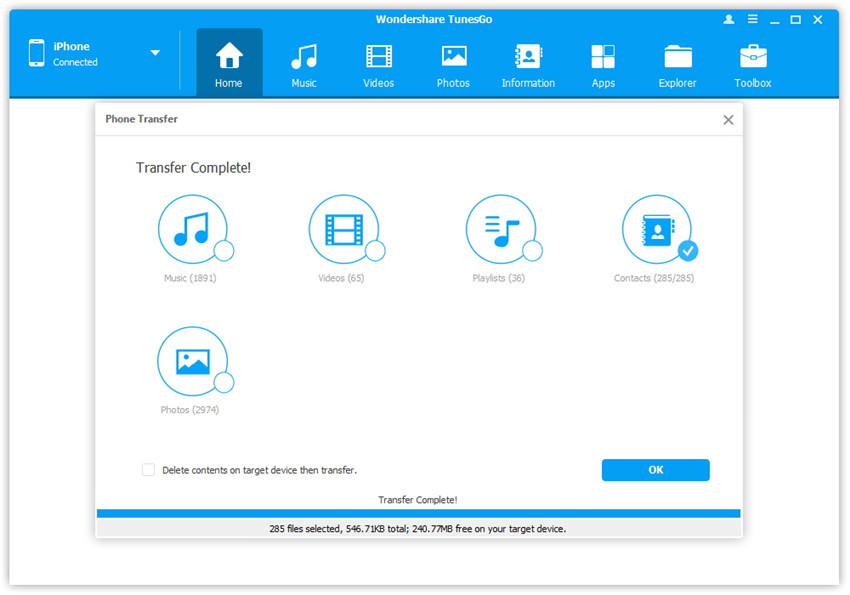
By default, all the content on your source device that can be transferred are checked, namely Music and Videos, Playlists, Photos, Contacts( Note: Contacts are not supported by Mac version). You can uncheck the contents which you don’t want to transfer. Then, click Transfer. In the whole transfer process, DO NOT disconnect either of the devices. When the transfer completes, click OK.

select photo file to transfer

transfer android photo to iphone 8

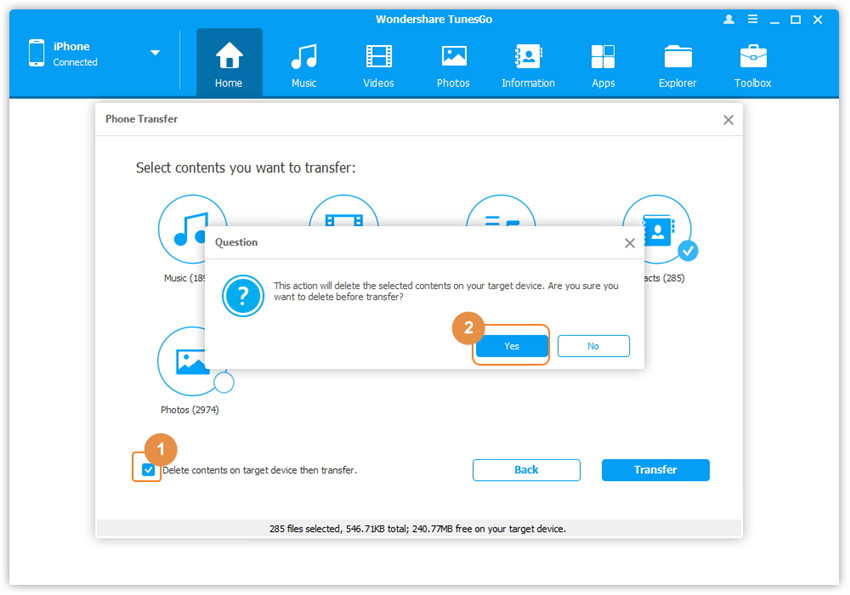
Note: Only for Windows version, you’re enabled to tick the option: “Delete contents on target device then transfer” before clicking Transfer button, then the selected contents on the target device will be deleted before the transfer.

confirm to delete data on target device

d_win d_mac

Related Article:

How to Transfer Android Data to iPhone 8/iPhone X

How to Transfer Android Contacts to iPhone 8/iPhone X

How to Transfer iPhone Data to iPhone 8/iPhone X

How to Transfer Samsung Data to iPhone 8/iPhone X

How to Recover Deleted Data from iPhone 8

How to Restore Deleted Contacts from iPhone 8

How to Recover Deleted SMS from iPhone 8

How to Recover Deleted Photos from iPhone 8

How to Fix iOS 11 Stuck in Recovery Mode

Apple’s iOS platform debuted way back in 2007, and back then the OS was called iPhone OS 1.0. We don’t expect any retro name changes for the 11th iOS, however. So, what will iOS 11 offer feature-wise? Expect to see improved mapping, the long-awaited dark mode, and even some Snapchat-like features baked right into iOS.

iOS 11 Stuck in Recovery Mode

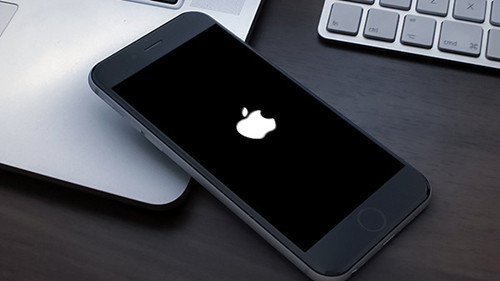
Different kinds of issues may happen after updating to a new iOS 11 on iPhone/iPad/iPod touch:for example the iPhone stuck in Recovery mode after iOS 11 update.iOS 11 brings a set of new features,however,the newest-released iOS 11 is not perfect enough,and it is possible that you may meet kinds of iOS 11 issues like iOS stucks problems we just mentioned.Now we are going to discuss that how to fix iPhone system to normal after iOS 11 update.

Fix iPhone Stuck in Recovery Mode after iOS 11 Update

To fix iPhone stuck in Recovery Mode after iOS 11 update perfectly,you should try this iOS System Recovery,which is a powerful data fixing tool for restoring iPhone system to normal state under any circumstances,like stuck in Recovery,stuck at connect to iTunes screen,stuck in DFU Mode,stuck in Apple logo,stuck at white/black screen,etc,.iOS System Recovery promise you that it help to get device our of abnormal state without losing data.Supported iOS devices including iPhone X,iPhone 8,iPhone 7,iPhone 6S/6,iPhone 5S/5C/5,iPad Mini,iPad Pro,and so on.

d_win d_mac

Part 1:Fix iPhone Stuck in Recovery Mode after iOS 11 Update via iOS System Recovery

Step 1.Run iOS System Recovery and Select “Fix iOS System” Option
Firstly,please run iOS System Recovery on your computer.Then click on “Fix iOS System” to start the function.

ios system recovery main page

Connect iPhone to the computer by USB cable,the program will detect the device soon.Click on “Start” button to begin.

connect iphone to the program

Step 2.Download Firmware for iPhone
To fix iPhone stuck in Recovery mode after iOS 11 update,you should download the firmware for iPhone.

The program will detect the model of device,asks for confirmation,and suggests the latest version of firmware to download.Click “Download”button.The process will complete automatically.

select iphone model

download firmware for iphone

Step 3.Get iPhone Out of Recovery Mode without Data Loss
Once the firmware is installed,the program will start fixing iOS system for device and return iPhone to normal state in minutes.

fix iphone stuck in recovery mode ios 11 update

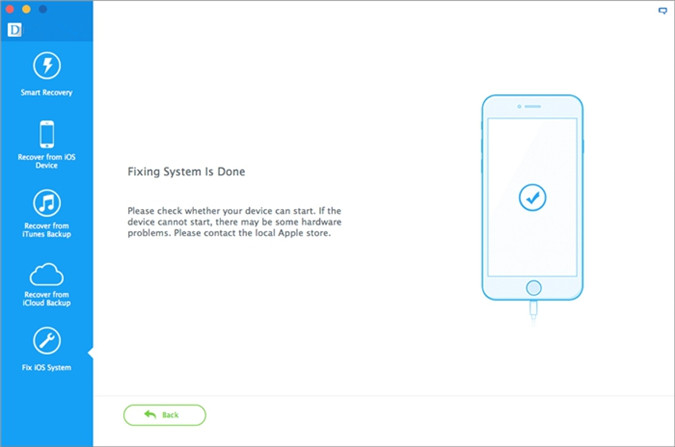
restore iphone system to normal completed

Done.Now your iPhone have finished restoring to normal state.

d_win d_mac

Part 2:Fix iPhone Stuck in Recovery Mode after iOS 11 Update with iTunes

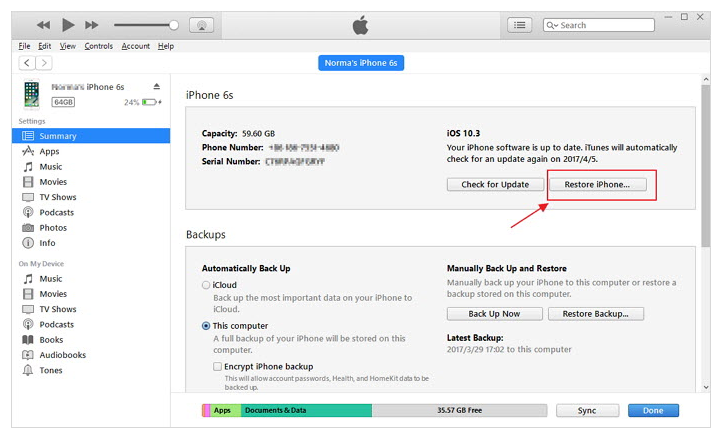
Fixing iPhone stuck in Recovery Mode after iOS 11 with iTunes could be your next option. You can restore iPhone with iTunes when your device stuck in recovery mode. Following are the steps involved in the process:

restore-iphone-with-itunes

-Launch iTunes on the computer. Connect the iPhone to the PC via USB cable.
-Hit on your device in the left corner on the top.
-Now click on “Restore iPhone” and confirm that by tapping “Restore” button.
-Wait for the completion and your device will restart.

Note: This method will wipe off all your data on iPhone. So making backup of the data is suggested while performing this.

Related Article:

How to Backup iPhone iPad before iOS 11 Update

How to Recover Lost Data from iPhone after iOS 11 Update

How to Recover Data from iPhone in Recovery Mode

How to Fix iPhone Stuck on Apple Logo after iOS 11 Update

iPhone Stuck in Boot Loop after Updating to iOS 11

How to Fix iPhone System to Normal after iOS 11 Update

How to Transfer Android Contacts to iPhone 8

Are there any simple ways to transfer contacts and other data from Android to iPhone 8 efficiently?

Apple may be about to blow past the 10th anniversary of its first-ever iPhone without releasing a major overhaul to its iPhone lineup.Recently I received some questions like “How to transfer Android contacts to iPhone 8”.If you previously used an Android phone and have switched to or going to switch to iPhone 8, one of the first things you will wish to do is transfer contacts from the Android to the iPhone.If you’re trying to find out how to do so, you’ve come to the right place.

Switch Android Contacts to iPhone 8

Phone Transfer offers the best ways for you to transfer contacts between Android and iPhone 8 with one click.Besides contacts,this powerful data transfer allows to transfer various of data between Android,iOS and Symbian system,including SMS,photos,videos,call logs,music,calendars,apps.Phone Transfer supports to almost all iPhone models and Android phones,like iPhone 8,iPhone 7,iPhone 6S/6,iPhone SE,iPhone 5S/5C/5;Samsung,HTC,Motorola,Lenovo,Sony,Huawei,Xiaomi,etc,.

d_win d_mac

How to Copy Android Contacts to iPhone 8

Step 1.Run this Phone Transfer Tool on your Computer
Run Phone Transfer tool on your computer.You will see that the main screen has shown the connection devices to be required.Click “Phone to Phone Transfer” and click “Start” to move the content from Android to iPhone 8.

phone transfer main page

Step 2.Select Contacts File to Transfer
Connect your Andriod phone and iPhone 8 to the computer with 2 USB cables.Please wait a moment for the device to be recognized.Then the devices would be displayed on the window like below.

select contacts file to transfer to iphone 8

Please ensure that the iPhone 8 is on the target panel (on the right side). (Note: you can click on the Flip button to change the position).

Now you are allowed to select the file(s) to transfer,for contacts transfer,you should click “Contacts“.

Step 3.Transfer Contacts from Android to iPhone 8
Then click “Start Transfer“,and after a while, the contacts data will be transferred to your new iPhone 8 completely.

transfer android contacts to iphone 8

Note:Do not disconnect either phone until the process is end.

d_win d_mac

Related Article:

How to Transfer iPhone Data to iPhone 8

How to Transfer Samsung Data to iPhone 8

How to Transfer Android Data to iPhone 8

How to Recover Deleted Data from iPhone 8

How to Restore Deleted Contacts from iPhone 8

How to Recover Deleted SMS from iPhone 8

How to Recover Deleted Photos from iPhone 8