All posts by DHZ

Extract Data from Galaxy S6/S7 with Broken Screen

My Galaxy S6 phone screen was get broken yesterday.What really made me feel bad.I decide to buy a new phone and stop using the broken screen Samsung.How to extract the data from my broken device?Thanks advanced.

Are you worried about facing that accidentally dropped your Samsung Galaxy phone on the floor, in a swimming pool or it just fall out of your pocket? If it suddenly happened to you, you broken or damaged your Samsung phone, you find yourself staring on a broken screen, you may need the help of recover data from your damaged device.If its screen is broken, then there is no magical trick that I can rescue your phone. However, there is something else that I can help you with.Move forward to the guide where we are going to share the ways with you to recover data from broken screen Samsung Galaxy.

Extract Data from Broken Screen Galaxy S6/S7

It’s a piece of cake to extract data from Samsung Galaxy S6/S7 with broken screen with using Broken Android Data Recovery, including contacts, SMS, gallery, videos, audio, WhatsApp messages, call logs and more.Broken Android Data Recovery empowers to extract data from Android device under any broken circumstances, such as, broken screen, black/white screen, water damaged, stuck in Recovery Mode, stuck on Samsung logo, etc,. It compatible with most of Samsung devices: like Galaxy S6/S7, Note 4/5, A7/A9.


d_win d_mac

How to Recover Data from Broken Screen Galaxy S6/S7

Step 1.Connect Samsung to the Computer
Firstof all, download and install the program on your computer. After that,connect your Galaxy phone to the computer, click on the “Broken Android Phone data extraction” option.Then click on the “Start” button to begin the data recovery process.
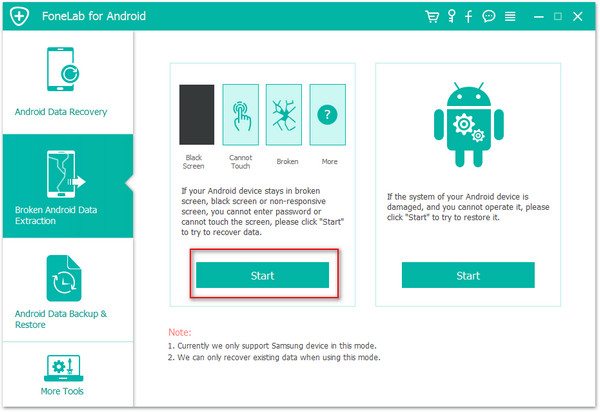
broken android data recovery main page

Step 2.Select Samsung Phone Model
You will be asked to select the device model.Please check on the list of the interface.For Samsung Galaxy S6/S7,you should select ”Galaxy S6/Galaxy S7″,click “Confirm” .
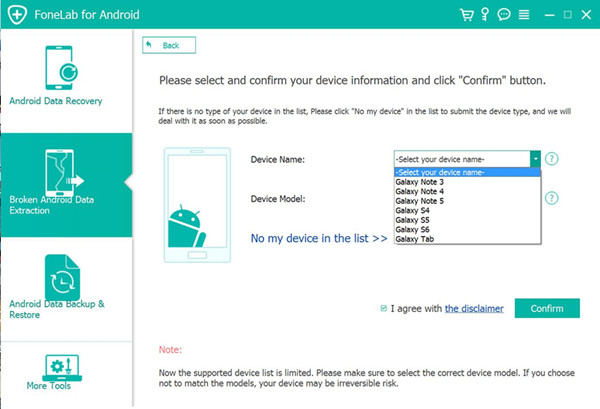
select phone medel

Step 3.Enter Samsung Phone into Download Mode
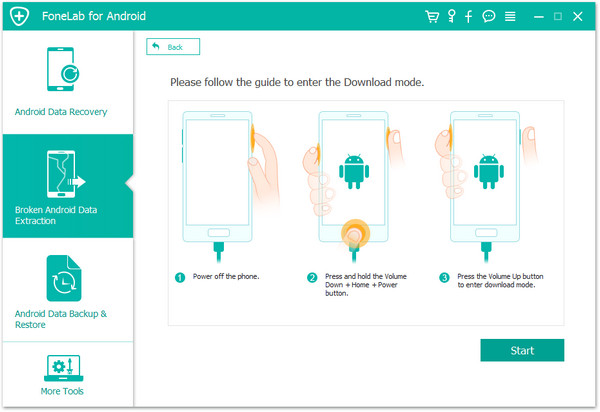
Once you’ve confirmed your device model, you should get Samsung into Download Mode for further steps. Following the steps display on the interface below. After you’ve done all these steps, hit the “Start” button.
enter samsung into download mode

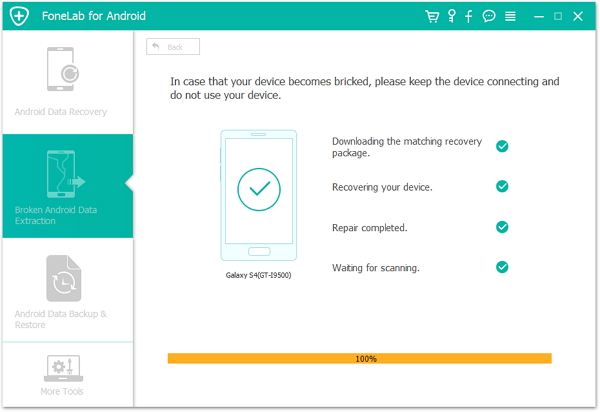
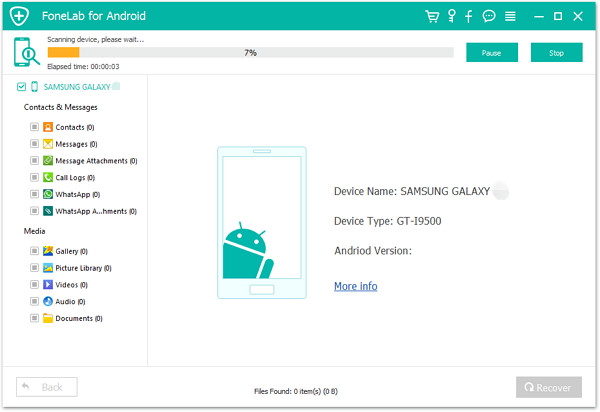
Step 4.Scan and Analyze Data Stored on Samsung
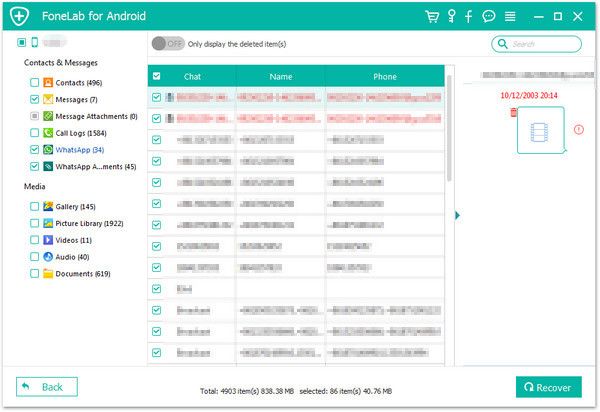
It will take minutes for the program to scan and analyze your Samsung device. You are allow to preview the data from your device, including gallery, contacts, messages, call history, videos and more.
scan samsung data

analyze samsung data

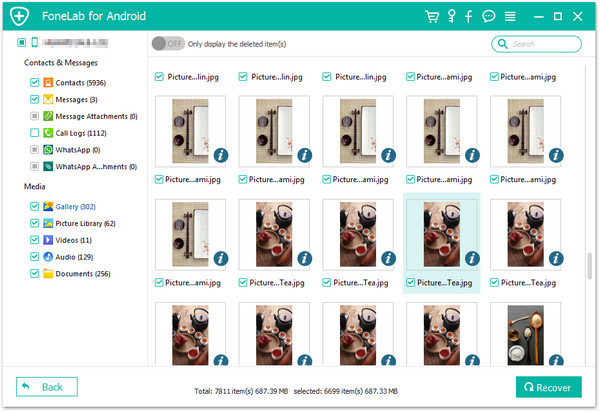
Step 5.Extract Wanted Data from Samsung with Broken Screen
After previewing the files you’d like to extract, mark them and click “Recover” to save them on your computer.
extract data from broken screen samsung

d_win d_mac

Related Article:

How to Recover Data from Samsung Galaxy S6/S7 with Black Screen

How to Recover Photos from Samsung Galaxy S6/S7 with Black Screen

How to Recover Data from Samsung with Broken Screen

How to Recover Contacts from Samsung with Broken Screen

How to Recover Data from Broken Samsung Phone

How to Transfer iPhone SMS to Huawei P10

I switched from iPhone to the new Huawei P10 in order to try Android OS system and replace the iOS system.But which ways to transfer all my SMS from iPhone to the Huawei at once?

Huawei’s high-end series P10, featuring adual-lens camera from Leica, is more than a smartphone for portraits, it’s at the cutting edge of smartphone innovation – that was our impression of the P10 after visiting its production line in Dongguan and test lab in Shenzhen.Maybe you are interested in the newest released Huawei P10.Let’s assume that You have purchased a new Huawei Android phone,in the case,you may need to get the reliable solution to transfer data between iPhone and Huawei Android.

Switch iPhone SMS to Huawei P10

A great helper, Phone Transfer is what I am introducing to you. With the help of Phone Transfer, you are allow to transfer SMS between iPhone and Huawei P10 even though it run different operating system. Not only SMS, but also other types of data can be transferred by program, including contacts, photos, videos, call logs, music, calendars, apps. Phone Transfer enables to switch data between two mobile devices among Android, iOS, and Symbian system.Phone Transfer supports almost all models of mobile phone, such as, Huawei (P10/P9, Mate 9), Samsung (Galaxy S7/S6/S5/S4), HTC, Lenovo, Motorola, LG; iPhone 7,iPhone 6S/6, iPhone 5S/5C/5.

d_win d_mac

How to Copy iPhone SMS to Huawei P10

Step 1. Run Program and Enter “Phone to Phone Transfer” Mode
Run and Install the program on computer. Next, tap “Phone to Phone Transfer” in the home page of program.

phone transfer home page

Step 2. Get iPhone and Huawei Connected and Select File
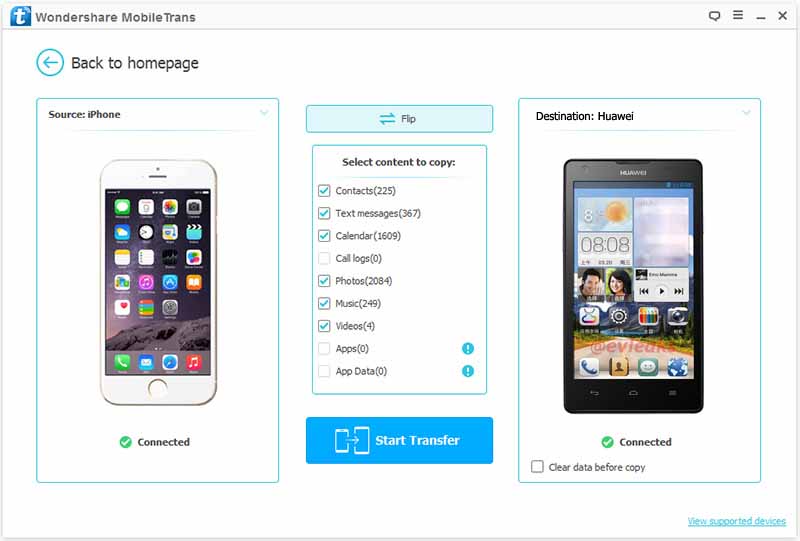
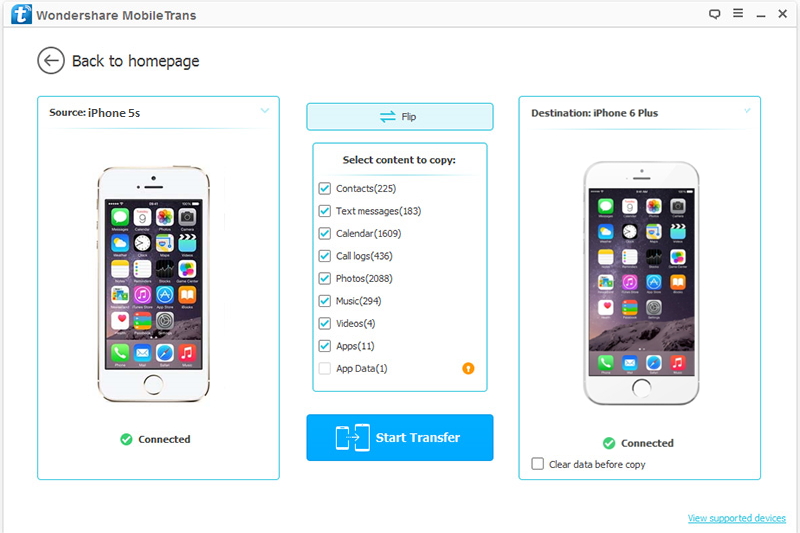
Plug the two phones to the computer with cables. Phone Transfer will detect the two device and show them as “Source” phone and “Destination” phone.

connect iphone and huawei p10 to pc

Tick “Text messages“. As you see, the numbers of the SMS are presented behind the item. And you can also choose the other files if needed. By the way, when you check “Clean data before copy” option, the messages in the “Source” Phone will be deleted.

Step 3. Transfer iPhone SMS to Huawei P10
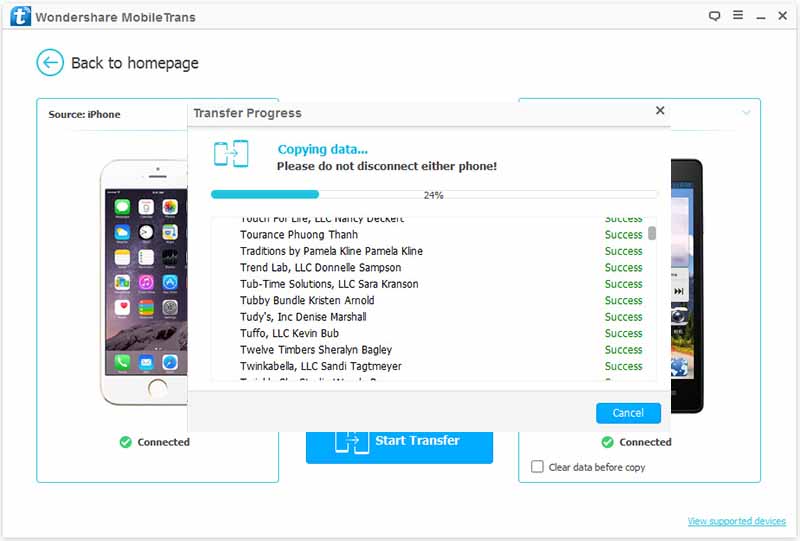
Click “Start Transfer” to begin the transfer process. Finally, press “OK“.

select sms file and transfer to huawei p10

d_win d_mac

Related Article:

How to Transfer iPhone Contacts to Huawei P10

How to Transfer iPhone Data to Huawei P10

How to Transfer Music from iPhone to Huawei P10

How to Transfer Data from Samsung to Huawei Phone

How to Transfer iPhone Data to Huawei P10

I used my iPhone 6 for 3 years.Now I am going to buy the new-arounced Huawei P10 and sell my old phone.How to transfer all the contacts,SMS,photos from iPhone to the new Android with simple way?

We loved Huawei’s P9 ‘Leica phone’ last year. It redefined what photography with a phone could be. Now here’s its successor, the P10. Can it be as revolutionary or is it evolutionary? It has a bit more memory, a bigger, higher-resolution screen and, supposedly, some better optics.If you are choosing the Android phone that for updating your device,you can consider to make a choice on Huawei P10.However,before switched to the new Huawei,you must need to transfer files between your old mobile device and the new Android.Here we will give you a perfect solution to complete the data transfer task among iPhone and Android with simple clicks.

Copy iPhone Data to Huawei P10

Phone Transfer is a powerful mobile transfer tool, which provides a simple effective solution to transfer all your data between iPhone and Android phone. With the help of Phone Transfer, you are allow to directly transfer data from iPhone to Huawei P10. It supports to transfer contacts, SMS, photos, video, music, call history, app and calendars.It won’t leak your personal data, protect your privacy seriously.Additionally, Phone Transfer enables to backup & restore data for mobile device on computer completely.

d_win d_mac

How to Sync iPhone Data to Huawei P10

Step 1.Run Phone Transfer on Computer
Please download the Phone Transfer on your computer. And install and run it. Next, select the function “Phone to Phone Transfer” mode.

phone transfer home page

Step 2. Connect Phones to the Computer
Connect both iPhone and Huawei P10 phones to your computer with the USB. In this process, you need to pay attention to whether the old iPhone is displayed on the left, if not, please click the “Flip” button.

connect iphone and huawei p10 to pc

Step 3. Select File and Begin Data Transfer
By default, all files have been checked. Click the files you need to transfer and then you can click on “Start Transfer” to begin transferring. Then, waiting for the transfer of selected files, this process may take some time. Finally, when the process is completed, click “OK“.

select files and transfer to huawei p10

Note:Please keep the phone connected to the computer in whole process, in order to ensure normal running of the transferred.

d_win d_mac

Related Article:

How to Transfer iPhone Contacts to Huawei P10

How to Transfer iPhone Text Messages to Huawei P10

How to Transfer Music from iPhone to Huawei P10

How to Transfer Data from Samsung to Huawei Phone

Recover WhatsApp from Galaxy S6/S7 with Black Screen

My Samsung Galaxy S6 has a black screen.I need to restore the WhatsApp history from my Samsung.Any software help to extract the WhatsApp from the broken Samsung?

WhatsApp bring lots of convenient to people that we can send messages, photos, videos to others online. Meanwhile, it is a terrible thing if WhatsApp chat history lost from mobile device.It happens to be serious when your smartphone get black screen and you are helpless to get back the personal data from it.More and more Samsung phone users ask how to recover data on black screen Samsung,especially the WhatsApp history.However,all issues have its fix way.This page is going to tell you the best ways to extract/restore WhatsApp history from Samsung with black screen.

Recover WhatsApp from Black Screen Galaxy S6/S7

The useful way to recover WhatsApp history from Samsung Galaxy S6/S7 with black screen is using Broken Android Data Recovery app.This program enables you to recover WhatsApp messages, contacts, text messages, photos, videos, music, call logs, documents and more from Samsung mobile phone for any broken cases.Broken Android Data Recovery allow to extract data from Samsung with several broken circumstances,including black screen, broken screen, stuck in Recovery Mode, stuck on Samsung logo,etc,.Compatible with most Samsung Galaxy devices: such as,Galaxy S6/S7, Note 4/5, A7/A9.

d_win d_mac

Extract WhatsApp from Galaxy S6/S7 with Black Screen

Step 1.Connect Samsung to the Computer
Firstly, download and install the program on your computer. After that,connect your Galaxy phone to the computer, you will see two options to choose in the left pane of interface.Click on the “Broken Android Phone data extraction” mode.Then click on the “Start” button to begin the recovery process.

broken android data recovery main page

Step 2.Choose Samsung Phone Model
In this step, you will be asked to select the device model and only some specific Samsung models are supported. Please check on the list on the interface.For Samsung Galaxy S6/S7,you should select ”Galaxy S6/Galaxy S7″,click “Confirm” to go on.

select phone medel

Step 3.Enter Samsung Phone into Download Mode
Once you’ve confirmed your device model, you should get Samsung into Download Mode for further steps. You can easily get it into Download Mode by following the steps display on the interface below. After you’ve done all these steps, hit the “Start” button.

enter samsung into download mode

Step 4.Analyze, Scan and Preview Files Stored in Samsung
It will take a little time for the program to analyze your Samsung device. Once done, it will take a deep scan of all files stored in the device including WhatsApp history, gallery, contacts, messages, call history, videos and more. You are allow to preview them by clicking on the categories one by one.

scan samsung data

analyze samsung data

Step 5.Extract WhatsApp History from Samsung with Black Screen
After previewing the “WhatsApp” & “WhatsApp Attachments” files you’d like to recover, mark them and click “Recover” to save them on your computer.

extract whatsapp history from samsung black screen

d_win d_mac

Related Article:

How to Recover WhatsApp Data from Broken Samsung Android

How to Recover Data from Samsung Galaxy S6/S7 with Black Screen

How to Recover Data from Broken Samsung Galaxy S6/S7

How to Recover Data from Black Screen Samsung Phone

How to Fix Samsung Galaxy Black Screen of Death

Restore Photos from Samsung Galaxy S6/S7 with Black Screen

My Galaxy S6 phone screen was get black and I can’t do anything on it.I wanna extract the precious photos from this black screen Samsung device.How?Any simple ways suggestions?Thanks a lot.”- Hanson

Have your ever get a Samsung Galaxy S6/S7 phone with black screen and failed to find the reliable way to extract data from the device? Take it easy.This page introduces you an easy and efficent broken Samsung Android data recovery solution – extract/recover data from Samsung Android phone with black screen or other broken Android.Now you can learn the best solutions to effectively access and retrieve your photos, videos, contacts, SMS and other files from Samsung Galaxy S6/S7 with black screen.

Extract Photos from Galaxy S6/S7 with Black Screen

Broken Android Data Recovery is regarded as one of the best programs which is able to extract data from broken Samsung Android with one click.With the help of this program,you are allow to recover photos from Samsung Galaxy S6/S7 with black screen.Also various types of data like contacts, photos, music, videos, WhatsApp history and documents can also be retrieved successfully. The program provides easy 3 steps to recover files on your beoken Android. It deals with many reasons of broken Android data loss like black screen, broken screen, water damaged, etc,.And it works on overall Android phones and tablets, including Samsung (Galaxy S6/S7,Note 4/5), HTC, LG, ZTE, Google Nexus, Motorola, Sony, Huawei, and so on.

d_win d_mac

Restore Photos from Galaxy S6/S7 with Black Screen

Step 1.Connect Samsung Device to PC
Before you get started, download and install the program on your computer. After that, launch it on PC and connect your Samsung to the computer. In the left pane of interface, you will see two options to choose. Just click on the “Broken Android Phone data extraction” mode.Please click on the “Start” button to start the recovery process.

broken android data recovery main page

Step 2.Choose your Samsung Phone Model
After that, you will be asked to select the device model and only some specific Samsung models are supported. Please check on the list on the interface.For Samsung Galaxy S6/S7,you should select ”Galaxy S6/Galaxy S7″,click “Confirm” to go on.

select phone medel

Step 3.Get Samsung Phone into Download Mode
Once you’ve confirmed your device model, you need to put it into Download mode for further steps. You can easily get into Download mode by following the steps display on the interface below. After you’ve done all three steps, hit the “Start” button.

enter samsung into download mode

Step 4.Analyze, Scan and Preview Files Stored in Samsung Device
It will take a few seconds for the program to analyze your Samsung device. Once done, it will take a deep scan of all files stored in the device including gallery, contacts, messages, call history, WhatsApp history, videos and so on. You are able to preview them by clicking on the categories one by one.

scan samsung data

analyze samsung data

Step 5.Restore Photos from Samsung with Black Screen
After previewing the files you’d like to recover, mark them and click “Recover” to save them on your computer.

extract photos from black screen samsung

d_win d_mac

Related Article:

How to Recover Data from Samsung Galaxy S6/S7 with Black Screen

How to Recover Data from Broken Samsung Galaxy S6/S7

How to Recover Photos from Broken Samsung Galaxy S6/S7

How to Recover Data from Black Screen Samsung Phone

How to Fix Samsung Galaxy Black Screen of Death

How to Transfer iPhone SMS to Huawei Mate 9

I recently replaced my old iPhone with Huawei Mate 9.Do you know any easy ways to transfer my text messages from iPhone to the new Android phone?”-Said by Kiko

If you are making a switch from an iPhone to Huawei Android,for example Huawei Mate 9, you will need to transfer the personal data especially the SMS to your new device.You might think of it as a time-consuming task with the traditional way, but it doesn’t have to be.In this article, we are going to explain how to transfer SMS from iPhone to Huawei Android without complicated steps.Follow the steps below to do it easily and efficiently.

Text messaging is still the primary way most people communicate with friends,family,clients or others. Typically when users change phones, it’s like starting the conversations all over again, as text message history can’t be saved on the SIM card.Transferring the text messages between iPhone and Android phone is a bit complex.This guide will show you the best ways to get these messages transferred to your Huawei Android from iPhone.

Directly Transfer iPhone SMS to Huawei Mate 9

Here you have the one-click solution which is provided by Phone Transfer software.The terrific software can enables you copy iPhone SMS to Huawei Android device with only a click.Besides SMS,various of data can be transferred between iPhone and Android,such as,contacts,photos,videos,calendars,music,call logs,apps.Phone Transfer allows to switch data between iPhone and Android,switch data between iPhone and iPhone,switch data between Android and Android.Most of Android phones are applicable to Phone Transfer,including Huawei (Mate 9,P9/P10),Samsung (Galaxy S5/S6/S7,Note 5/6),HTC,Lenovo,Motorola,LG,Sony,etc,.

d_win d_mac

How to Copy iPhone SMS to Huawei Mate 9

Step 1.Run Phone Transfer on PC
Download,install and run this Phone Transfer tool on your PC.

phone transfer main page

Step 2.Select SMS File to Transfer
Connect both your iPhone and Huawei Android phone to the computer via USB cable. (Make sure iPhone listed as “Source” and Android as “Destination”).Select “Text messages” file to transfer from iPhone to Huawei Mate 9.

connect iphone and huawei mate 9 to pc

Step 3.Transfer iPhone SMS to Huawei Mate 9
Then tap on “Start Transfer” to start copying iPhone SMS to Huawei Android phone.

transfer iphone sms to huawei mate 9

You should now have all of your iPhone SMS messages on your Huawei Android device now.

d_win d_mac

Related Article:

How to Transfer iPhone Contacts to Huawei Mate 9

How to Switch Files between iPhone and Huawei Mate 9

How to Transfer Android Data to Huawei Mate 9

How to Transfer Samsung Data to Huawei Mate 9

How to Backup & Restore Huawei Mate 9

How to Transfer iPhone Contacts to Huawei Mate 9

Huawei’s Mate 9, now six months old, has stood the test of time well, continuing to rank among the best big-screened Android phones you can buy. Today the Chinese firm has launched two new Mate 9 colors in its home market — Agate Red and Topaz Blue. It’s not unusual for Huawei to roll out new colors to refresh a product mid-cycle, and the push towards more vibrant hues echoes what we’ve seen from the P10, which has its own broad color palette.

In recent years,China mobile device manufacturers have set up their own mobile phone, we can see Chinese manufacturers such as HUAWEI has created some of the most beautiful Android mobile with a wonderful design and style in the phone market, such as Huawei Mate 9.If you are intend to buy a new Huawei Mate 9, no matter what smartphone you had before,you may search the ways to transfer data between your old devices and the new Huawei.Here is the best solutions our offers for you to switch contacts and other types of data from iPhone to Huawei Mate 9 with easy steps.

Transfer Contacts from iPhone to Huawei Mate 9

It makes the data transfer task become more easier via Phone Transfer,it helps to directly transfer contacts from iPhone to Huawei Mate 9 efficiently and easily.Besides contacts,you are able to transfer more types of data between iPhone and Android phone.The transferable data including contacts,SMS,photos,videos,call logs,music,calendars,apps.Supported Android phones like Huawei (Mate 9,P9/P10),HTC,Samsung(Galaxy S8/S7/S6/S5),Sony,Motorola,Lenovo,Xiaomi,etc,.Moreover,Phone Transfer enables to backup & restore data for mobile device on computer freely.

d_win d_mac

How to Sync Contacts from iPhone to Huawei Mate 9

Step 1.Download and Install Phone Transfer Software
Download the Phone Transfer and run it on your computer,and follow the step-by-step setup guide to complete the data transfer process.Click “Phone to Phone Transfer” mode in the home page of software.

phone transfer main page

Step 2.Connect iPhone and Huawei to the Computer
Now connect the two phones with USB cables and the software will automatically detect the phones.The Huawei Mate 9 should be the destination device on the right while iPhone should be the source device on the left side. You can also exchange the positions by clicking “Flip” button.

connect iphone and huawei mate 9 to pc

Step 3.Select Contacts File and Start Transferring
Now you should select the files that you would like to transfer and finally click “Start Transfer” button to initiate the data transferring task.For contacts transfer,you should tick “Contacts” file.Make sure that you are not going to disconnect any of the phones during the transfer process.

select contacts and transfer to huawei mate 9

Well, transferring data between two mobile devices becomes a very smooth thing With Phone Transfer. You can also backup or restore data for your device on computer completely via Phone Transfer. To be honestly,it is the best tools I have found for data transfer and device management.

d_win d_mac

Related Article:

How to Transfer iPhone Contacts to Huawei Phones

How to Switch Files between iPhone and Huawei Mate 9

How to Transfer Android Data to Huawei Mate 9

How to Transfer Samsung Data to Huawei Mate 9

How to Backup & Restore Huawei Mate 9

How to Restore/Downgrade iOS 11 to iOS 10

Can anyone offer the ways for me to downgrade my iPhone from iOS 11 to iOS 10 without data loss?I’v upgraded my iPhone to iOS 11 once it’s available to download and install,but I found it’s not stable and it always stuck and get into the abnormal state when I was using it.Last night I was try to downgrade the iOS via iTunes but it’s frozen.How to downgrade iOS 11 to iOS 10 on iPhone without iTunes?Please Help!

You may be one of people who meet some iOS 11 problems, and regret installing this operating system on your iPhone/iPad,but don’t get the suitable way to correctly downgrade from iOS 11 to previous iOS on your iPhone or iPad.To downgrade iOS system on your iPhone you need the older IPSW (iPhone) file.However,download IPSW files via iTunes make lead to get your iPhone into stuck issues and even lead to data loss.In order to protect your personal data on iPhone seriously,we are going to show you another better method to downgrade iPhone to iOS 10 from iOS 11.Please keep on reading patiently.

Restore iOS 11 to iOS 10 on iPhone without Data Loss

iOS System Recovery can help you perfectly fix the issue,enables to downgrade iOS 11 to iOS 10 on iPhone without data loss.iOS System Recovery rolls out the feature “Fix iOS to normal” for restoring iPhone system to normal after downgrading iOS 11 to iOS 10,install IPSW file on iPhone for restoring iOS system without losing any data,making it easy for users to restore iPhone to normal under any stuck issues,such as,stuck at white/black screen,stuck on Apple logo,stuck at connect to iTunes screen,etc;help to fix the abnormal issues on iOS device smoothly.

d_win d_mac

How to Downgrade iOS 11 to iOS 10 on iPhone without Data Loss

Step 1.Run Program on Computer and Connect iPhone to the Computer
Download iOS System Recovery and run it on your computer.Using a USB cable connect your iPhone to the computer.Select “Fix iOS System” from its home page.

ios system recovery main page

On the window that appears,click the “Start” button.

connect iphone to the program

Step 2.Download IPSW File for iPhone
A new window will pop up.You can select your device model and download a matched iOS IPSW file for restoring iOS 11 to iOS 10 on your iPhone.Here you should select “iOS 10” IPSW file to download.

select iphone model and ipsw file

Now the program will begin to download the IPSW file on your iPhone.

download ipsw file for iphone

Step 3.Restore iOS 11 to iOS 10 on iPhone without Data Loss
Once the download is complete,iOS System Recovery will continue to restore and downgrade the iOS 11 to iOS 10 on your iPhone without losing any data.

downgrade ios 11 on iphone

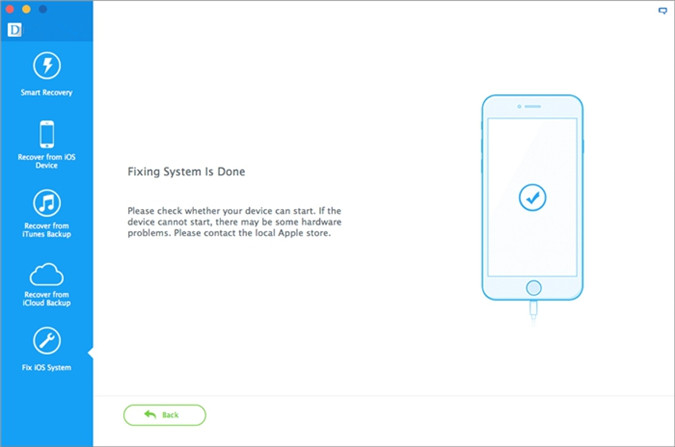
Just a few minutes later, your iPhone will be restore to iOS 10 system completed.Now you can use it freely as usual.

downgrade ios on iphone completed

d_win d_mac

Related Article:

2 Ways to Downgrade iPhone from iOS 10 to iOS 9

How to Downgrade iPhone from iOS 10 to iOS 9 without Data Loss

How to Install IPSW File on iPhone with/without iTunes

How to Download iOS Firmware File for iPhone

How to Recover Lost Data from iPhone after iOS 11 Update

How to Transfer iPhone Photos to iPhone 8

Apple’s 10th anniversary iPhone 8 will continue to be the subject of heavy speculation until its launch, which we think will happen in September, based on previous iPhone launches. It’s Apple’s hallmark product, and one of the best selling phones in the world. The iPhone 8 also represents the company’s chance to bring innovations to a category that it revolutionized a decade ago.

When you get a new iPhone 8,you may need to switch the data between the old device and the new iPhone.When it comes to transfer photos between iPhone and iPhone 8, it’s no doubt that iTunes and iCloud syncing is the most widely mentioned methods. All you need to do is to log in same Apple ID on both of iPhones. But the question is that you have no choice but to transfer the whole Camera Roll photos album, and can’t decide what to share or not. This tutorial is going to show you how to transfer photos from iPhone to iPhone 8 without iTunes or iCloud syncing, we will show you an easy & quick way with great data transfer to move photos between two iPhones.

Directly Transfer iPhone Photos to iPhone 8

To transfer photos between iPhone and iPhone 8,you should rely on Phone Transfer,which is a powerful data manage tool help to switch photos from old iPhone to iPhone 8.Not only photos,but also other types of data are supported to transfer,like contacts,SMS,videos,music,calendar,call logs,apps.Phone Transfer allows to transfer data between iOS devices,transfer data between iOS and Android devices.Phone Transfer works well for almost all iOS devices,including iPhone 8,iPhone 7,iPhone 6S/6,iPhone 5S/5C,etc,.

d_win d_mac

How to Directly Sync iPhone Photos to iPhone 8

Step 1.Launch Phone Transfer on Computer
Download and install Phone Transfer on your computer.Select the option “Phone to Phone Transfer”.

phone transfer main page

Step 2.Connect Devices to the Computer and Select File to Transfer
You will be asked to connect your old iPhone and iPhone 8 to the computer via USB cables.After the connection,both of your two iPhone model will be listed in the interface of program.Please make sure that your old iPhone is displayed in the box on the left as a source device and your iPhone 8 on the right as a destination one.

select file transfer from old iphone to iphone 8

Once both your devices are detected,the program will start scanning the files on your source device.After the scanning,the data stored on old iPhone will be scanned out.You are allow to choose the file types you need to transfer,for photos transfer,you should click “Photos”.

Step 3.Sync Photos from iPhone to iPhone 8
After that,click on “Start Transfer” to sync photos from old iPhone to iPhone 8.

transfer iphone photos to iphone 8

d_win d_mac

Related Article:

How to Transfer iPhone Data to iPhone 8

How to Transfer SMS between iPhone and iPhone 8

How to Transfer Samsung Data to iPhone 8

How to Transfer Android Data to iPhone 8

How to Recover Deleted Photos from iPhone 8

How to Recover Deleted Data from iPhone 8

How to Restore Deleted Contacts from iPhone 8

How to Recover Deleted SMS from iPhone 8


Remove Samsung Phone Locked Screen without Password

Damn it.I forgot the password of my Galaxy S6,are there any available ways to remove the lock screen on my device without password?Thanks advanced.”

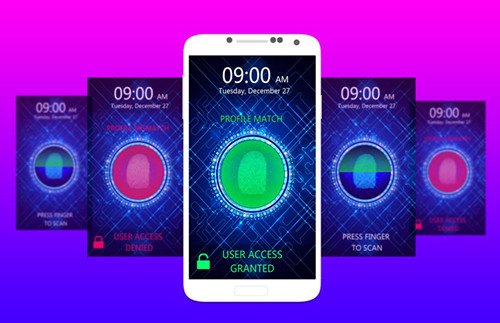
Nowadays,people aware the importance of privacy protection,so most of us set the phone screen lock on Samsung Galaxy S7/S6 phone,to protect our personal data,the contacts,SMS,photos and other,avoid leaking data for anyone.Screen lock, a safe guarantee for all the personal data stored on our mobilephone, includes PIN, patterns, password and fingerprint.However,when you forget the password of Samsung Android device you must be crazy to figure out how to remove the lock screen on your device without hassle.

unlock samsung galaxy lock screen

Remove Samsung Locked Screen without Data Loss

Here I am going to introduce a helpful tool called Android Lock Screen RemovalUnlock (Android),which is known for unlock the screen lock for your Samsung smartphones & tablets without losing any data.With the help of Android Lock Screen Removal,you are allow to remove lock screen on Samsung phone without password in minutes,including password,PIN, patterns, and fingerprint.It’s pretty safe and easy.Android Lock Screen Removal works for Samsung Galaxy S/Note/Tab series,for example,Galaxy S6/S5/S4/Note 5/4/3.

d_win d_mac

Unlock (Android) Key Features

-Remove 4 screen lock types – pattern, PIN, password & fingerprints.
-Remove Android lock screen in 5 minutes.
-Only remove the lock screen, no data loss at all.
-No tech knowledge required, everybody can handle it.
-Work for Samsung Galaxy S/Note/Tab series, and LG G2/G3/G4, etc.

How to Remove Samsung Galaxy Lock Screen without Password

Step 1. Run Android Lock Screen Removal on Computer
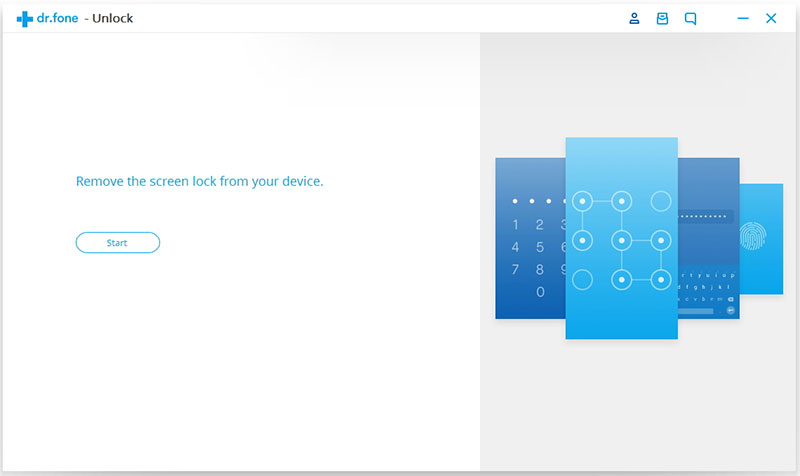
Download,install and run Android Lock Screen Removal program on your computer. Select “More Tools” mode and then “Unlock” option.

android lock screen removal home page

Step 2. Start the Removal Process on Samsung Galaxy S6
Click the “Start” button to start the removal process on your Samsung.

start lock screen removal process

Step 3. Connect Samsung Galaxy to the Computer
Now you should connect your Samsung to the computer using USB cable. Note that the USB debugging mode on your device should be turned on first.

Step 4. Download Recovery Package for Samsung
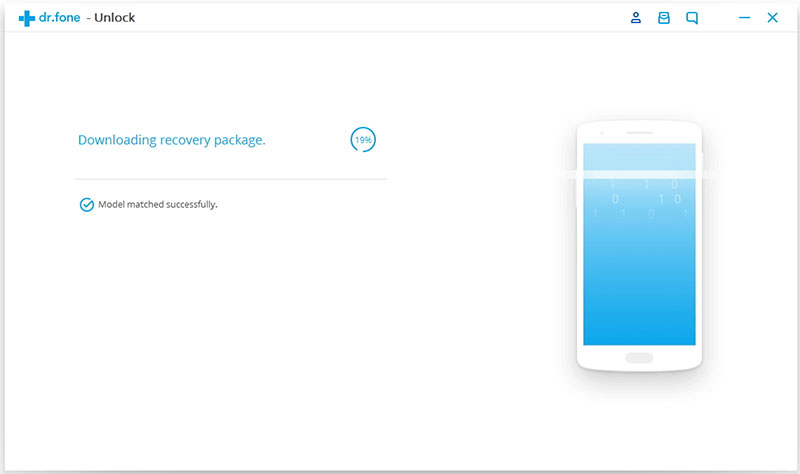
Android Lock Screen Removal will begin to download recovery package for your device and match the phone model after checking the agreements. Then it will begin to restore your device automatically. Please wait until this restoring process is finish.

downloading recovery package for samsung galaxy s6

Step 5. Remove Password on Samsung Completed
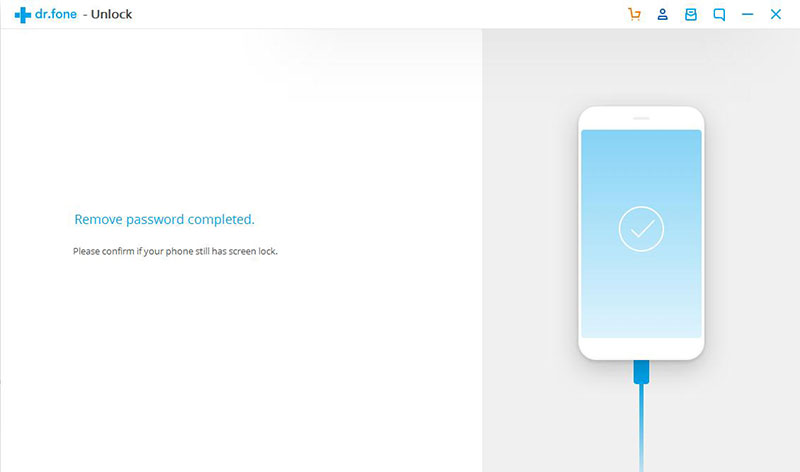
Now Android Lock Screen Removal has unlocked your Samsung without password besides without losing data.Now you can check your device and confirm if your device still has a lock screen password or not.

remove samsung galaxy s6 locke screen

d_win d_mac

Users Reviews

It is really a nice way to use a Samsung Galaxy S6 with damaged screen with an OTG cable with a mouse,I can unlock my Samsung S6 in 5 minutes.Thanks…” — By Anta Chen

This Android unlock tool works on all types of security measures—even fingerprint. I have three mobile phones – iPhone 7, LG G4 and Samsung Galaxy Note 5 with different types of locks and tried on all of them. It can hele me unlock the screen locked easily.” — By Christal

Related Article

How to Unlock Samsung without Password

How to Unlock Android Lock Screen

How to Recover Lost Data from Locked Samsung Phone

How to Recover Data from Samsung Galaxy S8

How to Backup & Restore Samsung Galaxy S8

How to Root Samsung Galaxy S8 without Data Loss

How to Manage Samsung Galaxy S8 on Computer

Bypass Samsung Galaxy Lock Screen