All posts by DHZ

How to Transfer iPhone Photos to Android Phone

Summary: Sharing photos between two devices that running different platforms seems not as so easy. This article focuses on the importance of the techniques and tools you require to transfer the data between iPhone and Android, especially photos transfer.

In the modern life, the cameras pixel of mobile phones requirements for people are getting higher and higher.People prefer to capture memorable life moments for real-time social sharing via smartphone. If you just replaced old iPhone with a brand new Android phone like Samsung Galaxy S8/S7/S6, it’s no doubt that you don’t want to lose your precious photos after you made the switch. Here we will discuss how to transfer iPhone photos to Android phone directly without complicated steps.

Copy iPhone Photos to Android Phone

You can transfer iPhone photos to Android with assistance of Phone Transfer software. It allows you to transfer all photos, videos, music, contacts, SMS, calendars, call logs, apps between iPhone and all popular Android devices efficiently, including Samsung Galaxy S4/S5/S6/S7, HTC One M7/M8/M9, LG G3/G4, Sony Xperia Z2/Z3, etc,. Phone Transfer is used for transferring data between iPhone, Android phone, and Symbian directly and completely.


d_win d_mac

How to Switch iPhone Photos to Android Phone

Step 1.Install the Phone Transfer Program and Run it on the PC
Install Phone Transfer on your computer first. Then open the program and run it on the PC.

phone transfer home page

Step 2.Plug in iPhone and Android with USB Cables
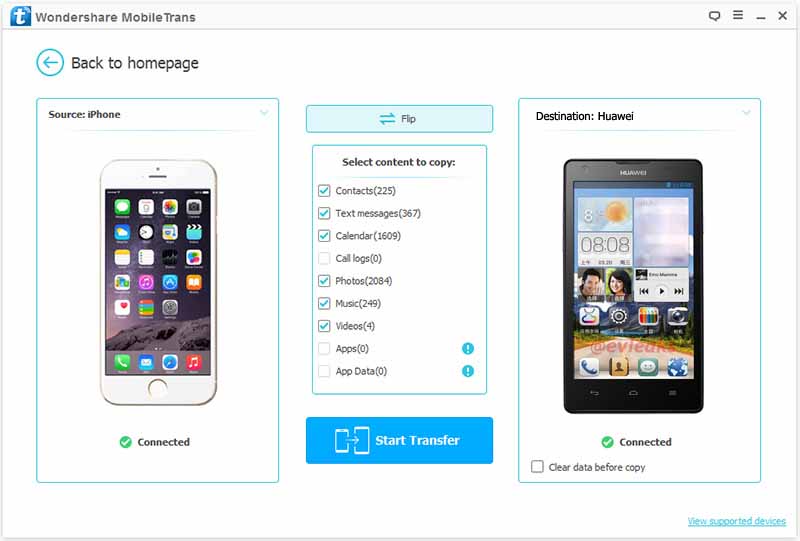
Connect your iPhone as “Source” phone to the program and then your Android phone as “Destination” phone via the USB cables. When the software detects the devices, you can see the main window like this.
connect iphone and android to pc

Note: You are allowed to change the places if you want to transfer data from Android to iPhone by using “Flip” button on the program.

Step 3.Check Photos from iPhone and Move them to Android
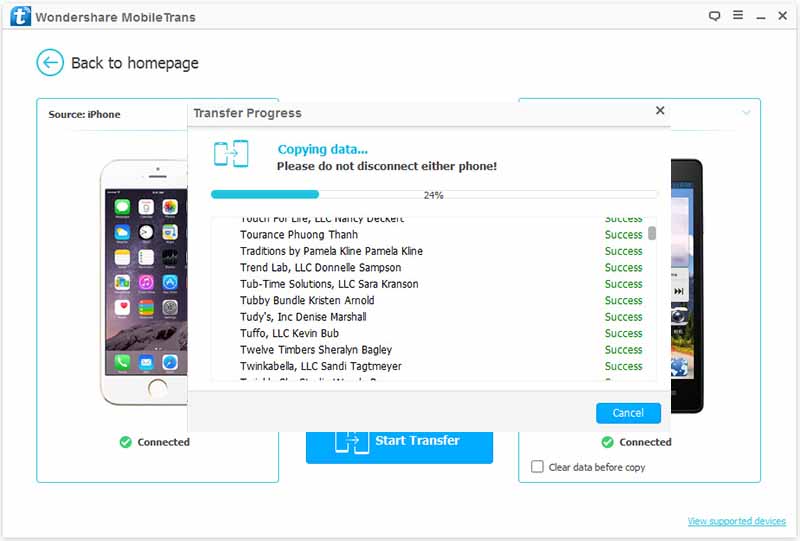
You will be asked to select content to copy from iPhone to Android. Check “Photos” in the option and press “Start Transfer“. It will begin moving data immediately.
select photos file and transfer to android

Note: Don’t disconnect either your iPhone or Android during the transfer process.

After minutes, you will be prompted the transfer process completed.

d_win d_mac

Related Article:

How to Transfer iPhone Data to Android Phone

How to Transfer iPhone Contacts to Android Phone
How to Transfer iPhone Photos to Samsung Galaxy

How to Transfer Photos between iPhone

How to Transfer iPhone Data to Android Phone
I used my iPhone 5 for 3 years, now I am planning to buy a new Huawei Android phone and sell my iPhone. How to switch data between iPhone and Android with simple way?

It used to be a big pain to switch files from one mobile device to another, but it’s now easier than ever to transfer all of your data between iPhone and Android phone. Of course, if you have backed up your iPhone data to computer, you can transfer them to Android via a USB cable quickly. What if you haven’t get a backup of your old device? In this case, we will show you how to transfer data between iPhone and Android directly even though it run different system.

Sync iPhone Data to Android Phone
You can solve this issue with the help of Phone Transfer program, which can totally tackle your thorny problem and cope data including the ones in your iCloud, perfectly help to transfer data between iPhone and Android directly, including contacts, SMS, photos, videos, call logs, music, calendars, apps. Phone Transfer is a simple but effective phone transfer tool to transfer data among iOS, Android, and Symbian system. Additionally, Phone Transfer offers the backup & restore options for backup or restore data for mobile device on computer completely.

d_win d_mac

How to Directly Switch iPhone Data to Android Phone

Step 1.Download and Run Phone Transfer
To get started, install and run Phone Transfer on your computer. Then the main interface window will be pop up, select “Phone to Phone Transfer“, click “Start“.

phone transfer main page

Note: Don’t forget to install iTunes on your computer at the same time.

Step 2.Connect both Two Devices to the computer
Connect both of your iPhone and Android phone to the computer via 2 USB cables. Once both of your phones are detected by Phone Transfer, it will display the two phones at the place of “Source” and “Destination” in the primary window.The iPhone should be on the left as the source device and the Android should be on the right as the receive device.

connect iphone and android to pc

The “Flip” button can be used to exchange the two position by clicking it on the program.

Step 3.Transfer iPhone Data to Android
As you see, the data you can transfer including contacts, text messages, music, photos, videos, calendars, apps, call logs. Select the files and click “Start Transfer” to do the job of data moving from iPhone to Android. Don’t disconnect your phones in the whole process.

transfer iphone data to android

It will take you seconds. Please make sure the phones are connected during the transfer. When the transfer is finishes, click “OK” button.

Wow, well done! You have transferred the data between your Android phone and iPhone now.

d_win d_mac

Related Article:

How to Transfer Contacts from iPhone to Android Phone

How to Transfer iPhone Data to Samsung Galaxy

How to Transfer iPhone Data to New iPhone

How to Transfer Data from Android Phone to iPhone
Fix iPhone Stuck on Connect to iTunes Screen after iOS 11 Update

I need some help. My iPhone stuck on Connect to iTunes screen after iOS 11 update, how to get my iPhone out of this stuck issue?

iphone stuck on itunes logo

Further Reading:

* Free Download Previous Purchases Apple Music from iTunes to Computer

* How to Manage iPhone Files on PC or Mac

Many of iOS users may have met the same troubles, and lots of they have complained that iPhone get the errors with red iTunes logo during 90% done of iOS 11 update. Here are the different circumstances that lead to stuck on Connect to iTunes screen of iPhone.

1. iOS 11/10/9 update. iPhone stuck on Connect to iTunes screen during/after iOS update could easily happen when there is an error while installing the iOS update.
2. Factory settings restore. iPhone may stuck on Connect to iTunes screen during/after factory reset restore when there is an error while performing a regular restore.
3. iOS 11/10/9 Jailbreak. Wrong operation during jailbreak, jailbreak failure or even the correct steps of jailbreak may get your iPhone stuck on Connect to iTunes screen.
4. Some unknown reasons. Sometimes when you are using iPhone, it would suddenly stuck on Connect to iTunes screen with unknown reasons.

No matter what causes lead to iPhone get into the stuck loop, In this article, we will share with you various ways to fix these stuck problems and have your iPhone working normally again.

Restore iPhone Stuck on iTunes Logo after iOS 11 Update

iOS System Recovery can be useful in fixing all iOS system issues. It can help you fix iPhone stuck on Connect to iTunes screen after iOS 11 update, return iPhone to normal state. iOS System Recovery is design for restore iPhone to normal for any stuck issues under different situations without data loss. Such as, stuck on the black/white screen, stuck in Recovery Mode, stuck on Apple logo, etc,. It works perfectly with the latest iOS 11/10/9. Supported iOS devices insist of iPhone 7, iPhone 6S/6,iPhone 5S/5C/5, iPad Pro, iPad Mini, iPad 4/3/2.

d_win d_mac

Repair iPhone Stuck at iTunes Logo Screen after iOS 11 Update

Step 1.Run Program and Connect iPhone
Run the iOS System Recovery on your computer and connect iPhone to the compute.

ios system recovery main page

The program will automatically identify your iPhone. Click “Fix iOS System” option of program. After that you need to click “Start” to proceed.

connect iphone to the program

Step 2.Initiate Downloading of Firmware
To fix your iPhone stuck on Connect to iTunes screen, iOS System Recovery will install the latest iOS version on your iPhone. The program identifies your device and provides you the latest and compatible version of iOS required for your phone. All you have to do is press “Download” after the firmware is offered.

select iphone model

The firmware will take some time to be downloaded so you have to be patient.

download firmware for iphone

Step 3.Restore iPhone System to Normal
After the firmware is downloaded, iOS System Recovery will start running the repair process to make your iPhone working again.

fix iphone stuck on connect to itunes screen ios 11 update

You iPhone will be booted after repairing to make it functional. You can now use your iPhone as usual without any data loss.

restore iphone system to normal completed

d_win d_mac

Related Article:

How to Fix iPhone Stuck in Recovery Mode after iOS 11 Update

How to Fix iPhone Stuck on Apple Logo after iOS 11 Update

How to Fix iPhone Stuck in Reboot Loop

How to Enter & Exit iPhone Recovery Mode

How to Restore iPhone System to Normal after iOS 10 Update

How to Restore iPhone System to Normal

How to Recover Lost iPhone Data after iOS 11 Update

How to Extract Photos from Cracked Samsung Galaxy S6/S7

The screen of my Samsung Galaxy S6 is cracked after dropping on the floor. I just decide to buy a new phone. However, I want to extract the photos from the broken device and save it on my computer. How?

It is frustrated when your phone is cracked, touch screen can not be used or unable to enter the system. But it happens to mobile users now and then. To replace a completely new phone when your old phone is cracked may be one of the choice that some users would pick up. Before giving up your broken device, you should extract the data from it. How to access your cracked phone and extract files from it? Keeping phone data complete is important once your phone broken, and Android Data Recovery provides an excellent way to extract data from your broken Samsung device.

Extract Photos from Cracked Samsung Galaxy

Here we recommend you Broken Android Data Recovery software, it can help you rescue your files from most Samsung devices with any broken cases easily. You can rely on Broken Android Data Recovery to extract photos from cracked Samsung Galaxy S6/S7 with simple clicks. Besides photos, this program supports to restore various of data from broken device, including contacts, SMS, call logs, videos, apps data. Broken Android Data Recovery enables to extract files from Samsung Android device for any broken situations, such as, cracked, broken screen, black/white screen, water damaged, etc,. Almost all Samsung devices are compatible with Android Data Recovery, for instance, Galaxy S6/S7, Note 3/4/5.

d_win d_mac

How to Extract Photos from Cracked Samsung Galaxy

Step 1.Connect Samsung to the Computer
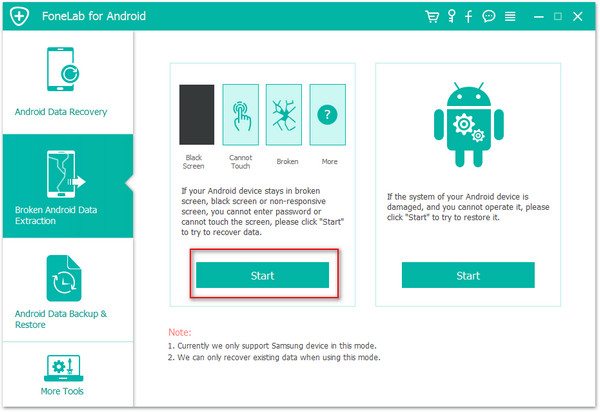
Firstly, please download and run the program on your computer. After that, connect your Galaxy phone to the computer,  click on the “Broken Android Phone data extraction” option.Then click on the “Start” button to begin the data extract process.

broken android data recovery main page

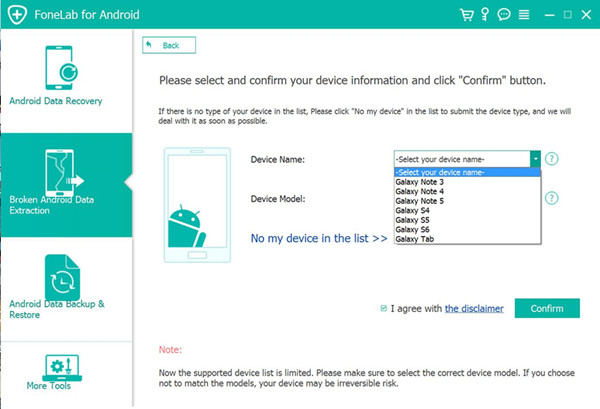
Step 2.Select Samsung Phone Model
You will be asked to select the device model. Please check on the list of the interface. For Samsung Galaxy S6/S7, you should select ”Galaxy S6/Galaxy S7″, click “Confirm” .

select phone medel

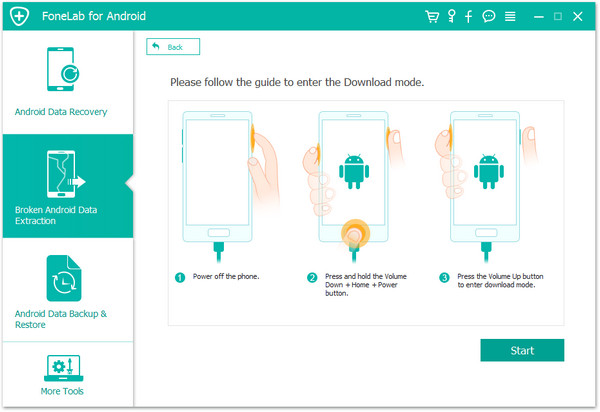
Step 3.Get Samsung Phone into Download Mode

Once you’ve confirmed your device model, you should get Samsung into Download Mode. Following the steps display on the interface below. Hit the “Start” button.

enter samsung into download mode

Step 4.Scan and Analyze Data from Samsung
Now the program will take minutes to scan and analyze data on your Samsung device. You are allow to preview the data from your device, including gallery, contacts, messages, call history, videos and more.

scan samsung data

analyze samsung data

Step 5.Extract Photos from Cracked Samsung
After previewing the files you’d like to extract under the “Gallery” file, mark them and click “Recover” to save them on your computer.

extract photos from cracked samsung

d_win d_mac

Related Article:

How to Extract Data from Galaxy S6/S7 with Broken Screen

How to Extract Data from Samsung Galaxy S6/S7 with Black Screen

How to Extract Photos from Samsung Galaxy S6/S7 with Black Screen

How to Extract Data from Samsung with Broken Screen


How to Restore Deleted WeChat Photos/Videos from iPhone 7/6S/6

I have been using WeChat for years, it is convenient to chat and share media files with friends. It is terrible that I deleted some photos and videos accidentally last night. Any ways can help to restore the deleted WeChat data? They are really important for me. Thanks.

WeChat is one of the most popular apps that people like to communicate with others. WeChat make people who are not together but contacts each other frequently. You can not only send messages but also videos and photos. It’s so important to backup the WeChat data from your device. However, the accident always happen when you are not ready. It’s frustrated that deleted WeChat data from iPhone carelessly. Now, I am going to introduce a very effective and simple way to restore deleted WeChat photos from iPhone directly. Please continue to read.

Recover Deleted WeChat Data from iPhone

Here the iPhone Data Recovery comes for you, it’s a pretty good data recovery for restoring data from iPhone with three recovery modes: directly recover from device, recover from iTunes backup, recover from iCloud backup. iPhone Data Recovery enables to restore deleted WeChat photos and videos from iPhone 7/6S/6, as well as the WeChat messages and attachments. Besides, this powerful data recovery supports to recover several deleted files on iPhone under any data loss circumstances, including contacts, SMS, photos, videos, audio, notes, calendars, call logs, apps data and so on.

d_win d_mac

Directly Retrieve Deleted WeChat Photos/Videos from iPhone

Step 1.Run Software and Select Recovery Mode
Begin by installing the software on your computer. Launch it and from the main window, select “Recover from iOS Device”. Connect iPhone to the computer using USB cables then the software will detect the device, click “Start” to begin the data recovery process.

connect iphone with computer

Step 2.Select WeChat File to Scan
Choose “WeChat” from the list of data types. Click “Next” to continue.

select file to recover

Then the software will begin to scan data on your iPhone, including the deleted data and the existent one.

scan iphone and search deleted data

Step 3.Preview and Restore Deleted WeChat Photos/Videos from iPhone
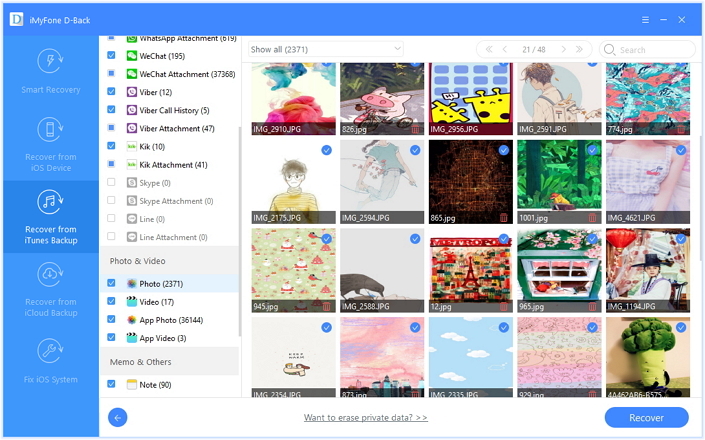
Once the scanning process is complete, select the WeChat photos or videos you want to recover under “WeChat” & “WeChat Attachments” file and then click “Recover” to restore the selected WeChat data on your computer.

recover wechat photos and videos from iphone

Select a location on your computer to save the recovered data and you’re done.

d_win d_mac

Related Article:

How to Recover Deleted WeChat History from iPhone 7/6S/6

How to Recover Deleted App Files from iPhone 7/6S/6

How to Recover Deleted Photos/Videos from iPhone 7/6S/6

How to Recover Deleted iPhone Data after iOS 10.3 Update

How to Bypass LG Lock Screen When Forgot Password

[Summary]: Looking for an Android lock screen removal(Android Unlock tool) to bypass LG lock screen without reset? This tutorial is about how to use Android Toolkit – Unlock Android to unlock LG phone’s PIN, password, pattern, fingerprint without data loss.

I forgot the lock screen password of my LG V20 phone, now I am desire to remove the lock screen on my Android device, any good recommendations?

If you forgot the pattern, PIN, or password that locks your Android device, you might think you’re out of luck and are eager to bypass the lock screen without lock screen. LG phone is one of the popular Android device around the world. There might come a situation when you have secured your LG phone with a screen lock and if unfortunately, you forget the password of the lock screen and couldn’t unlock your phone without password you should be hopeful of this article. Here, we will provide you with 2 simple step by step guides to bypass the lock screen of LG phone without password and it wouldn’t lead to any data loss.

Part 1:Unlock LG Lock Screen by Using the “Forgot Pattern” Feature

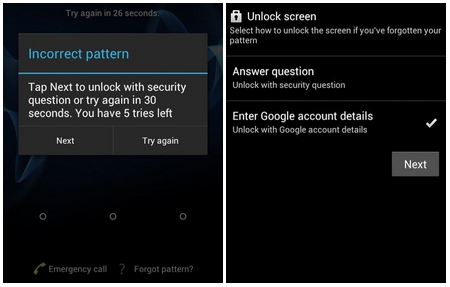
If your device is running Android 4.4 or lower, try using the “Forgot Pattern” feature. After 5 failed unlock attempts, you’ll see a message that says “Try again in 30 seconds” While this message is showing, tap the button at the bottom of the screen that says “Forgot Pattern”.

5 failed unlock attempts

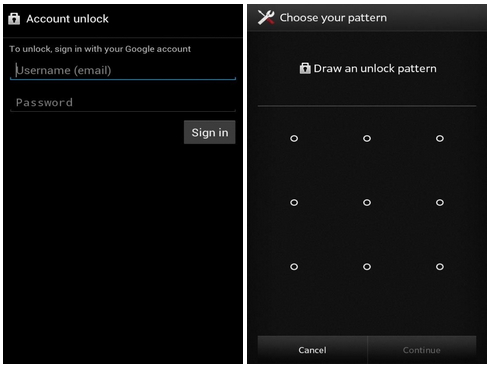
From here, choose “Enter Google account details” (depending on your device, you may go directly to this option), then enter your primary Gmail account and password. Google will either send you an email with your unlock pattern, or you can change it freely.

setting new password

Part 2:Bypass LG Lock Screen via Android Lock Screen Removal

Android Lock Screen Removal is introduced to remove lock screen on your phone simply and efficiently, with this powerful removal, you are allowed to bypass LG lock screen without data loss. Android Lock Screen Removal supports to removal lock screen on Android with 4 screen lock types – pattern, PIN, password & fingerprints. 1000+ phones supported, such as, LG V20, G2/G3/G4/G5; Samsung Galaxy S/Note/Tab series, etc,.

d_win d_mac
d_win d_mac

Step 1.Run Software and Select Mode
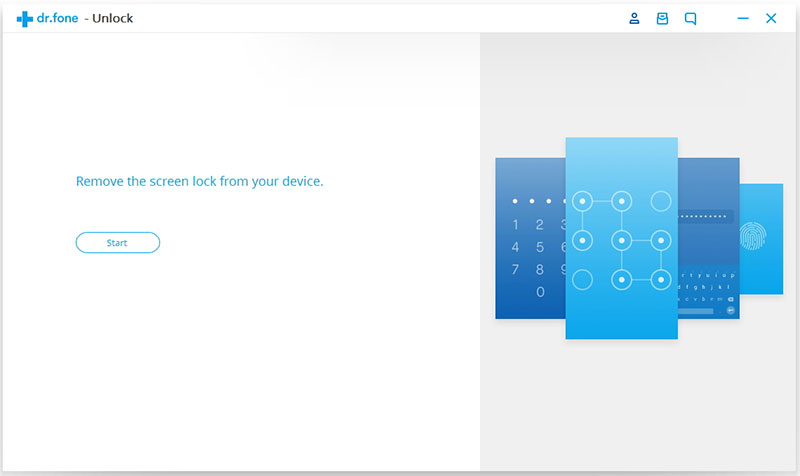
Launch Android Lock Screen Removal on your computer. Go to “More Tools” on the left column and select “Unlock – Remove your phone’s lock screen” option.

android toolkit main page

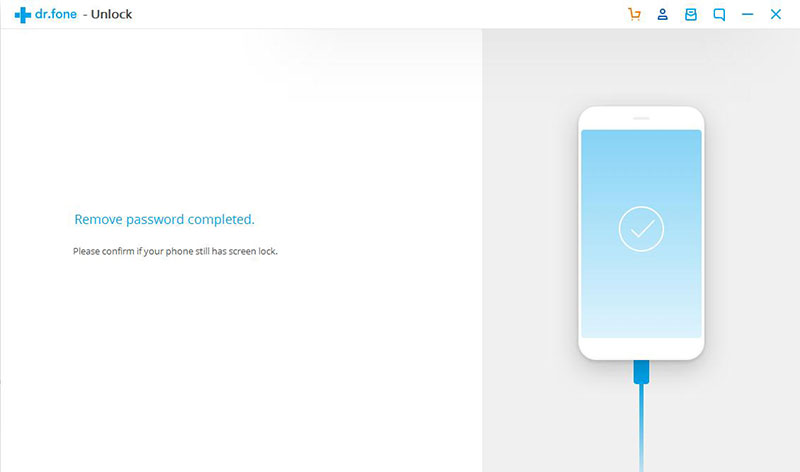
You can remove any kinds of password, simply connect your device and click “Start”.

select mode

Step 2.Enter LG Phone into Download Mode
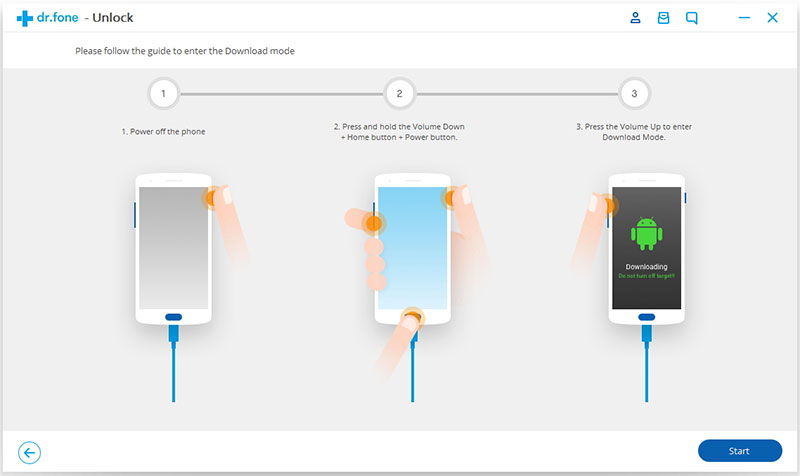
Get into download mode on your LG phone. To start download mode follow the instructions below:

a)Switch off your phone completely.
b)Press volume down + power button at the same time and hold.
c)Press the volume up button when you see the android logo to enter the download mode.

enter download mode lock lg

Step 3.Download Recovery Package for LG Phone
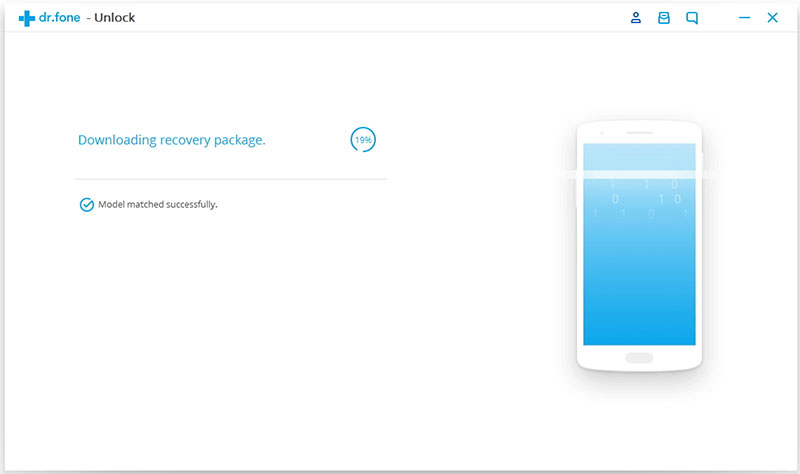
As soon as your phone is on download mode, it will start downloading the recovery package for it. Wait for it to complete the download.

downloading recovery package for lg

Step 4.Removal Lock Screen on LG without Data Loss
After the recovery package is successfully downloaded, the Android lock screen removal begins. The process is completely safe and will not hurt your data. You can access your device without password once the screen removal is finished.

remove lg lock screen

d_win d_mac
d_win d_mac

Related Article

How to Unlock Android Lock Screen

Forget Android SIM Card Lock PIN and How to Remove it

How to Unlock Samsung without Password

How to Recover Deleted Data from LG Phone

How to Recover Data from Water Damaged LG Phone

How to Backup and Restore LG Phone

Bypass LG Lock Screen

Restore Deleted iPhone Data after iOS 10.3 Jailbreak

Hi. I need some help. My iPhone data was gone after I jailbreaked iOS 10.3 on it. Any ways to restore the deleted data from iPhone after iOS jailbreak?

The iOS 10.3.2 update for iPhone, iPad and iPod touch is now the newest version of iOS 10. The company’s latest version of iOS 10 isn’t a big milestone upgrade but, iOS 10.3.2 is still a very important release thanks to the bug fixes and security patches on board. The iOS 10.3.2 could have a positive impact on your device’s performance. It could also cause problems if you aren’t careful. As we know, the new iOS system is unstable, it may lead to data loss after iOS jailbreak and iOS update. Are you looking for ways to restore deleted iPhone data after iOS jailbreak? Here is your ideal solution help to fix the issue.

Recover Deleted iPhone Data after iOS 10.3 Jailbreak

iOS Data Recovery, a trustworthy program that allows you to preview and recover data from iPhone after iOS 10.3 jailbreak (iOS 10.2/iOS 10), including contacts, SMS, photos, videos, notes, calendars, apps and more. All of this only requires a few steps and will allow you to preview data before recovery. iOS Data Recovery enables to restore deleted iPhone data for any data loss cases, such as, iOS jailbreak, iOS update, deleted accidentally, etc,. iOS Data Recovery offer three recovery modes for you: directly recover from device, recover from iTunes backup, recover from iCloud backup.

d_win d_mac

Part 1:Directly Recover Deleted Data from iPhone after iOS 10.3 Jailbreak

Step 1.Launch iOS Data Recovery and Connect iPhone
Downloaded iOS Data Recovery on your computer,launch it.Then,connect iPhone to your PC with the USB cable.

connect iphone to the pc

Step 2.Select Files to Scan from iPone Devices Directly
Now you can select the files types to let the program scanning, such as “Contacts”, ”Photos”, ”Call history”, etc,. (Here including both the deleted data and existing data).Then tap on “Next”.

select file to recover

Click “Scan” to search for your deleted data,then the program begins scanning your device automatically for deleted data.

scan iphone and search selected data

Step 3.Preview and Recover Deleted Data from iPhone after iOS Jailbreak
Now you can choose the detail data you want to recover after previewing that,mark you want click “Recover” button on the lower right corner of the interface.Then select to save the recovered data to the computer.

recover deleted iphone data after ios jailbreak

d_win d_mac

Part 2:Recover Deleted iPhone Data with iTunes Backup after iOS 10.3 Jailbreak

Step 1.Choose the iTunes Backup File and Scan
If you have done iTunes backup before,you will see the backup files listed once you launch iOS Data Recovery and then click the second mode”Recover from iTunes Backup”. Connect iPhone to the PC.Choose the backup file you want and click “Scan”.

select itunes recovery mode

Step 2.Preview and Restore Deleted iPhone Data from iTunes Backup
It will be taken to scan your iTunes backup files. And you are allowed to preview all the content in backup file.Choose the files you want and click “Recover” to motivate the recovery. Then save the selected data to the computer.

restore iphone data from itunes backup

Note:Once your data being lost, remember not to do any backup or sync job.

d_win d_mac

Related Article:

How to Recover Deleted iPhone Data after iOS 10.3 Update

How to Recover Deleted Photos from iPhone after 10.3 Update

How to Recover Deleted Contacts on iPhone after iOS 10.3 Update

How to Recover Deleted iPhone Text Messages after iOS 10.3 Update

How to Restore Deleted Call Logs from iPhone 8/7/6S/6

I deleted some important call logs on my iPhone 7, I forget to save the phone numbers, that related to my work. How to restore the deleted call history from my device?

Everyday we will make many calls including the incoming calls, outgoing calls and missed calls on our mobile device. Not all calls are useless for us, some are meaning a lot. However, it sounds depressed that lost important phone calls record. There are lots of causes will lead to lost call history from iPhone, accidental manual deletion, a failed iOS update, an unsuccessful iPhone backup, iPhone broken, or more. When you accidentally lost the call history on your iPhone, how to restore the deleted data? This tutorial shows you the best ways to recover deleted call logs from iPhone 7/6S/6 even the newest released iPhone 8 with easy steps.

Recover Deleted Call Logs from iPhone 8/7/6S/6

iPhone Data Recovery is a powerful software designed for recovering deleted call logs on iPhone 8/7/6S/6, and other types of data are supported, including contacts, SMS, photos, notes, calendars, apps data,etc,. iPhone Data Recovery enables to recover deleted data on iPhone lost due to any causes, such as, deleted mistaken, iOS update, iOS jailbreak, factory reset restore. iPhone Data Recovery provides three recovery modes to you: directly recover from device, recover from iTunes backup, recover from iCloud backup. More importantly, iPhone Data Recovery allows to preview data before recovery.

d_win d_mac

How to Directly Restore Deleted Call Logs from iPhone

1.Run Software and Select Recovery Mode
Launch the program after downloading the installation software. From the main interface, select “Recover from iOS Device” tab. Proceed by clicking the “Start” button.

connect iphone with computer

2.Select Call Logs File to Scan
In the next window, select “Call History”. Before clicking “Next” button, connect the phone to the computer.

select file to recover

3.Scan iPhone Data
Once the program detects the phone, press the “Scan” button to begin scanning.

scan iphone and search deleted data

4.Preview and Restore Deleted Call Logs from iPhone
The recoverable “Call History” is available in the interface after scanning is complete. You can mark the necessary files, or check deleted files by selecting “Show only deleted files” option. Press the “Recover” button to recover selected call logs from iPhone.

recover deleted call logs from iphone

A dialogue box will appear asking you to select a folder to save the recovered files. Choose the folder and allow the application to complete the process.

d_win d_mac

Related Article:

How to Recover Deleted Call History on iPhone

How to Recover Deleted Data from iPhone 7/6S/6

How to Recover Lost Data on iPhone 7/6S/6

How to Recover Deleted Photos from iPhone 7/6S/6

How to Recover Deleted Data from iPhone 7/6S/6 after iOS 10 Update

How to Backup and Restore Data from iPhone 7/6S/6

How to Recover Deleted App Files from iPhone 7/6S/6

Last night I accidentally deleted some application photos and videos from my iPhone 7. However, I need the recordings with lost photos and videos.Could you please let me know if there are any software to recover app data from my device?

Many iPhone users like installing different kinds of apps on the iPhone and some frequently used apps (like Instagram, Line, Twitter, Kindle and other game apps) mean a lot to them, especially the app photos and app videos. When you lost the app data due to deleted mistaken, iOS update, iOS jailbreak, factory reset restore and more, you must wonder that how to get back the deleted apps files from device. To be honest, there is no ways to restore deleted apps data unless you get help of some professional software. For such troublesome cases, a powerful and easy-to-use iOS data extractor like iPhone Data Recovery is needed to solve your problems.

Restore Deleted App Files from iPhone

iPhone Data Recovery is an efficient data recovery software for iPhone to rescue all your lost data under various data loss circumstances, such as, deleted mistaken, iOS update, iOS jailbreak, factory reset restore. With iPhone Data Recovery, you are allow to restore deleted app files from iPhone no matter have backup or not. iPhone Data Recovery supports 22+ different file formats for recovery on all iOS devices, like apps data, contacts, SMS, photos, calendars, notes, call logs, etc,. iPhone Data Recovery allows you to preview both media files and texts in detail so that you can simply and exactly select the data you want to recover.

d_win d_mac

How to Directly Recover Deleted App Files from iPhone

Step 1.Run Software and Select Recovery Mode
You should install this data recovery program on your computer, then run it and connect your iPhone to the computer.

After connecting, the program will display detailed information of your iPhone in the interface. Select “Recover from iOS Device” and then click “Start” button.

connect iphone with computer

Step 2.Select the File to Recover
Now you should click the file name to scan by program, for app files recovery, just click “App Photo” & “App Video“.

select file to recover

It will take a few minutes to finish the files scanning.

scan iphone for deleted data

Step 3.Preview and Recover Deleted App Files from iPhone
After the scanning, it will list all files found on your iPhone. Preview files under “App Photo” & “App Video” category, pick on items you need to recover and click “Recover” button to get them back.

directly recover deleted app files from iphone

d_win d_mac

Related Article:

How to Recover Deleted Data from iPhone 7/6S/6

How to Restore Deleted WeChat History from iPhone 7/6S/6

How to Restore Deleted Skype History from iPhone 7/6S/6

How to Recover Deleted Kik Chat History on iPhone 7/6S/6

How to Recover Snapchat Photos from iPhone 7/6S/6

How to Recover Snapchat Photos from iPhone 7/6S/6

My little brother deleted some Snapchat photos on my iPhone 7.Are there any ways to restore the deleted data from my device?

Snapchat is an interested apps that allows users to send photos and video with a self-erasing feature.When you share an photo or video with others on Snapchat, you can set a last time among 1 second to 10 seconds.If you don’t save them in the chat screen, it will be removed permanently. How to save Snapchat photos before it disappear from the chat screen forever? If they are unfortunately erased after saving, how can you restore the deleted Snapchat photos? Read the passages following to know how to recover deleted Snapchat photos from iPhone.

Retrieve Deleted Snapchat Photos from iPhone

iPhone Data Recovery is strongly recommended for you, to restore deleted Snapchat photos from iPhone. Not only apps data, iPhone Data Recovery allows to recover various of deleted data on iPhone with three recovery modes: directly recover from iPhone, recover from iTunes backup, recover from iCloud backup. iPhone Data Recovery enables to restore iPhone data for any data loss cases, such as, deleted mistaken, iOS update, iOS jailbreak, restore to factory reset, and so on. Supported iPhone models insist of, iPhone 7, iPhone 6S/6, iPhone 5S/5C/5.

d_win d_mac

How to Restore Deleted Snapchat Photos from iPhone

Step 1.Run Software and Select Recovery Mode
Run iPhone Data Recovery on computer and plug iPhone into computer with USB cable, and select the first recovery mode, “Recover from iOS Device” to scan your iPhone.

connect iphone with computer

Step 2.Select the File to Scan
Click “App Photos” to find Snapchat photos, to view all Snapchat photos that are deleted automatically (include sent Snapchat photos), then click “Next”.

select file to recover

Now the software will start to scan data on your iPhone.After the scanning, you will find all iPhone data.

scan iphone for deleted data

Step 3.Preview and Recover Deleted Snapchat Photos from iPhone
Select the Snapchat photos you want to recover with this iPhone Data Recovery, click “Recover” to save the iPhone Snapchat photos to your computer.

directly recover deleted snapchat photos from iphone

d_win d_mac

Related Article:

How to Recover Deleted Data from iPhone 7/6S/6

How to Restore Deleted WeChat History from iPhone 7/6S/6

How to Restore Deleted Skype History from iPhone 7/6S/6

How to Recover Deleted Kik Chat History on iPhone 7/6S/6