All posts by DHZ

How to Restore Deleted Notes from iPhone after iOS 11 Update

Summary: iPhone Notes Disappeared After iOS 11 Update? This guide will show you 3 different ways to get them back whether you have a backup or not.

I try to perform the iOS 11 update on my iPhone but unfortunately it failed. The worse is that the notes were disappeared. Is it possible to restore the deleted notes from iPhone after iOS 11 update?

What will you make notes on your iPhone? Work schedule? Travel plan? Shopping list? Life Diary? For me, I always make notes on my iPhone anywhere anytime. It’s convenient and remind me doing the things. iPhone note app provides you a simple way to mark the things for users, it’s a pity to lost notes data from iPhone after iOS update. Perhaps you just found your iPhone notes disappeared. Luckily, this page offers a practical way to recover deleted notes on iPhone no matter you have a backup or not.

Recover Deleted Notes on iPhone after iOS 11 Update

iPhone Data Recovery makes iPhone Notes recovery possible. It provides the best solutions to recover deleted notes on iPhone with or without backup for three recovery modes: directly recover from device, recover from iTunes backup, recover from iCloud backup. It also enables you to retrieve deleted contacts, text messages, photos, videos, call logs, calendars, WhatsApp history, apps data, etc,. iPhone Data Recovery allows to restore deleted iPhone data under any data loss circumstances, including iOS update, iOS jailbreak, deleted accidentally, factory reset restore, and so on.


d_win d_mac

Part 1: Directly Recover Deleted Notes from iPhone after iOS 11 Update

Step 1. Run Program and Connect iPhone to the Computer
After running the iPhone Data Recovery on your computer, then connecting your iPhone to the computer via USB cable, and select “Recover from iOS Device“. Click “Start” to continue.

connect iphone to the computer

Step 2. Select Note File to Scan
If you just want to get back the deleted notes from your iPhone after iOS 11 update, please choose the file type “Note” under “Memo & others” and click “Next” to go on.

select file to recover

Step 3.  Access iPhone and Scan the Deleted Notes
Click “Scan” to begin scanning data on your device. Now the program will scan you iPhone for all missing notes.

scan iphone and search deleted data

Step 4.  Preview and Restore Deleted Notes from iPhone
When scanning is over, enable the button “Only show the deleted”, just click “Note” item to preview and select the data you want to get back and click “Recover” button to restore the selected notes from your iPhone directly. Finally, the notes will be saved on the computer.
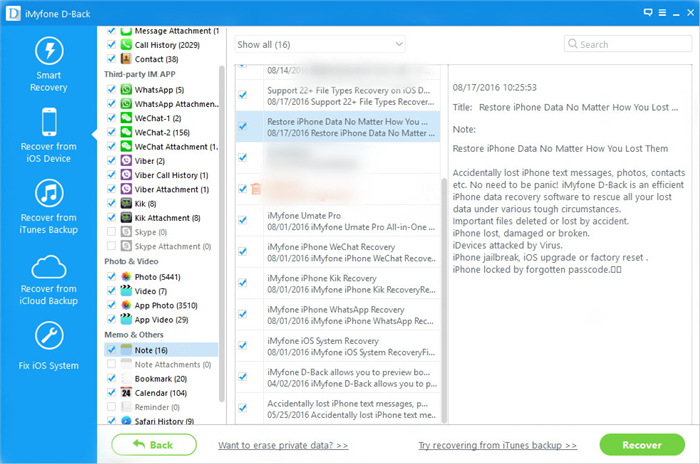
recover deleted notes from iphone

d_win d_mac

Part 2: Recover Deleted iPhone Notes after iOS 11 Update via iTunes Backup

Step 1. Run Program and Select iTunes Recovery Mode
After running the iPhone Data Recovery on the computer, then select “Recover from iTunes Backup” and click “Start” to continue.
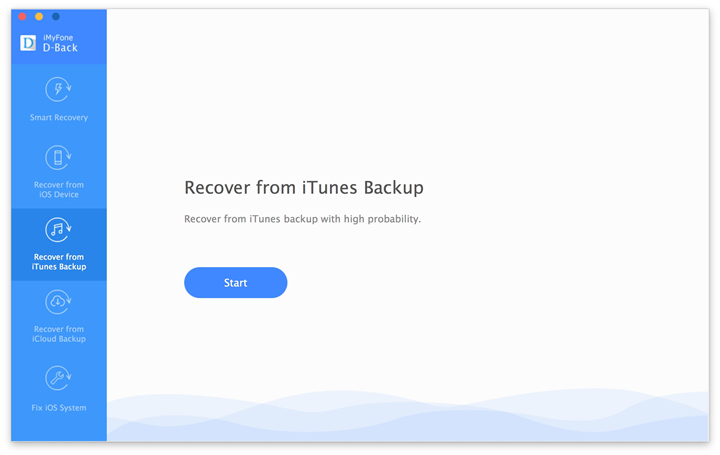
itunes data recovery main page

Step 2. Select Note File to Recover
You will see the program can help you recover all kinds of data from the iTunes backup file, if you just want to get back notes after iOS 11 update, please select “Note” item under “Memo & others” and click “Next” to go on.
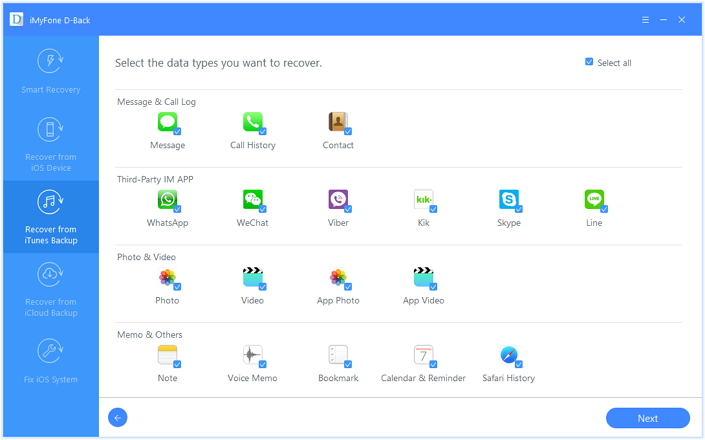
select file types

Step 3. Download and Scan the iTunes Backup
All the iTunes backup files available on that computer will be listed in the next window. Select the one that contains the deleted notes and click “Scan”. Then the program will scan data on the selected iTunes file.

extract file from itunes backup

Step 4. Preview and Restore Deleted Notes from iTunes Backup
After scanning, select “Note” and preview the deleted data you want to get back. Finally, just click “Recover” button to retrieve them.
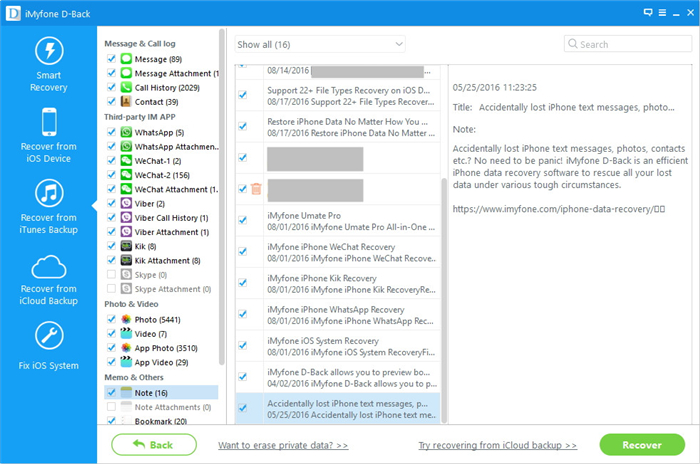
restore deleted iphone notes itunes backup

d_win d_mac

Part 3: Recover iPhone Notes after iOS 11 Update via “Recently Deleted” Folder

If you carelessly deleted your iPhone notes on iOS 11, the “Recently Folder” will keep these deleted notes for 30 days before erasing them forever.

Step 1: Go to the “Recently Deleted” folder in the Notes app.

Step 2: Tap “Edit” button and select the iPhone notes you want to get back. Then lick “More To…” to recover them to Notes folder.
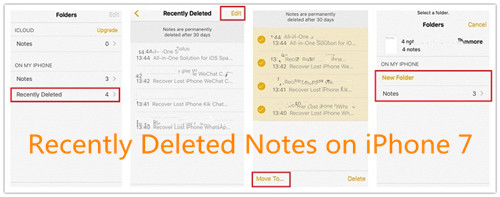
recover recently deleted notes

Successfully, you can go to view the undeleted notes.

Related Article:

How to Restore Deleted Notes on iPhone 7/SE/6S/6/5S/5

4 Ways to Recover Deleted Note from iPhone with iOS 10

How to Recover Lost iPhone Data after iOS 11 Update

How to Recover Lost iPhone Contacts after iOS 11 Update

How to Recover Lost iPhone Photos after iOS 11 Update

How to Recover iPhone WhatsApp Messages/Videos/Photos after iOS 11 Update

How to Fix iPhone System to Normal after iOS 13 Update

My iPhone was stuck in recovery mode after iOS 13 update, now the screen is black. How to fix iPhone system to normal after iOS 13 upgrading failed?

Fix iPhone to Normal in iOS 13

The best options to restore iPhone system to normal after iOS 13 update is using iOS 13 System Recovery. The iOS System Recovery can perfectly fix your iPhone system to normal without data loss. Fix various iOS system issues, such as, stuck in Recovery Mode, stuck on white Apple logo, stuck at black screen, looping on start, etc,. Fully compatible with all models of iPhone, iPad and iPod touch.

d_win d_mac
d_win d_mac

Fix iPhone Stuck in Apple Logo after iOS 13 Update

Step 1.Run Program on Computer and Connect iPhone to the Computer
Download iOS System Recovery and install it on your computer.Connect your iPhone to the computer via USB.Select “Fix iOS System” of the home page.

ios system recovery main page

Click the “Start” button to begin the fixing process.

connect iphone to the program

Step 2.Download Firmware for iPhone
A new window will pop up.Select your device model and download a matched iOS firmware to download for it.

select iphone model

Now the program will start to download the firmware for your iPhone.

download firmware for iphone

Step 3.Restore iPhone System to Nomral after iOS 11 Update
Once the download is complete,iOS System Recovery will continue to restore the iOS system of your iPhone.

fix iphone system to normal ios 11 update

Done,your iPhone will restart.Now your device have returned to the normal state,you can use it freely as usual.

d_win d_mac
d_win d_mac

Related Article

How to Fix iPhone Stuck in Recovery Mode after iOS 11 Update

How to Fix iPhone Stuck on Apple Logo after iOS 11 Update

Fix iPhone Stuck on Connect to iTunes Screen after iOS 11 Update

How to Fix iPhone Black/White Screen after iOS 11 Update

How to Restore iPhone System to Normal

How to Recover Lost iPhone Data after iOS 11 Update

Fix iPhone in iOS 13

How to Restore iPhone WhatsApp Messages/Videos/Photos after iOS 11 Update

How to restore WhatsApp data from iPhone after iOS 11 update? Some WhatsApp videos and photos were gone on my device due to the iOS update. Is it possible to access the deleted data and restore it on my iPhone?

recover whatsapp data

Apple fans are really looking forward to the announced of iOS 11. As we know, when the new iOS version released in the early days, it is unstable and may have lots of bugs. It means that you may suffer from data loss when running on iOS 11. If you have backed up iPhone via Internet service for example the iTunes or iCloud, you can restore from backup after losing data due to iOS 11 update. If you never did a backup before, it is possible for you to recover lost iPhone data after updating to iOS 11. WhatsApp is an useful chat app around the world, people like to talking with others using WhatsApp, but most of they haven’t the habit to backup WhatsApp history. This tutorial is showing you the best ways to restore WhatsApp messages/videos/photos and attachments on iPhone after iOS 11 update.

Restore iPhone WhatsApp Data after iOS 11 Update

iOS Data Recovery can help to fix the data recovery issues, restore deleted WhatsApp messages/videos/photos from iPhone after iOS 11 update with simple steps, the attachments are included. Besides, iOS Data Recovery enables to recover various of deleted data on iOS device, including contacts, SMS, photos, video, audio, call logs, calendars, apps data, etc,.Not only iOS update, but also more data loss circumstances are supported by the program, iOS jailbreak, deleted accidentally, restore to factory reset, device broken/lost, and so on. iOS Data Recovery works well for most of iOS devices, like iPhone X, iPhone 8, iPhone 7, iPhone 6S/6, iPhone 5S/5C/5, iPad and iPod.

d_win d_mac

Part 1:Directly Restore WhatsApp from iPhone after iOS 11 Update

Step 1. Run Program and Connect iPhone to the Program
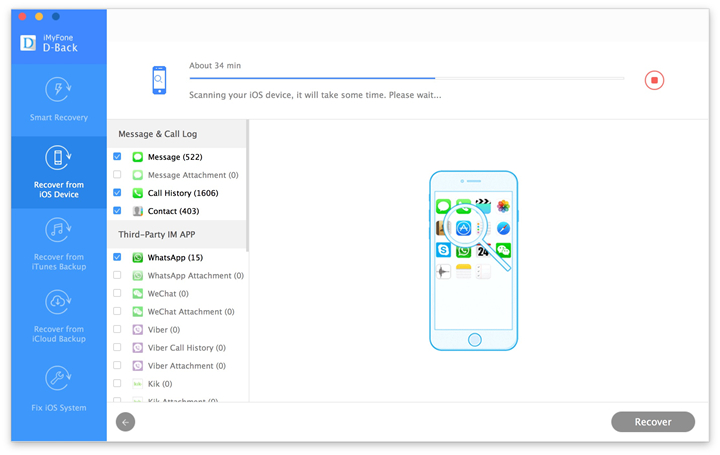
First of all,please download and install the iOS Data Recovery on your computer. Connect iPhone to the computer then select “Recover from iOS Device” and then “Start“. And then, the program will connect and detect your iPhone soon.

ios data recovery main page

Step 2. Select WhatsApp File to Scan
From “Recover from iOS Device”, choose “WhatsApp” file and click “Next” button to enter the scan process.

select file to scan from iphone

Now the iOS Data Recovery will begin to scan your the WhatsApp messages/videos/photos and attachments from your iPhone, including the deleted and existent data.

scan data on iphone

Step 3. Recover Deleted WhatsApp Data from iPhone after iOS 11 Update
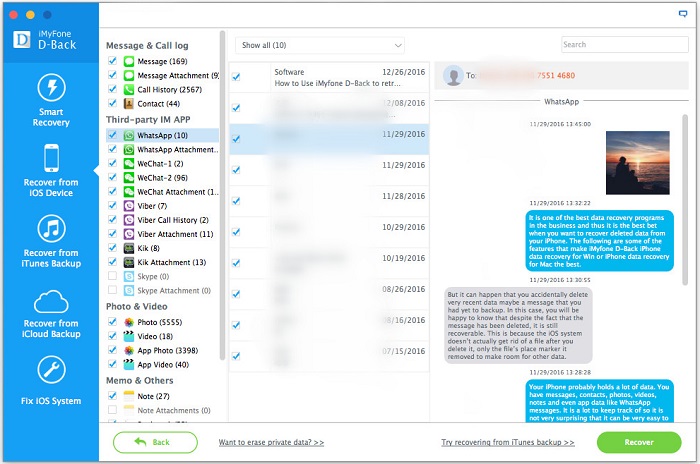
At last, when the program scanning completed, you can find the recoverable files in the scanning result of program. Preview the WhatsApp history under “WhatsApp & WhatsApp Attachments” files. Click “Recover” to save the selected data on your computer.

recover iphone whatsapp ios 11 update

d_win d_mac

Part 2:Restore iPhone WhatsApp Data with iTunes Backup after iOS 11 Update

Step 1. Run Program and Select iTunes Recovery Mode
Run program and Select “Recover from iTunes Backup” then select the backup file to scan by clicking the “Scan” button.

extract backup file from itunes

Step 2. Preview and Recover Deleted iPhone WhatsApp Data from iTunes Backup
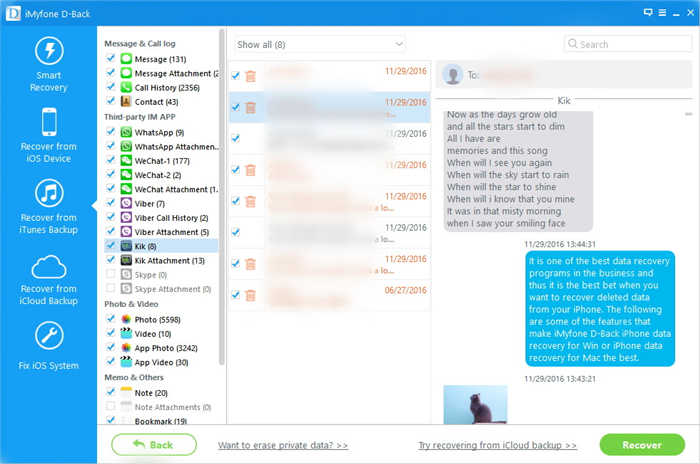
It will take a little time for iOS Data Recovery to scan and analyze the data from your iTunes backup file, please wait patiently. Once the scanning process is completed, you can selectively mark and recover those deleted WhatsApp messages to the computer you want by pressing the “Recover” button.

recover deleted iphone whatsapp from itunes backup

d_win d_mac

Related Article:

Recover Deleted WhatsApp Message from iPhone after iOS 11 Update

How to Recover WhatsApp/Kik/Viber/Line Messages from iPhone 8

How to Backup/Restore and Transfer WhatsApp Messages

How to Export WhatsApp Messages from iPhone to Computer

How to Transfer WhatsApp Messages to iPhone 7

How to Recover Lost Data from iPhone after iOS 11 Update

iOS 11 is Coming

With the arrival of June, the climax of the summer has come. The Apple Worldwide Development Conference will be held in June 6th at 1:00 also let’s blood boil. Every year, the WWDC will announce the latest operating systems, including iOS, Mac OS, watch OS, TV OS.

ios 11 is coming

Maybe in the Apple users’ eye, the Apple Phone is the representative of Apple company. So each update of iOS operating system will cause the user’s long term thinking. According to Apple’s past practice, it may release the latest version of iOS system —iOS11 in that conference. At Apple’s official website in the latest page, we see a lot of villains in the conversation, some two or three, some just one. Writer may think that the latest version of the iOS system may be more to promote human nature, Apple’s performance in the above has been very strong. Writer now can be seen everywhere on the Internet broke the news iOS11 new features, but writer think there are some different to Apple’s idea. Writer think iOS11 most likely the following new features:

Dark mode. This new feature is the most credible now online in all kinds of broke the news of and consistent with the characteristics of Apple. Every night when the phone brightness to the lowest it also found to be so bright, although the auxiliary function in the settings inside of the Apple phone will adjust the brightness to a minimum, the actual look will still hurt the eyes. Apple should be considered to add the dark mode to the new system which the technical difficulty should not be difficult.

dark mode

Siri is more powerful. Since the invention of Siri, it has been controversial. From the release to the present just a few years time, its functional characteristics have been trash talk. And peer Google and Amazon’s voice assistant developed rapidly, even more than Siri’s limelight. So Apple should be let Siri as a top priority for reform this year. After all, Siri have their own hardware support for mobile phones, I believe it will become more powerful.

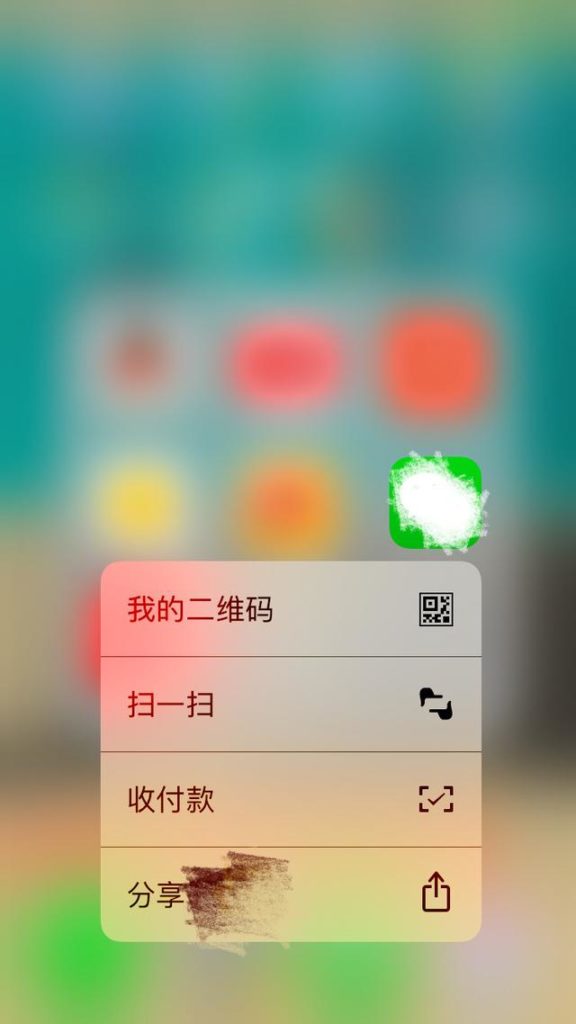
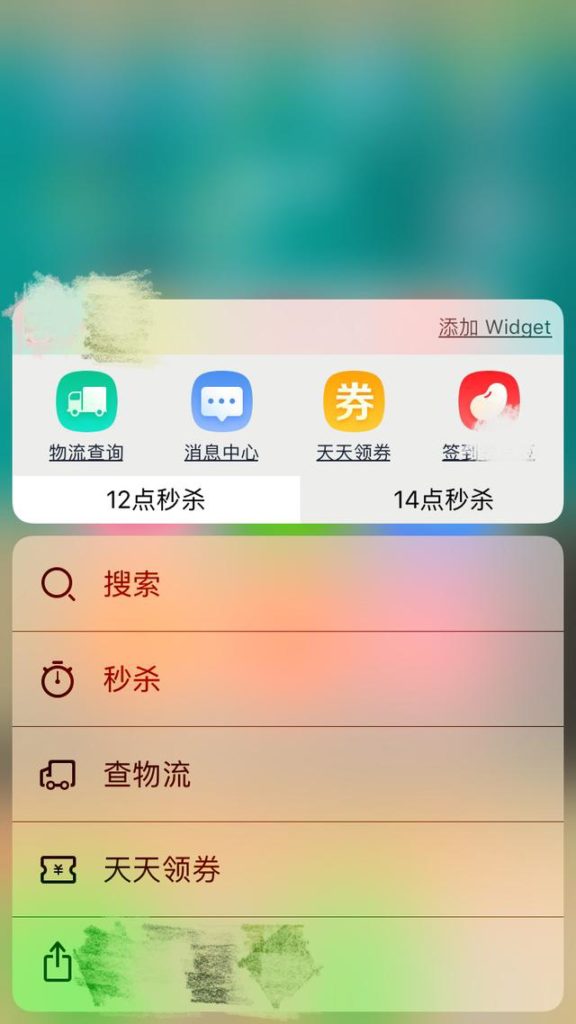
Optimization of 3D Touch. When Apple release iPhone 6s,it also bring a new generation of human-computer interaction experience — 3D Touch. The emergence of this feature completely change the way people that play mobile phones, 3D Touch connect with iPhone that make  people spend more time on the phone. To the writer, every time you call or send a message when the points are several points before you find the contact you want to find, since the 3D Touch appears, just a little hard pressed, there will be the nearest Several contacts, call directly out of the phone, greatly enhance the efficiency. Not only is the communication, there are shopping above can also be a key to reach, and even now the hottest mobile game — King glory, is able to use 3D Touch very well. So that a new generation of iOS11 system pit will be more and better support the use of 3D Touch, to save more time for the user to do other things.

quick way

shopping more fast

Above is the Summary of some several features may appears in the latest iOS11 system. Like the interface can be customized said online, split-screen function, etc., writer think it is unlikely to appear. Although the early jailbreak can be achieved, Apple will not integrate this feature into their own system by once, even if it will appears but that should not be in this generation. After all, Apple is the system of fluency-based, so many new features will certainly reduce the system fluency. In short, let us look forward to the arrival of iOS11!

Related iOS 11 Tutorial:

How to Recover Lost iPhone Data after iOS 11 Update

How to Recover Lost iPhone Contacts after iOS 11 Update

How to Recover Lost iPhone Photos after iOS 11 Update
How to Fix iPhone Stuck in Recovery Mode after iOS 11 Update

Are you ready to update the system when iOS11 is coming?

Apple has released iOS system since 2007, and it has been a decade of the time. There are hundreds of thousands of people use this system from all over the world. Because of it’s own convenience and security, it known as the world’s most secure mobile phone system. At present, we using the latest iOS system is iOS10.

ios 11

At first, Apple developed the mobile operating system only for the iPhone, but because it is easy to operate, it also use on the iPod touch, iPad and Apple TV and other products. In this decade iOS develop step by step, and finally Apple iOS11 will soon be released in this year’s !

Recently, Apple send out the invitation of the WWDC 17 Keynote conference officially, the purpose is to invite the media to participate in WWDC 17 Keynote conference which will be held on June 5th at 10 am. And the Beijing time is June 6th at 1 am. At this time Apple will release iOS11! It is also known to release mac OS10.13, TV OS11, watch OS4, and Siri smart speakers! There may be new technology, we wait and have a see!

Since it shown to people, iOS10 has get lot of people’ favorite. It is learned that the iOS11 will also add a lot of new features! For example, iOS11 will allow users to pay through Apple Pay Point-to-Point, and iMessage will make a significant improvement! Are these features you expecting?

Read more:

How to Recover Lost iPhone Data after iOS 11 Update

How to Recover Lost iPhone Contacts after iOS 11 Update

How to Recover Lost iPhone Photos after iOS 11 Update
How to Fix iPhone Stuck in Recovery Mode after iOS 11 Update
How to Fix iPhone Black/White Screen after iOS 11 Update
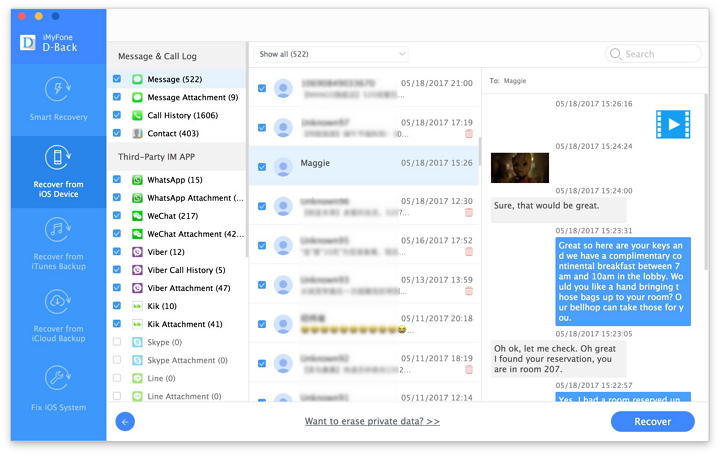
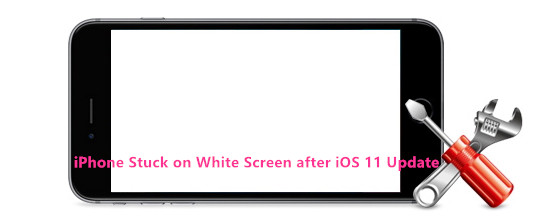
Help! My iPhone 7 was stuck on the white screen after iOS 11 update. That really scared me. Any solutions to restore my iPhone to normal? Thanks a lot.”

iphone stuck on white screen

Adecade on from the launch of the first iPhone, Apple is set to reveal the latest iteration of its iPhone and iPad operating system, iOS 11. The upcoming iPhone 8 is thought to be undergoing a major redesign, fueling talk of major changes to come with iOS 11. Here are some of the features that could be in iOS 11: Siri updates, Apple Music, Video sharing, Sleep monitoring, Peer-to-peer Apple Pay, Dark mode. Tough iOS 11 brings so many new features for iOS device, and let iOS users play more functions on iOS device, some of the iOS 11 bugs can’t not be ignored. There are a part of iPhone users feedback that the device get black or white screen after iOS 11 update. Here is a fully guide on how to fix iPhone stuck in abnormal states after iOS 11 update.

Repair iPhone Black/White Screen after iOS 11 Update
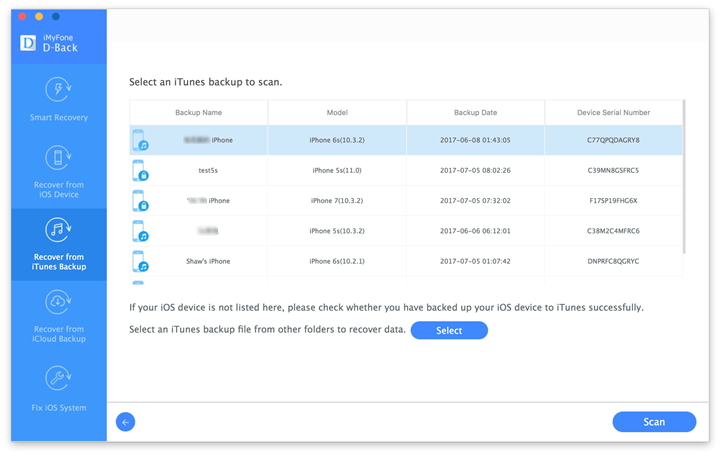
It can’t be more easily than using iOS System Recovery to fix iPhone black/white screen after iOS 11 update, repair iPhone system to normal state. iOS System Recovery is a helpful tool designed for restoring iPhone stuck in different situations, such as, stuck at black/white screen, stuck in Recovery Mode, stuck on Apple logo, etc,. It supports different data types like Contacts, photos, Messages, WhatsApp, Kik, Skype, and much more. It is compatible with the new iOS 10, iPhone, iPad and iPod Touch such as iPhone 7, iPhone SE, iPhone 6 series, iPhone 5 series just to mention a few.

d_win d_mac

How to Restore iPhone Black/White Screen after iOS 11 Update
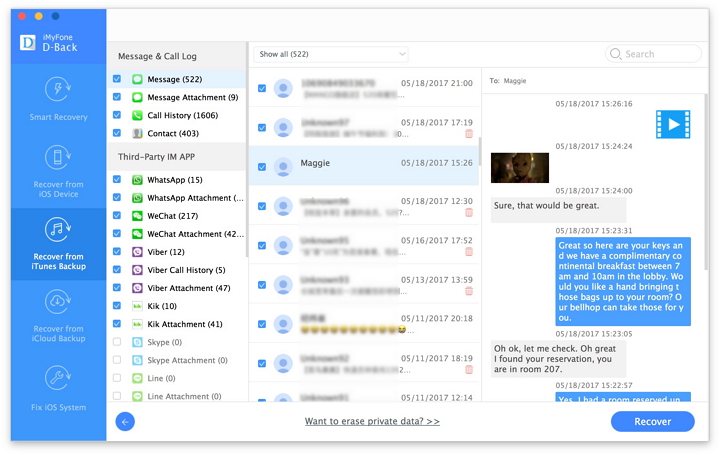
Step 1. Launch and Choose “Fix iOS System” Feature on Program
Run the iOS System Recovery program and then select “Fix iOS System” on the left panel of it then click “Start”. Connect the iPhone to the computer using USB cable.

ios system recovery home page

connect iphone to the program

Step 2. Download Firmware for iPhone
The program then detects your iPhone and displays the latest iOS firmware for your iPhone. Click on the “Download” button to get the matching firmware, download it for restoring your device.

select iphone model

download firmware for iphone

Step 3. Fix iPhone Black/White Screen after iOS 11 Update
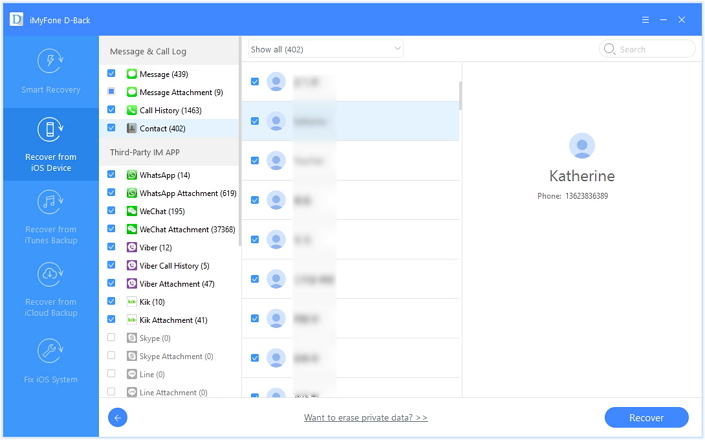
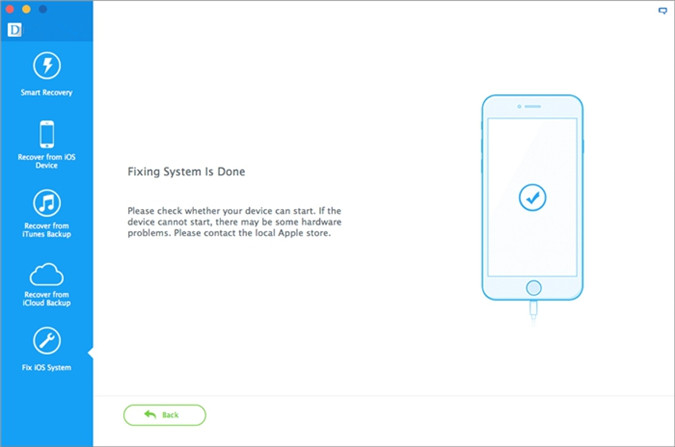
When the firmware is downloaded, iOS System Recovery will begin to repair your iPhone iOS system. The process of repairing the device will be displayed and it won’t take too much time. After that, you iPhone is completely fixed, and returned to the normal state.

restore iphone to normal ios 11 update

restore iphone system to normal completed

Please check whether your device can start. If the device can’t start, there may be some hardware problems. Please contact the local Apple store.

d_win d_mac

Related Article:

How to Fix iPhone Stuck in Recovery Mode after iOS 11 Update

How to Fix iPhone Stuck on Apple Logo after iOS 11 Update
Fix iPhone Stuck on Connect to iTunes Screen after iOS 11 Update

How to Fix iPhone Stuck in Reboot Loop

How to Restore iPhone System to Normal after iOS 10 Update

How to Restore iPhone System to Normal

How to Recover Lost iPhone Data after iOS 11 Update
How to Recover Lost SMS from iPhone after Jailbreak

[Summary]: Have jailbroken your iPhone and lost messages? Don’t worry, this article teach you two methods to recvoer lost SMS from iPhone after iOS 13/12/11/10 jailbreaking. You can directly recover lost SMS from iPhone or restore SMS from iTunes.

How to recover lost messages from iPhone after jailbreaking? The messages were gone and I have no idea to fix it.

When Apple announced a new iPhone model or a new iOS system, it must make a big difference around the world, especially the mobile field. The new iOS system can bring the new features for iOS device, to let you enjoy more functions. iOS users like to perform the iOS jailbreak on their iOS device. Those who have enjoyed a jailbroken iPhone will not have any interest in using the phone without jailbreaking. However, iOS jailbreak will cause loss data sometimes when jailbreaking failed. In this cases, you need a professional data recovery for restoring iPhone data.

Retrieve Lost SMS from iPhone after Jailbreak

Restore deleted iPhone SMS after iOS 12 jailbreak (or other iOS version jailbreak) can be easy as long as we use some useful tools. iOS Data Recovery is such a reliable tool that could help. Not only to recover iPhone SMS, it also can recover various of data such as contacts, photos, videos, etc,. by offering 3 methods of recovery, which are: directly recover from device, recover from iTunes backup, recover from iCloud backup. iOS Data Recovery enables to restore data on almost all iOS devices, including iPhone XS, iPhone XR, iPhone SE, iPhone X, iPhone 8, iPhone 7, iPhone 6S/6, iPhone 5S/5C/5, iPad and iPod.

d_win d_mac

Part 1: Directly Recover Deleted SMS from iPhone after Jailbreak

Step 1. Launch iOS Data Recovery and Connect iPhone
Downloaded and launch iOS Data Recovery on your computer. Then, connect iPhone to your computer with the USB cable.

iphone data recovery main page

Step 2. Select SMS File to Scan from iPhone Directly
Now you can select the files types for scanning, here you should click “Message” file. (Including both the deleted data and existent data). Then tap on “Next”.

select file to scan

Click “Scan” to search for your deleted messages data, then the program will begin scanning your device automatically.

scan data on iphone

Step 3. Preview and Recover Deleted SMS from iPhone
Now you can choose the detail data you want to recover after previewing that, mark you want and click “Recover” button on the lower right corner of the interface. Then select to save the recovered SMS to computer.

recover iphone sms

Note: This mode fits the situation if you didn’t back up your iPhone before losing data. If you have backed up your device, you can choose the second mode mentioned below.

d_win d_mac

Part 2: Recover Lost SMS iTunes after jailbreak

Step 1. Choose the iTunes Backup File and Scan
If you have done iTunes backup before, you will see the backup files listed once you launch iOS Data Recovery and choose the second mode “Recover from iTunes Backup“. Connect iPhone to the computer. Choose the backup file you want and click “Scan”.

iphone data recovery main page

Step 2. Preview and Restore Deleted SMS from iTunes Backup
Few seconds will be taken to scan your iTunes backup file. Now you are allowed to preview all the content from backup file. Choose the Messages file you want and click “Recover” to restore the selected data and save it to the computer.

recover iphone sms itunes after ios 10.3 jailbreak

d_win d_mac

Related Article:

How to Restore Deleted iPhone Data after iOS 10.3 Jailbreak

How to Restore Deleted iPhone Contacts after iOS 10.3 Jailbreak

How to Recover Deleted iPhone Photos after iOS 10.3 Jailbreak

How to Recover Deleted iPhone SMS after iOS 11 Update
How to Restore Deleted iPhone Contacts after iOS 10.3 Jailbreak

I performed the iOS 10.3 jailbreak on my iPhone then the contacts were gone suddenly. What happened? Any ways to restore the deleted iPhone contacts after iOS 10.3 jailbreak? Appreciated.”

The tech giant recently released the iOS 10.3.2 software update to the public. It comes with some security improvements and bug fixes, so all Apple users are encouraged to update their devices to the latest iOS version the soonest. PanGu, a team of hackers known for its Apple jailbreaks, had already demonstrated an iOS 10.3.1 jailbreak in April. The Chinese group was initially expected to release its jailbreaking tool. Some iPhone users have reported that the contacts have mysteriously disappeared. This is a particularly serious problem especially when you haven’t do the backup of iPhone data.

Recover Deleted iPhone Contacts after iOS 10.3 Jailbreak

iOS Data Recovery is an user-friendly iOS data recovery tool that helps recover deleted data on your iPhone/iPad/iPod Touch. The simple interface allows beginners to complete the recovery process with no difficulty. With the help of iOS Data Reovery, you can restore deleted contacts from iPhone after iOS 10.3 jailbreak even if you have no backup. During the recovery process, you will be able to scan & preview data before recovery. Besides contacts, this program can also help you recover photos, messages, notes, call history , WhatsApp and other types of data on iOS device. iOS Data Recovery supports iPhone 7/6S/6/SE/5C/5S/5/4S/4, iPad & iPod Touch as well.

d_win d_mac

Directly Recover Deleted Contacts from iPhone after iOS 10.3 Jailbreak

Step 1. Run Program and Connect iPhone
Download the iOS Data Recovery on your computer and once installed, choose the recovery mode that best suits your situation. Connect iPhone to the computer. In this tutorial, we choose “Recover from iOS Device” and then “Start“.

connect iphone to the pc

Step 2. Select Contacts File to Scan
In the next window, the program asks you to select the files for scanning by program, you should click “Contacts” and then “Next“.

select file to recover

Step 3. Scan Data from iPhone
Click “Scan” to begin the scan process.

Now the program will begin to scan iPhone data, including the deleted and existent data.

scan iphone and search selected data

Step 4. Preview and Recover Deleted Contacts from iPhone
Once it has been completed you can preview and choose the contacts you want to recover and then click “Recover” to restore contacts.

recover iphone contacts after ios 10.3 jailbreak

d_win d_mac

Related Article:

How to Restore Deleted iPhone Data after iOS 10.3 Jailbreak

How to Recover Deleted iPhone Photos after iOS 10.3 Jailbreak

How to Recover Lost Photos from iPhone after iOS 11 Update

How to Recover Lost Data from iPhone after iOS 11 Update

How to Recover Deleted iPhone Photos after iOS 10.3 Jailbreak

Summary:This tutorial applies to any case in which you need to recover deleted iPhone data without backup, or with iCloud/iTunes backup, provides you the best solutions to recover deleted iPhone photos after iOS 10.3 update/downgrade/jailbreak, efficiently and safely.

iOS 10.3 jailbreak: iOS 10.3 has jailbroken released for not a long time. iOS 10.3 may work not so seamlessly as expectation. Recently it teased an iOS 10.3 jailbreak for the iPhone, the feedback of report show that iOS 10.3 still have bugs can be fixed perfectly, may lead to data loss, especially the photos. If you lost photos on your iPhone/iPad after iOS 10.3 jailbreak, please take it easy. It’s not as serious as you think. Any changes that would be made on the latest version of system jailbreak need a careful handle. Here are a available way that help you solve the issues of data recovery with iOS 10.3 jailbreak or upgrade.

Restore Deleted iPhone Photos after iOS 10.3 Jailbreak

All the rescue job can be easily done by using iOS Data Recovery, which is capable of restoring data from iOS device under any data loss situations, for example, iOS jailbreak, iOS update, deleted mistaken. iOS Data Recovery allows to recover deleted photos from iPhone after iOS 10.3 jailbreak (iOS 10.2/iOS 10/iOS 9), as well as contacts, messages, video, audio, notes, calendars, call logs, apps and more types of data. iOS Data Recovery enables to recover data for all iOS devices, like iPhone 7, iPhone 6S/6, iPhone 5S/5C/5, iPad and iPod.

d_win d_mac

Part 1:Directly Restore Deleted Photos from iPhone after iOS 10.3 Jailbreak

Step 1.Run iOS Data Recovery and Connect iPhone
Downloaded iOS Data Recovery on your computer, run it. Then connect iPhone to your PC with the USB cable.

connect iphone to the pc

Step 2.Select Photo File to Scan by Program
Select the files types to let the program scanning, here you should cilck ”Photo”. (Including both the deleted data and existent data). Then tap on “Next”.

select file to recover

Click “Scan” to search for your deleted data, then the program will begin scanning your device automatically for deleted data.

scan iphone and search selected data

Step 3.Preview and Recover Deleted Photos from iPhone after iOS Jailbreak
Now you can choose the detail data you want to recover after previewing,mark the data you want and click “Recover” button, then select to save the recovered photos to computer.

recover deleted iphone photos after ios jailbreak

d_win d_mac

Part 2:Restore Deleted iPhone Photos after iOS 10.3 Jailbreak via iTunes Backup

Step 1.Choose the iTunes Backup File and Scan
Run iOS Data Recovery and then click the second mode ”Recover from iTunes Backup”.  Connect iPhone to the PC. Choose the backup file you want and click “Scan”.

select itunes recovery mode

Step 2.Preview and Restore Deleted iPhone Photos from iTunes Backup
It will be taken to scan your iTunes backup files.  And you are allowed to preview all the content in backup file. Choose the files you want and click “Recover” to motivate the recovery. Then save the selected data to computer.

restore iphone photos from itunes backup

d_win d_mac

Related Article:

How to Recover  Deleted iPhone Data after iOS 10.3 Jailbreak

How to Recover Deleted iPhone Data after iOS 10.3 Update

How to Recover Deleted Photos from iPhone after 10.3 Update

How to Recover Deleted Contacts on iPhone after iOS 10.3 Update

How to Recover Deleted iPhone Text Messages after iOS 10.3 Update

How to Transfer iPhone SMS to Android Phone

I get the new Huawei phone, to try the Android system and I am decide to give up my old iPhone 6. However, I don’t know how to switch the SMS from my iPhone to Android with simple steps?

You’ve purchased and set up your first Android device and are about to make the final move from the iOS system. However, you want to have your old SMS messages on the new Android. For some users, that isn’t a problem (it was a good time for a house cleaning anyway). Other users might have messages that contain important information that they have to refer to. If you’re one of the second one, you’ve probably searched an efficient way to perform the data transfer task between iPhone and Android.

Sync iPhone SMS to Android Phone

Phone Transfer is your first choice to transfer SMS between iPhone and Android. Manually transferring all of your data between your old device and new device is easier than your expectation, including SMS, contacts, photos, videos, music, calendars, call logs, apps. Phone Transfer is famous for transferring files among iPhone, Android phone and Symbian phone. Easy to use and safely. Most of Android phones are compatible with Phone Transfer, such as, Huawei, Samsung, HTC, Motorola, LG, Xiaomi, Sony, etc,.

d_win d_mac

How to Directly Copy iPhone SMS to Android Phone

Step 1.Download and Run Phone Transfer
Firstly, please run Phone Transfer on your computer.  Then the main interface window of program will pop up, select “Phone to Phone Transfer“ mode, click “Start“.

phone transfer main page

Note: Please install iTunes on your computer at the same time.

Step 2.Connect both Two Devices to the computer
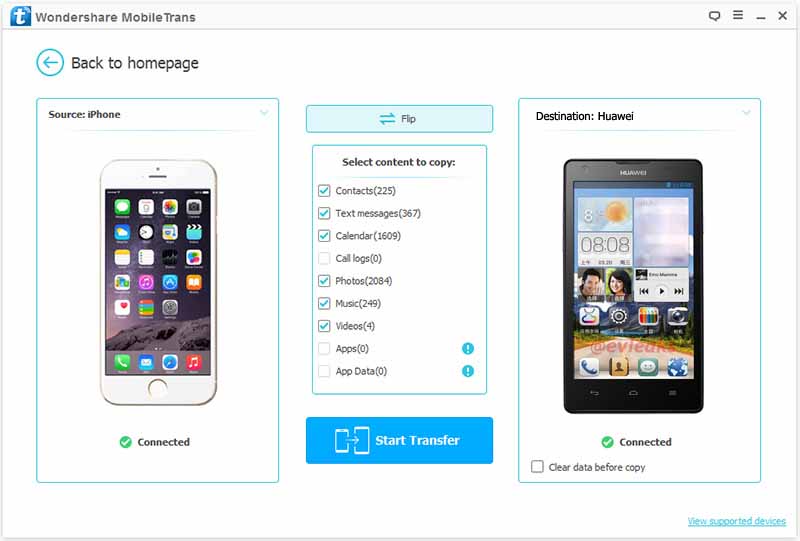
Connect both of your iPhone and Android phone to the computer via 2 USB cables. Once both of your phones are detected by Phone Transfer, it will display the two phones at the place of “Source” and “Destination” in the primary window. The iPhone should be on the left as the source device and the Android should be on the right as the receive device.

connect iphone and android to pc

The “Flip” button can be used to exchange the two position by clicking it on the program.

Step 3.Transfer iPhone SMS to Android
In this step, the data you can transfer including contacts, text messages, music, photos, videos, calendars, apps, call logs. Select the “Text messages” files and click “Start Transfer” to begin moving SMS from iPhone to Android. Keep connecting your phones with the computer in the whole process.

transfer iphone sms to android

When the transfer is finishes, click “OK” to end it.

d_win d_mac

Related Article:

How to Transfer iPhone Photos to Android Phone

How to Transfer iPhone Data to Android Phone

How to Transfer iPhone Contacts to Android Phone

How to Transfer iPhone Data to Samsung Galaxy

How to Transfer iPhone Data to New iPhone

How to Transfer Data from Android Phone to iPhone