All posts by DHZ

How to Recover Deleted Data from LG Phone

“Help.My family photos which saved on my LG G4 phone were deleted accidently by my little sister.The photos are meaningful a lot for me.Are there any solutions to get back this deleted data from my Android phone?Urgently!”-Eric

recover data lg

LG phones are well known by Android users because of its bright design and great functionality,especially LG’s flagship smartphone – LG G6,comes with awesome camera, extraordinary battery performance and features.However,no matter how powerful LG phone is,it’s inevitable a fact that the data stored on LG G5/G4/G3/G2 are easily get lost under many unexpected circumstances,for example,deleted by mistaken,Android system update,Android system rooting.If you are one of the LG users who are desire to recover deleted files from LG phone directly,this guide is exactly prepared for you.

Restore Deleted Data from LG Phone

Android Data Recovery is your perfect solution to restore deleted data from LG without backup.You are allow to selectively recover deleted data from LG phone,including contacts,gallery,messages,videos,call logs,audio,documents,etc,.Android Data Recovery works well for most LG phones,like LG G6/G5/G4/G3/G2,LG V20/V10,as well as most Android phones and tablets,for instances,Samsung (Galaxy S7/S6/S5,Note 5),Google (Pixel,Nexus),Huawei (Mate 9,P9),HTC,Motorola,Lenovo and more.Android Data Recovery with an user-friendly interface is pleasing to navigate in recovering the original and deleted data from mobile Android devices running Android OS between 2.1 and 7.0.

d_win d_mac

How to Recover Deleted Files from LG Phone

Step 1.Run Android Data Recovery and Connect LG to the Computer
Download and install Android Data Recovery on your computer. Run it and then connect your LG phone to the computer via an USB cable.

connect lg with computer

Step 2.Enable USB Debugging on LG Phone
When you see a message pop up on your phone, click “OK” to enable USB debugging on it. For different Android version, the steps are similar.If you had enabled USB debugging on it before,just skip this step. Then click on “Development” and tick “USB debugging”.

usb debugging lg phone

Step 3.Select Deleted Data to Scan

Now you should select the file type you need to recover from LG.Then click on “Next”.

select file tpye to recover from lg

Step 4.Scan the Data on LG
Click “Allow” to allow the program to scan your phone. And then you will see the following window.

allow scan lg

The program will begin to analyze data on your device with a little time.

scan lg for deleted data

Step 5.Preview and Restore Deleted Data from LG
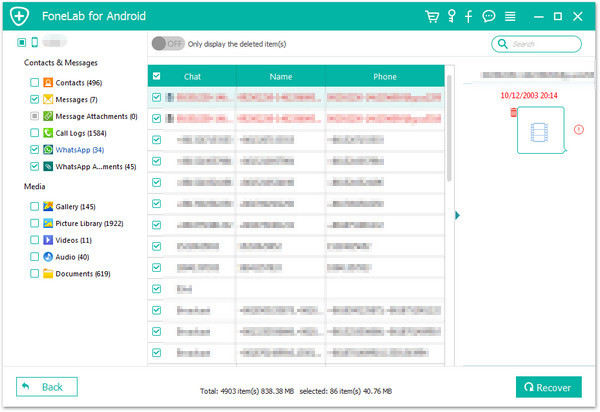
Android Data Recovery allow you to restore Android data including messages, contacts, gallery, videos,etc, from your LG device.Preview and mark those you want and click “Recover” to save them to your computer.

recover deleted lg data

d_win d_mac

Related Article:

How to Recover Data from Water Damaged LG Phone

How to Backup and Restore LG Phone

How to Recover Data from Android Phone

How to Recover Data from Broken Android

How to Root Samsung Galaxy S8 on Computer Safely

We’re going to see the Samsung Galaxy S8 teased at the end of the month at MWC and officially unveiled on March 29, according to the latest rumors.We’re all going to have to wait a little bit longer to find out what Samsung packs into the Galaxy S8, what features will be brought forward from the incendiary Galaxy Note 7, and what improvements have been made over the previous Galaxy S designs.

samsung s8 root

Samsung typically announces new phones at the end of February,but its mobile president confirmed that the Samsung Galaxy S8 won’t be announced at MWC 2017 – well, not announced in full at least.If you are one of the Samsung users and now are planning to buy a new Galaxy S8 device to take a replace,it’s no doubt that you must be eager to get the suitable ways to root your Samsung Galaxy S8 phone on computer safely on your own without complicated steps.Here we will offer the best methods for you to make your assume come true.

Safely Root Samsung Galaxy S8 on Computer with One Click

Android RootAndroid Tool Kit provides you a reliable way to root Samsung Galaxy S8 on computer without data loss.Not only Samsung Galaxy S8,but also most of Android devices are applicable to Android Root tool,such as,Samsung Galaxy S7/S6,Note 5,Google Pixel,Google Nexus,Huawei Mate 9,Huawei P9,HTC,Motorola,LG,Sony,ZTE,etc,.Only one click,you are allow to enjoy your Samsung Android freely without limit anywhere anytime.

d_win d_mac

More Features of Android Root you should Know:
-One click to root Android device.
-Rooting Android device with over 95% success rate.
-Fully compatible with Andorid 4.0 to Android 7.0.
-Work on both Windows and Mac OS X.

How to Root Samsung Galaxy S8 without Data Loss

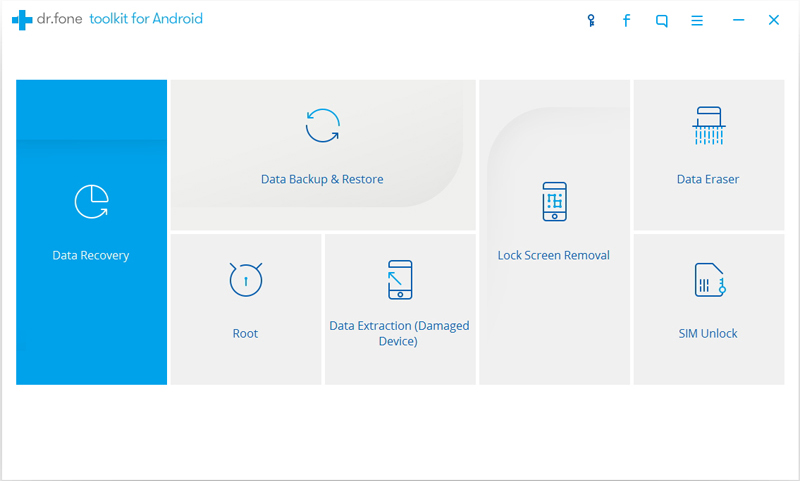
First of all,please download and run Android Root on your computer then click on “More Tools” in the home page of program.Select “Android Root” option on it.

android root mian page

Step 1.Connect Samsung Galaxy S8 to the computer
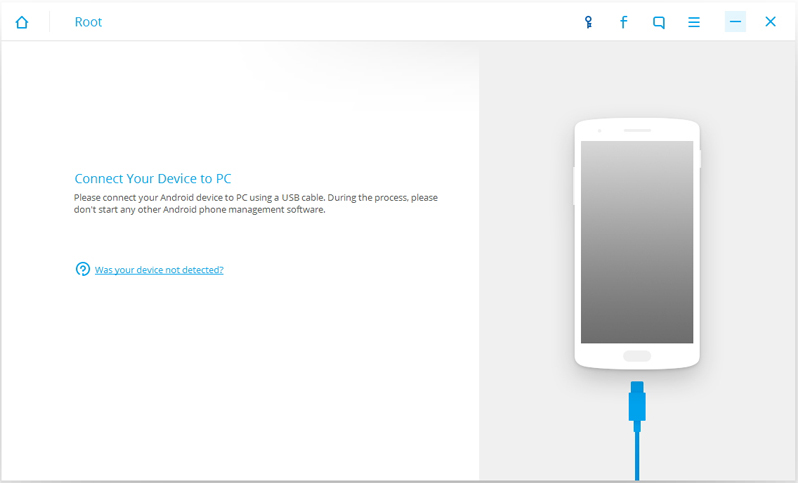
Connect Samsung phone to the computer with an USB cable.You should enabled the USB Debugging mode on your Samsung.Then Android Root will automatically connect your device.

connect samsung galaxy to pc

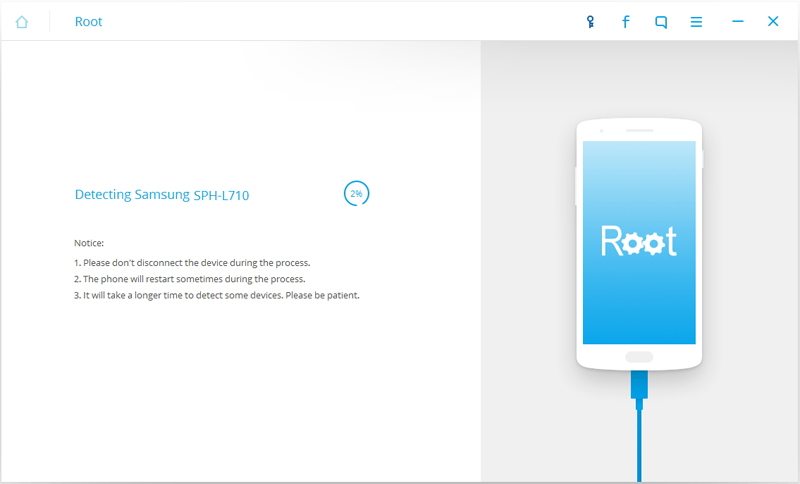
Once your Samsung is connected,Android Root will offer a proper solution to root your phone.Click on “Start” to continue.

detect samsung with android root

Note:
1.Please keep connection of the device and computer until the whole process is end.
2.The phone will restart sometimes when detecting.
3.It may cost you some time to detect your device.Please be patient.

Step 2.Safely Root Samsung Galaxy S8 on Computer without Data Loss
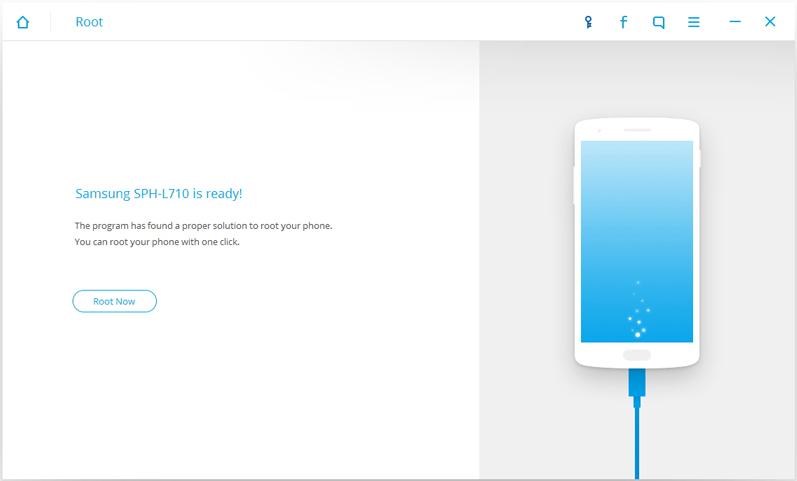
It will take you few minutes for the program to detect your Samsung phone.Then it will be ready for you to root your device.Just click on Root Now to safely root your Samsung phone on computer.

ready root samsung

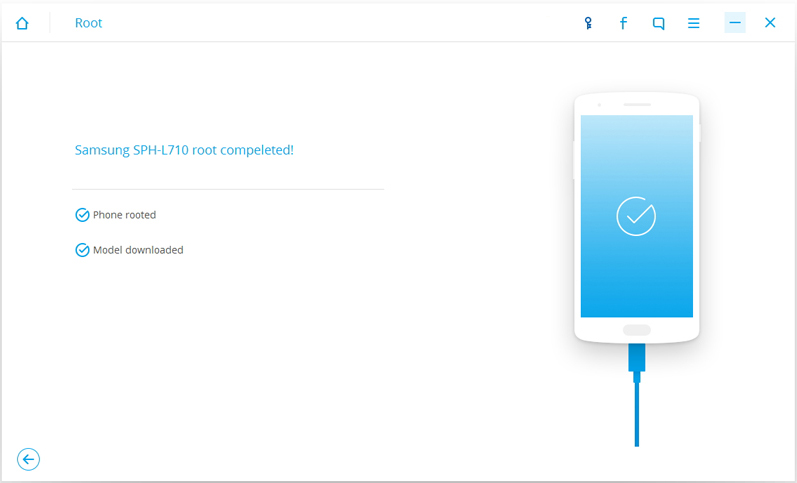
Note:The phone will pop up a message to prompt whether you would like to root the phone during the rooting process.Tap on “Confirm” to continue the rooting process.You phone will be complete rooting within minutes.

samsung galaxy s8 rooted

d_win d_mac

Related Article:

How to Root Samsung Galaxy S6/S7(Edge)

How to Root Samsung Galaxy Phone on Computer

How to Root your Android on Computer

How to Backup & Restore Samsung Galaxy S8

How to Recover Data from Samsung Galaxy S8

How to Recover Lost Photos from Samsung Galaxy S8

How to Enable USB Debugging on Android Phone

Summary
USB Debugging must be enabled on your Android device to connect your device with computer, this article teach you how to enable USB debugging on Android devices.

With USB debugging, you can connect Android phone to computer and manage your Android device on computer;transfer data from old phone to Android; recover Android data on computer; backup Android data to computer; root Android on PC; erase your Android phone on computer; extract data from damaged Android on PC; remove screen lock and get data back by Android Toolkit; manage Android on computer; transfer Android data to PC; mirror your Android device on your computer screen wirelessly or install/uninstall application with much convenience. However, when you have got a new Android phone, like Samsung Galaxy S/Note/Ace/J/C series, Huawei Mate/P/nova/G/Y series, HTC One, Motorola, Sony Xperia, Lenovo, LG, Oppo, Google Pixel, Nexus, Meizu, Xiaomi or other brands of phones, opening USB debugging is a problem you will face.

The ways to enable USB debugging mode on Android, which is accounted for the key step in Android rooting process, switch from one Android version to another. USB Debugging is required by adb, which is used for rooting, backing up, installing a custom ROM, tacking screenshots from computer and more.

Enable USB Debugging on Android 2.0 to Android 4.2 or above

Step 1. Connect Android with PC
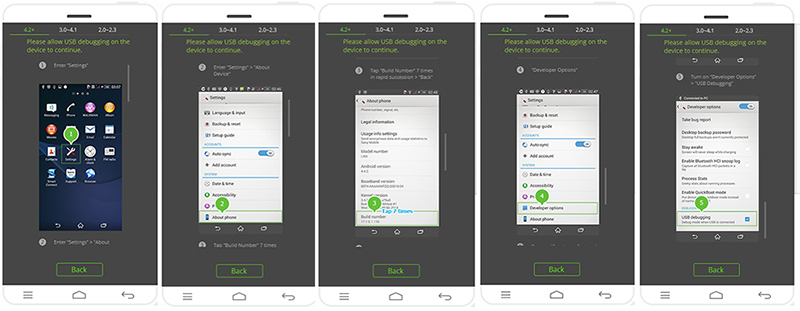
Connect your Android device to computer using a USB cable. Make sure you have enabled USB debug on your device. If not, you can follow the instruction below to enable USB debug.

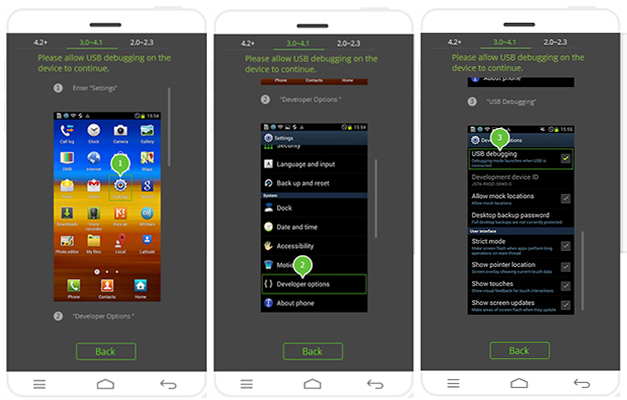
For devices running Android 4.2 or above.

USB Debugging on Android 4.2 or above

For devices running Android 3.0-4.1.

USB Debugging on Android 3.0-4.1

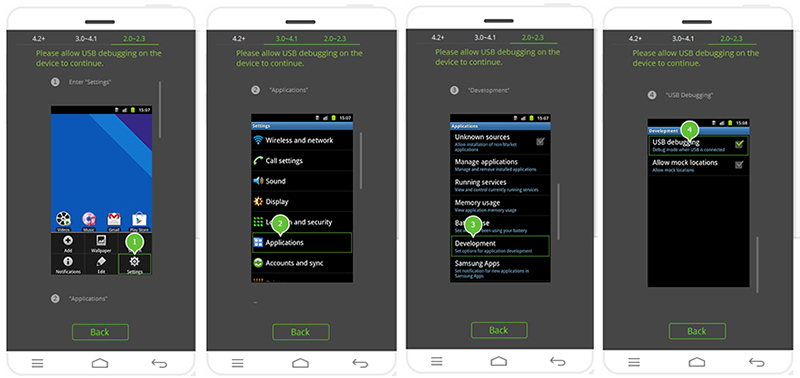
For devices running Android 2.0-2.3.

USB Debugging on Android 2.0-2.3

Step 2.Allow USB Debug and Connected Successfully
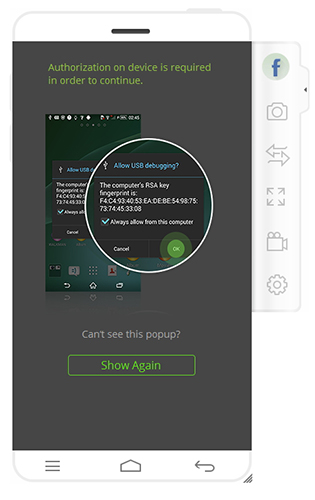
If your device is running Android 4.2 or above, it will also ask you to Allow USB Debugging. Just tap on Allow on your popup message on your Android phone.

android allow usb debug

In a few seconds, Android Screen Recorder will connect to and recognize your Android device successfully.

Samsung Galaxy S8 and S8 Plus: What’s the story so far?

Samsung announced the Galaxy S7 and S7 edge in March 2016 and the two devices received huge amounts of praise for their design, powerful specs and great cameras. No smartphone is perfect though. There will always be a few specs in the rumours that never see the light of day, leaving some disappointed and wanting more.Don’t worry though, more is on its way. Here is what we hope to see, what we think might appear and what some rumours suggest might appear on Samsung’s 2017 flagship phones.
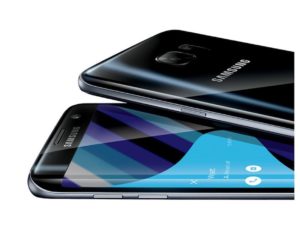
samsung galaxy s8

Previous release patterns would suggest the Samsung Galaxy S8 would launch at Mobile World Congress 2017, suggested by Ricciolo on Twitter and Phone Arena. As months have past however, an MWC announcement is looking less and less likely. LG has now taken Samsung’s traditional date and time slot but Samsung’s mobile president has also said it would be working hard to regain consumer trust after the Note 7 issues, suggesting lots of testing for the S8.

Samsung is therefore now thought to be avoiding MWC 2017 and hitting the Big Apple instead, with the SGS8 launch in New York City in April. Slashleaks has claimed the rumoured date is 18 April, but ET News has said it will be 15 April and there has also been more recent talk of 29 March, which has been reiterated by VentureBeat. It is however thought Samsung will use MWC to reveal the Tab S3 tablet instead, with perhaps a sneak preview of the S8 rather than a complete unveiling of the phone.

In terms of availability, Ricciolo claimed the device will go on sale on week 17, which is 24 to 28 April, for £849. VentureBeat has said the smaller S8 would cost €799 in Europe and the larger device would cost €899 however. The site also said the devices would go on sale on 21 April.

Supporting this, SamMobile noted a report from ET News that said Samsung has confirmed it will produce 10 million units of the S8 in time for an April launch.

Samsung Galaxy S8 and S8 Plus: Two phones?

One recent rumour claimed that instead of releasing two devices, one with a flat bezel, the other curved, Samsung will break from tradition and stick with just the latter this time around. After all, it only offered the curved display on the Galaxy Note 7 and a leak from Phone Arena only talks about a dual edge curved display device, with no mention of a flat alternative, while a leak of front panels also suggests two curved handsets.

SamMobile reported that its insiders have claimed there will be two models, which are being referred to internally as Dream and Dream2 and the Guardian has also claimed sources have confirmed this, along with VentureBeat. The newspaper and VentureBeat have both said the two models would be curved and while the Guardian said one will have a 5-inch or so display and the other will have a 6-inch or so display, VentureBeat has said they will be 5.8-inches and 6.2-inches.

South Korean news outlet The Bell also supports the idea of two models, though it says one will have a 6.2-inch display and the other with a 5.7-inch display. It too says both will be curved and will be called the Galaxy S8 and S8 Plus.

Samsung Galaxy S8 and S8 Plus: Display

The Samsung Galaxy S8 and S8 Plus have been rumoured to increase their display size compared to their predecessors. Some reports suggests 5.7-inch and 6.2-inch screens, some say 5.8-inches and 6.2-inches, while others suggest 5-inch or so and 6-inch or so displays, suggesting no one knows exactly as yet but it looks like the S8 devices will both be bigger than the Note series.

We’re expecting the screen to body ratios to improve too, especially after a Samsung Display spokesperson was quoted saying the company would roll out a full screen display with a ratio of more than 90 per cent this year. According to the Guardian, both devices will offer an infinity edge-to-edge display and as The Bell and the Guardian both suggest the S8 and S8 Plus will have similar dimensions to the S7 and S7 edge despite their larger screen sizes, it’s thought this full screen display could appear on the new models.

A Bloomberg report also supports this idea, with its claim of an all-screen front, as we briefly mentioned earlier. The report claims the display will be wraparound and there will be a virtual home button buried into the lower section of the glass, which is something the VentureBeat report also suggests.

Resolution might also increase, though the recent VentureBeat report suggests not. With VR becoming more and more popular, higher resolution displays are more important. The Sony Xperia Z5 Premium might be expensive, but if you’re into smartphone-controlled VR, its 4K display offers a great experience. As Samsung is already in the VR business, it would make sense to offer a compatible device with a higher resolution display for the Gear VR or any further VR devices.

Chinese blogging sources suggest the company has shown off a 5.5-inch 4K AMOLED display offering a pixel density of 806ppi and the Phone Arena leak suggests the S8 will come in this size and resolution with the dual edge design, supporting The Bell’s suggestion of a larger display for the traditionally smaller handset.

Another leaked set of specifications has claimed the Galaxy S8 would offer a 5.2-inch display with a 4096 x 2160 pixel resolution. This would not only make it slightly bigger than the current Galaxy S7, but it would also put its pixel density at 891ppi. Contradicting all these reports however is SamMobile, who claims the S8 will retain a 2K display but it will be better than the S7, and offer a noticeable improvement for virtual reality and VentureBeat also claims the Quad HD Super AMOLED displays will remain.

Samsung Galaxy S8 and S8 edge: Camera

There has been a rumour to suggest the company is working on a new 1/2.3-inch sensor that will be combined with a f/1.4 aperture. This would deliver even better low-light capabilities than the current flagships but whether it will appear on the S8 or S8 edge is unclear yet. The rumours also claim Samsung’s goal is to deliver a 1/1.7-inch sensor eventually, suggesting it has no intention of stopping improvements in the camera department.

Other claims have also suggested the Galaxy S8 might appear with a dual rear camera, with two different sensors – one at 12-megapixels, one at 13-megapixels. This is something we have already seen on the LG G5, Huawei P9, and more recently, Apple’s iPhone 7 Plus. The same tipster also claimed the front camera will be 8-megapixels, which ET News has also suggested.

Contradicting these rumours however, is another leak from a different source claiming the Galaxy S8 will have a 30-megapixel rear camera with optical image stabilisation, coupled with a 9-megapixel front-facing snapper. There has also been a claim that the S8 will have the same Duo Pixel camera of the S7 and S7 edge, which is something that the VentureBeat report also suggests.

According to VentureBeat, the rear camera will be 12-megapixels with an f/1.7 aperture and a new visual search feature, while the front camera will have an 8-megapixel sensor, also with an f/1.7 aperture. The site also claimed the front camera will have iris scanning capabilities.

ET News has also reported that the front-facing snapper of the Galaxy S8 could have auto-focus rather than fixed. It wouldn’t be the first device to offer auto-focus on the front, with both the Sony Xperia M5 and the HTC Desire Eye both offering the feature, but it would be welcome.

Samsung Galaxy S8 and S8 Plus: Conclusion

What will appear on the Samsung Galaxy S8 and S8 edge or S8 Plus? Who knows at the moment. We have a couple of months of waiting ahead of us but it would be interesting to see a change up in design, more improvements in camera capabilities and software refinements.

There is a good chance of a more powerful processor and more RAM, as well as the potential for a larger battery capacity too, as is normally the case with next-gen flagships.

We will be keeping a close eye on the rumours of the Samsung Galaxy S8 and S8 edge as and when they appear so keep checking back for updates.

Related Article:

How to Backup & Restore Samsung Galaxy S8

How to Recover Lost Photos from Samsung Galaxy S8

How to Recover Data from Samsung Galaxy S8

How to Transfer iPhone Files to Samsung Galaxy S8

How to Transfer Android Files to Samsung Galaxy S8
Android Screen Recorder: Capture/Record Screen of Android

“I am searching an useful Android app to capture a running game as video so as to have a demo video record.How to perform it by myself?BTW,I want the way without complicated steps.Thanks.”-Mavis

Wanna take the screenshot of your Android device?Want to create videos on your Android device,perhaps to help a friend or relative to perform the apps,or to show how an app you have developed works?Perhaps you simply want to record the whole game process?In these cases,you need a screen recorder tool.You should follow this guide with few simple steps following.Here I am going to share the best easy ways for you to record screen of your Android device on you own on the computer.

Mirror Android on Computer Screen Wirelessly

It’s no more easy than using Android Screen RecorderAndroid Toolkit to record Android screen on computer.With Android Screen Recorder,you are allow to record screen of Android anytime as you like,to record games,videos,and more for Android,take screenshot of your Android screen easily.In addition,Android Screen Recorder enables to reply social app messages and text messages on PC freely.Android Screen Recorder supports all Android devices.Such as,Samsung, HTC, Sony, Motorola, Google Nexus, LG, or ZTE, etc, and all Android version is available.

d_win d_mac

More Features of Android Screen Recorder:
-Audio Recording:Support to record the system audio of Android.
-HD Mirroring:Mirror Android in HD quality.
-1 Click to Start:Start recording quickly and easily.
-Customized Settings:Support different recording settings.
-Presentations:Work like a projector to share your phone screen in a room full of people.
-Education:Record and share the assignment with an entire classroom.
-Gaming:Enjoy and record Android games on a larger screen.
-Business:Use Android in your presentations at work.
-Developers:Showcase products and create demonstrations in real time with on lag.
-Recording:Record all live content on Android in HD quality.

Part 1:How to Record Android Screen on Computer

Step 1.Launch Android Toolkit-Android Screen Recorder on Computer
After installing Android Toolkit on your computer,click on Android Screen Recorder in the homepage of the tool.

Step 2.Connect Android with Computer
Connect your Android device to computer using an USB cable.Make sure you have enabled USB debug on your device.If not,you could follow the instruction below to enable USB debugging on your Android.

In a few seconds,Android Screen Recorder will connect to and detect your Android device successfully.

Step 3.Mirror Android Screen on Computer
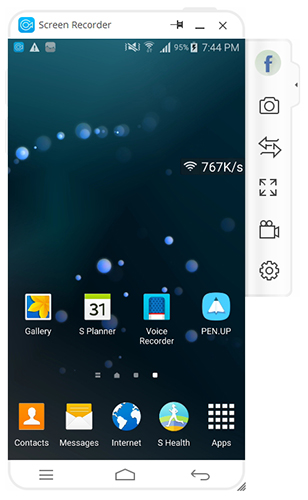
After the Android device is detected successfully,Android Screen Recorder will start to mirror the Android screen automatically.When you do any operation on the Android screen, you will see it on your computer.Also,you can use the mouse to control everything on the Android device.

android recorder mirror device

Step 4.Record Android screen on Computer
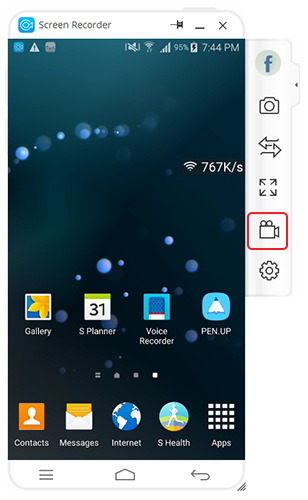
If you want to record any Android game, video, or operation on the Android device,just click on the Android Recorder button,which is above Settings button on the right navigation bar.

android recorder option

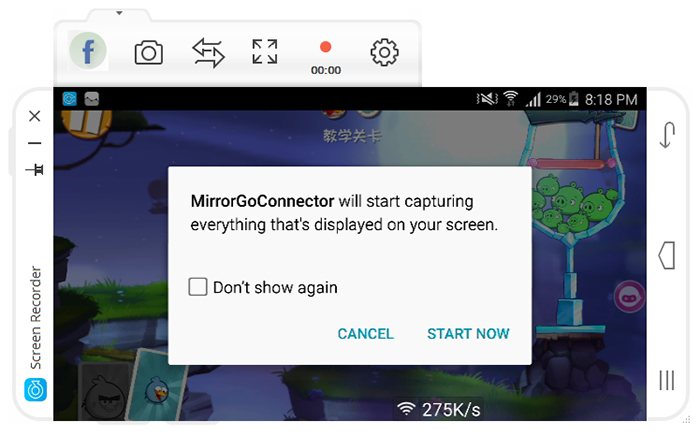
There will be a popup message to confirm the recording.Just click on Start Now,Android Screen Recorder will start recording everything on the Android screen.

android recorder start recording

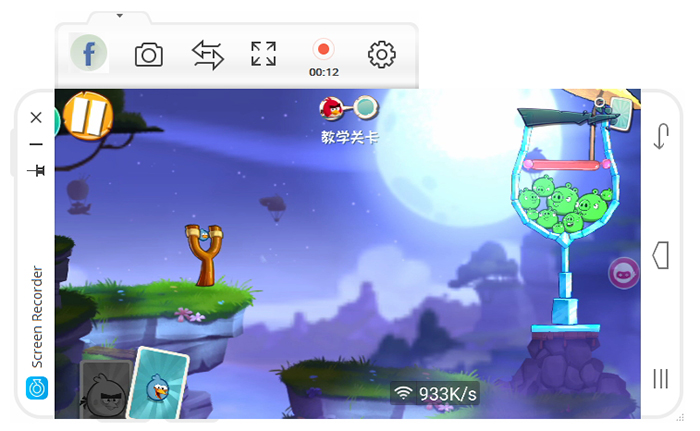
You can see how long it has been recording,and click on the red button to stop recording.

android recorder recording

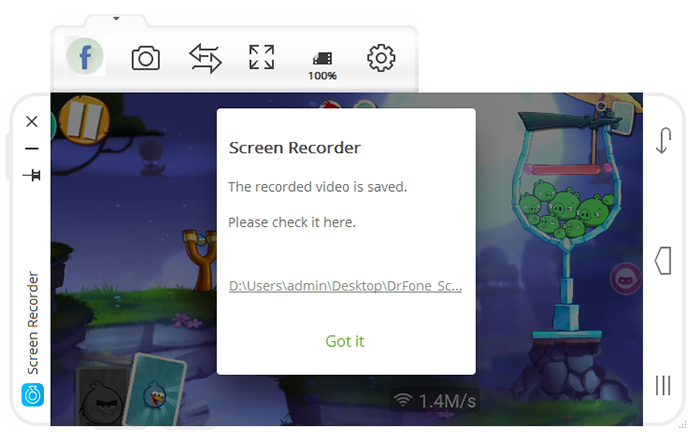
Then the recorded video will be saved on your computer automatically.

android recorder save recording

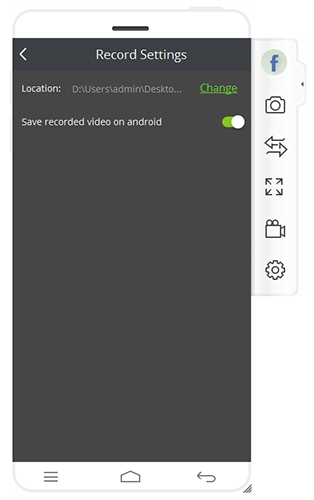
You can also change the save location via Settings –> Record Settings.

android recorder record settings

d_win d_mac

Part 2:How to Take Screenshot of Android Screen on Computer

Step 1.Launch Android Toolkit-Android Screen Recorder on Computer
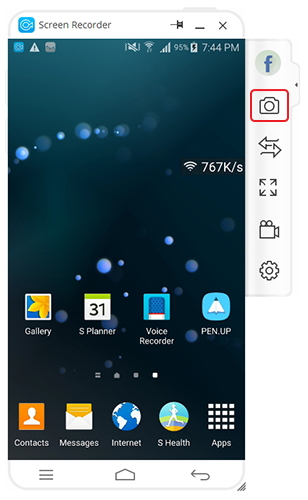
After your Android is connected to Android Screen Recorder,click on the Screenshot button to take a screenshot of your Android screen.

android recorder screenshot button

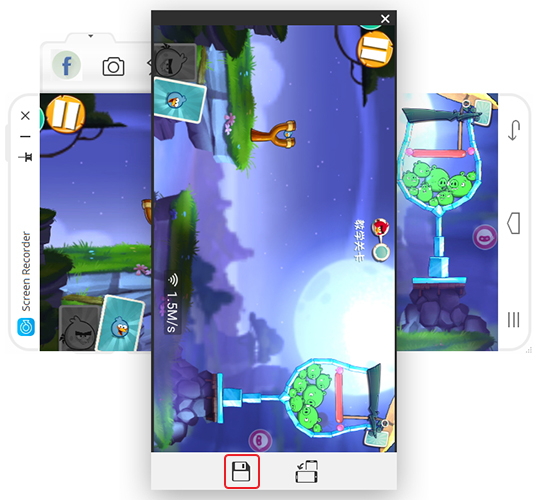
Once you click on Screenshot,a screenshot image will show up.Click on the Save button to save it to your computer.

android recorder screenshot

You can also click on the Rotate button to rotate the screenshot before saving it.

d_win d_mac

Related Article:

How to Record iOS Screen on PC

How to Enable USB Debugging on Android

How to Manage Android on Computer

How to Recover Media File on Android

How to Root your Android on Computer

How to Backup & Restore Samsung Galaxy S8

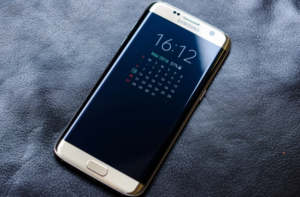
Samsung Galaxy S8 is releasing recently.The public media claimed that the Samsung Galaxy S8 and Galaxy S8 Plus would be shown off at Mobile World Congress 2017 in late February, although the company won’t reveal it to the public and instead will give select partners a preview of the new smartphones ahead of an official launch.It also features super-slim bezels and a headphone jack, with the latter in particular a cause for celebration. Early reports suggested the S8 would drop the headphone jack, but SamMobile and Android Police now say that it’s sticking around.

backup restore samsung galaxy s8

In these years lately,I often receive some emails,sent by Samsung users,who complained that they accidentally deleted or lost important data from their Samsung Galaxy phone.Worse yet,they were not able to get back the lost data from Samsung,because they didn’t do the backup job regularly.So to be prepare before raining,you should complete the data backup task for your new Samsung phone.How to backup & restore Samsung Galaxy S8 safely on computer?Here I will offer the entire effective solution for reference.

Backup & Restore Samsung Galaxy S8 Safely

Android Tool Kit is your ideal Android data manage tool to backup & restore Samsung Galaxy S8 on computer safely,including contacts,gallery,video,messages,calendar,audio,applications and application data(WhatsApp,Line,Viber,Kik,etc,.).With this powerful tool,you are able to backup Android data to computer completely,restore data to device from backup on computer.Android Tool Kit works well for various of Android devices,including Samsung (Galaxy S8/S7/S6,Note 5),Google (Pixel,Nexus),Motorola,HTC,Sony,Huawei (Mate 9,P9),ZTE and so on.

d_win d_mac

Backup & Restore Samsung Galaxy S8 on Computer Safely

Step 1. Connect Samsung Galaxy S8 to Computer
Launch Android Tool Kit on the computer and from the “More Tools” section,select “Data Backup & Restore” option.Then connect your Samsung device to your computer using USB cable.

android tool kit-backup & restore

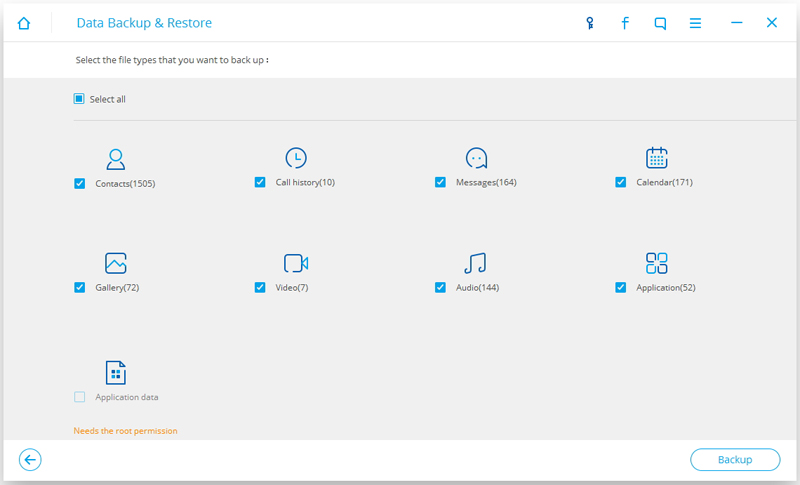
Step 2.Select File Types to Backup
Android Tool Kit can be used to back up 9 different file types including messages, call history, calendar, gallery, audio, video, Applications and Application data(WhatsApp,Line,Viber,Kik,etc,.).Please note that to backup app data requires your Samsung device to be rooted.

select data to backup

When the backup is complete, you could click on “View the backup” on the lower left corner of the window to see the contents of the backup file.

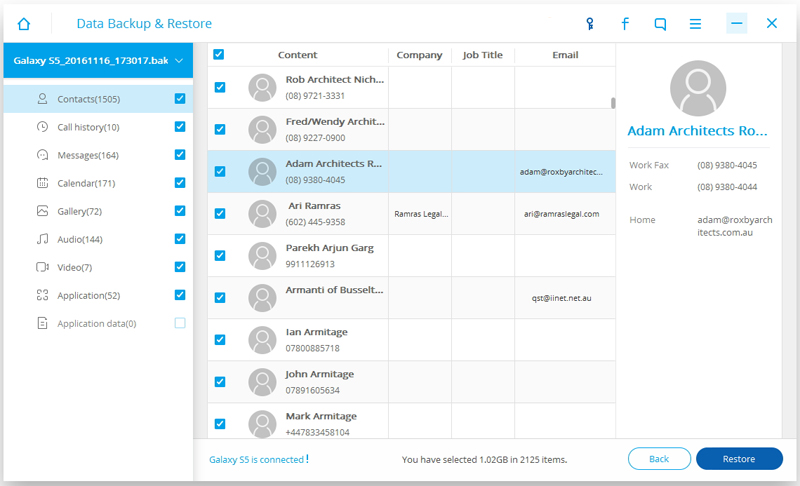
Step 3.Selectively Restore Backup Data to Device
You are allow to choose the data you want to restore.Select the different file types on the left and then select the files you want.Click on “Restore” to start.

restore backup files to samsung galaxy s8

d_win d_mac

Related Article

How to Recover Lost Photos from Samsung Galaxy S8

How to Recover Data from Samsung Galaxy S8

How to Transfer iPhone Files to Samsung Galaxy S8

How to Transfer Android Files to Samsung Galaxy S8

How to Root Huawei Honor 6X on Computer

“I got a new Huawei Honor 6X phone for free.Now I need to root the Android phone on my own.Any reliable ways to root Honor 6X on computer without data loss?Thanks advance.”-Joseph

Unveiled during CES 2017, Huawei’s Honor 6X took Digital Trends by surprise with its smooth performance,solid camera,and great build quality,all wrapped up in a $250 package that took its predecessor and other budget phones to task.Unlike other giveaways, which might have entrants share something through Twitter or Facebook, you should go through Honor’s website and register your information.Fortunately for Honor fans, the company now gives them the opportunity to receive the phone for free.You have through January 26 to complete registration,and when all is said and done, five entrants will be chosen and have the Honor 6X sent to them.

Root Huawei Honor 6X on Computer without Data Loss

Thanks to Android Manager tool,it’s easy to root Huawei Honor 6X on computer safely without data loss.Android Manager tool perfectly help to root Android device without data loss on computer,including Huawei(Mate 9/P9),Samsung(Galaxy S7/S6,Note 5),Sony, LG, ZTE, HTC, Motorola,and more.Moreover,Android Manager enable to manage data for Android device,transfer files between Android and iTunes,transfer files between Android and computer,transfer files between Android and iOS devices.

d_win d_mac

Root Huawei Honor 6X on Computer Safely without Data Loss

Step 1.Run Android Manager on Computer
Please download and install Android Manager program on your computer first.

Step 2.Connect Huawei with the Computer
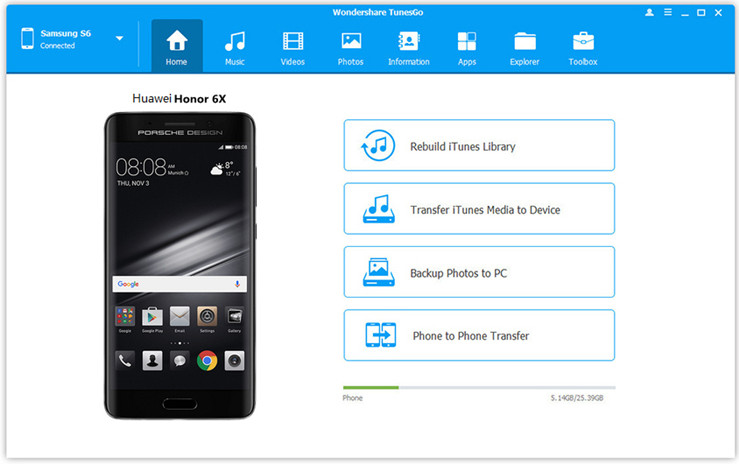
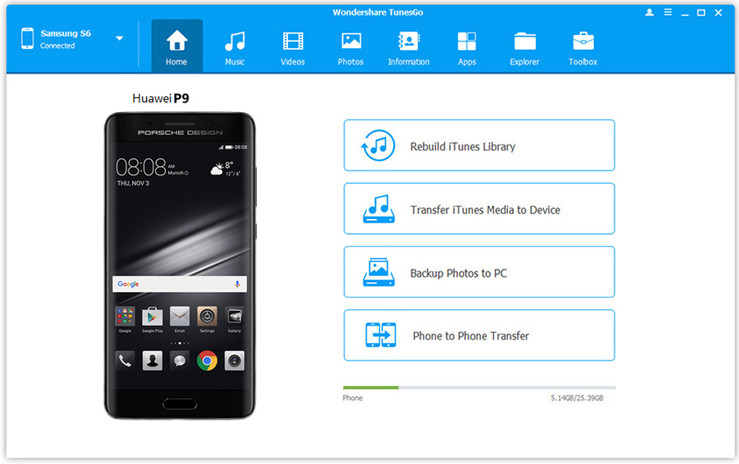
After running program on computer and it will ask you to connect your Huawei Honor 6X with the computer.Then Android Manager will automatically detect your device and you will be shown a screen like this on your computer.

android manager main page

Step 3.Click the Root Selection
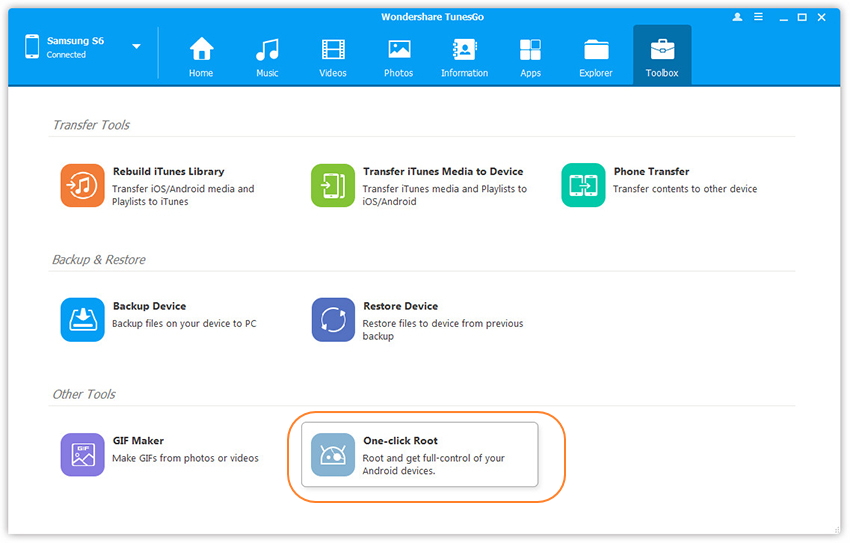
Click Toolbox tab and find One-click Root on bottom.

one click root huawei honor 6x

Step 4.One Click to Root Huawei without Data Loss
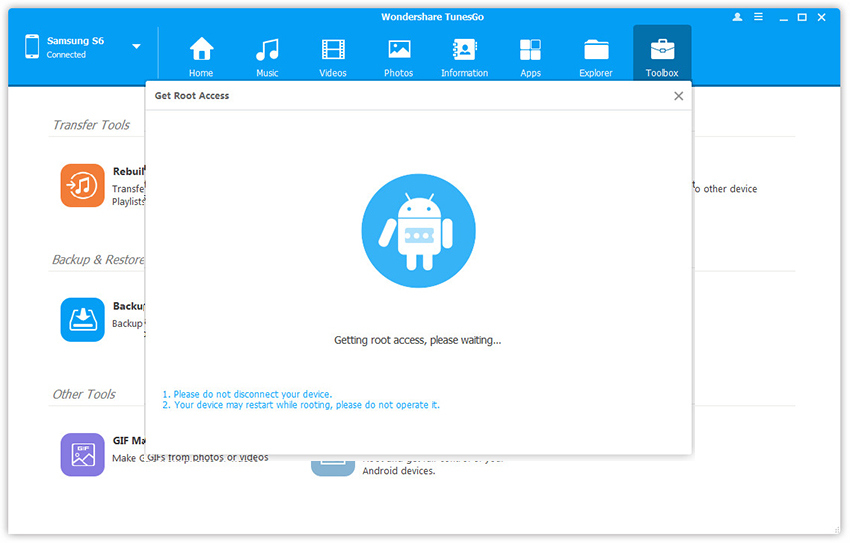
After you have clicked on one-click root you just need to wait seconds and then the program will prompt you that one-click root on your phone has been successfully completed.

root huawei honor 6x on computer

Done.Now you could enjoy trip on your rooted Huawei phone freely.

d_win d_mac

Related Article:

How to Backup and Restore Huawei Phone

How to Manage Android on Computer

How to Recover Deleted Data from Huawei Honor 6X

How to Recover Deleted Photos from Huawei Honor 6X

How to Root Huawei P9 on Computer

“I bought a new Huawei P9 phone for my son as the graduation present,how can I root this Android phone safely by myself on the computer?Any good suggestions?”-Joanna

root-huawei-p9-safely

Since launching, the Huawei P9 and P9 Plus have become an instant hit in the global smartphone market.First revealed in April 2016,the dual-lens Huawei P9/P9 Plus devices were Huawei’s first flagship smartphones to be developed in collaboration with legendary German camera brand Leica.This extensive partnership has already set a new benchmark for advanced smartphone camera technology and delivered outstanding photography experiences to consumers.To root your smart Huawei P9, P9 Plus or Lite smartphone,just follow the simple guide outlined here to root the phone safely using Android Root full guide.

One Click to Root Huawei P9 on Computer without Data Loss

Android Manager offers the safely solution to one click to root Huawei P9(Plus) on computer without data loss.Android Manager enables to root Android device on computer with easy steps.Furthermore,this magic Android data manage tool is designed for transferring & managing Android data on computer freely and conveniently.With Android Manager,you are able to transfer files between Android and computer,transfer files between Android and iTunes,transfer files between Android and iOS devices.The transferable files including music,videos,photos,contacts,SMS,apps.The powerful Android Manager works well for most models of Android,such as,Huawei (P9,Mate 9),Google (Pixel,Nexus),Samsung (Galaxy S7/S6/S5,Note 5/4/3),HTC,LG,Sony,ZTE,Motorola,etc,.

Extra Tips:How to Manage Huawei P9 on Computer

d_win d_mac

Root Huawei P9 on Computer Safely without Data Loss

Step 1.Run Android Manager on Computer
Firstly,please download and install Android Manager program on your computer.

Step 2.Connect Device with the Computer
After running program on computer and it will ask you to connect your Huawei P9 with the computer.Then Android Manager will automatically detect your device and you will be shown a screen like this on your computer.

root huawei p9 on computer

Step 3.Select the Root Selection
Click Toolbox tab and find One-click Root on bottom.

one click root huawei p9

Step 4.Safely Root Huawei without Data Loss
After you have clicked on one-click root you just need to wait for a couple of seconds and after that a message will appear on your screen,prompt you that one-click root on your phone has been successfully completed.

root huawei p9 on computer

d_win d_mac

Related Article:

How to Transfer Media Files from iPhone to Huawei P9

How to Recover Deleted Data from Huawei P9

How to Backup and Restore Huawei Phone

How to Root Huawei Mate 9

How to Recover iPad Photos after Restoring

“Last night my iPad stuck at the game screen suddenly I had nothing to do but restored it to the factory resetting.The bad thing is that I haven’t backup the party photos from my device.Regret so much!How can I restore these lost iPad photos without backup?”-Benson

Restoring iPad to the factory resetting can help to fix a lots of issues on device,such as,iPad display freezing,iPad affected by virus,iPad cannot be detected by or appear in iTunes,iPad cannot sync with iTunes on computer,iPad won’t turn on,etc,.Simply say,factory setting restore is a process to restore iPad to the original state.You probably lose iPad data if you have no backup,such as messages,photos,videos,notes,emails,contacts,etc,.However,it’s a common thing that people forget to do a backup job for their device before restoring to factory settings.In most cases,it is really difficult for users to recover lost iPad photos without iTunes/iCloud backups after performing  factory settings restore on iPad.The follow passages we are describing how to directly restore photos and other data from iPad without backup after restoring.

Selectively Recover Lost Photos from iPad after Restoring

iOS Data Recovery is a reputed recovery tool for iOS devices that will help you in recovering lost data from iDevice, iCloud or iTunes backup to the computer.With iOS Data Recovery allows to selectively restore lost photos from iPad after restoring.Not only photos,but also more other types of iOS data are supported to restore by program,such as,contacts,video,messages,note,call logs,voice memo,apps data,etc,.In addition,iOS Data Recovery empowers to recover lost iOS data after losing data due to any circumstances,for instance,restore device to factory resetting,accidently deletion,iOS update,iOS jailbreak and so on.iOS Data Recovery enables to restore lost iOS data with three recovery modes:directly recover from device without backup,recover from iTunes backup,recover from iCloud backup.iOS Data Recovery works well for all iOS devices,like iPhone 7(Plus),iPhone 6S(Plus),iPhone 6(Plus),iPhone 5S/5C/5,iPad Pro,iPad Air 2/1,iPad Mini 4/3/2/1,iPad 4/3/2/1.

d_win d_mac

How to Directly Restore Photos from iPad after Restoring

Notes: iOS Data Recovery provides several different data recovery modes for restoring data,including “Recover from iOS Device”,”Recover from iTunes Backup”,”Recover from iCloud Backup”,and “Smart Recovery”.The “Smart Recovery” is designed for helping to restore data when you are not sure which is your circumstance of data loss on device.If you don’t know which recovery mode to choose restore lost photos from your iPad,here we suggest you to click the “Smart Recovery” option then choose How You Lost Your Data.

smart iphone data recovery

Step 1. Install iOS Data Recovery on the Computer
Firstly,please install and run iOS Data Recovery on the computer.Select the “Recover from iOS Device” default recovery mode.Connect iPad to the computer.Click “Start” to start the recovery process.

connect iphone with computer

Step 2.Select Deleted File to Scan by Program
To restore directly lost photos from iPad after restoring,you should select the “Photo” to be scanned by program,then connect iPhone to the computer.You are allow to select more than one files to be scanned by program,then click “next”.

select file to recover

Then the program will begin to scan your device automatically for lost data after clicking “Scan”.

scan ipad for lost data

Step 3.Preview and Directly Recover Photos from iPad
When the scanning is completes,you are allow to preview and directly recover the lost iPad photos.Select the data you want and click “Recover” to save the selected data on computer.

directly recover lost photos from ipad

d_win d_mac

Related Article:

How to Recover Lost iPad Data After iOS 9 Jailbreak

How to Recover iPad Air Data after iOS 9 Upgrade

How to Recover Live Photos on iPhone/iPad

How to Restore Deleted Skype History from iPhone

“HI.I just stuck in a trouble,I accidentally deleted the Skype messages on my iPhone,how can I get back the deleted Skype history from my device?Anybody offer the useful ways for me?Urgently.Thanks.”-Susan

Skype is a popular apps to allow you to chat with each other around the world anywhere anytime.Celebrate the season together,wherever you are.Skype keeps the world talking.Offer you the quality time with friends and family.Feel closer with free HD video calls,one-to-one,or as a group.Never miss regular catch-ups special occasions again.People like to talk with others via Skype with high chat quality on the Internet.If you are looking for a solution to recover deleted Skype history from iPhone, this article is suitable for you.

Recover Deleted Skype History from iPhone

iPhone Data Recovery specializes in restoring deleted Skype history from iPhone selectively(contacts,messages,photos),besides,this program enables to recover deleted apps history from iPhone,including WhatsApp,WeChat,Viber,Kik.Except apps data,iPhone Data Recovery allows to recover various of deleted iPhone data completely,such as contacts,photos,video,messages,note,calender&reminders,voice memo,safari history,etc,.iPhone Data Recovery works well for all models of iOS devices,such as iPhone 7(Plus),iPhone 6S(Plus),iPhone 6(Plus),iPhone 5S/5C/5.

d_win d_mac

How to Directly Restore Deleted Skype History from iPhone

Tips:iPhone Data Recovery provides the “Smart Recovery” option for you to recover iPhone deleted data efficiently.If you are not sure that the data loss circumstances of your iPhone,here we suggest you click the “Smart Recovery” feature to choose How You Lost Your Data,which will help to make data recovery efficiently.

smart iphone data recovery

Step 1.Select Recovery Mode
Please Download and launch iPhone Data Recovery on computer.Click on “Recover from iOS Device” recovery mode then begin the process by tapping “Start”.Connect your iPhone to the computer.iPhone Data Recovery will detect your iPhone soon.Once detected,click “Start“.

connect iphone with computer

Step 2.Select Files Type to Scan by Program
Select the files type to scan by iPhone Data Recovery,Skype,WhatsApp,WeChat,Viber,Kik,contacts,messages,photos,video,apps,calendar & reminder,bookmark,safari history,note,voice memo,and more are available.For Skype history recovery,just click “Skype“,then click “Next“.

select file to recover

Click “Scan” to search for your deleted Skype data,then the program will begin to scan your device automatically.

scan iphone and search deleted data

Step 3.Preview and Recover Deleted Skype History from iPhone
Once the scan is finishes,results will be shown in an interface,preview and select the specific data that you wish to recover from the Skype history.Select what you need and hit “Recover” to save on your computer.

recover skype history from iphone

Just few seconds the recovery process will be done.

d_win d_mac

Related Article:

How to Restore Deleted WeChat History from iPhone

How to Backup and Restore iOS Viber Messages

How to Backup and Restore iOS Kik Messages

How to Backup and Restore Line Chat History

3 Best Ways to Recover Deleted Data from iPhone