All posts by DHZ

How to Recover Data from Water Damaged iPhone

Common Situation of iPhone Water Damage
Probably the most common is the get broken screen on iPhone,the second most common is almost certainly water damage.Water and other liquids can damage your iPhone easily.Unfortunately, Apple’s warranty doesn’t cover liquid damage.Here’s how to rescue data stored on water damaged iPhone,whether you dropped your iPhone in the bath, the sea or the toilet.

iPhone-water-damage

If you are eager to recover data from water damaged iPhone,here is our strongly recommend data save application,which name is iPhone Damage Recovery.If you have ever synced iPhone data with iTunes before,you can extract the backup files on iPhone with iPhone Damage Recovery.If you don’t have a backup on iTunes,it doesn’t matter.iPhone Damage Recovery allows to directly scan your iPhone and recover data from it.Furthermore,iPhone Damage Recovery enables to recover data from various broken iPhone,such as broken screen iPhone,black screen iPhone,iPhone with touch screen can’t be used,etc,.Here is the detailed tutorial on recovering data from water damaged iPhone 7/6S(Plus)/6(Plus)/SE/5S/5C/5.

d_win d_mac

How to Directly Recover Files from Water Damaged iPhone

Step 1.Connect iPhone and Scan it
First,exit iTunes if you’re running it on your computer.Download,install and launch iPhone Damaged Recovery on computer.Then connect your iPhone to computer.When your iPhone is detected,there are three recovery modes for you: Recover from iOS Device, Recover from iTunes Backup File and Recover from iCloud Backup File.Choose the first one.

connect iphone with computer

Scan your water damaged iPhone according to the interface you’ve get in the step.You can directly click “Start Scan” button to scan data on your damaged iPhone.

select file to recover

Click “Scan” to scan iPhone data,then the program begins scanning your device automatically for lost/deleted or existing data of iPhone.

scan iphone and scan data on iphone

Note:Not only the existing data,iPhone Damaged Recovery also can scan out lost data (deleted data) from your iPhone.

Step 2.Preview and Recover Data from Water Damaged iPhone
When the scan is complete,you can preview all data found on it one by one in the scan result.Such as Contacts, Messages, Camera Roll, Photo Stream, Notes, Call History, Calendar, Reminders, Voice Memos and Safari Bookmark.Then choose the items you want to recover,and click on the “Recover” button to save them all on your computer with one click.

recover sms from water damaged iphone

If once your iPhone has been get water damaged and you want to recover data from the damaged iPhone 7/6S(Plus)/6(Plus)/5S/5C/5/4S/4, it is very urgent to save your crucial data first.It is an useful discussion above for the water damaged iPhone users,hope the main discussion about how to recover data from your water damaged iPhone can do a great help for you.Just download the excellent application and have a try.

d_win d_mac

Extra Tips:
The rescue way to fix your water damaged iPhone:

1.Shut It Down: There is a good chance that your iPhone is still working after you remove it from water. Even if it is, the first thing you need to do is turn it off. You don’t want electricity and water to mix and fry something.

2.Open All Ports: If your iPhone is in a case, open it. Remove any cords, headphones and even the SIM card tray on the side. If you don’t have a SIM card removal tool, most earring studs will also work, as will some paperclips or thumbtacks. You want to make sure water can freely flow out of the iPhone.

3.Empty Water Out: Now is the time to make sure you get as much water out of your iPhone as possible. You can shake the iPhone and you can blow into the iPhone openings. You can also try compressed air or a blow dryer on cool. Try to blow so that you don’t shoot water back into the iPhone. You can also try using a wet/dry vacuum to suck the water out.

Read more:

How to Recover Lost Data from Dropped & Broken iPhone

How to Recover Data from iPhone SE

How to Recover Deleted SMS/iMessages/MMS from iPhone 6s Plus

How to Recover Data from iPhone after Restoring to Factory Settings

How to Recover Data from Water Damaged Samsung Phone

Is your Samsung phone not working after dropping it in liquid or exposing it to moisture?Oh,it’s really bad luck that your Samsung phone get water damaged accidentally, getting your phone all drenched usually means the death of phone.Besides, the data on water damaged Samsung phone is valuable such as memorable photos, commercial contacts and important text messages.Don’t panic just yet there is possible to get back files from water damaged Samsung phone.Here is the best methods that you can try to restore your Samsung data.

When your Samsung phone gets malfunctions caused by water damage, the first thing to consider is to save the data on phone before fixing it.Then how to recover data from water damaged Samsung phone?You can try Broken Samsung Data Recovery tool to recover photos,text messages, contacts or other major data directly from water damaged Samsung phone completely.Most models of Samsung phones are support to restore data with Samsung Broken Data Recovery.Such as Galaxy S7/S6/S5,Note 6/5/4,A9/A8/A7,etc.Except water damaged Samsung phone,this terrific tool allows to recover data from broken Samsung phone,including black/broken screen Samsung phone,device damaged Samsung phone,Samsung phone with touch screen can’t be used,etc.

d_win d_mac

How to Recover Files from Water Damaged Samsung Phone

Step 1.Install and Run Samsung Broken Data Recovery on PC
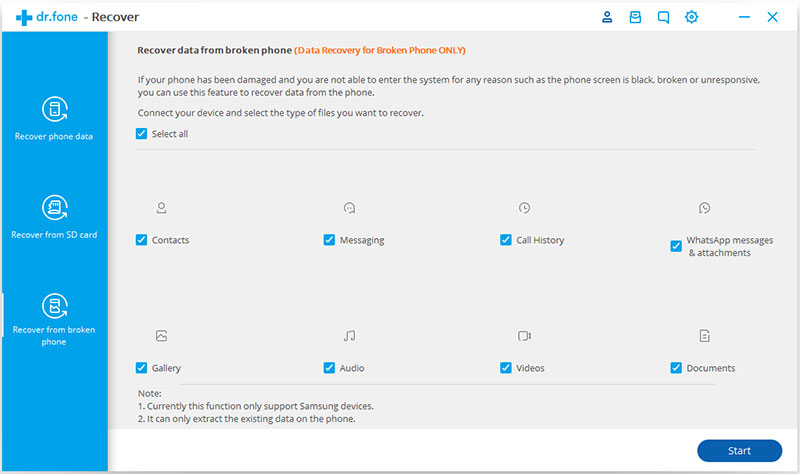
Firstly,you need to download and launch Samsung Broken Data Recovery on computer then you need to select the “Recover data from broken phone” option. After that, you need to connect the water damaged Samsung phone to computer with an USB cable and click “scan it”button.

connect broken samsung to pc

Step 2.Select the File Types to Recover
Now you need to select the files you need to recover from water damaged Samsung.Click the files you need to recover,such as “Contacts”,”Gallery” and click “Next”.

scan broken samsung phone

Step 3.Select the Fault Type of Water Damaged Samsung Phone
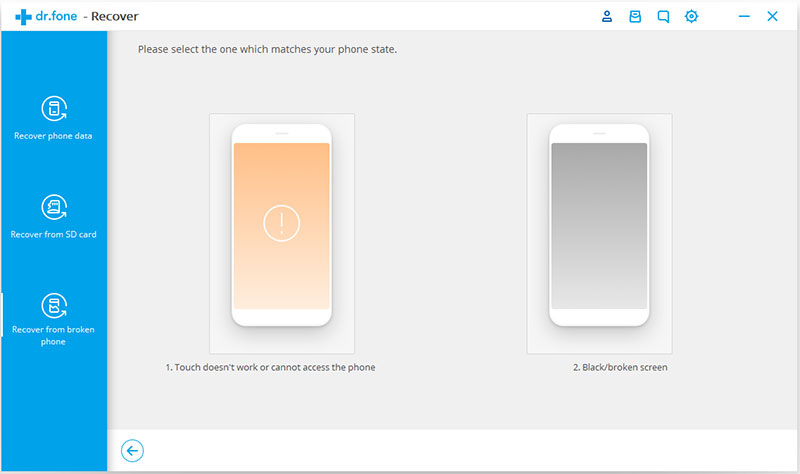
Before recovering your water damaged Samsung phone,there are two options to choose from the system-“touch cannot to used or cannot enter the system”, another is “Black screen (or the screen is broken)”. You need to choose the appropriate one depends on your phone and then click on “NEXT”.

choose broken types

Step 4.Select the Model of Your Samsung Phone
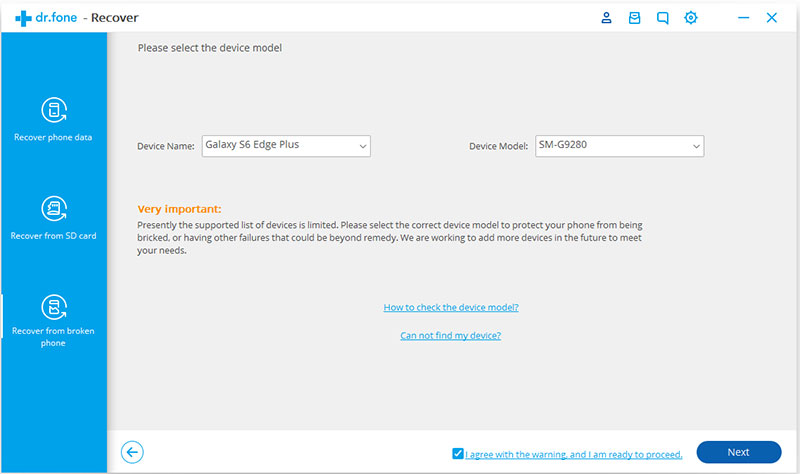
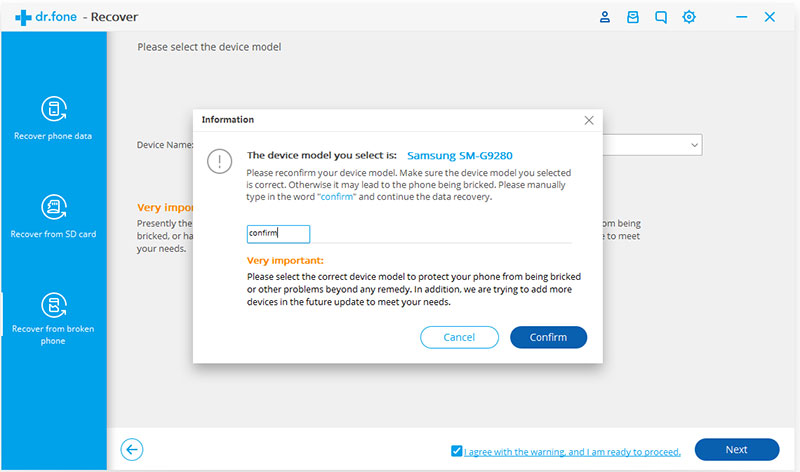
In this step you have to select the proper version of the Samsung,besides the exact model you are using.

select device model

Step 5.Enter the Download Mode on Water Damaged Samsung Device
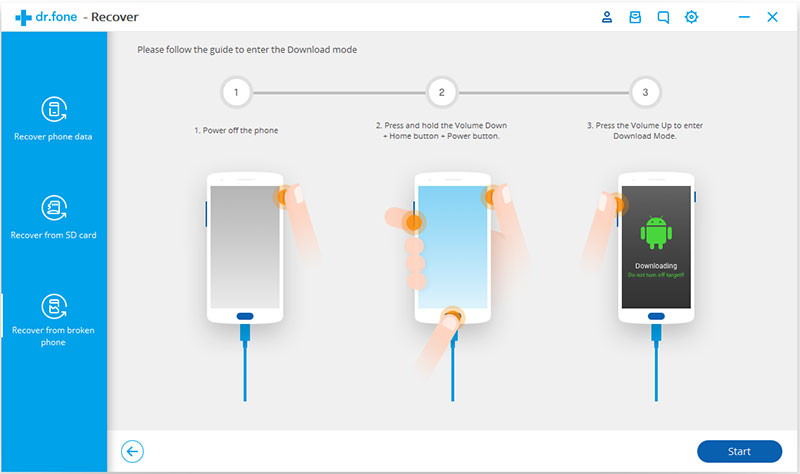
Now you can follow the guide here to get your Samsung device into Download mode:
1.Power off your device.
2.Press the Volume down button, Home and Power button at the same time.
3.Press the Volume up button to enter Download mode.

broken samsung download mode

Step 6.Analysis of the Water Damaged Samsung Phone
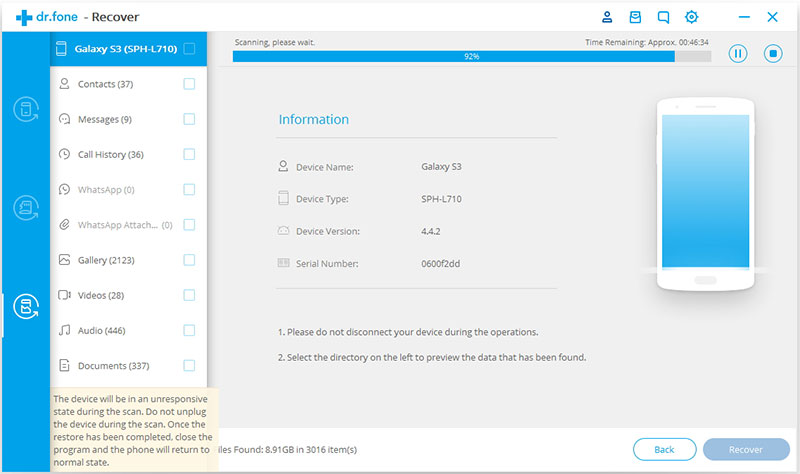
Now the software will start downloading “recovery package”, it will take you a few minutes, please wait patiently.

scanning data broken samsung

When the downloading is finished,the selected data from water damaged Samsung will be list.

Step 7.Recover Data from Water Damaged Samsung Phone
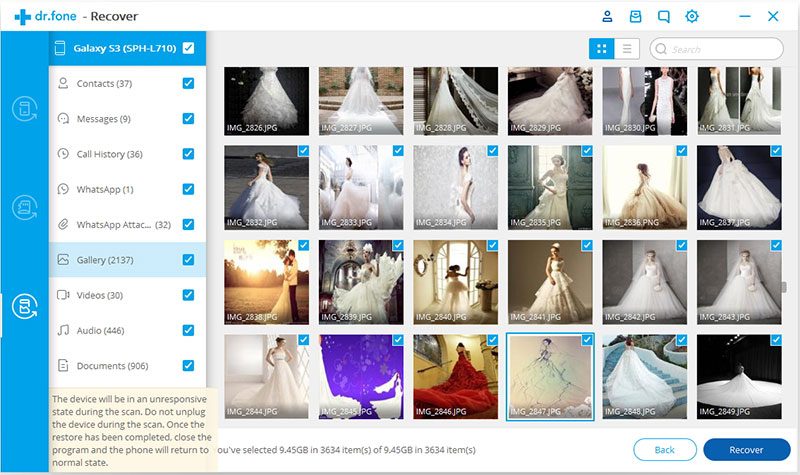
Now you can preview and select the data you want to recover and tap on the “Recover” button at the bottom right of the interface to restore them to computer.

recover data broken samsung

Once you dropped your Samsung phone into the water, and though you may pick the phone out right now.However after the phone get wet, you may turned on the device and find some important data stored on the water damaged phone have been gone.Actually,it is reported that many Samsung users have suffered this “Disaster” with the popularity of their phones, and if you’re one of them,what will you do here? Just follow the tutorial above we guide you on recovering data or files from water damaged Samsung phone step by step.

d_win d_mac

Read more:

How to Recover Data from Samsung with Broken Screen

How to Recover Data from Broken Samsung Phone

How to Recover Data from Samsung SD Card

How to Recover Data from Broken Android Phone

How to Recover Data from Samsung When Touch Screen Cannot be Used

My Galaxy S7 is on, but I am unable to use it because my touch screen is not working.I tried resetting my phone, but when I turned it back on my screen was still not responding to touch. Why won’t my phone screen respond to touch?And the more urgent stuff is how can I get back my data from the unnormal Samsung?-Aaron Lee

It’s almost perfect when you just bought a brand new and shiny Samsung Galaxy phone such as the Galaxy S7.Among all the issues that have been reported, Samsung touch screen not working is the most common one.If the touch screen problem cannot be fixed,you must annoyed to recover the important files on your phone before it is replaced by a new one.

If you need professional help from third-party application without any complex process, Samsung Data Recovery should be the one perfectly for you.It offers you a chance to get back files from Samsung which touch screen can’t be used. All files like contacts, messages, photos, videos, call history, etc. are accessible and recoverable with Samsung Data Recovery.Furthermore,this useful application supports to recover data from black screen Samsung,broken screen Samsung as well as the Samsung with touch screen can’t not be used.Most kind of Samsung phones are applicable with Samsung Data Recovery,including Galaxy S7/S6/S5,Note 6/5/4,A9/A8/A7.

d_win d_mac

How to Recover Files from Samsung when Touch Screen Cannot be Used

Step 1.Download,Install and Run the Samsung Data Recovery on Computer
When you get into the main interface,you will see a new option-“Recover data from broken phone” added at the bottom left of the screen.Click on “Scan it”.

connect samsung to pc

Step 2.Choose the Type of File that You Need to Recover
As you can see from the below interface,you are able to recover different types of files at once.Just choose the one you want to recover,and go to “Next” to move on.

scan samsung phone

Step 3.Select Phone Fault Type and Device Model
Choose the right broken type for your device according to the description given by the two options.Obviously,at this moment you should choose the first one “Touch cannot be used”.

choose broken types

Next,select the device model and device name.Perhaps you don’t know the information about your device,don’t worry about it, you can go to “How to confirm the device model” to have a check.

Step 4.Get into Download Mode with Samsung
Now you can follow the steps display in the interface to get into download mode.Firstly,power off the device.Press and hold the 3 buttons together: Volume down button, Home button and Power down button.Finally,press the Volume up button to enter the Download mode.

recover data from samsung with screen can't be used

Note:Not everyone can enter the download mode successfully at the first time,but you can do the followings to solve this program.Go to “Exit Download mode” option when you fail to get into the download mode,this could help you return to the main interface at the beginning.Then you can choose “Fix my bricked phone” to have this problem solved.

recover data from broken screen samsung

Step 5.Analyze and Scan Files Stored on Samsung
After the program finishes analyzing and downloading the recovery package for your Samsung,it will start to scan the data stored in your device.All data found will be displayed in the left panel of the interface.

recover files from samsung with screen can't be used

Step 6.Preview and Recovery Files from Samsung
Now you can preview all files found in details.Once you’ve select the files that you need to restore,tap”Recover” button to finish the process.

recover data from from samsung with screen can't be used

When all files are recovered from Samsung successfully,you can extra the data to your other device or upload to the Internet.Actually,keeping backup the phone is better to prevent you from great data loss.Hope this solution helped!

d_win d_mac

Read more:

How to Recover Data from Samsung with Broken Screen

How to Recover Data from Broken Samsung Phone

How to Recover Data from Broken Screen Android Phone

How to Recover Data from Black Screen of Android Phone

How to Recover Lost Data from Android SD Card

[Summary]:Looking for an Android SD Card Recovery to retrieve your lost/deleted/formatted photos, videos and audio files from Android mobile phone’s SD card?This article teachs you how to use SD Data Card Recovery to recover all lost data including songs, photos, videos and other lost files on mobile phone’s memory card.Various of Android brands are applicable with Samsung, Motorola, Huawei, Google Pixel, LG, Sony, HTC, ZTE, etc.

It’s happened often on our daily life,whether your digital camera fell into the wrong (toddler’s) hands,or faced with a “Delete All” message by mistake,chances are you or someone you know has accidentally deleted precious data from the SD card of Android phone,how can you rescue the lost data by yourself?Relax.Chances are good that you can recover these lost files, as long as you haven’t taken any more new data or written anything else to the card.Android users always face a lot of problems about the SD card.Such as formatting SD card,virus attack, mistakenly deleting and more other reasons leads to data loss from SD card.So is there any effective way to help Android users get the lost data back from Android SD card?

The answer is yes.Android SD Card Recovery can help you get out of these trouble.What is Android SD Card Recovery?It is a professional application in order to recover lost data from Android SD card.You are allowed to recover all lost data from Android SD card,including contacts,songs, photos, videos and many other lost files.Various of Android brands are applicable with Android SD Card Recovery,like Samsung, Motorola, LG, Sony, HTC, ZTE, etc.

Android SD Card Recovery supports to recover lost data from Android SD card due to following situations:
-Accidentally deleted files from SD card
-Formatted SD card
-SD card got corrupted or inaccessible
-Virus inflection
-Power failure
-Others

You need to download the application on computer. Choose the right version for your computer.

d_win d_mac
d_win d_mac

How to Recover Lost Files from Android SD Card

After download and run the Android Toolkit – Android Data Recovery & SD Card Data Recovery on your PC or Mac,then click “Data Recovery”,click on Android SD Card Data Recovery at the bottom of the program.

run Android SD Card Data Recovery

Step 1.Run Android SD Card Program
Download and install the application on your PC or Mac.Run it, you will see the interface as below. Click the “scan it” button to scan data stored in SD card.

connect Android SD card to PC

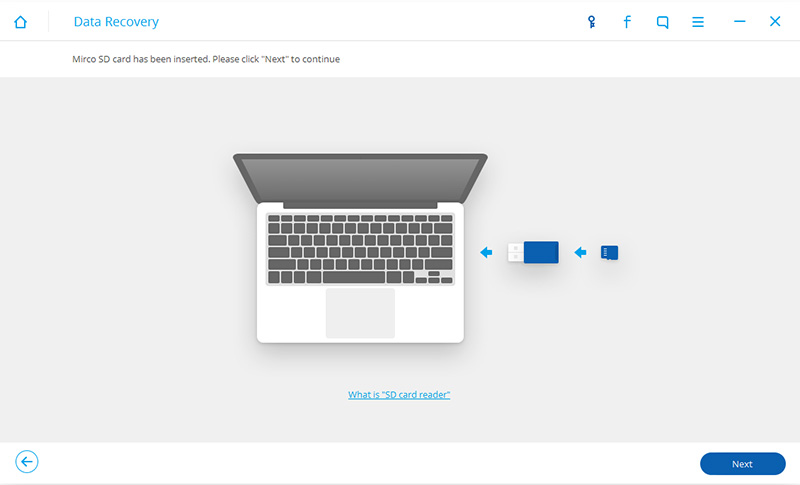
Step 2.Connect SD Card to Computer
Insert your SD card in a card reader and connect the reader to the computer, then,click the “Next” button to move to the next step.

Android SD Card File Recovery

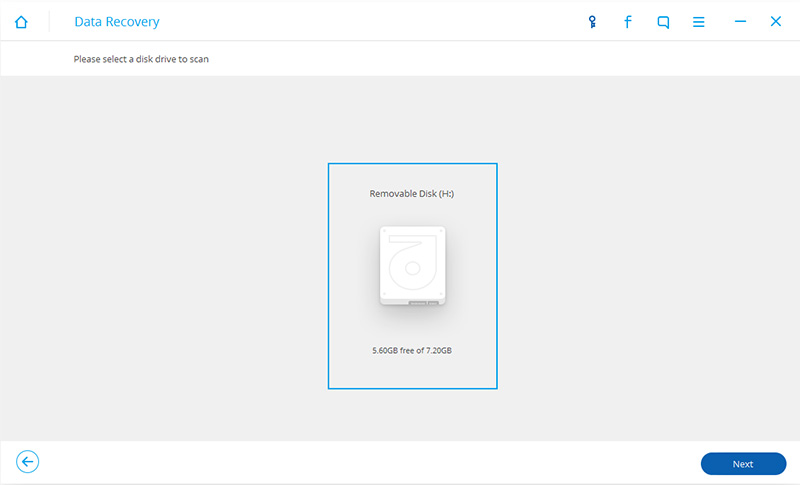
When your SD card is detected,it will show on the interface with the size and name. Select it and press “Next” button.

Step 3.Analyze and Scan Your Android SD Card
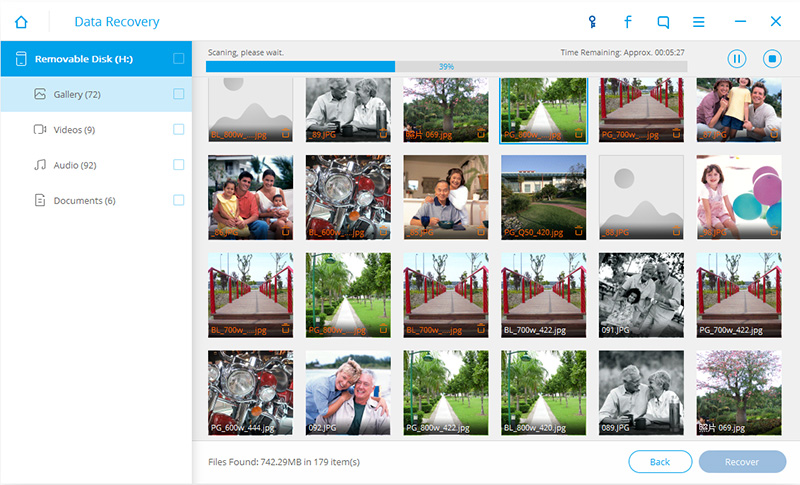
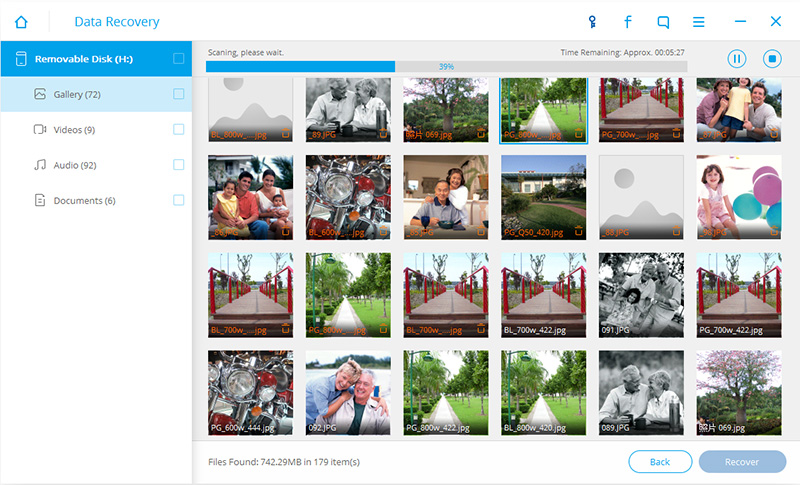
The application will start scanning your SD card for the lost files.
Note:You can only restore photos,videos,audios and documents from SD Card.If you want to recover other data, you should scan for Android phones.

Analyze Android SD Card

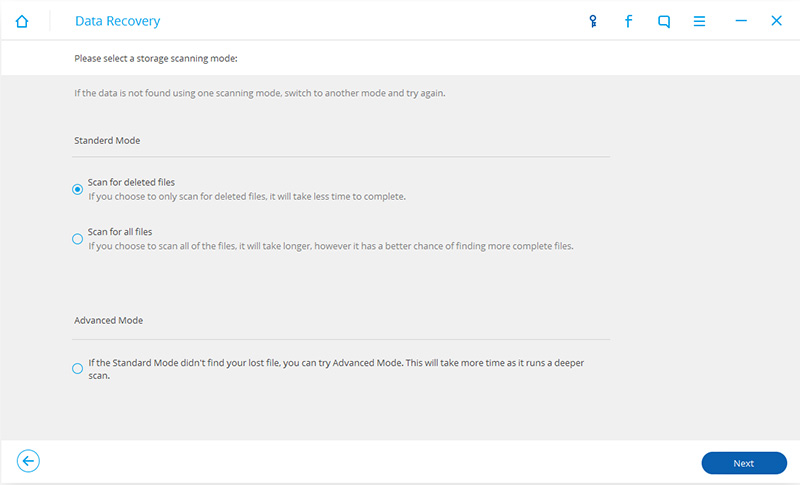
Select the recovery mode you would like to try and click on Next to begin scanning your SD card.

scan android sd card

Step 4.Preview and Recover Data from Android SD Card
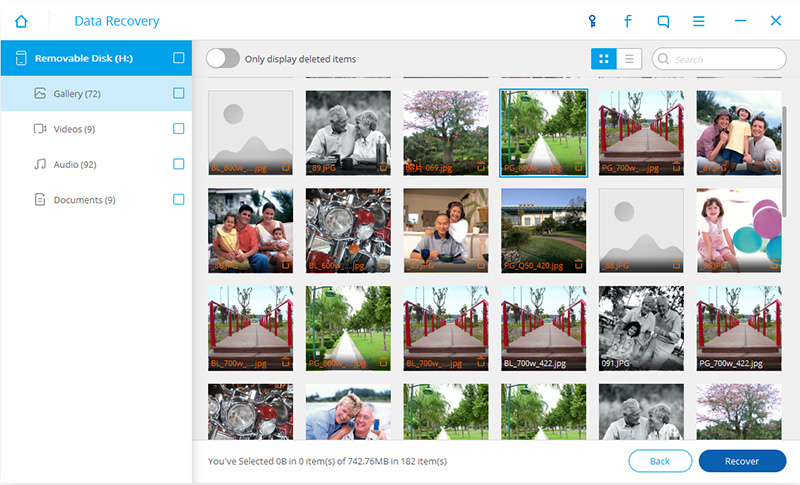
After finish scanning the SD card, you will be able to preview found files such as photos, audios, videos and documents, so as to check whether your lost files are found or not. Then select files you want to recover from SD card and click on “Recover” button.

Recover Data from Android SD Card

Android SD Card Recovery is the ideal recovery helper for you to recover lost data from Android SD card.It helps to extract and scan out all lost files from Android SD card without any quality loss.In addition, you are allowed to preview all the details before you decide to get them back.Use this effective recovery application to recover your lost files from Android SD card right now.

d_win d_mac
d_win d_mac

Read More:

How to Recover Data from Samsung SD Card

How to Recover Lost Contacts from Android Phone Memory Card

How to Recover Files from Broken Screen Android Phone

How to Recover Lost Data from Android Phone

How to Recover Data from Samsung SD Card

SD cards are mostly used as mass storage on Samsung smartphone.The important and precious data files, such as picture, movies, songs, audio and other multimedia files, are all stored on SD card on the device to save space of internal memory.When you have kept a lot of personal data on the SD card on your Samsung smartphone, but lose them due to mistakenly deleting or factory resetting.Would you feel mad with yourself?If you have important or sensitive data on the SD card of your Samsung phone, it’s important to make sure that data is backed up immediately. You could store it in the cloud or on another device without paying a dime.

However,if you need to recover data from Samsung SD card and haven’t backup,how to fix?Aside from hardware issues with the SD card,sometimes you inadvertently delete data. Luckily, there is a way to recover that data rather easily with Samsung SD Card Recovery,a data recovery program you can download to your computer and get it for free here.Samsung SD Card Recovery is one of the fantastic programs available to pretty easily get back data from Samsung SD card quickly as well as safely.Most media files could be recovered by this program from Samsung SD card,insist of videos,photos,audios and document.Samsung Galaxy S7/S6/S5/S4/Note 4/Galaxy A9/A8/A7/A5,etc are support.

d_win d_mac

How to Recover Files from Samsung SD Card

Step 1.Install and Run Samsung SD Card Recovery
Firstly,go to download Samsung SD Card Recovery.Install it on your computer.Then run the program and you will get the primary interface below.

samsung-sd-recovery

Step 2.Plug SD Card Reader on the Computer
Insert your Samsung SD card into a card reader and connect the reader to computer.

samsung-sd-recovery-2

When your Samsung SD card is detected,it will show on the interface with the size and name.Select it and press “Next” button.

Step 3.Scan Samsung SD Card for Media Data
The software will start scanning your Samsung SD card for the all media files.
Note:You can only restore photos, videos, audios and documents from SD card.If you want to recover other data, you should scan for Samsung phone.

samsung-sd-recovery-3

samsung-sd-recovery-4

Step 4.Preview and Recover Data from Samsung SD Card
After scanning,the results will be listed in categories on the left.You can go to “Gallery”, “Audios”, “Videos” and “Document” files to preview the files.Selectively check the files you want to get back and click on “Recover” button.Choose a folder on your computer on save the recovered files thus we finish the recovery successfully.

recover-data-sd-card

System error,virus infection,and many other reasons may lead to SD card damage.If the card can be recognized as a drive by computer and no new data has been written into it, there are chances to recover data from Samsung SD card.Samsung SD Card Recovery can help you do the recovery.By using it, you are able to recover all deleted/lost or existing media files from Samsung SD card easily.

d_win d_mac

Read more:

How to Recover Lost Contacts from Android Phone Memory Card

How to Recover Data from Samsung with Broken Screen

How to Recover Data from Broken Samsung Phone

How to Recover Lost Data from Samsung Phone

How to Recover Files from Android Samsung Phone Broken Screen

[Summary]Phone screen is broken?What you need to do is recovering lost data including contacts, messages, photos, pictures, videos and more from your broken phone.This article teach you how to extract data from Samsung phone with broken screen directly.

My Android Phone’s Screen is Broken
Occasionally,the situation arises when Android phone screens get broken completely. Be it due to a nasty fall, playing a bit too rough with other items in your pocket or backpack, or other device trauma, these things unfortunately happen from time to time.We hope that you never have to experience this rather unpleasant situation, but if it does ever happen, we might have a solution for you that will enable you to control your device in order to extract its data and recover data from the broken screen Android phone.If your get an Android phone with broken screen,some would assume that their data is lost.However,there are various ways to connect to your device and restore your data from it.

recover files from broken screen android

Recover Contacts,SMS,Photos,Videos from Android with Damaged Screen

Circumstances above we mention that may be what you need is the Broken Android Data Recovery,this application has special advanced functionality to recover data from Android phone with broken screen.With the help of this application,one can effectively retrieve files from Android phone with broken screen as well as from black screen,rooted,virus infected,formatted Android phones.You can restore variety of data like photos,text messages, contacts,videos, songs, etc. from Android phone.Including Samsung,LG,Sony Ericsson,HTC,Dell,Acer and other popular brands.Do you have a broken screen Android phone and need to restore files from it? If the answer is yes, all you need to do is head over to the tutorial and give this tool a try.

d_win d_mac

Easy Steps to Recover Lost Data from Broken Android Phone

Step 1.Connect Broken Screen Android to Computer
Download and run Android Data Recovery on computer.Then you can see the option -“Broken Android Data Recovery”option,then connect the broken screen Android to computer with an USB cable,and click the “scan it” button.

connect broken android to pc

Step 2.Select the Files type to Scan
The scan will take you a few minutes to waiting.After that,you can preview all recoverable files found in the scan result one by one.Actually,the current files including the deleted/lost or existing data such as messages,contacts,photos and video etc are scanned out in the result.You can distinguish them by different color.Now you can click the option which is the type data name.If you want to scan all files at once,please click “Select All” item.

select file you want

Step 3.Select Types of Files to Recover from Broken Screen Android
In this step the program will guide you to another screen,you will see the following screen.There are two fault types of phone choices: “touch can not be used or can not enter the system”and “black screen or the screen is broken.”Please choose the second one.

Choose Broken Types

Step 4.Select Your Android Device Model
Then according to option to select the brand and model of your Android.If you are not sure what model of your Android device,please click the “How to confirm the device model”option.

recover data from broken android

Step 5.Enter Download Mode for Broken Screen Android
In this step,you will follow different steps to enter download mode depends on different problems.
1) If your Android touch screen can’t be used or can’t enter the system, you can follow the guide displayed in the below interface to get into “Download mode“.
2) If your Android is black screen or the phone screen is broken, you can also do the three steps to enter “Download mode”.

recover contacts from broken screen android

Then,please click the “Start” button,the countdown will display on the screen in the program to tell you how to download mode for the device.
Note:During the process of getting into “Download mode”,do remember to keep connecting your broken screen Android with computer.

Step 6.Analyze Data on Broken Screen Android
After entered the “Download mode”,the program will start downloading “recovery package“,it will take you a short time,please wait a moment.

When the downloading finish,the selected data item stored on the device will scanned out.

recover photos from android with broken screen

Step 7.Preview and Recover Photos,Contacts,SMS from Android Phone with Broken Screen
When finish scanning the broken screen Android,you can preview all data before start recovery,including the detailed messages,photos,videos and more document.Just click “Recover” button at the lower-right corner and save them on computer.

recover data from android with broken screen

Android Data Recovery is a reliable data recovery application for Android phones.I think that you must learn how to use this tool to get back data from broken screen Android phone with simple steps.Breaking your mobile phone screen is inevitably immensely frustrating and, in terms of data recovery, prevention is better than cure, so make sure to back up all your important files and data before the worst happens.

d_win d_mac

Read more:

How to Recover Data from Black Screen of Android Phone

How to Recover Data from Broken Android Phone

How to Recover Data from Samsung with Broken Screen

How to Recover Data from Broken Samsung Galaxy S6/S5/Note 5

[Summary]:Your Samsung phone is broken with black, blank, locked or cracked/broken screen? This aritcle teach you 2 effective ways to recover data from a broken screen Samsung phone via broken Android data recovery and Smart Switch.

* Transfer Whatsapp Messages from iPhone to Samsung Galaxy S8/S8+

* How to Manage Samsung Data on Computer

recover data from broken samsung s8

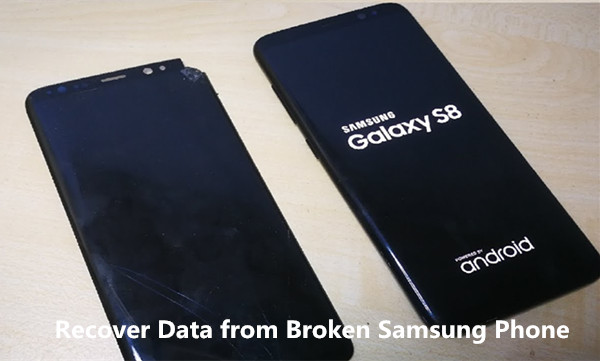
One common problem that a lot of Android users especially Samsung have faced is related to the broken screen issues.Such a problem can not only cost you a lot of money to get the phone repaired, but you can also lose your data if you haven’t backup your phone.The issues of broken screen including lots situations that you may ever meet,such as the screen is broken/cracked,black screen/white screen,non-responsive screen,phone screen can’t be used,etc.This post focuses on helping you recover data from Samsung with broken screen directly.

This is a big headache for Samsung users to lost their data from broken screen Samsung phone.To solve this problem, U.Fone Broken Android Data Recovery is the ideal recovery helper for you to recover data from broken screen Samsung phone,including Galaxy S6, S5, S4, Note 5, Note 4 and Note 3,etc.

In addittional, Android Data Recovery features enables you to recover lost data or deleted files from the normal mobile device,such as Samsung Galaxy S10/S10+/S10e, Samsung Galaxy S8/S8 Plus, Samsung Galaxy S7/S7 Edge, Galaxy Note 8, Huawei, HTC, LG, Sony or Motorola and other Android devices.It supports recover Android lost contacts,SMS,photos,videos,notes,call logs,and more.Except for the broken screen Android phone,Android Data Recovery supports to recover data from broken Android phone,water damaged Android phone,rooted Android phone,Android phone after restoring factory resetting,Android phone after upgrading,so farth.Now, let’s follow the steps to recover files from broken screen Samsung.

d_win d_mac
d_win d_mac

Watch the Video Guide: How to Recover Deleted Photos from Samsung Galaxy Phone.

Part 1:Recover Recover Data from Broken Samsung Phone via Broken Android Data Recovery

First of all,please download and launch the Android Data Recovery for Windows on the computer.

d_win d_mac

Tips: Only the Windows version supports to extract data from broken Samsung phone, the Mac version only can recover deleted/lost data from a normal Android phone.

Step 1.Connect Broken Screen Samsung to Computer
You will get the following main window after running Android tool kit.Then you can see the option-“Broken Android Phone Data Extraction“option,then connect the broken screen Samsung to computer with an USB cable,and click the “scan it” button.

connect broken samsung phone to pc

Step 2.Select the Files type to Scan
The scan will take you a few minutes to waiting.After that,you can preview all recoverable files found in the scan result one by one.Actually,the current files including the deleted/lost or existing data such as messages, contacts, photos and video are also scanned out in the result.You can distinguish them by different color.Now you can click the option which is the type data name.If you want to scan all files at once,please click “Select All” item.

scan broken screen samsung phone

Step 3.Select Types of Files to Recover from Broken Screen Samsung
In this step the program will guide you to another screen,you will see the following screen.There are two fault types of phone choices: “touch can not be used or can not enter the system” and “black screen or the screen is broken.”Please choose the second one.

select file types

Step 4.Select Your Android Device Model
Then according to option to select the brand and model of your Android.If you are not sure what model of your Android device,please click the “How to confirm the device model”option.

select phone model

Step 5.Enter Download Mode for Broken Screen Samsung
In this step,you will follow different steps to enter download mode depends on different problems.

1) If your Android touch screen can’t be used or can’t enter the system, you can follow the guide displayed in the below interface to get into “Download mode”.

2) If your Android is black screen or the phone screen is broken, you can also do the three steps to enter “Download mode”.

enter download mode

Then,please click the “Start” button,the countdown will display on the screen in the program to tell you how to download mode for the device.

Note:During the getting into “Download mode” process,remember to keep connecting your broken screen Samsung with computer.

Step 6.Analyze Data on Broken Screen Samsung
After entered the “Download mode”,the program will start downloading “recovery package”,it will take you a short time,please wait a moment.

download recovery package and scan lost data

When the downloading finish,the selected data item stored on the device will scanned out.

Step 7.Preview and Recover the Selected Files from Broken Screen Samsung
When finish scanning the broken screen Samsung,before getting data back you can preview all deleted/lost or existing data,including the detailed messages,photos,videos and more document.Just click “Recover” button at the lower-right corner and save them on computer.

recover lost data from samsung broken screen

Android Data Recovery helps you to recover files on broken Android devices by any material damage situation.Its features are convenient and easy to operate.While there are several ways to recover data from broken Samsung phones,the method mentioned above is the most effective solution in this type of situation.

d_win d_mac
d_win d_mac

Tips: Only the Windows version supports to extract data from broken Samsung phone, the Mac version only can recover deleted/lost data from a normal Android phone.

Part 2:Recover Data from Broken Samsung Phone via Smart Switch

When you fact that you have accidentally dropped your Samsung Galaxy S6/S7/S8/Note 8 somewhere then the screen was got broken,then there is no magical trick that you can restore Samsung phone with broken screen to make it like new again. However,there is something else that I can help you with,for example restoring data from the broken screen Samsung device completely.

I am assuming you have already tried using USB debugging method and KIES, but you can’t access the phone because you have a security code for unlocking and your fingerprint scanner is not working because the phone just rebooted.If you are unfortunate enough to encounter this problem,I am glad to tell you that I have a terrific method that can help you to restore data from your Samsung Galaxy S6/S7 with broken screen,including the contacts,photos,videos,messages,call logs,apps,apps data and so on.

In this method, we will use a software which is called Smart Switch for broken data recovery.This software is used to install new firmware on Samsung smartphones, if they are bricked or somehow now working.

We will use smart switch to backup data from broken Samsung Galaxy S6/S7 and restore it on a working Samsung Galaxy device.

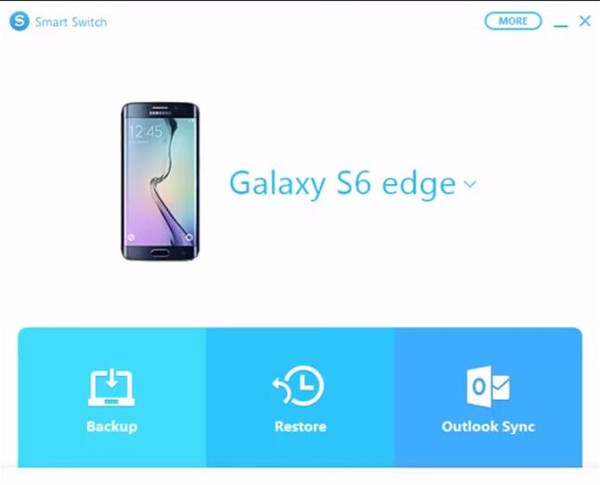
Step 1.Download and Install Smart Switch on your PC
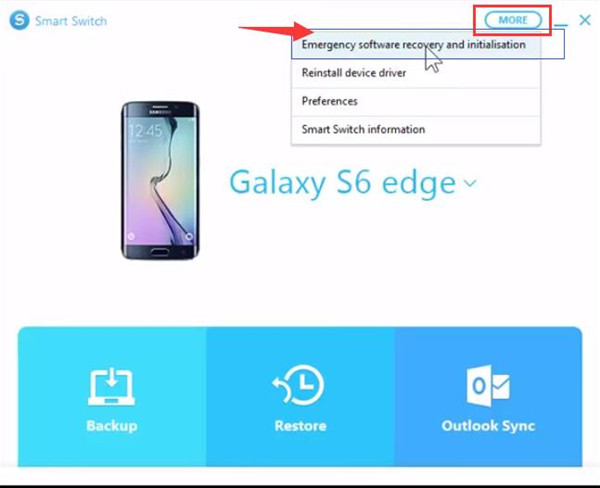
Connect your broken Galaxy S6/S7 to your PC.Click on More, it’s present on the top right corner of Smart Switch.

smart switch main page

Now Click on Emergency Software Recovery and Initialisation.After that select Software Update and Initialisation.Click on Okay.

emergency software recovery option

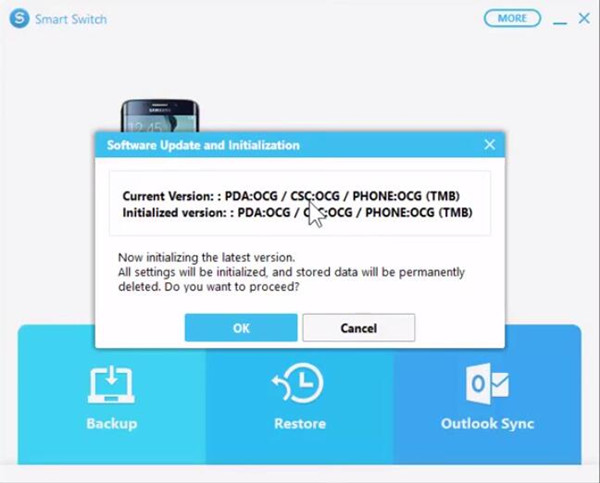
You will get a warning that all the data present in your phone will be wiped out.Now, Smart Switch will check the Android version to install on your phone. Obviously you’re not gonna install the firmware again.So take it easy.

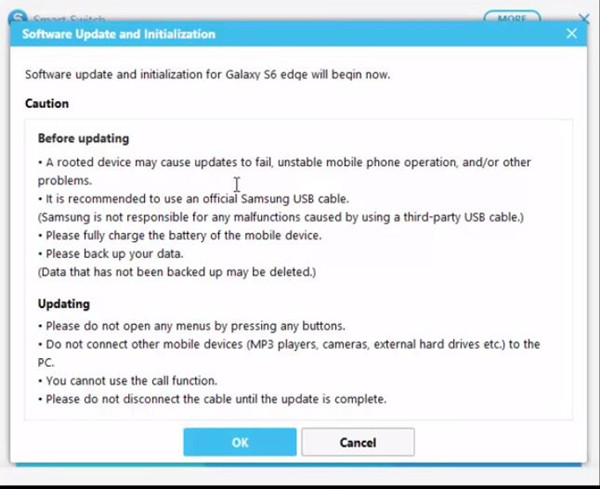
After that you will get a screen that will give you all the warnings and precautions.Click on Okay.

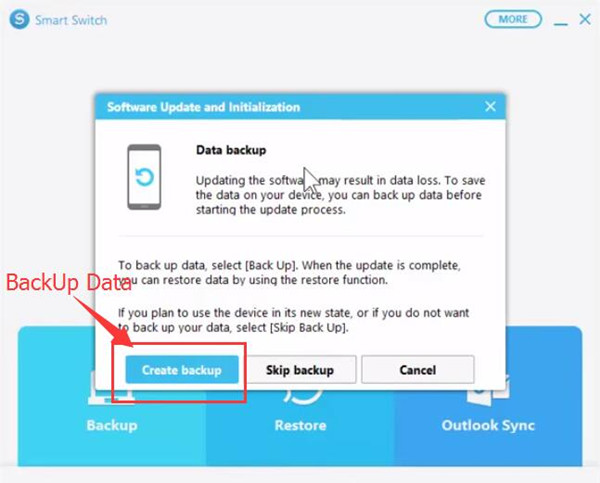
confirm to backup

Step 2.Backup Data from Broken Samsung Galaxy S6/S7 to Computer
You will get an option to backup all the data present on your broken phone to your PC.Let it make the backup of your phone on Smart Switch.The backup might cost you some time.

backup samsung data with smart switch

Once the backup is complete.You can click on cancel.As you don’t want to install a new firmware on your Galaxy with broken screen.

cancel installing a new firmware on samsung

Step 3.Restore Samsung Broken Data from Backup to Another Samsung
Now you are allow to restore the backup from broken Samsung to another Samsung device.

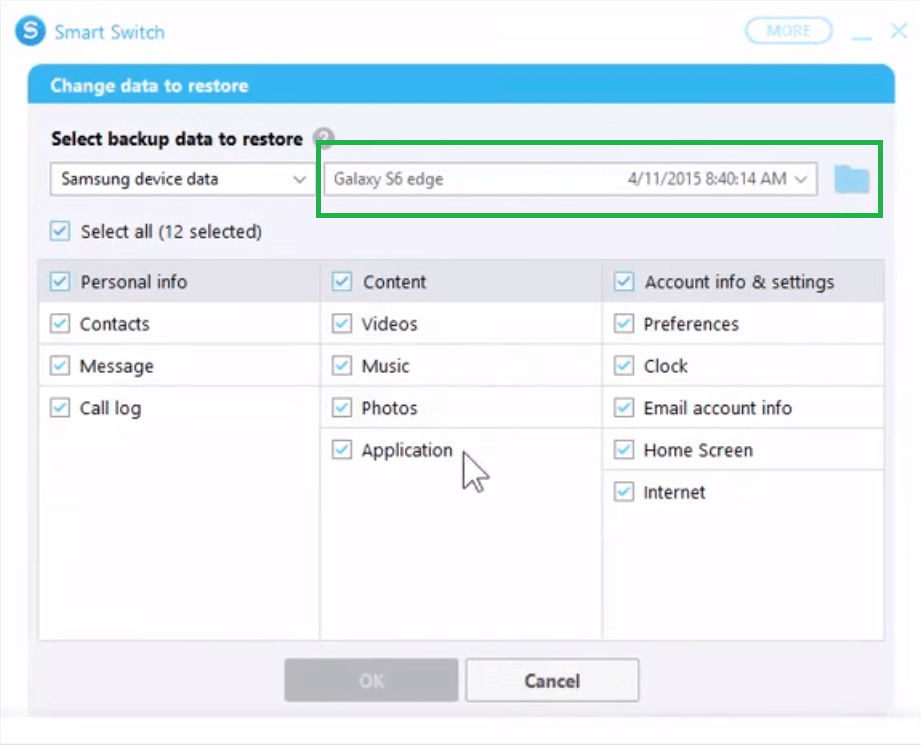
Firstly connect the Samsung device to your PC.Run Smart Switch and click on Restore.Click on Change Data to Restore.Select the backup you made of your broken phone.

smart switch

Select the data you want to restore,like pictures, videos, contacts, messages and then click on Okay.When the restore is finish,your phone will reboot.

That’s all.Now you can have all the data of your Galaxy S6/S7 with broken screen on a working Samsung device.

Note:Make sure backup your Samsung data on Internet service account or PC.So that you can restore the backup data on device after losing data under any circumstances.

Another Broken Android Data Recovery Recommend

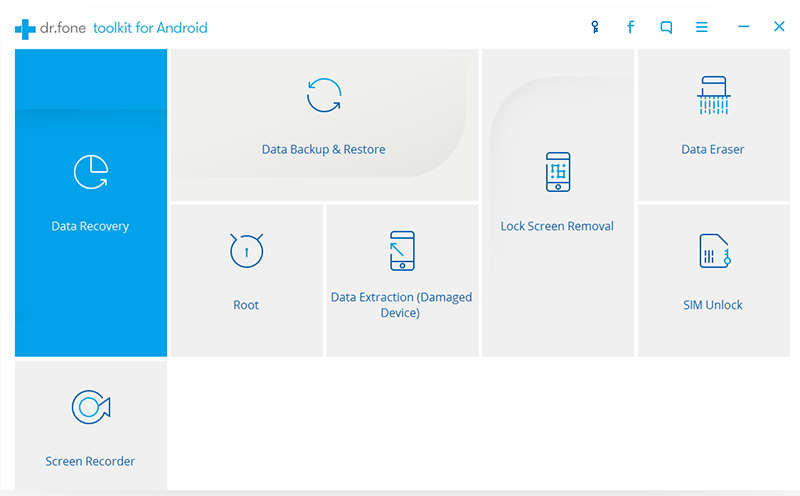
Android Tool Kit,including Android Data Recovery, Broken Android Data Extraction(Damaged Device), Android Data Backup & Restore, Android Root,Android Lock Screen Removal, Android Data Eraser and Android SIM Unlock,to recover data from your Samsung with broken screen,please choose “Data Extraction(Damaged Device)” among all the toolkits.

broken android data recovery recover data on broken samsung

Free download the Android Toolkit and try to extract files on your broken phone with easy steps:

d_win d_mac
d_win d_mac

Tips: Only the Windows version supports to extract data from broken Samsung phone, the Mac version only can recover deleted/lost data from a normal Android phone.

Read More:

How to Recover Data from Broken Samsung Phone

How to Recover Data from Black Screen of Android Phone

How to Recover Data from Broken Android Phone


Broken Samsung Data Recovery

Recover Your Data from Broken Samsung
Now, Even Screen Broken

Compatible with crashed, frozen or locked Android phone

Recover Lost Data Now

How to Fix a Black Screen Samsung Phone and Recover Data

[Summary]: Your Samsung phone stuck in black screen of death? Don’t worry, this article teach you how to fix a black screen Samsung phone through forcing reboot your device; booting device to Recovery Mode, or using a thrid-party broken Android fix tool.
Samsung Galaxy Sudden Death: Black Screen of Death - Fix

CONTENTS

How to Fix My Samsung Galaxy S6 Blank Screen of Death?
“Help! My Samsung Galaxy S6 stuck on blank screen of death after dropping it, how to fix black screen on Samsung Android phone and recover photos from it?”

How to Fix Samsung Galaxy Note 5 with Black Screen?
I don’t know what happen, my Galaxy Note 5 stuck in black screen of death with a unresponsive screen. I don’t know what the problem is but the screen is black so I can’t do anything about it just yet. Please help me how to fix it as I badly need my phone. I use it for my job so I really can’t afford to have device that doesn’t work. Thanks a lot!

How Do I Fix my Samsung Black Screen?
My Samsung Galaxy S6 screen goes blank/black and won’t access the system, but when I press the Power button, it responds. Then I went to the retail carrier and they didn’t know how to fix it, are there some Android system fix tool to fix the Samsung phone black screen?

Part 1: What Causes Samsung Black Screen of Death

We often discussing what causes of the Samsung phone black screen of death, the following reasons may cause your phone stuck on in black screen of death status.

  • Black Screen after Software Update
  • Black Screen Problem when Running On Official Firmware
  • Black Screen Unresponsive
  • Black Screen After Drop
  • Random Black Screen of Death Issue
  • System Crashed, Slowness or Latency, Restarting Multiple Times, Battery drains faster and Green light blinking may cause black screen of death

How to Fix Samsung Galaxy Black Screen of Death

Some have reported that the Samsung Galaxy series will have a black screen after you have turned on the smartphone.The problem is that the Galaxy buttons light up like normal, but the screen remains black and nothing is showing up.The Galaxy screen won’t turn on at random times for different people,but the common problem is that the screen fails to wake up.There are several factors involved as to why this is happening mostly relating to the software of the device. However,is it possible to fix Samsung Galaxy S9/S8/S7/S6/S5/S4/Note 9/Note 8/Note 5/Note 4 black screen of death? Please keep reading the following article and you will find a simple way to fix a black screen Samsung phone and recover all data from it.

You may want to read:

* How to Recover Data from Broken Samsung Phone

* How to Manage Samsung Data on Computer

Part 2: How to Fix Black Screen Samsung Phone and Extract Data for Backup?

To fix Samsung Galaxy black screen and recover data from it, you need to use a third-party Samsung Black Screen Fix tool.
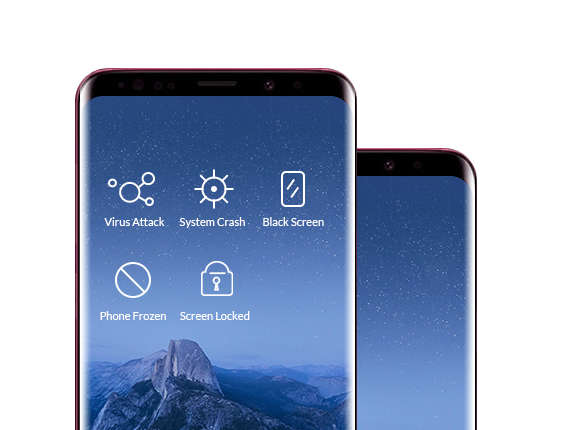
fix samsung s8

This Broken Android Data Extraction & Fix Tool can help you download recovery package for your Samsung devices and fix Samsung Galaxy with black screen of death issues, only few steps to fix your black screen Samsung phone quickly and safely. Besides, this broken Android data recovery application allows to recover contacts, text messages, call logs, WhatsApp messages, photos, videos, music and more from black screen Samsung Galaxy S6/S5/S4/Note 5/Note 4/Note 3, even if your phone cannot be turned on or the touch screen is unusable completely, the program can make the data on the phone accessible and recoverable.

In addition, this powerful Android Data Recovery enables you easily to recover your data from Samsung (Galaxy S4/S5/S6/S7/S8/S9/S10, Galaxy Note 3/4/5/8/9/10, Galaxy J2/J3/J5/J7/J8,etc.), Huawei, Google Pixel, HTC, LG, Sony, Google Nexus, Motorola, Xiaomi, Sony, Sharp, Oppo, OnePlus and other brands Android devices, and recover data from SD cards inside your Android device. Not only retrieve the deleted and lost data from Android devices, you can use it’s “Android Data Backup & Restore” function to backup and restore Android data to your computer easily, including photos, videos, audio files, music, call logs, videos, messages, messages attachments and so forth.

Broken Android Data Extraction Features:

  • Flexible Recovery: You can scan, preview, select and recover what types of file you need.
  • Broken Android Recovery: You can recover file from broken Samsung phone or devices that are damaged in any other way such as those stuck in a reboot loop.
  • Fix Samsung devices: Fix frozen, crashed, black-screen, virus-attack, screen-locked Samsung Galaxy S/Note smartphone to normal.
  • Recoverable Files: You can actually recover from all items such as Contacts, Call History, WhatsApp Contacts and Photos as well as Messaging and also all the important files and folders you have.
  • Samsung Supported: Support most Samsung phones like Samsung Galaxy S, Samsung Galaxy Note, etc./li>


d_win d_mac
d_win d_mac

There are several different ways to fix the Samsung phone blank screen issue, follow the best instruction below to learn how to fix the Galaxy black screen not turning on issue.

How to Fix Samsung Galaxy Sudden Death and Recover Data from it?

The first step that you need to come across and it can be done by launching the Android Toolkit with your computer and the going for the scan option. Once it has completed scan, you fill find a button named with “Broken Android Data Extraction” which you need to click.

broken Android data recovery

Step 1.Connect Samsung Galaxy S6 to Computer
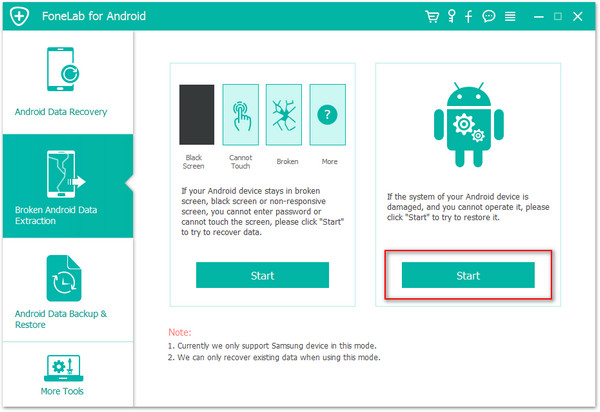
Then connect your Samsung with the computer with an USB. After that, click “Broken Android Data Extraction” option and go to next step.
connect broken Samsung to comoputer

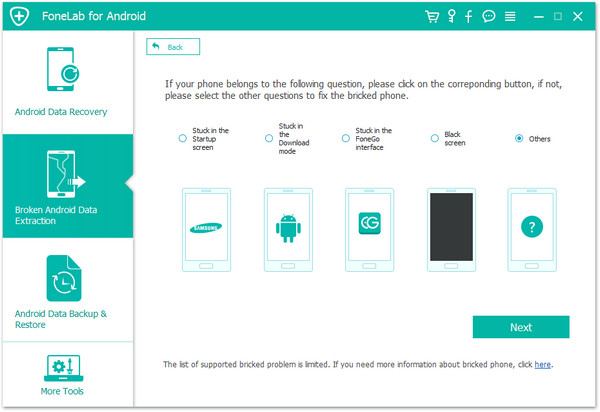
Step 2.Select the Stuck Type of your Samsung
You should select the stuck situation that match your device.

fix black screen samsung galaxy

Here you should select “Black Screen” and then click on “Next“.

Step 3.Choose the Phone Name and Model
You need to understand the fact that the data extractiong software and program is different for all android devices. So you have to select the proper version of the android as well as the exact model you are using.

select phone model

Step 5.Get Samsung Galaxy into Download Mode
After you connect your Samsung which is stuck on black screen to computer, Android tool kit will pop up the window as below.Choose one from the displayed situations on the popup window to continue.

This is the step of entering the download mode of the phone and start on with the screen recovery.
Here you need to follow up three individual steps which include:
1)Hold the power key to Power off the Phone
2)You next have to press the Volume Down, Key, The Power key as well as the Home Key at the same time
3)Next up leave all the keys and press the Volume Up key to enter the download mode of the phone
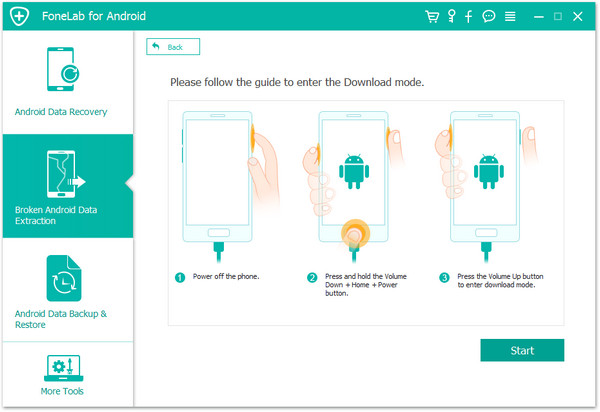
get samsung into download mode and fix samsung galaxy stuck on black screen

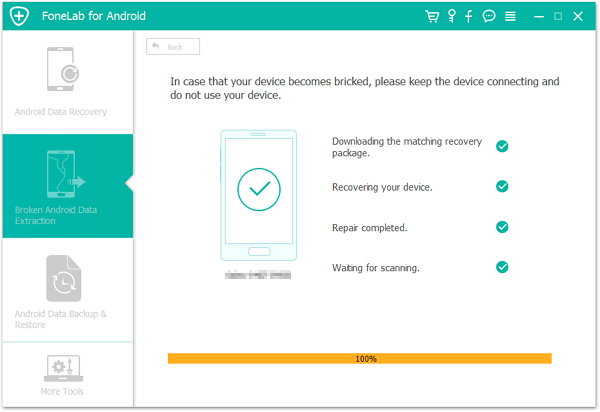
Step 6.Downloading the matching recovery package
When the phone enters download mode successfully, Android tool kit will detect it and display the device model, Android version etc. The the software start downloading the matching recovery package for Samsung device.
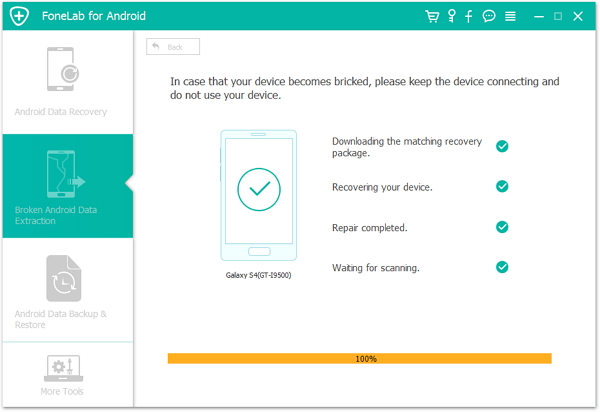
download recovery package

Step 7. Fix Black Screen Samsung Galaxy
After downloading the recovery package completed, the software start to fix the phone automatically and return it to normal state. The phone will restart and return to normal as usual.

Step 8.Begin Recover Data from Black Screen Samsung Phone
After installing the recovery package on your broken phone complete, the program will heps you scan and recover all files from Samsung phone with black screen,click “Recover” button to extract and save all the Samsung data on computer.
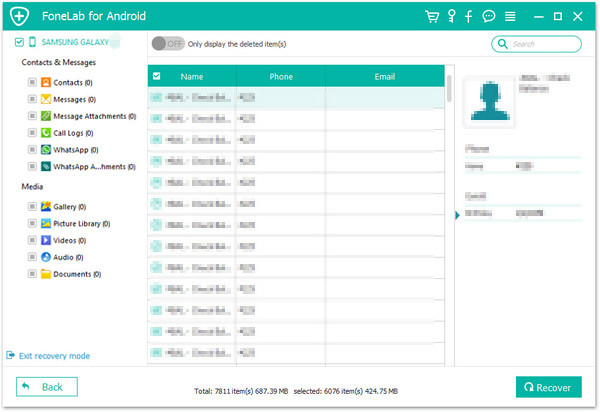
recover data from black screen Samsung phone

Free download the Android Toolkit – Broken Android Data Extraction and try to fix your black screen, you can also get data back from it:

d_win d_mac
d_win d_mac

Part 3: How to Fix Android System Issues on Samsung Phone

Another Android Repair Tool Recommend – Fix Android System to Normal Status with 1 Click(No Data Loss)

You can not only fix Samsung Galaxy phone with blank or black screen problem, but also recover all your precious data immediately with another Android Repair tool.
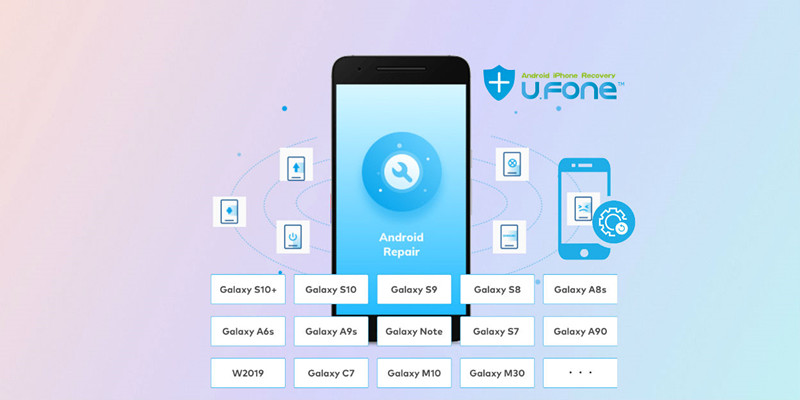
fix android system to normal on Samsung phone

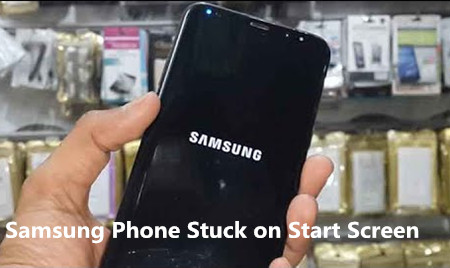
Repair (Android) is a part of Android Toolkit, which enables to fix various operating system issues of Samsung Galaxy phone, insist of phone stuck on black screen, phone stuck in download mode, phone stuck on start screen, a bricked phone, etc.

The Android Toolkit – Repair (Android) supports fix Android system issues on almost of Samsung smart phones:

  • Samsung Galaxy S series: Galaxy S10+/S10/S9/S9+/S8/S8+/S7/S7 Edge/S6/S6 Edge(+)/S5/S4, etc.
  • Samsung Galaxy Note Series: Galaxy Note 9/Note 8/Note 5, etc.
  • Samsung Galaxy A series: Galaxy A9s/A8s/A6s/A90, etc.
  • More Samsung models: Samsung W2019, Gaalxy C7, Galaxy M10, Galaxy 30, etc.

Moreover, no matter your Samsung phone is locked, or you bought the Samsung phone from carriers like AT&T, Verizon, T-Mobile, Sprint, Vodafone, Orange, etc., this powerful Android Toolkit – Repair (Android) tool can help you fix all Android system to normal status by yourselt, if your phone system crashing, phone won’t charge, apps won’t open, phone black screen of death, play store not working, Samsung phone won’t turn on or turn off, Apps keep crashing, Android OTA update failed, Stuck in boot loop, Android system not working, Android devices gets bricked, etc.

Currently, this Android Toolkit – Repair (Android) function only available for Windows version. Why not download the Android repair tool and try to fix Android system to normal and protect your Samsung phone from the data losing and system repairing?


d_win d_mac
d_win d_mac

Steps to Fix Samsung Phone with Black Screen of Death

Note: It is highly recommended that you backup your Android data before opting for Android repair.

Step 1. Launch the Android Toolkit on Windows Computer
Download, install and launch the Android Toolkit on Windows 10/8/7/XP computer, then click “Repair” go to it’s Android system fixing function.
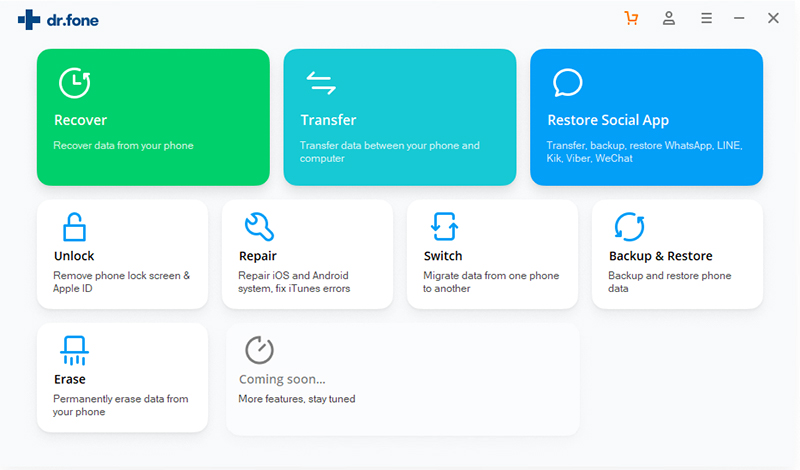
Android repair

Step 2. Connect Samsung Phone to Computer
Connect your black screen Samsung Galaxy phone to the computer with USB cable. Click the “Android Repair” among the 3 options.
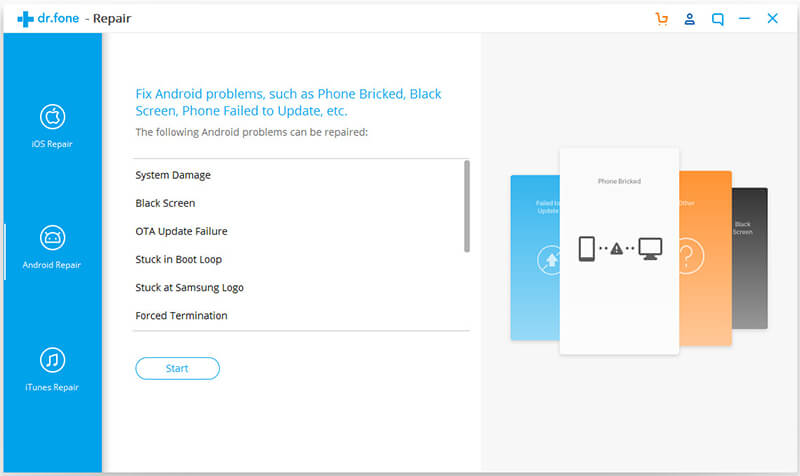
connect screen-black Samsung to PC

Step 3. Select Samsung Phone Model and More Information
In the device information screen, select the correct brand, name, model, country/region, and carrier details. Then confirm the warning and click “Next”.
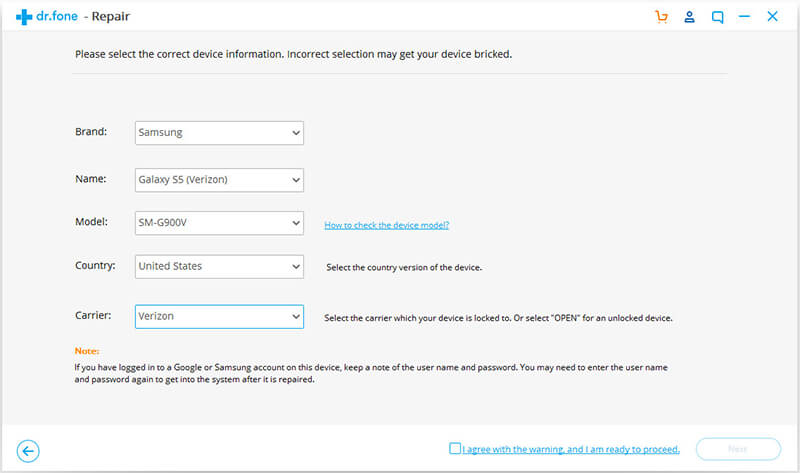
select phone model
select device details

Step 4. Confirm to Fix Your Samsung Phone
The Android repair may erase all data on your device. Type in “000000” to confirm and proceed.
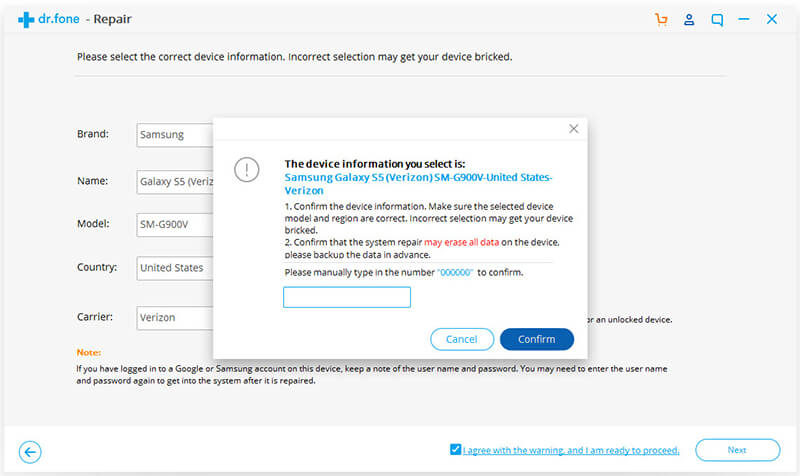
confirm to fix Samsung black screen

Step 5. Boot Samsung Phone in Download mode
Before repairing your Samsung phone, you need to to boot your Android phone in Download mode. Follow the steps below to boot your Samsung phone in DFU mode.

For Samsung Phone with Home button:
1)Power off the phone or tablet.
2)Press and hold the Volume Down, Home, and Power buttons for 5s to 10s.
3)Release all the buttons, and press the Volume Up button to enter the Download mode.
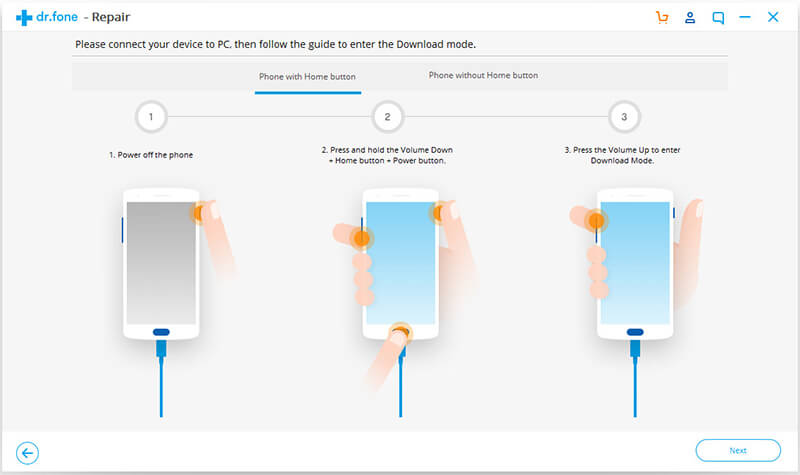
boot in Samsung in download mode (with home button)

For Samsung Phone without Home button:
1)Power off the device.
2)Press and hold the Volume Down, Bixby, and Power buttons for 5s to 10s.
3)Release all the buttons, and press the Volume Up button to enter the Download mode.
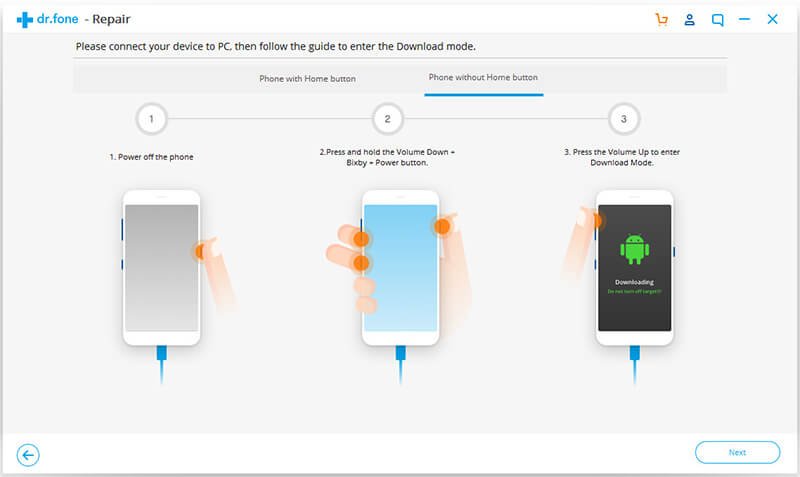
boot in Samsung in download mode (without home button)

Step 6. Start to Download Firware Package for Samsung Phone
Then click “Next”. The Android Toolkit starts downloading the suitable firmware for the device.
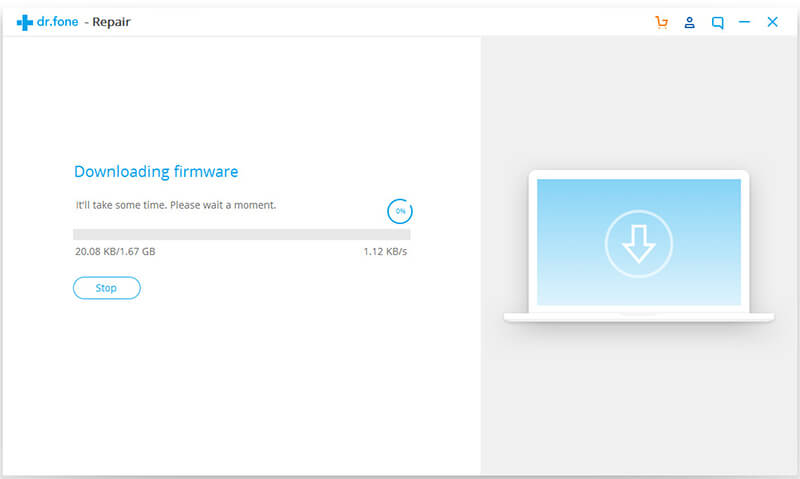
start downloading firmware

Step 7. Fix Android System to Normal
After downloading and verifying the firmware, the program automatically starts fixing system issues on the Samsung phone.
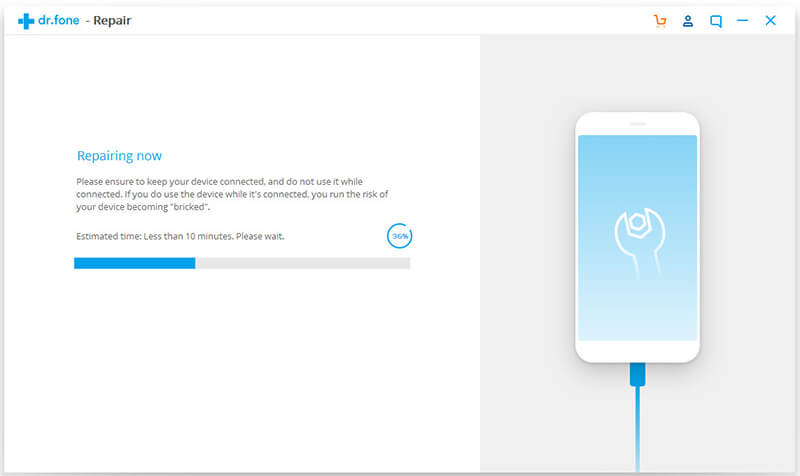
fix Android system to normal

Step 8. Restart Your Samsung Phone
Waiting for few minutes, your Samsung phone will restart and it will back to normal status.
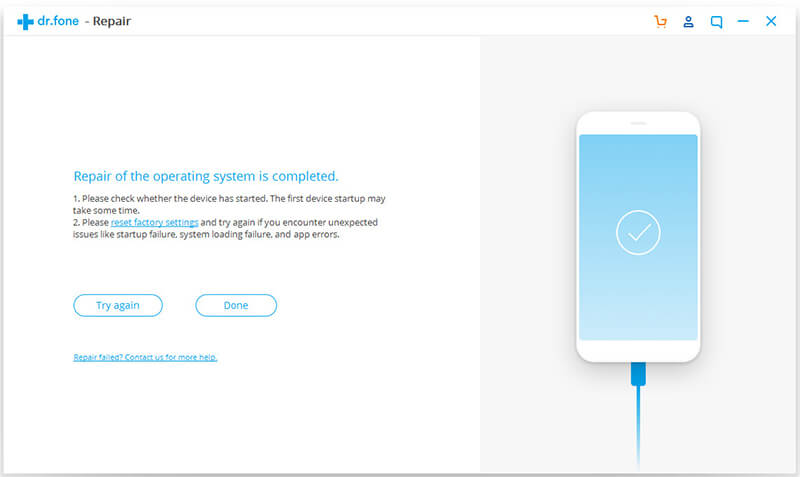
Samsung black screen fixed

Android Toolkit – Repair (Android) for Windows version and start to fix Android system to normal.

d_win d_mac
d_win d_mac

Part 4: Common Solutions to Fix a Black Screen Samsung Phone(Data Loss)

You can fix the Samsung black screen of death by following the simple steps, however, this will erase all the data on your phone, please keep the SD card out before forcing reboot your Samsung phone.

View this guide if your Samsung phone is black screen of death, unresponsive, frozen or won’t power on or off.

Notes: This device has a non-removable battery. This process can be used to simulate a “battery pull” when the device is unresponsive, frozen, or doesn’t power on.
Ensure the device is charged to a minimum of 5%. If battery level is below 5%, the device may not power on after the reboot.

Step 1. You need to performs a simulated battery disconnect firstly.
Please Power off your Samsung Galaxy phone to get started for booting.
You can also do it by holding the Power/Lock key with the Volume down Key together for 10–20 seconds.
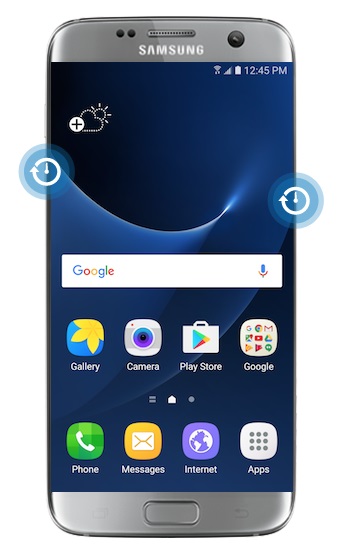
force reboot s7

Step 2. Wait till it vibrates and let it go to get the phone booted once again, when the Samsung logo shows up, gently hold the Volume Down(-) button until the device finishes restarting, then release the Volume down (-) key when you see Safe Mode on the device.

Tips: Safe mode allows you to turn on the device with third-party apps disabled. Then you can easily uninstall apps that may be causing a conflict or software problem.

Step 3. Select for the “wipe cache partition” with the volume keys to get the Reboot done of the phone and get the phone out of black screen issues.
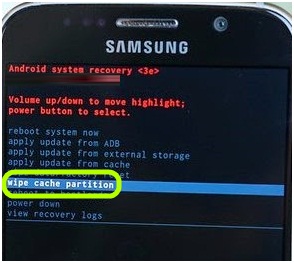
wipe cache partition

Step 4. If you think that the application is creating such a problem,it is time to reboot your phone. If you cannot do it by yourself,it is better to take the help of any professional to do it for you.

If your Samsung phone did not start itself,it is time to take out your battery and press the power on button to try out a restart.If it turns on, the black screen may be solved but if it does not, then there is a problem with either with the battery or the charger.

How to Turn off safe mode
Step 1.Press and hold the Power key.
Step 2.Tap Restart.
Step 3.The devices restarts in normal mode.

Part 5: Perform Soft Reset or Hard Reset to Get Samsung Out of Black Screen(Data Loss)

If you looking for a quick way to fix the black screen of your Samsung phone, Perform Soft Reset and Hard Reset also is a good choice, but these two methods will erase the data of the phone. Let’s teach you how to fix the Samsung black screen of death issues through perform soft reset and hard reset.

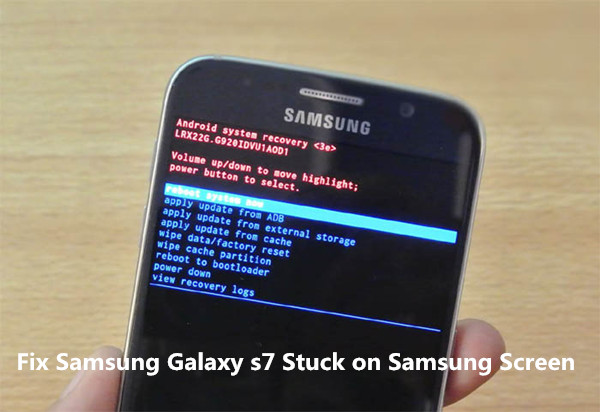
Way 1: Boot Samsung Device to Recovery Mode

The first way you can get your Samsung phone into Recovery Mode, please follow the below steps:

Step 1. Power off your Samsung device.Then, press and hold the Volume Up, Home and Power button at the same time.
Step 2. When the phone vibrates, let go of the Power button while still holding the other two buttons till the Samsung screen comes.
Step 3. In the main Recovery Mode menu, select “wipe cache partition” (You can press the Volume Down and Power button to select it.)
Step 4. After the cache partition is cleared, your Samsung Galaxy will reboot automatically.
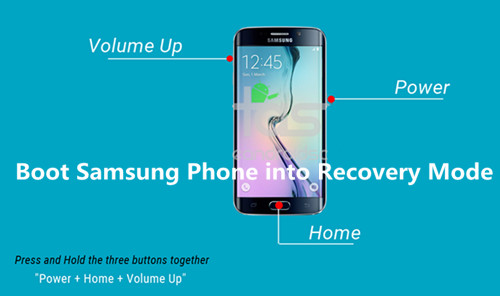
boot Samsung S6 into recovery mode

Way 2: Hard Reset Samsung Phone to Reboot Android System

Whne your phone stuck in black or blank screen of death.If the way 1 doesn’t work, you can try to hard reset your Samsung Galaxy phone to factory settings,this way enables you unlock google account, clear pattern lock on Android Samsung device,but it will cause data lost.However,please backup your phone before doing the hard factory reset on it.Then, follow the steps below to reset your phone (Take Samsung Galaxy S6/S6 Edge as example):

Step 1. Turn off the Samsung Galaxy S6. If your device won’t turn off, remove the battery for a second and put it back.
Step 2. Now press and hold the Volume up button, the Home button, and the Power button together until you see the Android on screen.
Step 3. Use Volume down button to highlight the “wipe data/factory reset” option and then press the Power button to select it. Then, select “Yes – delete all user data” to confirm it.
Step 4. Wait until you see the “reboot system now” option and then use the Power button to select it.
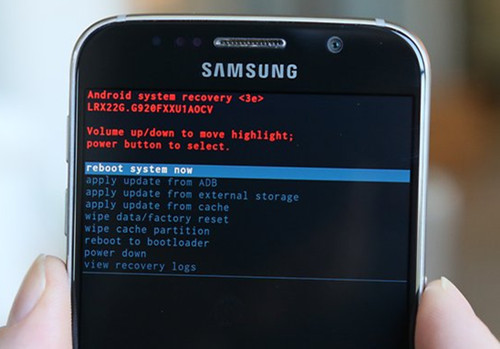
samsung galaxy s6,s7 reboot system

Step 5. When the phone restarts, everything will be wiped and will be ready to set up again.

Note: If you get Samsung phone out of black screen status through forcing reboot your device or booting device to Recovery Mode, both two methods may cuase erasing data and settings. If you want to fix a black screen Samsung without data loss, we recommend you use a third-party Broken Android Data Recovery & Fix tool to fix it, it won’t case data lossing after restore Android OS to normal.

Part 6: Tips to Make your Samsung Phone Run More Smoothly

Sometimes your beloved Samsung phone will not respond or run very slowly. It could freeze up completely on you or just sit there like a brick. This is a common problem with Android phones. When you use your Android phone for a long time, your phone will become slower and slower. If any of these situations occur, you will need to reset your phone. As the above solution, Soft Reset and Hard Reset can help you solve the phone running slowly problem. However, you should backup Android data to computer firstly. If your phone is working fine, you can factory reset Android phone.

Simple Steps to Factory Reset Samsung Phone

Step 1. Open up your “Settings” app on your Samsung Galaxy phone.
Step 2. Choose “General Management”.
Step 3. From there, tap on “Reset” and then “Factory Data Reset”.
Now you just tap on “Delete All” and the reset process will begin.
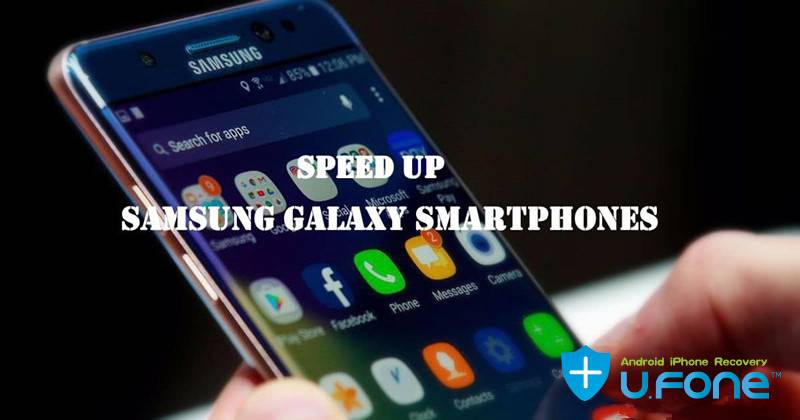
speed up samsung galaxy

More Tips to Speed Up Your Samsung Phone:

– Clear cached data and clean storage by using a professional Android Data Eraser
– See if you have the latest update installed
Get More Internal Storage from Android
Completely Ease Junk Files on Android Phone and Tablet
– Install lightweight versions of apps
– Clean up your home screen
– Optimize your phone’s battery
– Disable ambient screen
– Turn Bluetooth off when not needed
– Don’t install a battery optimizer

Related Articles:

How to Fix Android Black Screen Issue

How to Recover Data from Samsung with Broken Screen

How To Fix Samsung Galaxy Stuck in Download Mode Problem

How to Fix Bricked Samsung Phone

How to Recover Data from Samsung Galaxy

Fix Samsung Phone Black Screen
How to Recover Lost Data from Broken Samsung Phone

[Summary]: Have your ever broken or cracked your Samsung phone and failed to find a way to get back data from the device? Don’t worry! This page introduces you the best solution to recover data from broken Samsung phone with broken Samsung data recovery step by step. Now you can learn the useful tutorial to retrieve your photos, videos, contacts, SMS and other files on broken Samsung Galaxy phone.

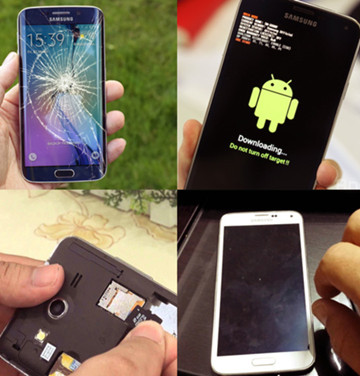
Photos,contacts,text messages are important data on mobile phone and losing them would risk serious loss to your work or personal life.The detail data stored on phone may carry important information that are meaningful for your a lot.However,many times unwanted events will happen when you haven’t get ready.One of the most common is breaking of the phone.It can happen it physical level or on the software level, in both case you lose your important data or you may even have to change your phone if it is unrepairable.

You may want to know:

* Backup Data from Broken Samsung Galaxy S6/S6 Edge to PC

* Transfer Data from Broken Samsung to iPhone X/8/7/6S/6(Plus)

recover data broken samsung phone

Here are the most common ways people get broken on their phones:
1.Accidently dropping of the phone.While carrying out certain activities with a phone in hand, you hit something or phone slips from hand is the normal way that lead to phone get broken.If damage is not serious, the repair work is easy but in severe cases, replacing phone is the only option.
2.Water damaged is the second common situation among phone users.
3.Can’t enter the operating system of phone or have a non-responsive screen on Phone,etc.

Extract and Recover Data from Broken Samsung

In case your phone is not severely broken just lost your important data due to crash, then there is one great solution to recover your data back with our strongly recommend.Broken Android Data Recovery is the perfect solution for downloading recovery package for Samsung and recovering data from broken Samsung.You can use it to recover files from any types of broken Samsung phone,for example black screen of Samsung phone,broken screen of Samsung phone,can’t enter the system of Samsung phone,non-responsive of Samsung phone.This program empowers to recover many types of data on Samsung like photos, videos, contacts, text messages, apps, etc.Most Samsung models are allow to recover data by this Android Data Recovery,including Galaxy S5/S4/S3,Note 5/4/3,A9/A8/A7 etc,.

d_win d_mac

Tips: If you phone is not damaged,please learn this tutorial to recover lost data from general Samsung Galaxy

Part 1:Restore Data from Broken Samsung Galaxy via Broken Android Data Recovery

Firstly,you should download and install the program on your computer. Once it has completed scan, you fill find a button named with “Broken Android Data Extraction” which you need to click.

Step 1.Connect Broken Samsung with the Computer
Connect the broken Samsung phone to computer with USB cable,and click “scan it” button.

connect broken samsung to pc

Tips:If the system of your Samsung phone is damaged,and you cannot operate it,please click the right “Start” button to fix your frozen, bricked, crashed, black-screen, Samsung logo-screen, or screen-locked Android OS system to normal at first.

fix android OS to normal

Step 2.Select the Model of Your Phone
In this step you have to select the proper version of the Android as well as the exact model you are using.

select phone model

Step 3.Enter Download Mode on Samsung
This is the step of entering the download mode of the phone and start on with the screen recovery.
Here you need to follow up three individual steps which include:
1)Power off the phone.
2)Press and hold Volume “-“, “Home” and “Power” button on the phone.
3)Press “Volume +” button to enter download mode.

boot into download mode

Step 4.Analyze your Phone and Download Recovery Package
After entered the download mode, the software will start downloading “recovery package”,it will take you a few minutes,please wait patiently.

boot into download mode

When the downloading finish,the program begin to scanning all exiting files from broken Samsung phone.

boot into download mode

Note: If your phone is broken due to system issues, you can switch to “Android Data Recovery” functions to scan and recover lost/deleted data from Samsung after the device returning to normal.

Step 5.Preview and Recover Data from Broken Samsung Phone
You can preview all deleted/lost or existing data before recover them on Samsung,including the detailed messages,photos,videos and more types of files.Then just click “Recover” Option to accomplish the data recovery process.

recover data on broken Samsung

Tips to repair a broken Samsung device by yourself:
– Make sure you contact the service center first to know the issue.In case it is in the warranty,it is worth trying.
– Order for the replacement parts only after you know the exact cause of the problem. It will save money and time.
– Get the right tools to repair your phone.Usually, there are specific tools for opening and handling hardware of modern phone.
– Get all the necessary software to manage your phone.Moreover, importantly know how to use them to repair your phone.

d_win d_mac

Currently, Broken Android Data Extraction Supports Below Samsung Devices and Models:

Supported Devices
Samsung Galaxy S S4: GT-I9500, GT-I9505, SCH-R970, SCH-R970C, SGH-I337M, SGH-M919, SPH-L720

S5: SM-G900F, SM-G900FQ, SM-G900I, SM-G900K, SM-G900L, SM-G900M, SM-G900P, SM-G900R4, SM-G900R6, SM-G900S, SM-G900T, SM-G900T1, SM-G900W8

S6:SM-G9200, SM-G920F, SM-G920P, SM-G920T, SM-G925F, SM-G925P, SM-G925T, SM-G928P, SM-G928T

Samsung Galaxy Note Note 3: SM-N900, SM-N9002, SM-N9005, SM-N9006, SM-N9007, SM-N9008 SM-N9008V, SM-N900S

Note 4: SM-N9100, SM-N9106W, SM-N9108V, SM-N9109W, SM-N910C, SM-N910F, SM-N910G, SM-N910H, SM-N910K, SM-N910L, SM-N910P, SM-N910R4, SM-N910S, SM-N910T, SM-N910U, SM-N910V, SM-N910W8

Note 5: SM-N920C, SM-N920G, SM-N920I, SM-N920K, SM-N920L, SM-N920P, SM-N920R4, SM-N920S, SM-N920T, SM-N920W8

Samsung Galaxy Tab Tab Pro 10.1: SM-T525

Part 2:Restore Data from Broken Samsung Galaxy S6/S7 with Samsung Kies

As we know,Samsung Galaxy phone become the most popular Android series phones on Android market.The passages above we had talked that the solutions to restore data from broken Samsung phone.However how to restore data on Samsung Galaxy S6/S7/S8 freely?Now we are going to telling the detail on how to retrieve data from broken Samsung Galaxy S series phones with Broken Android Data Recovery.

You are allow to easily recover data from broken Samsung Galaxy S5/S4/S3/Note 5/Note 4/Note 3 with Broken Android Data Recovery,but if your Samsung Galaxy S6/S7/S8 is broken with broken screen or black screen,I’m so sorry to tell you that the Broken Android Data Recovery is not support the Samsung Galaxy S5/S6 currently until the program update in future.If unfortunately your Samsung S6/S7 is not damaged and running as normal,the Android Data Recovery enable to help you recover deleted data from Samsung Galaxy S6/S7/S8,including contacts,photos,messages,videos,call history,application data,etc,.

In order to restore data from broken Samsung Galaxy S6/S7/S8(broken screen/black screen),here we suggest you to use Samsung Kies program to complete the broken data recovery,it not only can help you to sync data between Samsung devices and find new apps,but also empower you to recover almost all kind of data from your broken Samsung Galaxy S6/S7.Let’s see how to extract data from Samsung Galaxy S6/S7 with Samsung Kies in tutorial.

Remotely Unlock Samsung Galaxy S6/S7/S8 and Restore Data from it

If you haven’t set the lock screen password on your broken Samsung in previous then now you are be able to access your phone and view the contacts,photos or other data on it,we recommend you to backup Samsung data to computer firstly.If you have set the locked screen password for the broken Samsung,you should unlock the broken Samsung Galaxy before data recovery.Before rebooting your phone,you can be only to unlock the screen using fingerprint scanner on device,which is a great opportunity to unlock your phone.However,if you are unable to unlock the screen using fingerprint scanner,just take it easy,you should use “Find My Mobile” Service to remotely unlock your Samsung Galaxy S6/S7 device. Once you unlock the device,then connect your phone to computer and using Samsung Kies to restore data from broken Samsung.

Note:Find My Mobile Service not only can help you remotely unlock the Samsung phone with locked screen freely,but also allows you to sync Samsung data to Internet account service.Be attention,we recommend you to keep your device synced with Internet account service regularly for backup,so even if your phone is lost,stolen or broken,you can easily download and extract data from the backup through the Internet account service via Samsung Find My Mobile service.

How to Restore Data from Broken Galaxy S6/S7/S8 with Kies

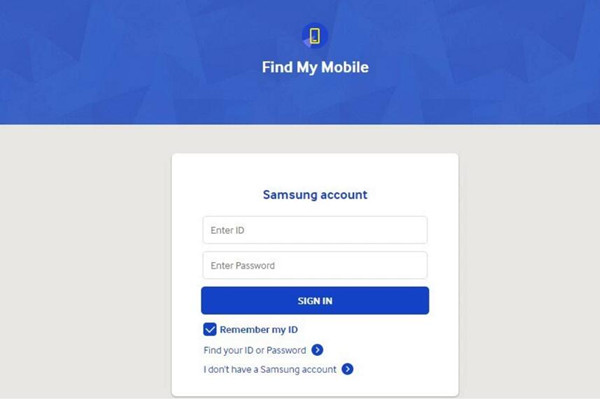
Step 1.Log in Find My Mobile Service with your Samsung account
Firstly,please log in to Find My Mobile with your Samsung Account.Please click the “Find email/password‘ option if you forget your Samsung account or password.

find my mobile function

Step 2.Remotely Unlock Broken Samsung Galaxy S6/S7/S8
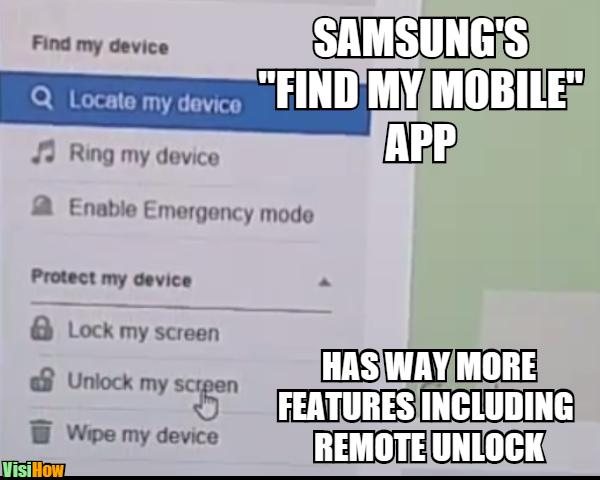
Once you have signed in your Samsung account,you will see the options like finding your phone,lock my screen,unlock my screen and wipe my device,then click “Remotely Unlock my Phone or Unlock Screen Remotely“>> “Unlock My Screen” to unlock your broken Samsung Galaxy device,your broken device will be removed the locked screen in minutes,then,proceed to back up your Samsung data with Kies.

remotely unlock broken samsung galaxy

Step 3.Restore Data on Broken Samsung Galaxy S6/S7/S8
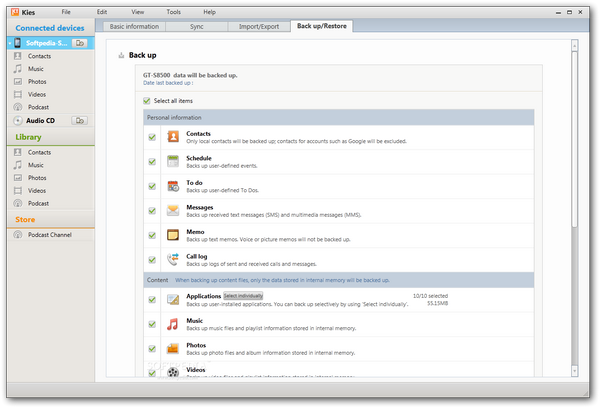
Now,you broken Samsung device is unlock,you should use Samsung Kies to extract files from the broken device.First of all,please download,install and run the Samsung Kies on computer,then connect your broken device to your computer via USB cable,then restore data from broken Samsung to your computer using copy/paste via Samsung Kies.

samsung kies backup data from broken samsung phone

Read More

How to Recover Data from Broken Android Phone

How to Recover Data from Black Screen of Android Phone
How to Recover Data from Samsung Phone