All posts by DHZ

How to Backup Data from Broken Samsung Galaxy S6/S6 Edge

[Summary]: If you cracked or broke your Galaxy S6/S6 Edge, S5, S4, Note 5 and want to extract data from the screen broken Samsung phone, here is an effective method to get your data off and backup to computer with broken Android data recovery.

My Galaxy S6 phone screen is broken that the touch is not responding at all, I cannot do anything on the phone now. I need to get my photos, contacts, SMS recover off from the phone. How to recover data from Samsung Galaxy S6 with broken screen for backup? Thanks in advance.” – Asked by Lula

Yesterday, I have cracked my Samsung Galaxy S6 screen, I want to get a new Galaxy S9+ with the money than fixing the old broken Galaxy S6 mobile phone, becuase I want to repair or replace the broken screen, but I want to get my important data off a broken Galaxy S6 phone, then transfer the extracted data to the new Galaxy S8, how to backup photos, contacts and messages from broken screen Galaxy S6 to PC? Thanks!” – Asked by Lina
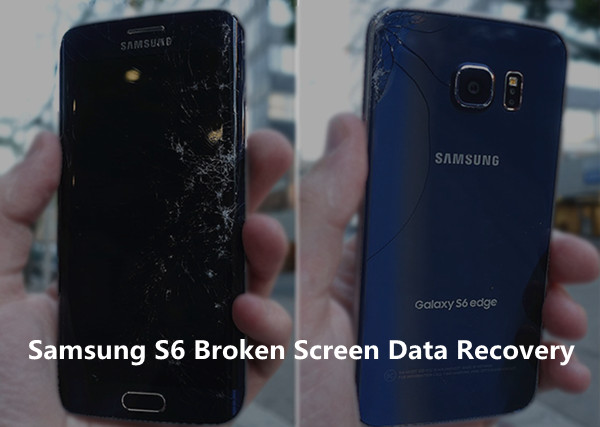
samsung s6 broken screen data recovery

You many want to know:

* Transfer contacts from broken Samsung to new Samsung phone

* Extract data from broken Samsung and import to iPhone

Nowadays, more and more people encounter the situation that mobile phone get broken. Although manufacturers are yet to make their products perfect, data loss is still an issue for many mobile phone users, especially when the phone is broken under many different circumstances, like broken screen, black screen, water damaged, stuck in the Download Mode, etc,. Well, you can’t do anything on the broken device unless you already have a replacement phone. However, getting a replacement from your manufacturer seems pretty complicated.

Here are some tips of the things you can do when your Samsung Galaxy S6 get broken:
1.Report to the manufacturer – If you are still under warranty, call your manufacturer and ask for possible repair options. You can expect that it may cost more than anywhere else but at least you got it fixed from the brand itself.
2.Send to Repair centers – If you are out of warranty or if you think it is expensive to a send for repair with the manufacturer, then better go to a reliable repair center that can easily fix the broken or cracked screen situations.
3.Do it yourself – If you think you are confident enough to fix the broken circumstance for example broken screen, then you can find and learn from online tutorials on how to repair your phone.
Moreover, you can backup the data from the broken Galaxy S6 phone when you think you have exhausted all the possible fixes to repair your phone. It’s time to find out how to recover data from broken Samsung Galaxy S6 for backup.

Recover Data from Broken Samsung Galaxy S6

Android ToolKitBroken Android Data Extraction allows you to restore everything you want from your broken Android without hassle, for instance, recover data from broken Samsung Galaxy S6 for backup. The recoverable types of data including contacts, text messages, gallery, videos, call logs, documents, WhatsApp messages, apps data, etc,. It could be used to fix Android system issues, get your device back to normal status, recover data from Android under any broken cases, such as broken screen, black screen, water damaged, stuck in the Download Mode, virus attack, system crash, phone frozen, phone drown, password forgot, etc,. Supports to most of Samsung models, including Galaxy S4/S5/S6, Note 3/4/5, Galaxy Tab, etc,.


d_win d_mac

How to Extract Data from Broken Samsung Galaxy S6

First of all, please download and run the Android ToolKit – Broken Android Data Extraction on the computer.

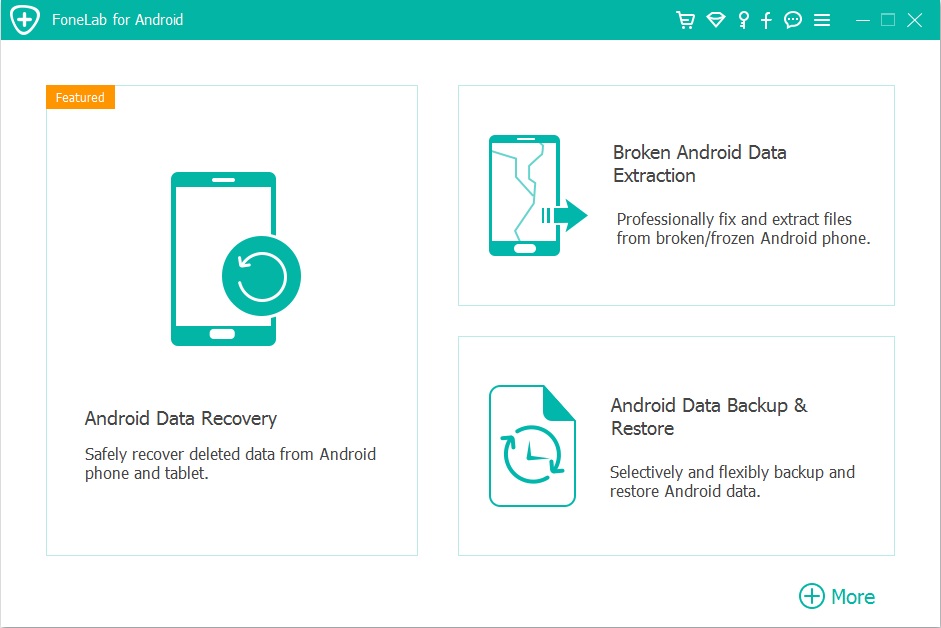
Android ToolKit home page

Here four options are available for you to choose – “Android Data Recovery“, “Broken Android Data Extraction“, “Android Data Backup & Restore” and “More “. Select the second one.

Step 1.Connect Device to the Computer
Connect the broken Samsung Galaxy S6 to the computer with its USB cable, click the “Start” button.

connect broken Samsung to PC

Step 2.Select File to Scan
The program will begin to scan data on your broken Samsung phone, click the file which contain the data you need to recover for backup. If you want to scan all files at once, please click “Select All” item.

select files to scan

Step 3.Select Broken Situation for Samsung
The program will guide you to another screen, you will see the following screen. There are several fault types of phone choices. Please choose the one which match your phone. Then click “Next“.

choose Samsung broken type

Step 4.Select Samsung Device Model
Select the brand and model of your Samsung according to option. For Samsung Galaxy S6 model, just click “Galaxy S6“.

select device model

Step 5.Get Samsung into the Download Mode
Follow the steps to get your Samsung phone into the Download Mode.

get Samsung into the download mode

Note:Please don’t interrupt the connection between your Samsung and the computer during the getting “Download Mode” process.

Step 6.Analyze Data of Samsung Phone
After entering Samsung into the Download Mode, the program will start downloading recovery package for your phone with some minutes.

scanning data Samsung

Once the downloading finishes, the selected files data stored on the device will be scanned out.

Step 7.Preview and Recover Data from Samsung for Backup
When the scanning is finishes, you are allowed to preview all recoverable data from Samsung, such as, gallery, contacts, messages,and more. Select the data to save them on the computer by clicking “Recover“.

backup Samsung S6 data

d_win d_mac

Samsung Models that Compatible with Broken Android Data Extraction:

Supported Devices
Samsung Galaxy S S4: GT-I9500, GT-I9505, SCH-R970, SCH-R970C, SGH-I337M, SGH-M919, SPH-L720

S5: SM-G900F, SM-G900FQ, SM-G900I, SM-G900K, SM-G900L, SM-G900M, SM-G900P, SM-G900R4, SM-G900R6, SM-G900S, SM-G900T, SM-G900T1, SM-G900W8

S6:SM-G9200, SM-G920F, SM-G920P, SM-G920T, SM-G925F, SM-G925P, SM-G925T, SM-G928P, SM-G928T

Samsung Galaxy Note Note 3: SM-N900, SM-N9002, SM-N9005, SM-N9006, SM-N9007, SM-N9008 SM-N9008V, SM-N900S

Note 4: SM-N9100, SM-N9106W, SM-N9108V, SM-N9109W, SM-N910C, SM-N910F, SM-N910G, SM-N910H, SM-N910K, SM-N910L, SM-N910P, SM-N910R4, SM-N910S, SM-N910T, SM-N910U, SM-N910V, SM-N910W8

Note 5: SM-N920C, SM-N920G, SM-N920I, SM-N920K, SM-N920L, SM-N920P, SM-N920R4, SM-N920S, SM-N920T, SM-N920W8

Samsung Galaxy Tab Tab Pro 10.1: SM-T525

More Guides about Samsung Galaxy S6 Recovery:

How to Recover Data from Broken Samsung Phone

How to Recover Lost Data from Broken Samsung Galaxy

How to Recover Data from Broken Samsung Galaxy S6

How to Recover Photos from Broken Samsung Galaxy S6

How to Recover Deleted Files from Samsung Galaxy S6

How to Safely Backup & Restore Samsung Galaxy S6
Backup Data from Broken Samsung Galaxy S6
How to Recover Data from Crashed Hard Drive

Please help me! My laptop crashed in a sudden and I couldn’t doing anything on it. So I take its hard drive out and connect it with another notebook. Then the problem comes. I do need my files on that hard drive. Can someone tell me what happen on it and how to solve it? Is it possible to recover data from from a crashed hard drive?

Actually, hard drive crashes is a frustrated thing – especially when you have very important data and files stored in it. All data will be lost due to physical damage or logical damage. What causes a hard drive to crash? Unfortunately, there’s not just one simple answer to this, and many things can cause a hard drive to crash. However, the reasons of hard drives crash are actually pretty simple and preventable, so if you’re aware of the causes before it happens, then you can hopefully bypass this stressful situation altogether.

Here are the most common causes of a hard drive crash: electrical issues and power surges, overheating, old age/wear and tear, hardware damage, extreme environment, power outage, manufacturing fault, etc,. Regardless of whether you’ve never had a hard drive crash on you, or you’ve experienced it many times, it’s every computer owner’s nightmare. Get to know the symptoms of hard drive issue, maybe you can prevent data lost caused by crashed hard drive. If you suffer from hard drive crash, please take it easy. We write this post aims to give a help to recover data from crashed hard drive.

Recover Files from Crashed Hard Drive

Data Recovery can rescue your crashed hard drive files, it can help to recover data from crashed hard drive effectively, safely and completely. It is good at performing data recovery from hard drive, recycle bin, memory card, flash drive, digital camera and camcorders. Supports to recover data for sudden deletion, formatting, lost partition, virus attack, system crash under any data loss different situations. In addition, it provide you with a full data recovery solution including Deleted Files Recovery, External Device Recovery, Recycle Bin Recovery, Formatted Disk Recovery, Lost Partition Recovery, Virus Attack Data Recovery, System Crash Data Recovery, and All-Around Recovery.

d_win d_mac

How to Recover Data from Crashed Hard Drive

Step 1. Run Data Recovery and Select a Recovery Mode
Firstly run Data Recovery on the computer, select the “Deleted Files Recovery” data recovery mode to recover data from crashed hard drive.

select a recovery mode

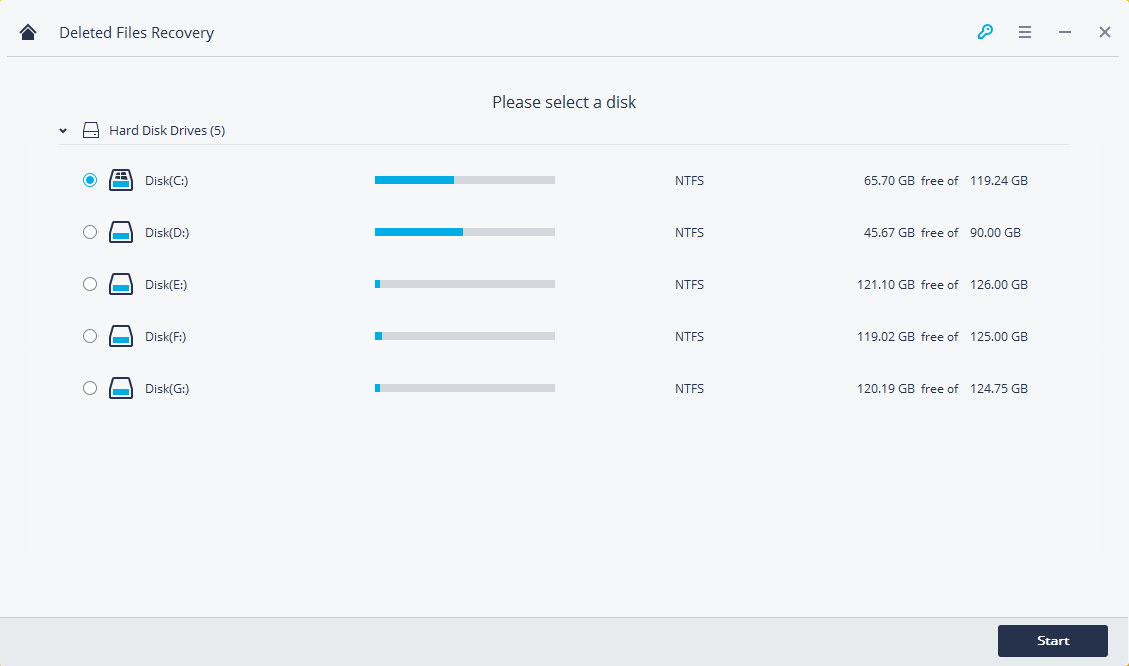
Step 2. Select a Hard Drive Disk
Please select a hard drive disk where your data stored the deleted data. Click “Start” button to process.

select a location to scan

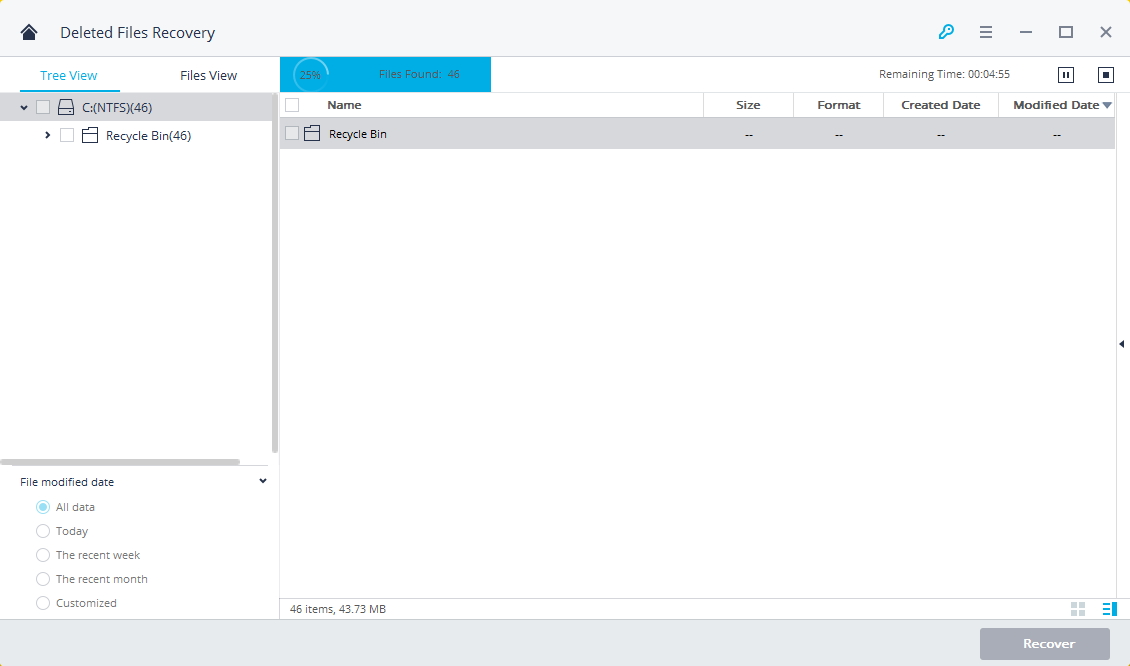
Step 3. Scan Data from Crashed Hard Drive
Data Recovery will start a quick scan the hard drive. Once it completed, you can preview all the recoverable files. If you cannot find your data you can try with “All-around Recovery” mode.

scan hard drive

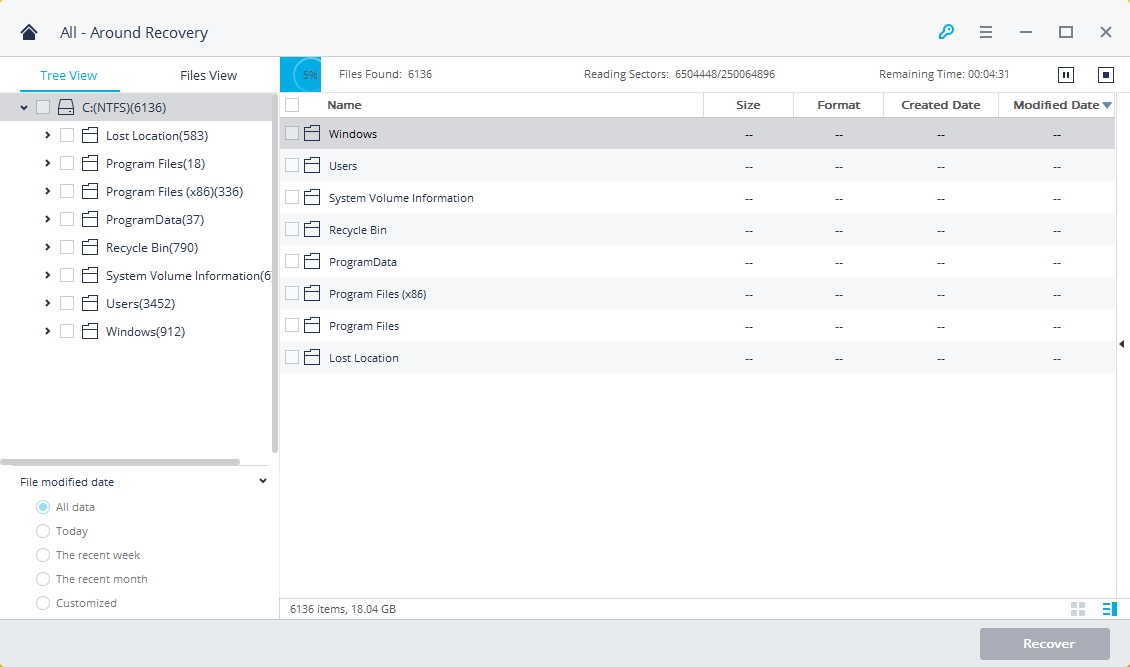
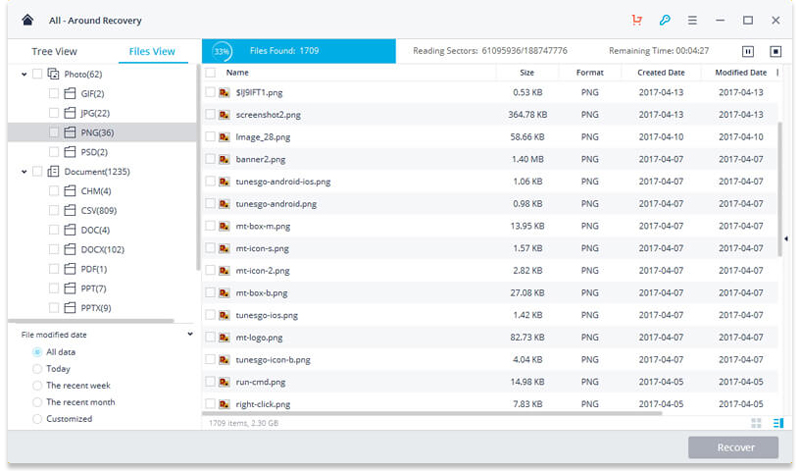
The “All-around Recovery” data recovery mode will deeply search and scan more files from hard disk drive. While it will take more time to complete the process of scanning.

all around recovery

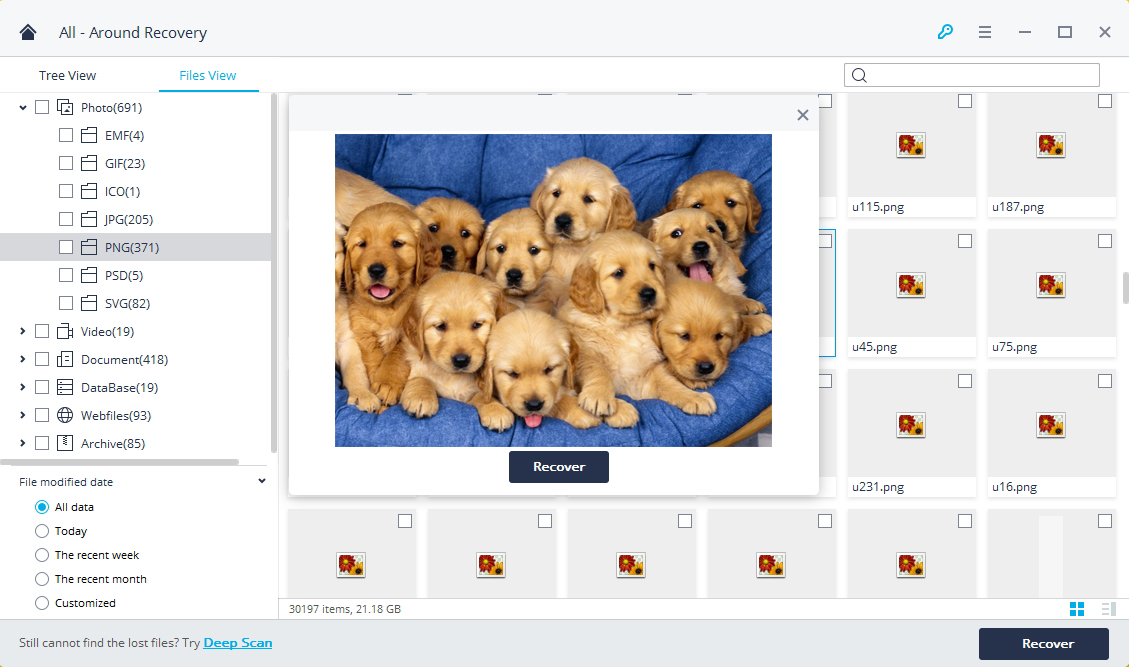
Step 4. Recover Data from Crashed Hard Drive
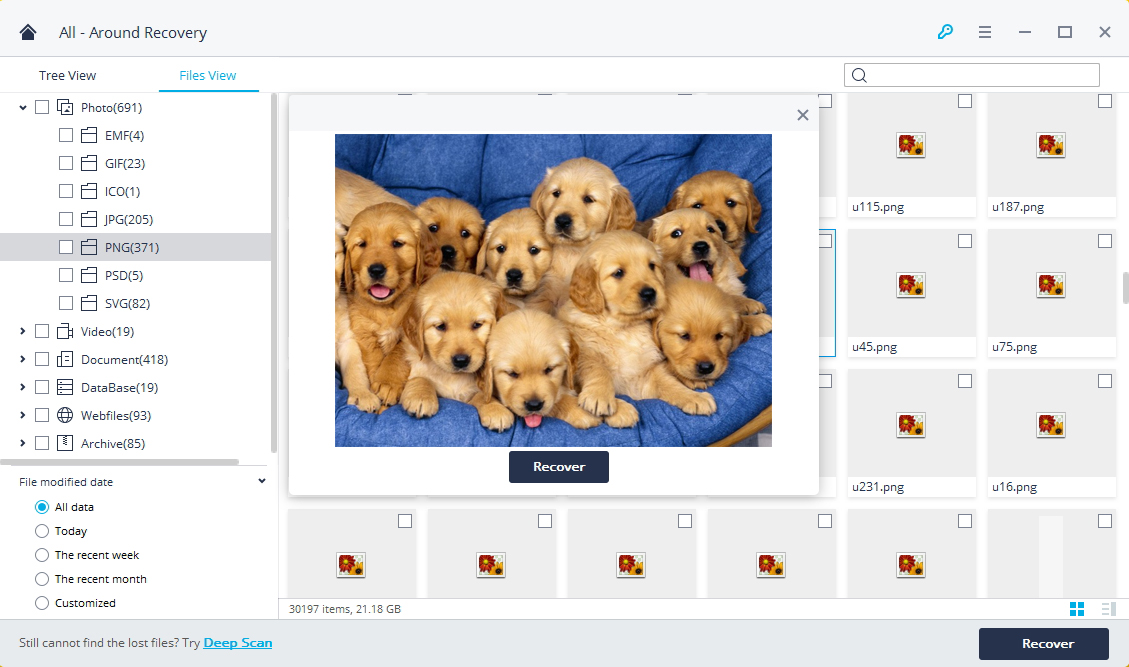
After the scan, you can check all recovered files on the results of scanning. Preview some recoverable files like photos, videos, documents files. Select your files and click “Recover” button to get your data back.

recover data from crashed hard drive

Note: Please do not save any recovered data to the crashed hard disk drive instead of get a safe storage device to avoid data lost again and overwriting.

d_win d_mac

Related Articles:

How to Recover Deleted Files from Computer

How to Recover Deleted Files from Laptop

How to Recover Deleted Data from Digital Hard Drive

How to Recover Deleted Files from Formatted Hard Drive

How to Recover Deleted Files from Emptied Trash

How to Recover Deleted Data from USB Drive

How to Recover Lost Files from Virus Infected Device

Recover Data from Crashed Hard Drive

How to Recover Deleted Files/Photos/Videos from Laptop

My friend removed some photos and videos files from his laptop for free up space on his device, however now he regret and want to get the deleted files back but failed. He can’t access his photos, videos, documents, etc,. He Google a lot but have no find the best solution to fix it. Any suggestions? Thanks.

Did you ever get in trouble with recovering delete some photos, videos files from laptop? Here we list some causes lead to data loss on laptop: delete files on laptop to free up space; permanently delete files by clicking “Shift+Delete” to wipe data from laptop bypassing recycle bin; delete files in recycle bin to clean it up; lost files from laptop when infected virus; reset laptop to restore factory settings; etc,. If you just remove the files to the trash box, you can restore it easily. But how to recover the deleted files from laptop without backup? Please calm down if you encounter on of these situations. And you’d better not write new files to avoid deleted files be overwritten from your laptop before taking measures of recovery.

Restore Deleted Files from Laptop

Data Recovery can help you to recover deleted files from laptop with easy steps, including photos, videos, audio, music, email, documents, etc,. It is compatible for almost all Windows laptop brands and Mac models, including Dell, Sony, Toshiba, Lenovo ThinkPad, Macbook, Macbook Pro, etc,. Supports data recovery from recycle bin, hard drive, memory card, flash drive, digital camera and camcorders. Supports to recover data for sudden deletion, formatting, hard drive corruption, virus attack, system crash under different situations. Data Recovery features with several of recovery modes, such as, Deleted Files Recovery, External Device Recovery, Recycle Bin Recovery, Formatted Disk Recovery, Lost Partition Recovery, Virus Attack Data Recovery, System Crash Data Recovery, and All-Around Recovery.

d_win d_mac

How to Recover Deleted Files on Laptop

Step 1. Select a Data Recovery Mode
To recover deleted photos from Laptop, you should select the “Deleted Files Recovery” after running the program on the computer.

select a recovery mode

Step 2. Select a Partition to Recover Files
Select Partition to look for deleted files. Select a specific disk where you deleted files, click “Start” button to scan lost files.

select a location to start finding data

Step 3. Scan the Whole Laptop to Search Lost Files
After a quick scan completed, you can preview the recovered files from quick scan section. If you can’t find your files, go to scan again with “All-Around Recovery” mode.

scan computer hard disk

The “All-Around Recovery” mode will take more time than quick scan, it can search more file from your laptop. Please be patient and do not interrupt it in the middle of the process if not necessary.

all around recovery

Step 4. Recover Deleted Files from Laptop
After scanning, the found files will be displayed in the window. You can preview recovered files to check how many of your deleted files can be recovered. Then you just need to select data you need and click “Recover” to save them on your laptop.

recover deleted files from laptop

d_win d_mac

Related Articles:

How to Recover Deleted Files from Computer

How to Recover Deleted Data from Digital Hard Drive

How to Recover Deleted Files from Formatted Hard Drive

How to Recover Deleted Files from Emptied Trash

How to Recover Deleted Data from USB Drive

How to Recover Lost Files from Virus Infected Device

Recover Deleted Files from Laptop

How to Recover Contacts/Photos/SMS from Broken Galaxy S6

[Summary]: When your Samsung Galaxy S6 was broken, damaged or corrupted, you need a specialist Samsung data recovery tool that knows how to access an array of disk drives in broken Samsung phone, this review will suggest you an easy way to recover/extract existing contacts/photos/text messages/WhatsApp messages and more files from broken Samsung Galaxy S6 – SM-G9200, SM-G920F, SM-G920P, SM-G920T, SM-G925F, SM-G925P, SM-G925T, SM-G928P, SM-G928T.
Are you familiar with broken Android data recovery? In the eventuality that you damage your phone accidentally, for example, dropped your Samsung Galaxy S6 to the ground and the phone screen was unfortunately broken; you get the water damaged phone; or your phone stuck in the Download Mode, etc,. And what’s worse is that you can’t unlock your broken phone. What are you going to do next? If I were you, I would definitely extract the data from the broken phone for backup first.
How to recover data from broken Samsung Galaxy S6? When you search a question like “recover data from broken Android”, you will get a lot of answers. However, if you search a question like “recover files from broken Samsung Galaxy S6”, you will get nothing. Though Google will not give you a solution to fix this issue, here this post aims to break it, it provides the way with you for reference to recover files from broken Samsung Galaxy S6 for backup, hope it will do a help for you.
Extract Files from Broken Samsung Galaxy S6
Now you can stop being depressed when you own a broken Samsung Galaxy S6 phone, use Android ToolKitBroken Android Data Extraction(Broken Samsung Data Recovery) to recover data from broken Samsung Galaxy S6/S6 Edge, including contacts, gallery, videos, audio, call logs, documents, WhatsApp messages & attachments, etc,. It is powerful data recovery tool for extracting data from broken Android device under any broken cases, for instances, broken screen, black screen, water damaged, stuck in the Download Mode. All in all, it is an all-in-one program features with broken Android data extraction, Android data recovery, Android data backup & restore, these two function compatible with all normal Samsung and Android phones, including Galaxy S5/S6/S7/S8/S9, Note 5/8/9.

d_win d_mac

Note: Currently, the broken Android data extraction support broken Samsung Galaxy S6 mode including SM-G9200, SM-G920F, SM-G920P, SM-G920T, SM-G925F, SM-G925P, SM-G925T, SM-G928P, SM-G928T. It does not support the broken Galaxy S7/S8/S9/Note 9/Note 8.
If your phone is running normally, you can try to backup your Android data to computer, or recover lost data from Samsung phone.

Extract Data from Broken Samsung Galaxy S6 for Backup

To get started, please download and run the Android ToolKit – Broken Android Data Extraction on the computer.

Android ToolKit home page

Step 1.Connect Broken Samsung to Computer
Click the option-“Broken Android Data Extraction” , then connect the broken Samsung to computer with a USB cable,and click the “Start” button.

connect broken Samsung to PC

Step 2.Select the Files Type to Scan
The program will begin to scan data from your broken phone, you can click the option which is the type data name that contain the data you want. If you want to scan all files at once, please click “Select All” item. Then click “Next“.

select file to scan

Step 3.Select Broken Situation for Broken Samsung
In this step the program will guide you to another screen, you will see the following screen. There are several fault types of phone choices. Please choose the one which match your phone.

choose Samsung broken type

Step 4.Select Samsung Phone Model
Select the brand and model of your Samsung according to the option. In this case, you should click “Galaxy S8“.  (If you are not sure what model of your device, please click the “How to confirm the device model”option.)

select device model

Step 5.Enter Samsung into the Download Mode 
In this step, you will follow the steps to enter your phone into the Download Mode.

enter broken Samsung into the download mode

Tips:Please keep connecting your broken Samsung with the computer during the getting phone into the Download Mode process.

Step 6.Analyze Data of Samsung Phone
After entered Samsung into the Download Mode, the program will start downloading recovery package for your phone with some minutes.

scanning data from Samsung

Once the downloading is finish, the selected item stored on the device will be scanned out.

Step 7.Preview and Recover Data from Samsung S6
Lastly, you could preview all deleted/lost or existent data on Samsung, including contacts, messages, gallery, videos and more. Just click “Recover” button to save them on the computer for backup.

recover data from Samsung

d_win d_mac

Related Articles:

How to Recover Data from Galaxy S8 with Broken Screen

How to Recover Data from Water Damaged Samsung Phone

How to Recover Photos from Broken Samsung Phone

How to Manage Samsung Galaxy S8 on Computer

How to Backup & Restore Samsung Galaxy S8 on the Computer

How to Enjoy Apple Music on Samsung Galaxy S8

Recover Data from Broken Galaxy S6

How to Recover Deleted App Data on iPhone X/iPhone 8(Plus)

[Summary]: How to recover app data on an iPhone X or iPhone 8(Plus)? In this post, we are going to show you how to complete that with an app data recovery for iPhone. Have a try on this powerful data recovery for iPhone. Now read this guide to know how to get back app data on iPhone X/iPhone 8(Plus).

Hello, last night I accidentally deleted the WhatsApp app from my iPhone X. It is easy to re-download it. However, I have some chat history in it, which are lost. Could you please let me know if there is a data recovery software to recover app data from my iPhone?

Just in this morning, my little daughter deleted some WeChat conversations on my iPhone 8. Is there a way to recover all the lost WeChat data from the device without backup? Any ideas? I really can’t afford to lose those data.

In these years, more and more chat apps are released, all of these apps make a significance for our life, help us to communicate with others conveniently. In general, we download various chat apps from website or App store, and we have fun with these apps, for example, WhatsApp, WeChat, Kik, Viber, Line. These chat apps record our daily life, we use it to share media photos, videos, audios with others, which play an important role in our mobile function.

Many different causes will lead to lose apps data from device, such as, accidental deletion, iOS system update, iOS system jailbreak, factory reset restoring, etc,. You may have encountered the same situation like someone who accidentally lost important app data from iPhone X/iPhone 8(Plus). To be honest, the app data doesn’t actually being removed permanently. They are just marked for deletion and become invisible to us.

Find Deleted App Data from iPhone X/iPhone 8(Plus)

To find those marked/hidden files and recover deleted app data from iPhone X/iPhone 8(Plus), a iPhone data recovery tool named iOS Data Recovery will help. It is a superior data recovery for recover files on iPhone/ iPad/iPod, empower to recover deleted app messages and attachments with easy steps, insist of WhatsApp, WeChat, Kik, Viber, Line and more app. It is capable of recovering deleted data from iOS device for three recovery modes: directly recover from iOS device, recover from iTunes backup file, recover from iCloud backup file. It could be used to recover up to 19 kinds of iOS data, including app data(app documents, app photos, app audios, app videos), contacts, photos, videos, text messages, call logs, notes, voice memos, reminders, safari history, safari bookmarks, calendar, etc,.

d_win d_mac

More Features of iOS Data Recovery:
-Support to recover iOS data under any data loss causes.
-Allow to preview data before selectively recovery.
-Compatible with all iOS models and all iOS system.

Directly Recover Deleted App Data from iPhone X/iPhone 8(Plus)

Step 1.Run Program and Select Recovery Mode
First of all, please install and run iOS Data Recovery program on the computer, connect your iPhone X/iPhone 8(Plus) to the computer with its USB cable.

After connecting, the program will display detailed information of your iPhone in the interface of program. Select “Recover from iOS Device” recovery mode and then click “Start” button.

iOS Data Recovery home page

Step 2.Select the File to Recover
Now you should click the file name to scan by program, for app files recovery, just click “App Photo” & “App Video” and then click “Next” button.

select app files to recover

Now the program will begin to scan all the data from iPhone. It will take a few minutes to finish the files scanning.

scan iPhone for deleted data

Step 3.Preview and Recover Deleted App Data from iPhone
When the scanning is complete, it will list all files found from your iPhone. Preview the recoverable data under “App Photo” & “App Video” category, pick on the data you want, recover it and save on the computer by clicking “Recover” button.

directly recover deleted app data from iPhone

d_win d_mac

Related Articles:

How to Recover Deleted Data from iPhone X/8(Plus)

How to Recover Deleted WhatsApp Messages from iPhone

How to Restore Deleted WeChat History from iPhone

How to Restore Deleted Skype History from iPhone

How to Recover Deleted Kik Chat History on iPhone

iPhone App Data Recovery


iOS Data Recovery

Recover Your iPhone iPad Lost Data
Now, Even without Backups

Compatible with iOS 11 & iPhone X/8 (Plus)

Recover Lost Data Now

How to Recover Deleted Files from Formatted Hard Drive

Summary: Lost files after formatting hard drive, USB drive or SD card? This article provides the best format files recovery software to help you recover data on a formatted hard drive within 4 simple steps.

Some of us may need to format the hard drive, to permanently delete data from the device, or in order to remove the virus attack from the hard drive. Formatting a hard drive is the process of deleting files from a hard drive, to give space for new files or a new operating system. When a hard drive is formatted, all erased data store on it can still be retrieved if the deleted data haven’t been overwritten. Let’s suppose this, the hard drive saves important files, but when you try to open it and access files, it failed. The system prompts that “you need to format this disk before you can use it”. At this critical moment, you agree to “Format disk” in order to use the hard drive as usual.

Recover Files from Formatted Hard Drive

Unfortunately, if you do format the drive and lose some important files, what should you do to recover formatted drive? To recover deleted files from formatted hard drive, you need a professional data recovery called Data RecoveryFormatted Disk Recovery. Data Recovery is highly recommended for its powerful data recovery can help. If you are suffering from data loss disaster caused by hard drive formatting and trying to find a reliable formatted data recovery solution to rescue your files, this data recovery is your best choice. It can help you recover formatted hard drive lost data, including photos, email, documents, audio, videos, music and more.

d_win d_mac

More Features of Data Recovery:
-Recover deleted files from external hard drive/flash drive/USB drive, memory card, digital camera and more storage device.
-Rescue data lost due to deletion, formatted partition, hard drive problem, RAW hard drive, crashed computer or other causes.
-Features with more recovery modes: Deleted Files Recovery, External Device Recovery, Recycle Bin Recovery, Lost Partition Recovery, Virus Attack Data Recovery, System Crash Data Recovery, and All-Around Recovery.

How to Recover Files from Formatted Hard Drive

Step 1. Run Program and Select a Data Recovery Mode
Firstly run Data Recovery software on the computer and select a data recovery mode. To recover deleted files from formatted hard drive, you should select “Formatted Disk Recovery” mode to begin.

select a recovery mode

Step 2. Select a Specific Hard Drive to Scan
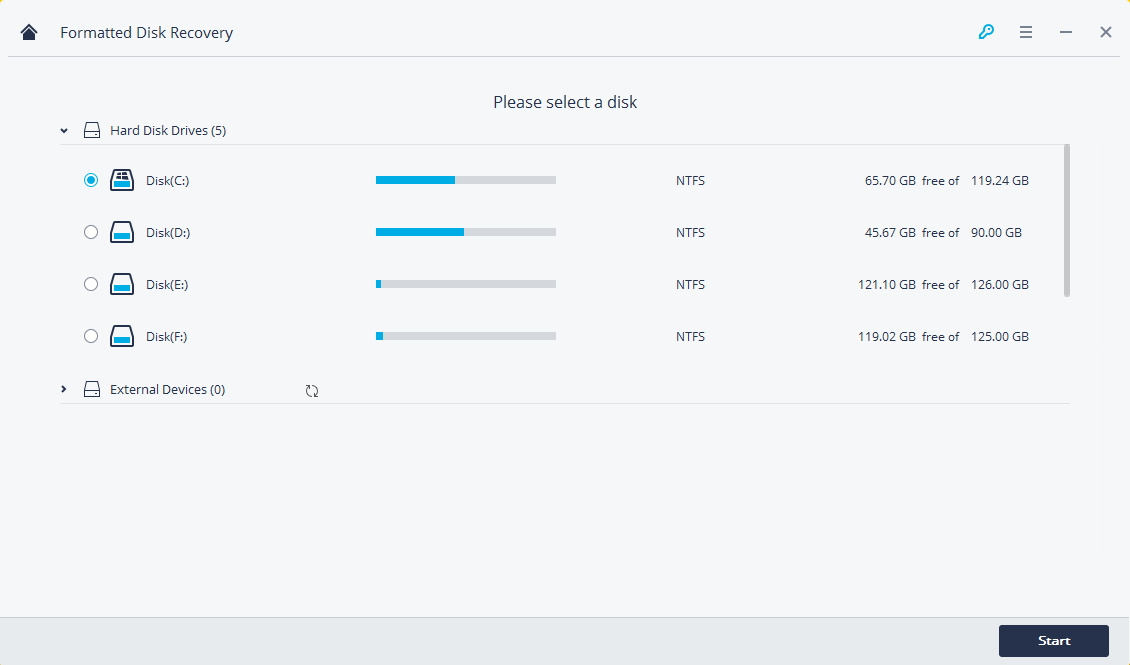
Please select a specific hard drive disk where the data might have been before you deleted/lost it. Click “Start” to proceed. Or connect your formatted external hard drive to the computer and select it to move on.

formatted drive recovery select disk

Step 3. Scan the Hard Drive
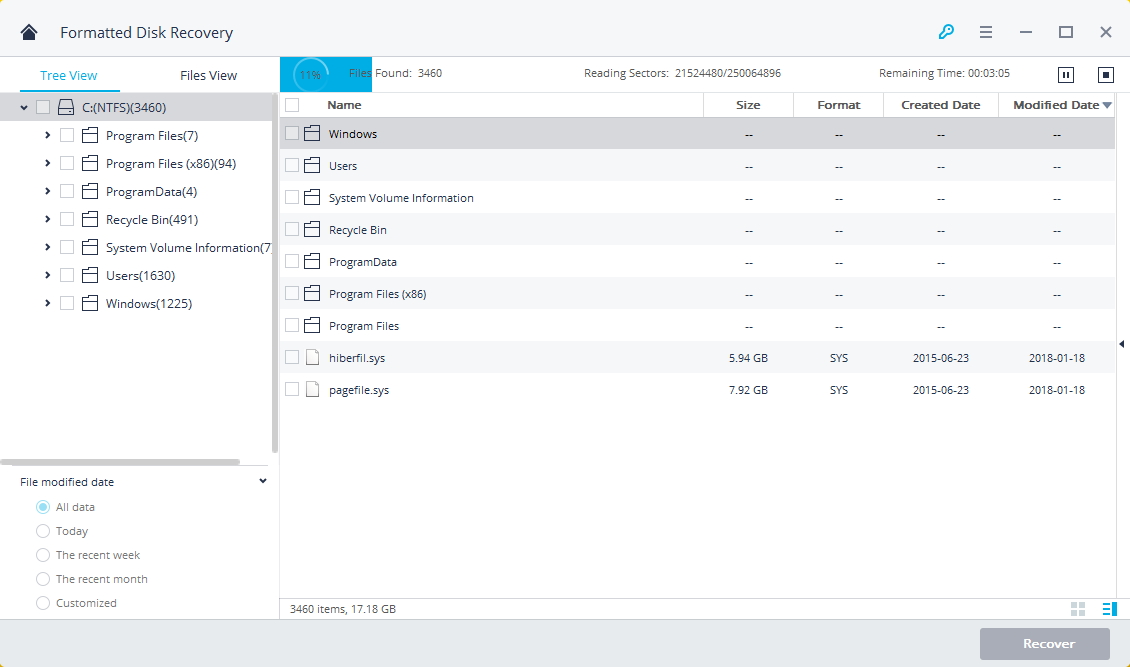
Next, Data Recovery – Formatted Disk Recovery will start a quick scan. If you can’t find any file after it completed, go to “All-Around Recovery” as it recovers files lost due to format more efficiently. This scan may take some time.

formatted drive recovery scan

Step 4. Recover Files from Hard Drive
When the scanning is finish, it will list the scan results for you. You can then choose the desired files that you want to recover, simply select the files that you want to recover and click “Recover“.

recover deleted files from formatted hard drive

Note: Please do not save any recovered files to the formatted hard drive where your data loss from previously. Save the recoverable data to another hard drive and avoid to overwriting data. Please back up all of your data to another external hard drive before formatting hard drive.

d_win d_mac

Related Articles:

How to Recover Deleted Files from Computer

How to Recover Deleted Data from Digital Hard Drive

How to Recover Deleted or Lost Partition

How to Recover Deleted Files from Emptied Trash

How to Recover Deleted Data from USB Drive

How to Recover Lost Files from Virus Infected Device

Recover Files from Formatted Hard Drive

Backup Photos Data from Broken Screen Samsung Galaxy

Last night, my Samsung Galaxy S6 screen was broken, unfortunately, the phone is not working, it keeps black screen and I can’t operate it. When I connect the broken phone to Kies and say that the phone is locked, how can I unlock the broken Samsung device with broken screen, and then extract the photos and gallery for backup?

When you find your mobile phone screen is broken, you can request a replacement insurance and get a new mobile phone. Before to do this, you may be need to retrieve all needing files from the mobile phone for backup, especially the photos. No matter you break your phone screen for any causes, you may be free hopeless to damage your device. What’s worse, when the phone screen is broken, you can’t access the phone system and you have no ideas to extract the files from the broken screen for backup. It means that you will lose all data stored on the broken device. Now you can stop to being depressed. Actually, there are some ways available for you to recover files from the broken screen without accessing it.

Backup Files from Galaxy S6 with Broken Screen

To backup gallery data from broken screen Samsung Galaxy S6, one of the best way is trying this reliable tool: Android ToolKitBroken Android Data Extraction. Which is a professional broken Android data recovery program, to help your recover files from broken Android device under any broken cases, like broken screen, black screen, water damaged, stuck in the Download Mode and so on. The recoverable types of files including gallery, contacts, messages, call logs, documents, WhatsApp messages, apps data, etc,. Samsung Galaxy S6/S5/S4 and Note 5 are supported. In addition, Android ToolKit is an all-in-one data manager tool for Android device, features with Android data recovery, Android data backup & restore, these two function support almost all normal Android phone like S9/S8/S7/S6/S5/S4/Note 9/Note 8/Note 5, etc.

d_win d_mac

Extract Photos from Galaxy S6 with Broken Screen for Backup

First of all, please download and run the Android ToolKit – Broken Android Data Extraction on the computer.

Android ToolKit home page

Step 1.Select the Mode and Connect Device
Here four options are available for you to choose – “Android Data Recovery“, “Broken Android Data Extraction“, “Android Data Backup & Restore” and “More Tools“. Select the second one then connect the broken screen Samsung Galaxy S9 to the computer with its USB cable, click the “Start” button.

connect broken Samsung to PC

Step 2.Select the Photo File to Scan
The program will begin to scan data on your Samsung phone with broken screen, click the file which contain the data you need. For photos backup, you should click “Gallery” file. If you want to scan all files at once, please click “Select All” item.

select gallery file to scan

Step 3.Select Broken Situation for Samsung
The program will guide you to another screen, you will see the following screen. There are several fault types of phone choices. Please choose the one which match your phone. In this broken screen case, you should click “Others“.

choose Samsung broken type

Step 4.Select Samsung Device Model
Select the brand and model of your Samsung according to option. For Samsung Galaxy S6 model, you should click “Galaxy S6” and it’s mode – SM-G9200, SM-G920F, SM-G920P, SM-G920T, SM-G925F, SM-G925P, SM-G925T, SM-G928P, SM-G928T.

select device model

Step 5.Get Samsung into the Download Mode
Follow the steps to get your Samsung phone into the Download Mode.

get Samsung into the download mode

Note:Please don’t interrupt the connection between your Samsung and the computer during the getting “Download Mode” process.

Step 6.Analyze Data of Samsung Phone
After entering Samsung into the Download Mode, the program will start downloading recovery package for your phone with some minutes.

scanning data Samsung

Once the downloading finishes, the selected files data stored on the device will be scanned out.

Step 7.Preview and Recover Photos from Samsung for Backup
When the scanning is completes, you could preview all recoverable files data from Samsung, including the gallery, contacts, messages,and more. Select the photos data to save them on the computer by clicking “Recover“.

backup Samsung S6 photos

d_win d_mac

Related Articles:

How to Recover Deleted Data from Samsung Galaxy S9

How to Recover Data from Broken Samsung Galaxy S6

How to Recover Data from Galaxy S9 with Broken Screen

How to Manage Samsung Galaxy S9 on Computer

How to Backup & Restore Samsung Galaxy S9

How to Stream Apple Music to Samsung Galaxy S9

Samsung S6 Broken Screen Data Recovery

How to Backup Photos Data from Galaxy S8 with Broken Screen

Galaxy S8: Broken screen!! Need help with backing up data.
Hi. I have a broken screen Samsung Galaxy S8, however, it is still functioning, but I can’t see what I am doing. Is there a way to backup the photos and other data from the broken phone? Appreciate if you have any ideas on how to do this. Thanks.

When your Samsung phone screen gets broken, normally the glass gets damaged and the screen becomes unresponsive to any touch or tap; screen goes completely black and you can’t do anything on it, even turn it on or turn it off. This will not allow you to access the data stored in the device. Gratefully, even if your broken screen phone is beyond repairing, it is possible to backup or recover all kinds of the files locked away in your Samsung device. In this post, I’m going to show you how to quickly recover photos files and more from a broken screen Samsung Android device, here I will take Samsung Galaxy S8 as an example.

In this case, you can try Android ToolKitBroken Android Data Extraction program that will help you to backup/recover inaccessible files from broken Android device. It will allow you to backup photos from Samsung Galaxy S8 with broken screen, besides to photos, it support to recover several kinds of data, including contacts, SMS, WhatsApp messages, call logs, videos, audio, documents and more. It compatible with almost all Samsung models and Android models, including Samsung Galaxy S5/S6/S7/S8/S9. The best broken Android data extraction tool is designed for recovering data from any cases of broken Android, such as, broken screen, black screen of death issue, water damaged, locked screen, virus infected, stuck in Download Mode, etc,.

d_win d_mac

How to Backup Photos from Galaxy S8 with Broken Screen

To get started,please download and run the Android ToolKit – Broken Android Data Extraction on the computer.

Android ToolKit home page

Step 1.Connect Broken Screen Samsung to the Computer
After running Android ToolKit program on the computer.Then you will see four options – “Android Data Recovery“, “Broken Android Data Extraction“, “Android Data Backup & Restore” and “More Tools“, click the second one then connect the broken screen Samsung Galaxy S8 to the computer with a USB cable, and click the “Start” button.

connect broken Samsung to PC

Step 2.Select the Photo File to Scan
The program will begin to scan data on your broken screen phone, you can click the file which contain the data you need. For photos backup, you should click “Gallery” file. If you want to scan all files at once,please click “Select All” item.

select gallery file to scan

Step 3.Select Broken Situation for Samsung
Then the program will guide you to another screen,you will see the following screen.There are several fault types of phone choices. Please choose the one which match your phone.In this broken screen case, you should click “Others“.

choose Samsung broken type

Step 4.Select Samsung Device Model
Select the brand and model of your Samsung according to option.In this case, you should click “Galaxy S8“.

select device model

Step 5.Enter Samsung into the Download Mode
Follow the steps to enter your Samsung phone into the Download Mode.

get Samsung into the download mode

Note:Please don’t interrupt the connection between your Samsung and the computer during the getting “Download Mode” process.

Step 6.Analyze Data of Samsung Phone
After entering Samsung into the Download Mode, the program will start downloading recovery package for your phone, it will take you some minutes.

scanning data Samsung

Once the downloading finish, the selected data item stored on the device will scanned out.

Step 7.Preview and Backup the Selected Photos from Samsung
When the scanning is completes, you can preview all recoverable data from Samsung, including the gallery, contacts, messages,and more. Select the photos data to save them on computer by clicking “Recover” under “Gallery” file.

backup Samsung photos

d_win d_mac

Related Articles:

How to Recover Lost Data from Broken Samsung Phone

How to Recover Photos from Broken Samsung Galaxy S8

How to Manage Samsung Galaxy S8 on the Computer

How to Enjoy Apple Music on Samsung Galaxy S8

How to Backup & Restore Samsung Galaxy S8

Backup Photos from Broken Screen Samsung Galaxy S8

How to Recover Deleted or Lost Partition

Summary: Hard drive partition got deleted or lost? How to get back the deleted or lost partition? Data Recovery software will do you a favor to recover data even partitions being deleted or lost on the Windows or Mac computer. No technical skills are required to perform partition data recovery.

A hard disk is divided into one or more logical divisions for better resource management and to keep data distributed at different locations as per user requirement. These logical divisions are known as partitions and give the illusion of certain independent hard disks working in harmony. However, there are problems met with computer partitions, which we will discuss in details below. When something go wrong on the hard disk partition of a computer, it will result in data loss in the partition. Here we list three common causes of losing data in the partition:

A.Deleted Partition: Partitions seldom get deleted itself unless something is seriously wrong with the hard disk. Mostly the partitions get deleted accidentally.

B.Formatted Partition: Like deletion, formatted partitions are mostly the doings of the owners themselves. But they do sometimes get formatted owing to some severe software error.

C.Partitions Damaged by Viruses: The virus attack can be a real mess if that data was important and you didn’t make a backup.

What will you do if you get lost a whole partition, rather than a single folder or a document? Is there a solution to do a partition recovery to help you get back the whole data from the partition that is lost? Yes it is. Lost partitions are not easy to be overwritten, it could be restored with a partition data recovery tool.

Recover Partition Data without Damaging Existent Data

Data Recovery help you restore deleted or lost partition data easily and safely without harming your data, including photos, videos, audio, music, emails, documents and more. Data Recovery can help you restore the hidden partition on your computer with the algorithm-based technology and friendly interface, it will make the recovery simple, fast, and 100% secure. What’s more, it enables you to restore data from USB drive, digital camera, camcorder, memory card, iPod/MP3/MP4 Player, SD card, CF/XD/MMC card and other storage device. Supports to recover data for sudden deletion, formatting, hard drive corruption, virus attack, system crash under different data loss situations.

d_win d_mac

How to Recover Deleted/Lost Partition

Step 1. Run Program and Select a Data Recovery Mode
In the first step, please run Data Recovery on the computer, select the “Lost Partition Recovery” recovery mode, it provides a solution to recover data from deleted/lost partition. It can be used to restore data from a hidden/deleted/resized/inaccessible partition.

select a recovery mode

Step 2. Select a Partition to Scan
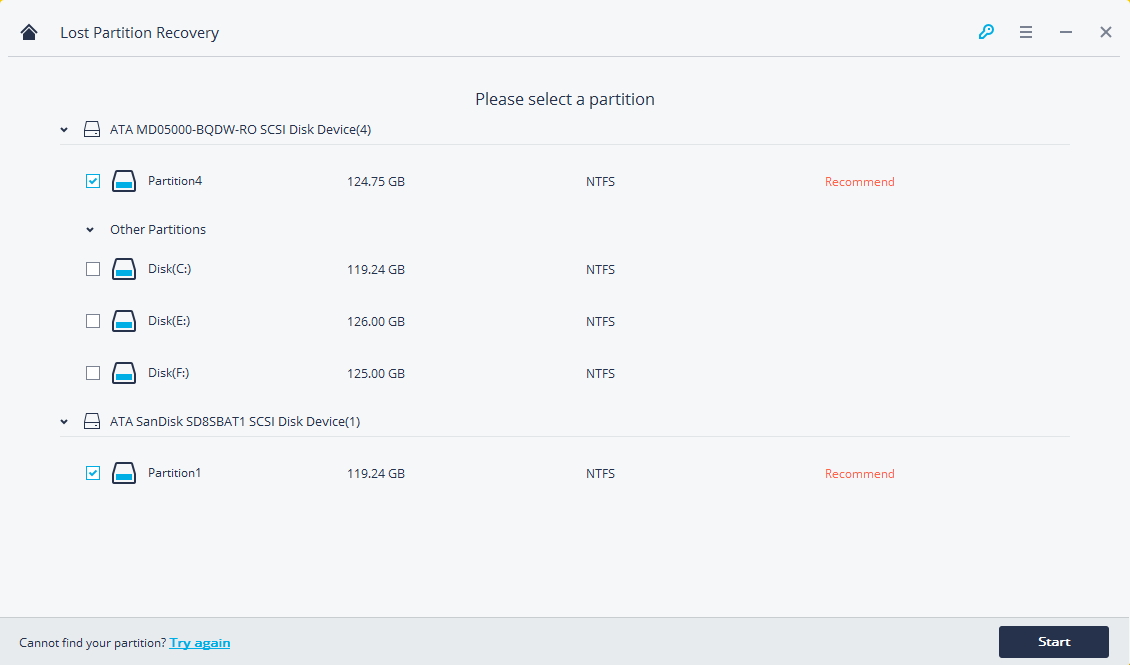
Please select a partition where your data deleted or lost and click “Start” button to start the scanning process.

select a partition

Step 3. Scan the Selected Partition
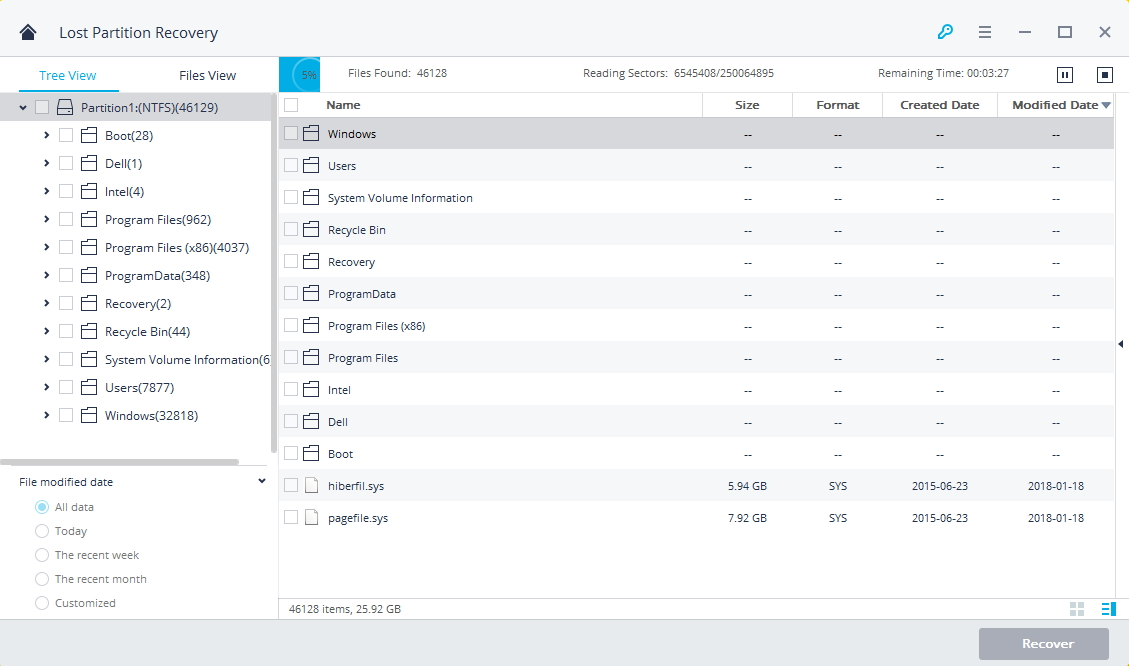
In this step, the program will start the scanning process automatically once you click on the “Start” button. It will take a while to show all the files that were deleted or lost from the partition.

lost partition recovery scan

After finishing the quick scan, the result is allowed to preview by selecting the specific recoverable files. If you can’t find the desired files, you can try “All-Around Recovery” option on the left-bottom. It will search more files from partition deeply as it will take a longer time to complete. Here we will suggest you try the “Lost Partition Recovery” mode first, if it won’t work, then try the other.

all around recovery

Step 4. Preview and Recover Data from Partition
In the last step, you could preview the specific recoverable files after the scanning process is completed. Select the targeted files from the file type categories on the left panel and preview them. Then click “Recover” button to restore data from partition.

Note: Please don’t save any recovered data into the lost partition where you lost data from.

recover deleted partition data

d_win d_mac

Related Articles:

How to Recover Deleted Files from Computer

How to Recover Deleted Data from Digital Hard Drive

How to Recover Deleted Files from Emptied Trash

How to Recover Deleted Data from USB Drive

How to Recover Lost Files from Virus Infected Device

Recover Data from Partition

How to Recover Deleted Photos from Samsung Galaxy S9/S9+

[Summary]: Accidentally deleted photos on Galaxy S9? The tutorial will teach how to recover lost or deleted photos, videos from Samsung Galaxy S9/S9+ with Android Data Recovery.

I lost my photos from the new Galaxy S9 phone by my litter son accidental deletion. I heard that the deleted photos are not permanently gone actually. Is it possible to check the lost photos and restore it without backup? I need a simple solution. Any ideas are welcomed.

Lost photos after factory reset Samsung Galaxy S9? How to restore lost photos from Galaxy S9?

There could be several causes for the loss or deletion of data from Samsung phone. Some of them are mentioned here: accidental deletion, doing factory reset, formatting SD card, black screen/forgotten password/screen broken, virus intrusion, rooting device, ROM flashing, etc,.

If you recent deleted photos on Samsung phone, you can check recently deleted photos from Google Photos app – recycle bin, let’s follow the step-by-step guide on how to restore recently deleted photos from the recycle bin.

Way 1: Recover Deleted Photos from Google Photos app

If you have backup your photos from Samsung Galaxy S9 to the Google Photos app, then you don’t worry about your photos are lost or deleted, you can quickly restore them from the recycle bin of Google Photo app, you can easily the get deleted photos back within 60 days. Let’s learn how to restore Samsung lost or deleted photos from Google Photos app:

Step 1. Open the Google Photos app on your Samsung Galaxy S9 or S9+ smart phone.
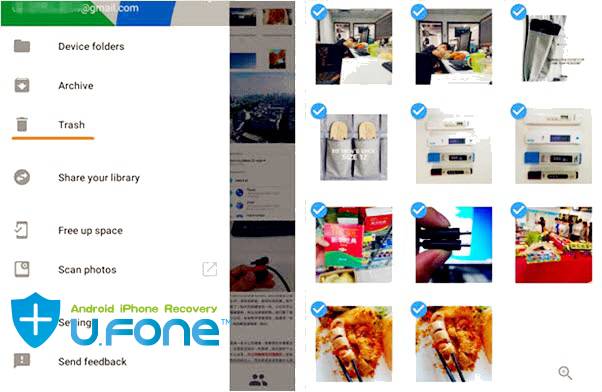
Step 2. Tap “Trash” from the top-left menu, all the deleted pictures will be appear and you can see the detail information.
Step 3. Select the photos you want to get back, then tap “Restore” to restore deleted photos from Google Photos app’s recycle bin, then the deleted photos restored to the Gallery on Samsung Galaxy S9.

recover deleted photos from samsung

Note: If you delete photos for more than 60 days, this method will not work for you.

If I never synced photos to the Google Photos app, or those photos been deleted more that 60 days, it possible to check and retrieve deleted pictures, photos from Samsung Galaxy S9? Well, the answer is “Yes“, you still have the chance to check and recover lost/deleted files from Samsung Android if you get some help of a reliable data recovery, until and unless the existent data does not get overwritten.

Way 2: Recover Deleted Photos from Samsung Galaxy S9/S9+ by Android Data Recovery

U.Fone Android Data Recovery, which is a suitable and perfect Samsung S9/S9+ Data Recovery software. It is designed to recover deleted data from Samsung Android device. With the help of this program, you could easily check the recently deleted photos on Samsung Galaxy S9/S9 +, recover the deleted photos from it selectively. Besides to photos, it enables you to restore several kinds of Android data, including videos, contacts, text messages, call logs, documents, WhatsApp messages, and more. Supports recover data lost due to any circumstances. Compatible with all Samsung models and Android models, for instance, Samsung Galaxy S10/S9/S8/S7/S6/S5, Galaxy Note 9/8/5/4, etc,.

d_win d_mac
d_win d_mac

Tips to Improve the success rate of data recovery

Before recovering files from your Android phone, the following important tips you must pay attention to in order to improve the success rate of recovering lost or deleted files.

1. Stop taking photos or videos by your phone, avoiding new data overwriting old data, which will reduce the success rate of data recovery
2. Don’t add any new data to the phone or the Micro SD card until the data is restored.
3. Don’t format the SD card before you get back any files from your memory card.
4. Don’t transfer files from other device to the phone.
5. Using a professional Android data recovery or SD card data recovery to recover photos, videos and other files as soon as possible.

Photos Recovery on Samsung Galaxy S9/S9+ (Deleted More that 60 days)

To begin with, you should run U.Fone Android Data Recovery on the computer. There are three modes for selection: Android Data Recovery, Android Data Backup & Restore, Broken Android Data Extraction. Click “Android Data Recovery” option to begin.

run U.Fone Android Data Recovery

Step 1. Connect Samsung Phone to Computer
Connect your Samsung Galaxy S9 to computer with a USB cable, enable the USB debugging on your phone.

connect Samsung to the computer

In oder to allow our Android data recovery software analyze your Samsung Galaxy S9, please make sure that you have enabled USB debugging on your Samsung Galaxy S9 phone in connection. If you have done it, skip this step. If not, follow the on-screen guide or visit the tutorial on how to enable USB Debugging Mode on Android.

enable USB debugging on Samsung

Step 2. Select Photo File to Scan from Samsung
When your phone is connection with computer, you can see all the data types that can be restored, including gallery, text messages, contacts, etc,. For photos recovery, click “Gallery”. Then click “Next”.

select gallery file to recover from Galaxy S9

Step 3. Allow Scan the Samsung Galaxy S9
When the following window shows up, there might be a superuser authorization appearing on your Samsung phone for allow scanning the device. If you get it, click “Allow” to go on.

superuser authorization

Step 4. Advanced Root Android for Deep Scanning(Option)
If you want to deep scan your Samsung Galaxy S9 to recover more lost data, the Android Data Recovery software performs a deep scan on Android device and searches for deleted contacts, text messages, call logs, photos, videos, media files, documents, WhatsApp messages, App data and other file types. After that you can preview the found files in detail and selectively recover what you want.

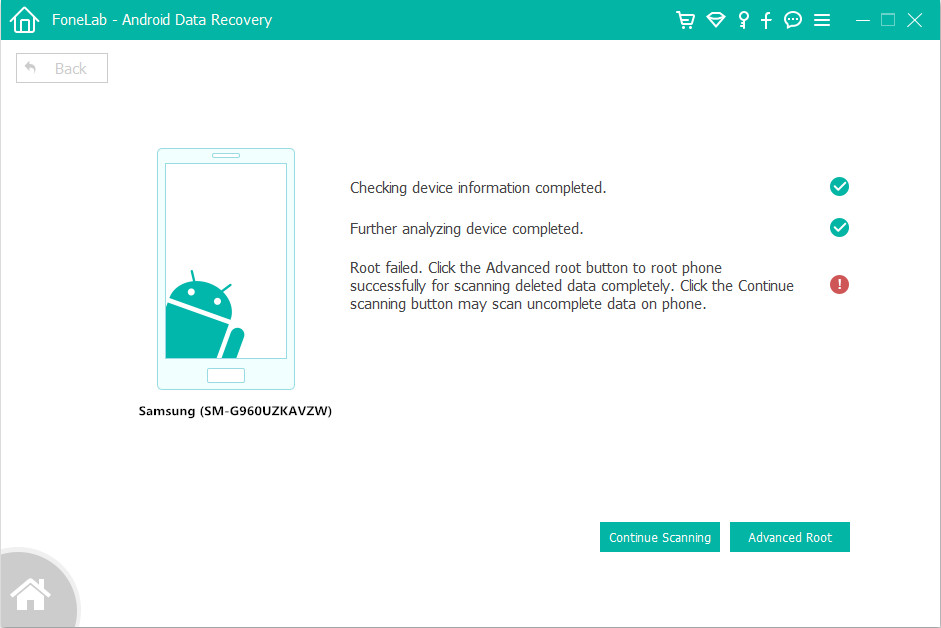
To do so, click the Advanced Root button at the bottom and this will take you to install the KingoRoot to root your Samsung device.

root Samsung Galaxy S9

When you’re rooted, the software will initiate a deep scan over the data on your handset. You can see the rundown on how much time the scan will take. The whole process may need 15-20 minutes to be finished.

Tips: After recovering data from your Android device, your mobile phone will return to its original state, and the whole process will not damage your mobile phone.
More information, please visit: how to safely root and unroot an Android device.

Step 5. Check and Recover Recently Deleted Photos
Once the scan is end, all the recently deleted data will be list, you could check and preview the data one by one under “Gallery” file. Finally, clicking “Recover” to save all the selected photos on the computer.

recover deleted photos on Samsung Galaxy S9

d_win d_mac
d_win d_mac

Video Guide on How to Recover Deleted Photos from Android Phone

Way 3: Recover Deleted Photos, Videos from Samsung SD Card

If your photos, videos, audios and other files stored in the SD card of your Samsung Galaxy S9 before, once the SD card got formatted, physical damage or corrupt, got virus or trojan attacks, the Android system crashed, the phone gets broken screen or black screen of death, to recover lost and deleted pictures from Samsung SD card, you can turn to U.Fone Data Recovery, which can be the other choice helps you recover data from Samsung SD card.

U.Fone Data Recovery – a powerful Samsung SD card data recovery tool helps to recover deleted or lost photos, videos, music and other files from Micro SD memory card. It can retrieve detect picture files in .jpg, .png, .gif, .bmp, .webp, .tiff format and more. This data recovery software supports all popular brands of SD card, including SanDisk, Samsung, Kingston, PNY, Lexar, Transcend, PQI and more. Here are main features about this software:

– Retrieve files from Samsung SD card in easily, effectively, safely and completely.
– Recover photos from Android phone’s SD card lost due to accidental deletion, formatted SD card, damaged or corrupted, or virus attacks.
– Support recover pictures, images, photos, videos, music, and office document from Samsung phone’s SD card.
– Recover deleted and lost photos from internal hard drive or external data storage like SD/memory card, digital camera, etc.
– Supported OS: Windows 10/8/7/XP/Vista, Mac OS 10.13, macOS 10.12, OS X 10.11, 10.10, 10.9, 10.8, 10.7, 10.6.

d_win d_mac
d_win d_mac

Step-by-Step Guide to Deleted Recover Photos, Videos and Files from Samsung SD Card

The next tutorial we will focus on how to recover photos from Samsung SD card on Windows computer, if you are a Mac user, you can follow the same steps to recover photo files from Samsung SD card on Mac. Firstly of all, please removed your Samsung SD card from the Samsung phone and insert the SD card to the computer.

Step 1. Run U.Fone SD Card Data Recovery
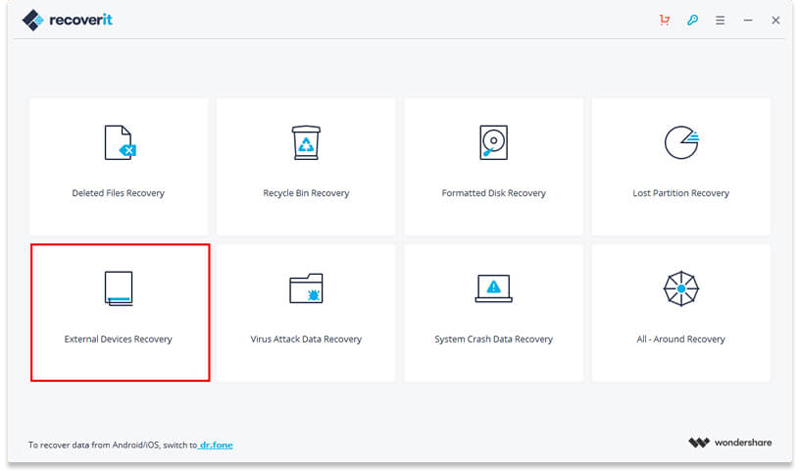
Firstly, please free download and launch the SD Card Data Recovery software on your computer, to recover deleted photos from SD card of your Samsung Galaxy S9, please select “External Devices Recovery” mode to start.

Select Samsung SD Card Data Recovery Mode

Step 2. Insert Samsung SD Card to Computer
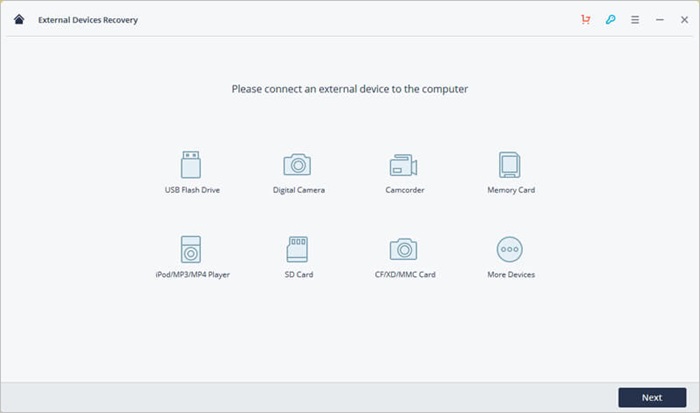
Now insert your Samsung phone’s SD card to the computer and click “Next”. Once your SD card is connected, select it under “External removable device” and click “Start” to begin scanning.

Connect Samsung SD Card

Step 3. Scan Deleted Photos from Samsung SD Card
The SD Card Recovery will start a quick scan to search your lost data. If you cannot find your lost data, you can start a deep scan again with “All-Around Recovery” mode.

Scan SD Card

Step 4. Preview and Retrieve Deleted/Lost Photos from Samsung SD Card
After the scan completed, all recoverable files will be listed on the left by file types. You can preview the specific files and click “Recover” to recover deleted photos from Samsung SD card and save the retrieved files onto the computer.

Scan SD Card

Free download the Data Recovery and try to recover deleted photos, videos, audios from SD card of your Samsung Galaxy S9/S9+ smartphone.

d_win d_mac
d_win d_mac

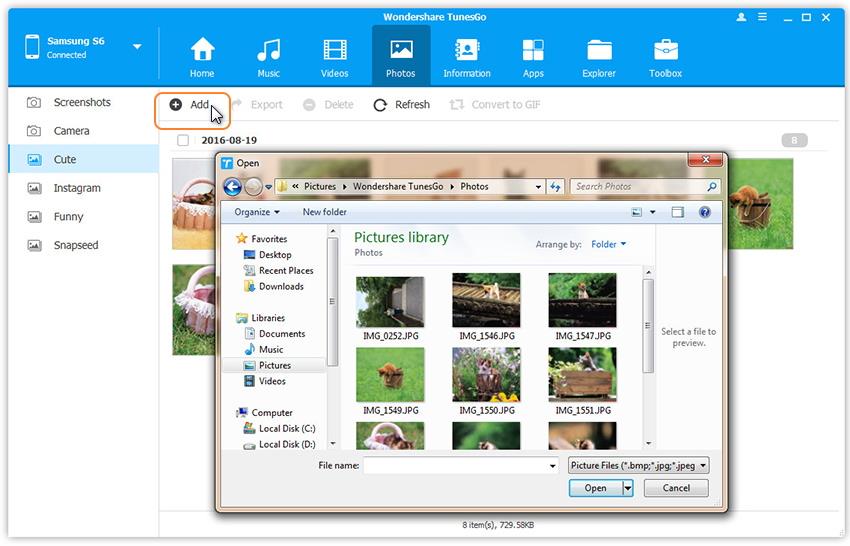
Well done, you have get backup the deleted photos from Samsung Galaxy S9/S9+ directly or retrieved from phone’s SD card, you can find them on the target folder, if you want to import the retrieved files from computer to Samsung Galaxy S9/S9+ or other devices for view, you can use this iOS & Android Manager tool to transfer photos, videos, music from computer to devices.
Learn this guide: Transfer Files to Samsung Galaxy S9/S9+

transfer photos to Samsung Galaxy S9

Related Articles for Samsung Galaxy S9 Users

How to Recover Deleted Photos from Samsung Galaxy S9/S9+

How to Recover Disappeared Data from Samsung Galaxy S9/S9+

How to Transfer iPhone Data to Samsung Galaxy S9/S9+

Transfer & Manage Files to Samsung Galaxy S9/S9+

How to Stream Apple Music on Samsung Galaxy S9/S9+

Recover Photos on Galaxy S9