All posts by DHZ

How to Transfer Android SMS to Samsung Galaxy S9

Summary: When you get a new Samsung mobile phone, like the latest Galaxy S9 phone, you may want to transfer your important text messages with sensitive information from your old Android device to the new Samsung. You can achieve this through several ways. However, if you are looking forward to a simple and safe way, Phone Transfer will be the ideal choice for you complete this transfer.

I mean to back up and transfer all the text messages from the old Android phone to Samsung Galaxy S9. However, it will be a big task to copy and paste thousands of text messages from Android to PC, and then from PC to another Android. Any shortcut to transfer SMS between two Android?” To transfer text messages to new phones one by one is not a good way to deal with the data. Transferring data between two devices with one click become a hot discuss topic for people. If you are facing the similar issues that need to be solved, you could be glad to read this article.

Copy SMS from Android to Samsung Galaxy S9

Please focus on this Phone Transfer, it’s an amazing data transfer tool help to transfer SMS between Android and Samsung Galaxy S9. Not only SMS, but contacts, photos, videos, music, calendar, call logs, apps are also supported to be transferred. Phone Transfer provide other three modes to you to manage your device: backup & restore device, erase data on device before selling. Almost all models of mobile device are compatible with Phone Transfer, including Samsung (Galaxy S9/S8/S7/S6, Note 8/5/4/3), HTC, LG, Sony, Lenovo, Huawei, Google Pixel, etc,.


d_win d_mac

How to Transfer SMS from Android to Samsung Galaxy S9

Step 1. Run the Program and Connect Both Android Phones to Computer
Firstly, download,install and run the Phone Transfer on your PC (Windows or Mac), then selecting “Phone to Phone Transfer” option in the home page and Next. Connect both of two phones to the computer via USB cable.

phone transfer home page

Step 2. Detect Phones and Select the SMS File to Transfer
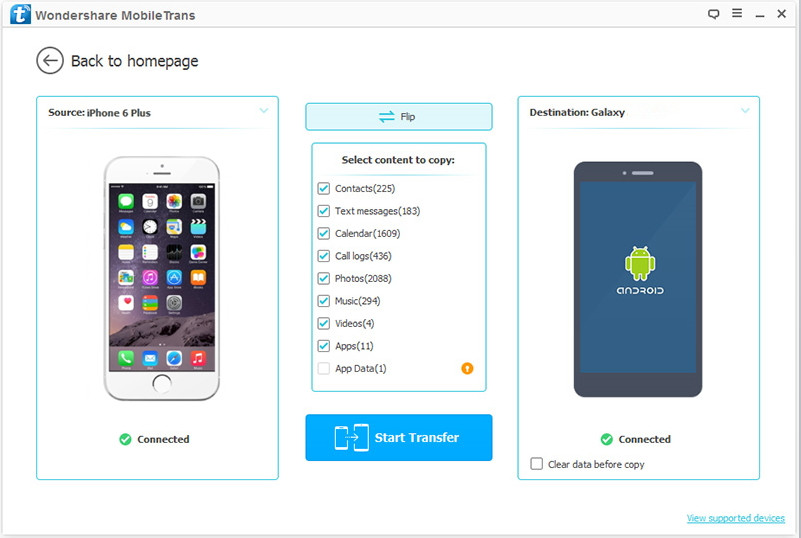
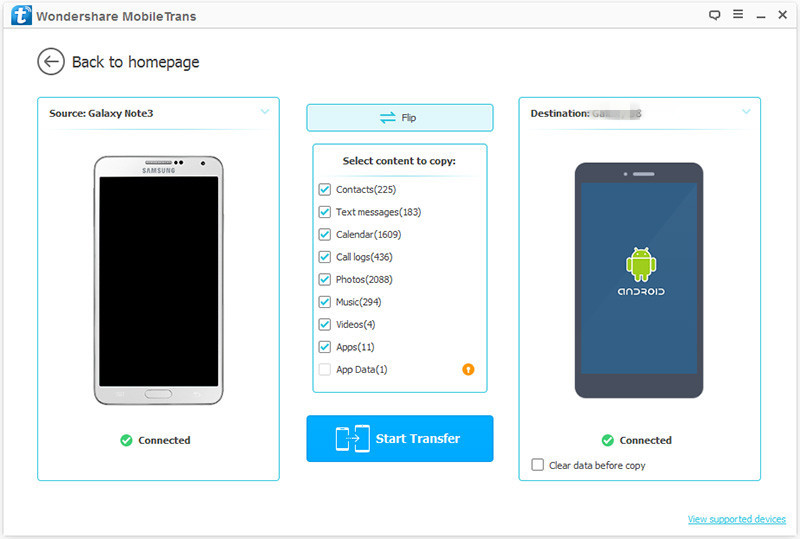
When the program detects your phones successfully, it will display details and images of the two phones, you can select the data types to transfer. For SMS transfer, you should click “Text messages” file.
select SMS file to transfer

You will notice that two phones will be displayed as “Source” and “Destination”, you can simple click the “Flip” to change the places of your two devices if the position is wrong.

Step 3. Transfer SMS File from Android to Samsung Galaxy S9
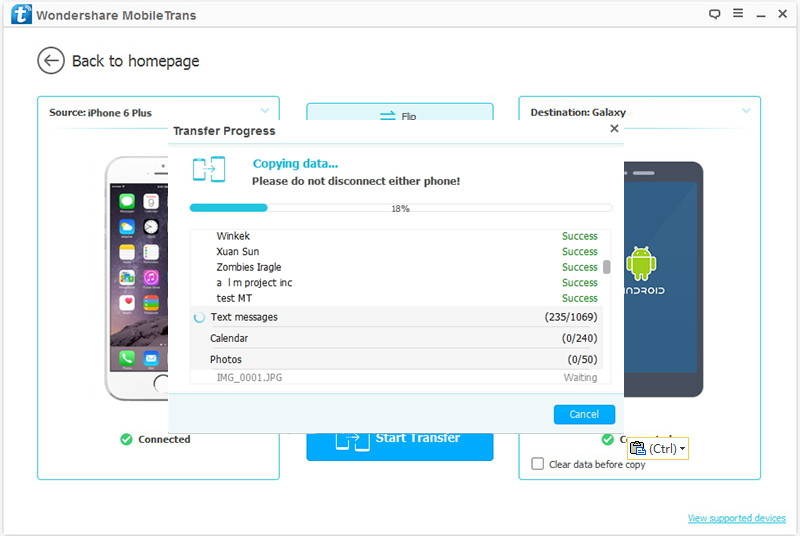
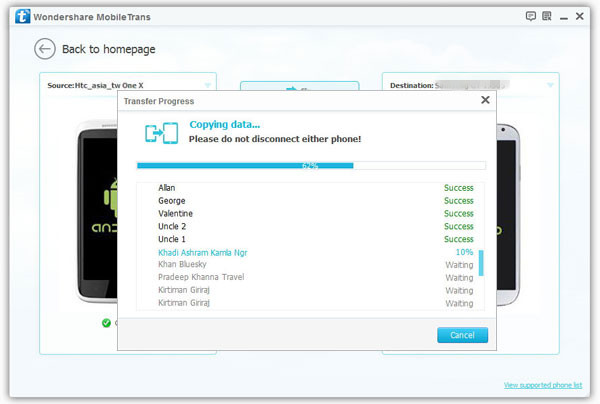
The program will deeply analyze the content that stored on your source phone, these data will be listed in the middle of the program with numbers, including text messages and others. The last step is just clicking the “Start Transfer” button to get SMS file moved to your Samsung phone. The transfer will be done within minutes.
transfer android SMS to galaxy s9

d_win d_mac

Related Articles:

How to Transfer Data from Android to Samsung Galaxy S9

How to Transfer Contacts from Android to Samsung Galaxy S9

How to Transfer Photos from Android to Samsung Galaxy S9

How to Transfer Data from iPhone to Samsung Galaxy S9

How to Recover Deleted Data from Samsung Galaxy S9
How to Manage Samsung Galaxy on PC/Mac

How to Stream Apple Music on Samsung Galaxy S9

Recover iPhone Data when Touch ID Not Working after iOS 11 Update

Summery: Are you having trouble getting your iPhone data when the device is abnormal, for example, the touch ID not working after iOS 11 update? Well, the issue that iPhone could not be restored is common and it is really frustrating. Let’s figure out this issue and learn how to restore data from iPhone when touch ID not working after iOS 11 update.

iOS 11 has released several months ago. Some of the iOS device users are not lucky enough to get the latest iOS 11 on device smoothly. Some of them reported that the iPhone got something wrong after installing iOS 11 on device. They encounter one or the other problems while updating or after the installation of the iOS 11. If you are also one of those unlucky users whose iPhone touch ID is not working, try the following solution and get rid of the problem. Firstly, we will introduce some tips to you, to fix iPhone touch ID not working after iOS 11 update, in the next section we will recommend the best tool that help to restore iPhone data in this bad case.

Part 1: How to Fix iPhone Touch ID Not Working after iOS 11 Update

A.Clean the Home Button
A primary and basic thing to do is to make sure that your Home button is clean. Check if it has any kind of moisture. Also, check your hands as well for any sweat. Take a clean cloth and wipe both your hands and the Home button. Dry them and now use touch ID and see if it starts working or not.

B.Force Restart Your Device
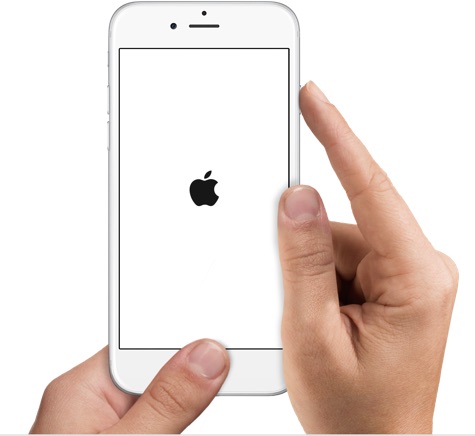
If cleaning didn’t support you, force restart is the another option to try. Keep pressing the “Sleep/Wake” and “Home” buttons simultaneously for nearly 10 seconds and release when you see the white Apple logo. These instructions are for the owners of iPhone 6s and previous models. For the owners of iPhone 7 and 7 Plus, make sure to press “Sleep/Wake” and “Volume Down” button. The rest process is same.

hard reset iphone

C.Turn Touch ID Off and Back On
You can try this way to fix iPhone touch ID not working when the others didn’t work.

The steps are:
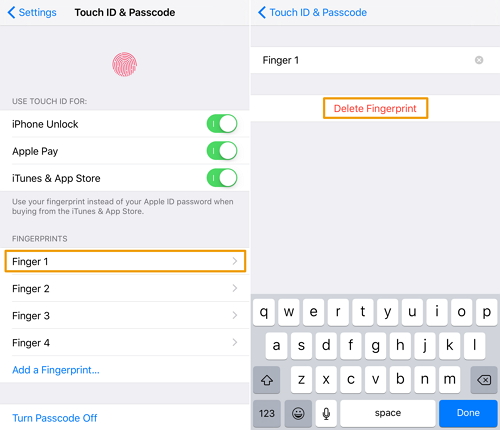
-Tap “Settings” > “Touch ID and Passcode” and enter your passcode.
-Toggle off iPhone Unlock, App Pay and iTunes & App Store.
-Reboot your iPhone and repeat first step.
-Now toggle on the same you turned off in step 2.
-Tap on “Add a Fingerprint” now and insert a new finger.

delete a fingerprint

Part 2: How to Recover Data when iPhone Touch ID Not Working

When your iPhone touch ID is not working and you’ve tried the solutions above, but they are all of no help. There could be a software issue with your iPhone. What you need is a powerful data recovery program called iOS Data Recovery. Which is a fantastic tool that can help to recover data from iPhone when touch ID not working directly after iOS 11 update. It also enable you to recovery data on your iOS devices with iTunes/iCloud backup files. In addition, it can be used to restore deleted data from iOS devices after losing data under any data loss situations, such as, contacts, text messages, photos, videos, notes, WhatsApp data, call history, etc,. All iOS device models are applicable to iOS Data Recovery, for instance, iPhone X/8/7/6S/6, iPad and iPod.

d_win d_mac

Step 1. Download and Run the iOS Data Recovery on Computer
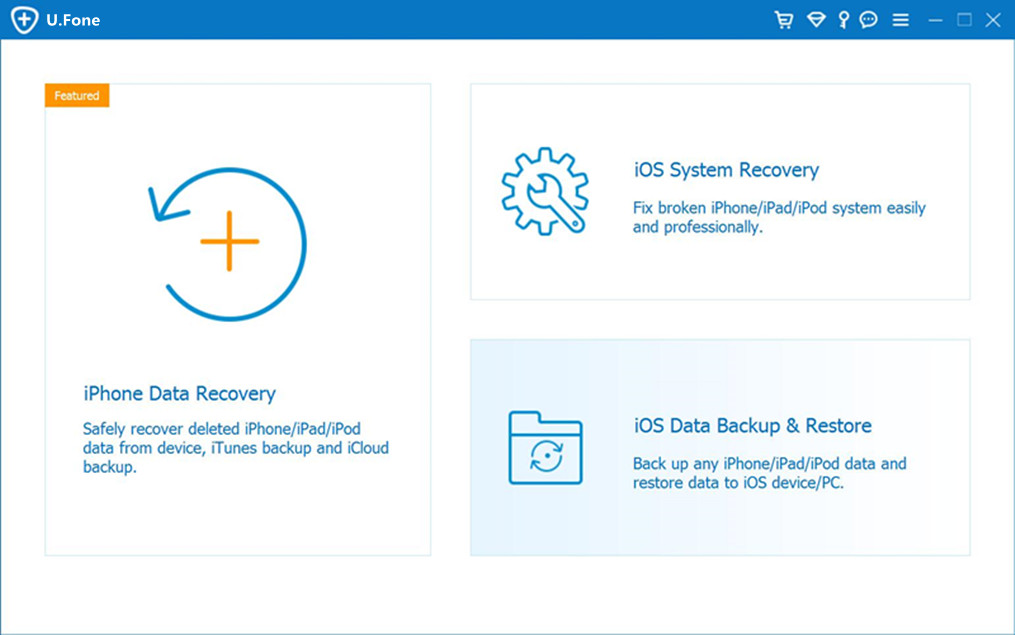
After running the program on the computer,you can see there are three key features in this program– “iPhone Data Recovery”, “iOS System Recovery”, “iOS Data Backup & Restore”.To recover  data from iPhone when touch ID not working after iOS 11 update,please click “iPhone Data Recovery” option.

run ios data recovery

Step 2. Connect iPhone to Computer
Now connect your abnormal iPhone device to the computer via a USB cable,and waiting for the program detect your device.

connect iOS 11 device to computer

Step 3.Scan All Data from Your iPhone
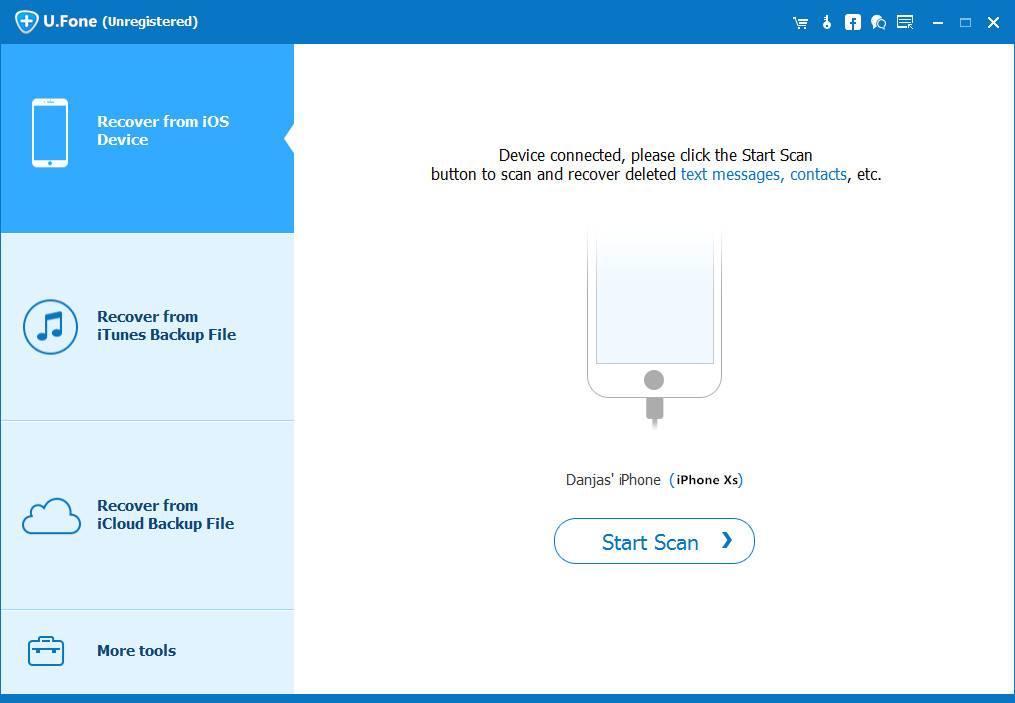
Click “Start Scan” button to begin scanning your iPhone device for all existent and deleted data on it.

scan iphone data after ios 11 update

Step 4.Preview and Recover Data from iPhone
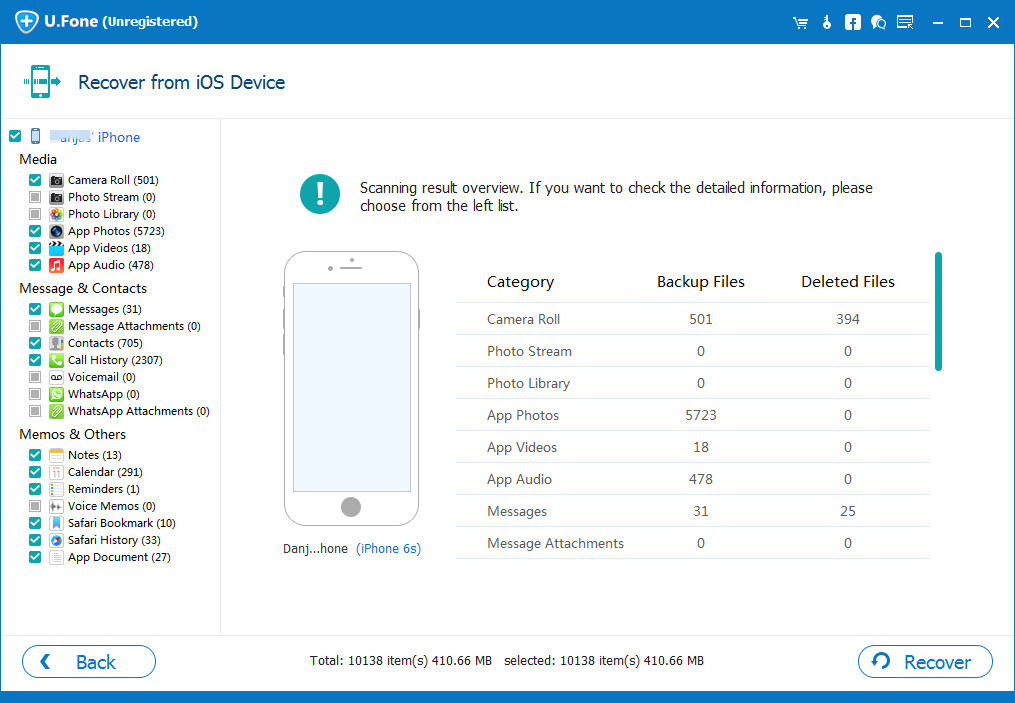
Once scanning your iPhone device complete,all the existent and deleted data will display for you. Check and preview the data you need to restore and then clicking “Recover” to save the selected data on the computer.

recover iPhone data in iOS 11

Free download the iOS Data Recovery and try to recover data from iOS 11 device:

d_win d_mac

More Guides you may be Interested in:

How to Recover Data when iPhone Won’t Slide to Unlock

How to Recover Data when iPhone Stuck at Black Screen of Death

How to Recover Data from Broken iPhone

How to Fix iPhone System to Normal after iOS 11 Update

How to Fix Bricked iPhone after iOS 11 Update

How to Fix Contacts Disappeared on Samsung Galaxy S7/S8

This has happened a couple times: I’ll open the phone or contacts app and suddenly some of the phone numbers are gone. Easy enough to get them back: I just powered the phone off/on and all is OK again. Then the same thing happened in the next day. Now the contacts were disappeared after I powered off/on the phone several times. Anyone have a similar problem and how to fix? By the way, my phone is Galaxy S7.”

Contact list is the most important personal data on our mobile device. We need the contact list to contact with others. However, it no doubt that we met the problems like contacts disappeared on Samsung phone for different causes. Every time when this happens, how the contacts are disappearing does not matter, what really does matter is how to to recover the disappeared contacts as soon as possible. So, in this guide, we will show you how to recover disappeared contacts from Samsung Galaxy S7/S8 with the easiest way, keep reading to find the answer.

Restore Disappeared Contacts from Samsung Galaxy S7/S8

Android Data Recovery tool can be your best choice. With this smart Android Data Recovery, you can successfully recover disappeared contacts from Samsung Galaxy S7/S8 or various kinds of Android models with simple steps, and the entire recovering process just takes you a few minutes. More than anything, it enables you to recover other types of files from Android with ease, including photos, videos, text messages, call logs, notes, WhatsApp messages, etc,. Android Data Recovery enable to restore existent or deleted data on Android due to any data loss cases, such as, Android system update, Android system root, restore to factory reset, deleted accidentally. Almost all Android models are compatible with Android Data Recovery, for example, Samsung Galaxy S7/S8/S9, Note 4/5/8; HTC, Lenovo, Motorola, LG, Huawei, Google Pixel, OnePlus.

d_win d_mac

How to Restore Disappeared Contacts on Samsung Galaxy S7/S8

Step 1.Run Program and Connect Samsung Galaxy S7/S8 to the Computer
To begin with, run the Android Data Recovery program on the computer, click”Android Data Recovery” mode in the home page of program.Then please connect your Samsung Galaxy phone to the computer with an USB cable.

android data recovery home page

Step 2.Allow Program Connect Samsung to the Computer
Please click “OK” on the phone and go on, allow the program detect your device on the computer.

allow to connect samsung

Step 3.Select  Contacts File to Recover from Samsung
After allowing program detect your device on computer, you’ll see this window,different types of files can be chose to be scan by program.Select the “Contacts” file to be scanned and then click “Next” to go on.

select contacts file to recover from samsung

Note: You can click “Select all” to have all your Samsung data scanned.

Step 4.Allow Scanning and Analyzing Data on Samsung
You’ll get a window as follow on your device after your device is detected by the program.Tap “Allow” on your device to enable the program to scan your device for disappeared data.

allow scanning samsung

Tips:Please make sure that your phone battery is more than 20% charged and keep the connection between your phone and the computer.

Step 5.Analyze Data on Samsung
Now the program will begin to scan data on your phone with minutes.

scan samsung for disappeared data

Step 6.Recover Disappeared Contacts from Samsung Galaxy S7/S8
When the scan is completed, you could preview all data found on your phone, including contacts, SMS, gallery and more. Preview then restoring the data you want under “Contacts” file, then clicking “Recover” button to save the selected data on the computer.

recover disappeared contacts from Samsung galaxy

d_win d_mac

Related Articles:

How to Recover Deleted Files from Samsung Galaxy

How to Fix Data Disappeared on Samsung Galaxy S7/S8

How to Fix Photos Disappeared on Samsung Galaxy S7/S8

How to Recover Lost Data from Samsung Galaxy

How to Manage Samsung Galaxy S9/S8/S7/S6 on PC/Mac

How to Stream Apple Music on Samsung Galaxy S9/S8/S7/S6

How to Recover Data from Broken/Dead iPhone after iOS 11 Update

My iPhone is dead after I updated it to the newest iOS 11.2.1. Now I can’t do anything on the abnormal device even check any data on it. I have no backed up of my phone. Any recommendations to recover data from the dead iPhone directly?

iOS 11, released on September 19, introduces major design changes, new app features. After early signs of hope, five days later a flurry of familiar negative feedback has hit Apple iOS 11.2.1. Terrible battery life is again front and centre for iPhone and iPad owners after upgrading to iOS 11.2.1 with some devices lasting just minutes in a full charge. It’s a mess and the sooner Apple gets off this iOS 11 rush-and-release strategy the better.

Though iOS 11 is the newest OS system for iOS device, the report said that iOS 11 will cause a lot of issues occur on iOS device, like bricked/dead device, the battery problem, etc,. Did your iPhone get bricked? Did your iPhone is dead? This happens to a lot of iPhone users after iOS 11 update. My friend Amy just got back from a vacation with over 1000 photos taken on her trip. She was wondering is there any way to extract the data from dead iPhone after iOS 11 update. If you are in trouble with this similar issues, here we will give you some helpful methods to fix it.

Part 1: Check if the iPhone is Synced with iTunes or iCloud

Most of people won’t back up their iPhone via iTunes frequently, since you may need to manually back up your data to computer using iTunes. Unlike iTunes, iCloud will automatically back up your device each day through network, if the following conditions are met:

-You have turned on iCloud Backup in Settings > iCloud > iCloud Backup.
-You have connected your device to a power source and to a Wi-Fi network.
-You still have available space in iCloud.

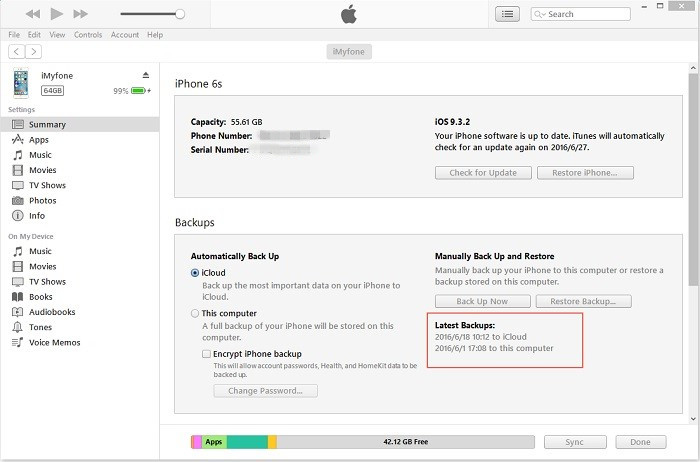
Check whether there is a latest backup on iTunes that could contain the photos you want. If you had turned on iCloud, the photos could also be backed up to iCloud.

latest-iphone-backups

Note: However, restoring the backup file may erase all data and settings on your old iPhone and you cannot choose to recover just photos.In the next section, we will introduce you to an useful program that will help you selectively recover photos from the broken/dead iPhone directly without backup after iOS 11 update.

Part 2: Recover Data from Broken/Dead iPhone Directly after iOS 11 Update

iOS Data Recovery program is a professional data recovery tool for iPhone/iPad/iPod. With the help of iOS Data Recovery, you can easily recover data from broken/dead iPhone after iOS 11 update. It provide three recovery modes to you, directly from device without backup, recover from iTunes backup, recover from iCloud backup. The types of recoverable files including photos, videos, contacts, text messages, notes, call logs, calendar, WhatsApp messages, etc,. iOS Data Recovery not only allow to restore data on broken/dead device, but also enable to recover deleted data on normal device under any data loss circumstances, such as, deleted by mistake, iOS system update, iOS system jailbreak, restore device to factory reset, and more. Compatible all iOS models, like iPhone X/8/7/6S/6, iPad and iPod.

d_win d_mac

Step 1.Select iOS Data Recovery Mode and Connect iPhone to Computer
First of all, please run the iOS Data Recovery on the computer. Connect your broken/dead iPhone to the computer. In the main interface of program, you can see there are four recovery modes: “Smart Recovery”, “Recover from iOS Device”, “Recover from iTunes Backup” and “Recover from iCloud Backup”.If you want to recover iPhone data without backups,please select “Recover from iOS Device” mode,and then connect your iPhone to computer via USB cable. Proceed by clicking the “Start” button.

iOS Data Recovery home page

Step 2.Select Files to Scan by Software
In the next window, select the files contain the data you want, then clicking “Next” button to go on.

select file to recover

Step 3.Scan Data from Broken/Dead iPhone 
Now the program will begin to scan the data from your broken/dead iPhone.

scan iphone and search data

Step 4.Preview and Restore Data from Dead/Broken iPhone
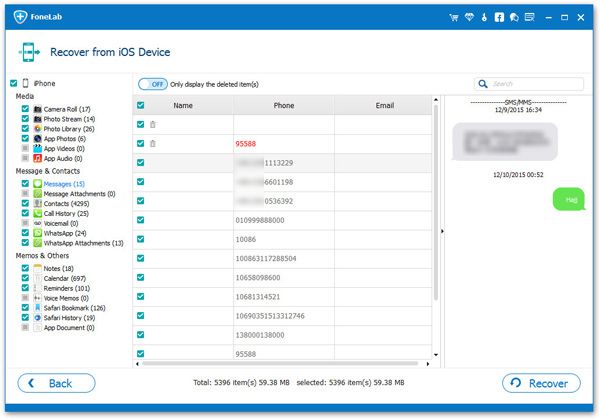
The recoverable files will be shown in the interface of software when the scanning is completed. You can mark the necessary files, or check deleted files by selecting “Show only deleted files” option. Press the “Recover” button to recover selected data from iPhone directly.

recover data from dead iPhone directly

d_win d_mac

Related Articles:

How to Recover Data from Broken iPhone

How to Recover Lost Data from Dropped Broken iPhone

How to Recover Data from Water Damaged iPhone

How to Recover Photos from Broken/Dead iPhone

How to Restore iPhone System to Normal

How to Transfer Samsung SMS to Samsung Galaxy S9

I need help. I want to sync SMS with my old Samsung to the new Galaxy S9. The messages contain some important info that I don’t need to lose after switching to the new device. Any suggestions are welcomed.

Since social networks become popular now, people like to communicate with each other on Twitter, Facebook,WhatsApp, WeChat, etc,. As we know, you can only chat with your friends through these apps under the circumstance that when the Internet service is on. If your network is unstable, in most instances, you would turn to send messages, the most original method, to contact someone, right? General speaking, text messages may be contain something privacy that you are worry about leaking to someone. For personal data protecting, you should switch the SMS data between your old device and the new one after upgrading the mobile device. How to transfer SMS from Samsung to Samsung Galaxy S9 is the topic we’ll discuss about in this article.

Transfer SMS between Samsung and Samsung Galaxy S9

The Phone Transfer is the program that’s highly recommended. It is specially designed for smart phone users to transfer data between two mobile device that run on the same or different operating systems. With the help of it, you can not only transfer SMS from Samsung to Samsung Galaxy S9, but you can transfer contacts, photos, videos, music, calendar, call logs, apps between two smart phones including Samsung (Galaxy S9/S8/S7/S6), HTC, LG, Motorola, Sony, Nexus, iPhone, BlackBerry, Nokia and so on. Moreover, Phone Transfer enable to backup or restore device safely, erase data on device before selling it permanently.

d_win d_mac

How to Copy Samsung SMS to Samsung Galaxy S9

Step 1. Run Program and Connect both Samsung Galaxy
Run Phone Transfer and connect both of your Samsung Galaxy phones with computer via USB cables, then Phone Transfer will detect them immediately. You will be able to see the below picture in the front of your window.Click “Phone to Phone Transfer” option.

phone transfer home page

Step 2. Select  SMS File and Transfer 
This phone transfer tool enable to copy everything on your old Samsung to the new one. If you only want to transfer SMS, you should click “Text messages” and remove marks of other files. Then click the blue button “Start Transfer” to begin the transfer. When the transferring is completed, you should click “OK“.

select SMS file to transfer

transfer samsung SMS to galaxy s9

You can click “Flip” to change the position of the two phones if they are in the wrong place.

Note: Please remember not to disconnect either of your phones during the transferring process.

d_win d_mac

Related Articles:

How to Transfer Photos from Samsung to Samsung Galaxy S9

How to Transfer Contacts from Samsung to Samsung Galaxy S9

How to Transfer Data from Samsung to Samsung Galaxy S9

How to Transfer Data from Android to Samsung Galaxy S9

How to Transfer Data from iPhone to Samsung Galaxy S9

How to Recover Deleted Data from Samsung Galaxy S9
How to Manage Samsung Galaxy on PC/Mac

How to Stream Apple Music on Samsung Galaxy S9

How to Fix Data Disappeared on Samsung Galaxy S7/S8

Some data disappeared on my Galaxy S7 phone, the data contain some contacts, photos and SMS. I don’t know if it related to the Android system update. Are there any way to fix the data disappeared on my Samsung phone?

Data disappeared on device that such disaster happens everyday everywhere. As time passes by, the data on the smartphone continuously increases. In our daily life, there are many factors, which may easily cause the data disappeared like Android system update, Android system root, improper operations, setting error or virus infection etc,. Once the personal data stored on device are deleted, it will be very troublesome which would affect your career or life. So, it is quite necessary to find a perfect solution to recover the important disappeared data on the phone. This post is going to show you a wonderful way to fix data disappeared on Samsung Galaxy S7/S8.

Recover Disappeared Data on Samsung Galaxy S7/S8

One of the popular data recovery program called Android Data Recovery, can help to recover disappeared data from Samsung Galaxy S7/S8. It is a powerful data recovery solution for all Android-based devices. No matter what the case you lose the data on Android, this program is able to recover the disappeared data from your mobile phone without causing any damage as well as contacts, text messages, photos, videos, call logs, WhatsApp data, etc,. Android Data Recovery enable to get back Android data due to any situations, such as, Android system update, Android system root, deleted by mistake, restore device to factory reset, virus attack. In addition, this program is quite safe, fast and easy to operate. In addition, Android Data Recovery work on all models of Samsung, including Samsung Galaxy S7/S8/S9, Note 4/5/8.

d_win d_mac

How to Fix Data Lost on Samsung Galaxy S7/S8

Step 1.Run Program and Connect Samsung Galaxy S7/S8 to the Computer
Run the Android Data Recovery program on the computer, click”Android Data Recovery” mode in the home page of program.Then please connect your Samsung Galaxy phone to the computer with an USB cable.

android data recovery home page

Step 2.Allow Program Connect Samsung to the Computer
Please click “OK” on the phone and go on, allow the program detect your device on the computer.

allow to connect samsung

Step 3.Select  the File to Recover from Samsung
After allowing program detect your device on computer, you’ll see this window,different types of files can be chose to be scan by program.Select the files which contain the disappeared data you need to restore from Samsung, to be scanned and then click “Next” to go on.

select file to recover from samsung

Note: You can click “Select all” to have all your Samsung data scanned.

Step 4.Allow Scanning and Analyzing Data on Samsung
You’ll get a window as follow on your device after your device is detected by the program.Tap “Allow” on your device to enable the program to scan your device for disappeared data.

allow scanning samsung

Tips:Please make sure that your phone battery is more than 20% charged and keep the connection between your phone and the computer.

Step 5.Analyze Data on Samsung
Now the program will begin to scan data on your phone with  only some minutes.

scan samsung for disappeared data

Step 6.Recover Disappeared Data from Samsung Galaxy S7/S8
When the scan is end, you could preview all data found on your phone, including gallery, contacts, SMS, and more. Preview then restoring the data you want, then clicking “Recover” button to save the selected data on the computer.

recover disappeared data from samsung galaxy

d_win d_mac

Related Articles:

How to Recover Deleted Files from Samsung Galaxy

How to Recover Deleted Photos from Samsung Galaxy S6/S7/S8

How to Recover Lost Data from Samsung Galaxy

How to Manage Samsung Galaxy S9/S8/S7/S6 on PC/Mac

How to Stream Apple Music on Samsung Galaxy S9/S8/S7/S6

How to Transfer SMS from iPhone to Samsung Galaxy S9

The Samsung Galaxy S9 is on its way. The major differences, however, are at the back. There’s a current trend of dual rear cameras, so it’s a bit surprising that the S9 features a single camera at the back. The larger S9 Plus sports two, though, which may mean that the difference in pricing between both devices extends even further in this generation. Another major difference is the rear fingerprint sensor’s placement. The S8 and S8 Plus both received a lot of flak for their fingerprint readers which were positioned right next to the cameras. The S9 and S9 Plus make amends on that, however, as the sensor is placed right underneath the camera, or cameras in the case of the S9 Plus.

As a current iPhone and Android user, I’d say it’s not an easy job to move data from iOS to Android, especially at the early stage of the switch. In the following section, I will share an useful way to help people more easier with the transition between iPhone and Samsung Galaxy S9. One of the urgent thing to do when you got the new Samsung device is to import iPhone data to the new one, for example, text message. This would be very easy with iTunes or iCloud if you upgraded from iPhone 5/6/7 to iPhone 7/8/X. However, it tends to be more complicated for changing from iOS to Android as they run totally different OS system.

Transfer iPhone SMS to Samsung Galaxy S9 with One Click

Phone Transfer offer a simple solution for you, to transfer SMS from iPhone to Samsung Galaxy S9 with only one click. In addition to text messages, contacts, photos, videos, call logs, music, calendar, apps can be also transferred in conjunction, which makes the transferring efficiently. Phone Transfer is design for transferring data between two mobile devices based on Android system, iOS system and Symbian system. Additionally, Phone Transfer allow to backup mobile device, restore data from backed up, erase data on device before selling. Phone Transfer work well on most of mobile devices, such as, Samsung Galaxy S9/S8/S7/S6, Note 8/5/4/3; iPhone X/8/7/6S/6, etc,.

d_win d_mac

How to Sync iPhone SMS with Samsung Galaxy S9

Step 1. Launch Phone Transfer on PC
To begin with, run the Phone Transfer on PC. By clicking “Phone to Phone Transfer” option, you can go to the data transfer window.

phone transfer home page

Step 2. Connect both of iPhone and Samsung Devices to PC
Next, connect your iPhone and Samsung Galaxy S9 phone to PC. The program will detect and scan the files in your iPhone. Then all the contents will display in the interface of program.

select SMS file to transfer

Note: iPhone should be shown on the left as the output device while Samsung should be shown on the right as the import device. If the position is wrong, you can click “Flip” to change it.

Step 3. Transfer SMS from iPhone to Samsung
Here you can selectively click “Text messages” and click “Start Transfer” to initiate the process of transferring SMS from iPhone to Samsung with one click.

transfer iphone SMS to galaxy S9

d_win d_mac

Related Articles:

How to Recover Deleted Data from Samsung Galaxy S9

How to Transfer Photos from iPhone to Samsung Galaxy S9

How to Transfer Data from iPhone to Samsung Galaxy S9

How to Transfer Contacts from iPhone to Samsung Galaxy S9

How to Manage Samsung Galaxy on PC/Mac

How to Stream Apple Music on Samsung Galaxy S9

How to Transfer Photos from Android to Samsung Galaxy S9

Excuse me. I am wondering is it possible to transfer all photos from my Android to Samsung phone at one time? I just switched to the new Galaxy S9 phone and want to sync the gallery on it. Thanks advanced.

The most hotly anticipated unreleased smartphone right now is definitely Samsung’s upcoming Galaxy S9, which is expected to be unveiled a little over two months from now in late February. Samsung’s first phone to ship with dual cameras was the Note 8, and as expected, this is a feature that’ll trickle over to the S9. However, only the larger Galaxy S9 Plus is reported to receive this treatment. The smaller S9 will retain a single camera, and while we don’t expect it to take bad photos, this disparity between the smaller and larger variants is new for Samsung.

Are you intending to get the new Samsung Galaxy S9 or Galaxy S9 Plus but being hassled by methods of switching data from old phone to the new one? Generally, there is no big deal, since you can backup and restore contacts and bookmarks onto Samsung Galaxy with Google account. But how to remove photos, music, videos, apps, text messages, etc from old Android phone to Samsung Galaxy S9 at ease?

Transfer Photos from Android to Samsung Galaxy S9

Phone Transfer is the best program what you need to transfer photos from Android to Samsung Galaxy S9. It is famous for transferring files between two mobile devices among Android device, iOS device and Symbian device. Except photos, other files are also allowed to transfer between Android and Samsung Galaxy S9, including contacts, text messages, videos, call logs, music, calendar, apps. What’s more, Phone Transfer enable to backup or restore mobile device, erase data before selling. Almost all Android models are compatible with Phone Transfer, such as, Samsung Galaxy S9/S8/S7/S6, Note 8/5/4/3; HTC; LG; Lenovo; Huawei; Google Pixel; etc,.

d_win d_mac

How to Sync Android Photos to Samsung Galaxy S9

Step 1. Install the Program and Connect Both Android Phones to Computer
First of all, download and install the Phone Transfer on your PC (Windows or Mac), then launch it to get the primary windows. Select “Phone to Phone Transfer” option and Next. Connect both of two phones to the computer via USB cable.

phone transfer home page

Step 2. Detect Your Phone and Select the Photos File to Transfer
When the program detects your phones successfully, it will display details and images of the two phones, you can select the data types to transfer. You will notice that two phones will be displayed as “Source” and “Destination”, you can simple click the “Flip” to change the places of your two devices if the position is wrong.

select photos file to transfer

Step 3. Transfer Photos File from Android to Samsung Galaxy S9
The program will deeply analyze the content that stored on your source phone, these data will be listed in the middle of the program with numbers, including photos and others. The final step is just mark the file and click the “Start Transfer” button to get photos file moved to your Samsung phone. The transfer will be done within minutes.

transfer android photos to galaxy s9

d_win d_mac

Related Articles:

How to Transfer Data from Android to Samsung Galaxy S9

How to Transfer Contacts from Android to Samsung Galaxy S9

How to Transfer Data from iPhone to Samsung Galaxy S9

How to Recover Deleted Data from Samsung Galaxy S9
How to Manage Samsung Galaxy on PC/Mac

How to Stream Apple Music on Samsung Galaxy S9

How to Transfer iPhone Contacts to Samsung Galaxy S9

How to transfer contacts from iPhone to Samsung Galaxy S9. I used my iPhone 6 for 3 years. Is there any way to import all the contacts from my old iPhone to the new Samsung?

iPhone is one of the popular mobile devices among smartphone. However, iPhone users may turn its sight to the Andoid device, to try the Android system. The newest Samsung Galaxy S9 is one of the hottest models of Android phones. Apple offers to users, real time, reliable and fluent cloud backup services through iCloud and iTunes. The methods to make transfer are based on leveraging these authorized spaces. Various smart applications like Phone Transfer tool will do a help for you. Let’s discuss the best one.

Phone Transfer is what you need. It is a smart transfer program help to transfer files between two phones even when it run different OS system. What’s more surprising is that the entire transfer task is done automatically at the background, just within a few mouse clicks. No more additional work is involved. With the help of Phone Transfer, you can easily transfer contacts from iPhone to Samsung Galaxy S9 with only one click. Besides contacts, it enable to transfer text messages, photos, videos, call logs, calendar, music, apps. Phone Transfer work for almost all models of smartphone, like Samsung Galaxy S9/S8/S7/S6, Note 8/5/4/3; iPhone X/8/7/6S/6.

d_win d_mac

How to Transfer iPhone Contacts to Samsung Galaxy S9

Step 1.Run Phone Transfer on the Computer
Please run Phone Transfer on the computer.Then a primary interface of this program will pop up.

Step 2.Select the Transfer Mode
Select “Phone to Phone Transfer” mode to transfer contacts from iPhone to new Samsung.

phone transfer home page

Step 3.Connect Two Devices to the Computer
Then connect both your iPhone and the Samsung to the computer via two USB cables.Once connected,the iPhone will be shown as “Source” on the left while the Samsung will be displayed as “Destination” on the right.If you need to switch the places of them, you could click the “Flip” button.

select contacts file to transfer

Step 4.Select Contacts File and Transfer
Several of files are available to selected, including photos, contacts, text messages, videos, call logs, music, calendar, apps. For contacts transfer, you should click “Contacts ” file.

Simply click “Start Transfer” to begin the transfer. Once the transfer is end, just click “OK” to end it.

transfer iphone contacts to galaxy S9

d_win d_mac

Related Articles:

How to Recover Deleted Data from Samsung Galaxy S9

How to Recover Deleted Photos from Samsung Galaxy S9

How to Transfer Photos from iPhone to Samsung Galaxy S9

How to Transfer Data from iPhone to Samsung Galaxy S9

How to Manage Samsung Galaxy on PC/Mac

How to Stream Apple Music on Samsung Galaxy S9

How to Transfer Samsung Contacts to Samsung Galaxy S9

It’s widely assumed that Samsung’s next-generation smartphone is closer to the launch, and that new version will be called the Galaxy S9. The South Korean major plans to release two versions of the Galaxy S9, and they should be seen as successors to the Galaxy S8 and S8 Plus. Both the Galaxy S8 and S8 Plus were a huge success for Samsung, the company’s new flagships since the debacle of the Galaxy Note 7.

Samsung Galaxy is the newest models of Galaxy series in 2018. Having a new Samsung Galaxy mobile phone? The first thing that you’ll probably to do is move all the phone numbers and other contact information from your old phone to the new one. I first realize the inconvenience of transferring contacts from my old Galaxy S6 to the new Galaxy S9 when I used the Phone Transfer running on the computer. Nowadays, people change their phones frequently, more people own more than one device. So they are in great need of transferring contacts between two devices. Having a new Samsung Galaxy phone is an excited thing. If you have a need to copy the phone numbers from old Samsung to the new one, you come to the right place.

Transfer Contacts from Samsung to Samsung Galaxy S9

There are many Phone Transfer programs available on the market. You can transfer contacts from Samsung to Samsung Galaxy S9 with only one click with the help of Phone Transfer. It not only allow to transfer contacts, but also transfer text messages, photos, videos, call logs, calendar, music, apps. Besides, this program enable to backup & restore data for mobile device on the computer, erase data from device before selling it. All models of Samsung are compatible with this program, including Galaxy S9/S8/S7/S6, Note 8/5/4/3.

d_win d_mac

How to Transfer Contacts from Samsung to Samsung Galaxy S9

Step 1. Run Program and Connect both Samsung Galaxy
Run Phone Transfer and connect both of your Samsung Galaxy phones with computer via USB cables, then Phone Transfer will detect them immediately. You will be able to see the below picture in the front of your window.Click “Phone to Phone Transfer” option.

phone transfer home page

Step 2. Select File and Transfer from Samsung to new Galaxy
As you see, this phone transfer tool empowers you to copy everything on your old Samsung to the new one. Therefore, if you only want to transfer contacts, you ought to click “Contacts” and remove marks of other files. Then click the green button “Start Transfer” to begin the transfer. When the transferring is end, you should click “OK“.

select file to transfer

transfer samsung contacts to galaxy s9

You can click “Flip” to change the position of the two phones if they are in the wrong place.

Note: Please remember not to disconnect either of your phones during the transferring process.

d_win d_mac
Related Articles:

How to Transfer Photos from Samsung to Samsung Galaxy S9

How to Transfer Data from Samsung to Samsung Galaxy S9

How to Transfer Data from Android to Samsung Galaxy S9

How to Transfer Data from iPhone to Samsung Galaxy S9

How to Recover Deleted Data from Samsung Galaxy S9
How to Recover Deleted Photos from Samsung Galaxy S9

How to Manage Samsung Galaxy on PC/Mac

How to Stream Apple Music on Samsung Galaxy S9/S8/S7/S6