All posts by DHZ

How to Recover Deleted WhatsApp History from LG Phone

I clean up my WhatsApp history box to free up space my LG phone, unfortunately I deleted some important conversation by mistake, what made me feel regret. Is there any good idea to restore the deleted WhatsApp history from Android?

WhatsApp is the popular chat app that people like to use in daily life. In general, there are variety of situations that can cause WhatsApp chat message loss on LG mobile phone. Deleted by mistake can be the most common case among all the situations. It occurs when users delete a useless message or clean the chat to speed their phone. Other situations like virus attack, OS system update are also the common cases lead to data loss on Android. When you are unfortunate to lost WhatsApp history from LG phone, I think you must be hurry to get it back no matter how hard it it. To be honest, recover deleted WhatsApp messages from Android is not as difficult as you think if you get the suitable way.

Recover Deleted WhatsApp History on LG Phone

When this happen to your device, you may be need this famous Android Data Recovery to restore deleted WhatsApp history from LG phone, including the text, photos, videos and attachments. Android Data Recovery is specially dedicated to recover deleted WhatsApp data, photos, messages, contacts, call history, videos, etc,. from LG (V30,V20, G5, G6) and other Android phones like Samsung, HTC, LG, Huawei, Motorola, Google Pixel. It is powerful to get back deleted data on Android under different data loss circumstances, such as, deleted accidentally, virus attack, OS system update, factory reset restoring.


d_win d_mac

How to Restore Deleted WhatsApp History from LG Phone

Step 1.Run Software and Connect LG Phone to the Computer
First of all, run Android Data Recovery on your computer. Then connect the LG phone to the computer via a USB cable.
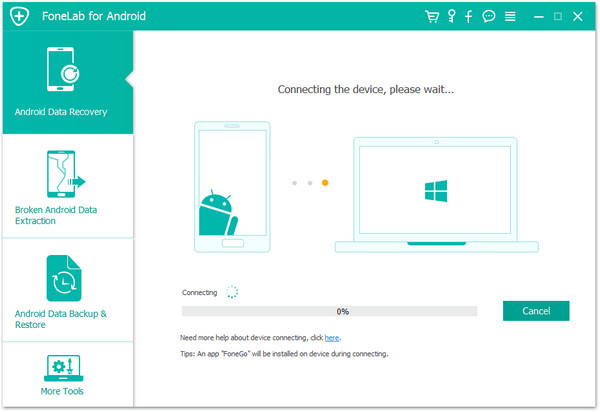
connect LG phone to the computer

Step 2. Identity LG Phone
The LG phone should be detected soon. If it is the first time for you to connect the phone to the software, you should enable the USB debugging on your device first. Follow the steps to do it.
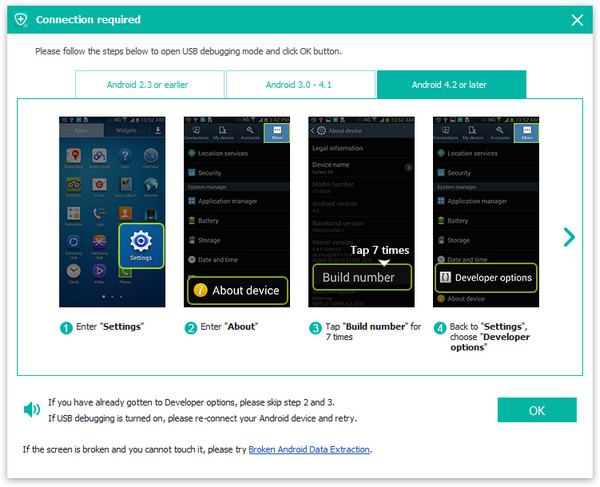
enable usb debugging on LG phone

Step 3. Select WhatsApp Files to Restore
You phone is identified. Now choose the files you want to restore. Select “WhatsApp” & “WhatsApp Attachments” files in the menu. Click “Next” to go on.
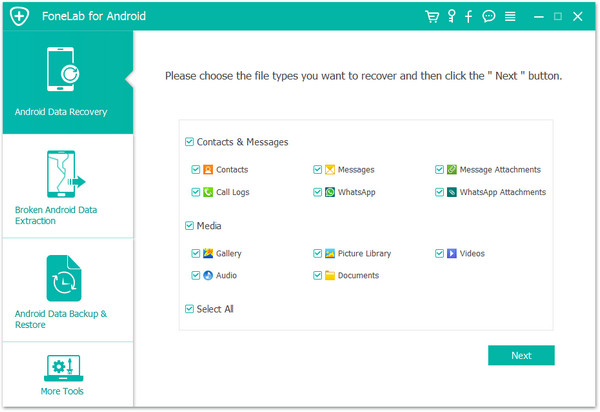
select whatsapp files to scan

Step 4. Allow to Scan LG Phone
Before scanning, you should tap the “Allow” button in the pop-up window on your phone to authorize the program to analyze your device.
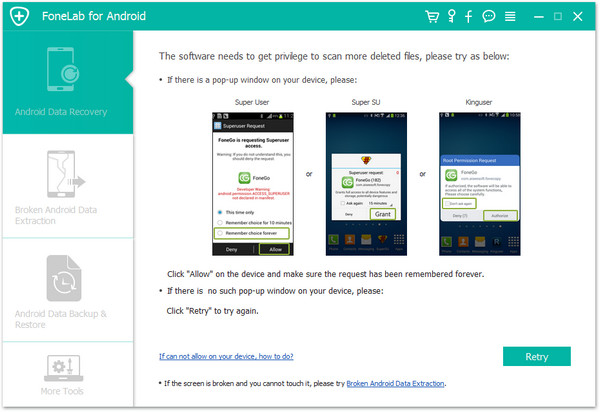
allow scanning LG phone

Now the software will begin to scan data on your device.
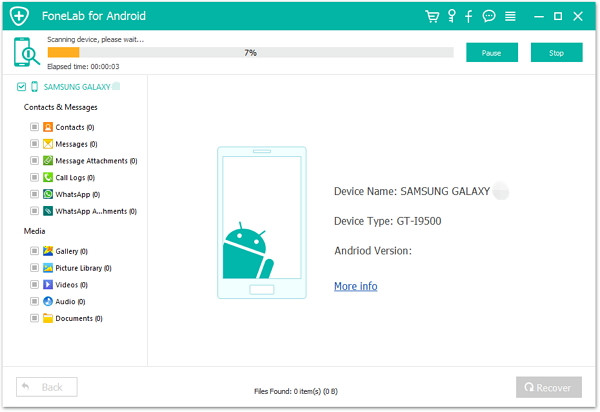
scan data on LG phone

Step 5. Preview and Restore Deleted WhatsApp from LG Phone
Scanning is finish. You can preview files before the recovery. Choose “WhatsApp” & “WhatsApp Attachments” files to preview before recovery. Choose items you want to restore and click on “Recover” to save the selected data on the computer.
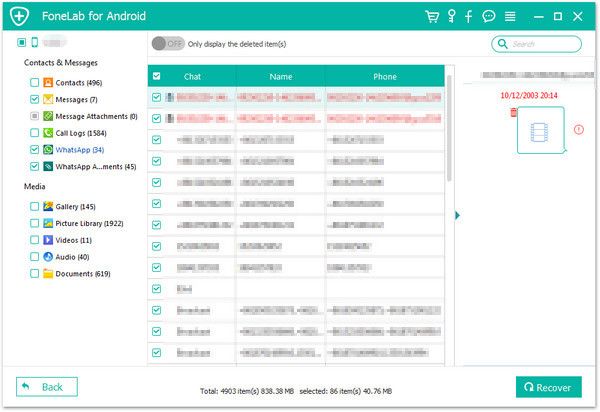
recover whatsapp history from LG

d_wind_mac

More LG Related Guides you can Check:

How to Recover Deleted WhatsApp Videos Photos on Android

How to Recover Deleted Data from LG Phone

How to Recover Deleted Photos from LG Phone

How to Recover Data from Water Damaged LG Phone

How to Backup and Restore LG Phone

How to Manage Android Phone on the Computer

How to Recover Deleted Contacts from Google Pixel 2

Last night I received an E-mail which send from anonymous then my phone got something wrong, I thought it was get virus attack. All the contacts were gone. How to recover the deleted contacts from Android? The model is Google Pixel 2.”

The Pixel 2 is basically Google’s second attempt at creating an Android version of the iPhone 8 and a proper competitor to the Samsung Galaxy S8. Instead of focusing solely on top-end specs and including every feature imaginable, it aims to aims to offer users the cleanest Android experience possible.

There are some errors and wrong operations that you never want to see in your Google Pixel phone because it may lead to contact loss, for example, virus attack, deleted accidentally, OS system update, etc,. Without the contacts list, you will lose touch with someone important. It is vital to recover the contacts from Android device once you find them missed. And we are introducing a recovery expert – Android Data Recovery to help you.

Restore Deleted Contacts from Google Pixel 2

Android Data Recovery is your best helper to recover deleted contacts from Google Pixel 2, including phone number, E-mail address and attachments. The awesome Android data recovering software will be recommended to all of you who want to restore deleted data from Android for several types, including contacts, messages, photos, videos, call logs, WhatsApp messages, etc,. Android Data Recovery empower to recover data on Android under any data losing situations, such as, virus attack, deleted accidentally, OS system update, etc,. Almost all Android phones are compatible with Android Data Recovery, for instance, Google Pixel, Samsung, Motorola, HTC, LG, Huawei, Lenovo, and others.

d_win d_mac

How to Recover Deleted Contacts on Google Pixel 2

Step 1.Run Software and Connect Google Pixel 2 to the Computer
Run Android Data Recovery on your computer. Then connect the phone to the computer with USB cable. Then enable the USB debugging on the phone. Please close any other Android management program during the process.

connect google pixel to the computer

Step 2. Identity your Device
You phone should be detected soon. If it is the first time for you to connect the phone to the software, you should enable the USB debugging on your device first. Follow the tips to do it.

enable usb debugging on google pixel

Step 3. Select Contacts File to Restore
You phone is identified. Now choose the type of files you want to undelete. Select “Contacts” in the menu. Then click the button “Next“.

select data to scan on google pixel

Step 4. Allow to Scan Google Pixel Phone
Before scanning, you should tap the “Allow” button in the pop-up window on your phone to authorize the program to analyze your device.

allow scanning google pixel

Now the software will begin to scan data on your device.

scan data on google pixel

Step 5. Preview and Restore Deleted Contacts from Google Pixel
Scanning is complete. You can preview files before the recovery. Choose “Contacts” file to preview. You can view info such as contact’s name, phone number, email, job title, and attachments.

After previewing, you can choose items you want to restore and click on “Recover“.

recover deleted contacts from google pixel phone

d_win d_mac

Related Articles:

How to Recover Deleted Photos on Google Pixel 2

How to Recover Deleted Data from Pixel

How to Transfer iPhone Data to Pixel

How to Transfer Samsung Data to Pixel

How to Transfer Android File to Pixel

How to Recover Lost Data after Android 6.0/Android 7.0 Update

How to Recover Data from Broken Android Phone

How to Backup and Restore Android

How to Manage Android Phone on the Computer

How to Recover Deleted Photos from Google Pixel 2

Summary:Both of Pixel and Pixel 2 are the high quality of Android phones made by Google, which are comparable to the hottest Samsung Galaxy S8 and iPhone 7.However, data loss always occur when you are not ready. Have no idea on how to recover data especially photos from Google Pixel or Pixel 2? Just refer to the following solution we are going to mention.

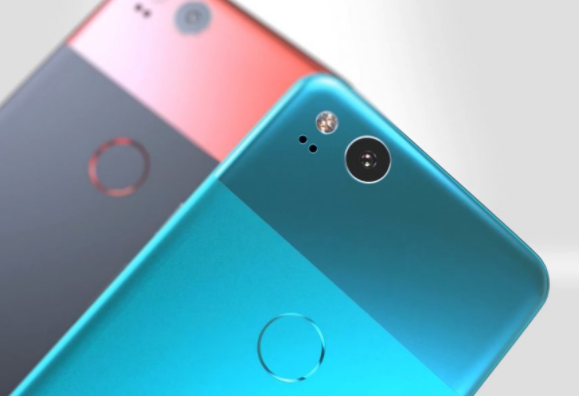
google pixel 2

While this makes for a formidable list of great smartphones, all eyes are on the iPhone X and the Google Pixel 2. Both phones are a window into how two of the world’s biggest tech companies see smartphones today, and are two of the best phones in 2017. The newest released Google Pixel 2, Google brought its wonderful software experience to good hardware, and that makes for a great pair of Android phones. You should absolutely buy one – you won’t regret it.

Restore Deleted Photos from Google Pixel 2

Losing data on mobile phone is a common case for mobile users. Unlike any other Android phones that it provides the backup & restore app for managing data on device, for example, Samsung Kies. The Google Pixel 2 is quite different to recover data without backup. Unless you have backed up all apps, contents, and other settings on to your Google account, which is the only way you can restore them. But what to do if you have no a backup of Google Pixel 2 when you need to restore the deleted files urgently?

Android Data Recovery come to you. As its name, this program enable to recover deleted data on Android device directly without backup. With the help of Android Data Recovery, you can recover deleted photos from Google Pixel 2/Google Pixel after previewing the selected data. It can effectively recover any file types such as photos, videos, contacts, messages, call logs and much more. This software is compatible with any brands and models of Android devices and software versions. Android Data Recovery is powerful enough to restore deleted Android data after losing data due to any situations, including deleted by mistake, Android system update, Android system rooting, device factory reset restoring, etc,. Most of Android models are applicable to Android Data Recovery, such as, Google Pixel, Huawei, Samsung, OPPO, ZTE, Lenovo, LG, HTC, Xiaomi.

d_win d_mac

How to Recover Deleted Gallery from Google Pixel 2

Step 1.Run Android Data Recovery and Connect Google Pixel 2 Phone
Run Android Data Recovery on the computer and connect your Google phone to the computer with an USB cable.

Note: If you have not enabled the USB debugging on your device previously, now you should enable it when you see the pop-up message.

connect google pixel to the computer

Enable the USB debugging on Google phone:

enable usb debugging on google pixel

Step 2.Select the Gallery File to Scan
After the program detecting your phone, select the file types to restore. For photos recovery, you should click “Gallery“. Then click “Next” to begin the data recovery process.

select data to scan on google pixel

Step 3.Start to Scan Google Phone for Deleted Data
Click “Allow” to allow program scan data on your Google Pixel phone.

allow scanning google pixel

Click “Start” to begin analyzing and scanning process on your phone.

scan data on google pixel

Step 4.Preview and Recover Deleted Photos from Google Pixel
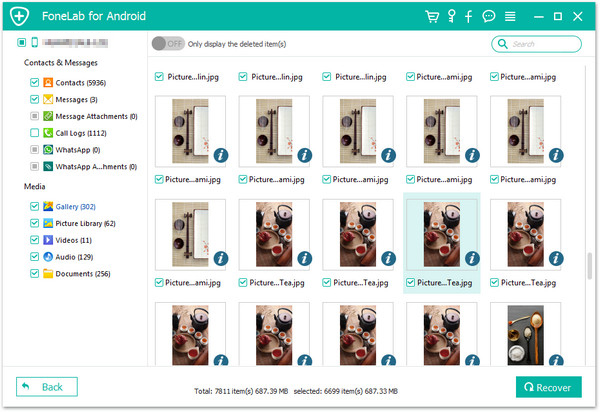
In the last step you can preview the select data and then recovering it under the “Gallery” file. Once you have made all of your selection, click “Recover” to save the selected data on your computer.

recover deleted photos from google pixel

Done.

d_win d_mac

Related Articles:

How to Recover Deleted Photos on Pixel

How to Recover Deleted Data from Pixel

How to Transfer iPhone Data to Pixel

How to Transfer Samsung Data to Pixel

How to Transfer Android File to Pixel

How to Recover Lost Data after Android 6.0/Android 7.0 Update

How to Recover Lost Data from Android SD Card

How to Recover Data from Broken Android Phone

How to Backup and Restore Android

How to Manage Android Phone on the Computer

How to Recover Deleted Photos from OPPO Phone

Do you have the good ideas to recover deleted photos from OPPO phone? My phone stuck when I was playing the game, so I performed the factory reset on it. However, I forgot to backed up some important photos from my device. Can anyone offer the useful tips for me? Appreciated.

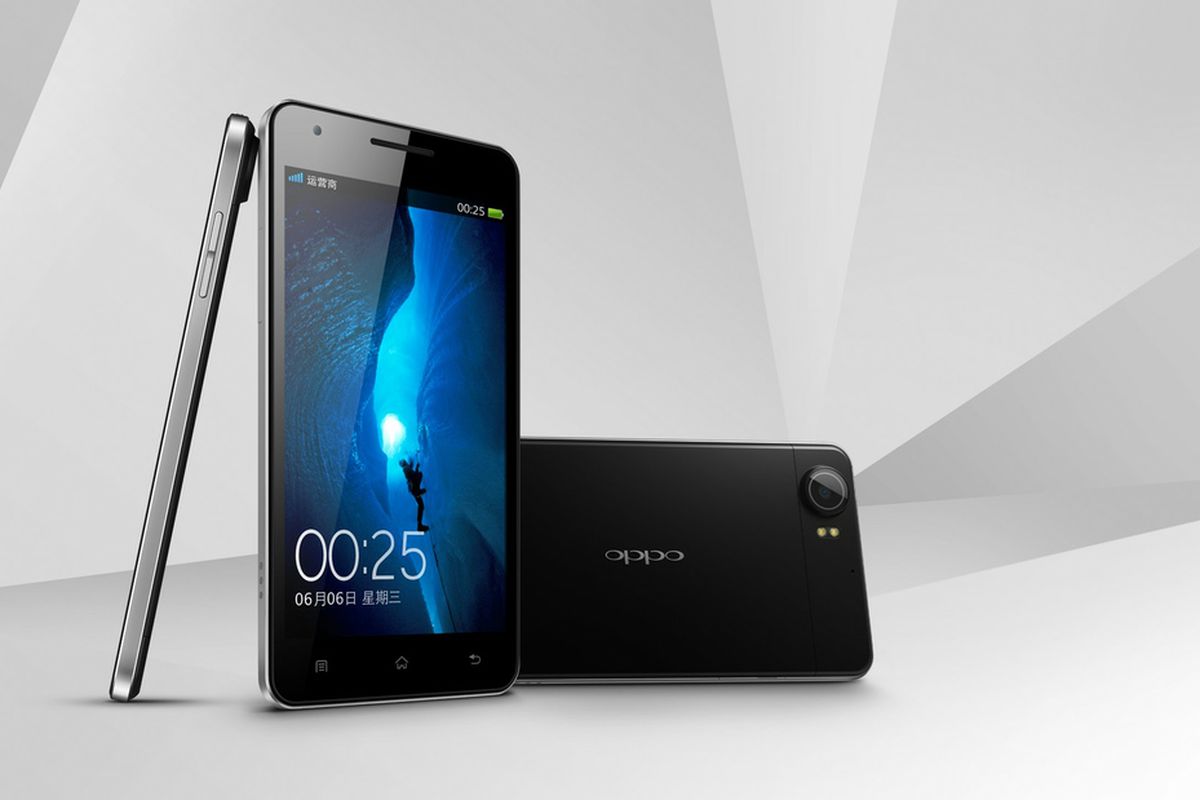
oppo phone

OPPO Phone is getting popularity because of its high end designs, stunning display and other amazing features. As the manufactures of OPPO phone pay more attention on the consumer demands and develop their own characteristic features and settings. The main representative product of OPPO are R7, R9, F1.

Restore Deleted Photos on OPPO Phone

Accidents happen all the time in daily life, data can be deleted on your phone due to different circumstances out of your control. When the gallery file or some important photos are accidentally deleted on your OPPO phone, you may be feel sad and panic. The first and the most crucial thing you can do is to rescue the data before the data on your phone is overwritten. You should do a backup job on your device frequently to avoid losing data by accident but what to do if you don’t have a backup? Just read the passages below to get tips on how to recover deleted photos from OPPO phone directly even without backup.

Android Data Recovery is an advanced data recovery app that supports 2000+ Android smartphones or tablets. It covers all the common data loss cases from accidental deletion, system crashes, forgotten passwords, rooting, ROM flashing, OS updates and more. With the help of Android Data Recovery, you can recover deleted photos from OPPO phone directly. Supported data types : Photos, Videos, Contacts, SMS, Call History, WhatsApp, Documents, etc,. Support OPPO phones : F5/F3/F1, R9/R7/R5/R1, N7, etc,. It is compatible with almost every supported Android device including OPPO, HTC, Samsung, Motorola, LG, Sony, Google, Huawei, Xiaomi, Lenovo, etc,.

d_win d_mac

How to Recover Deleted Gallery Data from OPPO Phone

Step 1.Run Android Data Recovery and Connect OPPO Phone
Run Android Data Recovery on the computer and connect your OPPO phone to the computer with an USB cable.

Tips: If you have not enabled the USB debugging on your device previously, now you should enable it when you see the pop-up message.

connect oppo phone to the computer

Enable the USB debugging on OPPO phone:

enable usb debugging on oppo

Step 2.Select the Gallery File to Scan
The program will detect your phone soon. Select the file types that you want to restore. In this case, you should click “Gallery“. Then click “Next” to start the data recovery process.

select data to scan on oppo

Step 3.Start to Scan Device for Deleted Data
Click “Allow” to allow program scan data on your OPPO device.

allow scanning oppo phone

Click “Start” to begin analyzing and scanning process on your OPPO phone.

scan data on oppo

Step 4.Preview and Recover Deleted Photos from OPPO
In the last step you can preview the recoverable data once the scan is completed.Check the file that you wanted. Click the check box next to it, to select the data to recover under the “Gallery” file. Once you have made all of your selection, click “Recover” to save the selected data on your computer.

recover deleted photos from oppo

Finished.

d_win d_mac

More Guides you can Check:

How to Recover Deleted Data from OPPO Phone

How to Recover Lost Data after Android 6.0/Android 7.0 Update

How to Recover Lost Data from Android SD Card

How to Recover Data from Broken Android Phone

How to Backup and Restore Android

How to Manage Android Phone on the Computer

How to Recover Deleted Photos from ZTE Phone

Summary: Are you a ZTE phone users? Have you saved a lot of personal information on your mobile device? If you do, perhaps you have experienced deleted data from device accidentally, something that you find frustrating and difficult to restore. In this post, we will introduce a helpful tutorial to you, which will do you a favor to recover deleted photos from ZTE Android phone with simple steps.

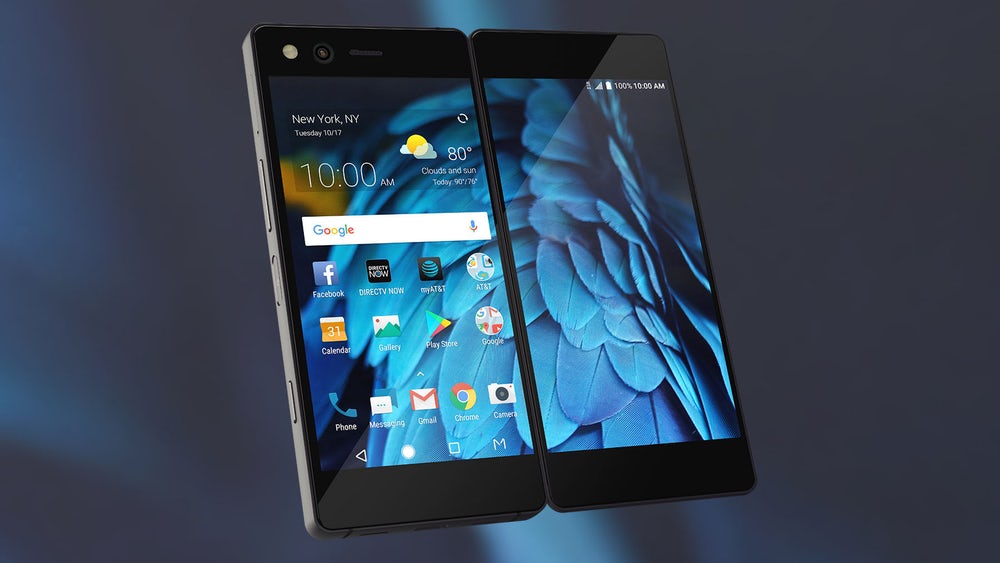
zte axon

When ZTE Company releases the new products, it would be widely attracted of Android users. It occupies a larger market share around the world and always comes up with creative ideas. ZTE has a series of popular Android phone models such as, Axon series, Blade series. It’s common to lost data on Android device, losing photos from Android device is the most frequent situation in daily life. If you are unfortunate to lost photos from ZTE phone by accident, you can read this post to continue. Android Data Recovery will come to rescue your data with a safe solution.

Restore Deleted Photos on ZTE Phone

Android Data Recovery specializes in Android photo recovery, help to restore deleted photos from ZTE phone with any formats, like .jpg, .jpeg, .png, etc,. To sum up, Android Data Recovery enable to recover variety of Android data, including photos, videos, contacts, messages, notes, call logs, WhatsApp messages and so on. Android Data Recovery is designed to recover deleted data on Android under any data loss circumstances, such as, deleted by mistake, restore to factory reset, Android system update, Android system rooting, and others. It is compatible with all Android models, for example, ZTE, HTC, Sony, Lenovo, LG, Motorola, Samsung, Huawei, Google Pixel, Xiaomi.

d_wind_mac

How to Recover Deleted Photos on ZTE Phone

Step 1.Run Android Data Recovery and Connect ZTE
Once you have finished installing the Android Data Recovery on your computer, run it and connect your ZTE phone to the computer using an USB cable—if you have not enabled the USB debugging on your device previously, now you need to enable it when you see the pop-up message (you can skip this step if you have already done).

connect zte phone to the computer

enable usb debugging on zte

Step 2.Choose the Gallery File to Scan
The program will detect your phone very soon. Then you can select the file types that you want to restore. You are allowed to choose including Contacts, Messaging, Call History, WhatsApp Messages & Attachments, Gallery, Audio, Videos and Documents. In this case, you should click “Gallery”. Then click “Next” to start the data recovery process.

select data to scan on zte

Step 3.Start to Scan Device for Deleted Data
Click “Allow” to confirm the superuser authorization prompt on your ZTE device.

allow the super user request

Click “Start”—it will initiate the analyzing and scanning process on your ZTE phone.

scan data on ZTE

Step 4.Preview and Recover Deleted Photos from ZTE
You will be able to preview recoverable data once the scan is completed— check if the file is what you wanted. To select, tick on the check box next to it. Once you have made all of your selection, click “Recover” to save the selected data on your computer.

restore deleted photos from ZTE

d_win d_mac

More Guides you can Check:

How to Recover Deleted Data from ZTE Phone

How to Recover Deleted Contacts from ZTE Phone

How to Recover Lost Data after Android 6.0/Android 7.0 Update

How to Recover Lost Data from Android SD Card

How to Recover Data from Broken Android Phone

How to Backup and Restore Android

[Solved]Notes Lost after iOS 11 Update – How to Recover it?

My notes on iPhone 7 were lost after I performing iOS 11 update on it. How to recover the lost iPhone data if I have no a backup? I need a way to directly restore the data as soon as possible.”

Apple announced the lastest version of iOS 11 – iOS 11.2 recently. The newest iOS 11 is out with hundreds of new emoji and more other features. Upgrading to iOS 11 is a great thing but unfortunately data loss happens all the time after updating to the new iOS version on iOS device. iOS users find they lost items like notes, contacts, messages, photos or other personal data on device. For example, after notes lost after iOS 11 update, you can’t find the lost notes in the “notes deleted box”. How to solve notes lost after iOS 11 update problem? How to recover notes from iPhone without backup after iOS 11 update? Here in this guide we collect a practical solution to help you recover lost notes on iPhone after iOS 11/11.2 update.

Recover Lost Notes on iPhone after iOS 11 Update

To fix notes lost on iPhone after iOS 11 update, iOS Data Recovery is one of the oldest and most widely used recovery tools for iOS devices. With the help of this program, you can access recently deleted notes folder and recover the lost notes from iPhone no matter have a backup or not after iOS 11 update. iOS Data Recovery enable to recover several of lost iPhone data under any data loss cases, including notes, contacts, messages, notes, call logs, photos, videos, WhatsApp messages, etc,. Compatible with all the major iOS devices and versions, it has an easy to use interface and is known to provide reliable results.

d_win d_mac

How to Restore Lost Notes on iPhone after iOS 11 Update

Step 1.Connect iPhone and Select Recovery Mode
Run iOS Data Recovery on the computer, connect your iPhone to the computer,select “Recover from iOS Device”mode.Click “Start” to start the iPhone notes recovery process.

connect iphone to the pc

Step 2.Select Note File to Scan by Program
To directly recover lost notes from iPhone after iOS 11 update,you should click “Note” file. Note: You are allowed to select more than one files to be scanned by program,then click “Next”.

select note file to recover

Now the program will begin to scan your device automatically for lost notes with seconds.

scan iphone for lost notes

Step 3.Preview and Directly Recover Lost Notes from iPhone after iOS 11 Update
When the scanning is finished,you can preview and directly recover notes from iPhone.Select the data you want under “Note” file and click “Recover” to save the selected data on the computer.

recover lost notes on iphone after iOS 11 update

d_win d_mac

More Guides you may be Like:

How to Restore Deleted Notes from iPhone after iOS 11 Update

How to Recover iPhone Data after iOS 11 Update

How to Recover Lost Notes from iPhone after iOS 11 Jailbreak

How to Recover Deleted Notes on iPhone and iPad

How to Recover Deleted Notes on iPhone X/8/7/6S/6

How to Recover Deleted Note from iPhone with iOS 10

How to Fix iPhone Photos Disappeared after iOS 11/11.2 Update

I need help. My iPhone photos missing after iOS 11 update. I am not sure what’s wrong with it. Now I want to ask for help to restore the deleted photos from my device directly since I haven’t backed up lately. Thanks.”

As we know, the latest iOS system for Apple devices – iOS 11.2 just released in the recent days. Apple continually released iOS 11.2 to improve performance after accouncing iOS 11.1. iOS 11.2 brings much improvement of functions for iPhone/iPad can be more expressive.iOS 11.2 contaions the new professional-quality features for you to update on device. However, the newest iOS system version is not perfect enough as we think. The most common circumstances that it will occur on device is that iPhone photos disappeared from camera roll after iOS 11 update. So there are a lot of Apple users search the ways available to restore the deleted data on iOS 11.2 device. But how?

Recover iPhone Photos Disappeared After iOS 11/11.2 Update

Let’s introduce a new way to you, to retrieve the disappeared photos from iPhone directly after iOS 11 update (iOS 11.1/11.2) with a powerful software that called iOS Data Recovery. It is a super data recovery software for restoring deleted data on iPhone/iPad/iPod under any data loss cases, including iOS update, iOS jailbreak, restore to factory reset, deleted by mistake, virus attack or more. iOS Data Recovery enable to recover several of iOS data including photos, videos, contacts, call logs, calendars, notes, WhatsApp messages, etc,. What’s more, iOS Data Recovery provides two recovery modes to you: recover data from iTunes backup, recover data from iCloud backup.

d_win d_mac

Recover Disappeared Photos from iPhone after iOS 11/11.2 Update

Step 1.Run Program and Select Recovery Mode
To get started, please run the iOS Data Recovery on the computer and connect the iPhone to the computer. Select “Recover from iOS Device” recovery mode and continue by clicking the “Start” button.

run ios data recovery

Step 2.Select Photo File to Scan by Program
After that, select the “Photo” file you need to restore. Then clicking “Next” button to go on. And the program will begin to scan the photos from iPhone.

select photo file to scan

Now the program is scanning data on the iPhone.

scan iPhone data

Step 3.Preview and Restore Photos from iPhone with iOS 11
When the scanning is finished, the recoverable files will be shown in the interface. You are allowed to previewed and directly recover the photos from the iOS 11 iPhone. Select the photos you want and click “Recover” under “Photo” file to save the selected photos on the computer.

recover photos from ios 11 iPhone

d_win d_mac

Related Articles:

How to Recover Lost Data from iPhone after iOS 11 Update

How to Recover Lost Contacts from iPhone after iOS 11 Update

How to Recover Lost Photos from iPhone after iOS 11 Update

How to Recover Deleted iPhone Photos after iOS 11 Jailbreak

Photos Missing after iOS 11 to iOS 10 Downgrade – How to Fix

How to Backup iPhone before iOS 11 Update

[Restored]iOS 11 Deleted Messages on My iPhone

Summary: Lost message on iPhone after iOS 11 update? Take it easy. In this post we will introduce a wonderful guide to you to fix your trouble, rescue the personal data on your device. Read the passages following and try this method in the post to recover the deleted text messages/MMS/iMessages from iPhone due to iOS 11 update.

Apple released the newest iOS 11.2 to update iOS 11.1. The newest iOS system version contain many new features to make iOS device be more abundant. However, just like iOS 10 update, performing the iOS 11 update will make iOS deice get something wrong since the iOS 11 still have bugs can’t be fixed. For example, the messages will are deleted after iOS 11 update suddenly, data disappeared on device after upgrading to iOS 11, etc,. Now let’s check the steps about how to recover deletd iPhone messages and other data without backup.

Restore Deleted Messages from iPhone with iOS 11

We provide a powerful iOS Data Recovery for you to recover deleted message on iPhone after iOS 11 update, including text messages/iMessages/MMS and it is compatible with other iOS devices, such as iPod touch, iPad Air/Mini. With this tool, you can scan the deleted messages on iPhone and save them as HTML/TXT/PDF to computer. What’s more, you can also use the iOS Data Recovery to extract text messages from iPhone backup; no matter it is the iTunes backup or iCloud backup. Not only messages, but also other kinds of iOS data are supported to be restored by program, like contacts, photos, videos, call logs, calendars, notes, WhatsApp messages.

d_win d_mac

How to Recover Deleted Messages from iPhone Directly in iOS 11

First of all,please install and run iOS Data Recovery on the computer.

Step 1.Run Program and Connect iOS 11 iPhone
Run iOS Data Recovery on the computer,connect your iPhone to the computer,select “Recover from iOS Device”mode.Click “Start” to start the data recovery process.

connect iphone with computer

Step 2.Select Message File to Scan by Program
To directly recover deleted messages from iPhone after iOS 11 update,you should select the type of deleted data to be scanned by program.For messages recovery,you should click “Message” file.

Tips: You are allowed to select more than one files to be scanned by program,then click “Next” to continue.

select sms file to recover

Now the program will begin to scan your device automatically for deleted messages.

scan iphone for deleted sms

Step 3.Preview and Directly Recover Deleted Messages from iOS 11 iPhone
When the scanning is end,you can preview then recovering the deleted iPhone messages.Select the data you want and click “Recover” to save the selected data under “Message” &”Message Attachment” files to the computer.

recover deleted sms from ios 11 iphone

d_win d_mac

Related Articles:

How to Recover Text Messages from iPhone after iOS 11 Update

How to Recover Deleted iPhone Text Messages after iOS 11 Jailbreak

Restore Lost SMS/MMS/iMessage after iOS 11 to iOS 10 Downgrade

How to Recover Lost Data from iPhone after iOS 11 Update

How to Recover Lost iPhone Contacts after iOS 11 Update

How to Recover Lost Photos from iPhone after iOS 11 Update

Fix “Contacts Disappeared from iPhone X/8/7/6S/6” in iOS 11

iOS 11 is announced officially on September 19, 2017, it bring a lot of new features that make your iOS devices become more compatible than ever before. With iOS 11, you can remove the useless apps come with iOS system, manage cloud storage services within files app,or turn on Do Not Disturb mode while driving.

As the big fans of Apple, we are all excited to see the newest features that iOS 11 have in store for all of us. Apple gave a huge preview about it and it seemed pretty interesting to try. Though iOS 11 bring so many new functions for iOS devices, it is also buggy and lack of optimizations at the present stage.

What should we do before Updating iOS 11 on iPhone
If you decided to update iOS 11 on iPhone, you should do a backup job for your iOS device. You have all the reasons to test and experience the newest iOS 11. However, you have to make sure that you have set the backup to all your data especially to messages, contacts, photos, documents, and more important personal data. If you have backups ready, you are confident that you can just restore the backed up when losing data after the updating.

Guide May be you want to Check:

How to Backup iPhone before iOS 11 Update

Contacts Disappeared from iPhone after iOS 11 Update – How to Fix

Since there are bugs with iOS 11, when you use the iOS device that run on iOS 11, it may be get something wrong, like the contacts data disappeared from device. Except contacts, other data such as, photos, text messages, notes, call logs, calendars, WhatsApp messages are also easily wiped on iPhone/iPad after iOS 11 update. To fix the data disappeared from iPhone after iOS 11 update on iOS device, here is the best recommendation – iOS Data Recovery.

iOS Data Recovery is an amazing program to recover deleted data on iPhone, including contacts, text messages, photos, videos, calendars, WhatsApp messages, and other data. With this iOS Data Recovery, you can fix contacts disappeared from iPhone afrer iOS 11 update, restore the deleted files on iOS device with only simple steps. iOS Data Recovery allow to recover deleted data after losing data under any circumstances, including iOS update, deleted by mistake, iOS jailbreak, restore to factory reset, and more. All models of iOS devices are compatible with iOS Data Recovery, like iPhone X, iPhone 8, iPhone 7, iPhone 6S/6, iPad and iPod.

d_win d_mac

How to Restore Deleted Contacts from iPhone in iOS 11

Step 1. Run Program on the Computer
First of all, please install and run iOS Data Recovery on the computer. Select the “Recover from iOS Device” recovery mode then click  “Start” to begin the recovery process.

connect iphone with computer

Step 2.Select Contact File to Scan by Program
In this case, you should select the “Contact” file to be scanned by program, then connect iPhone to the computer(You are allow to select more than one files to be scanned by program at once). Then click “next”.

select contact file to recover

Now the program will begin scanning your device automatically for deleted data after clicking “Scan”.

scan iphone for deleted contacts

Step 3.Preview and Directly Recover Deleted Contacts from iPhone
When the scanning is completed, you are allowed to preview and directly recover the deleted contacts from iPhone. Select the data you want and click “Recover” to save the selected data under “Contact” file on the computer.

recover deleted contacts from iOS 11 iPhone

d_win d_mac

Related Articles:

How to Recover Lost iPhone Contacts after iOS 11 Update

How to Recover Deleted iPhone Contacts after iOS 11 Jailbreak

Get Missing Contacts Back from iPhone with iOS 11 Downgrade

How to Recover Lost Photos after iOS 11 Update

How to Recover iPhone Data after iOS 11 Update

How to Manage iPhone on the Computer

How to Recover Deleted Photos from Motorola Phone

I accidentally deleted some photos from Motorola phone. Is there any way to recover the deleted photos from my Motorola phone.The photos are mean a lot for me. Any help will be greatly gratefully.

Losing photos from Android phone is a common case for most of mobile users. Many of people may be frustrating when losing photos from device. We may losing photos from device under different circumstances, like deleted by mistake, restore to factory reset, Android system restore, Android system rooting, and more. Well, it is possible to recover deleted data on Motorola if you get the help of some professional tools. This tutorial is going to show you an useful data recovery for Android, help you recover deleted photos from Motorola phone with only a few clicks.

Restore Deleted Photos from Motorola Phone

Thanks to Android Data Recovery, you can recover deleted photos from Motorola phone easily(G5/E4/Nexus 6). Android Data Recovery can recover deleted photos, videos, contacts, text messages, call history, documents, WhatsApp messages from Android mobile phone and tablet. It is absolutely safe and secure. It supports to various of Android data loss situations, including deleted by mistake, restore to factory reset, Android system restore, Android system rooting, and so on. Almost all Android models are compatible with Android Data Recovery, such as, Motorola, OnePlus, Samsung, HTC, Google Pixel, Xiaomi, Lenovo, Huawei, etc,.

d_win d_mac

How to Restore Deleted Photos on Motorola

Step 1.Run Program and Connect Motorola to the Computer
First of all, please install Android Data Recovery on your computer,run it and connect your Motorola to the computer.It will take seconds to detect your device automatically by software.

connect oneplus to the computer

Step 2.Enable USB Debugging on Motorola Phone
Unlock your phone,go to Settings > Developer options > Allow USB debugging mode.If you have already allowed the USB debugging mode,you will see a pop-up window on the screen,mark “Always allow” from this computer and click“OK”.

usb debugging oneplus phone

Step 3.Select Gallery File to Recover from Motorola
In this step, different types of files can be chose to be scan here,such as,gallery,contacts,messages.In this case, you should select “Gallery” file and click “Next“.

select gallery file to recover from oneplus

Step 4.Allow to Scan and Analyze Data on Motorola
You’ll get a window as follow on your device after your device is detected by the program.Tap “Allow” to enable the program to scan your phone for deleted data.

allow to scan oneplus

Tips:Please make sure that your phone battery is more than 20% charged.

Step 5.Scan Deleted Data of Motorola
Now the program will begin to scan data from your Motorola phone.

scan oneplus for deleted data

Step 6.Preview and Recover Deleted Photos from Motorola
When the scanning process is completed, a list of recoverable files that including the deleted data have been found from your phone will be shown.Additionally,there will be a preview window of files where you can preview(contacts, SMS and gallery,etc)from device.Mark the data under “Gallery” file and click “Recover“ to restore the selected data on your computer.

recover deleted photos from oneplus

d_wind_mac

Related Articles:

How to Recover Deleted Data from Motorola Z

How to Recover Data from Water Damaged Motorola

How to Backup and Restore Motorola Phone

How to Root Android on Computer with One Click

How to Manage Android on Computer