All posts by DHZ

How to Recover Viber Messages on iPhone

Last night I talk about the physical class with my classmate via Viber app. However later I deleted some information from the conversation accidentally. Is it possible to restore the deleted Viber messages from my iPhone without backup? Thanks so much.

Viber, an app for free call, text and picture, is a very popular chat app among young people nowadays and it owns increasing users for recent years. Since viber users use this app to chat with others too often, may be it will contain a lot of important data in the Viber chat history. The Viber data means significant to people. Sometimes losing Viber data would cause some problems to lose important information. In this article, we show you how to recover deleted Viber messages on iPhone with 2 solutions.

Recover Viber Messages on iPhone with the help of iPhone Data Recovery

Mostly, losing Viber messages on iPhone will make people crazy. Thanks to iPhone Data Recovery, you can stop feeling depressed after losing data. iPhone Data Recovery is your top choice to recover deleted Viber messages on iPhone even without backup. On the other hand, it enable to restore the deleted data on iPhone with iTunes backup or iCloud backup. 20+ types of iPhone file such as WhatsApp data, WeChat data, Kik data, contacts, photos, text messages can be recovered. Support almost all iOS devices running kinds of iOS versions, even iPhone X, iPhone 8 and iOS 11.


d_win d_mac

Part 1: How to Recover Viber Messages from iPhone Directly

Step 1. Run Program and Connect the iPhone to the Program
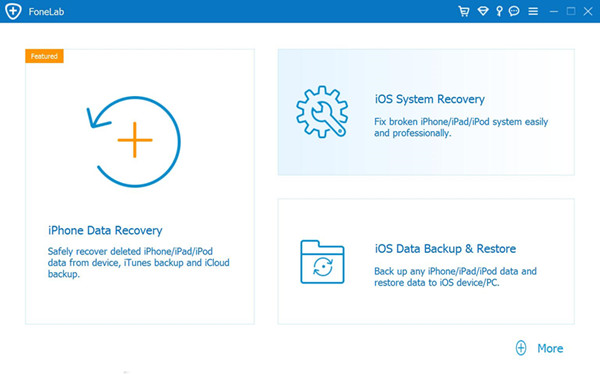
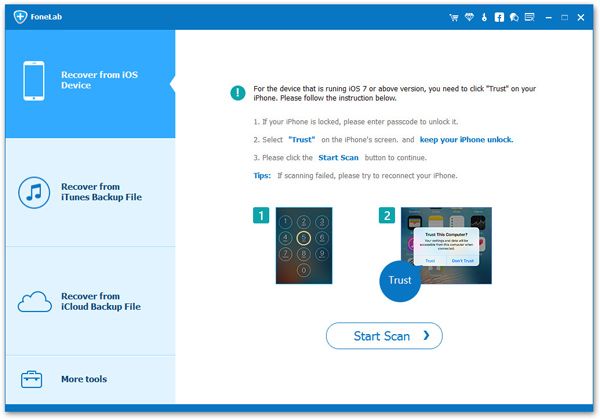
Firstly, download and install the iPhone Data Recovery to your computer. Connect iPhone to the computer then start the software and select “Recover from iOS Device“. And then, the program will connect your iPhone soon.

iphone data recovery main page

Step 2. Select Viber File to Scan
From “Recover from iOS Device”, choose “Viber” file and click “Next” button to enter the scan process.

select viber file to scan from iphone

Then, the iPhone Data Recovery will scan your iPhone for deleted Viber messages.
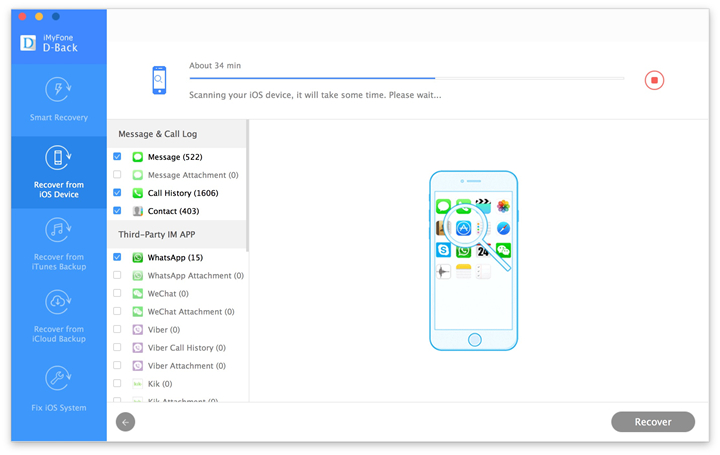
scan data on iphone

Step 3. Recover Deleted Viber Messages from iPhone
At last, when the software completes scanning, you can find the recoverable files in the scanning result list. Click “Recover” and the program will prompt you to choose one folder as the recovery path to store your recovered Viber data. And then, you can view the selected data on the computer
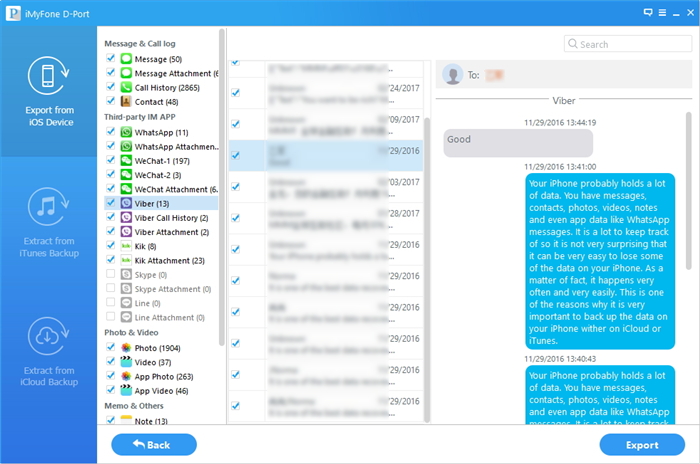
recover viber data from iPhone

d_win d_mac

Part 2: How to Recover Viber Messages from iTunes Backup

If you have backed up Viber messages to iTunes before losing data, you can recover them from iTunes backup with this iPhone Data Recovery.

Step 1. Run Program and Select iTunes Recovery Mode
Select “Recover from iTunes Backup” mode and select the backup file to scan by clicking the “Scan” button.

extract backup file from itunes

Step 2. Preview and Recover Viber Messages from iTunes Backup
It will take quite a time for program to scan and analyze the data from your iTunes backup file. Once the scanning process is complete, you can mark and recover the deleted Viber data you want by pressing the “Recover” button.
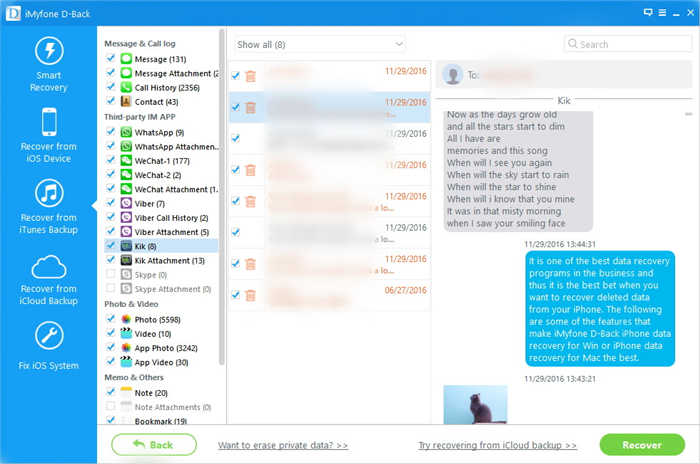
recover deleted viber messages from iphone via itunes backup

d_win d_mac

Related Articles:

How to Backup and Restore iOS Viber Messages

How to Export Viber Messages from iPhone to Computer

How to Recover Deleted App Files from iPhone

How to Restore Deleted WeChat History from iPhone 
How to Restore Deleted Skype History from iPhone 

How to Recover Deleted Kik Chat History on iPhone 

How to Recover Data from Broken iPad

Summary: It’s depressed thing that when your iPad get broken or damaged suddenly. It’s easily to break the iPad while using it. iPad get broken screen, water damaged, scree is not work are the most common cases among the broken situations. If you get a broken iPad and need to extract data from it as soon as possible, just read this tutorial, this post will guide you how to recover data from broken iPad Pro, iPad Air, iPad 4/3/2 with a complete solution.

It’s really frustrating when your iPad get broken badly. Since the iPad can’t be repaired, rescuing data from it becomes urgent. Normally, people restore iPad data from iTunes backup with another iOS device if there is. Actually, there are still other ways available. As we know, restoring data from iTunes backup that it not allow to preview and select the data to restore. If you want to extract data from broken iPad selectively, you can rely on the wonderful iOS Data Recovery.

Restore Data from iPad when the Device is Broken

If your iPad is broken, you can use iOS Data Recovery to access and restore data from broken iPad, (iPad Pro, iPad Air, iPad 4/3/2). The recoverable data including contacts, messages, photos, videos, call logs, WhatsApp history, apps data and more. iOS Data Recovery is powerful enough to extract data from iPad for any broken situations, such as, broken screen, black screen, water damaged, device with screen doesn’t work, and others. Not only iPad, but also iPhone are also supported to be recovered by program, like iPhone X, iPhone 8, iPhone 7, iPhone 6S/6.

d_win d_mac

How to Extract Data from Broken iPad

Step 1. Run Program and Connect iPad to the Computer
Download and install iOS Data Recovery on your computer, then run the program and connect your broken iPad to the computer. When it’s detected, you’ll get the interface as follows. There are three recovery modes: “Recover from iOS Device“, “Recover from iTunes Backup File” and “Recover from iCloud Backup File”. Try the first one.

For iPad Pro, iPad Air, iPad with Retina display, iPad mini, The new iPad, iPad 2, etc (recover contacts, messages, call history, notes, calendars, reminders, Safari bookmarks and more):

connect ipad to program

For iPad 1 (recover contacts, messages, camera roll, photo library, photo stream, notes, call history, reminders, calendars, voice memos, Safari bookmarks and more): You need to download a plug-in at first.

enter dfu mode ipad

Step 2. Scan the data on Broken iPad
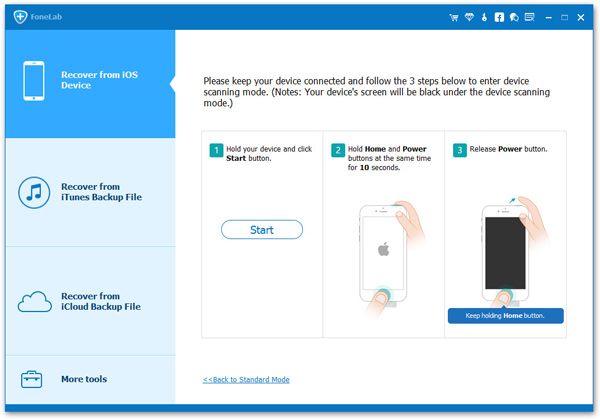
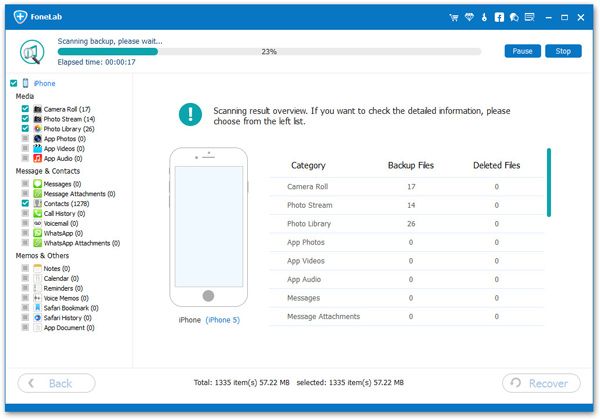
Click “Start Scan” to directly scan your iPad if it can be recognized by the program. If you are iPad 1 user, please follow steps displayed in the interface above to enter the device’s scanning mode:

1. Hold your iPad, and click the “Start” button.
2. Hold “Power” and “Home” buttons at the same time when you click Start for exactly 10 seconds. The program will count the time for you.
3. Release the “Power” button when the 10 seconds passed, but keep holding the “Home” button for anther 15 seconds.
When you’re told that you’ve successfully entered the DFU mode, you can release Home and begin scanning your iPad as follows.

scanning ipad data

Step 3. Preview and Recover iPad Data on the Computer
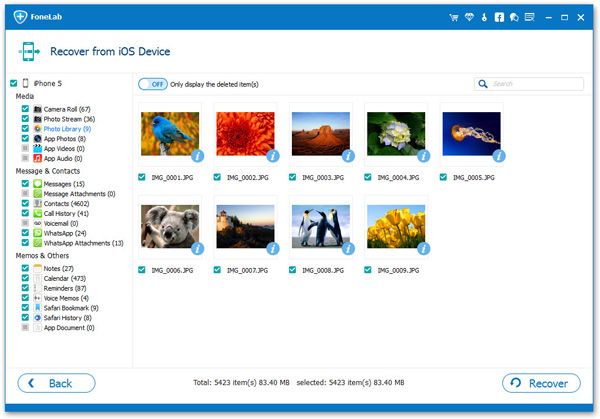
When the scan finished, you can preview the data list from your iPad. Select those files you want to extract and click “Recover” button to save them on the computer.

recover data from broken ipad

Note: Data found here includes the existent one and those you deleted before. You can slide the button on the top of the window to only display deleted items.

d_win d_mac

More iPad Useful Guides you can Check:

How to Recover Deleted Videos from iPad

How to Extract iTunes Data Backup for Your iPad

How to Recover Data from iPad after Reset Factory Settings

Install IPSW File on iPad with/without iTunes

How to Recover iPad/iPhone Data after iOS 11 Update

How to Recover Deleted Videos from iPad

Summary: People like to watch videos on mobile device conveniently especially iPad, iPhone, Android phone or others.While watching the videos on iPad, you may be delete videos accidentally. How to recover the deleted videos from iPad? This post will provide you a helpful solution to complete the recover task.

Since iPad become one of the popular mobile devices for people around the world, people like to download or take videos on the iPad for entertainment or commemorates. There are many situations that can cause losing videos on iPad in daily life. Deleted by mistake is the most common issues among these cases. Accidentally deleted videos on iPad might be the an unfortunate issue for iPad users. Are you wondering how to restore the deleted videos from iPad?Actually you can recover the deleted videos on iPad no matter you have a backup or not. We conclude the top data recovery software and provide valuable references for you.

Recover Deleted Videos from iPad via iOS Data Recovery

iOS Data Recovery can solve your problem, it can be used to recover deleted videos from iPad with three recovery modes. You can recover the deleted videos from iPad directly, or recover the deleted videos from iTunes backup, recover the deleted videos from iCloud backup. iOS Data Recovery is qualified to restore variety of data on iOS device, including videos, photos, contacts, text messages, call logs, WhatsApp messages, apps and so on. It support to restore iOS data under any data loss situations, such as, deleted accidentally, iOS system update, iOS system jailbreak, restore to factory reset restore, etc,. Compatible with all models of iOS devices, like iPad Air, iPad Pro, iPad 4/3/2; iPhone X/8/7/6S/6.

d_win d_mac

How to Restore Deleted Videos from iPad Directly

Step 1. Run Program and Connect iPad to the Computer
Download, install and run iOS Data Recovery on your computer,then click “Recover from iOS Device” under”iPhone Data Recovery” mode,and then connect your iPad to the computer via a USB cable.You’ll get the following interface.

ios data recovery main page

connect ipad to program

Step 2. Unlock iPad Screen and Select “Trust” on iPad Screen
If your iPad is locked,please enter password to unlock it,then select “Trust” on the iPad screen,and keep your iPad unlock,please click the “Start Scan” button to continue.

trust the program

Step 3. Scan iPad for Deleted Videos
Then the software begins scanning your iPad device automatically for deleted data, and you’ll get the interface as follow,please waiting the scanning process until it done.

scanning ipad data

Tips:If scanning failed,please try to reconnect your iPad to the computer.

Step 4. Preview and Recover Deleted Videos from iPad
When the scanning is finish, all the found deleted data on your iPad will be displayed in categories,including videos, photos, contacts, text messages, call history, calendar, notes, reminders, safari bookmark are more. You can preview full contents of all of them one by one. Then Select the data under “Videos” file, to restore it on the computer.

recover videos from ipad

d_win d_mac

Related Articles:

How to Extract Data from Broken iPad

How to Extract iTunes Data Backup for Your iPad

How to Recover Data from iPad after Reset Factory Settings

Install IPSW File on iPad with/without iTunes

How to Recover iPad/iPhone Data after iOS 11 Update

How to Import Photos from Samsung to Google Pixel 2/2 XL

Google’s much anticipated Pixel 2 phones (which is a Verizon exclusive) was expected to compete at this highest tier with Samsung’s flagship and it does. Both of these devices have 12MP rear-facing and 8MP front-facing cameras with the S8+ having a slightly wider aperture (f/1.7 vs f/1.8), which can make a slight difference in low lighting settings.

Both of these two phone offer HDR options, but the Pixel 2 offers HDR+ Enhanced mode for those shots that have a large ratio of light to dark. HDR essentially uses multiple images at various exposures and combines them for better images. The Pixel 2’s advanced camera technology and features will appeal to hard-core smartphone photographers that includes free, unlimited storage of all your videos and photos in their original quality via Google Photos.

Import Samsung Photos to Google Pixel 2/2 XL

Since Google Pixel 2 and the Pixel 2 XL are so powerful that attractive a lot of Android users, it is not a strange thing to switch from the old Android to the new Google phone, for example, from Samsung device. If you used to be one of the Samsung users and had switched to the new Google Pixel, the first thing you’d like to do should be copying Samsung phone content to your new phone. Are you still looking for an ways to sync photos and other files from Samsung to Google Pixel phone? Are you intend to transfer data between Samsung and Google phone without Google account?

This one click phone to phone data transfer tool – Phone Transfer can help you. This Phone Transfer is developed to transfer data between almost all popular mobile phones which are based on Android OS system, iOS OS system, Symbian system. In other word, it support to transfer photos from Samsung to Google Pixel 2/2 XL. Not only photos, but also other kinds of data are also allow to be transferred, including contacts, text messages, videos, music, call logs, calendars, apps. All models of mobile phone are compatible with Phone Transfer, such as, Google Pixel, Samsung(Galaxy S8/S7/S6), HTC, Lenovo, Motorola, Huawei(Mate 10/9), LG, Xiaomi, etc,.

d_win d_mac

How to Transfer Photos from Samsung to Google Pixel 2/2 XL

Step 1.Run Phone Transfer and Connect Samsung and Google Pixel 2/2 XL
To begin with,please download and run the Phone Transfer program on the computer,then click “Phone to Phone Transfer” mode.

To import photos from Samsung to Google Pixel phone,you should connect both of two devices to the computer with USB cables.

Phone Transfer home page

Step 2.Select Photos File to Transfer
When connecting both of two devices to the computer successfully. The Samsung phone should be on the left side as source device,and the Google phone on the right side as target device.Then choose the the “Photos” item to be transferred.

select photos file to transfer

Note: You can click “Flip” if they are not on the right side. Photos, Videos, Contacts, Text messages, Calendar, Music, Call logs, App and App data are available.

Step 3.Transfer Photos from Samsung to Google Pixel 2
Simply clicking on “Start Transfer” to begin transferring all photos stored on Samsung to new Google phone directly.

transfer Samsung photos to google pixel 2

Tips:Please keep connecting both of two devices with computer until the transfer is end.

d_win d_mac

Related Google Pixel Tutorials:

How to Transfer Music to Google Pixel/Google Pixel 2

How to Transfer Music from Computer to Google Pixel/Google Pixel 2

How to Transfer Samsung Data to Google Pixel/Google Pixel 2

How to Transfer Android Data to Google Pixel/Google Pixel 2

How to Transfer iPhone Data to Google Pixel/Google Pixel 2

How to Recover Deleted Data from Google Pixel/Google Pixel 2

How to Backup and Restore your Android on Computer

How to Transfer Photos from iPhone to Google Pixel 2/2 XL

I have an new Google Pixel 2 phone and need to transfer all the photos to it from an iPhone 6. Is there a quick and easy way to do this? Is there a helpful way that this can be done or do I need to transfer everything manually?“– Cathy

Google Pixel 2 is the second flagship Android smartphone from the search engine giant.It comes in two flavours: 64GB (Rs 73,000), and 128GB (Rs 82,000), powered by a Qualcomm Snapdragon 835 octa-core processor with Adreno 540 graphics — top notch hardware as far as 2017 flagships are concerned. We can confidently say that when it comes to camera performance, there’s no better phone to buy this year than the Google Pixel 2/2 XL. Whether it’s shooting in low-light or under bright sunlight, its 12MP f/1.8 rear camera with optical + electronic stabilization does a near flawless job of taking photos and videos.

When we get a new Android phone to replace the old device, we would think about moving important files between the two devices, like the photos. For example, you need to switch photos from iPhone to Google Pixel 2/2 XL, the first way comes from your mind may be syncing photos from iPhone to the computer, then restoring it to the new Android.Feeling too complicated? In this step-by-step post, we’ll introduce you another better method to help you transfer photos file from iPhone to Google phone easily with only one click.

Transfer iPhone Photos to Google Pixel 2/2 XL

The wonderful tool we use to transfer photos from iPhone to Google Pixel 2/2 XL phone named Phone Transfer. It can be used to transfer files between two phones even though it run on different OS system, for instance, import photos from iPhone to Google Pixel 2/2 XL. Besides photos, it also enable you to transfer contacts, messages, videos, music, videos, calendars, apps. It works perfectly with iOS device, Google, Samsung, HTC, LG, Sony, HUAWEI, Motorola, ZTE, and more smartphones and tablets.

d_win d_mac

How to Import iPhone Photos to Google Pixel 2/2 XL

Step 1.Run Program and Connect Phones to the Computer
Firstly,please run Phone Transfer and connect both of iPhone and Google Pixel 2/2 XL to the computer,then click the “Phone to Phone Transfer” mode in the home page of program.

phone transfer home page

Step 2.Select Photo File to Transfer
Now you should select the “Photos” file to transfer. You can select one or more than one file to transfer between iPhone and Google phone.

select photos file to transfer

To switch iPhone data to Google phone,the iPhone should be on the left as the export device and the Google phone should be on the right as the import device.You can click “Flip” to exchange the position of them.

Step 3.Start to Import iPhone Photos to Google Phone
Simply click “Start Transfer” to begin the transfer.

transfer iphone photos to google pixel 2

All the photos will be moved to the Google phone in just a few minutes later.

d_win d_mac

Related Google Pixel Tutorials:

How to Transfer Music to Google Pixel/Google Pixel 2

How to Transfer Music from Computer to Google Pixel/Google Pixel 2

How to Transfer iPhone Data to Google Pixel/Google Pixel 2

How to Transfer Samsung Data to Google Pixel/Google Pixel 2

How to Transfer Android Data to Google Pixel/Google Pixel 2

How to Recover Deleted Data from Google Pixel/Google Pixel 2

How to Backup and Restore your Android on Computer

How to Switch Files from iPhone to Google Pixel 2/2 XL

My father send me a new Google Pixel 2 phone as the birthday gift. But all the contacts, messages, photos are still on my old iPhone. How to transfer the files between my iPhone and the new Android? Is it possible to switch all the files with one click? Thank you so mush.

The Google Pixel 2 and Pixel 2 XL are the newest smartphones in Google’s Pixel smartphone series and while the hardware is mostly an incremental improvement over the previous generation Pixel phones, the software has a couple of really nifty new features. There’s the new camera technology used in the phone’s Portrait Mode feature, the always listening music recognition feature called Now Playing, and an Always on Display feature.

When you get your a shinning new Android Google Pixel 2 phone and you are going to switch from iPhone to it, you’ll need to move all your old data to the new device. Whether you’re using iTunes syncing, or iCloud on the internet, the first thing you’ll need to do is backup your old iPhone, then restoring everything to your new Android. However, these steps seem so complicated. Are there other ways to finish the transfer with only a click? Absolutely. The process is straight forward and I’ll walk you through it every step of the way.

Sync iPhone Files to Google Pixel 2

Thanks to Phone Transfer, you can transfer files from iPhone to Google Pixel 2/2 XL with only a click, including contacts, text messages, photos, videos, music, call logs, calendars, apps. Phone Transfer enable to switch files between two phones based on iOS device, Android device and Symbian device. The steps are simple and efficient. Only three steps, you can move all the data between iPhone and Google phone. In addition, Phone Transfer allow to backup data & restore backup for mobile device on the computer safely. Phone Transfer work well on all models of mobile phones, such as, iPhone, Google Pixel, Huawei, Lenovo, Samsung, ZTE, HTC, LG, Xiaomi, etc,.

d_win d_mac

How to Switch iPhone Files to Google Pixel 2/2 XL

Step 1.Run Program and Connect Phones to the Computer
First of all,please run Phone Transfer and connect both of iPhone and Google Pixel 2/2 XL to the computer,then select the “Phone to Phone Transfer” mode in the main page.

phone transfer home page

Step 2.Select Files for Transferring
Now you should select the files to transfer,here contacts,photos,videos,music,text messages,call logs,calendars,apps are available.You can select one or more than one file to transfer between iPhone and Google phone.

select files to transfer

To switch iPhone files to Google phone,the iPhone should be on the left as the export device and the Google phone should be on the right as the import device.You can click “Flip” to exchange the position of them.

Step 3.Start the Data Transfer Process
When the steps above are done,you could begin the transfer anytime,just simply click “Start Transfer” to begin the data transfer.

transfer iphone data to google pixel 2

It will finish in just a few minutes later.

d_win d_mac

Related Google Pixel Tutorials:

How to Transfer Music to Google Pixel/Google Pixel 2

How to Transfer Music from Computer to Google Pixel/Google Pixel 2

How to Transfer Samsung Data to Google Pixel

How to Transfer Android File to Google Pixel

How to Recover Deleted Data from Google Pixel/Pixel 2

How to Backup and Restore your Android on Computer

Recover Deleted WhatsApp Messages from Google Pixel 2/2 XL

Summary: Social chat apps are playing an important role in our daily life. Especially WhatsApp, which is one of most popular chat apps, allows us to chat with our family members, friends or colleagues at any time. However, it could drive us crazy if important WhatsApp chat history are deleted or lost by accident. This article will introduce the useful method to recover deleted WhatsApp messages from Google Pixel 2/Google Pixel 2 XL.

Google released phone models called Google Pixel 2 and Google Pixel 2 XL. The new Pixel 2 and Pixel 2 XL may be one of the best Android phones of Google Company, but you may get into some trouble when you are using the device. For example, data loss issues occur all the time when users are using the phone.

When you deleted WhatsApp messages from Google Pixel 2/2 XL accidentally, you must be worry about how to get it back no matter trying any solutions. We could be mad when we lost important WhatsApp messages on our mobile device since the deleted WhatsApp data contain something important to you. Seeking for software to recover deleted WhatsApp chats from Google Pixel phone? Here is your answer.

Recover Deleted WhatsApp Chat History from Google Pixel 2/2 XL

Through our texts, we found that Android Data Recovery is the best tool to recover deleted WhatsApp messages on Google Pixel 2/2 XL. It can recover messages, audio messages, photos, videos and attachments in WhatsApp conversations. Besides WhatsApp data, it supports 22+ file types such as contacts, photos, videos, text messages, notes, call logs, documents and other apps data, etc,. What’s more, it allow to preview and recover data selectively before recovery. Android Data Recovery can be used to restore deleted Android data after losing data for any cases, including deleted accidentally, Android OS update, Android OS Room, restore to factory reset. Compatible with all Android models: Google Pixel, Samsung HTC, LG, Lenovo, Motorola, Huawei, OnePlus, ZTE, Xiaomi, and more.

d_win d_mac

Restore Deleted WhatsApp Chat History from Google Pixel 2

Step 1.Run Software and Connect Google Pixel Phone to the Computer
To begin with, run Android Data Recovery on the computer. Then connect the Google phone to the computer via a USB cable.

connect google phone to the computer

Step 2. Identity Google Pixel Phone
The phone should be detected soon. If it is the first time for you to connect the phone to the software, you should follow the steps to enable the USB debugging on your device first.

enable usb debugging on google phone

Step 3. Select WhatsApp Files to Scan and Recover 
Now You phone is identified. Choose the files “WhatsApp” & “WhatsApp Attachments” in list. Click “Next” to go on.

select whatsapp files to scan

Step 4. Allow Scanning Google Phone
Before the scanning, you should tap the “Allow” button in the pop-up window on your phone to authorize the program to analyze data on your device.

allow scanning google phone

Now the software will start to scan data on your device.

scan data on google phone

Step 5. Preview and Recover Deleted WhatsApp from Google Phone
When the scanning is complete, you can preview files before the recovery. Choose “WhatsApp” & “WhatsApp Attachments” files to preview then choosing items you want to restore and click on “Recover” to save the selected WhatsApp data on the computer.

recover whatsapp history from google

d_wind_mac

More Related Guides you can Check:

How to Recover Deleted WhatsApp Videos Photos on Android

How to Recover Deleted Messages on Google Pixel 2

How to Recover Deleted Contacts on Google Pixel 2

How to Recover Deleted Photos on Google Pixel 2

How to Recover Deleted Data from Google Pixel/Pixel 2

How to Transfer iPhone Data to Pixel

How to Transfer Android File to Pixel

How to Backup and Restore Android

How to Manage Android Phone on the Computer

How to Recover Deleted Messages from Google Pixel 2/2 XL

I got a new Google Pixel 2 phone as the anniversary gift. However, my mother used my phone to made a call last night and she accidentally deleted some SMS on my phone carelessly. Are are there any solutions to restore the deleted data from my new device without complicated process?

Google Pixel is the first phone “Made by Google” to bring together the best software and best hardware for an awesome user experience. Google has just released the new updated version of Google Pixel – Google Pixel 2 and Google Pixel 2 XL. The Pixel 2 clues us in on why Google called its phone series Pixel: it was building the best camera on a phone. This second-generation effort fulfills that promise with not only the best-in-class photos, but also dual front-facing speakers and water-resistance. It’s a great size, but you’ll need to be okay with its dated looks and the fact that there’s no headphone jack.

Restore Deleted SMS from Google Pixel 2/2 XL

Nowadays, there are a lot of new functions in mobile phone, the operation of the interface is simplified. However, there are many possible reasons could cause us lose the important and meaningful messages, such as deleted accidentally, hard drive formatting, system crash, virus attack, and other unknown reasons.When this happens to you, the most important thing is to restore the deleted messages as soon as possible. Just take it easy, we will guide you to recover your deleted text messages from Google Pixel 2/2 XL quickly even without backup.

Here we will use this powerful Android data recovery tool – Android Data Recovery to finish the recovery task. Now, let’s have a look at the features of Android Data Recovery. It can help you recover deleted text messages from Google Pixel 2/2 XL in just a few minutes with easy steps. Besides text messages, it also enable you to recover photos, videos, contacts, WhatsApp messages and more contents on your Android phone.It allows you to preview and select the deleted data before recovering so that you can recover the files you want cleanly. It supports you to recover the deleted Android data that based on all Android devices, including Google Pixel, HTC , Samsung, Huawei, LG, Sony, Motorola and more smartphone and tablets.

d_win d_mac

How to Recover Deleted Messages on Google Pixel 2/2 XL

Step 1.Run Software and Connect Google Pixel 2 to the Computer
Run Android Data Recovery on your computer firstly. Then connect the phone to the computer with USB cable. Now enable the USB debugging on the phone. Please close any other Android management program during the process.

connect google pixel to the computer

Step 2. Identity Google Pixel Phone
You phone should be detected soon. (Note: If it is the first time for you to connect the phone to the software, you should enable the USB debugging on your device first. Follow the tips to do it.)

enable usb debugging on google pixel

Step 3. Select Messages Files to Restore
You phone is identified. Now choose the type of files you want to undelete. Select “Messages” & “Message Attachments” files in the menu. Then click the button “Next“ to continue.

select data to scan on google pixel

Step 4. Allow to Scan Google Pixel Phone
You should tap the “Allow” button in the pop-up window on your phone to authorize the program to analyze your device before the scanning,

allow scanning google pixel

Now the software will begin to scan and analyze data on your device.

scan data on google pixel

Step 5. Preview and Restore Deleted Messages from Google Pixel 2
When the scanning is finish. You can preview files before the recovery. Choose “Messages” & “Message Attachments” files to preview.

recover deleted sms from google pixel

After previewing, you can choose items you want to restore and restore it on the computer by clicking “Recover“.

d_win d_mac

Related Articles:

How to Recover Deleted Contacts on Google Pixel 2

How to Recover Deleted Photos on Google Pixel 2

How to Recover Deleted Data from Google Pixel/Pixel 2

How to Transfer iPhone Data to Pixel

How to Transfer Samsung Data to Pixel

How to Transfer Android File to Pixel

How to Recover Data from Broken Android Phone

How to Backup and Restore Android

How to Manage Android Phone on the Computer

How to Recover Lost WhatsApp History from Huawei P10/P9

Summary: Lately a lot of people ask that how to recover lost WhatsApp history from Huawei phone, especially the Huawei P10/P9 users, like the question “The WhatsApp messages were gone in my Huawei phone after I updated the Android OS system. I realized that they were of great importance to me, please help.” In this post, we will give you a big help to restore the deleted WhatApp data on Android device with an effective solution.

WhatsApp is one of the most popular chat apps for most of mobile users. You can send text/photos/videos and attachments to others without limitation, it’s no exception for Huawei users. If you accidentally delete WhatsApp history on Huawei phone, for example, Huawei P10/P9, you may be crazy about this trouble because the lost WhatsApp contain some important information that you can’t lost for any reasons. Just join us with discussing the topic about how to restore lost WhatsApp history from Huawei P10/P9, I think that you can gain the real helpful solution to get back your lost WhatsApp data on device with ease.

Restore Lost WhatsApp Messages from Huawei Phone

Among these tools, Android Data Recovery is the best one that has been proved by many Android users. What makes it so outstanding? Android Data Recovery is able to recover lost WhatsApp messages from Huawei phone, as well as photos, videos and attachments. What’s more, this powerful data recovery enable to retrieve photos, SMS, contacts, videos, call logs, documents etc,. based on most of Android brands models, including Huawei(P10/P9, Mate 10/9), Samsung(Galaxy S8/S7/S6), HTC, Lenovo, Motorola, Sony, Xiaomi, etc,. Let’s see the steps to retrieve lost WhatsApp history on Huawei P10/P9 directly.

d_wind_mac

How to Restore Lost WhatsApp History from Huawei P10/P9

Step 1.Run Software and Connect Huawei Phone to the Computer
To get started, run Android Data Recovery on your computer. Then connect the Huawei phone to the computer via a USB cable.

connect huawei phone to the computer

Step 2. Identity Huawei Phone
The Huawei phone should be detected soon. If it is the first time for you to connect the phone to the software, you should enable the USB debugging on your device first. Follow the steps to do it.

enable usb debugging on huawei phone

Step 3. Select WhatsApp Files to Scan and Recover 
You phone is identified. Now choose the files you want to restore. In this case, select “WhatsApp” & “WhatsApp Attachments” files in list. Click “Next” to go on.

select whatsapp files to scan

Step 4. Allow Scanning Huawei Phone
Before the scanning, you should tap the “Allow” button in the pop-up window on your phone to authorize the program to analyze data on your device.

allow scanning huawei phone

Now the software will start to scan data on your device.

scan data on huawei phone

Step 5. Preview and Restore Lost WhatsApp from Huawei Phone
Scanning is complete . Now you can preview files before the recovery. Choose “WhatsApp” & “WhatsApp Attachments” files to preview then choosing items you want to restore and click on “Recover” to save the selected WhatsApp data on the computer.

recover whatsapp history from huawei

d_wind_mac

More Huawei Related Guides you can Check:

How to Recover Deleted WhatsApp Videos Photos on Android

How to Recover Data from Huawei Phone

How to Recover Lost Contacts from Huawei Phone

How to Backup and Restore Huawei Phone

How to Sync iTunes Music to Huawei P10/P9/P8

How to Transfer Photos from Huawei to Huawei P10

How to Manage Android Phone on the Computer

How to Restore Deleted Contacts from OnePlus Phone

Some phone numbers were disappeared after I update the Android OS on my OnePlus phone. That was made me crazy, I need the deleted contacts back in a hurry. What’s worse is that I haven’t backed up the phone recently. How to do the recovery job? Please help.”

OnePlus has quickly become one of the popular smartphone brands since 2013 with its high quality, low price, and the fashion design. Just like the same problem that may occur on all Android handsets, data loss case on OnePlus is not a strange thing in daily life. Many users wonder is it possible to recover deleted contacts, messages, photos and other files from OnePlus phone, even without backup. Unfortunately there is no official response from the OnePlus. I think OnePlus also want to find a solution that can solve the problems to help their users. In this article, we will show you the safest and most reliable way to recover deleted contacts from OnePlus phone directly.

Recover Deleted Contacts from OnePlus Phone

As a highly recommended recovery tool, Android Data Recovery enables you to restore deleted/lost and formatted data on Android device, including contacts, SMS, photos, videos, call logs, etc,. It can recover data from overall Android devices, such as OnePlus, Samsung, HTC, LG, Sony Xperia, Huawei, Xiaomi, and others. With it, you can recover deleted contacts from OnlePlus phone with 5 steps along with emails, company names, job titles, and other contact information. No matter you lost Android data for any reasons, it can do a great help for you, to get back deleted files on Android efficiently.

d_win d_mac

How to Restore Deleted Contacts on OnePlus Phone

Step 1.Run Program and Connect OnePlus Phone to the Computer
To begin with, run Android Data Recovery on the computer, click the default mode “Android Data Recovery”. Then connect the OnePlus phone to the computer via a USB cable.

connect oneplus to the computer

Step 2. Identity OnePlus Phone
The OnePlus phone should be detected in seconds. If it is the first time for you to connect the phone to the program, you should enable the USB debugging on your device first. Follow the steps to do it.

usb debugging oneplus phone

Step 3. Select Contacts File to Restore
When the phone is identified, choose the files you want to restore. Select “Contacts” file in the list and click “Next” to go on.

select contacts file to recover from oneplus

Step 4. Allow to Scan OnePlus Phone
Before scanning, you should tap the “Allow” button in the pop-up window on your phone to authorize the program to analyze the data stored on your device.

allow to scan oneplus

Now the program will begin to scan data on your device.

scan oneplus for deleted data

Step 5. Preview and Recover Deleted Contacts from OnePlus Phone
Scanning is finish. You can preview files before the recovery. Preview the data under “Contacts” file and then clicking on “Recover” to restore the selected data on the computer.

recover deleted contacts from oneplus phone

d_win d_mac

Related Articles:

How to Recover Deleted Photos from OnePlus Phone

How to Restore Deleted Data from OnePlus 3T

How to Transfer Samsung Data to OnePlus 3T

How to Transfer iPhone Data to OnePlus 3T

How to Transfer Android Data to OnePlus 3T

How to Root Android on Computer with One Click

How to Manage Android on Computer