All posts by DHZ

How to Remove DRM from iTunes M4V Videos

I payed some videos from the iTunes, however I can’t play the iTunes M4V videos on my new Android phone, since the M4V videos is protected by DRM. Are there ways to remove the DRM from the iTunes M4V videos and then play it on my Android?

As we know, iTunes videos is protected by DRM with M4V format, you can only pay it and play the videos for a limit time. When you purchase or rent the M4V videos from iTunes, you would fail to watch the audio files on the non-Apple devices such as Android phone, which restricts iTunes users to copy files. Therefore to play these videos on other devices such as Android phone, tablet, smart TV, or more, it must be converter to the compatible formats for example MP4. To solve the problem, you can simply convert iTunes M4V videos to MP4 with the following M4V Converter recommended in this article.

UkeySoft M4V Converter is always worth mentioning. It’s a professional iTunes M4V to MP4 video converter which can help you remove DRM protection from iTunes videos and convert iTunes videos from M4V to MP4 or various video formats with 30X faster speed. With the help of the program, you can watch any of the iTunes M4V videos on non-Apple devices such as Android smartphone with lossless quality after the conversion is completed.

Let’s conclude the features of iTunes M4V Converter:
-iTunes Movie DRM Removal: Remove DRM protection from iTunes movies or TV Shows.
-Convert the purchased iTunes or rented M4V videos/movies to MP4.
-Convert purchased iTunes or free TV shows from M4V to MP4.
-Convert iTunes M4V Music Videos to DRM – free MP4 at 30X speed.
-Play the converted iTunes videos on any MP4 players freely, such as Android, MP4 players, PS4, Xbox One, Creative Zen, etc,.
-Output 1080P HD with 100% original quality.

Kind Tips: As for the online video downloader, 4kFinder Video Downloader is a time-saving and reliable solution. Copy and paste the video URL to download the video from YouTube or other popular online streaming sites (Facebook, Instagram, Twitter, Bilibili, NicoNico, BBC, Vimeo, VLive, Tumblr) to MP4 at 360p, 720p, 1080p, 1080p HD , 4K, 8K quality.

How to Play iTunes Videos with MP4 Files

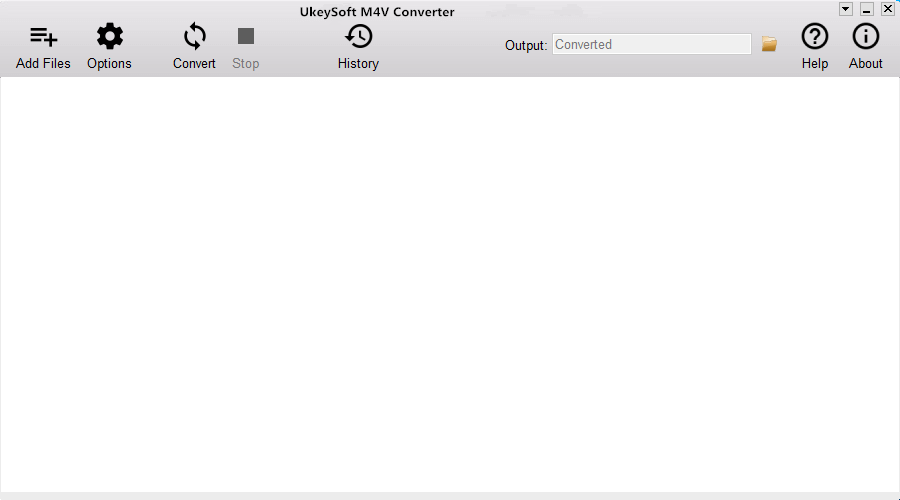
Step 1. Download and Run the iTunes M4V Converter on the Computer
Firstly, please download, install and run iTunes M4V Converter on your computer. iTunes will be launched automatically at the same time.

itunes drm converter

Step 2. Select the M4V Videos to Convert
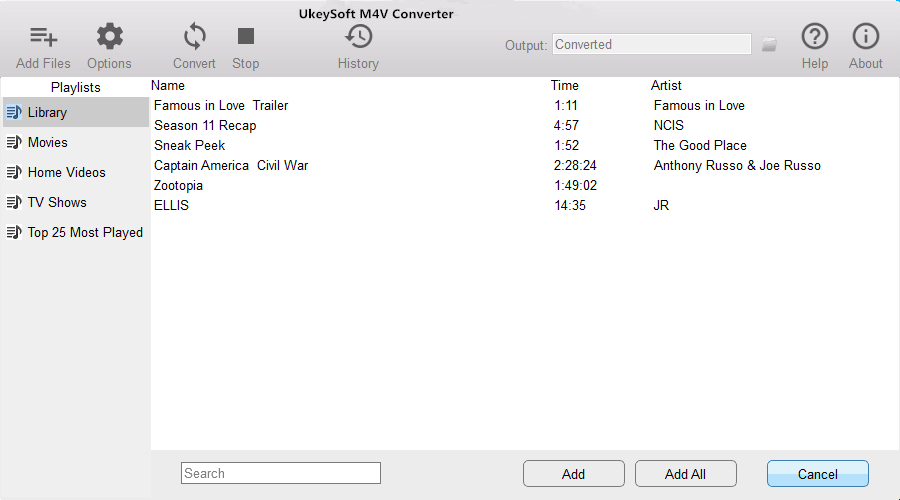
Click “Add Files” button and the program will load all videos from your iTunes Library, including Music Video, Movies and TV shows. Select the videos you want to convert to MP4 and click “Add“. (You can add more than one video at one time if you need.)

add itunes video

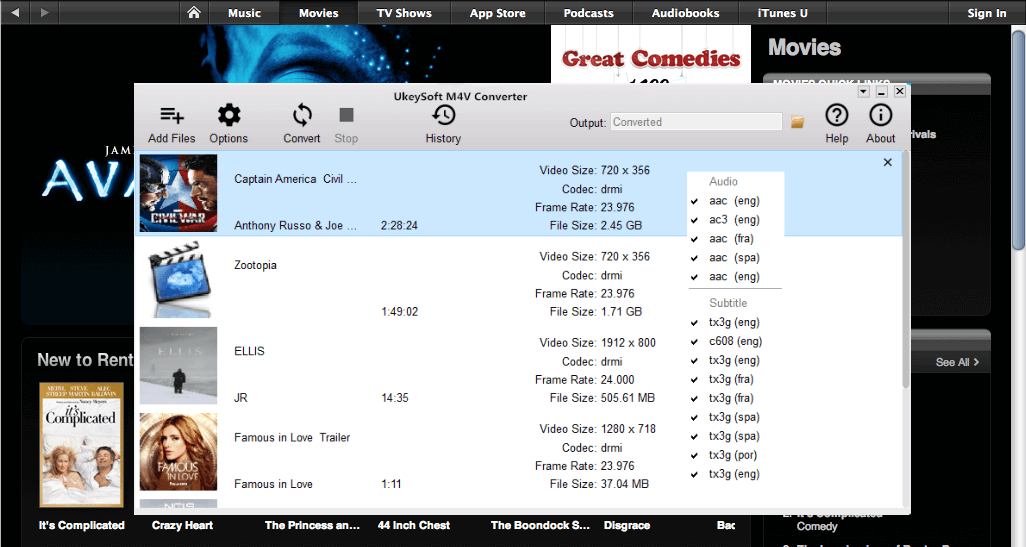
The program will keep all audio tracks and subtitles from the original M4V movies to output MP4 movies, including Dolby AC3 5.1, AD, CC. Click the gear icon to uncheck the ones you don’t need.

movie audio tracks subtitles

Step 3. Convert the M4V Videos to MP4
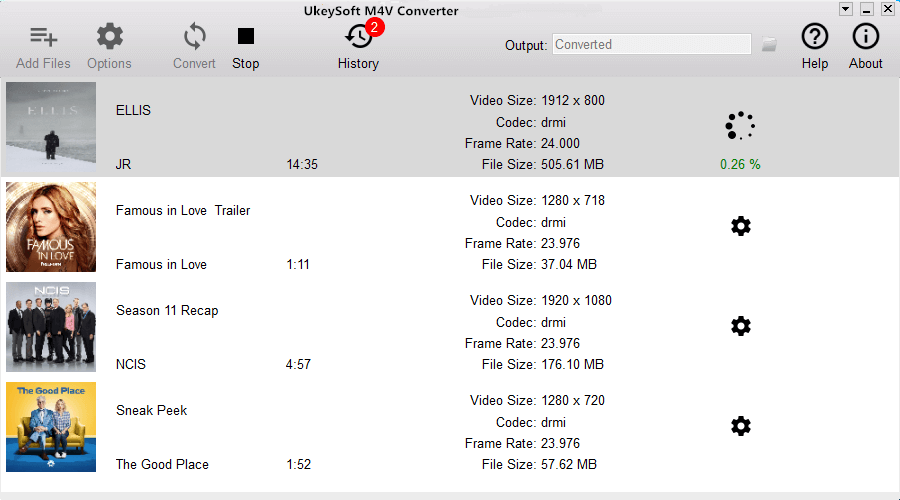
In the last step, just simply click “Convert” button to begin converting selected M4V videos to MP4. The converted MP4 videos will be saved to Documents by default. You can change the destination folder by clicking the arrows on the top right corner of the program interface.

convert videos to mp4

Related Article:

How to Convert iTunes M4V Videos to MP4

How to Convert the iTunes Videos to MP3 Files

How to Remove DRM from Apple Music M4P Completely

How to Play Apple Music on MP3 Player

How to Play M4P Apple Music on iOS Device

How to Play Apple Music M4P on Android

How to Convert iTunes M4V Videos to MP4

Hi, how to convert the iTunes M4V video files to MP4 format, I want to watch the purchased iTunes videos on my Android phone. It is possible to make it true?

M4V- “MPEG for Video” is a special video format that mainly used by Apple. M4V is a multimedia DRM protection video format specifically designed for Apple products such as the iPhone, iPod and iTunes store. Since M4V is deeply associated with Apple Inc., M4V files are more often than not protected by a copyright – Apple’s FairPlay DRM copyright protection. M4V is very close to MP4. Most mobile devices that supports to play MP4 video instead of M4V. It is not possible for you to watch M4V files directly on Android phones, PSP, Xbox or edit the M4V video in iMovie, Final Cut Pro, since M4V items are DRM protection. However, you can convert the M4V videos to MP4 with the help of some professional tool.

Convert iTunes M4V to MP4 – iTunes M4V Converter

UkeySoft M4V Converter is a wonderful tool for converting iTunes M4V movie or video to DRM-free MP4. It enables to legally convert iTunes M4V to MP4 with only a few clicks. Besides M4V and MP4, this iTunes M4V Converter also supports most regular videos formats you may encounter. After the conversion, the DRM protected files can be played only on any mobile device, like iPad, iPod and Android, MP4 players, PS4, Xbox One, Creative Zen, etc,. It allows to convert iTunes M4V videos to DRM-free MP4 at 30X speed, output 1080P HD with 100% original quality.

d_win d_mac

Let’s Sum Up the Features of iTunes M4V Converter:
-Remove DRM from iTunes Music Videos.
-Convert M4V iTunes Movies to MP4.
-Watching iTunes Movie, Videos, TV shows on Various Mobile Devices.
-30X Faster M4V to MP4 Converter.

How to Convert iTunes M4V Videos to MP4

Step 1. Download and Run the iTunes M4V Converter on the Computer
Download, install and run iTunes M4V Converter on your PC/Mac.iTunes will be launched automatically at the same time.

itunes drm converter

Step 2. Select the M4V Videos to Convert
Click “Add Files” button and it will load all videos from your iTunes Library, including Music Video, Movies and TV shows. Check the videos you want to convert to MP4 and click “Add“. You can add more than one video at one time as you like.

add itunes video

The program will keep all audio tracks and subtitles from the original M4V movies to output MP4 movies, including Dolby AC3 5.1, AD, CC. Click the gear icon to uncheck the ones you don’t want.

movie audio tracks subtitles

Step 3. Convert the Selected Videos to MP4
Click “Convert” button to start converting selected M4V movies to MP4. Output MP4 movies is saved to Documents by default. You can change the destination folder by clicking the arrows on the top right corner of the program interface.

convert videos to mp4

Done.

d_win d_mac

Related Article:

How to Convert the iTunes Videos to MP3 Files

How to Remove DRM from Apple Music M4P Completely

How to Play Apple Music on MP3 Player

How to Play Apple Music on iPhone without Limitation

How to Play M4P Apple Music on iOS Device

How to Play Apple Music M4P on Android

How to Record Apple Music as MP3

[Summary]:Finding a best Apple Music Recorder to record your purchased Apple Music songs as MP3 for listening on any phones/tables? This tutorial teach you how to record DRM-ed Apple Music songs as MP3 for offline using or listening.

What’s M4P Files?

M4P is different from MP4,the M4P full named is MPEG 4 Protected audio,which is a protected AAC file extension, generally used by Apple Music songs with DRM (digital rights management) protected.As we all know that music downloaded from iTunes Apple Music in M4P format come with DRM protection. So you are limited to play or transfer those M4P songs on/to any other unauthorized computers, Android devices, any MP3 players, PSP but only your iPods touch, iPhones and iPad (most 5 devices).In order to play Apple Music M4P streams on other devices like Samsung phone without iTunes,you can record Apple Music as MP3 free local music.

How to Open the M4P Files?

M4P files can be opened with Apple iTunes. However, the computer you are using iTunes must authorize to play the M4P file, which is done by logging in to iTunes under the same account used to download the audio file.

How to Record/Rip DRM-ed Apple Music M4P as MP3

UkeySoft Apple Music Converter is also a Apple Music Recorder, which designed to record DRM-protected Apple Music streams as plain MP3, WAV, FLAC, M4A or AAC to get maximum listening pleasure.You can easily remove DRM protected from Apple/iTunes music and convert them as free MP3 files. What’s more,the program also enables you record iTunes audiobooks, Audible audiobooks and other iTunes purchased M4P music as MP3. You can download this powerful Apple Music Converter to have a try.

d_win d_mac

Easy Way to Record Apple Music M4P songs as MP3

Step 1. Installation of Apple Music Recorder
Download and run the Apple Music Recorder for Mac or Windows on your computer. iTunes will show and disappear in a flash with the launch of Apple Music Recorder.Here,you can preview the entire iTunes library in the main interface of the program.

Launch M4P to MP3 Converter

Step 2. Select Apple Music songs you Want to Record
Click the music playlist in the left side and select songs that you want to record.

Choose Apple Music Tracks

Step 3. Choose MP3 as Output Format
Then,please go to “Output Settings” > “Output format” to select MP3 as the output format,you can also set profile, output path, name format as you like.

Select MP3 as Output Format

Tips: Apple Music Record & Converter allows you to convert iTunes M4P files to common audio formats: MP3, M4A, AC3, AAC, AIFF, AU, FLAC, M4R, and MKA.

Step 4.Adjust Audio Recording Speed
The program allows you to set up the conversion speed for audio conversion from 1X to 16X. Directly click the “Options” button on the program interface, and then there will be a pop up window “General” > “Set custom conversion speed for audio convert” which allows you to set up the audio conversion/record speed from 1X to 16X,it’s very easy to customize output quality and conversion speed.

rip Apple music to MP3

Step 5. Record Apple Music M4P Streams as MP3
Click on “Convert” button, the Apple Music Recorder/Converter software will start the Apple record. Only few minutes,all of your selected Apple music songs will be remove DRM from Apple Music files and record Apple Music streams as MP3.You will find that ID tags such as track’s title, artist, album, genre and duration will be preserved in the output MP3 audio files.

Record Apple Music to MP3

View Recorded Apple Music Streams in MP3 Format

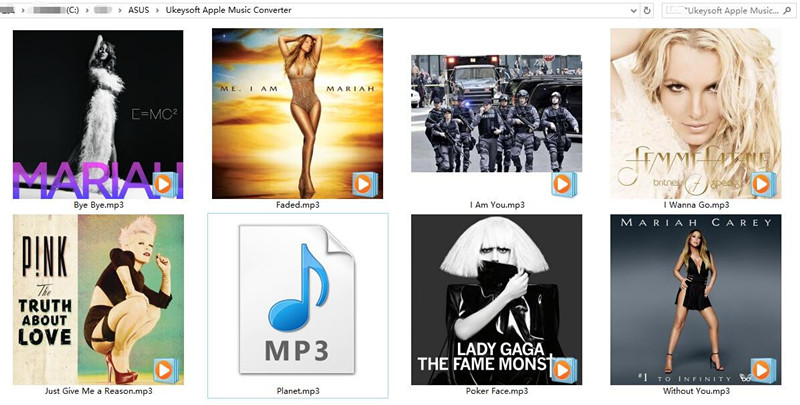
You can click on “Open Output File” to find the record MP3 files on computer.

record apple music to mp3

After that, you can enjoy the songs on Android devices, MP3 player, car player or burn them to a CD, etc.

Unregistered users can only record purchased Apple Music to MP3 for 3 minutes.Just free download this powerful Apple Music Record & Converter tool for Mac or Windows to have a try!

d_win d_mac

Only few steps to remove Apple Music M4P DRM protected and record iTunes/Apple Music songs as free MP3 files.If you think this guide useful to you,please hare it with your friends or family members if you like it!

How To

How to Transfer Music from iTunes to Android Phone

How to Batch Convert M4P to MP3

How to Convert Apple Music M4P Songs to M4A

How to Remove DRM from Apple Music

Convert Apple Music to MP3

How to Convert Apple Music M4P Songs to MP3

[Summary]:Looking for a way to batch convert iTunes/Apple Music M4P songs to MP3? Here is the best Apple Music to MP3 Converter, which helps you complete remove DRM protection from Apple Music and convert Apple Music M4P songs to MP3, WAV, M4A, AC3, AAC, AIFF, AU, FLAC, M4R, MKA.

apple music to mp3

What is AAC (.M4P) and What are the Differences Between M4P and MP3?

M4P files is MPEG 4 protected audio,which is a protected AAC file extension for iTunes and iOS devices,it’s an audio file used in Apple Music store with DRM protect. This is really just an AAC file,the file used by Apple has created a proprietary DRM technology for copy protection.

While MP3 is an unprotected audio file,so most players support MP3 format,such as MP3 players, Android mobile phone, PSP, card player, Zune and other media players.However,the iPhone, iPad and iPod support ACC .m4a (without DRM encryption) and .m4p (with DRM encryption) audio format,if you want to play Apple music on iOS devices for free forever,you need to convert M4P to M4A for offline playback without DRM limitation.

MP3 is an audio compression technology, because this compression method called MPEG Audio Layer3, so people call it MP3. MP3 is the use of MPEG Audio Layer 3 technology, the music to 1:10 or even 1:12 compression rate, compressed into smaller capacity file, in other words, in the case of small loss of sound quality of the file to a more compressed Small degree. But also very good to maintain the original sound quality. It is because MP3 small size, high quality features make MP3 format almost become synonymous with online music. Every minute music MP3 format is only about 1MB in size, so that the size of each song is only 3-4 megabytes. Use MP3 player MP3 files in real-time decompression (decoding), so that high-quality MP3 music to play out.

That’s to say, both M4P and MP3 are audio files, but M4P is DRM protected, and the MP3 is DRM-free for playing on most music players. Due to M4P files cannot be played and transferred to any other unauthorized computers, any MP3 players and Android mobile phones. However, how to play Apple Music M4P songs in any mobile phone without iTunes on Mac/PC? How to listen t Apple Msic on MP3 player? What you need to do is to convert Apple Music M4P songs to MP3.

Convert Apple Music to MP3

So,if you want to enjoy purchased Apple music on more any mobile devices like undele gated Apple products, Android mobiles, car players, music players, or gaming consoles with no limit, you need to convert Apple Music M4P songs to MP3, M4A, etc.

Convert iTunes/Apple Music M4P songs to MP3 with Apple Music Converter

Apple Music ConverterM4P to MP3 Converter, which can perfectly help you remove DRM from Apple Music and convert Apple Music M4P files to DRM-free MP3, M4A, etc. With a leading-industry convert technology, it can convert Apple Music to MP3, AC3, FLAC, M4A, etc. The conversion speed up to 16X faster, and the output files are zero loss quality. What’s more, the Apple Music Converter also enables you remove DRM from Apple Music songs, iTunes M4P songs, Audible AA/AAX audiobooks, and convert them to MP3 easily.

Let’s learn how to convert Apple Music songs(.m4p) to MP3.

Download the Windows version or Mac version of the Apple Music Converter, and then try to convert Apple Music M4P files to MP3 on your Windows or Mac computer.

d_win d_mac

Kep Features:

  • Convert Apple Music M4P songs to MP3, M4A, etc;
  • Remove DRM from Apple Music songs;
  • Convert iTunes music and iTunes audibooks;
  • Convert Audible AA/AAX books to MP3, M4A, etc;
  • Output format: MP3, M4A, WAV, AC3, MKA, AIFF, FLAC, M4R and AU;
  • Preserve all ID3 tags, album, artist, TrackID;
  • 16X conversion speed, batch music conversion;
  • Maintain original music output quality.

Easy Steps to Convert Apple Music to MP3 Format

Step 1. Launch Apple Music to MP3 Converter
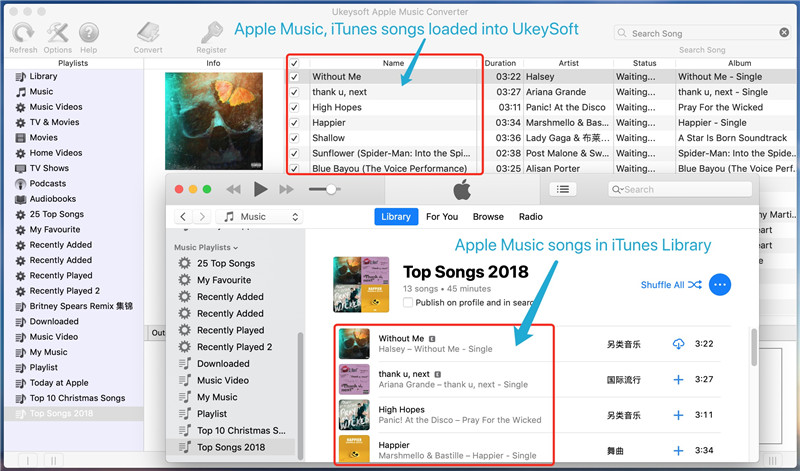
First of all, please download,install and run the Apple Music Converter on the Mac or PC. After launch the program on the computer and iTunes will be launched automatically at the same time,at this time the iTunes library including music, playlist, videos and Audible Books will loads into the program.

Launch M4P to MP3 Converter

Step 2. Select Apple Music M4P Songs
In this step,please select the Apple Music songs you want to convert to MP3 format.Here,you can search the song you want in the “Search” box and select them.

Choose Apple Music

Tips: To batch convert M4P files to MP3,you can select the one or more M4P files on the Apple music library.

Step 3. Select MP3 as Output Format
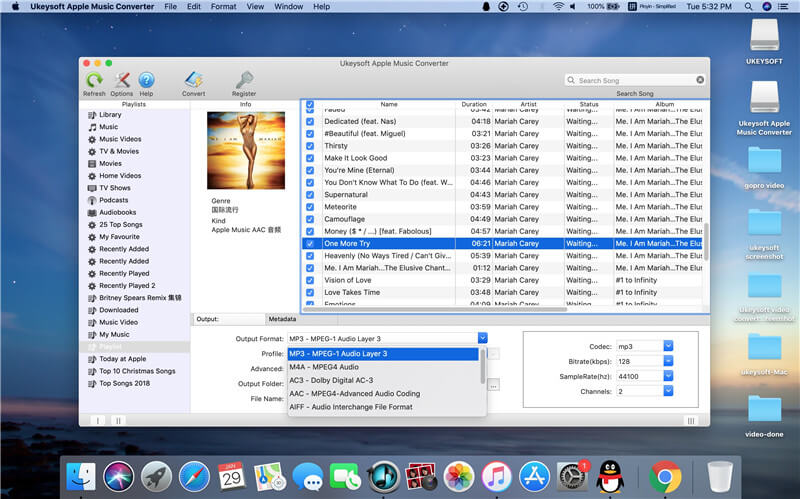
In order to record Apple Music songs as free MP3 files,please choose “MP3” as output format under the “Output Settings” > “Output Format” options.

Select MP3 as Output Format

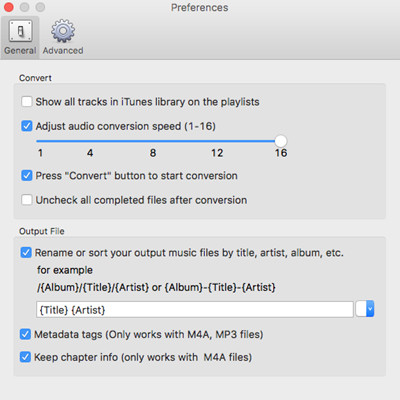
Tips: Before removing DRM from Apple music and batch convert Apple music songs in M4P to MP3,you can to to “Option” >> “Preferences” to adjust advanced audio parameters.

setting preferences

Step 4. Start Batch Converting Apple Music to MP3
After all is done, finally click “Convert” button to start converting M4P to MP3,then the iTunes M4P to MP3 Converter will convert all selected Apple Music M4P songs to MP3 format automatically. During the converting process,the program will remove DRM from M4P files and out as DRM-free MP3 files,you can also convert M4P to M4A with the help of this Apple Music Converter,just select “M4A” as output format in the third step.

Converting Apple Music to MP3

View All Converted Apple Music(MP3 Songs)

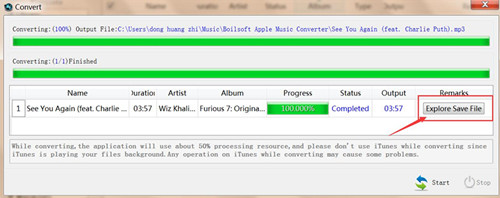
After converting Apple Music to MP3 complete, please click “Export Output Files” to view all converted MP3 files.

apple music mp3 files

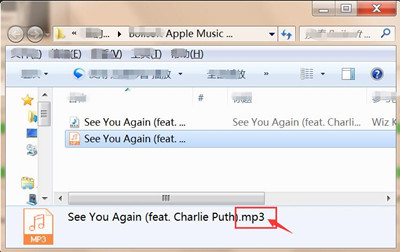
After that, you can get the DRM-free MP3 files,please view all batch converted MP3 files on computer

view mp3 files

Video Guide: How to Convert Apple Music to MP3

This video tutorial shows you how to remove Apple Music DRM and convert M4P songs to MP3, M4A, AAC, etc. with this professional Apple Music Converter.

Unregistered users can only convert purchased Apple Music to local free MP3, M4A audio files for 3 minutes. To remove the limitation, purchase a full version.

d_win d_mac

Now,you can transfer the converted Apple Music tracks to any Android mobile phone (such as Samsung/LG/HTC/Sony/Huawei/Motorola/Google Pixel/Nexus/Windows Phone/Sharp), Apple iOS devices (iPhone/iPod/iPad) or MP3 Players, PSP/PS3/PS4, Zune for offline playback without DRM limitation.

What’s More about Apple Music Converter

Apple Music Converter is the best iTunes M4P to MP3 converter you can have. It is an all-in-one audio converter that intergrades Apple Music DRM Removal, Apple Music Converter, iTunes Audiobook Converter and Audible Converter together. Enjoy your favorite Apple Music songs with more freedom and convenience now!

How To

How to Remove DRM from Apple Music

How to Stream Apple Music to Samsung Galaxy Phone

How to Convert iTunes Videos to MP3

How to Convert Audible Audiobooks to MP3

How to Play Apple Music on Android

How to Play Apple Music on iPod nano/ shuffle

How to Play Apple Music on iPhone Offline

How to Transfer Music from iTunes to Android

How to Convert M4B iTunes Audiobooks to MP3

What is M4B Audiobooks
M4B is similar to M4A. It is a file extension for audio books or podcast files. The main difference between M4B and M4A is that M4B files support metadata for chapters and bookmarking while M4A doesn’t. Due to M4B files are rarely supported by mobile MP3 players other than device from Apple, many people want to convert the M4B iTunes files to MP3. However, M4B to MP3 conversion process may be not as so hard as you think if you get the right way.

Why Need to Convert iTunes Audiobooks from M4B to MP3
iTunes audiobooks are protected by Apple’s DRM, we can only play the M4B audiobooks files on the computer and other mobile devices directly. If you want to play iTunes M4B audiobooks on common MP3 players or more other mobile devices that are compatible with MP3 format, you’ll have to remove DRM from the M4B files and convert the M4B audiobooks to MP3 files. When it comes to convert files from M4B to MP3, you cannot use the normal converter or iTunes for the conversion. In other words, you need a professional M4B to MP3 converter for helping.

Convert M4B iTunes Audiobooks to MP3 with Audiobooks Converter

It is a simple joy to convert M4B iTunes audiobooks to MP3 with Apple Music ConverterAudiobooks Converter. It can legally remove DRM protection from iTunes audiobooks files and convert the iTunes audiobooks files from M4B to MP3 with only 4 steps. After the conversion is completed, you could freely play the converted audiobooks with MP3 for free without limitation.

d_win d_mac

Let’s Focus on more Features of Apple Music Converter:
-Remove DRM from iTunes & Audible audiobooks.
-Convert purchased M4B iTunes audiobooks to MP3.
-Convert Amazon Audible AA/AAX audiobooks to MP3/M4R.
-Convert Audiobooks to MP3, M4A, etc,.
-Convert iTunes Music from M4P to MP3, M4A, AC3, AU, AC3, FLAC, AIFF or MKA.
-Keep original quality to the converted MP3, M4A audio files.

How to Convert iTunes Audiobooks from M4B to MP3

Step 1. Add iTunes M4B Audiobooks to the Apple Music Converter – Audiobooks Converter
Launch the Apple Music Converter – Audiobooks Converter on the computer. The Audiobooks Converter will automatically load the purchased iTunes M4B audiobooks.

add audiobooks to itunes

Step 2. Choose the iTunes M4B Audiobooks to Convert
From the left panel, choose the library or category that include the purchased iTunes M4B audiobooks. Select the the iTunes M4B audiobooks that you want to convert.

Step 3. Set MP3 as The Output Format
To convert iTunes M4B audiobooks to MP3, simply select MP3 as output format. Other areas will be automatically filled by the program with default values. If you wish to change them, you could also do that by changing the values in respective areas.Besides, you can also setting the output folder for the converted audiobooks.

select audiobooks

Step 4. Start the iTunes M4B Audiobooks to MP3 Conversion
Now you could begin to convert the DRM-protected iTunes M4B audiobooks to MP3 format by clicking the “Start Convert” button and wait for the process to complete.

convert audiobooks to mp3

Once the M4B to MP3 conversion finished, you can find the converted MP3 audiobooks and freely import them to any media players, such as iPod, PSP, Zune, Creative Zen, Sony Walkman, etc,.

d_win d_mac

Related Article:

How to Convert AAX Audiobooks to MP3

How to Convert Audiobooks from AAC to MP3

How to Convert Apple Music M4P Songs to M4A

How to Play Apple Music on MP3 Player

How to Convert Protected M4P to MP3 on Mac(Without iTunes)

How to Play M4P Apple Music on iOS Device

How to Play Apple Music M4P on Android

How to Convert the iTunes Videos to MP3 Files

How to Convert the iTunes Videos to MP3 Files

How to extract the downloaded iTunes videos without limitation? I want to set it as my iPhone rightone. How to convert the downloaded iTunes videos to MP3 file?

Apple puts the DRM protected M4V on its iTunes to encode movies, TV episodes, music videos, etc which means a M4V movie purchased or rented from iTunes Store is only allowed to be played on Apple devices because of Digital Rights Management. All of us like to download videos from iTunes and play it on the iOS devices. However, It’s common to extract the downloaded iTunes videos to MP3 files, sometimes you may want to play the videos on MP3 players or other mobile device that compatible with MP3 format, or just needing to extract it for other purpose, like setting the rightone of mobile phone. No matter for what reasons, you need to make it as the MP3 files out of the DRM protection. A good M4V to MP3 Converter will be helpful.

Apple Music Converter – Convert the iTunes Videos from M4V to MP3

If you are looking for an easy way to remove DRM from your downloaded videos and convert the iTunes M4V video to MP3 format, then look no further than UkeySoft Apple Music Converter, which is user-friendly and powerful DRM remover for iTunes M4V video decryption. It enables to remove DRM from iTunes purchased videos without loss in quality. What’s more, Apple Music Converter empowers to convert Apple music M4P songs to DRM-free MP3, M4A, etc,. convert iTunes songs and audiobooks to MP3, M4A, etc,. It will Keep the original quality to all converted MP3, M4A audio files. So that you are allowed to play the converted videos and music on any mobile devices for free without limitation.

d_win d_mac

Kind Tips: If you seek a reliable YouTube to MP3 Converter, 4kFinder YouTube Music Downloader is the tool that allows you to download YouTube videos and music as MP3 or M4A files faster with better quality. Then, you can offline enjoy YouTube music on any MP3 player, mobile phone.

How to Convert M4V iTunes Videos to MP3 Files

Step 1.Install and Run the Apple Music Converter on the Computer
Firstly, please install and run Apple Music Converter on your computer. Once the software running normally, the iTunes will be launched automatically at the same time.

itunes videos converter

Step 2. Add iTunes Video Files to Convert
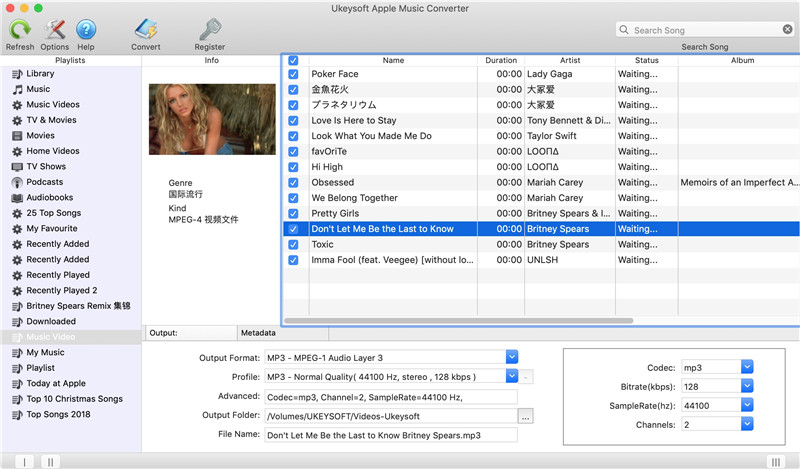
Choose iTunes video files you want to convert. Click the relevant Playlists category and select one or more then one video files you want to convert.

itunes video to mp3 converter

Step 3. Select MP3 as Output Format for the Converted Videos
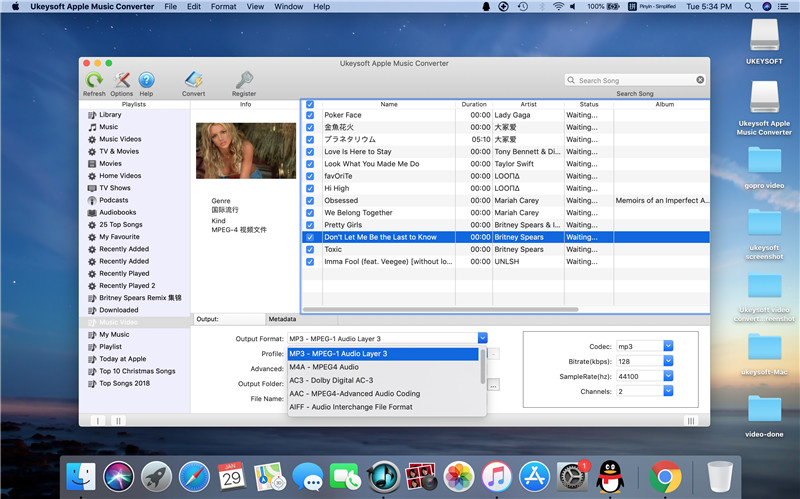
Setting MP3 as the output format for the converted iTunes videos and select the destination folder to save the output files. The profile settings will be adjusted automatically according to the chosen output format. You can also set the output parameters of the converted videos. You can also adjust audio parameters like sample rate, bit rate, etc,.

m4v to mp3 set output format

Step 4. Start the iTunes videos to MP3 Conversion
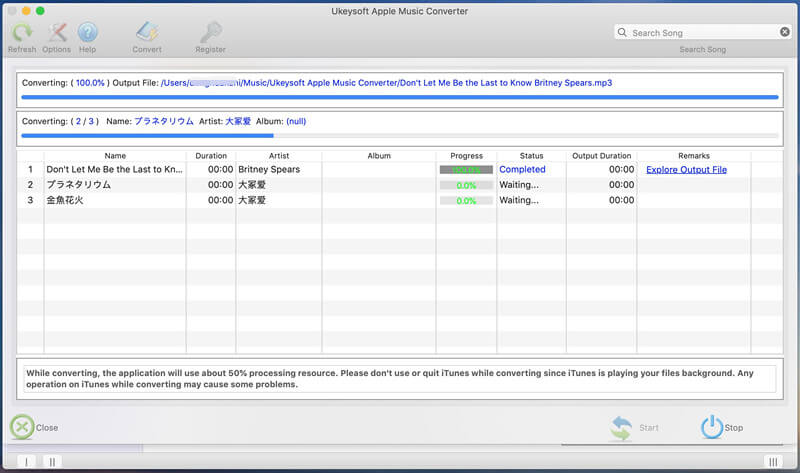
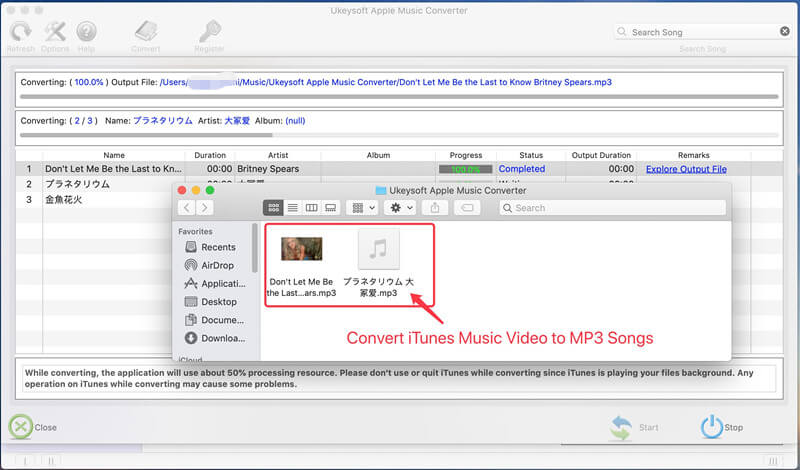
The last step is just simply click “Start Convert” to begin converting iTunes videos to MP3. When the conversion finishes, you can click “Open Output File” to locate the converted DRM-free audio files.

convert itunes m4v videos to mp3

Done.

m4v to mp3 set output format

Download UkeySoft Apple Music Converter and try to extract audios from iTunes movies, TV shows and music video.

d_win d_mac

Related Article:

How to Unlock iTunes DRM and Play iTunes M4P Songs on Any Devices

How to Play M4P Apple Music on iOS Device

How to Play Apple Music M4P on Android

How to Convert Protected M4P to MP3 on Mac(Without iTunes)

Free Download Previous Purchased Music from iTunes to Computer

How to Convert AAX Audiobooks to MP3

I need to play the AAX audiobooks on my phone, how to transfer the audiobooks to MP3 files so that I can play on my device freely?

What is AAX Audiobooks Files
Audible, a subsidiary of Amazon, is an Internet provider of spoken audio entertainment, information, and educational programming, and now enjoys a near-monopoly in the online digital download market for audiobooks. But generally Audiobooks purchased from Audible are in .aa format with Audile’s own Digital Right Management (DRM), which prevents owners from disseminating the audiobooks as well as playing the AA files on non-Audible Ready compatible players like Creative Zen, Zune, PSP, Sony Walkman, Blackberry, etc,. If you want to listen to Audible AA files on any popular media player, you should remove Audible DRM protection and convert the audiobooks from AAX to MP3.

Convert Audiobooks from AAX to MP3

As the audiobooks files AAX & AA comes with DRM protection, most of us find it difficult to share or import the audiobooks to our mobile device. We can’t play or share the audiobooks without getting rights or purchasing them. To remove the DRM protected from audiobooks and convert audiobooks from AAX to MP3, you should rely on this Apple Music ConverterAudiobooks Converter. It is a professional DRM-protected AAX Audiobook Converter which can help you remove DRM protection and convert AAX audiobooks to MP3 and even other various of audio formats, including WAV, AAC, M4A, FLAC, etc at 30X faster speed with the original ID3 tags and chapter info fully preserved in CD quality. After the conversion, you can directly import the converted MP3 audiobooks files to portable devices.

How to Convert Audiobooks from AAX to MP3

Step 1.Download and Install Apple Music Converter – Audiobooks Converter on your Mac or Windows

d_win d_mac

Step 2.Import AAX Audiobooks to iTunes Library
Apple Music Converter automatically loads all files from iTunes, so you need to add the audiobooks to iTunes first.

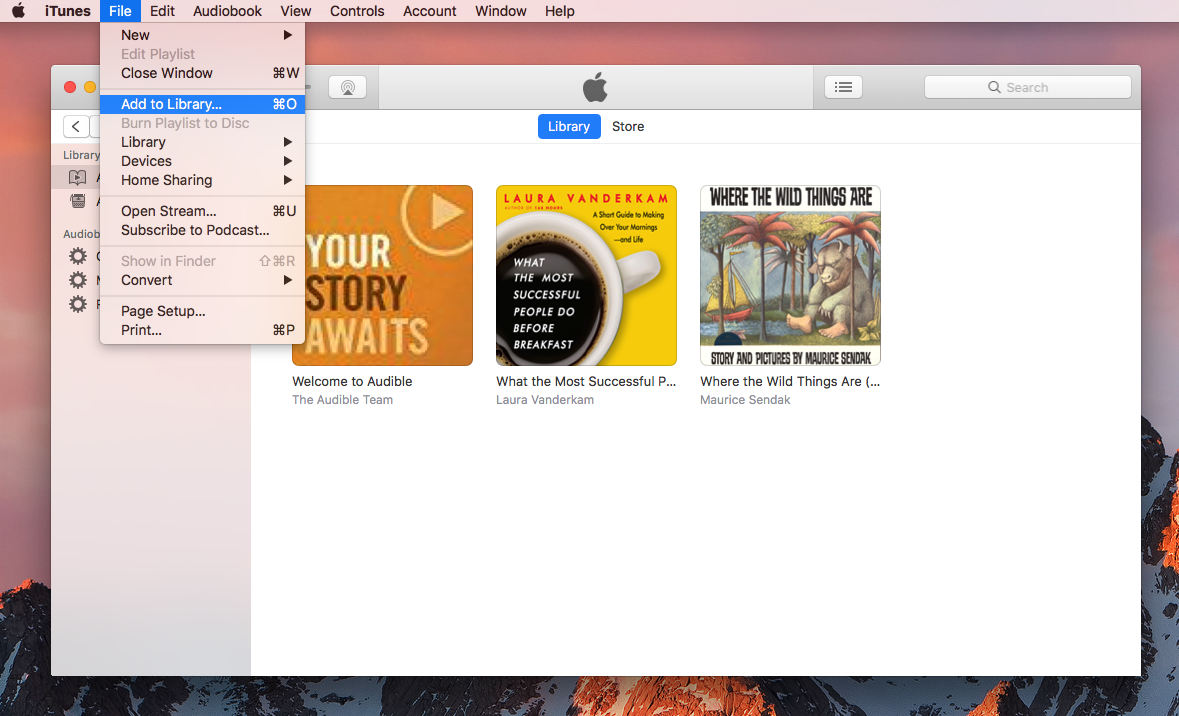
Launch iTunes and click File > Add File to Library.
Browse to your Audible audiobooks files location.
Select audiobooks you wish to import and then click “Open“.

add audiobook to itunes

Step 3.Select AAX Audiobooks to Convert
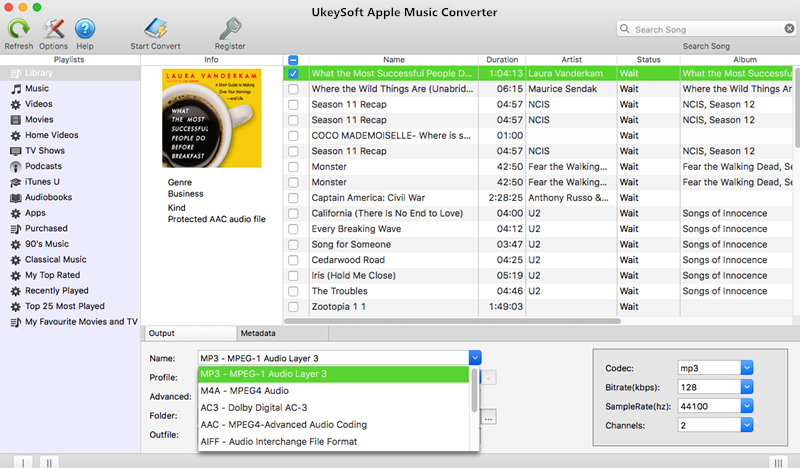
Click the checkbox before the Audible audiobooks on the program you want to remove DRM from and choose MP3 as output format. Here are 9 output formats for you to choose: MP3, M4A, AC3, AAC, AIFF, AU, FLAC, M4R, MKA.

select audiobooks

Step 4.Remove DRM Protection of Audiobooks
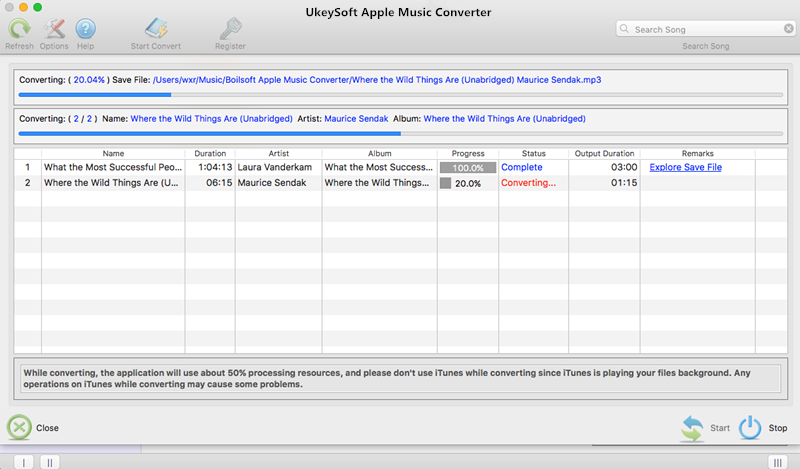
Click “Start Convert” button to start the conversion, when it is finished you will get DRM free audiobooks in MP3 format.

remove audiobooks drm

d_win d_mac

Related Article:

How to Convert Audiobooks from AAC to MP3

How to Convert Apple Music M4P Songs to M4A

How to Play Apple Music on MP3 Player

How to Convert Protected M4P to MP3 on Mac(Without iTunes)

How to Play Apple Music on iPhone without Limitation

How to Play M4P Apple Music on iOS Device

How to Play Apple Music M4P on Android

How to Convert Audiobooks from AAC to MP3

I want to enjoy the audiobooks with MP3 format, is there any way to remove the DRM from audiobooks and play it on my mobile device?

Audiobooks is DRM protection with AAC Format from iTunes store or other audio website, they are limited to be played on specific MP3 players other than common media players because of the DRM protection. Audiobooks always be protected with the DRM-ed formats, like AAC, M4B. If you want to play the audiobooks on any mobile device you should convert the DRM protected audiobooks to the free-DRM audiobooks, for example MP3, WAV. So here in the following part, we’ll introduce one of the best audiobook DRM removal solutions to help you convert the DRM-locked iTunes or Audible audiobooks to DRM-free MP3 files, even other common formats.

Convert Audiobooks from AAC to MP3

Apple Music ConverterAudiobooks Converter is a legal AAC to MP3 Audiobook Converter that provides a perfect way to get rid of DRM protection from audiobook. It helps to convert audiobooks from AAC to MP3 or other unprotected AAC or M4A files, thus allowing you to freely play the purchased audiobooks on any device without time limitation, such as Microsoft Zune, Sony PSP, BlackBerry, Sony Walkman, iriver, SanDisk Sansa, Creative Zen, mobile phone, and so on. Apart from converting audiobooks to MP3, this Apple Music converter also enables to remove DRM from Apple Music songs and convert Apple Music M4P songs to DRM-free MP3, M4A, etc,. It keep original data to all the converted MP3, M4A audio files. Let’s show you how to convert audiobooks from AAC to MP3 with a few clicks.

d_win d_mac

How to Convert Purchased Audiobooks AAC to MP3

Step 1. Install and Run the Apple Music Converter
Install and run the Apple Music Converter – Audiobooks Converter on the computer, and you will see the iTunes files automatically run by the software automatically.

launch apple music converter for mac

Step 2. Select the Purchased Audiobooks to Convert
On the left panel, choose the library or category that include the purchased audiobooks that you wanted to convert. Then select the DRM protected audiobooks from the list.

add audiobook to itunes

Step 3. Set MP3 as the Output Format for the Converted Audiobooks
To convert purchased audiobooks to MP3, simply select MP3 as output format. Other areas will be automatically filled by the software with default values. If you wish to change them, you could also do that by changing the values in respective areas.

select audiobook

You can also specify the output folder by clicking on the Output icon near the Folder text box. If you don’t want to change the output folder, skip the step.

Step 4. Start the Audiobooks to MP3 Conversion
Simply click “Start Convert” Button on the top bar to start converting the protected AAC files. Wait for the process to complete.

remove audiobook drm

Clicking on the “Explore Output File” button to find the converted MP3 files on the computer.

Now, you have finish converted the DRM protected AAC audiobooks to the MP3 format without any protection. Now you can import the converted audiobooks to any of your mobile device, including Android devices, Media Players, Windows PCs and any device that can play MP3 songs.

d_win d_mac

Related Article:

How to Convert Apple Music M4P Songs to M4A

How to Play Apple Music on MP3 Player

How to Play Apple Music on iPhone without Limitation

How to Play M4P Apple Music on iOS Device

How to Play Apple Music M4P on Android

How to Play Apple Music on iPod nano and iPod shuffle

[Summary]:Want to listen to Apple Music on Any MP3 players offline?If you want to sycn and play Apple Music songs on iPod nano, iPod shuffle, iPod classic and iPod touch after unsubscribe, you must to remove DRM from Apple Music and convert M4P to MP3,because Apple Music songs is M4P files with DRM protection which protect you from playing or syncing them on any other portable MP3 players.Here,this tutorial will teach you how to convert Apple Music to iPod (nono/classic/shuffle/touch) for offline listening at any time any place,even your Apple Music subscription service expired.

I pay some favorite songs on the iTunes, then I try to sync the Apple with my iPod, however, it prompted me that song was not copied to the iPod because it is a subscription item. How to play the payed Apple music on my iPad nano?

We all can pay and download Apple music from the Apple official website and then enjoy it with a time limitation. You know, for the streaming music service – Apple Music with DRM limited, the whole Apple Music playlist can’t be transferred correctly. Apple Music is not available on iPod nano and iPod shuffle. If you want to play the Apple music on iPod other mobile device , you need a Apple Music converter to remove Apple Music’s DRM and convert to MP3, AAC, FLAC and other audio format, and then you can play Apple Music on iPod nano and iPod shuffle easily and quickly.

Apple Music Converter is helpful and useful, which uses high recording and encoding to MP3/AAC technology to convert the DRM Apple Music files to MP3 formats with up to 16X conversion speed and as well as CD output quality, and then you can transfer and enjoy apple music on any MP3 audio player devices as you like.With using Apple Music Converter, you could remove the protection from Apple music and play the converted music on iPod nano and iPod shuffle for free without limitation. What’s more, you can enjoy the converted Apple music with its original quality on any mobile devices, like MP3 player, Android phone, iPhone, or more.

Download and Play Apple Music on iPod Nano

Step 1. Download and Run Apple Music Converter on Computer
To begin with, please download and run Apple Music Converter on computer.

Install M4P to M4A Converter

Note: iTunes will be run automatically when you run Apple Music Converter on the computer.

Step 2. Choose Apple Music to Convert
It will load all you Apple Music songs and playlists you have added to iTunes library on the interface of Apple Music Converter program, including iTunes songs, movies, TV shows, audiobooks, and more. Click the checkbox before the Apple Music songs you need to convert. You can also search the Apple Music songs you want to convert with the searchbox.

select apple music to convert

Step 3. Setting the Output Format for Converted Music – MP3
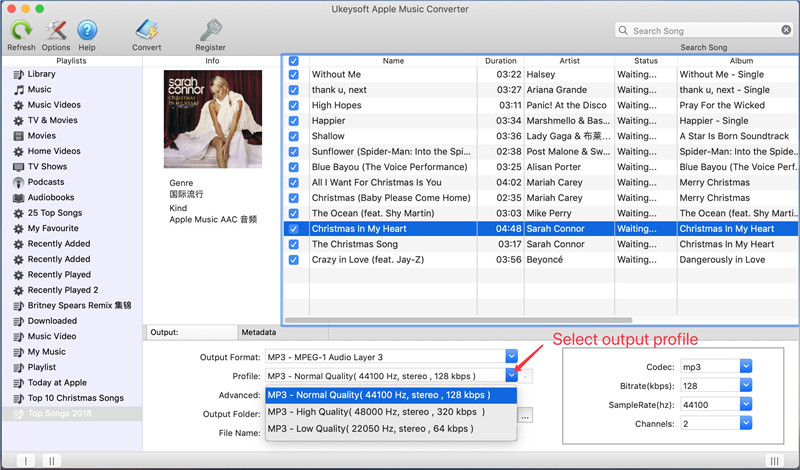
Now you should setting the output format, customize profile, name format for the converted music. Apple Music converter supports to convert Apple Music M4P songs to several formats, including MP3, M4A, AC3, AAC, AIFF, AU, FLAC, M4R, MKA. Here we suggest you select the MP3 format to convert for iPod. It provides 3 profile settings for each output format: Normal, High and Low with different Bitrate, SampleRate and Channels. You can also customize the values if you need.

select mp3 output profile

Step 4. Convert M4P Apple Music to MP3 for iPod
In this step you just need to simply click “Start Convert” button to start converting the selected Apple music to MP3 files. It will complete the conversion job in minutes.

convert apple music from m4p to mp3

When the conversion is completed, clicking on the “Open Output File” button to view the converted music file on the computer.

view converted mp3 apple music files

Step 5. Transfer the Converted Apple Music to iPod
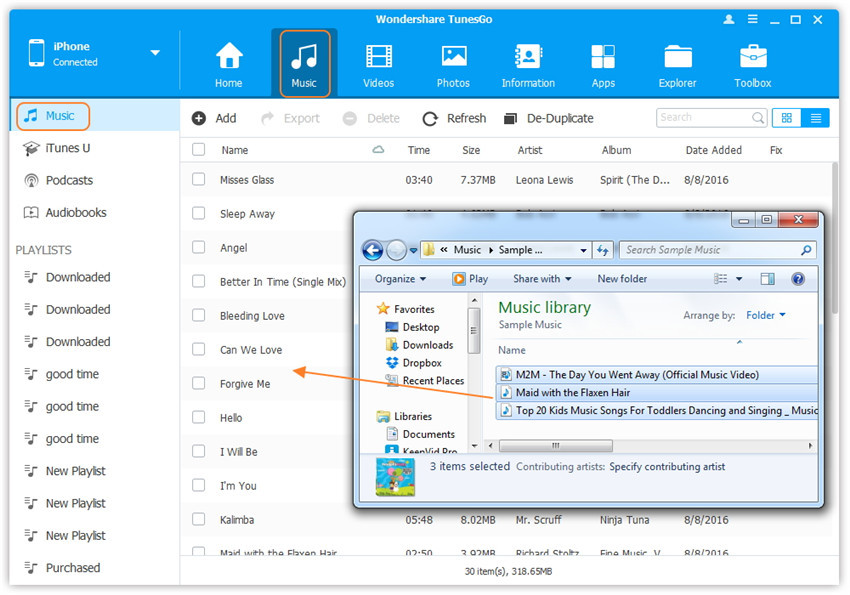
In the last step, you could connect your iPod with using USB cable and then transfer all the converted Apple music to it in one time. You can also try to migrate the converted Apple music from computer to iPod via iOS Manager. iOS Manager is used for transferring & managing files for iPhone/iPad/iPod safely on the computer.

Download the iOS Manager for Mac or Windows and import music from computer to the iPod.

d_win d_mac

import converted Apple songs to iPod

A complete guide: How to Transfer Music from PC to iOS Device

Related Article:

How to Play Apple Music on MP3 Player

How to Play Apple Music on iPhone without Limitation

How to Play Apple Music on iPhone/iPod/iPad for Free

How to Play M4P Apple Music on iOS Device

How to Play Apple Music M4P on Android

How to Perform Broken Android Data Recovery, Backup and Restore

Summary
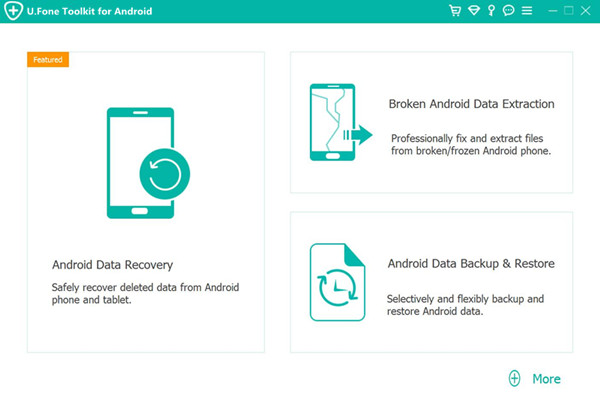
Android Toolkit not only enables you to recover Android lost/ deleted photos, gallery, picture library, contacts, text messages, messaging attachment, call history, music, video and document, but also can help you fix Android system to normal and extract data from broken Android phone, as well as backup and restore data on Android.

Accidents always happen without expection. In our daily life, you may lose important personal data on your Android device due to accidental deletion, factory reset, ROM flashing, software update, Android system update, virus attack, etc,. Please don’t worrying about it. Android Data Recovery empowers you to recover deleted data from Android efficiently. With this Android Toolkit, you can get back your lost data in a few simple clicks. In addition, it provides you two extra functions to manage your Android data – Broken Android Data Extraction and Android Data Backup & Restore. Let’s see how it works for Android phone or tablet.

Part 1: How to Recover Deleted and Lost Data on Android

Android Data Recovery is an ideal tool helps to restore deleted or lost data from Android due to any data loss circumstances, such as, accidental deletion, factory reset, ROM flashing, software update, Android system update, virus attack, etc,. The recoverable kinds of data including contacts, text messages, photos, videos, audio, call logs, documents, WhatsApp, WhatsApp attachments and more. Most of Android device are compatible with Android Data Recovery, like Samsung(Galaxy S20/S10/S9/S8/S7/S6/S5, Note 10/9/8/5/4), HTC, Lenovo, LG, Huawei, Motorola, ZTE, OnePlus, and so on.


d_win d_mac
d_win d_mac

See more Features of Android Data Recovery:

  • Recover photos, videos, contacts, messaging, call logs, and more types of files.
  • Allows to preview the scanned files before recovery.
  • Existing data will not be overwritten.
  • 3 simple steps: connect, scan and recover on Android.
  • Highest recovery rate in the industry.
  • It’s 100% security, only you can access your account and files.
  • Compatible with almost all brands of Android devices.
android data recovery, backup and restore

Step 1.Run Program on the Computer and Connect Android to Computer with a USB Cable
Please run Android Data Recovery on the computer, then connect your Android to computer by a USB cable,the program will detect your Android phone successfully very soon.

connect Android device with computer

Step 2.Enable USB Debugging on Android Phone
If you are not sure how to enable USB debugging on Android device, please learn more this:

Turn on USB Debugging on Android,you can follow the suitable ones according to your Android OS.
1)For Android 5.0 or newer: Tap “Settings” > “About Phone” to tap “Build number” seven times for “You are now a developer!” signal. Then, move to “Settings” > “Developer options” to turn on “USB debugging” (For Samsung Galaxy S7 users enable USB debugging guide)
2) For Android 4.2 or newer: Enter “Settings” > Click “About Phone” > Tap “Build number” for several times until getting a note “You are under developer mode” > Back to “Settings” > Click “Developer options” > Check “USB debugging”
3) For Android 3.0 to 4.1: Enter “Settings” > Click “Developer options” > Check “USB debugging”
4) For Android 2.3 or earlier: Enter “Settings” > Click “Applications” > Click “Development” > Check “USB debugging”

usb debugging android phone

For Samsung Galaxy Note 5/S8/S7/S6 and other Android devices base on Android 4.2.2 or above, your phone will prompt a message for you, please just tap on “OK” to allow USB debugging on it.

allow to connect android

Step 3.Select the File to Scan and Recover from the Andoid
Now the program will list all kinds of files for you to recover,including contacts, message, gallery, videos, whatsapp messages,etc,.

select file types

Step 4. Select the Scan Mode and Scan Android for Deleted File
Select the scan mode “Standard Mode” or the “Advanced Mode”,and click “Start” to begin analyzing and scanning your Android.And then you should tap “Allow>>Grant>>Authorize”on your phone to get privilege.

allow scanning the android

Tips: We recommend you to try the “Standard Mode” first, which works faster. If it doesn’t work, you can try the “Advanced Mode” later.

Step 5. Begin to Scan Android for Deleted Data
After that, Android Data Recovery will begin to scan all deleted files from your Android.

scan android data

Step 6. Preview and Recover Deleted File from Android
As the scanning result shows to you,all the found messages, contacts, photos, videos, audios, documents and WhatsApp chat history on the Android will be displayed, including the ones have never been deleted.

recover deleted data from android

Preview and mark those you want to recover, and click the “Recover” button to recover deleted file from Android and save it on the computer.

d_win d_mac
d_win d_mac

Part 2: How to Extract Data on Broken Android Phone

Broken Android Data Extraction is another function of Android Data Recovery, it is design for fixing broken Android to normal and extracting data from broken Android phone for any broken Android cases, including stuck in the start loop screen, stuck in the download mode, stuck at black screen, water-damaged, cracked device, device with broken screen and more. It enables to extract several types of data from broken Android, such as, contacts, text messages, photos, videos, audio, call logs, documents, WhatsApp, WhatsApp attachments and more. Broken Android Data Extraction works well for almost all Samsung devices, for instance, Galaxy S6/S7, Note 3/4/5.

d_win d_mac
d_win d_mac

See more Features of Broken Android Data Extraction:

  • Fix frozen, crashed, black-screen, virus-attack, screen-locked phone to normal.
  • Extract messages, contacts, call history, WhatsApp, photos, etc,. from broken Android phone.
  • Extract data from damaged Android phone internal storage and SD card.
  • Support almost all Samsung phones like Samsung Galaxy S, Samsung Galaxy Note, etc.
  • Safe and easy to use.

Step 1.Connect Android to the Computer
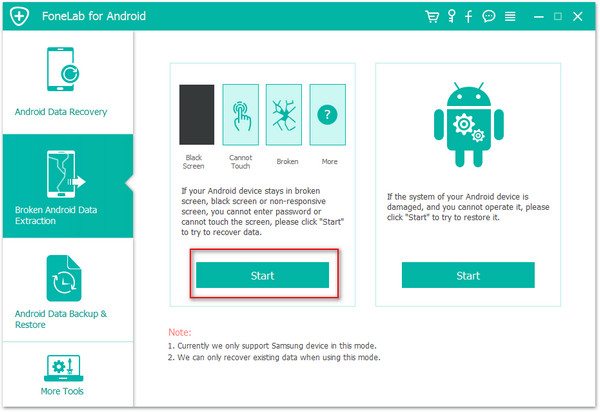
To begin with, please download and run Android Data Recovery on your computer. Connect your broken Android phone to the computer,  click on the “Broken Android Data Extraction” option. Then click on the “Start” button to begin the data extract process.
broken android data recovery main page

Step 2.Select Phone Model of your Android
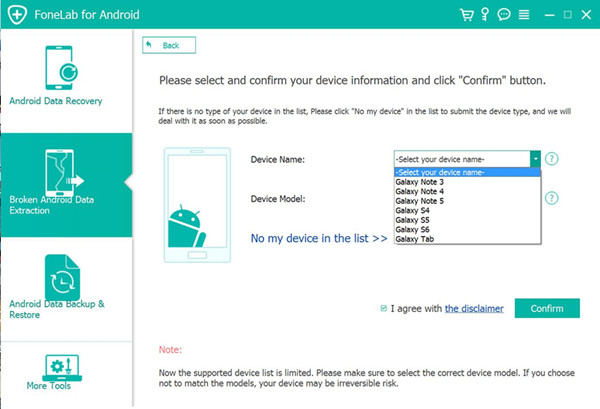
You will be asked to select the device model of your Android. Please check on the list of the interface.Then click “Confirm“.
select phone medel

Step 3.Get Android Phone into Download Mode
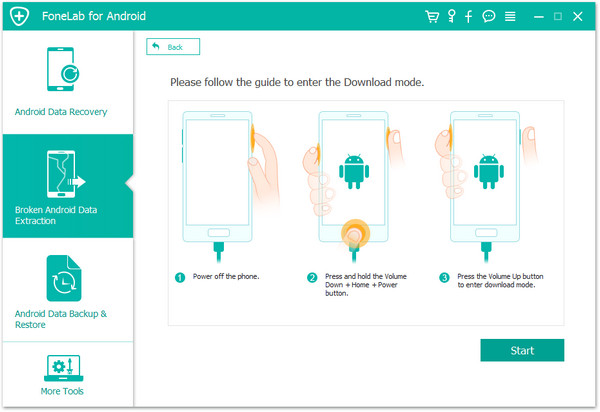
Once you’ve confirmed your device model, you should get Android into the Download Mode. Following the steps display on the interface below. Hit the “Start” button.
enter android into download mode

Step 4.Scan and Analyze Data of Android
Now the program will scan and analyze data on your Android device with minutes. You are allowed to preview the data from your device, including gallery, contacts, messages, call history, videos and more.
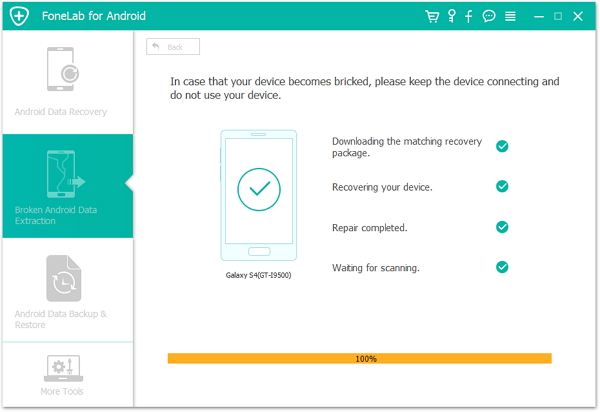
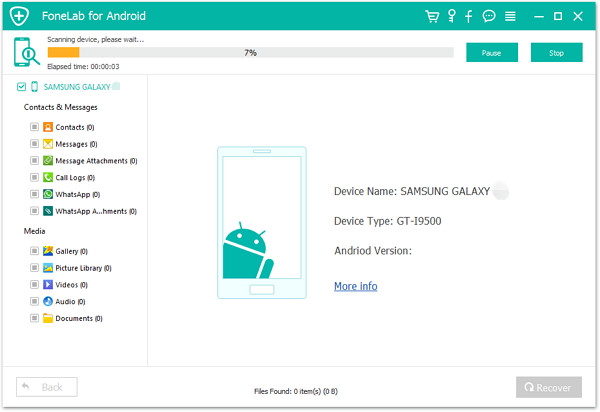
scan android data

analyze android data

Step 5.Extract File from Broken Android
After previewing the files you could choose to extract data under file, mark them and click “Recover” to save them on your computer.
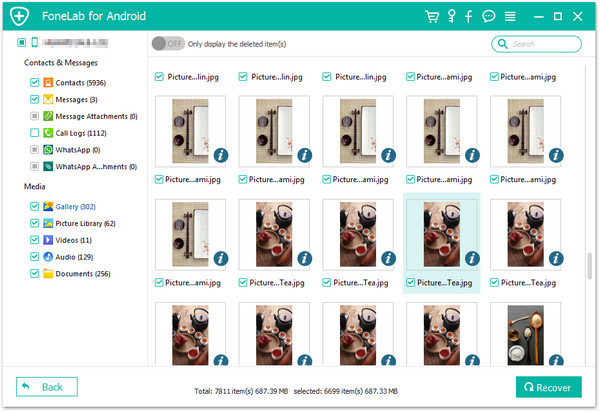
extract data from broken android

Part 3: How to Backup Android Data to Computer

Android Data Backup &Restore– Android Data Recovery can help to selectively and flexibly backup and restore Android data on the computer safely, including contacts, messages, call Logs, photos, videos, audio, documents and so on. It enables to backup data from Android to the computer, and restore backup files to Android on the computer. It is compatible to almost all brands of Android device: Samsung, HTC, LG, Sony, Motorola, ZTE, Lenovo, Huawei, Xiaomi, etc,.

d_win d_mac
d_win d_mac

See more Features of Android Data Backup &Restore:

  • One click to back up and restore Android data to your computer.
  • Preview data in detail before you restore data from backup.
  • Selectively back up and restore Android data without hassle.
  • supports a large number of Android phones and tablets.
  • Easy to use, 100% Security, efficient and fast.

Step 1. Run Android Data Recovery on the Computer and Select the Mode
Firstly, run Android Data Recovery on the computer and select “Android Data Backup &Restore” mode. Then click “One-click Backup” feature. Now connect your Android to the computer using a USB.
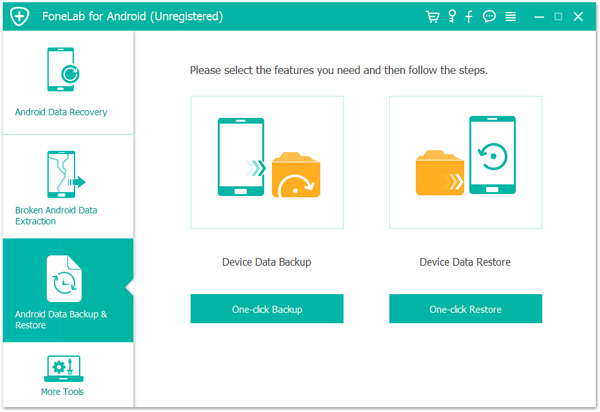
android backup restore interface

Step 2. Select the File Type to Backup
Select the file or more than one file to backup, contacts, messages,gallery, and more are included. Then click “Start“.
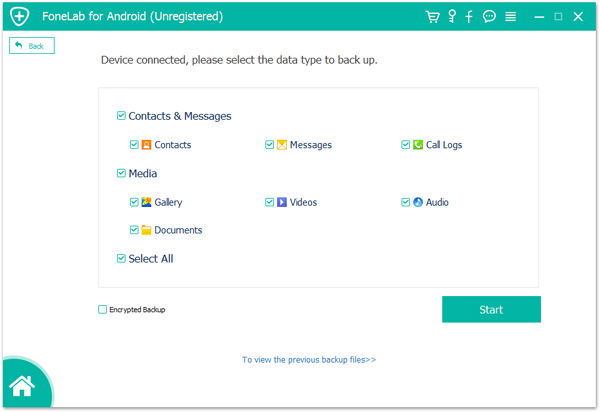
choose data type

Note: The program will prompt you to set a password for the backup to continue encrypted backup. You can set it or not depend on your situation. After setting the password for the backup file, click “OK” to go on.
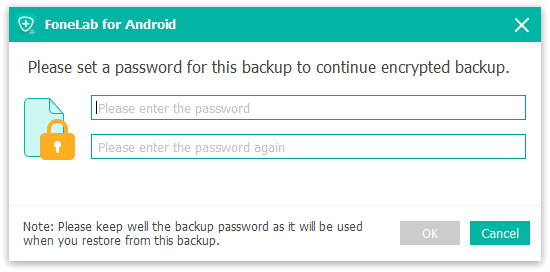
encrypted backup

Step 3. Begin to Backup Data for Android
The program will begin to backup data for your Android on the computer efficiently, please don’t disconnect the device or use it during the process.
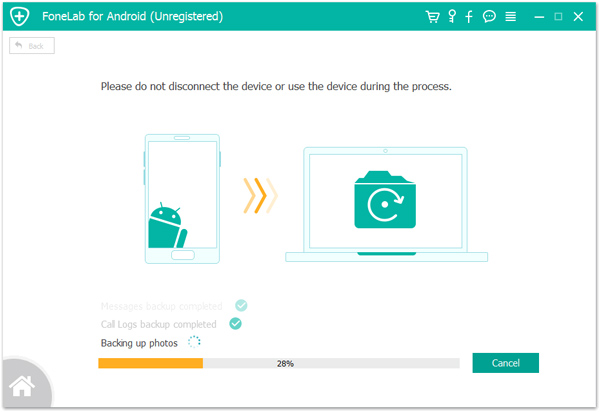
backup android to pc

Done. Now you could view the backup file for Android on your computer.
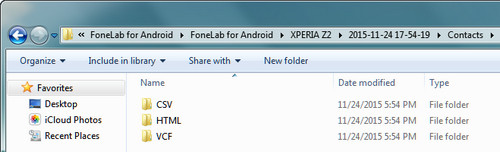
view android backup

Part 4: How to Restore Data to Android from Backups

Step 1. Run Android Data Recovery on the Computer and Select the Mode
Firstly, run Android Data Recovery on the computer and select “Android Data Backup &Restore” mode. Then click “One-click Restore” feature. Now connect your Android to the computer using a USB, click “Start”.
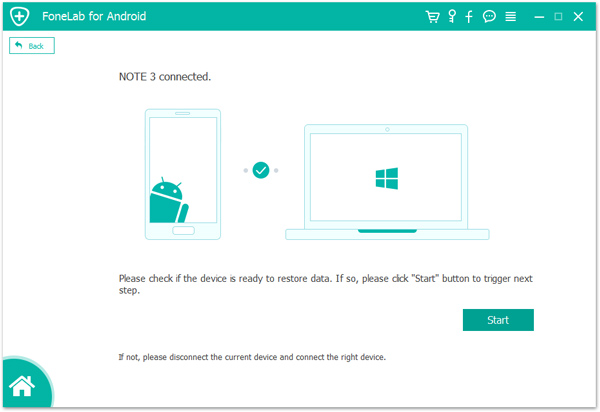
android backup restore interface

connect android to pc

Step 2. Select Backup File to Restore
The program will list several backup files for selecting to restore.Select the backup file that you want to restore to the device. Then click “Start” button to preview and restore data from the backup.
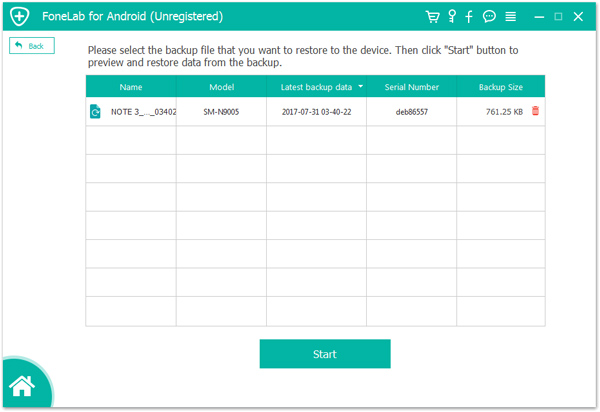
select backup file to restore

Step 3. Begin to Restore Backup File for Android
The program will begin to restore backup file for your Android on the computer efficiently, please don’t disconnect the device or use it during the process.
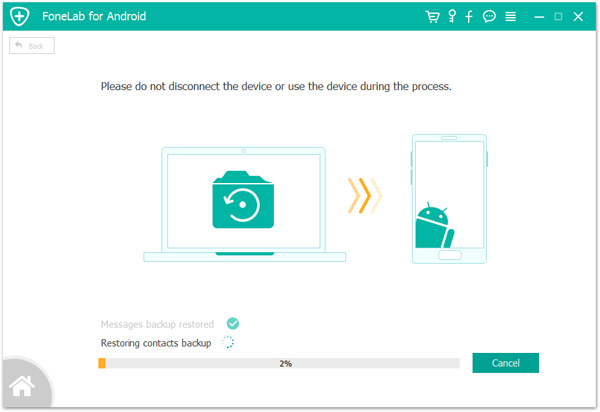
restore backup file to android

Restored completed. You’ve managed to restore your backup. Click “OK” to end the process.
Now you could view the file for Android on your computer.
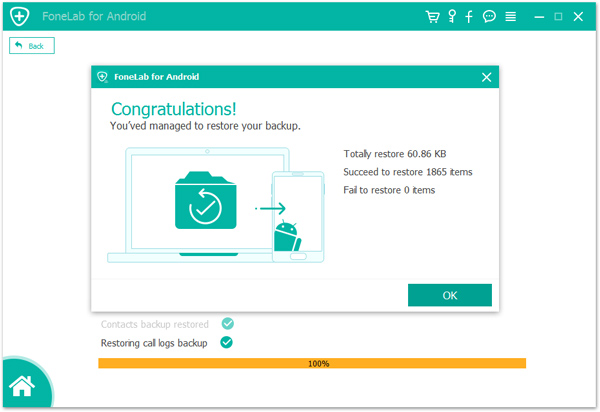
android restore completed

d_win d_mac
d_win d_mac