All posts by DHZ

How to Backup & Restore WhatsApp Messages for iPhone 8/iPhone X

Apple’s new iPhone 8 is official, but it’s not the most high-end phone from Apple as there’s also the new iPhone X. After months of rumors and speculation, the new iPhones are finally here. In addition to the special-edition iPhone X and a larger 5.5-inch iPhone 8 Plus counterpart, the iPhone 8 serves as the successor to last year’s iPhone 7. One of the hottest topic about the new iPhone is the FaceID function. It’s a powerful features of iPhone X, it means that the iPhone X will know what your face looks like from all angles and can unlock the phone while it’s, say, lying on a table.

WhatsApp is one of the most popular messaging apps used by millions of mobile users around the world. Most of us like to talk with others using WhatsApp app. There is no doubt that people keep a lot chat history on WhatsApp, which contain some important personal information. However, there are many situations will occur in daily life. In order to avoiding losing WhatsApp data from iPhone, you should do a backup job for iPhone 8. In this tutorial you will learn how to backup & restore WhatsApp messages for iPhone 8/iPhone X on the computer safely.

Backup & Restore WhatsApp Messages for iPhone 8/iPhone X

iOS WhatsApp Backup & Restore Tool – iOS ToolKit is a useful program designed to backup,restore and transfer WhatsApp messages for iOS or Android phones conveniently and efficiently. It enables to backup and restore WhatsApp data for iPhone 8/iPhone X on the computer safely, including WhatsApp messages, photos, videos and attachments. Besides, this program supports to transfer WhatsApp chat history to iOS/Android devices from iPhone. All models of iOS devices are compatible with iOS WhatsApp Backup & Restore Tool, including iPhone 8, iPhone X, iPhone 7, iPhone 6S/6, iPhone 5S/5, iPad and iPod.


d_win d_mac

Part 1:How to Backup WhatsApp Messages for iPhone 8/iPhone X

Step 1.Connect iPhone 8/iPhone X to the Computer
To backup WhatsApp messages from iPhone to computer,you should choose “Backup WhatsApp messages”under the “More Tools”option of iOS WhatsApp Backup & Restore Tool.Get your iPhone connected to the computer.Then you’ll see the window of the program as follows.
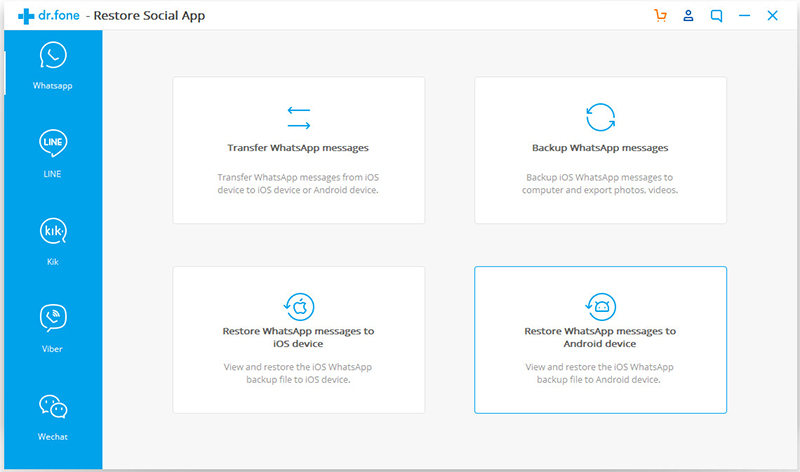
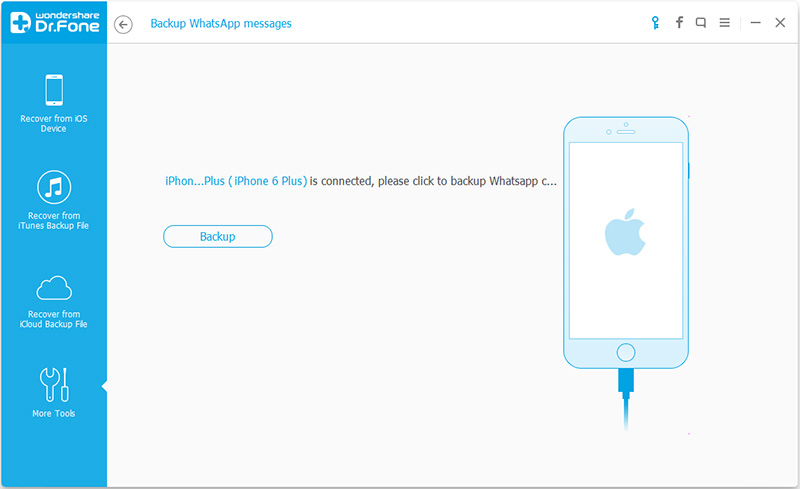
whatsapp backup restore tool

connect iphone to the pc

Step 2.Backup WhatsApp Messages to Computer
Once your device is detected,click “Backup” to begin the process.
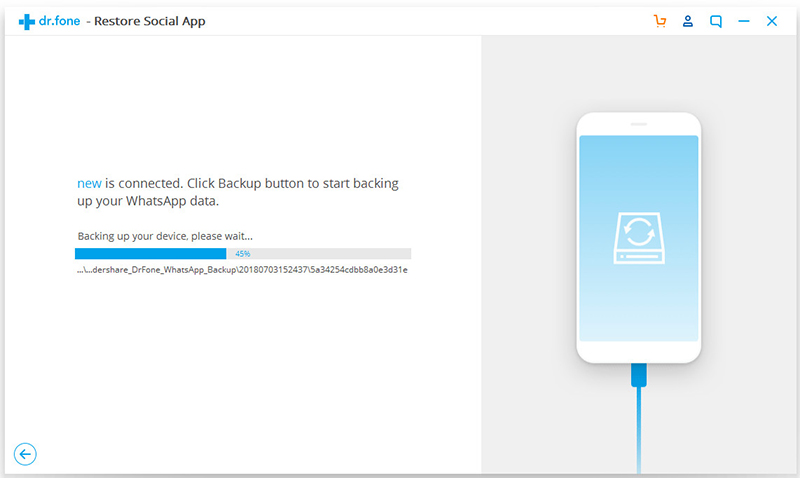
backup iphone

Once the backup begins,you need to wait a little while.The program will finish the process automatically.When you’re prompted that the backup is completed, you will see the window below.Then you can click “View it” to check the backup WhatsApp file if you need.
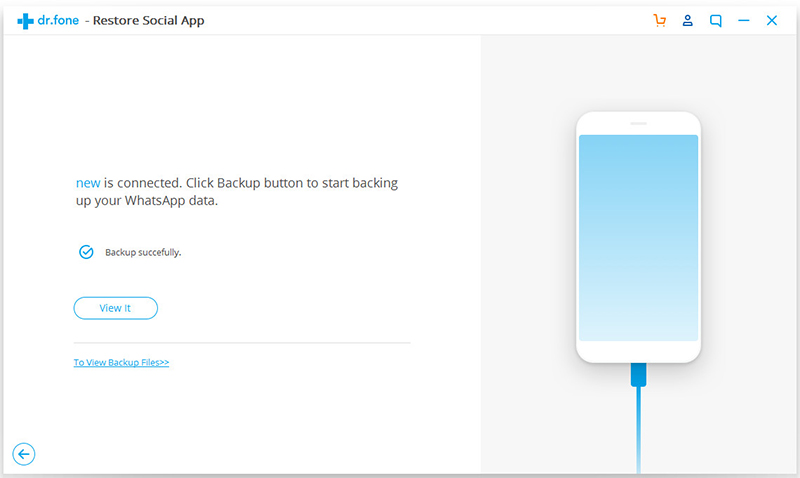
iphone backup completed

Step 3.View the Backup File and Export Data Selectively
Choose the backup file that you want to view if there are more than one backup file listed.
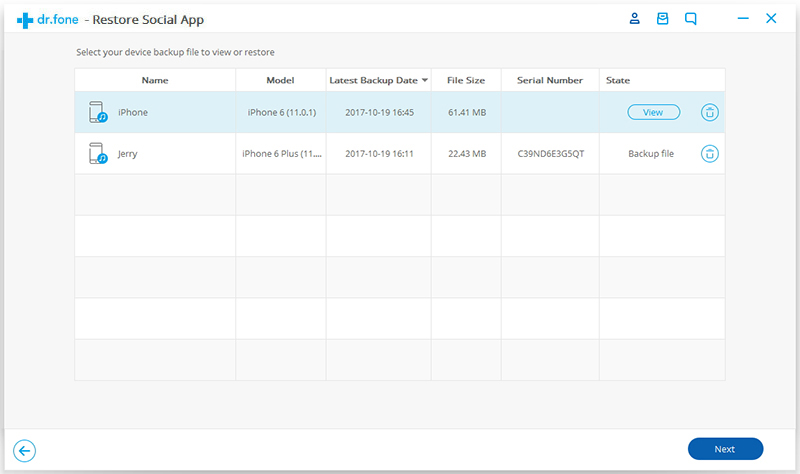
view the backed up file

Then you will see all the details.Choose any item you want to export to your computer or restore to your device.
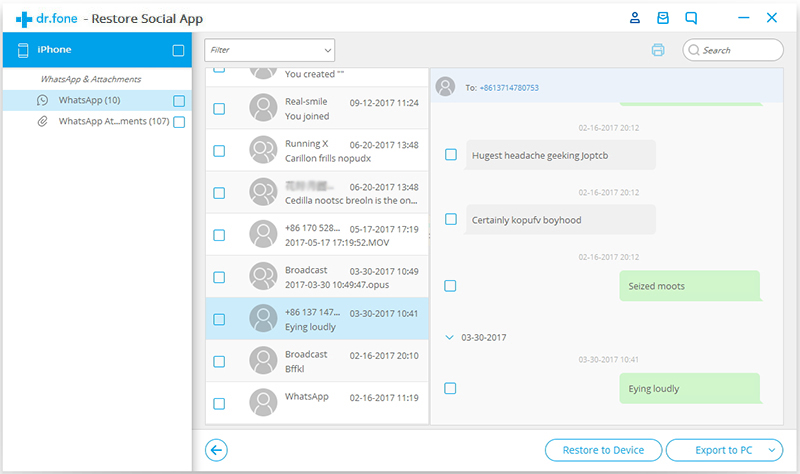
restore backed up file

d_win d_mac

Part 2:How to Restore WhatsApp Messages for iPhone 8/iPhone X

Step 1.Connect iPhone 8/iPhone X to Computer
To restore WhatsApp messages to your iPhone,you should choose “Restore WhatsApp messages to iOS device” under the “More Tools” option of iOS WhatsApp Backup&Restore Tool.Get your iPhone connected to the computer.Then you’ll see all your backup files listed.
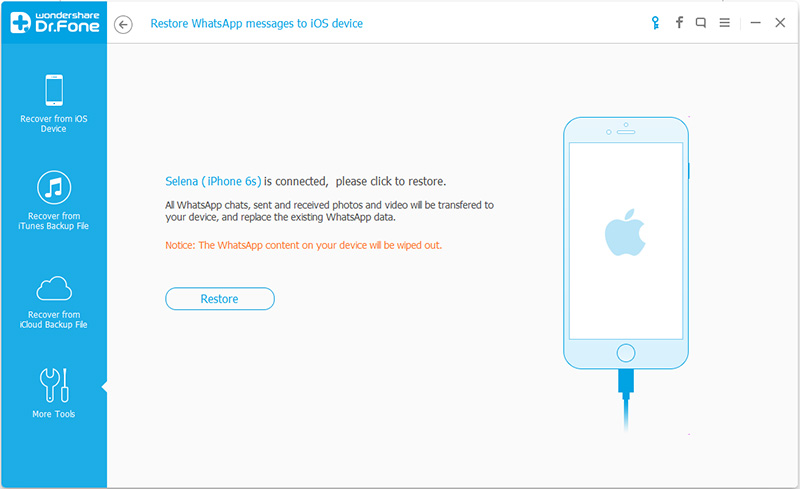
ios backup restore tool

connect iphone to pc

Step 2.Restore WhatsApp Message Backup to iPhone
You can choose a backup file and click “Next” to directly restore it to your iPhone as follows.
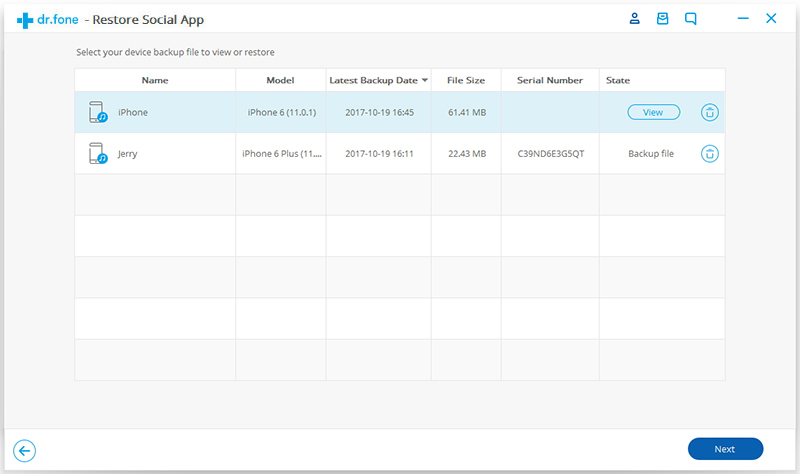
choose backed up file to restore

Or you can choose to view the backup file first,and then selectively choose what you want to restore it to your iPhone or export to PC.
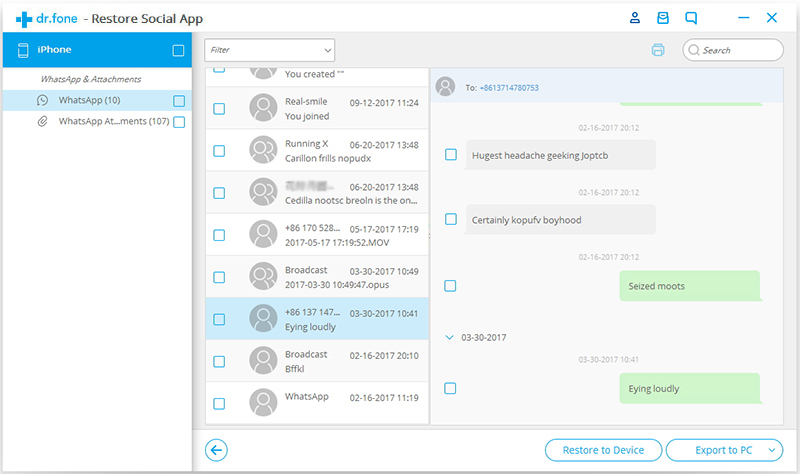
restore backed up to iphone

d_win d_mac

Related Article:

How to Backup,Restore and Transfer WhatsApp Messages on iPhone

How to Transfer WhatsApp Chats History to iPhone 8/7/6S

How to Transfer WhatsApp Chat History from iPhone to Samsung Galaxy

How to Transfer WhatsApp Photos & Videos from iPhone to Android

How to Transfer WhatsApp Messages between Android

How to Convert and Transfer Apple Music to iPhone?

[Summary]: Want to play Apple Music songs on iPhone offline? This page teach you how to remove DRM from Apple Music songs and convert them to MP3, then transfer the converted Apple Music songs & playlist to iPhone XS(Max)/XR/X and iPhone 8/8 Plus for offline listening.

I switched to the new iPhone 8 for upgrading. Is it possible to rip the purchased iTunes music on my Mac by myself? I wanna play the songs on my new iPhone without limitation. How?

I have got a new iPhone XS Max, how to sync Apple Music and iTunes M4P files to iPhone XS Max for listening without connecting Wifi? I want to play Apple Music songs offline.

Since the released of iTunes Music, many subscribers have been looking for a solution to convert the purchased Apple Music tracks to MP3 or other common audio formats so that they can play the music for free without restriction. As we know, Apple Music are protected with Apple’s FairPlay DRM, due to which Apple users are only allowed to download Apple Music songs to play on Apple’s devices for a time limitation. It’s still frustrated that the streaming music downloaded with Apple Music are prohibited from copying or ripping to other non-iOS devices and all music streams will become disabled when the subscription is canceled. Through reading this tutorial, you will get the best solutions to convert DRM protection Apple Music files from M4P to MP3 for iPhone 8 on Mac with the help of Apple Music Converter.

Rip Apple Music with MP3 Files for iPhone 8 on Mac

A famous music converter tool calls UkeySoft Apple Music Converter for Mac, it enables to legally rip Apple music with its original quality. This streaming audio recorder can remove the DRM protection from Apple music and then converting the Apple music from M4P to MP3 for iPhone 8 on Mac. Furthermore, the program also enables you record iTunes audiobooks, Audible audiobooks and other iTunes purchased M4P music as MP3. When the conversion is completed, you can play the converted Apple music on any mobile devices that compatible wit MP3, including iPhone 8/7/6S/6/5S/5, iPad, iPod, Android devices, PSP, Zune, MP3 player, and so on.

d_win d_mac

See More Features of Apple Music Converter for Mac:
-Remove DRM protection from Apple Music.
-Convert Apple Music M4P songs to DRM-free MP3, M4A, etc,.
-Convert iTunes songs and Audiobooks to MP3, M4A, etc,.
-Keep original quality to the converted MP3, M4A audio files.
-Preserve Audiobooks chapter information to M4A output.
-Convert Apple Music songs at up to 16X speed.
-Allows you to convert many Apple Music songs at one time as you like.
-Loads all your Apple Music tracks and playlists automatically instead of downloading them.

Convert Apple Music M4P to MP3 for iPhone 8 on Mac

Step 1.Download and Launch Program on Mac
Download the Apple Music Converter for Mac on your Mac.After running the program immediately,iTunes will be launched automatically with this program at the same time.

launch apple music converter

Step 2.Select the Apple Music you Want to Convert to MP3
The program will load all iTunes files automatically,including music, playlists, Audiobooks, M4P Audio, iTunes movies and TV shows.Please click on “Library” and mark the Apple Music tracks that you want to remove DRM and convert to MP3.

select Apple music to convert

Tips:You can select several items one by one or select the entire album by clicking on the checkbox on the top menu bar.If you added Apple Music songs/albums to iTunes library, click “Music” on the left side and sort all songs by Type. Check the songs marked with “Apple Music AAC audio file”.

Step 3.Set the MP3 as the Output Format for Converted Music
After selecting the Apple Music you want to rip/convert,you should select the music output format,in order to converting all Apple music songs to MP3 format. Please select MP3 from the drop-down list under the “Output Format” column.The program allows you change the output parameters like channels, sample rate, codec, bitrate, etc,.

select mp3 output format

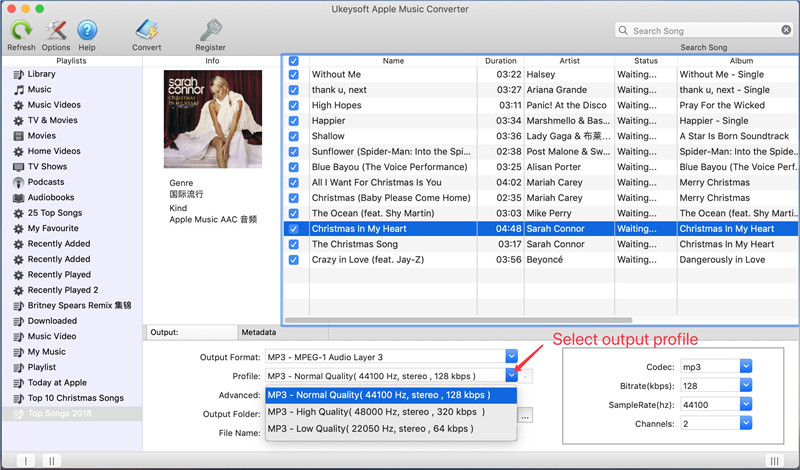
Select MP3 as the Output Profile for Converted Music:

select mp3 output profile

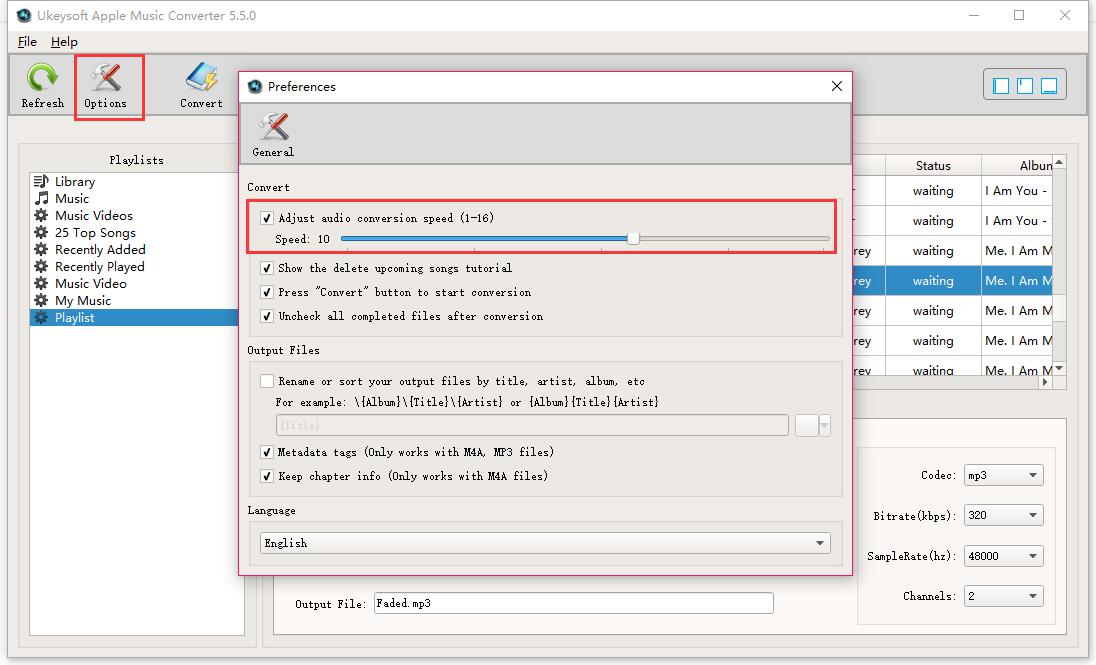
Adjust the Speed of the Music Conversion:
If you would like to change the speed of the music conversion, then go to Options>>General.One the preferences windows to “Set Custom conversion speed for audio convert (1-16)” to adjust the conversion speed.

Adjust Conversion Speed

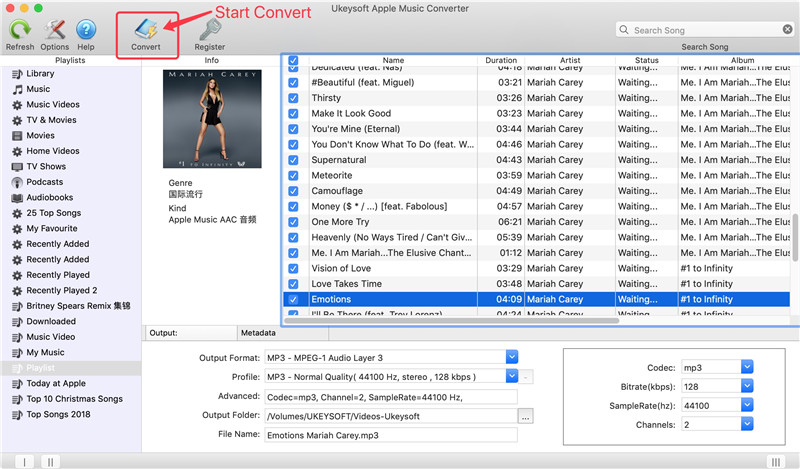
Step 4.Convert Apple Music from M4P to MP3
When everything is ready,then click “Start Convert” button to start converting Apple Music from M4P music to MP3 and save the converted MP3 Apple songs on Mac, it will cost you several minutes to finish the conversion.

convert Apple Music songs to MP3

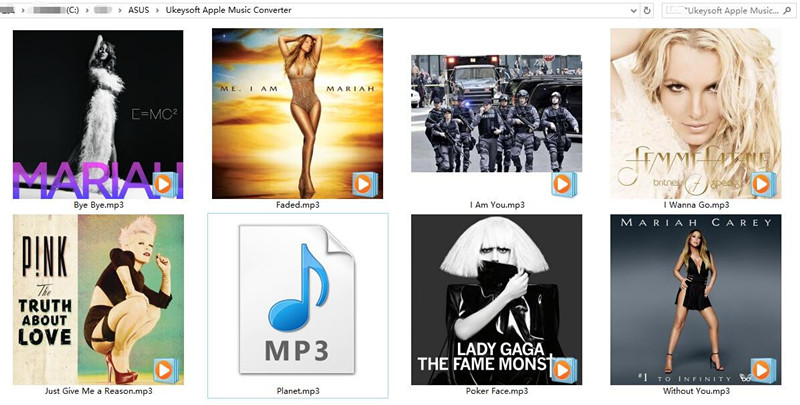
Once the conversion completed, please click on the “Open Output File” button to view the converted MP3 music files on your Mac,then you can enjoy the converted Apple music in DRM-free MP3 format without limitation.

get Apple Music in MP3 format

You are allowed to view converted music files on Mac:

export converted apple music

Step 5.Transfer and Play Converted Apple Music with MP3 on iPhone 8
Now,you have converted the protected Apple music from M4P to MP3 for free,you can play all converted MP3 Apple music on Mac without iTunes.If you want to listen to Apple Music on iPhone 8,please import them to your device with iOS Manager and enjoy your the converted Apple songs freely.

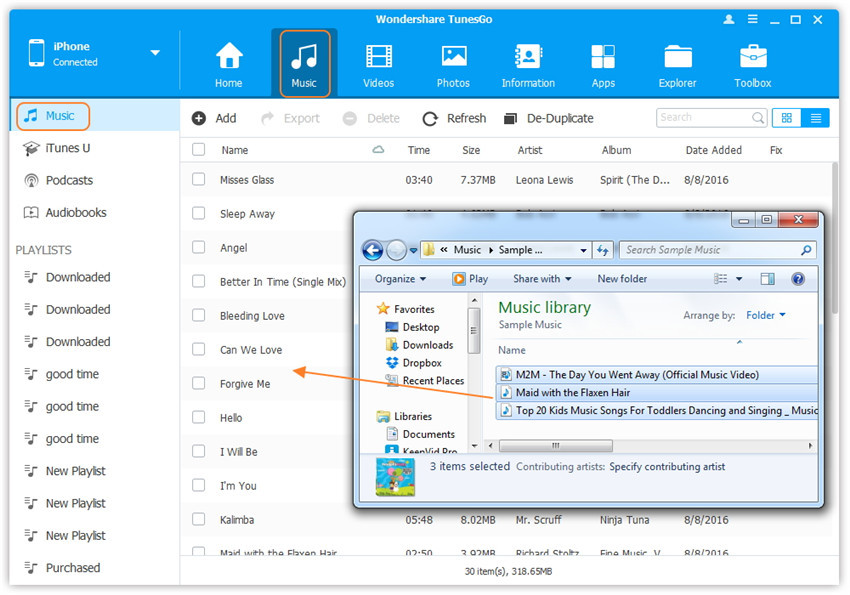
Tutorial: How to Import Music from Computer to iPhone 8/7/6S/6

import converted apple music to iPhone 8

d_win d_mac

More Tips You May Be Interested In

How to Convert Protected Apple Music to MP3 for iPhone 8/7/6S/6

How to Play Apple Music on iPhone 8/7/6S/6 for Free

How to Play Apple Music on iPhone/iPod/iPad for Free

How to Play M4P Apple Music on iOS Device

Remove DRM and Play Apple Music on iPhone without Limitation

How to Convert iTunes M4P Music to MP3 for Android

How to Manage iPhone 8/7/6S/6 on Computer

Convert Apple Music to iPhone

How to Convert iTunes M4V Videos to MP4 on Mac

Summary: Nowadays M4V iTunes videos file extension are very popular for Apple users. But devices that compatible with M4V file are very limited unless you convert it to a more common format like MP4, then you’ll be allowed to use it without limitation, for example, watch the converted MP4 files on your Android devices or other MP4 players. Check out the guide for more information about converting M4V iTunes videos to MP4 with easy steps.

Like downloading or watching videos on iTunes? It is available to get the videos and movies by purchasing the videos in Apple store or access it via online videos services from iTunes library. Believe it or not, nearly 80% of people choose to purchase videos from iTunes, iTunes videos even it is known that Apple always adds restrictions to its media sources in some way. The videos sold or subscribed on iTunes store which is DRM- protected with M4V format. That caused the problem, you are unable to enjoy the iTunes audio tracks with MP4 player, Android mobiles, PS4, or other mobile devices that compatible with MP4 files, unless converting the DRM M4V videos to MP4. Here we will shows you a helpful tool enables to convert iTunes Videos from M4V to MP4 on Mac or Windows.

Convert iTunes Videos from M4V to MP4 on Mac

UkeySoft M4V Converter can help to freely convert iTunes videos from M4V to MP4 on Mac and on Windows, after the conversion, you can play the converted MP4 iTunes videos without limitation. This professional DRM removal program works at 30x faster speed to convert iTunes M4V to MP4 with original video quality, subtitles and audio tracks preserved. The converted MP4 files can be played only on any mobile device that compatible with MP4 files, like iPad, iPod, Android, MP4 players, PS4, Xbox One, Creative Zen, etc,.

Sum Up the Features of iTunes M4V Converter:

-iTunes Videos DRM Removal: Remove DRM protection from iTunes videos or TV Shows.
-Convert the purchased/rented iTunes M4V videos/movies to MP4.
-Convert purchased iTunes or free TV shows from M4V to MP4.
-Convert iTunes M4V Music Videos to DRM-free MP4 at 30X speed.
-Output 1080P HD with 100% original quality.
-Play the converted iTunes videos on any MP4 players for free without limitation, such as Android, MP4 players, PS4, Xbox One, Creative Zen, etc,.

d_win d_mac

Kind Tips: If you seek a reliable YouTube to MP3 Converter, 4kFinder YouTube Music Downloader is the tool that allows you to download YouTube videos and music as MP3 or M4A files faster with better quality. Then, you can offline enjoy YouTube music on any MP3 player, mobile phone.

How to Convert M4V iTunes Videos to MP4 on Mac

Step 1. Download and Run the iTunes M4V Converter for Mac on the Computer
First of all, please download, install and run UkeySoft M4V Converter on Mac, the iTunes will be launched automatically at the same time.

itunes drm converter

Step 2. Select the M4V iTunes Videos to Convert
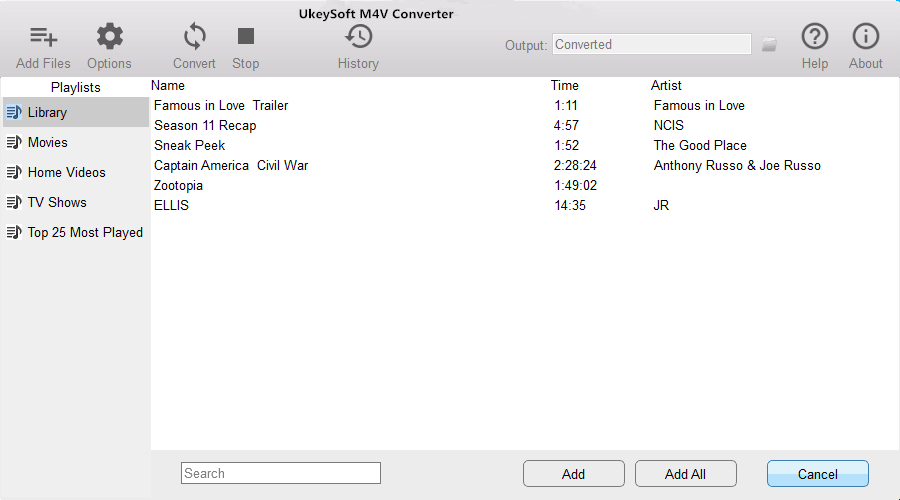
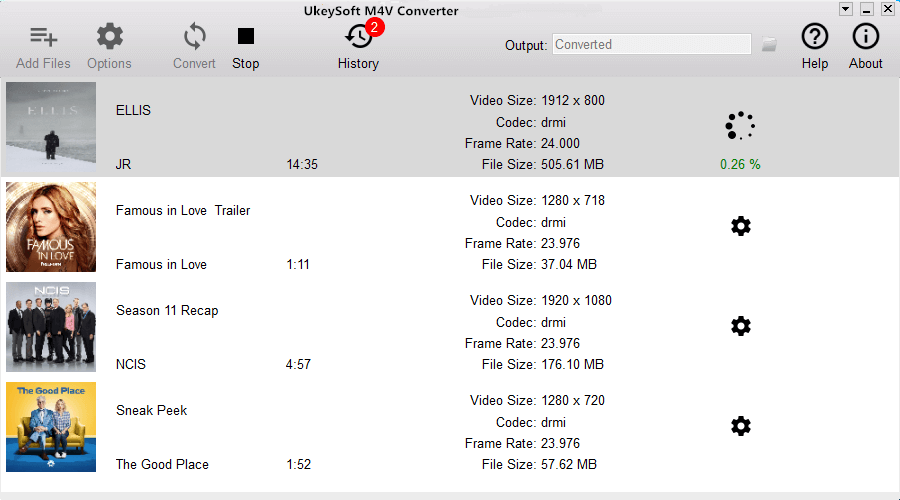
Click “Add Files” button and the program will load all videos from your iTunes Library, including Music Video, Movies and TV shows. Select the videos you want to convert to MP4 and click “Add“. (You can add more than one videos at one time if needing.)

add itunes video

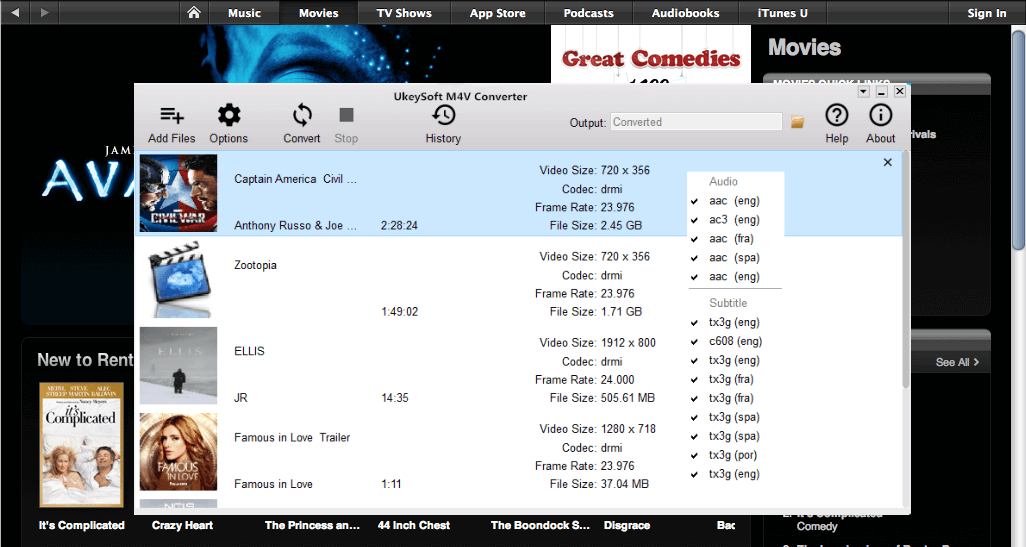
The program will keep all audio tracks and subtitles from the original M4V movies to output MP4 movies, including Dolby AC3 5.1, AD, CC. Click the gear icon to uncheck the ones you don’t need.

movie audio tracks subtitles

Step 3. Convert the M4V iTunes Videos to MP4
Now just simply click “Convert” button to begin converting selected M4V videos to MP4. The converted MP4 videos will be saved to Documents by default. You can change the destination folder by clicking the arrows on the top right corner of the interface of program.

convert videos to mp4

d_win d_mac

Related Article:

How to Convert DRM Protected iTunes M4V Videos to MP4

How to Convert iTunes M4V Movies to MP4 Easily on Mac

How to Convert iTunes M4V Videos to MP4

How to Convert the iTunes Videos to MP3 Files

How to Remove DRM from Apple Music M4P Completely

How to Rip Apple Music For Free

How to Play M4P Apple Music on iOS Device

How to Play Apple Music M4P on Android

How to Convert DRM Protected iTunes M4V Videos to MP4

Summary: Are you wondering why you can’t play and watch the iTunes videos you bought on non-Apple devices? In fact, it’s because the iTunes videos are all DRM protection. You must remove the DRM-protected and convert iTunes videos from M4V to MP4, then you are freely play the iTunes videos on any MP4 devices without limitation.This article will show you how to convert iTunes videos from M4V to MP4 in an easy and professional way.

M4V File VS MP4 File
The M4V file format is a video container format developed by Apple to encode video files in its iTunes Store. These M4V files are protected by Apple’s Fairplay DRM copyright protection so it can only be played with iTunes on computer, iPhone, iPad and iPod. MP4 is a multimedia container format most commonly used to store video and audio. It is universally recognized and supported by nearly all video players and hardware devices like iTunes, iPhone, Media Player Classic, Xbox, and more MP4 players.

Remove DRM Protection for iTunes M4V Videos

To remove DRM protection from iTunes M4V videos and convert the M4V iTunes videos to MP4, you can try the iTunes DRM Media Converter for Mac and iTunes DRM Media Converter for PC. This professional DRM removal application works at 30x faster speed to convert iTunes M4V to MP4 with original video quality, subtitles and audio tracks preserved.The ideal iTunes M4V Converter enables iTunes users legally strip DRM off from iTunes M4V videos while converting M4V to MP4 efficiently and other formats.

d_win d_mac

More Features about iTunes M4V Converter you may be interested in:
-Remove DRM Protection from iTunes movies or TV Shows.
-Convert purchased or rented iTunes M4V videos/movies to MP4.
-Convert purchased or free iTunes TV shows from M4V to MP4.
-Convert iTunes M4V Music Videos to DRM-free MP4 at 30X speed.
-Enjoy the iTunes rental movies with more freedom.
-Play the iTunes M4V videos on various non-Apple devices, such as Android, MP4 players, PS4, Xbox One, Creative Zen, and so on.
-Output 1080P HD with 100% original quality.

How to Convert iTunes M4V Videos to MP4

Step 1. Download and Run the iTunes M4V Converter on the Computer
First of all, please download, install and run iTunes M4V Converter on your computer. iTunes will be launched automatically at the same time.

itunes drm converter

Step 2. Select the M4V Videos to Convert
Click “Add Files” button and the program will load all videos from your iTunes Library, including Music Video, Movies and TV shows. Select the videos you need to convert to MP4 and click “Add“. (You can add more than one video at one time if you need.)

add itunes video

The program will keep all audio tracks and subtitles from the original M4V movies to output MP4 movies, including Dolby AC3 5.1, AD, CC. Click the gear icon to uncheck the ones you don’t need.

movie audio tracks subtitles

Step 3. Convert the Selected iTunes M4V Videos to MP4
In the last step, just simply click “Convert” button to start converting selected M4V videos to MP4. The converted MP4 videos will be saved to Documents by default. You can change the destination folder by clicking the arrows on the top right corner of the program interface.

convert itunes videos to mp4

Finished. So easy, right?

d_win d_mac

Related Article:

How to Convert iTunes M4V Movies to MP4 Easily on Mac

How to Convert iTunes M4V Videos to MP4

How to Convert the iTunes Videos to MP3 Files

How to Remove DRM from Apple Music M4P Completely

How to Rip Apple Music For Free

How to Play Apple Music on MP3 Player

How to Play M4P Apple Music on iOS Device

How to Play Apple Music M4P on Android

How to Recover Deleted iPhone Text Messages after iOS 11 Jailbreak

Some important text messages on my iPhone were lost after performing iOS 11 jailbreak failed on my iPhone, the deleted messages contain some important data related to my business. Is it possible to recover the deleted text messages from iPhone directly without backup?

iOS 11 Jailbreak on iPhone Failed
It is a common choice for iOS device users to jailbreak iPhone/iPad if they want to get more use of device, for example, installing applications outside of Apple official App store. However, you may fail to jailbreak iOS 11 on iOS device due to some reasons. It is lucky if it does not cause any trouble on your iOS device due to iOS 11 jailbreak failure, but it will be an annoy thing if you lose important data especially text messages after iOS jailbreak failure. After the iOS jailbreak failed, you still able to access the deleted data on your device and get them back directly from device even without backup with the help of iOS Data Recovery.

Restore Deleted Text Messages from iPhone via iOS Data Recovery

If you have lost messages cause of perform iOS jailbreak on iPhone, you might hope in recovering the deleted text messages from iPhone after iOS 11 jailbreak. Check with iOS Data Recovery program, the doctor for rescuing deleted data on iPhone/iPad/iPod, including text messages, contacts, photos, videos, notes, calendars, WhatsApp & attachments, apps and more. iOS Data Recovery supports to recover deleted iOS data due to any data loss circumstances, like iOS jailbreak, iOS update, deleted by mistake, restore to factory reset, and others. All iOS devices are compatible with iOS Data Recovery, such as, iPhone 7, iPhone 6S/6, iPhone 5S/5, iPad and iPod.

d_win d_mac

Directly Restore Deleted Text Messages from iPhone after iOS 11 Jailbreak

First of all,please install and run iOS Data Recovery on your computer.

Step 1.Run Program and Connect iPhone
Run iOS Data Recovery on the computer,connect your jailbroken iPhone to the computer,select “Recover from iOS Device”mode.Click “Start” to start the data recovery process.

connect iphone with computer

Step 2.Select Text Messages File to Scan by Program
To directly recover deleted text messages from iPhone after iOS 11 jailbreak,you should select the type of deleted data to be scanned by program.For text messages recovery,you should click “Message” file. Note: You are allowed to select more than one files to be scanned by program,then click “Next” to go on.

select sms file to recover

Now the program will begin to scan your device automatically for deleted text messages.

scan iphone for deleted sms

Step 3.Preview and Directly Recover Deleted Text Messages from iPhone after iOS 11 Jailbreak
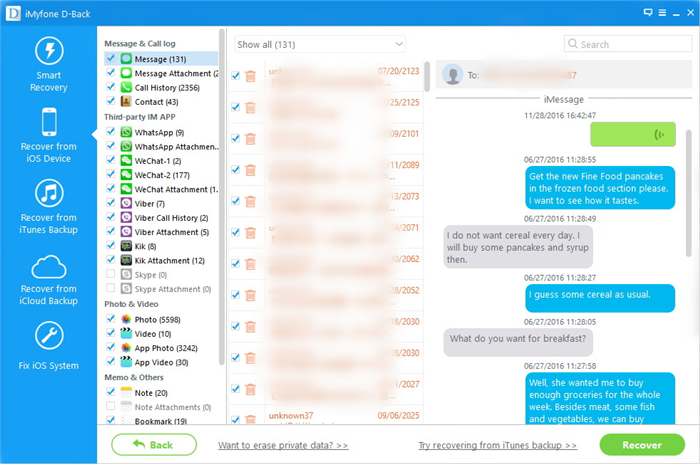
When the scanning is finished,you are allowed to preview and directly recover the deleted iPhone text messages.Select the data you want and click “Recover” to save the selected data under “Message” &”Message Attachment” files to the computer.

recover deleted sms from iphone

d_win d_mac

Related Article:

How to Recover Deleted iPhone Data after iOS 11 Jailbreak

How to Recover Deleted iPhone Contacts after iOS 11 Jailbreak

How to Restore Deleted iPhone Photos after iOS 11 Jailbreak

How to Recover Lost Data on Jailbroken iPhone 8/7/6S/6

How to Restore Lost Files on iPhone 8/7/6S/6

How to Recover iPhone SMS after iOS 11 Update

How to Backup & Restore iPhone 8/7/6S/6

How to Recover Deleted iPhone Contacts after iOS 11 Jailbreak

The contacts on my iPhone 7 were lost after I jailbreak iOS 11 on it. I don’t know what’s wrong with my device. Is it possible to restore the lost contacts from iPhone directly without backup? Thanks advanced.” – Kate

You may ask “How to recover iPhone contacts after iOS jailbreak?” like Kate. In my opinion, performing iOS jailbreak and iOS upgrade is a common operation for iOS devices. So you are not the only one people who lost iPhone data after iOS jailbreak. Even you are just unfortunate to lose the iPhone contacts, it’s not a impossible work to recover them. Actually, there are two ways for you restore all contents from iPhone after iOS 11 jailbreak. If you have synced your iPhone previous,you can extract and recover your data from the backup files, however, if you haven’t, how to restore the deleted contacts from iPhone directly after iOS 11 jailbreak? This page is going to show you an available way to get back deleted iPhone data via iOS Data Recovery.

Part 1: Tips to Rescue iPhone Contacts after iOS 11 Jailbreak

To make sure that the wiped contacts after iOS jailbreak is recoverable and won’t be overwritten by other data, you should pay attention to the following tips:

A.Don’t sync iPhone with iTunes or iCloud.
B.Use your iPhone as less as possible.
C.Get a professional iPhone data recovery tool to recover contacts from iPhone right now.

Part 2: How to Restore Deleted Contacts from iPhone after iOS 11 Jailbreak

Restoring Deleted Contacts from iPhone after iOS 11 Jailbreak, you can make use of iOS Data Recovery, it can help to recover deleted data on iOS devices after losing data for any reasons, including iOS jailbreak, iOS update, deleted by mistake, restore device to factory reset, and others. The recoverable types of iOS data insist of contacts, text messages, photos, videos, notes, calendars, WhatsApp & attachments, apps and more. This program supports to restore data for all iOS devices, such as, iPhone 7, iPhone 6S/6, iPhone 5S/5, iPad and iPod.

d_win d_mac

Firstly,please install and run iOS Data Recovery on your computer.

Step 1.Connect iPhone and Select Recovery Mode
Connect your jailbroken iPhone to the computer,select “Recover from iOS Device”mode.Click “Start” to begin the data recovery process.

connect iphone with computer

Step 2.Select Contacts File to Scan by Program
To directly recover deleted contacts from iPhone after iOS 11 jailbreak,you should select the “Contacts” file to be scanned by program.You are allowed to select more than one files to be scanned by program,then click “Next”.

select contacts file to recover

Now the program will begin to scan your device automatically for deleted contacts with seconds.

scan iphone for deleted contacts

Step 3.Preview and Directly Recover Deleted Contacts from iPhone after iOS 11 Jailbreak
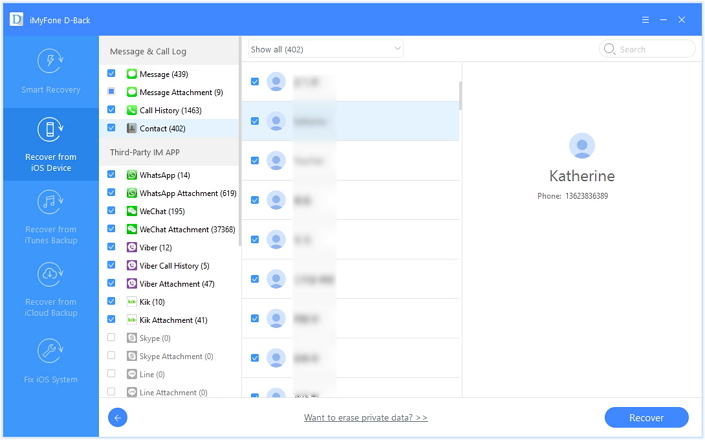
When the scanning is finished,you are allowed to preview and directly recover the deleted iPhone contacts.Select the data you want and click “Recover” to save the selected data to the computer.

recover deleted iphone contacts

d_win d_mac

Related Article:

How to Recover Deleted iPhone Data after iOS 11 Jailbreak

How to Restore iPhone Photos after iOS 11 Jailbreak

How to Recover Lost Data on Jailbroken iPhone 8/7/6S/6

How to Recover Lost iPhone Contacts after iOS 10 Jailbreak

How to Restore Lost Files on iPhone 8/7/6S/6

How to Recover iPhone Contacts after iOS 11 Update

How to Backup & Restore iPhone 8/7/6S/6

How to Recover Deleted iPhone Photos after iOS 11 Jailbreak

I had Performed iOS 11 jailbreak on my iPhone 7. After that, some photos on my iPhone were disappeared. I need my photos back urgently, it’s very important to me. Is there any way that I can restore my iPhone and get the deleted photos back? Thanks advanced. By the way, I forgot to backup my iPhone recently.

Searching for a solution to have your data back after iOS 11 jailbreak especially those precious photos recording your meaningful life moments? If you’ve synced your iPhone with iTunes or iCloud before the jailbreaking, it’s not a problem. But how to do if you have no a backup for the deleted iPhone data? Is it possible to recover deleted iPhone photos directly after iOS 11 jailbreak? Absolutely the answer is YES. Let’s check detailed tutorial below and you will learn how to get back deleted photos from iPhone after iOS 11 jailbreak. But one thing you should keep in mind is that not to sync your iPhone with iTunes or iCloud after you lost data on device, or your personal data will be overwritten and you won’t able to get it back.

Restore Deleted iPhone Photos after iOS 11 Jailbreak

You can have my recommendation here: iOS Data Recovery, a reliable program that allows you to preview and recover previous contacts, SMS, notes, photos, videos and more on iOS devices for any data loss circumstances, like iOS jailbreak, iOS update, deleted by mistake, restore device to factory reset, device lost or others. With the help of iOS Data Recovery, you can easily recover deleted photos from iPhone after iOS 11 jailbreak. iOS Data Recovery supports to recover iOS data for three recovery modes: directly recover from iOS devices, recover from iTunes backup, recover from iCloud backup. All iOS devices are compatible with iOS Data Recovery: iPhone 7, iPhone 6S/6, iPhone 5S/5C/5, iPad and iPod.

d_win d_mac

Part 1: Restore Deleted iPhone Photos after iOS 11 Jailbreak Directly

To get started,please install and run iOS Data Recovery on your computer.

Step 1.Connect Jailbroken iPhone and Select Recovery Mode
Connect your jailbroken iPhone to the computer,select “Recover from iOS Device”mode.Click “Start” to start the data recovery process.

connect iphone with computer

Step 2.Select Deleted Photo File to Scan by Program
To directly recover deleted photos from iPhone after iOS 11 jailbreak,you should select the type of deleted data to be scanned by program.For photos recovery,you should click “Photo” file. Note: You are allowed to select more than one files to be scanned by program,then click “Next”.

select photo file to recover

Now the program will begin to scan your device automatically for deleted photos with seconds.

scan iphone for deleted photos

Step 3.Preview and Directly Recover Deleted Photos from iPhone after iOS 11 Jailbreak
When the scanning is end,you are allowed to preview and directly recover the deleted iPhone photos.Select the data you want and click “Recover” to save the selected data to the computer.

recover deleted photos from iphone

d_win d_mac

Part 2: Recover iPhone Photos after iOS 11 Jailbreak from iTunes Backup

If you’ve synced your iPhone with iTunes before the iOS 11 jailbreak, it’s not a problem. You can use this  iOS Data Recovery to get back all your contents without erasing your previous data, including pictures.

Step 1.Select iTunes Recovery Mode

Run the program and choose the recovery mode of “Recover from iTunes Backup“.Here all your iPhone backup files are found and displayed automatically in a list. Select the latest date and click “Scan” to extract the inaccessible backup.

select backup file from itunes

Step 2.Recover Deleted Photos on A iOS 11 Jailbroken iPhone

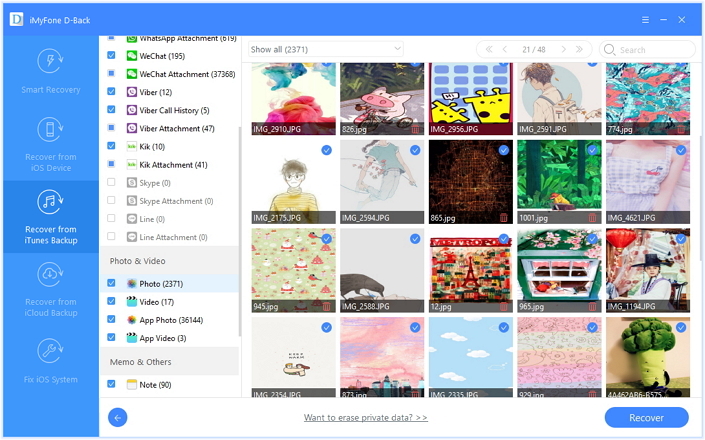
Once the scan is completed, you can preview all the previous contents one by one before recovery, then select photos you want and click “Recover” button to get them back to your computer.

recover iphone photos after ios 11 jailbreak from itunes backup

d_win d_mac

Related Article:

How to Recover Deleted iPhone Data after iOS 11 Jailbreak

How to Restore iPhone Lost Photos after iOS 10 Jailbreak

How to Recover Lost Data on Jailbroken iPhone 8/7/6S/6

How to Recover Lost iPhone Contacts after iOS 11/10 Jailbreak

How to Restore Lost Files on iPhone 8/7/6S/6

How to Recover iPhone Data after iOS 11 Update

How to Recover Lost Photos from iPhone after iOS 11 Update

How to Backup & Restore iPhone 8/7/6S/6

How to Recover Deleted iPhone Data after iOS 11 Jailbreak

My iPhone data were suddenly gone after performing the iOS 11 jailbreak on it. How to restore the deleted data from iPhone directly? I have no backup. Thx.

What is iOS Jailbreak
Generally, iOS jailbreaking is the process of removing software restrictions imposed by iOS device, Apple’s operating system, on devices running it through the use of software exploits; devices include the iPhone, iPod touch, iPad, and the AppleTV 2 and 4. Perform Jailbreaking on iOS device permits root access to the iOS file system and manager, allowing the download of additional applications, extensions, and themes that are unavailable through the official Apple App Store.

recover iphone data ios 11 jailbreak

Good news is coming, now we can jailbreak iOS 11 on iOS devices including iPhone 7, iPhone 6s/6, iPhone 5s/5 and more iOS devices by using the professional jailbreak tools. After performing jailbreak on iOS device, we can make more use of the jailbroken device, and customize it in every way possible. To be specific, we can install themes to change the look and feel of the device. However, iOS jailbreak will lead to data loss on iPhone/iPad/iPod. Please don’t worry about it, here we will going to offer a wonderful program for you to recover deleted data from iPhone after iOS 11 jailbreak even though haven’t backup.

Restore Deleted iPhone Data after iOS 11 Jailbreak

To recover deleted data on iPhone after iOS 11 jailbreak, you can try using iOS Data Recovery. With this iOS Data Recovery software, you not only can directly recover deleted data from iPhone after iOS 11 jailbreak, but also can preview files before saving. Besides, this program allows you to selectively and directly recover several of deleted data (like contacts, photos, videos, messages, WhatsApp data & attachments,call history, calendars, notes, Safari Bookmark and apps, etc,.). iOS Data Recovery allows to recover deleted data on iOS devices under any data loss circumstances, including iOS jailbreak(iOS 11/iOS 10), iOS update, deleted by mistake, restore to factory reset, and so on.

d_win d_mac

Directly Recover Deleted Data from iPhone after iOS 11 Jailbreak

To begin with,please install and run iOS Data Recovery on your computer.

Step 1.Connect iPhone and Select Recovery Mode
Connect your jailbroken iPhone to the computer,select “Recover from iOS Device”mode.Click “Start” to begin the data recovery process.

connect iphone with computer

Step 2.Select Deleted File to Scan by Program
To directly recover deleted data from iPhone after iOS 11 jailbreak,you should select the type of deleted data to be scanned by program.You are allows to select more than one files to be scanned by program,then click “Next”.

select file to recover

Now the program will begin to scan your device automatically for deleted data with seconds.

scan iphone for deleted data

Step 3.Preview and Directly Recover Deleted Data from iPhone after iOS 11 Jailbreak
When the scanning is completed,you are allowed to preview and directly recover the deleted iPhone data.Select the data you want and click “Recover” to save the selected data to the computer.

Recover Deleted Photos from iPhone after iOS 11 Jailbreak:

recover deleted photo from iphone

Recover Deleted Contacts from iPhone after iOS 11 Jailbreak:

recover deleted iphone contacts

Recover Deleted Text Messages from iPhone after iOS 11 Jailbreak:

recover deleted sms from iphone

d_win d_mac

Related Article:

How to Recover Lost Data on Jailbroken iPhone 8/7/6S/6

How to Recover Lost iPhone Data after iOS 11/10 Jailbreak

How to Recover Lost iPhone Contacts after iOS 11/10 Jailbreak

How to Restore Lost Files on iPhone 8/7/6S/6

How to Recover iPhone Data after iOS 11 Update

How to Backup & Restore iPhone 8/7/6S/6

How to Convert iTunes M4V Movies to MP4 Easily on Mac

Can anyone tell me the most efficient program I could use to convert the M4V iTunes videos file to MP4 without losing too much quality and keeping everything else the same?

MP4 represents the MPEG4 movies or videos, it is a most popular videos format nowadays. With the best compatibility, almost all mobile devices can play MP4 without any problems. That is why MP4 movies are wildly used everywhere. However, it can only be played on Apple devices or MP4 players. If you want to play iTunes movies on other non-Apple devices, you should convert the M4V iTunes movies to MP4 first. After the conversion is completed, you could freely play the converted iTunes movies on non-Apple devices, share iTunes movies to friends, backup iTunes TV shows for future watching and so on. By converting the movies from M4V to MP4, we can get better use of the videos in our daily life.

Convert M4V Movies to MP4 with iTunes M4V Converter for Mac

To convert M4V videos to MP4 effortlessly, you should try this iTunes M4V Converter for Mac. It enables to remove DRM protection and convert the iTunes movies from M4V to MP4 with its original quality in 30X faster speed. It can perfectly remove DRM from iTunes movies or TV Shows, convert purchased or rented iTunes M4V videos/movies to MP4 on Mac. You could enjoy the rental iTunes movies with more freedom, play the iTunes M4V videos on various non-Apple devices, such as Android, MP4 players, PS4, Xbox One, Creative Zen, etc,.

d_win d_mac

How to Convert iTunes Movies from M4V to MP4

Step 1. Download and Run the iTunes M4V Converter on the Computer
First of all, please download, install and run iTunes M4V Converter for Mac on your computer. iTunes will be launched automatically at the same time.

itunes m4v converter

Step 2. Select the M4V Movies to Convert
Click “Add Files” button and the program will load all videos from your iTunes Library, including Music Video, Movies and TV shows. Select the videos you want to convert to MP4 and click “Add“. (You can add more than one video at one time if you need.)

add itunes movies

The program will keep all audio tracks and subtitles from the original M4V movies to output MP4 movies, including Dolby AC3 5.1, AD, CC. Click the gear icon to uncheck the ones you don’t need.

movie audio tracks subtitles

Step 3. Convert the M4V Movies to MP4
Now you just need to simply click “Convert” button to begin converting selected M4V videos to MP4. The converted MP4 movies will be saved to Documents by default. You can change the destination folder by clicking the arrows on the top right corner of the program interface.

convert movies to mp4

d_win d_mac

Related Article:

How to Convert iTunes M4V Videos to MP4

How to Convert the iTunes Videos to MP3 Files

How to Remove DRM from Apple Music M4P Completely

How to Rip Apple Music For Free

How to Play Apple Music on MP3 Player

How to Play M4P Apple Music on iOS Device

How to Play Apple Music M4P on Android

How to Rip Apple Music For Free

[Summary]: Need an Apple Music Ripper to rip Apple Music tracks to MP3 format? This article recommend you the best Apple Music ripper to rip Apple Music songs to MP3, M4A, AC3, AIFF, AU, FLAC, M4R, MKA and keeping it’s riginal audio quality.

Hello. Are there any ways for ripping Apple music for free with its original quality? I need a helpful tool. Any suggestions?

Why we need to Rip Apple Music
Apple has released Apple Music, the music streaming service with a 3-month free trial and you can access all entire Apple Music library. However, after the 3 month later if you want to continue to play the Apple music, you should pay for it. However, is it possible to play the Apple music for free without time limitation? The answer is YES. One way you could play the Apple music on mobile device without RDM protection is to Rip Apple music legally with the help of some professional music converter tool.

Apple Music Converter – Rip Apple Music Legally for Free

Here you could try to rip music from Apple music with UkeySoft Apple Music Converter, a program that enables you to record music from Apple music and iTunes music legally. This streaming audio recorder can remove the DRM protection from Apple music, record and rip Apple music for free with its original quality. After the conversion, you can easily play the converted Apple music on the mobile device with MP3 files, like iPhone, iPad, iPod, Android phone, PSP, MP3 players and more. Let’s see what’s more can Apple Music Converter do for you.

d_win d_mac

More Features about UkeySoft Apple Music Converter:
-Remove DRM from Apple Music songs.
-Convert Apple Music M4P songs to DRM-free MP3, M4A, etc,.
-Convert iTunes songs and Audiobooks to MP3, M4A, etc,.
-Preserve Audiobook chapter information to M4A output.
-Keep original quality to the converted MP3, M4A audio files.
-Convert Apple Music songs at up to 16X speed.

How to Rip Apple Music for Free

Step 1.Download and Launch Apple Music Converter on the Computer
After running the Apple Music Converter immediately,iTunes will be launched automatically with this program.

launch apple music converter

Step 2.Select the Protected Apple Music you Want to Rip
The program will load all iTunes files automatically,including music, playlists, Audiobooks, M4P Audio, iTunes movies and TV shows.Please click on “Library” and mark the Apple Music tracks that you want to remove DRM and Rip it to MP3.

select Apple music to convert

Tips:You are allowed to select several items one by one or select the entire album by clicking on the checkbox on the top menu bar.If you added Apple Music songs/albums to iTunes library, click “Music” on the left side and sort all songs by Type. Check the songs marked with “Apple Music AAC audio file”.

Step 3.Set the Output Format for the Ripped Music– MP3
After selecting the Apple Music songs you want to rip,you should select the MP3 as the converted music output format under the “Output Format” column.The program allows you change the output parameters like channels, sample rate, codec, bitrate, etc,.

select mp3 output format

Select MP3 Output Profile :

select mp3 output profile

Adjust Conversion Speed :
If you would like to change the conversion speed, then go to Options>>General.One the preferences windows to “Set Custom conversion speed for audio convert (1-16)” to adjust the conversion speed.

Adjust Conversion Speed

Step 4.Rip Protected Apple Music to DRM-free MP3
After setting MP3 as output format,then click “Convert” button to start ripping Apple Music from M4P music to MP3 and save the converted MP3 Apple songs on the computer.It will take you several minutes to convert the audio format,once the M4P to MP3 conversion process complete,please click on the “Open Output File” button to find the converted MP3 music files on your computer,then you can enjoy the converted Apple music in DRM-free MP3 format with its original data for free.

rip Apple Music from M4P to MP3

Once the conversion is finished,you are allowed to view converted MP3 music files on the computer:

view mp3 files

d_win d_mac

Related Article:

How to Record Apple Music M4P Streams as MP3

Remove DRM and Play Apple Music on iPhone without Limitation

How to Convert M4B iTunes Audiobooks to MP3

How to Play Apple Music on iPhone 7/6S/6 for Free

How to Convert Apple Music M4P Songs to M4A

Rip Apple Music to MP3