Want to install iOS 13 on iPhone XS, iPhone XS Max, iPhone XR, iPhone X, iPhone 8/7/6S(Plus), Apple has introduced a new method of installing pre-release firmware updates from scratch for developers – using over the air update. Now,if you’ve ever installed a public beta of iOS before, you know already that you need to download an update provisioning profile in order to get the firmware over the air.However, upgrading to iOS 13 without firmware on iPhone/iPad have chance to make device get into abnormal mode,such as making iPhone/iPad stuck in recovery,stuck in DFU mode.
The iOS Toolkit newly rolls out the feature “iOS System Recovery ” for restoring iPhone system to normal without firmware upgrade to iOS 13, making it easy for users to get iPhone,iPad out of white/black screen,recovery mode,Apple logo,connect to iTunes screen,etc; helps to fix the issues when your iOS device perform abnormally.It can’t cause any data loss while repairing the operating system of iOS device.In addition,iOS System Recovery also support to recover lost data from iPhone,iPad and iPod touch,allows you to directly recover data from device,extract data from iTunes/iCloud backup files.viOS System Recovery is fully compatible with iOS 13, iOS 12, iOS 11, iOS 10, iOS 9, etc.
Fix iPhone System to Normal without Firmware Upgrade
Step 1.Download and Install iOS System Recovery
Download and install iOS System Recovery on your computer.After that,connect your iPhone which with iOS 13(iOS 12.4 supported as well) to the computer by using USB cable.
Step 2.Choose Repair Mode of iOS System Recovery
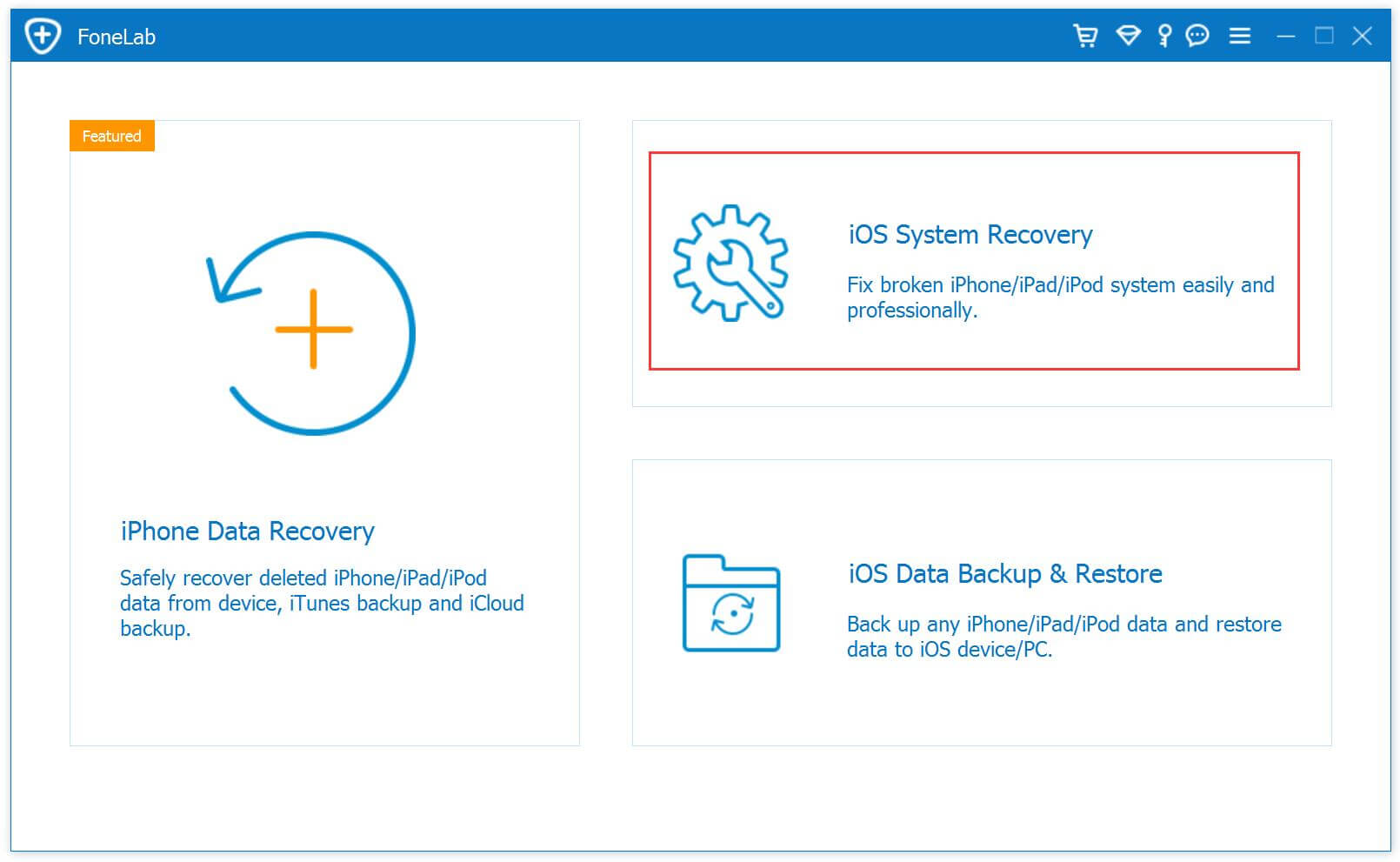
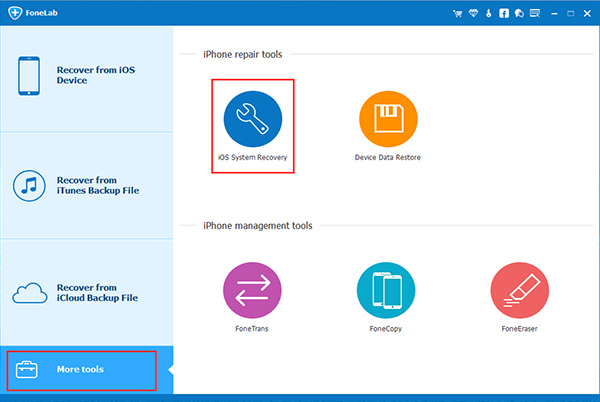
Click the “Fix iOS to normal”option under the “More tools”mode in the program main page.And then you can see some notes displayed in the window.If you have no problem with all the notes here,click “Start”button.
Regard: Please pay attention that after fixing the issue-restoring iPhone system to normal,your iPhone will be updated to the latest version.And if it is jailbroken iPhone,it will be updated to none jail-broken phone.
Step 3.Download Official Firmware
In the new window,the official firmware download link for your iPhone will be provided.iOS System Recovery will recognize your iPhone very soon,offering the latest iOS version for you to download.You should download the firmware by clicking “Download”button.If you have downloaded it before,then here you just need to choose “Already downloaded” to browse your computer to locate it.
Step 4.Fix iPhone System to Normal
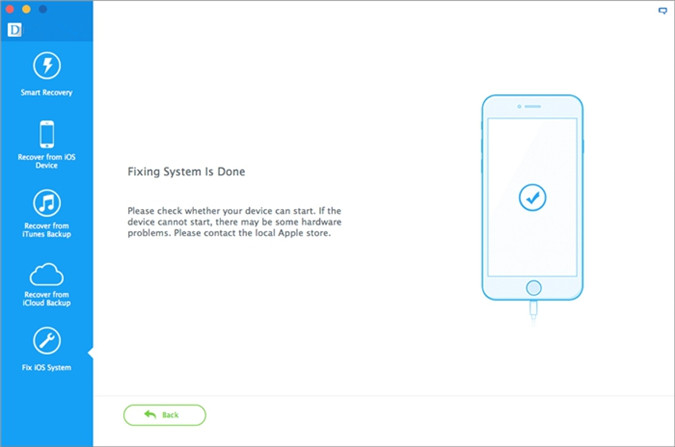
After the firmware downloading is end,iOS System Recovery will continue to get your iPhone out of abnormal mode in a little while,you just need to wait for your iPhone to restart.
iPhone Stuck in Recovery Mode after Failed to iOS 10 Upgrade “Hi,my iPhone 6 stuck in Recovery Mode after I trying to upgrade it to iOS 10 without PC.Now it appear “Connect to iTunes” logo on its screen and always last it.Can anybody help me to get my iPhone out of Recovery Mode?Thanks advance.”-Nick
“Hello,I get into some trouble that my iPhone 5S entered the Recovery Mode and stuck at the Apple logo screen after I failed to upgraded my iPhone to iOS 10.I wanna find the available way to fix the iPhone stuck issue.But how?”-Tommy
Get iPhone Out of Recovery Mode when iOS 10 Upgrade Failure
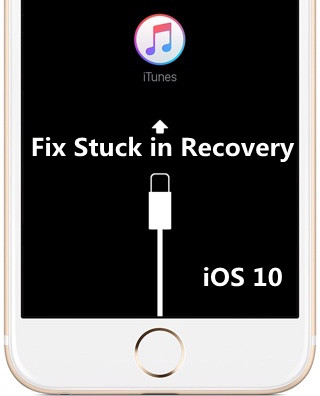
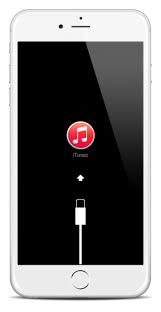
Stuck in recovery mode is one of the worst circumstances after updating device to iOS 10 or iOS 9.3.5.Recovery mode is a mode in which you will see iTunes logo right on the screen of your iPhone asking you to connect it with the PC.The most common way of getting iPhone out of the recovery mode is running the iTunes and fix it.But if you haven’t backup your iPhone/iPad,you will lose data on device.There are several recovery software available for my experience which help to fix iPhone stuck in recovery mode after upgrading to iOS 10.
iOS System Recovery has released a new function that allow to restore iDevice system to normal:get iPhone/iPad out of recovery mode after iOS operating system upgrade/jailbreak,especially fix iPhone stuck in Recovery Mode after iOS 10/9.3 upgrade without data loss.Moreover,this excellent system recovery empower to fix iPhone stuck on Apple logo screen;fix iPhone stuck on iTunes screen;repair iPhone stuck in DFU mode;repair iPhone stuck on black/white screen,repair iPhone turn a brick after iOS upgrade/jailbreak etc.iPhone SE/6S/6/5S/5/4S,iPad,iPod are suitable.On the other hand,with the help of iOS System Recovery,you not only can restore iPhone,iPad to normal,but also easily recover lost data from iPhone/iPad with iOS 10,such as photos,text messages,contacts,call logs,videos,music etc,.
Part 1:Fix iPhone Stuck in Recovery Mode after iOS 10 Upgrade without Data Loss
Step 1.Download iOS System Recovery and Install it
Connect your iPhone to computer with an USB cable.Run iOS System Recovery on computer.Select the “More Tools”mode on iOS System Recovery,Choose “Fix iOS to normal”option and then click “Start” to begin the repairing task.
Step 2.Download and Select Firmware for iPhone
You need to download the firmware for your iPhone first.iOS System Recovery will recognize your iPhone very soon,offering the latest iOS version for you to download.You’ll see the program detects your iPhone in seconds,confirm it and click”Download”.
Step 3.Restore iPhone System to Normal after iOS 10 Upgrade
When the download finished,iOS System Recovery will continue to get your iPhone out of Recovery Mode in less than 10 minutes.Make sure the device connected with computer,and not to use it while the process is going.
The restoring errors happen mostly because the operating system on your device performs abnormally.Actually,it isn’t hard to solve the problem.If you face the operating system issues on iPhone/iPad,you should try the “iOS System Recovery” to get your device out of abnormal mode,which will help you perfectly solve all the problems while restoring your iPhone/iPad system to normal.Check out the details above.
Part 2:Get iPhone Out of Recovery Mode after iOS 10 Upgrade with iTunes (Data Loss)
If you are eager to fix your iPhone stuck in Recovery Mode after iOS 10 upgrade for free,you can try the recovery for iTunes.Note:It’s a traditional way to get iPhone out of Recovery Mode but here we must remind you that this way may lead to data loss after fixing.Well, let’s see how to restore iPhone system to normal via iTunes.
Backup iPhone data when iPhone stuck in recovery mode after iOS 10 upgrade
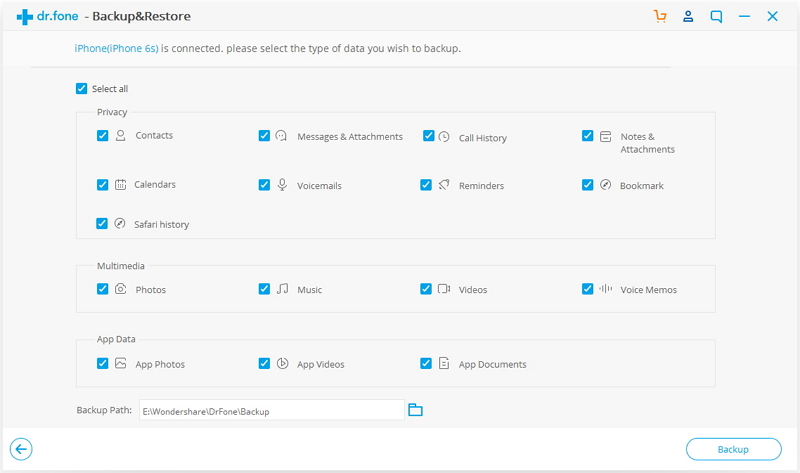
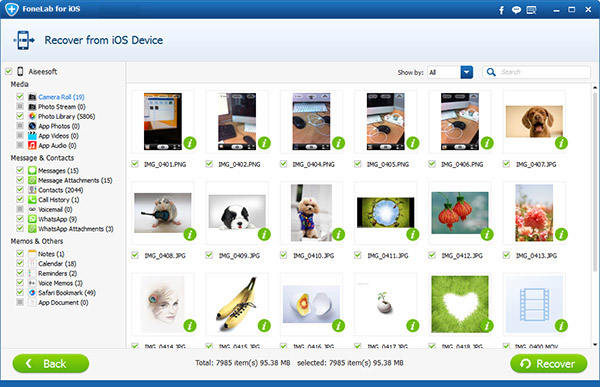
Note:If you restore iPhone with iTunes to get out of recovery mode,it will cause data loss/erased.However,you should backup iPhone in recovery mode before getting it out of recovery mode with iTunes,all backed up files including Contacts,Messages,Call history,Notes,Photos,Video,Calendar,Reminder,WhatsApp messages,Messenger,Voice memos,Voicemail,Safari’s bookmark,App’s photos,App’s video,App’s documents,etc,.And then preview and restore any contents from the backup to your iPhone after getting it out of recovery mode complete.
Step 1: Make sure you have install the latest version of iTunes on your computer.Connect your iPhone to computer.
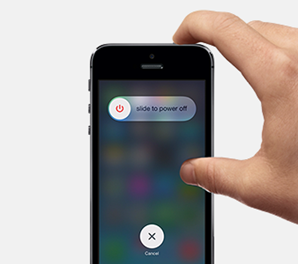
Note:If your iPhone is power on,please firstly power off it.
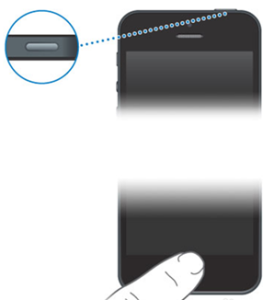
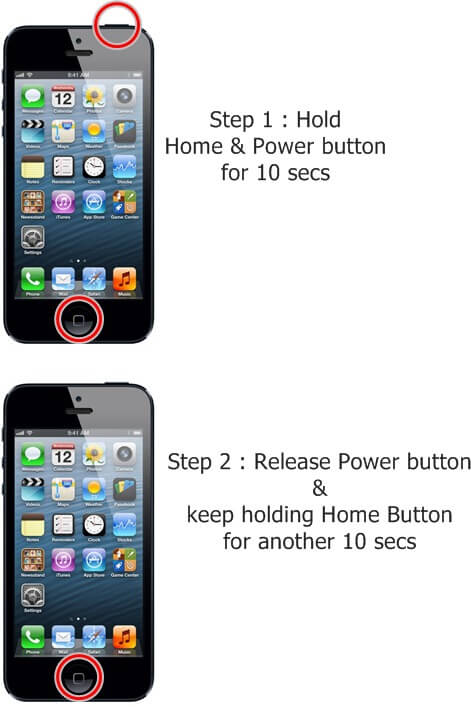
Step 2: Then press and hold the “Home” button and “Power” button at the same time for 10 seconds.
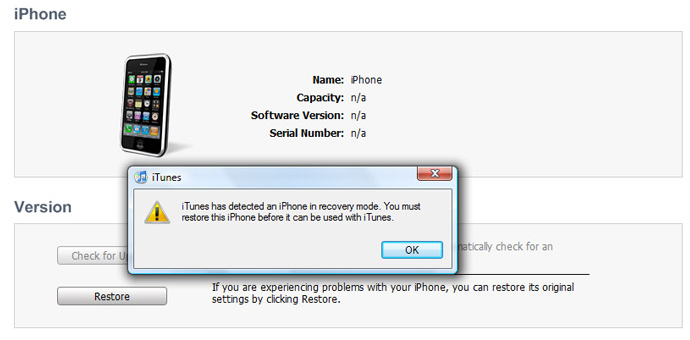
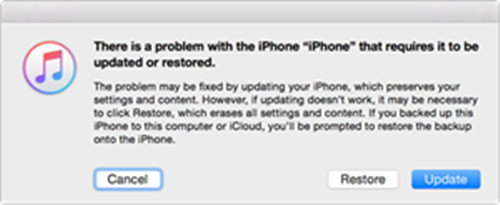
Step 3: Then release the “Power” button and continue holding the “Home” button. You will see a notice in iTunes like below after 3-5 seconds.
Step 4: In this step you should go to restore iPhone from backup files with iTunes if you have backed up your iPhone data before. And you know, there always some users forgot to backup iPhone data and lost all the iPhone data after restoring iPhone system to normal.
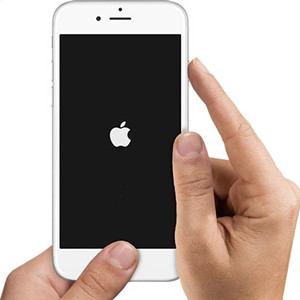
Step 5:To exit the Recovery Mode on iPhone,please press and hold the “Home” button and “Power” button at the same time until the Apple logo appear on your iPhone.Now you are already exit iPhone Recovery Mode completely.
Part 3:Restore Deleted Data from iPhone after Exiting iPhone of Recovery Mode
Enter or exit iPhone of Recovery Mode may lead to data loss on device for some iPhone users reported.The iPhone file accidentally disappear after enter or exit iPhone Recovery Mode.In this case you should focus on the iPhone Data Recovery,which is a special data recovery tool design for restoring deleted data on iPhone completely.For the details,you can read this article:How to recover iPhone data after iOS 10 upgrade , which will tell the steps to recover your lost data from iPhone even if you have no backup.
Part 4:How to Safely Backup iPhone Data before iOS 10 Upgrade
As we know,upgrade iPhone to iOS 10 may occur the data loss disaster.It’s said that the accident will come anytime without ready.So you’d better backup iPhone data to computer before iOS 10 upgrade.iOS Data Backup & Restore Tool – iOS Tool Kit,which is our strongly recommendation.With it,you are able to backup iPhone data to computer safely,restore data to iPhone from backup efficiently as well.Click here to know the detail tutorial:How to backup iPhone data before iOS 10 upgrade.
Free download the iOS Tool kit to make your iPhone data backup:
“I decided to give jailbreaking a try and it didn’t go so well. My iPhone 7 is stuck on a black screen and I’ve bricked it. Is there anything I can do?”-Tony Yip
“After upgrading to iOS 13, my iPhone X is stuck in Recovery Mode and asking to be connected to iTunes.After connecting,iTunes is now re-downloading iOS 10 and last hours to download. Anyone else can deal with this issue?”-Grace Chen
Did you ever meet this circumstances that iPhone stuck in recovery mode or just can’t get out of the upgrading screen when iOS update/jailbreak?However,things didn’t turn out as they expected and many users complained about iOS frozen in the update/jailbreak process.So what should you do if your iPhone freezes up or gets stuck during/after iOS update or jailbreak?Don’t worry!In the following passages,I’ll tell you the trips on how to restore iPhone system to normal.You can also use details steps as same if your iPhone stuck in Recovery Mode (red iTunes logo)/reboot loop or the similiar system stuck issues.
Part 1.Situations that iPhone Couldn’t Enter System
1.iPhone stuck at the black/red/ blue/white screen of death.It could be happened when you try to do the iOS upgrade/jailbreak on device.
2.iPhone stuck in Recovery Mode or DFU Mode and couldn’t get out of it. When you fix some kinds of system problems, you may need to enter Recovery Mode or DFU Mode and then not be able to exit it.It also may be appear when you try to upgrade/jailbreak your device.
3.iPhone get into the “Connect to iTunes” loop,it always prompt you to connect your device to iTunes.(When you connect it to iTunes,the stuck loop still existed)This situation would happened when the iOS upgrade/jailbreak failure.
4.iPhone turns into white Apple logo screen. For example, some installed applications or the program format could not be compatible with the system, and the system would turn into the screen of death.
5.iPhone get bricked suddenly for no reasons when it running as usual,for example it get bricked when you was playing game.
Absolutely there are other situations that can cause the system issues and couldn’t get out of it. For instance, iPhone is frozen on lock screen, couldn’t slide to unlock or slide to power off and so on. Maybe you can fix these problems with iTunes. But it is not work well for all situations.If you wanna get the best solution to solve the problems that fix iPhone get into abnormal status,restore iPhone system to normal,just read the passage following and you will get the answer without complicated process.
Part 2.Install IPSW File to Restore iPhone System to Normal via iTunes(Data Loss)
In order to restore iPhone system to normal state,you can try this way to solve the abnormal situation,install iPSW file on iPhone/iPad with iTunes to restore iOS system to normal .It can help to restore device to normal state in an easy way,however,it may lead to data loss on jailbroken iPhone/iPad after finish the restoring process.Before using IPSW file to restore iPhone system with iTunes,you should better do a backup for your iPhone/iPad.
Step 1.Download the iOS IPSW file[ links below ] that relates to your specific iOS device.
Step 2.Run iTunes.
Step 3.Connect your device to the computer.
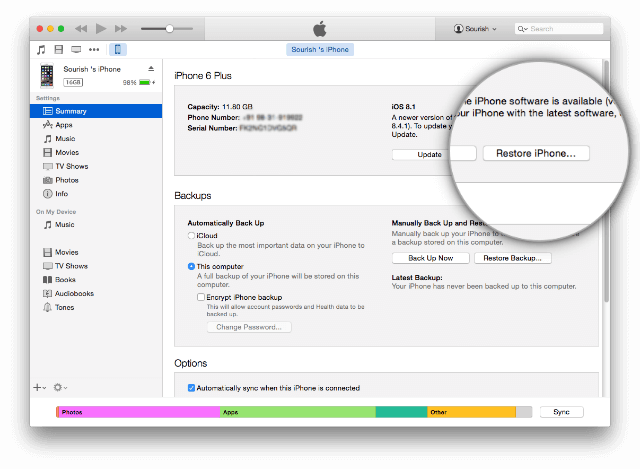
Step 4.Open Device Summary for the iOS device you are updating.
Step 5.Hold down the SHIFT [ Windows ] or ALT [ Mac ] key and click Restore in iTunes simultaneously iTunes restore.
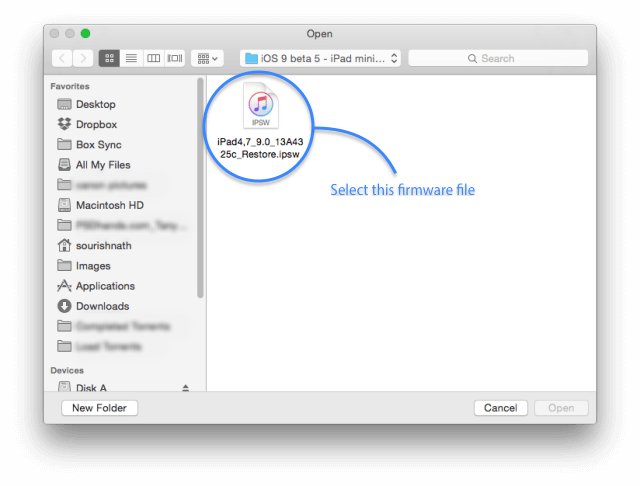
Step 6.Locate the iOS IPSW file you downloaded and select it.
Step 7.Follow the on onscreen instructions and iTunes will begin the update process.
Step 8.When the update has finished, your iOS device will reboot into the iOS you select.
Part 3.Install IPSW File to Restore iPhone System to Normal Without Data Loss
There’s no more effective way to reboot your iPhone with IPSW Files Installation Tools–iOS System Recovery,a third-party tool totally for free on restoring iOS system to normal for iPhone/iPadwithout data loss through installing the IPSW file on iPhone/iPad.This program enables you to fix iOS freeze, iPhone crashed during iOS update/jailbreak,Recovery Mode stuck,DFU stuck,red iTunes logo stuck, etc,.No need to restore with iTunes, no data loss.iPhone 7/SE/6S/6/5S/5/4S,iPad,iPod are supported.I personally used this tool and luckily was able to save my iPhone and make it works well again as usual.We hope this method works for you, too. Firstly, we make a conclusion of the circumstances that iPhone couldn’t enter normal system.
Easy Steps to Restore iOS System to Normal Without Data Lossing
Step 1. Run IPSW Files Installation Tools and Choose the Repair iOS System Feature
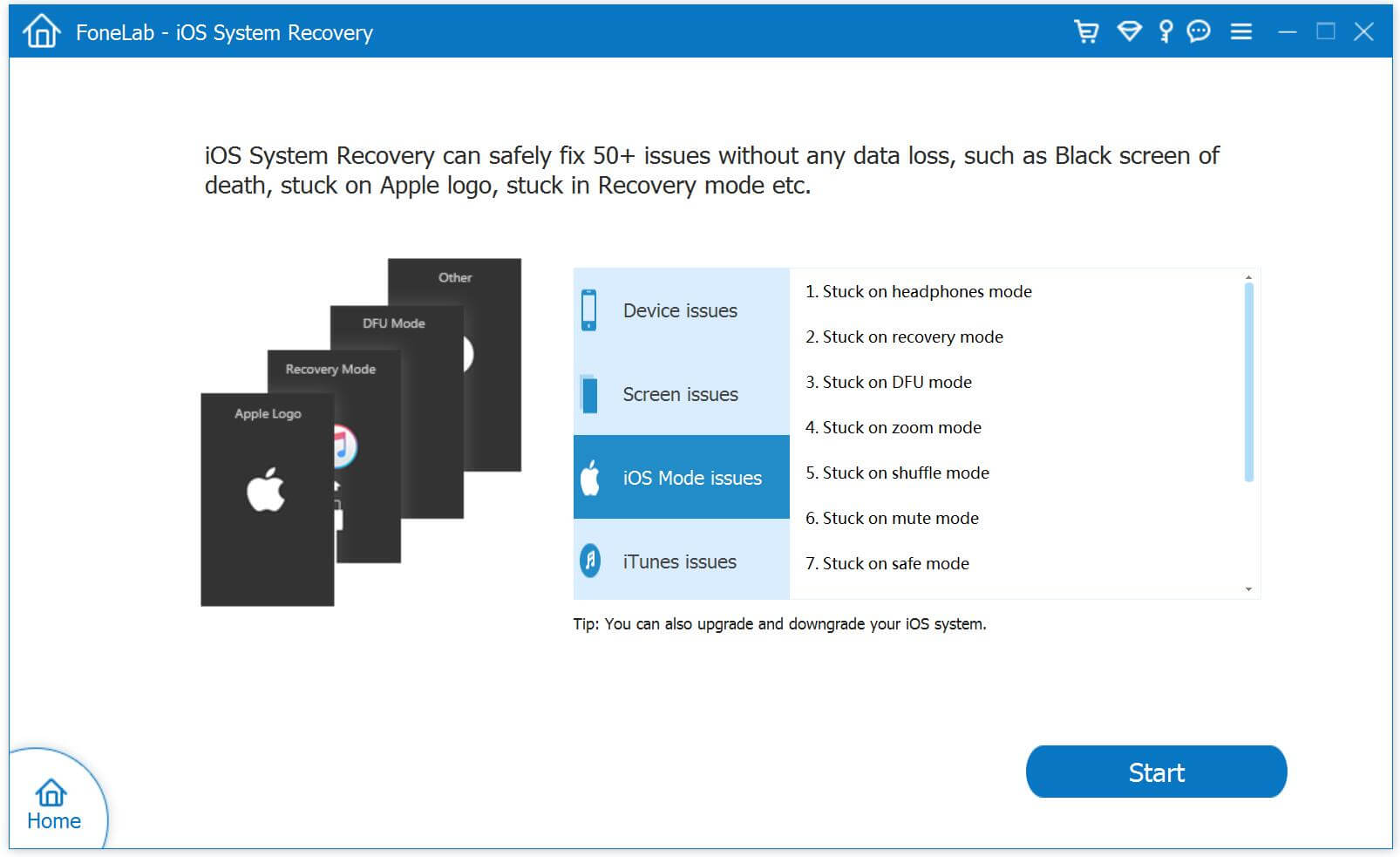
Choose “Fix iOS to normal” from “More Tools” in the main window of iOS System Recovery.Then connect your iPhone to your computer with its USB cable.When iOS System Recovery detects your iPhone,click “Start” to continue the process.
Step 2.Download and Select IPSW File to Download
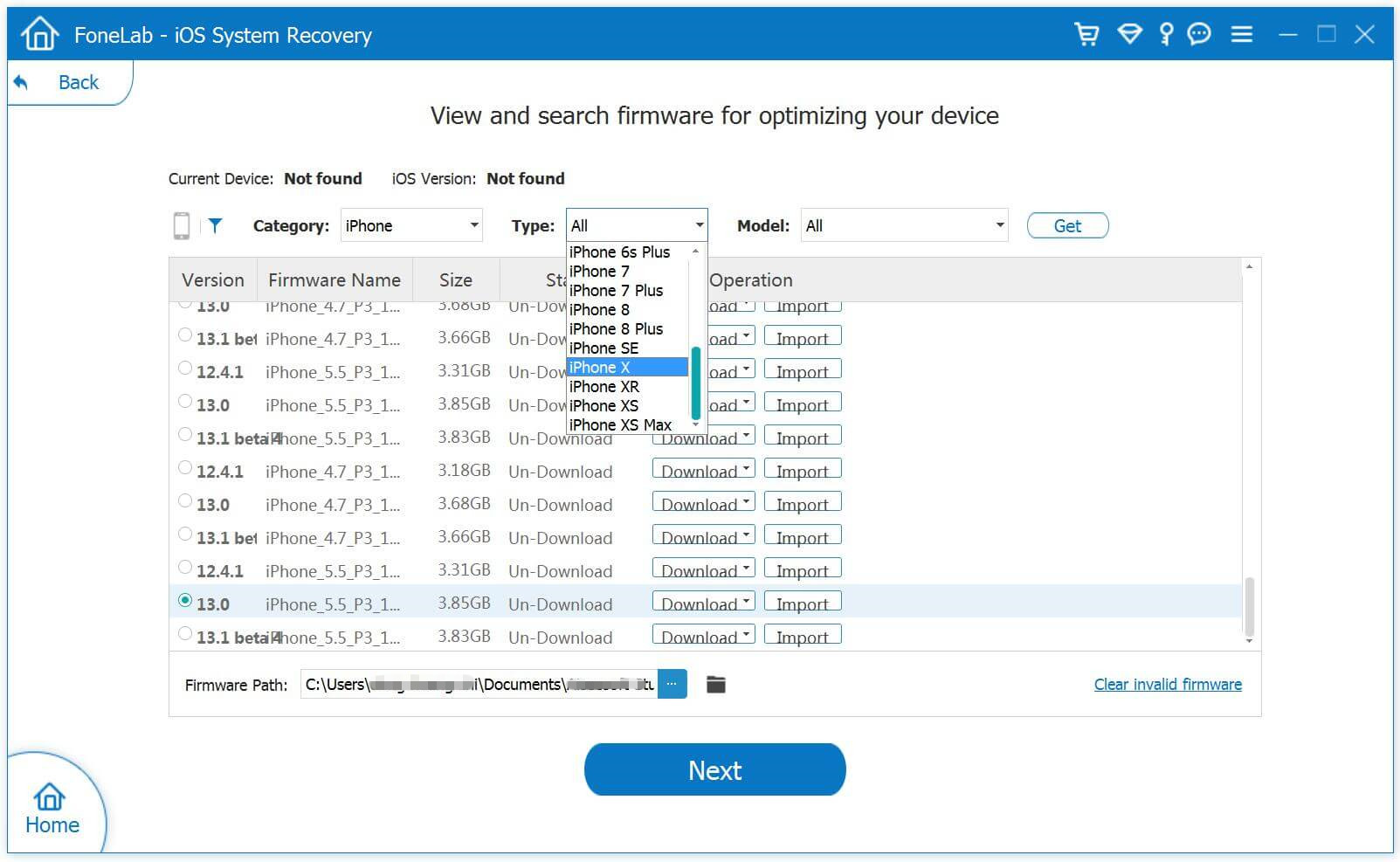
To fix the abnormal operating system of iPhone,you should select and download IPSW files for your iPhone/iPad first.iOS System Recovery will detect your device very soon,offering the iOS IPSW file for you to download.You just need to click “Download” and wait.The software will finish it for you automatically.
Tips:The program provides the newest iOS 10.1.1 IPSW file for download,if you want to install iOS 9 IPSW file on iPhone,please select and install the .IPSW files on your iPhone via IPSW Files Installation Tools(no data loss),then save it on your computer.
Step 3.Install the iOS IPSW File on iPhone and Restore iPhone System to Normal
When the download is completed,the program will continuously start repairing your iPhone to restore your iPhone system to normal,and get your iPhone to work properly.In a few minutes,it will tell you that your device is restarting to normal mode.The whole process of repairing your iPhone operating system takes you no more than 10 minutes.
As we all know,restarting your iPhone seems to be an omnipotent trick to solve most thorny problems on the first try.Indeed,it also applies to the situation here.Generally speaking,your iPhone system can be fixed to normal when you get the help of iOS System Recovery.
The iPhone stuck on “Welcome to iPhone”screen is not a common phenomenon that iDevices users meet in many occasions.You may come across it due to restore factory resetting,iOS upgrade,iOS jailbreak,etc: “I had a iPhone 6 iOS 9.3 upgraded yesterday.When I restarted the iPhone after upgrading,the phone frozen to stay the “Welcome to iPhone” screen.I have tried a couple of times to restart it, but it wasn’t work at all.”-Gamble
There are a variety of reasons why your iPhone is freezing on “Welcome to iPhone”screen.In some cases, the freezing may be due to a hardware issue.In this case,basic troubleshooting process will not be enough to help your iPhone return to its normal working state.One of the best solutions is using a professional tool,like iPhone System Repair Tool.
iPhone System Repair Tool countenance fixing iPhone system issues by exiting stuck in “Welcome to iPhone”mode with one click.This perfect tool except helps to get iPhone out of “Welcome to iPhone”screen,it enables you to fix all of iOS stuck issues such as iPhone stuck in recovery mode, Apple logo, frozen screen and so on.How to fix iPhone get stuck on “Welcome to iPhone “screen?Stopping be frustrated please.Next this guide will show you the detail steps to repair iPhone stuck at welcome page.Now let’s check the possible and best way to solve it.
Easy Steps to Get iPhone Out of Stucking at Welcome Screen
Step 1.Tap the Proper Function of iPhone System Repair Tool
Click on the last button on iPhone System Repair Tool version of the main window “fix iOS system to normal”.Then make your iPhone which is stuck at welcome page to computer via USB cable.Then click”Start”when the tool detect your iPhone.
Step 2.Download and Select the Right Firmware for iPhone
To repair iPhone to normal,you need to download a firmware for it.iPhone System Repair Tool will recognize your iPhone and provides the latest iOS version for you to download.You just need to tap “download” and then wait a few minutes.The software will automatically accomplish it quickly.
Begin Download the Firmware to the iPhone device
Step 3.Get iPhone Out of “welcome to iPhone”Screen
The program will continue to fix your iPhone to normal when the download process is end.Just a moment later,it will tell you that your device is already normal as usual.The whole procedure of fixing operating system of iPhone only takes you no more than 10 minutes with 3 easy steps.During this fixing process,it don’t cause data loss.
You can get assist of iPhone System Repair Tool to solve iPhone operating system issues anywhere anytime,if you are the Apple users.Complementary,all models of iPhone are supported by this redoubtable repair tool,including iPhone SE/6S/6/5S/5/4S/4.
For millions of mobile users all over the world, iPhone is the best mobile phones. Whereas, there are still people who want to break the Apple restrictions and wanna get more function and application from it.So lots of them likely to jailbreak the iPhone their own.One of the most common issues,according to our study,is that iPhone stuck in recovery mode after the iOS jailbreak.It doesn’t help at all even though you try many times to turn to the iPhone on and off.Having the right tools is a crucial part of do-it-yourself repair. To fix iPhone stuck in recovery mode after jailbreaking,here I sincerely recommend a high-quality tool for you.
Restore Jailbroken iPhone Stuck in Recovery Mode without iTunes
iPhone System Recovery & Data Recovery tool is an all-in-one tool to fix all kinds of issues of iPhone operating system.With this powerful tool, you can easily fix iPhone stuck in recovery mode after jailbreaking or upgrading and boot your iPhone again without data loss.Besides,it empowers to fix iPhone stuck at Apple logo screen,stuck in DFU mode,stuck at “connect to iTunes”screen,etc.While there is no guarantee that you definitely fix iPhone operating system issue and return it to normal,this iPhone data fix tool provide a way to recover deleted iPhone data from device or iPhone backup files, just in case.,Before you start the detail process,please make sure you have downloaded and installed it on your computer.
How to Get a Jailbroken iPhone 6 Out of Recovery Mode
Step 1.Download and Run iPhone System Recovery Tool on Computer
Step 2.Connect iPhone 6 to Computer and Click the “iOS System Recovery” Features
Choose the fixing mode and then connect iPhone to your computer with an USB.After that the tool will detect your iPhone soon and you need to click “Start”to enter the next steps.
Step 3.Download and Select the Firmware which is Applicable to Your iPhone
To get iPhone out of recovery mode after iOS jailbreak,you need to download the suitable firmware for your iPhone.The iPhone System Repair Tool will recognize your iPhone, it provides the latest iOS version for you to download.You only need to click “download” and then wait a moment.The software will automatically complete it for you.
Select the model of your iPhone.
Begin to download firmware for your iPhone.
Step 4.Fix iPhone Stuck in Recovery Mode and Return it to Normal
When the download is finish,the program will continue to start fixing your iPhone,iPhone System Repair Tool allows you to exit recovery mode on your iPhone.After a few minutes,it will prompt you that your device is rebooting to the normal mode.It only consume you less than 10 minutes to fix your iPhone operating system during the total process.
Hope this article can help you solve problems on iPhone stuck issues.You can fix iPhone operating system issues by these detail steps above with this iPhone System Repair Tool conveniently by yourself.
“I recently tried to update to iOS 9.3 and tried putting my iPhone in DFU mode to make my computer do an automatic restore, but now I am stuck in DFU mode just like you and cant use it, I have also tried Tinyumbrella tool but it doesn’t work. Any way to exit iPhone from DFU mode?”-Theresa
It is really frustrating for anybody to encounter such an embarrassing issue, for which you can do nothing but confuse that how to get iPhone out of DFU Mode.However, iPhone stuck in DFU mode does not equal losing all the data of your iPhone.That iPhone is stuck in DFU mode always happens when you jailbreak your iPhone or update the iOS on your iPhone.
What is DFU mode?
DFU mode actually means Device Firmware Upgrade–change the firmware on the device, which allows to put your iPhone into where it can interact with iTunes without loading the operating system or booting loader.If your iPhone is loop in DFU mode,the iPhone screen may be completely black.
How to Get iPhone Out of DFU Mode
You need iPhone System Repair Tool.What it is? To say it simple, it is a program, which takes a one-click approach to solve iOS stuck issues including fix iPhone stuck in DFU mode,Apple logo, repeatedly restart loop, red iTunes logo screen, recovery mode, etc. easily and let your iPhone perform their best.If your iPhone 6S/6S Plus/SE/5S/5/4S/4 gets trapped in DFU mode, try this professional tool to solve this bugs!You should take measures to get your iPhone out of unnormal mode first, and the tutorial below will guide you in this way.
[Solved]How to Repair iPhone Stuck in DFU Mode
Step 1.Select the Proper Options of iPhone System Repair Tool
Tap the last button on iPhone System Repair Tool version of the main window “fix iOS system to normal” Then make your iPhone which is stuck in DFU mode to computer with via USB.Now click”Start”after this program detect your iPhone,then it will going to the next step.
Step 2.Select and Download the Right Version Firmware for iPhone
To get iPhone out of DFU mode,you need to download a firmware for it.iPhone System Repair Tool will recognize your iPhone and provides the latest iOS version for you to download.You just need to tap “download” and then wait a few seconds.The software will automatically accomplish it apace.
Step 3.Fix iPhone Stuck in DFU Mode
The program will continue to repair your iPhone and return it to normal when the download process is end.Just a little while later,it will prompt you that your device is already be normal as usual.The whole procedure of fixing operating system of iPhone only takes you within 10 minutes with 3 easy steps.
iPhone System Repair Tool can do you a favor to solve this emergent issue in an easy, quick and effective way.In order to protect all your endangered data on iPhone, you should take rescue measures to get your iPhone out of DFU mode with safely using iPhone System Repair Tool.
Since Apple release iOS 9.3,I update my iPhone 6 to the new operating system,unfortunately my iPhone stuck in recovery mode after the upgrade task,what make me feel spiritless indeed and I am crazy about finding several ways which I search online to repair it but I can’t find the effective one.Anyone helps me to solve it?Thanks advance.-Latham
iPhone stuck in recovery mode? Failed to access data on your iPhone.Constantly annoyed by putting iPhone in recovery mode?When updating iOS or jailbreak your iPhone, you may probably meet the problems like this above.Many problems with the iPhone can be resolved by restarting it, but some more complicate problems require putting the iPhone into recovery mode.This shouldn’t be your first troubleshooting step, but sometimes it’s the only one that works and protect your iPhone safely.So this is the reason why your iPhone will loop in recovery mode.
iPhone System Repair Tool empowers you to get iPhone out of recovery mode in order to make it function normally on an easy and effective way.Fixing your iPhone without losing data on your iPhone in just one click with iPhone System Repair Tool.It is a software which is available free online for both Mac/Windows.With this excellent tool one click of your mouse could fix iPhone SE/6S/6/5S/5 recovery mode looping.There are the steps case to repair iPhone stuck in recovery mode if this happen with you too, follow the process to fix your iPhone below.
See the Total Features of iPhone System Repair Tool
Fix iPhone operating system issues and return it to normal:
-Fix iPhone stuck in recovery mode(after upgrading)
-Fix iPhone stuck at Apple logo screen
-Fix iPhone stuck at“connect to iTunes”screen
-Fix iPhone stuck on black/white screen
-Fix iPhone turn a brick after upgrading
Exit iPhone SE/6S/6/5S/5 Stuck in Recovery Mode
Step 1.Select the Proper Functioning of iPhone System Repair Tool
Click on the last tap on iPhone System Repair Tool version of the main window “fix iOS system to normal” Then make your iPhone which is stuck in recovery mode to computer with an USB cable.Just click”Start”when the awesome tool detect your iPhone,it will enter the next step.
Step 2.Download and Select the Right Version Firmware for iPhone
To fix iPhone as usual,you need to download a firmware for it.iPhone System Repair Tool will recognize your iPhone and provides the latest iOS version for you to download.You just need to tap “download” and then wait a little while.The software will automatically accomplish it quickly.
Step 3.Repair iPhone SE/6S/6/5S/5 Stuck in Recovery Mode after Upgrading
When the download process is end,the program will continue to fix your iPhone to normal.Just a moment later,it will tell you that your device is already return to normal.The whole procedure of fixing operating system of iPhone only takes you within 10 minutes with simple steps.
Although you have already followed carefully the steps to update or jailbreak iOS of iPhone,the recovery mode suddenly jumped out on the screen of iPhone due to complicated system or settings unknown.Sometimes,the iPhone even can’t be recognized by iTunes when it was set into the recovery mode.So an easy,effective and secure way to solve this issue is very emergent and important.Why not try iPhone System Repair Tool?
[Summary]:When you see your iPhone stuck on “connecting to iTunes logo screen” for long time,this means it stays in recovery mode/DFU mode,learn this guide to fix iPhone/iPad stuck in recovery mode without data lossing.
“I plugged my iPhone 6S to iTunes on my computer one day to ready updating the newest iOS 11, and it worked fine until an unknown error popped up mid update so I pressed cancel and unplugged my iPhone but on my iPhone it just told me to plug my phone into iTunes but every time I plug it.My phone is now stuck on “Connect to iTunes screen“after iOS 11 beta upgrade. I can turn it on and off and reset it but it is still stuck on the screen.Who can help me out of this loop? Much thanks!” – Asked by Adele in CNET forums
iPhone 6 Connect to iTunes after Restore to Factory Settings
“My iPhone 6 stuck on the “Connect to iTunes” screen” after factory reset,I found my iPhone stuck on connect to itunes screen and wont restore with all data erased,and many important data stored on my device,I forgot to back up my iPhone and I went to update and it just turned into recovery mode. Now,it stuck at iTunes logo screen,are there any ways to exit the recovery mode without data loss?how to recover data from iPhone in recovery mode” Asked by Traveler in Apple discussions
Restoring or updating your iPhone should be a simple process. However, occasionally things do go wrong and iTunes will display error code. This means that your iPhone stuck in recovery mode meaning you can’t do anything with it and the screen will show red iTunes logo.
Connect to iTunes screen loop on your iPhone, iPad, or iPod during iOS 10/9 upgrade? Don’t want to restore iPhone to factory settings with iTunes because it will erase data on device? iPhone is not recognized by iTunes although you have plugged it into computer?Many of you may have met these troubles,and lots of users have complained that iPhone can’t get out of this loop mode, an error with iTunes logo always keep on iPhone screen,iPhone stuck on itunes logo and wont restore?Just take it easy.The following passages will give you the best answer.
Way 1:How to Restore iPhone in Recovery Mode by iTunes(Data Loss)
If you see the “Connect to iTunes” screen on your iPhone, iPad, or iPod touch, you can restart your iPhone device. If you still see the screen, you might need to reinstall iOS
To restart your device, press and hold the Sleep/Wake and Home buttons at the same time until you see the Apple logo.If you still see the Connect to iTunes screen after you restart, you need to reinstall iOS:
Step 1.Connect the iPhone to your computer by a Apple USB cablet. You should see this message: “The software on [your device name] needs to be restored to factory settings or updated”
Step 2.Run the latest version of iTunes program on your computer,your iPhone device detected by the iTunes
Step 3.Click “Update” to reinstall iOS. Your personal data is preserved.
Disadvantage: However, this method is not secure to get your iPhone out of “Connect to iTunes screen” status,because it may erase all data on your iPhone.To fix iPhone/iPad/iPod stuck on “Red iTunes Logo” without data loss,you must to use a professional iPhone System Repair tool,let’s learn more as below,the program can help you fix an iPhone, iPad and iPod Touch stuck on Red iTunes Logo without any damage or data loss.
Way 2:How to Get iPhone Out of “Connect to iTunes” Screen(No Data Loss)
iPhone System Recovery will assist with you to exit the iPhone recovery mode without data loss when updating to iOS 10/9/8 or factory reset.
The iOS System Recovery helps users to fix iPhone stuck in “Connect to iTunes” screen and return iPhone to normal state effectively.Fixing iTunes logo loop on iOS devices (iPhone 7/7 Plus/SE/iPhone 6S/6S Plus/6/6 Plus/5S/5C/5, iPad Pro, iPad Air 2, iPad Air, iPad mini 4/3/2, iPad mini, iPad 4/3/2 and iPod touch 5,etc) with 3 simple steps.The new wonderful function designed for iOS users to fixing the iOS system issue,get iDevice out of unnormal mode without any damage or data loss for example stuck in recovery mode,stuck on black/white screen due to iOS upgrade,jailbreak or other reasons.What’s more,this program can help you recover data from iPhone when it stuck on recovery mode, white Apple logo, DFU mode, black screen of death, looping on start,etc.
Download the iOS System & Data Recovery:
How to Fix iPhone X/8/7/SE/6s/6s Plus/6/6 Plus/5s/SE Stuck in Recovery Mode
Step 1.Select the Proper Functioning of the System
After running the program on your computer,then click “Fix iOS System“. Then make your iPhone which is stuck on iTunes logo to computer with an USB cable.When the amazing tool detect your iPhone,just need to click” Start”, and going on the fixing process.
Step 2.Download and Select the Right Version Firmware for iPhone
To return iPhone to normal, you need to download a firmware for it. iPhone System Repair Tool will recognize your iPhone and provides the latest iOS version for you to download.You just need to tap “download” and then wait within seconds.The software will automatically accomplish it quickly.
Begin download the firmware for your iPhone
Step 3.Repair iPhone Stuck on iTunes Logo after iOS 9/iOS 10 Upgrade
When the download is end, the program will continue to fixing your iPhone to normal.Just a moment later, it will tell you that your device is already back to normal.The whole process of fixing operating system of iPhone only takes you less than 10 minutes without complicate steps.
Recover Lost Data from iPhone in Recovery Mode
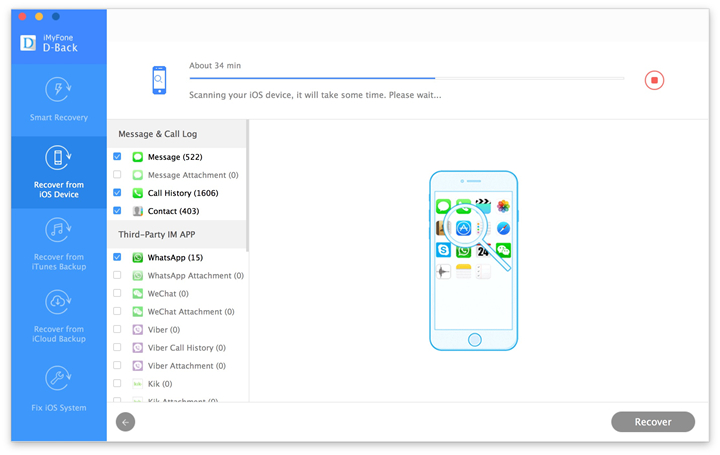
Now,you iPhone is fixed and turn to normal.If you want to recover lost contacts, SMS, photos, videos, call logs, WhatsApp messages and other imformations from the iPhone in recovery modee,please switch to “Recover Data from iOS Device” function,then connect your iPhone to computer,and use the iPhone Data Recovery to scan the device for lost data,only few minutes,all of your iPhone lost data can be found and display for you,then select the file types you need and click “Recover” button to recover iPhone lost data and save them on the computer.
As you might expect, when a problem exists there is generally a way to fix it,and the best way to get rid out of the anxious of recovery mode is downloading and re-install the latest iPSW firmware package on iPhone without data loss by iOS System Recovery software,it’s the best iOS system repair tool fix your loop iPhone when it runs unusual.
Free download the iOS System & Data Recovery to fix your iPhone and get missing data back.
Way 3: Get iPhone Out of Recovery Mode/Red iTunes Logo by TinyUmbrella
Step 1.download the TinyUmbrella fix recovery from here: TinyUmbrella(MAC) | TinyUmbrella(Windows)
Step 2.Connect your iphone with Mac or Windows PC
MAC: Right click on the Fixrecovery tool and do open it via Terminal (For MAC)
Windows: Simply open the file
This will mostly help you to fix your iPhone stuck on iTunes screen, recovery mode and Apple logo
Other Tips to Fix an iPhone stuck on “Connect to iTunes” screen
If your iPhone stuck on red iTunes logo and it won’t recognize it or anything after connecting it to iTunes program,you can try a genuine Apple USB cable,then foolow the tips below and try again.
1.Update iTunes
2.Update the OS X
3.Update, disable or remove your computer’s security software
4.Unplug extra USB devices
5.Restart
6.Try again
“I can’t get into the phone because the Apple screen is frozen and nothing will move on the screen, so i cannot swipe to shutdown, or swipe to open the phone.”-Said by Lisa Tse
“My wife’s iPhone 5s phone, since we upgraded to iOS 8 and now iOS 8.1, has been having a multitude of issues. Today, my wife opened it and then it was abnormal the screen stuck on Apple logo and the phone cannot be shutdown.”-Said by Tomson Lee
Sometimes a frozen iPhone will not let you do any type of activity, and often you are stuck on-screen in an app or on a home screen even on Apple log. This can also help if your iPhone is stuck off and won’t turn on, but mainly you will use this when the iPhone is frozen on Apple Screen.
iPhone is Frozen with Apple Logo on Screen,How to Fix?
This guide will show you a easy guide to fix a frozen iPhone stuck on Apple screen without losing your data or visiting an Apple Store for help.Read the passages below patiently,you will learn the most effective ways to recover iPhone stuck on the Apple loading screen indefinitely.
To repair operating system frozen on Apple screen of your iPhone, you can use this iPhone System Repair & Data Recovery Tool,which not only can help you fix ios to normal for your iPhone frozen on Apple screen,as well as iPad and iPod,but also supports to recover lost contacts, text messages, photos, videos and other data from iPhone.The new powerful function designed for several situations for example fix the iPhone stuck on black screen,iPhone stuck on recovery mode,etc.
Let’s teach you how to fix an iPhone 6S/6/5s/5/4s/SE frozen on Apple Screen,and repair iPhone system to normal:
Fix iPhone to Normal from Frozen Apple Screen
Step 1.Select the Proper Functioning of the System to Repair your iPhone
Click on the last tap on iPhone System Repair Tool version of the main window “fix iOS system to normal”. Then make your iPhone which is stuck on Apple Logo screen to your computer with an USB cable.When the magic tool discover your iPhone,just need to click” Start”, and going on the fixing process.
Step 2.Download and Select the Right Version Firmware for your iPhone
To repair the abnormal operating systems of your frozen iPhone, you need to download a firmware. iPhone System Repair tool will recognize your iPhone and provides the latest iOS version for you to download.Now tap “download” and then wait a few seconds.The software will automatically accomplish it very soon.
Step 3.Fix your iPhone Stuck on Apple Logo Screen Issue
When the download is finish, the program will continue to repair your iPhone.After a few minutes, it will tell you that your frozen iPhone is able to reboot as usual.The whole process of fixing the operating system for iPhone only takes you less than 10 minutes without complex steps.
If your iPhone has hung up on the Apple Screen when booting,you try to perform a battery-cycle reboot, or a “reset,” to get the device to fully shut down and load iOS again are useless.You can try the predominant iPhone System Repair Tool to repair it without any data loss.
Summary: This article mainly teach you a two methods to fix Jailbroken iPhone 4/4S/5/5S, iPhone 6/6S/7, iPad Pro, iPad mini 4, iPod Touch stuck on black screen of death,you can also follow the same steps to fix the stuck Gray Apple Logo and Blue or Black screen iPhone, iPad and iPod Touch easily.
For millions of happy users all over the world, the iPhone is fantastic just as it is. It’s beautiful, elegant and easy to use, and there are thousands upon thousands of apps and oodles of content for them to choose on the App Store.However,more and more iPhone users likely to jailbreak their loved iPhone in order to play more games and use more applications on iPhone.
How to Fix a Jailbroken iPhone Stuck on Black Screen
There are several reasons lead your iPhone stuck on black screen after jailbreaking;it could be that your iPhone battery has died halfway through the jailbreak.Your iPhone could be stuck on black screen after jailbreaking, Cydia or otherwise that is incompatible. Let’s have a look at some ways to try to fix a black screen iPhone after jailbreaking.
Method 1: Enter into DFU Mode to Get iPhone Out of Black Screen
If you’ve had to place your iPhone into DFU mode or recovery mode for some reason you might find that you simply can’t get out of it.Try holding the Power and Home buttons at the same time for 10 seconds. Let go of the Home button and continue holding the Power button until you get the Apple logo. Your jailbroken iPhone should now reboot as usual.
However,the old way could not be work anytime.If you find this method is invalid,please follow the next solution to do and you will be surprise for it.One day last week I discover an iPhone users forum that introduce an terrific iPhone operating system fix software that helps to repair a few difficult issue about jailbrokn iPhone,such jailbroken iPhone stuck on black screen.Maybe it is another type of solution which you can solve it.
Method 2: Fix Jailbroken iPhone Stuck on Black Screen with iPhone System Fix Software
iPhone System Fix & Data Recovery software can help you fix ios to normal,it allows you fix iPhone stuck on black screen,get jailbroken iPhone out of recovery mode,fix jailbroken iPhone stuck on Apple logo screen,etc,.but also allows you to recover lost files from jailbreakon iPhone lost due to accidental or intentional deletion, device damage or upgrading, and more.What’s more,this powerful iOS Fix & Recovery tool allows you recover lost data from iPhone.
Easy Steps to Fix iPhone 4/5/6S/6 with Black Screen of Death
Step 1.Please Download and Run iPhone Operating System Fix Software on Computer firstly
Step 2.Choose the Bottommost “Fix iOS to Normal” option to Tap
Choose the fixing mode and then connect jailbroken iPhone to your computer with an USB.After that the amazing software will detect your iPhone and you need to click “Start”to enter the next step.
Step 3.Download and Select the Firmware which is Applicable to Your Jailbroken iPhone
You need to download the firmware to fix your jailbroken iPhone stuck on black screen. The iPhone Operating System Fix Software will recognize your iPhone, it provides the latest iOS version for you to download.Click “download” and then wait a few seconds.The software will automatically done for you.
Download Firmware Package for iPhone
Step 4.Repair Jailbroken iPhone Operating System and It will Work as Usual
When the download is finish,the program will continue began to repair your jailbroken iPhone.After a few minutes,it will tell you that your iPhone is restore to the normal mode.It only consume you less than 10 minutes to fix your iPhone operating system during the whole process.
Your jailbroken iPhone stuck on black screen or death?Don’t panic!This article gives you the best solutions to fix your iPhone operating system and allows it to return an normal mode.The iPhone Operating System Fix Software is applicable to every models of iPhone,including iPhone 7/iPhone 7 Plus,iPhone 6S/6S Plus,iPhone 6/6 Plus,iPhone 5S/5,iPhone 4S/4.
Free download the iOS System Recovery & Data Recovery: