All posts by DHZ

Apple Hongkong Official Website Announced the Official Name: iPhone7/7 Plus

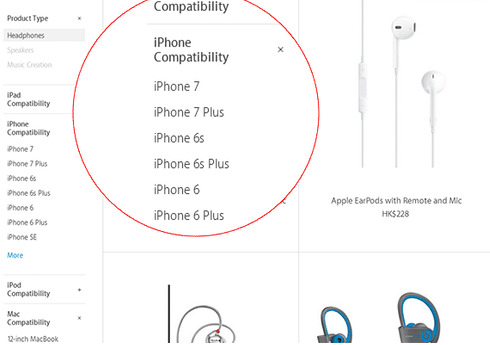
The news of September 7th, the time of Apple’s conference will start is less than 24 hours, the new generation of iPhone will be officially unveiled at 1 am in September 8th. Now users found the official website of the Hongkong Apple accessories on the left side of the page, iPhone 7 and iPhone 7 Plus appeared in the two models in the list, before the official release, this is the official name of iPhone 7 announced.

iphone-7-news

But now Apple’s official website has modified the Hongkong website information, these two models have now disappeared. Before the new machine is released, this should be done for the arrival of the iPhone 7 to do the test or to prepare.

At present, the certain basic information is that, iPhone7/Plus did not change in appearance compared with iPhone 6s, but it will cancel the 3.5mm headset jack, antenna and camera will be changed some of the details, and iPhone7 Plus will be equipped with dual cameras. In addition, the iPhone7 series will also use the TureTone screen, touch Home key, equipped with A10 processor and run on iOS 10 system.

Apple iPhone 7 and iPhone 7 Plus will be public debut in Beijing tomorrow morning,to start pre debut in September 9th, begin to on sale officially in 16th.

Read more:

iPhone 7:Everything You Need to Know

14 Things You Didn’t Know Your Apple Headphones Can Do

25 Hidden iPhone Features that are Really,Truly Hidden

iOS 10 Public Beta Now Available

You Can Delete Built-In iOS Apps on iOS Device

How to Backup and Restore Files on iPhone 7

How to Backup/Restore App Data on Android Phone

Doing a backup of your Android app files is probably one of the most important things for any Android device owner across any platform. You never know when things will go wrong and you don’t want to lose your App data when such events occur.After backing up Android App data,you are able to restore backed App data to Android in case lost it.Thankfully, there are plenty of ways to backup your App data on Android.In this guide, we’ll show you how to backup and restore WhatsApp App’s data, texts, call logs, media files and even your document on Android phone without complicated steps.

How to Backup and Restore Android App Data

Android Data Recovery is one of the basic solution for Android users to backup and restore App data on Android.It can backup a lot of things from Android including Apps,system settings,SMS/MMS/iMessages,call logs,photos,videos,and other various types of file.The program is fairly simple to use,it should only take a few minutes of finish the entire task.It support to restore backed up files to Android with only one click,efficiently.Well, try Android Data Recovery,we can use it to move the App data from android phone to computer, and we can also use it to restore App data on Android phone as well.Let’s see how it work in detail.

d_win d_mac

Part 1:Backup Android App Data to Computer

Step 1.Preparation Before Running the Program
1. Make sure that your Android phone with the battery of 20% in order to complete the following steps.
2. Check whether the USB cable is workable or not.

Step 2.Enable USB Debugging on Android
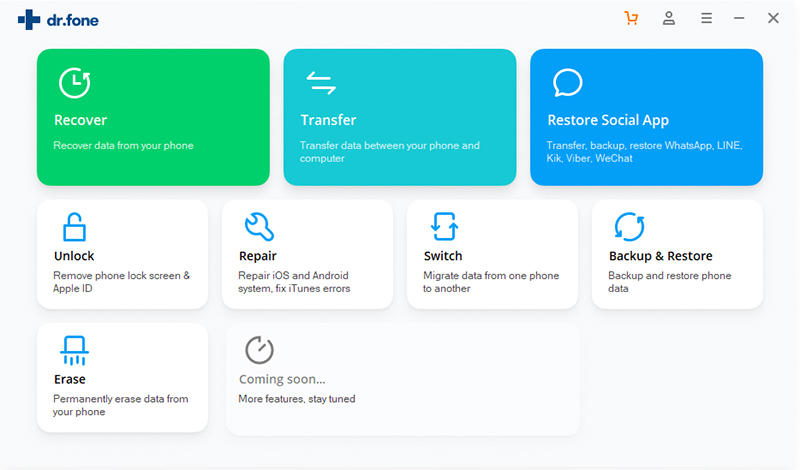
Run the program,and choose the feature of Android data Backup & Restore option.If there is the first time to connect your Android phone to computer,you should click “Allow” on your phone.

backup restore android phone

recover samsung data

Note:If you have enabled USB debugging on your device before,you can skip this step.

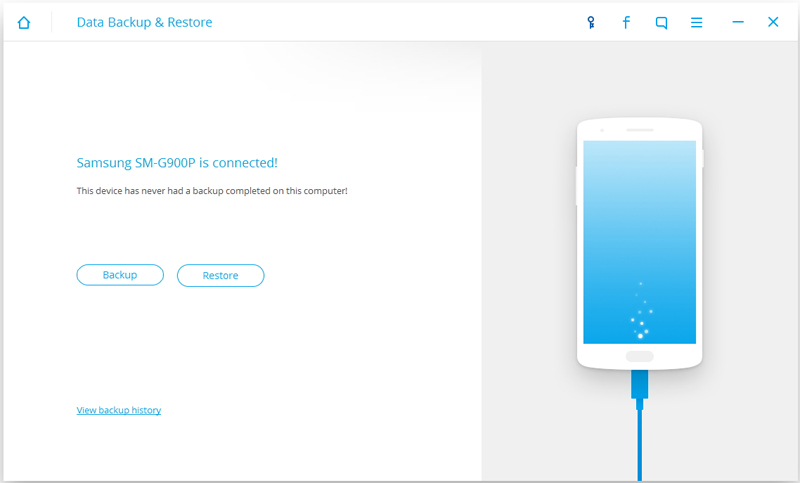
After that,you will see the window as below.Then you can click “Backup” to start your backup process.

backup android app data

Step 3.Select File Types to Backup
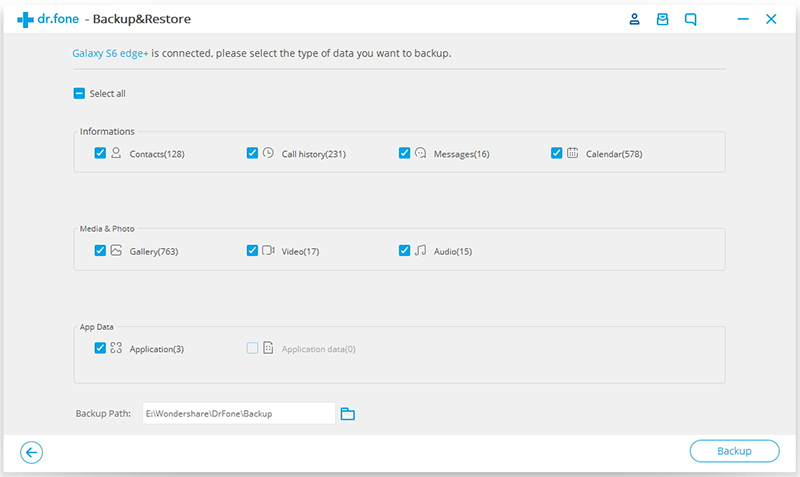
Now,click “Application data” from the interface below to back up your Android app data.There is a little blue icon beside it for you to click and choose types of app.When it is chosen,click “OK” and then hit the “Backup” button to begin the copy process.

backup android app data

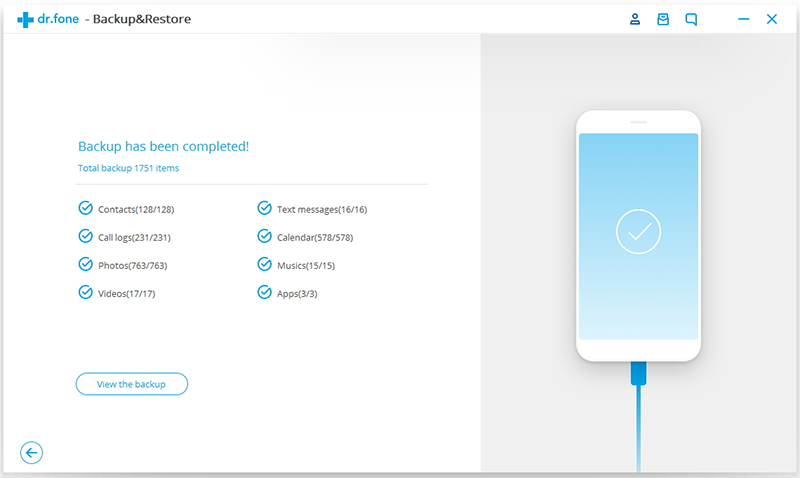
When the backup process is completed,you will be able to check the backup files in detail by clicking “View the Backup”.

d_win d_mac

Part 2:Restore Android App Data from Backup

Once you have backed up your Android device,you can restore the backed up file if you need.

Step 1.Connect Android and View Backup History
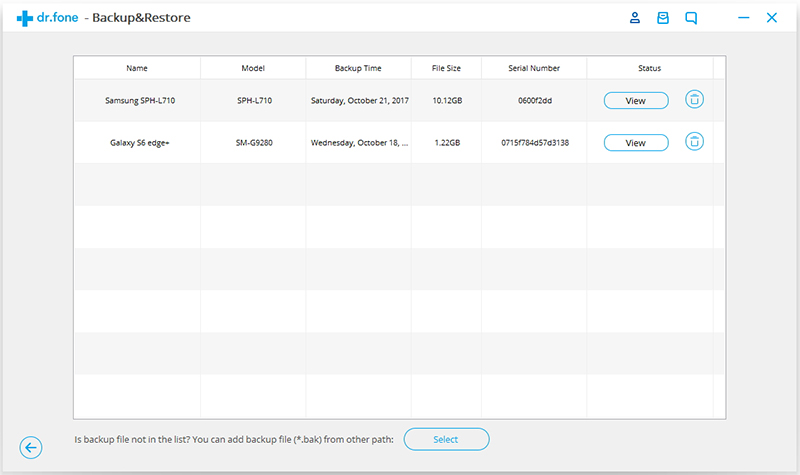
Connect your phone that you want to restore app data as mentioned above.Then tick “Restore” to begin.When connect your Android to PC successfully,you will get an interface as below.Then you should click “View” to preview the precious backup files.Then choose the file you want to get data back and start the restoring.

view android backup

Step 2.Preview and Restore App Data on Android
Now,you can preview the app data in detail before selecting them to restore from the below interface.Click the “Restore” button and extract data to your Android with a while.

restore android app data

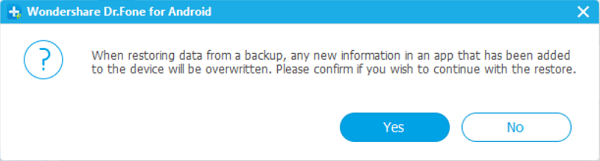
Note:When restoring data from a backup,any new information in an app that has been added to the device will be overwritten.Click “Yes” if you confirm to continue.

restore android app data

To sum up,you’d better do a Android backup frequently to avoid data loss happen under unexpected situations.

d_win d_mac

Related Article:

How to Backup and Restore Android on Computer

4 Solutions to Backup and Restore Android

How to Backup and Restore Samsung Galaxy Data with Samsung Kies

How to Backup and Restore Samsung Data

Recover Lost Data after Nexus 6 Android 7.0 Update

Summary:
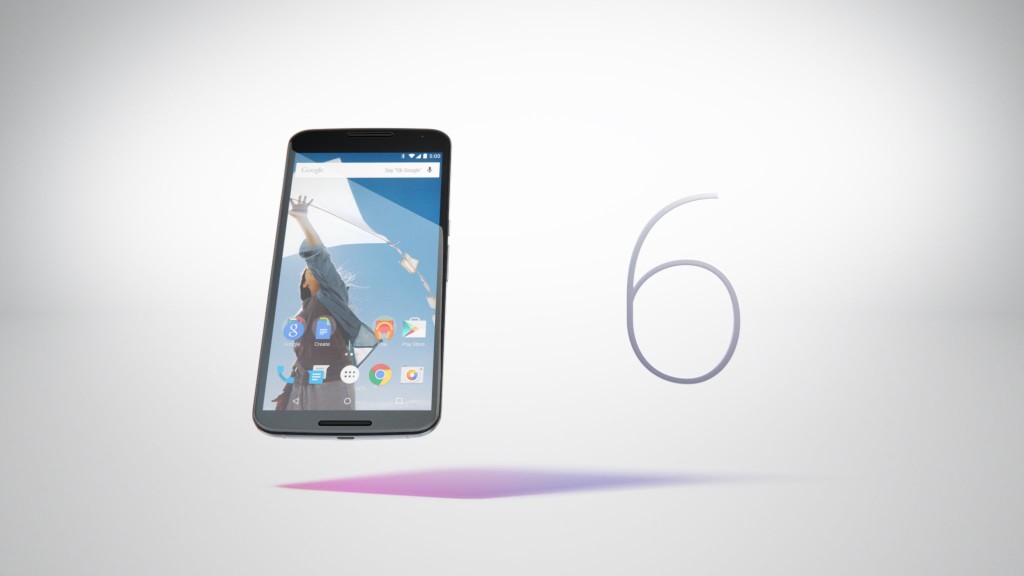
Recently When Android 7.0 upgrade is released,more Nexus users must can’t wait to upgrade their phone to the newest Android system.Since the features of Android 7.0 upgrade is highly welcomed by Nexus account,some of them search ways to do the update job by themselves.However,we receive the report that they lost data on Nexus phone after Android 7.0 upgrade.here we’ll offer you the best solution to restore Nexus data after upgrading for reference.

nexus-6

Backup Nexus Data before Android 7.0 Upgrade
You’re strongly recommended to backup data on Nexus before upgrading firstly.After you’ve completing upgrade Nexus 6 to Android 7.0,click “Restart” to restart your phone and get the new system on your phone.Then you can try to restore all your backups from Google Account or Google Cloud back to your Nexus 6.

Restore Nexus Data after Android 7.0 Upgrade

Sometimes,the unexpected circumstance always happen when you are not ready,according to the Nexus account feedback that text messages usually cannot be restored thoroughly from the backup.So how to restore Nexus data completely after upgrading?How to restore Nexus data after upgrading without backup?

If you are wondering the same problem and searching the ways to fix this issue,that you can consider to try Android Data Recovery.It’s an excellent data recovery tool to restore lost data from Nexus 6 after Android 7.0 upgrade.With Android Data Recovery,you are allow to restore Nexus data after upgrading without any data loss even if you haven’t backup,including contacts,photos,videos,messages,notes,call logs and more.In addition,this program support to restore Android phone after losing data due to various of reasons,like deleted mistake,Android rooting,restore Android to factory setting,etc,.

d_win d_mac

How to Restore Lost Data after Nexus 6 Android 7.0 Update

Step 1.Install and Launch Android Data Recovery
Install and launch Android Data Recovery on your computer and then connect your Nexus with the PC via USB cable.

recover nexus data after android 7.0 upgrade

Step 2.Set up Nexus to Enable USB Debugging
There are different modes are provided to different Android users using the different operating system.You can select the mode as your device operating system as bellow.

recover nexus data after android 7.0 upgrade

Step 3.Scan Data on Nexus
Once USB debugging enabling completes,the program will detect your device automatically.Now you should select file for scanning.After that,you should click “Next” to allow the program to scan your device before recovery.For successful scanning, you must make sure that there is at least 20 % off battery for the phone.

recover nexus data after android 7.0 upgrade

Step 4.Allow Program to Analyze your Nexus
If you have rooted your phone before,you have to allow the program Superuser Authorization on the screen of your phone before the scanning.You should click on “Allow” button when message pop-ups on your phone screen.

recover nexus data after android 7.0 upgrade

Now this program will begin to analyze data on Nexus 6.

recover nexus data after android 7.0 upgrade

Step 5.Preview and Restore Lost Data from Nexus after Upgrading
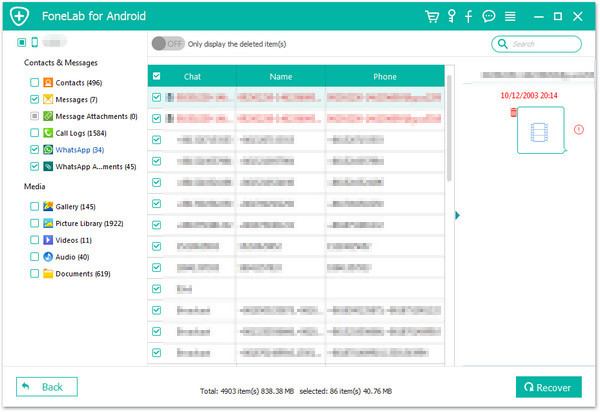
Preview and recover data from Nexus.The program will take some time to scan the lost data from Nexus.After that,you are allow to preview the recovered data found in the scan result.Finally,select the data and click on “Recover” button to save the selected data to your computer.

recover nexus data after android 7.0 upgrade

Note:If you need to transfer the restored data from computer to your Nexus or other device,just click here to transfer data from computer to Android.

d_win d_mac

Related Article:

How to Recover Lost Data after Android 7.0 N Upgrade

How to Recover Data after Android 6.0,Android 7.0 Update

How to Recover Data from Samsung after Upgrading to Android 6.0

How to Recover Data from Android Phone

How to Recover Deleted Videos from Android

“I accidentally deleted the entire video file from my Samsung Galaxy S6,so I was wondering if there are any ways to restore the deleted video from my Android?Google gives me several methods but none is work perfectly after I try. Please help, how can I directly recover deleted videos from my Android phone without backup?”-Nikky

restore deleted video android

Cause the high quality camera of Android device,more and more people like to download and watch videos on Android phone or tablet,or take videos with Android to record the memory.It is really convenient to enjoy the funny videos on Android anywhere and anytime.Accidentally deleted video files from Android is such a trouble thing if you have no idea at all to get it back.Accidentally deleting video files- unfortunately, it has happened to most of us.One of the more popular solutions for Android devices is recover deleted video via thirty-party data recovery tool.We will now show you how to attempt to recover deleted video on Android through the useful app.

How to Restore Deleted Videos on Android

You can perform android video recovery from android phone/tablet with Android Data Recovery,which is a wonderful program has a strong ability that not only enable to directly recover deleted videos from Android, but also allow to recover deleted photos,contacts, text messages, and other data on Android device with easy steps efficiently.What’s more,this program empower to restore deleted files from Android SD card or Android memory card easily.Supported Android devices including Samsung,HTC,Motorola,LG,Lenovo,Huawei,Xiaomi,etc,.

d_win d_mac

How to Recover Deleted Videos from Android

Step 1.Connect Android Device to Computer
After launching Android Data Recovery on computer,connect Android devices to your Windows or Mac computer via USB cable.

recover deleted video from android

Step 2.Enable USB Debugging for Android
Once connect your device to the computer,the program will prompt you to enable USB debugging if your Android has not set up the option previous.

recover deleted video from android

Step 3.Select Data Item to Scan
In the latest version of Android Data Recovery, you are empowered to selectively choose which type of files to be scanned.

recover deleted video from android

When the analyzing is complete,you will get a picture as below,turn to your Android and click “Allow”,so that you can go to the next step.If it does not have such pop-up,click on the “Retry” button again.

recover deleted video from android

Note:The “Allow” button sometimes will appear during some time,just click it until it disappears.

Then program will begin to analyze data on Android.

recover deleted video from android

Step 4.Recover Deleted Videos from Android
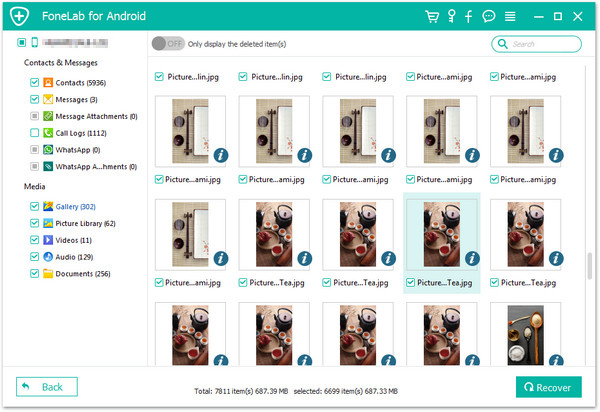
All scanned result will be organized by file types(including Messages, Contacts, Gallery, Videos).Now you are allow to select video files to preview,and then click “Recover” to save them on your computer.

recover deleted video from android

Note:Please make sure that the battery of your Android device is more than 20%.

d_win d_mac

Related Article:

How to Recover Deleted Photos/Videos from Samsung Galaxy S5/S6/S7/S8

How to Recover Deleted Photos/Videos from Samsung

How to Recover Deleted Photos/Videos from Samsung Galaxy C5/C7

How to Recover Deleted Data from Android Phone

Comparison Between Android N And iOS 9

While many of us are still waiting for Android Marshmallow, Google’s engineers aren’t taking a break: the next version of Android, Android N, is nearly here. How does it compare to Apple’s iOS, which has reached version 9.3? There’s only one way to find out: read the comparison between Android N and iOS 9.

Yet as the two big producers of mobile operating systems, Apple and Google, continue their fight to outdo one another, it is particularly noticeable that the latest version of Android N borrows some functionality from its big competitor. Quite a few features, as it happens. So here is a rundown of the feature set in Android N that may be somewhat familiar to users of Apple devices.

Part 1:Differences Between Android N And iOS 9

Android N vs iOS 9: interface
Android N is likely to undergo a lot of interface changes between now and Fall, but we’re already seeing some key differences between it and Android Marshmallow. The notifications area has been completely redesigned and now enables you to respond to messages from within notifications, and there’s a new multi-window mode, which didn’t quite make the cut for Android M. Google also says it’s been working on Project Svelte to make Android feel smooth on older devices, but details of that haven’t been announced yet.

The last major redesign of iOS was years ago, with the controversial iOS 7. It’s not quite as garish as iOS 7 was and the new 3D touch adds extra functionality to (some) app icons, but there are still some shockingly bad interface elements such as the horrible, horrible Music app. iOS 9.3 does get one key new UI feature, though: Night Shift, which can automatically chance the color balance to minimize bright screens’ effects on your sleep.

Android N vs iOS 9: Google Now vs Siri
We’ve yet to see any significant changes in Google Now on Android N, but even if Google only tweaks the edges it’s still ahead of Apple’s Siri for us. Maybe it’s our accent but we find Google’s voice recognition much more accurate than Apple’s, so Siri’s usefulness suffers as a result. Being able to shout “hey Siri!” and issue commands is something we’re glad Apple copied; it’s just a shame that Siri seems to think everything else we say is “blargle argle garble”. Siri also remains far behind Google Now in the usefulness stakes.

Android N vs iOS 9: security and privacy
As ever, Apple and Google are coming at this from different directions. Apple goes for the Father Knows Best model, where apps are only allowed from the Apple app store and even the FBI doesn’t get to decrypt users’ iPhone. Google, on the other hand, wants to be open, so there are always security risks from malicious apps and third-party app stores. One thing we’re hoping to see in Android N is the Smart Lock for Passwords feature, which actually debuted in Marshmallow: that version doesn’t work with many apps yet, so we’re hoping Google promotes it more for Android N app developers.

security and privacy

Android N vs iOS 9: battery
Android’s kicking Apple’s backside in the battery stakes: only the enormous iPhone 6s really delivers the goods battery-wise for power users, whereas the Doze mode introduced in Android Marshmallow massively increased battery life in Android devices of all sizes. Android N doubles down on Doze, with an improved energy saving mode that kicks in any time the screen is off. That should make Android last even longer – hopefully without impairing notifications and usability.

battery

Android N vs iOS 9: mobile payments
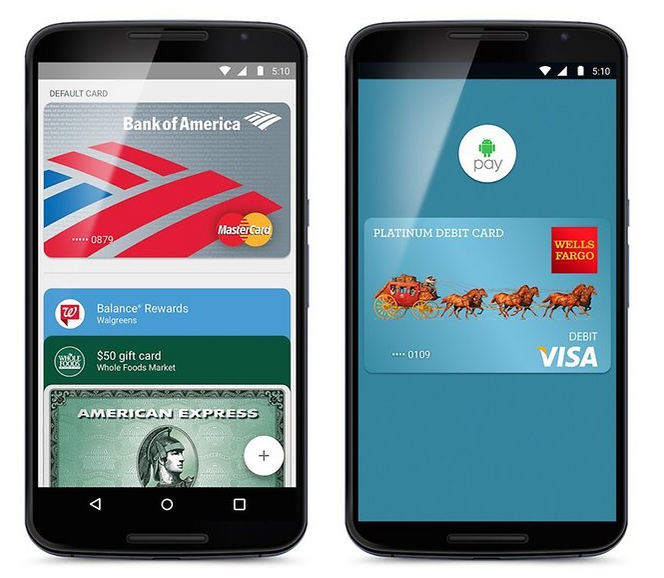
Apple’s way ahead here, with Apple Pay embraced by banks all over the world. Google’s payment system has been revamped and rebranded – it’s Android Pay now – but at the time of writing it hasn’t launched in markets such as the UK. When it does, we’d expect the same retailers that support Apple Pay to support Android Pay too.

Android N vs iOS 9: early verdict
We’re not just comparing apples and oranges here; Android N is so far away that we’re comparing ripe apples with orange trees that haven’t borne fruit yet. Android N is already looking interesting, but we haven’t seen its best bits yet.

As with iOS 8 and Android M, both Android N and iOS 9 are improved versions of existing OSes: they’re better than their predecessors but in an evolutionary sense, not an “OMG they’ve changed everything!” sense. We think Android has the edge in some key areas – battery life and voice recognition in particular – and that Apple offers a more elegant but also more strictly controlled experience. As ever the choice between the rival OSes will largely come down to personal preference, so Android users are likely to gravitate to Android N while iOS users will tend to stick to iOS kit.

What do you think? Is there anything Google should learn from Apple or vice-versa? Let us know by leaving a message or the comments below.

Read more:

The New Features of iOS 10

iOS 9.3.3 :The Things You Need to Know

How to Recover Lost Data after Android 7.0 N Upgrade

How to Recover Lost Data after iOS 9 Upgrade

The New Features of Android 7.0 N You Should Know

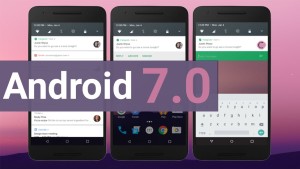
Google has finally released Android 7.0 Nougat. In this article, we explain everything you need to know about the new software, including a look at all of its impressive features.The new OS is loaded with new features and refinements, each one improving upon the overall Android experience. Some changes, such as bundled notifications, are quite obvious.

Android-7.0-Naugat

Android Nougat makes updates faster and easier.When it’s time for your phone or tablet to get updated, you won’t have to do anything. While you’re doing the things you normally do all the hard work is done in the background-very similar to the upgrade experience on Chrome OS. The only thing you need to do is restart your phone to finish things up.Then there are the less visible changes, such as a new multitasking shortcut. Follow along as we take a look at what’s new in Google’s latest mobile OS.

Part 1:The New Features of Android 7.0 Nougat

Instant Apps
Google’s new Instant Apps feature debuts in Android 7.0 and while it hasn’t gotten as much press as it should, it really is an exciting new addition to Android. In fact, we would go as far as to call it the biggest change to app stores since Apple first introduced its on-device app portal all those years ago.

In a nutshell, Instant Apps lets Android users begin using an app in the Google Play store instantly. You don’t have to buy it — heck, you don’t even have to download it. Simply open the app’s store page and you can begin testing it immediately to see if it’s something you might be interested in downloading.

This is a killer feature that really is a game-changer for users.

Multi-window App Support
Samsung’s Galaxy Note smartphones have had this feature for quite some time, as have a few other Android phones. Now, all handsets can take full advantage of huge displays that have become increasingly popular over the years.

With Android 7.0 Nougat, Google has added the ability for users to open two apps side by side on the screen. That means you can watch YouTube videos while you respond to emails, read a webpage on half the screen while Facebook is updating on the other half, and so on.

Power-Saving Features
Google’s new “Doze” feature debuted in Android 6.0 Marshmallow, but the company is kicking its power-saving features up a notch in Android 7.0.

The original feature puts a smartphone or tablet in a dormant state when it’s not being used, but Android Nougat’s new “Doze on the Go”feature takes things a step further. Now, users will enjoy Doze’s battery-saving features even while the phone is in motion, anytime the display is off.

Also new in Android Nougat is Project Svelte, which stops apps from waking up each time a device’s network connection status changes.

Virtual Reality
Last but certainly not least is Daydream. Google saw all these different companies building separate virtual reality platforms, while likely leads to incompatibilities and can potentially hurt the VR market in the long run. In an effort to unify the mobile VR experience, Google has created the Daydream hardware and software platform for virtual reality.

This way vendors like Samsung, LG and others don’t each have to build their own VR platform or partner with different third parties. And for developers, it potentially means they can build one VR app or experience that will work across all Android devices.

Background System Updates
This new feature isn’t the sexiest addition you’ll find in Android 7.0 Nougat, but it truly is nothing short of a game-changer.

With Android Nougat, operating system updates will happen in the background, just like they do in Google’s Chrome OS. The system will download OTA updates in the background over Wi-Fi and install them as a separate system image on a device’s storage. Then the next time the device reboots, it’ll boot to the newly updated image. Voila!

Read more:

25 Best Android Tips to Make Your Phone More Useful

Solutions to Fix WhatsApp Programs on Android Phones

[Android Lock Screen Removal]How to Unlock Android Lock Screen

Forget Android SIM Card Lock PIN and How to Remove

What to Do if Android can’t be Accessed

[Solved]How to Fix Android Won’t Turn on Issue

Forget Android SIM Card Lock PIN and How to Remove

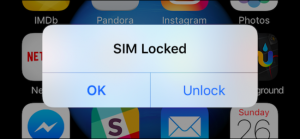
With the development of science and technology,more and more mobile phone are adding the SIM card lock function.Even with the best protection on your smartphone SIM card,someone could simply remove your SIM card-which holds your phone number, security data, billing information.You can protect SIM data that no one can access it without enter the PIN of your SIM card on Android device.

sim card locked

A SIM card PIN:A SIM card typically comes with a default PIN, but it’s not used for locking purposes.The SIM card has an associated PIN Unlock Key (PUK).If you attempt to do a SIM PIN Lock, and you fail to guess the original PIN, the SIM will be locked with the PUK. If you run into this situation,you must be annoy to unlock your Android SIM card when you forget the SIM PIN.

Part 1:Is it your Android SIM Locked

Not all Android are SIM locked.To confirm if yours is,you can begin by checking the documentation for the device. If the word “unlocked” appears on the initial device, you can be largely certain that it is SIM locked.But if you’ve find that your Android phone is locked to the SIM card, how can you unlock it without the PIN?

If you are not sure whether your phone is SIM locked, the easiest way to check is using a SIM card from a different carrier and see whether the phone accept the new SIM Card.

Part 2:Unlock SIM Card on Samsung S2-S4, Note 1-Note 3

Android SIM Unlock Tool is the super rescuer for you to unlock Android SIM card without data loss,it provide you a fast way to unlock your Android phone with simple process.Android SIM Unlock Tool analysis the locking principle on the SIM card and then choose different unlocking method for each device.The program will not affect any data on your device,your data is completely safe.It work well with almost all models of Samsung devices,like Samsung Galaxy S9/S9+/S8/S7/S6,Note 8/5/4/3.Fast and efficient service,totally worth have a try.

d_win d_mac

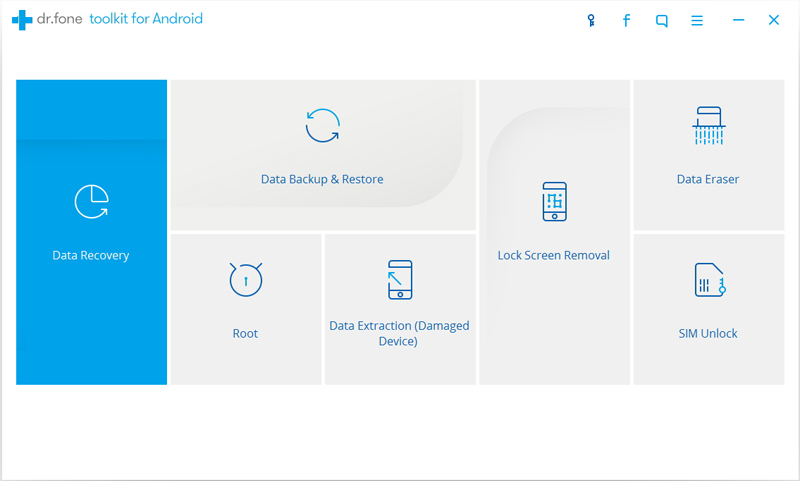
Firstly launch Android SIM Unlock Tool on your computer and select Android SIM Unlock from More Tools tab.

android-sim-unlock-tool

Step 1. Connect Android Device with Computer
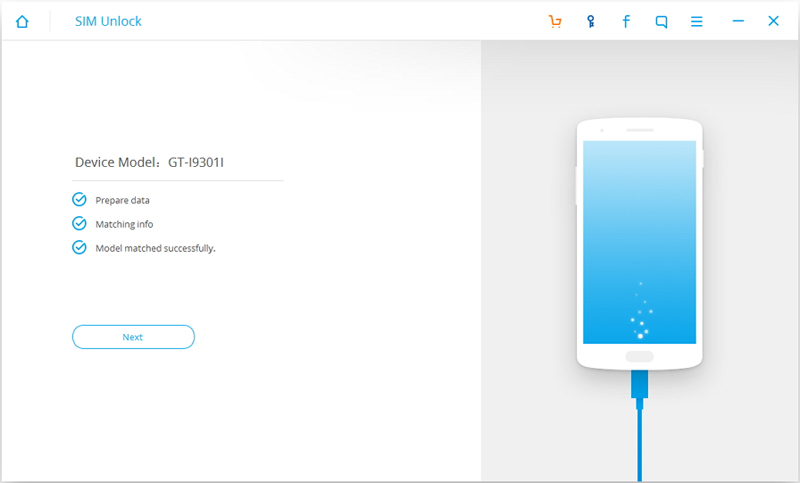
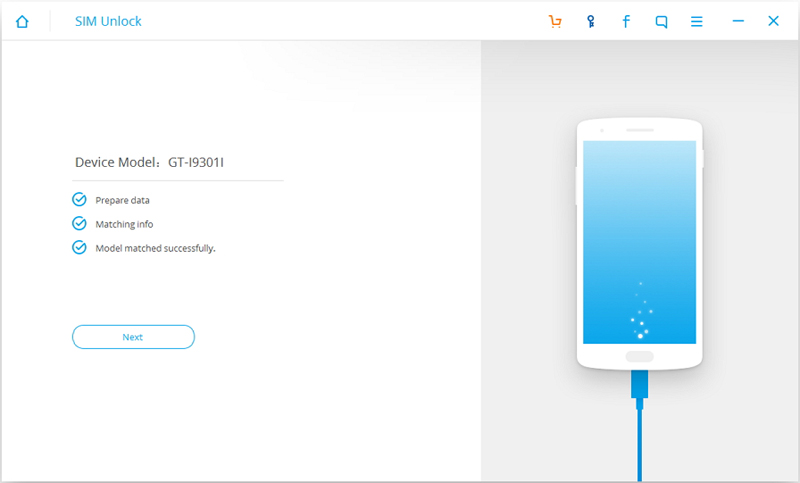
To get started,connect your Android phone to the computer with an USB cable.Make sure you have enabled USB Debugging mode on your device.Then Android SIM Unlock Tool will detect your device automatically.

connect-android-device

Click on Next to go on.

Step 2.Enter USB Settings/Diagnostic/Service Mode
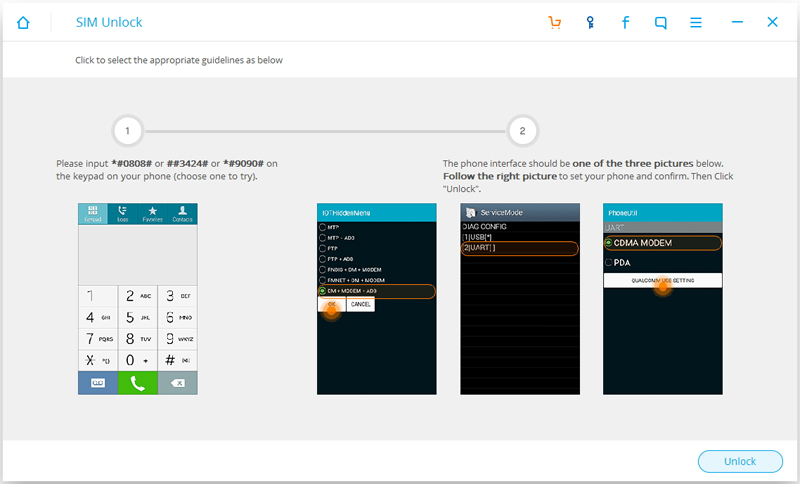
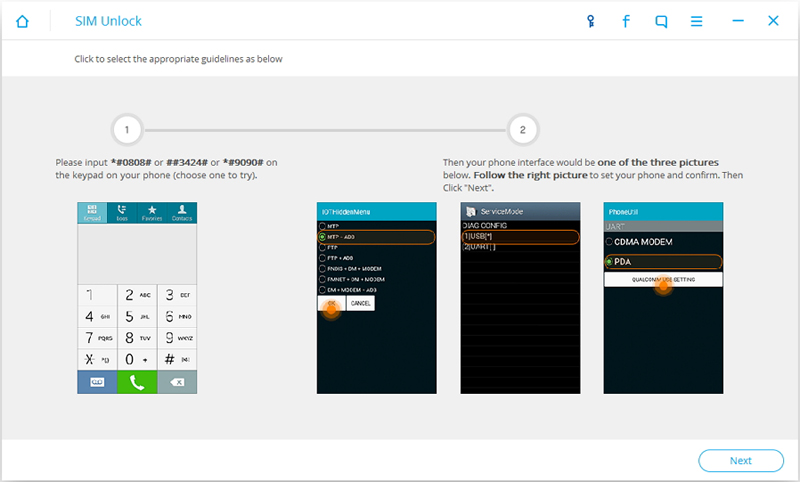
Follow the instructions on the program interface to enter USB Settings/Diagnostic/Service Mode on your Android phone.

Dial *#0808# or ##3424# or #9090# on your Android phone.Normally one of these will work for your phone.After you input one of the numbers and symbols,the phone will automatically enter USB Settings/Diagnostic/Service Mode.

enter usb mode android

Select DM + MODEM + ADB or UART[*] or CDMA MODEM on the phone.After the phone is set properly,click on Unlock.

Step 3.Unlock Android Phone
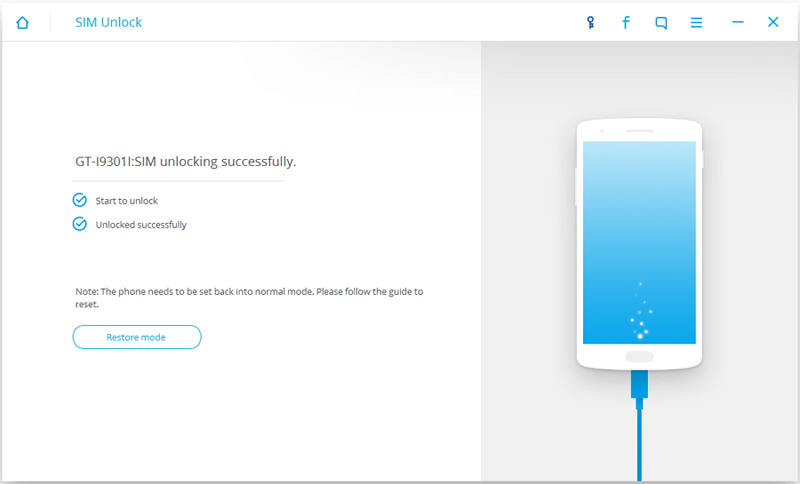
After you click on Unlock,Android SIM Unlock Tool will start to SIM unlock your phone.Just wait for a few seconds to complete.

unlock android sim card complete

Note:The phone will need to be set back into normal mode after it’s unlocked.Just click on Restore Mode on the program to continue.

Step 4.Restore Android to Normal State
To restore the phone to normal state,dial *#0808# or ##3424# or #9090# on your Android phone and select MTP + ADB or USB[*] or PDA on the hidden menu.

restore the phone to normal mode

Then click on Next,your phone will enter normal mode and now it’s successfully SIM unlocked.

d_win d_mac

Part 3:Unlock SIM Card on Samsung S5-S7, Note 4-Note 7

Note:The unlocking process for Samsung Galaxy S5-S7 devices is simpler.But to successfully unlock these devices,please make sure you have rooted your devices first.

Firstly launch Android SIM Unlock Tool on your computer and select Android SIM Unlock from More Tools tab.

android-sim-unlock-tool

Step 1.Connect Android phone with Computer
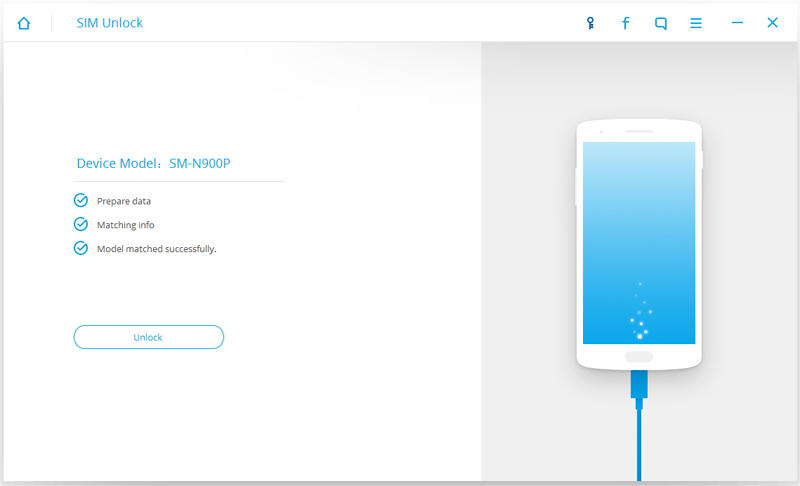
For rooted devices,please connect your phone to the computer using USB cable.Android SIM Unlock Tool will automatically detect your phone.

connect-locked-android

Click on Unlock to continue.

Step 2.Unlock Android Phone
After clicking on Unlock,Android SIM Unlock Tool will automatically SIM unlock your phone.All you need to do is waiting for about a few minutes till the process complete.During the process,your phone will restart once.Please don’t disconnect your phone with computer until the unlock task is finish.

unlock android sim card

d_win d_mac

Related Articles

What to Do if Android can’t be Accessed

[Solved]How to Fix Android Won’t Turn on Issue

How to Completely Remove Contacts from Android SIM Card

How to Set the Smart Lock of Samsung Phone

[Android Lock Screen Removal]How to Unlock Android Lock Screen

How to Recover Lost Data from Locked Samsung Phone

Unlock Android SIM Card

Forget iPhone Locked Screen Password and How to Remove it

Can’t sign in your iPhone and get it stuck at the locked screen?If you’ve forgotten the iPhone password and haven’t set up Touch ID on a modern iPhone, you’ll need to reset your phone to regain access.Unfortunately,it will erase all data and the settings from your device.If you ever made a backup on iPhone previous that you are able to avoid the data loss disaster.How to remove the locked screen on iPhone without password?

Is it possible to access iPhone without password?Actually,iPhone, iPad/iPod touch locked screen password can be removed by yourself without professional skill.What you need is iOS System Recovery program, which enable to remove the locked screen on iPhone/iPad/iPod touth without data loss.Now read on and see how to remove the locked screen and access your iPhone in three ways.

Solution 1:Restore iPhone via iTunes to Remove Locked Screen

1. Make sure that you are running the newest version of iTunes on computer.
2. Connect the locked screen iPhone to the computer, then select your iPhone when it appears in iTunes.
3. Click on Restore iPhone on the Summary panel.
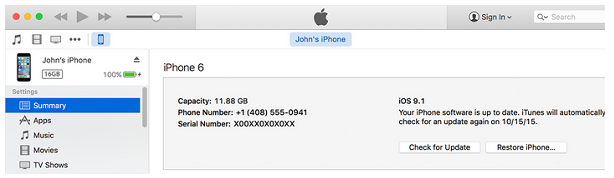
restore iphone ituns

4. A pop-up messages will prompt and ask for your confirm,click on Restore.Then iTunes will download the device software file and restore your device automatically.
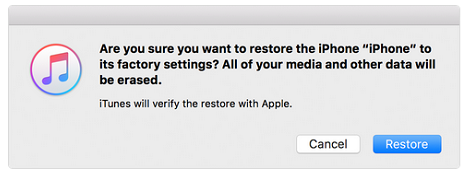
confirm iphone restore

After clicking Restore,iTunes will begin to restore your iPhone to factory settings,all of your data and settings will be erased from iPhone after restoring.We suggest you do a backup for iPhone before the restoring.

Solution 2:Get iPhone into Recovery Mode to Remove Locked Screen

Step 1. Run iTunes on computer.
Step 2. Power off your iPhone.And then connect iPhone to computer via the USB cable.
Step 3. Now press and hold the Home button until you see the iTunes logo (recover mode screen) pop up on your iPhone screen.
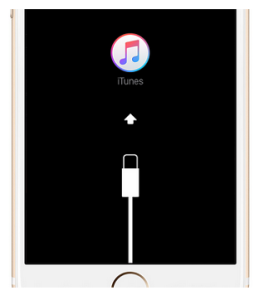
recovery mode

Step 4. Once your device is connected to iTunes, you will see a pop-up message appear on iTunes asking you to choose to Restore or Update as below. Select Restore.

Step 5. After that, iTunes will start downloading software for your device. When it’s done, you can set up and use your iPhone without password.
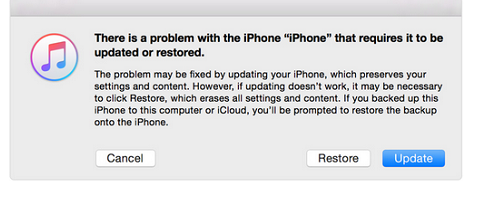
enter recovery mode itunes

Solution 3:Remove iPhone Locked Screen via iOS System Recovery

U.Fone iOS System Recovery is a data repair tool particularly work for restoring iOS system to normal and remove iPhone locked screen without data loss.Additionally,this iOS System repair tool help to fix iPhone stuck in Recovery Mode, black screen,stuck at “connect to iTunes” screen,looping on start and other issues of the device.Moreover,the program not only allows you repair iOS system issues on iPhone, iPad/iPod Touch,but also enable users recover data from iOS devices lost due to deleted by mistake,factory reset,device loss,iOS 10 upgrade/jailbreak,etc,.


d_win d_mac

Step 1.Run iOS System Recovery and Select the Recovery Option
Firstly please run the iOS System Recovery and click “More Tools” >”iOS System Recovery” in the program homepage.Connect iPhone with computer,then click “Start” to continue.

remove iphone locked screen

Step 2.Download the Firmware for iPhone
Make sure that your iPhone is connected to the computer and now iOS System Recovery will detect your iPhone soon,offering the latest iOS version for you to download.Then click “Download”,the program will begin to download the firmware for your iPhone.


remove iphone locked screen

remove iphone locked screen

Step 3.Remove iPhone Locked Screen and Set it to Normal
When the firmware downloading process is complete,iOS System Recovery will start to restore your locked iPhone to normal and remove the locked screen on iPhone.

remove iphone locked screen

Once the process is finish,your iPhone will be as a new phone without password,you can start using it normally as usual.

Note:
iOS System Recovery will update the latest version for iPhone after restoring.
Your iPhone will be restored to non-jailbroken state after restoring.

d_win d_mac

Solution 4:Bypass iPhone Locked Screen via iPhone Locked Screen Removal

Another solution to bypass locked screen on iPhone is with the help of iOS ToolkitiPhone Locked Screen Removal.It provides you a safe solution to unlock and access your iPhone easily. It empower to bypass locked screen iPhone and access the device without restoring to factory reset or performing Recovery Mode on it. iPhone Locked Screen Removal work for all iOS devices, including iPhone X, iPhone 8, iPhone 7, iPhone 6S/6, etc,.

The steps to access iPhone without locked screen:
Step 1. Connect the Locked iPhone to the Computer
Step 2. Enter iPhone into the DFU Mode
Step 3. Confirm the Information of iPhone
Step 4. Unlock iPhone without Data Loss
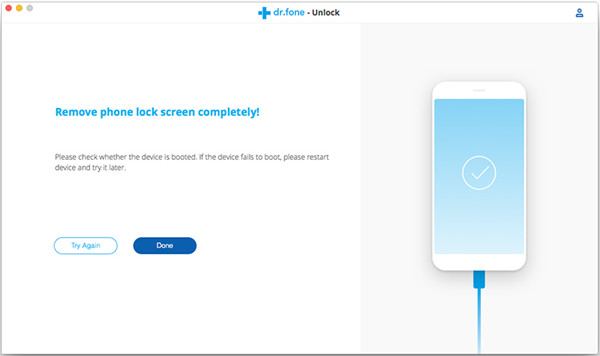
unlock iphone without data loss

Free download iPhone Locked Screen Removal:

d_win d_mac

Related Articles

Unlock iPhone Passcode when Forgot iPhone Screen Lock Passcode

How to Fix Forgot iPhone Screen Lock Password

How to Unlock a Stolen iPhone without knowing the Password

How to Unlock iPhone with Unresponsive Screen

How to Extract Data on Locked iPhone

How to Restore Data on Locked iPhone

How to Factory Reset an Locked iPhone

Remove iPhone Locked Screen
How To Restore Gmail Contacts On Samsung

“I wanna restore my Gmail account contacts to my Samsung Galaxy S6 phone.How?Can anyone tell me about the detail steps?Thanks.”Matt Saif

Android users that love to customize their devices should know that they can easily sync the contacts stored on their phone with the device designated Gmail account.This trick helps you keep your phone, Google+ contacts and all the other profiles synced with your Gmail Account,the one you’re using the Google Play Store and with all the other Google services.This feature is great and you can easily perform all the changes and syncing in several steps.

Syncing contacts with Gmail account comes in handy when you want to root/update the firmware of your phone.As you know, while rooting or updating firmware you’re risking to damage data files, text messages and contacts that could get corrupted or lost. That’s the reason I’ve created this article, in order to help you sync/restore the contacts on your Android with your Gmail account successfully.

Part 1:How to Restore Gmail Contacts on Samsung Galaxy Phone

Step 1.Open the Gmail App or navigate to gmail on google search on your phone.

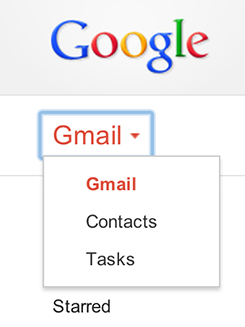
Step 2.Click on the Gmail drop down option.

restore-gmail-contacts

Step 3.Click on the button “More”.

more

Step 4.Select “Restore Contacts”.

>Select the time you want to restore from,example:20 minutes ago,7 days ago etc,.

Part 2:How to Restore Deleted Contacts on Samsung Galaxy Phone

When you lost Android contacts due to deleted by mistake,device factory resetting,Android system upgrade,viral infection,device get broken/damaged or other reasons,you are recommended to try this wonderful data recovery-Android Contacts Recovery,which enable to restore deleted contacts from Samsung,HTC,LG,Lenovo,Motorola,and more Android devices.Besides Contacts,this program allow to restore various of deleted data from Android,such as photos,videos,call logs,notes and so on.Supported Samsung:Samsung Galaxy S8/S7/S6/S5,Galaxy Note 7/5/4/3,etc,.

d_win d_mac

Check the tips:How to Restore Deleted Contacts from Samsung

recover Samsung deleted contacts

Read more:

How to Fix Android Won’t Turn on Issue

How to Fix Bricked Android Phone or Tablet

25 Best Android Tips to Make Your Phone More Useful

How to Backup Android Contacts to Computer

How to Get More Internal Storage from Android

How to Completely Remove Contacts from Android SIM Card

What to Do if Android can’t be Accessed

In our daily life,you may meet this trouble:can’t access your Android device for unknown reason.There are many types of disabilities for device and most of them will lead to your Android broken or damaged,at least they seem to be.Whether it’s being hard of hearing, visually impaired,or physically disabled,chances are that you can’t use your smartphone or tablet to its full potential.In this article, we’re going to take a look the available ways to fix your Android which can’t be accessed.

can't access android

Like most new Android users you downloaded a lot of apps,you eventually rooted your smartphone/tablet and installed powerful apps and a custom ROM.Then something went wrong and your device became useless and then can’t be accessed. Sounds familiar?Yes,it is all about “bricking” Android device or damaging your Android Operating System.The cause can be file corruption,installation of some tricky apps on the Android device.You can first perform a hard reset from the System Start menu-hold Volume Down, Home or another button while turning on your device.

Most devices can’t be accessed and turn “brick” when they suffer a hardware abuse-falling hard, getting dropped, a custom ROM is incompatible with the device type, Google apps vanish after a custom ROM is installed, custom ROM does not match with the installed kernel, some error from the full data wipe/factory reset/cache wipe after flashing with a custom ROM.It is good to know that there isn’t a universal method to debug/troubleshoot your Android smartphone/tablet.Here is the way to fix your Android can’t be accessed.

Part 1:Fix Android Device can’t be Accessed

Hard Reset Android Device:
Step 1.Power off your Android.
Step 2.Press and hold your the Volume Down button of Android, then press the Power button or hold down the Home key while pressing the Power button.
Step 3.Press Volume Down button and scroll down to the “Clear Storage” or “Factory Reset”.
Step 4.Press Power or OK.
Step 5.Press Volume Up and wait for the reset process to finish.
Step 6.Now you can power on your device.

Tips:Hard reset may lead to wipe all data and the settings from Android,you should do a backup for Android to prevent Android data loss happen.

Part 2:Restore Data from an Inaccessible Android

Broken Android Data Recovery is an excellent data recovery tool which work perfectly for restoring data from Android which can’t be accessed,it’s powerful enough to recover data from disabled Android under any unknown reasons,including broken screen Android,locked screen Android,black screen Android,bricked Android,etc,.With Broken Android Data Recovery,you are allow to get back data from damaged Android with easy steps.Click here to view tutorial in detail :how to restore data from broken Android.

d_win d_mac

restore data from android can't be accessed

Step 1. Launch Broken Android Data Recovery and Connect Android

Step 2. Choose Data Type for Recovery

Step 3. Choose Fault Type for Android

Step 4. Enter Download Mode on Android

Step 5. Analyzing Data on Inaccessible Android Phone

Step 6. Restore Data from Android which can’t be Accessed

Related Article:

How to Fix Android Won’t Turn on Issue

How to Fix Bricked Android Phone or Tablet

How to Restore Data from Samsung with Touch Screen Cannot be Used

How to Enter,Use and Exit Recovery Mode on Android