All posts by DHZ

How to Transfer Contacts between Android and iPhone 7

Do you used Android phone before,like Samsung S6/S6 edge/S5/S4/S3, Galaxy A8/A7/A5, HTC M8/M9, LG G4/G3, Sony Z3, Motorola, HuaWei,ect.and have given away the old Android phone and bought an new iPhone 7(plus), iPhone 6s(plus), iPhone 6(plus),what you want to do is transferring contacts from old Android phone to new iPhone.

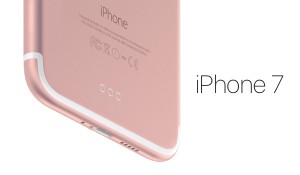
iPhone 7 equipped with quad-core A10 processor with the dual cameras. Canceled a 3.5 mm headphone jack to switch interfaces Lightning headset, wireless headset comes with AirPods, waterproof and dustproof, stereo speakers, longer battery life and some new features and optimization.

As the new design of iPhone 7,many people upgrade the old phone to iPhone 7.What about you?Are you the one of them?Not only the iPhone users,but also the Android supporter are begin to turn their eyesight to the new iPhone 7.If you’re an Android user thinking about switching to iPhone,iPhone SE,iPhone 6S or the coming iPhone 7,you may be concerned about the transfer process.For most of mobile users,the contacts, phone numbers and E-mail addresses are the most important personal information that firstly needing to transfer to new device when change mobile phones.

Transfer Contacts from Android to iPhone 7(Plus)

Which is the best way to transfer contacts from Android to iPhone 7?Today we’ll walk you through all of the easiest methods,so you can get started and enjoy your iPhone 7 in a short time.With Android to iPhone Transfer – Phone Transfer,you’ll be able to copy contacts from Android to iPhone 7/SE/6S/6/5S/5C/5.In Addition,this wonderful program allow to transfer various of data between mobile phones when they running different operating system,such as Android phones,iPhone,Blackberry,Nokia.The supported data including photos,SMS,WhatsApp messages,call logs,notes,videos,document,etc.


d_win d_mac

Part 1:Transfer Android Contact to iPhone 7 with Phone Transfer

Let’s take transferring contacts from Samsung Galaxy S5 to iPhone 7 as example,first of all,please download and install the program on your PC or Mac,double-click the desktop icon to launch it.

Step 1.Run Phone Transfer and Select the Transfer Mode
On the homepage,tag on ‘Start’ button and navigate to “Phone to Phone Transfer” mode.Connect your Android phone and iPhone 7 to computer via USB cables,then you will see your phones showed on the window.

android to iPhone 7 data transfer

Step 2.Connect Samsung Galaxy S5 and iPhone 7 to PC
Then connect your Galaxy S5 and iPhone 7 to the same computer,the Galaxy S5 phone should be recognized as source device on left panel,and iPhone 7 on the right.(Also,you can click on ‘Flip’ button the exchange the position if you wanna transfer data from iPhone 7 to Android in later days.)

Select Contact File and Transfer to iPhone 7
Now you should to select the file type to transfer,such as “Contacts“,”Text messages”,”Videos”,etc.If you only need to transfer contacts between Android and iPhone,just simply click “Contacts” option.
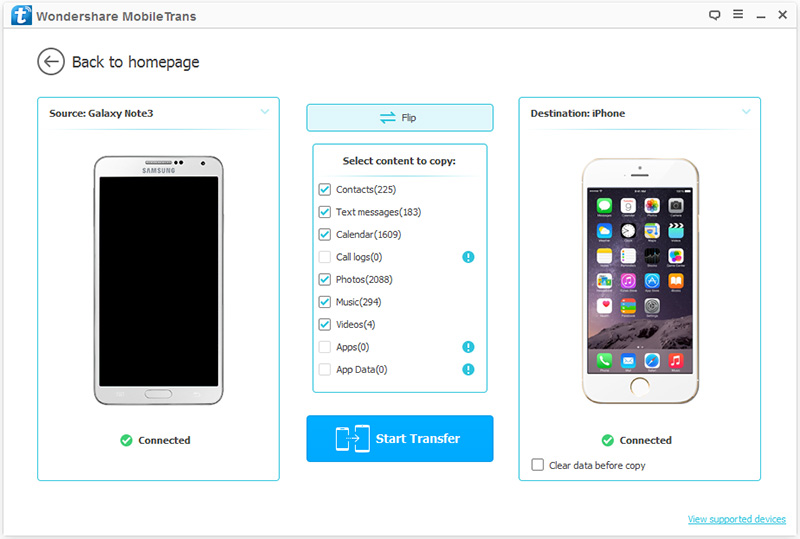
Transfer contacts from android to iPhone 7

Step 3.Transfer Contacts between Samsung Galaxy S5 and iPhone 6
Then click “Start Copy” to begin the data transferring process.A progress bar will pop out.When it done,click on ‘OK’.After seconds,all of your Android contacts will be showed on your new iPhone 7.
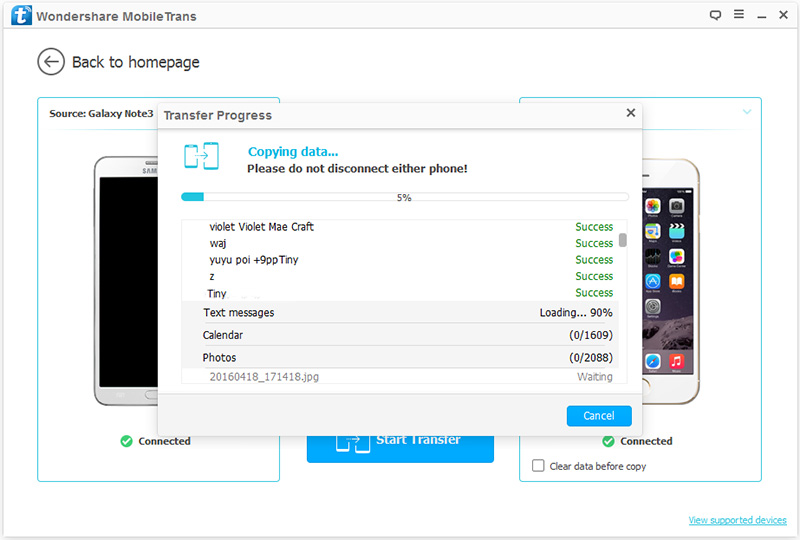
Transfer contacts from android to iPhone 7

Well done.You’re finally making the data moving completely with the help of Phone Transfer,getting rid of your old Android phone in favor of a shiny new iPhone.

d_win d_mac

Part 2:Transfer Android Contact to iPhone 7 with Gmail

You can transfer contacts from android to iPhone 7 via Gmail.If you have a Google account i.e. Gmail, Google play, etc., there are high chances that your full contacts will be associated with the Google account.Transferring contacts from Android to iPhone 7 is quite simple and requires few steps to be followed.Whenever you add a new contact on your phone,it will always for whether you want to save it to sim card or your Gmail. So, saving contact in Gmail will benefit you in future while transferring the contacts from Android to iPhone.

Steps to Transfer Contacts from Android to iPhone 7 with Gmail:
transfer-contacts-from-android-to-iphone-7

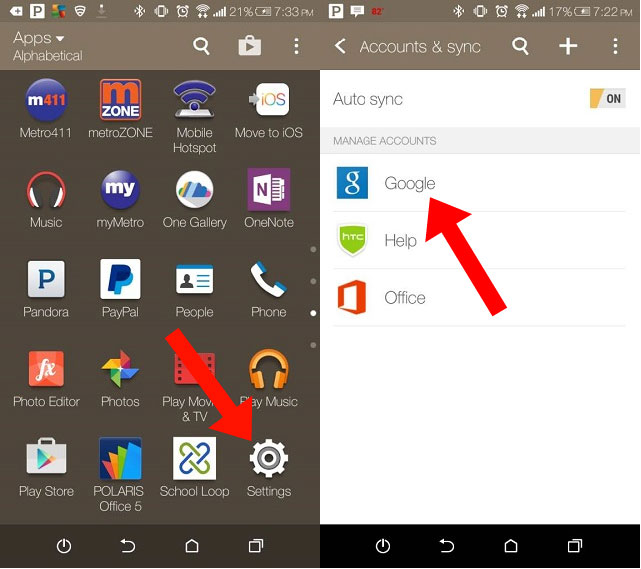
1. From your Android phone, go to the Settings, and select ” Accounts and Sync” or similar option.
2. Enter your Gmail username and password, and enable synchronization. By doing this, you will allow your phone contacts and Google Contacts to get synced.
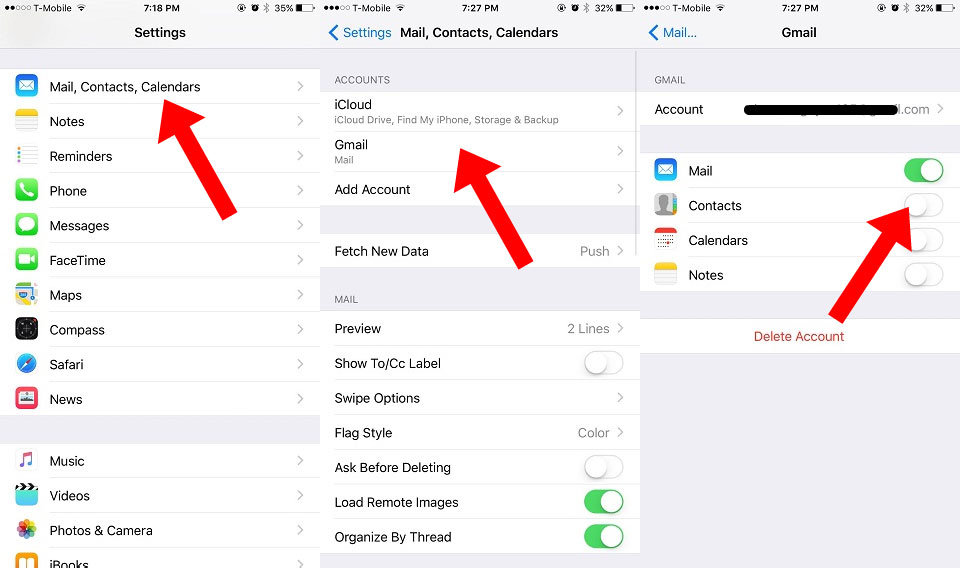
3. Now, go to your iPhone. In the Settings menu, go to Mail, Contacts, Calendars and add your Gmail account.
4. It will ask for the Gmail Account credentials again. Once you login to it, it will ask, what type of information you would like to activate. Select Contacts and your Android contacts will get imported to your new iPhone.
transfer-contacts-from-android-to-iphone-via-gmail

Pros:

1.This method is used to transfer contacts from Android to all another operating system like iOS,Windows,etc,.
2.The method is very easy and takes less time for transfer.
3.Using Gmail for contacts transfer is very secure.
4.Despite contacts,you can also transfer calendars and emails.

Cons:

1. You must have a Google account for this.
2. The formats in which the contacts is backed-up by the Android OS in Gmail is not supported by iPhone,and as a result of this, iOS makes alterations in the format of saving contacts.

By using any of the methods stated above,you can conveniently transfer contacts from your old Android smartphone to your new iPhone 7.No worry of losing your important contacts anymore.

Read More Android and iPhone Transfer Tutorial:

How to Transfer Android Data to iPhone 7

How to Transfer Samsung Contacts to iPhone 7

How to Transfer iPhone Contacts to iPhone 7
How to Transfer Samsung Data to iPhone 7

How to Backup and Restore Files on iPhone 7

How to Convert DVD Movies to Samsung Galaxy

[Summary]: Want to watch DVD movies on Samsung phone like Galaxy S9/S8/S7/S6, Note 8, Note 5? This article will show you the easy guide to rip DVD movies and transfer to Samsung Galaxy for watching on everywhere you like.

Many people have the same hobbit as me likely to play funny movies on mobile phone.It’s convenient and high quality.There are amount various kinds of DVD sell on the music store.It’s make sense to view DVD movies on mobile phone.However,not all DVD movies are supported to play on phone due to the unsuitable format for phone.If you’re one of the few people who’ve received the message “Can’t play movies” on your Samsung smartphone,read on to find the possible fixes to get your movies working on mobile phone.

convert dvd to samsung

Rip (Copy Protected) DVD Movies to Android Samsung Phone

Not all Samsung phones can play DVD movies and videos such as MKV AVCHD MTS, so just check whether your Samsung can play DVD movies smoothly. Here we will introduce a best DVD to Samsung Ripper & Samsung video converter to rip DVD to Samsung Galaxy S5/S6/S7/S8/S9, Note 3, Note 4, Note 5, Note 8, etc.

DVD to Samsung Converter enable to edit, download and convert DVD movies or videos for Samsung devices without quality loss. Not only help to fast convert DVD movies/videos to Android devices,but also allow to convert 2D movies/videos to 3D/4K movies/videos easily. Supported rip DVD to any Android devices such as Samsung, HTC, LG, Motorola, Sony, Huawei, Lenovo, Xiaomi,etc.

More Features of Samsung Video Converter:

-Convert,transfer videos 30X faster with 100% quality retained.
-Convert 2D Moives to 3D, Convert 4K videos and Play on Android phones or tablets.
-Support 158 formats for Android video,audio conversion.
-Edit Android video and audio more quickly and easily.
-One-click to download and capture web video.
-Convert DVD moives to Android devices; burn and copy home DVD, edit and download videos to Android files.
-Better results with native code when using iMovie, Final Cut Pro, Adobe Premiere, etc.

d_win d_mac

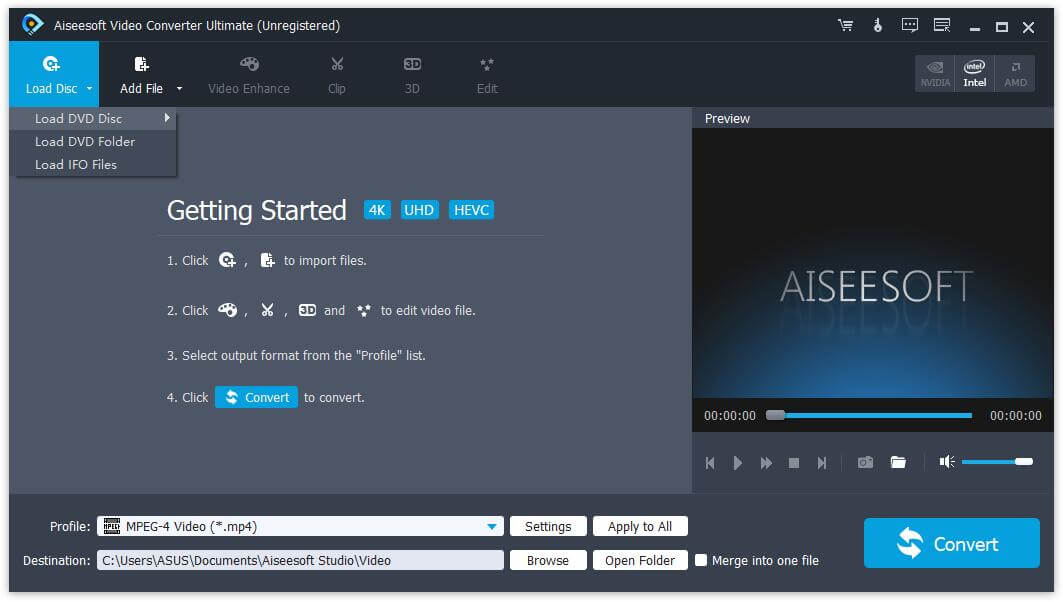
How to Rip DVD Movies and Transfer to Samsung Phone

Step 1.Launch DVD to Samsung Ripper on PC
The first step is to launch run the DVD Ripper & Video Converter on PC.

run dvd to Samsung ripper

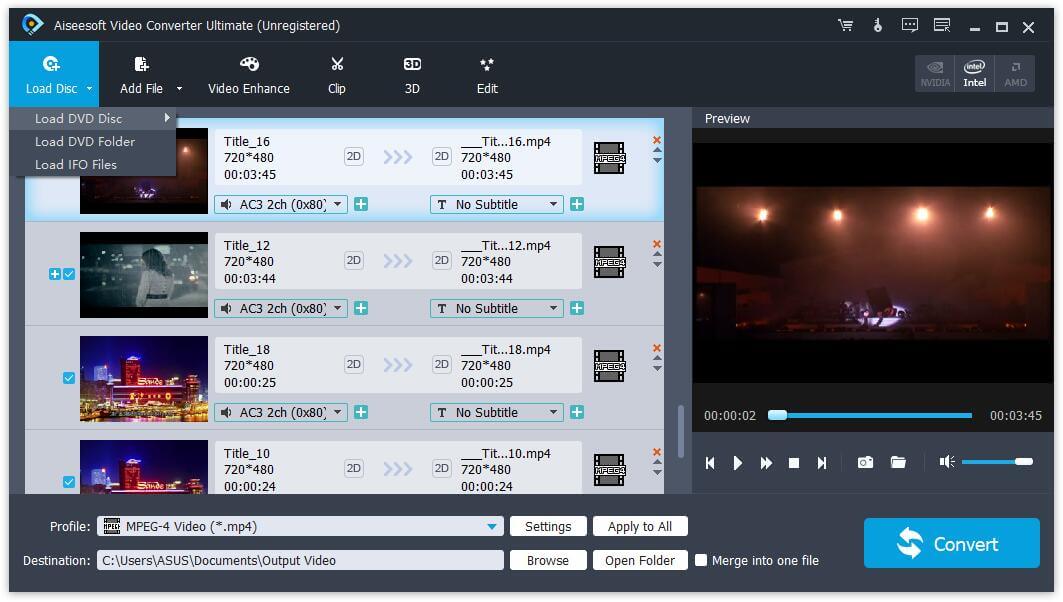
Step 2.Load DVD Movies
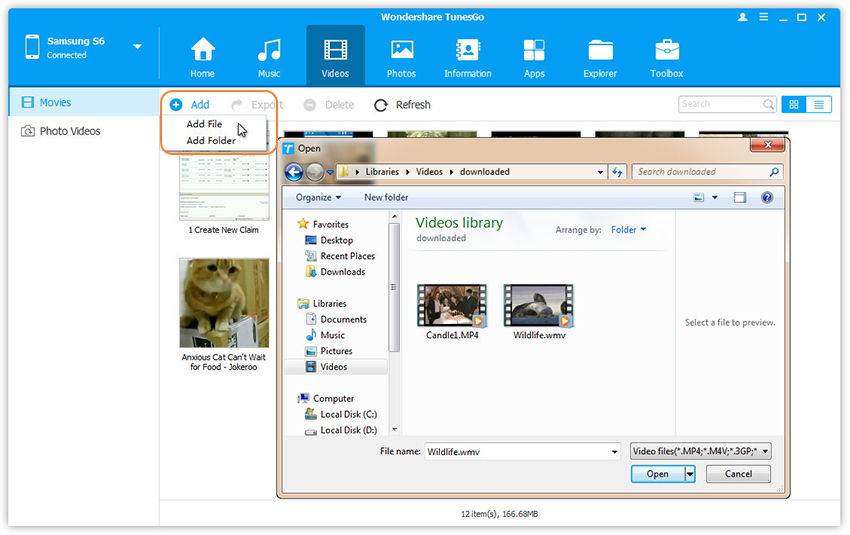
After launching the DVD Ripper on PC, the next step is to load the DVD movies in the interface. DVD to Samsung Converter provides its users with the function to either load the videos/movies file from computer system or from DVD. Dragging movies or choose the “Add Files” option.However if you want to load your movies file from DVD, you should use the “Load DVD Disc” button.

Load DVD Disc

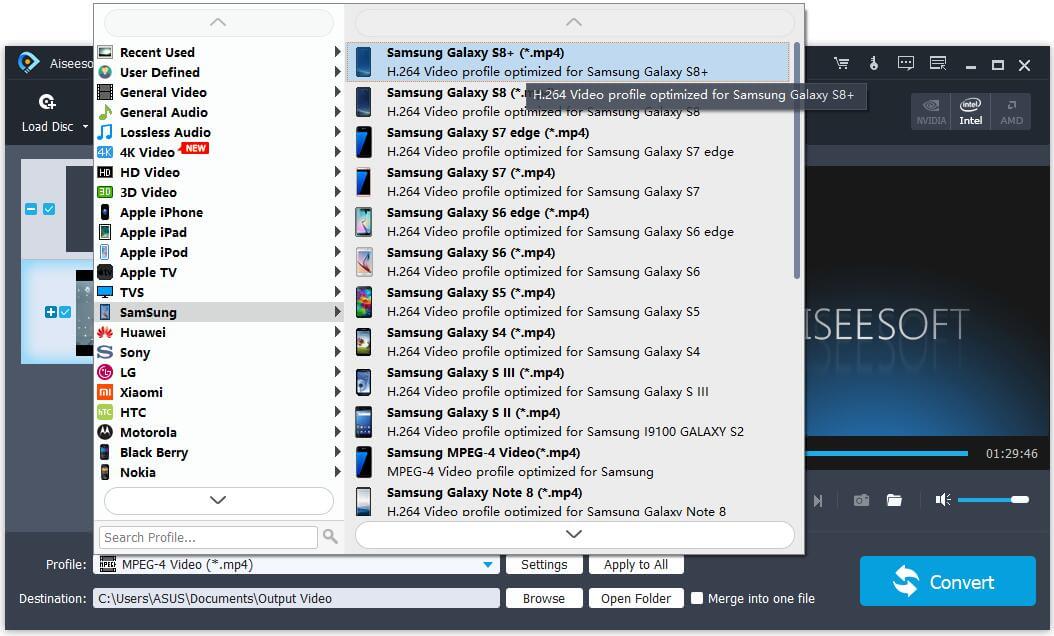
Step 3.Select Output Format for Samsung
To make DVD movies file compatible with your Samsung phone,you need to choose the conversion file format. DVD Ripper & Video Converter provides a completely different category of output formats for devices.You can find these formats under the “Profile” category in the “Samsung” tab. Now choose “Others” from the sub tab where you can easily find “Android OS” option.

rip dvd to samsung phone

Step 4.Setting the Output Folder
Once you have set the output format for Samsung,the next step is to select the output folder for conversion movies.You can change the default folder,choose any other destination folder according to your need.

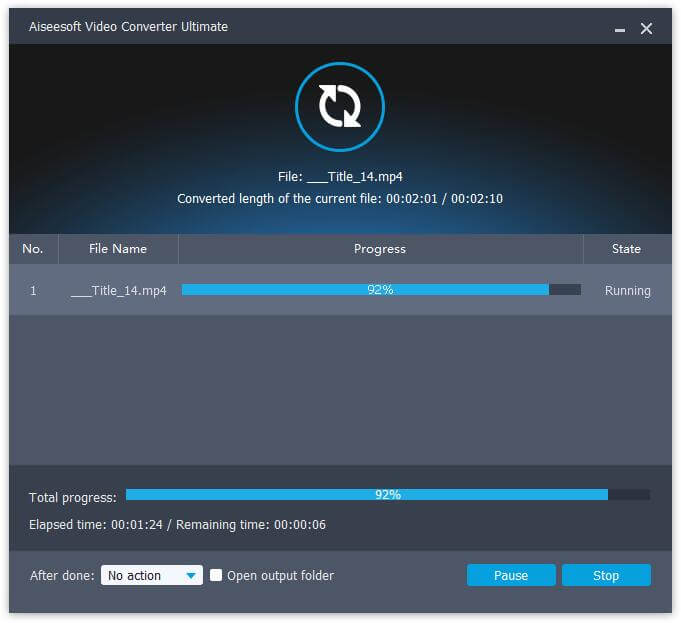
Step 5. Ripping DVD to Samsung Compatible Video Format
After making all the settings,the final step is to start the conversion process.You can start the conversion process by clicking the “Convert” button at the bottom of the screen.

rip dv to samsung phone

Step 6.Transfer the Converted DVD Movies to Samsung Phone
When the conversion process has been completed,you can connect your Samsung phone with PC and copy the converted file from the output folder to your phone. You can finish the transferring by either connecting your phone to PC and import the converted DVD movies to Samsung Galaxy phone by Android Transfer tool.

transfer video to Samsung

Read the tutorial: Transfer video from computer to Samsung phone

Download the Video Converter and try to rip DVD and convert video files to Samsung Galaxy phone.

d_win d_mac

Want to play your favorite DVD movies on your Samsung or android phone? Well, you need some kind of tool to convert it into an Android phone suitable formatted movies. Video Converter offers complete support for simply besides efficiently convert and play DVD movies for Samsung as well as Android phones. Please follow the detail steps above for making your funny movies compatible with your Samsung phone.

Related Acticle

How to Rip and Convert DVD Movies for iPhone/iPad

How to Transfer Movies/Videos from Computer to Samsung Phone

How to Transfer Videos from Samsung Phone to Computer

How to Backup and Restore Videos on Samsung Phone

How to Transfer Videos between Samsung and iPhone

How to Restore Deleted Videos from Samsung Galaxy

Rip DVD to Samsung

Recover Lost Photos and Videos from Samsung Galaxy Note 7

Come early August this year, it’s likely that you will see Samsung reveal its Galaxy Note 7.In addition to a curved-screen,the Galaxy Note 7 is expected to rock 6GB of RAM, with no less than 64GB of internal storage that can be expanded with the user of the Note’s microSD slot,an octa-core Exynos processor,IP68 certification a USB Type-C port and an iris scanner for unlocking the phone.Expected to launch in New York on Aug. 2, according to numerous reports, the new smartphone will come along over a month ahead of Apple’s big-screen smartphone for 2016, the iPhone 7, which Samsung hopes will give it a big advantage over its fiercest rival.

note7

Are you one of the users using Samsung Galaxy phone?I am.Samsung Galaxy S7 phones come in all hot shapes, sizes, and feature sets. And it now become the most popular OS for cellphones with users of more than two hundred million.As a result among users now are complaining about losing data on their Samsung phones and are eager to find a simple way to recover data from Samsung phone,especially restore the lost photos from Samsung.Actually,recover photos and files from Samsung is possible if you have an useful software tool.

How to Restore Lost Photos on Samsung Galaxy Note 7

I want to share with you a simple way to do Samsung Galaxy data recovery with a professional program called Samsung Data Recovery.Besides recovering lost photos on Samsung,the program could also recover lost music,videos, SMS,call logs,WhatsApp messages etc,from Samsung even from memory card,internal memory.Samsung Data Recovery allow to restore data from Samsung after lost data due to deleting,restoring factory settings,flashing ROM, rooting and so on.Supported Samsung devices:Samsung Galaxy S8/S7/S6/S5/S4,Note 7/5/4/3,A9/8/7,etc.Now let’s see how to works for Samsung Data Recovery.

d_win d_mac

How to Restore Lost Photos and Videos on Samsung Galaxy Note 7/5/4/3

Launch the software and connect your Samsung device to PC using an USB cable.

recover lost photo from samsung galaxy note 7

Enable USB Debugging on Galaxy Note 7 – Step 1
You can simply follow the instructions that appear on your screen and look at our Guide on How to Debug Samsung.Once USB Debugging has been enabled,click on the Next button to allow the software to analyze the device.

recover lost photo from samsung galaxy note 7

Scan Data on Galaxy Note 7 – Step 2
Choose from the various options and select the file types that you wish to recover on your Smartphone.If you wish to recover all file types,simply click on the Select All tab.Then click Next button to going on.

recover lost photo from samsung galaxy note 7

If there is a prompt on your Samsung phone as follow,tap Allow and permit the program to access and scan the selected files on your Samsung Galaxy Note 7 smart phone.

recover lost photo from samsung galaxy note 7

Now the program will begin to scan data stored on your Galaxy Note 7.

recover lost photo from samsung galaxy note 7

Recover Photos and Videos from Samsung – Step 3
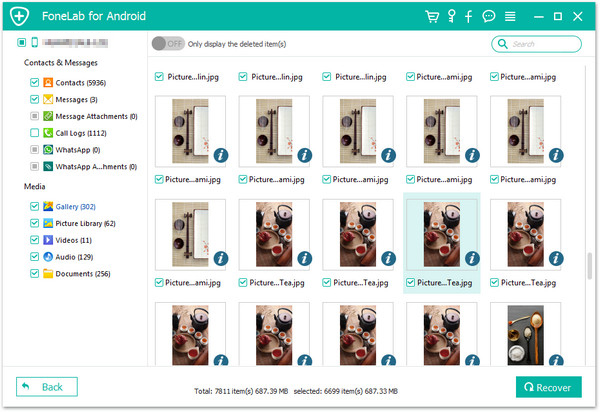
When the scanning process is complete,all the files will be displayed as shown below.Choose the ones you want to recover and click on Recover button to save them on PC.

recover lost photo from samsung galaxy note 7

You can pause the scan at any point of time during the scanning process,if you find the items that you need.Simply click on the Pause button to stop and the Recover button to recover the files.

d_win d_mac

Related Article:

How to Recover Lost Data from Samsung Galaxy Note 7

How to Recover Lost Contacts and SMS from Samsung Galaxy Note 7

How to Recover Lost Data from Locked Samsung Phone

How to Recover Data from Water Damaged Samsung Phone

How to Recover Data from Broken Samsung Phone

DVD to iPhone: Rip DVD Movies to iPhone (XS/XS Max/XR Included)

[Summary]: Do you want to watch DVD movie on iPhone (XS/XS Max/XR/X/8/7/6S/6)? This aritcle recommend a best DVD to iPhone Ripper to convert DVD to iPhone accepted video format first, then transfer the converted videos to your iPhone for watching anywhere at any time.

Do you enjoy watching high quality DVD movies? If you have a smartphone like the iPhone XS Max, you might can’t wait to watch your favorite DVD movies on iPhone XS Max. DVD movies are generally in large sizes and you need to make them smaller whilst retaining the original quality, if you want to rip (Copy Protected) DVD Movies to iPhone XS/XS Max/XR/X iPhone, you need to use a professional DVD to iPhone Ripper software.

How to rip and convert DVD movies to iPhone and enjoy it without hindrance? However, many iPhone users may ask how to rip and play DVD to iPhone with highest quality? Thankfully,with the help of an useful DVD to iPhone Converter, you can make your DVD movies playable with a quick conversion tool.Read on to find out how you can easily rip and convert DVD movies to the latest iPhone XS (Max/XR), iPhone XS and iPhone X, iPhone 8(8 Plus), iPhone 7/iPhone SE/iPhone 6S/iPhone 6(Plus)/iPhone 5S/5C/5 and other Apple devices compatible format such as iPad Pro/iPad Air,etc.

Rip (Copy Protected) DVD Movies to iPhone (XS/XS Max/XR Included)

DVD to iPhone Ripper not only allows you convert video to iPhone, but also rip DVD movies to .m4v, .mp4, and .mov file formats for iPhone and iPad in high quality.You can download the Youtube videos,convert it and smoothly play it on your device. Not only iOS device, this DVD ripper enable to read and convert DVD movies to Android devices(Samsung, HTC, Sony, Huawei, Motorola, LG, Sony, Google, Xiaomi, ect.) with easy steps. Moreover, this superior DVD/video converter allow to convert DVD movies to 3D videos besides 4K videos as you like.

Features of DVD Movies Converter You Should Know:

-Rip DVD for iOS devices/Android device video formats.
-Edit DVD movies to fit better with your iOS device.
-Compatible with all iOS models(iPhone 7/iPhone SE/iPhone 6S(Plus)/iPhone 6(Plus)/iPhone 5S/5C/5,iPad Pro/iPad Air,etc).
-Convert AVI, FLV, MP4, M4V, MKV, MOV, 3GP, 3G2, SWF, WMV, ASF, AAC, AC3, AIFF, FLAC, M4A, MP3, OGG, WAV, WMA and more. to iPhone compatible format.
– Extract audio from DVD or video files.
-Convert DVD movies to 3D/4K videos.

d_win d_mac

Tutorial: How to Convert and Rip DVD to iPhone

Step 1.Run DVD to iPhone Ripper on PC
First of all, please download and run the DVD to iPhone Ripper & Video Converter on computer.

run dvd to iPhone ripper

Step 2.Load DVD Disc
The next step is to add the video files on DVD Movies Converter.For adding files on DVD Movies Converter,drag the video file target in the interface.You can also use the “Load DVD Disc” button to load the DVD disc into the program.

Load DVD Disc

Step 3. Select Output Format for iPhone
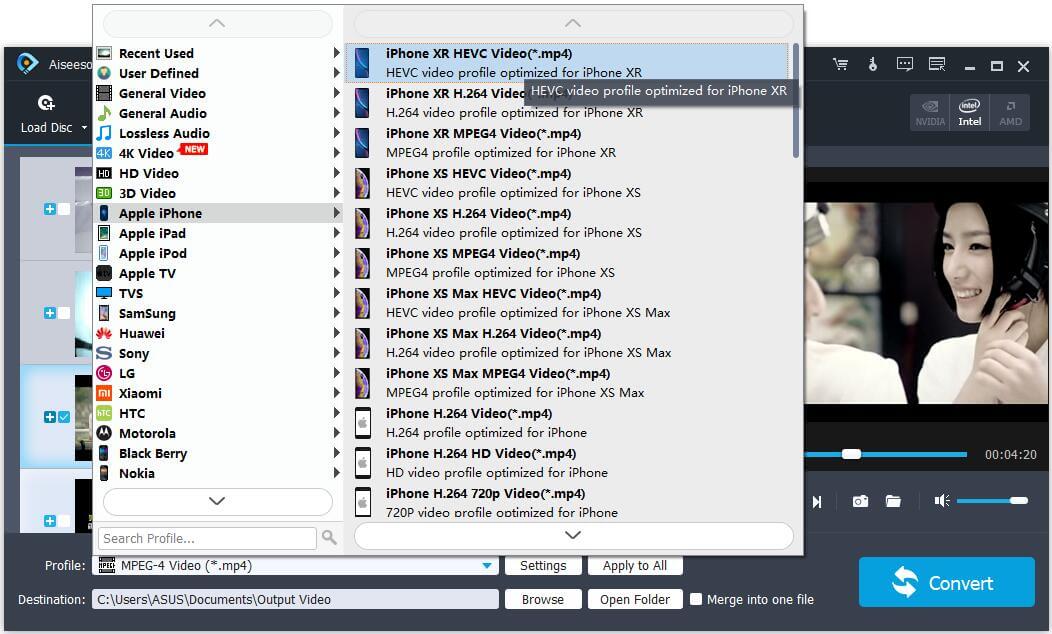
When you have loaded your video file on DVD Movies Converter,the next step is to specify an output format. Click on the “Apple iPhone” sub category and then make appropriate choice according to your iPhone device. There are a number of iPhone/iPad devices models supported by DVD Movies Converter.

convert DVD to iPhone

Click “Profile” on the right and select the supported video format by your iPhone in “Format” option. You also can use this DVD to iPhone Ripper & video converter to convert any video format to 4k video, rip DVD moives to 4k videos, so you can play 4k videos on iPhone XS/XS Max/XR/X, iPad Pro.

If you want to change the destination file location, then you can specify the new location in the output folder. By default, DVD Movies Converter allots certain folder for storing the resultant files but you can easily override it.

The DVD/Video to iPhone Converter also can help you convert DVD moives to 3D videos and play 3D moives on iPhone XS Max/XR/X and iPhone 8/7/6S/6 with 3D glassess.

convert DVD to 3D movies

Step 4. Enhance and Edit Video before Ripping(Option)

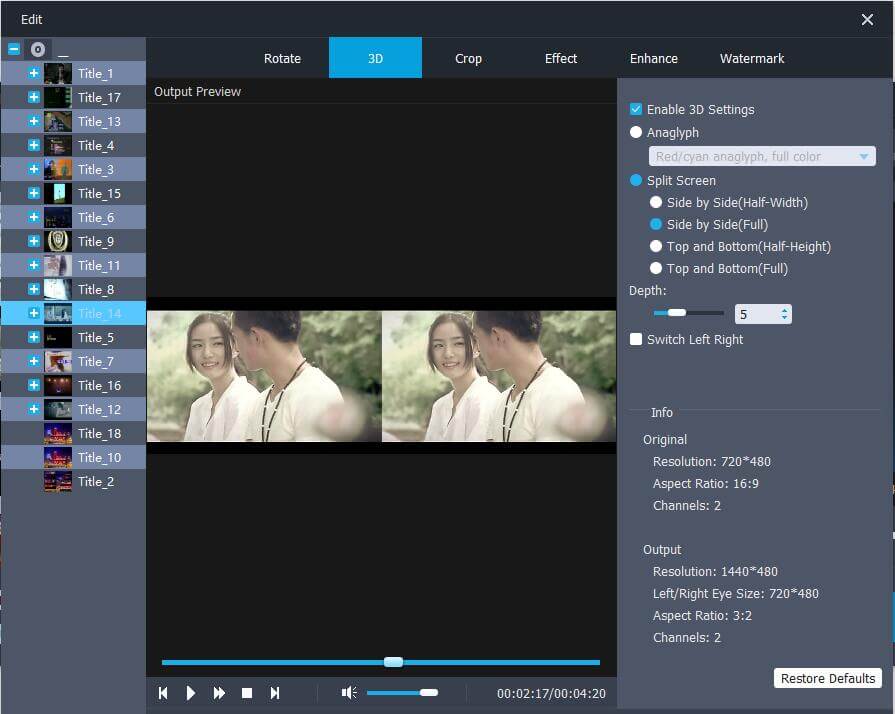
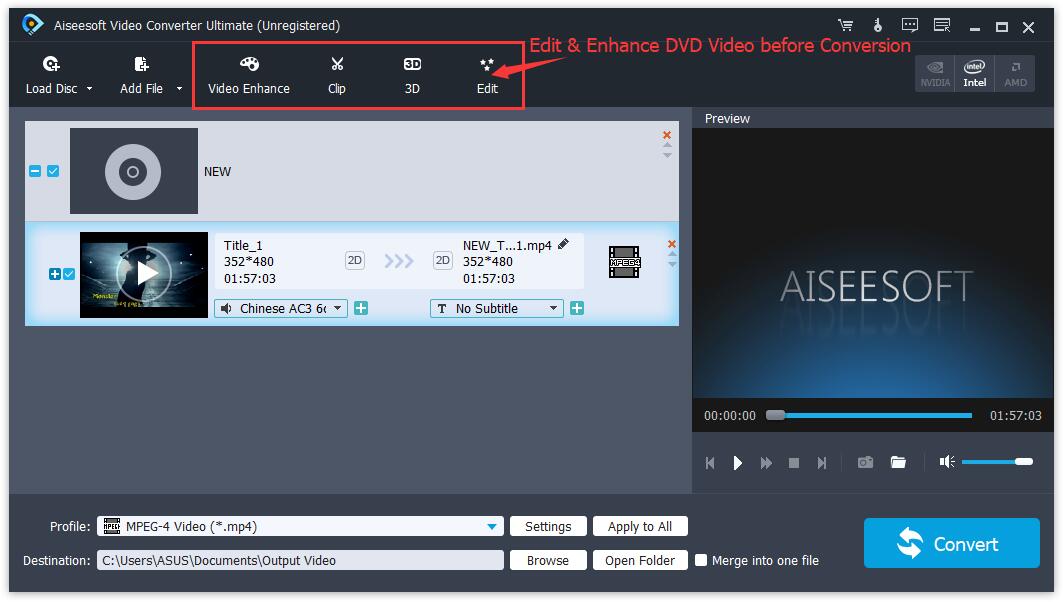
If you want to edit the video, please choose a video or DVD title and then click on the “Edit” button to open editing window, then you can eaisly crop, rotate video, or add effects, watermark, subtitle to your video.

edit video before ripper

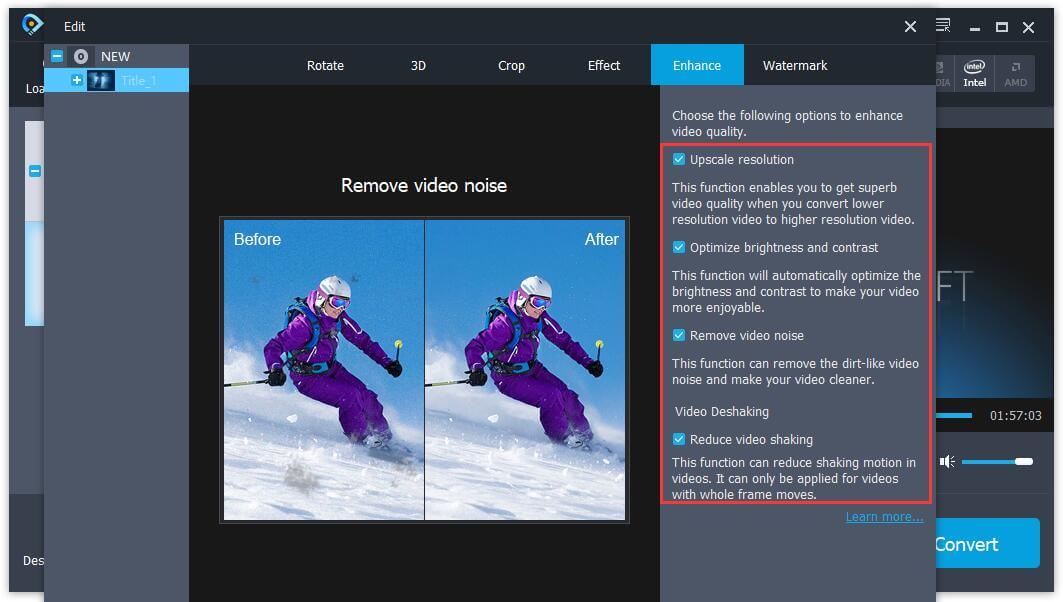
The DVD Ripper also allows you edit video before you want to rip them, please click “Video Enhance” in the main interface to open the video enhancement interface.

enhance video

Step 5.Begin to Rip DVD Movies to iPhone
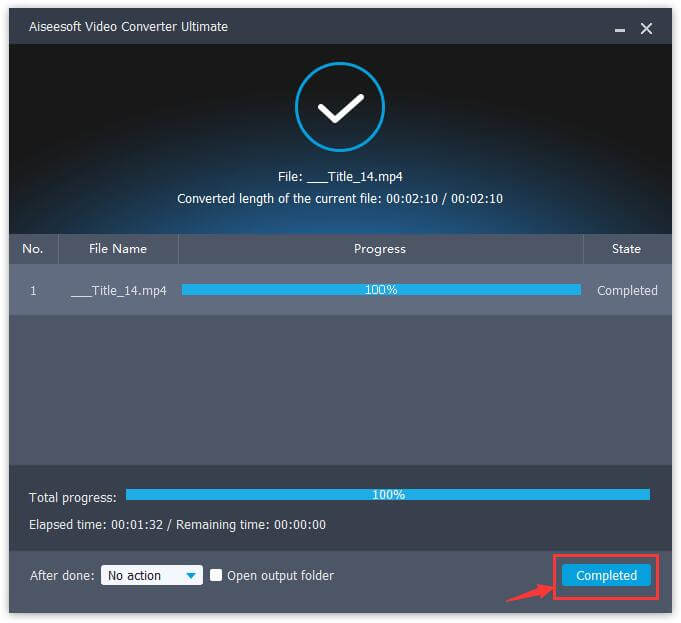
Once you have made all the settings,the next and final step is to actually convert the loaded video file by clicking “Convert” button.The time for this conversion depends on the size of the movies file being converted.

rip dvd to iPhone complete

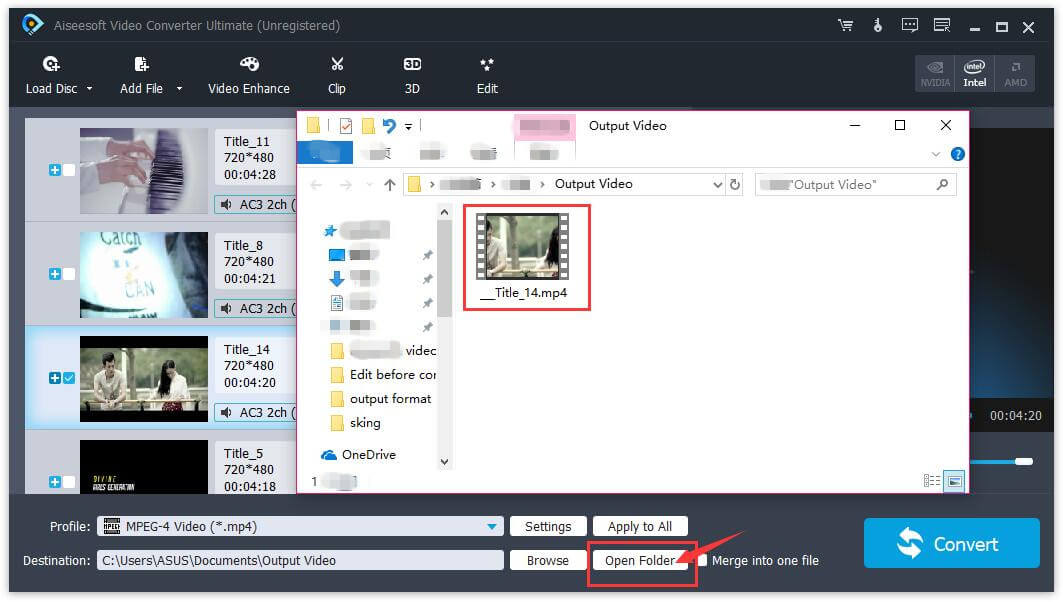
Finally, just click “Open Folder” button to find the converted DVD videos/videos.

view converted DVD video

Step 5.Transfer the Converted DVD Movies to iPhone
If the conversion process is complete, you can find the converted movies file in the specified output folder. In the last step, you can use this iOS Transfer tool to transfer the converted movies to iPhone/iPad and just enjoy the funny movies on it freely.
Read the tutorial about: How to transfer video from PC to iPhone without iTunes

transfer video from PC to iPhone

Well done! You have converted DVD movies and transfer to your iPhone for watching. With the help of this DVD to iPhone Ripper, you can easily to rip and convert DVD movies for making your videos compatible with iPhone and iPad.

Free download the DVD Ripper & Video Converter to rip DVD movies to iPhone and convert video files to iPhone.

d_win d_mac

Read More

How to Convert and Play DVD Movies on Samsung

How to Transfer Movies/Videos from Computer to iPhone/iPad

How to Transfer Videos from iPhone/iPad to Computer

How to Backup and Restore Videos on iPhone/iPad

How to Transfer Videos between Samsung and iPhone

How to Recover Deleted Videos from iPhone/iPad

DVD to iPhone Ripper

How to Transfer Contacts from iPhone to iPhone 8/7/6S(Plus)

[Summary]:Want to upgrade to the new iPhone 6S/7(Plus) or the latest iPhone 8/7S?This article is showing you 3 different ways to transfer contacts from old iPhone to new iPhone 6S/7/7S/8(Plus),you can also follow these 3 methods to transfer information, data, files and everything from old iPhone to another new iPhone,including photos, videos, music, calendar, contacts, messages, WhatsApp messages and more!

Since iPhone 8 and iPhone 7 is made up for so many powerful features,are you looking for and willing to buy one to take place your old iPhone?When upgrading from old iPhone 4/4S/5/5S/6 to iPhone 7 or iPhone 7s/8, you’re faced with the task of moving contacts from old iPhone to new iPhone,the process can be a bit trickier.Are there any simple ways to finish the data switching task?Of course YES.

How to Sync Contacts from Old iPhone to iPhone 7(Plus)/iPhone 8(Plus)?

Get a new iPhone, and don’t know how to transfer contacts from old iPhone to new iPhone 7/8? This guide will show you 3 ways to transfer contacts from one iPhone to new iPhone 7 or iPhone 8.

Use iTunes, iCloud and Phone Transfer to Sync Contacts from Old iPhone to Another

Way 1:Transfer Contacts from Old iPhone to iPhone 7/8 by Phone Transfer

The iPhone to iPhone Contacts TransferPhone Transfer and iOS Manager tool,both would be your first choice to sync data from old iPhone to iPhone 7/8 without quality loss.It is easy to use and it can be figured out even by someone who is not highly tech-savvy.This software provides you with accurate and complete way to transfer contacts from old iPhone to iPhone 7(Plus)/iPhone 8(Plus)/6S/6/SE.Apart from contacts,other data can also be transferred by Phone Transfer like photos,videos,music,text messages,MMS,iMessages and more data.All iPhone modes are supported,including iPhone 8/7/SE/6S/6/5S/5C/5/4S/4.Not only iPhone,but also other Android device(Samsung,HTC,Motorola,etc),BlackBerry and Symbian OS phones(Nokia) are applicable to Phone Transfer.You can use it to transfer contacts between Samsung and iPhone 7/8 as well.

d_win d_mac

1 Click Transfer Contacts to iPhone 8/7S/7/6S/6 (Plus) by Phone Transfer

Step 1.Run Phone Transfer on PC

Run the Phone Transfer tool on the computer.In the homepage of software,click “Phone to Phone Transfer” option to enter the transfer mode window.

phone transfer main page

Step 2.Connect Two iPhone to Computer
Connect the old iPhone and iPhone 7/8 to PC by using USB cables.Both devices will be instantly detected,then show all internal data in the panel.

Step 3.Analyze and Load the Data on Old iPhone
The software will detect your old iPhone and automatically load the data from it and then are displayed in the window below.Select the contacts file and make sure what will be transferred.

select contacts to transfer from old iPhone to iphone 7

Note:You can click the “Flip” button to change the place between the Source and Destination.

Step 4.Transfer Contacts to iPhone 7/8
Check Contacts item on the displayed list and click “Start Transfer” to start the transfer process.It takes a few minutes to finish the whole process.There will be a dialog box pops up,showing you the percentage of the progress bar.Never disconnect two devices during the process.

transfer contact to iphone 7

d_win d_mac

Way 2: Restore old iPhone iCloud Backup Contacts Data from iCloud to iPhone 7/8

To transfer contacts from one iPhone to another via iCloud syncing,you need to sign in on both of your iPhone with the same Apple ID,and connect two device to the Wi-Fi network.

Ensure both of your iPhone are logged in with same Apple ID,and they are connected to Wi-Fi network.And then follow us to transfer contacts from old iPhone to new iPhone with iCloud syncing:

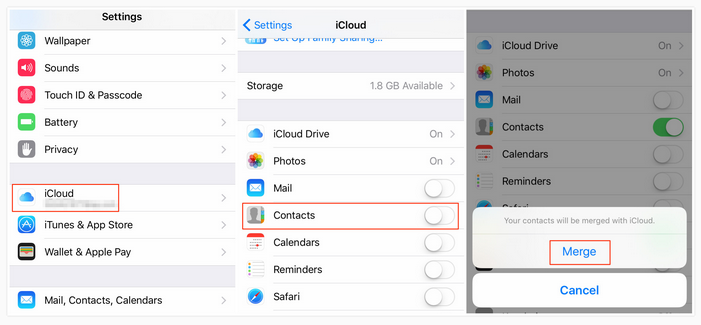
On your old iPhone: go to Settings &iCloud > Contacts > Turn it on if it is closed.

On your new iPhone: go to Settings &iCloud > Contacts > Turn it on if it is closed > Select Merge when it says Your contacts will be merged with iCloud. And then wait for the contacts on old iPhone syncing to new iPhone.

sync iphone contact icloud

Way 3: Restore old iPhone iTunes Backup Contact Files from iTunes to iPhone 7/8

Step 1. Firstly run iTunes and choose “Edit > Preference > Device > Prevent iPods, iPhones and iPads from syncing automatically” at the upper left corner of the main page of iTunes.

Step 2. Connect your old iPhone into computer via the USB cable, and iTunes will detect your iPhone soon. Right-click the model of your iPhone and choose “Back Up Now” in the drop-down menu of iTunes.

backup iphone with itunes

Step 3. iTunes will create a backup of your iPhone, and you may have to wait for a while until iTunes completes backing up your iPhone.

Step 4. Disconnect the old iPhone and plug in the new iPhone 7/8. After iTunes detected your new iPhone, and at the “Set Up iPhone” screen, select “Restore from iTunes Backup”.

Step 5. Select the most recent backup you just made from the restore menu in iTunes, then click “Continue”. When the restoring process is done, the new iPhone will restart.

restore iphone with itunes for iphone 7

Mobile Sync – iTunes Alternative, Manage and Sync iOS Data

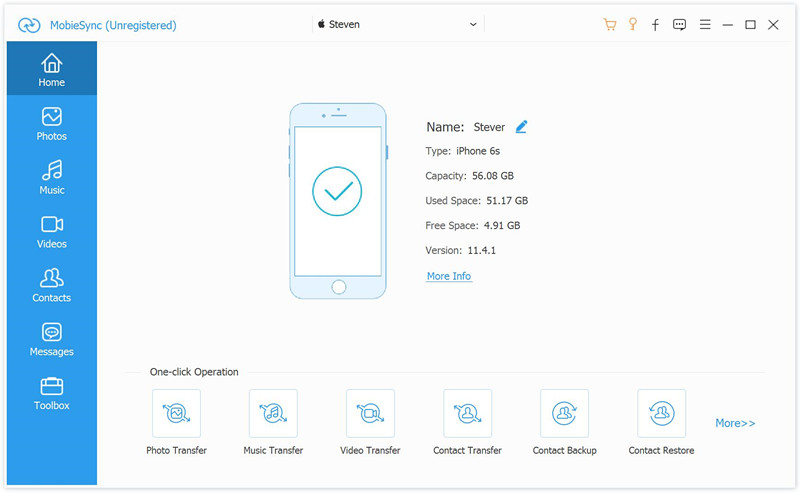
If you need to transfer contacts between iPhone and iPhone 8/7/6S(Plus), you could consider trying this Mobile Sync. It is a famous data sync tool for transferring data between two iOS devices directly. In addition, it help to backup iOS files to the computer and restore files from the computer to iOS device. It support to sync several types of iOS files, including music, videos, photos, contacts, text messages, etc,. Mobile Sync compatible with all iOS models, such as, iPhone X, iPhone 8(Plus), iPhone 7(Plus), iPhone 6S(Plus), iPhone SE, iPhone 5S/5; iPad Air, iPad Pro, iPad Mini; iPod 4/3/2/1.

mobile sync home page

How To

How to Recover Lost Contacts from iPhone 7

Transfer iMessages from old iPhone to iPhone 7

How to Transfer iPhone Data to iPhone 7

How to Transfer Samsung Contacts to iPhone 7
How to Transfer Android Data to iPhone 7

How to Backup and Restore Files on iPhone 7

Transfer Contacts from iPhone to iPhone 7

How to Transfer Contacts between Samsung and iPhone 7/7 Plus

“I use Samsung Galaxy S5 and now I have purchased an new iPhone 7 plus,how can I transfer contacts from my old Samsung phone to iPhone 7?”This is a common problem for new iPhone users who using Android phone before, especially Samsung ones, if you want to given away the old Android phone and go for a new iPhone 7,the first thing you want to do is moving contacts between Samsung Android and iPhone 7.

Switching data betweeen two phones is a common phenomenon when your old phone broken,stolen or lost,or just wanna purchase a new phone to replace.Android phone and iPhone are the most widely used smartphones around the world,as the released of new iPhone 7 are coming,there are many people switching new phones especially iPhone 7.It’s easy to move contacts between Samsung and iPhone,after all, you haven’t changed the OS ecosystem.When switch to a new iPhone,the first thing you will do should be transferring important data from old phone to your new device,such as contacts, music, photos, etc.

Transfer Contacts from Samsung Galaxy to iPhone 7

Among the Android to iPhone Transfer software,Phone Transfer gain a high reputation.It provides an efficient way helping transfer data between phones seamlessly.With Phone Transfer,you can easily transfer contacts from Samsung to iPhone 7/SE/6S/6/5S,or other data such as photos,videos,music,SMS,etc can be moved.No matter which brand of Android phone you use, Samsung Galaxy S8/S7/S6/S5,Note 7/5/4/3, Galaxy A9/A7/A5, HTC M8/M9, LG G5/G4/G3, Sony Z3, Motorola Nexus 5X/Nexus 6P,Acer, Huawei, ZTE, iPhone 7/ 6s/ 6s Plus/ 6/ 6 Plus, etc. The Phone Transfer supports transfer files between iPhone and any Android phone directly.What’s more,the program also allow to backup data and restore data from mobile device conveniently.

d_win d_mac

Part 1:Transfer Samsung Contacts to iPhone 7 via Phone Transfer
Step 1.Install and Run Phone Transfer on Computer
Now download Phone Transfer and run it on computer.The screen will automatically appear after the installation.The Windows and Mac version are now available for download,it is extremely easy to use and requires no professional skills.Select the “Phone to Phone Transfer” option in the homepage of program.

samsung to iPhone 7 data transfer

Step 2.Connect Samsung and iPhone 7 to the Same Computer
You need to connect both the devices to computer through USB.Once detected,both your Samsung phone and iPhone will be shown in the window.Make sure the iTunes are installed on your computer.

Transfer contacts from samsung to iPhone 7

Note:There is a “Flip” button in the middle of the program,which allows users to switch the destination or source device.

Step 3.Began Analyzing and Transferring Samsung Contacts to iPhone 7

In this step,the program will automatically analyze and read the data on your Samsung device,display each items with numbers.Then just select the data you need to transfer from the content list,click “Start Copy” button located at the bottom of the app,after a short time,you will see a small window pop up and tell you all work is done.Just note that the connection can not be interrupt during the transferring.

Transfer contacts from samsung to iPhone 7

Free download the Mobile Transfer and try to sync your Samsung contents to iPhone 7 without data lossing.

d_win d_mac

Part 2:Transfer Samsung Contacts to iPhone 7 via Gmail
The no.2 choice that you can transfer Samsung contacts to iPhone 7 is through Gmail.If you have a Google account i.e. Gmail, Google play, etc.,you are allow to sync contacts from Samsung to iPhone via Google account.Transferring Samsung contacts to iPhone 7 is quite easy as the following steps.This method is used to transfer contacts from Android to all another operating system like iOS,Windows,etc,.Besides contacts,you can also try this way to transfer calendars and emails between Android and mobile device.
Steps to Sync Contacts from Samsung to iPhone 7 with Gmail
transfer-contacts-from-android-to-iphone-7

1. From Samsung phone, go to the Settings, and select ” Accounts and Sync” or similar option.
2. Enter your Gmail username and password, and enable synchronization. By doing this, you will allow your phone contacts and Google Contacts to get synced.
3. Now, go to your iPhone. In the Settings menu, go to Mail, Contacts, Calendars and add your Gmail account.
4. It will ask for the Gmail Account credentials again. Once you login to it, it will ask, what type of information you would like to activate. Select Contacts and your Samsung contacts will get imported to your new iPhone 7.

transfer-contacts-from-android-to-iphone-via-gmail

Cons:
1. You must have a Google account to finish the transferring task.
2. The formats in which the contacts is backed-up by the Android OS in Gmail is not supported by iPhone,and as a result of this, iOS makes alterations in the format of saving contacts.

Read more:

How to Transfer Samsung Data to iPhone 7
How to Transfer Android Data to iPhone 7
How to Transfer Files from Old iPhone to iPhone 7
How to Backup and Restore Files on iPhone 7
How to Transfer Data to iPhone 7/8 from iPhone 4/4S/5/5S/6/6S

The newest model of Apple’s flagship device is expected to be released later this year.The Wall Street Journal’s report Tuesday detailing aspects of the new iPhone included nothing that hadn’t already been widely speculated,but it backed up the rumors by adding that Apple will launch a relatively minor iPhone refresh in September,saving a major design overhaul for the 10th-anniversary iPhone in 2017.The new phone is likely to be slightly thinner,with an upgraded processor,a slightly better camera and a minor exterior redesign.But the rumored change that’s likely to be the biggest topic of debate if it comes to pass is the removal of the headphone jack.

Even comments about iPhone 7 as not so good as the expected,but compared to the previous release of other brands new announced mobile phones,it gain the certain admiration among the number of mobile users and attracted their a lot.So it’s really not doubt that you wanna upgrade your iPhone to the new version.Then here comes the puzzle,how can you copy all files stored on old iPhone to new iPhone 7?
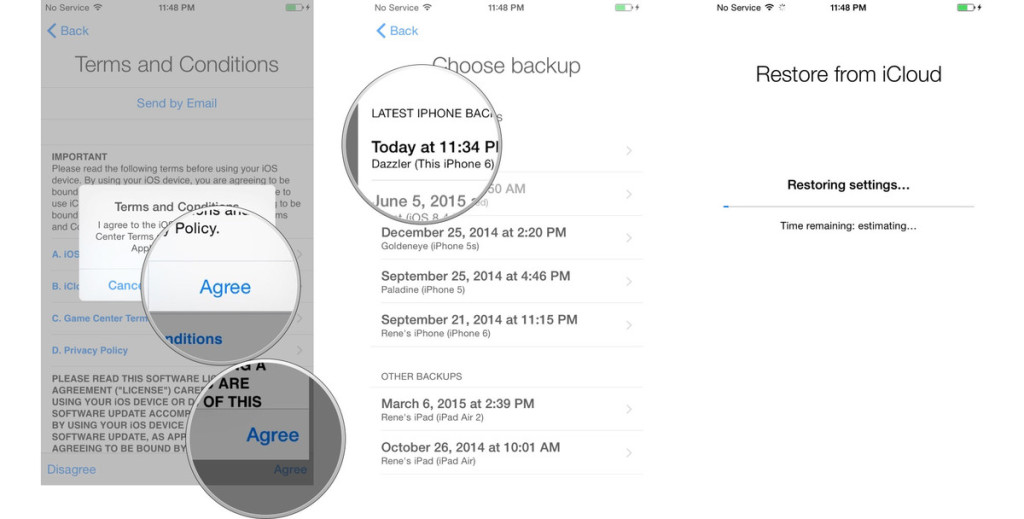
Sync iPhone Data with iPhone 7/8

No sweat,we’ll introduce the absolute easiest methods to transfer everything from old iPhone to new iPhone 7/8.Transferring data between old iPhone and the new iPhone couldn’t be more simple with the Phone Transfer Tool.Moving all text messages,iMessages, WhatsApp data,contacts,photos,videos,music,notes,ect. from old iPhone to iPhone 7/8 only with a few clicks.iPhone 8(Plus),iPhone 7(Plus),iPhone SE,iPhone 6S(Plus),iPhone 6(Plus),iPhone 5S/5C/5 are supported.Not only iPhone,but also Android phones,BlackBerry and Symbian OS phones are applicable to Phone Transfer,for example transfer Samsung Data to iPhone 7/8.

d_win d_mac

Part 1:Transfer iPhone Files to iPhone 7/8 with Phone Transfer

Step 1.Run Phone Transfer on PC
Install the Phone Transfer and iTunes on the computer.To transfer old iPhone data to iPhone 7/8,you should click “Phone to Phone Transfer” mode under the homepage of Phone Transfer.You’ll be popped a data transfer window.

phone to phone transfer

Step 2.Connect Two iPhone to PC and Select Files
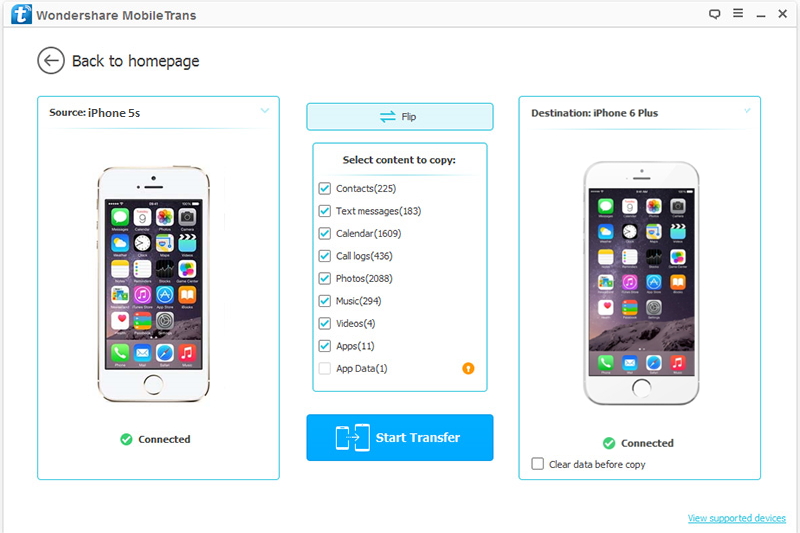
Connect both your old iPhone and iPhone 7/8 to computer with Apple USB cables.The two iPhone will be quickly detected and displayed in the transferring window.You can swap positions by click the button in the middle.Make sure old iPhone and iPhone 7/8 displayed in correct position.As you see,Phone Transfer allow to transfer contacts,SMS,photos,music,video,call logs,apps,calendar to new iPhone 7/8.

select file to transfer

Step 3.Transfer All Files to iPhone 7/8
Just start the data transferring by clicking “Start Transfer”.Data on your old iPhone will be transferred to new iPhone 7/8 automatically,you can check the transfer process in the interface.Depends on the file types you selected,the transfer process may take you several minutes.When it’s finished,the data on your old iPhone will be all copy completely to new iPhone 7/8.

transfer everything from old iPhone to iPhone 7/8

d_win d_mac

Part 2:Transfer iPhone Files to iPhone 7/8 with iTunes Syncing

The second method is copy iPhone file to iPhone 7/8 via iTunes syncing.Here’s the deal:Even if you don’t backup your old iPhone previous via iTunes,now you should do a backup of your old iPhone using iTunes first,then restore it to your new iPhone 7/8.If you ever synced your old iPhone,now you can directly extract the backup data to new iPhone with iTunes,which could save you a lot of time.However,sync iPhone data with iTunes now are not available for selecting data,you can only sync all data in one time.

1.Make sure you’re running the newest version of iTunes on computer.
2.Plug your old iPhone into your Mac or Windows PC.
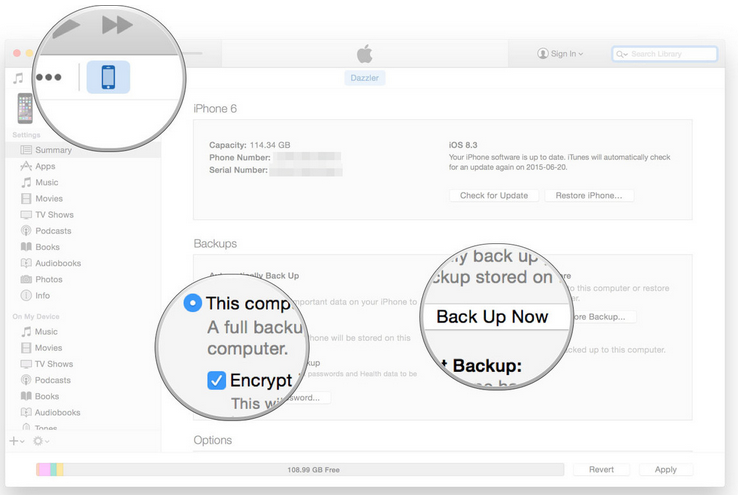
3.Click on the iPhone icon in the menu bar when it appears.
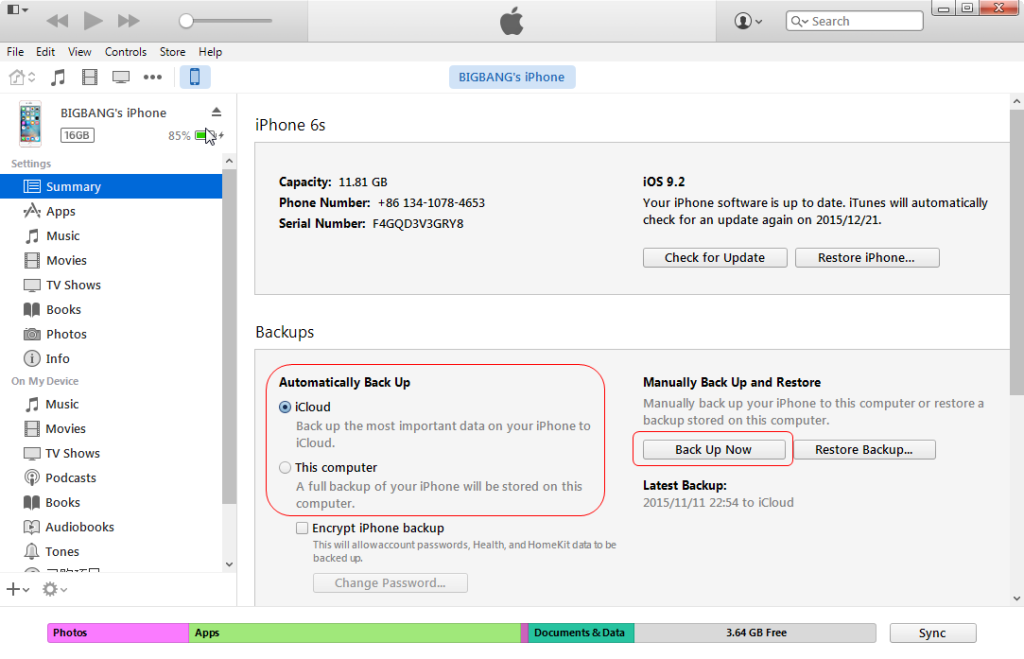
4.Click on Back Up Now.
5.Click on Encrypt Backup and add a password.
6.Backup Apps,if asked.

backup iphone data with itunes

Wait for the backup to complete before proceeding.

1.Pick your new iPhone and plug it into your Mac or Windows PC.
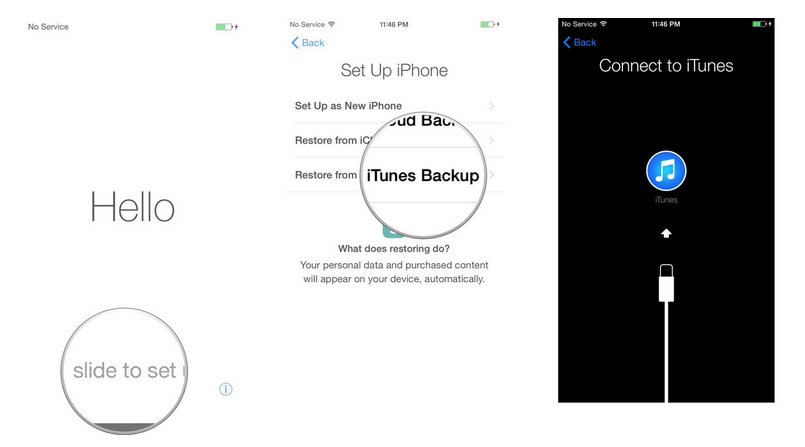
2.Slide to set up on your iPhone.
3.Follow the directions to choose your language and set up your Wi-Fi network.
4.Select Restore from iTunes backup.

itunes backup

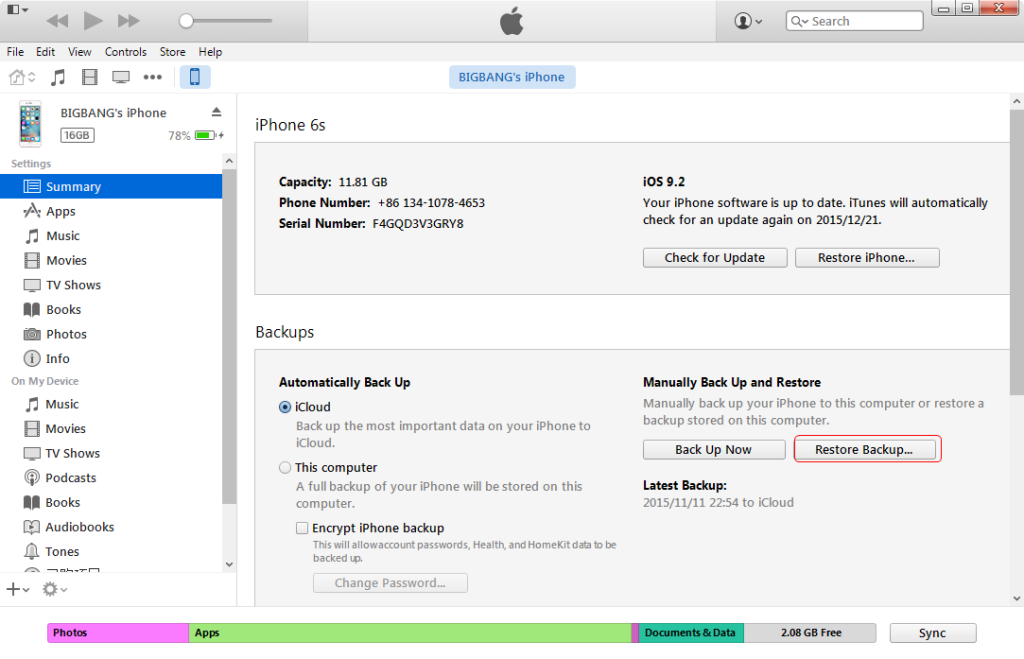
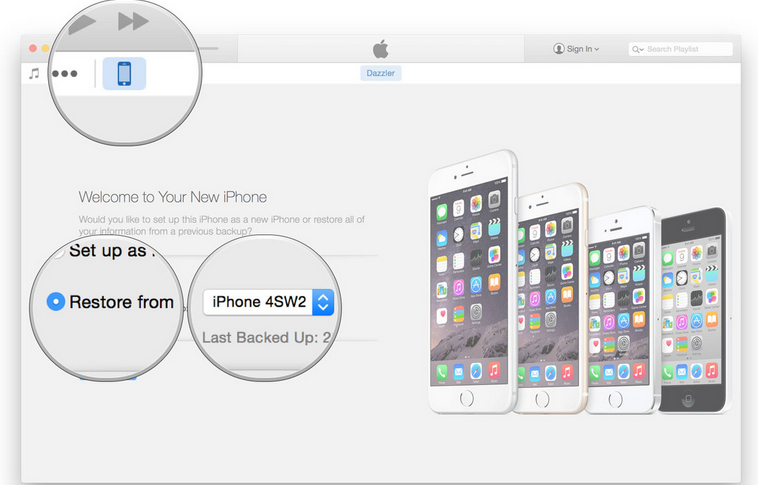
5.Run iTunes on your Mac or Windows PC,select Restore from this backup.
6.Choose your recent backup from the list.
7.Enter your password if your backup was encrypted and it asks.

restore iphone data itunes

It might take a while for the transferring to complete.Don’t interrupt the connection of iPhone and computer during the process.

Part 3:Transfer iPhone Files to iPhone 7/8 with iCloud Syncing

iCloud allows you to transfer files between two iPhone devices. However, before transferring, you need to confirm the two devices should running iOS 8.3 or later versions. And both two phones need to enable iCloud Photo Library. And you have to make sure the two devices go with the same Apple ID and have enough storage for the data transfer.

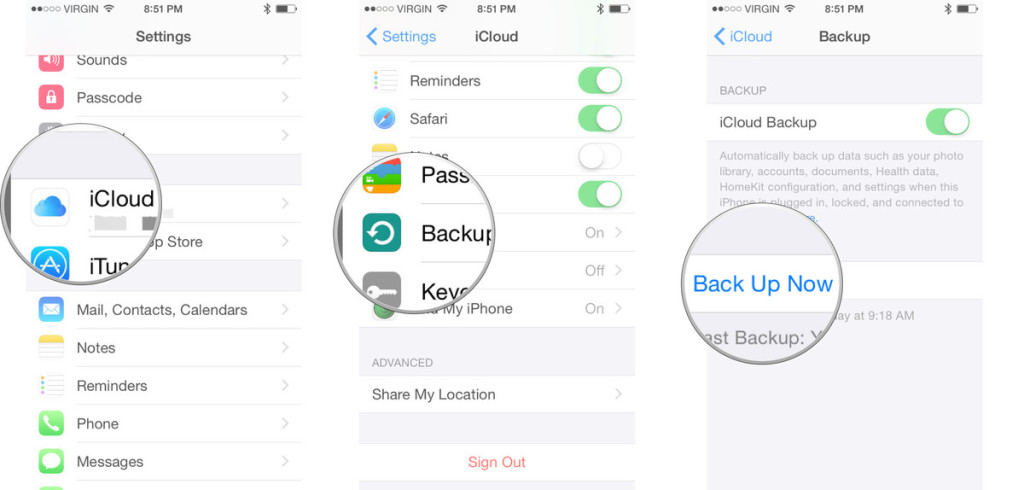
1. Get your old iPhone and connect it to Wi-Fi.
2. Go to Settings > iCloud > Backup, and then tap Back Up Now.
3. Wait for the backup to complete.

backup old iphone data

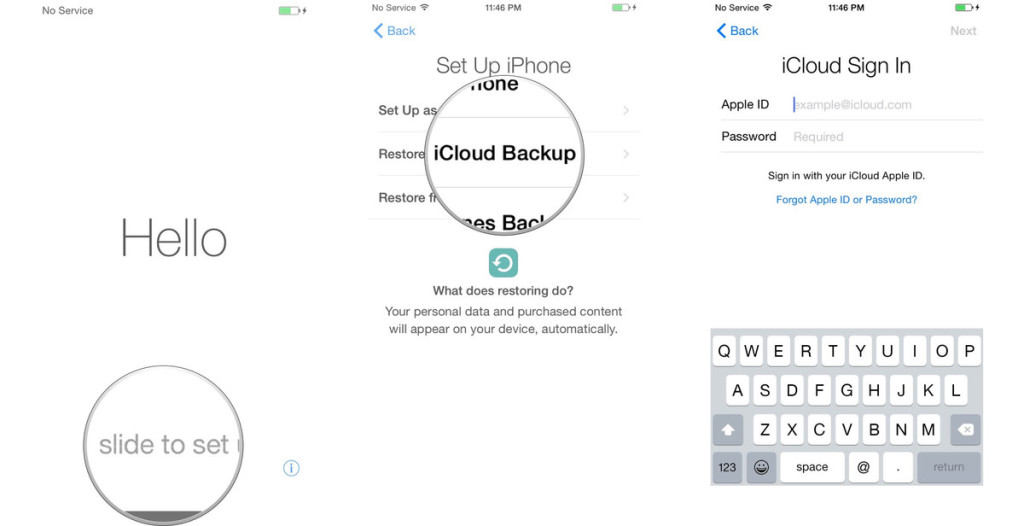
4. Get your new iPhone 7/8, and slide to set up.
5. Go through the setup process and select Restore from iCloud backup.
6. Sign in your iCloud account (Apple ID), and select the latest backup of your old device, then tap Restore.
7. Wait for the restore and restart process to complete.

sign in icloud

restore backup to new iphone

Done. To sum up, sync data with iCloud or iTunes will sync the whole backup instead or selecting files. We suggest you to use Phone Transfer with the Part 1, to sync iPhone files selectively.

A Wonderful iOS Data Transfer

For transferring data between two iPhone, you could try this powerful iOS data transfer called Mobile Sync. Mobile Sync enables you to transfer all types of files among iPhone, iPad and iPod devices, including contacts, SMS, photos, videos, music and other media files. What’s more, it can switch files between iOS device and computer directly; make music as iPhone ringtone; convert HEIC to JPEG/PNG with original quality.

What can Mobile Sync Do for you:
-Transfer media files like photos, videos and music between two iPhone/iPad/iPod.
-Sync contacts and text messages from iPhone to another.
-The best iTunes alternative to do what iTunes can! For example, directly transfer photos between two iOS devices in just one click.

mobile sync home page

Read more:

How to Transfer Android Data to iPhone 7

How to Recover Lost Files on iPhone 7

How to Recover Lost SMS on iPhone 7

How to Recover Lost Contacts and Photos on iPhone 7

How to Backup and Restore Files on iPhone 7

Transfer Data to iPhone 7/8 from iPhone

How to Recover Contacts and SMS from Samsung Galaxy Note

The Samsung Galaxy Note 8 will released in 2017 in the second half of the year,now many people useing Samsung Galaxy Note Edge, Galaxy Note 5, Galaxy Note 4 and Note 3 smartphone.But data on your Samsung Galaxy Note could easily be lost due to various reason,files deleted by mistaken,lost data after rooting,lost data when device get broken/damaged,etc.You can select a reliable recovery from the internet to recover lost data on Samsung Galaxy Note Edge, Note 8, Note 5, Note 4, Note 3 and Galaxy S smartphone.
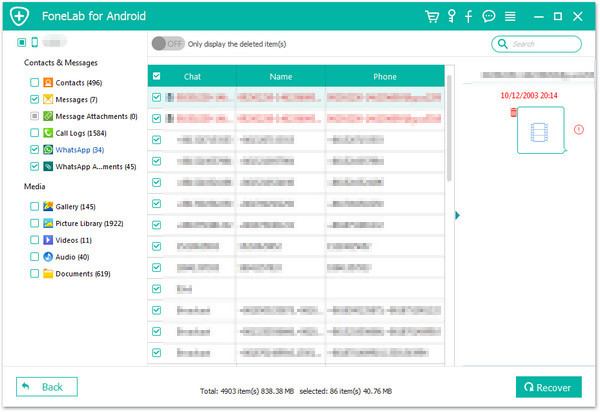
Restore Lost Contacts and SMS from Samsung Galaxy Note 8/5

This Android Data Recovery is recommended,it is a credible software to directly recover lost data from Samsung Galaxy Note 8/5/4/3/2 quickly.Android Data Recovery enable to restore lost data from Samsung phone including contacts,photos,SMS,WhatsApp messags,videos,call logs,document and more.Various Android phones are applicable to this terrific recovery,such as LG,HTC,Motorola,Lenovo,Huawei,Xiaomi,and so on.Android Data Recovery recently has release the new function that recover data from broken Android phones as well as restore lost data from Android phones,for example help to get back data on black screen Android phones.

d_win d_mac

How to Retrieve Lost SMS from Samsung Galaxy Note 8/Note 5

Step 1.Connect Samsung Galaxy Note 5 to Computer
Run the Android Data Recovery tool on computer after downloading and installing,connect your Samsung Galaxy Note 5 to computer via an USB cable.

connect Galaxy Note 5 to PC

Step 2.Enable USB Debugging on Galaxy Note 5
The program may require that you debug your Galaxy Note 5 before scanning process begin.Simply follow the instructions in the next window to complete the process.

Enable USB Debugging

Step 3.Scan Data on Galaxy Note 5
When your Galaxy Note 7 is detected,the program will scan the device for all data.You can choose the files you want scanned in the next window.Such as “Contacts“, “Messaging” “Call History”, “Gallery”,and so on.Click “Next” button after selecting it.

Scan Samsung Galaxy Note 5 Lost Data

If there is a prompt on your Samsung phone as follow,tap “Allow” and permit the program to access and scan the selected files on your Samsung Galaxy Note 5 smart phone.

recover Samsung sms and contacts

Now the program will begin to scan data stored on your Galaxy Note 5.

recover Samsung Galaxy Note 5 lost data

Step 4.Preview and Recover SMS and Contacts Data from Galaxy Note 5
When the scanning process is complete,all the files will be displayed as shown below.Choose the “Messages” and “Contacts” you want to recover and click on “Recover” button to save them on PC.

recover SMS on Galaxy Note 5

d_win d_mac

Related Acticle:

How to Recover Lost Data from Samsung Galaxy Note 7

How to Recover Lost Contacts from Samsung Galaxy S8

How to Recover Lost SMS from Samsung Galaxy S8

How to Recover Data from Samsung SD Card

How to Recover Data from Black Screen Samsung

How to Recover Data from Broken Samsung Phone

How to Recover Data from Broken Samsung Galaxy Note 5/4/3/2

“Hey guy,I just get my Samsung Galaxy Note 5 phone broken by slipping it on the floor when I was drunk at the birthday night.The phone screen is crashed seriously.However,I plan to buy a new iPhone for replace,but I wanna get back the funny pictures from the broken Samsung which were taken in previous day.Should I sent the phone to repair shop?How to access my photos files on a broken screen of note 5?Or any other ways to backup note 5 to pc with broken screen?Help!Thanks advance.”-Yvonne Lee

You’d be surprised how much money you can make for a Samsung phone even if it is broken (i.e. water damage,cracked screen,broken screen,black screen).Most time people be willing to cost much money to repair the broken phone just cause wanna rescue the data stored on it.Instead of spending your hard earned cash on broken phone repair,you can learn some extra restore tips by recovering data from your broken phone for free.You can still make a good saving of money if you find any suitable way to restore data from your broken Samsung phones.

* How to Recover Deleted Data from Samsung

* How to Manage Samsung Data on Computer

Get Back File from Broken Samsung Galaxy Note 5/4/3

Use the Broken Android Data Recovery to download recovery package for broken Samsung devices and restore data from broken Samsung Galaxy Note 5/4/3 phone can help you to save a lots of money and time for repairing it.Samsung Data Recovery recently release a new function that useful to retrieve files on your galaxy Note 5 when screen is cracked,the kinds of broken circumstances like broken/black screen,water damaged etc.You can easily get back lost data as well as existing data from broken Samsung with Samsung Data Recovery,such as contacts,photos,SMS,call logs,WhatsApp history,document and so farth.Supported Samsung devices:Galaxy Note 5/4/3,Galaxy S8/S7(Edge)/S6(Edge)/S5/S4, Samsung J2/J3/J5/J7 and more.

d_win d_mac

How to Retrieve Data from Broken Samsung Galaxy Note 3

Download and launch Android Data Recovery on your computer,then select “Broken Android Data Extraction” among all the Android Data Recovery program.

Step 1.Connect your Broken Samsung phone to Computer
Then connect the broken Samsung Galaxy Note 3 phone to computer with USB cable.

connect broken samsung to computer

Step 2.Select File to Scan
Next,you need to select the types of files to scan for,for example Contacts,Call History,Gallery,Messaging,etc.If you want to scan all data from broken Samsung,just simply check “Select all”.

scan broken samsung galaxy note phone

Step 3.Choose the Samsung Broken Style
Samsung Data Recovery will then request to know exactly what is wrong with the device.Since the screen is broken select “Black or Broken screen” to proceed.

Choose Phone Broken Types

Step 4.Choose the Samsung Model
In the next window,select the correct name and model of your device.Click on “How to confirm the device model” if you are unsure.

Choose Samsung Model

Step 5.Get Broken Samsung into Download Mode
In this step,you will be provided with instructions on how to enter “Download Mode” for your broken Samsung.

broken samsung download mode

Step 6.Analysis of the Broken Samsung Phone
After entered the “Download mode”, the software will start downloading “recovery package”,it will take you a few minutes,please wait patiently.When the downloading finish,the selected data from broken Samsung will be list.

scanning data broken samsung galaxy note

Step 7.Preview and Recover/Extract Data from Broken Samsung Galaxy Note 5/4/3/2
After analysis and scanning,all the files on the device will be displayed in the resultant window. Select the ones you would like to recover and then click on “Recover” button.Done.

recover data broken samsung galaxy note 4/5/3

Free download the Android tool kit and try to recover files on broken Samsung Galaxy Note/S.

d_win d_mac

Except to recover data from broken Samsung,Samsung Data Recovery allows to restore lost data from Samsung phones or tablets for any reasons,insist of device stolen,device restore to factory resetting,Android system upgrade,and so on.

TIP: Wise people learn lessons from mistakes. From now on make sure you always make backup of your Galaxy Note 5 data on some cloud service or your computer to prevent the Galaxy Note phone is damaged, stolen, lost. Accidents never ask before coming. So precautionary measures are always better than regrets.

There are lots of Samsung backup software, among which Phone Transfer and iOS & Android Manager,both stands out for its simpleness and great usefulness.This software gives you the power to backup app, contacts, SMS, call logs, calendars, music, video, photos from Samsung to computer/Mac easily and smoothly.

Don’t miss: How to Backup Samsung Galaxy Note 5 to Computer

Related Acticle:

How to Recover Data from Broken Samsung Phone

How to Recover Data from Water Damaged Samsung Phone

How to Recover Data from Samsung with Broken Screen

How to Recover Data from Samsung with Black Screen

How to Recover Data from Locked Samsung Phone

How to Transfer Samsung Data to iPhone 7

If the Wall Street Journal’s report is true, that means the iPhone 7 will actually be released in 2017. So far,the majority of rumors for that iPhone point to a complete redesign, including an all-glass enclosure and a front panel that lacks bezels or borders.Other rumors include the lack of a physical home button/Touch ID sensor, which would be embedded into the display so it’s not visible.

iphone7

As with all rumors and leaks,nothing is set in concrete or confirmed until Apple reveals the official details at its iPhone event in September, no matter how reliable the source or publication. But if Evan Blass is right and Apple names its 2016 iPhone something other than “iPhone 7” this year,expect lots of big changes for the 2017 iPhone, which would mark the 10th anniversary of the very first iPhone.

Let’s see the features of iPhone 7:
Display:4.7-inch and 5.5-inch Force Touch, but likely with a QHD display of 2560 x 1440 resolution
Storage:32GB/64GB/128GB/256GB
CPU and RAM: A10 processor, 3GB RAM
Front Camera:5MP with wide angle lens
Rear Camera:12MP, 4K video recording, optical image stabilization

However,Samsung may haven’t powerful enough to defeat the new version iPhone 7.So it’s no doubt that more and more Samsung mobile phone users change their attention to the new iPhone.It used to be a big pain to switch data from one mobile to another,but it’s now easier than ever to transfer all of your personal data from Android device to new iPhone.

Part 1:Transfer Data from Samsung to iPhone 7 with Phone Transfer

While the process of transferring data from Android to iOS is relatively straightforward,it’s nice to know there is a safety tool name Phone Transfer.Here we offers a free data transfer tool for you to transfer Samsung data to iPhone 7 without any complex steps,it work well for contacts,photos,SMS,call logs,WhatsApp history,document and so on.The service is available at Android devices and iOS device,such as iPhone 7,iPhone SE,iPhone 6S(Plus),iPhone 6(Plus),iPhone 5S/5C/5,iPad,iPod Touch;as well as various Samsung models phones :Samsung Galaxy S6/S5/S4,Note 5/4/3,A 9/8/7,etc.

d_win d_mac

Step 1.Download and Run Phone Transfer on Computer
Download the program and install it on your computer,and then click “Phone to Phone Transfer” and go on.

samsung to iPhone 7 data transfer

Step 2.Connect Samsung and iPhone to PC
Plug your old Samsung and the new iPhone 7 to a computer via two USB cables,the program will automatically detect the devices.Please make sure the iTunes was installed on your computer.

Transfer Data from samsung to iPhone 7

Step 3.Check the Data and Move to iPhone 7
Just check the files you need to transfer(such as “Text Messages”,”Contacts”)in the option and click “Start Copy” button on the bottom to begin the transfer process.You can select more than one items at the same time if you need.

Transfer data from samsung to iPhone 7

d_win d_mac

iPhone 7 will run Apple’s next-generation A10 mobile chipset and,if previous versions are anything to go by,it should be an alarmingly powerful chipset.Apple’s A8 and A9 chipsets dominated the mobile space in 2014/15 showcasing just what was possible with processing power when you have complete control over specs,hardware and software.And this is no doubt the reason Samsung invested so heavily in its Exynos solution-it wants more control over its devices’ performance and capabilities.Which do you prefer?Samsung?Or iPhone 7?If you select the second one,why not try the best tool “Phone Transfer” for helping to transfer data between phones when you need?

Part 2:Transfer Data from Samsung to iPhone 7 with “Move to iOS”

Another solution is to use the “Move to iOS” app to entirely transfer data from Samsung device to iPhone 7.The app is available on the Google Play store and requires that you have a Wi-Fi connection on both devices for it to work.It is not a perfect choice of to move data as its unselectively during the transferring process.

Here’s what you’ll need:
1.Your iPhone needs to be running iOS 9 or later.
2.Your Samsung device needs to be running on Android version 4.0 or later.
3.And as we mentioned before, both devices need to be connected to a Wi-Fi network.

Note:You may need to reset iPhone 7 to factory settings before the transferring.It will erase all of the data and settings on the device.

Here’s how to use “Move to iOS” to transfer data from Samsung to iPhone 7.

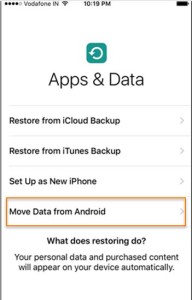
Step 1.Turn on the iPhone 7 and on the “Hello” page slide to the right to begin the set-up process. You will need to select the language and country and then choose a Wi-Fi network to connect to. On the next page, you can choose to set up Touch ID and create a Pass code. Complete all of these steps to get to the “Apps and Data Screen” as shown below. Once here, tap “Move Data from Android”.

transfer-samsung-data-iphone-7

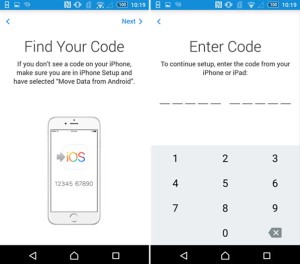
Step 2.On the Samsung device,launch the Move to iOS app and then tap “Continue” on the launch page. Be sure to read the terms and conditions and then tap “Agree”. You will then be taken to the “Find your Code” page. Here, tap “Next” to continue.

find-iphone-code

Step 3. Now on the iPhone, tap “Continue” in the “Move from Android” screen a 10-digit code will be generated. Enter the code on the Samsung device and the iPhone will detect and pair with the Samsung. On the Samsung device, select the type of data you would like to move (in this case music) and then tap “Next”. Leave the two device connected until all of the data has been transferred. The Move to iOS app should remain open on the Samsung device though the entire process.

Related Acticle:

How to Transfer Android Data to iPhone 7

How to Transfer Samsung Files to Samsung Galaxy S8

How to Backup and Restore Samsung Data

How to Backup and Restore Files on iPhone 7

How to Recover Lost Files on iPhone 7