All posts by DHZ

How to Recover Photos from Samsung Tablet with Broken Screen

Have you experienced the frustration of a broken screen with mobile tablet? Been confronted with the question of how to retrieve data from a broken screen Samsung tablet?Why not leave a comment below and help others in the Samsung community from your experiences?There are few things more frustrating than a Samsung tablet with broken screen.The annoyance is magnified when users annoy to recover data stored on the broken screen Samsung tablet.Breaking your tablet screen is inevitably immensely depressed,prevention is better than cure,make sure to back up your important files and data before the worst happens.

However,if you follow this simple suggestion then you can retrieve data from Samsung tablet when the screen is broken.Broken Android Data Recovery has special advanced functionality to effortlessly recover photos from Samsung tablet with broken screen,besides music,videos,contacts, text messages, documents,etc.Generally,you can use this amazing data recovery to recover data from broken Samsung tablet as well as phones with broken screen,black screen, touch screen can’t be used,or locked screen.Most Samsung tablet are supported,,for instance Galaxy Tab 2.7,Galaxy Tab Pro 10.1,Galaxy Tab Pro 8.4,Galaxy Tab S 8.4,Galaxy Tab2 10.1.Most Samsung models phones are supported,like Galaxy S8/S7/S6/S5/S4/S3 and Note 7/5/4.


d_win d_mac

Easy Steps to Retrieve Photos on Samsung Tablet with Broken Screen

Step 1.Connect Samsung Tablet to PC
Before you get started,download and install the Android Broken Recovery on computer.After that,launch it on PC and connect your device to computer.From left column of the main interface,you will see four options to choose.Go to the third option and click on the “Android Broken Data Recovery”.

connect samsung to pc

Note:Broken options is for those Samsung device including phones and tablet which with black/broken screen,or cannot enter the device system,etc.

Step 2.Select the File Type of the Broken Screen Samsung
You can select more than one type of files to recover from the broken screen Samsung.You can select all of the categories provided or you can choose any kinds of file you like selectively.For photos recovery,you can just select”Gallery“.

scan samsung

Step 3.Choose A Tablet Fault Type
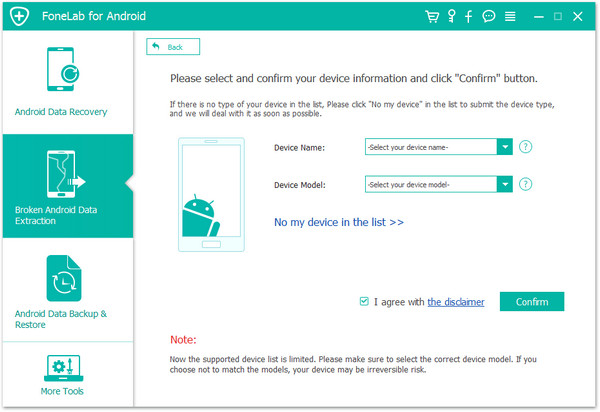
From the interface below,you can see two different types of broken device.On the left is for “Touch cannot be used or cannot enter the system” while the right is for “Black screen or broken screen”.You should choose the second mode if your Samsung screen is broken.After that,you will be asked to select the device model.

choose broken types

broken samsung tablets recovery

Note:You can click on “How to confirm the device model” to check if your device is supported.

Step 4.Get Samsung Tablet into Download Mode
Once you’ve confirmed your device model,you need to put it into Download mode for further steps.You can easily get into Download mode by following the steps display on the interface below.After you’ve done all three steps,hit the “Start” button.Then the program will start to perform the action within minutes.

samsung download mode

Note:What if you fail to enter the Download mode?If that’s the case,you can choose “Exit Download mode” option and the program will help you exit and back to the main interface.

Then you can choose “Fixed my bricked phone” option to solve this problem.

Step 5.Analyze and Scan Files Stored on Samsung Tablet
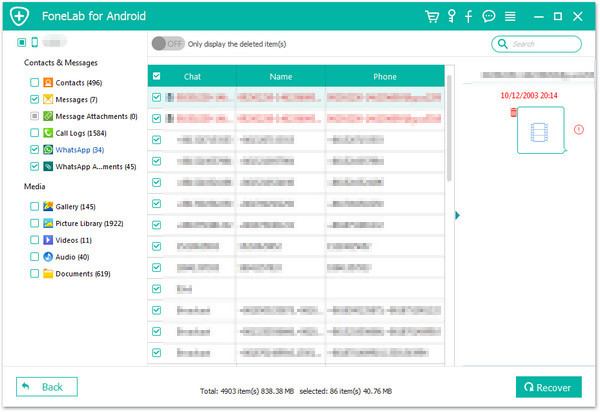
It will take a few seconds for the program to analyze your device.Once done,it will take a deep scan of all files stored in the device including contacts, messages, call history,WhatsApp history,videos and so on.You are able to preview them on the left panel by clicking on the categories one by one.

scanning broken screen samsung

Step 6.Recover Photos from Samsung Tablet with Broken Screen
After previewing the files you’d like to recover,tick them and then click “Recover” to save them on your computer.

recover photos broken screen samsung

d_win d_mac

Check Supported Broken Samsung Tablets and Phones Mode:

Samsung Galaxy Tab
Tab Pro 10.1:SM-T525

Samsung Galaxy S
S4:GT-I9500, GT-I9505, SCH-R970, SCH-R970C, SGH-I337M, SGH-M919, SPH-L720

S5:SM-G900F, SM-G900FQ, SM-G900I, SM-G900K, SM-G900L, SM-G900M, SM-G900P, SM-G900R4, SM-G900R6, SM-G900S, SM-G900T, SM-G900T1, SM-G900W8

S6:SM-G9200, SM-G920F, SM-G920P, SM-G920T, SM-G925F, SM-G925P, SM-G925T, SM-G928P, SM-G928T

S7 :SM-G930F, SM-G930T, SM-G935F

Samsung Galaxy Note
Note 3:SM-N900, SM-N9002, SM-N9005, SM-N9006, SM-N9007, SM-N9008 SM-N9008V, SM-N900S

Note 4:SM-N9100, SM-N9106W, SM-N9108V, SM-N9109W, SM-N910C, SM-N910F, SM-N910G, SM-N910H, SM-N910K, SM-N910L, SM-N910P, SM-N910R4, SM-N910S, SM-N910T, SM-N910U, SM-N910V, SM-N910W8

Note 5:SM-N920C, SM-N920G, SM-N920I, SM-N920K, SM-N920L, SM-N920P, SM-N920R4, SM-N920S, SM-N920T, SM-N920W8

Read More:

How to Recover Data from Broken Samsung Phone

How to Recover Data from Samsung with Broken Screen
How to Recover Data from Broken Screen Android Phone

How to Fix Bricked Samsung Phone

How to Recover Lost Data on iPhone 7/6S

Summary:Looking for a way to recover lost data from iPhone 7/7 Plus/6S/6 Plus or even the newest iPhone 8(Plus)? This article will tell you 4 effective methods to recover deleted data from iPhone 8/7/6S directly, from iTunes backups, from iTunes backups. Follow and find relative solution to retrieve iPhone 7 lost contacts, text messages, photos, notes, music or videos etc data even without backup.

recover lost data iphone 8

The Common Situations for Losing Data on iPhone 7:
There are so many reasons that could cause to lose iPhone 7 data.Here is our list of the most common situations people encounter that would cause data loss on iPhone 7.

1.Operation Accidentally
The most common cause in this list is human error.It happens more often than you would think—accidental data deletion.

2.iOS Update
iOS update failure is another common cause behind lost iPhone data.This may be caused by loss of connection between your iPhone and computer.

3.iOS Jailbreak
A failed jailbreak will cause data loss on your iPhone.

4.Perform a Factory Reset
If you are planning to get the battery of your iPhone changed or for other reasons,take note that it will trigger your iPhone to go into Factory Reset mode and therefore will wipe your iPhone.

Recover Lost Data from iPhone 7/7 Plus

iPhone 7/6S Data Recovery is an efficient software that capable of recovering lost files from iPhone 7,like contacts,text messages,WhatsApp messages,notes,photos,videos,call logs,documents,etc,.Supported device:iPhone 8(Plus),iPhone 7(Plus),iPhone SE,iPhone 6S/6S Plus,iPhone 6/6 Plus,iPhone 5S/5C/5,iPhone 4S/4,besides iPad and iPod.It provides you three available methods to recover data on iOS device:directly recover from iOS device,recover from iTunes backup files,recover from iCloud backup files.What’s more,you can use iPhone 7 Data Recovery to restore data from iPhone/iPad/iPod for lost data of various situations,such as iOS upgrade/jailbreak,device damaged/broken,restore device to factory resetting,device stolen and so farth.

d_win d_mac

Way 1:How to Recover Deleted Data from iPhone 7 without Backup

The poweful iPhone Data Recovery offers the “Smart Recovery” feature for you to recover iPhone data efficiently.If you are not sure that the data loss  circumstances of your iPhone,here we suggest you click the “Smart Recovery” feature to choose How You Lost Your Data,which will help to improve the rate of data recovery.

smart iphone data recovery main page

Step 1.Download iPhone 7 Data Recovery
Connect iPhone 7 with your computer and launch iPhone 7 Data Recovery.Select “Recover from iOS device“option,then you’ll see an interface which informs you that your device is connected.

connect iphone with computer

Step 2.Scan Data on iPhone 7
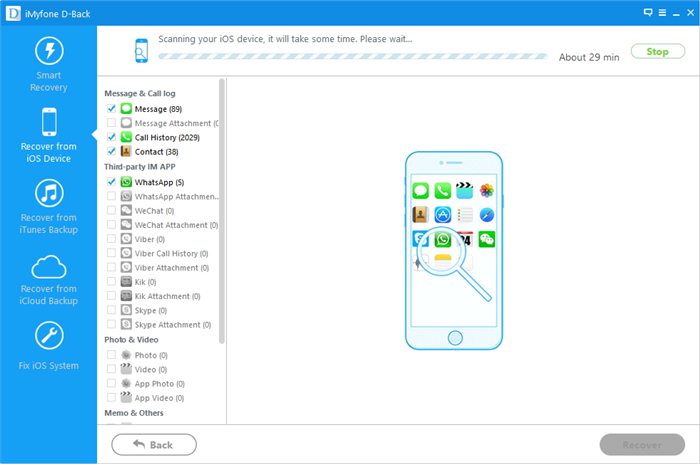
Select the files type you want to recover,click “Next” to continue.The program will start scanning data on your iPhone automatically.You just need to wait for the end of scanning and check for the scanning result.

select file to recover

Click “Scan” to search for your lost data,then the program begins scanning your device automatically for lost data.

scan iphone and search lost data

Step 3.Preview and Recover Lost Data from iPhone 7
When the scan finishes,all found data will be list in categories.You can preview most of them then check whether they are what you want to recover or not.

You can select “Only display the deleted items” to check the lost items have been found by iPhone 7 Data Recovery.Then you can select detail data you need and click “Recover” to save them back to your computer or device.

Recover Lost Contacts from iPhone 7

recover iphone contacts

Recover Lost SMS from iPhone 7

recover iPhone SMS

d_win d_mac

Way 2:How to Restore iPhone 7 Lost Data from iTunes Backup

Step 1.Choose and Extract the iTunes Backup
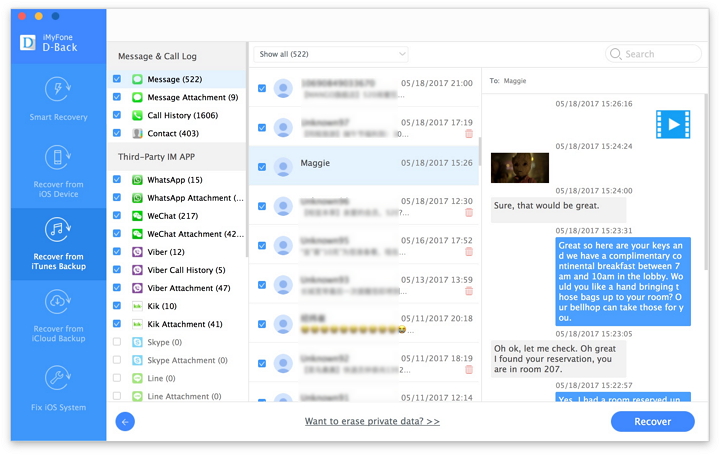
After running the iPhone 7 Data Recovery program on computer,then switch to “Recover from iTunes Backup File” recovery mode,the program will detect all iTunes backup files existing on your computer and display for you,here you can see the screen shoot as below,including Name, Last Backup DateSerial Number.

Select one iTunes backed up contents you want to get back and click on the “Scan” button to begin extracting the data from iTunes backup.The extracting process will cost you only 5 seconds.

extract backup file from itunes

Step 2.Preview and Extract Lost File on iPhone 7 from iTunes Backup
Now in the scan result presented by iPhone 7 Data Recovery,when the scanning process is complete,you will have a complete list of files that are available for recovering,before restore them,you are allow to preview all recoverable data one by one in detail, such as contacts, text messages, photos,videos, notes, call log, WhatsApp messages and more.Select your desired data to restore from iTunes backup,then click on the “Recover” button to extract them.

Recover Lost Photos on iPhone 7

restore iphone photos from itunes backup

Recover Lost SMS on iPhone 7

recover text messages from itunes

d_win d_mac

Way 3:How to Retrieve iPhone 7 Lost Data from iCloud Backup

Step 1.Select Recovery Mode and Log in iCloud ID
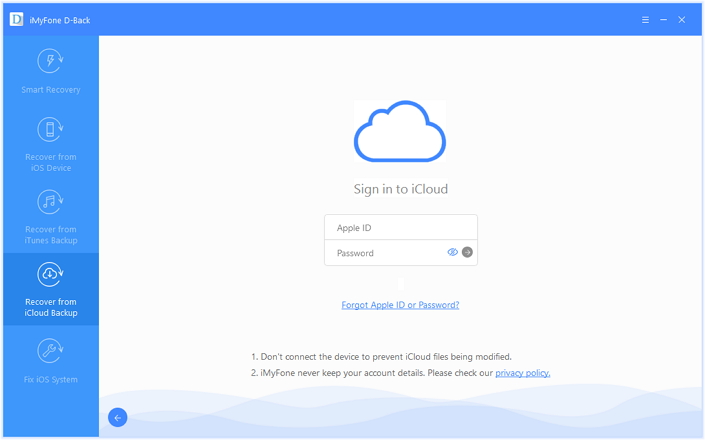
Run iPhone 7 Data Recovery on computer,and switch “Recover from iCloud Backup” mode and sign in your iCloud account ID and password.

sign in icloud account to login

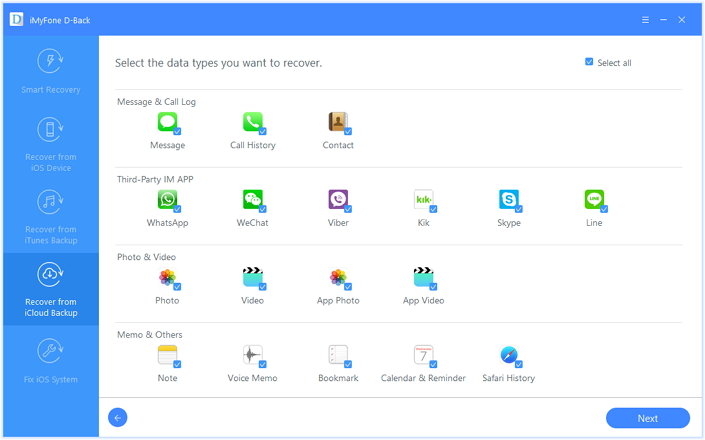
Step 2.Choose the Type of Files your Wanna Restore from iCloud Backup
In order to reduce downloading time, we recommend you to select specific files of your interest rather than downloading the entire file.

select the file types

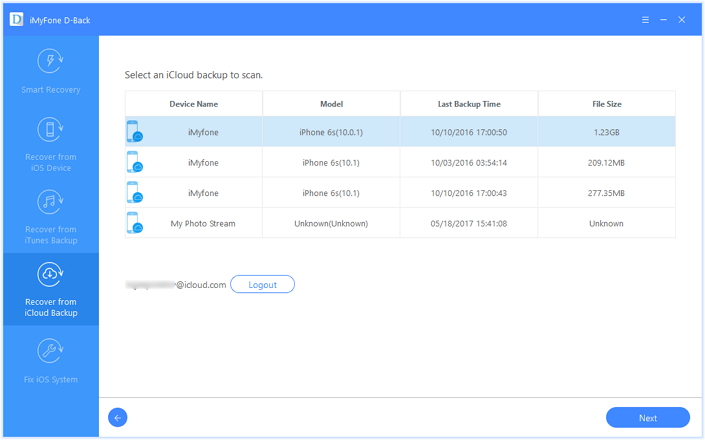
Step 3.Select iCloud Backup File to Extract
Browse from the list and select the one from which you want to restore from your iCloud account.

download icloud file

Step 4.Begin to Restore Files on iPhone 7 from iCloud Backup
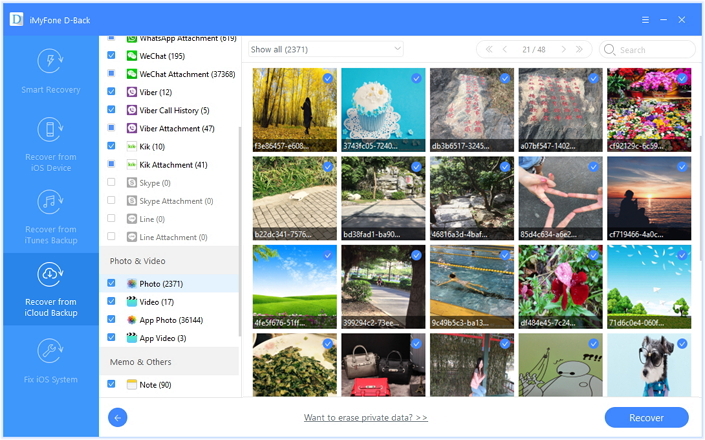
Please wait until the download process is completed,after the selected files are downloaded, you can preview the contents that you have selected,including contacts, messages, videos, pictures, notes and more.To get the lost data back,just select to click “Recover to Devices” or “Recover to Computer”.

Recover Lost Photos on iPhone 7

recover iphone photo from icloud

Recover Lost SMS on iPhone 7

recover iphone sms from icloud

Free download the iPhone 7 Data Recover to recover your iPhone 7/6S(Plus)/6(Plus)/SE deleted or lost data:

d_win d_mac

Way 4:Common Ways to Recover iPhone 7 Lost or Deleted Data

Recover recently deleted photos and videos on iPhone 7

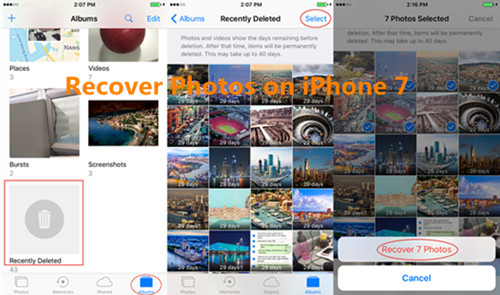
For iOS 9, iOS 10 above,even you have deleted photos on iPhone, iPad devices recentlly,you can easy to recover deleted photos and videos in “Recently Deleted” folder base on “Photo” >> “Albums”. If you have synced your iPhone with iCloud before, you can restore deleted data back into your iPhone easily. Here let’s teach you how to recover all recently deleted photos on iPhone directly:
Step 1.Tap the Photos app and open the Albums catalog,you can see all the media file classification,including Recently Added, Time-lapse, Photos, Videos, Character and Recently Deleted.
Step 2.Slide to the bottom,and open the Recently Deleted folder.
Step 3.Select the deleted photos and videos you want to recover.
Step 4.Tap the Recover button at the lower right corner of the screen to recover your deleted photos and videos

recover recently deleted photos on iPhone 7

Tips: This method is suitable for other versions of the iPhone, iPad device base on iOS 10 and iOS 9,such as iPhone 6s, iPhone 6, iPhone 5s and iPad Pro, iPad mini,etc.

Recover Recently Deleted Notes from iPhone 7

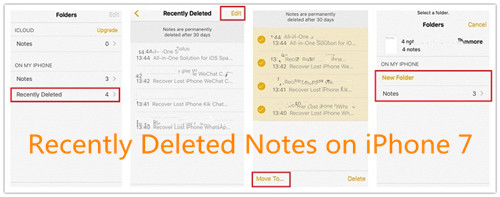
If you accidently deleted your notes from your iPhone 7/6S/6, please don’t worry! Those deleted notes can be retrieved on iOS 10 devices within 30 days!
Step 1. Open the Notes app on iPhone 7 and tap the Recently Deleted folder.
Step 2.Click the Edit button located in the upper-right corner of the screen.
Step 3.Select the note(s) that you want to get back,and then click the Move To… button located in the lower-left corner.
Step 4.Select the folder that you want to move the note(s) to.

recover recently deleted notes on iPhone 7

Tips:You can move the deleted recently deleted notes to iCloud, Notes app or other new folder.

iPhone 7 Data Recovery You Need to know:

iPhone 7 Data Recovery is developed to help iPhone users recover multiple types of iOS data and files on iPhone,iPad and iPod touch.Except guaranteeing you with the safety of your files and the usability of the program,iPhone 7 Data Recovery has some incomparable advantages you should know:

-Supports recovering as many as 22 types of iOS contents,including messages and attachments,notes,contacts,photos,call history, reminders,calendars,safari bookmarks,safari history,app documents,etc,.

-Supports recovering deleted files and data from iOS device,iTunes backup,and iCloud backup.Whether you have made backup or not before deleting the files,you are able to get what you have lost with iPhone 7 Data Recovery.

-Allows users to preview deleted files before recovering.You can selectively recover what you need instead of whole restoring.

-Supports all the models of iPhone,iPad and iPod touch,including the newest iPhone 8(Plus)/7(Plus)/6S(Plus)/SE.

Related Article:

How to Recover Data from Broken iPhone 7

How to Recover Deleted Data from iPhone 7/SE/6S/6

How to Recover Deleted Contacts from iPhone 7/SE/6S/6

How to Recover Deleted Photo from iPhone 7/SE/6S/6

How to Backup and Restore Files on iPhone 7

How to Recover Data from Black Screen Samsung Phone

[Summary]: If your Samsung phone stuck in black screen of death, don worrry, follow this guide to see how to fix your black-screen, frozen, crashed or screen-locked Android system to normal and retrieve data from Samsung phone with black screen.

My Samsung Galaxy S6 suddenly turns black-screen for no reason, it stuck on black screen of death for a lone time, but there are many important data stored on the phone, how to fix a black screen Galaxy S6? How to recover data photos, contacts and SMS from Samsung with black screen?

My Samsung Galaxy Note 5 is not working at all its just a black screen with the light working, but my home button does not work, so I am not being able to do the process given above, please help I need to recover photos on my black screen Note 5.

Common Reasons of Samsung with Black Screens:

There could be several reasons that caused the Samsung screen issues.Depending on the issue, you could narrow down the reasons behind the back screen of Samsung phone.
-An app or feature on your Samsung froze;
-There is not enough battery to power the device;
-An actual physical damage to the touch screen.

You may want to read:

* How to Fix Samsung Black Screen of Death

* How to Recover Lost Data from Samsung Galaxy

The screen will become totally unresponsive and refuse to take touch input of any type,even attempting to perform a hard reset will fail as you will be unable to select anything during initial setup,only physical keys such as volume and power work but that’s about it.This annoying issues can affect any Samsung smartphone,it can be one of the following or both where your phones touch simply stop responding and will not accept touch input and also in some cases the device will power up to a black or blank screen,although the device is on you will be unable to see a thing on-screen.My hope is that we will be able to help you in returning your piece of mind and recover data from black screen Samsung.

Data Recovery on Samsung Galaxy with Black Screen

You need the Broken Android Data Recovery,which can’t only recover data from Samsung,but also recover data from a black screen Samsung phone. You will be able to recover contacts, photos, messages, videos, music, call history, WhatsApp chats, documents from black/broken screen Samsung phone. The Broken Android Recovery supports extract Contacts, Messages, WhatsApp, Photos, etc. from broken/screen-blacked Samsung Galaxy S6/S5/S4/Note 5/Note 4/Note 3 or memory card.

And the Android Data Recovery suports recover data from all normal Android phones, like Galaxy S10/S9/S8/S7/S6/S5, Note 9/Note 8/Note 5, and more Android mobile phone models will be supported in the future upgrade, including Samsung, HTC, LG, Motorola, Nexus, Sony, Lenovo,Huawei, Xiaomi, ZTE, Redmi, Xiaomi, Oppo, etc.

d_win d_mac
d_win d_mac

How to Recover Photos from Black Screen Samsung Phone

Step 1.Run Android Broken Recovery on Computer
Launch Broken Android Data Recovery on your computer, connect black-screen Samsung phone with computer,and click the “Scan It” button to scan Samsung phone.

broken android data recovery

Step 2.Choose the File Types to Recover
Select your Samsung phone model and click on the “Next” button to going on.

broken samsung data recovery

Currently, the broken Android Data Extraction feature support the below Samsung models

Samsung Galaxy S6: SM-G9200, SM-G920F, SM-G920P, SM-G920T, SM-G925F, SM-G925P, SM-G925T, SM-G928P, SM-G928T

Samsung Galaxy S5: SM-G900F, SM-G900FQ, SM-G900I, SM-G900K, SM-G900L, SM-G900M, SM-G900P, SM-G900R4, SM-G900R6, SM-G900S, SM-G900T, SM-G900T1, SM-G900W8

Samsung Galaxy S4: GT-I9500, GT-I9505, SCH-R970, SCH-R970C, SGH-I337M, SGH-M919, SPH-L720

Samsung Galaxy Note 5: SM-N920C, SM-N920G, SM-N920I, SM-N920K, SM-N920L, SM-N920P, SM-N920R4, SM-N920S, SM-N920T, SM-N920W8

Samsung Galaxy Note 4: SM-N9100, SM-N9106W, SM-N9108V, SM-N9109W, SM-N910C, SM-N910F, SM-N910G, SM-N910H, SM-N910K, SM-N910L, SM-N910P, SM-N910R4, SM-N910S, SM-N910T, SM-N910U, SM-N910V, SM-N910W8

Samsung Galaxy Note 3: SM-N9006, SM-N9007, SM-N9008, SM-N9008V, SM-N900S, SM-N900, SM-N9002, SM-N9005

Step 4.Enter Download Mode
Enter the Download Mode on your Samsung by follow the steps provided by the software:
• Turn off the phone.
• Press and hold the volume, home and power button together.
• Press the volume up button.

broken samsung file recovery

Step 5.Analyze the Black Screen Samsung and Fix it
The software should be able to automatically detect your device and scan it.

fix black screen samsung

Step 6.Preview and Extract Files from Black Screen Samsung
After the software finish analyzing the phone, the broken Android data recovery software will give you a list of files that you can retrieve and stored on your computer. Highlight the files to preview them before deciding if you want to retrieve it.Select all the files you want and click on the “Recover” button.

extract files from black screen samsung

d_win d_mac
d_win d_mac

Read More Broken Samsung Data Recovery Solution

How to Recover Data from Broken Samsung Phone

How to Recover Data from Samsung with Broken Screen

How to Recover Data from Water Damaged Samsung Phone

How to Recover Data from Black Screen of Android Phone

How to Recover Deleted Files from Android Phone or Tablet

Android OS, as a popular mobile phone operating system,which is built-in Google Android, HTC, Samsung,Motorola,LG,Huawei,ZTE,and other Android phones and tablets.It has become the important part of our life and makes our daily life more convenient.But we sometimes deleted photos,contacts,songs accidently from Androids.So how to recover deleted files from Android phone or tablet because of human mis-operations or other unknown reasons become the hot topic among Android users.

Here we suggest you to use Android Data Recovery,it can help you to restore deleted files from Android phone or tablet freely.It covers a wider range of file types,which including photos, contacts, messages,videos,call logs,document and so forth,and it’s applicable with almost all Android devices.Android Data Recovery enables to recover deleted files from Android for accidentally erased,ROM flashing, factory resetting,rooting or others circumstances.Being safe and efficient,Android Data Recovery is a wonderful tool to recover data from Android operating systems-Android 4.0,Android 4.4,Android 5.0,Android 6.0 etc,.SIM Card data,external storage data and internal storage data are all recoverable.

d_win d_mac

How to Restore Deleted Files on Android

Step 1.Connect Your Android Device with Your Computer via an USB Cable
Run Android Data Recovery and connect your Android phone or tablet with your computer via its USB cable.

recover deleted data on android

Step 2.Enable USB Debugging
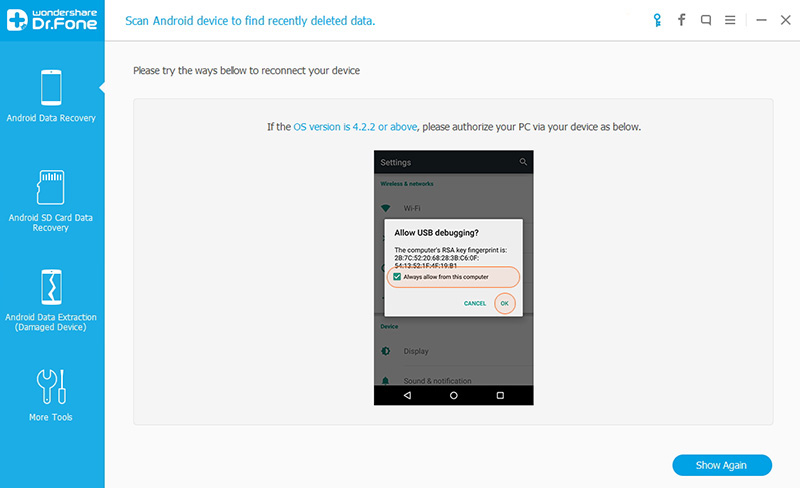
To continue the process of recovery deleted files on your Android device,you should first let Android Data Recovery recognize it.So,follow the guide on Android Data Recovery window to enable the USB debugging on your device according to the version of your Android is running.

1) For Android 2.3 or earlier:Enter “Settings” < Click “Applications” < Click “Development” < Check “USB debugging”;
2) For Android 3.0 to 4.1: Enter “Settings” < Click “Developer options” < Check “USB debugging”;
3) For Android 4.2 or newer: Enter “Settings” < Click “About Phone” < Tap “Build number” for several times until getting a note “You are under developer mode” < Back to “Settings” < Click “Developer options” < Check “USB debugging”;
4)For Android 5.0 or newer: Tap “Settings” > “About Phone” to tap “Build number” seven times for “You are now a developer!” signal.Then,move to “Settings” > “Developer options” to turn on “USB debugging”

recover deleted data on android

Step 3.Analyze Android Phone or Tablet
After enabling USB debugging on the Android,you should click “Next” on Android Data Recovery to let the program analyze the data on your device.

If you have rooted your Android phone before,you have to allow the program Superuser authorization on the screen of your device before the scan.Just click “Allow” when the message pops up on the device’s screen.Then back to your computer and click “Start” to scan your device.

allow-usb-debugging

Step 4.Choose File Type and Scan Mode
To save your time to scan for deleted files on Android device,you should check the file type,such as”Gallery”.(Gallery is the category where all found pictures on your Android will be saved here).Click “Next” to let the software scan for deleted files on Android.

recover deleted data on android

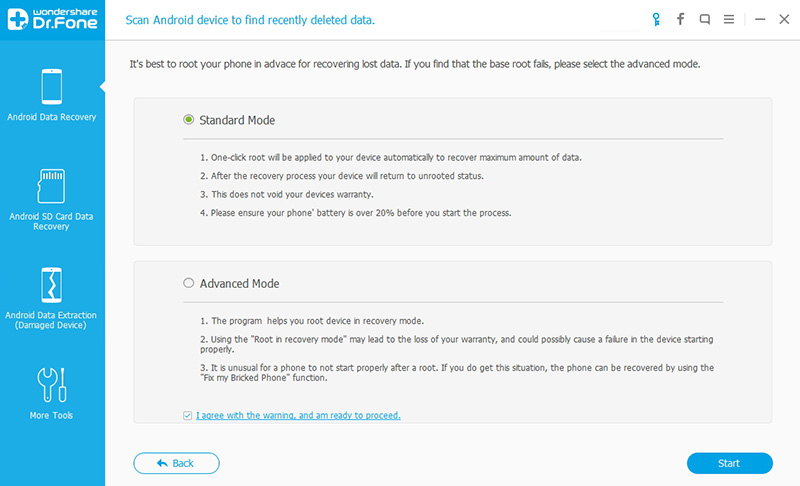
After selecting file types to scan,you’re required to select the scanning mode:Standard Mode or Advanced Mode.Choose the one that’s right for you according to the explanation for each mode.After then,click “Next” to continue the file recovery on Android process.

recover deleted data on android

Step 5.Preview and Recover Deleted Files on Android Device
The whole scanning process will last a few minutes.During the process,if you have seen the deleted file you need,you can click the “Pause” to stop the process.After then,check the wanted detail data and click “Recover” of the program.In the new pop-up window,select a folder on your local drive to save the recovered files on computer.

recover deleted data on android

What would you do if you accidentally deleted some precious files from your Android devices?Android Data Recovery is a professional data recovery for Android phones and tablets. Here are the detail steps to recover deleted files on Android above for your check.

d_win d_mac

Read more:

How to Recover Lost Data from Android Phone or Tablet

How to Recover Deleted Data from Android Internal Memory

How to Recover Data from Android Phones

How to Recover Files from Water Damaged Android Phone

How to Unlock Android Lock Screen

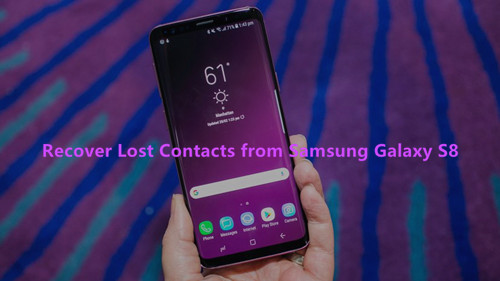
How to Recover Lost Contacts from Samsung Galaxy S8

Some phone numbers were gone suddenly on my Galaxy S8 phone. I’m not sure what happened on it. Is it possible to get back the lost contacts on my Samsung device? BTW, I haven’t did a backup for it. Thanks.

Contacts are the most important data saved on our mobile phone which are used to communicate with others.However we may lost contacts sometimes due to various reasons.For example,you may delete the wrong numbers from your phone,accidentally reset your phone or lost contacts cause from others.In this guide,we will take Samsung Galaxy S8 phone for an example to demonstrate how to recover lost contacts on Samsung phone and other Android mobile phones.Note that we assume you do not have a backup of your phone data.

recover samsung s8 contacts

Retrieve Lost Contacts on Samsung Galaxy S8

U.Fone Android Data RecoverySamsung Data Recovery is a superior data recovery helps to recover lost contacts from Samsung Galaxy S8 without any professional operating steps,supports to recover lost data from most Samsung models(Galaxy S9/S8/S7/S6,Note 9/8/5/4,A9/A8/A7,etc,),like contacts,photos,videos,text messages,WhatsApp history,call logs,document and so on.Samsung Data Recovery allows to recover data due to any reasons,including device damaged/broken,Android system upgrade,rooting,restore device to factory resetting,and more. What’s more. it features with Android backup & restore, broken Android data extraction.

d_win d_mac

Part 1: How to Recover Lost Contacts from Samsung Galaxy S8

Step 1.Connect Samsung to Computer
First of all,directly connect your Samsung phone to the computer with an USB cable.Then run Samsung Data Recovery on your computer,and you’ll get the main window as follows.

connect galaxy s8 to the computer

Step 2.Enable USB Debugging on Samsung Phone
Next,you need to enable USB debugging on your Samsung phone.The way to enable USB debugging is different according to the Android OS versions.There are thour ways for your choice.

usb debugging galaxy s8

Note:If your Samsung has been enabled USB debugging,it will guide you directly to the next step.

Step 3.San Lost Data on Samsung Phone
When you’re here,click “Next” to let program scan data on Samsung after clicking the files you need.For contacts recovery,you should click “Contacts“.

(Before doing this,make sure that the battery of your phone is more than 20%,which will ensure you device successful analysis and scan.)

select contacts file to recover from galaxy s8

After analyzing your phone,the program will continue to scan it for lost data.At the same time,an application-Superuser Request,will pop up on your screen of Samsung phone.You need to click “Allow” to allow the process move on.Then click “Start” on the program’s window below,the program will scan your Samsung tablet for a little while.

allow scanning galaxy s8

Step 4.Preview and Recover Lost Contacts from Samsung Phone
After the scan process is complete,you can preview files found on your phone(contacts,photos,SMS,etc).Click them to check in detail.Choose those you need(the lost contacts) and click “Recover” to save them on your computer.

recover lost contacts from galaxy s8

While using your Samsung phone,you may experience the situations that your personal information gets lost for instance the phone numbers,E-mail address and you are eager to looking for the ways to recover lost data from phone.Samsung Data Recovery is your perfect choice for rescuing lost data from Samsung phone.

Now you can check the recovered contacts on the computer:

View Recovered Contacts

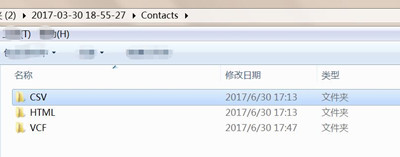
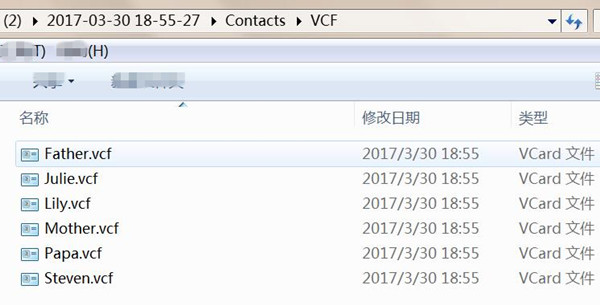
The recovered contacts will be saved on the computer in VCF/CSV/HTML formats for your preview or use,all missing information in contacts including: lost name, job title, phone number, and other information.

Check the recovered contacts files from Galaxy S8:

view recovered contacts

The lost contacts can be get back and saved on computer as VCF/CSV/HTML formats:

view galaxy s8 lost contacts

And the exported contacts will be saved as VCF for your use:

view recovered galaxy s8 contacts vcf

View the recovered contacts in HTML format on the computer through the browser:

view recovered galaxy s8 contacts in html format

d_win d_mac

Part 2: How to Restore Lost Contacts from Samsung Account

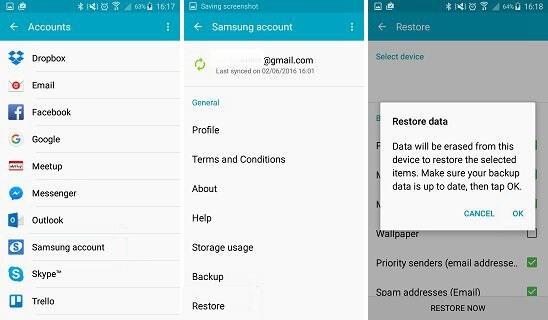
If you have set up Samsung account and made a backup before deletion, you can simply restore the backup with Samsung account. Your Samsung account backup includes device data such as contacts, calendar and settings. To restore contacts from Samsung account:

Step 1. Go to Apps > Settings > Cloud > Restore.

Your Samsung device will begin to restore backup.

Step 2. Tick the items that you want to restore. And tap “Restore Now“.

The contacts and other data will be downloaded from your Samsung account. Wait untill you get the prompted message “Data Restore“. Done.

restore contacts samsung account

Part 3: How to Recover Lost Contacts from Local Backup

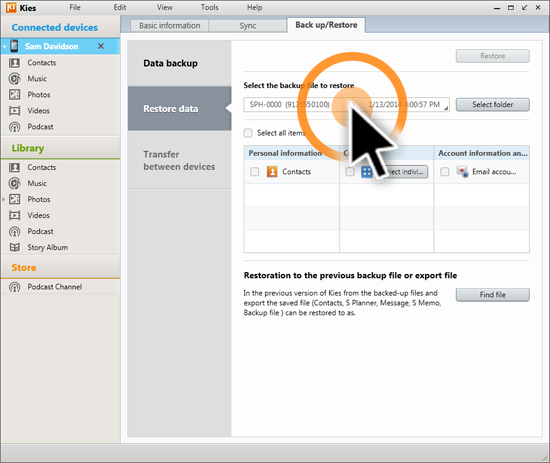
Besides Samsung account, there are also two computer based backup solutions offered by Samsung, called Kies and Smart Switch. Some of the users may be familiar with this two programs. If you are fortunately backed up the phone with one of them, then recovering the contacts is just a piece of cake.

restore contacts from samsung kies

To restore contacts from Samsung Kies or Samsung Smart Switch backup, simply connect your phone to computer and run the program. After the phone was detected by Kies or Smart Switch, then click “Back up/Restore” tab on the right side of the program. Click “Restore” tab and choose the right location of the backup file. A few minutes later, all backup contacts will be synced to the phone.

Part 4: How to Backup Contacts on Samsung Galaxy S8

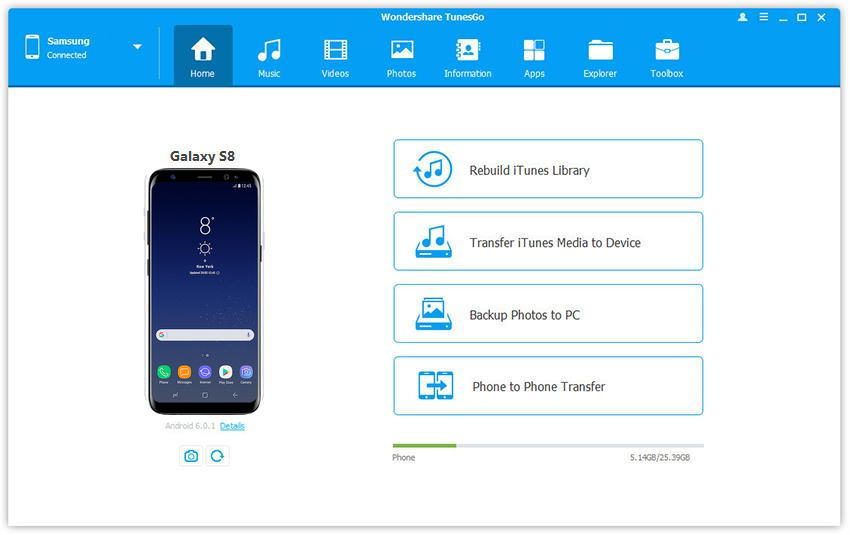
Android & iOS Manager can do a favor for you, it’s an useful data manager for Android, enables to transfer & manage data for Android on computer freely, including SMS, contacts, videos, music, photos, apps. With the help of Android Manager, you are able to export contacts from Galaxy S8 to computer with a few clicks. What’s the main features of Android Manager? It enables to transfer files between Android and computer, transfer files between Android and iTunes, transfer files between Android and iOS device.

Android iOS manager home page

d_win d_mac

Guide: How to Backup Contacts Safely on Galaxy S8

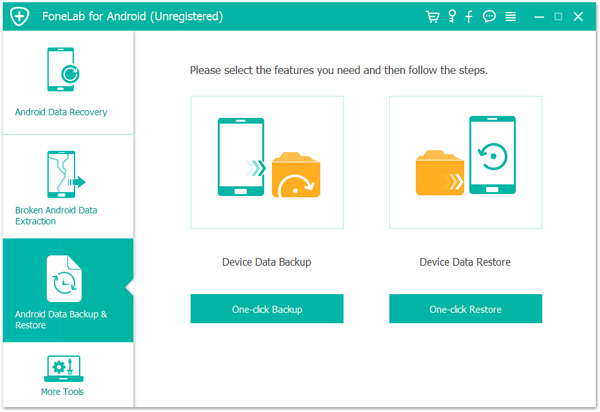
Another terrific tool here we want to recommend for you calls Android Backup & Restore, which is an excellent tool help for backing up data from Android to computer safely, also restoring backed up data for Android on the computer completely. With the help of Android Backup & Restore, you can easily backup contacts for Galaxy S8 on computer with a few clicks.

backup Galaxy S8 data

d_win d_mac

Related Samsung Galaxy S8 Tutorial:

How to Transfer iPhone Data to Samsung Galaxy S8

How to Transfer Samsung Data to Samsung Galaxy S8

How to Recover Data from Samsung Galaxy S8

How to Recover Lost SMS from Samsung Galaxy S8

How to Recover Lost Photos from Samsung Galaxy S8

How to Backup & Restore Samsung Galaxy S8

How to Root Samsung Galaxy S8 without Data Loss

Recover Contacts from Samsung Galaxy S8

How to Restore deleted photos videos album on S8/S8+

[Summary]: Accidentally deleted photos on your Samsung Galaxy S8? The tutorial will teach how to recover lost or deleted photos/pictures/images and videos from Android Samsung Galaxy S8/S8+ with Android Data Recovery.

People Also Read:

* Unlock Samsung Phone without Passcode

* Fix Samsung Galaxy Stuck into Blank Screen

2 Ways to Restore Photos, Videos on Galaxy S8/S8 Plus

As you know Samsung Galaxy S8/S8+ is popular among Android users for its elegant feature especially the excellent camera.There are a amount of users buy Samsung S9/S8 or Galaxy Note 8 for its high-quality imaging.Many users like taking photos and videos by Samsung Galaxy devices,but when you deleted photos on Samsung phone by accidentally,or lost Android data under many sudden situations,such as files deletion, device locked, device broken/damaged, rooting,Android system upgrade, restore Samsung to factory settings, etc.How can you recover deleted/lost photo files from Samsung Galaxy S8/S8+? This aritcle will teach you how to find deleted photos on Samsung Galaxy S8/S8 plus recycle bin, and how to retrieve deleted, lost, missing, erased, inaccessible photos from the Galaxy S8 and S8+ via Samsung Galaxy S8/S8+ photos recovery software.

Tips to Protect the Deleted Photo Files on Samsung S8

Note: If you want to recover deleted photos, contacts, messages and other files on your Samsung Galaxy phone, please don’t take any new pictures, videos or add new documents to S8, and stop using your Samsung phone after deletion or loss of data on it, because if you add any new data on it, then existing data will get overwritten and you may reduce the chances for Samsung data recovery.Now, let’s go to the detail guide to recover deleted photos on Galaxy S8:

Way 1: Restore Recently Deleted Photos on Galaxy S8/S8+ Recycle Bin

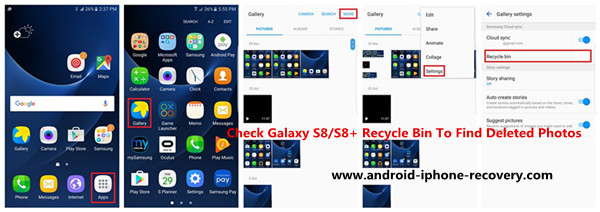
Samsung Galaxy S8 and S8 Plus has a recycle bin for deleted files ( Photos ), if you have deleted photos on Galaxy S8 accidentally. Don’t worry, the deleted pictures do not permanently deleted on the device, it removed to the phone’s recycle bin just as as a recycle bin in the computer, so you can check Galaxy S8/S8+ recycle bin to find deleted photos.

So, just check the recycle bin on your Samsung Galaxy phone first to find recently deleted photos and retrieve them.

Simple Steps to Restore Deleted Photos on Samsung S8 Recycle Bin

Step 1: Open “Gallery” app on Samsung Galaxy S8 or Galaxy S8+.
Step 2: On the upper right corner of the phone screen, then tap “More” option.
Step 3: You can see there are five option for you,then just tap “Settings”.
Step 4: Tap “Recycle bin” to find recently deleted photos on Recycle Bin.

Restore Deleted Photos from Samsung Galaxy S8 Recycle Bin

Note: Some devices may have these following options: Gallery → Drawer icon (≡) → Settings → Cloud sync → Auto sync “ON”.

Tips: Can’t find the recently deleted photos/pictures/images on Samsung Galaxy S8 recycle bin?Can’t find the lost, missing, erased, inaccessible photos/videos on Samsung Galaxy recycle bin?
If your do not have any backup of your photos on Samsung phone,you can use a professional Android Photo Recovery to recover deleted photos and videos from Galaxy S8/S8 internal memory effectively and easily.

Way 2: Recover Deleted Photos, Videos from Galaxy S8/S8 Plus by Android Data Recovery

Android Data Recovery,which is a universal data recovery tool for almost all Android phones including the latest hot Samsung Galaxy S10/S9/S8/Note 8, and Samsung Galaxy S7/S6/S5. With the help of the Android data recovery app, you can recover lost, deleted, inaccessible photos from Samsung Galaxy S8/S8 Plus as you wish.
Furthermore,this program enables to recover contacts, text messages, call logs, videos, WhatsApp messages, document,etc. from Samsung phones and tablets.It also works well with almost all brands of Android devices,such as Samsung,HTC,LG,Motorola,Huawei,Xiaomi,Lenovo and more.

More Features in Android photo recovery solution:

-Recover deleted, lost, deleted, inaccessible, missing photos from Samsung S8 and S8 plus.
-Recover deleted data including SMS, contacts, whatsapp chat history, documents, videos, audio, etc.
-Retrieve lost or inaccessible pictures from locked, screen damaged, factory reset, formatted, broken Samsung Galaxy S6/S5/S4/Note 5/Note 4/Note 3,etc.
Learn about how to recover photos from broken Samsung Galaxy
Fix broken Samsung phone to normal if the device frozen, crashed, black-screen, virus-attack, screen-locked.
-Preview recoverable data before you decide to recover and save them on your computer.

d_win d_mac
d_win d_mac

Tips:Android data recovery not only supports recover deleted files from Samsung Galaxy phone’s internal memory,but also allows you recover lost data from the external SD card.

Simple Steps to Recover Deleted Photos from Samsung Galaxy S8

Step 1.Connect Samsung Galaxy S8 to computer
Firstly connect Samsung phone to your computer.Then run Android Data Recovery on computer.

connect samsung s8 to the computer

Step 2.Enable USB Debugging on Samsung
If you didn’t enable the USB debugging on your device before,you will get a pop-up message on your device and need to enable it now.If you’ve done it already,just skip this step.

usb debugging galaxy s8

Step 3.Choose File to Restore from Samsung
You will now be asked to choose the file types that you want to recover.You should choose “Gallery” for retrieving lost photos only.

select file type to recover from galaxy s8

The software will automatically detect your device,if detection is successful,there will be a window appear,you need to click”Allow” to start analyzing scans your Samsung.

allow scanning galaxy s8

Step 4.Analyze the Samsung Galaxy S8
Once your Samsung phone has been successfully scan,the next step is to analyze the data in your device.

analyze data galaxy S8

Step 5.Preview and Recover Lost Photos from Galaxy S8
When the scan is complete,it will show a complete list of recovered photos which you can preview before restoring them to computer.

recover deleted photos from galaxy S8

Why not free download the Android Data Recovery and recover the deleted photos from Samsung S8/S8+ on Windows or Mac computer right now?

d_win d_mac
d_win d_mac

Recovered Photos Presenting

The previous photos your taken, download from the Internet or save the photos on your phone camera, even, the image cache from your browser can be get back and save on the computer.

The format of photos supports to : bmp,jpg, png, jpeg, tiff,gif, and more.
The format of videos supports to : MP4/3GP/AVI/WMV/FLV/RMVB/M4V/MOV and more.

view galaxy s8 photos

Video Guide teach you How to Restore Deleted Photos from Samsung Galaxy S8

Tips to Prevent Photo, Video Files from being Lost

Here are some tips about preventing important photos from being deleted.

Pre-deletion:
•Take back-up your photos by Samsung device to your laptop and syncing.

You can use Android Manager tool for backup previous personal photos, contacts, text messages data on Galaxy S8, this program is design for transferring & managing data for Android device on computer safely, including music, videos, photos, apps, contacts, SMS. With this program, you can freely transfer files between Samsung and computer, transfer files between Samsung and iTunes, transfer files between Samsung and iOS device.

samsung galaxy s8 manager

Detail guide: How to Backup Photos on Galaxy S8

Another helpful tool calls Android Backup & Restore, which is an excellent tool help for backing up data from Galaxy S8 to computer safely, also restoring backed up data to Galaxy S8/S9/Note 8 on the computer completely.

backup Samsung galaxy s8 photos

d_win d_mac

Tutorial: How to Backup & Restore Photos for Galaxy S8

•Take a backup in your memory card.
•Use auto-backup feature available on device.

However, If the photos have been deleted, follow the below steps.
Post-deletion:
The below two steps should be taken:
•Don’t add or even delete any data from your device. This will keep the data from being overwritten. If your data is overwritten, you will be unable to recover the lost photos.
•Avoid using the phone until the photos have been recovered.

Related Samsung Galaxy S8 Guide:

How to Recover Data from Samsung Galaxy S8

How to Recover Lost SMS from Samsung Galaxy S8

How to Transfer iPhone Data to Samsung Galaxy S8

How to Transfer Samsung Data to Samsung Galaxy S8

How to Transfer Music to Samsung Galaxy S8

How to Transfer Videos to Samsung Galaxy S8

How to Backup & Restore Samsung Galaxy S8

How to Root Samsung Galaxy S8 without Data Loss

How to Manage Samsung Galaxy S8 on Computer

Restore Photos on Samsung S8

How to Backup and Restore Data from iPhone X/8/7/6S/6(Plus)

Backup Data and Restore to iPhone after Resetting to Factory Settings

If you want to erase your iPhone device and then set it up as a new device thouth reset to factory settings,it will erase all of the data on your iPhone.However,we should backup iPhone data before erasing the device,and then restoring it to iPhone,iPad from computer, iCloud or iTunes backup.

backup restore iphone data

Backup Data and Restore to iPhone after iOS Upgrade or iOS Jailbreak

If you failure upgrade iPhone to iOS 11, iOS 10,it may cause erase your data;If your iPhone stuck in recovery mode, iTunes screen, black screen when jailbreaking failure,you may found all contacts, sms,photos files gone!However,we recommend you must to backup data from iPhone,iPad to computer,then restore them back to the devices after the update/jailbreak process complete.

Backup old iPhone,iPad Data and Restore to new iPhone 7/7 Plus/iPhone 8

Many people use the new iPhone X and iPhone 8/7/6S/6(Plus),do you be excited about the new iPhone X/iPhone 8 and want to buy one?The new information reveals it could still be a crowd pleaser.However,if you plan to sell the old iPhone, iPad and buy an new iPhone X,I remind you do remember to erase all data from old iPhone before selling it,the fist thing you must to backup your iPhone data to computer and erase the old device,when the backup is completed, you can restore backed up contents to new iPhone X/8 directly.In additional,backing up iPhone on a regular basis can save you a lot of headaches if your phone fails or gets lost in the future,even lost data from iPhone under any unknown reasons.There are several options available for backing your iPhone precious data. Apple’s backup solutions when using iTunes or iCloud are quite comprehensive,but it may doesn’t work every time.

Backing up your iPhone doesn’t have to be as hard as iTunes/iCloud makes it.In fact, it shouldn’t be hard at all.In this article, we are going to reveal an outstanding third-party iPhone Data Backup & Restore application as alternative to iTunes/iCloud that you are going to be pleasantly surprised.You can use it to manage iOS device by yourself freely.

The  iOS ToolKit- iOS Data Backup & Restore  tool,is a iOS data manager program that famous for backing up files from iPhone to computer as well as restore data to iPhone from backup,all backup and restoreable data including photos,contacts,SMS/iMessages,videos,notes,call logs, Apps data and other personal document.iOS Data Backup & Restore tool offers full support for iPhone 8/7/6S/6/SE/5C/5C/5/4S/4, iPad Pro, iPad Air, iPad mini, iPod Touch and other ios devices.It works with all iOS versions,insist of iOS 11, iOS 10, and iOS 9.We’re going to give you step by step instructions on how to use this iOS Data Backup & Restore features to back up and restore data from iPhone 7 for example.

d_win d_mac

Tips: The iOS Data Backup & Restore tool also can help you backup and restore chats history/messages and content of social Apps, like WhatsApp, Kiki, Viber, Line.

Part 1:How to Backup Data from iPhone 7 to Computer

Step 1.Run the Program on Computer and Connect iPhone to Computer
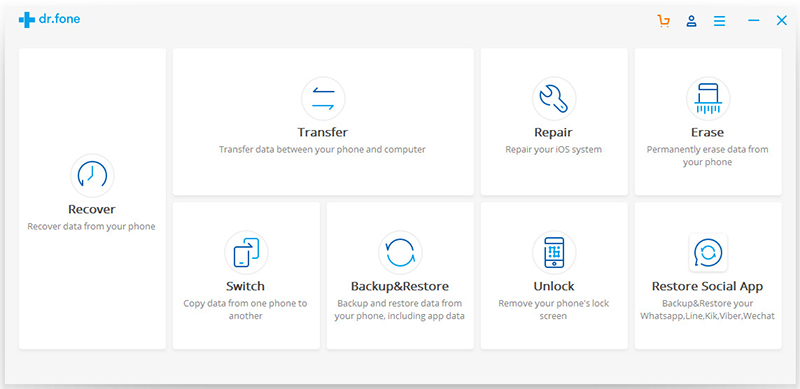
After launching iOS Data Backup & Restore tool on computer,click on “More Tools”option in main page of this program,select “Device Data Backup & Export”option from the tool list.Then use the USB cable to connect your iPhone to computer.By default,iOS Data Recovery will automatically detect your iPhone in a little while.

iPhone data backup and restore

Note:If you have used iOS Data Backup & Restore tool to backup your device before,you can click on “To view the previous backup file” to view the previous backup files list.

Step 2.Select File Types to Backup from iPhone
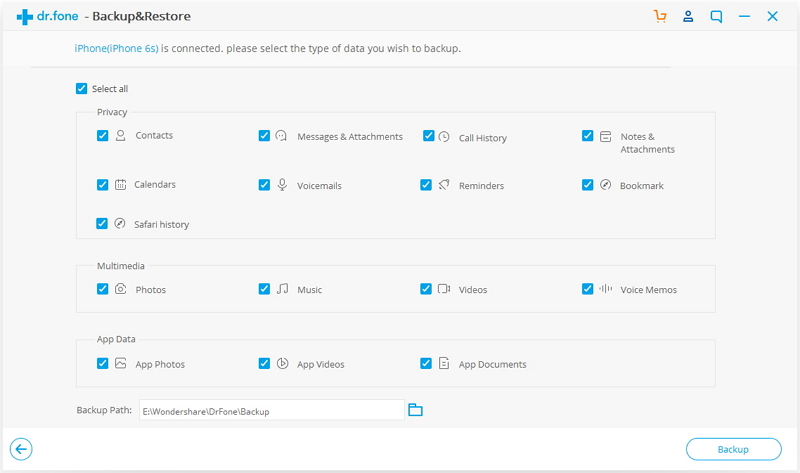
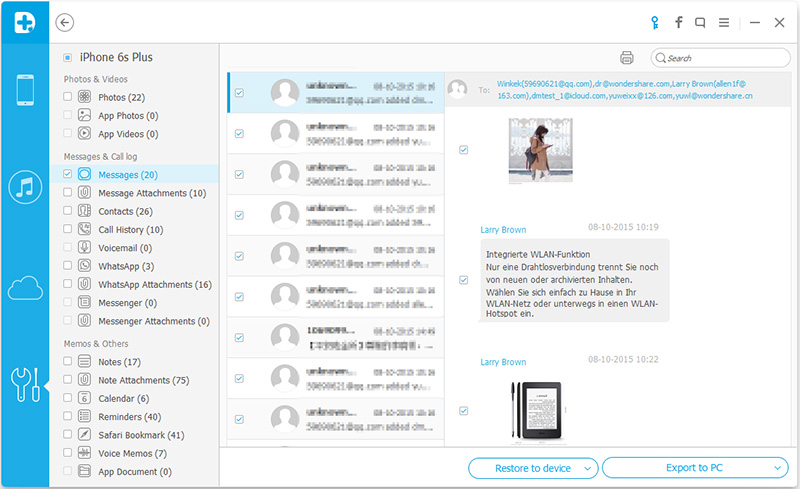
When your iPhone is connected successfully,iOS Data Backup & Restore tool will detect the file types on your device automatically.Then iOS Data Backup & Restore tool will display all the supported data,like Photos & Videos, Messages & Call Logs, Contacts, Memos and other data.You can select the file types to backup.One or more are allows.Then click on “Backup”button.

backup iPhone data to computer

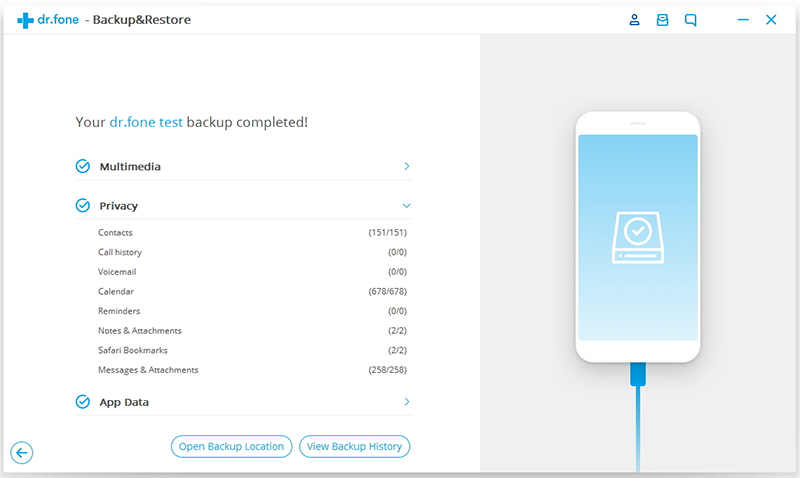
It only will take a few minutes on the whole backup process,depending on the data storage on your iPhone.

backup files from iPhone to pc

Step 3.Restore Backup Files from iPhone
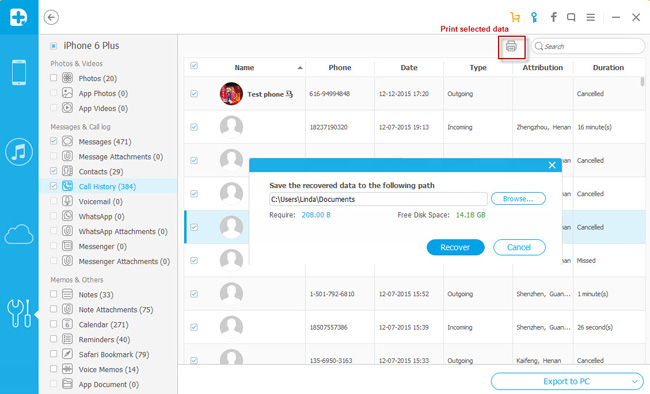
After you select the files to backup by checking the box,please click “Export to PC “button to export the files to computer.When you click “Export to PC”, you will have two options:Only Export this file type and Export all the selected file types.Then you can choose the backup file save path on the popup window to successfully export your iPhone data.

backup iPhone 7/6S data to computer

Now,you have backed up your iPhone data to computer,if you want to restore data back to iPhone or iPad devices,please learn Part 2.

d_win d_mac

Part 2:Restore Data to iPhone, iPad, or iPod touch from a backup

If you have backed up of your iPhone data to computer through Part 1 via iOS Data Backup & Restore tool,after jailbreaking, upgrading, factory reset your iPhone,you can follow this part to selectively and restore backup content to your iPhone 7/7 Plus, iPhone 6/ 6S Plus,iPhone SE or other iOS devices easily.Let’s teach you how to use the iOS Data Backup & Restore tool to export the selected files to your computer, or restore them to your iPhone, iPad or iPod touch.

restore backed files to iPhone 7

Free download the iOS Data Backup & Restore tool and have a try!

d_win d_mac

Part 4:Directly Recover Deleted Data from iPhone X/8/7/6S/6/SE

iOS Data Recovery supports to recover iPhone X/8/7/6s/6/SE deleted data without/with iTunes/iCloud backup,this outstanding data manage program enables to get backup data on iPhone with three different mode:recover from iOS device,recover from iTunes backup,recover from iCloud backup.It is such a humane data recovery program to fit your condition.Let’s take “directly recover data from iPhone 7” for an example,you can check the detail steps and follow it to restore your iPhone data in the following passages.

d_win d_mac

Step 1.Run iOS Data Recovery and Connect iPhone to Computer
Firsty,download,install and run iOS Data Recovery on computer.Then connect your iPhone 7 to computer.When your iPhone is detected,there are three recovery modes for you: Recover from iOS Device, Recover from iTunes Backup File and Recover from iCloud Backup File.Choose the first one.

recover iPhone 7 data

Step 2.Scan Data from iPhone 7
In this step,you can select data types to scan,such as “Contacts”,”Videos”,”Call History”,etc.Then click “Start Scan” button to scan data on your iPhone 7.

select data to restore

Note:Not only the existing data,here iOS Data Recovery allows to scan lost data (deleted data) from your iPhone.You can click”Select all” to scan all data,or just select the deleted/existing part.

Step 3.Preview and Recover Data from iPhone 7
When the scan is complete,you can preview all data found on it one by one in the scan result.Then choose the detail data you wanna recover,and click on the “Recover” button to save them on your computer or your device with one click.

recover iphone 7 data

d_win d_mac

A Superior Backup & Restore Tool for iPhone

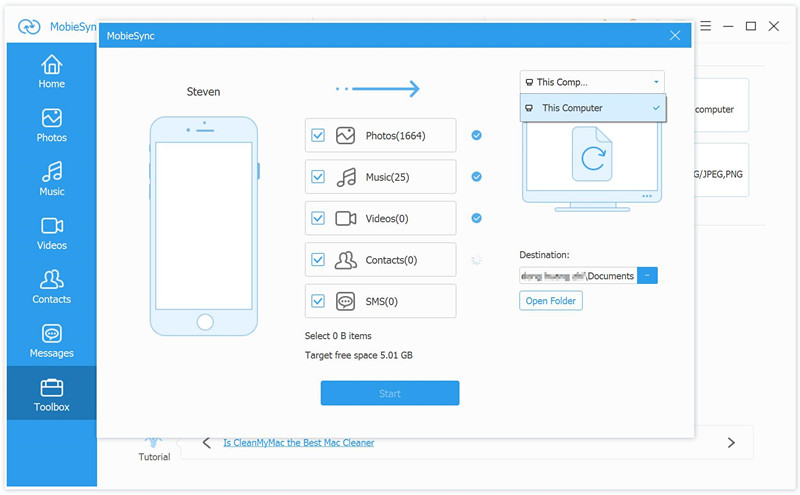
Mobile Sync is a superior tool for backing up & restoring data on iPhone X/8/7/6S/6/5S/5 and iPad, iPod. The supported types of iOS files including music, videos, photos, contacts, text messages, and others. It could be used to backup iPhone data to the computer safely, restore backed up to iPhone from computer completely. In addition, this program allows you to transfer files between two iOS devices directly. In general, Mobile Sync is the best iTunes alternative, a good iOS files transfer & manage tool for iPhone/iPad/iPod.

backup iPhone to PC

Read More:

How to Backup and Restore iPhone WhatsApp Messages

How to Backup,Restore and Transfer WhatsApp Messages

How to Backup iPhone Contacts to Computer

Backup and Restore Contacts,SMS,WhatsApp Messages on iPhone

Backup & Restore iPhone Data

How to Recover Deleted Text Messages from Galaxy S8/S8+

[Summary]: This article tells you 2 quick ways to recover deleted text messages from Samsung Galaxy S8/S8+ effectively,as well as Galaxy S9/S7/S5/S4/Note 8/Note 5 by Android SMS Recovery app. Scroll down the screen and learn how to extract text messages from broken Samsung galaxy phone.

Samsung phones are warmly welcomed among all kinds of Android by people due to its powerful functions and universally acceptable price especially the series of Galaxy.We like to receive and send messages with our family,friends or co-workers using phone.And a part of these messages, there may be some with great significance that we expect to store on phone.But there exist several circumstances that the value messages are at the risk of losing.For instance,deleted mistaken,unexpected virus attack on the phone,system upgrade or formatting,etc.All the unknown reasons can make your SMS disappear.Don’t worry,this article will teach you the best Samsung Galaxy S8/S8+ Text Messages Recovery solutions.

Part 1. Recover Lost and Deleted SMS from Samsung Galaxy S8/S8+

It is quite common to lost text messages from mobile phone.In order to help you completely recover deleted text messages from Galaxy S8/S8+.
I’d like to recommend you this Samsung Data Recovery.According to user feedback,this Samsung Data Recovery is both effective and easy to use,worth you to having a try.It’s such a trustable data recovery to restore lost SMS from Samsung Galaxy S8,as well as Galaxy S9/S9+ and S7/S6/S5,Note 8/5/4,A9/8/7,and so farth.Besides,this software enables to recover various data from Samsung phone,including contacts,photos,call logs,WhatsApp messages,notes,videos,and more.Now, just read the tutorial carefully and patiently below,you’ll learn how to recover valuable texts on Samsung phones.

d_win d_mac

Easy Steps to Retrieve Deleted Text Messages from Galaxy S8/S8+

Step 1.Run Samsung Data Recovery and Connect Galaxy S8 to PC
Run Samsung Data Recovery on computer after downloading.Connect Galaxy S8 with computer.

connect samsung s8 to the computer

Step 2.Enable USB Debugging on Samsung Galaxy S8
To enable USB debugging,let the program to enable USB debugging the device.

usb debugging samsung s8

Step 3.Analyze Samsung Phone and Scan for Lost Data
Then there are different types of files will be chose to scan in this step.You can select the files name and into next step,for example “Contacts”,”Messages“,”Call History”,click “Next“.

select file tpye to recover from samsung s8

The software will automatically detect your phone,there will be a window appear,you need to click”Allow” to start analyzing and scanning your Galaxy S8 when detection is successful.

allow scan samsung s8

Step 4.Preview and Recover Lost SMS on Galaxy S8/S8+
When the scanning is finished,all the scanning result will being display in detail.You are allowed to preview them one by one.After previewing,you can recover the selected data by clicking “Recover” to save them on your computer.

recover sms from samsung s8

Sending text messages is a common way to communicate with others.But trouble comes without any omen,you may lost SMS from Samsung under unexpected situations.When it happens to you,you can get help of Samsung Data Recovery,which is a powerful and useful recovery software originally developed to retrieve lost data from Samsung phone as well as Android phones,such as HTC,LG,Motorola,Huawei,Xiaomi.

d_win d_mac

Part 2: Recover Text Messages from Broken Samsung Phones without USB Debugging

Samsung phone is disabled after system upgrade failed? Samsung phone stuck in black-screen? Your phone get frozen and can’t access to the system? Forget the passcode of screen-locked Samsung phone and can’t access the data? Dropping your phone or water-damaged? You may encounter similar problems about Samsung phone is broken,all that important text messages, contacts, photos on your phone is now inaccessible.Is it possible to recovery SMS from a broken Samsung phone? The answer is YES!

Broken Android Data Extraction enables you to fix your broken Samsung phone quickly and recover your files back.Let’s check more fuctions in Broken Samsung Message Recovery:

– Extract data such as lost, sent & received SMS text messages from broken Samsung phone and export them to a computer for backup,so you can easy reading and printing.

– Recover existing contacts from a damaged Samsung phone,and save them in HTML format, with all contact information like names, numbers, emails, job titles, and addresses intact.

– Get back photos, videos, music and documents from Samsung phones with a broken screen,and save them onto a computer in their original quality and formats.

– Works on popular Samsung Galaxy S/Note/Tab (Pull down to see detailed support list).

Simple Steps to Recover Text Messages from Broken Samsung Galaxy

Step 1.Connect your broken Samsung phone to computer

recover sms from broken Samsung s8

Step 2.Choose your Samsung phone model for scanning
Step 3.Enter Download Mode on the Samsung phone
Step 4.Download firmware for broken Samsung
Step 5.Analyze the Samsung phone
Step 6.Preview and recover the Text Messages from broken Samsung phone

When the scanning is finished, tick the boxes next to all the data from your phone you wish to retrieve. Here, you should check files in the “Text Message” itme. Make sure you have examined all contained text messages and select all you want before you move on to the next step.
Finally,just click on the “Recover” button to extract all messages from broken Samsung Galaxy phone,and save all the checked text messages on your computer.

Note: This tool only help you extract the existing data from a broken Samsung device.

Broken Android Data Extraction Fuction Supportes Below Broken Samsung Devices

Samsung Galaxy S:
S6: SM-G9200, SM-G920F, SM-G920P, SM-G920T, SM-G925F, SM-G925P, SM-G925T, SM-G928P, SM-G928T
S5: SM-G900F, SM-G900FQ, SM-G900I, SM-G900K, SM-G900L, SM-G900M, SM-G900P, SM-G900R4, SM-G900R6, SM-G900S, SM-G900T, SM-G900T1, SM-G900W8
S4: GT-I9500, GT-I9505, SCH-R970, SCH-R970C, SGH-I337M, SGH-M919, SPH-L720

Samsung Galaxy Note:
Note 5: SM-N920C, SM-N920G, SM-N920I, SM-N920K, SM-N920L, SM-N920P, SM-N920R4, SM-N920S, SM-N920T, SM-N920W8
Note 4: SM-N9100, SM-N9106W, SM-N9108V, SM-N9109W, SM-N910C, SM-N910F, SM-N910G, SM-N910H, SM-N910K, SM-N910L, SM-N910P, SM-N910R4, SM-N910S, SM-N910T, SM-N910U, SM-N910V, SM-N910W8
Note 3: SM-N900, SM-N9002, SM-N9005, SM-N9006, SM-N9007, SM-N9008 SM-N9008V, SM-N900S

Samsung Galaxy Tab:
Tab Pro 10.1: SM-T525

Recoverable files from Broken Samsung Devices

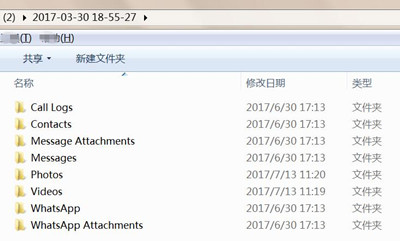
Text Files: Contacts, Messages, Message Attachments, Call Logs, WhatsApp, WhatsApp Attachments

Media Files: Photos, Gallery, Picture Library, Video, Audios, Documents.

Part 3. Recover Lost SMS from Service Provider

Many of you may not know that your cell phone carriers or service providers (e.g. AT&T, Verizon, etc.) actually keep copies of your personal data, including text messages you receive and send out.

First off, log into the website of your service provider online, navigate to the right section to look up history data. Some providers list your Galaxy text messages sent and received during the previous billing period. If you couldn’t find them, contact their customer support to see if they can pull it up for you.

It’s worth noting that if you’re located in the United States and your phone carrier is AT&T, you’re in luck because could easily restore your messages via this portal – AT&T Messages.

Note: depending on the terms of use, you may need to pay an extra fee to restore text messages.

How to Keep Samsung SMS Messages Safe?

As an old saying goes, always prepare for a rainy day. Your SMS messages are gone due to various reasons such as accidental deletion, rooting, virus infection, factory resetting, formatting and so forth. Backing up SMS messages on Samsung Galaxy mobile phone is the best solution to keep your data safe.

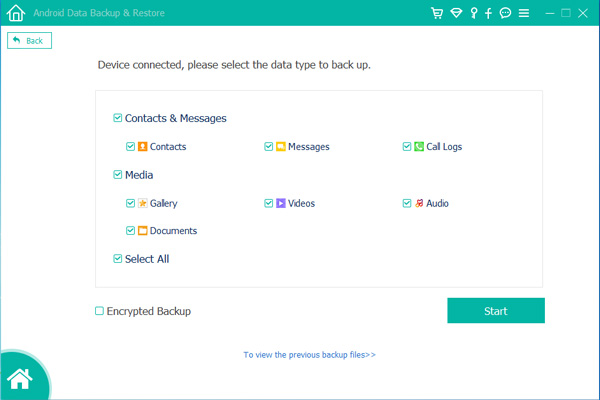
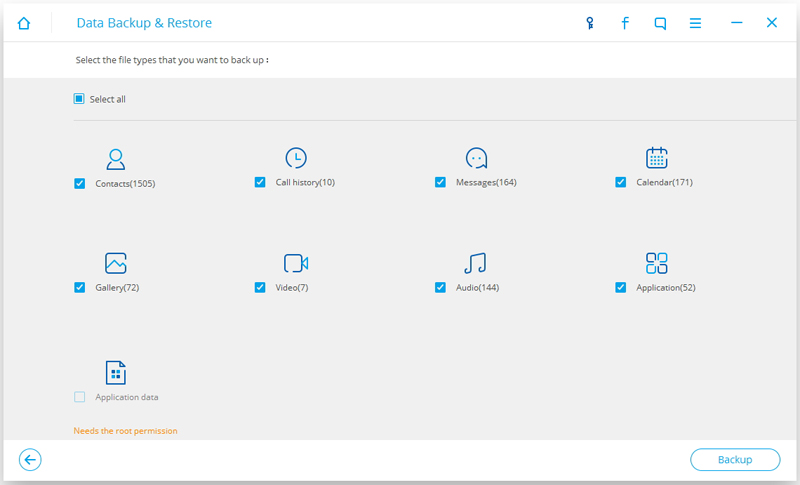
Android Data Backup & Restore can help you backup everything from Samsung Galaxy S9/S8/S7/S6/S5 to the computer,and you can easily restore the backup to a device at every time.It enables you to safely and selectively back up your Samsung data including contacts, messages, call logs, gallery, videos, audio, WhatsApp messages and documents. After make your Samsung Galaxy S8/S8+ backup,you can also set a password for protecting your important backup.

backup sms from Samsung galaxy

Phone Switch comes to meet your need. As a professional data transfer software, you can transfer phone data between iOS, Android, Nokia, Blackberry mobile phone. Plus, the program allows you transfer data between Samsung Galaxy S8/S8+ and Android/iPhone, including contacts, SMS, photos, videos, call logs, calendar, etc.

transfer sms from Samsung galaxy

Related Articles

How to Recover Data from Samsung Galaxy S8

How to Recover Lost Photos from Samsung Galaxy S8

How to Backup & Restore Samsung Galaxy S8

How to Root Samsung Galaxy S8 without Data Loss

Recover SMS on Galaxy S8

How to Recover Lost Data from Locked Samsung Phone

“I have locked my Samsung Galaxy S5 with password to protect its data for exposing to anybody. However,I had replaced the password of my phone 2 hours ago,but unable to unlock it now.When I consulted friends to fix this issue,I was suggested to restore my phone to factory resetting;but I know that formatting will wipe all data from it.However,I haven’t backup data from it due to my busy work.Anybody helps me to recover data from my locked Samsung phone?I really need the data stored on phone to finish my project in urgent.-Thanks a lot.”-Theresa

Most of us have a habit that setting pattern lock, PIN, or password to prevent mobile phone from unauthorized use.We all have personal information stored on our device in order to keep the data privacy from being checked by others.But the trouble starts when you forget your lock password as well as the lock pattern is expired.Compared to the phone,the data saved on it must more important to the phone owner.You must eager to get back lost data from locked phone.In the following passages I will show you the best efficient ways to get rid of this troublesome situation.

Android Toolkit is capable of recovering lost data from locked Samsung phone,like photos, videos,messages,call logs,notes,contacts and more.And it is compatible with Samsung Galaxy S9/S9+/S8/S8+/S7/S7 Edge+/S6/S6 Edge/Note 4, Galaxy A9/A7/A5 etc.This program allows to recover files from almost all Android OS versions( Android Phone and Tablets).It uses the effective strategies to retrieve files from your device after losing data due to any reason:Android system upgrade,rooting,device damaged/broken,restore device to factory resetting,and so on.

d_win d_mac

How to Recover Lost Data on Samsung Phone with Locked Screen

Step 1.Run Android Data Recovery and Select Removal Mode
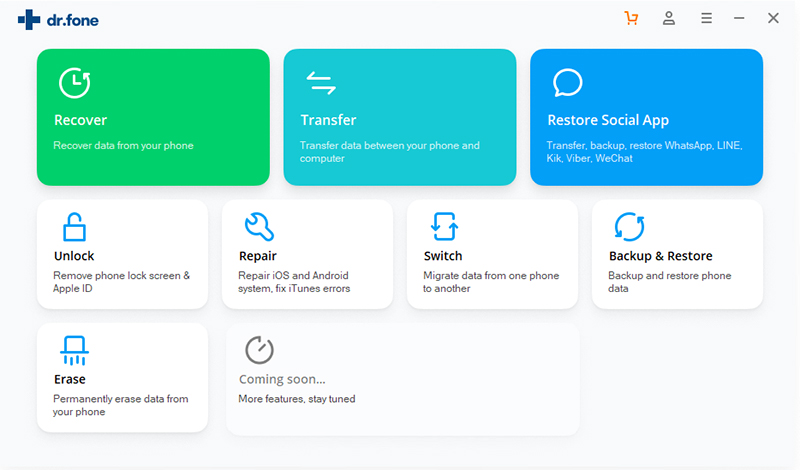
It will take a moment for you to download and install the program on computer.Run it and choose “More Tools” button among the four options.Then,click “Android Lock Screen Removal“,and click “Start” to begin.

android lock screen removal

Step 2.Connect Locked Samsung to PC and Select Phone Model
Connect your Samsung phone to the computer via USB cable.You should make sure that you’ve enabled USB debugging and selected “MTP” mode on your phone before getting it locked. Click the “Start” button to begin.

select mode

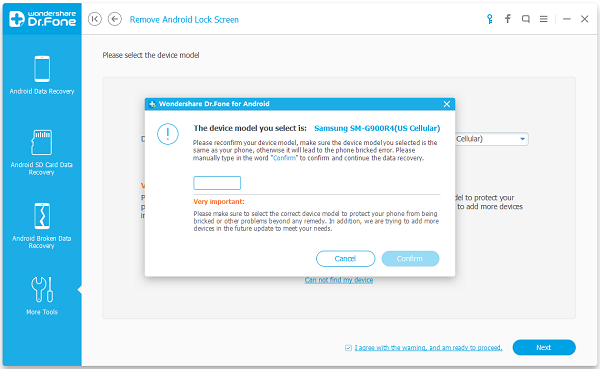
Then,you will be asked to choose the matching model in the list.After that,enter “Confirm” in the blank and click the “Confirm” button in the pop-up window.

remove confirm model

Step 3.Get Samsung into Download Mode
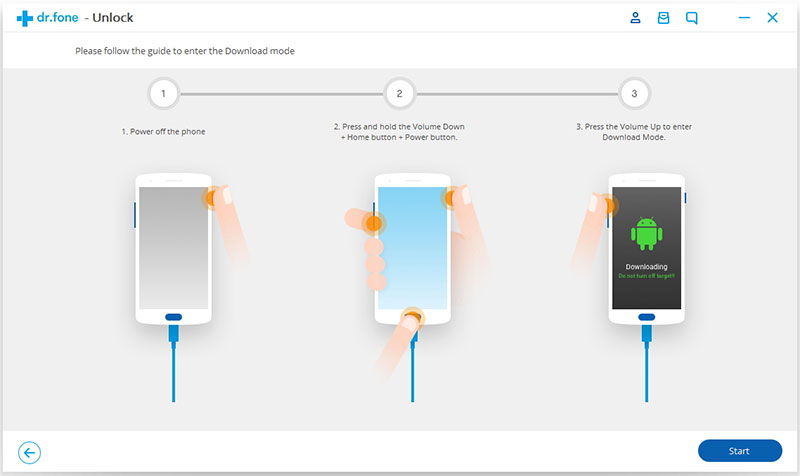
Turn off the phone > Press and hold the Home button, Power button and volume down button at the same time > Press the volume up button to enter Download mode.

enter download mode lock android

Step 4.Download Recovery Package
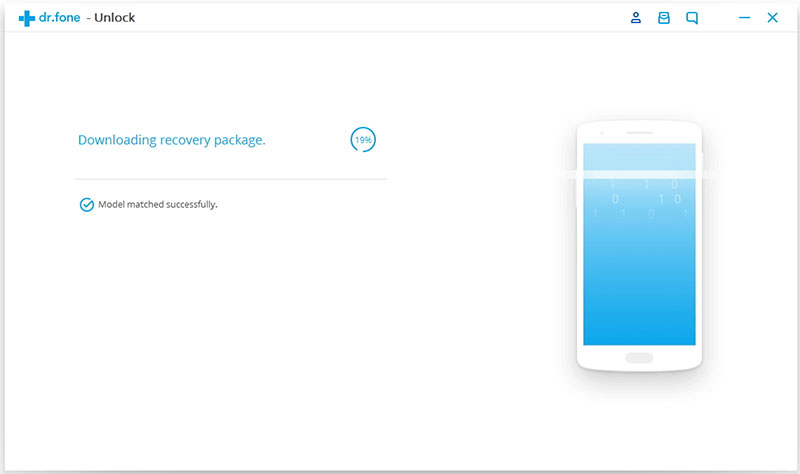
After you get your Samsung into the download mode,it will begin downloading recovery package next.Just wait until it’s complete.

downloading recovery package

Step 5.Removal Samsung Lock Screen
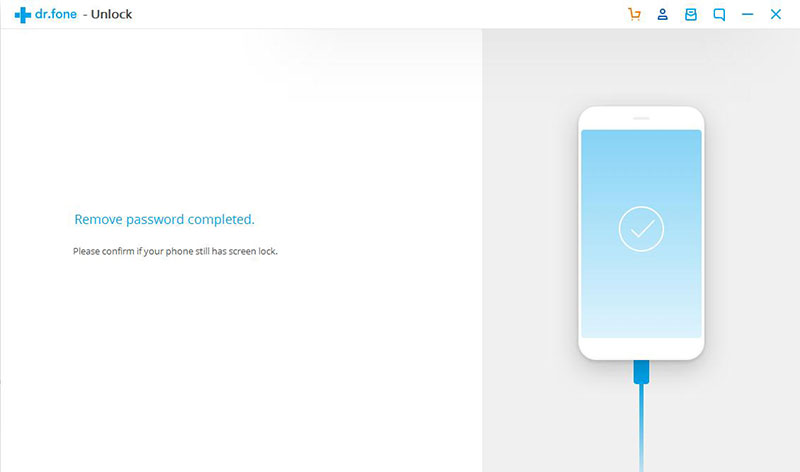
When getting your phone in the Download mode,the program will analyze your device.After a little while,you will see the interface as below showing you that the locked screen of phone being removed successfully.

remove samsung lock screen

Step 6.Preview and Recover Lost Data from Locked Samsung
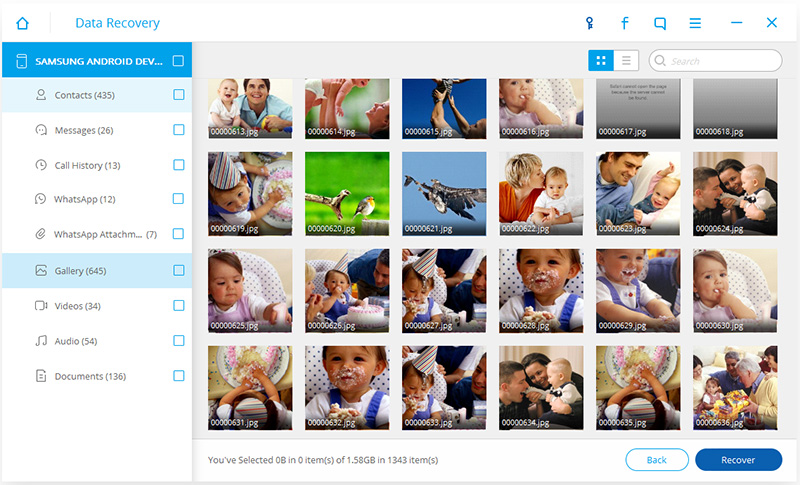
Now you’ve unlocked your phone,you can easily check the lost data on your phone.Select the data you wanna get back and preview them.Then just need to click “Recover”button to save the selected data on your computer.That’s all.

Recover Lost Photos from Locked Samsung

Android Data Recovery successfully recover lost data from locked Samsung phone without any complicate steps.It is highly recommended for you to backup your Samsung phone in case that lost data under any circumstances.Lastly,please share this post with anyone whom you think may need to help.

Free download the Android Toolkit and try to retrieve files from locked Samsung Galaxy phone:

d_win d_mac

Read more:

How to Unlock Android Lock Screen

How to Recover Data from Samsung with Broken Screen

How to Recover Data from Broken Samsung Phone
How to Recover Data from Samsung Galaxy S8

How to Recover Data from Water Damaged Samsung Phone

Restore Data from Locked Samsung

How to Transfer WhatsApp Messages/Pictures/Videos from iPhone to Android

[Summary]:This tutorial guide you how to transfer WhatsApp messages from iPhone to Android phone like Samsung, HTC, Huawei, Sony, Motorola, Google, etc.The first step:Backup WhatsApp data messages,photos,videos from iPhone to computer,the second step:Restore WhatsApp backups to Android phones or tables with iOS WhatsApp Transfer Backup & Restore.

People also read:

* How to Export Kik Messages from iPhone to PC

* Recover WhatsApp/Viber/Line/Messenger/Kik/WeChat Messages from iPhone/iPad

* Backup and Restore Viber Messages on iPhone
Nowadays WhatsApp has become the most popular messaging app in the whole world.If Whatsapp messenger deleted from your device accidently or you deleted it for some reason, then your data will be lost.If you have any recent backup copy,you can resort that backup to original or new device and get data till the last backed up date.WhatsApp application provide the function that allows to backup chat history itself in limit time.However,the application backup feature sometimes may doesn’t work.Then it might require for another professional data backup tool for saving the WhatsApp chat history in a security way.

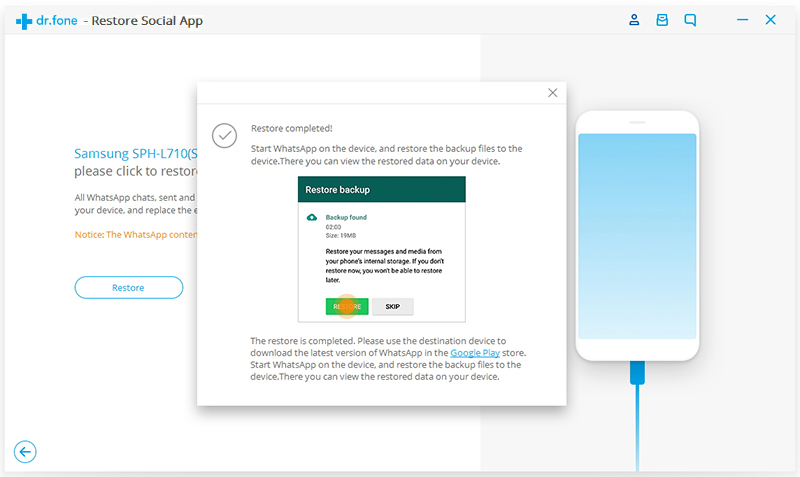
Android ToolkitRestore Social App recently release the new function that helps to backup WhatsApp messages from iPhone and restore WhatsApp messages to Android devices conveniently.With this iPhone Data Recovery,you can view and restore the older WhatsApp chats(including Messages, Chat History, Photos, Videos) without losing the current messages from iPhone/iPad to Android phones or tablets,for example Samsung Galaxy S10/ S9/ S8/ S7/S6/S5/Note 5/A9/A8, HTC One M9/M8, Motorola Droid Turbo, Huawei P30, Huawei P20/P9/P8, Huawei Mate 20/Mate 10/Mate 9, LG G7/G6/G5/G4/V10/G FLEX 2, Sony Xperia z6/z5/z4, Google Nexus 6P/5X.

d_win d_mac
d_win d_mac

Part 1:How to Backup WhatsApp Messages,Pictures,Videos from iPhone to Computer

Step 1.Connect iPhone to the Computer
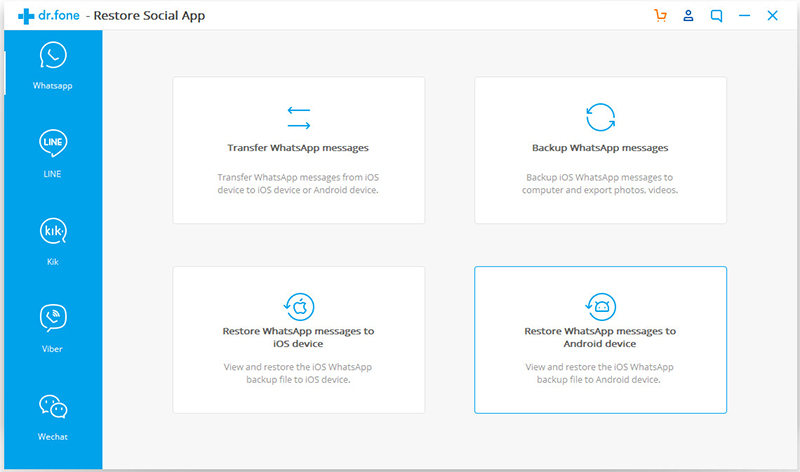
To backup WhatsApp messages from iOS devices to computer,you need to choose “Restore Social App” feature under the iOS Toolkit main interface.

whatsapp transfer

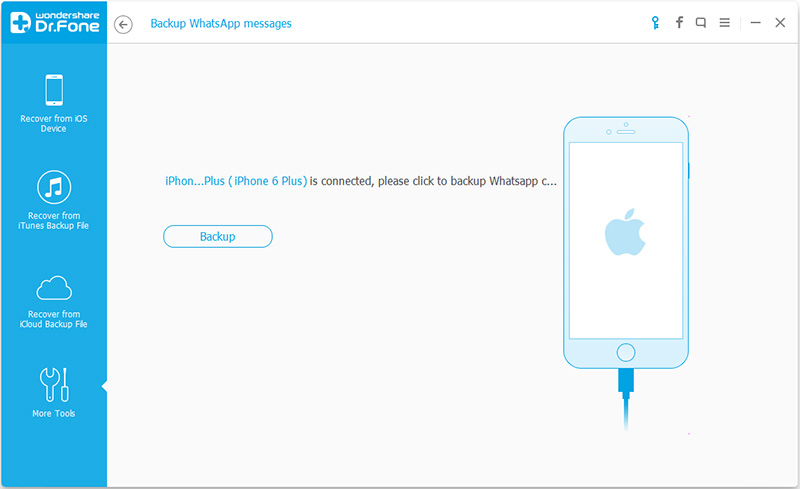
Get your iPhone or iPad connected to the computer.Then you’ll see the window of the program as follows.

connect iPhone to computer

iPhone WhatsApp backup

Step 2.Begin to Backup iOS WhatsApp Messages
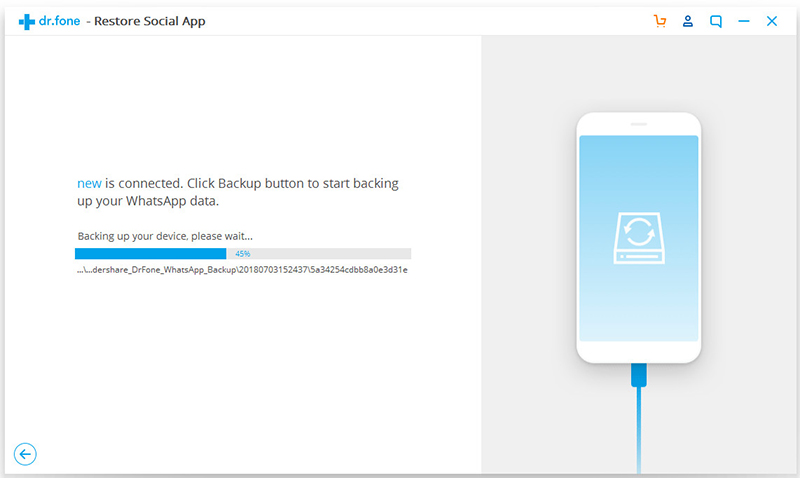
Once your iPhone/iPad is recognized,you can click “Backup” to begin the process.

backup iPhone WhatsApp to computer

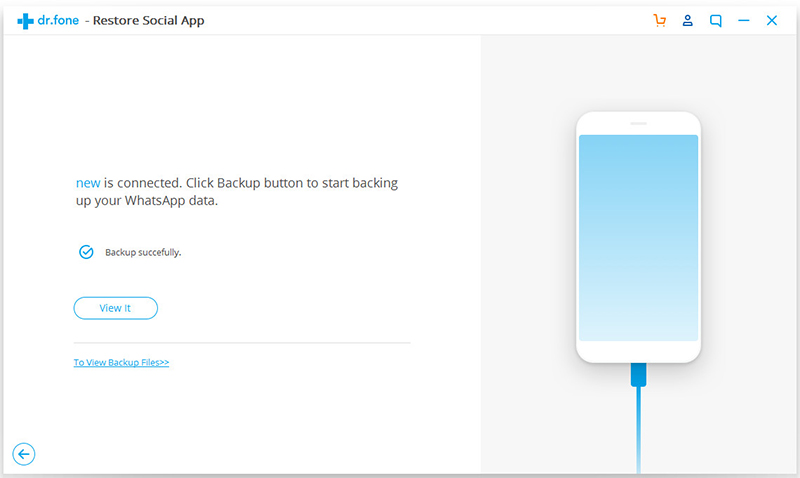
When the backup begins,the program will finish the process automatically.When you’re told that the backup is completed,you will see the window below. Here,you can click “View it” to check the backup file.

backup WhatsApp messages

Step 3.View the Backup File and Export Data Selectively
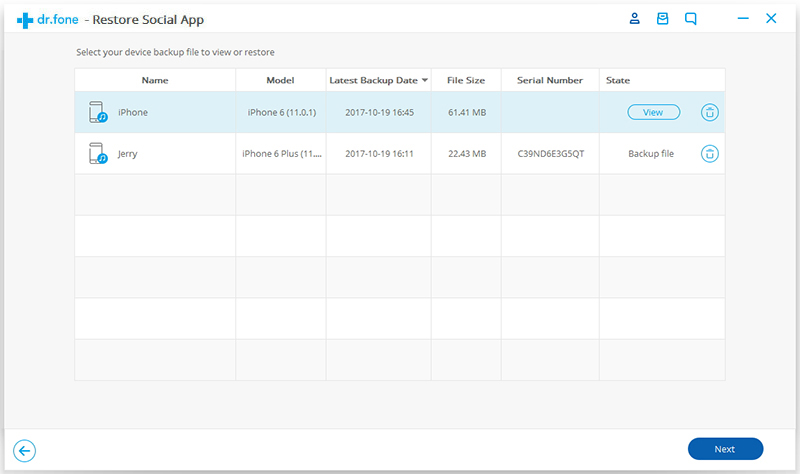
Choose the backup files that you want to view if there are more than one backup file listed.

view WhatsApp chat history

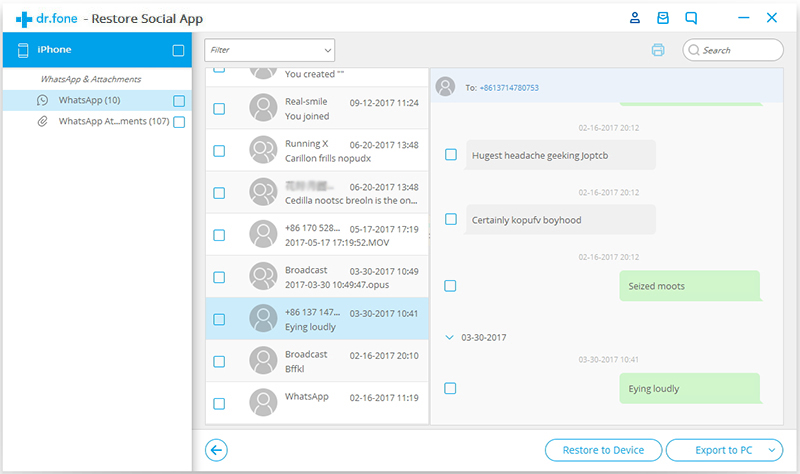
Then you will see all the details.Select any items you want to export to your computer or restore to your device.

WhatsApp data backup and restore

Part 2:How to Restore WhatsApp Messages Backup to Android Phone

Step 1.Connect Android to Computer
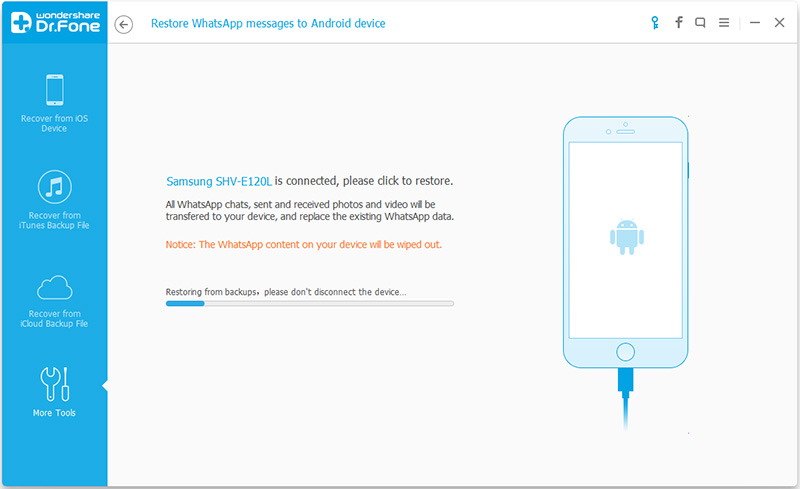
Restoring WhatsApp messages to Android devices,you need to choose “Restore WhatsApp messages to Android device” feature of the “iOS WhatsApp Transfer Backup & Restore” option under the iOS Toolki. Get your Android phone or tablet connected to the computer.Then you’ll see the window of the program as follows.

connect Android phone to PC

restore WhatsApp to new phone

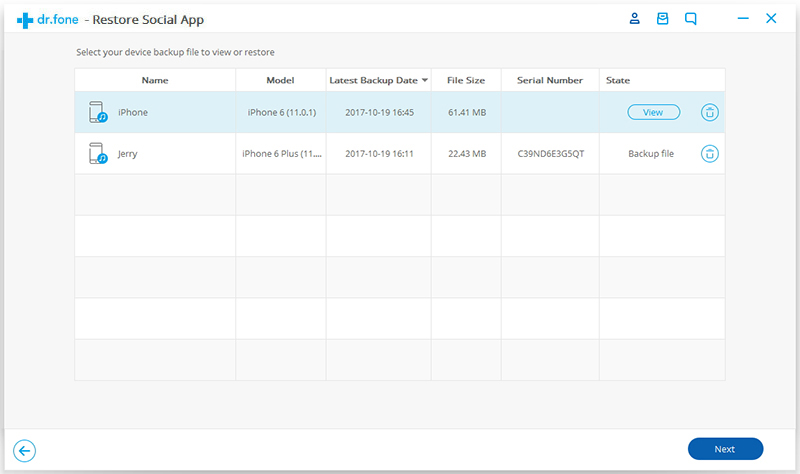
Step 2.Restore WhatsApp Message Backup to Android Device
In this step you can choose a backup file from iOS device and click “Next” to directly restore it to your Android device as follows.

select WhatsApp backups

Or you can select to view the backup file first,and then selectively choose what you want to restore it to your Android device.Just two simple steps,you are done.

restore iphone whatsapp data to android

We specially write this article to guide you backup and restore WhatsApp data on mobile device with the wonderful iOS Toolkit.In additional,the iPhone Data Recovery features supports to backup and restore WhatsApp data on iOS devices or transfer WhatsApp data from iOS device to iOS device or Android device.Users can backup iOS WhatsApp messages and WhatsApp message attachments,export them to the computer and restore the backup to iOS device(iPhone XS/XR/X/8/7/6S/S/SE/6S/6/5S/5/4S/4,iPad/iPod)/Android device(including Samsung, HTC, LG, Sony, Motorola, Google Pixel and more Android phone and tablets).

d_win d_mac
d_win d_mac

How To

How To Backup and Restore iPhone WhatsApp Messages

How to Backup,Restore and Transfer WhatsApp Messages

How to Backup and Restore Contacts,SMS,WhatsApp Messages on iPhone

Transfer WhatsApp to Android