All posts by DHZ

How to Fix iPhone Stuck in DFU Mode

iPhone-DFU-mode

“I recently tried to update to iOS 9.3 and tried putting my iPhone in DFU mode to make my computer do an automatic restore, but now I am stuck in DFU mode just like you and cant use it, I have also tried Tinyumbrella tool but it doesn’t work. Any way to exit iPhone from DFU mode?”-Theresa

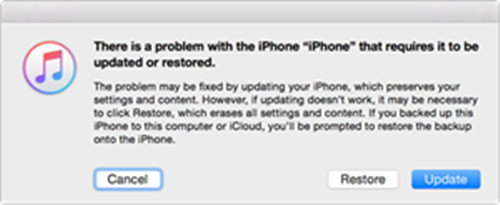
It is really frustrating for anybody to encounter such an embarrassing issue, for which you can do nothing but confuse that how to get iPhone out of DFU Mode.However, iPhone stuck in DFU mode does not equal losing all the data of your iPhone.That iPhone is stuck in DFU mode always happens when you jailbreak your iPhone or update the iOS on your iPhone.

What is DFU mode?
DFU mode actually means Device Firmware Upgrade–change the firmware on the device, which allows to put your iPhone into where it can interact with iTunes without loading the operating system or booting loader.If your iPhone is loop in DFU mode,the iPhone screen may be completely black.

How to Get iPhone Out of DFU Mode
You need iPhone System Repair Tool.What it is? To say it simple, it is a program, which takes a one-click approach to solve iOS stuck issues including fix iPhone stuck in DFU mode,Apple logo, repeatedly restart loop, red iTunes logo screen, recovery mode, etc. easily and let your iPhone perform their best.If your iPhone 6S/6S Plus/SE/5S/5/4S/4 gets trapped in DFU mode, try this professional tool to solve this bugs!You should take measures to get your iPhone out of unnormal mode first, and the tutorial below will guide you in this way.

d_win d_mac

[Solved]How to Repair iPhone Stuck in DFU Mode

Step 1.Select the Proper Options of iPhone System Repair Tool
Tap the last button on iPhone System Repair Tool version of the main window “fix iOS system to normal” Then make your iPhone which is stuck in DFU mode to computer with via USB.Now click”Start”after this program detect your iPhone,then it will going to the next step.

fix iPhone stuck in DFU mode

Step 2.Select and Download the Right Version Firmware for iPhone
To get iPhone out of DFU mode,you need to download a firmware for it.iPhone System Repair Tool will recognize your iPhone and provides the latest iOS version for you to download.You just need to tap “download” and then wait a few seconds.The software will automatically accomplish it apace.

fix iPhone stuck in DFU mode

fix iPhone stuck in DFU mode

Step 3.Fix iPhone Stuck in DFU Mode
The program will continue to repair your iPhone and return it to normal when the download process is end.Just a little while later,it will prompt you that your device is already be normal as usual.The whole procedure of fixing operating system of iPhone only takes you within 10 minutes with 3 easy steps.

fix iPhone stuck in DFU mode

iPhone System Repair Tool can do you a favor to solve this emergent issue in an easy, quick and effective way.In order to protect all your endangered data on iPhone, you should take rescue measures to get your iPhone out of DFU mode with safely using iPhone System Repair Tool.

d_win d_mac

Read more:

How to Get iPhone SE/6S/6/5S/5 Out of Recovery Mode

How to Fix iPhone Stuck on “Connect to iTunes” Screen

How to Fix iPhone Stuck on Apple Logo Screen

How to Recover Photos, Videos from Galaxy S6/S7/S7 Edge

Photos or Videos Lost Issues
When a delete command issued, instead of handling the actual files, the operating system merely removes the pointers to these files from the file allocation table. It marks the memory space where the deleted files stored as blank and will utilize the place when new photos or videos are captured. Before the area get completed overwritten, it is possible to retrieve the deleted files.

recover samsung media data

Stop Using Phone once Data Lost
With the files deleted, the memory space of these files are now regarded as blank by the operating system, which will utilize the space whenever it needs to. If new data were written on the deleted files memory space, the deleted files could be damaged even after recovery.

Recover Lost Photos and Videos from Samsung Galaxy

An excellent software called Android Data Recovery will surely helps you out to recover lost photos and videos from Samsung phones,apart from media files,various data also can be restored on Samsung by the program,such as contacts,text messages,call logs,notes, and more personal data.If you accidentally lost or delete data on Android phones without backups by any chance,there is no need to be worried either.You can ask help of Android Data Recovery.Almost all brands of Android phones are supported to Android Data Recovery,Samsung,HTC,LG,Lenovo,Motorola,Xiaomi,Huiwei,etc are include.

d_win d_mac

Toturial to Recover Photos, Videos from Galaxy S6/S7/S7 Edge

Step 1.Connect Samsung Galaxy S6/S7/S7 Edge to Computer
After you installing and lunching the Android Data Recovery software on the computer, you will be able to see the main window below.Then please connect your Galaxy S6/S7/S7 Edge to computer with an USB.

connect samsung with computer

Step 2.Enable USB debugging on Galaxy S6/S7/S7 Edge Phone
If your Samsung phone isn’t detected by the program, you need to enable USB debugging on your phone. Check what Android OS is your Samsung and then choose the right way to open USB debugging follow below steps:
1) For Android 5.0 or newer: Tap “Settings” > “About Phone” to tap “Build number” seven times for “You are now a developer!” signal. Then, move to “Settings” > “Developer options” to turn on “USB debugging”
2) For Android 4.2 or newer: Enter “Settings” > Click “About Phone” > Tap “Build number” for several times until getting a note “You are under developer mode” > Back to “Settings” > Click “Developer options” > Check “USB debugging”
3) For Android 3.0 to 4.1: Enter “Settings” > Click “Developer options” > Check “USB debugging”
4) For Android 2.3 or earlier: Enter “Settings” > Click “Applications” > Click “Development” > Check “USB debugging”

usb debugging Samsung phone

For Samsung Galaxy S7(edge),please click “Allow” on the phone and going on.

allow to continue connect samsung

There are different types of files you can choose to scan here.If you wanna scan all types of Samsung data, you can tick “Select all” to have all your Galaxy data scanned.Here,you should select”Gallery” and “Videos” to going on.

select file tpye to recover from samsung

Step 3.Allow to Scan and Analyze Samsung Phone
After your device is detected by the program,you’ll get a window as follow on your device.Tap “Allow” to enable the program to scan your Galaxy S6/S7/S7 Edge for lost photos and videos.

allow scan the samsung

Tips:Before starting,please make sure that your phone battery is more than 20% charged.

Now begin to scan Samsung for lost files:

scan samsung for lost photos

Step 4.Preview and Recover Photos and Videos from Galaxy S6/S7/S7 Edge
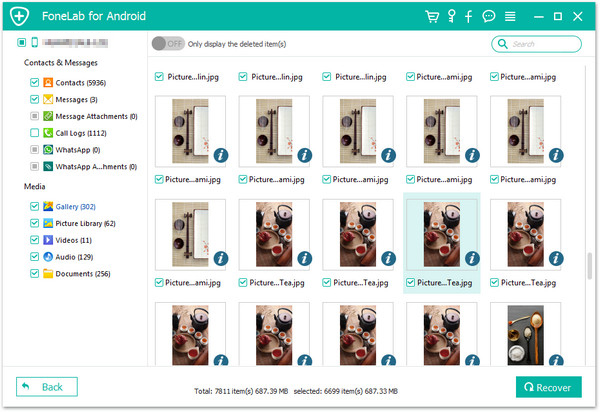
A list of recoverable files that have been found from your Samsung will be shown when finishing the scanning process.Additionally,there will be a preview window of files where you can preview(contacts, SMS and photos,etc)from Samsung.Mark those you want and click “Recover”.You can selectively the deleted photos and videos and restore them to your computer.

recover samsung lost photos

Have you got back all lost photos and videos from Samsung?You must feel satisfied with the best method I introduce in this article with Android Data Recovery.And I hope you share this perfect partner which name Android Data Recovery with your lovely friends and families,in case they get the same trouble with you one way.Sincerely.

d_win d_mac

Read more:

How to Recover Photos from Galaxy S7/S7 Edge

How to Recover Photos from Samsung Galaxy S6/S6 Edge

How to Recover Photos,Videos from Galaxy S5

How to Recover Deleted/Lost Data from Samsung Galaxy S7/S6

Summary: Looking for an efficient, safe and easy Samsung Galaxy data recovery solution to recover deleted data like photos, videos, SMS, contacts and more from Samsung Galaxy S7/S7 Edge and Samsung Galaxy S6/S6 Edge with simple steps?Learn this tutorial abouth how to perform Samsung Galaxy S7/S6 data recovery.

Samsung has introduced a newer version of the flagship Galaxy at Mobile World Congress in March 2016 in Barcelona.New and notable features of the the Galaxy S7 include a 5.1-inch screen with 2,560×1,440-pixel resolution; a 12-megapixel camera, water resistance; a Qualcomm Snapdragon 820 processor; a 3,000 mAh battery; and a microSD slot, a significant omission from the S6, as mentioned above.Though new Galaxy S7 has released this month,but a lot of Samsung fans still keep loving their precious Galaxy S6.No matter you are using Galaxy S6 or the new Galaxy S7/S7 Edge,you may suffer the trouble stuff that lost data on Samsung due to upgrading,rooting,restore factory resetting,device damaged,phone stolen or other unexpected circumstances.

* How to Recover Data on Broken Galaxy S6

* Transfer Data from old Samsung phone to Galaxy S8/S7/S6

How to recover data from Samsung phone is the principal affair you need to do.The data stored on our phones are all important with personal information or work details.For instance,we use messages to communicate with others everyday.However, most of people have no ideas about how to recover lost data from Samsung.

To recover data from Samsung Galaxy S6/S6 Edge/S7/S7 Edge, you need a third party-Samsung Data Recovery tool, and I am a big fan of this predominant program,which is a nice recovery software.Samsung Data Recovery empowers to recover lost data from Samsung directly,for instance contacts,text messages,photos,videos,notes,call logs,whatsapp history and more privacy files.According to the official introduction,Galaxy S8, Galaxy Note 8/5/4/3,A9/A8/A7,etc are supported also.In this case, you can read this article and then you will be able to do data recovery by yourself.

d_win d_mac

Main Features of Samsung Data Recovery:
1.The interface of it is friendly and intuitive, so that you can learn to use it soon after you pick it up. And there is guidance provided.
2.Allows to recover lost data from Samsung as long as they are not overwritten.
3.You can save the recoverable data to your computer directly.
4.This application also helps you to fix your phone to normal.
5.You can preview files before recovering.
6.All the data can be recovered from Samsung including messages, contacts, photos, WhatsApp messages, videos, music, documents, etc.

Easy Steps to Recover Lost Data on S7 and S6

Step 1.Run Samsung Data Recovery and Connect phone to Computer
Download and install the captioned application on your computer.It doesn’t matter whether your computer is a Windows one or Mac one, because both are compatible.Run it and connect your Samsung Galaxy S6 or S7/S7Edge to computer via USB cable. As soon as you plug your phone to computer,the application will detect it and show it on the primary window.

connect samsung s7 or s6 with computer

Step 2.Enable USB Debugging on Samsung phone
The steps will be very easy. To enable USB debugging, let the program to enable USB debugging the device.If you don’t know how to enable USB debugging on Android device, please learn more this: How to Enable USB Debugging on Android Device.
Turn on USB Debugging on Samusng devices,you can find the suitable ones according to your Android OS.

1) For Android 4.2 or newer: Enter “Settings” > Click “About Phone” > Tap “Build number” for several times until getting a note “You are under developer mode” > Back to “Settings” > Click “Developer options” > Check “USB debugging”
2) For Android 3.0 to 4.1: Enter “Settings” > Click “Developer options” > Check “USB debugging”
3) For Android 2.3 or earlier: Enter “Settings” > Click “Applications” > Click “Development” > Check “USB debugging”
4)For Android 5.0 or newer: Tap “Settings” > “About Phone” to tap “Build number” seven times for “You are now a developer!” signal. Then, move to “Settings” > “Developer options” to turn on “USB debugging” (For Samsung Galaxy S7 users enable USB debugging guide)

usb debugging Samsung phone

For Galaxy S7 or S7 edge,please click “Allow” on the phone and enter the next step.

allow to continue connect Samsung

Different types of files can be chose to be scan here.If you lost almost all types of Samsung data, you can tick “Select all” to have all your Galaxy data scanned.Here,you could select the files name to enter next step.for example “Contacts“,”Photos“.Then click “Next”.

select file tpye to recover from samsung

Step 3.Allow to Scan and Analyze Samsung S7,S6
You’ll get a window as follow on your device after your device is detected by the program.Tap “Allow” to enable the program to scan your Galaxy S6/S7/S7 Edge for lost files.

allow scan the samsung

Start to Scan Samsung for Lost Files:

scan samsung for lost photos

Step 4.Select Data to Preview and Recover from Samsung
When it finishes scanning,you will see all the recoverable data files showed on the primary window.You can look for the data you want to recover one by one.Or select all.

recover samsung lost photos

After you find the one you want, you can preview it in detail to confirm it.Check data of your choice and click “Recover” button to get them back and save Samsung Galaxy S7/S6 lost files on computer.

Tips:When you find that you have lost the important data on your Samsung,it is advisable that you stop using it.In this way, you can protect the data from being erased forever. Anyway,all the data you delete are actually stored somewhere on your Samsung.

Samsung Data Recovery enables to recover lost or deleted data from Samsung phones even though have no backup files from Samsung.Existing data and deleted data each have their own color in the scan result of this program.Besides,you can use Samsung Data Recovery to browse and backup files from device to your computer.

d_win d_mac

Read more:

How to Recover Deleted Data from Samsung Galaxy S6

How to Recover Photos, Videos from Galaxy S6/S7/S7 Edge

How to Recover Deleted Contacts from Samsung Galaxy S7

How to Recover Lost Data from Samsung Galaxy Note 7

How to Recover Lost Data from Samsung

How to Get iPhone Out of Recovery Mode

iphone-6-stuck-in-recovery-mode

Since Apple release iOS 9.3,I update my iPhone 6 to the new operating system,unfortunately my iPhone stuck in recovery mode after the upgrade task,what make me feel spiritless indeed and I am crazy about finding several ways which I search online to repair it but I can’t find the effective one.Anyone helps me to solve it?Thanks advance.-Latham

iPhone stuck in recovery mode? Failed to access data on your iPhone.Constantly annoyed by putting iPhone in recovery mode?When updating iOS or jailbreak your iPhone, you may probably meet the problems like this above.Many problems with the iPhone can be resolved by restarting it, but some more complicate problems require putting the iPhone into recovery mode.This shouldn’t be your first troubleshooting step, but sometimes it’s the only one that works and protect your iPhone safely.So this is the reason why your iPhone will loop in recovery mode.

iPhone System Repair Tool empowers you to get iPhone out of recovery mode in order to make it function normally on an easy and effective way.Fixing your iPhone without losing data on your iPhone in just one click with iPhone System Repair Tool.It is a software which is available free online for both Mac/Windows.With this excellent tool one click of your mouse could fix iPhone SE/6S/6/5S/5 recovery mode looping.There are the steps case to repair iPhone stuck in recovery mode if this happen with you too, follow the process to fix your iPhone below.

d_win d_mac

See the Total Features of iPhone System Repair Tool
Fix iPhone operating system issues and return it to normal:
-Fix iPhone stuck in recovery mode(after upgrading)
-Fix iPhone stuck at Apple logo screen
-Fix iPhone stuck at“connect to iTunes”screen
-Fix iPhone stuck on black/white screen
-Fix iPhone turn a brick after upgrading

Exit iPhone SE/6S/6/5S/5 Stuck in Recovery Mode

Step 1.Select the Proper Functioning of iPhone System Repair Tool
Click on the last tap on iPhone System Repair Tool version of the main window “fix iOS system to normal” Then make your iPhone which is stuck in recovery mode to computer with an USB cable.Just click”Start”when the awesome tool detect your iPhone,it will enter the next step.

fix iPhone stuck in recovery mode

Step 2.Download and Select the Right Version Firmware for iPhone
To fix iPhone as usual,you need to download a firmware for it.iPhone System Repair Tool will recognize your iPhone and provides the latest iOS version for you to download.You just need to tap “download” and then wait a little while.The software will automatically accomplish it quickly.

fix iPhone stuck in recovery mode

fix iPhone stuck in recovery mode

Step 3.Repair iPhone SE/6S/6/5S/5 Stuck in Recovery Mode after Upgrading
When the download process is end,the program will continue to fix your iPhone to normal.Just a moment later,it will tell you that your device is already return to normal.The whole procedure of fixing operating system of iPhone only takes you within 10 minutes with simple steps.

fix iPhone stuck in recovery mode

Although you have already followed carefully the steps to update or jailbreak iOS of iPhone,the recovery mode suddenly jumped out on the screen of iPhone due to complicated system or settings unknown.Sometimes,the iPhone even can’t be recognized by iTunes when it was set into the recovery mode.So an easy,effective and secure way to solve this issue is very emergent and important.Why not try iPhone System Repair Tool?

d_win d_mac

Read more:

How to Get iPhone Out of Recovery Mode

How to Fix iPhone Stuck on “Connect to iTunes” Screen

How to Fix iPhone Stuck on Apple Logo Screen

How to Recover Data from Samsung after Upgrading to Android 6.0

Is there any way to recover lost data from Android phone after 6.0 Marshmallow update?I updated my Samsung Galaxy S6 to Android 6.0 Marshmallow last day, and after that, I found that some photos, messages got lost on the phone. Is it possible to get those files back?It’s really such important for me.-Hyde

After months of waiting, the beginning has arrived. We’ve been excited about the changes that Android 6.0 Marshmallow is bringing to the table. Not just new features, but bug fixes and stability improvements over Lollipop as well. The first official builds of Android 6.0 Marshmallow have hit and it’s time to see what this operating system can really offer!

Android 6.0 Marshmallow update

ANDROID 6.0 MARSHMALLOW – NEW FEATURES EXPLAINED
There are a few changes that are more notable than others. The apps section of the Settings menu has been changing to accommodate the new permissions system. The priority notification settings that caused quite a stir in Lollipop have now been relegated to the Quick Settings. Other minor changes include a more colorful Google Search bar, a new app drawer, and dragging app icons around the home screen now provides a shortcut to uninstall.

There are also a host of new animations that are too numerous to list here. Some of the more notable ones include the new Google Search animations and a more streamlined set of animations for opening and closing the app drawer and applications. Text selection also got a slight revamp with a little box that pops up now with the usual set of controls.

UNFORTUNATELY TO LOST DATA AFTER UPGRADING
I can surmise that you must feel excited about the new features of Android 6.0 marshmallow and can’t wait to upgrade your Samsung phones or Android phones by some upgrade program.However,some of you may meet the circumstances that your lose data from phone after upgrading process and be sick to the back luck stuff.Fortunately,there is a suitable and safely data rescue recovery I strongly recommend here for you-Android 6.0 Data Recovery.

Android 6.0 Data Recovery-Recover Samsung Lost Data after Android 6.0 Upgrade

Android 6.0 Data Recovery is a reliable tool that you can use to recover data from Samsung phone after upgrading to Android 6.0.It allows you to recover lost files including contacts, videos, photos, text messages, documents from all popular Android devices,such as Samsung, LG, HTC, Huawei, Sony, ZTE, etc,for example Samsung Galaxy S7/S6/S5/Alpha,Galaxy A5,Note 7/Note 5/Note 4/Note 3,LG Nexus 5X/G5,Huawei Nexus 6P,Nexus 6P/5X/5.Now you can read the detailed guide to learn how to perform the data recovery job.

d_win d_mac

Recover Data from Samsung after Android 6.0 Marshmallow Upgrade

Step 1.Avoid Data Overwritten on Samsung Phone
Keep your phone data from being overwritten is essential to protect your Samsung data.The mean is stop update your Samsung files once your data is lost.

Step 2.Connect Samsung to Computer and Run Android 6.0 Data Recovery
Then connect your Samsung phone to PC with an USB.

connect samsung with computer

Step 3.Enable USB Debugging on Samsung Phone
If you have not opened the USB debugging option yet, this program will ask you to do it.If your phone running Android 4.2.2 or above, there will be a pop up message on your Android phone, tap on “OK” to allow USB debugging.

usb debugging samsung phone

Tips
:For Galaxy S7 or S7 edge,please click “Allow” on the phone and go to next steps.

allow to continue connect Samsung s7

Step 4.Select the Type of Files you Want to Recover on Samsung
Tick “Gallery” only if you lost your Samsung Galaxy S5 photos,pictures,App images and want to recover them only. It you save you much time and you can recover your deleted photos back quicker.

select file tpye to recover from samsung

Step 5.Allow the Program Analyze your Samsung Galaxy
During the Android 6.0 Data Recovery analyzing your phone,a pop-up will ask whether allow or not to proceed.Here you need to tap on “Allow” on Samsung in order to enable the Superuser Request.And then click “Start” on the program’s window to begin scanning your device.

allow scan the samsung

Step 6.Begin Analyzing and Scanning Lost Data from Samsung Phone
Now the program begin analyzing your Samsung device.

analyze samsung for lost data

Step 7.Preview and Recover Samsung Data after Android 6.0 Update
After scanning,the recoverable files will be display in the scan result.Preview them one by one and mark those you want to get back,the last step is just click “Recover” to save them on computer.

recover samsung data after android update

Android Data 6.0 Recovery is professionally designed to recover data from Android phones especially Samsung.It is able to recover files from Android phones for operating system upgrade,restore to factory resetting,rooting,device damaged,phone stolen or more state of affairs.Although our program can help you get missing data back after Android 6.0,Android 7.0,Android 7.1 N update,we strong recommend you shuld backup Android data to computer before Android 6.0/Android 7.0 update,the Android Data Backup & Restore features in Android tool kit allows users backup and restore photos, videos, music, contacts, messages, WhatsApp and other App data on Android easily.

d_win d_mac

Read More:

How to Backup and Restore Samsung Data

Recover Lost Data after Upgrading to Android 6.0 Marshmallow

How to Root Samsung Galaxy Phone

How to Recover Deleted Files from Samsung Galaxy S7/S7 Edge

How to Recover Lost Data from Android Phone

How to Recover Lost Data after Android 6.0,Android 7.0 Update

After update to Android Marshmallow 6.0.1, Android 7.0/7.1.1 /7.1.2 Nougat,you can see your phone seem to be back to factory settings,and all contacts, messages, pictures, photos, saved images, videos, music, documents and even some apps are lost.Don’t worry,this aritcle teach you a successful Android data recovery tutorial after Android 7.0 or Android 6.0 update.

Android 6.0,Android 7.0 Update Data Loss Problems

So, if your Android mobile phones want to upgrade to Android 6.0marshmallow/Android 7.0 Nougat,some of you who are Android users may meet the circumstances that data  lost after updating to Android 6.0.1 Marshmallow or Android 7.1.1/7.1.2 Nougat,for instance contacts, text messages, videos, call history, photos, etc. If it get black luck for yourself indeed, you must feel sick and hurry to recover lost data from Android phone.And how can you recover lost data from Android phone after Android marshmallow or Nougat upgrade?

* How to Transfer Contacts from iPhone to Android

* How to Manage Android on Computer

Best Android Data Recovery Tool for Android 6.0/7.0 Data Recovery

Android Data Recovery has a new function developed to recover lost data from Android after Android 6.0 marshmallow, Android 7.0 N upgrade.It’s absolutely right a good choice to recover lost data with the assist of this tool, you are able to recover lost text messages, contacts, videos, photos and more from Android phone with Android Data Recovery.Moreover,Android Data Recovery supports to recover files from Android due to various unexpected reasons,water damaged,hard broken,virus invasion, operating system issue, wrong operating click, etc.Samsung,Sony, LG, HTC, Google Pixel, Nexus, ZTE,Xiaomi,Huiwei and more brands of Android phones are applicable with Android Data Recovery,the phone models such as Samsung Galaxy S7/S6/S5/Alpha,Galaxy A5,Note 7/Note 5/Note 4/Note 3,Nexus 6P/5X/5,LG Nexus 5X/G5,Huawei Nexus 6P.What’s more, the program also can help you fix bricked Android with Android 6.0.1 and Android 7.0 N.

d_win d_mac

Easy Steps to Recover Lost Data after Android 7.0 N Update

Run the Android toolkit after you downloading and install it on your PC, and you’ll see the primary window below,then select “Android Data Recovery” feature to recover your Android lost data directly.

Step 1.Connect Android Phone to Computer
Then connect your Android phone to computer and go to the next step.

connect Android phone to computer

Step 2.Enable USB debugging on Android Phone
Before the scan,you need to enable USB debugging on your Android.If you didn’t do it before, you’ll get a window below, and you need to follow the description to do it now. If you did, you’ll skip it automatically.

For Android 4.2.2 or above, your phone will appear a message, please just tap on “OK” to allow USB debugging.

Enable USB debugging on Android

Step 3.Select the Contents you want to Retrieve
Here allow you to choose the type of files you want to restore,such as “Messages” ,”Contacts”,”Photos”,”Videos” or other files.

restore data after android 7.0 upgrade

Step 4.Choose a Scanning Mode and Scan Android Phone for Lost Data
In this step,you should select a scanning mode. You can choose between “Standard Mode” and “Advanced Mode.” Generally, we suggest you to try the “Standard Mode” first. To a large extent, this mode is enough and works faster.

You need to back to your Android device home screen after the analyze is over. Click “Allow” to enable the Superuser Request. Then click “Start” on the program’s window on computer to begin the scan process.

allow scan your Android phone

Step 5.Begin Scanng your Android Device for Lost Data
In this step,click “Start” button on the window below to let the program analyze your device before scanning. Before doing it, make sure that your device’s battery is more than 20% charged.

Start to Scan your Android phone to recover lost data. This process will take a few minutes. Just be patient. Precious things are always worth waiting for.

allow scan your Android phone

Step 4.Preview and Recover Lost Files after Android 6.0/7.0 Upgrade
Waiting a few minutes on the scanning process,after that you’ll see recoverable data in the category of files.Check the detailed contents one by one and mark the files you want.Then restore them and save to your computer by clicking “Recover“.

recover Android data after update

Aiming to make Android user’s daily life easier,more convenient and more enjoyable.I understand that you can’t wait to try the latest version Android 7.0.However, I do remind you to be cautious while performing upgrade in case of losing significant data on your Android device.And,using Android 6.0/7.0 Data Recovery to rescue lost data on Android phone will be most probably to get the less data loss.

d_win d_mac

The Android tool kit not only helps you recover lost or deleted data after Android update,but also allows to backup and restore Android data on PC/Mac.However,before make your Android phone OS update,to avoiding data lost while Android OS update,we recommend you shuld safely backup your Android phone before updating to Android N without losing data,and then restore data to your phone from backups after Android update successfully.

Read More:

How to Recover Data from Broken Android Phone

How to Recover Lost Data from Android Phone or Tablet

How to Fix Bricked Samsung Phone

How to Recover Deleted Photos on Samsung Galaxy S7/S7 Edge

Summary: When you accidentally delete pictures,videos on Samung Galaxy S7,don’t worry,we will teach you two easy steps to scan and retrieve deleted photos,videos from Samsung Galaxy S7/S7 Edge,you need to connect your Samsung phone to computer,and then use a Android Photo Recovery to scan your Samsung phone for lost files.

Take Better Photos with Samsung Galaxy S7 Camera

Are you one of numerous users of Samsung smart phone? Why is it so hot? One of the reasons may be that Samsung has one of the finest cameras, which can produce sharp photos.Never miss a shot-and make sure it’s good and bright. The Galaxy S7 is the first smartphone with dual-pixel technology, so it captures better photos in low-light environments and focuses faster than the blink of an eye. And with Quick Camera, all you need to do is double-tap the home button and start shooting.Samsung Galaxy S7 comes with multi-functionalities, including virtual shot, animated GIF, tracking auto-focus, beauty face mode, surround shot, and many others. All these features combine to help you shoot more beautiful photos by Samsung Galaxy S7,S7 Edge.

* How to Transfer Photos from iPhone to Samsung Galaxy

* How to Transfer Photos from Samsung to Computer

take better photos with samsung galaxy s7 camera

Photos Lost or Formatted on Samsung Galaxy S7

But what if you carelessly deleted or formatted the precious pictures you take on your Samsung Galaxy S7?We can find lots of question as “Is it possible to recover deleted pictures from my Samsung Galaxy S7?” “Can I recover a deleted photo on my Galaxy S7 Edge?” on the Internet.That’s the original intention why we create this useguide,you may read it throughly and you will get knowledge about recovering deleted photos from Samsung Galaxy S7 even though it not be useful for you right now but for later days in case.

Retrieve Lost Photos from Galaxy S7/S7 Edge

Android Photo Recovery is my recommendation and would be your best choice.It’s really a nice recovery program for users to recover lost photos from Samsung Galaxy S7/S7 Edge directly, besides,lost videos,contacts, messages, etc,. files can be retrieved.Various Samsung mobile phones, such as Samsung Galaxy S7/S7 Edge/ S6/ S6 Edge/ S5/S8/Note 7/Note 5 are applicable with this Android Data Recovery program.Furthermore,Android Data Recovery enpower to retrieve files from most of Android phones and tablet,insist of HTC,LG,Huiwei,Xiaomi,Motorola,Lenovo,and so farth.Free download the trial version of Android Data Recovery software below, and install it on your computer.


d_win d_mac

Part 1:How to Recover Deleted Photos on Galaxy S7/S7 Edge

The Android Data Recovery can help users recover various file types from Samsung Galaxy S7/S7 Edge, including WhatsApp,Messages & Contacts & Photos & Videos & Audio & Document.If you want to directly restore lost pictures,videos from Samsung S7,please connect your GS7 with computer and directly scan,recover your Samsung lost files;If your Samsung phone was broken,you can use another Broken Android Photo Recovery program to recover deleted files from all kinds of damaged Samsung devices including broken/dead/locked/blank Samsung phone or Samsung with broken screen, etc.

3 steps recover samsung s7 lost photos

First of all,please free download the Android Photo Recovery(Windows/Mac) and install it on your computer.

d_win d_mac

Step 1.Connect Your Samsung Galaxy S7 Edge to Computer
After you installing and running the Android Data Recovery software on the computer, you will be able to see the main window below. Then please connect your Galaxy S7/S7 to computer via an USB.

connect samsung galaxy s7 with computer

Step 2.Enable USB debugging on Devices
If your Samsung phone isn’t detected by the program, you need to enable USB debugging on your phone. Check what Android OS is your Samsung and then choose the right way to open USB debugging follow below steps:(For Samsung S7 device,please skip this step and scan the device)

1) For Android 5.0 or newer: Tap “Settings” > “About Phone” to tap “Build number” seven times for “You are now a developer!” signal. Then, move to “Settings” > “Developer options” to turn on “USB debugging”
2) For Android 4.2 or newer: Enter “Settings” > Click “About Phone” > Tap “Build number” for several times until getting a note “You are under developer mode” > Back to “Settings” > Click “Developer options” > Check “USB debugging”
3) For Android 3.0 to 4.1: Enter “Settings” > Click “Developer options” > Check “USB debugging”
4) For Android 2.3 or earlier: Enter “Settings” > Click “Applications” > Click “Development” > Check “USB debugging”

usb debugging samsung phone

Tips:For Galaxy S7 or S7 edge,please click “OK” on the phone and go to next steps.

allow to continue connect samsung s7

Step 3.Select “Gallery” you want to Restore from Samsung S7
After enabling USB debugging, connect your Samsung Galaxy S7 to the computer via USB cable, you’ll see this window,different types of files can be chose to be scan here.If you lost almost all types of Samsung data, you can tick “Select all” to have all your Galaxy data scanned.Here,you should select “Gallery” that is to be scanned and enter next step.

select file tpye to recover from samsung s7

Step 4.Allow to Scan and Analyze Data on Samsung
You’ll get a window as follow on your device after your device is detected by the program.Tap “Allow” to enable the program to scan your Galaxy S7/S7 Edge for deleted photos.

allow scan the samsung S7

Note:Before starting,please make sure that your phone battery is more than 20% charged.

Step 5.Start to Scan Samsung Galaxy S7 for Lost Photos
The scanning process will take some time due to your request. After everything is done, you will see a list of deleted files, including your gallery, appear on the software screen as below,preview them one by one before get missing photos back.

scan samsung galaxy s7 for lost photos

Step 6.Preview and Retrieve Lost Photos from Galaxy S7(Edge)
After finishing the scanning process, a list of recoverable files that the lost photos have been found from your Samsung will be shown.In addition,there will be a preview window of files where you can preview(contacts, SMS and Gallery,etc)from Samsung.Mark those you want and click “Recover“. You can selectively the lost photos and restore them to your computer.

recover samsung galaxy s7 lost photos

Photos are the best means to cherish good old days. Many Samsung Galaxy users said they have taken a lot of photos in their daily life and store them on the Samsung devices. If you accidentally deleted some pictures from Samsung galaxy,or formatted the media storage,don’t panic,just get help of the Android Data Recovery.Only a coffee time,you will get samsung missing files back satisfactorily.

d_win d_mac

Tips to Increase the Success Rate of Recovering Photos from Samsung Phone

For some device, the Android Data Recovery needs to get privilege to scan data of your Android. Rooting means gaining root access to your device. When you take your phone out of the box, while there are plenty of settings you can tweak, you can only alter what the manufacturer allows you to. By gaining root access you can modify the device’s software on the very deepest level. So if FonePaw is not able to get the privilege, it can’t scan lost data on your Android.

Acquiring root access essentially grants you elevated permissions. With root access, you are able to access and modify files that would normally be inaccessible, such as files stored on the /data and /system partitions. Having root access also allows you to run an entirely different class of third-party applications and apply deep, system-level modifications.

And rooting in a correct way will not bring any viruses. Please use the way that we have provide to root your Android without data loss..

Part 2:How to Retrieve Deleted Photos from Samsung SD Card

This article may be also a lifesaver for those readers who have managed to accidentally delete photos or other files from Samsung SD card.It is actually not a big deal,it’s worth noting that while the focus of this program-how to recover data from Samsung SD card,The Android Toolkit – Android Photo Recovery will do a great job of recovering lost photos from Samsung SD card/hard drive/external drive/thumb drive etc,.

d_win d_mac

Step 1.Run Android SD Card Recovery on Computer
Install and run Android Photos Recovery on your computer,choose mode “Android SD Card Data Recovery“,then connect your Samsung SD card via your Android device or a card reader.
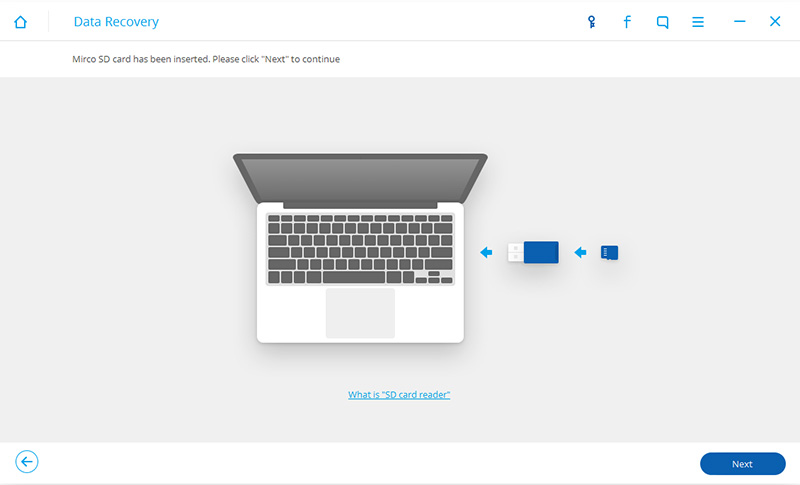
run android sd card data recovery on computer

Step 2.Plug Samsung SD Card Reader on the Computer
When your SD card is detected by program,select your SD card and click “Next” to continue.
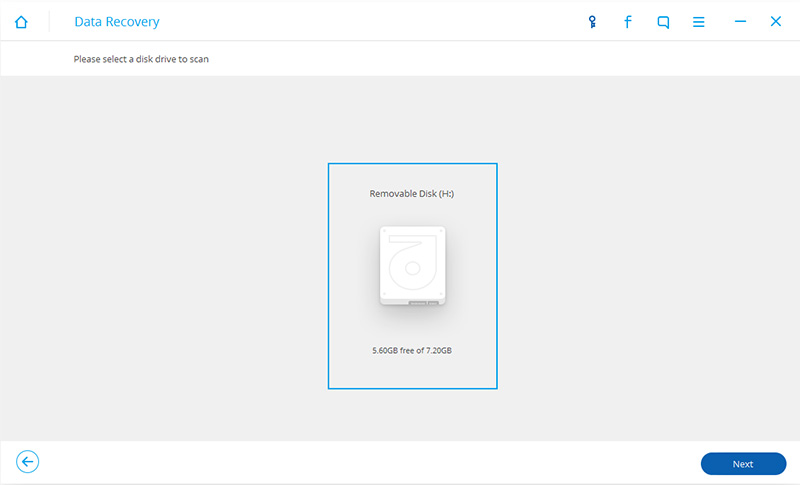
connect sd card to the computer

Step 3.Scan Samsung SD Card for Media Files
Before scanning,select the modes to scan,one is “Standard Mode”,the other is “Advanced Mode”.Suggest you choose “Standard Mode” first,if you can’t find what you want,then you can try the “Advance Mode”.To save time,you can choose to scan for only deleted files.
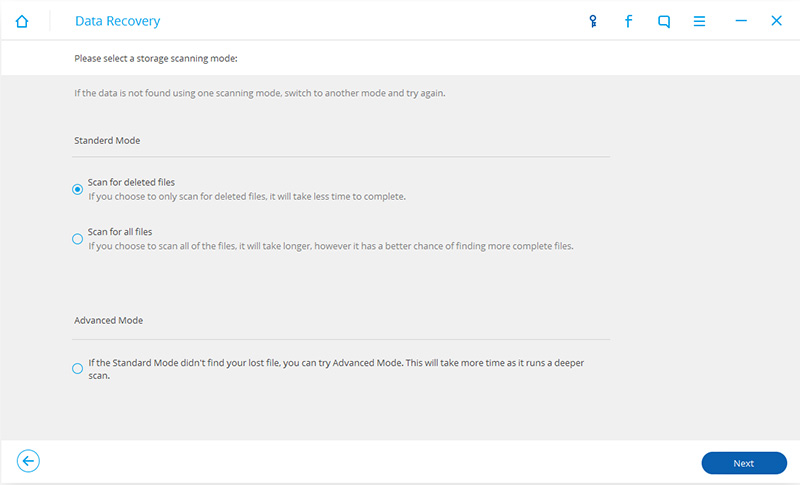
select scan mode

After choosing the scan mode,click “Next” to begin scanning your Samsung SD card.
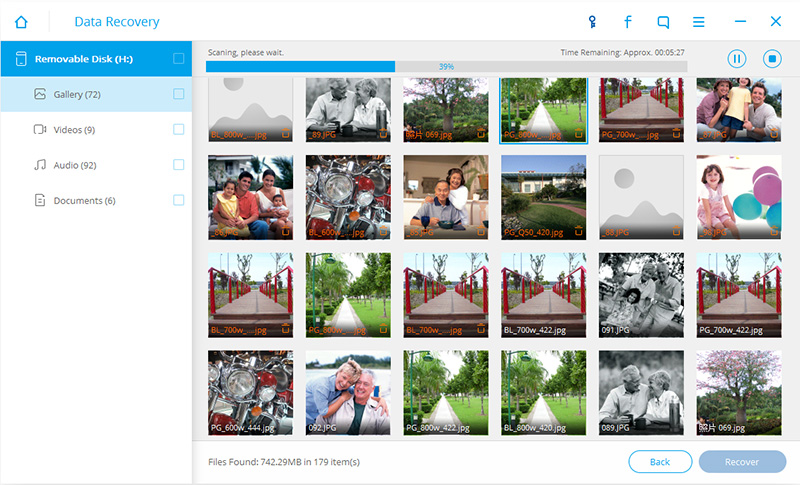
scan samsung sd card

Step 4.Preview and Retrieve Lost Photos from Samsung SD Card
When the scanning process is completed,all results will be displayed in categories.Selectively check or un-check the files you want and then click “Recover” to start the data recovery process.
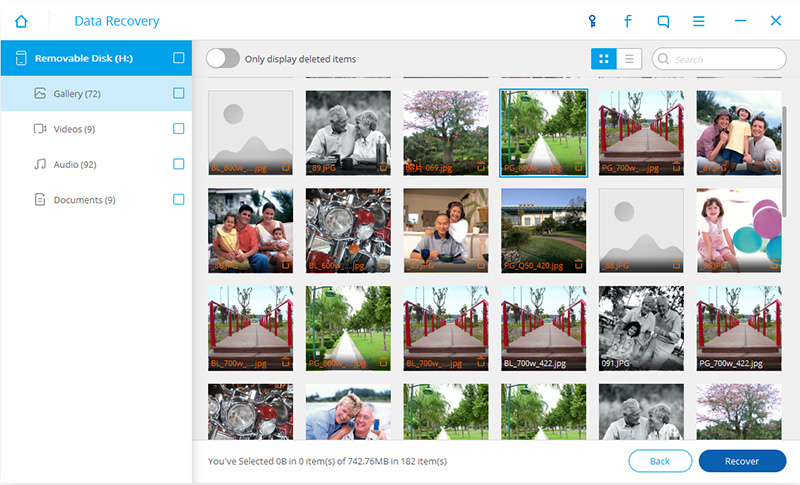
recover photos from samsung sd card

Download the Android Toolkit and have a try!

d_win d_mac

Read More:

How to Recover Deleted Data from Samsung Galaxy S7/S7 Edge

How to Recover Deleted Text Messages from Samsung Galaxy S7/S7 Edge

How to Recover Deleted Contacts from Samsung Galaxy S7/S7 Edge

Transfer Photos from Android to Samsung Galaxy S6/S7

Transfer Photos from iPhone to Samsung Galaxy S7

Transfer WhatsApp Chat History from iPhone to Samsung Galaxy S7/S6/Note 7
How to Transfer Data from iPhone to Samsung Galaxy A9

samsung-galaxy-a9

Apart from the 2016 editions of the Galaxy A3, A5, and A7, Samsung also added a new device to the lineup,which is also the largest of the bunch, and at least on paper, falls squarely in the “premium mid-range” category that we’re all increasingly familiar with.We find out, in this comprehensive Samsung Galaxy A9.

With a 6-inch, 1,920 x 1,080 resolution display, the Galaxy A9 is easily one of Samsung’s biggest smartphones currently available. Under the hood lies an octa-core Qualcomm Snapdragon 652 processor, which used to be the Snapdragon 620 before Qualcomm weirdly decided to rename it. Regardless, the chipset is paired with 3GB of RAM, the same amount of memory found in the Samsung Galaxy S6 and S6 Edge.

Are you getting bored with your iPhone 6S/6/5S/5/4S/4?Looking to try the Samsung Galaxy A9 smartphone instead? Perhaps you are hesitant because you do not want to lose all of the files you have stored on your iPhone? Well, you do not have to actually!In this tutorial, we are going to show you how to sync data from iPhone to Samsung Galaxy A9 in just a few easy steps.

Phone Transfer is a program that is created to make the process of transferring data between mobile phones with ease.It enables to sync contacts,messages,photos,call logs,videos and more between iPhone and Samsung.The program is effective and extremely user friendly.Being able to transfer files from iPhone to Samsung Galaxy A9 is a quick and easy task thanks to this program.Samsung Galaxy A9/A8/A7,S7/S6/S5,Note 6/5/4 etc are supported.Let’s get it started by downloading free evaluation version of this program.

d_win d_mac

How to Sync Data from iPhone to Samsung Galaxy A9

Step 1.Launch the Program
Once you have downloaded and installed Phone Transfer to your computer,the first step is choose the “Phone to Phone Transfer”option from the primary window of this program.Once the program has loaded you should be able to enter the home screen of the application.

Transfer data from iPhone to galaxy A9

Step 2.Connect Both Phones to Your Computer
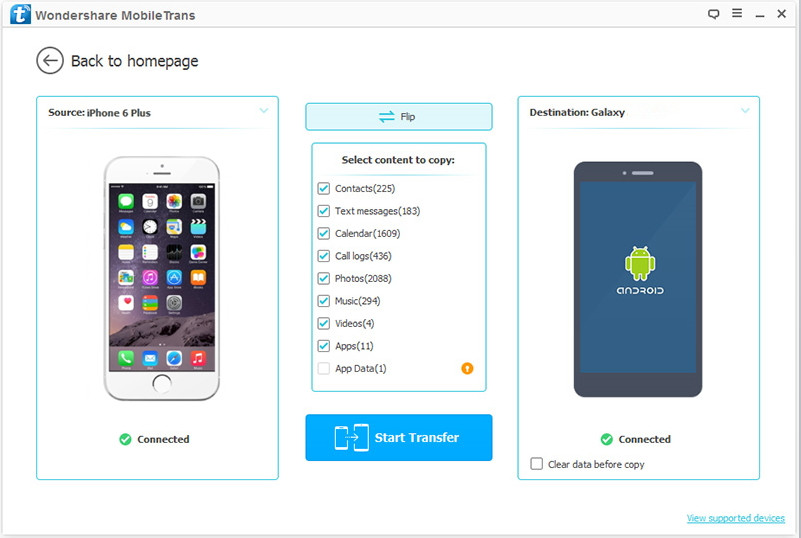
In order to transfer iPhone data to Galaxy A9,you should connect both your iPhone and your Samsung Galaxy A9 to your computer at the same time. Once you have connected both of the smart phones,the application should automatically recognize both of them.

Note:If iTunes is not present on your computer,the application is going to remind you that you need to install it in order to move data between iPhone and Samsung.

Step 3.Transfer Data from iPhone to Galaxy A9
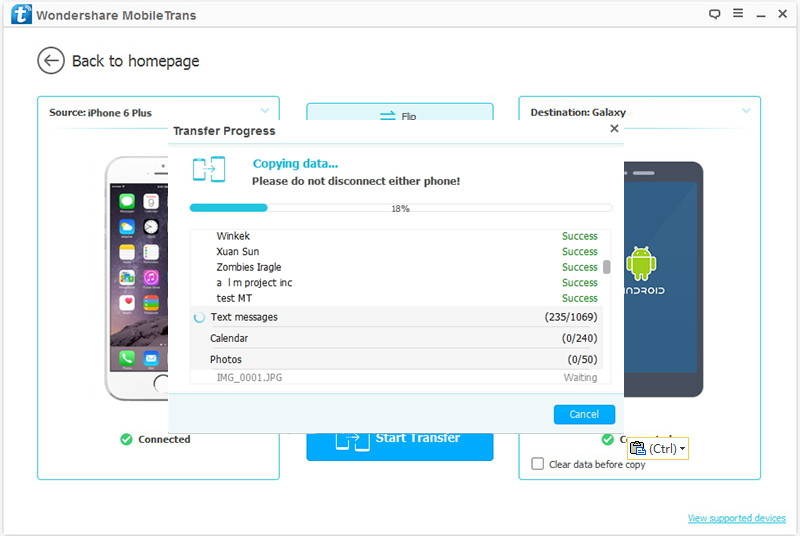
A window will display all of the data files that you can transfer from your iPhone to your new Samsung.Contacts, text messages, pictures, and more are conclude.All you have to do is select what you want to transfer and then click the “Start Copy” button.Then this program will move all of the files you have selected from your iPhone to Galaxy A9.

Transfer data from iPhone to galaxy A9

Transfer data from iPhone to galaxy A9

Note:It is important that you DO NOT disconnect either of the phones until the transfer process is complete.

Three simple steps is really all it takes to move your files from your iPhone to your new Galaxy A9.Phone Transfer is the most convenient and easy to use one-click phone data manage tool.This program is compatible with over 2,000 phones including Android(Samsung,HTC,Huawei,Xiaomi,etc) and all models of iPhone(iPhone 6S/6/5S/5/4S/4).

d_win d_mac

Read more:

How to Transfer Data from iPhone to Samsung Galaxy S7

How to Transfer Photos from iPhone to Samsung Galaxy S7

How to Transfer Calendar from iPhone to Samsung Galaxy S7

How to Recover Deleted Files on iPhone SE

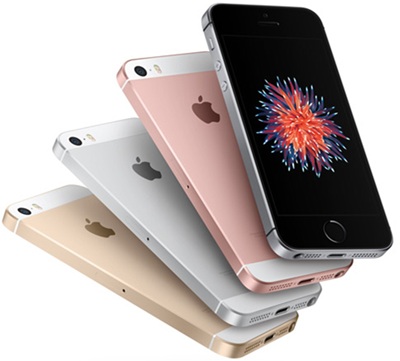
Some people like to using iPhone SE,because it’s small size and advanced configuration.But sometimes you may deleted contacts,text messages,photos on iPhone SE by mistake,or lost data on iPhone SE due to some reason,like iOS upgrading/jailbreaking failures and restore iPhone factory resetting failures,device damaged, stolen,or crashed,etc.

https://www.android-iphone-recovery.com/wp-content/uploads/2016/06/iphone-se-data-recovery.jpg

No matter what kinds of situation you have encountered, then you’ll need iPhone SE Data RecoveryiOS Data Recovery,which can help you recover deleted or lost data on iPhone SE completely.This excellent iPhone Data Recovery program supports recover deleted contacts,SMS, call history, voice memos, notes, photos, whatsapp messages, etc. in three recovery modes: scan and recover files from iPhone SE directly; restore data from iTunes/iCloud backups So that you can recover all lost data on your iPhone SE easily.What’s more,apart from the new released iPhone SE or iPhone 6S, the program enables users retrieve deleted files from iPhone 6/5S/5C/5, iPhone 4S/4, iPhone 3GS, etc.

d_win d_mac

How to Recover Deleted Photos,Contacts,SMS from iPhone SE

Step 1. Run the iPhone SE Data Recovery and Connect it to computer via USB cable

Connect Your iPhone SE to Computer and Make It Detected
Using an USB cable to link your iPhone SE to the computer,then launch the program.Choose the mode of “Recover from iOS Device” on program.The program will detect the connected iPhone automatically and show you an interface like below.Follow the instructions on the interface to enter the next step.

recover iPhone lost data

Step 2.Scan Deleted Files from iPhone SE
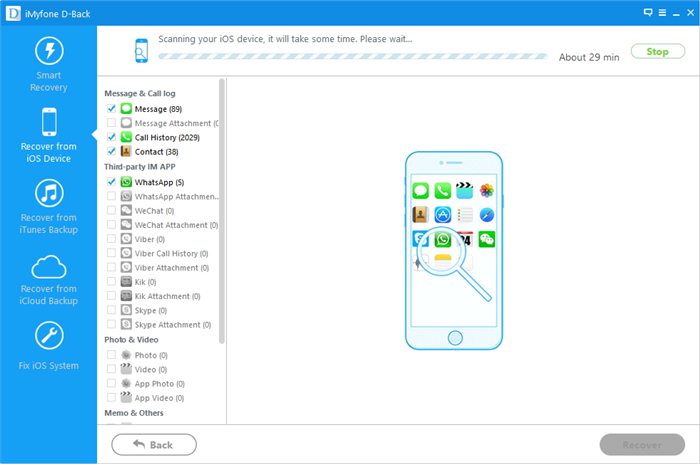
When the device is successfully detected by the program, you can click the big “Start Scan” button on the interface to start scanning for files on your iPhone SE.Please be noted that both lost and existing data will all be scanned and displayed in the program.Wait for a moment until the scanning is finished,then you can see the primary window of the program.

scan lost data from iPhone SE

Step 3.Preview and Recover Selected Data from iPhone SE
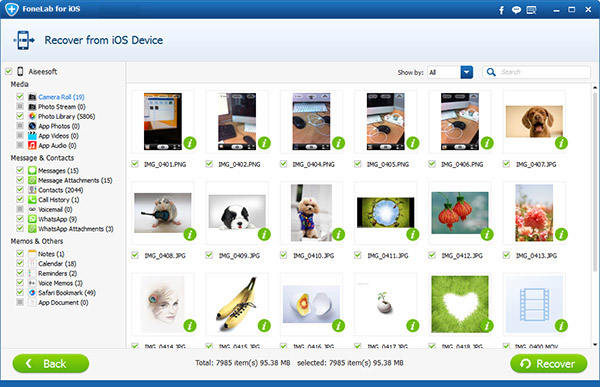
Files from iPhone SE will be displayed in different categorizes and listed in the panel of the program,such as camera roll, videos, contacts, messages, etc.You can click these options and preview the detailed contents to find your target files.Mark them one by one and then click “Recover” button to get them back and select to save the files to your computer or your phone.

recover deleted files on iPhone SE

Recover Deleted Contacts from iPhone SE

recover deleted contacts on iPhone SE

Recover Deleted Text Messages on iPhone SE

recover sms from iPhone SE

Recover deleted photos from iPhone SE

iphone SE photo recovery

Recover to iPhone SE or Recover to Computer:

recover-save-iphone-data

Bingo!Now, you can check the restored iPhone SE files as you like,and you can share these files for any purposes according to your own needs.

This iPhone SE Data Recovery enables to rescue more than 10 types of data from iPhone, iPad, and iPod Touch,including iPad Pro, iPad mini 4, iPad Air, iPad mini ,the new iPad,iPod Touch 5, iPod Touch 4, etc;recover Data from iOS devices directly and restore files from iTunes backup,iCloud backup.It’s a predominate program you must having.

d_win d_mac

Tips: In order to avoiding data lost on your iPhone,we recommend you backup iPhone data to computer regularly,including photos,videos,call logs, text messages, contacts and other files stored on your iPhone.

Read more:

How to Recover Files on iPhone 6S

How to Recover Files on iPhone SE After iOS 9.3 Upgrade

How to Transfer Everything from Old iPhone to iPhone SE