All posts by DHZ

How to Unlock iPhone with Unresponsive Screen

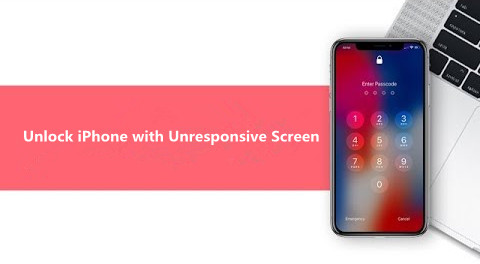
[Summary]: Your iPhone touch screen is unresponsive? Don’t worry, read this article, we will teach you 6 solution to unlock an iPhone with unresponsive touch screen.

My iPhone screen is unresponsive now I can’t do anything on it even unlock the screen to access my phone. Any ideas to solve this? I want a way that won’t wipe any data on my device. Thanks.

unlock iphone

For most of iPhone users, iPhone screen get broken is a common situation that occur in daily life. Get a crashed screen, broken screen, or unresponsive screen on iPhone are the most frequent cases. If you are unfortunate to get a iPhone with unresponsive screen, it might be make you hard to unlock the iPhone and access iPhone as usual. When you need to unlock iPhone with unresponsive screen, you can remove locked screen on iPhone after restoring iPhone to factory reset via iTunes normally. However, this method is not strongly recommend for you since it will erase all data and settings on your device.

Note: Risk of losing data when using iTunes to reset your disabled iPhone to its factory settings.

If you need to access iPhone with unresponsive screen without data loss, here you have another choice, UkeySoft Unlocker, Phone Toolkit(iOS Unlock) and iPhone LockWiper, all can help you unlock iPhone/iPad without passcode.

Part 1: Restore and Unlock Unresponsive Screen iPhone via iTunes

If you have ever synced iPhone to a computer and trust this computer, you can restore your iPhone device as long as bypass iPhone screen lock easily. How to unlock iPhone XR/XS (Max)/X/8/7/6S/6 with iTunes? Let’s learn the detail guide about how to use the iTunes to restore iPhone with unresponsive screen/ broken screen and access it.

Step 1. Connect the locked iPhone to the computer.
Step 2. Choose the iPhone model in the home page and click the tab of “Summary”.
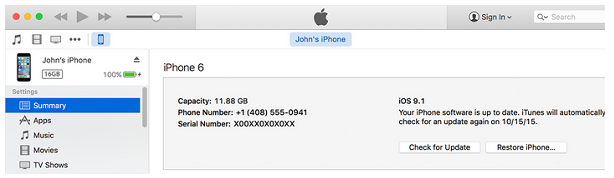
Step 3. Click “Restore iPhone” button.
Step 4. Confirm the “Restore” option to factory reset your device. Your passcode will be removed then.
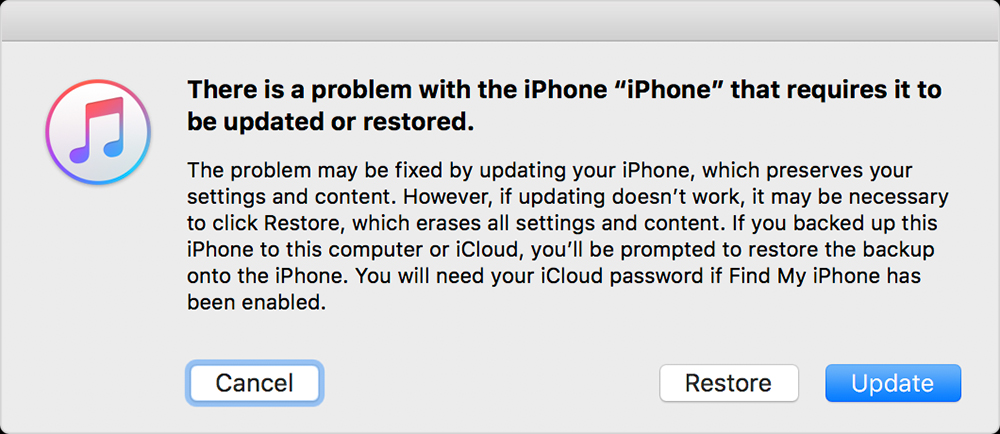
restore iphone to unlock with iTunes

Note: It can bring your locked iPhone back to the factory reset state, all the data and settings will be gone after performing factory reset. If you want to access iPhone with unresponsive screen without data loss, please read part 2 to continue.

See also: How to Recover Lost Data after Factory Reset iPhone

Part 2: Unlock iPhone with Unresponsive Screen via iPhone LockWiper

U.Fone iOS Unlocker is special designed to unlock iPhone without passcode, once your iPhone touch screen can’t be used or screen-broken, you can easily unlock your iPhone screen without entering passcode.

Features:

  • Bypass iPhone screen lock when the screen is unresponsive or broken.
  • Unlock iPhone with 4/6-digit passcode locked.
  • Unlock Touch ID and Face ID.
  • Bypass Apple ID/iCloud account and the Screen Time passcode.
  • Remove iPhone screen without data loss.
  • Unlock iPhone screen passcode for locked, disabled, broken screen.

d_win d_mac
d_win d_mac

Let’s learn how to access a unresponsive iPhone with the help of iPhone LockWiper, you can unlock your iPhone on Windows or Mac computer.

How to Unlock iPhone with Unresponsive Screen or Broken Screen

Step 1: Launch iOS Unlocker on PC or Mac
Launch iPhone Unlocker on the computer,then select “Wipe Passcode” function.
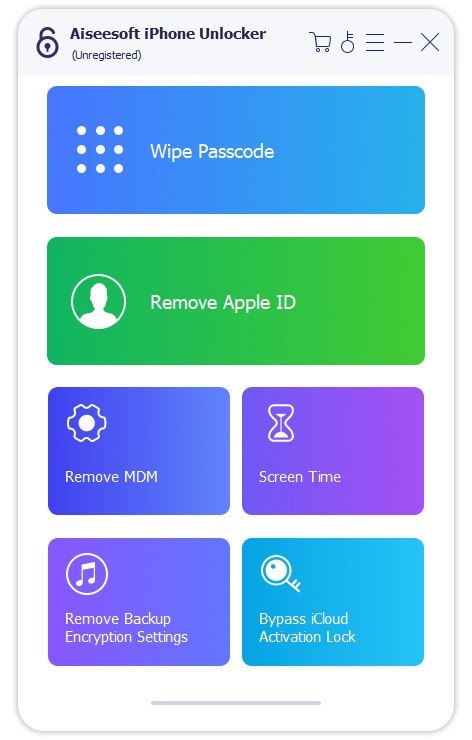
Unlock iPhone with Unresponsive Screen

Step 2.Connect iPhone to Computer
Then connect your iPhone to your computer with a USB cable, then click on “Start” on the home screen to begin the process.
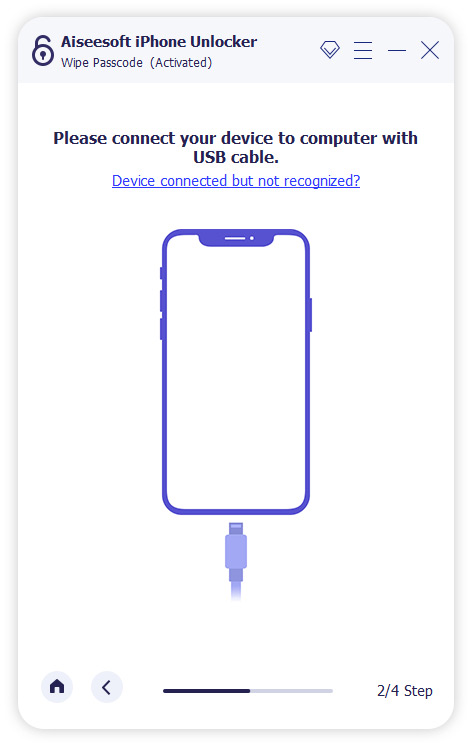
Connect iPhone to Computer

Step 3. Confirmed iPhone Information
After puting your iPhone into DFU/Recovery mode, the software will help you download the firmware package, please ensure that you have confirmed your device model displayed on the computer screen. If the information is not correct, change it to the appropriate model manually. Click “Download” to get the latest iOS firmware package for your iPhone device.
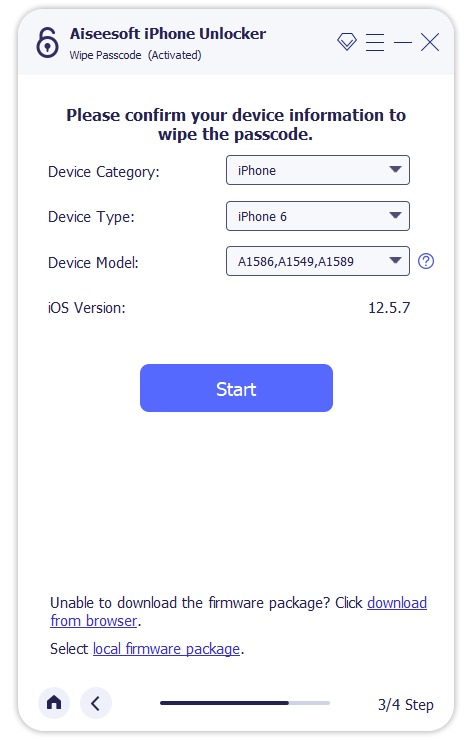
Confirmed iPhone Information

Step 4. Download Firmware Package
After successful downloading, click “Start” and proceed to the next step when the verification is complete. Then, the software start to download firmware package.
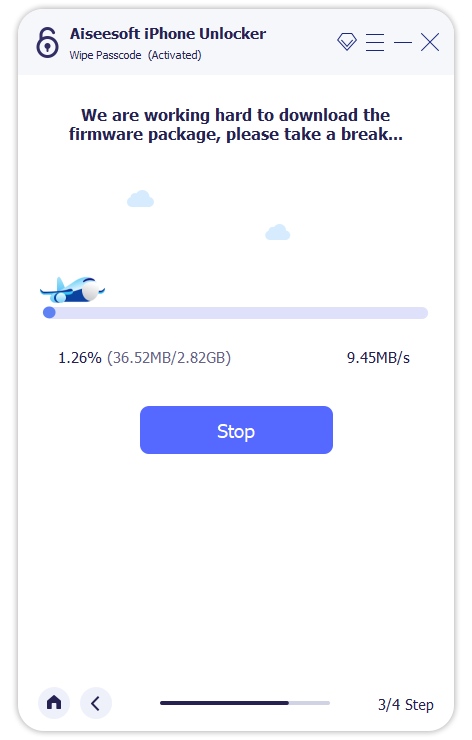
Download Firmware Package

Step 4. Unlock iPhone with Unresponsive Screen
Once the firmpackage has been verified and installed successfully, click on “Start Unlock” to unlock your iPhone without passcode.
Unlock iPhone

Within a few minutes, your iPhone is unlocked, then you can access it.

set up iPhone

Download the iOS Unlocker tool and try to unlock your iPhone with unresponsive screen easily.

d_win d_mac
d_win d_mac

Part 3: Unlock a Disabled iPhone with UkeySoft Unlocker

The part 2 we have tought you how to bypass iPhone screen lock via a third-party iPhone unlock tool, this part will recommend you an more powerful third iPhone screen locked unlock tool, it named UkeySoft Unlocker.

UkeySoft Unlocker is one of the most powerful iPhone unlock tool, it not only can help you remove screen passcode, pattern, Touch ID, Face ID from your iPhone/iPad/iPod touch, but also allows you remove Apple ID without password. Therefore, please don’t worry when your iPhone is locked/disabled after entering too many wrong passcode attempts. UkeySoft Unlocker provides you the best solution to remove passcode and unlock your iPhone without iTunes, here you can learn it’s more features:

  • Unlock a disable, locked, black screen, broken screen iPhone
  • Remove iPhone Apple ID even when “Find My iPhone” is on
  • Unlock a iPhone/iPad with unresponsive screen at ease
  • Remove Restrictions/Screen Time Passcode without data loss
  • Keep all data and settings after removing Apple ID
  • Compatible with the latest iPhone 11, iPad Pro and iOS 13

4 Steps to Unlock a Disable iPhone

Step 1. Download, Install and Launch UkeySoft Unlocker on Computer
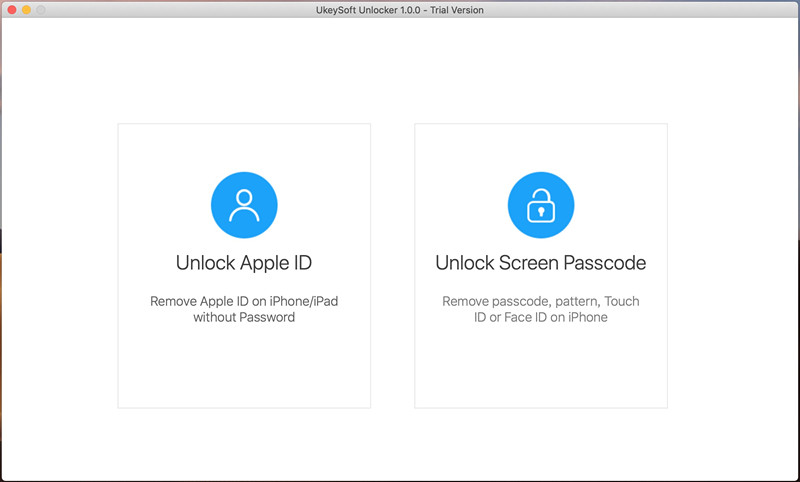
Currently, UkeySoft company only offers for Mac version, the Windows version will coming soon. Please go to UkeySoft official website to download the iPhone unlock tool, then install and run it on computer.
iphone unlock

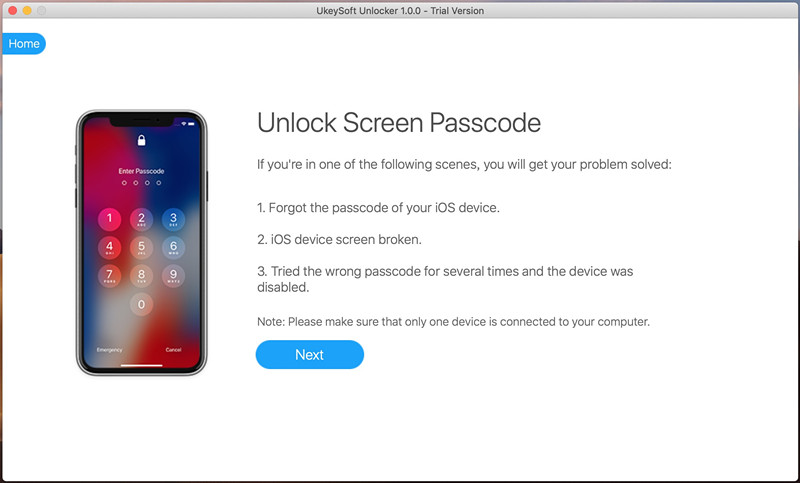
To unlock disable iPhone without password, please click “Unlock Screen Passcode”, then connect your disable iPhone to computer via USB cable.
remove iPhone passcode

Step 2. Put iPhone into Recovery and Download Firmware Package
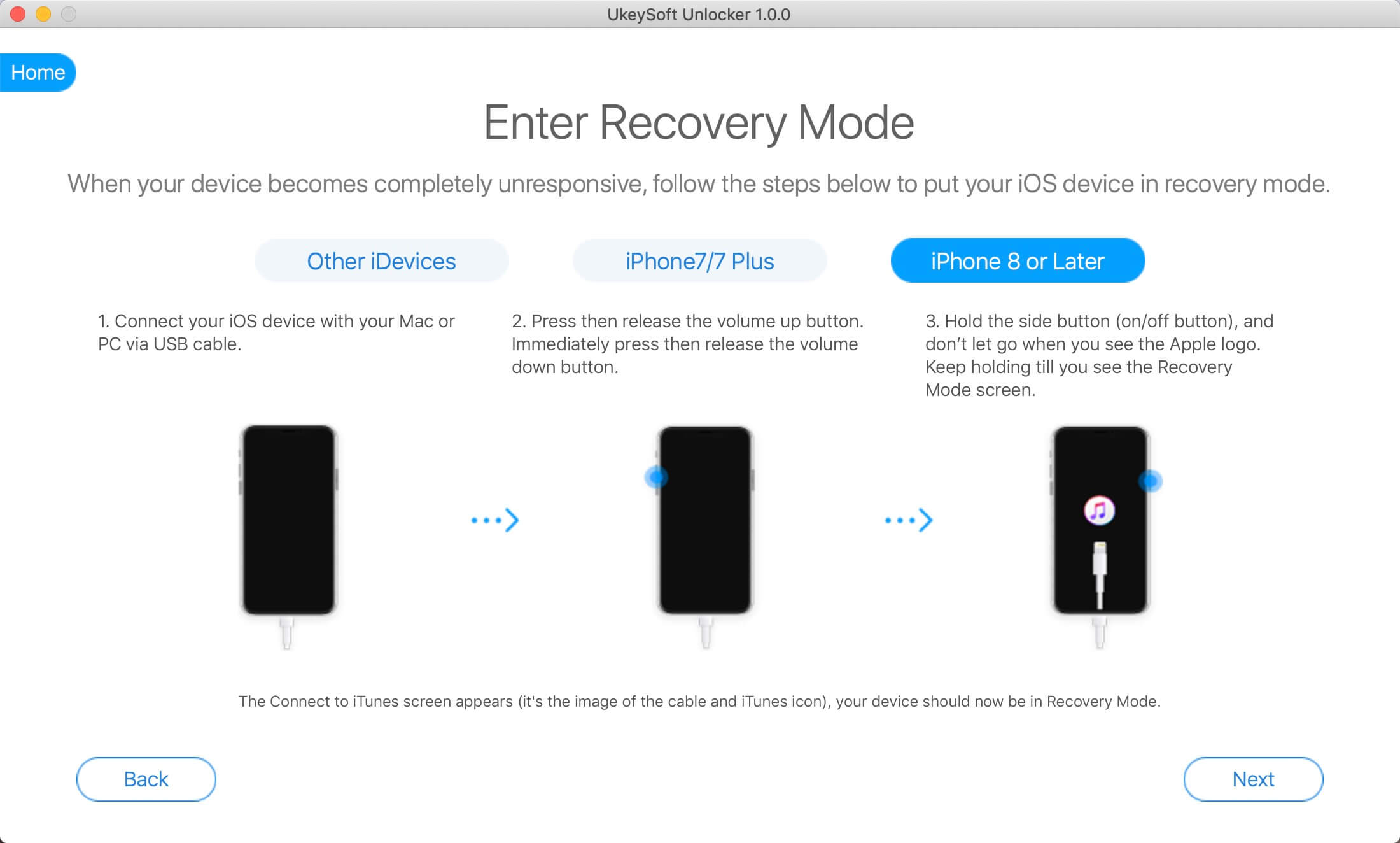
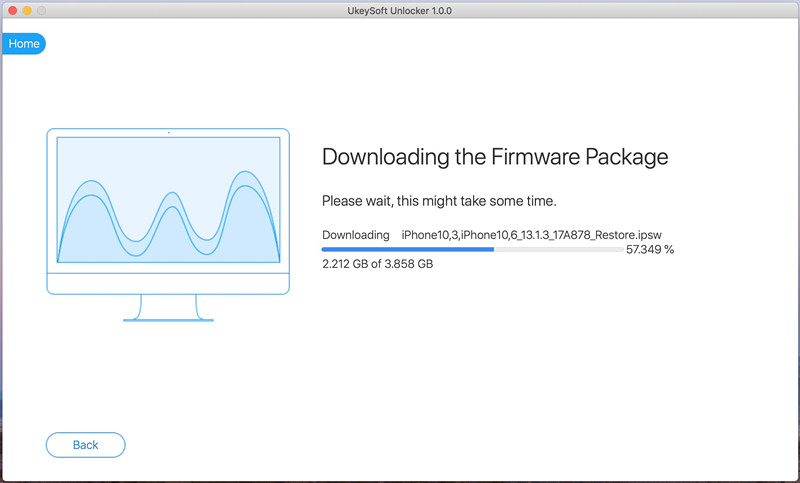
When your iPhone touch screen completely unresponsive, please follow the steps to put your iPhone in recovery mode, then download appropriate firmware version for your iPhone.
unlock disable iphone without passcode

Step 3. Start Unlocking your Disable iPhone
When the firmware package downloaded complete, you can see the “Start” button. Tap it to unlock your iPhone screen passcode.
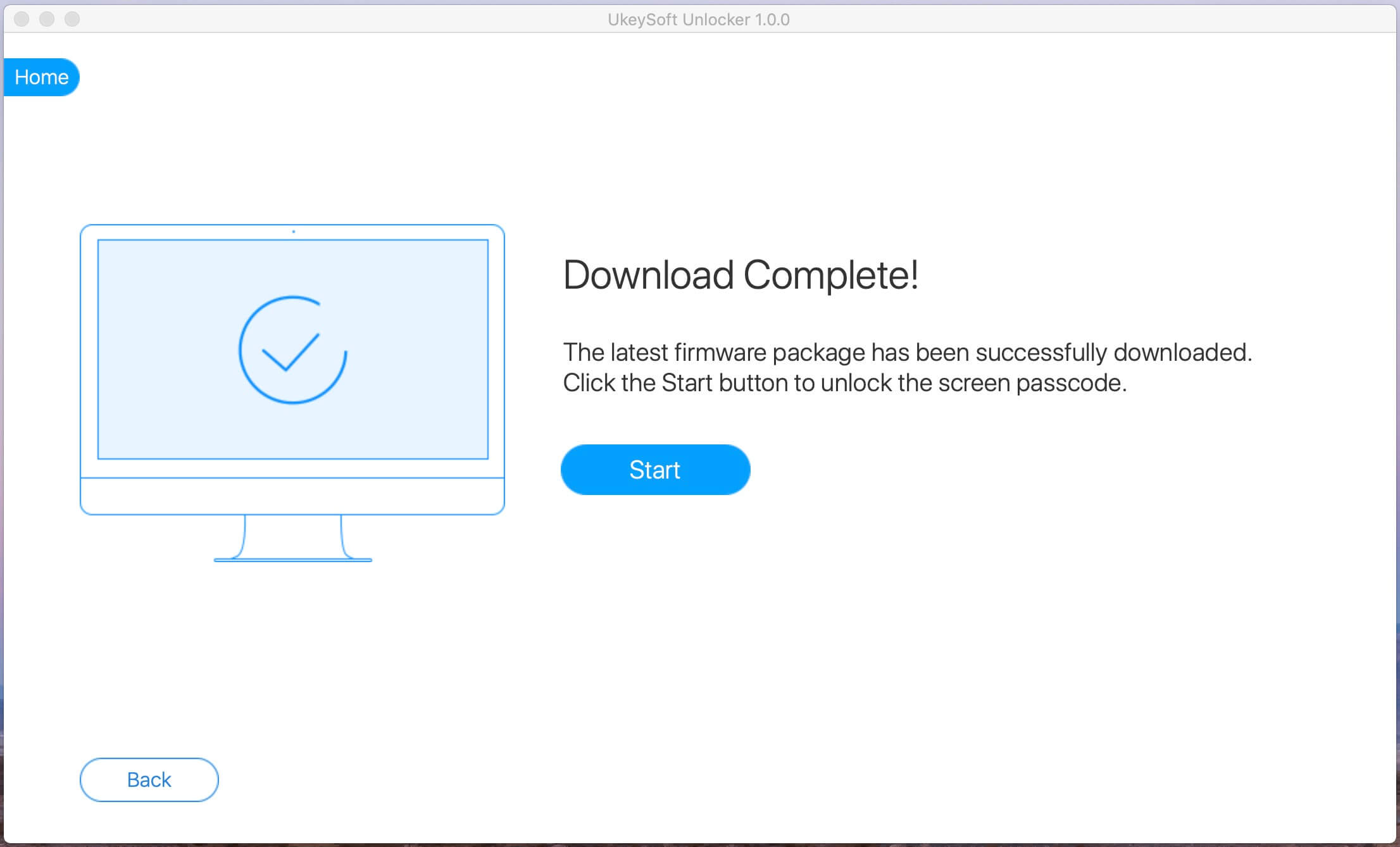
unlock disable iphone without passcode

UkeySoft Unlocker start to removing screen password from your disabled iPhone, please keep the device connected during unlocking process.
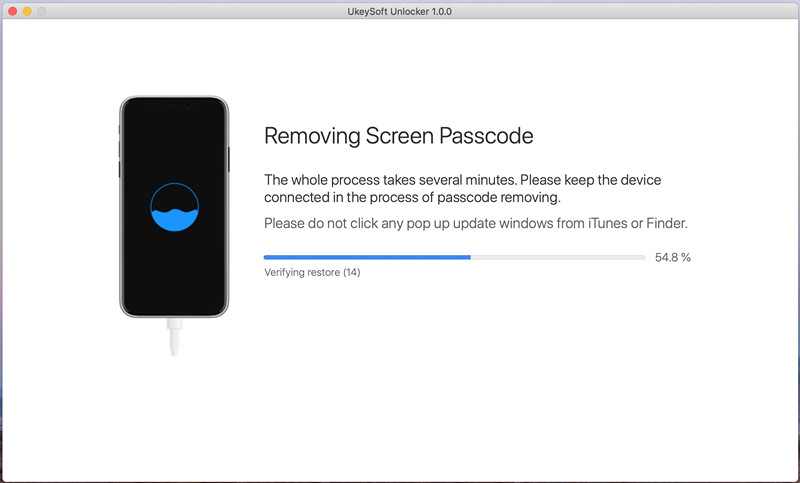
unlock locked iphone

Step 4. Your Disable iPhone Unlocked Successfully
When your iPhone restarts, now you can access your iPhone without entering passcode, the iPhone device restarts with saying Hello screen, which looks like a new iPhone device, please set your iPhone again.
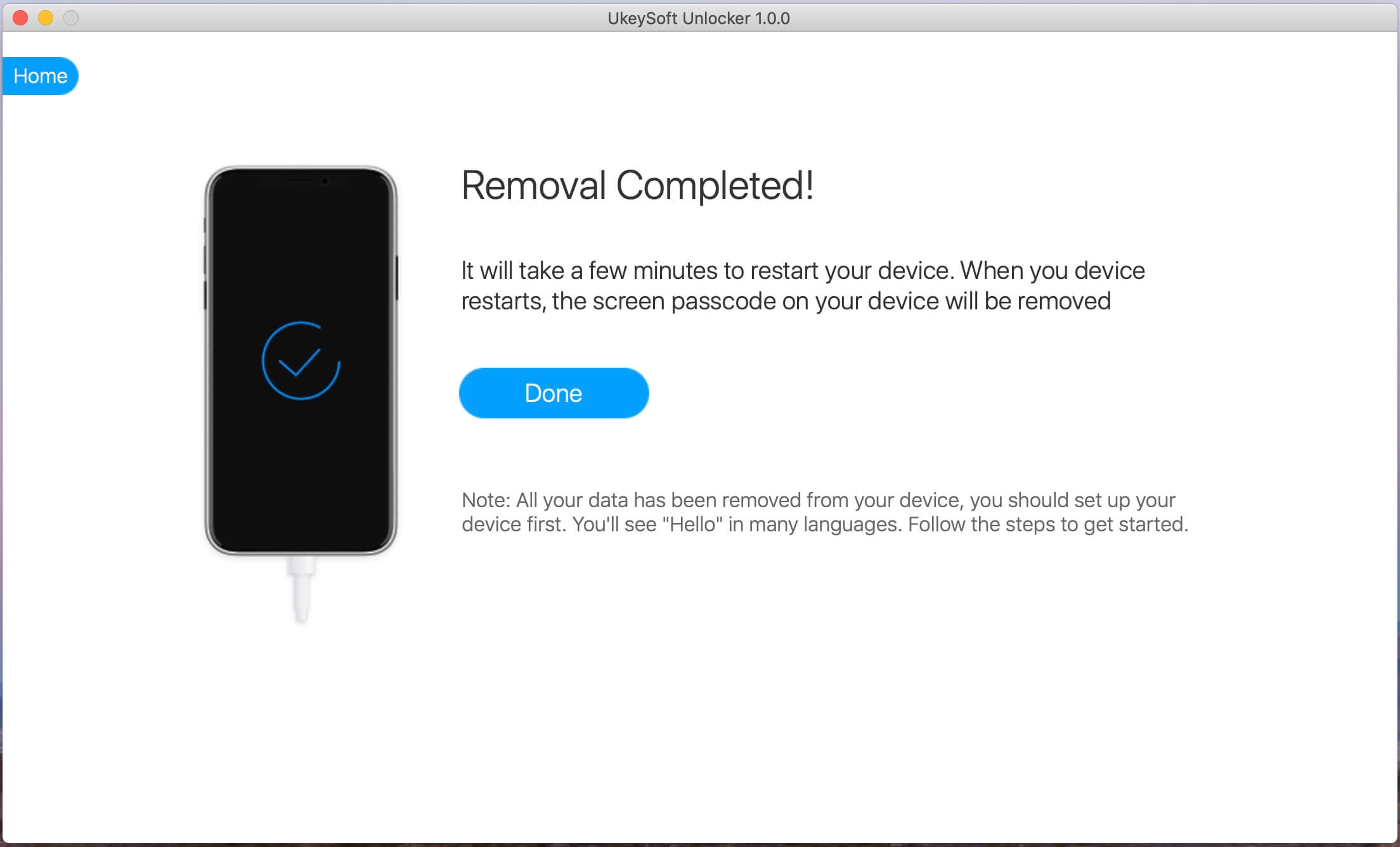
unlock disable iphone

Part 4: Unlock iPhone with Unresponsive Screen via iOS Unlock

iOS Unlock is a reliable iPhone unlock program to unlock and access iPhone with unresponsive screen, no data loss at all. You don’t need to restore iPhone to factory reset to bypass the locked screen on device. Moreover, this program help to remove iPhone locked screen without password when you forgot the password, it can also fix an disabled iPhone easily. It is compatible with all iPhone models, including iPhone XS, iPhone XR, iPhone X, iPhone 8, iPhone 7, iPhone SE iPhone 6S/6 and more iOS 13/12/11 devices.

Features:

  • Unlock iPhone, iPad without passcode in 5 minutes.
  • Unlock Samsung, LG, Huawei, Xiaomi, and Lenovo.
  • 1 click to remove iPhone lock screens if you forget the passcode.
  • Bypass iPhone lock screen, broken screen and unresponsive screen.
  • Unlock iPhone 11, iPhone 11 Pro, iPhone XS/XR/X/8/7/6S/6/SE,etc. without data loss.
  • Download the iPhone firmware and install it without erase the data.
  • Works well with iOS 13, iOS 12, iOS 11, iOS 10.3, iOS 10, iOS 9 and more older devices.

d_win d_mac
d_win d_mac

Steps to Unlock Unresponsive Screen iPhone without Data Loss

Step 1. Connect your Locked iPhone to the Computer
Run program on the computer and click “Unlock” option.
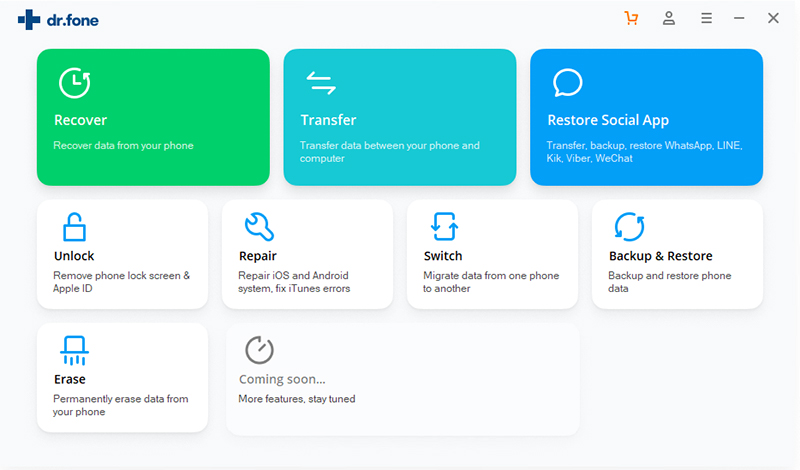
ios locked screen removal

Connect your locked iPhone to the computer using a USB cable. Then click “Start” to begin the unlock process.
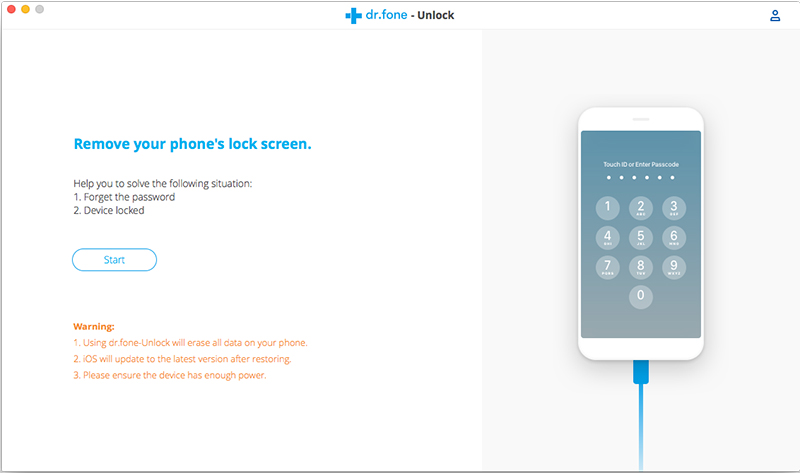
connect locked iphone to pc

Step 2. Get iPhone into the DFU Mode
Follow the instruction on program to get iPhone into the DFU mode.

-Power off the locked iPhone.
-Press and hold the Volume Down button and the Power button together for 10 seconds.
-Release the Power button and keep holding the Volume Down button until the device is in DFU mode.
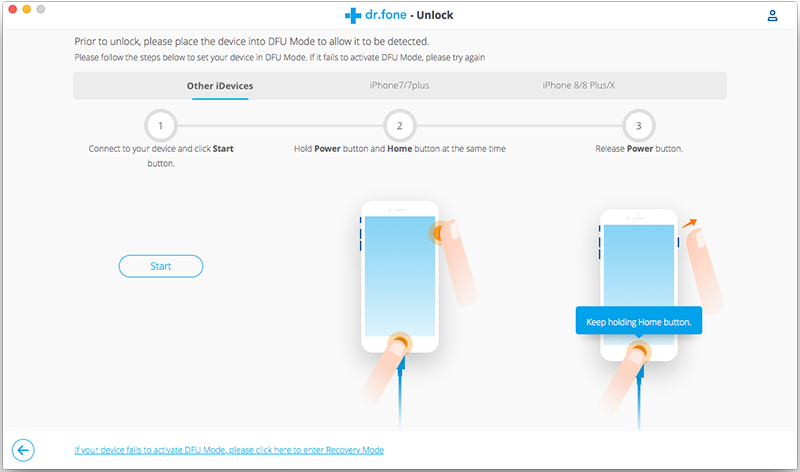
enter locked iphone into the dfu mode

Step 3. Confirm the Information of iPhone
After the device is in the DFU mode, the program will display the information of device, including phone generation, iOS version, etc,. If the information is wrong, you can select the correct information from the dropdown lists. Then click “Download” to download the firmware for your device.
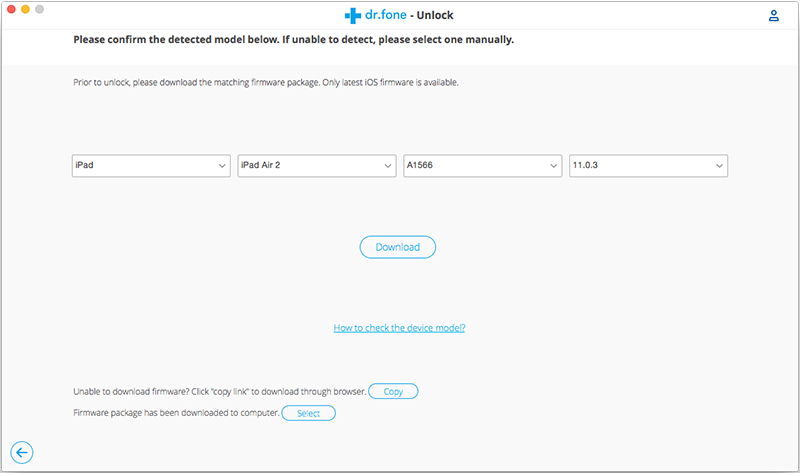
select the information of locked iphone

Step 4. Unlock iPhone with Unresponsive Screen without Data Loss
When the firmware is downloaded successfully, click “Unlock Now” to start unlock your iPhone without data loss.
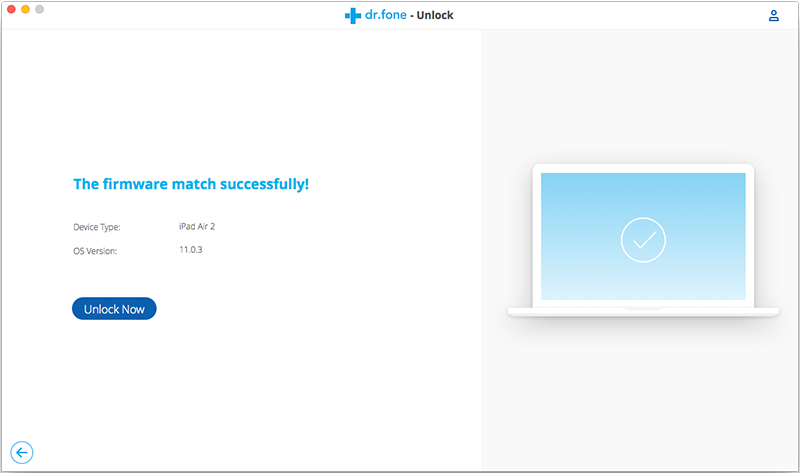
confirm to unlock iphone

Your iPhone will be unlocked successfully in just a few seconds.
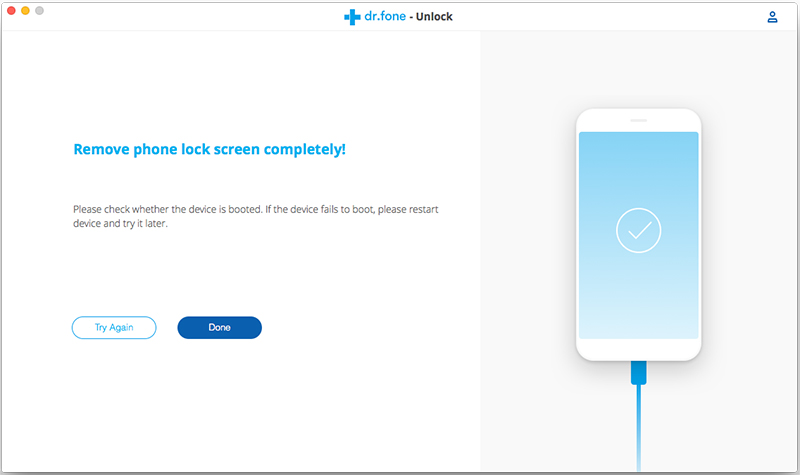
unlock iphone without data loss

Done. Now you can access your iPhone without locked screen freely.

d_win d_mac
d_win d_mac

Part 5: Unlock iPhone with Broken/Cracked/Unresponsive Screen by using Siri

You can also use the Siri feature to unlock your broken/cracked/unresponsive screen iPhone and get access to it. Some iPhone users have try this method and share the detail guide on Apple community, let’s shows you step by step guide on how to unlock unresponsive screen iPhone via Siri.

Step 1. Firstly, you need to activate Siri, and ask Siri to “Turn on VoiceOver”(If it failed, you can turn to other methods, especially the first one).
For iPhone 7 and older: Hold down the Home button to activate Siri.
For iPhone X/XR/XS: Simply press and hold on the Side button, which is sometimes referred to as the power button or sleep/wake button. After a split-second, Siri will pop right up.
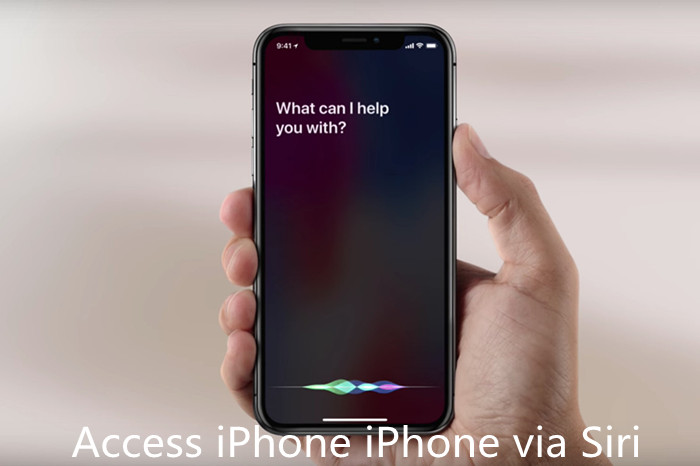
access iphone via siri

Step 2. Press the Home button twice to bring up the main passcode screen.
Step 3. Swipe left or right until “Slide to Unlock” option is selected, then move your VoiceOver cursor to different passcode number buttons, VoiceOver will also say the button being selected. Now the passcode interface appears.
Step 4. Swipe left or right to highlight the correct keys on the keyboard and double hit to “enter” each one;
Step 5. Swipe to highlight enter/done and double tap to submit the passcode.
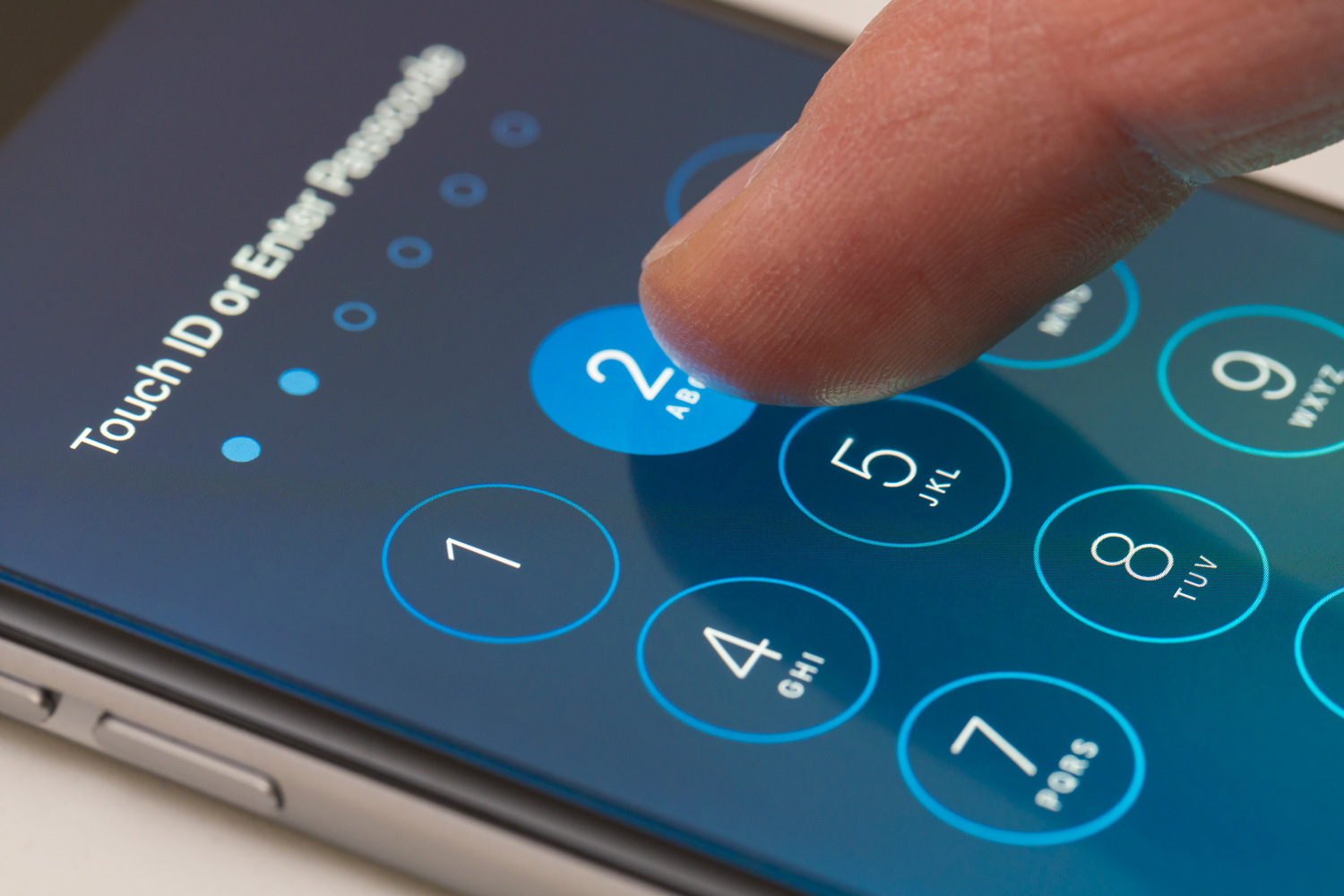
bypass iphone passcode

Step 6. Backup iPhone: Once your iPhone is unlocked, then connect your iPhone to the computer and tap “Trust”, what you need to do is backing up all data from iPhone to computer by iPhone backup tool, you can also backup your iPhone to iTunes. The iPhone backup tool can do what’s iTunes can’t, it can help you backup and restore iPhone contacts, text messages, photos, videos, music, WhatsApp data and more.

Tips: If you want to turn off VoiceOver, you can say “Turn off VoiceOver” to Siri, or go into Settings > General > Accessibility to turn it off manually.

Part 6: Remotely Unlock an Unresponsive Screen iPhone by using iCloud

iCloud service not only can help you backup & restore data easily, but also can help you unlock iPhone with broken screen/cracked/unresponsive screen, you can also remotely find your iPhone location and erase all data via iCloud service, to using this iCloud remotely service, make sure you have enabled “Find My iPhone” feature on device and iCloud. If your iPhone screen was unresponsive, you can using iCloud’s remotely unlock service to unlock it, let’s learn the below simple steps:

Step 1. Go to iCloud web https://www.icloud.com/ on the browser of your computer. Log into iCloud account with your Apple ID and password;

Step 2. Click the “Find iPhone” button and select your iPhone under the list of “All Devices”;
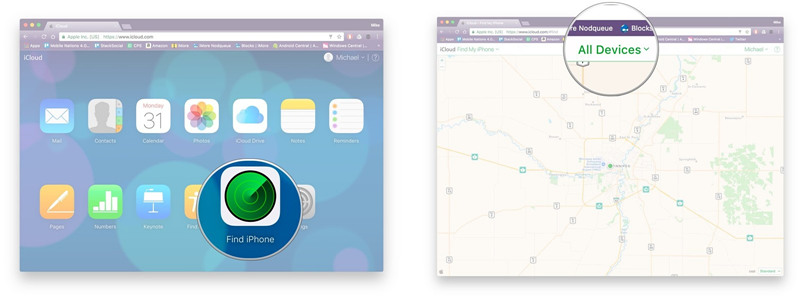
find my iphone icloud web erase iphone

Step 3. Click the “Erase iPhone” option to erase all content and screen passcode remotely.
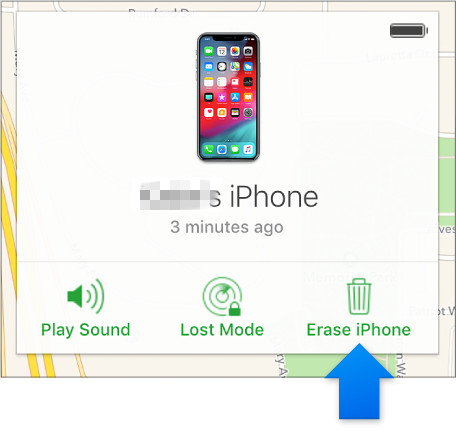
erase iphone to unlock via icloud

After remotely erasing your iPhone via iCloud, you can access it without entering passcode.
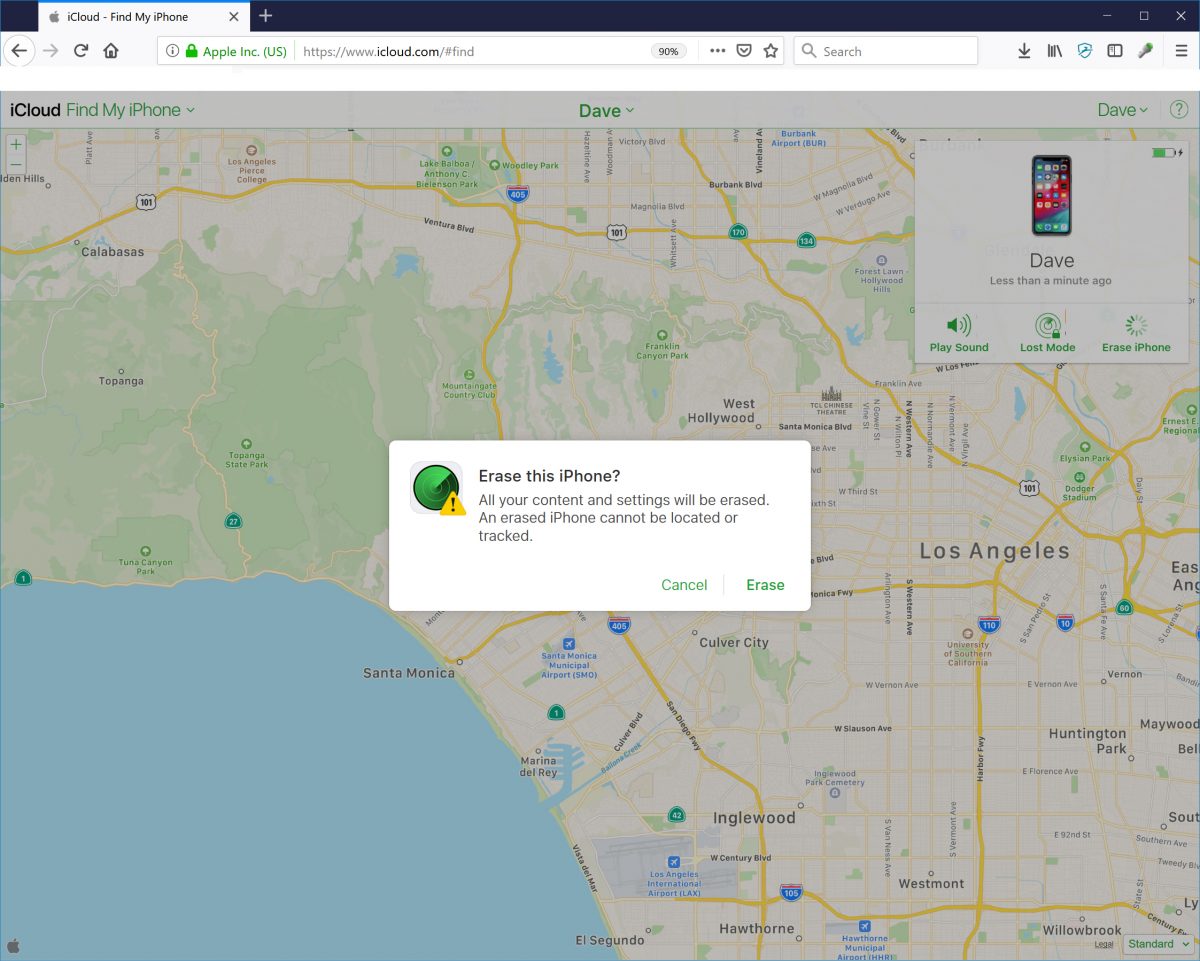
erase iphone to unlock with iCloud

Note: This method is useful for those who haven turn on “Find My iPhone” feature, but this method will erase all your data and settings on iPhone, so we recommend your a profession iPhone unlock tool to unlock iPhone without erase data.

Part 7: Unlock iPhone with Unresponsive Screen via Hard Reboot Method

If your iPhone stuck in black screen of death, Apple logo screen(recovery mode) or unresponsive screen. If your iPhone touch screen is unresponsived due to software issue, you can try to hard reboot your iPhone to fix this problem

iPhone 6s and older devices force restart method: hold the Home Button and the Sleep/Wake Button until you see the Apple logo on the screen.
iPhone 7 and later models force restart method: simply hold down the Volume Down button along with the Sleep/Wake button until you the Apple logo.

Related Articles

Forgot iPhone Screen Lock Password – How to Unlock it

Unlock iPhone Passcode when Forgot iPhone Screen Lock Passcode

How to Unlock a Disabled iPhone without Data Loss

How to Extract Data on Locked iPhone

How to Restore Data on Locked iPhone

How to Recover Contacts from Locked iPhone 

How to Recover Photos from Locked/Disabled iPhone

Conclusion & Suggestion

If you forgotten your iPhone passcode and enter the wrong passcode too many times, your iPhone will disable, there’s no way to bypass the passcode without factory resetting the phone. You can use iTunes to reset your disabled iPhone to its factory settings and then restore your apps and data from a recent backup. If you don’t have iTunes or a computer nearby, you can restore the iPhone to factory settings through iCloud’s “Find My iPhone” web page. If you have disabled “Find My iPhone” function and looking for a more simple way to unlock your iPhone, you need to use a 3rd party iPhone Unlock software.

The above are all possible solutions to unlock iPhone with unresponsive screen. Using the third-party iPhone unlock tool like UkeySoft Unlocker, Phone Toolkit – iOS Unlock and iPhone LockWiper is the best choice, which is very easy to used and won’t erase the data, both three iOS unlock tool have a high success rate in market. Using iTunes to restore your device; remotely erase a screen-locked iPhone via iCloud, or hard rebooting the locked iPhone, these free method maybe can work, but these method will erase all iPhone data and settings. If you are lucky, you can try to unlock your iPhone via Siri, good luck to you!
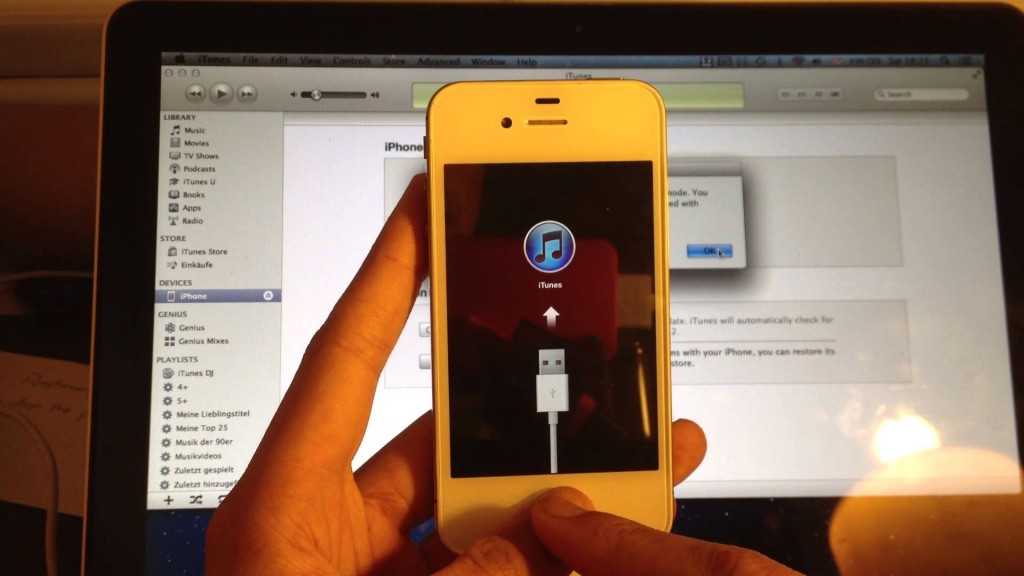
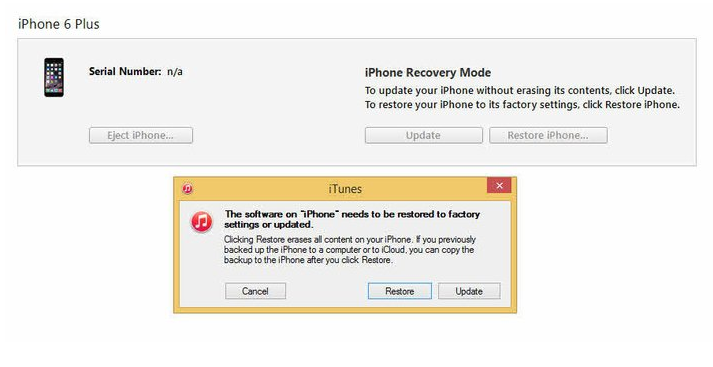
Unlock iPhone with Unresponsive Screen

Forgot iPhone Screen Lock Password – How to Unlock it

I forgot the locked screen password on my iPhone, how to unlock it without password? I need to call my client as soon as possible while the contact save on the phone. Thanks appreciated.

There are more and more people use iPhone as their mobile device and most of them set the lock screen password to protect the device and avoid leaking data for anyone. However, what if you forget the iPhone locked screen password? Generally, if you forgot the password for your iPhone, or you enter the wrong password on iPhone for six times in a row, you’ll be locked out and a message will say that your device is disabled. You can follow these steps to remove your the password on device. Firstly, please choose a way to erase your device so you can remove the password on iPhone: If you’ve synced with iTunes, use iTunes. If you can’t sync or connect with iTunes, use recovery mode.

Part 1: Remove iPhone Locked Screen with iTunes Syncing

If you’ve synced your device with iTunes, you can restore your device. This will erase the device and its password.

Step 1.Connect iPhone to the computer you synced with.
Step 2.Open iTunes. If asked for a password, try another computer you’ve synced with, or use recovery mode.
Step 3.Wait for iTunes to sync your device and make a backup.
Step 4.After the sync and backup have finished, click Restore iPhone.

Step 5.When you reach the Set Up screen while restoring your iPhone, tap Restore from iTunes backup.
Step 6.Select your device in iTunes. Look at the date and size of each backup and pick the most relevant one.

Part 2: Remove iPhone Locked Screen with Performing Recovery Mode

If you’ve never synced with iTunes or set up Find My iPhone in iCloud, you’ll need to use recovery mode to restore your device. This will erase the device and its password.

Step 1. Connect your iPhone to your computer and open iTunes. If you don’t have a computer, borrow one from a friend, or go to an Apple Retail Store or Apple Authorized Service Provider.

Step 2. While your device is connected, force restart it:

-On an iPhone X, iPhone 8, or iPhone 8 Plus: Press and quickly release the Volume Up button. Press and quickly release the Volume Down button. Then, press and hold the Side button until you see the recovery-mode screen.

-On an iPhone 7 or iPhone 7 Plus: Press and hold both the Side and Volume Down buttons at the same time. Keep holding them until you see the recovery-mode screen.

-On an iPhone 6s and earlier, iPad, or iPod touch: Press and hold both the Home and the Top (or Side) buttons at the same time. Keep holding them until you see the recovery-mode screen.

Fix iPhone Stuck in Recovery Mode

Step 3. When you see the option to Restore or Update, choose Restore.

get iphone out of recovery mode via itunes

iTunes will download software for your device. If it takes more than 15 minutes, your device will exit recovery mode and you’ll need to repeat steps 2 and 3.

Step 4. Wait for the process to finish. Then you can set up and use your device.

Part 3: Remove iPhone Locked Screen with Locked Screen Removal

The third way we want to suggest you to try is the iOS ToolkitLocked Screen Removal. It is specially design for bypassing locked screen password on iPhone, you can use it to remove iPhone locked screen without password when you forgot password or your iPhone is disabled. When the password is removed, you can reset your device freely. What’s more, remove iPhone locked screen with Locked Screen Removal will not damage any data on your device. Locked Screen Removal compatible with all iPhone models and iOS system, like iPhone X/8 and iOS 11.

d_win d_mac

Step 1. Run Program and Connect Locked iPhone to the Computer
Run iOS Toolkit – Locked Screen Removal on the computer and select “Unlock” among all the tools.

ios locked screen removal

Connect your locked iPhone to the computer using a USB cable. Then click “Start” on the program.

connect locked iphone to pc

Step 2. Enter iPhone into the DFU Mode
Follow the instruction on program to boot iPhone into DFU mode.

-Power off the locked iPhone.
-Press and hold the Volume Down button and the Power button together for 10 seconds.
-Release the Power button and keep holding the Volume Down button until the device is in DFU mode.

enter locked iphone into the dfu mode

Step 3. Confirm the Information of iPhone
Once the device is in DFU mode, the program will display the information of device, such as phone generation, iOS version, etc,. If the information is not correct, you can select the correct information from the dropdown lists. Then click “Download” to download the firmware for your device.

select the information of locked iphone

Step 4. Unlock iPhone Locked Screen without Data Loss
When the firmware is downloaded successfully, click “Unlock Now” to begin unlock your iPhone without password.

confirm to unlock iphone

Only a few seconds later, your iPhone will be unlocked successfully.

unlock iphone without data loss

d_win d_mac

Related Articles:

Unlock iPhone Passcode when Forgot iPhone Screen Lock Passcode

How to Unlock a Disabled iPhone without Data Loss

How to Extract Data on Locked iPhone

How to Restore Data on Locked iPhone

How to Recover Contacts from Locked iPhone 

How to Recover Photos from Locked/Disabled iPhone

How to Remove Forgotten Passcode from iPhone/iPad

Summary
Forgot iPhone passcode? iPhone is disalbed? Here this post will introduce some powerful iOS Unlockers and share four effective solutions to help you remove forgotten passcode from iPhone 16/15/14/13/12/11/X/XR/SE/8 and iPads without data loss.

I forgot iPhone passcode. I have try try to enter passcode many times, now my iPhone is locked out. How to remove the iPhone locked screen passcode? Please help me.

Forgot my iPhone 16 passcode, is it possible to remove forgotten iPhone password without iTunes?

I have got a second-hand iPhone 15 Pro, but I don’t know it’s password, how to remove passcode on iPhone 15 Pro? Thanks to help.

Are you aware that many iPhone users like you, forgot iPhone passcode? Don’t worry, here 4 ways to remove forgotten passcode from iPhone.

Remove iPhone Passcode

See Also:

* Recover Lost Data from iPhone after Factory Reset

* How to Back Up and Restore Your iPhone Data

  • When you forgotten the passcode of iPhone, you need to access your iPhone urgently.
  • Searching for ways to regain your passcode when your spouse or friend have changed your iPhone passcode.
  • Found a missing iPhone, and you want to know the rightful owner in order to return it to him or her.
  • Trying to access your device in order to wipe it clean before giving it out.
  • Needing to remove the passcode of your dearest/family/friends and access the device to check something.

When you need to remove passcode from iPhone with locked screen, most of people may try to restore device to factory reset with iTunes. It sounds work and can fix your problem. However, restore device to factory reset will wipe all data and setting on your device after bypassing the passcode on it. Actually, it is not the only way to unlock iPhone locked screen with iTunes. Another solution to unlock iPhone passcode is using a thrid-party iPhone Passcode Removal tool. In this comprehensive guide, we’ll walk you through how to wipe passcode from iPhone using some of the best professional unlocking tools on the market: iOS Toolkit, UkeySoft iOS Unlocker, and iOS Unlocker.

Part 4: Remove Passcode from iPhone via iOS Unlocker

With its clean interface and high success rate, iOS Unlocker stands out as one of the best choices to remove iPhone screen passcode without hassle. It is an easy-to-use yet powerful iOS unlocker, designed to help iPhone, iPad, and iPod Touch users handle various iOS screen lock issues. Whether is 4-digit, 6-digit, Face ID, Touch ID or even a complex alphanumeric passphrase, it empowers you to wipe/erase/remove passcode from iPhone in a few clicks. What’s more, this tool is capable of removing Screen Time, Apple ID, MDM, as well as iTunes Backup Password.

d_win d_mac
d_win d_mac

Key Features of iOS Unlocker:

  • User-Friendly Interface: Remove forgotten iPhone screen passcode without iTunes/iCloud.
  • Unlock iPhone Screen Passcode: Supports all screen lock types: 4-digit/6-digit codes, Face ID, Touch ID.
  • Bypass Disabled iPhone: Works even if your iPhone is disabled or locked after too many incorrect attempts.
  • Erase Apple ID Without Password: Easily remove Apple ID if you forget the credentials.
  • Screen Time Passcode Removal: Remove Screen Time restrictions without data loss.
  • MDM Removal Tool: Remove MDM from iPhone/iPad without password in few clicks.
  • Wide Compatibility: Supports iOS 7 to the latest iOS 18, including iPhone 16/15/14/13/SE/11/X/8 and iPads.

Note: If your can turn off Find My iPhone/iPad feature, any iOS device can be unlocked, even if you forgot the screen passcode.

How to Remove iPhone Passcode with iOS Unlocker

Here are the step-by-step instructions to erase iPhone screen passcode.

Step 1. Download and Install the iOS Unlocker
Click the Download above, to get the downloaded for your Windows or Mac.

Step 2. Select Wipe Passcode Mode
Fire up AiseeSoft iOS Unlocker, choose the “Wipe Passcode” feature on the main interface.

launch iOS Unlocker

Step 3. Connect Your iPhone
Read the instructions and use a USB cable to connect your iPhone to the computer.

connect iPhone to computer

Step 4. Confirm iPhone Information
Then, click “Start” button, and enter the 0000 code on the blank box to confirm iPhone information.

confirm iPhone information

Step 5. Start Downloading Firmware Package
Please confirm your iPhone information and start downloading firmware package for the device. During downloading process, it will take some time, please wait patiently.

Downloading Firmware Package for iPhone

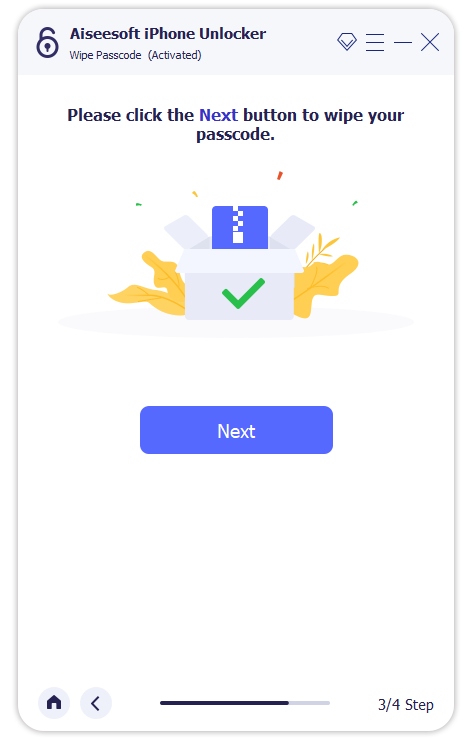
Downloading iOS firmware package completed, then clicking “Next” button.

Downloading Firmware completed

Step 6. Confirm to Unlock your iPhone
After downloading the firmware package completed, the software will pop-up a tips windows for you to confirm the action. If you really to unlock your iPhone, please enter “0000” to confirm, and click the “Unlock” button to continue.

Downloading Firmware Package for iPhone

Note:

1. All of your iPhone data will be erased after unlocking iPhone successfuly.

2. Your iPhone will be updated to the latest iOS version.

3. Make sure that “Find My iPhone/iPad” has been disabled on your device before.

Step 7. Start to Unlock your iPhone
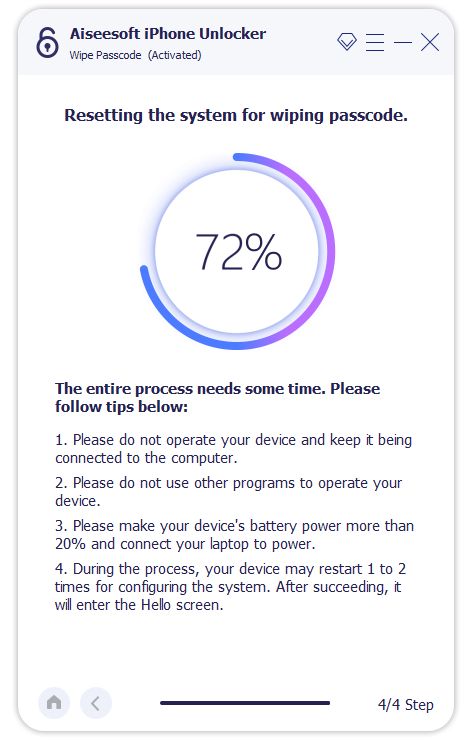
Finally, click “Unlock” button, the software start to remove forgotten passcode from iPhone. Wait for the process to complete.

unlock iPhone without passcode

Step 8. Unlock iPhone Successfully
After unlocking the iPhone device successfuly, the iPhone will automatically restart, all data and settings has been removed from the device.

Step 9. Reset a New Passcode to Access Your iPhone
Please follow instruction to set up your iPhone right now. Now, you can regain full access to your iPhone again, your device as an new one.

set up iPhone

Download the iOS Unlocker and try to unlock your iPhone now!

d_win d_mac
d_win d_mac

Method 2: Remove Forgotten Passcode from iPhone with iOS Toolkit – iOS Unlocker

iOS Toolkit – iOS Unlocker is one of the functions of iOS Toolkit, it can helps you bypass iPhone locked screen without data loss. It is possible to remove the iPhone locked screen without passcode. This iOS Toolkit – Locked Screen Removal enables you to easily remove lock screens, when you forget the passcode on your device or you just don’t know the passcode on a second-hand iPhone or iPad. You can use this program to get rid of the unknown passcode in 5 minutes. Before doing it, you need to know this: the Find My iPhone/iPad should be disabled. Then you can successfully unlock your device without restoring it to factory reset. Compatible with the latest iPhone X, iPhone 8 (Plus) and iOS 18.

d_win d_mac
d_win d_mac

How to Remove Forgotten Passcode from iPhone

Step 1. Connect your Locked iPhone to the Computer
Launch and run iOS Toolkit – Locked Screen Removal on the computer and select “Unlock” among all the tools.

ios locked screen removal

Connect your locked iPhone to the computer using a USB cable. Then click “Start” on the program.

connect locked iphone to pc

Step 2. Boot iPhone in DFU Mode
Follow the instruction on program to boot iPhone into DFU mode.

-Power off the locked iPhone.
-Press and hold the Volume Down button and the Power button together for 10 seconds.
-Release the Power button and keep holding the Volume Down button until the device is in DFU mode.

enter locked iphone into the dfu mode

Step 3. Confirm the Information of iPhone
After the device is in DFU mode, the program will display the information of device, such as phone generation, iOS version, etc,. If the information is not correct, you can select the correct information from the dropdown lists. Then click “Download” to download the firmware for your device.

select the information of locked iphone

Step 4. Unlock iPhone Locked Screen without Data Loss
When the firmware is downloaded successfully, click “Unlock Now” to start unlock your iPhone without passcode.

confirm to unlock iphone

Your iPhone will be unlocked successfully in just a few seconds.

unlock iphone without data loss

Method 3: Remove Forgotten Passcode from iPhone with UkeySoft Unlocker

Forgot your Apple ID password? Forgot your iPhone screen passcode? How to unlock your Apple ID without password? We will introduce a more powerful iPhone unlock tool and Apple ID unlock tool in this part.

UkeySoft Unlocker not only can help you unlock iPhone if you forgot the passcode or don’t know the second-hand phone’s passcode, but also can help you remove Apple ID from all activated iPhone or iPad. Using the professional iPhone unlock tool, you don’t need learn special tech knowledge then you can unlock your iPhone/iPad.

Key Features:

  • Unlock Apple ID on iPhone/iPad without Password
  • Remove iPhone/iPad Screen Passwords without iTunes
  • Unlock a Disabled iPhone/iPad without iTunes or iCloud
  • Remove 4-digit/6-digit passcode, Touch ID & Face ID from iPhone/iPad
  • Fully Compatible with the latest iOS 26/18 and iPhone 16

How to Unlock iPhone with Passcode

Step 1. Launch iPhone Unlock tool on computer, and select “Unlock Screen Passcode”, then connect your iPhone to the computer via USB cable.

remove iphone passcode

Step 2. Put iPhone into recovery mode or DFU mode.

recover mode

Step 3. Download firmware packge for iPhone and re-install it to the device.

download IPSW files

Step 4. Start remove iPhone screen passcode, then your iPhone will restart with “Hello” tips screen.

unlock iPhone without password

Learn the detailed user guide: How to Remove Password and Apple ID on iPhone

Tips: If you forgot your Apple ID password? Or iCloud locked problem, UkeySoft Unlocker also can help you to bypass iCloud activation on iPhone.
Also read: How to bypass iCloud Activation on iPhone

Method 4: Remove iPhone Passcode with Restoring Factory Reset

If you backed up your iPhone to the computer, you can use this method to unlock iPhone locked screen with restoring it to factory reset by iTunes.

Step 1. Connect the locked iPhone to the computer.
Step 2. Choose the iPhone in the iTunes siderbar and click the tab of “Summary”.
Step 3. Click the “Check for Update”, then click “Restore” button.

Only three steps, you have finished iPhone to factory reset by iTunes. Note: This way will erase all data and settings on your device, if you don’t want to clean your device you could try the solution following.

The Bottom Line

If you forgot iPhone screen passcode or your iPhone is disabled, don’t worry. With tools like AiseeSoft iOS Unlocker, Dr.Fone iOS Toolkit, and UkeySoft iOS Unlocker, you can quickly remove passcode from iPhone, wipe passcode from iPhone, or erase iPhone screen passcode in just a few clicks. Each tool provides a user-friendly interface, supports the latest iOS versions and iPhone models, and ensures a high success rate. Whether your iPhone is disabled, broken, or second-hand, these solutions make it easy to remove iPhone screen passcode and regain access to your device. Download these powerful tools and have a try!

Remove iPhone Passcode

How to Transfer Photos from Android to Huawei P10

I sell my old Android phone which used for 3 years and switched to the new Huawei P10 phone recently. How to import photos from the old Android to the new one directly? I need a simple solution. Please send me your advice. Thanks.”

Huawei is well known for its network-based products, fashion design, poweful function, especially the Huawei P10. It’s a newest model of Huawei mobile phone, it is a attractive Android device that worth to have a try. When you replace your old Android phone to the new Huawei, the first thing to do is to move existent data on your old device to the new one, especially the photos. People like to take and save photos on mobile device, to record the meaning moments. In this article, I will show you the detail steps to transfer photos between Android to Huawei P10.

Transfer Android Photos to Huawei P10

There is an transfer option out there that only needs a few clicks to transfer photos from Android to Huawei P10. The name is Phone Transfer, the best app you could use to move data from one phone to another. Phone Transfer enables to transfer 8 kind of data between two phones, including photos, videos, contacts, text messages, call logs, music, calendars, apps. What’s more, Phone Transfer works well on backing up & restoring data, wiping data before selling. All Android models are compatible with Phone Transfer, such as, Huawei, Samsung, HTC, Google Pixel, LG, Lenovo, Motorola, ZTE, and more.

d_win d_mac

How to Sync Photos from Android with Huawei P10

Step 1. Run Phone Transfer and Connect Devices
Download and install Phone Transfer program on your computer. With two USB cables, connect both the Android and the Huawei phones to the computer at the same time. And you will get the primary interface on the computer.

phone transfer home page

Step 2. Enter “Phone to Phone Transfer” Mode
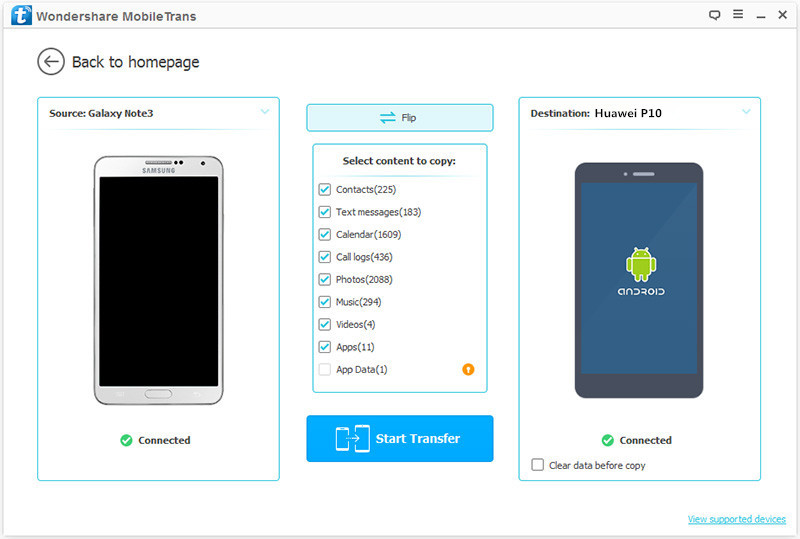
After that you will see four options are shown on the screen. Click on the first one – “Phone to Phone Transfer” mode. Then, you will see the two phones are placed side by side and get a list of all the transferable files between two devices.

enter phone transfer mode

Note: The Android should be shown on the left as the output device while Huawei should be shown on the right as the import device. You can click “Flip” to change it when the position is wrong.

Step 3. Import Photos from Android to Huawei
Select the “Photos” file to transfer. Then simply click “Start Transfer” to begin photos transfer between Android and Huawei P10.

transfer Android photos to Huawei

d_wind_mac

Related Articles:

How to Transfer Data from Android to Huawei P10

How to Transfer Data from Huawei to Huawei P10

How to Transfer Data from Samsung to Huawei P10

How to Transfer iPhone Data to Huawei P10

How to Import Videos to Huawei P10

How to Transfer iTunes Music to Huawei P10

How to Recover Lost Data from Huawei P10

How to Backup and Restore Data on Huawei P10

How to Transfer Android Data to Huawei P10

The Huawei P10 may just be the favourite phone that Huawei has ever made for most of Huawei fans. It’s the design that really struck a chord for Huawei fans, an all-metal body that mixes highly polished edges with an attractive micro-etched finish on the back. With a screen measuring 5.1 inches, the P10 is much smaller than most flagship phones. That makes it fit comfortably in people hand. It doesn’t bulge out my jeans when it’s in your pocket and you won’t need experimental surgery to extend your thumb to text one-handed.

Since the newest Huawei model attractive so many Android users, it is a popular model of Android device in 2017.Let’s assume you get a new Huawei P10 phone. After switching to the new device, you will not like to leave your favorite movies, music and even the contact of your dear friends simply. Also, you will still need the android app, and other personal data to sync on your new device. In order to get this done, you will have need for good mobile manage tool that what you need is Phone Transfer. It is such a powerful program here our strongly recommend for you to transfer Android data to Huawei P10.

Copy Android Data to Huawei P10

Thanks to Phone Transfer, you can transfer data between Android and Huawei P10 with only three clicks. The transferable types of data including contacts, text messages, photos, videos, call logs, music, calendars, apps. Phone Transfer is famous for transferring files between two phones among Android device, iOS device and Symbian device. It provides three modes to you, help to manage data for mobile device perfectly: phone to phone transfer, backup data to computer, restore data from backup, wipe data before selling. And it works for almost all Android models, such as, Samsung, HTC, Huawei, Google Pixel, LG, Lenovo, Motorola, ZTE, and so on.

d_win d_mac

How to Sync Android Data with Huawei P10

Step 1. Launch Phone Transfer on the Computer
Download and install Phone Transfer program on your computer. With two USB cables, connect both the Android and the Huawei phones to the computer at the same time. And you will get the primary interface like below.

phone transfer home page

Step 2. Enter “Phone to Phone Transfer” Mode
You will see four options are shown on the screen. Click on the first one – “Phone to Phone Transfer” mode. Then, you will see the two phones are placed side by side and get a list of all the transferable files between two devices.

enter phone transfer mode

Note: The Android should be shown on the left as the output device while Huawei should be shown on the right as the import device. If the position is wrong, you can click “Flip” to change it.

Step 3. Move Files from Android to Huawei
Select the files you want to transfer. Here, contacts, text messages, photos, videos, call logs, music, calendars, apps are available. In the last step, simply click “Start Transfer” to begin the data transfer between Android and Huawei P10.

transfer Android data to Huawei

d_win d_mac

Related Articles:

How to Transfer Data from Huawei to Huawei P10

How to Transfer Data from Samsung to Huawei P10

How to Transfer iPhone Data to Huawei P10

How to Import Videos to Huawei P10

How to Transfer iTunes Music to Huawei P10

How to Recover Lost Data from Huawei P10

How to Backup and Restore Data on Huawei P10

How to Recover Deleted WhatsApp Messages from Android

[Summary]: Accidentally deleted WhatsApp chat history, messages and attachments on your Android phones and don’t know how to recover deleted WhatsApp messages from Android devices?This article will teach you three different ways to recover deleted WhatsApp chat history with/without backups.

People Also Read:

* Recover Data from Samsung Galaxy with Broken/Black Screen

* Transfer WhatsApp Messages from iPhone to Galaxy S9/S9+

I deleted some WhatsApp messages on my Android phone,how to restore the deleted WhatsApp messages from my Samsung Galaxy S7 without backup. I need to extract the WhatsApp data from my phone? How to make it true without complicated steps? Thanks.

I deleted the WhatsApp messages on my Huawei P9 and now I am urgently need to restore it. Are there any ways to recover deleted WhatsApp messages on Huawei phone? Any Android data recovery solution can help?

My Samsung Galaxy S6 stuck in black screen,I can’t access the phone and get back all of my important WhatsApp chat history,is it possible to recover WhatsApp messages from a broken Galaxy S6?

WhatsApp is a well-known messaging app that most people use, not iOS users, but also Android users, especially Samsung Galaxy, HTC, Huawei, Google Pixel, LG, Lenovo, Motorola, ZET, Sony, and more. It provides users a convenient way to free chat with others. However, day by day, you may keep a lot of WhatsApp messages that contain important information you don’t want to lose. But sometimes you may delete some important messages from WhatsApp accidentally. If you are searching the way to recover deleted WhatsApp messages from Android, here is th way. In this tutorial, we will show you how to recover deleted WhatsApp messages from Android with only simple steps.

3 Ways to Restore Deleted WhatsApp Messages from Android

Way 1: How to Recover Deleted WhatsApp Messages from Android

The most effective way to recover deleted WhatsApp messages from Android is using an Android WhatsApp Data RecoveryAndroid Data Recovery,which can help you recover Android lost WhatsApp text messages, photos, videos and attachments. With this Android Data Recovery, you can also recover lost contacts, text messages, photos, videos, call logs, notes, WhatsApp, apps data from Android directly without backup. Not only deleted by mistake, but also other data loss cases are also supported to be recovered, like Android system update, Android system rooting, restore to factory restore, etc,. Android Data Recovery works for almost all Android models, for instance, Samsung, HTC, Huawei, Google Pixel, Nexus, LG, Lenovo, Motorola, ZTE, and so on.

d_win d_mac

Simple Steps to Recover Deleted WhatsApp Messages from Android Internal Memory

Step 1.Run Program and Connect Android to the Computer
To get started, run the Android Data Recovery program on the computer, you will see the main window below. Then please connect your Android to computer via an USB cable.

connect android to the computer

Step 2.Allow Program Connect Android on Computer
Please click “OK” on the phone and go to next step.

allow to connect android

Step 3.Select “WhatsApp” and “WhatsApp Attachments” to Restore from Android
After allowing program detect your device on computer, you’ll see this window,different types of files can be chose to be scan here.You could tick “Select all” to have all your Android data scanned.In this case,you should select “WhatsApp” and “WhatsApp Attachments” that to be scanned and then click “Next” to enter the next step.

select whatsapp files to recover

Step 4.Allow to Scan and Analyze Data on Android
You’ll get a window as follow on your device after your device is detected by the program.Tap “Allow” on your device to enable the program to scan your Android for deleted WhatsApp messages.

allow scanning android

Note:Before starting,please make sure that your phone battery is more than 20% charged.

Step 5.Scan Android for Deleted WhatsApp Data
The scanning process will take you some time. When everything is done, you will see a list of deleted files,preview them one by one before recovering deleted WhatsApp chat messages on Android.

scan android for deleted whatsapp data

Step 6.Preview and Recover Deleted WhatsApp Messages from Android
Once finishing the scanning process, a list of recoverable files that the deleted WhatsApp messages have been found from your Android will be shown.Mark the data you want and click “Recover“ under “WhatsApp” and “WhatsApp Attachments” files to restore the selected WhatsApp messages to your computer.

recover whatsapp data android

d_win d_mac

Part 2: How to Restore Deleted WhatsApp Data from Google Drive Backup

If you have back up your WhatsApp chat history with Google Drive before, you can retrieve your deleted WhatsApp data via the backup copy. Please follow the steps below:

Step 1. Uninstall the WhatsApp on your Android device.

Step 2. Reinstall it and sign in your account.

Step 3. There would be prompted with a message to restore your backup after you open the reinstalled WhatsApp. Please tap “Restore“. And the WhatsApp data will be restored automatically.

restore whatsapp messages from Google Drive

Part 3: Manually Retreive Recent Deleted WhatsApp Messages backups from SD card

If you have any backups of WhatsApp chat history, you will be able to restore chat history from your backups,because the WhatsApp backup folder may be located in either your phone’s internal memory or external memory(SD card).

Step 1.Just search Database folder in the SD card under the route of /sdcard/WhatsApp/Databases. In this folder you will see several chat files named as the format of “msgstore-YYYY-MM-DD.1.db.crypt” according to the time backups are saved.

Note: Under the instruction of manual recovery, your newest messages will be overwritten. If you want to avoid this, make a backup by the steps of WhatsApp > Menu Button > Settings > Chats and calls > Back up chats or Chat backup. Then rename the manual backup file to msgstore.db.crypt8 in case it is confusing in the processes of restoration before the restoration process.

whatsapp data sd card

Step 2.To recover WhatsApp messages,what you need to do is uninstall the WhatsApp, then reinstall the chat app again. During the installation process, you will be prompted to restore your message history. Simply tap “Restore” and the chat messages saved as “msgstore.db.crypt” is restored,after that,your old messages are restored.

Tips: Some Tips for Protect WhatsApp Data Security

1.Protect your WhatsApp Chat History and not allow be seen by others

Sometimes we feel that we should have password in WhatsApp, but unfortunately there is no default feature provided by WhatsApp to add password in the app. So, you need to dd password in WhatsApp and avoid others seeing your private information. The drawback is, anyone can see your chats if your phone or device is used by others. So the question is how we can add password in WhatsApp or how we can make WhatsApp password protected. Do not worry, this part will teach you how to added password in WhatsApp application in order to avoiding others seeing your private WhatsApp chat history on Android phone.

Follow the steps to add password in WhatsApp:

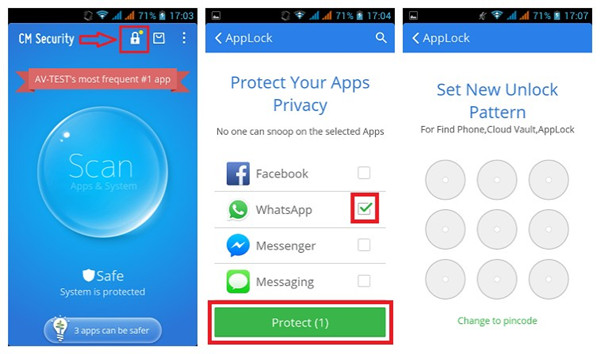
1) Go to the Google Play Store in your android device.
2) Search for the app called CM Security and install it in your android device.
3) Once installed successfully, open the app (CM Security). It might take few seconds to open.
4) Tap on the lock icon shown on the top of the screen.
5) Click on the check-box shown next to WhatsApp to select it and then click on Protect button shown at the bottom.
6) It will ask you to set the new unlock patter. Set the pattern as you like.

add password in WhatsApp

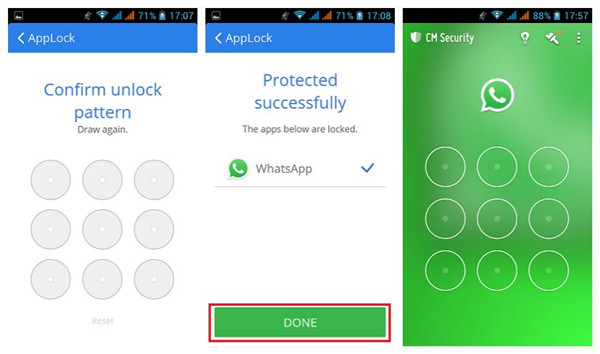
7) Again confirm the same pattern.
8) Click on Done button.
Once you click on Done button, the pattern security password will be added in WhatsApp. Whenever you will open WhatsApp it will ask you to provide the pattern password.

add password in WhatsApp app

Adding the password is not only restricted to WhatsApp but you can add password to any app available in your device by selecting the check-box shown next to the apps similarly as you selected for WhatsApp.

2.Transfer & Backup WhatsApp Messages/Photos from Android

Another method to make sure your WhatsApp chat history and other private data safely is backing up them to the computer,then making a password to protect them.

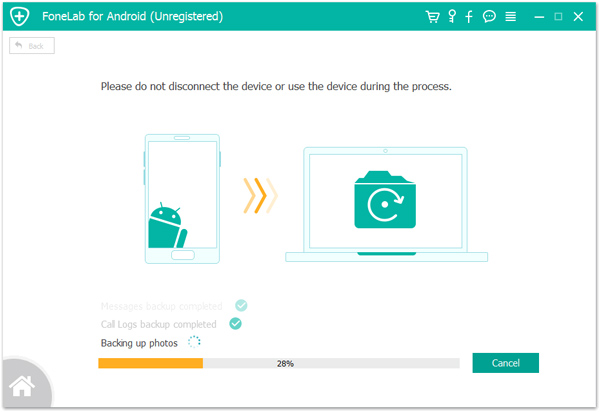
U.Fone Android Data Backup & Resotre is a remarkable desktop utility especially designed for Android users to transfer WhatsApp data from Android phone like Samsung galaxy phones, LG phones, HTC, Lenovo, Motorola to PC.Not only WhatsApp data will be backup to PC easily,but also other file types including contacts, text messages, photos, music, voice notes and other multimedia files. It is extremely easy to use and requires few simple steps to backup WhatsApp from any Android device to computer.
Here learn the guide about

* Backup and Restore Everything on Android by U.Fone Android Backup & Restore

* Backup and Restore WhatsApp Messages from Android by Android Toolkit – Data Backup & Restore

backup Android WhatsApp messages

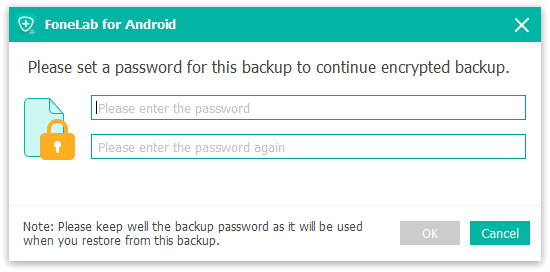
In additional,after make your Android phone backup,you can setting a password for the backups to encrypted your important data.

backup Android WhatsApp messages

Related Articles

How to Recover Deleted WhatsApp Videos Photos on Android

Backup & Restore Samsung WhatsApp History on Computer

How to Recover WhatsApp Data from Broken Samsung Android

How to Transfer WhatsApp Messages from Android to iPhone

How to Transfer WhatsApp Messages between Android

How to Backup,Restore and Transfer WhatsApp Messages

How to Recover Lost Data from Android

How to Transfer Samsung SMS to Huawei Mate 10

What issues we might encounter when transferring text messages between two Android?

Lots of people attempt to make the switch from Samsung to Huawei. In this case, it is important that all our data be conserved and transferred with ease. Unfortunately, when we switch the text messages from one device to another, it is not so smooth as we think. Here we list some situations we may meet in the transfer process:

A. Text messages can’t be transferred using Bluetooth, Wi-Fi directly, etc,.
B. Copy text messages and then send them to yourself via email, the information stored with the message like the sender, the date and time and other information are all lost.
C. While it is possible to save some messages to your SIM card and then retrieve them after placing your SIM in your new device, only a limited number of texts can be relocated in such a manner.

So how to transfer the text messages between Samsung and the Huawei Mate 10 without meeting these bad situations?How to switch the text messages between the two phones directly with a simple solution? Here is the right post for you. To import text messages from Samsung to Huawei Mate 10 with only a few clicks, Phone Transfer is the strongly recommendation for you.

Transfer SMS from Samsung to Huawei Mate 10

Phone Transfer is a convenient program for you, to transfer data between two phones which base on Android system, iOS system, Symbian system. It can save you quite a long time to switch text messages from Samsung to Huawei Mate 10 with only three steps. Except text messages, other kinds of data are also supported to be restored, including contacts, photos, videos, music, call logs, calendars and apps. Huawei(Mate 10/9), Samsung, HTC, Lenovo, Xiaomi, LG, Motorola, Google Pixel, ZTE, Nokia, and more Android models are compatible with Phone Transfer.

d_win d_mac

How to Sync Samsung SMS to Huawei Mate 10

Step 1. Launch Phone Transfer on the Computer
Download and install Phone Transfer program on your Mac or Windows computer. With two USB cables, connect both the Samsung and the Huawei phones to the computer. And you will get the primary interface like below.

phone transfer home page

Step 2. Enter “Phone to Phone Transfer” Mode
You will see three different options are shown on the screen. Click on the first one – “Phone to Phone Transfer” mode. Then, you will see the two phones are placed side by side and get a list of all the transferable files between two devices.

enter phone transfer mode

Note: Samsung should be shown on the left as the output device while Huawei should be shown on the right as the import device. If the position is wrong, you can click “Flip” to change it.

Step 3. Move SMS from Samsung to Huawei
Select the files you want to transfer. In this case, you will need to check the SMS option and then tick the “Text messages” file that you need. Once you are done with your selection, click on the direction key “Start Transfer” to begin the SMS transfer.

transfer Samsung sms to Huawei

So there you have it, a great way to make sure your text messages have been transferred to Huawei from Samsung securely.

d_win d_mac

More Guides about Huawei Mate 10 you can Check:

How to Transfer Samsung Data to Huawei Mate 10

How to Transfer iPhone Data to Huawei Mate 10

How to Transfer Android Data to Huawei Mate 10

How to Recover Deleted Data from Huawei Mate 10

How to Import Music/Videos to Huawei Mate 10

How to Transfer iTunes Music to Huawei Mate 10

How to Backup and Restore Huawei Mate 10 

How to Manage Huawei Mate 9/Mate 10 on Computer

How to Transfer iPhone SMS to Huawei Mate 10

I am discontinuing use of my iPhone 6 and have purchased a Huawei Mate 10. How do I transfer the text messages from iPhone to the new Android? Is there a no cost too much time way?

Switching from iPhone to Android? You have purchased a new Huawei phone and now planning to switch your platform from iOS to Android? Or just want to transfer SMS from iPhone to Huawei? For most of people, transfer files between two phones base on different system is a trouble job. In general, it is a tricky problem in the past day. However, you can switch files between two devices even when it run on different OS system just like a piece of cake if you get help of some professional data manager program, the Phone Transfer particularly. Let me do sum up and show you the features of Phone Transfer.

Copy SMS from iPhone to Huawei Mate 10

Phone Transfer is the tool for the purpose of transfer files between two phones no matter it run on the same OS system or not, it help to copy SMS from iPhone to Huawei Mate 10 with simple clicks. Text messages, contacts, photos, videos, music, call logs, calendars and apps are supported to be transferred at a single click. Phone Transfer can not only enables to transfer files between mobile devices, but also allows to backup & restore data, wipe data before selling. What’s more powerful, Phone Transfer works well on almost all mobile phones, including iPhone(X/8/7/6S/6/5S/5), Huawei(Mate 10/9), HTC, Lenovo, Xiaomi, LG, Motorola, Google Pixel, ZTE, Nokia, etc,.

d_win d_mac

How to Import SMS from iPhone to Huawei Mate 10

Step 1. Launch Phone Transfer on PC
Firstly, run the Phone Transfer on PC. By clicking “Phone to Phone Transfer” option, you can go to the data transfer window.

phone transfer home page

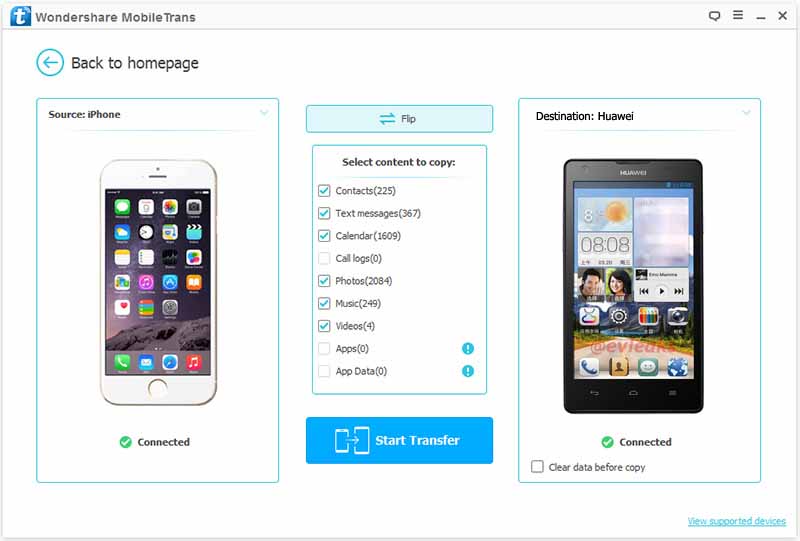
Step 2. Connect both of iPhone and Huawei Devices to PC
Next, connect your iPhone and Huawei phone to PC. The program will detect and scan the contents in your iPhone. Then all the contents will display in the interface.

connect devices to pc

Note: iPhone should be shown on the left as the output device while Huawei should be shown on the right as the import device. If the position is wrong, you can click “Flip” to change it.

Step 3. Transfer SMS from iPhone to Huawei
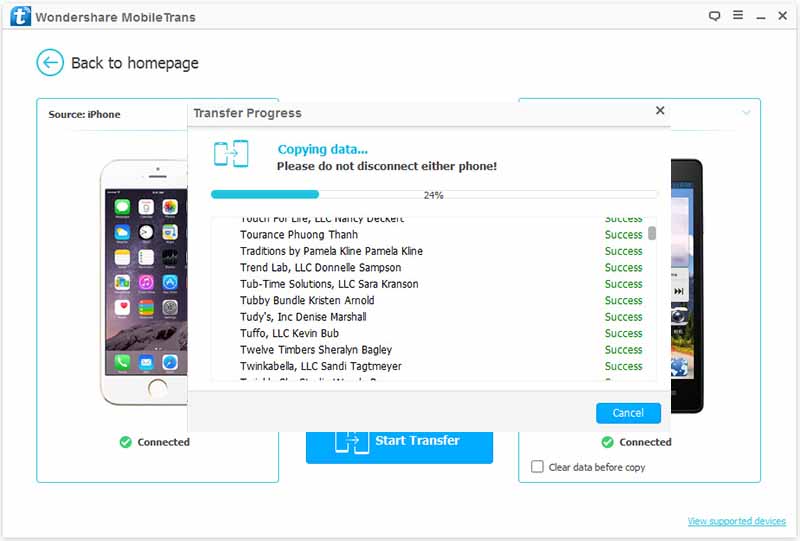
Here you can selectively click “Text messages” and click “Start Transfer” to initiate the process of transferring SMS from iPhone to Huawei with one click.

transfer iPhone sms to Huawei

d_win d_mac

More Guides about Huawei Mate 10 you may be Like:

How to Transfer iPhone Data to Huawei Mate 10

How to Transfer Samsung Data to Huawei Mate 10

How to Transfer Android Data to Huawei Mate 10

How to Recover Deleted Data from Huawei Mate 10

How to Import Music/Videos to Huawei Mate 10

How to Transfer iTunes Music to Huawei Mate 10

How to Backup and Restore Huawei Mate 10 

How to Manage Huawei Mate 9/Mate 10 on Computer

Recover Deleted WhatsApp Messages from Samsung Galaxy Note 8

I got a new Galaxy Note 8 phone and last night I deleted some WhatsApp messages by accident, the deleted data contains some information that related to my client. So are there any way to recover the deleted data on my phone directly?

Have you ever lost data on your Android device? “How can I recover deleted WhatsApp data from Samsung Galaxy Note 8?” We can find many similar questions like this on the Internet. There are many causes of data loss in our daily life accidentally. Maybe you deleted it by mistake, or your device was stolen, or you have bought a new device and would like to have data from your old Android device transferred to the new device but fail, and even many others. And we can get so many different answer on the Internet also. To be honest, not all of them are work for you. To restore deleted WhatsApp messages from Samsung Galaxy Note 8 with a reliable solution, here is our strongly recommendation – Android Data Recovery.

Restore Deleted WhatsApp Data from Samsung Galaxy Note 8

Android Data Recovery is an ideal option to recover deleted WhatsApp messages from Samsung Galaxy Note 8. Not only WhatsApp messages, but also photos, videos, and attachments are allowed to be restored. Android Data Recovery enables to recover deleted Android data for several kinds like contacts, text messages, photos, videos, call logs, apps data and more. It can be used to restore data on Android directly under any circumstances, including deleted by mistake, Android system update, Android system rooting, factory reset restoring, device get damaged, etc,. Android Data Recovery works on almost all Android models, such as, Samsung(Note 8/5/4/3, Galaxy S8/S7/S6/S5), Huawei, HTC, Lenovo, Motorola, Google Pixel, ZTE, Xiaomi, LG.

d_win d_mac

Retrieve Deleted WhatsApp Messages from Samsung Galaxy Note 8

Step 1.Run Porgram and Connect Samsung to Computer
After you installing and running the Android Data Recovery program on the computer, you will see the main window below. Then please connect your Galaxy Note 8 to computer via USB cable.

connect samsung with computer

Step 2.Allow Program Detect Samsung on Computer
Please click “OK” on the phone to allow the program detect your phone and go on.

allow to continue connect samsung

Step 3.Select “WhatsApp” and “WhatsApp attachments” to Restore
After allowing program detect your device on computer, you’ll see this window,different types of files can be chose to be scan here.You could tick “Select all” to have all your Galaxy data scanned.In this case,you should select “WhatsApp” and “WhatsApp Attachments” files that to be scanned and then click “Next” to enter the next step.

select whatsapp file to recover

Step 4.Allow to Scan and Analyze Data on Samsung
You’ll get a window as follow on your device after your device is detected by the program.Tap “Allow” on your device to enable the program to scan your Galaxy Note 8 for deleted WhatsApp data.

allow scan the samsung

Note:Please make sure that your phone battery is more than 20% charged.

Step 5.Scan Samsung for Deleted WhatsApp Data
The scanning process will take some time due to your request. When everything is done, you will see a list of deleted files,preview them one by one before getting back the deleted WhatsApp chat history.

scan samsung for deleted whatsapp data

Step 6.Preview and Recover Deleted WhatsApp Messages from Samsung
After finishing the scanning process, a list of recoverable files that the lost WhatsApp data have been found from your Samsung will be shown.Mark those you want and click “Recover“ to restore the selected WhatsApp data on the computer.

recover whatsapp samsung galaxy note 8

d_win d_mac

Related Articles:

How to Backup & Restore WhatsApp Messages on Samsung

How to Transfer iPhone WhatsApp History to Samsung Galaxy

How to Recover Deleted Data from Samsung Galaxy Note 8

How to Manage Samsung Galaxy S6/S5/S4/S3/Note 8 on the Computer

How to Transfer Data from iPhone to Samsung Galaxy Note 8

How to Transfer Android SMS to Huawei Mate 10

Can I ask that how to transfer the SMS from my old Android to the Huawei Mate 10 with the most efficient method? I need to sync the SMS on my new phone, I don’t want to lose the important information while I upgrading to a new device.”

Huawei revealed its latest flagship smartphones for 2017 with two of the most powerful devices in its history: the Mate 10 and Mate 10 Pro (as well as an exclusive version of the Pro model, called Mate 10 Porsche Design). The Huawei Mate 10 comes with a 5.9-inch QHD (1440 x 2560 pixels) IPS display and a 16:9 screen ratio, while the Huawei Mate 10 Pro has a 6-inch AMOLED screen with a trendy screen ratio of 18:9 (actually 2:1), as well as a reduced resolution of 1080 x 2160 pixels.

When you get a new Android phone like Huawei Mate 10 with a larger screen, higher configuration, latest operating system and refined design, you may need to transfer old data from your old device to it, for example, text message. Since some text messages may contain important information such as important notes, family memories, picture attachments, classic blessing messages, etc. It means a lot to most to people. So how to make it without complicated steps? In this article, we will show you an easy method to transfer SMS from Android to Huawei Mate 10.

Transfer SMS from Android to Huawei Mate 10

To transfer SMS from Android to Huawei Mate 10, Phone Transfer is highly recommended. It is a simple-to-use tool that allows you transfer SMS from Android to Huawei Mate 10 within a few clicks. More than a SMS transfer tool, it also enables to transfer contacts, photos, videos, call logs, music, calendars, and apps between two mobile phones based on Android system, iOS system and Symbian system. What’s more can Phone Transfer do for you, backup & restore data, wipe data before selling phone. Phone Transfer works well on all phone models, including Huawei(Mate 10(Pro)/Mate 9, P10/P9), Samsung(Galaxy S7/S6/S5), HTC, Lenovo, Motorola, Google Pixel, ZTE, Xiaomi, LG, etc,.

d_win d_mac

How to Sync Android SMS to Huawei Mate 10

Step 1.Run Program on the Computer and Select the Transfer Mode
First of all, please run Phone Transfer on the computer.Then a primary window of this program will pop up. Select “Phone to Phone Transfer” mode to transfer SMS from Android to Huawei Mate 10.

phone transfer home page

Step 2.Connect Devices to the Computer and Select Files to Transfer
Then connect both your Android and the Huawei to the computer with two USB cables.Once connected,the Android will be shown as “Source” on the left while the Huawei will be displayed as “Destination” on the right.

Unclick the files you don’t need to transfer since some items be ticked by default except the “Text messages” file.

select sms file to transfer

If you need to switch the position of them, click the “Flip” button.

Step 3.Transfer SMS from Android to Huawei Mate 10
In the last step, click “Start Transfer” to begin the data transferring process.Once the data from Android to Huawei transfer process is complete,just click “OK” to end it.

import Android sms to Huawei

d_win d_mac

More Guides about Huawei Mate 10 you may be Like:

How to Transfer Android Contacts to Huawei Mate 10

How to Transfer Android Photos to Huawei Mate 10

How to Transfer Android Data to Huawei Mate 10

How to Transfer iPhone Data to Huawei Mate 10

How to Transfer Samsung Data to Huawei Mate 10

How to Recover Deleted Data from Huawei Mate 10

How to Import Music/Videos to Huawei Mate 10

How to Transfer iTunes Music to Huawei Mate 10

How to Backup and Restore Huawei Mate 10 

How to Manage Huawei Mate 9/Mate 10 on Computer