All posts by DHZ

How to Export Viber Messages from iPhone to Computer

I wanna export the viber messages from my iPhone 6S to the computer for backup,how to perform it?I just need some simple ways.Thanks a lot.”-Derek
backing up viber messages computer

Viber is social chat app as WeChat and WhatsApp.People like to chat with others via Viber on line.Generally, there are a lots of reasons as to why someone need to have their Viber messages backed up. You may want to keep the important conversations related to personal or work of some kind. You may have exchanged crucial information with someone.You should backup Viber from iPhone on a regular basis to avoid data loss.Especially when you are going to make drastic changes on the phone, like deleting apps,sync iPhone, iOS system update, switch phone or more.

Export Viber Messages from iPhone to Computer

iPhone Data Exporter offer an easy solution for you,which help to export Viber messages from iPhone to computer selectively.Transfer not only Viber messages, but also Viber attachments(photos,videos).In conclude,iPhone Data Exporter empower to export/extract/transfer data from iPhone/iTunes/iCloud to computer with few clicks,such as,contacts,SMS,photos,video,note,calendar,reminder,apps data(Viber,WeChat,Skype,Kik,Line,Skype) and more.Moreover,this powerful program allow to preview data before exporting.


d_win d_mac

How to Extract Viber Messages from iPhone to Computer

Step 1.Select the File Types to Export
First of all,download iPhone Data Exporter and launch it on computer.From the “Export from iOS Device” tab, click “Start” to proceed.
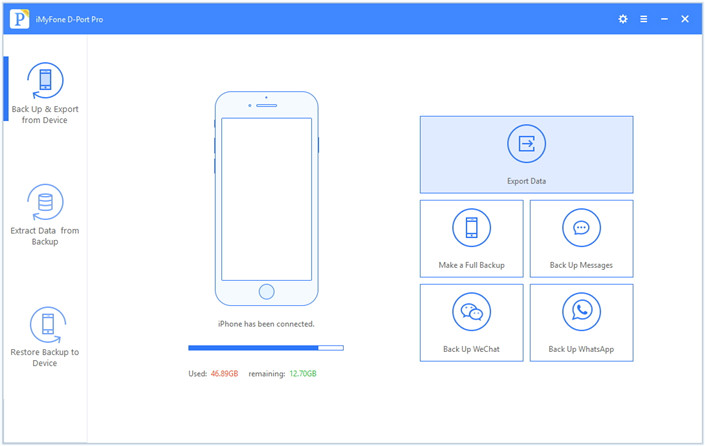
export iphone data option

Select the file types you need to export and click on “Next“.The iPhone Data Exporter will ask to connect your iPhone to the computer.
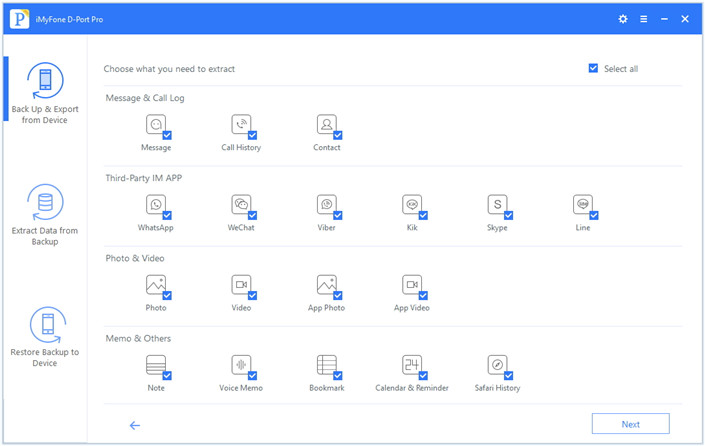
select file to scan

Step 2.Scan iPhone Data Completely
Once your device is connected, click “Scan” button and then the program will scan your device.
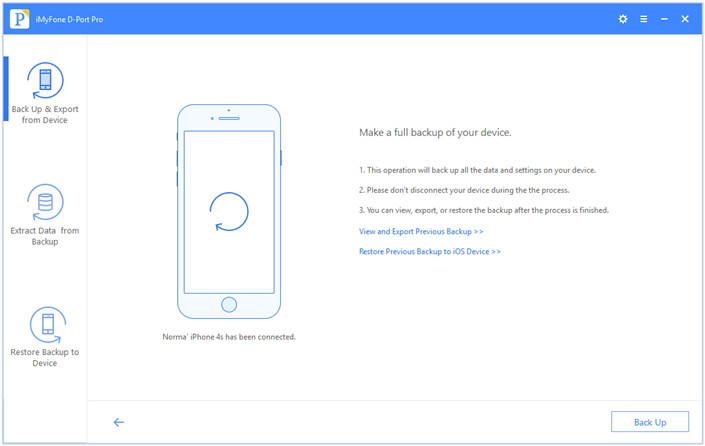
scan iphone data

Step 3.Preview and Export Viber Data from iPhone
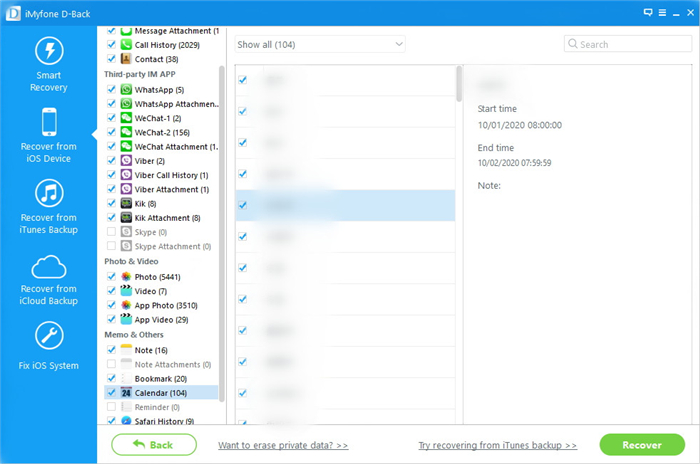
Once the program finishes scanning the device,it will display all the viber messages and attachments in the preview interface of program.You can preview the content and select what you need.Then click “Export” to extrat the selected data to your computer.
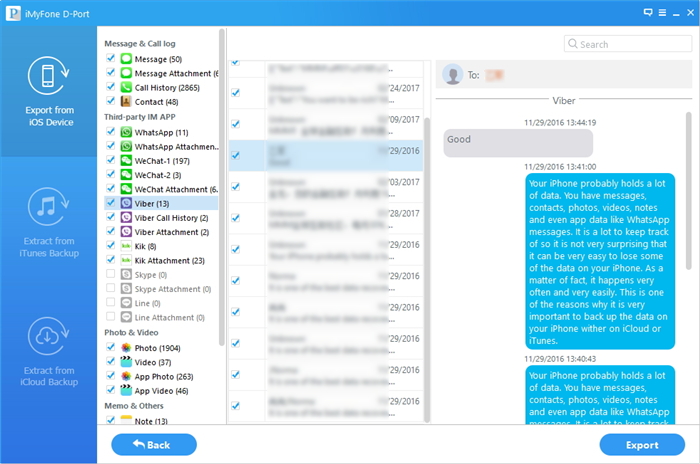
preview iphone viber data

Step 4.Select Destination to Save the Transferred Data
A pop-up window will open asking you to select the destination to save the Viber files. Wait until the program finishes exporting from your iPhone to PC/Mac.

d_win d_mac

Related Article:

How to Backup and Restore iOS Viber Messages

How to Extract Data from iTunes to Computer

How to Export Files from iPhone 7/6S/6 to Computer

2 Ways to Backup and Restore iPhone Data on PC/Mac
How to Backup and Restore Data from iPhone 7/6S/6/SE

How to Manage iPhone 7 on Computer

How to Export Kik Messages from iPhone to PC

I used to talk with my boyfriend via Kik app.His birthday is coming.I want to copy and print the Kik chat messages as the birthday for him.Any ways to export Kik messages from my iPhone 7 to the PC?Thanks a lot.” -Gavin

What’s your most used chat app tool on mobile phone?WeChat/Viber/Skype?For me,the Kik app.Kik is a popular messages tool for Android/iOS device. It allows to send text/photos/videos for each others.Kik has owned a large amount of users all around the world,people use it for entertainment,for work.Kik is more convenient and intelligent, and it is a totally free service.Regardless of what the reasons,extracting Kik data from iPhone to computer is advisable for everyone.How to export Kik chat history from iPhone to PC for keeping data or backing up data?

Export Kik Messages from iPhone to PC

iPhone Data Exporter is aim for exporting data from iPhone/iTunes/iCloud to computer efficiently.More than 20 kinds of iPhone files are supported to export,including contacts,SMS,photos,video,note,calendar,reminder,apps data(WeChat,Skype,Viber,Kik,Line,Skype) and more.With the help of iPhone Data Exporter,you are allow to export Kik messages from iPhone to PC with easy steps(text/photos,videos).Moreover,iPhone Data Exporter enables to retrieves Kik messages from iPhone using four different retrieval technologies;gives you the review of the messages extractable from the Kik app.

d_win d_mac

How to Directly Export Kik Messages from iPhone to PC

Step 1.Select the File Types to Export
Firstly,download iPhone Data Exporter and launch it on computer.From the “Export from iOS Device” tab, click “Start” to proceed.

export iphone data option

Select the file types you need to export and click on “Next“.The iPhone Data Exporter will ask to connect your iPhone to the computer.

select file to scan

Step 2.Scan iPhone Data Completely
Once your device is connected, click “Scan” button and then the program will scan your device.

scan iphone data

Generally the scan will last for a while and the time depends on the storage of your device.

Step 3.Preview and Export iPhone Kik to PC
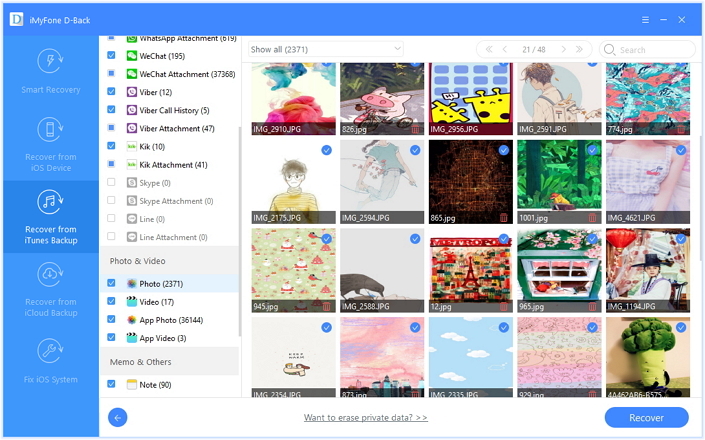
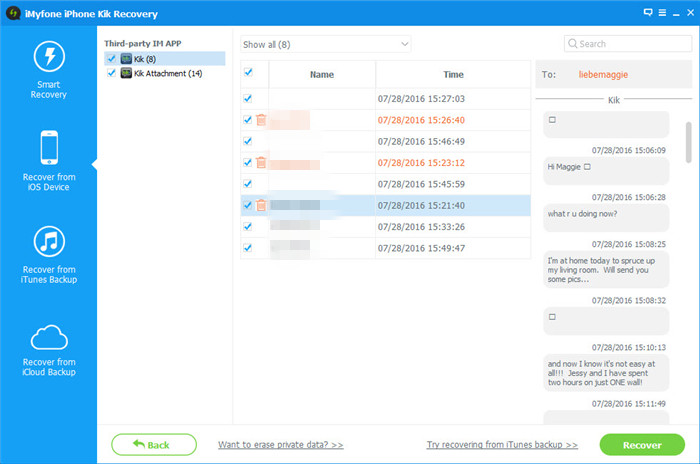
The program will display the Kik messages on the new window. It will also show you the files present on the device as well as the ones deleted or lost. You can further choose to see only the deleted files by selecting “Show deleted files only” option. You can pick the conversations that you want to extract to the computer by marking the checkboxes.Press the “Recover” switch at the bottom of the screen.

export iphone kik to computer

A new window opens up asking you to choose the folder where you like to save the messages. Navigate to a current folder or create a new one, and allow the program to complete the process.

d_win d_mac

Related Article:

How to Backup and Restore Kik Messages on iPhone

How to Extract Data from iTunes to Computer

How to Export Files from iPhone 7/6S/6 to Computer

2 Ways to Backup and Restore iPhone Data on PC/Mac
How to Backup and Restore Data from iPhone 7/6S/6/SE

How to Manage iPhone 7 on Computer

How to Extract Data from iTunes to Computer

Help.I try to export the iTunes data to my computer but failed.It can’t read the important data in iTunes backup as usual.How to transfer the data from iTunes to my new PC smoothly?THX.”-Kayden

It’s exciting to get a new computer,however,you may need to export the files to your new device,for example the iTunes data,songs,videos,etc,.Move data from your iTunes library to a computer so that you can play your media on and sync your iOS devices with the new computer,or for backup.Most of iOS users synced pretty large of data with iTunes,which can make trying to transfer iTunes files to a computer complicated.Fortunately,exporting data from iTunes to computer will become more and more simple after you reading this tutorial.

Extract Data from iTunes to Computer

iPhone Data Exporter is the ideal tool help for exporting data from iPhone/iTunes/iCloud to computer selectively.With iPhone Data Exporter,you can extract data from iTunes to computer easily,more than 20 types of files are included,such as,contacts,SMS,photos,video,note,calendar,reminder,apps data(WeChat,Skype,Viber,Kik,Line,Skype),etc,.iPhone Data Exporter allows to view and extract unreadable iTunes/iCloud backup,check iTunes backup without restoring it to iOS devices.In addition,this program empowers to access iCloud data on your computer anytime,
extract only the desired data you need instead of the whole backup.

d_win d_mac

How to Export Data from iTunes to Computer

Step 1.Select File Types to Extract
Run program on computer.From “Extract from iTunes Backup” tab to check all the file types you need to extract from the iTunes backup. And then click “Next” to find all the iTunes backups on the computer.

extract itunes data mode

Step 2.Scan iTunes Backup to Search Data
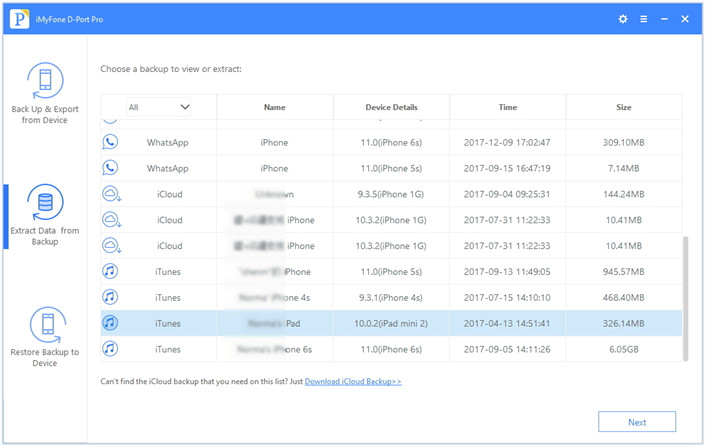
Check the details of iTunes backups and choose the backup from which you want to extract data. Continue the process by clicking on the “Scan” button.

select itunes data to scan

The program will scan the chose backup and it will need a little time to finish.

extract itunes backup file

Step 3.Preview and Extract Data from iTunes Backup
Just wait for the scanning process finish and then all the data in backup will be listed on the preview window.

preview and extract data from itunes

Check what you need to extract and click on “Export” to choose the location on next pop-up.

d_win d_mac

Related Article:

How to Extract iPhone Data from iTunes/iCloud Backup

How to Extract Photos Only from iTunes Backup File

How to Export Files from iPhone 7/6S/6 to Computer

2 Ways to Backup and Restore iPhone Data on PC/Mac
How to Backup and Restore Data from iPhone 7/6S/6/SE

How to Manage iPhone 7 on Computer

How to Transfer Files from iPhone Xs/X/8/7/6S/6 to Computer

[Summary]: This article tells you how to transfer files including photos, SMS, music, video, contacts, notes, WhasApp, Viber, Kik, Skype, Line, Wechat, and more from iPhone to PC and Mac easily and accurately without itunes, you can also backup everything from iPhone XR/Xs(Max)/X/iPhone 8/7/6S/6(Plus) to iTunes or iCloud safely.

transfer iphone files to pc

I am intend to export the personal data from my iPhone 7 to the computer for backup.The data is insist of contacts,SMS,music files, pictures, videos,and so on.“-Joy

There are lots of important WhatsApp messages on my new iPhone X,how to backup WhatsApp chat history from iPhone X to computer?” –Steven

Exporting iPhone data to computer for a backup is the most necessary choice of most iPhone users.So,how to make it true? Moving data into the computer gives a secure way of saving data that we can access it even when we lose our iPhone.As we all know that you can back up your iPhone data via iTunes on computer, however, the data in iTunes backup is inaccessible and it is unselective.Here we will introduce the best way for you to export/transfer/backup iPhone data to Mac/PC with easy steps.

Three Excellent iPhone Transfer/Backup Software

iOS Transfer, MobileSync and iPhone Data Exporter, both is an useful iOS bacup and transfer tool that provides you different ways to transfer files from PC to iPhone, including more than 20 types of files,such as,contacts,SMS,photos,video,note,calendar,reminder,apps data(WeChat,Skype,Viber,Kik,Line,Skype) and more. What’s more,iPhone Data Exporter enables to backup data from iPhone/iTunes/iCloud to PC/Mac,check and use the transferred iPhone data on your computer,preview data before transferring to get exactly what you need.

d_win d_mac

Full Features of iPhone Data Exporter:
-Export data from iPhone/iPad/iPod touch to computer
-View and extract data from iTunes backup to computer
-View and download data from iCloud backup to computer
-Backup and restore the whole data or specific data such as WhatsApp, Kik, Viber, WeChat, Line without iTunes or iCloud (coming soon)
-Export Everything from iPhone X/Xs(Max)/XR, iPhone 8/7/6S/6/SE/5S/5/4 to computer

How to Export Everything from iPhone to Computer

Step 1.Select the File Types to Export
First of all,download iPhone Data Exporter and launch it on computer.From the “Export from iOS Device” tab, click “Start” to proceed.

export iphone data option

Select the file types you need to export and click on “Next“.The iPhone Data Exporter will ask to connect your iPhone to the computer.

select file to scan

Step 2.Scan iPhone Data Completely
Once your device is connected, click “Scan” button and then the program will scan your device.

scan iphone data

Generally the scan will last for a while and the time depends on the storage of your device.

Step 3.Preview and Export Data from iPhone
Once the scan is complete, the data available will be displayed on the interface of program. You can check the specific files by clicking different tabs.After selecting the desired files, just click on the “Export” button at the bottom right corner to export the selected data to your computer.

preview and export iphone data

A popup window will appear asking you to select where you want to store the selected data on your computer.

select position to save iphone data

d_win d_mac

Related Article:

How to Export iPhone/iPad Data to Computer

2 Ways to Backup and Restore iPhone Data on PC/Mac
How to Backup and Restore Data from iPhone 7/6S/6/SE

How to Manage iPhone 7 on Computer

How to Unlock Android with Broken Screen

[Summary]: Your Android phone touch screen is broken/damaged and you can’t enter password to assess it? This article teach you two ways to unlock a broken screen Android phone, you can unlock broken screen Android phone by OTG Adapter or Android Unlock tool.

As great as Android devices are,almost all of them are fragile in the place you need most, the screen. Even with a great case, your screen can crack, break, and sometimes stop working just for unknown reasons. In some cases, you can replace the screen, but that’s not always easy to do, and it can worsen the problem if you aren’t careful.

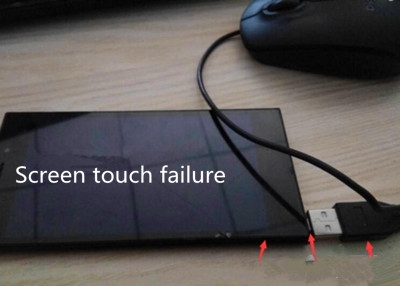
What if you want to unlock your Android phone to with broken screen? Well if your touch screen is cracked, dead, or generally unresponsive; that’s not going to work. Depending on your settings, remove the Android with broken screen isn’t possible while your phone is locked in normal way.This page is going to show you two simple ways to unlock Android phone with broken screen.

Way 1: Unlock Android Phone with Broken Screen by OTG Adapter

Tools:
Android phone (the screen can be displayed)
OTG adapter
Mouse

unlock android broken screen

Step 1.Charging full for you Android.Low battery power may lead to the operation is not smooth.

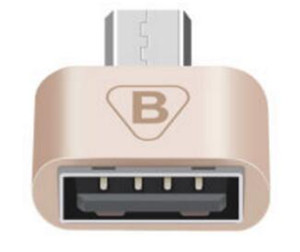
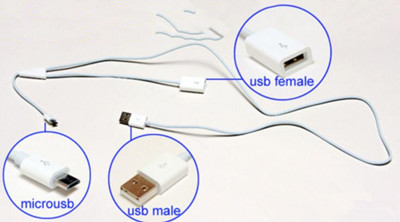
Step 2.Prepare material OTG data cable or adapter, there are sell online.

(Note that the difference of mobile phone charging interface,especially the USB type, there are three kinds of mainstream USB, Micro-USB is now the mainstream use of Android, is not plug the pros and cons; flat trapezoid, Lightning is Apple’s proprietary; Type-C is flat, can be both positive and negative plug. So do not buy the wrong one which is not suitable for your Android.)

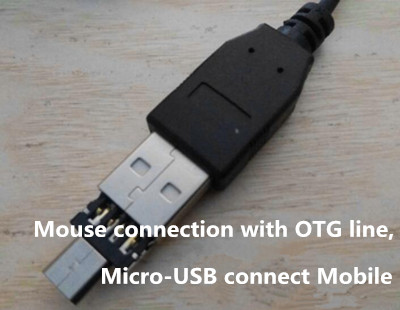
Step 3.Connect the mouse USB to the OTG.The following reference picture is that OTG adapter,different OTG the adapter of it is not the same, but the same function.

OTG adapter - unlock samsung phone with broken screen

Step 4.Connect the little head of OTG to the charging port of your Android.

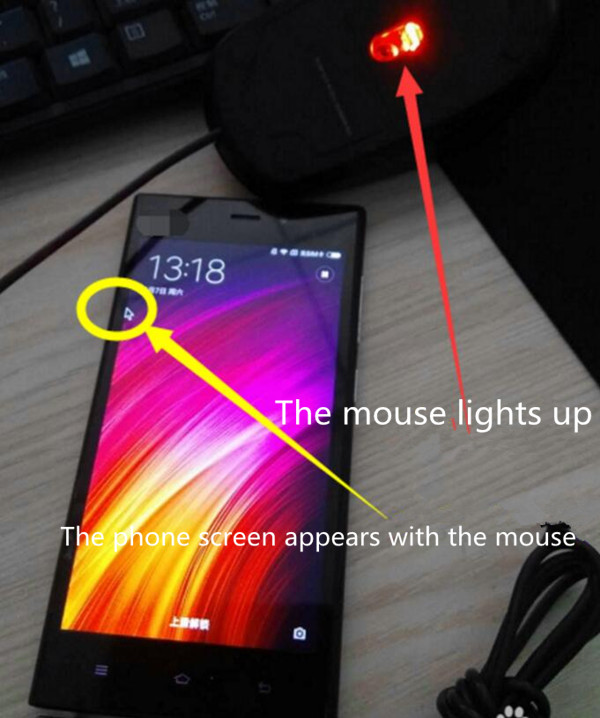
When the mouse light, slide the mouse, the mouse button appears on the phone screen, you can use it freely.

unlock broken screen android phone

Step 5.Click the left button of mouse is a simple click function, you can also press the left button to drag, imagine the use of fingers. Right button of mouse is the return function. Slide to unlock it, press the left button of mouse,which is the first unlock pattern, don’t release the mouse button to unlock the slide pattern until it is completed.

unlock broken screen android

If the three function keys of the mobile phone are broken down,you can see if the phone has a touch ball function, you can generally simulate the home page HOME, return, menu and other functions. Or download other Android suspended menu tools.

OTG data cable

If the computer is required to connect the backup file, connect the computer can not touch, so the data line is modified, the risk coefficient is relatively high, generally only for specific types of customization,avoid burning equipment!

Note:
1.OTG connect to the mouse is safe always.
2.But it is at risk when the OTG connect to the mouse and charging the computer at the same time!

Extra Part:

Way 2: Unlock Broken Screen Android Phone with Android Unlock Tool

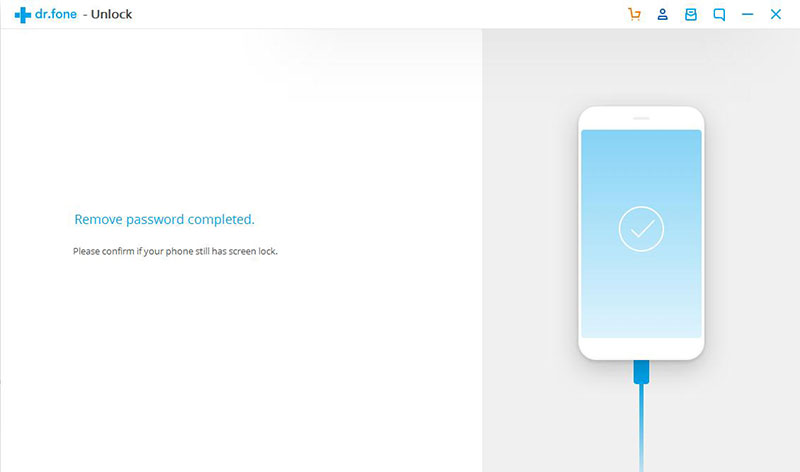
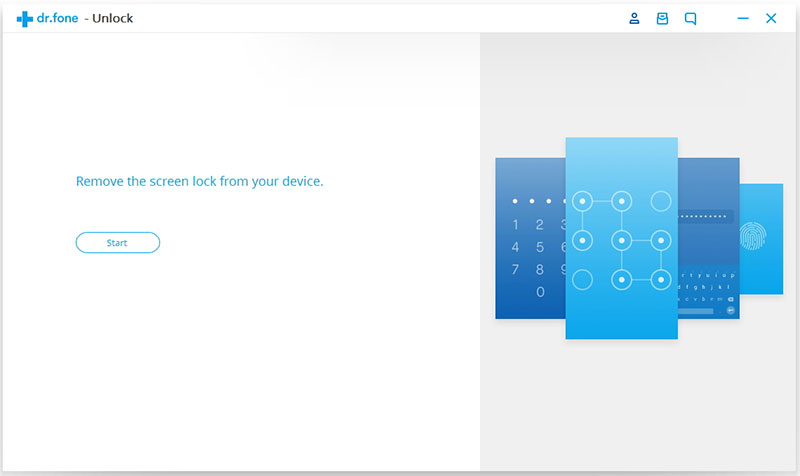
You can unlock Android with broken screen via Android Lock Screen Removal, it can completely disabling lock screen Android is just a few simple steps away.Android Lock Screen Removal is your best choice to remove locked screen on Android with broken screen.With its help,it’s no longer be a problem to unlock Android broken screen without password. Samsung, HTC, Lenovo, Motorola, Xiaomi, etc Android brands are applicable with this Android Unlocker tool.

Features:

  • Remove pattern, PIN, password & fingerprints from locked/disable Android phone.
  • Unlock Samsung phone and LG phone locked screen, no data loss at all.
  • Easily to unlock your Android phone at home, no tech knowledge required.
  • Unlock Samsung and LG phone with broken screen, black screen or unresponsive screen
  • Unlock almost of Android phone, like Samsung, LG, Huawei, Motorola, Xiaomi, OnePlus, etc.

It’s really a great solution that you can have a try.
Detail guide: How to Unlock Android Phone without Password

d_win d_mac
d_win d_mac

unlock android with broken screen

Related Article

How to Unlock Android Lock Screen

How to Unlock Samsung Phone with a Broken Screen

How to Recover Files from Android with Broken Screen

How to Recover Lost Data from Locked Samsung Phone

How to Unlock Samsung Galaxy with Broken Screen

How to Recover Deleted Reminders from iPhone 7/6S/6

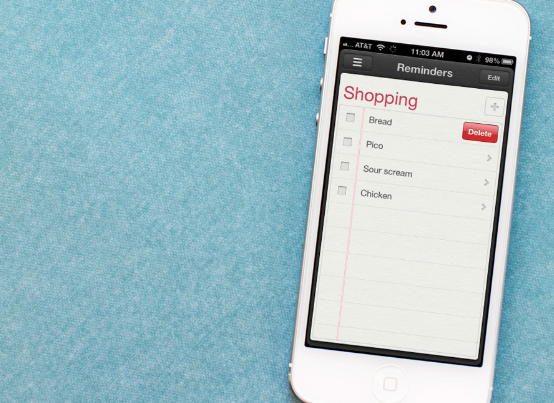
Summary:iPhone users enjoy using Reminders apps to make daily schedule or set alarms to inform them of important calls, appointments so that he won’t miss the upcoming events.This page shows you how to recover deleted reminders from iPhone under unexpected situations.

recover deleted iphone reminders

The reminder app on iPhone allows to create date and time, or location-based notifications, and the notifications can be automatically updated with Outlook and iCloud.The Reminder app can be very important to the users who always have busy schedules and want to keep their work organized.

What Reminders App can Do for you:
-Create date and time,or location-based notifications;
-View your reminders by list or schedule;
-Search for specific reminders;
-Automatically update all your devices and calendars using Calendar, Outlook, and iCloud;
-Create and organize multiple lists,and reorder your tasks.

Recover Deleted Reminders from iPhone 7/6S/6

iPhone Data Recovery is a great rescuer helping restoring deleted reminders from iPhone 7/6S/6.Other deleted iPhone data are recoverable by iPhone Data Recovery,including contacts,photos,video,audio,call logs,apps data(WhatsApp/Viber/WeChat/Kik/Skype),and more.iPhone Data Recovery enables to recover deleted iPhone data with three recovery modes:directly recover from iPhone,recover from iTunes backup,recover from iCloud.It perfectly supports the latest iOS devices,like iPhone 7(Plus),iPhone 6S(Plus),iPhone 6(Plus),iPhone SE, iPhone 5S/5C/5, iPad and iPod.

d_win d_mac

How to Directly Recover Deleted Reminders from iPhone

Step 1.Run Program and Choose Recovery Mode
To begin with,you should choose the “Smart Recovery” mode or “Recover from iOS Device“.

connect iphone with computer

And then select the file type you need to recover: Calendar & Reminder.Click “Next“.

select file to recover

Step 2.Scan iPhone for Reminder Files
Connect your iPhone to the computer and then click “Scan” to start scanning the device.

scan iphone for deleted data

Step 3.Preview and Restore Deleted iPhone Reminders
Once the scanning process is finish, you will see all the reminder data are list on the device.Select the deleted reminder data and then click “Recover” to save them on your computer

recover reminder from iphone

d_win d_mac

Related Article:

3 Best Ways to Recover Deleted Data from iPhone

How to Recover Deleted Data from iPhone 7/6S/6/SE

How to Recover Lost Data from iPhone after iOS 10 Update

How to Restore Lost Files on iPhone 7

How to Recover Deleted Safari Bookmarks from iPhone 7/6S/6

Last night,my little son used my iPhone 7 then I found the Safari Bookmarks were lost, maybe my sweeties did something wrong with the device, are there any ways can help to restore my deleted Safari Bookmarks?It’s really important to me.Thanks.”-Zoie

iphone bookmarks

Most of people like to make the safari bookmarks on iPhone,for example,the films,the blogs,or the business.However some iPhone users  have encountered the similar situation that lost safari bookmarks on iPhone out of expection.So,what happens if you accidentally delete the safari bookmarks from iPhone 7/6S/6?Wouldn’t it create a huge problem for you?This page is going to discuss how to recover deleted safari bookmarks from iPhone efficiently.

Restore Deleted Safari Bookmarks on iPhone 7/6S/6

One of the best data recoveries is called iPhone Data Recovery.As its name,it is capable of recovering deleted safari bookmarks on iPhone 7/6S/6 though have no backup.iPhone Data Recovery enable to restore various of deleted iPhone data,including contacts,messages,photos,videos,audio,call logs,note,calendar & reminder,voice memo,apps data(WhatsApp,WeChat,Skype,Kik,Viber).iPhone Data Recovery provide you three recovery modes:directly recover from device,recover from iTunes backup,recover from iCloud backup.All models of iPhone are compatible with iPhone Data Recovery,like iPhone 7/6S/6/5S/5 and even iPad,iPod.

d_win d_mac

Part 1:Directly Recover Deleted Safari Bookmarks from iPhone

Download and install iPhone Data Recovery on your computer.When you run the program, you will be asked to select a recovery mode.Choose “Recover from iOS Device“.

connect iphone with computer

Step 1.Select File to be Scanned by Program
Click on scan and choose the files you want to recover on your iPhone.

select file to recover

Now, connect your iPhone and wait for the device to be detected.Click on the “Next” button so that the scanning process begins.For bookmarks recovery,you should click “Bookmark“.

scan iphone and search deleted data

Step 2.Preview and Recover Selected iPhone Data
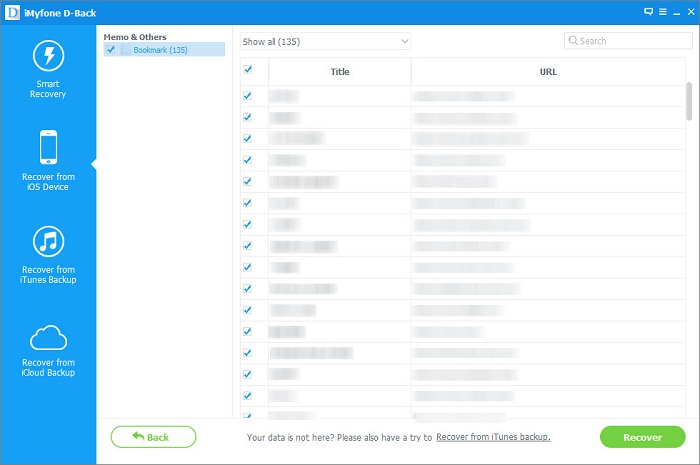
Once the scanning is end,check the option, “Memos and others”. The bookmarks are displayed under this tag. Preview the bookmarks and choose the ones you want to restore.Click on “Recover” to save on your computer.

recover bookmarks from iphone

d_win d_mac

Part 2:Recover Deleted iPhone Safari Bookmarks with iTunes Backup

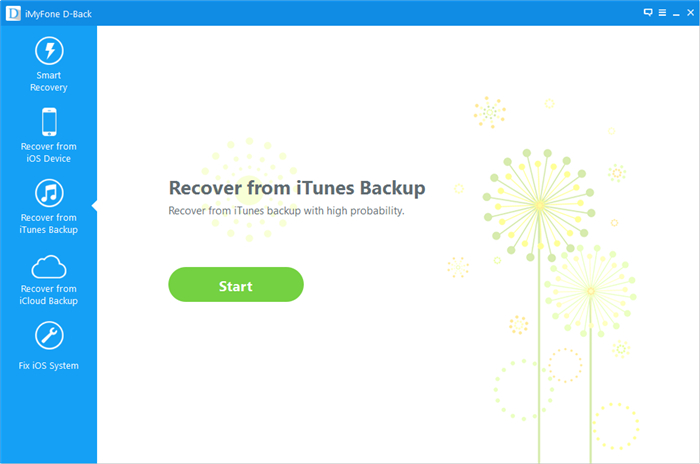
Download and install iPhone Data Recovery on your computer.Choose the recovery mode as “Recover from iTunes Backup“.

recover from itunes mode

Step 1.Select File to be Scanned by Program
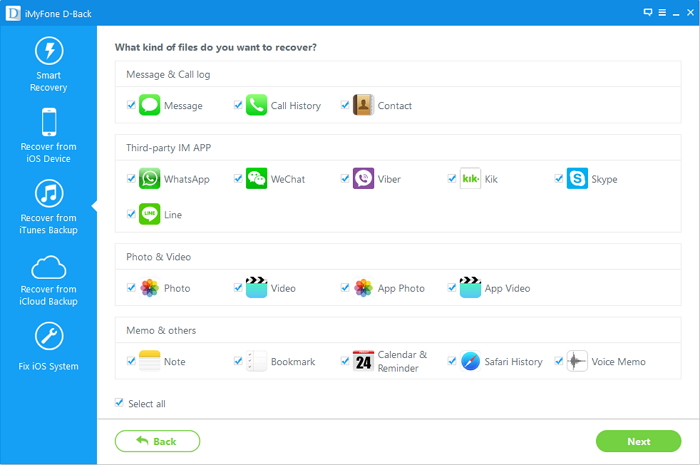
Choose the type of files you want to recover and click on “Next”.For bookmarks recovery,you should click “Bookmark“.

scan data from itunes backup

Now,connect your iPhone and wait for the program to detect it.Choose the exact iTunes backup which you want to recover the data from and then click on “Scan“.

extract backup file from itunes

Step 2.Preview and Recover Data from iTunes Backup
Preview the details and click recover and your deleted bookmarks will be recovered from iTunes backup.

restore iphone bookmarks from itunes backup

d_win d_mac

Related Article:

3 Best Ways to Recover Deleted Data from iPhone

How to Restore Lost iPhone Files after iOS 10 Update on Mac
How to Restore iPhone Data after iOS 10 Jailbreak

How to Safely Backup iPhone/iPad before Upgrading to iOS 10

How to Manage iPhone 7 on Computer

How to Transfer Music from Computer to Android

I downloaded some favorite songs on my computer,now I should sync these music files with my HTC Android phone.Is possible to transfer music from computer to Android device with easy way?Please give me some reliable methods.THX.”-Layla

Music become a important part of our life.Many of us download the loved songs from website on computer,then transfer it to the mobile device so that enjoy the music anywhere as he like.Actually,it’s common way to transfer music from computer to Android via WI-FI or bluetooth.However,how can you make the transfer task more quickly and efficiently?Here we shows you the best ways to transfer music from computer to Android with few clicks.Let’s move forward.

Sync Music from Computer to Android

Let’s Android Manager do you a favor,perfectly help to transfer music from computer to Android.To sum up,Android Manager is an useful tool for transferring & managing data for Android on computer freely.As a professional program designed for managing music,videos,photos,contacts,SMS,apps.With this program,you could transfer files between Android and computer,transfer files between Android and iTunes,transfer files between Android and iOS device.Android Manager work well for most of Android phones,including Samsung,HTC,Lenovo,Motorola,LG,Sony,Huawei,Xiaomi,Google and more.

d_win d_mac
Part 1:How to Transfer Music from Computer to Android

Launch Android Manager and connect your Android to the computer.Your device will be detected and displayed in the primary window soon.

android manager mian page

Step 1.Select Music File to Transfer
Select Music tab.Once your media loads, click Add > Add File or Add Folder.

sync music from pc to android

Step 2.Transfer Songs from Computer to Android
It brings up your file browser window, from which you can select songs to export from your computer.And you can also create new playlist by right clicking Music to save the imported songs.You are allow to simply Drag and Drop music files from computer to your Android phone.

d_win d_mac

Part 2:How to Transfer Music from Android to Computer

Step 1.Select Music Tab
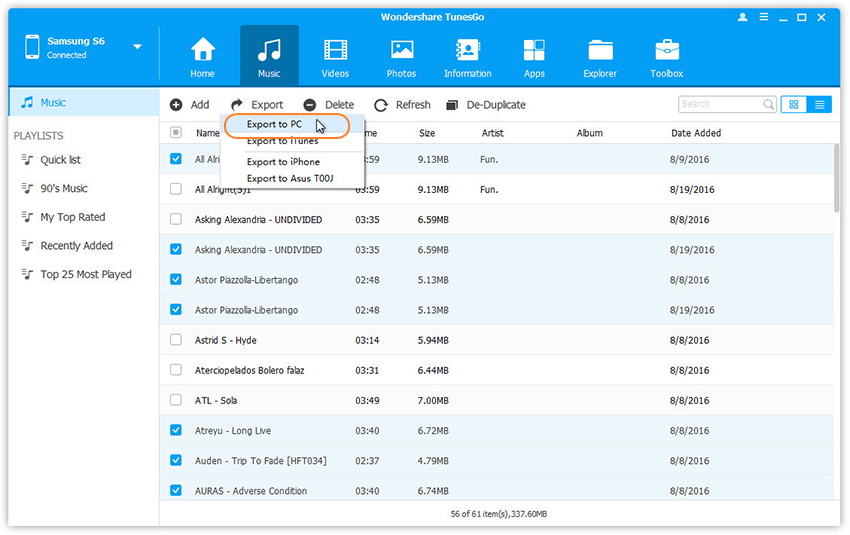
First of all,you should select the Music tab.Once your media loads,choose your wanted songs and click Export > Export to PC.

select music from android to pc

Step 2.Transfer Music from Android to the Computer
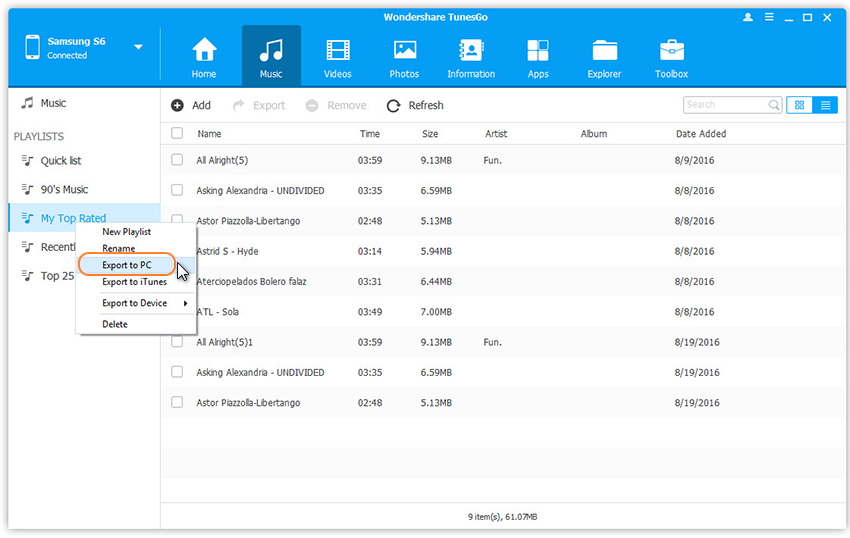
It brings up your file browser window,choose a save path to save songs from your Android device to the computer.You can simply Drag and Drop music files from device to computer.You can also transfer the whole music playlist from Android phone to computer with one click.

export android music playlist to pc

d_win d_mac

Related Article:

How to Transfer iTunes Music to Android Phone

How to Transfer Music from Computer to Samsung Galaxy S6/S7

How to Manage Android on Computer

How to Transfer Music to Samsung Galaxy S6/S7 on Mac

How to Unlock Samsung Phone with a Broken Screen

My Galaxy S6 phone was no response with a broken screen.Now I can’t unlock the locked screen as usual.How can I remove the locked screen from Samsung galaxy S6 and extract the personal data from it?Thanks advanced.”-Joseph

It’s no more common than breaking screen on our mobile device while using it.We may encounter several different situations that our phone inevitably be some problems.Some of them can’t be solved by ourselves, but some of them seem unable to be solved, in fact, we can also get some ways available to deal with.A broken screen issue is annoying enough, but what should you do if the screen is unresponsive when you try to unlock it?

Remove Samsung Locked Screen with a Broken Screen

Android Lock Screen Removal is your best choice to remove locked screen on Samsung with broken screen.With its help,it’s no longer be a problem to unlock Samsung broken screen without password.It can help Samsung users disable the password and pattern locked issues on Samsung device with just few steps.Applicable Samsung device including Samsung Galaxy S6/S5/S4,Note 5/4/3,etc,.

d_win d_mac

Part 1:Remove Samsung Locked Screen with Android Lock Screen Removal

Step 1.Run Program and Choose “Lock Screen Removal”
Firstly,launch Android Lock Screen Removal on computer and go to “More Tools”.Then choose “Lock Screen Removal”mode.There are many other functions that Android Lock Screen Removal provide to you:data recovery,data backup&restore,root,data extraction(damaged device),data eraser,SIM unlock.

remove samsung locked screen

This Android Lock Screen Removal allows you to remove the password of PIN,patterns, password and fingerprint from Android.Connect your Samsung device and click “Start” to begin.

select-mode

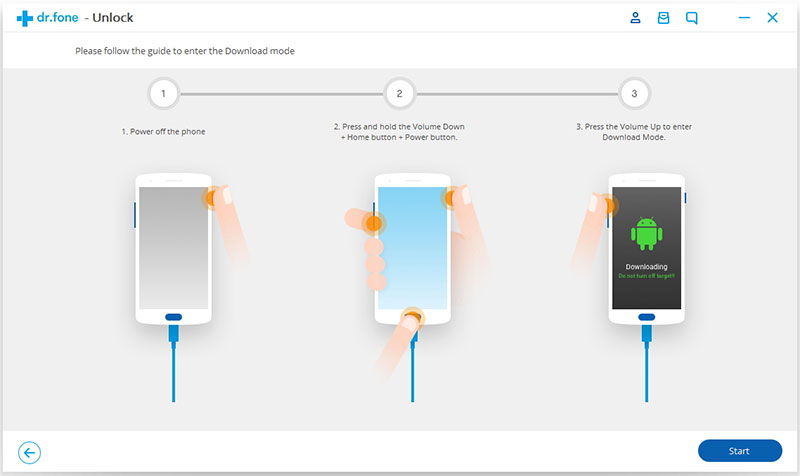
Step 2.Enter Samsung with Broken Screen into the Download Mode
Follow the instructions on the program to get the Samsung phone into Download Mode.
-Power off the phone.
-Press and hold volume down + home button + power button at the same time.
-Press the volume up to enter download mode.

enter download mode lock android

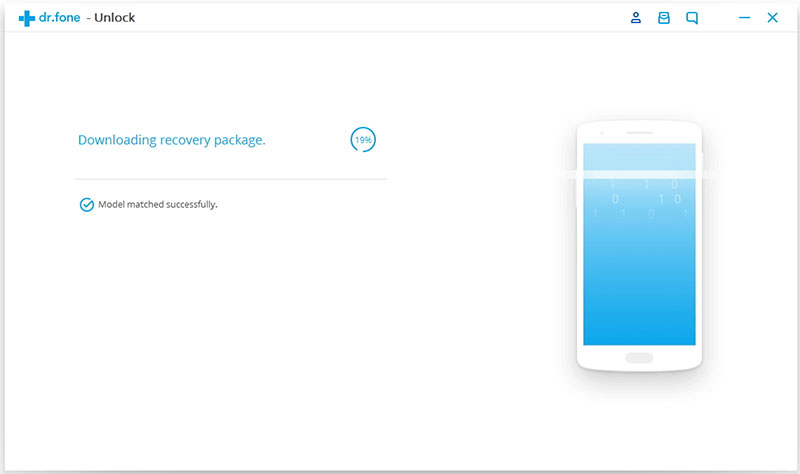
Step 3.Download Recovery Package for Broken Screen Samsung
After you get your Android into the download mode,it will begin downloading recovery package for it next.Just wait until it’s complete.

downloading recovery package

Step 4.Samsung Lock Screen Removal
When the recovery package downloading is complete,the Samsung lock screen removal process begins without losing data on your device.Once the whole progress is over after a while,the screen lock on your phone will be successfully removed and you can view all your data on the device freely.

remove android lock screen

Done.

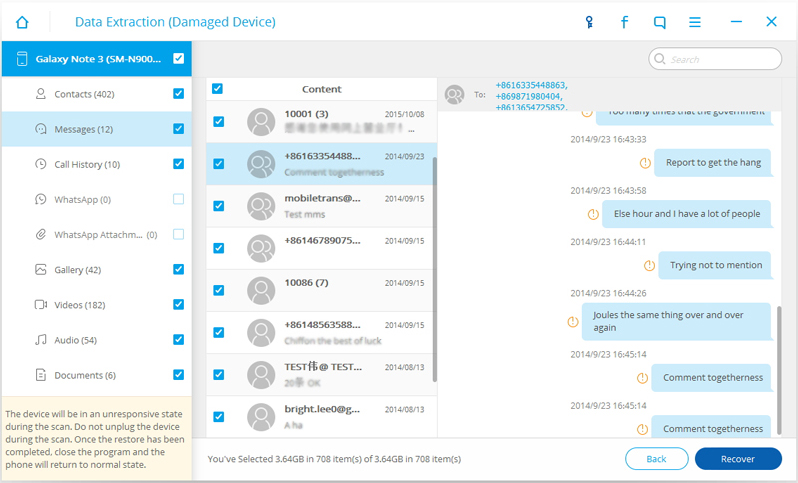
Step 5.Extract Data from Samsung
Now your Samsung phone is back to back to the normal state without lock screen.Now you could extract the files from Samsung selectively.You could switch to the “Data Recovery” mode or “Data Extraction(Damaged Device)” mode to begin the data recovery process.

recover-data-broken-samsung

Detail guide:How to Recover Data from Broken Samsung

d_win d_mac

Part 2:Remove Samsung Locked Screen with Samsung Account

This method is a reliable way to unlock Samsung device that with a broken screen or the screen is no response.You should have a Samsung account registered with your device.If you don’t have one,just apply one first.

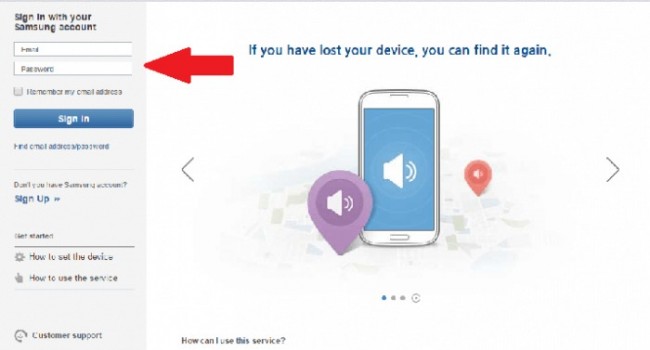
Step 1.Visit the Samsung Website on your PC or any other device and log in with your Samsung account information.

log-in-samsung-account

Step 2.Select your device from the menu on the left hand side of the screen.

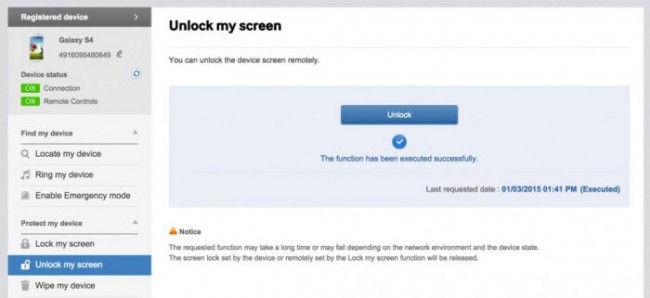
Step 3.You should see the option “Unlock my screen” on the sidebar. Click on it and you will get instructions on how to access your device.

unlock-samsung-with-samsung-account

Related Articles

How to Unlock Samsung without Password

Bypass Samsung Galaxy S6/S7 Lock Screen Pin/Pattern/Password

How to Unlock Android Lock Screen

How to Recover Lost Data from Locked Samsung Phone

Unlock Broken Screen Samsung

How to Transfer Photos from Samsung to Computer

I have a Galaxy S6 phone that I want to backup the photos to my PC.Is there a driver or something that I can install on my PC so that I can use an USB cable to directly transfer all these photos from Samsung to PC?”-Jackson

With the high quality of Samsung camera,people like to purchase Samsung phone to take beautiful photos and videos.Sometimes you may need to transfer your photos and other files from Samsung to computer, or vice versa, is necessary,no matter for backup or restore.However,most of transfer method cost you more than a few minutes to complete, and require expensive or complicated equipment.Here in this article, we will talk about much more easier way to transfer photos from Samsung to computer.

Way 1:Backup Samsung Photos to Computer with Phone Transfer

As its name,Phone Transfer is an useful data tool to transfer data from mobile phone to computer with few clicks.With the help of Phone Transfer,you could transfer photos from Samsung to computer freely,restore backup data to device on computer.Besides photos,Phone Transfer allows to manage various of data on computer,including contacts,messages,call logs,music,videos,apps,documents,calendars and more.In addition,this program enables to transfer files between two mobile devices even though they run different operating system.Phone Transfer works well for most of mobile devices,iOS device and Android device are included,for instances,Samsung (Galaxy S5/S6/S7),Google (Pixel,Nexus),HTC,LG,Sony,Motorola,Lenovo,ZTE,etc,.

d_win d_mac

Step 1.Run the Phone Transfer and Select the Transfer Mode
At the beginning,download and install the software on computer.Select the “Backup and Restore” mode and click “Back Up Your Phone”.

transfer data from samsung to computer

backup samsung to pc

Step 2.Backup Samsung Photos to PC
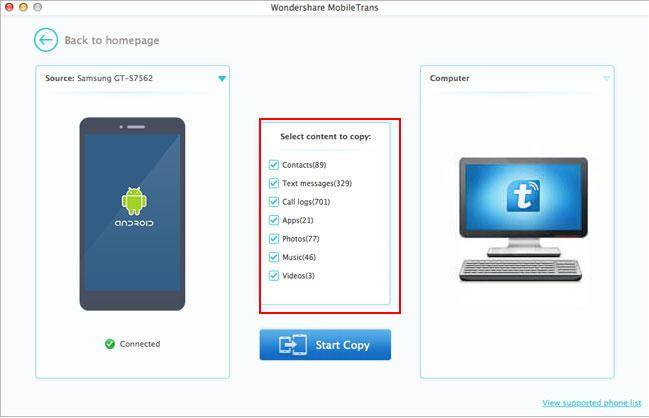
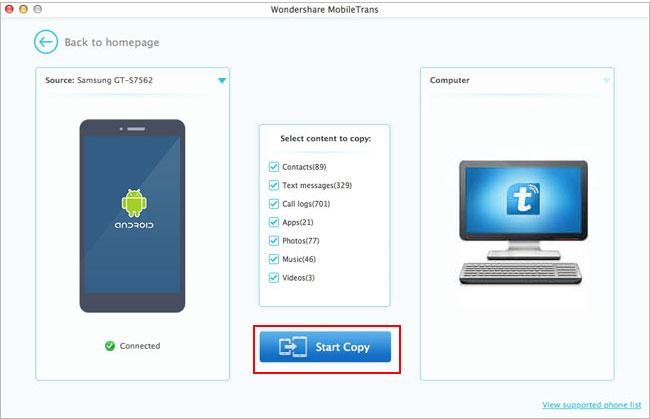
Connect your Samsung phone to computer with an USB cable.After the software detects your Samsung,you can see it shown in the window.The contents that can be backed up are checked(Music, Videos, Photos, Contacts, SMS and Apps,etc).Just select the files you need to transfer from Samsung to computer,and then click “Start copy”.

backup samsung files to pc

transfer samsung to pc

Done.

d_win d_mac

Way 2:Backup Samsung Photos to Computer with Android Manager

You can rely on this Android Manager,which is a terrific tool to transfer & manage your Android data on computer.Thanks to Android Manager,you could backup Samsung photos on computer easily.This wonderful program support to transfer files between Android and computer,transfer files between Android and iTunes,transfer files between Android device and iOS device.Except photos,Android Manager is capable of manage music,videos,contacts,SMS,apps of Android on computer.Most of Android phone applicable to Android Manager,such as,Samsung(Galaxy S7/S6/S5,Note 5),Google(Pixel,Nexus),Huawei(Mate 9/P9),Motorola,HTC,LG,Sony,Xiaomi,Lenovo,ZTE,and so on.

d_win d_mac

Step 1.Select Photos to Export to PC
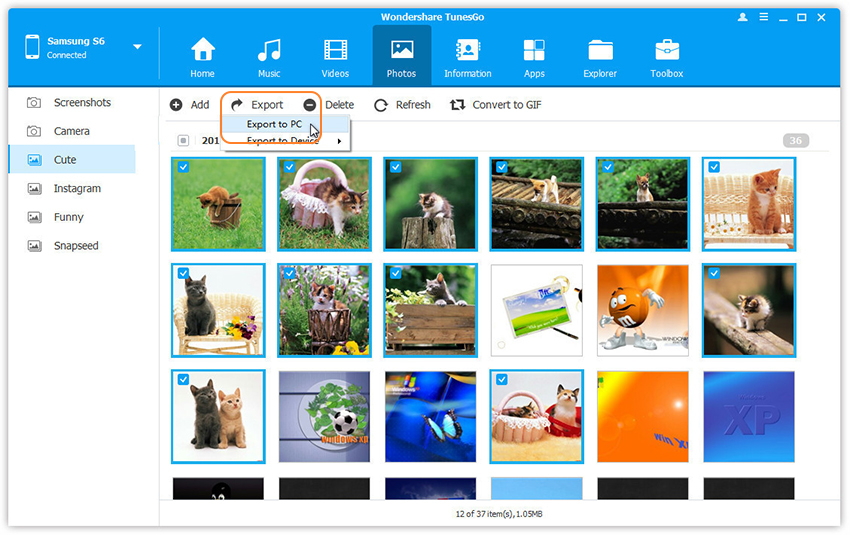
In the photo management window,choose your desired photos and click Export > Export to PC.

transfer photos from samsung to pc

Step 2.Backup Selected Photos from Samsung to PC
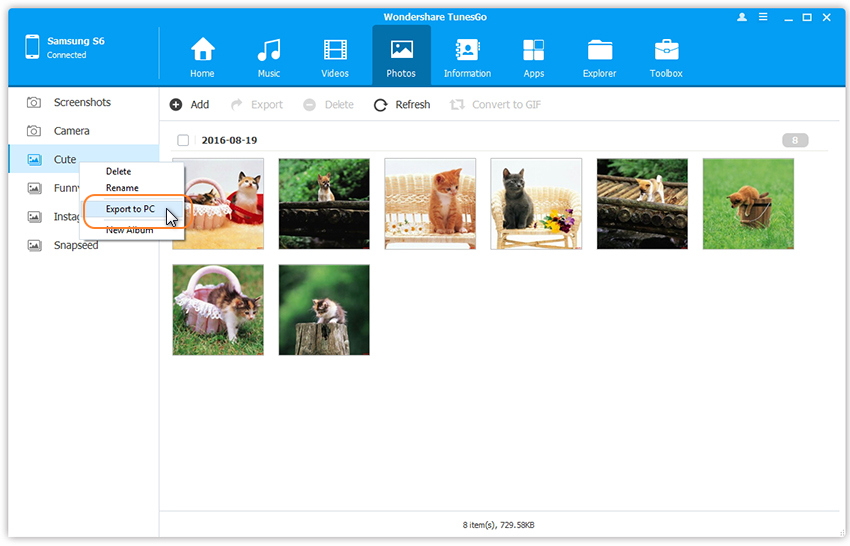
It brings up your file browser window. Select a save path to store the photos from your Samsung to computer.You could transfer the whole photo album from Samsung to PC.

transfer samsung photo to pc

d_win d_mac

Related Article:

How to Backup and Restore Samsung Galaxy S7/S6/S5 with Samsung Kies

How to Backup and Restore Samsung Data

How to Backup and Restore Samsung Contacts

How to Recover Deleted Files from Samsung Galaxy

How to Manage Samsung Galaxy S6/S5/S4/S3/Note on PC/Mac