All posts by DHZ

How to Transfer Samsung Contacts to Galaxy S8

I’m a Samsung fans and I have been using various Samsung devices for many years.Recently,I bought a new Samsung S8 and I’m satisfied with it.However, I have one issue on ‘How to transfer contacts from my old Samsung to the new one?’Anybody offer me the best solutions?Thank you so much.”-Ken

galaxy s8

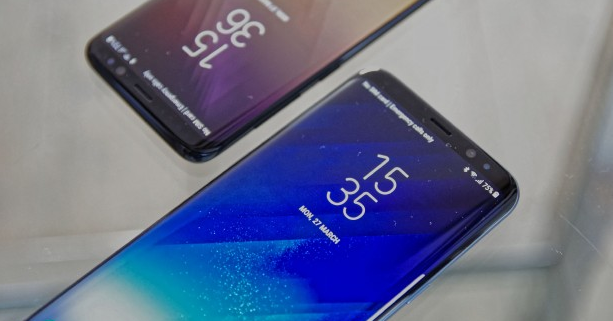
The Samsung Galaxy S8 and Galaxy S8 Plus are now official.Most people already knew what the handsets’ looked like,they’re basic specs and new features.Samsung Galaxy S8 and Samsung Galaxy S8 Plus NOW OFFICIAL; Both will get a release date on April 21.The phone contacts are always the first concern for any smart phone users.So what will you do if you need to transfer contacts from old Samsung to Samsung Galaxy S8 for an upgrade?To solve the problem,you can get the reference of the article below.

Part 1:Transfer Samsung Contacts to Galaxy S8 via Samsung Smart Switch

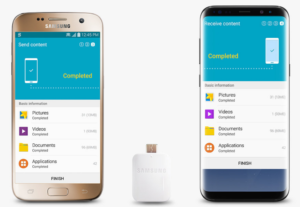
The first way to transfer Samsung contacts to Galaxy S8 is using Samsung Smart Switch,which makes it easy to transfer contacts, photos, messages and more from your old phone to your new Galaxy S8.With Smart Switch, you can transfer/switch information with you whether you have an Android OS or iOS device,including contacts, photos, videos, apps, settings, messages, music, calendars and more.
samsung smart switch transfer files to s8

Step 1.Connect Galaxy S8 to your old Samsung using the included USB connector and the cable from your old phone.
Step 2.Select the data you want to transfer to your new Galaxy S8.
Step 3.Enjoy all your contacts and more without skipping a beat.

Part 2:Transfer Samsung Contacts to Galaxy S8 via Phone Transfer

I’d like to recommend you this Phone Transfer, which can help you completely transfer contacts from Samsung to Galaxy S8.Not only contacts,but also other types of files can be transferred,including photos,messages,call logs,videos,music,calendar,apps.Additionally,Phone Transfer support to backup data from mobile phone to computer completely,restore backup data to mobile device on completely freely.Almost all Android deices are applicable to Phone Transfer,for instances,Samsung(Galaxy S8/S7/S6/S5,Note 5/4/3),LG,Sony,Huawei,Xiaomi,HTC,Motorola,Lenovo,and so on.


d_win d_mac

Step 1.Run Phone Transfer Tool and Connect Devices
The first thing is to install and run Phone Transfer on PC.When its primary window appears,click “Start”to show the “Phone to Phone Transfer” window.

phone transfer main page

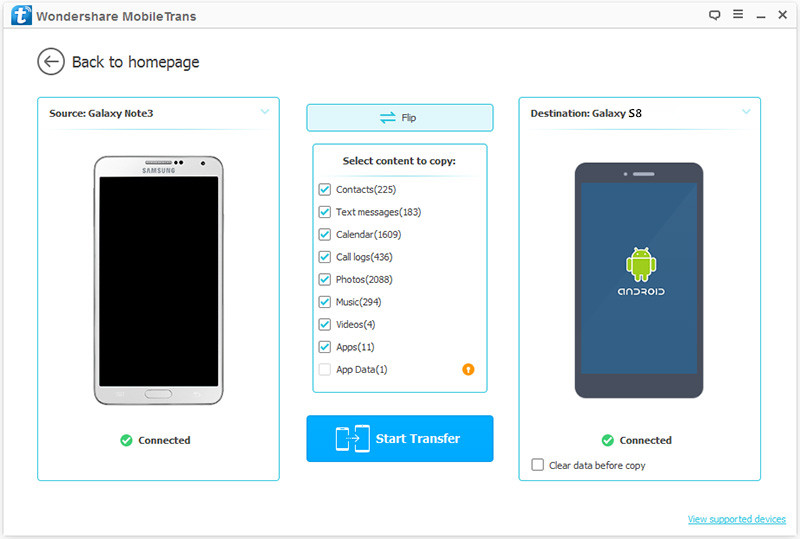
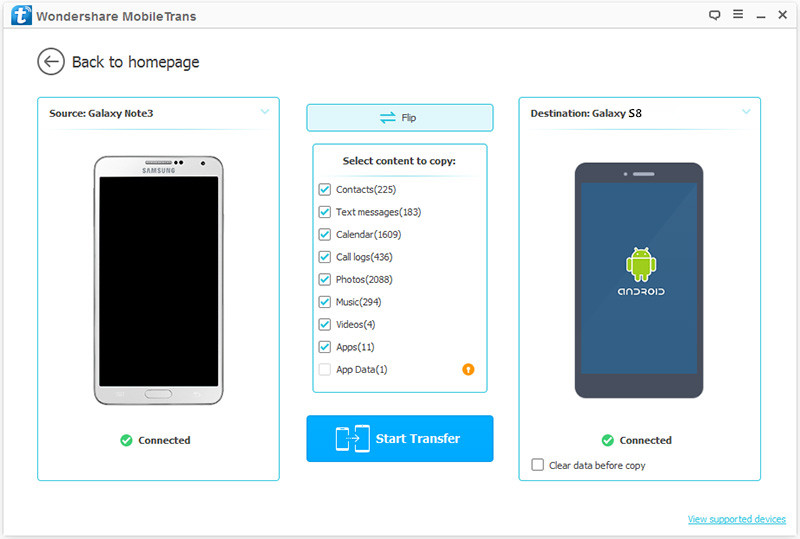
Connect both of your two Samsung phones to the computer via USB cables.After detected,your devices will be listed on both sides of the window.(The old Samsung phone is shown on left side,Galaxy S8 phone is shown on right side.)

Step 2.Transfer Samsung Contacts to Samsung Galaxy S8
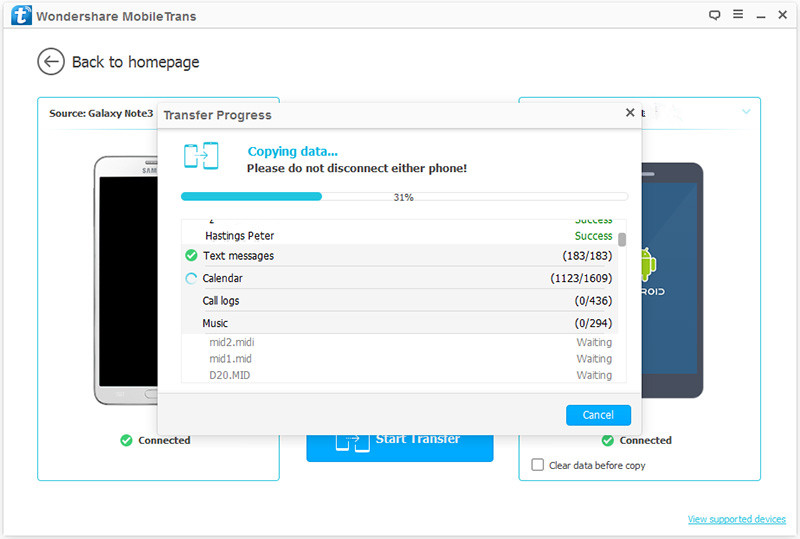
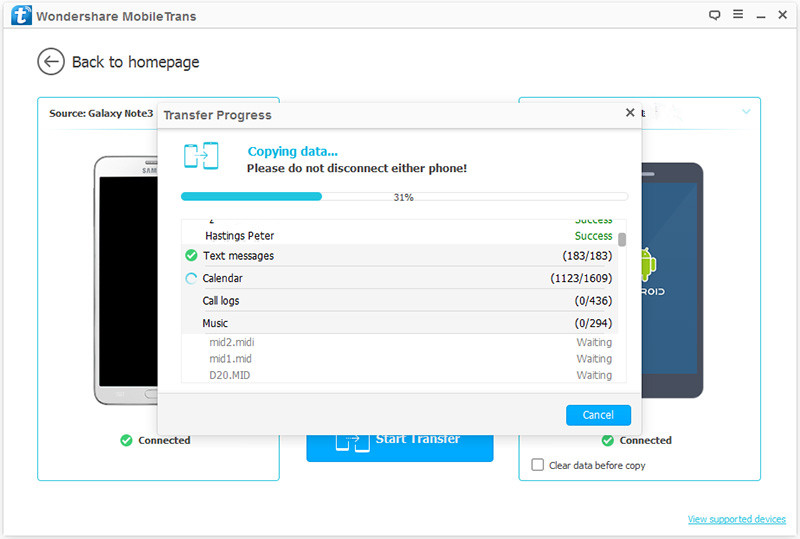
It will display all the contents you can transfer between the two Samsung phones.You can uncheck any content you dislike to transfer.For contacts transfer,you should click “Contacts“.Then,click “Start Transfer”.
select files to transfer to s8

transfer samsung contacts to galaxy s8

d_win d_mac

Related Galaxy S8 Guide:

How to Transfer Samsung Files to Samsung Galaxy S8

How to Transfer iPhone Files to Samsung Galaxy S8

How to Recover Data from Samsung Galaxy S8

How to Recover Lost Photos from Samsung Galaxy S8
How to Backup & Restore Samsung Galaxy S8

How to Root Samsung Galaxy S8 without Data Loss

How to Transfer Samsung Photos to Galaxy S8(Plus)

I get a brand new Galaxy S8 phone and now I am searching the ways available to transfer the photos from my old Galaxy S4 phone to the new one.Any good suggestions?”-Hailey

Samsung is famous for the photo shooting features,even better than a separate traditional camera.The Samsung Galaxy S8 is simply gorgeous.Samsung is one of the most popular Android phones around the world and you may one of its users. Now you just have picked up a new Samsung like Galaxy S8.Or you are waiting for the next newest Samsung phone.Upgrading to a new Samsung is pretty great, but you may come across a confusing question right away. How to transfer your lovely photos from old Samsung to the new one?In the following post, we will provide you two methods to help you solve this problem.

Part 1:Transfer Samsung Photos to Galaxy S8 via Phone Transfer

Phone Transfer is immensely efficient in transferring data between two mobile phones no matter they run the same operating system or not.With the help of Phone Transfer,you are allow to transfer photos from Samsung to Samsung Galaxy S8 with easy steps.The transferrable data including photos,contacts,messages,call logs,videos,music,calendar,apps.In addition,Phone Transfer enables to backup data from mobile device to computer,restore backup to device on computer.Phone Transfer works well for most of Android devices,such as,Samsung(Galaxy S8/S7/S6/S5,Note 5/4/3),HTC,Motorola,Lenovo,LG,Sony,Huawei,Xiaomi,etc,.

d_win d_mac

Step 1.Install and Run Phone Transfer and Connect Device
Connect your both your old Samsung phone and Samsung Galaxy S8 to your computer and launch the Phone Transfer.You will see the main screen shows connecting devices is required. Click the “Start” button under “Phone to Phone Transfer” mode.

phone transfer main page

Step 2.Transfer Photos Files to Samsung Galaxy S8
It will be just seconds that the program detect the two Samsung.Make sure your target phone is on the right side while the another phone on the left.If not,click “Flip” to exchange the source device and target device.

samsung to samsung s8

On the middle panel,check data (photos,contacts,text messages,call logs,music,videos,etc) to transfer from old Samsung to new Samsung Galaxy S8.Press the blue button “Start Copy”.

transfer samsung to galaxy s8

Just few minutes later,all the selected files will be on your new Samsung.

d_win d_mac

Part 2:Transfer Samsung Photos to Galaxy S8 via Android Manager

The second tool here we strongly recommend for you is Android Manager.Android Manager is a fantastic data manager tool for Android device,help to transfer Samsung photos to Galaxy S8.You can use it to transfer and manage Samsung Android on computer freely,including music,videos,photos,contacts,SMS,apps.With this wonderful data manager program,you are allow to transfer data between Android devices,transfer files between iOS and Android device,transfer files between Android device and iTunes,transfer files between Android device and computer.Various brands of Android devices are compatible with Android Manager,such as Samsung (Galaxy S8/S7/S6,Note 5/4/3),Google(Nexus,Pixel),HTC,Xiaomi,Motorola,Sony,Lenovo,Huawei,etc,..

d_win d_mac

Step 1.Run Program and Connect Device
Launch Android Manager and connect both devices to the computer.

connect devices

Step 2.Setting the Source Device
Select the source device from which you want to transfer photos and albums.

Step 3.Transfer Photos to Samsung Galaxy S8
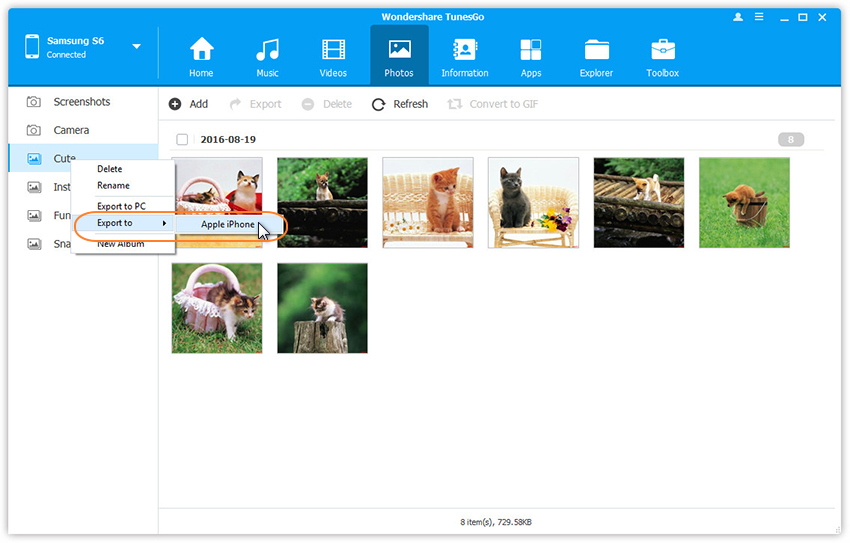
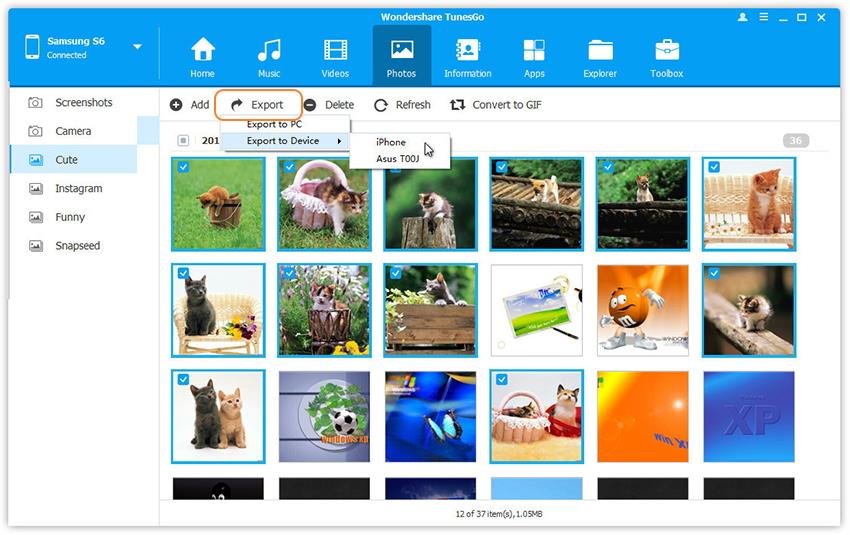
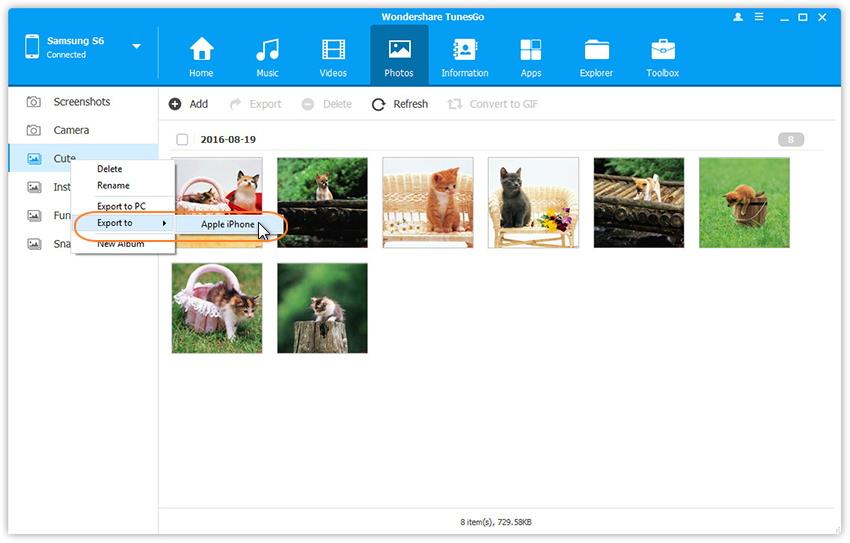
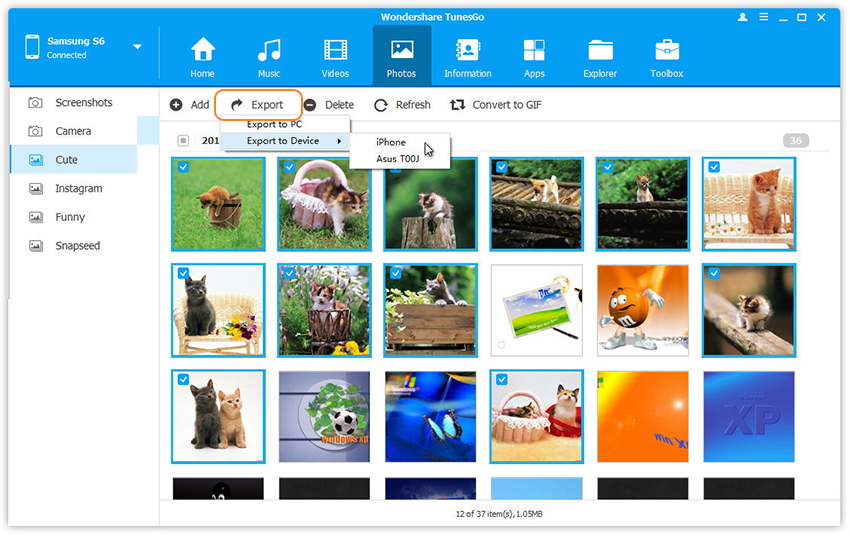
Click Photos tab.Choose your wanted photos and click Export.Select another device from the list.For example,you can transfer photos from old Samsung to Galaxy S8 by selecting Export > Export to Device >Samsung directly.

transfer photos from samsung to galaxy s8

You can also transfer the whole photo album from old Samsung to Galaxy S8 in one click.

transfer samsung photo album to galaxy s8

d_win d_mac

Related Article:

How to Transfer Samsung Files to Samsung Galaxy S8

How to Transfer iPhone Files to Samsung Galaxy S8

How to Recover Data from Samsung Galaxy S8

How to Recover Lost Photos from Samsung Galaxy S8
How to Backup & Restore Samsung Galaxy S8

How to Root Samsung Galaxy S8 without Data Loss

How to Transfer iPhone Photos to Samsung Galaxy S8

I saved a large of life photos on my old iPhone 5,recently I am planning to buy the brand new Galaxy S8 and give up the iOS device.How to transfer these photos between iPhone and Samsung?Thankfully.” -Katie

The Samsung Galaxy S8 has finally been launched.That it’s a rather nifty phone, and you can check it out in some rather sumptuous depth in our hands-on: Samsung Galaxy S8 review to get all the morsels of information you could want on Samsung’s new flagship.This new released Samsung phone is so attracted you,do you wanna get one to replace the old phone?When you come across with the similar problems,just clam down,this tutorial will show you the 2 ways available to transfer iPhone photos and other data to Galaxy S8 with simple steps.

Part 1:Transfer iPhone Photos to Samsung Galaxy S8 via Phone Transfer

Phone Transfer can be utilized as a tool to transfer photos from iPhone to Samsung Galaxy S8.Not only photos,but also other types of files can be transferred between two mobile phones,such as,photos,contacts,SMS,videos,music,apps.Most of Android and iOS devices are compatible with Phone Transfer,including Samsung(Galaxy S8/S7/S6/S5),HTC,Lenovo,Huawei,Xiaomi,Motorola,Sony and more;iPhone 7/6S/6/5S/5,etc,.

d_win d_mac

Step 1.Run Phone Transfer on Computer and Connect Device
Launch the Phone Transfer on computer.You’ll see the primary window as follows.Click “Phone to Pone Transfer”option in the main page of program.

phone transfer main page

Connect your iPhone as well as Galaxy S8 to computer by using USB cables.After detecting,Phone Transfer will display the two phones in the primary window.

Note:To transfer iPhone photos to Samsung,you should install iTunes.Only in this way can you transfer files smoothly.

Step 2.Transfer iPhone Photos to Samsung Galaxy S8
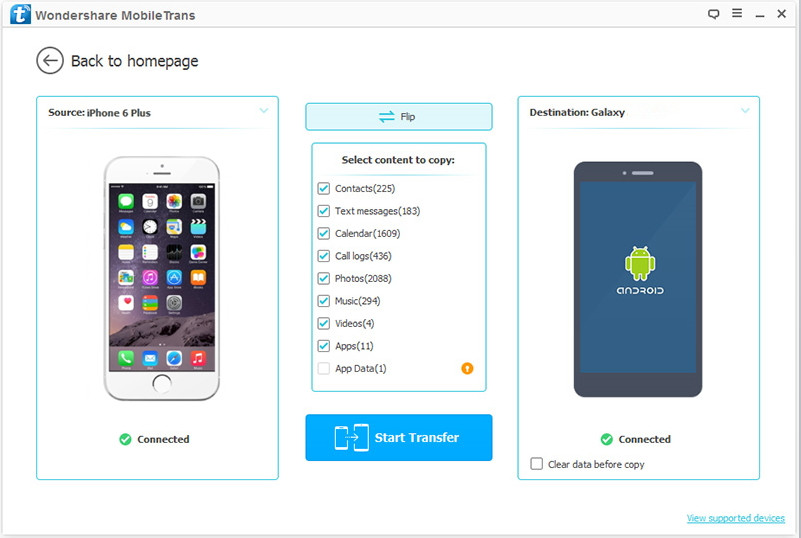
All contents you can transfer are checked by default.You can uncheck the files you don’t need.For photos transfer,you should click “Photos“.

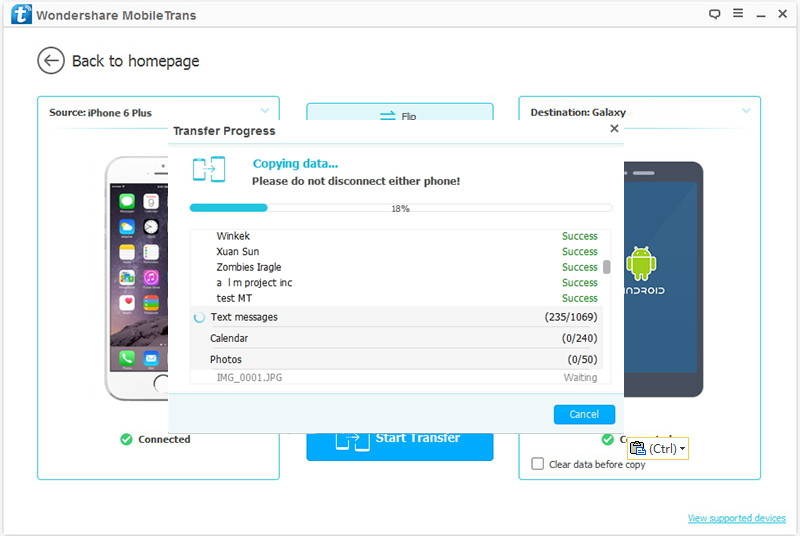
Then click “Start Transfer” to start to sync files from iPhone to new Samsung.Be sure not to disconnect either of the phones until the whole transfer process is end.

transfer contacts from iphone to galaxy s8

transfer contacts from iphone to galaxy s8

d_win d_mac

Part 2:Transfer iPhone Photos to Samsung Galaxy S8 via Android Manager

The second solutions here we strongly recommend for you is using Android Manager,which is a terrific tool used to transfer & manage Android data freely on computer,music,video,photos,SMS,contacts,apps are included.Android Manager enables to transfer photos between iPhone and Samsung Galaxy S8 efficiently.What’s more,Android Manager allows to transfer data between iTunes/computer and Samsung Android.It is really a multifunctional data manager deserve to have.

d_win d_mac

Step 1.Run Program and Connect Device
Launch Android Manager and connect both iPhone and Galaxy S8 devices to the computer.

connect devices

Step 2.Setting the Source Device
Select the source device from which you want to transfer photos and albums.

Step 3.Transfer Photos from iPhone to Galaxy S8
Click Photos tab.Choose your wanted photos and click Export.Select another device from the list.For example, you can transfer photos from iPhone to Samsung Galaxy S8 by selecting Export > Export to Device > Samsung directly.

set iphone as the source device

transfer iphone photos to to samsung s8

d_win d_mac

Related Article:

How to Transfer iPhone Data to Samsung Galaxy S8

How to Transfer Samsung Data to Samsung Galaxy S8

How to Transfer Music to Samsung Galaxy S8

How to Transfer Videos to Samsung Galaxy S8

How to Backup & Restore Samsung Galaxy S8

How to Recover Data from Samsung Galaxy S8

How to Root Samsung Galaxy S8 without Data Loss

How to Manage Samsung Galaxy S8 on Computer

One Click to Root Samsung Galaxy S8 without Data Loss

Summary:This guide will walk you through the necessary steps to root the brand new Samsung Galaxy S8 phone.As well as most of Samsung Android devices can be rooted in minutes with the same steps in this tutorial.One thing is clear: rooting your phone can be one of the best ways to tap into the deep potential of your Samsung Android device.

The revolutionary design of the Galaxy S8 and S8 plus begins from the inside out. Every part of the phone’s layout to break through the confines of the smartphone screen. So all you see is pure content and no bezel. It’s the biggest, most immersive screen on a Galaxy smartphone of this size. And it’s easy to hold in one hand.Since Samsung entered the smartphone market, it entrenches on the top list of the smartphone market.

One Click to Root Samsung Galaxy S8 without Losing Data

Android Manager provide an available way to you to root Samsung Galaxy S8 without data loss,100% safe and secure.Let me describe the functions of Android Manager.It’s such a powerful tool for transferring data & managing data for Samsung Android device,including music,video,photos,SMS,contacts,apps,help to transfer data between iTunes/computer/iOS or Android device and Samsung Android.

d_win d_mac

More Features of Android Manager:
-One click Root : Root Galaxy S8 to take full control of your device.
-Backup music, photos, videos, contacts, SMS to computer and restore easily.
-iTunes Manager : Sync iTunes music to Android or transfer music from Android to iTunes.
-Phone to Phone Transfer:Transfer music, photos, videos, contacts, SMS between two mobiles (both Android and iPhone are supported).
-Manage, export&import contacts and SMS, deduplicate contacts, reply SMS with computer.
-App Manager:Install, uninstall, import or backup Apps in batch.
-Gif Maker: Create Gif from photos, motion photos, videos.
-Fully compatible with 3000+ Android devices (Android 2.2 – Android 7.0) from Samsung, LG, HTC, Huawei, Motorola, Sony etc,.

How to Root Samsung Galaxy S8 without Data Loss

Step 1.Run Program and Connect Device
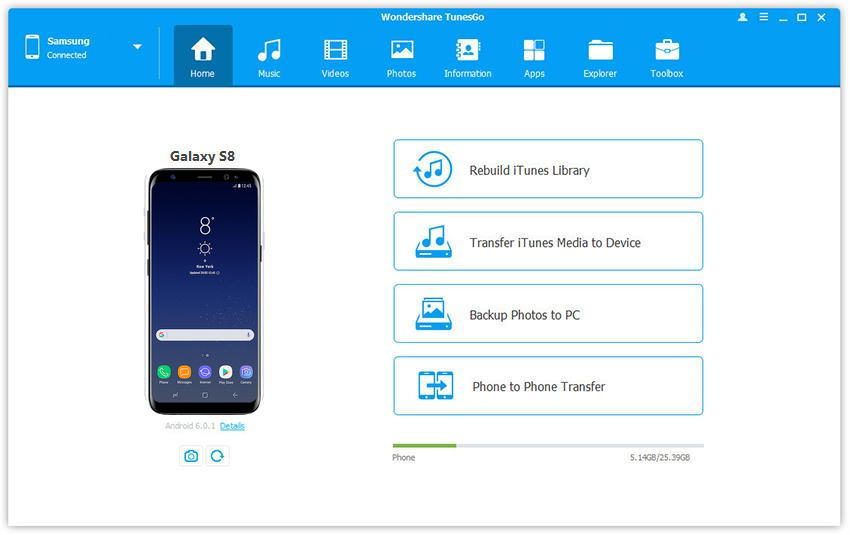
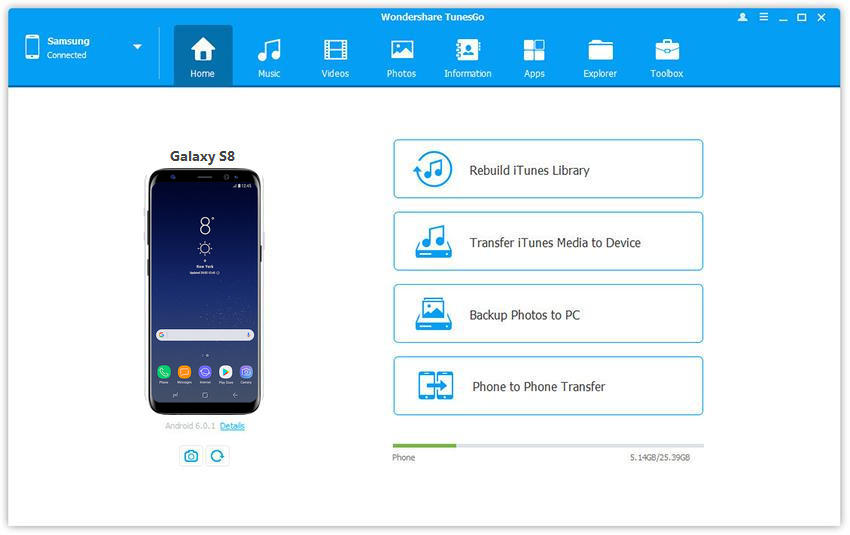
If you have installed the Android Manager on your PC/Mac,just launch it and then connect the Samsung Galaxy S8 to the computer using a USB cable.The program will detect your phone if it is connected successfully and display it on the primary window.

samsung galaxy s8 manager

Step 2.Select Rooting Mode
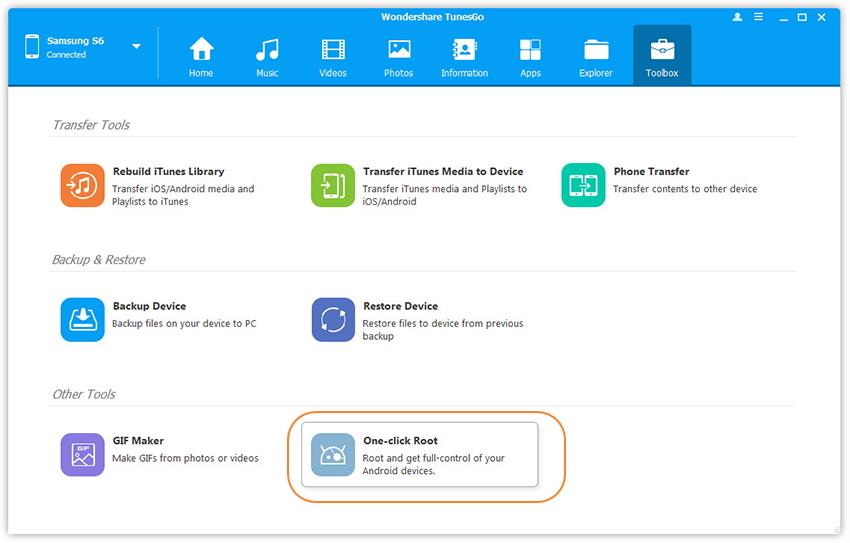
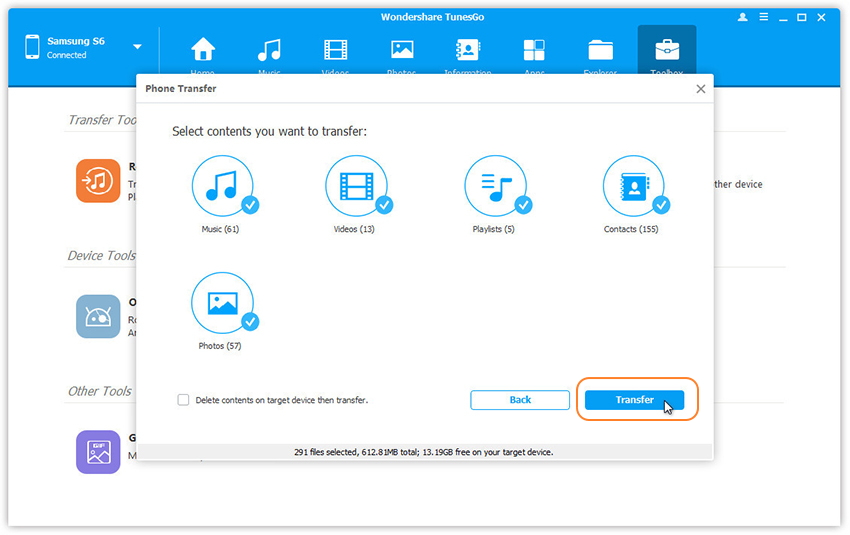
Click the “Toolbox” tab in the top menu on the primary window of the program.Three main sections will be displayed under the “Toolbox” option.Go to the “Other Tools” section and from the two subsections that will be shown,choose “One-click Root” to gain full control of your Samsung Galaxy S8.

one click root s8

Step 3.Root Samsung Galaxy S8 without Data Loss
A warning message will be displayed will be displayed saying that after rooting you will gain full access to your phone system and that rooting may affect your device warranty.Just click “Root” from that warning box to continue rooting your Galaxy S8.

root s8

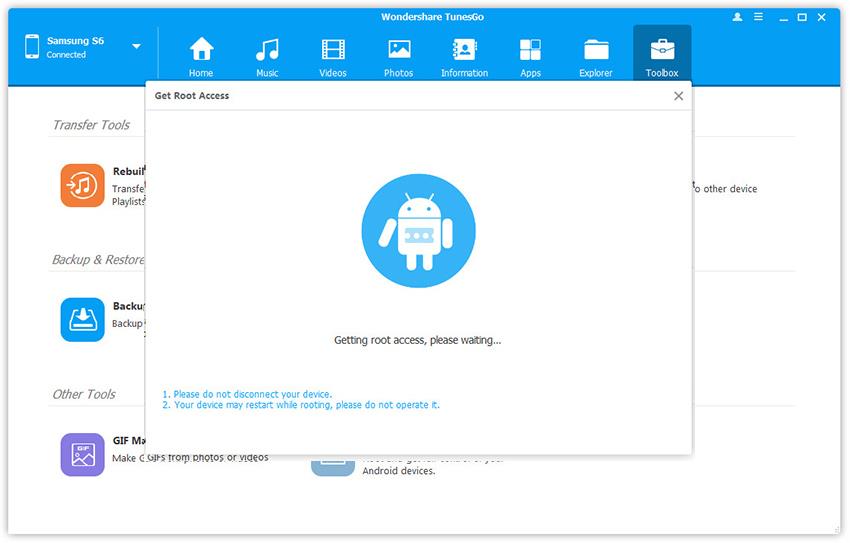
You should not disconnect your device while the root is processing.The phone may restart during the root process,but you should not operate it.Once the root process is finished, you will get a prompt message.Done.

d_win d_mac

Related Article:

How to Root Samsung Galaxy S8 on Computer Safely

How to Manage Samsung Galaxy S8 on Computer

How to Transfer iPhone Files to Samsung Galaxy S8

How to Transfer Samsung Files to Samsung Galaxy S8

How to Transfer Music to Samsung Galaxy S8

How to Transfer Videos to Samsung Galaxy S8

How to Backup & Restore Samsung Galaxy S8

How to Recover Data from Samsung Galaxy S8

How to Transfer Music to Samsung Galaxy S8/S8 Plus

I used iPhone 6 for 2 years,I am going to buy the bright Galaxy S8 which is releasing in April.How to switch music between the devices with a fast way?”-Mandy

When people ask why we love music, there might be a thousand of reasons.For me,music can relax me in an efficient way.I love listening to the R&B music.However,things might not be so pleased when you can not figure out how to transfer and enjoy music on your new device,for example,Samsung Galaxy S8.Here is how to copy music from computer/iTunes/iOS&Android device to the shinning Samsung Galaxy S8 with a famous tool-Android Manager.

Transfer Music to Samsung Galaxy S8 Easily

Android Manager offers you a perfect solution to solve these problems.Android Manager is capable of transferring & managing Android data on computer,videos,music,photos,contacts,SMS,apps are included.With Android Manager,you are allow to transfer music to Samsung Galaxy S8 from computer/iTunes/iOS & Android device.Almost all models of Android devices are applicable to Android Manager,for instances,Samsung(Galaxy S8/S7/S6/S5,Note 5/4/3),Google(Pixel,Nexus),Huawei(Mate 9/P9),Lenovo,ZTE,Sony,Motorola,HTC,LG,Xiaomi,Huawei,etc,.

d_win d_mac

Part 1:Transfer Music from iTunes to Samsung Galaxy S8

Launch Android Manager and connect your Galaxy S8 phone to the computer.Your Samsung device will be detected and displayed in the primary window soon.

Step 1.Select Transfer Option
Simply click Transfer iTunes Media to Device on the main interface.Or find the Transfer iTunes to Device option under Toolbox > Transfer Tools section.

android manager

Step 2.Transfer iTunes Music to Samsung Galaxy S8
Check options and start to copy media from iTunes to Galaxy S8.All the iTunes files will be scanned and will be shown under different categories like music, movies, podcasts and others.By default,all the file types will be selected,you can uncheck the files which you don’t need.Click Transfer to start transferring.

select itunes media to transfer

transfer itunes media to s8

d_win d_mac

Part 2:Transfer Music from Computer to Samsung Galaxy S8

Launch Android Manager and connect your Samsung Galaxy S8 to the computer.Your device will be detected and displayed in the primary window soon.

android manager

Step 1.Select Music File to Transfer
Select Music tab.Once your media loads, click Add > Add File or Add Folder.

sync music from pc to samsung

Step 2.Transfer Music from Computer to Samsung Galaxy S8
This brings up your file browser window, from which you can select songs to export from your computer.And you can also create new playlist by right clicking Music to save the imported songs.You are allow to simply Drag and Drop music files from computer to your Samsung phone.

d_win d_mac

Part 3:Transfer Music between iPhone and Samsung Galaxy S8

Step 1.Run Program on Computer and Connect Devices
Launch Android Manager and connect both devices to PC.

connect devices

Step 2. Select the Source Device
Select the source device from which you want to transfer media files.

Then simply click Phone to Phone Transfer on the main interface. Or find the Phone Transfer option under Toolbox > Transfer Tools section.

Step 3. Select the Target Device
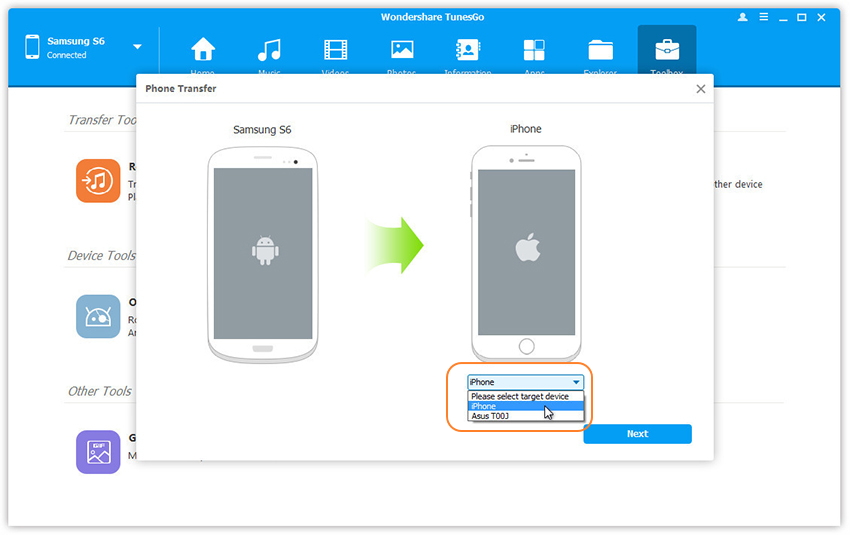
Select target device. When your devices are connected and detected by, you’ll get a window as follow. Select the target device from the drop-down list and click Next.

select phone transfer device

Step 4.Transfer Music between iPhone and Samsung
Transfer data from one device to another. By default, all data on your source device that can be transferred are ticked, namely contacts, photos, playlist, music and videos. You can also untick the data you don’t need. Then, click Transfer. In the whole transfer process, DO NOT disconnect either device. When the transfer completes, click OK.

transfer media file to s8

Note:
Windows users can tick the option(Only for Windows version): Delete contents on target device then transfer, then the selected contents on the target device will be deleted firstly before the transfer.

d_win d_mac

Related Galaxy S8 Guide:

How to Transfer Videos to Samsung Galaxy S8

How to Transfer iPhone Files to Samsung Galaxy S8

How to Transfer Samsung Files to Samsung Galaxy S8

How to Transfer Android Files to Samsung Galaxy S8

How to Backup & Restore Samsung Galaxy S8

How to Recover Data from Samsung Galaxy S8

How to Manage Samsung Galaxy S8 on Computer

How to Root Samsung Galaxy S8 on Computer Safely

How to Transfer iPhone Contacts to Samsung Galaxy S8

Summary:The article describe two solution available to transfer iPhone contacts and other data to Samsung Galaxy S8.The process is simple, works for any iPhone, and it support to transfer all contacts along with their full details such as contact photo, emails, phone numbers, address.

I’m planning to buy the new Galaxy S8 phone to take place my old iPhone 6.Something confuse me is that it is possible to transfer the personal data from iPhone to the new Samsung selectively?Especially the contacts.How?Please let me know quickly.Thanks a lot.”-Angelia

Samsung Galaxy S8 is releasing these coming days.A part of Samsung fans are prepare to get the new one and enjoy the brand new device freely.However,one thing trouble them is how to transfer contacts from old device to new Galaxy S8,for example,iPhone.To be honest,switch iPhone contacts to Samsung Galaxy S8 is not as hard as you think.Various of transfer program are sell on the market,now we strongly recommend the helpful one for you.

Part 1:Transfer iPhone Contacts to Samsung Galaxy S8 via Phone Transfer

Phone Transfer is a smart data switch program to copy content from one mobile device to another among different platforms,including iOS, Android and Symbian.Contacts can be easily transferred between iPhone and Samsung Galaxy S8.The transferable data including contacts,SMS,photos,videos,music,call logs,apps.Most of Android and iOS devices are compatible with Phone Transfer.Such as Samsung(Galaxy S8/S7/S6/S5),HTC,Lenovo,Motorola,Sony,Huawei,Xiaomi,and more;iPhone 7/6S/6/5S/5,etc,.

d_win d_mac

Step 1.Run Phone Transfer on Computer
Launch the Phone Transfer on PC.You’ll see the primary window as follows.Click “Phone to Pone Transfer”option in the main page.

phone transfer main page

Step 2.Connect iPhone and Samsung to the Computer
Connect your iPhone as well as Galaxy S8 to computer by using USB cables.After detecting,Phone Transfer will display the two phones in the primary window.

Note:In order to transfer iPhone files to Samsung,you ought to install iTunes.Only in this way can you transfer files smoothly.

Step 3.Sync iPhone Contacts to Samsung Galaxy S8
By default,all contents you can transfer are checked.You can uncheck the files you don’t want to transfer,just check the ones you need.For contacts transfer,you should click “Contacts“.

samsung to samsung s8

transfer samsung to galaxy s8

Then click “Start Transfer” to begin to sync files like contacts from iPhone to new Samsung.Be sure not to disconnect either of the phones until the whole transfer process is end.

d_win d_mac

Part 2:Transfer iPhone Contacts to Samsung Galaxy S8 via iTunes

Step 1.Plug the old iPhone to the computer via USB cable.Make sure the USB driver is installed properly.
Step 2.Run iTunes from Startup menu or desktop shortcut.It will automatically detect the iPhone attached on the computer.
Step 3.Click on the name of your device on iTunes,which leads to details page of iPhone.
Step 4.Click Info tab on the navigation menu,and mark the “Sync Contacts With” check box,and choose “Google Contacts” from the drop-down list.
Step 5.Register your Google account if you haven’t done this already.Otherwise,you can click “Configure” and select an existent Google account.
Step 6.Click “Apply” and allow iTunes to sync contacts with your Google account.
Step 7.Go to “Settings” > “Accounts” on your new Galaxy S8 to add the account on the new device, the same account as the one used in iTunes.
Step 8.Set Google so that it syncs contacts with your S8,and you’re all set.

Related Article:

How to Transfer iPhone Files to Samsung Galaxy S8

How to Transfer Samsung Files to Samsung Galaxy S8

How to Transfer Android Files to Samsung Galaxy S8

How to Backup & Restore Samsung Galaxy S8

How to Recover Data from Samsung Galaxy S8

How to Manage Samsung Galaxy S8 on Computer

How to Root Samsung Galaxy S8 on Computer Safely

How to Transfer Videos to Samsung Galaxy S8

Summary:Finding a way to import videos to your new Samsung Galaxy S8 or S8 Plus for for playback?You’ll find how to transfer videos, music, photos and other meida files from computer, iTunes or other mobile phone to the Galaxy S8 in this article.

How can I transfer the favorite film videos from computer to Galaxy S8?”-A Samsung fans
How to transfer the videos from my old phone to the new Galaxy S8?”-Nikita

samsung galaxy s8

Further Reading:

* How to Convert Apple Music to Samsung Galaxy S8/S7/S6

* How to Recover Deleted/Lost Data from Galaxy S8/S8 Plus

The Samsung Galaxy S8 is a beautiful combination of glass, metal, and an absolutely massive screen in a body that’s much smaller than you might expect.There are two versions of the S8: the standard Galaxy S8 with a 5.8-inch screen and the larger S8 Plus with a 6.2-inch screen. Both are available for booking on March 30th and will be shipping in the US on April 21st.The new S8 not only surprised the handset market, but also enabled you to enjoy ultra high quality movie or video on it.

Transfer Videos to Samsung Galaxy S8

Android Manager can solve your problems perfectly.As its name,Android Manager is an outstanding data manage tool for transferring & managing data for Android phone,including videos,music,photos,contacts,SMS,apps.Android Manager lets you to transfer videos between computer/iTunes/iOS device/Android device and Samsung Galaxy S8 with original quality.Android Manager works well for almost all models of Android devices,such as Samsung(Galaxy S8/S7/S6/S5,Note 5/4/3),Google(Pixel,Nexus),Huawei(Mate 9/P9),Lenovo,ZTE,Sony,Motorola,HTC,LG,Xiaomi,etc,.

d_win d_mac

Part 1:Transfer Videos from Computer to Samsung Galaxy S8

Launch Android Manager and connect your Samsung Galaxy S8 to the computer.Your Samsung phone will be detected and displayed in the primary window.

android manager mian page

Step 1.Select Videos Tab
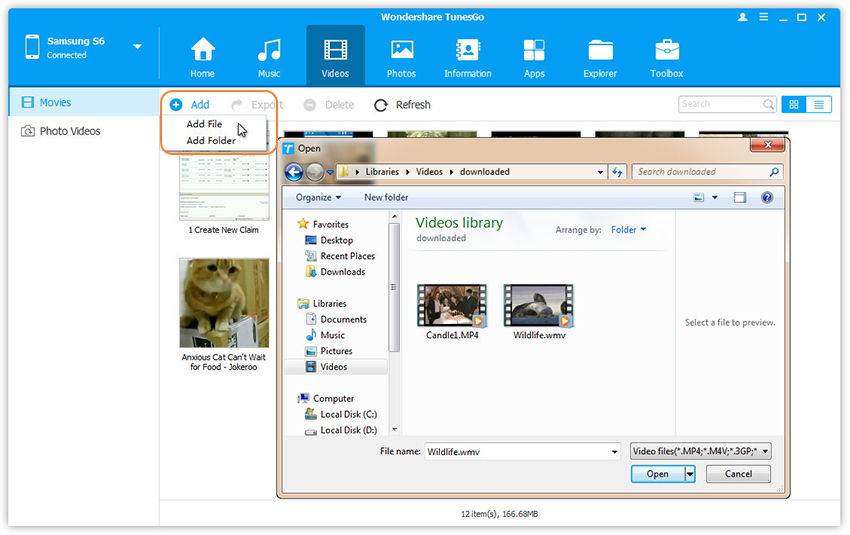
Once your media loads,click Add &Add File or Add Folder.

add videos from pc to samsung galaxy s8

Step 2.Transfer Videos from Computer to Samsung Galaxy S8
This brings up your file browser window,from which you can select videos to import from your computer.All videos imported can be watched with the built-in player.You can simply Drag and Drop videos from computer to Samsung Galaxy S8.

d_win d_mac

Part 2:Transfer Videos from iTunes to Samsung Galaxy S8

Launch Android Manager and connect your Samsung Galaxy S8 to the computer.Your Samsung phone will be detected and displayed in the primary window.

Step 1.Select Transfer Mode
Simply click Transfer iTunes Media to Device on the main interface.Or find the Transfer iTunes to Device option under Toolbox &Transfer Tools section.

android manager mian page

Step 2.Select Media File to Transfer
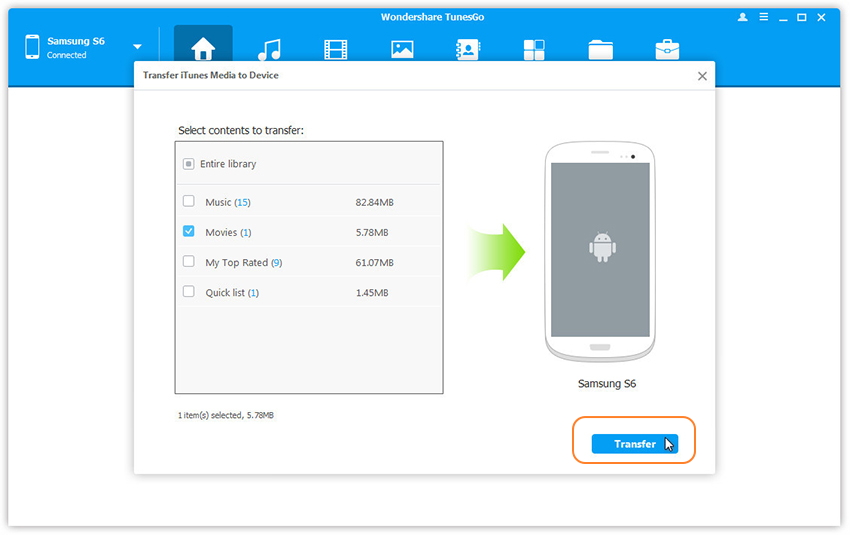
Check options and start to copy videos from iTunes to Samsung Galaxy S8.All the iTunes files will be scanned and will be shown under different categories like music, movies, podcasts and others. By default, all the file types will be selected but to transfer only the video files, you can uncheck the others. Click Transfer to start transferring.

transfer itunes videos to samsung galaxy s8

d_win d_mac

Part 3:Transfer Videos between iOS/Android Device and Samsung Galaxy S8

Step 1.Run Program on Computer
Launch Android Manager and connect both devices to PC.

connect devices

Step 2.Select the Source Device
Select the source device from which you want to transfer videos.

Step 3.Transfer Videos to Samsung Galaxy S8
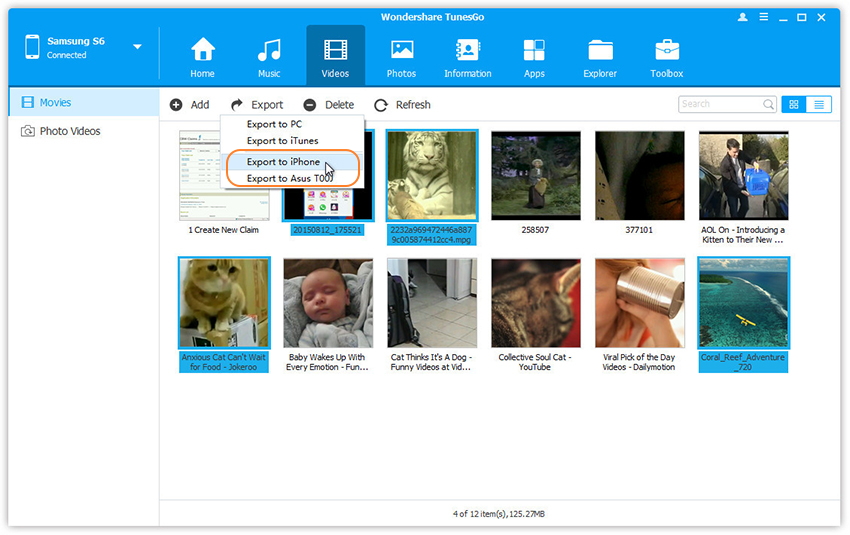
Click Videos tab.Choose your wanted videos and click Export.Select another device from the list.For example, you can transfer videos from Samsung Galaxy S8 to iPhone by selecting Export > Export to iPhone directly.
transfer videos between mobile device and galaxy s8

d_win d_mac

Related Galaxy S8 Tutorial:

How to Manage Samsung Galaxy S8 on Computer
How to Transfer Music between Computer and Samsung Galaxy S8
How to Transfer iTunes Music to Samsung Galaxy S8
How to Root Samsung Galaxy S8 on Computer Safely
How to Export WhatsApp Messages from iPhone to Computer

It’s possible to lost personal data forever If I lost my iPhone 7 or other unexpected circumstances.I’m wondering is there any way to backup WhatsApp messages on computer and read them whenever I want.”-Tom

Nowadays more and more people communicate with others though WhatsApp chat app instead of sending SMS or making call.We all have some important conversations on WhatsApp and don’t want to lose them in any case.A large number of iPhone users asked that how to extract WhatsApp messages from iPhone to computer directly.This page is going to describe how to export WhatsApp chat history from iPhone to PC/Mac selectively.You can rely on one terrific tool called iPhone Data Exporter.Please read on and be patient to check the detail steps in the follow part which we show you.

Extract WhatsApp Messages from iPhone to Computer

iPhone Data Exporter is capable of exporting WhatsApp messages from iPhone to computer selectively,as well as videos and photos.As its name,iPhone Data Exporter enables to export data from iPhone/iTunes/iCloud to computer completely,including contacts,SMS,photos,video,note,calendar,reminder,apps data(WeChat,Skype,Viber,Kik,Line,Skype) and so on.Moreover,iPhone Data Exporter allows to preview iCloud/iTunes data before exporting to computer.

d_win d_mac

How to Extract WhatsApp Messages from iPhone to Computer

Step 1.Select the File Types to Export
Firstly,please download iPhone Data Exporter and launch it on computer.From the “Export from iOS Device” tab, click “Start” to proceed.

export iphone data option

Select “WhatsApp” file to export and click on “Next“.The iPhone Data Exporter will ask to connect your iPhone to the computer.

select file to scan

Step 2.Scan iPhone Data Completely
Once your device is connected, click “Scan” button and then the program will scan your device.

scan iphone data

Generally the scan will last for a while and the time depends on the storage of your device.

Step 3.Preview and Export Selected Data to Computer
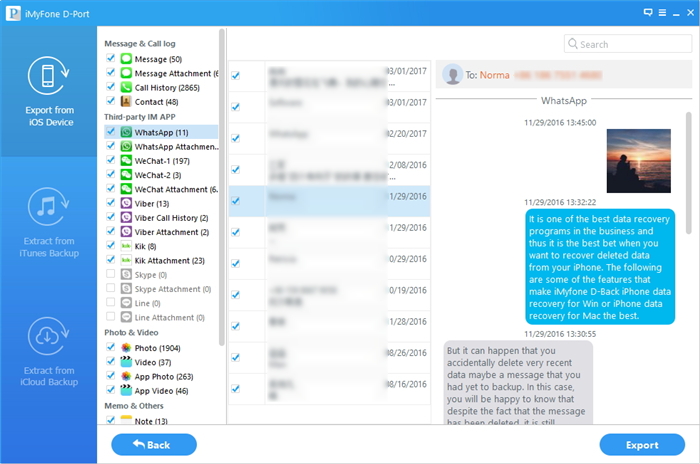
You will see all the WhatsApp messages that are currently from your iPhone. Select those that are essential and press “Export” at the bottom right corner.

export iphone whatsapp

You are allow to pick a folder on the next pop-up window to save the exported data. Once selected, wait for a few minutes to finish saving process.

d_win d_mac

Related Article:

How to Export Files from iPhone 7/6S/6 to Computer

How to Extract Data from iTunes to Computer

How to Extract Data from iCloud to Computer

How to Export Viber Messages from iPhone to Computer

How to Export Kik Messages from iPhone to PC

How to Backup and Restore Data from iPhone 7/6S/6/SE

How to Manage iPhone 7 on Computer

How to Extract Data from iCloud to Computer

Is there any ways to download iCloud backup to computer and selectively extract what I need from iCloud backup?I need to download the photos,videos from backup to my new Mac.How?”-Luke

Apple allows you to backup/sync your iPhone/iPad/iPod via iCloud.However,you cannot access the backup files in iCloud unless you restore your device from it.Most of the time,we just want to get some specific files from iCloud backup instead of restoring the whole contents in the backup.For example,you get a new Mac and wanna extract the photos and videos from iCloud to the new computer.In these similar case,you need the help of iPhone Data Exporter.

Extract Data from iCloud to Computer Selectively

All you need is a professional iPhone Data Exporter.This powerful data exporter provide the best solution to you to extract data from iCloud to computer selectively,including contacts,SMS,photos,video,note,calendar,reminder,apps data(WeChat,Skype,Viber,Kik,Line,Skype) and more.Furthermore,iPhone Data Exporter enables to extract data from iTunes/iPhone/iPad/iPod to computer with few clicks.iPhone Data Exporter allows to preview iCloud/iTunes data before exporting to computer.

d_win d_mac

How to Extract Data from iCloud to Computer

Step 1.Choose the Files you need from iCloud Backup
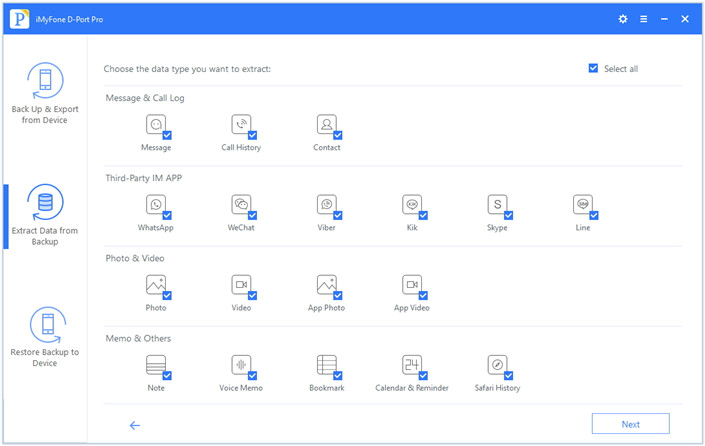
Select “Extract from iCloud Backup” option in the main window of program and check the file types you need to extract from iCloud backup.Click “Next” to log in your iCloud account.

select icloud file to extract

Step 2.Enter iCloud Account and Download Backup File
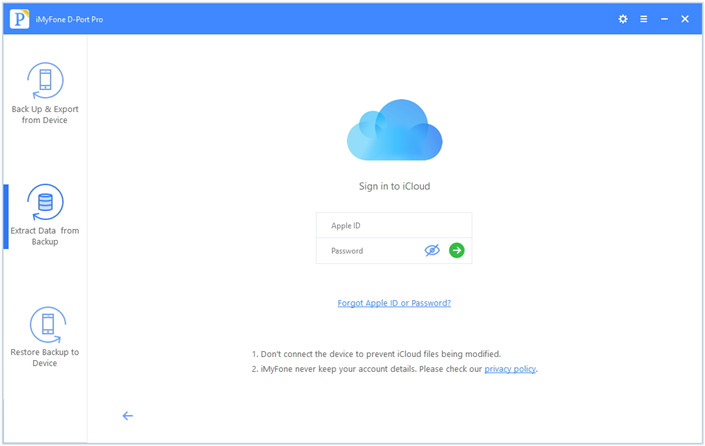
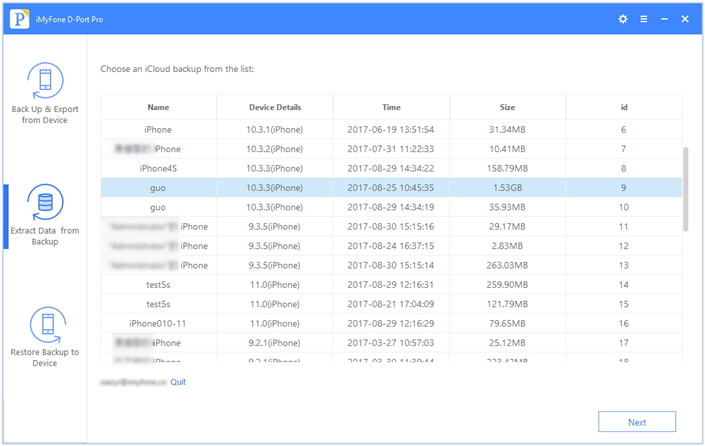
Enter your login details and iPhone Data Exporter will show all the available iCloud backups in the account.

Note:iPhone Data Exporter respects your privacy.We would never record/leak any information of your iCloud account.

log in icloud

Check details and choose the one with the data you need.Then click “Download“,the program will download the exact iCloud backup.

extract icloud file

Step 3.Preview and Extract the Data to Computer
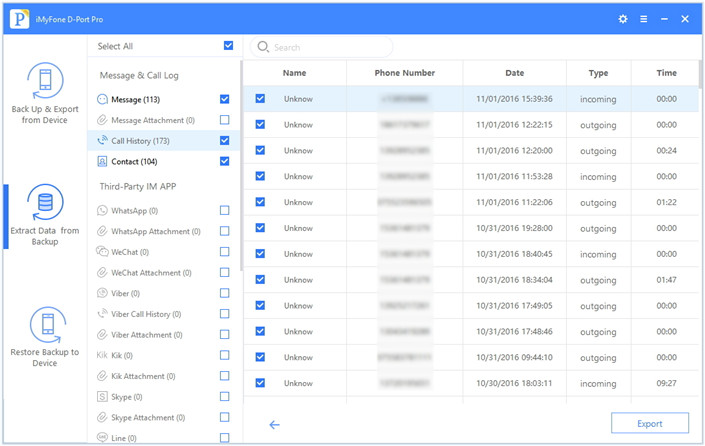
You can preview and choose the files in the iCloud backup files once the download is finished.

preview and extract icloud file

And then click “Export” to get the data from iCloud backup to PC/Mac.

d_win d_mac

Related Article:

How to Export Files from iPhone 7/6S/6 to Computer

How to Export iPhone/iPad Data to Computer

How to Extract Data from iTunes to Computer

How to Backup and Restore Data from iPhone 7/6S/6/SE

How to Manage iPhone 7 on Computer

Extract Android Data with Broken Screen if USB Debugging Fails

I try to enable USB debugging on my Android phone with broken screen but failed.I want to backup the data for device and transfer it to my computer.Unfortunately I did not have USB debugging enabled on the broken screen Android.How to achieve it?”-Nicolas

For most of Android users,they used to backup data from device to computer using USB.However,it’s really a common situation that fail to enable USB debugging on Android with broken screen.It may be a little complicated that backup/transfer/export data from broken screen Android to computer when enable USB debugging on Android failed.This page is going to show you a helpful solution to fix the problem.

What is USB Debugging Mode?USB Debugging Mode is a mode that can be enabled in Android after connecting the device directly to a computer with a USB cable. The primary function of this mode is to facilitate a connection between an Android device and a computer with Android SDK (software development kit).

Backup Android Data if USB Debugging Fails

Broken Android Data Extraction comes for you,which is a terrific data extraction for broken Android,including Android with broken screen,Android with black/white screen,Android stuck in download mode,water damaged Android,etc,.Thanks to Broken Android Data Extraction,you are easily to backup/extract/recover data from Android with broken screen on computer.Various of Android data are supported,like contacts,messaging,gallery,call logs,audio,vidoes,WhatsApp messages& attachments,documents.It can be utilized on almost all of Android mobiles,such as,Motorola, Samsung, HTC, Sony, LG and others.

d_win d_mac

How to Extract Android Data with Broken Screen

Step 1.Run Broken Android Data Extraction Program
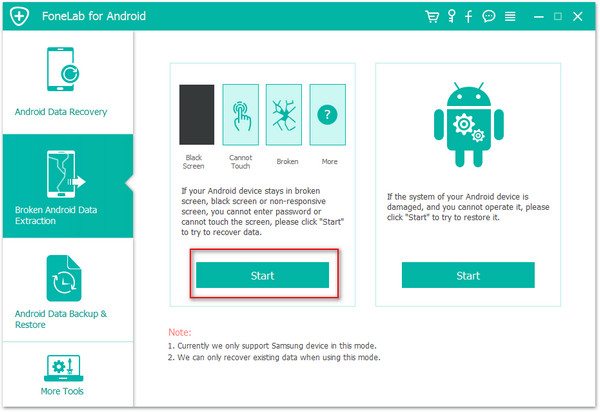
Firstly,please run Broken Android Data Extraction on your computer,click “Broken Android Phone Data Extraction” function,then click “Start“.

broken android data extraction main page

Step 2.Select the Android Model
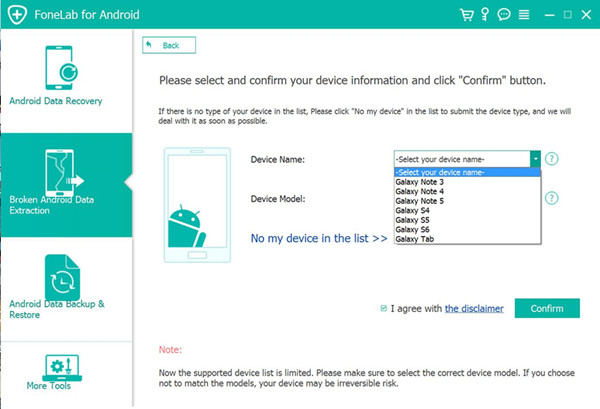
On the new window,choose the device name and model of your Android device.Click “Confirm” to continue.

select phone medel

Step 3.Enter Android into Download Mode
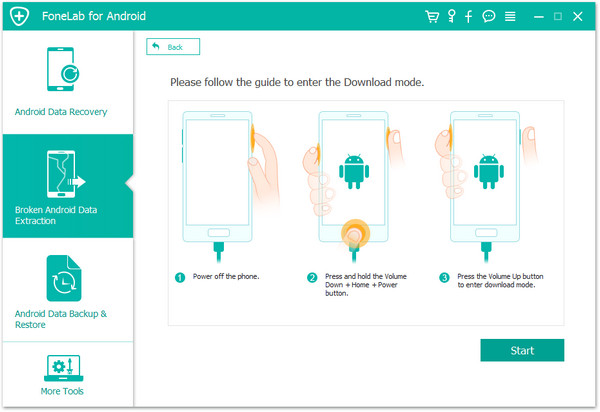
Now you should follow the simple guide to enter your device into the Download Mode.Power off the phone > press and hold three buttons: “Volume Down”, “Home” and “Power” > press the “Volume Up” button to enter the “Download mode”.

enter download mode

Step 4.Download Recovery Package for Android

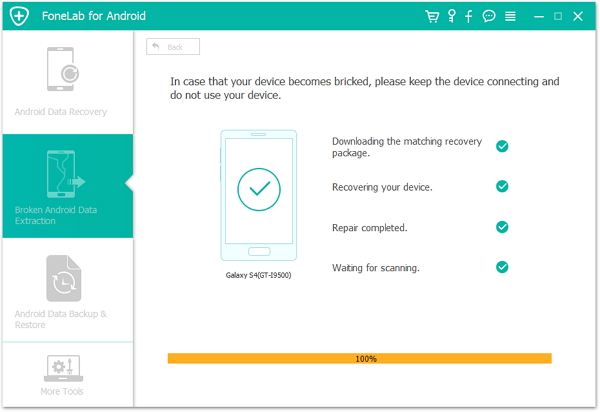
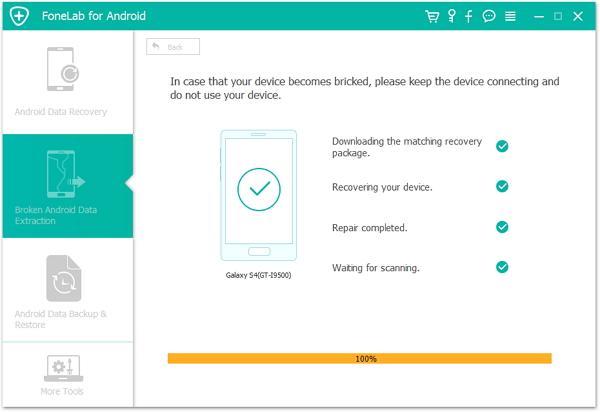
The program will begin to download the recovery package for Android with broken screen.And start to fix your Android when it enable to USB debugging fails.

fix android to normal

Note:Please keep connection with your device and the computer, don’t use your device during the fixing process.

fix android completed

The Android system issue fixing completed.Now your Android has back to the normal state as usual.After that,you could switch to the “Android Data Recovery” mode to scan your phone data including the deleted and existent items for data backup/recovery.

Step 5.Extract Data from Android for Backup or Recovery
1)Select Data to Scan by Program
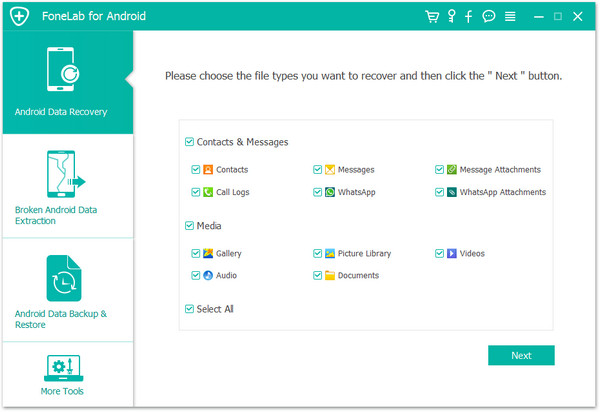
When you switch to the “Android Data Recovery” mode.Click the types of file which you want to recover and click “Next” to begin the scanning process.

select files to scan

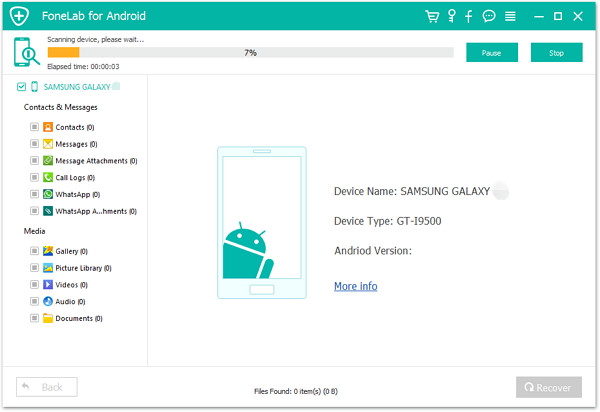
Now program will start to scan data stored on your Android,including the deleted data and the existent data.

scan android

2)Preview and Extract Data from Android
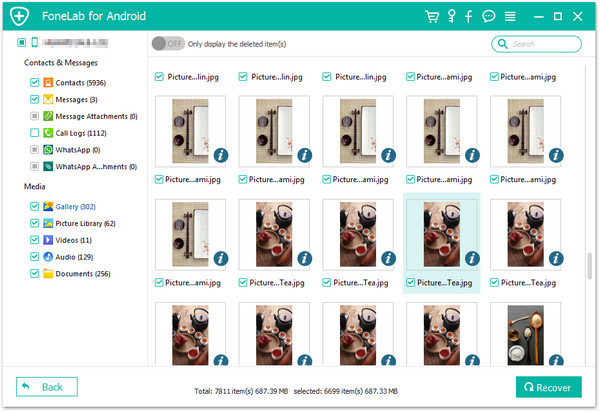
The scanning process will take you few minutes and you will find the files you choose will be listed here. Click the file type and you are able to preview the detailed information of the file.Select the ones which you want to restore and click “Recover” to extract the data from your Android phone to computer.

extract data from android

d_win d_mac

Related Article:

How to Recover Files from Broken Screen Android Phone

How to Recover Data from Broken Android Phone

How to Recover Contacts from Broken Android

How to Recover Data from Frozen Android

How to Fix Android Won’t Turn on Issue