All posts by DHZ

How to Export SMS from iPhone to Computer

I saved thousands of SMS on my iPhone 6S,now I need to clean the SMS box and free up space my device.How to export the SMS from iPhone to my computer for keeping data?I just want the simple ways.Thanks advanced.”-Jane

Classically,people sent SMS in daily instead of making call,for work,for privacy.For most of us,text messages are an important part of personal data to backup.If you’re using iPhone, you may know you can backup iPhone data via iTunes.However,sometimes you cannot read the backup files normally through iTunes.Well,there is another easy way to help you directly export text messages from iPhone to computer.In this guide,we will recommend you the best tool for helping to export SMS from iPhone to computer.

Export SMS from iPhone to Computer Directly

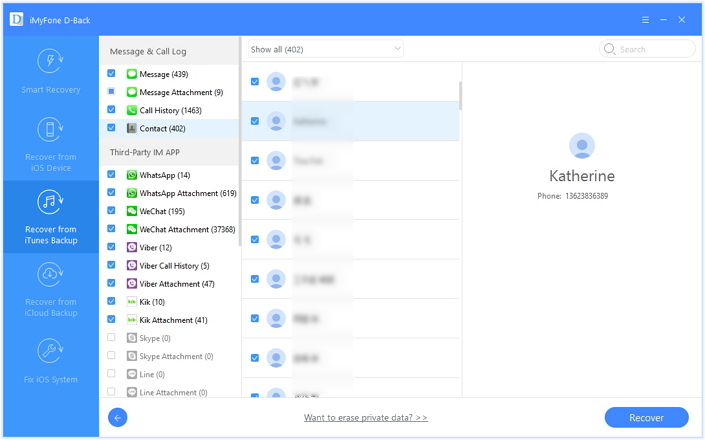
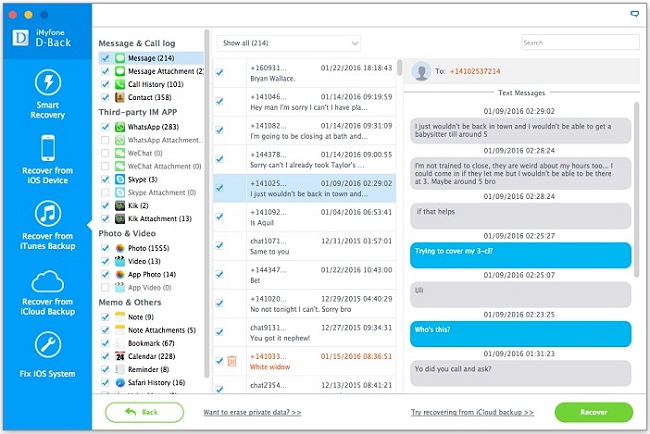
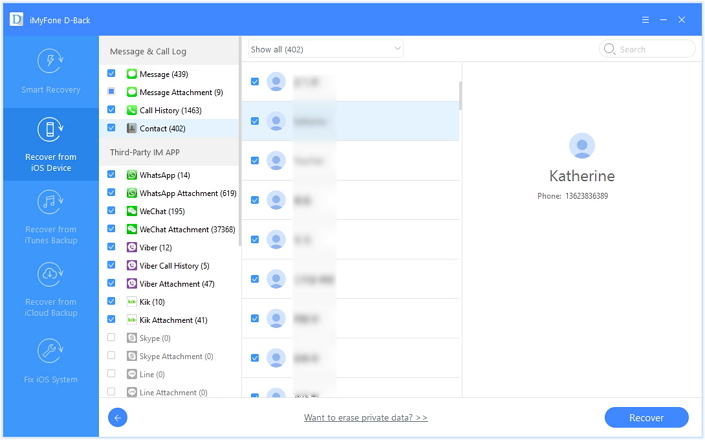
A super data exporter named iPhone Data Exporter can fix your problem,perfectly help to export SMS from iPhone to computer directly.iPhone Data Exporter empower to export more than 22 types of files to computer,such as messages, photos, contacts, notes and more;support to export data directly from iPhone,from iTunes backup or iCloud backup;allow you to preview and selectively export the data you want;work well for almost the entire models of Apple,including iPhone 7,iPhone 6S, iPad Pro, iPod Touch,etc,.


d_win d_mac

How to Extract SMS from iPhone to Computer Directly

Step 1.Select the File Types to Export
Firstly,download iPhone Data Exporter and launch it on computer.From the “Export from iOS Device” tab, click “Start” to proceed.
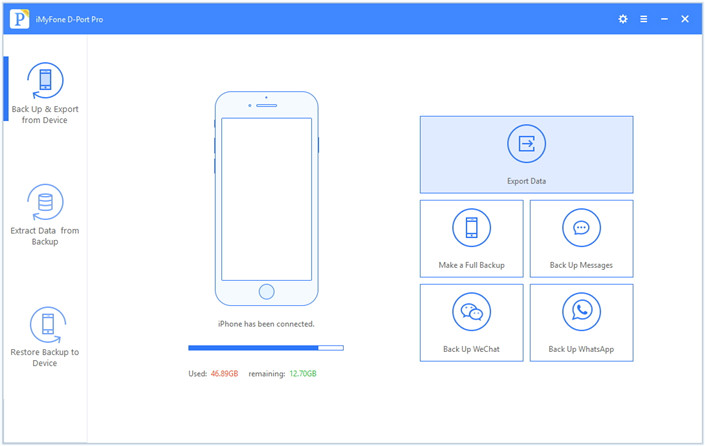
export iphone data option

Select the file types you need to export and click on “Next“.For SMS export,you should click “Message“.The iPhone Data Exporter will prompt to connect your iPhone to the computer.
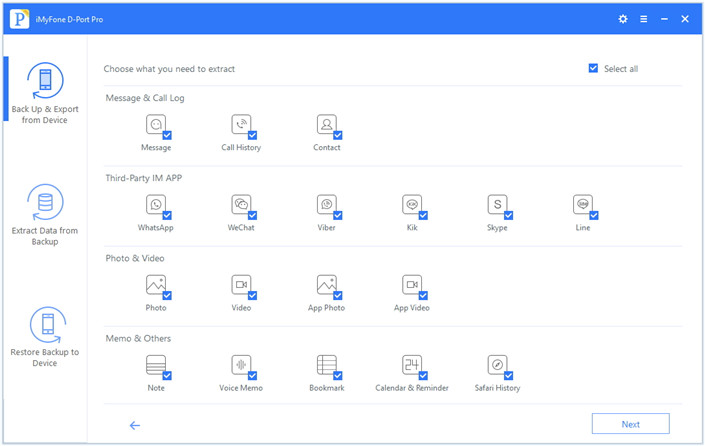
select file to scan

Step 2.Scan iPhone Data Completely
Once your device is connected, click “Scan” button and then the program will scan your device.
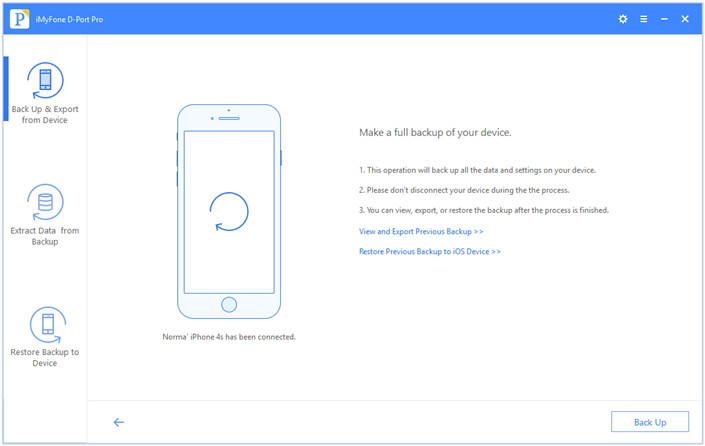
scan iphone data

Step 3.Preview and Export SMS from iPhone to Computer
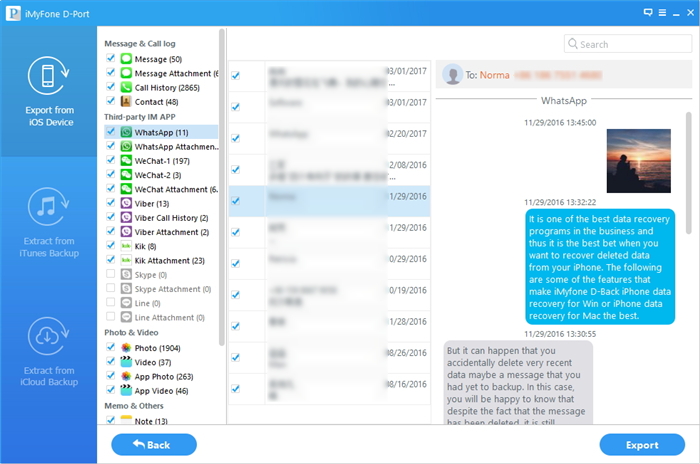
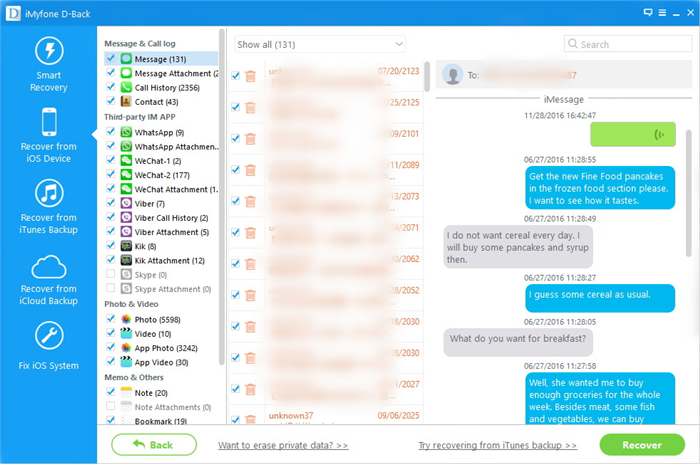
Once the program finishes scanning the device,it will display all the text messages and attachments in the preview interface of program.You can preview the content and select what you need.Then click “Export” to extrat the selected data to your computer.
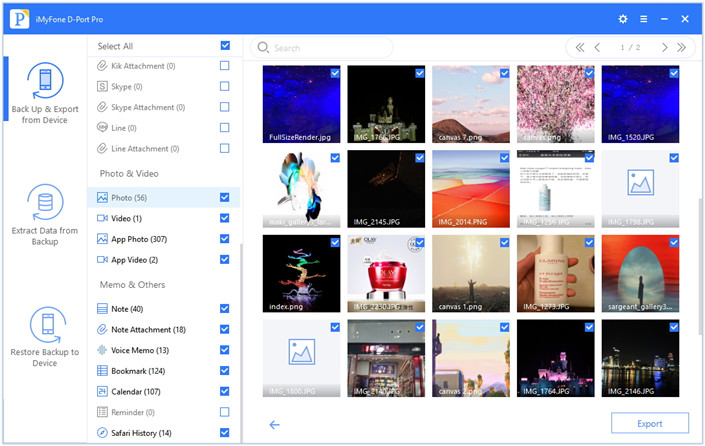
preview and export iphone sms

A pop-up window will open asking you to select the destination to save the selected files. Wait until the program finishes exporting data from your iPhone to PC/Mac.

d_win d_mac

Related Article:

How to Export Files from iPhone 7/6S/6 to Computer

How to Export Photos from iPhone to Computer

How to Extract Data from iCloud to Computer

How to Extract Data from iTunes to Computer

How to Extract WhatsApp Messages from iPhone to Computer
How to Recover Deleted Text Messages on iPhone

3 Ways to Recover Deleted SMS from iPhone 7/6S/6

How to Export Photos from iPhone to Computer

Yesterday was my birthday,my boyfriend sent me a new iPhone 7 I was so happy.Now I need to transfer the thousands of photos from my old iPhone to computer for backup.Can anyone offer the best ways for me to complete the transfer process?Thanks a lot.“-Jenny

I take a lots photos by my iPhone X,as we all know that the image format of Apple’s latest iOS 11 in iPhone X is a user dream come true,photos in iPhone X created in HEIC format,how to export the iPhone X’s HEIC/HEIF photos to computer?” – Aaimi

It is wonderful to take photos via iPhone for its perfect camera performance, we would like to capture the beautiful moment and save them for late preview.Most people like to keep photos on the computer for backup, but sometimes it is not convenient if you want to transfer the photos from iPhone to computer.So, what should you do to export photos from iPhone to computer?

Export Photos from iPhone to Computer Directly

An awesome data transfer called iPhone Data Exporter can help to finish the data transfer task in minutes.It allows you to export photos from iPhone to computer with few easy steps.It provides you a quick way to export data from iPhone/iTunes/iCloud to PC/Mac with simple clicks.The transferrable data including contacts,photos,messages,video,call logs,note,calendar,reminder,apps and so on.Furthermore,iPhone Data Exporter enables to preview data before data transfer.

d_win d_mac

Part 1:Directly Export Photos from iPhone to Computer

Step 1.Run Program and Select Export Mode
Run iPhone Data Exporter on your computer.From the main window,select the option “Export from iOS Device” then click the “Start” button.

export iphone data option

Step 2.Select File to Scan from iPhone
A new window will open prompting you to select the file types that you want to export.In this case,choose “Photos” once that is done the program will ask you to connect the iPhone.Then program will detect the device automatically.Once detected, click the “scan” option to continue with scanning the iPhone.

select file to scan

Step 3.Select Data Location and Export
After the scanning is finishes, all the photos will be displayed in the interface. You can select all the photos that you want to transfer to your computer and press the “Export” button.

preview and export iphone data

A new window will open up and ask you to select the location where you want save the photos.Find a folder on your computer.The program will then begin transferring the selected photos to your computer.

d_win d_mac

Part 2:Export iPhone Photos to Computer via iTunes

Step 1.Run program and Select Export Mode
Run iPhone Data Export on computer.From “Extract from iTunes Backup” tab to select the export mode to export from the iTunes backup.And then click “Start” to find all the iTunes backups on the computer.

extract itunes data mode

Step 2.Scan iTunes Backup to Search Data
Check the details of iTunes backups and choose the backup from which you want to extract data.To export photos,you should click “Photo“.Continue the process by clicking on the “Scan” button.

select itunes data to scan

The program will scan the chose backup and it will need few minutes to finish.

extract itunes backup file

Step 3.Preview and Extract Data from iTunes Backup
Just wait for the scanning process finish and then all the data in backup will be listed on the preview window.

preview and extract data from itunes

Check what you need to extract and click on “Export” to choose the location on next pop-up.

d_win d_mac

Related Article:

How to Export Files from iPhone 7/6S/6 to Computer

How to Extract Data from iCloud to Computer

How to Extract Data from iTunes to Computer

How to Transfer Photos from WhatsApp to Mac

How to Recover Lost Photos from iPhone after iOS 9/iOS 10 Update

How to Recover Deleted Photos from iPhone 7/6S/6

How to Export Voice Memos from iPhone to Mac

Hi.I’m a iPhone 7 users,I make some voice memos on my device when I was in music class.Now I need to export these music voice memos from my iPhone to Mac.How?”-Vicky

Voice mail is a convenient feature on iPhone,which allows us to send recorded messages to our addressees just within a few seconds.As the majority prefers simple text messages, sometimes voice mail is more preferable.For most of people, voice memo is a quick way to record audio, no matter record a live music event or an important talking. And the process of recording a voice memo is very simple.For several reasons, you may need to export voice memo from iPhone to Mac,this article will show you two different ways that help to perform the data transfer with easy steps.

Part 1:Transfer iPhone Voice Memos on Mac via iTunes

Step 1.Run iTunes on Mac,make sure that you are using the latest version of iTunes.

Step 2.Connect your iPhone to the Mac with USB.

Step 3.iTunes should run automatically upon detecting the phone.If it does not open,then open iTunes manually.

Step 4.Select your iPhone from the main interface, in the left pane of iTunes.

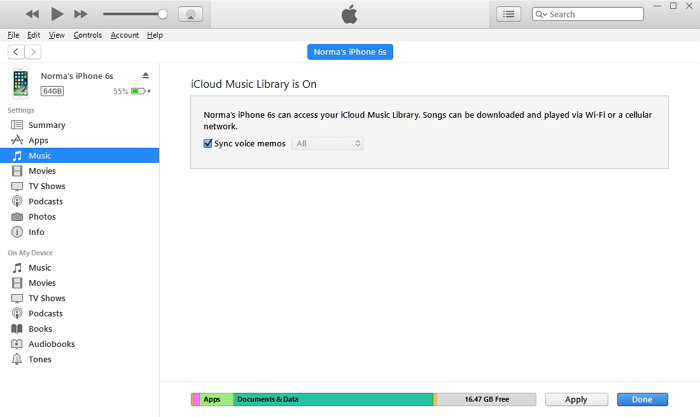
Step 5.Under your device, several options appear. Pick “Music”, which opens additional choices on the right side of the window.

Step 6.In the right pane of the window, check mark “Sync Music” option. You will have to select “Include voice memos” checkbox.Selecting this option will allow iTunes to sync all the voice memos present within your phone.

sync music itunes

Step 7.Click “Apply” to begin sync the voice memos with your iPhone on Mac.

Part 2:Export iPhone Voice Memos to Mac via iPhone Data Exporter

iPhone Data Exporter is capable of exporting voice memos from iPhone to Mac directly.As its name,this program enables to export data from iPhone/iTunes/iCloud to Mac/PC with easy steps.The transferrable data including contacts,SMS,photos,video,calendar,reminder,notes,apps data(WeChat,Skype,Viber,Kik,Line,Skype) and more.What’s more,iPhone Data Exporter empowers to preview data before exporting.

d_win d_mac

Step 1.Run Program and Select Export Mode
Launch iPhone Data Exporter on Mac, and from the main window, choose “Export from iOS Device” option.

export iphone data option

Step 2.Select File Type to Export
By pressing the “Start” button, you will open another window, where you have to choose the file types that you wish to extract from your iPhone.In this case, select “Voice Memo”.

select file to scan

Step 3.Export Voice Memo fro iPhone to Mac
Connect your iPhone to the Mac.iPhone Data Exporter detects the phone and displays the information on the main screen.Press “Scan” to begin the scanning process.

scan iphone data

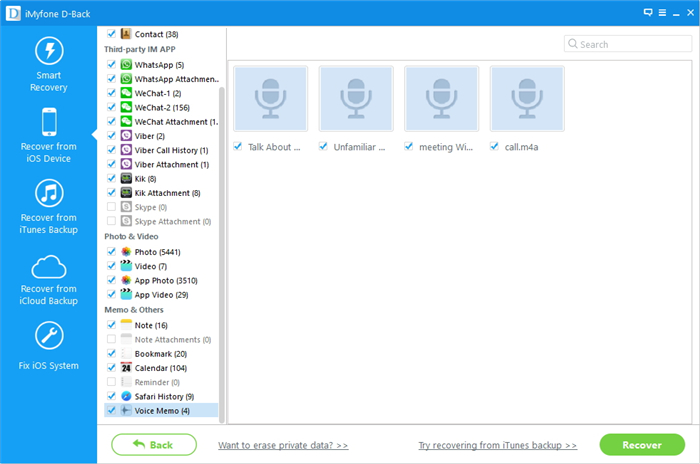
When the scanning process is complete, the program will show all the recoverable voice memos. Select the ones you want to recover and then click “Recover”.

export voicememo mac

A small window opens up asking you to choose a folder where you would like to save the selected files. Wait until the program completes the action before you browse the folder.

Done.You have successfully extracted voice memos from iPhone to your Mac using iPhone Data Extractor.

d_win d_mac

Related Article:

How to Export Files from iPhone 7/6S/6 to Computer

How to Extract Data from iTunes to Computer

How to Extract Data from iCloud to Computer

How to Export WhatsApp Messages from iPhone to Computer
How to Recover Deleted Voice Memo from iPhone

How to Transfer Notes from iPhone to Mac

I want to backup the iPhone notes on Mac for backup,but I haven’t find the suitable way to perform it.Anyone give me some good advice?”-Wendy

I using iPhone X and Macbook Pro,now I want to backup all Note data from iPhone X to my Macbook Pro,any way helps me transfer Notes from iPhone X to Macbook?” – Sundiy

Most of us like to make notes on iPhone to mark the important thing or the appointment,remind us all the time.Notes play an important role in daily life,for work,for personal stuff,and more.For example:If you are in a meeting, you don’t need to have a diary and a pen,you can write down the important points right on the notes app of your iPhone.It’s wonderful if you could transfer notes from iPhone to Mac or PC,which also can be used as a backup if iOS update or iOS jailbreak.As we know,you are allow to sync data with iTunes but notes is not included in the list. You can only click the listed data types to sync and then export to your computer.So we can’t use iTunes to export notes from iPhone to computer.

Transfer Notes from iPhone to Mac

Generally speaking,you can use iPhone Data Exporter to transfer notes from iPhone to Mac directly.Except notes,various of iPhone data can be export from iPhone/iTunes/iCloud to Mac/PC via iPhone Data Exporter,including more than 20 types of files,for instances,contacts,SMS,photos,video,calendar,reminder,apps data(WeChat,Skype,Viber,Kik,Line,Skype) and more.In addition,you are allow to preview data before transferring to get exactly what you need.

d_win d_mac

How to Directly Export Notes from iPhone to Mac

Step 1.Run Program and Choose Export Mode
Run iPhone Data Exporter on Mac and choose “Export from iOS Device” from menu on left side.Then click on the Start button.

export iphone data option

Step 2.Select File Type to Export
You will now have to choose the file types to export.Choose Note by checking the box next to it.Now connect your iPhone when the program instructs to do so.Your iPhone gets identified automatically soon.So you have to press Next now.

select file to scan

Step 3.Export Notes from iPhone to Mac
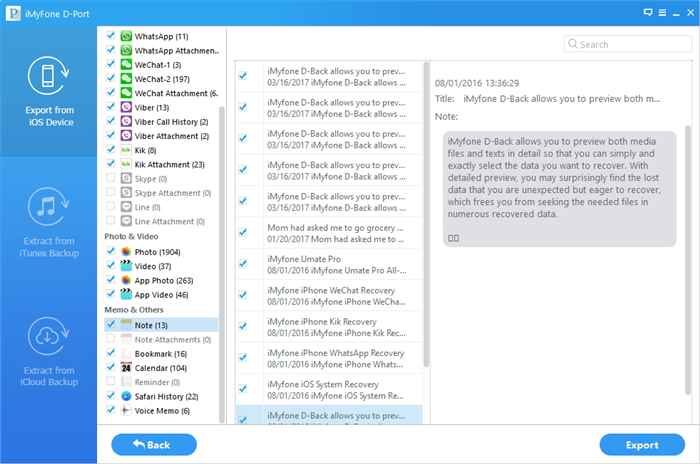
After scanning,your notes will be presented on the window.You can preview it or choose the notes you want to copy,hit the “Export” button at the right bottom part of the window.Then set a target folder to save the notes on your Mac.

export iphone notes to mac

d_win d_mac

Related Article:

How to Export Files from iPhone 7/6S/6 to Computer

How to Extract Data from iTunes to Computer

How to Extract Data from iCloud to Computer

How to Export WhatsApp Messages from iPhone to Computer
How to Recover Deleted Notes on iPhone and iPad

How to Recover Lost Notes after iOS 10 Update

iOS 10.3 Hidden Tricks and Features

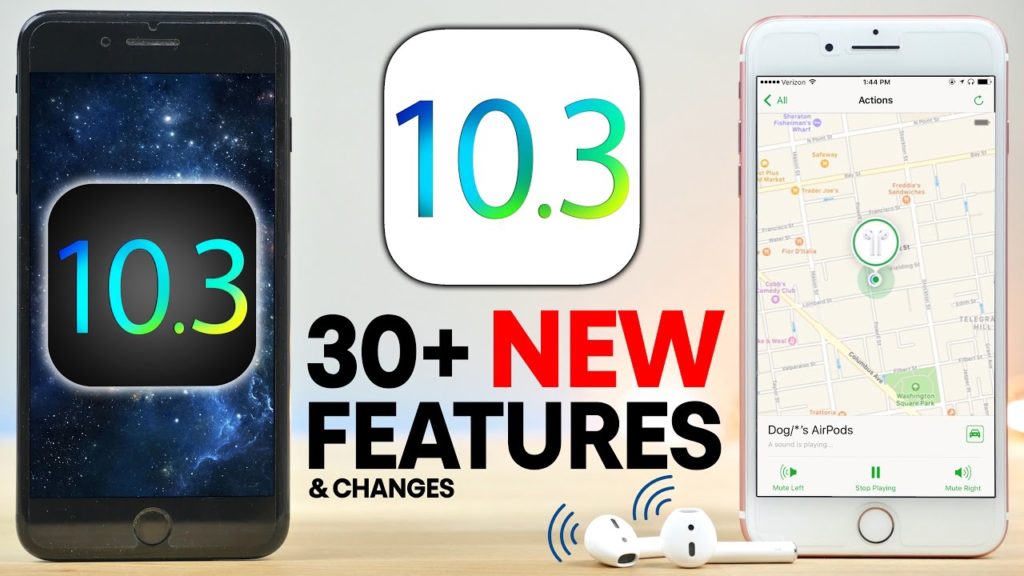
Apple has officially released iOS 10.3 to the public, which is considered a major update. Apple released seven betas of iOS 10.3 to developers and the public before rolling out the final version. The first beta was released back on January 26. So what are the new iOS 10.3 features? Here is a breakdown:

ios 10.3 new features

Hidden ios 10.3 Tricks:Make Everthing Wonderful

1.Image Search in iMessages
Now you no longer need GIF keyboard apps as you can now directly search for images from the iMessages App. While typing a message, simply tap on the App Store icon and then get to the images page by swiping. Here you can select an available category or enter your own search term.

2.Save Data by Sending Smaller Photos
Open the Settings and then Messages. Now, scroll to the bottom of the page and look for “Low Quality Image Mode” and enable it. If you are using a limited data plan, this feature can come in very handy.

3.Mail Filters
Now you only need a single tap to filter messages in the Mail app. While you are viewing your mailbox, look in the lower-left corner for filter icon. The filter is set to default for showing the unread messages. You can tap on this “Unread” category to filter the messages on the basis of the available categories.

4.View Two Tabs of Safari at once on iPads
Apple did mention in the June announcement that now users can view two Safari tabs at once on iPads and it turns out that there are a few ways to do this. Here is one of the cool ios 10.3 tricks- Simply drag a Safari tab to one side of the screen. Or, long press the link and a new menu will open. In this new menu, select “Open in Split View”.

5.Close All the Tabs at Once
You can not just view two Safari tabs at a time, but can also close them all at once with the new ios 10.3 update. If you are using an iPad, long press “Tab View” button and then select “Close X Tabs”. And if you are using an iPhone, tap on “Tab View”, long press the “Done” button and then tap on “Close X Tabs”.

6.Never Forget your Parking Spot
If you have CarPlay or other standard Bluetooth system equipped in your car, you will receive an alert as you tune this system off before exiting your car. Now the alert for Parked Car will plot the position of your car on the Apple Maps to help you find your car.

7.Prioritize Installation of Apps
If you want to restore your IOS device, now you don’t need to wait for hours to download a restore a particular app. We have a great ios 10.3 tricks for you. With the help of 3D Touch, you can tap on an app and then tap on Prioritize Download from the options to download a particular app first.

8.Share and Work Together with Notes
ios 10.3 update has brought in a new feature with the help of which you can share a note from Apple Notes App with your colleague or contact. For doing this, open the note that you want to share and then tap on the Share button which you will find at the top of your screen. Select the method through which you want to send your invite, enter the name of the contact and then tap on send.

9.3D Touch to Add Widgets
Until now, when you tapped on the icon of the app, you were presented with the available shortcuts of that app. But with the ios 10.3 update, you will also find the widgets that are compatible with the app when you tap its icon. Simply long press the app icon and then tap on Add Widget button to add widgets.

10.Listening to Music and Taking Pictures
With the ios 10.3 update, now the music will not pause when you open the camera app. Continue listening to your favourite music while clicking as many picture as you want. However, taking live video or pictures will pause the music.

Related iOS 10.3 Tutorial:

iOS 10.3 Update Issues and Solutions

How to Recover Deleted iPhone Data after iOS 10.3 Update

How to Recover Lost iPhone Data after iOS 9/iOS 10 Update

How to Recover Lost Contacts on iPhone after iOS 10 Upgrade

How to Backup and Restore iPhone/iPad Files after iOS 10 Upgrade

How to Transfer Calendar from iPhone to Mac

Summary:People who like to manage the life will no doubt that have a lot of calendar entries on mobile device especially iPhone.Transferring calendars on Mac is one way to keep them safe just in case something happens to the iPhone and you may lose them under unexpected situations.In this article,we are going to discuss about two ways help to easily transfer calendar from iPhone to Mac.

Nowadays advancing technology introduces a series of excellent electrical products like mobile phones, desktop computer and laptops to us,and these products bring us big convenience and fun.Since many of these conveniences have become a staple in both our personal and business lives, they are no longer a luxury but a requirement for keeping up with a variety of different daily functions.iPhone is the most popular device among mobile phone,as we know,many iPhone users are accustomed to make calendars on device.So, for those people who currently have their calendar apps and information on iPhone, they may need to transfer calendars to computer for backup or other reasons.

Part 1:Transfer Calendar from iPhone to Mac via iPhone Data Exporter

The best solutions here we recommend for you is iPhone Data Exporter,which is a pretty good data exporter tool for transferring calendar from iPhone to Mac or PC easily.Not only calendar,but also other more than 22 different types of iPhone data are supported by iPhone Data Exporter, including messages,photos,music, notes, apps and more.Moreover,iPhone Data Exporter enables to transfer files from iCloud/iTunes to computer completely.It supports all popular iPhone models, iPad models and iPod models.

d_win d_mac

Step 1.Run Program and Select Mode
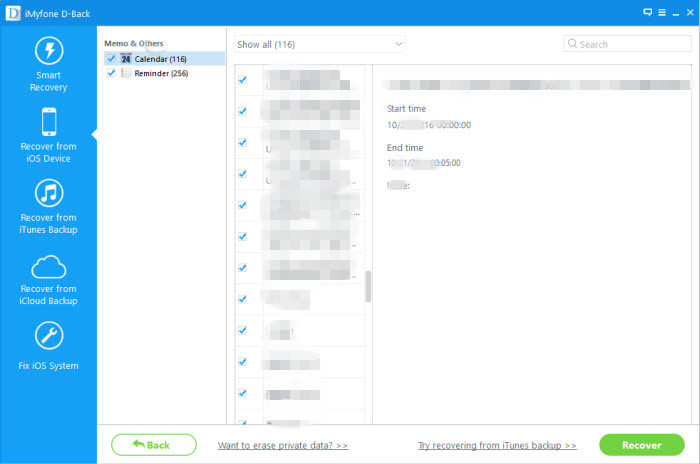
Run iPhone Data Exporter on computer,Click on “Recover from iOS Device” and Select “Calendar & Reminder” from the next window and click “Next” to continue.

select file to scan

Step 2.Connect iPhone to the Computer and Scan It
Connect iPhone to the computer using USB cables and then click “Scan” when the program detects the device.

scan iphone data

Step 3.Transfer iPhone Calendar to Mac
When the scanning process is completes,select the calendar you want to transfer to the Mac and then click “Recover”.Select a location on the computer to save the calendar and you’re done.

export calendar from iphone to mac

d_win d_mac

Part 2:Transfer Calendar from iPhone on Mac via USB Syncing

This syncing method requires no previous setup. Connect iPhone to Mac with its USB cable. Launch iTunes and click on “iPhone” on the device toolbar. Select the “Info” tab and check off “Sync Calendars.” Click “Apply” and wait until the progress bar shows that the sync is complete. Press the “Eject” button and disconnect your iPhone.

Part 3:Transfer Calendar from iPhone on Mac via iCloud Syncing

If you have an Apple iCloud account, you can sync calendars with your Mac wirelessly from any location, without using iTunes.

Step 1.All your event information is stored on the iCloud Web server, and it is pushed to your iPhone and Mac through Wi-Fi or cellular data.Set up your iCloud calendar on your iPhone by opening the Settings menu and selecting “iCloud”.

Step 2. Sign in to your iCloud account and switch on Calendars. Enable your iCloud calendar on your Mac by clicking the Apple menu icon on your system toolbar and selecting “System Preferences”.

Step 3.Choose “iCloud” and sign in to your account. Check the box next to Calendars. Events added to the Calendar apps on your iPhone or Mac will automatically update across your devices.

Related Article:

How to Recover Deleted Calendar from iPhone 7/6S/6

How to Export Files from iPhone 7/6S/6 to Computer

How to Extract Data from iTunes to Computer

How to Extract Data from iCloud to Computer

iOS 10.3 Update Issues and Solutions

iOS 10.3 is releasing these days,there are a lot of iOS users are planning to update device to the newest version.However,recording to the report,iOS 10.3 update may lead to a serious of issues appear.In the last article,we will talk about the common iOS 10.3 update related problems.This post will examine every known difficulty encountered in this area and provide easy to follow steps to overcome these difficulties speedily.

ios-10-3

Common iOS 10.3 Update Related Problems

1.Error 14 After Updating to iOS 10.3
The most common update problem recorded by iOS users who have updated to iOS 10.3 has been the error 14. This error stands for iOS device cannot be restored and shows as “An Unknown Error Occurred (14)”. This is one of the many bugs of iOS 10.3 and no official fix has been given. However, there are certain tricks you can use to overcome this error. These tricks include:
-If you had backed up your device prior to the update, perform a clean restore of your iOS 9.3.2/3/4.
-Check if your USB device is supported by Apple.
-Ensure you the Xcode 8 version you have is the latest version, you can always get this on the Apple developer website.

2.iDevice Stuck on Verifying Update
Having the screen stuck on a “Verifying Update” messages for hours can be infuriating, but that exactly one of the most common problems when users try to upgrade their Apple devices to iOS 10.3. As always, there’s a way around it and they are:

-Try to press the power button repeatedly to see if it will have an effect on the stuck screen.
-Perform a hard reset of your device by holding down the “Power” button and the “Home button till the Apple logo appears on the screen signaling a restart of the device.
-Upgrade your iTunes to the latest version (12.3) and update your device using iTunes. Updating with iTunes is often more reliable than updating over WIFI.

3.Update Troubles Related to Downloading iOS 10.3
When new releases come out from Apple, virtually the whole Apple community wants to get their hands on it. As a result, some users get the “Software Update Failed” error message while updating their devices to iOS 10.3. Just imagine millions of consecutive downloads at once. It will sure put a strain on Apple’s server. To get around this, try the following:

-Don’t rush to update your device; give it a few days, so the rush would have calmed down.
-You can try rebooting your router and iOS device, the problem can also be local.
-Ditch the direct WIFI update and update via your iTunes. This is much more reliable from experience.

4.Stuck on “Slide to Upgrade Screen” Headache
Another often reported update trouble by users trying to update to the iOS 10.3 is their device freezing while their device displays “Slide to Upgrade”. Users have reported it lasting for hours, and would sometimes need a hard reset to get out of the screen. To fix this, you should do the following:

-Plug your device to your PC and launch iTunes. Press the home and sleep/wake button together till iTunes detects your device.
-Restore your device to the previous iOS version you had initially before initiating iOS 10.3 update.
-After restoring to the previous version you had, you can attempt to start your update over again, but ensure your iTunes and Xcode 8 are up-to-date before attempting to update again.

5.Stuck in Recovery Mode
For various reasons such as jailbreak and factory resetting,your iOS device can get stuck in recovery mode. This is very common to iPhone 6 and 6S and iPad Air.In order to get out of recovery mode, simply perform a hard reset to exit the recovery mode.Restore your device from the backup you have made.

Related Article:

How to Recover Deleted iPhone Data after iOS 10.3 Update

How to Recover Lost iPhone Data after iOS 9/iOS 10 Update

How to Recover Lost Contacts on iPhone after iOS 10 Upgrade

How to Backup and Restore iPhone/iPad Files after iOS 10 Upgrade

How to Transfer Photos from WhatsApp to Mac

I have 1000+ photos on the WhatsApp app that saved on my iPhone 6,now I need to transfer the WhatsApp photos to my Mac,and then selling the iPhone device.How to backup these photos on computer without complicated steps?”-Rachel

As the chat apps are more and more popular these days,most people around us are used to communicate with each other with the chat apps instead of SMS and phone call.There are a lot of people like to chat with others via WhatsApp app,it’s no double that WhatsApp is an useful app among all chat apps.All of us sent friends text,photos,videos via this app,it’s convenient and immediate.However,most of WhatsApp users don’t know how to export WhatsApp data to Mac or PC for backup/transfer,especially photos.In this article, we will show you a quick way on how to transfer photos from WhatsApp to Mac directly.

Backup Photos from WhatsApp to Mac

A pretty good tool called iPhone Data Exporter can do a favor for you,help to backup WhatsApp data to Mac completely,including text,photos,videos and attachments.With this wonderful tool,you are allow to transfer photos from WhatsApp to Mac freely.Furthermore,iPhone Data Exporter enables to transfer data from iPhone/iTunes/iCloud to computer,including contacts,SMS,photos,video,note,calendar,reminder,apps data(WhatsApp,WeChat,Skype,Viber,Kik,Line,Skype) and so on.What’s more,iPhone Data Exporter allows to preview iCloud/iTunes data before exporting to computer.

d_win d_mac

Part 1:Directly Transfer WhatApp Photos from iPhone to Mac

Step 1.Select the File Types to Export
Firstly,please download iPhone Data Exporter and launch it on computer.From the “Export from iOS Device” tab, click “Start” to proceed.

export iphone data option

Select “WhatsApp” file to export and click on “Next“.The iPhone Data Exporter will prompt to connect your iPhone to the computer.

select file to scan

Step 2.Scan iPhone Data Completely
Once your device is connected, click “Scan” button and then the program will scan your device.

scan iphone data

Generally the scan will last for a while and the time depends on the storage of your device.

Step 3.Preview and Export WhatsApp Photo to Computer
You will see all the WhatsApp data that are currently from your iPhone. Select those that are essential and press “Export” at the bottom right corner to extract the selected data to computer.

export iphone whatsapp

You are allow to pick a folder on the next pop-up window to save the exported data. Once selected, wait for minutes to finish saving process.

d_win d_mac

Part 2:Transfer WhatApp Photos to Mac from iTunes Backup

Step 1.Select File Types to Extract
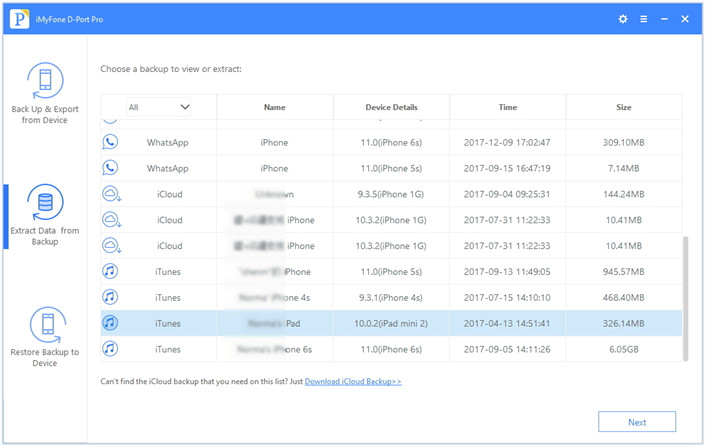
Run iPhone Data Exporter on computer.From “Extract from iTunes Backup” tab to check all the file types you need to extract from the iTunes backup. And then click “Next” to find all the iTunes backups on the computer.

extract itunes data mode

Step 2.Scan iTunes Backup to Search Data
Check the details of iTunes backups and choose the backup from which you want to extract data. For transferring WhatsApp photos,you should click”WhatsApp“.Continue the process by clicking on the “Next” button.

select itunes data to scan

The program will scan the chose backup and it will need a little time to complete.

extract itunes backup file

Step 3.Preview and Extract WhatsApp Photos from iTunes Backup
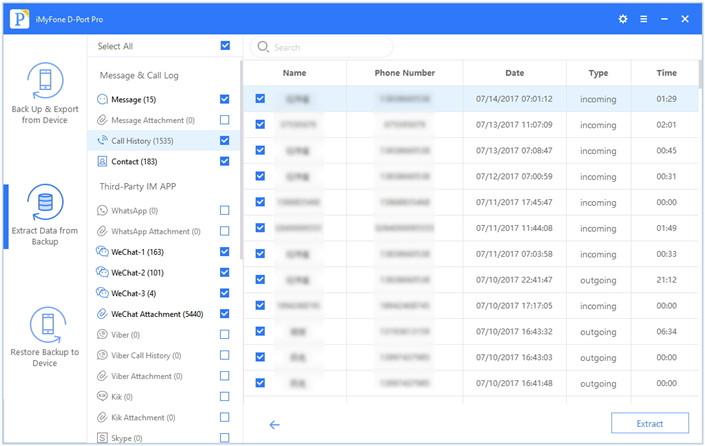
Just wait for the scanning process finish and then all the data in backup will be listed on the preview window.

preview and extract data from itunes

Check what you need to extract and click on “Export” to choose the location on next pop-up.Done.

d_win d_mac

Related Article:

How to Export WhatsApp Messages from iPhone to Computer
How to Export Files from iPhone 7/6S/6 to Computer

How to Extract Data from iTunes to Computer

How to Extract Data from iCloud to Computer

How to Backup,Restore and Transfer WhatsApp Messages

How to Transfer SMS&MMS&iMessage from iPhone/iPad/iPod to Computer

How to Backup and Restore iPhone WhatsApp Messages

How to Recover Deleted iPhone Data after iOS 10.3 Update

There is something wrong with my iPhone 7,the contacts was disappeared suddenly after iOS 10.3.2 update.I don’t know what happened to it.Is it possible to restore the deleted iPhone data after updating?Thanks a lot.”-Martin

ios 10.3 update

Apple recently released its iOS 10.3.2 update.As expected iOS 10.3.2 is a huge update for Apple’s mobile devices bringing new features, fixes and a ton of security patches with it.iOS 10.3.2 went through a lengthy beta but problems still existent.iOS 10.3.2 users are complaining about a wide range of issues including weird battery drain, issues with Bluetooth and Wi-Fi, lag, random reboots, and issues with third-party apps.As of right now, these issues are isolated.They’re also extremely common after a major iOS update release.However,there is a most serious problem appear according to the reflect of the iPhone user after iOS 10.3.2 update.It doesn’t matter,now we are introduce an available way for you to help fixing these kinds of data loss issues.

Recover iPhone Data after iOS 10.3.2 Update

A helpful way to retrieve deleted data from iPhone after iOS 10.3 update is using iOS Data Recovery,also works for iOS 10.3.2/iOS 10/iOS 9 update.It is one of the most reliable iOS data recovery tools for iOS users.With this smart recovery,you are allows to restore deleted data on iOS device(iPhone/iPad/iPod) with three modes:directly recover from iOS device,recover from iTunes backup,recover from iCloud backup.The recoverable data including contacts,photos,video,audio,call logs,apps data(WhatsApp/Viber/WeChat/Kik/Skype),and so on.iOS Data Recovery
empowers to recover iOS device under any data loss circumstances,for instances,iOS update,iOS jailbreak,deleted mistaken,factory reset restore,etc,.

d_win d_mac

Part 1:Recover iPhone Data after iOS 10.3 Update via iTunes Backup

Step 1.Select iTunes Backup File to Scan
First of all,please launch iOS Data Recovery on the computer,you’ll be lead to the “Recover from iOS Device” mode (the default mode).Switch to the “Recover from iTunes Backup” mode to extract previously backup file from iTunes.

extract backup file from itunes

All your iTunes backup data of your iOS devices which has ever synced with iTunes on your computer will be automatically found and listed here.Select the one you want and click “Scan” button to begin iTunes backup file extracting.

Step 2.Preview and Restore iPhone Data from iTunes
When the scanning finishes,all your iTunes backup files can be found and displayed in categories.You are allow to preview it one by one before data recovery.

Recover Contacts on iPhone via iTunes

recover iphone data itunes

Recover SMS on iPhone via iTunes

recover text messages from itunes

Now you could select the data to preview and click “Recover” to extract the selected data to restore on your computer.

Note:Please note that not to sync your device with iTunes after losing data from your device,or the iTunes backup file will be updated after the syncing.

d_win d_mac

Part 2:Directly Recover Data from iPhone after iOS 10.3 Update

Step 1.Run Program and Choose Recovery Mode
To begin with,you should choose the “Recover from iOS Device“ mode.

connect iphone with computer

And then select the file type you need to recover: For example,“contacts”.Click “Next“.

select file to recover

Step 2.Scan iPhone for Deleted Data
Connect your iPhone to the computer and then click “Scan” to start scanning the device.

scan iphone for deleted data

Step 3.Preview and Restore Deleted iPhone Data after Updating
Once the scanning process is finishes, you will see all the data are list on the device.Select the deleted data and then click “Recover” to save them on your computer.

Directly Recover Lost Contacts from iPhone After iOS 10/11 Update

recover contacts from iphone directly

Directly Recover Text Messages from iPhone After iOS 10/11 Update

recover iPhone sms

d_win d_mac

Related Article:

How to Recover Lost Data from iPhone after iOS 10.2.1 Update

How to Recover Lost iPhone Data after iOS 9/iOS 10 Update

How to Recover Lost Photos from iPhone with iOS 9/iOS 10 Update

How to Restore iPhone Data after iOS 10 Jailbreak

How to Backup and Restore iPhone/iPad Files after iOS 10 Update

How to Safely Update iPhone/iPad to iOS 10/9

How to Transfer SMS from Samsung to Galaxy S8

I am going to buy the new Galaxy S8 phone to replace my old Samsung,which sounds so wonderful.One thing now confuse me that how to transfer SMS from the old Samsung to the new one with easy steps.Any good recommendations?”-Carol

Text often on your mobile phone? As we all know that sent text messages is an frequently-used part of the mobile phone and continually grow as a preferred communication method.Samsung smart phones have been become the top 1 seller on the Android phone’s market.So let’s suppose that you used to send messages to your friends,one day your switch to the new device,for example,Galaxy S8 and you have to transfer the thousands of messages to the new one.How to perform it with an easy way?

Transfer Samsung SMS to Galaxy S8 via Phone Transfer

In order to transfer SMS between Samsung and Galaxy S8 smoothly,here we strongly recommend Phone Transfer for you.Phone Transfer is designed for transferring data between two mobile phones without complicated steps no matter it run the same operating system or not.With Phone Transfer,you are allow to transfer data between your old phone and the new one selectively,including contacts,SMS,photos,videos,music,apps,call logs,calendar.Besides,Phone Transfer enables to backup data from device to computer completely,restore backup to device on computer freely.Phone Transfer works well for most of Samsung Android phone,such as,Samsung (Galaxy S8/S7/S6/S5/S4,Note 5/4/3,A9/A8/A7),HTC,Motorola,Lenovo,LG,Sony,Xiaomi,Huawei,etc,.

d_win d_mac

How to Switch SMS to Samsung Galaxy S8

Step 1.Run Phone Transfer Tool and Connect Devices
Firstly,please install and run Phone Transfer on the computer.When its primary window appears,click “Start”to show the “Phone to Phone Transfer” option.

phone transfer main page

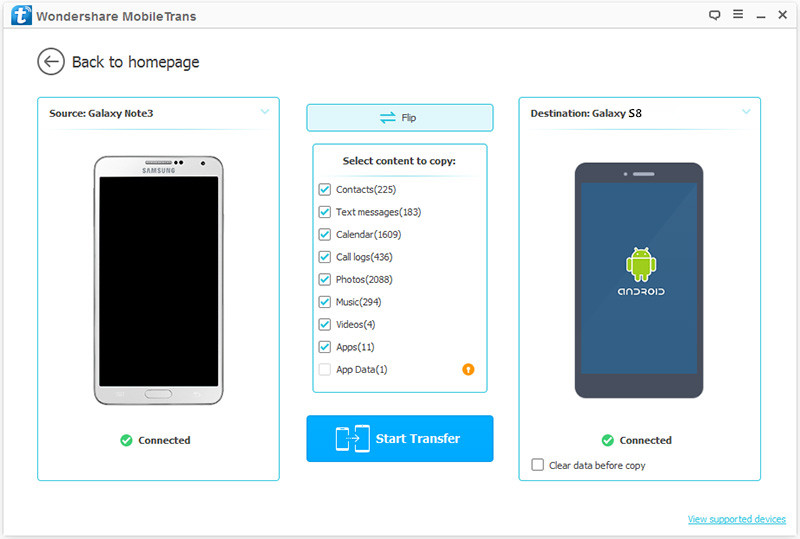
Connect both of your two Samsung phones to the computer via USB cables.After detected,your devices will be listed on both sides of the window.(The old Samsung phone is shown on left side,Galaxy S8 phone is shown on right side.)

Step 2.Transfer Samsung SMS to Samsung Galaxy S8
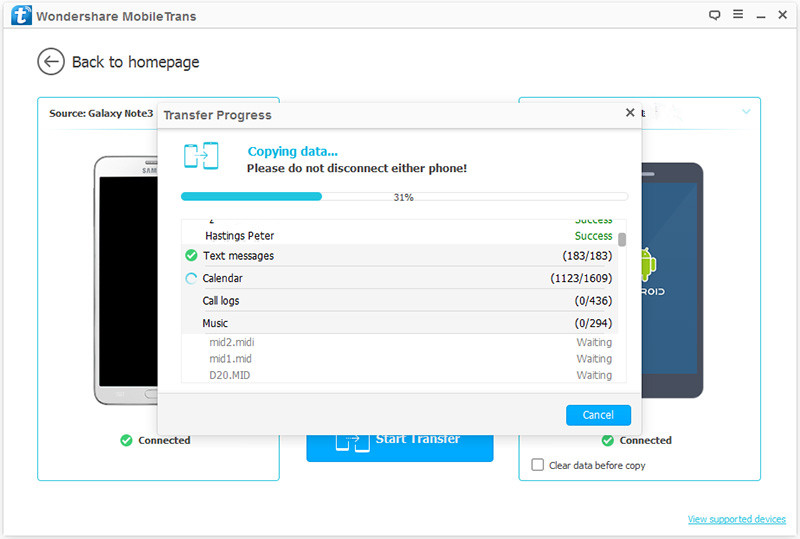
It will display all the files you can transfer between the two Samsung phones.You can uncheck any content you dislike to transfer.For SMS transfer,you should click “Text messages“.Then,click “Start Transfer”.

select files to transfer to s8

transfer samsung sms to galaxy s8

Just few minutes later,done.

d_win d_mac

Related Galaxy S8 Guide:

How to Transfer Samsung Files to Samsung Galaxy S8

How to Transfer iPhone Files to Samsung Galaxy S8

How to Recover Data from Samsung Galaxy S8

How to Backup & Restore Samsung Galaxy S8

How to Root Samsung Galaxy S8 without Data Loss