All posts by DHZ

How to Transfer iPhone Text Messages to Huawei Smartphones

Huawei has been attracting a host of loyal buyers and becomes more and more popular all over the world, especially for Huawei P9/P10, Huawei Mate 9. Except of the entertainments and convenience you enjoying from the Huawei smart phones, you may encounter such problems described as below:

“I recently replaced my old iPhone with Huawei P9. Do you know any easy way to transfer my text messages from iPhone to Huawei smartphone?” – asked by Amy.

Are you also wanting to buy a new Huawei smart phone to replace your old iPhone 3GS/4/4S/5/5S/6/6S/SE? It would be time consuming and tired if you chose to transfer item one by one. Here we describe an direct way about how to transfer SMS/iMessages from iPhone to Huawei smart phone effortlessly.

You can easily transfer text messages from iPhone to Huawei Ascend/Honor/Mate/P/Nova only if you get Phone Transfer software, which is exactly the effective and powerful tool to give you a favor in case of those embarrassing situations. Besides, the tool also supports copy other contents like call logs, contacts, calendar, photos, music, video and apps between Android, iPhone, Nokia phones and even BlackBerry at a single click.

Please download and install the right version for your computer:

d_win d_mac

Guide to Transfer iPhone Text Messages to Huawei in a Click

Step 1. Install and Start Phone Transfer

Once you have downloaded it, please install the program by following the setup instructions. Then launch it and select “Phone to Phone Transfer” mode.

enter phone to phone transfer mode

Step 2. Get iPhone and Huawei Phones Connected to Computer

Next, plug the two phones in the USB ports with cables. The Phone Transfer can recognize the two and show your iphone as “Source” phone and your Huawei phone at the “Destination” place.
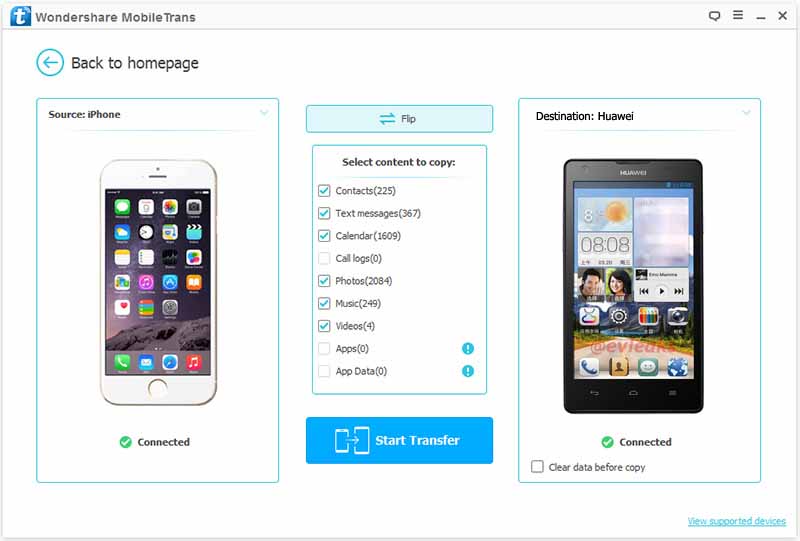
connect iphone and huawei to the computer

Step 3. Copy Text Messages from iPhone to Huawei

Now please mark “SMS” and click “Start Copy” to start transferring iPhone SMS to your Huawei smartphone.
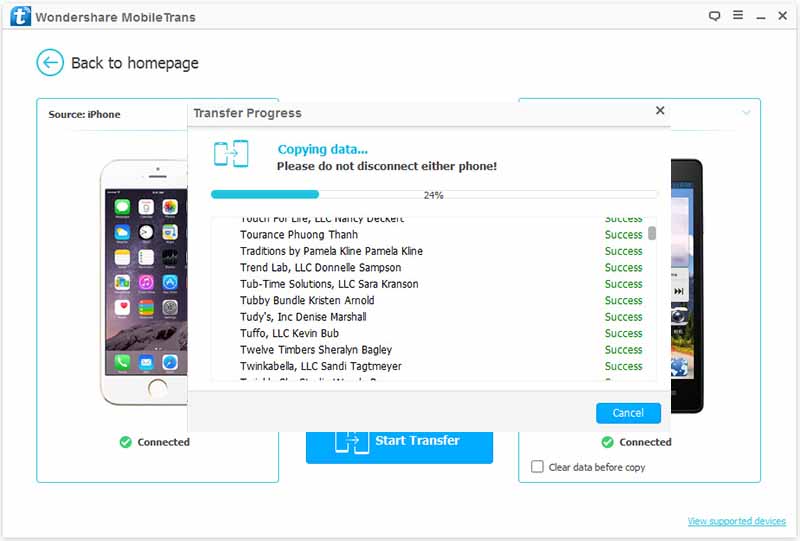
transfer text messages from iphone to huawei

Apart from transferring messages from iPhone to Huawei P9/P10, Huawei Ascend/Honor/Mate/Nova, Phone Transfer also allows you to transfer contacts from iPhone to Huawei, as well as media files like photos, videos, music, etc.

d_win d_mac

Related Articles

How to Transfer Contacts from iPhone to Huawei Phones

Transfer Everything from Samsung to Huawei Mate 9/Pro/Porsche

How to Transfer Text Messages from iPhone to Samsung Galaxy S7
How to Transfer SMS from Android to iPhone 7/SE/6S

Transfer Music/Videos/Photos from iPhone to Huawei Mate 9

How to Transfer Data from Samsung to Huawei Phone

[Summary]: Need an Android to Android Transfer tool to transfer data from Samsung phone to Huawei P20/P20 Pro/Mate 10/Mate 10 Pro, ect? This page recommend you two different Samsung to Huawei transfer tool to transfer Contacts, Text Messages, Music, Call Logs, Videos, Photos and more from Samsung Galaxy to Huawei Android phones directly.

Samsung Galaxy S10, Galaxy S9, Galaxy S8, Galaxy S7, Galaxy Note 10/Note 10+, Galaxy Note 9, Galaxy Note 8 and Huawei Mate 20, Mate 10, Mate 9, Mate 8, P30, P10, P9 are one of the top Android smartphones currently, many people using Samsung phone or Huawei Android phone.

samsung to huawei transfer

Beijing time, October 16, 2018, the HUAWEI company has released HUAWEI Mate 20 RS Porsche Design, HUAWEI Mate 20 X, HUAWEI Mate 20 and HUAWEI Mate 20 Pro, upgrading to an new Huawei from an old Samsung phone is an excited thing, however, swith to a new device always results in the loss of personal data stored on the old phone. To avoid data loss, there will be a necessity to transfer data from your Samsung to Huawei phone, especially photos, contacts, text messages. If you use Samsung Galaxy S or Note phone previously and just purchased a new Huawei, how can you switch from old Samsung to the new Huawei device? To transfer everything from Samsung to Huawei without data loss, we recommend you two effective Android to Android Transfer tools.

You may want to know How to Manage Huawei on Computer

Switch Data from Samsung to Huawei Phone

Nedd a Samsung to HUAWEI Transfer tool to copy Everything from Samsung Galaxy to HUAWEI Android phone?

Phone Transfer is designed to switch data between Samsung and Huawei phones, it can transfer contacts, messages, photos, videos, music, apps, music,  apps data easily.  What’s more, the Phone Transfer also allows you sync everything between two mobile devices among iPhone/iPad/iPod, Android, BlackBerry, Windows Phone based on different operating systems. Moreover, it can help to backup & restore device on the computer safely.

d_win d_mac
d_win d_mac

Support Samsung Phones: Samsung Galaxy S10/S10+/S9/S9+/S8/S8 +/S7/S7+/S6/S6 +/S5/S4/S3 and Samsung Galaxy Note 9/Note 8/Note 5/Note 4, etc,.
Support Huawei Phones: HUAWEI Mate 20 RS Porsche Design/Mate 20 X/Mate 20 Pro/Mate 20, Huawei Mate 10/9/8/7/S, Huawei P30/P30 Pro/P20/P20 Pro, P10/P9/P8, Honor V9/8/7/6/6X/5X/4X, Huawei G9/G8/G7/GR5/GR3, Huawei Y5 2017/Y6 PRO/Y6II/Y5II, Ascend P8/G7/Mate 7/Mate 6, Huawei Nova(Plus),etc,.

Part 1: Transfer Samsung Data to Huawei Phone via Phone Transfer

Step 1.Connect Samsung and Huawei with the computer
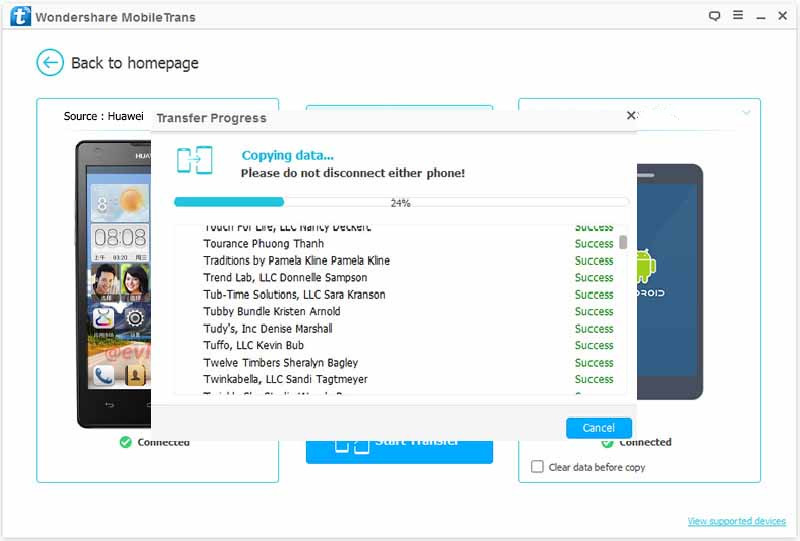
Connect both of Samsung phone and Huawei phone with computer via USB cables, then Phone Transfer will detect them immediately. You will be able to see the below picture in the front of your window.

Samsung to Huawei Transfer

Step 2.Select Files to Transfer
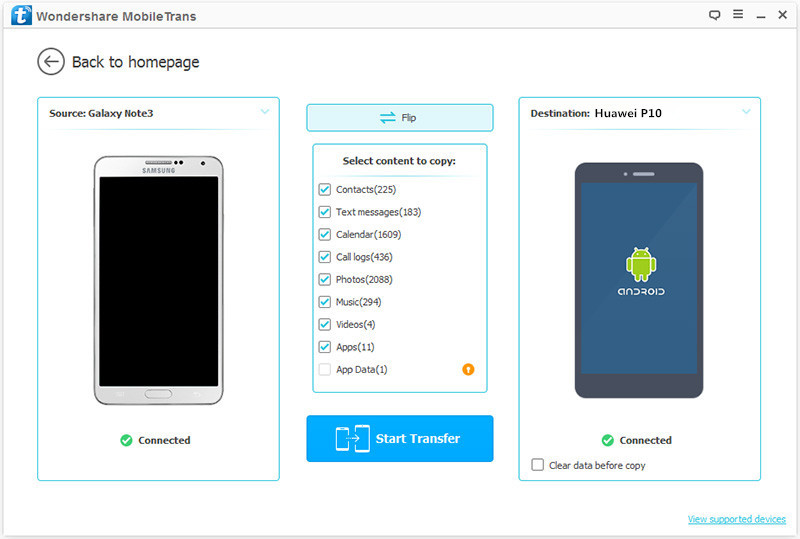
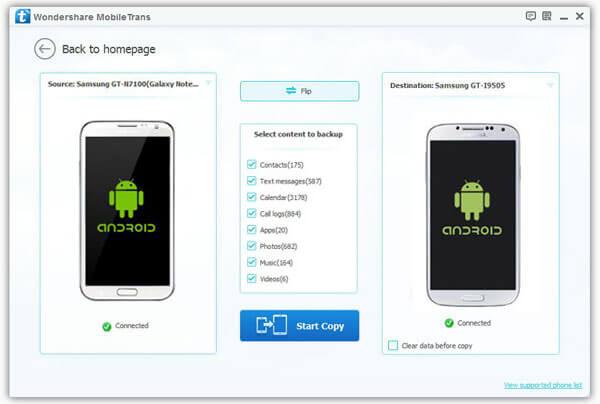
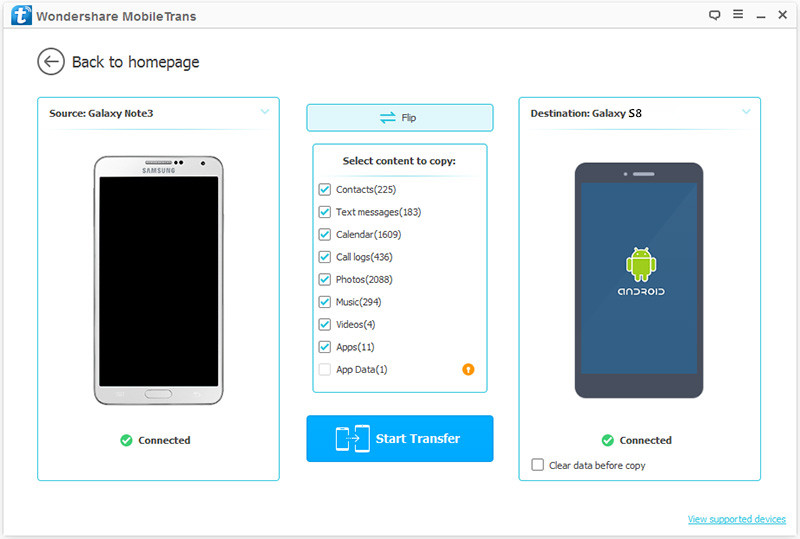
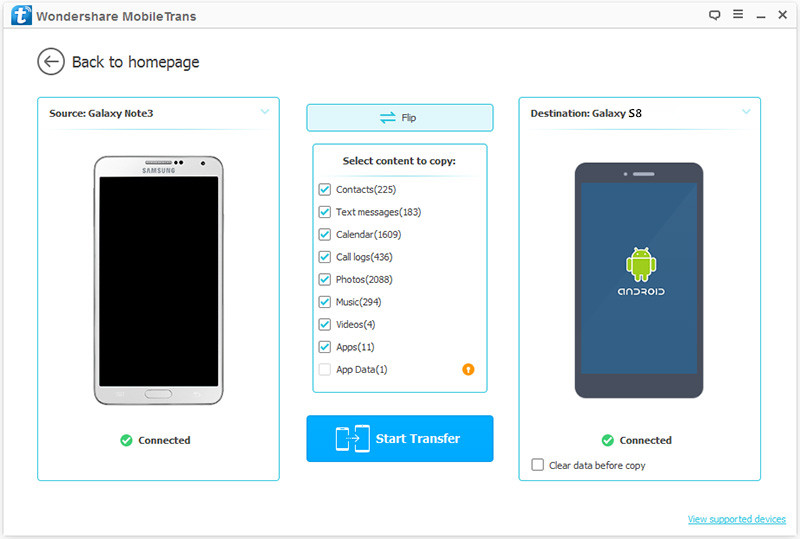
When the two phones detected,please make sure the Samsung phone is on the left as the output source device, and the Huawei phone on the right as the target device. If they aren’t in the right place, you can click the “Flip” button to change it. Then select the files you want to transfer to the Huawei phone from the Samsung device, such as contacts, photos, text messages.

switch Samsung to Huawei P10

Step 3.Transfer Data from Samsung to Huawei Phone
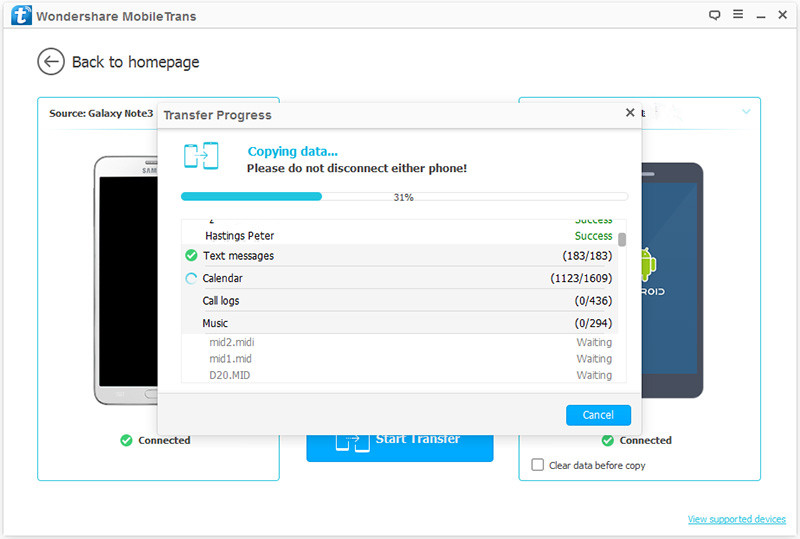
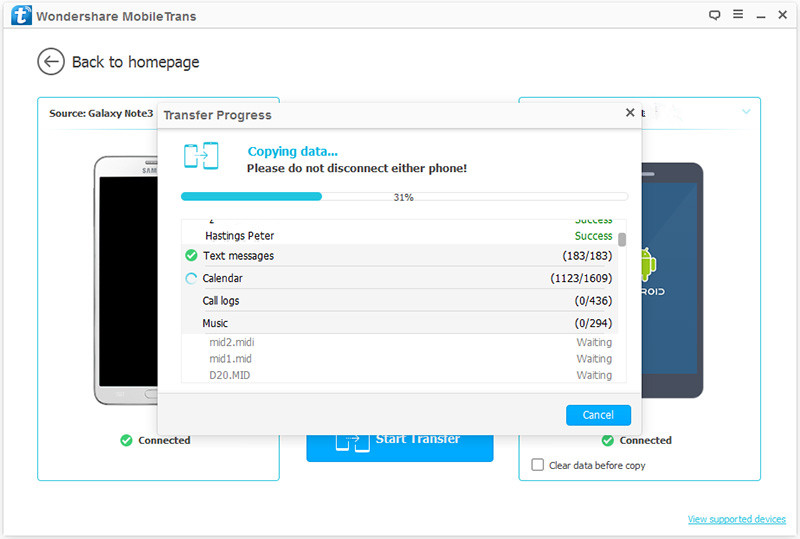
Finally, please click the blue button “Start Transfer” to begin to transfer the selected data from Samsung phone to Huawei phone.

transfer Samsung data to huawei p10

Free download the Phone Transfer for Windows or Mac:

d_win d_mac
d_win d_mac

Part 2: Transfer Samsung Data to Huawei Phone via iOS & Android Transfer

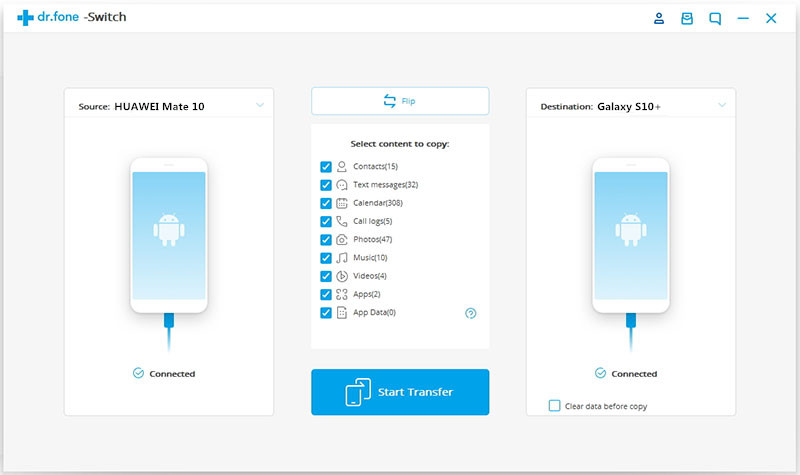
Another data transfer tool we want to share with you is this Phone Switch, it can help you easily to transfer data from Samsung to Huawei phone (Mate, P, Nova, Y, Honor Series…).

It is a famous data manager tool for transferring & managing files for iOS device and Android device. The transferrable types of files incluing videos, photos, music, contacts, SMS, playlist. What’s more, it could be used to transfer files between Android and iTunes, transfer files between Android and computer, transfer files between two Android devices, manage Android device on the computer safely.

transfer Samsung files to huawei

d_win d_mac
d_win d_mac

Related Articles:

How to Backup and Restore Huawei Safely

How to Transfer Old Phone Data to Huawei Phone

Transfer Data from Old Samsung to Samsung Galaxy S8/S7

How to Transfer iPhone Data to Huawei Phone

How to Transfer Samsung Data to iPhone/iPad/iPod

How to Transfer Data from Huawei to Huawei P10

How to Play Apple Music Files on Huawei Phone

Transfer Samsung Data to Huawei Phone

How to Transfer Contacts from iPhone to Huawei Phones

“I have just updated my old iPhone to Huawei Mate 9, and i am looking for a quick way to sync contacts to the new Mate 9, what do i need to do with a third party software?”

Huawei is well known for its network-based products, such as network gateway, router. When you replaced old iPhone to a Huawei phone, such as Huawei Mate 9/8/7/S, Huawei P9/P10, or Huawei Nova, the very first thing to do is to move existing contacts on your iPhone 3GS/4/4S/5/5S/6/6S to the new Huawei smartphone. In the article, I will show you the exact steps to transfer contacts, phone numbers from iPhone to Huawei in one click.

It is absolutely not a good ideal to transfer data manually, which would take hours to complete. If you are looking for a complete and less time consuming way for contacts transfer, then using a third party software would be the best choice in this case.

There comes out with a Phone Transfer software. It is a ideal tool that capable to transfer iPhone contacts to any other Huawei phones, including P10/P9/P8, Mate 9/Mate 8/Mate 7/Mate S, Nexus 6P, Honor V8/5C/5X/5A/7i/4A, Ascend P8/Mate/, G8/G7/G6, Y6/Y3, Huaei Nova and others. With it, you can also easily transfer text messages, call logs, apps, photos, music and videos within one click.

d_win d_mac

Steps to Transfer Contacts from iPhone to Huawei Mate/P/Honor/Nova

Step 1. Download and Launch Phone Transfer Program

To move contacts with name, number, email address, job title, company name and more details from iPhone to Huawei phones, download and install this Phone Transfer software on your computer. Then select “Phone to Phone Transfer” mode.

launch phone to phone transfer

Step 2. Conncet Both iPhone and Huawei Phone to PC via USB Cables

Connect both of your iPhone and Huawei to PC/Mac using USB cables. The program will automatically detect your devices and show then at “Source” (iPhone) and “Destination” (Huawei) places.

connect iphone and huawei to pc

Step 3. Migrating Contacts from iPhone to Huawei Phones

Now check the data like Contacts, Messages, Photos, Music, Videos, Calendar, and more, select “Contacts” you want and just get them checked, then click “Start Copy” button. Then all contacts saved in your iPhone, will be transferred to your new Huawei smartphone. That is totally easy.

transfer iphone contacts to huawei

No matter you’re switching from iPhone 3gs/4/4s, iPhone 5/5s/5c, iPhone 6/6s or iPhone SE to Huawei P9/P10/Mate 9, you can use this way to get all your data migrated to your new phone.

d_win d_mac

Related Articles

Transfer/Export Media Files from iPhone to Huawei P9

How to Transfer iTunes Music to Huawei Mate 9

How to Switch Files between iPhone and Huawei Mate 9

2 Ways to Transfer Files from Huawei to Huawei P10

How to Transfer Data from Huawei to Huawei P10

Huawei has been making consistently great phones for a number of years lately, it has just announced its two newest smartphones – the Huawei P10 and P10 Plus – at a press conference the day before Mobile World Congress 2017 kicks off in full in Barcelona.The Huawei P10 looks to be a great phone you’ll love if you’re upgrading from a two year old handset, but not much has changed here to keep true Huawei fans thrilled by the flagship line.

About Huawei P10, we are most looking forward to the configuration. P10 will continue to adopt dual camera, equipped with Kirin 960 processor, which are normal configuration. If you are an old Huawei user, who wants to switch to an the new phone but missed the great flagship Huawei P9 last year, you won’t miss this great opportunity for Huawei P10.And this tutorial is here to help you easily transfer files from old device to the new Huawei P10, that is, transferring all your data from old Huawei to the new Huawei P10/P10 Plus with easy steps.

Part 1:Transfer Data from Huawei to Huawei P10 with Phone Transfer

Firstly we recommend you a reliable tool which called Phone Transfer,help to transfer data from Huawei to Huawei P10 with few clicks.The recoverable data including contacts,SMS,photos,video,call logs,music,app,calendars.Phone Transfer enables to transfer data between two mobile devices no matter it run the same operating system or not.All Huawei phones are compatible with Phone Transfer,Huawei P series(P10/P9/P8),Mate series(Mate 9/Mate 8/Mate 7),Honor series(Honor 9/Honor 8/Honor 7),Huawei Nova(Plus) are included.

d_win d_mac

Step 1.Connect Huawei Phones to the Computer and Run Program
Firstly,please connect your two Huawei phones to the computer with USB cables.Select the “Phone to Phone Transfer” mode,click on Start button to begin the data transfer process.

phone tranfer main page

Step 2.Select the Files to Transfer to Huawei P10
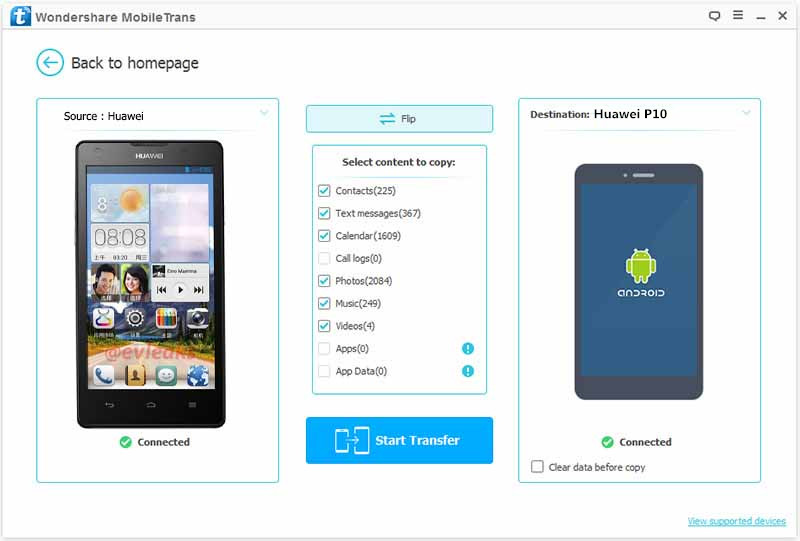
Two devices would be displayed on the middle of the next window.Please ensure that Huawei P10 was in the right (Target Device) panel.(If not, clicking on Flip button to switch the device positions.) Check the contents to transfer from old Huawei phone to the new Huawei P10 after the program finished loading data.

select files transfer from huiwei to huawei

Step 3.Start Copy Data to Huawei P10
You are allow to transfer 8 types of files from Huawei to Huawei P10. After selecting your wanna content, press “Start Transfer” button and wait to complete.

transfer huiwei data to huawei

d_win d_mac

Part 2:Transfer Data from Huawei to Huawei P10 with Android Manager

An other useful data transfer tool called Android Manager is recommended you,which is a smart data manager for Android devices,help to transfer&manage Android data on computer freely.With Android Manager,you could transfer data from Huawei to Huawei P10 easily,including music,videos,photos,apps,contacts and more.What’s more,this program allows to backup data from device to computer selectively,as well as restoring backup data to device on computer completely.

d_win d_mac

Step 1.Run Program and Connect Devices to the Computer
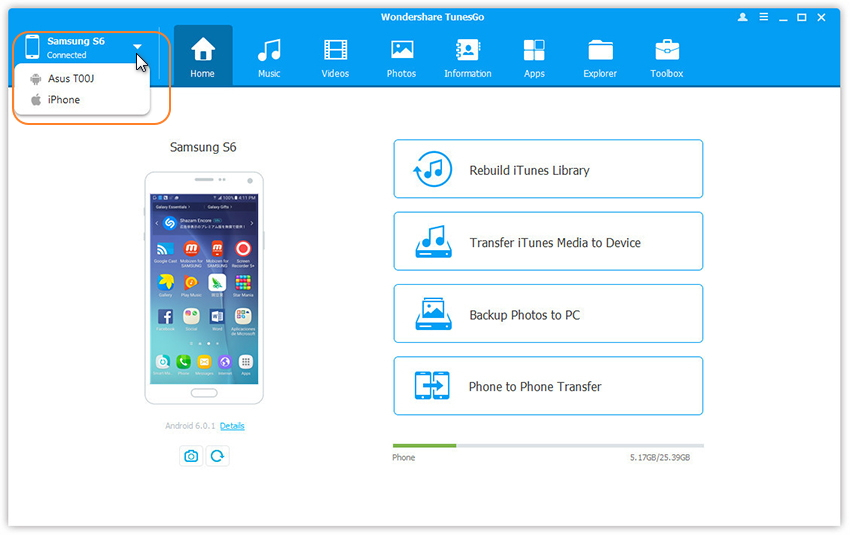
Install and run Android Manager and connect both old Huawei and Huawei P10 to the computer.

connect multiple devices

Step 2.Select the Source Device
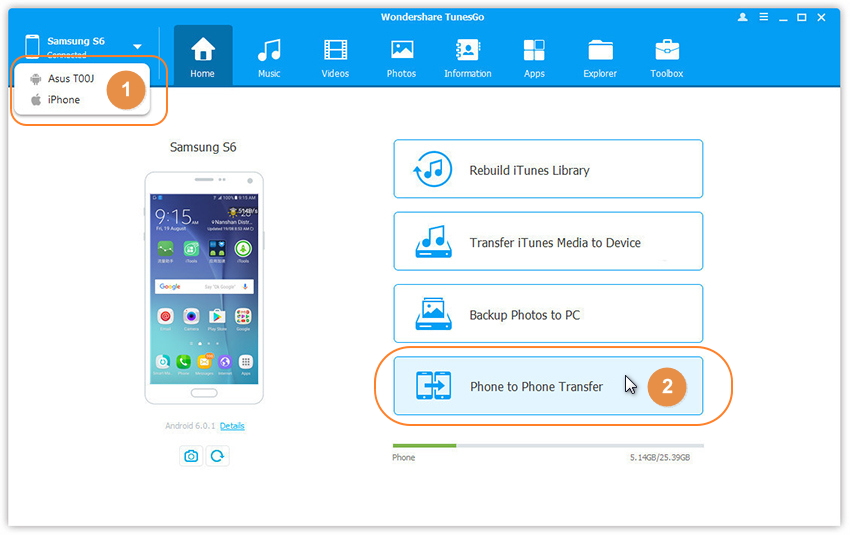
Select the old Huawei as the source device from which you want to transfer files.

Step 3.Select the Transfer Option
Simply click Phone to Phone Transfer on the main interface of program.Or find the Phone Transfer option under Toolbox > Transfer Tools section.

huawei to huawei transfer

Step 4.Select the Target Device
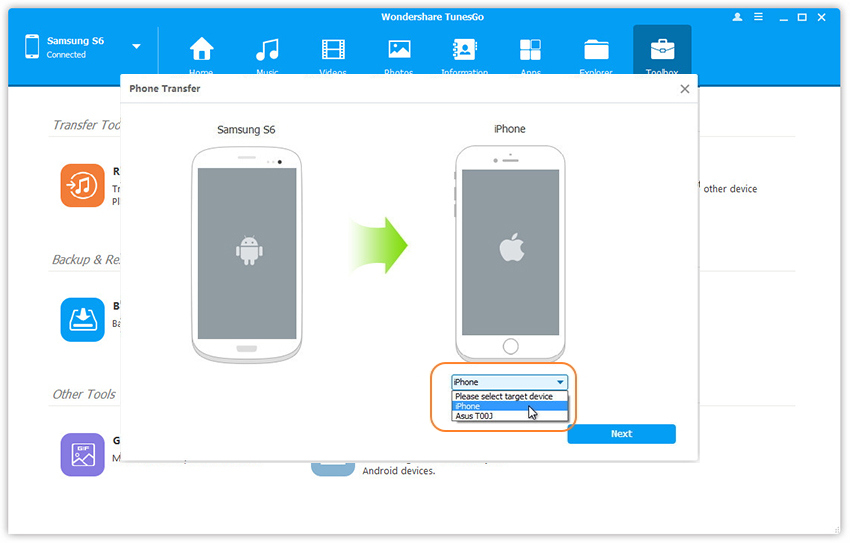
When your devices are connected and detected by, you’ll get a window as follow. Select Huawei P10 as the target device from the drop-down list and click Next.

select phone transfer

Step 5.Transfer Files from  to Huawei P10
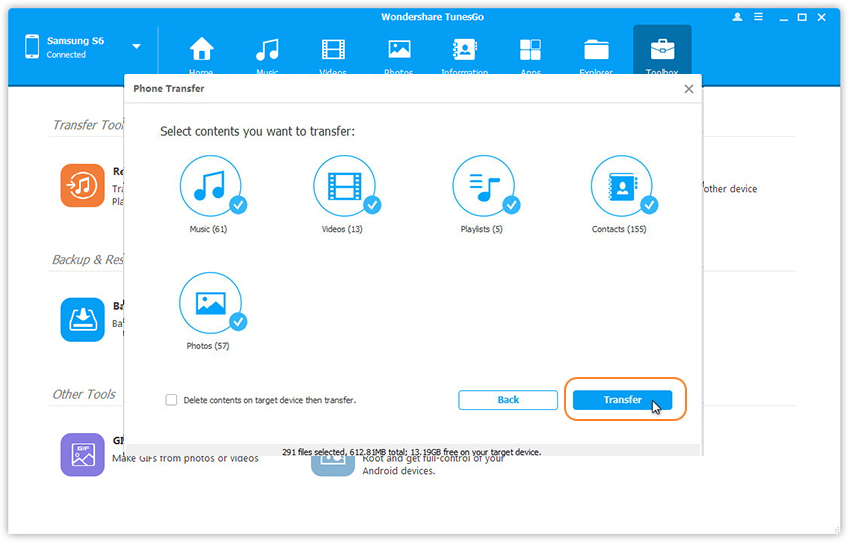
By default,all data on your source device that can be transferred are ticked, including contacts, photos, playlist, music and videos. You can untick the data you don’t need. Then,click Transfer. Please the connection of the devices and computer in the whole transfer process.Click OK when the transfer completed.

transfer huawei data to huawei p10

Note:
1. Contacts are not supported by Mac version.
2. Windows users can tick the option: Delete contents on target device then transfer, then the selected contents on the target device will be deleted firstly before the transfer. (Only for Windows version)

d_win d_mac

Related Article:

How to Recover Data from Huawei Phone

How to Backup and Restore Huawei Phone

How to Backup Huawei Android Data to Computer

How to Manage Huawei P9/P10 on Computer

How to Transfer Android Photo to Samsung Galaxy S8

I used the HTC phone for 2 years already,recently I switch to the new Samsung Galaxy S8 phone.How to transfer the photos that stored on my old Android before giving it up?”-Nicholas

transfer photos to galaxy s8

As Android users are increasing these days,many of them search the resolution of transfer data between smart phones,a part of Android users turn their eyes on the newest version Samsung Galaxy S8.When they switch to the new device,the most import thing is copying photos from old Android to new phone.I believe no body would like to move them one by one via blue tooth or e-mail. Here we are going to talk about how to transfer photos from Android to new Samsung Galaxy S8 without hassle.

Part 1.Transfer Photos from Android to Galaxy S8 with Google + Service

The first way to transfer Android photos to Galaxy S8,we could get help of Google service. As a powerful cloud service, Google allow to backup almost all data on your phone to its server. Therefore, we can backup photos to Google + on the old Android, then log in to Google + with the same Google account on your new Samsung.

Step 1.Connect two Android devices to network (Wi-Fi is recommended).Download and install Google + app to the two Android devices.

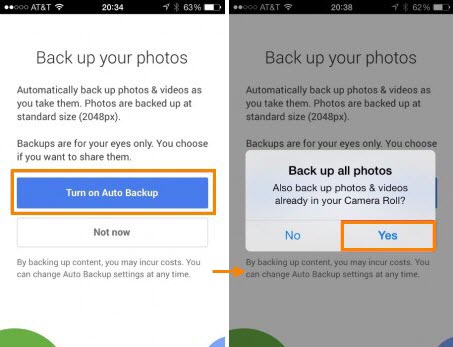
Step 2.On the old Android that stores you photos, set up Google account on Google + app, go to “Back up your photos” page and turn on “Auto Backup” It will take a while to backup all photos.

Step 3.Log in to Google + on the new Samsung with the same Google account. Go to Photos section, and you will be able to view the photos that have been backed up.

Step 4.Transfer Thousands of Photos to your new Galaxy S8 all at Once.

transfer photo to s8 google

Syncing photos to Google server can be extremely convenient since you can get access to the data by logging in Google account on any mobile device. However, people who consider privacy serious are not recommended to use it.

Part 2.Transfer Photos from Android to Galaxy S8 with Phone Transfer

Another better solution to switch photos from Android to Samsung Galaxy S8 is using Phone Transfer.As its name,this terrific tool is used for transferring data between two mobile phones,no matter it run the same operating system or not.With Phone Transfer,you are allow to transfer various of data between Android and Samsung,such as,photos,contacts,SMS,call logs,video,music,apps,etc,.Most of Samsung Android phones are applicable to Phone Transfer,including Galaxy S8/S7/S6/S5,Note 5/4/3,A9/A8/A7 and so on.

d_win d_mac

Step 1.Install and Run Phone Transfer
Connect both your old Android phone and Samsung Galaxy S8 to your computer and launch the Phone Transfer.You will see the main screen shows connecting devices is required. Click the “Start” button under “Phone to Phone Transfer” mode.

transfer android files to Samsung Galaxy S8

Step 2.Transfer Photos from Android to Samsung Galaxy S8
It will be just a second before the program detect them.Make sure that your target phone is on the right side while the another phone on the left.If not,click “Flip” to exchange the source device and target device.

copy android photo to samsung galaxy s8

On the middle panel,check data (photos,contacts,text messages,call logs,music,videos,etc) to transfer from Android phone to new Samsung Galaxy S8.Press the blue button “Start Copy”.After a while,all of selected data will be synced on your Samsung Galaxy S8.

transfer files from android to Samsung Galaxy S8

d_win d_mac

Related Galaxy S8 Tutorial:

How to Transfer Android Files to Samsung Galaxy S8

How to Transfer iPhone Files to Samsung Galaxy S8

How to Transfer iPhone Photos to Samsung Galaxy S8

How to Recover Data from Samsung Galaxy S8

How to Backup & Restore Samsung Galaxy S8

How to Manage Samsung Galaxy S8 on Computer

How to Root Samsung Galaxy S8 without Data Loss

How to Transfer Contacts from Android to Samsung Galaxy S8

I just switch to the new Galaxy S8 phone for few days.Now I am eager to copy the phone number,E-mail address to the new device.My work need these personal data.Any useful tips?Appreciated.”-Angela

Have you just bought a new Android phone like Samsung Galaxy S8 with improved operating system, design and performance?You must feel pretty good as enjoying all the latest games, Apps on your new device.On the other hand,I guess that you’ve already added transferring contacts on the must-to-do list.If you have trouble in transferring contacts from old Android phone to your new Samsung Android phone,just follow the steps in the guide which for reference,select one of the solutions to have a try depend on your situation.

Part 1:Transfer Android Contacts to Samsung Galaxy S8 via Gmail

If you have synced contacts to Gmail account, that would make easier to move contacts from Android to new Samsung.You’re supposed to sign in with the old Gmail account instead of setting up a new Google account on the new Samsung device.

Step 1.Tap “Settings”> “Accounts and Sync”/ “Accounts”> “Add Account”> “Google”.
Follow the path above to add Google account on the new phone. When prompted for which account you want to add, tap “Google” and proceed with “Next” button. Then type the Gmail address and the password on the device.

import contacts from gmail to s8

Step 2.Tap on the Gmail account in the settings and tap “Sync” button.
With the account added, tap on the Gmail account and tap “Sync” button. Then wait a while until the entire process is complete.Done,now you have finished syncing contacts on your new Samsung.

Part 2:Transfer Android Contacts to Samsung Galaxy S8 via Phone Transfer

Generally speaking,an better way to transfer contacts from Android to Galaxy S8 is using Phone Transfer.You can make use of this terrific data transfer tool for transferring data between two mobile devices,no matter they are run the same operating system or not.Besides contacts,several types of files can be transferred by program,SMS,photos,video,call logs,music,apps,calendar and so forth are included.Phone Transfer work well for most of Samsung Android devices,for instances,Galaxy S8/S7/S6/S5,Note 5/4/3,A9/A8/A7.

d_win d_mac

Step 1.Run Phone Transfer Tool and Connect Devices
First of all,please install and run Phone Transfer on computer.When its primary window appears,click “Start” after clicking “Phone to Phone Transfer” option.

phone transfer main page

Connect both of your two Android phones to the computer via USB cables.After detected,your devices will be listed on both sides of the window.(The old Android phone is shown on left side,Galaxy S8 phone is shown on right side.)

Step 2.Transfer Android Contacts to Samsung Galaxy S8
It will display all the contents you can transfer between the two  phones.You can uncheck any content you dislike to transfer.For contacts transfer,you should click “Contacts“.Then,click “Start Transfer”.Then the program will complete the data transfer in minutes.

select files to transfer to s8

transfer android contacts to galaxy s8

d_win d_mac

Related Galaxy S8 Guide:

How to Transfer Android Data to Samsung Galaxy S8

How to Transfer Samsung Data to Samsung Galaxy S8

How to Transfer iPhone Data to Samsung Galaxy S8

How to Recover Contacts from Samsung Galaxy S8

How to Backup & Restore Samsung Galaxy S8

How to Manage Samsung Galaxy S8 on Computer

How to Root Samsung Galaxy S8 on Computer Safely

How to Transfer SMS from iPhone to Samsung Galaxy S8

Lately I replaced my old iPhone with the newest Samsung Galaxy S8.Now I need to switch the SMS from my Apple device to the Samsung Android.Do you know any easy ways to transfer the text between iPhone and the new Android phone?”-Said by Anna.

Have you met the same problem as Anna?Get a new device and wanna switch data among the two devices?Or just want to share the data on another device?For more other reasons?As we known that iPhone and Samsung are running on different operating system,how to transfer data between iPhone and Samsung without hassle?Don’t worry about it as you’ve already arrived to the right place for getting best solutions.

Part 1:Transfer iPhone SMS to Samsung Galaxy S8 via Samsung Smart Switch

Step 1.Sign in iCloud Account
Run Smart Switch on your Samsung Galaxy S8.Choose “iOS Device” option as sending handset. Then you will be asked to type in Apple ID and password to log in iCloud account.

Note: If you forget the password, go to iCloud.com and reset the password.

import icloud account

Step 2.Import Messages from iCloud
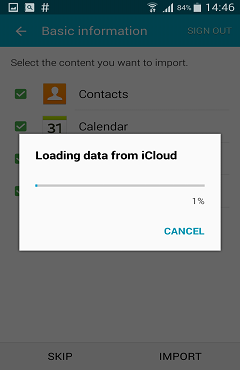
When you successfully log in iCloud account, you may wonder why there is no message data. Actually, it hides in “Call Logs” item. Just select “Call Logs” and click “IMPORT”, then, the messages data will load from iCloud.

load data icloud

Step 3.Save Message on New Samsung
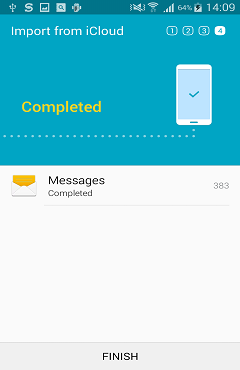
After loading,you will see the interface as below. Tick “Messages” content and hit the “IMPORT” button. All the messages in iCloud backups will be transferred on Galaxy S8. When the transition complete, click “FINISH” button to end the process. Now, you can check the messages one by one on your Samsung Galaxy S8.

finish message transition

Part 2:Transfer iPhone SMS to Samsung Galaxy S8 via Phone Transfer

Phone Transfer is a wonderful data transfer tool here we strongly recommend for you,perfectly help to switch SMS from iPhone to Samsung Galaxy S8 directly.Not only SMS,but also other types of data are supported,including contacts,photos,video,call logs,music,apps,calendar and so on.It works well with various of operating system, such as,Android, iOS, Symbian, Windows and BlackBerry.Additionally,Phone Transfer empowers to backup data from device to computer completely,restore backup to device on computer freely.

d_win d_mac

Step 1.Run Phone Transfer on Computer
Launch the Phone Transfer on PC.You’ll see the primary window as follows.Click “Phone to Pone Transfer”option in the main page of program.

phone transfer main page

Step 2.Connect iPhone and Samsung to the Computer
Connect your iPhone as well as Galaxy S8 to computer by using USB cables.After detecting,Phone Transfer will display the two phones in the primary window.

Note:In order to transfer iPhone files to Samsung,you should install iTunes on computer.

Step 3.Sync iPhone SMS to Samsung Galaxy S8
By default,all files you can transfer are checked.You can uncheck the files you don’t want to transfer,just check the ones you need.For SMS transfer,you should click “Text messages“.

select files transfer to samsung s8

transfer iphone sms to galaxy s8

Then click “Start Transfer” to start to sync files like SMS from iPhone to new Samsung.Be sure not to disconnect either of the phones until the whole transfer process is end.

d_win d_mac

Related Article:

How to Transfer iPhone Files to Samsung Galaxy S8

How to Transfer Samsung Files to Samsung Galaxy S8

How to Transfer Android Files to Samsung Galaxy S8

How to Backup & Restore Samsung Galaxy S8

How to Recover SMS from Samsung Galaxy S8

How to Manage Samsung Galaxy S8 on Computer

How to Root Samsung Galaxy S8 on Computer Safely

How to Export iMessages from iPhone to Mac

I get a new iPhone 7 there days and I am planning to sell my old iPhone.I want to save all of my iMessages conversations on Mac for backup, the data related to my business.Are there any ways to transfer an entire iMessages chat history to the computer without complicated steps?”-Suci

Most of iPhone users like sending iMessages for work,for personal.If you used iPhone for a little long time,you must save a large number of iMessages on your device.Still saving iMessage from iPhone to Mac by making a screenshot of it?Now you can Stop it now.The greatest ways to transfer the iMessages chat history to computer is not a picture.It’s a simple work with the help of an iPhone data export tool.Can’t imagine how to perform it?Just keep reading and follow the steps below in this tutorial.

Part 1:Transfer iPhone iMessages to Mac with Text Message Forwarding

Note: iPhone runs iOS 8 or later versions.Mac runs OS X Yosemite or later versions.First of all,please sign in both of them to iCloud using your regular Apple ID. After this, follow the steps below to set up text message forwarding.

Step 1.Go to your iPhone Setting and click on Messages.Click on Send & Receive.

Note:Check to see if the Apple ID you indicated is the same Apple ID being used for iMessage.

Step 2.In the box, check phone number and your email under “YOU CAN BE REACHED BY IMESSAGE AT”.

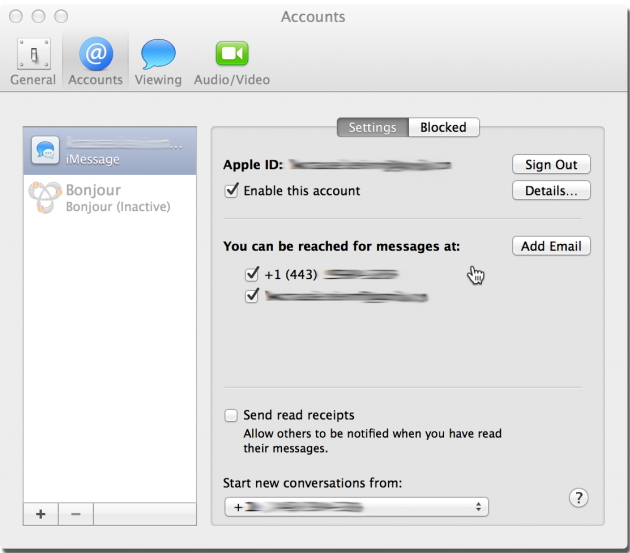
Step 3.Go to your Mac and open the Messages app.Click on Messages on the menu bar, and click on Preferences.

Step 4.Locate the Accounts tab and click, then choose your iMessage account.

imessage account settings on mac

Step 5.Go to “You can be reached for messages at” and check both phone number and email addresses.

Step 6.Go back to your iPhone and click on the Settings app,then Messages.Click on Text Message Forwarding (make sure your computer switch is on).Finally, enter the verification code sent to your Mac.

That is it.

Shortcoming:This solution only works for Mac computer.If you are using Window computer,this method will not work for you.

Part 2:Transfer iPhone iMessages to Mac with iPhone Data Exporter

iPhone Data Exporter offer the best solutions for you to export iMessages from iPhone to Mac directly,including the text,photos,videos and attachments.iPhone Data Exporter enable to export data from iPhone/iTunes/iCloud to Mac/PC up to 20 files: In addition to iMessages and text messages,support to export contacts,photos,videos,WhatsApp chat history and other data.What’s more,iPhone Data Exporter allow to preview data before exporting.

d_win d_mac

Step 1.Select the File Types to Export

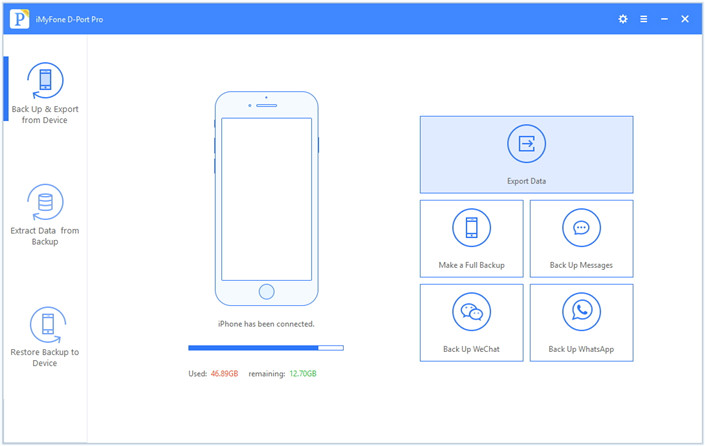
First of all,download iPhone Data Exporter and launch it on Mac.From the “Export from iOS Device” tab, click “Start” to proceed.

export iphone data option

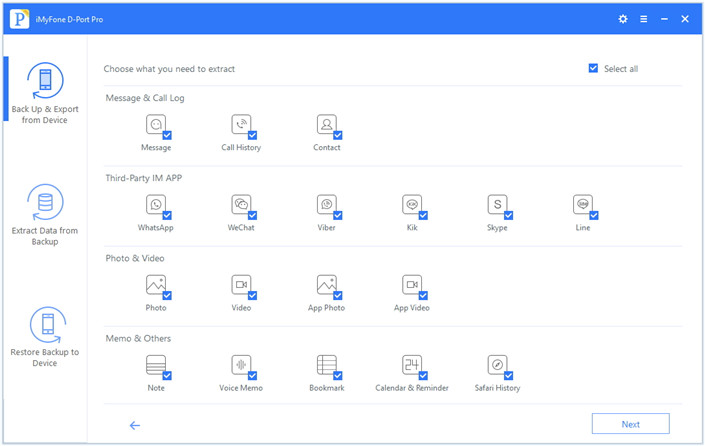
Select the file types you need to export and click on “Next“.For iMessages export,you should click “Message“.The iPhone Data Exporter will prompt to connect your iPhone to the Mac.

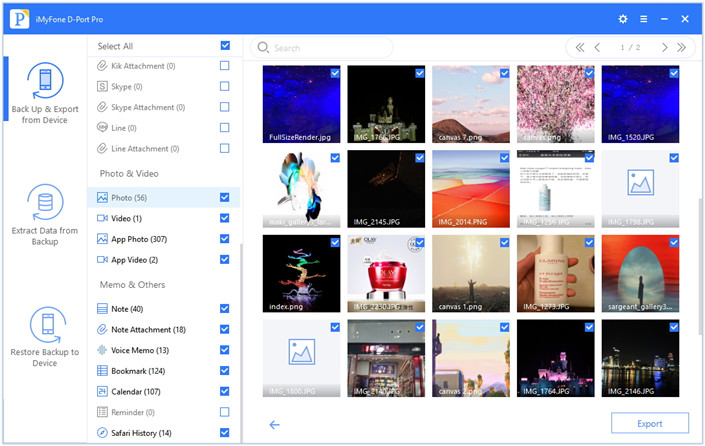
select file to scan

Step 2.Scan Data from iPhone
Once your device is connected, click “Scan” button and then the program will scan your device.

scan iphone data

Step 3.Preview and Export iMessages from iPhone to Mac
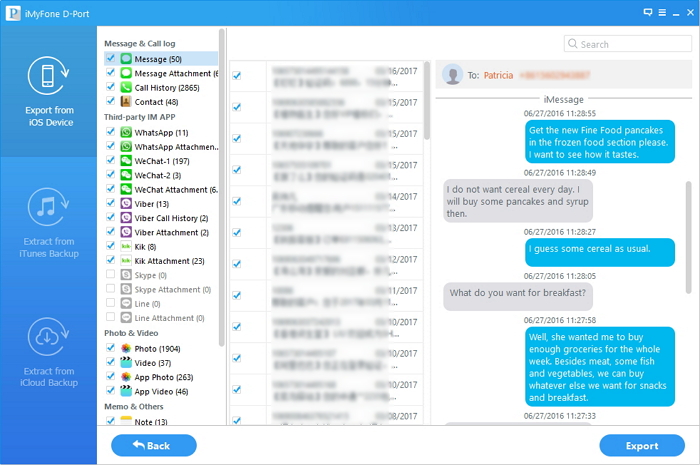
Once the program finishes scanning the device,it will display all the iMessages,text messages and attachments in the preview interface of program.You can preview the data and select what you need.Then click “Export” to extrat the selected data to your Mac.

export iphone imessages mac

Note:A pop-up window will open that prompt you to select the destination to save the selected files. Wait until the program finishes exporting data from your iPhone to Mac.

d_win d_mac

Related Article:

How to Export SMS from iPhone to Computer

How to Export Files from iPhone 7/6S/6 to Computer

How to Export Photos from iPhone to Computer

How to Extract Data from iCloud to Computer

How to Extract Data from iTunes to Computer

How to Extract WhatsApp Messages from iPhone to Computer

How to Recover Deleted iMessages on iPhone

3 Ways to Recover Deleted SMS from iPhone 7/6S/6

How to Restore Deleted iMessages on iOS 10 iPhone/iPad

How to Export Contacts from iPhone to Mac

I saved all the contacts on my iPhone 6S and desire to transfer the contacts to my Mac so that I can then import them to my new device.I am planning to buy a new iPhone 7.As we know iTunes allow to backup on the computer.But I can’t run iTunes on my computer as usual.Are there any ways to export contacts from iPhone to computer and use them conveniently?Any useful suggestions?Thanks.”-Andrew

With no doubt that contacts is one of the most important app on iPhone,contacts ensure us to connect family, colleagues and friends.When you fail to update iPhone iOS system or deleted contacts from iPhone by mistaken, your important contacts might be lost.Or if you switch to another mobile device,the contacts on your old iPhone can’t directly be copied to SIM card.Under these similar circumstances,imagine how it would be if all the contact names,numbers and email addresses are gone for any reasons,you need to transfer contacts from iPhone to computer for backup.

Directly Transfer Contacts from iPhone to Mac

iPhone Data Exporter is an ideal data exporter tool for exporting contacts from iPhone to Mac directly.Besides contacts,this wonderful data exporter allow to export various of data from iPhone/iTunes/iCloud to computer,such as,contacts,SMS,photos,video,calendar,reminder,notes,voice memo,apps data(WeChat,Skype,Viber,Kik,Line,Skype) and more.Moreover,iPhone Data Exporter empower to preview data before exporting.iPhone Data Exporter work well for almost all models of iOS devices,including iPhone 7,iPhone 6S, iPad Pro, iPod Touch,etc,.

d_win d_mac

How to Directly Export Contacts from iPhone to Mac

Step 1.Run Program and Select the File Types to Export
First of all,download iPhone Data Exporter and launch it on Mac.From the “Export from iOS Device” option, click “Start” to proceed.

export iphone data option

Select the file types you need to export and click on “Next“.For contacts exporting,you should click “Contacts“.The iPhone Data Exporter will ask to connect your iPhone to the Mac.

select file to scan

Step 2.Scan iPhone Data Completely
Once your device is connected, click “Scan” button and then the program will scan your device.

scan iphone data

Step 3.Preview and Export Contacts Data from iPhone
Once the program finishes scanning the device,it will display all the contacts and attachments in the preview interface of program.You can preview the content and select what you need.Then click “Export” to extrat the selected data to your Mac.

export contacts from iphone

Note:A pop-up window will open asking you to select the destination to save the contacts files. Wait until the program finishes exporting from your iPhone to Mac.

d_win d_mac

Related Article:

How to Export Files from iPhone 7/6S/6 to Computer

How to Export Photos from iPhone to Computer

How to Extract Data from iTunes to Computer

How to Extract Data from iCloud to Computer

How to Recover Deleted Contacts from iPhone 7/6S/6

How to Recover iPhone Contacts from iTunes/iCloud

How to Recover Contacts from iPhone after iOS 9/iOS 10 Update

How to Search Deleted Text Messages on iPhone

My boyfriend was something wrong lately,he deleted some SMS on his iPhone 7.I find it very strange why he did this.Are any ways to search and view the deleted SMS from iPhone?Please let me know quickly.Thanks.”-Winne

For most of us like sending messages more than making call,which is convenient and immediate.No matter you delete SMS from iPhone for any reason,on purpose or deleted by mistaken,you may need to search the deleted SMS on iPhone.How to search and view the deleted SMS on iPhone?This tutorial is discussing about the solutions of the issues when it comes to the text message search and view the deleted SMS on iPhone.

Part 1:Search Deleted Text Messages on iPhone via Spotlight Search

To use Spotlight Search to search deleted messages from iPhone,you need to turn on Spotlight Search for messages: Go to Settings > General > Spotlight Search > Turn Messages on.

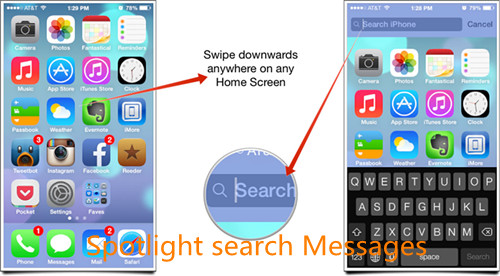
Step 1.Swipe to the right to bring up Spotlight Search menu on the iPhone home screen.

Step 2.Tap the search bar and enter the keywords you are searching for.

Step 3.When the search results appeared,swipe down to scroll through the list to locate the Messages section on your iPhone.

spotlight search messages on iphone

Part 2:Search Deleted Text Messages on iPhone via Messages App

The second way here we teach you is using Messages app.Even though delete SMS from Messages app,you can search the deleted data in the search box of Messages app.

Step 1.Tap Message app on iPhone.

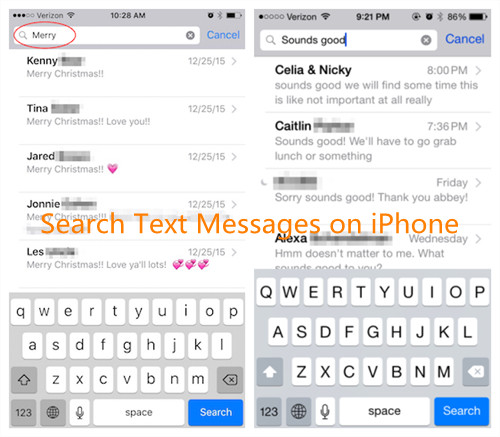
Step 2.While viewing the Messages list swipe down with your finger to expose the search box.

Step 3.Enter the search string/keywords/phone number in the search box and the results list will automatically update as you type.

search iphone messages

Part 3:Search Deleted Text Messages on iPhone via iPhone Data Exporter

iPhone Data Exporter is the best tool help for searching deleted SMS on iPhone,make sure that users can get the result from iPhone completely.Besides,iPhone Data Export allow to search most kinds of deleted data from iPhone,including contacts,SMS,photos,video,calendar,reminder,notes,voice memo,apps data(WeChat,Skype,Viber,Kik,Line,Skype) and so on.To sum up,iPhone Data Exporter enable to export data from iPhone/iTunes/iCloud to computer,even the deleted one.In addition,you can preview data before exporting.

d_win d_mac

Step 1.Run Program and Connect iPhone to the Computer
Firstly,connect your iPhone with your computer and run iPhone Data Exporter.Select “Export from iOS Device“option,then you’ll see an interface which informs you that your device is connected.

export iphone data option

Select the Files you are desire to search,for SMS searching,click”Messages“.

select file to scan

Step 2.Search Deleted Messages on iPhone
The program will begin to scan data on your iPhone automatically,including the existent one and deleted one.Just wait till the end of scanning and check for the scanning result.

scan iphone data

Step 3.Preview and Export Deleted SMS from iPhone
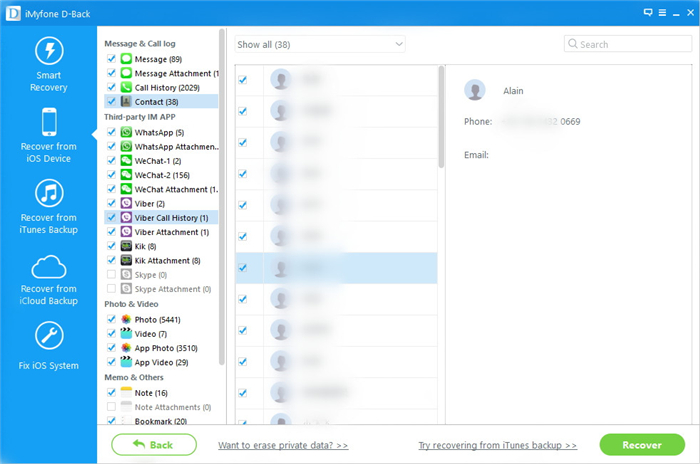
When the scan finishes,all found data will be list in categories.You can view the deleted Messages on your device,please click “Messages” item to check the detail,and then select the one or all data if you want to get back.Finally,export the messages and save the selected data on your computer by clicking “Export” button.

preview and export iphone sms

d_win d_mac

Related Article:

How to Export SMS from iPhone to Computer

How to Export Files from iPhone 7/6S/6 to Computer

How to Export Photos from iPhone to Computer

How to Extract Data from iCloud to Computer

How to Extract Data from iTunes to Computer

How to Extract WhatsApp Messages from iPhone to Computer

How to Recover Deleted Text Messages on iPhone

3 Ways to Recover Deleted SMS from iPhone 7/6S/6