All posts by DHZ

Transfer Music from Computer to Samsung Galaxy S6/S7

“Hi.I’m Linda and I come from U.S,I used my Samsung Galaxy S7 phone for a month,recently I try to sync the songs from computer to my device via Wi-Fi,however it was fail.Now it is available for me to use another method to finish it?Thanks.” – Linda Wang

It is no doubt that music is playing an important role in our life.People enjoy fascinating music via mobile device,such as the Android Samsung phone.They like to download favorite songs on computer and then export it to their device.So it’s unavoidable for people to transfer music files from computer to their Android devices.Absolutely,to transfer songs from computer to Android can be easy via Bluetooth or Wi-Fi. But what if you got abundant music resources to transfer? How can you make the transfer more convenient and efficiently?

Copy Music from Computer to Samsung Galaxy S6/S7

Let Android Transfer do you a favor.As a professional program designed for managing media files on Android device,it can be used to transfer music from computer to Samsung Galaxy S6/S7 in only two easy steps. You are allow to selectively choose your music files and safely export music from computer to Samsung without any data loss.Android Transfer gives you powerful music management,letting you transfer music to and from computer, export and import music to and from iTunes Library, and transfer music between devices directly.In the next part below, we’d like to tell you how to copy music from computer to Samsung phone in details.Supported Samsung Device:Note 7/5/4/3,Samsung Galaxy S7/S6/S5,etc,.Android Transfer is works well for most brands of Android,Samsung,HTC,ZTE,Motorola,Lenovo,LG are included.


d_win d_mac

Part 1:Transfer Music from Computer to Samsung Galaxy S6/S7

Launch Android Transfer and connect your Samsung Phone to PC.Your Samsung device will be detected and displayed in the primary window.

android transfer mian page

Step 1.Select Music File to Transfer
Select Music tab.Once your media loads, click Add > Add File or Add Folder.

sync music from pc to galaxy s6 s7

Step 2.Sync Songs from Computer to Samsung Galaxy S6/S7
This brings up your file browser window, from which you can select songs to export from your computer.And you can also create new playlist by right clicking Music to save the imported songs.You can simply Drag and Drop music files from computer to your Samsung.

d_win d_mac

Part 2:Transfer Music from Old Phone to Samsung Galaxy S6/S7

Android Transfer provide you the powerful music management service,letting you transfer music between old phone and Samsung directly.In the following part,we’d like to show you how to transfer music from old phone to Android device step by step.

d_win d_mac

Step 1.Launch Android Transfer and Connect Devices
Please run Android Transfer on computer and connect your old phone and Samsung to computer.

Step 2.Select the Source Device
Select the source device from which you want to transfer music files.Then click Music tab.

android transfer mian page

Step 3.Select Music to Transfer to Samsung
Choose your wanted songs and click Export. Select another device from the list. For example, you can transfer music from iPhone to Samsung by selecting Export > Export to Samsung directly.
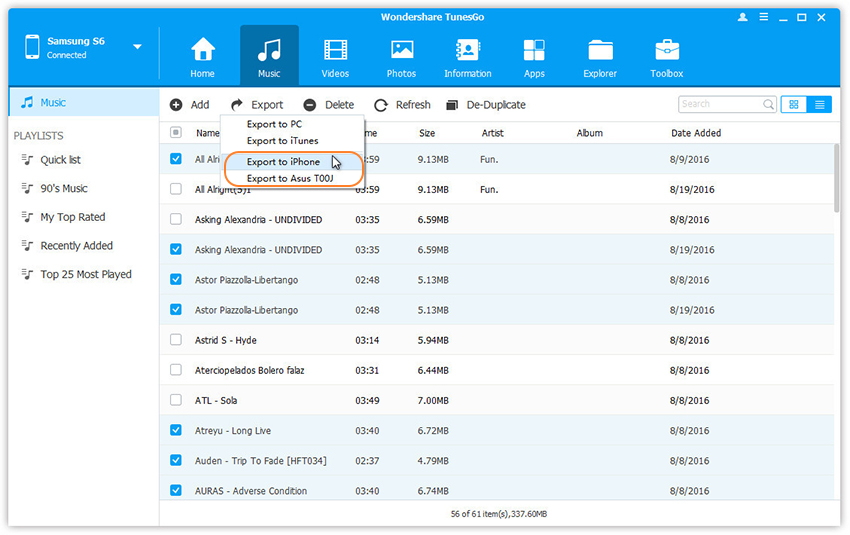
select samsung device to export

You can also transfer the whole music playlist from Samsung to another in one click.
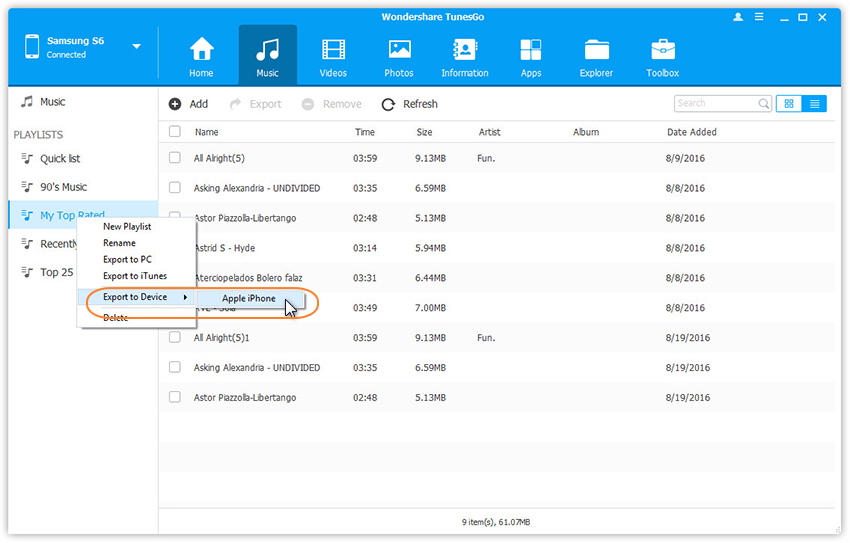
export music to samsung

d_win d_mac

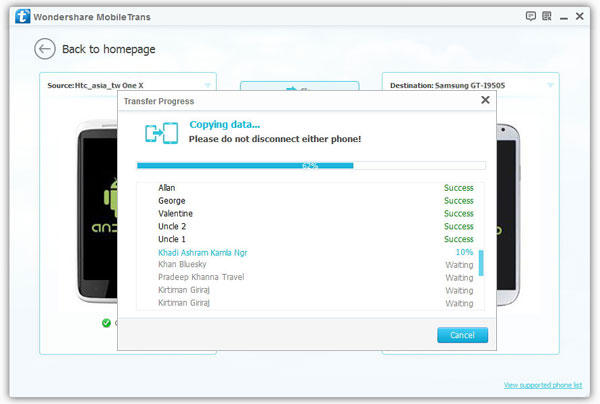
Extra part:You can also transfer music between old phone and Samsung with Phone Transfer.

Phone Transfer allow to transfer music between old phone and Samsung Galaxy S6/S7 with one click,besides music,this simple data transfer tool support to transfer contacts,SMS,photos,videos,apps,call logs,calendars from old phone to Samsung phone completely.Android phone,iPhone,Symbian phone are all applicable to Phone Transfer.

d_win d_mac

Detail tutorial:How to Transfer Data from Android to Samsung Galaxy S6/S7 with Phone Transfer

Step 1.Run Program and Connect Two Device to Computer

Step 2.Select Music File to Transfer

Step 3.Transfer Music from Old Phone to Samsung Galaxy S6/S7
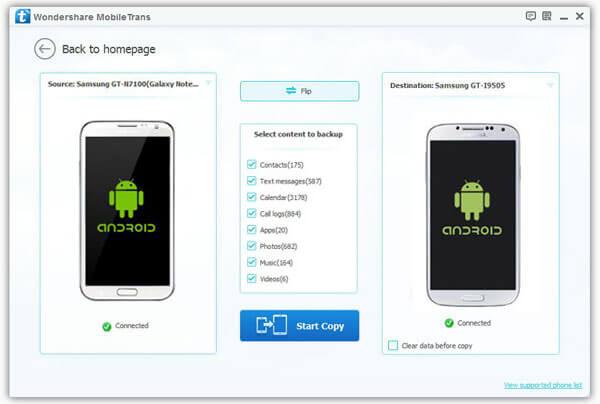
transfer music from old phone to samsung galaxy s6/s7

Part 3:Transfer Music from iTunes to Samsung Galaxy S6/S7

Android Transfer makes it extremely easy to transfer music, videos, playlists and more from iTunes to Samsung Galaxy S6/S7. In the following part, we would like to show you the detailed tutorial.

d_win d_mac

Step 1.Launch Android Transfer and Connect Samsung to PC
Run Android Transfer on computer and then connect Samsung to computer.Click Transfer iTunes Media to Device on the main interface.Or find the Transfer iTunes to Device option under Toolbox > Transfer Tools section.

android transfer mian page

Step 2.Transfer Music from iTunes to Samsung Galaxy S6/S7
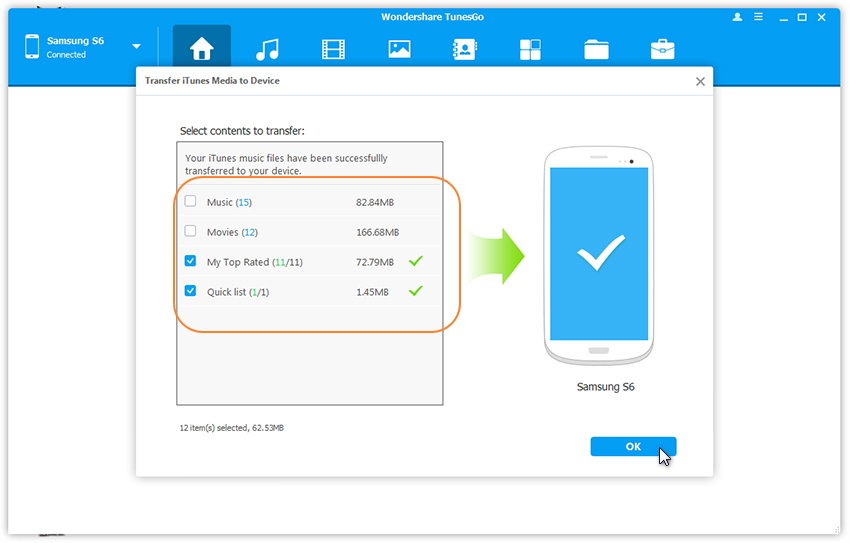
Check options and start to copy media from iTunes to Android. All the iTunes files will be scanned and will be shown under different categories like music, movies, podcasts and others. By default, all the file types will be selected but to transfer only the music files, you can uncheck the others. Click Transfer to start transferring.
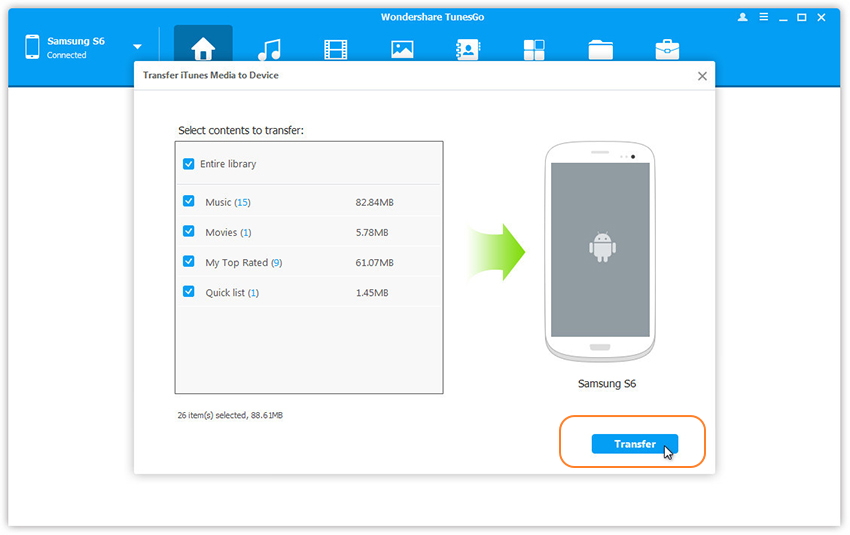
select music file transfer samsung

transfer music itunes to samsung

Note:There is no worry about duplicate files as Android Transfer enables to automatically detect the duplicates and only transfer the exclusive contents from iTunes to Android device.

d_win d_mac

Part 4: Convert Apple Music and Play on Samsung Galaxy S6/S7

With the helps of Apple Music Converter, you can easily convert Apple music from M4P to MP3 and play on Samsung Galaxy S6/S7 without time limitation. This software is an excellent tool which enables to load a collection of Apple M4P songs(iTunes songs) then convert M4P to MP3. After converting Apple music to the compatible MP3 format, you can enjoy the songs on your Samsung device freely.

Download Apple Music Converter:

d_win d_mac

Features of Apple Music Converter:
-Remove DRM from Apple Music songs and convert Apple Music M4P songs to DRM-free MP3, M4A, etc.
-Convert Apple Music songs at up to 16X speed.
-Enjoy Apple Music tracks in anywhere and at anytime.
-Convert iTunes/Audible audiobooks to MP3/M4A, etc.
-Preserve Audiobook chapter information to M4A output.
-Keep original data to MP3, M4A audio files.

Guide: How to Play Apple Music on Samsung Galaxy S6/S7

Step 1. Run Apple Music Converter on PC or Mac
Firstly please run Apple Music Converter program on PC/Mac.

launch apple music converter

Step 2. Choose Apple Music to Convert
Select the Apple music you want to convert, including music, playlists, Audiobooks, M4P Audio, iTunes movies and TV shows. Click “Download“.

Step 3. Choose MP3 – Output Format to Convert
Select MP3 as the format for the converted music.

Step 4. Convert Apple Music to MP3 for Samsung Galaxy S6/S7
Click “Start Convert” to begin the conversion on the computer.

convert itunes music to mp3 for Samsung galaxy

Step 5. View the Converted Apple Music
When the conversion is finish, you could explore the output files and folders by clicking “Open Output File” button to view the converted music file on the computer.

Step 6. Transfer Converted Apple Music to Samsung Galaxy via Android Transfer
In the last step you should transfer the converted music to your Galaxy S6/S7 via Android Transfer.

Related Article:

How to Transfer Videos from Computer to Samsung Galaxy S6/S7

How to Convert and Play DVD Movies on Samsung

How to Transfer Music from Android to iPhone/iPad/iPod
How to Transfer Files between Samsung and Computer

How to Backup and Restore Samsung Data

How to Root Samsung Galaxy S6/S7/S8/S9

Do you know the information about rooting Android device?If you’ve researched anything about Android on the internet,you’ve probably seen and read about “rooting” one.That’s an operation that Android available didn’t live up to their potential, and root was the answer.Horrible software was the norm,applications that you would never use ran amok and wasted data and battery life, and the experience was bad all around. Rooting is how you get complete access to everything in the operating system, and those permissions allow you to change it all.Modern Androids are quite a bit better than they used to be.So it’s not hard to understand that many of us try to root Android device and are looking for more information on ways.

root samsung galaxy s9,s8,s7

Why Root Samsung Galaxy Phone
There are plenty more benefits that you can experience when you root Samsung Galaxy.This is especially true for non-techies.To persuade you more into giving this process a try, why not read some of the benefits of rooting your device.

1.Save space on your phone. Some apps on your phone can’t be uninstalled, even though you are not using them. This is because they are pre-installed by Samsung or your carrier. Unfortunately, they can take a lot of space in your phone’s storage. Getting rid of them is possible only when you root your device.

2.Have custom ROMs.Why would you like to have custom ROMs on your device? We can give you tons of reasons but the most important one is that it offers better performance and efficiency.Another essential reason is that you can install apps and save it to your SD card. This ability is not possible with stock ROMs.

If you don’t like the outcome, however, you can always unroot it.But we doubt that you would as rooting it could give you endless possibilities.

How to Safely Root Samsung Galaxy Phone

Android Toolkit – Root guarantees help to safely root Samsung Galaxy S6/S7/S8/S9/Note 9 on computer,root Android phone with high security.Your Samsung/Android device will be well protected during the rooting process.Our certified Android technicians can safely perform a number of different maintenance services.Only two easy steps,you can complete the Android device rooting task by yourself.

Main Features of Android Root tool:
-Root your Android phone with 1-click.
-Over 95% success rate on rooting.
-Support Samsung Android phones,such as Samsung Galaxy S7/S6/S5/S4 and Galaxy Note 5/4/3,etc,.
-Fully rootable from Andorid 4.0 to Android 7.0 .
-Work on both Windows and Mac OS X .

d_win d_mac

How to Root Samsung Galaxy Phone

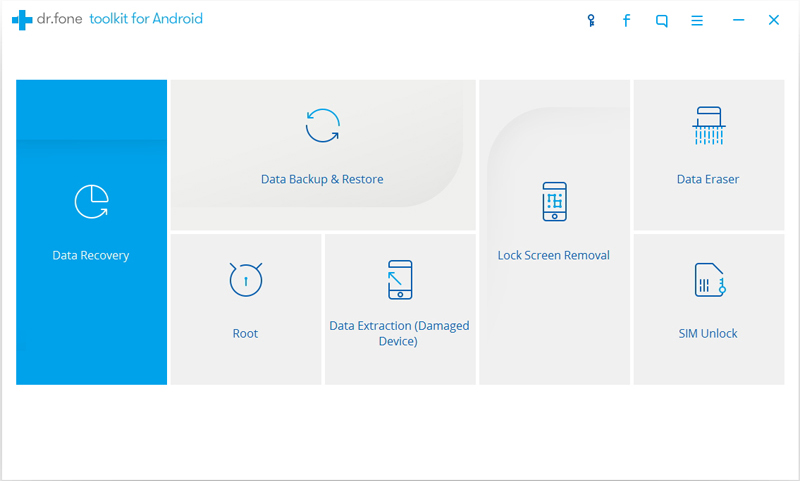
Firstly,please download and run Android Root on your computer then click on “Root” in the main page of program.Select “Android Root” option on it.

android root mian page

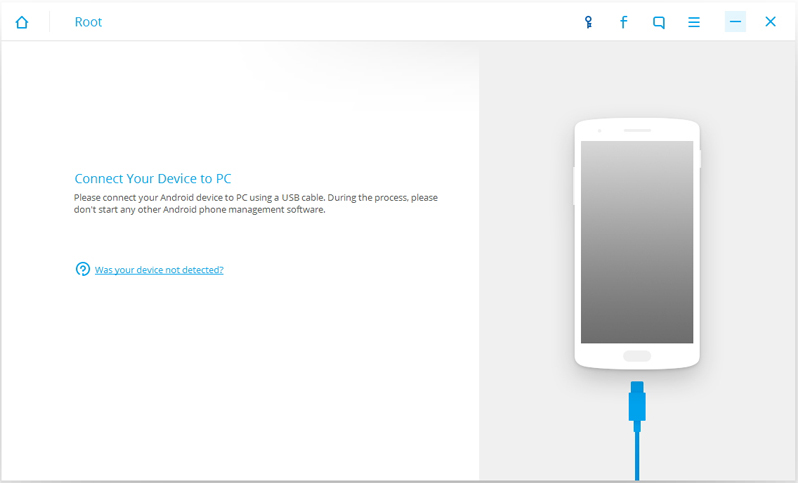
Step 1.Connect Samsung Galaxy S6/S7 to the computer
Connect Samsung phone to the computer with an USB cable.You should enabled the USB Debugging mode on your Samsung.Then Android Root will automatically connect your device.

connect samsung galaxy to pc

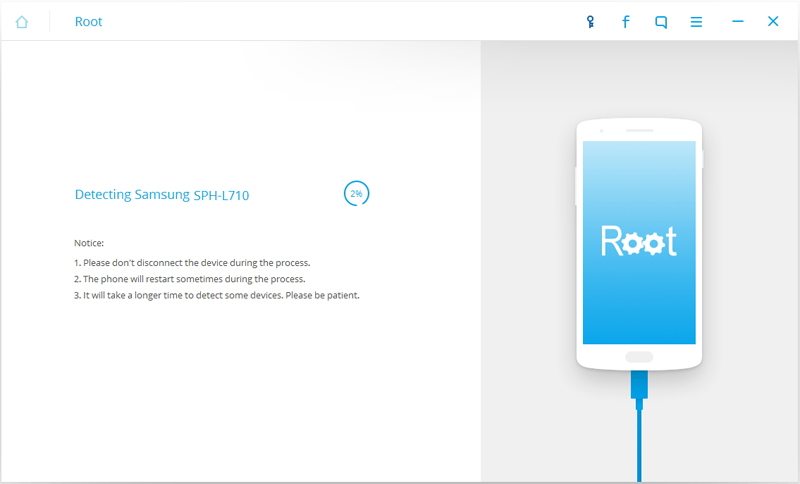
Once your Samsung is connected,Android Root will offer a proper solution to root your phone.Click on Start to continue.

detect samsung with android root

Note:
1.Please don’t disconnect the device until the whole process is end.
2.The phone will restart sometimes when detecting.
3.It may cost you some time to detect your device.Please be patient.

Step 2.Safely Root Samsung Galaxy S6/S7 on Computer
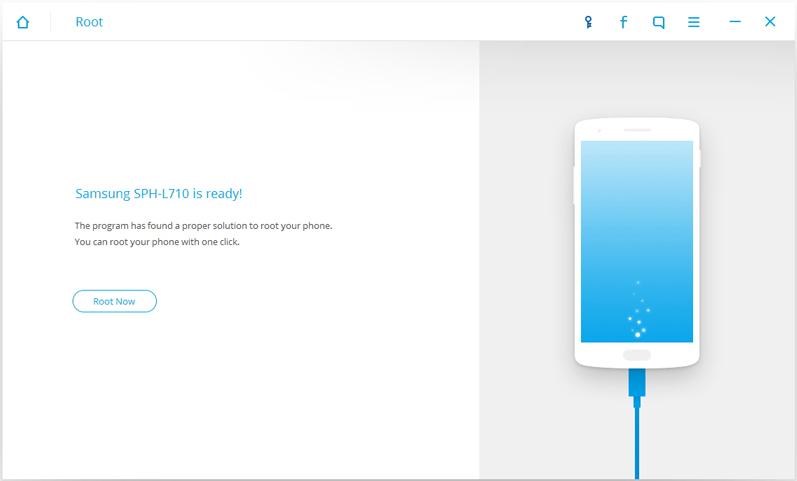
It will take you a few minutes for the program to detect your Samsung phone.Then it will be ready for you to root your device.Just click on Root Now to safely root your Samsung phone on computer.

ready root samsung

Note:During the rooting process,the phone will pop up a message to prompt whether you would like to root the phone.Tap on Confirm to continue the rooting process.You phone will be complete rooting in minutes.

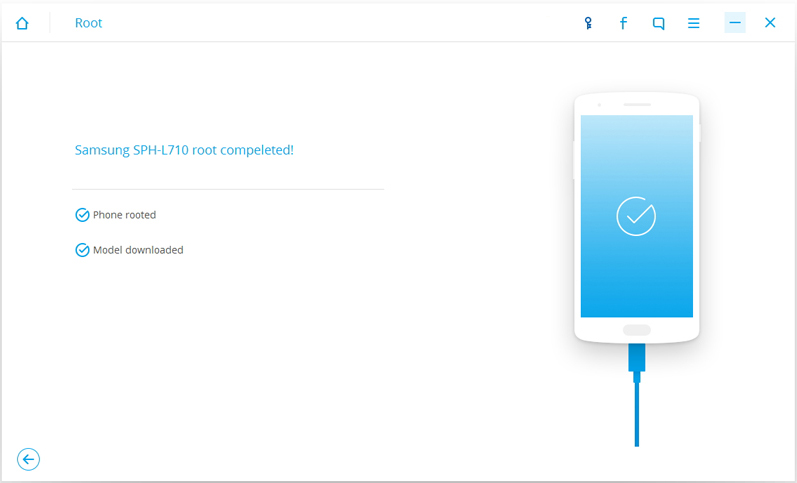
samsung galaxy rooted

d_win d_mac

Related Article:

How to Root Samsung Galaxy Phone on Computer

How to Root your Android on Computer

How to Enable USB Debugging Mode on Samsung Galaxy

How to Backup and Restore Data on Samsung Galaxy

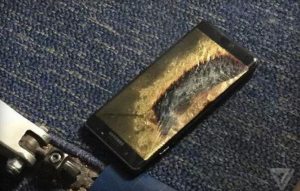
Note 7 Fire Burning Accident again in National flight Even Power Off

South Korea’s Samsung Electronics Company in the United States since the official recall of the Samsung Note7 mobile phone, many consumers have got the replacement of the same phone. However, an American man claims that the replacement of Note7 mobile phone in a plane on fire smoke, burn the floor plane.

U.S. Federal Aviation Administration, the U.S. Consumer Product Safety Commission to investigate the matter 5. It is worth noting that, according to a statement issued at the end of September China Samsung, replaced in the overseas market with the new Note7 mobile phone in the Chinese official sales of the state line version of “provide the same battery suppliers”.

note 7 burning again

Power Off still Smoke Fire

The “critical point” technology news website (TheVerge) quoted a spokesman for the American Southwest Airlines reported, the airline’s flight number 994 aircraft on the morning of 5 fire, the cause is a Samsung Note7 mobile phone smoke fire, but fortunately all the passengers and crew to evacuate, caused no casualties.

The plane was flying to Maryland from Kentucky, Baltimore and Louisville, the passengers, but has yet to take off when in danger. According to the passengers from Indiana, Brian Green recalled, he boarded the plane to comply with flight attendants that shut down power Samsung Note7 mobile phone, but suddenly smoke in her mobile phone.

Green immediately throw away the phone, and the phone continues to emit strong, gray green, violent smoke”. Crew emergency evacuation of passengers, arrangements for everyone to leave the aircraft. Green, a colleague also aboard the flight, after the machine had to return to the cabin to take personal belongings, the results saw the fire has been burning the phone to wear the carpet, the floor of the floor burned the aircraft.

American Broadcasting Company reported that the mobile phone explosion was not light, so that a fire team can not immediately identify the phone model. U.S. Federal Aviation Administration issued a statement later confirmed that a Samsung mobile phone triggered this fire, and revealed that the investigation is underway.

Is just the Same New Mobile Phone

Green accept the “critical point” website interview with reporters, he in September 21st replaced the new Samsung Note7 mobile phone from a shop owned Att Corporation, has since been using wireless charger for mobile phone charging.

Green’s wife Sara told the Reuters reporter, her husband received about half a month ago, the Samsung Corp sent a message to send Note7 mobile phone recall notice, so the replacement of a phone with the same.

The “critical point” website published a picture of Green’s mobile phone box. Photos show that there is a black box on the box logo, which means that the phone for the replacement of the new phone, is not yet to be recalled the old phone.

For the protection of privacy reasons, photos to the phone’s mobile devices international identification code (IMEI, that is, the phone’s unique identification number) to fight the mosaic. When the “critical point” website in the Samsung recall system to enter the identification code, the system pop-up message said, this phone does not need to recall.

In another photo,a large area burn out the mobile phone screen,but can see “Samsung”.

More than witnesses to the United States, “New York Times” confirmed that Green on the plane did close the phone. According to Green recall, this phone is on fire, the battery power is about 80%.

With the State Line Version of the Same Battery

China Samsung electronics company said in a statement in September 29th that the Chinese version of the Note7 mobile phone use is a product that needs to be recalled “completely different suppliers” from overseas. It is worth noting that, in the overseas market to replace the new Note7 phone is used with the state line version of the same supplier provided by the battery”.

China has undergone more than Samsung Note7 and Samsung mobile phone burning loss event, released in September 29th on the official website of the statement that “part of the problem of product testing results at present initially showed no signs of recovery, the internal battery burning loss…… The burning loss of the site is not in the battery area, the battery has not found a significant damage of the traces, the presumption of the external thermal shock caused by the phone burn”.

For 5 U.S. aircraft fire incident, Samsung said in a statement: before we get back to this phone, we can not confirm the incident involving a new Note7 phone. We are working with the relevant authorities and Southwest Airlines to retrieve the phone and find out the cause of the fire.”

Read more:

How to Backup Data before Recalling Samsung Galaxy Note 7

How to Backup and Restore Samsung Galaxy Note 7

How to Backup and Restore Contacts on Samsung Galaxy Note 7

Goodbye, Nexus! Hello, Pixel Phone

The Google Pixel and Google Pixel XL are OFFICIAL.

Google has just officially announced its much-anticipated Pixel phones; the Pixel and Pixel XL. We’re live at Google’s London UK event, mirroring the main one taking place in San Francisco, US, where the firm unwrapped the new Android 7.1 Nougat devices which will apparently usurp Google’s long-standing Nexus series.

This launch has been a long time coming and a lot has been said prior to today about Google’s plans for its mobile division, the decision to axe its Nexus brand, and how it will differentiate its Pixel phones from other Android phones available from its hardware partners.

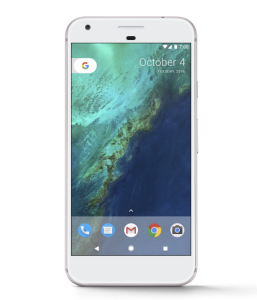
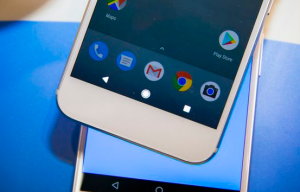
Well, there’s quite a lot to get through, so let’s get the basics out of the way first. This is what Google’s new Pixel phones looks like. First, the Google Pixel:

pixel phone

And now we’ll take a quick look at the specs for both the Google Pixel and Google Pixel XL:Google Pixel Specs & Hardware

Dimensions: 143.8 x 69.5 x 8.6 mm
Weight: 143g
Display: 5in 1920 x 1080 pixels
Processor: Qualcomm Snapdragon 821 quad-core 2.1GHz
GPU: Adreno 530
RAM: 4GB
Storage: 32GB or 128GB
MicroSD: Up To 256GB
Rear Camera: 12MP
Front Camera: 8MP
Software: Android 7.1 Nougat
Battery: 2770mAh Quick Charge
Colours: Silver, Black
Google Pixel XL Specs & Hardware

Dimensions: 154.7 x 75.7 x 8.6mm
Weight: 168g
Display: 5.5in 2560 x 1440 pixels
Processor: Qualcomm Snapdragon 821 quad-core 2.1GHz
GPU: Adreno 530
RAM: 4GB
Storage: 32GB or 128GB
MicroSD: Up To 256GB
Rear Camera: 12MP
Front Camera: 8MP
Software: Android 7.1 Nougat
Battery: 3450mAh Quick Charge
Colours: Silver, Black

As you see, the duo are for the most part identical except for the physical dimensions, the display size and resolution, and the presence of a higher milliamp-hour rated battery cell in the Pixel XL. Design-wise it’s what we already saw in the leaks ahead of the launch; an aesthetic which does indeed pull in some reminders from the Nexus heritage in terms of overall shape.

“With Pixel,” said Brian Rakowski, Google’s VP of Product Management, “we obsessed over every detail, from the industrial design to the user experience. We carefully sculpted the surfaces of the phone, and rounded the edges to make it easy to grip. We used 2.5D Corning® Gorilla Glass 4 on the front display and back glass to accent the aerospace grade aluminum body. The glass on the back also features Pixel Imprint, our fingerprint sensor, which is placed on the back of the phone where your finger expects it. You can even swipe it to access your notifications. And no matter what you’re using your phone for, you’ll need a battery that lasts all day and charges fast — up to seven hours in 15 minutes.”

Google is pretty pleased with the Pixel’s cameras. Here’s what it said at launch:

“With a best-ever 89 DxoMark Mobile score, Pixel’s camera lets you take stunning photos in low light, bright light or any light. #Nofilter needed. Catch action shots as they happen with Smartburst, which takes a rapid-fire sequence of shots. Use Lens Blur to achieve shallow depth of field and bokeh effects, making your subject pop. And capture dramatic landscapes or make faces glow with new exposure controls.”

The main distinguishing feature is that two-tone back panel design, some seem to love it, others loathe it; we’re fairly neutral to be honest, it’s not hideous but it doesn’t make us go “hot damn I need that sexy phone in my life!”, either.

Both Pixel and Pixel XL run the latest Android 7.1 Nougat build which is packed with software features, many of which we’ve already seen aboard 7.0 Nougat on the existing Nexus line-up. However, there are some new capabilities, as well as specific and unique tailored features baked-into the Pixel phones.

First With Google Assistant

A solid portion of Google’s keynote was dedicated to Google Assistant, the search giant’s first steps towards a personal AI for your home. Assistant will power Google’s Home hub device, which is coming later this year, but it can also be found inside both Pixel phones.

The idea with Assistant is that you can talk to it as you would a person. Simply say, “OK, Google,” and Assistant will be on hand to do your bidding, whether playing music, reading emails or regaling you with the morning’s headlines.

“Ask it for a brief update on your day or to play a video on YouTube,” said Google. “Look up traffic on the way home from work or when the nearest pharmacy closes. You can even say “show me my camping photos with Andrew” and it’ll instantly display the photos you’re looking for. Your Assistant can also offer help with what’s on-screen in any app. So if your friend texts you to meet up at a new restaurant, you can just say “navigate there’.”

Make no mistake, software like Assistant and Amazon’s Alexa will be the new battlefield tech companies do battle on. The implications of software like Alexa and Assistant are enormous; they’ll appear inside phones, computers, cars and even white goods eventually, I imagine. This trend will be huge once consumers catch on and locking Assistant inside the Pixel phones is just one of the USPs Google is pushing with its new phone operation.

First With Google DayDream

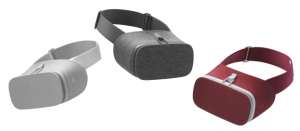
The Pixel phones are also the first Android phones to support Google’s VR platform, Daydream. It also announced its Daydream View VR headset, which is designed to be the most comfortable VR headset in its class. But more on this tomorrow, once we’ve had time to gestate EVERYTHING that Google discussed tonight (or, this morning, if you’re in the US).

vr headset

Google is keen to push the professional BYOD angle this time with added security and productivity features intended for business users.

It also retains some other features we’re familiar with, but one feature in particular the Google Assistant personal assistant, has been much upgraded from the last time we saw it at Google I/O 2016. As before, it responds to voice commands and ties in with Google Now, as well as Google’s other services such as Calendar, Mail, and Maps, but it offers a much more detailed interaction thanks to Google’s AI developments. Google talked a lot about how AI is the “next big thing” for its devices and software development, and Google Assistant seems to be a lynchpin of this.

As well as features typical of virtual assistants such as Siri, things like scheduling appointments, activating searches, and asking questions, Google Assistant was demonstrated offering in-depth conversations and learning about you and what’s important in your life.

“The assistant is conversational—an ongoing two-way dialogue between you and Google that understands your world and helps you get things done,” says Google. “It makes it easy to buy movie tickets while on the go, to find that perfect restaurant for your family to grab a quick bite before the movie starts, and then help you navigate to the theater. It’s a Google for you, by you.”

“The assistant is an ambient experience that will work seamlessly across devices and contexts. So you can summon Google’s help no matter where you are or what the context. It builds on all our years of investment in deeply understanding users’ questions.”

Read more:

The Google Pixel Phone is Exactly what you Wanted

How to Recover Deleted Data from Pixel

How to Transfer iPhone Data to Pixel

How to Transfer Samsung Data to Pixel

How to Transfer Android File to Pixel

How to Backup & Restore Data on Pixel

The Google Pixel Phone is Exactly what you Wanted

There’s a curious dynamic in human psychology whereby as things improve, we sometimes complain about them even more. Respected international philanthropist Mo Ibrahim noted this with respect to Africa in an interview this week: as governance and the provision of healthcare have improved across the continent, people’s perception of the quality of those services has declined. Basically, expectations are outrunning actual progress, and there’s no better example of this in the tech world than Google’s brand new Pixel phone.

google pixel phone

Let’s look at where we started this year. Samsung had a great phone in the Galaxy S6, Google had a terrific phone in the Nexus 6P, and that was pretty much the full extent of viable iPhone competition from the premium Android smartphone makers. LG, HTC, Sony, and a litany of others were throwing devices at a wall of uninterested consumers, but all failed to make anything stick. Where we were this January was not a good place for anyone looking for aggressive mobile innovation. Google’s Nexus was great, but it was phablet-sized and available through limited channels, leaving only the Apple-Samsung duopoly for most people to choose from.
Google’s Trying to Assemble and Distill the Best of Android,Hardware and Software,into One

Android phones have, for a few years now, been consistently beating Apple’s iPhone to new hardware breakthroughs and innovations. The problem is that they’ve been scattered across brands, and no single company has been able to really put the whole package together. You might want Huawei fingerprint scanner, Sony’s camera sensor, Samsung’s display, and HTC design in your ideal Android phone. You’d certainly want the Nexus peace of mind about getting long-term OS updates. And that’s where Google comes in.

Every year, the recurring complaint with HTC phones is that they might be the best in the world if only they ran stock (which is to say Google’s best version of) Android and had high-quality cameras. Well, that’s exactly what the Google Pixel is. It’s a new Android smartphone, built by the highly experienced team at HTC, augmented with Google’s best Android, Google’s timely and longer-lasting software support, and a camera good enough to surpass every other mobile camera on DxOMark. Now, I don’t invest too much trust in such benchmarks, but this paints a promising picture for the Pixel’s photo-taking capabilities.

Google’s Presentation was Far Less Polished than the Phones Themselves

If earlier this summer you were to offer me an HTC 10 with a better camera, nicer Android interface, and the reassurance that Google itself would be doing everything within its power to make that device a success, I’d have been elated. So why am I not feeling quite so thrilled today? Because the way we frame things, the way we talk about them, matters.

One problem for Google is that the Pixel’s appearance didn’t so much leak as pour out onto the online world during the month of September. Apple knows the challenges of stirring excitement about an already familiar design, and it tries to do so with flashy manufacturing videos voiced by the dulcet tones of chief designer Jony Ive. Google didn’t go in for any such glamorizing of its new devices, and consequently the Pixel felt almost stale by the time it made its formal debut.

We also keep obsessing about Google’s overall strategy, who the company is targeting, and the minute spec comparisons against alternatives like the water-resistant Galaxy S7, which Samsung also endows with a microSD card slot. Here’s a newsflash: the Galaxy S7 is a kickass phone, and so is the iPhone 7, and there’s nothing at all preventing a third phone from sitting alongside them in the premium price bracket. Maybe you’ll like the feel and ergonomics of the Pixel better, or maybe you’ll find its camera more reliable than the others. Google doesn’t need to win a spec race to have a successful smartphone on its hands, and the mobile market is big enough to sustain more than two great options.

The Pixel is a Vessel for Google Assistant,whose Benefits are yet to be Established

Context is, of course, important, but sometimes it helps to take a step back and simply appreciate how far and how fast technology has advanced. Some of us are preemptively questioning and writing off a device backed by the considerable might of Google just because it doesn’t have anything to immediately wow us. Fast performance, aluminum unibody design, a high-definition AMOLED display, phase-detect and laser autofocus systems, fast and reliable fingerprint sensors… we’re taking all of these things as easy and automatic. But if they are, what sort of wild-eyed additional spec bump would have satisfied us that the Pixel is a suitably advanced device?

I understand how the Pixel, assembled from off-the-shelf components and exhibiting no radical departure from existing forms and designs, can seem underwhelming. But let’s not forget that this phone’s greatest advantage and uniqueness will come from the software within it – Google spent more time talking up its Google Assistant software than any individual hardware product at yesterday’s event. So it’s certainly too early to pass any definitive judgment on the Pixel, other than to declare that its existence is a positive sign for the Android ecosystem.

HTC used to be a legitimate competitor to Samsung at the top of the Android pile, but that position has lapsed and we need a new contender to keep Apple and Samsung honest at the premium end of the market. Google’s invasion of that space is exciting, and the Pixel itself – when stripped of our constantly speeding expectations and preconceptions – is a highly advanced device with which Google can begin to disrupt the status quo.

We asked and asked, for many years, to see Google get serious about building and designing its own smartphones. The Pixel isn’t everything we wanted, but it is definitely the device and strategy we’ve been demanding from Google for so long. And just like the enigmatic Google Assistant, this new initiative of Google acting as a hardware designer and builder is likely to only grow better with more time and experience.

Read more:

How to Recover Deleted Data from Pixel

How to Recover Deleted Photos on Pixel

How to Transfer iPhone Data to Pixel

How to Transfer Samsung Data to Pixel

How to Transfer Android File to Pixel

How to Backup & Restore Data on Pixel

How to Backup and Restore Google Pixel/Pixel XL

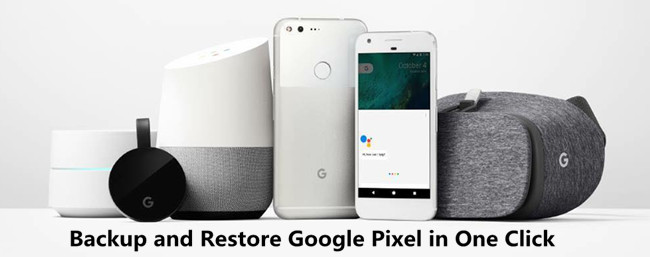
Pixel is the first phone with the Google Assistant built in.At Google’s hardware event this week, the new version of the Android operating system, Android 7.1 (Nougat 7.1), was barely mentioned.As it turns out, there was a reason for that: some of the new Pixel smartphones‘ best features won’t be arriving in the new OS.This includes features like Google Assistant,the built-in customer support service, unlimited and free backup of full-res photos and videos, Smart Storage, and more.

backup and restore google pixel xl

Easily Backup and Restore Google Pixel in One Click

The Pixel is an outstanding Android phone worthy of your consideration,unless you already bought one.According to the report that come from Android users,they encountered the different situations of losing data.When you upgrade to a new Android smartphone like the Pixel,you should safely backup your data on your new device,such as contacts,SMS,photos.

Android Backup & Restore Tool must be your first choice — makes backing up and restoring process easier and faster,help to completely backup and restore data on Pixel phone,backup data from Pixel to computer,restore backup to Pixel.Android Backup & Restore Tool supports more than 10 types of data,including: contacts,text messages,photos,videos,calendars,call logs,music,apps data (WhatsApp/Viber/Line/Kik),etc,.Applicable Android phone models list here for example Google Pixel(Pixel XL),Google Nexus(Nexus 5X/9),Samsung(Galaxy S6/S7/S8/S9,Note 9/8/5/4/3),HTC(One M8/M9),LG,Lenovo,Motorola,Huawei,Xiaomi,ZTE,and so farth.

d_win d_mac

Part 1:How to Backup Data from Pixel XL to Computer

Step 1.Connect Google Pixel XL to Computer and Run Program
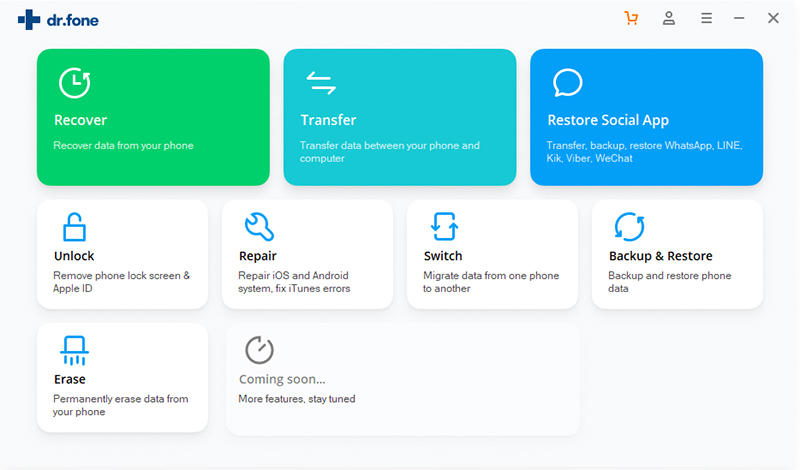
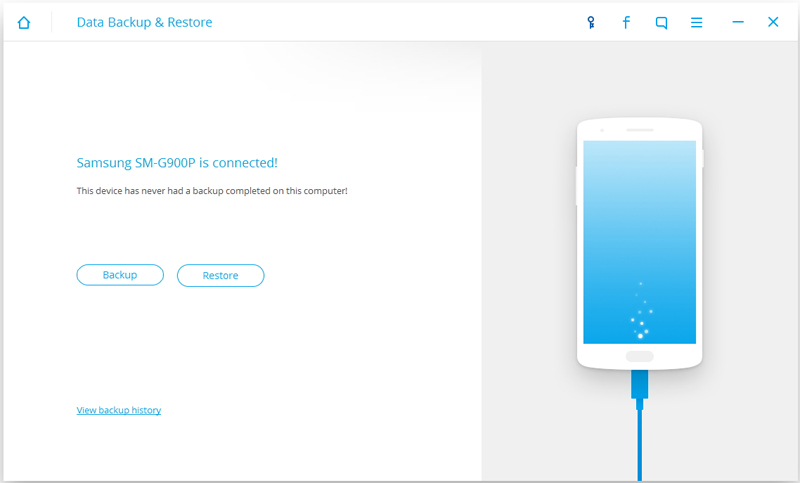
Run Android Backup & Restore and from the “More Tools” section,select “Android Data Backup & Restore” option.Then connect the Android Pixel device to your computer using USB cables.The program will detect the device soon.

google pixel backup and restore

backup and restore google pixel data

Note:If you have other Android management program on your computer,make sure none of them is running.

Tips:If you have used this program to back up your device previous,you are allow to view your past backup by clicking on “View backup history”.

Step 2.Select File Type to Backup
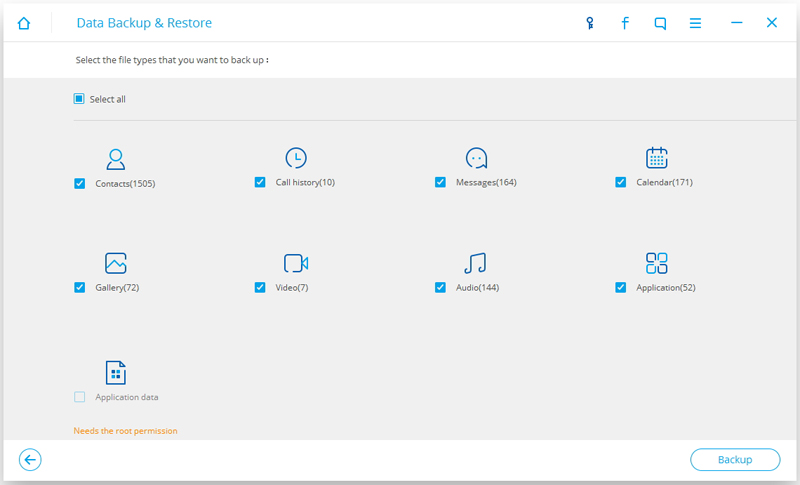
When program has detected your device,click on “Backup” to select the data file you want to backup(include in the past backup).Android Backup & Restore can be used to back up different file types including messages, call history, calendars, gallery, audios, videos, applications and applications data.

select pixel phone's data to backup

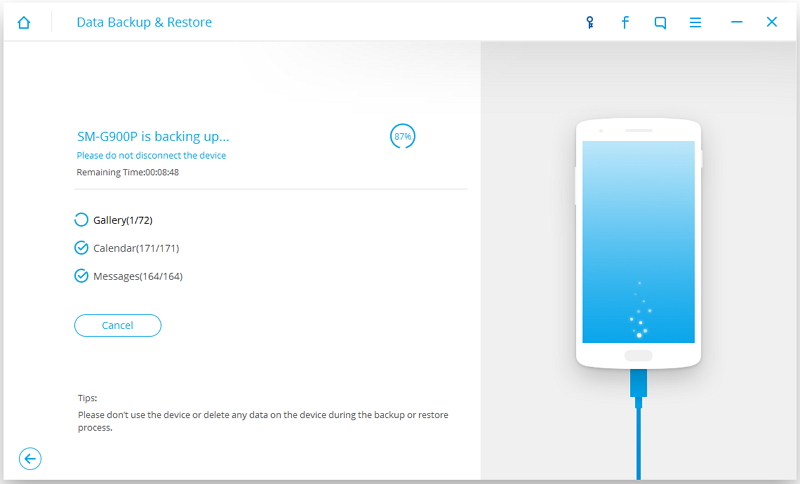
After you have selected the file which you want to backup,click the button “Backup” to begin the backup process.The entire process will cost you no more than a few minutes.

backup google pixel's data to computer

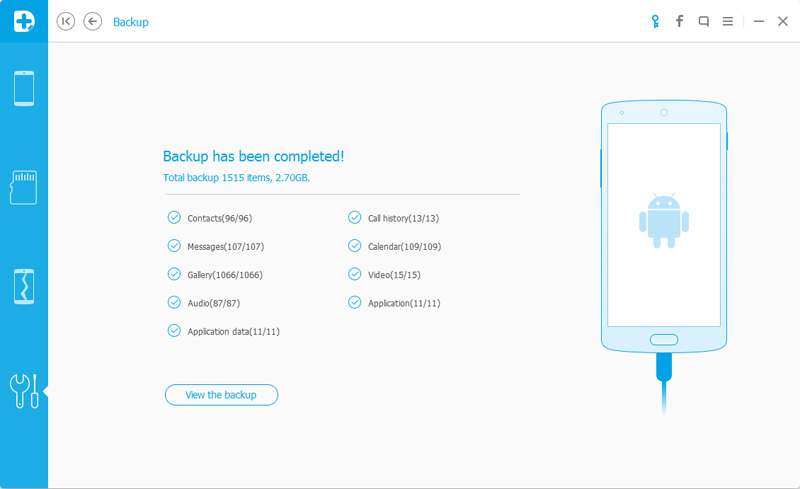
Once the backup is complete,you can click on “View the backup” on the lower left corner of the window to see the details of the backup file.

backup contacts from google pixel to PC

Now you can view your backup file by clicking on “View” your Google Pixel backups contents on computer,if you want to restore those backed up data to Google Pixel/XL or another Android phone,pase learn the next tutorial.

Part 2:How to Restore Data to Pixel from Backup

Step 1.Connect Pixel to Computer and Run Program
Run Android Backup & Restore and from the “More Tools” section,select “Android Data Backup & Restore” option.Then connect the Android Pixel device to your computer using USB cables.The program will detect the device soon.

Click on “Restore” and choose from the older backup file on your computer.These backups can either be of this Android device or any other device.

restore data to google pixel

restore google pixel phone's contents

Step 2.Select Backup Data to Restore to Pixel
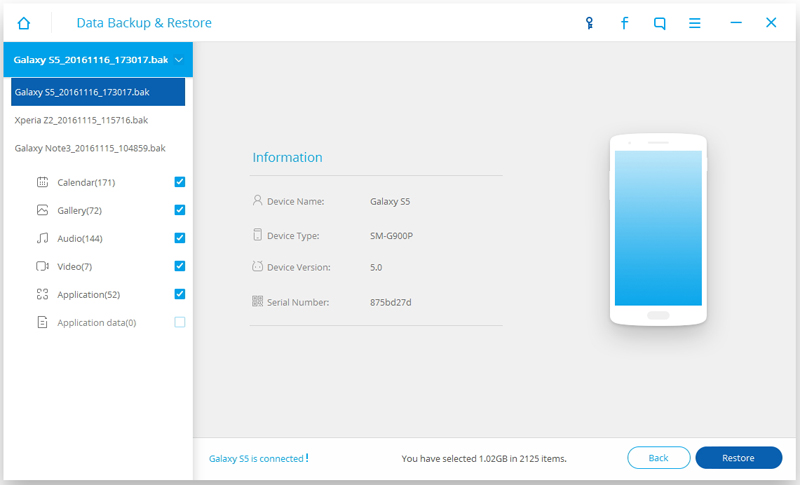
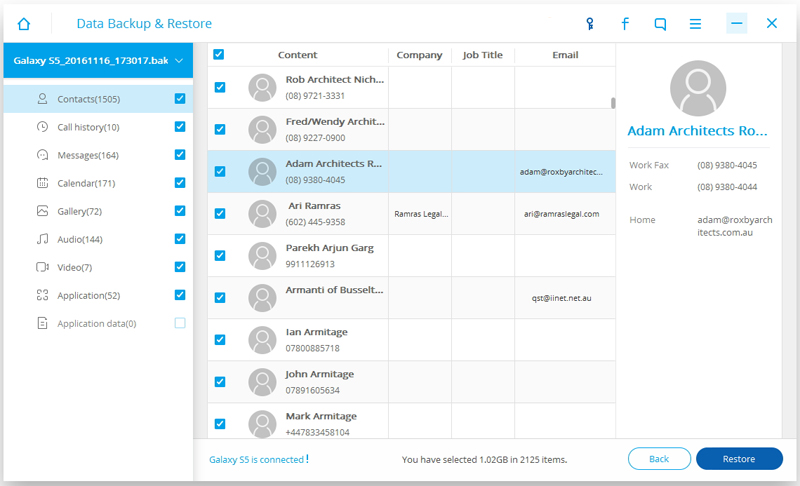
You are allow to selected the data you want to restore.Select the different file types on the left and then select the files you want.Click on “Restore” to start.

select backup file and restore to google pixel

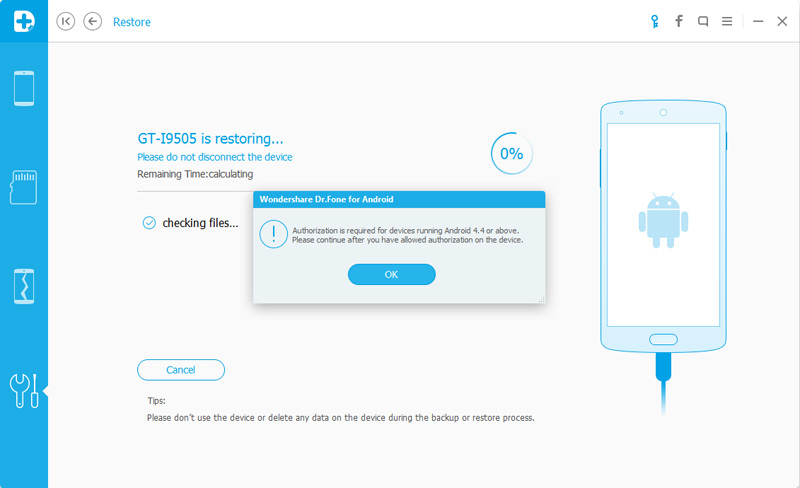
On restoring process,Android Backup & Restore will require authorization during the restore process.Allow authorization and then click “OK” to continue.

restore backup files to Google Pixel xl

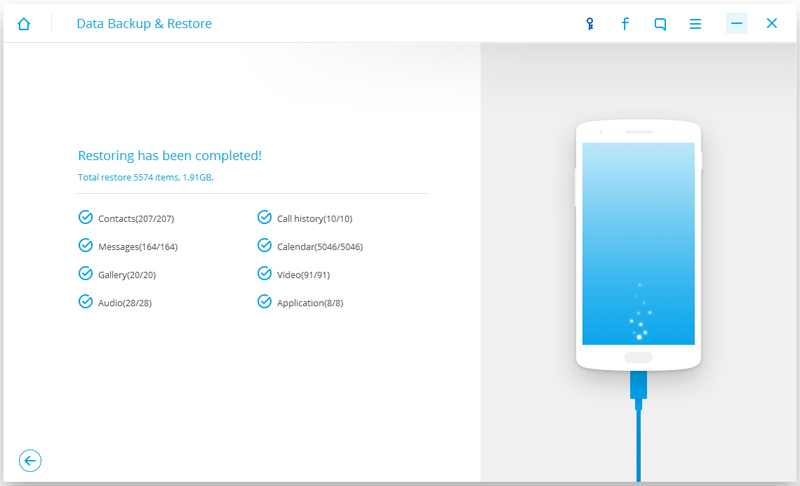
The whole process would last only a few minutes,Android Backup & Restore will prompt you that the restore process has been completed along with a detailed account of which types of data have been successfully restored and which ones have not.

restore backup data to pixel completed

d_win d_mac

Related Article:

How to Recover Deleted Data from Pixel

How to Recover Deleted Photos on Pixel

How to Transfer iPhone Data to Pixel

How to Transfer Samsung Data to Pixel

How to Transfer Android File to Pixel

How to Backup and Restore Android on Computer

How to Permanently Erase Android Data before Selling

How to Recover Deleted Photos on Pixel

Google has released the new Pixel phone in 4th Oct,which is a terrific Android device for Google.Google has revealed the specs for its new Pixel smartphone’s 12.3-megapixel rear camera and they’re pretty impressive. For starters, its 89 score from DXOMark makes it the “best smartphone camera” ever, the company says, and brings it close to a dedicated compact camera in terms of sharpness and color accuracy.The relatively large sensor and smallish megapixel count yields a big 1.55-micron pixel size, meaning the camera will be good in low light too.

recover-deleted-photo-pixel

It has the shortest capture time of any smartphone Google has ever tested, meaning there’s next to no shutter lag when you’re taking action shots.With that speed, the HDR function is always on, improving overly-bright daylight scenes and shadows that are too dark. Google says it splits images into short, multiple exposures in order to align pixels, eliminate blur and improve dynamic range. Needling Apple, the company added that it does all that without a camera hump. Once the images are captured, the smartphone can process them twice as fast as previous models, thanks to the fast Snapdragon 821 chip and 4GB of RAM.

* How to Recover Deleted Data from Google Pixel

* How to Manage Google Pixel on Computer

Delete Photos from Google Pixel Phone

It’s not hard to imagine that you use the powerful Pixel phone to catch all excellent moments with the phone’s built-in camera,to record the funny moments anytime anywhere as you like.However,did you just delete a bunch of photos in order to free up some storage space of your device then deleted important photos on device by accidentally?Or for more other reasons carelessly?For all Android users,an occasionally photo losing may also means lots,especially when you have no backups.Thus it is inevitable that you may feel panic when your photos are losing,but actually you still have a chance to get back the deleted photos from Pixel phone here.

How to Recover Deleted Photos from Pixel Phone

Android Data Recovery can be the best Android photo recovery program for Android users.It now only allows to restore deleted photos from Google Pixel,but also contacts,messages,videos,call logs,calendars,etc,.This wonderful program perform the Android data recovery task from all kinds of Android phones & tablets in a few clicks,including Google Pixel(Pixel XL),Google Nexus(Nexus 5X,Nexus 9),Samsung(Galaxy S6/S7/S8,Note 5/4, J5/J7, A5/A7/A8/A9),ZTE,HTC(One M8/M9),Motorola,Sony,LG and so on.Moreover,Android Data Recovery support to recover data from Android SD card,recover data from broken/damaged Android.Would you credit it?Just see how it works with detail tutorial following.

d_win d_mac

How to Restore Deleted Photos on Pixel Phone

Step 1.Run Program on Computer
First of all,please download and run Android Data Recovery on computer.

run android data recovery

Step 2.Enable the USB Debugging on Pixel
You should enable USB debugging on your Pixel before connecting the device to the computer.There are several ways for you to run the USB debugging for Android.

enable usb debugging on pixel

Step 3.Select Photo File to Scan by Program
When you enabled USB debugging for your Pixel,it will be detected by the program in seconds.Now you are allow to selectively choose which type of files to be scanned by program.If you just need to restore deleted photos on Pixel,you can click “Gallery” only.Then click “Next” to go on.

select data to scan from pixel

Step 4.Begin to Scan Deleted Photos from Pixel
Android Data Recovery start to scan the deleted photos on Pixel.Once you see the window below,you should move to your Pixel phone,tap on the “Allow” on the phone screen,then back to the computer and click on the “Start” button to continue.

allow program to scan pixel

Now the program will analyze the situations of data on your Pixel.

analyze data on pixel

Step 5.Preview and Selectively Restore Deleted Photos from Pixel
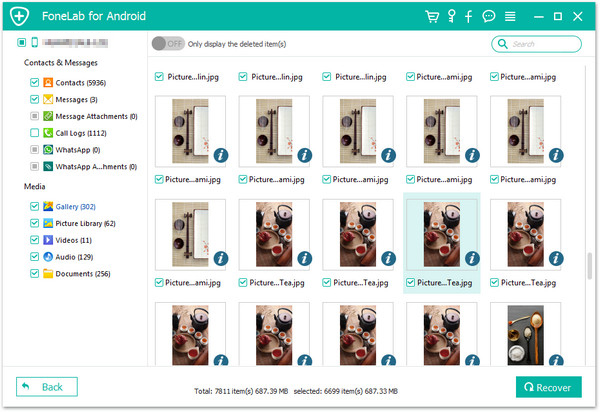
At the last step,all data will be scanned out by program,now you are allow to select the detail photos to preview and choose more than one photo for recovery by clicking “Recover”.Then it will restore all selected photos to your computer.Done.

restore deleted photo from pixel


d_win d_mac

Related Article:

How to Recover Deleted Data from Pixel

How to Transfer iPhone Data to Pixel

How to Transfer Samsung Data to Pixel

How to Transfer Android File to Pixel

How to Recover Deleted Data from Android Phone

How to Restore Lost Data from Rooting Android

How to Permanently Erase Android Data before Selling

How to Recover Deleted Data from Google Pixel (XL) Phone

[Summary]: Do you want to know how to recover deleted data on Google Pixel/XL phone? Here are two efficient solutions for you: recover deleted data from Google Pixel 3/2/1(XL) by using Android data recovery; Restore data from Google Backup.

Google’s Pixel 3XL and 3 is one of popular Android smart phone, which are comparable to the hottest Samsung Galaxy S10/S10+, S9/S9+ and HUAWEI P30/P30+/Mate 20. However, data loss always happens and Android phone is not an exception. It is possible that you might lose or deleted data such as text messages, photos, contacts and WhatsApp messages on Google Pixel phone, how to recover deleted data on Google Pixel?

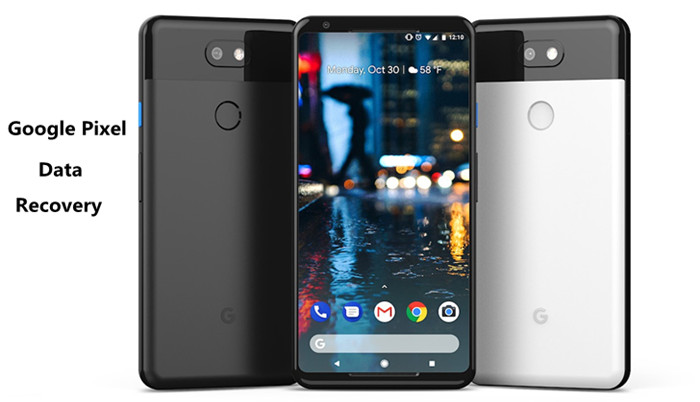
google pixel data recovery

Accidentally deleting data on your Google Pixel phone? Lost data after factory reset Google Pixel? Deleted photos, videos, contacts and messages on Google Pixel phone by careless? As you know, something accidentally always happen when you have not ready, losing data from your Android Google Pixel phone is not an exception. Anybody may face the trouble of losing data from Android device. There’s an excellent recovery tool that I want to strongly recommend to you an powerful Google Pixel Data Recovery.

Recover Deleted or Lost Data from Google Pixel Phone with or without Backups

Part 1: How to Recover Deleted Data from Google Pixel without Backups

Android Data Recovery is famous for that compatible to almost all brands of Android device, such as Google Pixel, Samsung, HTC, Lenovo, Huawei, ZTE, LG, Sony, Motorola, Xiaomi, Redmi, OnePlus and so on.

This Android Data Recovery enables you to restore deleted data from Google Pixel phone like contacts, messages, photos, videos, notes, call logs, calendars, WhatsApp messages, documents and apps data.Android Data Recovery is an outstanding recovery tool that is welcomed by more and more Android phone users. It runs applicable for all version of Android OS, Android 9.0 or later. Besides, you are allow to use this superior data recovery to restore deleted data from Android after losing data under various of circumstances like deleted by mistaken, Android system upgrade, Android system rooting, restore Android to factory reset, Android device broken/damaged and more.

d_win d_mac
d_win d_mac

How to Recover Deleted Data from Google Pixel Phone?

Step 1.Run the Android Data Recovery on Computer
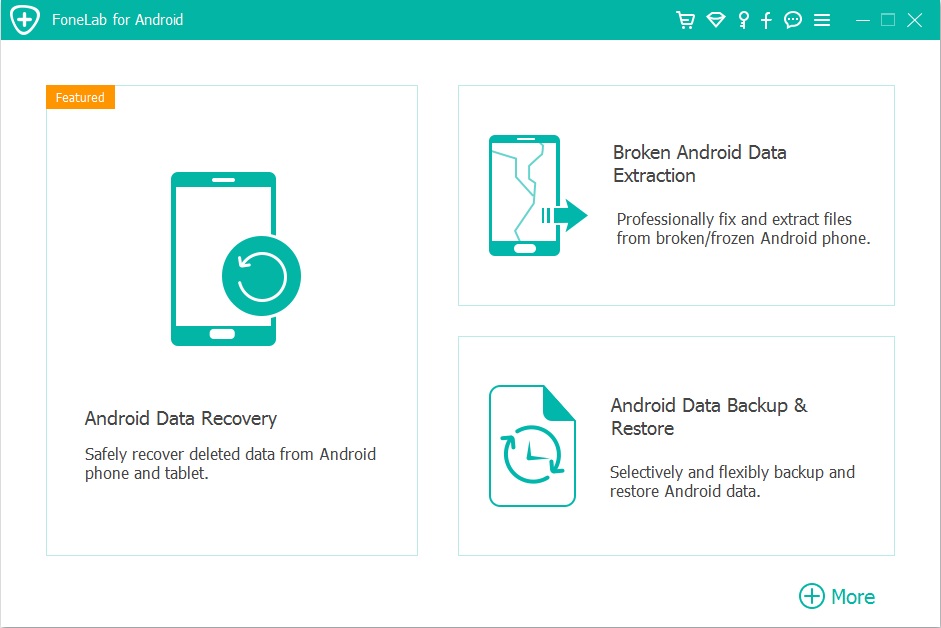
Install the program on your computer and run it, then click “Android Data Recovery” features.

google pixel data recovery

You will be asked to connect your Android Google Pixel phone to computer via USB.

run android data recovery

Step 2.Set up Android to Enable USB Debugging
After connecting your Pixel to the computer,now your should enable USB debugging on Pixel.Here you have three ways to do it according to different Android OS version:

enable usb debugging on pixel

Once you enabling USB debugging for your Pixel,it will be detected by the program soon.In the latest version of Android Data Recovery,you are allow to selectively choose which type of files to be scanned by program.If you need to recover all type of files,you can just skip it and move on.Then click “Next” to go on.

select data to scan from pixel

Step 3.Start Scanning your Pixel for Deleted Data
When you see the window below,it is time for you moving to your Android device again,tap on the “Allow” icon,then turn back to the computer and click on the “Start” button to continue.

allow program to scan pixel

Then Android Data Recovery will analyze the data of your Pixel.

analyze data on pixel

Step 4.Preview and Restore Deleted Data from Pixel
As you see,this Android Data Recovery can recover data including text messages, contacts, photos and videos,etc, from your Google Pixel phone. But you can only preview messages, contacts and photos now.

At the last step, check and mark those you want and click “Recover” to save them to your computer.

recover deleted data from pixel

Perfectly done.Android Data Recovery help you completed restoring all selected data to your computer.Tips:In the near future,you should learn to back up all data from Android Pixel to computer so that you are able to restore data from backup file once you lose them again.

d_win d_mac
d_win d_mac

Part 2: How to Restore Deleted Data from Google Drive

Google Pixel phone running Android 7.1.2 and up,so you can back up or restore data on your Pixel phone using Google Account.

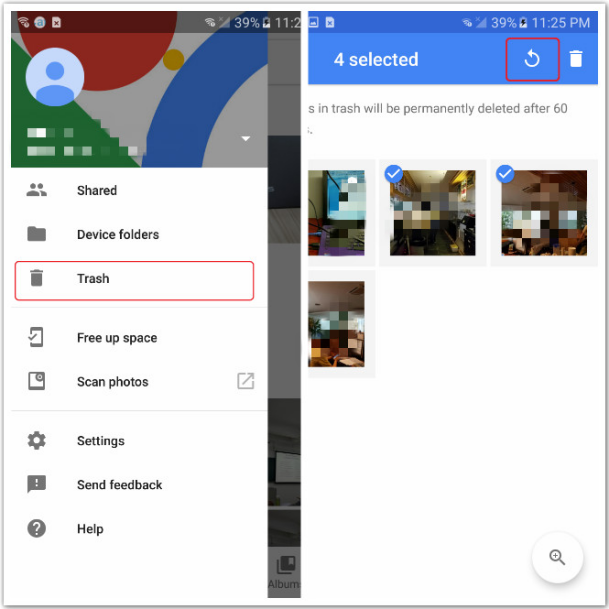
If you have back up previous content, data, and settings from your Google’s Pixel phone to your Google Account(Google Drive) before,when you deleted files on the Pixel phone,all the deleted files would be moved into your trash in Google Drive,if you have not click “Deleted forever” on Google Drive,you can restore your backed-up information to your Google Pixel phone easily.Let’s learn how to restore deleted files from Google Drive.

Step 1:Connect the Pixel phone to a Wi-Fi or mobile network
Step 2: Open your Drive and tap Menu icon at the top left corner.
Step 3: Tap “Trash” to find the deleted files.
Step 4: In the menu section on the right, please select the files you want to restore and click “Restore” button to restore backup to Pixel phone.

recover photos from google drive

Tips to Restore backed-up photos, data & settings

When you add your Google Account to a device, what you’d previously backed up for that Google Account gets put onto the device.

The device will walk you through these steps:

Step 1.Connect to a Wi-Fi or mobile network. Learn how to connect by Wi-Fi or mobile data.
Step 2.Tap Other ways to copy data.
Step 3.Tap A backup from the cloud.
Step 4.Sign in to the Google Account that you backed up to.
Step 5.Tap the name of the device with the data that you’d like to use.
Step 6.Pick which apps you’d like to restore.
Step 7.Tap “Restore“.
Tip: After adding your account, find your photos and videos in your device’s Google Photos appunnamed setting.

Tips to Restore backed-up app settings

When you reinstall an app, you can restore app settings that you’d previously backed up to your Google Account.

To restore app settings:

Step 1.Open your device’s Settings appunnamed.
Step 2.Under “Personal,” tap Backup & reset.
Step 3.Under “Content,” tap “App data“.
Step 4.Turn on Automatic restore.

If you never make your Google Pixel/Pixel XL phone backup with Google account or other Cloud backup,please don’t worry,the Android Data Recovery could help you recover Google Pixel phone lost photos, videos, contacts, text messages, call logs, WhatsApp messages and documents,please follow the part 1 above to directly retrieve those already deleted files from Pixel phone witout backup.

To avoiding data loss on your phone,we recommend you using the Google Pixel Manager tool to manager and transfer your important data to computer for backup.

Related Article:

How to Transfer iPhone Data to Pixel

How to Transfer Samsung Data to Pixel

How to Transfer Android File to Pixel

How to Recover Deleted Data from Android Phone

How to Restore Lost Data from Rooting Android

How to Permanently Erase Android Data before Selling

Google Pixel Data Recovery

How to Transfer Android File to Pixel

Over the next few days, you’re going to hear a lot of spin about “Google phones” and how the Google Pixel and Google Pixel XL smartphones, which are presumably being announced at an event in San Francisco in 4th Oct, are “made by Google”.Google could very well create a solely Google-branded phone, entirely engineered by Google, with the help of a manufacturing partner that likes to sit in the background and just follow orders, like Apple does with Foxconn. And then it could sell that phone, everywhere, aggressively, making itself one of the leading high-end smartphone firms in the world.

Are you interested in this new Google Pixel phone?Or planning to buy one new Pixel but confuse that how to transfer file from Android?This article is written to offer you Android users the simple ways to transfer data between Android,especially transfer files between Android and Pixel phone.

Part 1:Transfer Data between Android and Pixel with Quick Switch Adapter

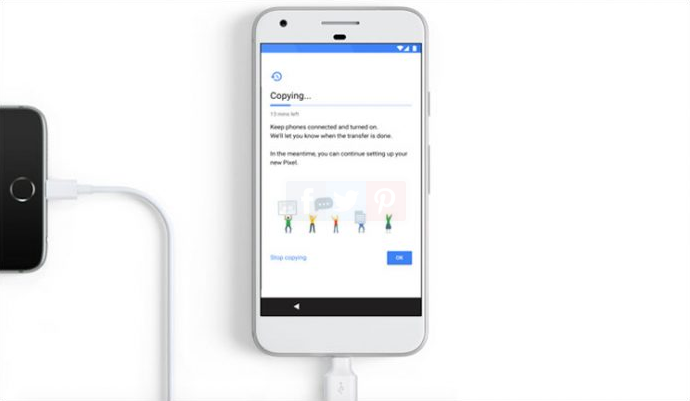
With the help of Quick Switch Adapter, you can transfer all your data from old Android phone to the new Google Pixel phone.The procedure is quite simple; all you need is your old Android phone and the latest Google Pixel(XL);and not to forget,keep that Quick Switch Adapter.

quick switch adapter switch Androidt o Pixel phone

Step 1.If you are moving data from your old Android phone to the Pixel smartphone, the new phone should automatically sign you in to your Google Account.If this doesn’t happen, enter your password.

Step 2.After signing in to your Google Account, you can select which data you want to move to the new Google Pixel phone; users always like to transfer data like contacts,SMS, photos, videos, music, calendars, and more.

Please note that the Quick Switch Adapter supports devices like Nexus 5, 6, 5X, 6P running Android 5.0 and later; and most Android devices running on Android 5.0 and later versions.

Finally,complete the set-up and start exploring your new Pixel even as the transfer process is on.

While the process is on, please keep the battery status of your Pixel phone which should be charged to at least 50% before connecting.

Once everything is done, start using the new Pixel(XL) freely.

Part 2:Transfer Data between Android and Google Pixel with Phone Transfer

In the part 1 we had introduce the method that to transfer data between Android and Pixel via the Quick Switch Adapter.However,the Quick Switch Adapter is not support to transfer all kinds of files,you can learn more in the part 2 following.

With Phone Transfer,you are allow to transfer data from Android to Pixel without limitation,contacts,text messages,photos,videos,call logs,music,calendars,apps(WhatsApp,Line,Viber,Kik),apps data(text,videos,attachments) are included.As for the compatible platforms,in addition to Android OS,BlackBerry, iPhone,Symbian and Windows Phone are supported as well.Besides,Phone Transfer available for backing up data from device to computer,restore backup to device completely.The compatible Android brands device such as Samsung,HTC,Motorola,Lenovo,Sony, Huawei,ZTE,etc.

d_win d_mac

Step 1.Download and Run the Phone Transfer
Download and install the Phone Transfer tool and then run it on your computer. Then on the popped-up window, directly choose the “Phone to Phone Transfer” mode.

android to google pixel transfer main page

Step 2. Select Data and Begin to Copy Android Data to Pixel Phone
Connect the Android phones to the computer via USB cables and then the program will detect them accordingly.After that, you’ll see the data transferrable in the middle menu as the following window shows. Mark the option of the data such as the “Contacts“, and then click the transferring icons “Start Copy” to start to transfer data from Android to Google Pixel phone.

transfer android data to google pixel phone

Begin transfer everything from Android to Google Pixel phone.

move android data to google pixel phone

Free download the Phone Transfer and try to switch your Android contents to Google pixel with 1 click.

d_win d_mac

Related Article:

How to Transfer Samsung Data to Pixel

How to Transfer iPhone Data to Pixel

How to Backup and Restore your Android on Computer

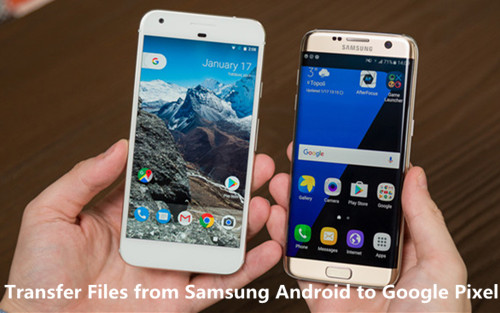
How to Transfer Samsung Data to Google Pixel and Pixel 2

[Summary]:Looking for a way to switch files from Samsung to Google Pixel/XL or Google Pixel 2/2 XL? This article teach you how to move everything like contacts, text messages, music, videos and photos from Samsung Android to Google Pixel/Pixel 2 easily and freely.

Upgrading to a brand-new Android phone, like the newest Google brand-Pixel(Pixel 2 XL) is really exciting.But here is a problem.Your old Android handset for example the Samsung device is loaded with your personal data,including contacts, text messages, music, photos, videos, documents, etc,.Then how to upgrade to a new Android phone and switch everything with you?Actually,it’s quite simple if you follow the simple tutorial in the passages below.

transfer Samsung S7 to Google Pixel and Pixel 2

File Transfer from Samsung Android to Google Pixel/Pixel 2 XL

Currently,many Android provide the function that switch data between mobile device to make data transfer much easier, such as Samsung Smart Switch, HTC Transfer Tool, LG Backup, Sony Xperia Transfer, Motorola Migrate, etc.All these phone transfer tool to transfer data are free and you can choose the suitable one to manage the transition.However, the shortcoming with these free Android file transfer apps is that they are exclusive for their own brand devices.How to transfer Samsung file to the newest Google Pixel/2 in minutes?

Here comes Samsung to Google Pixel Transfer and Phone Manager software for you all guys who wanna complete the data transfer task.Phone Transfer support to transfer Samsung data to Pixel perfectly,such as contacts,SMS,photos,videos,call logs,music,calendars,apps(WhatsApp,Line,Kik),apps data.Phone Transfer help to freely transfer data between Android device,iOS device,Symbian device and Blackberry.Additionally,this powerful program enable to backup data from mobile device to computer,restore data to device from backup.Let’s see how it works in detail.

d_win d_mac

One Click to Transfer Data from an Android Samsung phone to a Google Pixel/2(XL)

Step 1.Connect Samsung Galaxy and Google Pixel phone to Computer
First of all, connect these two mobile phone to at the same time, then launch the program on your PC. Here, you should select the mode of “Phone to Phone Transfer” and click “Start” button to enter next step.

transfer Samsung data to Google Pixel XL

Step 2.Select Data Type to Transfer
After selecting the transfer mode you need, the program will automatically detect the devices that have been linked to the computer, and displayed them in the source and destination area randomly. If you think your phone have been located in the wrong place, you should click “Flip” button to exchange them easily.

switch Samsung to Google Pixel

Now, you can select the content you like to copy then hit “Start Transfer” button to begin the process.You can check it in the program directly.

move everything from Samsung Galaxy to Google Pixel/Pixel 2 XL

Wait for a little while, all selected file on your Samsung will be moved to Pixel completely.Cool, right? If you have the same needs here,for example transferring data from iPhone to Google Pixel/Pixel 2,you can use this Phone Transfer program to finish the data transfer effectively.

d_win d_mac

Related Article

How to Recover Deleted or Lost Data from Google Pixel

How to Transfer Android File to Google Pixel/2(XL)

How to Backup and Restore your Android on Computer