All posts by DHZ

10 Hidden Features of iOS 11 You may want to Know

Now that Apple has announced the newest version of iOS- iOS 11, it’s time to dig into all the major features we’ve been hearing about since iOS 11 was first previewed in June. And once you install iOS 11 on your iOS device, you’ll discover that there’s more to the update then what Apple featured during its developer conference. iOS 11 is full of hidden goodies, including some pretty useful tools such as a take notes of Apple pencil, a new way to interact with Siri, and more. Here are the coolest 10 new iOS tricks to explore in iOS 11.

ios 11 features

Do more with Live Photos
In 2015, iOS 9 gave us Live Photos, animated clips formed by recording short snippets of video before and after snapping a pic. iOS 11 takes this feature and lets you customize it. Open a Live Photo in the Photos app, swipe up, and you will see new editing options: Apply Loop to make the clip repeat over and over, Bounce to make it play forward and backward and forward again, and Long Exposure to compress it into a single frame, creating the effect of a long exposure. These video processing options resemble those in Instagram, but you can get them without having to post your content to social media.

Drive Safely
The Do Not Disturb mode in iOS has been around for a while. Now, iOS 11 will automatically apply it while you’re in your car. This means that, when you’re at the wheel, your phone will mute notifications and respond to texts on your behalf so you can concentrate on the road. To try it out, just hop in the car and start moving, and the new mode should kick in. If you’d prefer to enable it manually, or to tweak your SMS auto-replies, you can adjust these in Settings, under the Do Not Disturb options.

Play with Augmented Reality
Thanks to the new ARKit platform for developers, iOS 11 has extra augmented reality powers, which means it can support a wide range of AR apps. You’ll need to wait for the first wave of third-party apps, but you can test out at least one AR option right away. Open Maps, head to a city that supports the Flyover feature, and tap the Flyover button. When you begin walking around the room, you’ll move around that city, viewing it from above like an AR-powered Godzilla.

Ask Siri to put on your Favorite Music
The iOS 11 version of Siri comes with some extra perks: The assistant offers more natural-sounding voices and makes news and website recommendations based on your past activity. In addition, Siri can now put on some tunes for you. Just say, “Play something I like,” and the digital assistant will take care of the rest. For this to work though, you do have to be a paid-up member of the Apple Music club.

Type with one Hand
On its default keyboard, iOS 11 offers a one-handed mode that makes it easier to type when you only have one hand free. It essentially compresses the keyboard and shifts it to either the left or right side of the screen. To implement it, press and hold the emoji button on the keyboard, then slide your finger over to either the left- or right-handed layout, whichever one you prefer. To go back to normal, access the same pop-up menu again.

Explore your Stored Files
If your phone runs iOS 10, it already has an iCloud Drive feature. That gets an upgrade with iOS 11, in the form of the dedicated Files app. Files makes all of your folders available to search—you can browse through iCloud, your device’s local storage, and even third-party storage accounts like Dropbox and Google Drive. To launch the app, tap on the Files icon.

Surf the Redesigned App Store
With the arrival of IOS 11, Apple is revamping the App Store. The layout is simpler, Games has its own tab, and the algorithm should do a better job of directing you towards the latest awesome apps. On desktop computers, the App Store inside iTunes has also been upgraded to match. To see these changes, go ahead and open the App Store on your phone or tablet.

Add Apps to an iPad’s Dock
Install iOS 11 on an iPad, and you get a new dock at the bottom of the screen, which more closely resembles the dock on an Apple computer running macOS. In other words, you can add apps: Simply tap and hold on an icon and drag it down to make it part of the dock. To launch one of these apps, tap its icon in the dock. To open it in windowed mode, where one window appears on top of another, tap and drag the icon to the middle of the screen. To see that app in Split View mode, where it only covers part of the screen (another app can cover the rest of the screen), tap on the icon and then drag it to the left or right of the screen.

Drag-and-Drop on an iPad
Drag-and-drop is another feature that iOS 11 brings to tablets. It works exactly like it sounds: In Split View, tap and hold on some highlighted text, or an image, or a file, and then drag it across to an app on the other side of the screen. You should be able to use drag-and-drop in all Apple apps—and, once developers add the functionality, many third-party titles as well.

Take Notes with Apple Pencil
If you own an iPad Pro and an Apple Pencil, iOS 11 provides some extra functions. To start taking searchable notes, for example, you don’t need to unlock your tablet—just tap the Pencil on the lock screen. In addition, a new feature called Instant Markup now lets you instantly annotate a PDF or screenshot by tapping it with the Pencil. Finally, Mail now supports in-message drawings, so your emails can incorporate cute doodles or informative notes and illustrations.

More Tutorial about iOS 11:

How to Update iOS 11 on iPhone without Computer

How to Install iOS 11 on iPhone without Data Loss

How to Backup iPhone Data before iOS 11 Update

How to Fix Bricked iPhone iPad after iOS 11 Update

How to Recover iPhone Data after iOS 11 Update

iPhone Manager – How to Transfer and Manager Files on iPhone X/8/7/6S/6/SE

How to Save Apple Music Songs and Playlists for Offline Listening

I need some help. Who can tell me how to save the Apple music song and playlists for offline listening? I want to listen the subscribed iTunes music for offline when I am in flight. Is there any tools can help? Thank you very much.

Most of us like to listen Apple music because the it aggregate the popular kinds of music abundantly around the world. While Apple Music is a streaming music service, you can store music locally to listen to when you are online. On the another hand, iTunes music is DRM protection so we can’t play the subscribed music out of the time limitation. So is it possible to save the subscribed iTunes music for playing offline without time limitation? Normally, you can’t make it true unless you get help of some professional tools, for example, Apple Music Converter. What is the Apple Music Converter, let me introduce it to you in some detail.

Apple Music Converter – Rip Apple Music for Offline Listening

Apple Music Converter is designed for legally converting and ripping Apple music from M4P to MP3 files, remove DRM protection from the Apple music, so that you can listen to the converted Apple music for offline without limitation. After the conversion, you can playback the converted music with its original data on any mobile devices that compatible with MP3 format, such as, iPhone, iPod, PSP, Zune, MP3 player, Android device, mobile phones, etc,. Let’s see more features of Apple Music Converter.

d_win d_mac

Know More about Apple Music Converter:
-Remove DRM-protected from Apple Music songs.
-Convert Apple Music M4P songs to DRM-free MP3, M4A, etc,.
-Convert Apple Music songs at up to 16X speed.
-Convert iTunes songs and Audiobooks to MP3, M4A, etc,.
-Keep original quality to the converted MP3, M4A audio files.

How to Play Apple Music Songs Offline

Step 1. Download and Run Apple Music Converter on the Computer
To get started, please download and run Apple Music Converter on the computer.

run apple music converter

Note: iTunes will be run automatically at the same time when you run Apple Music Converter on the computer.

Step 2. Select Apple Music to Convert
It will load all the Apple Music songs and playlists you have added to iTunes library on the interface of Apple Music Converter program, including iTunes songs, movies, TV shows, audiobooks, and more. Click the checkbox before the Apple Music songs you need to convert. (Note: You can also search the Apple Music songs you want to convert with the searchbox.)

select apple music to convert

Step 3. Setting the Parameter for Converted Apple Music
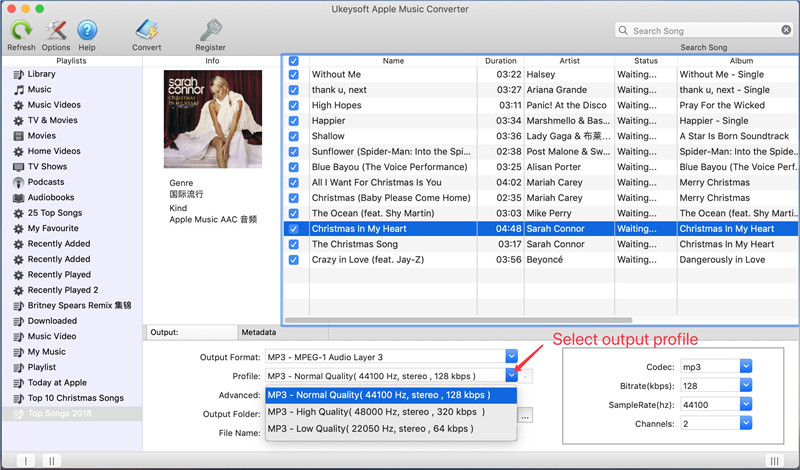
Click to set the data of the converted Apple music and a window will pop up for prompting to make the settings. You are allowed to set the converting speed (up to 16X) and the Apple music output format, and others.

Setting the Output Profile of Converted Apple Music:

select mp3 output profile

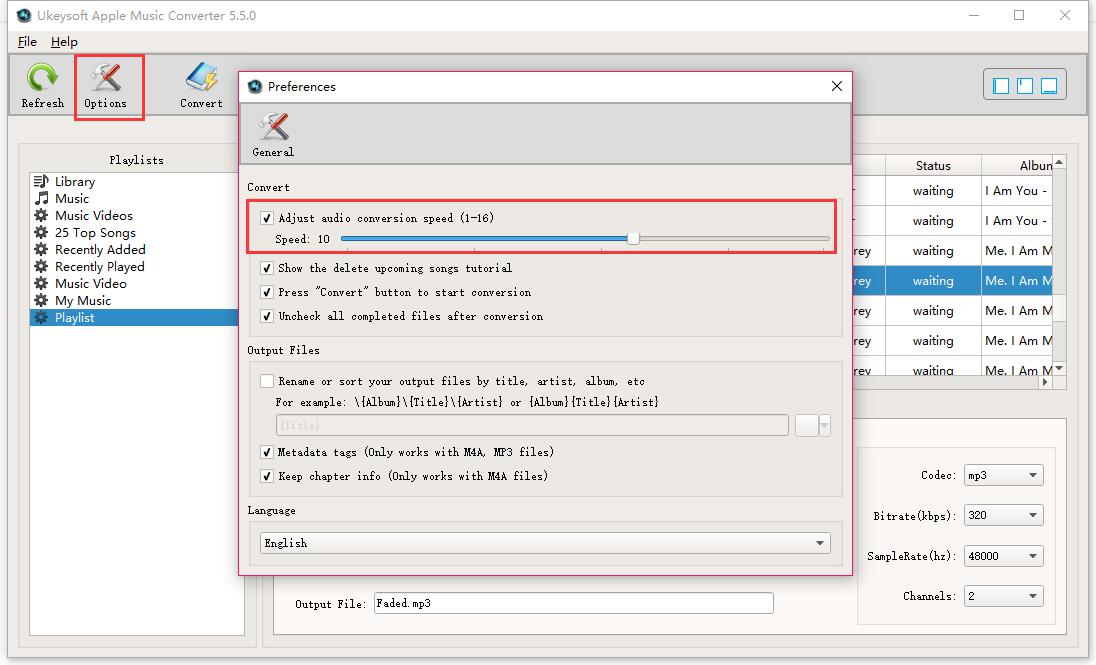
Setting Conversion Speed of Conveted Apple Music:
If you would like to change the conversion speed, then go to Options>>General.One the preferences windows to “Set Custom conversion speed for audio convert (1-16)” to adjust the conversion speed.

adjust conversion speed

Step 4. Convert Apple Music from Offline Listening
Simply click “Start Convert” button to begin to convert the selected Apple music to MP3 files. It will finish the conversion job in a few minutes.

convert apple music from m4p to mp3

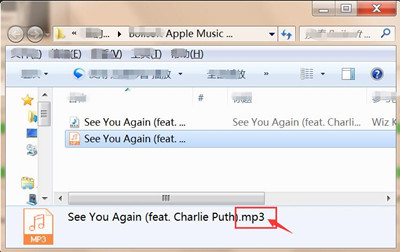
Done. Now the selected Apple music have been converted to the free-MP3 files. You are allowed to play the converted Apple music offline freely.

Tips: You can explore the output files and folders by clicking “Open Output File” button to view the converted music file on the computer.

view converted mp3 apple music files

d_win d_mac

Related Article:

How to Listen to Apple Music Offline

How to Make Apple Music Available Offline on iPhone X

How to Play Apple Music on Chromebook

How to Keep iTunes Music Songs Forever

How to Rip Apple Music For Free

How to Record Apple Music M4P Streams as MP3

Remove DRM and Play Apple Music on iPhone without Limitation

How to Play Apple Music on iPhone 7/6S/6 for Free

How to Play Apple Music on Android

How to Recover Lost Notes from iPhone after iOS 11 Jailbreak

The notes were gone after I performing iOS 11 jailbreak on my iPhone 7, are there any ways for available to recover the lost notes from iPhone directly? I haven’t backed up my phone recently.

Nowadays more and more iPhone users like to use make notes on iPhone to record the important information like daily schedule, shopping list or a work note. However, you may lose iPhone notes due to different reasons, such as, iOS 11 jailbreak, iOS 11 update, accidental deletion, restore to factory reset, etc,. After losing notes from iPhone, people may ask how to restore the lost notes on iPhone? When it comes to recovering deleted notes on iPhone, the first choice occur in our mind is restore it from the iTunes or iCloud backup. Absolutely you can restore your iPhone to get back lost data that have been backed up by iTunes and iCloud. However, is it possible to restore the lost notes from iPhone directly without backup? The answer is No unless you get the help of the iOS Data Recovery. Let me introduce the iOS Data Recovery to you.

Restore Lost iPhone Notes after iOS 11 Jailbreak

If the notes are not in the “Recently Deleted” folder and you don’t have an iTunes or iCloud backup of the deleted notes, iOS Data Recovery can help. This program enables to recover lost notes on iPhone after iOS 11 jailbreak. If you don’t have a backup or don’t want to restore the device from iTunes or iCloud (which will overwrite data on your device), then you can use the “Recover from iOS Device” mode to restore lost notes from iPhone directly without backup. In addition, this smart program allows to restore several types of iOS data, including contacts, messages, photos, videos, call logs, calendars, WhatsApp data, apps data and more. It supports to restore lost data on iPhone/iPad/iPod under any data loss circumstances, such as, iOS jailbreak, iOS update, accidental deletion, restore to factory reset, etc,. It compatible with all models of iOS devices including the newest iPhone X, iPhone 8.

d_win d_mac

Part 1: How to Recover Lost Notes from iPhone Directly after iOS 11 Jailbreak

Step 1. Run Program and Connect iPhone to the Computer
After running the iOS Data Recovery on your computer, then connecting your iPhone to the computer with USB cable, and select “Recover from iOS Device“. Click “Start” to go on.

connect iphone to the computer

Step 2. Select Note File to Scan
If you just want to get back the lost notes from your iPhone after iOS 11 jailbreak, please choose the file type “Note” under “Memo & others” and click “Next” to continue.

select file to recover

Step 3.  Access iPhone and Scan the Lost Notes
Click “Scan” to begin scanning data on your device. Now the program will scan you iPhone for all lost notes.

scan iphone and search deleted data

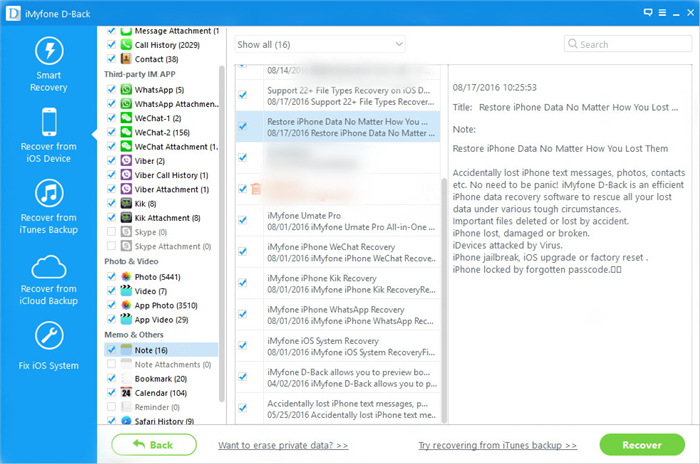
Step 4.  Preview and Restore Lost Notes from iPhone
When scanning is over, enable the button “Only show the deleted”, just click “Note” item to preview and select the data you want to restore and click “Recover” button to save the selected notes on the computer.

recover notes from iphone

d_win d_mac

Part 2: How to Recover Lost iPhone Notes from iTunes Backup after iOS 11 Jailbreak

Step 1. Run Program and Select iTunes Recovery Mode
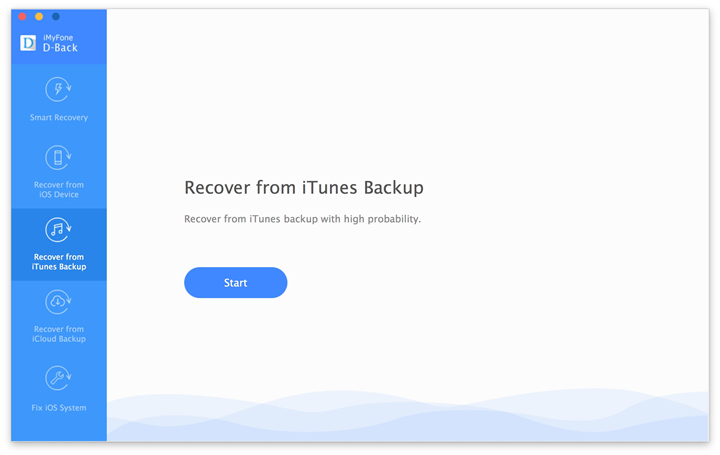
After running the iOS Data Recovery on the computer, then select “Recover from iTunes Backup” and click “Start” to go on.

itunes recovery mode

Step 2. Select Note File to Recover
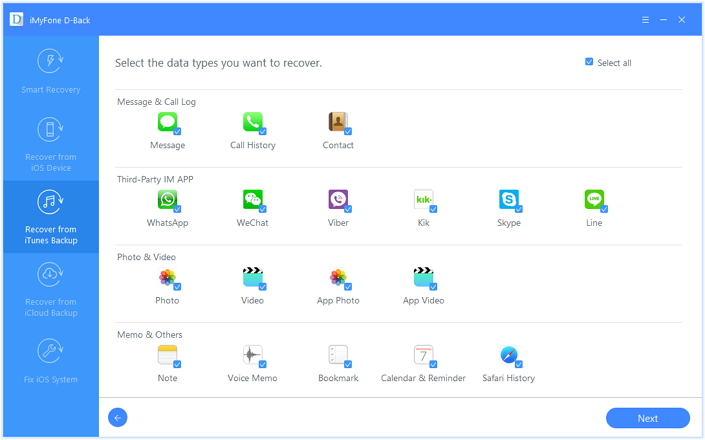
You will see the program supports to recover all kinds of data from the iTunes backup file, if you just want to restore notes after iOS 11 jailbreak, please select “Note” item under “Memo & others” and click “Next” to continue.

select file type

Step 3. Download and Scan the iTunes Backup
All the iTunes backup files available on that computer will be listed in the next window. Select the one that contains the lost notes and click “Scan”. Then the program will scan data on the selected iTunes file.

extract file from itunes backup

Step 4. Preview and Restore Lost Notes from iTunes Backup
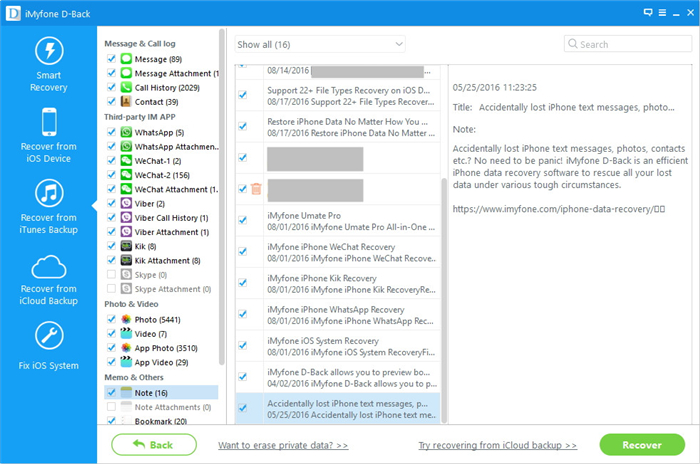
After scanning, select “Note” and preview the lost data you want to get back. Finally, just simply click “Recover” button to restore the selected notes on your computer.

restore lost iphone notes itunes backup

d_win d_mac

Related Article:

How to Restore Deleted Notes on iPhone 7/SE/6S/6/5S/5

How to Restore Deleted Notes from iPhone after iOS 11 Update

How to Recover Lost iPhone Data after iOS 11 Update

How to Recover Lost Data on Jailbroken iPhone 8/7/6S/6

How to Recover Deleted iPhone Data after iOS 11 Jailbreak

How to Restore Lost Files on iPhone 8/7/6S/6

How to Backup & Restore iPhone 8/7/6S/6


3 Best iOS 12/11 Data Recovery Software for Mac and Windows Review

[Summary]:Get top 3 iOS 12/iOS 11 Data Recovery Software recommendation for recover lost data including contacts, SMS, photos, videos, notes, call logs, WhatsApp data on iPhone XS(Max)/XR/X/8/8 Plus/7/7 Plus/6s/6s Plus/6/6 Plus/5s and iPad after iOS 12 update.

Accidents always come for you without permission. There are many situations you may meet in daily life that lead to lost data on iPhone. For example, iOS 12 update, iOS 12 jailbreak, delete data by mistake, restore device to factory reset, virus attack and others. When the accidents happen, there is a chance that you can restore precious data on iPhone, such as, photos, videos, contacts, text messages, notes, call logs, etc,. You can easily recover the lost data from iPhone with the help of some professional data recovery tools. In this iOS 12 Data Recovery Software review, we collected 3 most popular tools for you. If you’ve lost data on your iPhone/iPad/iPod after iOS 12 update, read on to choose one to recover the lost data on your iPhone.

3 best ios 12 data recovery

Top 1. U.Fone iOS 12/11 Data Recovery

Overview:
If you have accidentally lost important data from your iOS device after iOS 11 update,here is the best iOS 11 data recover software fro you retrieve lost or deleted data from iOS 11 devices.

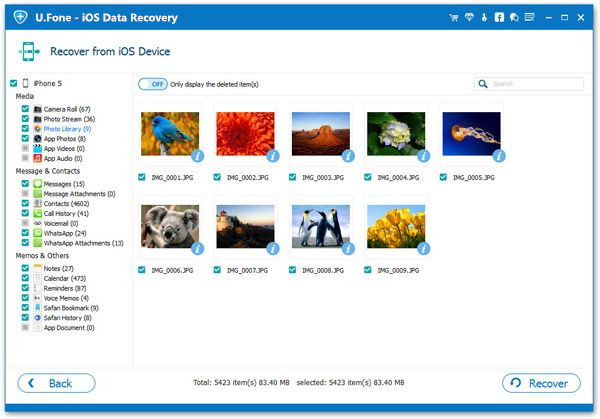
U.Fone iOS 11 Data Recovery software is an ideal solution for you. With U.Fone iOS 12/11 Data Recovery software, you can preview existent and lost data on your iOS device/iTunes backup or iCloud backup. It’s a top data recovery to restore iPhone data in a few clicks, including photos, messages, contacts, call history, WhatsApp messages, notes, calendars, reminder, safari bookmarks, voice memo and app documents and more. This iOS recovery software allows to recover lost data directly from iOS device without backup, extract and recover what you want from iCloud and iTunes backup.

d_win d_mac

Main Features:
-Restore and backup 19 types of data for iPhone/iPad/iPod touch.
-Recover and export 8 types of data from other iOS devices.
-Restore data from iTunes backup.
-Restore data from iCloud backup to local disc quickly New.
-Highly support iOS 11 and the latest iPhone X, iPhone 8/8 Plus.
-Fast, simple, powerful, fashionable and easy to use.

Test & Review:
In our tests, we found that this software completely enables to recover all data files from all models of iOS devices after iOS 12.2 update. You are only a single click away to recover iOS data through three recovery modes:”Recover data from iOS Device“, “Recover from iTunes Backup File” and “Recover from iCloud Backup File“.The U.Fone iOS 11 Data Recovery is a professional iPhone data recovery application that is able to recover up to 19 different types of files on all iOS devices including iPhone X/8/7/6S/6/5S/5,iPad and iPod.

u.fone iOS 11 Data Recovery

Top 2. iMyfone iOS 12/11 Data Recovery

Overview:
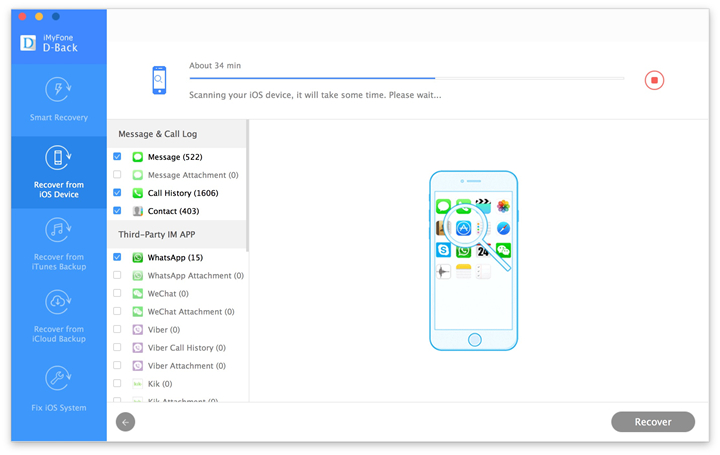
iMyfone iOS 12/11 Data Recovery provides you 4 modes to restore lost data on iPhone/iPad/iPod after iOS 11 update. If you haven’t made any backup before losing data, it’s good to choose “Recover from iOS Device” mode to recover lost data directly from device. If you have a previous iTunes or iCloud backup file, which may contain the lost iOS data, then you could choose “Recover from iTunes Backup” mode or “Recover from iCloud backup” mode to extract the lost data from backup file. The fourth mode is “Smart Recovery”, this recovery mode will smartly scan your iOS device, iTunes backup or iCloud backup according to your selection about how you lost the data.

d_win d_mac

Main Features:
-4 data recovery modes are available: directly recover from iOS device without backup, recover from iTunes backup, recover from iCloud backup, smart recovery.
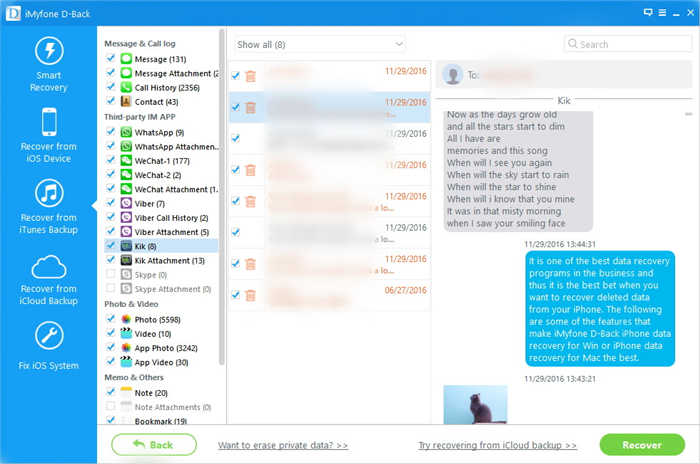
-It enables to recover more than 22 file types ,such as, text messages, photos, contacts, notes, voice memos, WhatsApp/WeChat/Skype/Kik chat history, etc,.
-Allows to preview the recoverable data before recovery.
-Supports to fix iOS system issues, for example, iPhone stuck in recovery mode, iPhone black screen of death, and other abnormal system issues.
-Supports the newest iOS 11 system and various iOS devices including iPhone X, iPhone 8/7/6S/6/5S/5C/5/4S/4, iPad and iPod.

Test & Review:
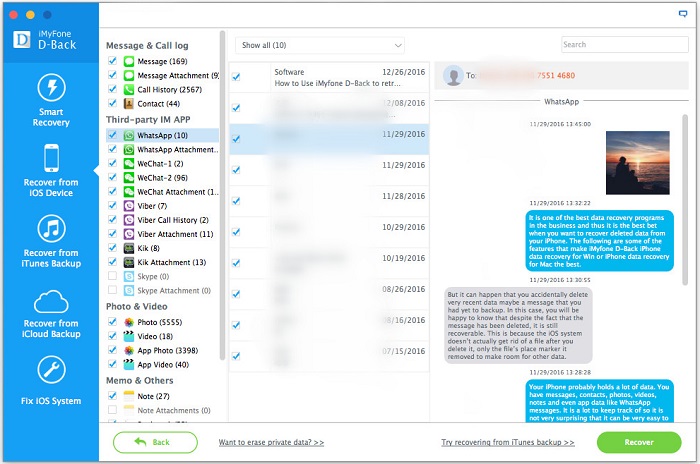
iMyfone iOS 12/11 Data Recovery is a smart data recovery tool that can be used to smartly scan your iOS device, iTunes backup or iCloud backup according to your selection about how you lost the data by using the “Smart Recovery”. In addition, this super software supports to restore abnormal iPhone system and fix it to normal state with easy steps. Thirdly, you can choose exactly what you wish to preview before recovery, since it offers a preview of images.

imyfone data recovery

Top 3. Dr.Fone iOS 12/11 Data Recovery

Overview:
Dr.Fone iOS 12/11 Data Recovery is one of the outstanding data recovery software in the market. It can recover all of your precious data from iTunes backup, iCloud backup and also from iOS devices. It fully works with all iOS from old to the latest iOS 11. With this wonderful software you can easily recover your contacts, messages, call history, camera roll, videos, music library, voice memos, calendar, notes, reminders, Safari bookmarks and more types of iOS data from iPhone/iPad/iPod after iOS 12 update.

d_win d_mac

Main Features:
-Recover contacts, messages, call history, camera roll, videos, music library, voice memos, calendar, notes, reminders, Safari bookmarks and more types of iOS data.
-Recover App data like WhatsApp, Instagram, Flickr, iPhoto, iMovie, Kindle, etc,.
-Recover data from iOS devices/iCloud backup/iTunes backup.
-Retrieve lost data due to iOS update, iOS jailbreak, deletion, device crashed or broken, device loss, factory reset and so on.
-Easy to use interface, simple to use.
-Compatible with all iOS devices, and the latest iOS 12.2.

Test & Review:
In our test, this software works normally and successfully, it can recover almost all the lost iOS data. The data recovery software for iPhone is very easy to use, the steps are simple and easy to operate. It can recover up all your data on iOS device after iOS 11 update, no matter how you lost them. This data recovery tool would automatically scan for all types of lost files for recovery. Additionally,the ability to preview all lost data from device, iTunes/iCloud backup before recovering is also an advantage,to sum up, it gives more security for you before the final data recovery.

drfone ios recovery

Related Article:

2017 Top 5 Best iPhone Data Recovery Software Review

2019 Top 6 iPhone 7/7 Plus Data Recovery Software

How to Recover iPhone Data after iOS 12 Update

How to Recover iPhone Photos after iOS 12 Update

How to Backup iPhone Data before iOS 12 Update

How to Make Apple Music Available Offline on iPhone X

I subscribed iTunes music for a month, however it will need to be renewed to play after a month. Is it possible to make the music available offline on my iPhone X for free without time limitation? Please send me some good ways. Thank you very much.

Apple Music is a service that grants its users unlimited access to the entire Apple catalog of music. Its members are privileged to get new songs directly from artists and recommendations from the very cream of the music world. As we know, we can download the payed subscribed songs from Apple Music’s library while the network condition is available, then playing the Apple songs on the offline playlist. However, the Apple music is DRM – protected, we can’t play it after the subscribed is times up offline. This post shows you how to download and save Apple Music songs and playlists for offline listening, even play it on iPhone X, MP3 players and more mobile device for free without time limitation.

Play Apple Music Offline on iPhone X – Apple Music Converter

As easy and glamorous as this may sound, This method of free music download for Apple has its limitations. One is likely to lose their music if they unsubscribe from the Apple music service. That is why I am introducing you to this Apple Music Converter, an app to rip Apple music that will never disappoint you. It enables to legally remove DRM protection from Apple music and convert Apple from M4P to MP3 with its original data so that you can play Apple music offline on iPhone X for free without time limitation. Moreover, after the conversion, you can easily playback the converted Apple music on any computer and audio devices such as iPod, PSP, Zune, MP3 player, mobile phones, etc,.

d_win d_mac

Download and Listen to Apple Music Offline on iPhone X

Step 1. Download and Run Apple Music Converter on the Computer
To begin with, please download and run Apple Music Converter on the computer.

run apple music converter

Note: iTunes will be run automatically at the same time when you run Apple Music Converter on the computer.

Step 2. Select Apple Music for Converting
It will load all the Apple Music songs and playlists you have added to iTunes library on the interface of Apple Music Converter program, including iTunes songs, movies, TV shows, audiobooks, and more. Click the checkbox before the Apple Music songs you want to convert. Note: You can search the Apple Music songs you want to convert in the searchbox.

select apple music to convert

Step 3. Setting the Parameter for Converted Apple Music
Click to set the data of the converted Apple music and a window will pop up for prompting to make the settings. You can set the converting speed (up to 16X) and the Apple music output format, and others.

Setting the Output Profile of Converted Apple Music:

select mp3 output profile

Setting Conversion Speed of Conveted Apple Music:
If you would like to change the conversion speed, then go to Options>>General.One the preferences windows to “Set Custom conversion speed for audio convert (1-16)” to adjust the conversion speed.

adjust conversion speed

Step 4. Convert Apple Music to MP3
In this step click “Start Convert” button to begin to convert the selected Apple music to MP3 files. It will done in only minutes.

convert apple music from m4p to mp3

Now the selected Apple music have been converted to the free-MP3 files. You are allowed to play the converted Apple music offline freely.

You can explore the output files and folders by clicking “Open Output File” button to view the converted music file on the computer.

view converted mp3 apple music files

Step 5.Play Converted Apple Music Offline on iPhone X
Now,you have converted the protected Apple music from M4P to MP3 for free without limitation,you can play all converted MP3 Apple music on Mac/Windows computer without iTunes.If you want to listen to Apple Music on iPhone X,please import them to your device with iOS Manager.

Tutorial: How to Import Music from Computer to iPhone X

import converted apple music to iPhone X

d_win d_mac

Related Article:

How to Listen to Apple Music Offline

How to Play Apple Music on Chromebook

How to Keep iTunes Music Songs Forever

How to Rip Apple Music For Free

How to Record Apple Music M4P Streams as MP3

Remove DRM and Play Apple Music on iPhone without Limitation

How to Play Apple Music on iPhone 7/6S/6 for Free

How to Play Apple Music on Android

Recover Deleted WhatsApp Message from iPhone after iOS 11 Update

For working conveniently, we made a work group on WhatsApp, we talk about the business on it. However, all the WhatsApp messages from iPhone were gone after iOS 11 update. How to get back the WhatsApp chat data from the iOS 11 iPhone without backup? It related to my business importantly.”

Updating iPhone to iOS 11 then finding that the WhatApp chat history were missing? Haven’t a backup so that you are not able to restore the missing WhatsApp data? It is a dilemma that many people face when they update iPhone to iOS 11. It is also one of those problems that doesn’t have a perfect solution to fix the bugs for iOS 11. Data loss is a very common problem of iOS update and this guide shows you 2 helpful ways to restore deleted data like WhatsApp data after iOS 11 update on iPhone. Let’s introduce the best data recovery tools to you – iOS Data Recovery.

Restore Deleted WhatsApp Messages on iPhone after iOS 11 Update

iOS Data Recovery can perfectly solve your problem, it enables to recover deleted data from iPhone after iOS 11 update, including WhatsApp data, contacts, text messages, photos, videos, notes, call logs, calendars, apps and more. With using iOS Data Recovery, you could easily restore deleted WhatsApp messages from iPhone after iOS 11 update. Not only iOS update, this powerful program allows to retrieve deleted data for iPhone/iPad/iPod under any data loss circumstances, such as, iOS jailbreak, deleted by mistake, factory resetting restore, device lost/damaged,etc,.

d_win d_mac

Part 1: Directly Restore Deleted WhatsApp Messages from iPhone after iOS 11 Update

Step 1. Run iOS Data Recovery and Connect iPhone to the Program
To begin with, download and install the iOS Data Recovery on your computer. Connect iPhone to the computer then start the process and select “Recover from iOS Device“ then click “Start“. And then, the program will detect your iPhone soon.

ios data recovery main page

Step 2. Select WhatsApp File to Scan
From “Recover from iOS Device”, choose “WhatsApp” file and click “Next” button to enter the scan process.

select file to scan from iphone

Then, the iOS Data Recovery will begin scanning your iPhone for deleted WhatsApp chat data.

scan data on iphone

Step 3. Recover Deleted WhatsApp History from iPhone after iOS 11 Update
After the scanning, you can find the recoverable files in the scanning result. Select the WhatsApp data under “WhatsApp” and “WhatsApp Attachments” files and then click “Recover” and the tool will prompt you to choose one folder as the recovery path to store your recovered WhatsApp data. And then, you can view your recovered WhatsApp chat data on your computer.

recover iphone whatsapp ios 11 update

d_win d_mac

Part 2: Restore Deleted iPhone WhatsApp Messages with iTunes Backup after iOS 11 Update

Step 1. Run Program and Select iTunes Recovery Mode
Run program and Select “Recover from iTunes Backup” then select the backup file to scan by clicking the “Scan” button.

extract backup file from itunes

Step 2. Preview and Recover Deleted WhatsApp Data from iTunes Backup
It will take quite a time for iOS Data Recovery to scan and analyze the data from your iTunes backup file, please wait patiently. Once the scanning process is completed, you can selectively mark and recover those deleted WhatsApp messages to the computer you want by pressing the “Recover” button.

recover deleted iphone whatsapp from itunes backup

d_win d_mac

Related Article:

How to Recover Deleted iPhone Data on iOS 11

How to Recover iPhone Data after iOS 11 Update

How to Recover Deleted iPhone Text Messages after iOS 11 Update

How to Recover Deleted iPhone Contacts after iOS 11 Update

How to Recover Deleted iPhone Photos after iOS 11 Update

How to Transfer WhatsApp Messages to iPhone 8/7/6S/6

How to Fix iPhone System to Normal after iOS 11 Update

How to Listen to Apple Music Offline

I want to listen the iTunes music offline when the music is runs out. How to listen the Apple music without resubscribing and play on the iPhone for free without limitation? Thanks advanced.

Listening to Apple music via a streaming service is a wonderful stuff to access millions of songs for entertainment. It gives you the flexibility to listen the music on the computer and mobile devices. You can download music you’ve purchased or added to iTunes to your mobile device or computer so that you can listen the music when you don’t have an Internet connection. If you subscribe to iTunes Music, you can also download subscription tracks to your mobile device. One more thing, you can listen the iTunes music until the subscription is times up. However, there are a lot of Apple fans ask the same question “How to listen to Apple music offline”. It is such a trouble problem unless you get the help of Apple Music Converter.

Convert Apple Music and Play Apple Music Offline

Lucky for you, if you have an Apple Music subscription, you have the option to load the iTunes music and convert Apple music for offline listening with using Apple Music Converter. This powerful converter program helps to remove DRM protection from Apple music and convert M4P Apple music to MP3 at 16X speed, then you can play the converted Apple music offline for free without time limitation. What’s more, Apple Music Converter supports to convert iTunes songs and Audiobooks to MP3, M4A, etc,. keep original quality to the converted MP3, M4A audio files. When the conversion is done, you can playback the converted Apple music on any computer and audio devices such as iPod, PSP, Zune, MP3 player, mobile phones, etc,.

d_win d_mac

How to Play Apple Music Offline

Step 1. Download and Run Apple Music Converter on the Computer
First of all, please download and run Apple Music Converter on the computer.

run apple music converter

Note: iTunes will be run automatically at the same time when you run Apple Music Converter on the computer.

Step 2. Select Apple Music to Convert
It will load all the Apple Music songs and playlists you have added to iTunes library on the interface of Apple Music Converter program, including iTunes songs, movies, TV shows, audiobooks, and more. Click the checkbox before the Apple Music songs you need to convert. You can also search the Apple Music songs you want to convert with the searchbox.

select apple music to convert

Step 3. Setting the Parameter for Converted Apple Music
Click to set the data of the converted Apple music and a window will pop up for prompting to make the settings. You can set the converting speed (up to 16X) and the Apple music output format, and others.

Setting the Output Profile of Converted Apple Music:

select mp3 output profile

Setting Conversion Speed of Conveted Apple Music:
If you would like to change the conversion speed, then go to Options>>General.One the preferences windows to “Set Custom conversion speed for audio convert (1-16)” to adjust the conversion speed.

adjust conversion speed

Step 4. Convert Apple Music from M4P to MP3
Simply click “Start Convert” button to begin to convert the selected Apple music to MP3 files. It will finish the conversion job in a few minutes.

convert apple music from m4p to mp3

Done. Now the selected Apple music have been converted to the free-MP3 files. You are allowed to play the converted Apple music offline freely.

Tips: You can explore the output files and folders by clicking “Open Output File” button to view the converted music file on the computer.

view converted mp3 apple music files

d_win d_mac

Related Article:

How to Play Apple Music on Chromebook

How to Keep iTunes Music Songs Forever

How to Rip Apple Music For Free

How to Record Apple Music M4P Streams as MP3

Remove DRM and Play Apple Music on iPhone without Limitation

How to Play Apple Music on iPhone 7/6S/6 for Free

How to Play Apple Music on Android

How to Keep Apple Music Free Forever after Trial without Paying

[Summary]:Apple Music provides 3-month free trial,we can save tracks to listen to offline within subscription.If you cancel the service or the subscribe 3-month free trial ends,here is the solution to teach you how to keep downloaded Apple Music tracks after three-month free trial without paying.

get apple music free forever

How could I keep my downloaded Apple Music after my trial runs out? Lately I tapped on the payed Apple music on line and then it prompted me with a passage ’Your Apple Music membership has expired’, I can’t play the songs as normal. How to play the songs without resubscribing? Please let me know as soon as possible.

As we all know that the Apple Music songs, albums & playlists you add to your iTunes Library will be removed if you do not pay for the monthly service after your free 3 month trial,becuase Apple Music with DRM protection, the songs you downloaded from Apple Music only available for you for a time limitation. You are allowed to access to the iTunes music library with paying – the only way. Downloading a song for offline listening simply allows you to enjoy the music when you have no internet connections. However, if you end the music subscription, you can no longer play the iTunes Music freely. So, how to keep Apple Music after subscription ends? Take it easy, this post is showing you a wonderful tool for keeping iTunes music songs forever, you can play the iTunes music on mobile device for free without time limitation after using this tool.

Apple Music Converter – Keep Apple Songs for Free Forever

Apple Music Converter is designed for Apple users to remove the DRM-protected from iTunes music, convert iTunes music from M4P to free MP3 files. After the conversion, you could play the converted iTunes music for free forever. It displays the entire iTunes Library so that you won’t bother transferring tracks from iTunes to this software. By converting Apple Music songs to popular formats like MP3, AAC, AIFF, FLAC, M4A and M4R, you are able to save the DRM-protected files easily just like saving other MP3 music files on mobile device. When the conversion is completed, you could playback the converted iTunes music on different mobile devices that compatible with the converted music, like HTC phones, Samsung phones, Motorola Droids, car video, any other MP4/MP3 players and cell phone.

d_win d_mac

Convert Apple Music to MP3 and Keep Apple Music for Free after Canceling

Step 1.Download and Run Program on the Computer
Download the Apple Music Converter on your computer.After running the program immediately,iTunes will be launched automatically on the computer at the same time.

launch apple music converter

Step 2.Select the iTunes Music to Convert to MP3
The program will load all iTunes files automatically,including music, playlists, Audiobooks, M4P Audio, iTunes movies and TV shows.Please click on “Library” and mark the Apple Music tracks that you want to remove DRM and convert to MP3.

select itunes music to convert

Tips:You can select several items one by one or select the entire album by clicking on the checkbox on the top menu bar.If you added Apple Music songs/albums to iTunes library, click “Music” on the left side and sort all songs by Type. Check the songs marked with “Apple Music AAC audio file”.

Step 3.Set the MP3 as the Output Format for Converted Music
After selecting the Apple Music you want to rip/convert,you should select the music output format,in order to converting all Apple music songs to MP3 format. Please select MP3 from the drop-down list under the “Output Format” column.The program allows you change the output parameters like channels, sample rate, codec, bitrate, etc,.

select mp3 output format

Select MP3 as the Output Profile for Converted Music:

select mp3 output profile

Adjust the Speed of the Music Conversion:
If you would like to change the speed of the music conversion, then go to Options>>General.One the preferences windows to “Set Custom conversion speed for audio convert (1-16)” to adjust the conversion speed.

Adjust Conversion Speed

Step 4.Convert iTunes Music from M4P to MP3
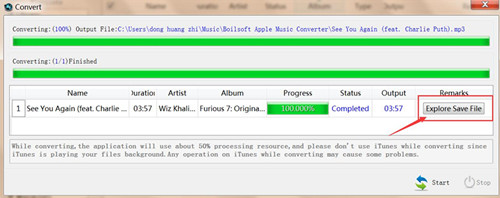
In the last step,then click “Start Convert” button to start converting Apple Music from M4P music to MP3 and save the converted MP3 Apple songs on the computer.It will take you several minutes to finish the conversion,once it is done,please click on the “Open Output File” button to view the converted MP3 music files on your computer,then you can enjoy the converted iTunes music in DRM-free MP3 format without limitation.

convert iTunes Music from M4P to MP3

You are allowed to view the converted iTunes music files on the computer:

export save file

d_win d_mac

Related Article:

How to Rip Apple Music For Free

How to Record Apple Music M4P Streams as MP3

Remove DRM and Play Apple Music on iPhone without Limitation

How to Convert M4B iTunes Audiobooks to MP3

How to Play Apple Music on iPhone 7/6S/6 for Free

How to Convert Apple Music M4P Songs to M4A

How to Recover Deleted WhatsApp Videos Photos on Android

Summary: If you accidentally deleted WhatsApp chat history on Android, including the videos, photos, messages and attachments, like Samsung, LG, HTC, Lenovo, Motorola, Huawei, or other Android devices, you can get them back. In this article, we will show you the best ways to recover deleted WhatsApp data from Android.

WhatsApp become the more and more popular chat app for mobile phone users. Most of us like to chat with others via WhatsApp, it is such a convenient app for talking. As smartphone gets a smart responsive touch screen, the WhatsApp chats and media are apt to be deleted by mistake. Moreover, the WhatsApp data on Android device may be wiped by other reasons, like Android system update, Android system room, restore device to factory reset, or more. How to recover deleted WhatsApp videos and photos on Android devices? How to restore deleted WhatsApp chat data on Android device? Please check the solution mentioned below.

Recover Deleted WhatsApp Videos Photos on Android

You can quickly recover deleted WhatsApp photos and videos from Android by using Android Data Recovery tool. Besides WhatsApp photos and videos, you can also use this program to recover deleted WhatsApp messages and attachments. Android Data Recovery is famous for recovering deleted files on Android directly, several types of Android data are recoverable, such as, contacts, photos, videos, messages, call logs, apps and more. Android Data Recovery enables to recover deleted data from Android under any data loss circumstances, like deleted by mistake, Android system update, Android system room, restore device to factory reset, and so on. All models of Android devices are applicable to the Android Data Recovery, for example, Samsung, LG, HTC, Lenovo, Motorola, Huawei, Google Pixel, etc,.

d_win d_mac

Kind Tips: Looking for a way to download videos from YouTube? 4kFinder YouTube Video Downloader provides everything you expect. This is an excellent online video downloader dedicated to downloading 1080p 60fps videos, 720p HD, 1080p HD, 4K, 8K videos, etc. from YouTube to MP4 without image quality loss. In addition, extracting MP3 audio from YouTube is also one of its features. Apart from YouTube, it is also able to download videos from more than 1,000 popular online streaming sites, like Facebook, Instagram, Twitter, Bilibili, NicoNico, BBC, Vimeo, VLive, Tumblr, Fmovies, etc.

How to Restore Deleted WhatsApp Videos Photos on Android

Step 1.Connect Android to the Computer
After you installing and running the Android Data Recovery program on the computer, you will see the main window below. Then please connect your Android to computer via an USB cable.

connect android to the computer

Step 2.Allow Program Connect Android on Computer
Please click “OK” on the phone and go to next step.

allow to continue connect android

Step 3.Select “WhatsApp” and “WhatsApp Attachments” to Restore from Android
After allowing program detect your device on computer, you’ll see this window,different types of files can be chose to be scan here.You could tick “Select all” to have all your Android data scanned.Here,you should select “WhatsApp” and “WhatsApp Attachments” that to be scanned and then click “Next” to enter the next step.

select file tpye to recover from android

Step 4.Allow to Scan and Analyze Data on Android
You’ll get a window as follow on your device after your device is detected by the program.Tap “Allow” on your device to enable the program to scan your Android for deleted WhatsApp photos and videos.

allow scanning android

Note:Before starting,please make sure that your phone battery is more than 20% charged.

Step 5.Scan Android for Deleted WhatsApp Data
The scanning process will take some time due to your request. When everything is done, you will see a list of deleted files,preview them one by one before recovering deleted WhatsApp chat history on Android.

scanandroid for deleted whatsapp data

Step 6.Preview and Recover Deleted WhatsApp Photos/Videos from Android
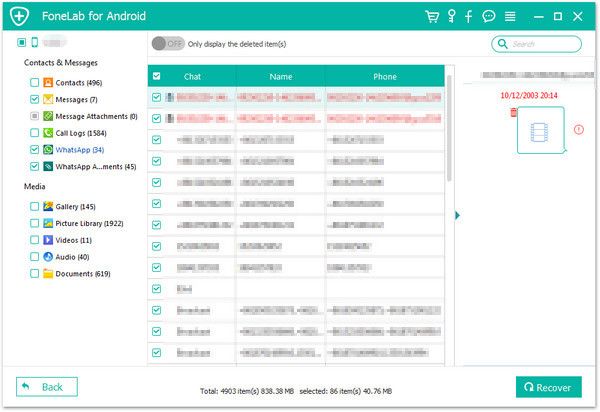
Once finishing the scanning process, a list of recoverable files that the deleted WhatsApp data have been found from your Android will be shown.Mark the data you want and click “Recover“ under “WhatsApp” and “WhatsApp Attachments” files to restore the selected data to your computer.

recover whatsapp data android

Tips:You could switch the “only display the deleted item(s)” option on,to view the deleted WhatsApp data.

d_win d_mac

Related Article:

How to Backup & Restore WhatsApp Messages on Samsung

How to Backup/Restore App Data on Android Phone

How to Recover Lost Data from Android

How to Recover WhatsApp Data from Broken Samsung Android

How to Transfer WhatsApp Messages from Android to iPhone

How to Transfer WhatsApp Messages between Android

How to Backup,Restore and Transfer WhatsApp Messages

Best iPhone Manager: How to Transfer Files to iPhone XS/XR/X/8/7

[Summary]: Get the new iPhone X/Xs Max or iPhone XR? Now follow the guide to know how to transfer files to new iPhone X/Xs (Max) and manage your iPhone on Windows/Mac computer. Keep reading on this page to learn more.

People also read:

* Best Way to Keep Apple Music be Playable on iPhone X/Xs after Canceling Subscription

* Recover Lost/Deleted Data on iPhone X/Xs

best iphone manager transfer

CONTENTS

Excellent iTunes Alternative – Manage iPhone X with a Complete Solution

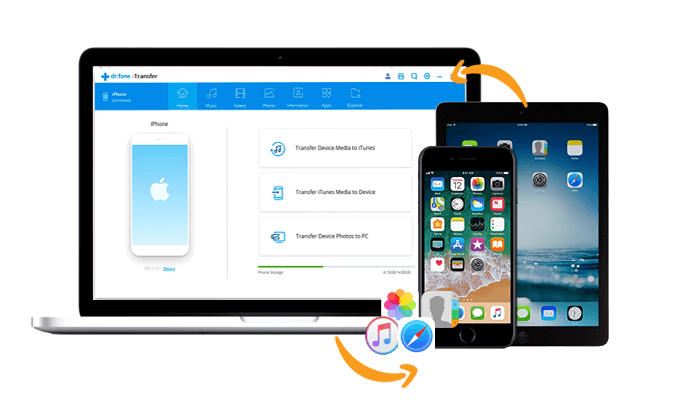
iPhone X/Xs Manager is the best iTunes alternative to transfer & manage contacts, music, photos, videos, apps on your iOS devices. It helps you manage files for iPhone/iPad/iPod on the computer. With this iOS Manager, you can easily transfer files between computer/iTunes/iOS device/Android device and the iPhone X/Xs. The program is compatible with the latest iOS 11/12/iOS 13, supports to iPhone Xs (Max), iPhone XR, iPhone X, iPhone 8(Plus), iPhone 7(Plus), iPhone 6S(Plus), iPhone 6(Plus), iPhone 5S/5C/5, iPhone 4S/4, iPad Mini/Pro/Air, iPod touch 5/6, etc,.

d_win d_mac
d_win d_mac

More Features of iOS Manager You may be Interested in:
-Backup music, photos, videos, contacts, SMS etc. from iPhone to computer and restore them easily.
-Manage, export & import iPhone Contacts and SMS, deduplicate.
-Contacts, reply SMS with computer.
-Phone to Phone Transfer : Transfer music, photos, videos, contacts, SMS between two mobiles (both Android and iPhone are supported).
-App Manager : Install, uninstall, import or backup Apps in batch.
-Gif Maker : Create Gif from photos, motion photos, videos.
-iTunes Manager : Sync iTunes Music to iPhone or transfer music from iPhone to iTunes.
-Fully compatible with all models of iOS devices, including the latest iPhone X/Xs (Max) and other iOS 12 devices.

Part 1: Best iPhone X Manager: Transfer and Manage Music on iPhone X/Xs (Max)

How to transfer music from PC to iPhone X:

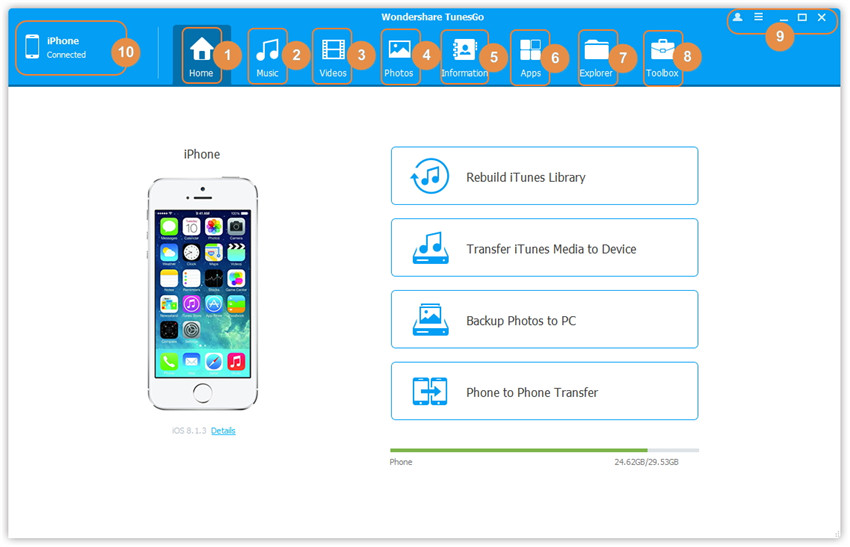
When running the iOS  Manager on your computer,you will see the main interface as below.

iOS Manager

Step 1.Launch iOS Manager and connect iPhone X to the Computer

iOS manager main page

Step 2.Find Songs on Computer
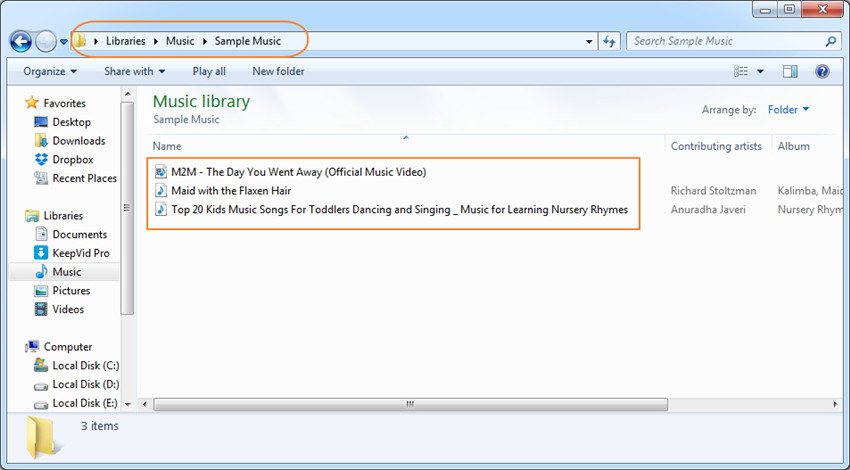
Find and open the music folder on your computer which includes the music files that you wish to transfer to your iPhone X.

open the music folder on computer

Step 3.Export Songs to iPhone X by Drag and Drop
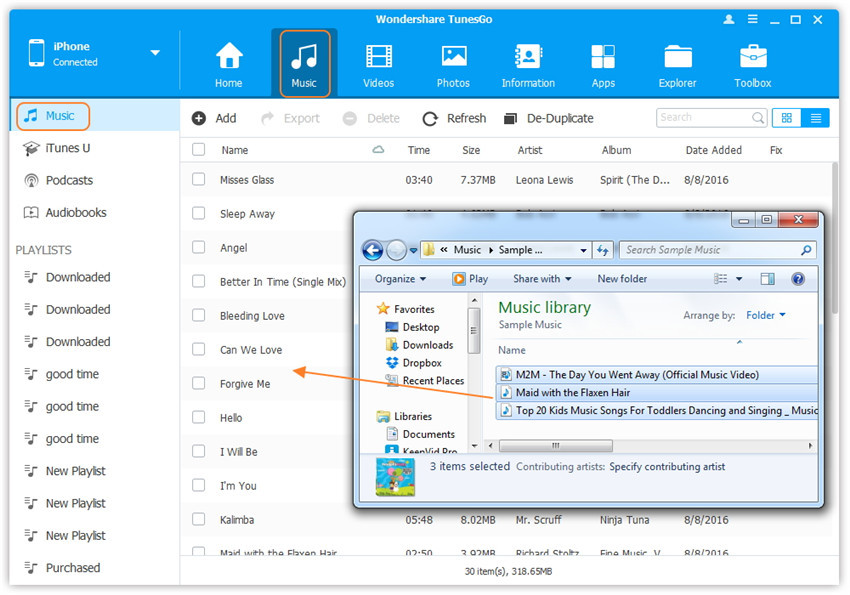
Click “Music” icon on the main interface of iOS Manager,it will go to the “Music” window by default.Drag and drop the selected music from your computer to the Music window of program.

Export the songs to iPhone X

Tips: iOS Manager additionally supports to add Podcasts, iTunes U, Audiobooks from PC/Mac to iPhone/iPad/iPod with this method too. The only change while adding these media files is to select one of the options: Podcasts, iTunes U, Audiobooks instead of Music.

Part 2: Best iPhone X Manager: Transfer and Manage Photos on iPhone X/Xs (Max)

How to transfer photos from PC to iPhone X/Xs:

Step 1.Launch iOS Manager and connect your iPhone X to the computer

iOS manager main page

Step 2. Find Photos on your Computer
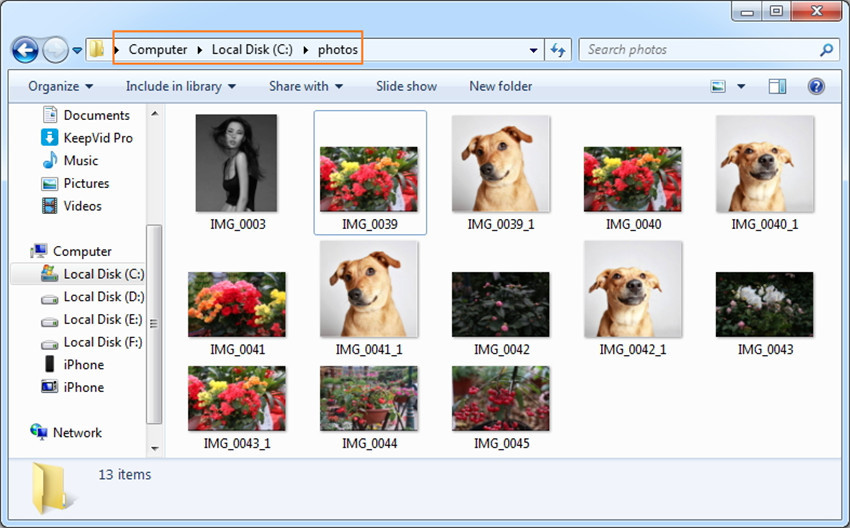
Find and open the photo folder on your computer which includes the photos that you wish to transfer to iPhone X.

open the photo folder on pc

Step 3.Export the Photos to iPhone X by Drag and Drop
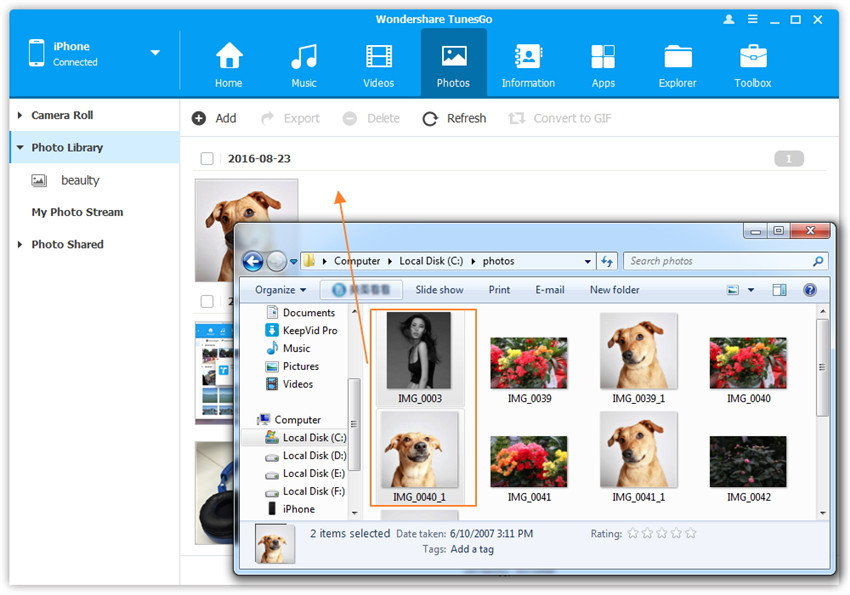
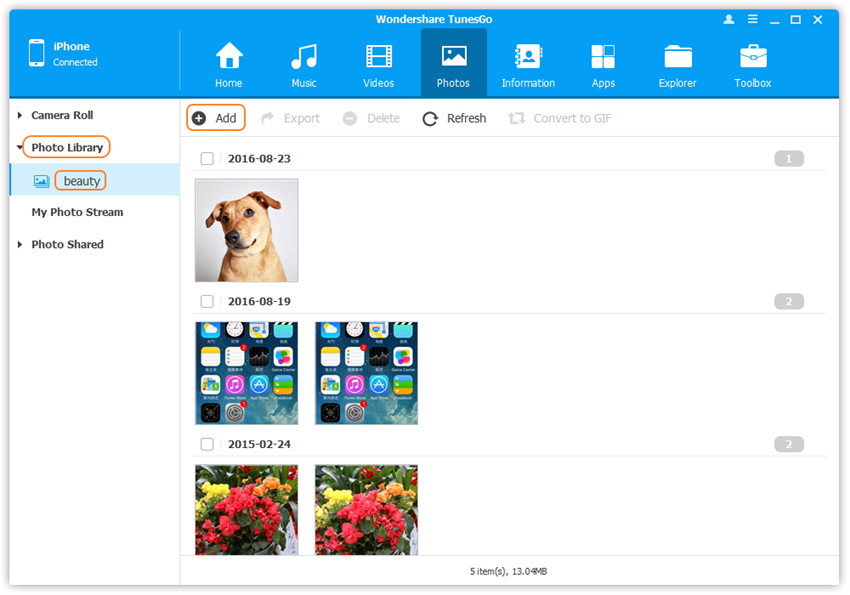
Click “Photos” icon on the main interface of iOS Manager,then go to the Photo Library window.Drag and drop the selected photos from your computer to the Photo Library window of iOS Manager.

drap and drop the selected photos

Note:With the two methods above, you can also select to add photos to one of the photo albums under Photo Library.

selected photos from photo albums

d_win d_mac
d_win d_mac

Part 3: Best iPhone X Manager: Transfer and Manage Contacts on iPhone X/Xs (Max)

How to import contacts from PC to iPhone X/Xs:

Import CSV / VCF file to iPhone X
If you haven’t sync iPhone contacts with Gmail, the iOS Manager is a good choice for you. It empowers you to import contacts from a single or multiple VCF file(s), a CSV file, Outlook, Windows Live Mail and Windows Address Book to iPhone effortlessly.

Step 1. Run Program and Connect iPhone X
Firstly, install and run iOS Manager on your computer. Connect your iPhone X to the computer via the USB cable. This tool will instantly detect your iPhone and then display its information in the left-side column of the primary window.

ios manager main page

Step 2. Import Contacts from Computer to iPhone X
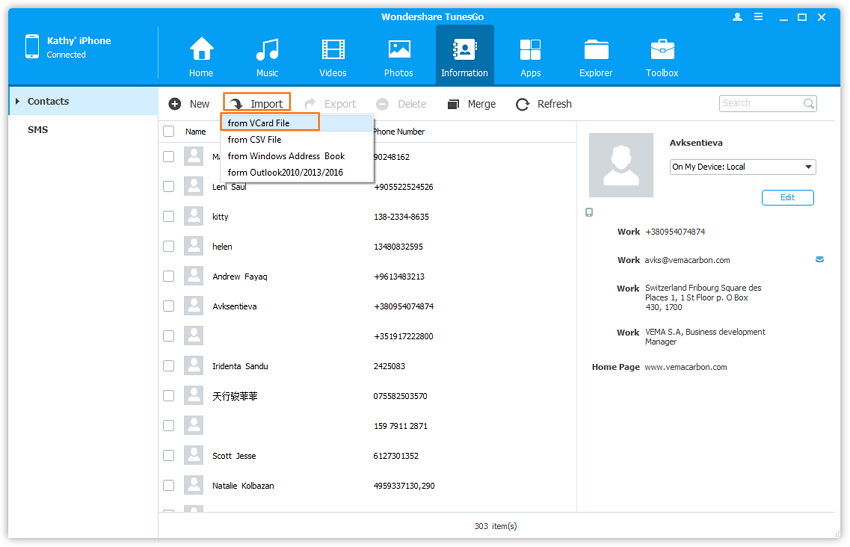
Click “Contacts” in the left-side column to bring up the contact management window. Click “Import”. In the drop-down list, select from which you decide to import contacts. For example, you can choose from vCard file. When the small file browser window appears, chooses your wanted VCF file(s), CSV file. Then, import contacts from computer to iPhone X.

import contacts from computer to iphone x

Part 4: Best iPhone X Manager: Transfer and Manage Apps on iPhone X/Xs (Max)

How to install Apps from computer to iPhone X in batch:

Step 1. Run Program and Connect iPhone X to the Computer
Launch iOS Manager and connect your iPhone X with the computer.

ios manager main page

Step 2. Install Apps from Computer to iPhone X
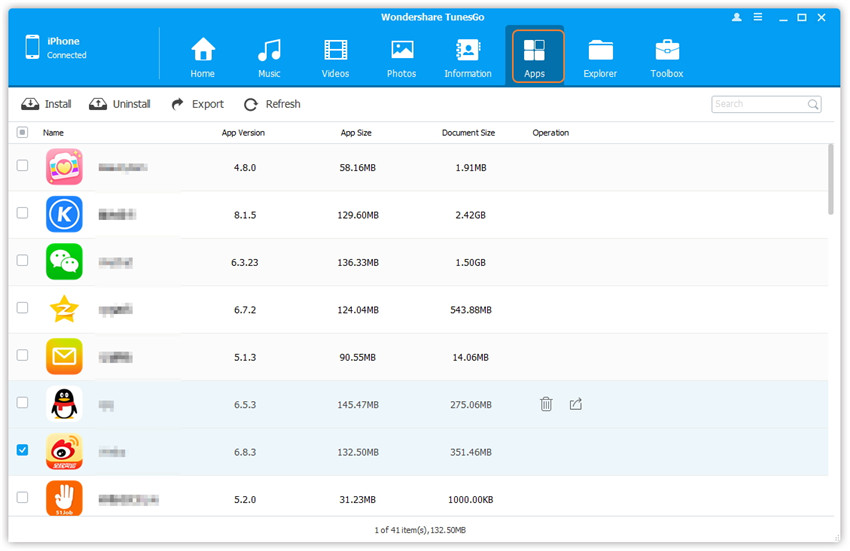
a. Click “Apps” icon at the top of the main interface to enter the Apps window, all the apps on the iPhone X will be shown by list.

select apps to transfer from computer

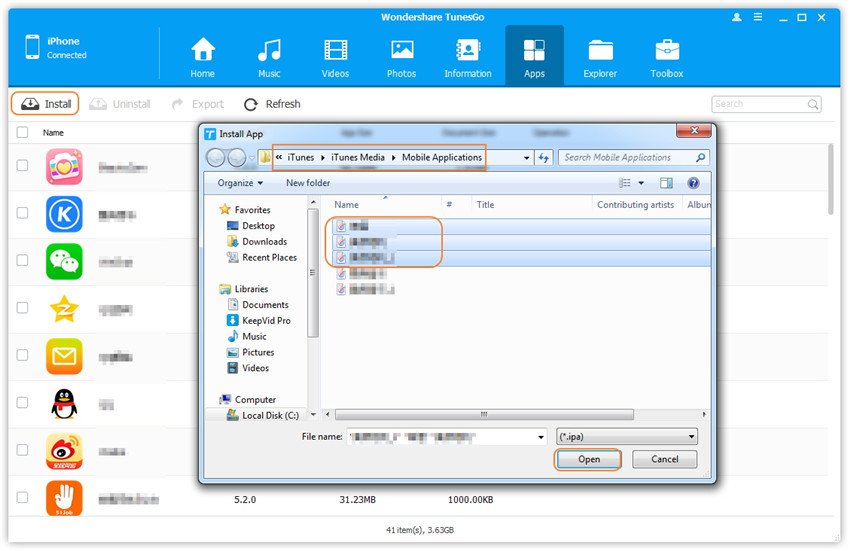
b. Click “Install” button at the top-left corner and iOS Manager will open the path where iTunes saves apps by default, if you want to install apps somewhere else, change the path accordingly. Then, select the app(s) to install by clicking “Open“. Hold down the “Ctrl” or “Shift” key to select multiple apps.

transfer apps from computer to iphone x

Free download the best iPhone Manager and try to put files to your new iPhone X/Xs (Max) easily:

d_win d_mac
d_win d_mac

Another Famous Software: iPhone X Manager – Mobile Sync

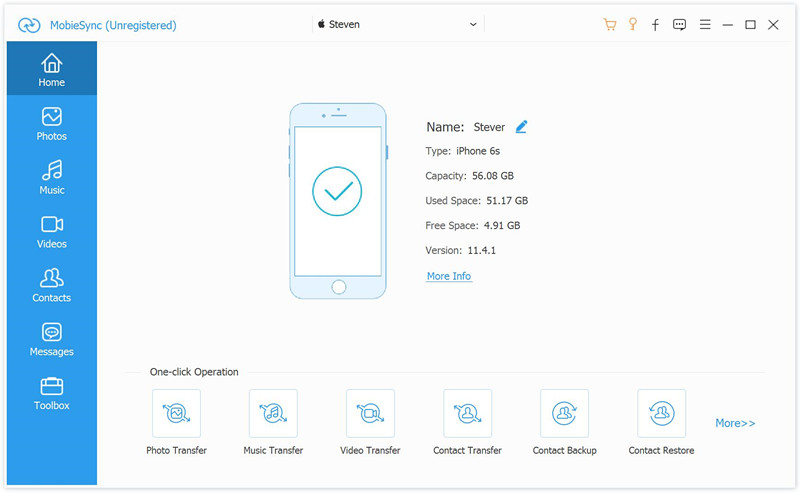
Mobile Sync is the best tool for sync iOS data between iOS device and PC, like contacts, SMS, photos, videos, music and other media files. This software supports to transfer iOS files to iTunes/Computer; add files from computer to iPhone/iPad/iPod; transfer data between two iOS devices directly. Besides, it allows you to create your own ringtones for iOS device, and features with HEIC to JPEG/PNG Converter. Quickly transfer large media files. Whether you want to transfer any types of iOS data, it can always be a great helper.

Mobile sync home page

Related Articles:

Best iPhone 7 Manager: How to Transfer Files to iPhone 7

Best iPhone 8 Manager: How to Transfer Files to iPhone 8

Best Way to Transfer Data from Old Phone to a New iPhone X/Xs (Max)

How to Transfer Videos/Music/Photos to iPhone X/iPhone 8

How to Backup & Restore iPhone X/Xs on Computer Safely

Best iPhone X/Xs (Max) Manager