All posts by DHZ

Fix iOS 11 Downgrading Stuck on Apple Logo Issue

My iPhone 6s stuck on the Apple logo after I downgrade iOS 11 to iOS 10.3. This is a birthday gift from my grandpa, it also has many important photo inside. How can i do for this problem? I don’t want to switch this iPhone 6s.

The new iOS 11 have many attractive features, but the official version has not yet appeared. The iOS 11 Beta is a tested version in order to find out the imperfect of the new iOS system, and you can find out where is not compatible with the device while running this version. But someone may curious on the new system and they update to iOS 11. Final, they find that the running speed of their iPhone is slow down, some Apps they can’t use no longer. They start to downgrade… No matter how good prepared you are, there will always be wrong situations when you downgrade your iPhone. The most common problem is stuck on Apple logo. How can we fix iOS 11 downgrading stuck on Apple logo issue?

Fix iPhone Stuck on Apple Logo Issue- iOS 11 Downgrade

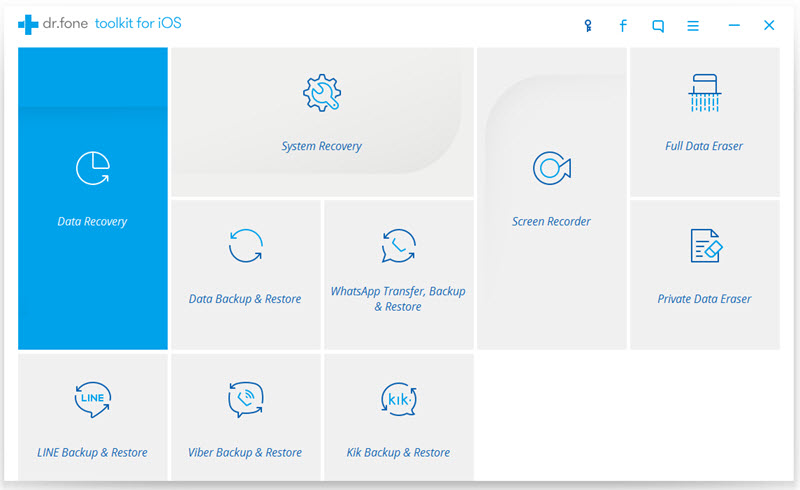
Here we recommend you use iOS System Recovery to solve the problem. This professional software can fix many issue when iOS 10 to iOS 11 downgrade, like stuck in recovery mode, white Apple logo, black screen, looping on start, etc. It can fix iPhone stuck on Apple Logo without data loss. The software is suitable for all models of iPhone, iPad and iPod touch and fully compatible with the latest iOS 10.3. What’s more, it also have the function that recover data including contact, call log, photo, video, etc, data backup and restore, third-party Apps backup and restore, screen recorder and data erase.


d_win d_mac

Part 1: Fix iOS 11 Downgrading Stuck on Apple Logo Issue via iOS Toolkit – iOS System Recovery

Once your iPhone has been through the problem above, you just download the iOS Toolkit – iOS System Recovery, and follow the steps below.

Step 1. Launch the Problem and Connect Your iPhone
Connect your iPhone after launch the problem, then click “Start” to the next page.
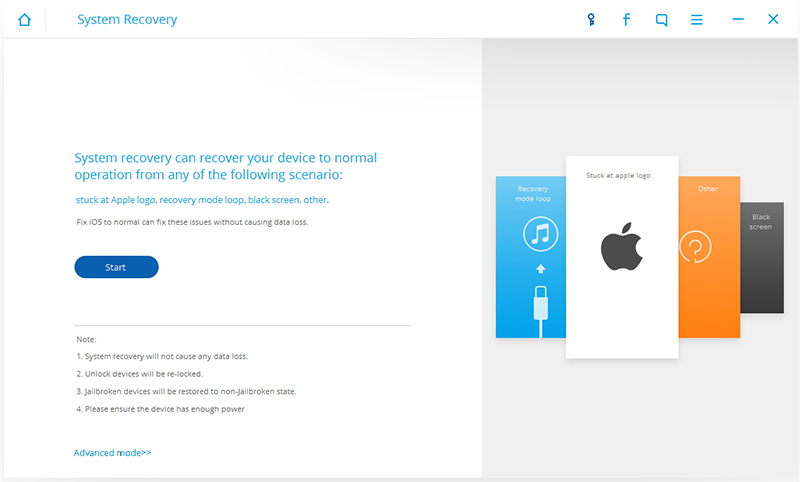
connect iphone to the computer

Step 2. Get Your iPhone into DFU Mode
Please follow the steps below to let your iPhone into the DFU Mode(Device Firmware Update)

1.Hold the Power button and the Home button at the same time.
2.Release the Power button while still holding the Home button.
Note:if your iPhone is iPhone 7/ 7 Plus, you just need to press the Volume Down button instead of the Home button, and other is the same.
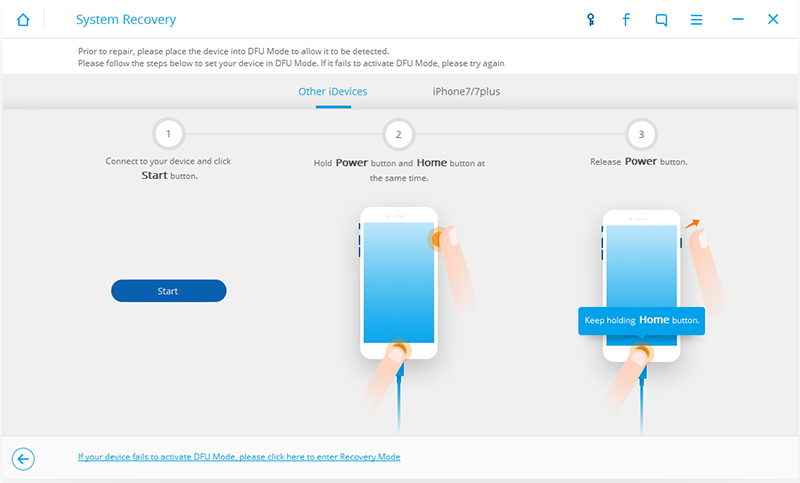
enter iphone into dfu mode

Step 3. Choose the Information of your iPhone
Choose the correct device name, number, model, iOS version. Once you are done, click  “Download” and continue.
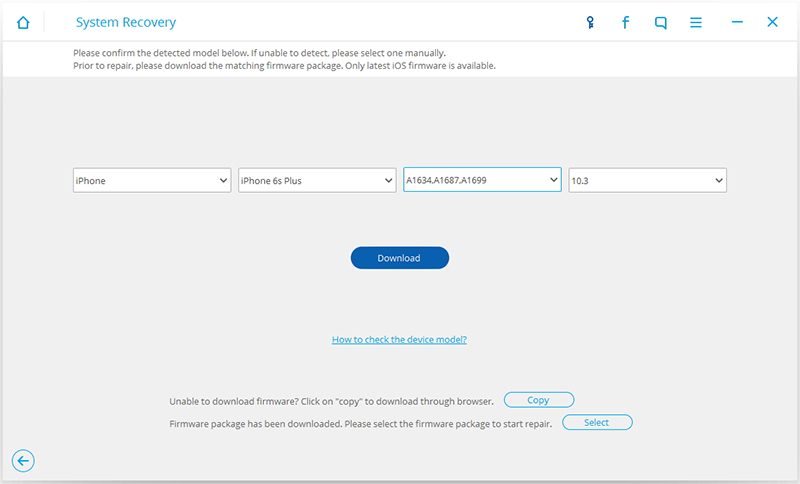
select iphone device model

Step 4. Download the Firmware Package for Bricked iPhone
After put your bricked iPhone into DFU mode,the program start download the matching firmware package for the iPhone
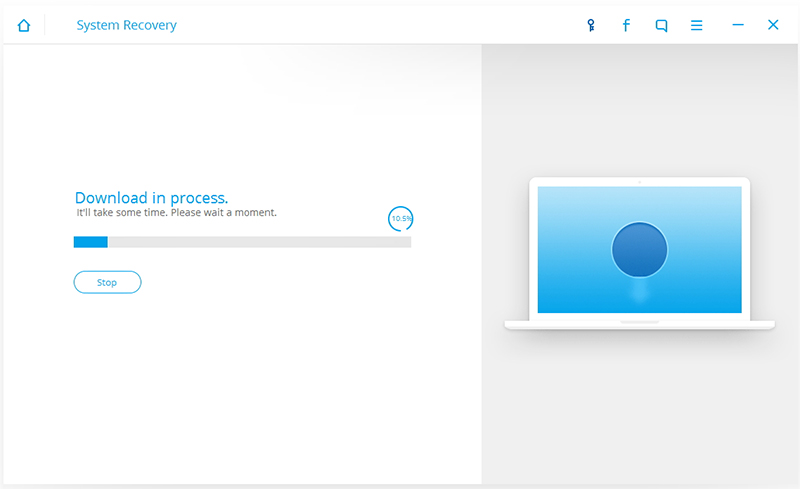
select firmware package for iphone

Step 5. Start to Fix the iPhone on Apple Logo Screen after iOS 11 Downgrade
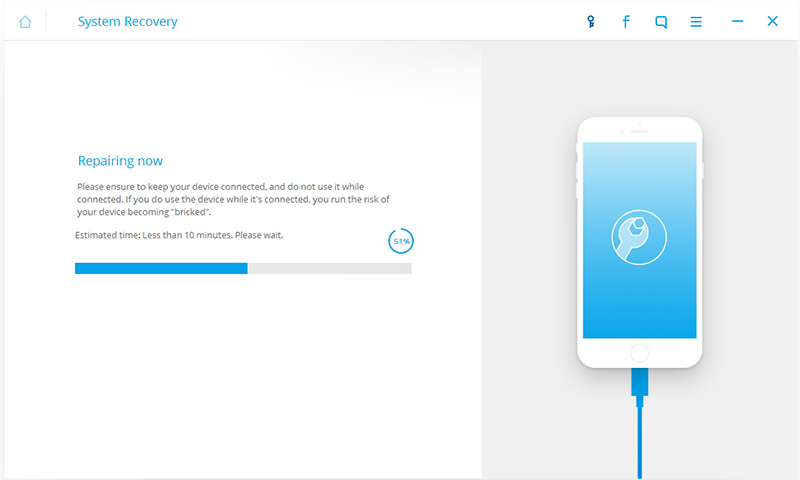
After downloading the firmware package, the application will start to fix your iPhone. Wait for some minutes, and make sure that your phone will not disconnected during the process.

download firmware package for iphone

When the fix process is done, you iPhone will restart automatically. If you are not satisfied, you can click on “Try again” button.
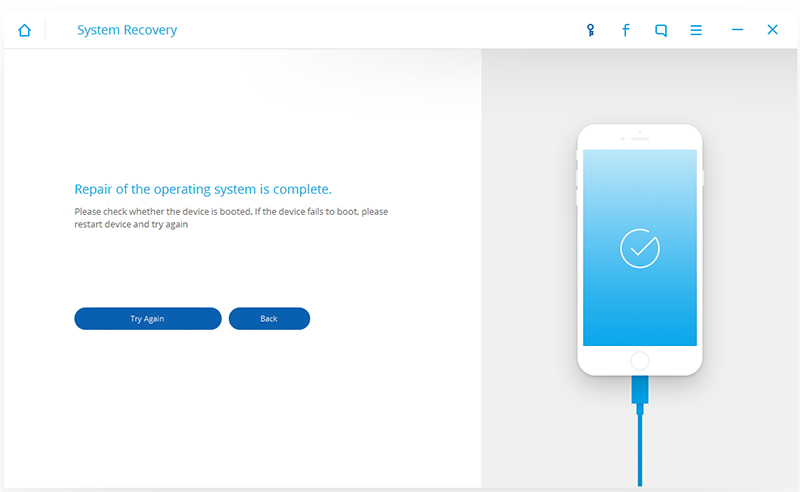
restore iphone to normal without data loss

Free download the iOS Toolkit – iOS System Recovery for Windows or Mac and try to fix your iPhone to normal:

d_win d_mac

After follow the simple step above, you overcome the iOS 11 downgrade stuck on Apple logo. Fix almost every issue on your iPhone with the best iOS System Recovery software and use your device without any constraint.

Part 2: Fix iOS 11 Downgrading Stuck on Apple Logo Issue with Hard Resetting Device

Hard resetting the device should always be the normal solution whenever an issue occurs on the iPhone. To perform the method, carefully read and follow the steps.
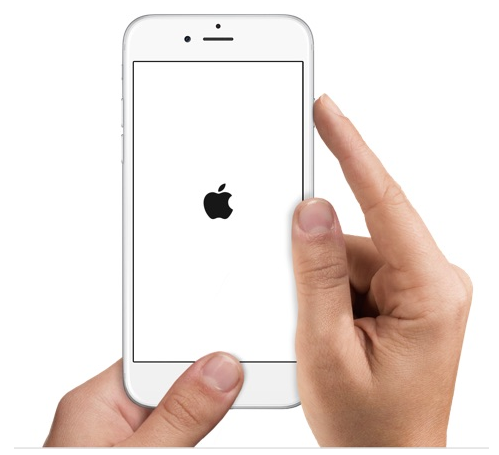
hard reset iphone

For iPhone 6 and former devices: To begin with, push the two buttons altogether which are “Home” and “Sleep/Wake” buttons and hold them as long as you see the Apple logo on iPhone appeares. Release once the logo occurs.

For iPhone 7 and 7 Plus: The process is similar to the above except just one button. Here, you need to push the “Sleep/Wake” and “Volume Down” button until Apple logo occurs.

Related Article:

How to Fix iPhone Stuck in Recovery Mode after iOS 11 Downgrade

How to Fix iPhone Stuck in Boot Loop after iOS 11 Update

How to Downgrade from iOS 11 to iOS 10 without Data Loss
How to Restore Lost  iPhone Files after iOS 11 Update

Two Ways to Backup and Restore Data from iPhone

How to Fix Bricked iPhone iPad after iOS 11 Update

iPhone Gets Bricked after iOS 11 Update

Yesterday,I have install iOS 11 on my iPhone 7,I don’t know what happen,during the upgrading processing,my iPhone 7 stuck on Apple logo for a long time and it turns bricked,how can I fix iPhone 7 at Apple logo screen and downgrade from iOS 11 beta to iOS 10.3 without data loss?Thank you!” — Asked by Junna

My iPhone 6S doesn’t turn on after update to iOS 11,I know if I perform a factory setting by iTunes. Though, while doing so, it will erase all data and personal information,is there any third-party iOS system restore tool to fix bricked iPhone with iOS 11?” — Asked by Suela

iOS 11 Software update failed and my iPhone 6 stuck in recovery mode with iTunes logo screen,any way to fix iOS 11 Beta update failed error without data loss?I want to fix my bricked iPhone 6 to normal after upgrading to iOS 11 failed” –Asked by Cindy

The Apple company has released the iOS 11 beta 1, many iPhone and iPad users upgrading their devices to iOS 11 Beta version,but some users facing iOS 11 Beta update problems,for example iPhone stucking in recovery mode, white Apple logo, black screen, looping on start, etc.Don’t worry,today we will teach you how to fix bricked iPhone to normal without data loss with the help of iOS System Recovery desktop tool.

When your iPhone or iPad stuck in recovery mode, black screen, DFU mode, connecting iTunes logo or white Apple logo, things like that, the general method of recovery for your iPhone/iPad is an iTunes restore.But if you use iTunes to restore the devices,it will erase your iPhone iPad data.

Fix iPhone Gets Bricked after iOS 11 Update

However,the iOS System Recovery is designed to fix any kinds of iOS 11/10 system issues and get iPhone back to normal without data loss.After failed update to iOS 11 and your devices gets bricked,you can use this iOS System Recovery to fix iPhone/iPad/iPod to normal by yourself within less than 10 minutes, and won’t lose any data. All iOS devices are supported by program, including iPhone 7/7S, iPhone 6S/6, iPhone 5S/5, iPad and iPod.

d_win d_mac

iOS System Recovery Key Features:

Fix your iOS system issues to normal at home, no data loss at all.
-Fix iPhone/iPad stuck in recovery mode loop or iTunes logo.
-Fix iPhone/iPad can’t get out of DFU mode.
-Fix iPhone/iPad turns into white Apple logo screen/white screen of death.
-Fix iPhone/iPad becomes black screen, red or blue screen.
-Fix iPhone/iPad restarts endlessly.
-Fix iPhone/iPad appears frozen and doesn’t respond at all.
-Fix iPhone/iPad won’t slide to unlock or slide to power off.
-Fix iPhone/iPad keep looping on the Apple logo.
-Fix Fixes other iPhone error and iTunes errors, such as iTunes error 4013, error 14, iTunes error 27,iTunes error 9 and more.
Recover lost data from iPhone iPad after iOS 11 update, downgrade, factory reset,etc,.
-Works for all models of iPhone, iPad and iPod touch.

How to Fix Bricked iPhone to Normal after iOS 11 Update

Launch the iOS Toolkit – iOS System Recovery on your Windows or Mac,you can see the main interface as below,and then click “System Recovery”.

ios toolkit system recovery

Step 1.Connect the Bricked iPhone to Computer
After running the program on the computer,then connect your bricked iPhone device to the computer  and wait for the program to recognize it. Once it is done, click on the “Start” button to proceed.

fix bricked iphone to normal after iOS 11 update

Step 2.Enter the Bricked iPhone into DFU Mode
In order to download the matching firmware package for the iPhone to fix it,you need to put your iPhone device to the DFU (Device Firmware Update) mode. Please follow the easy steps to get your iPhone to DFU mode:

1)Hold the Power and Home button at the same time for at least 10 seconds.
2)Let go of the Power button while holding the Home button till your device would enter the DFU mode.

enter iphone into dfu mode

Step 3.Select Device Model,Number and iOS Version
After get your bricked device into DFU mode, then select your device number, model, iOS version(iOS 10.3), and more in the software interface. The program will help you to downgrade from iOS 11 to iOS 10 to fix this issue,and then click on the “Download” button to continue.

select iphone device model

Step 4.Begin to Download Firmware Package for iPhone
After put your bricked iPhone into DFU mode,the program start download the matching firmware package (iOS 10.3 IPSW firmware package) for the iPhone.

download firmware package for iphone

Note:Please keep connecting the device to the computer during the program download the essential firmware of your device.

Step 5.Fix Bricked iPhone to Normal
When the firmware package downloaded complete,the software will use the essential firmware of your device to fix it to normal,during the fixing process,not data lost at all.

fix bricked iphone to normal after ios 11 update

Step 6. Restart iPhone to Normal Mode
Well done!Your bricked iPhone be fixed and turn to normal without data loss.If you don’t get desired results, then you can click on the “Try again” button to repeat the process to fix it.

restart iphone to normal without data loss

Free download the iOS System Recovery and try to repair your bricked iPhone to normal after iOS 11 update:

d_win d_mac

The iOS Toolkit – iOS System Recovery not only can help you fix iPhone/iPad stuck in recovery mode, white Apple logo, black screen, looping on start, etc.while iOS 11/10 update,but also the iOS Toolkit – iOS Data Recovery feature allows you recover lost photos, contacts, text messages, notes, videos, music, call logs, WhatsApp and other data from iPhone with iOS update or downgrade.

Related Articles:

How to Fix iPhone Stuck in Apple Logo after iOS 11 Update

How to Fix iPhone Stuck in Recovery Mode after iOS 11 Update

3 Ways to Recover Lost Photos from iPhone iPad after iOS 11 Update

How to Backup and Restore iPhone Data

iPhone Manager – How to Transfer and Manager Files on iPhone 8/7/6S/6/SE

Recover Data from Samsung Phone When Forgotten the Password

Forgotten the Password of the Lock Screen,How to Get Data Back from Screen-Locked Galaxy S6?
The screen of my Samsung Galaxy S6 was broken, and it still can work. More worse, I had forget my phone password since the screen was broken. I tried a lot of digital combinations, but it still can’t open.I have no idea on it. I want to get my data back, how can I do?” Jenny asked.

Forgot Samsung Password: How to Recover Android Files?

For the safety of Samsung phone data, many people may set a password to lock the screen. If your device can use fingerprint, you should set a password to prevent the fingerprint lose effectiveness. Even so, people will always forget the password they set by many reasons. At the Internet, there are so much tutorials to teach you unlock your Samsung phone. It not only requires you to download some attachments, but you also should open the CMD console to operate. It’s too complicated to operate. Its there any simple way for us to fix the locked Samsung phone to normal when forget the password and backup Android files?

Fix Locked Android Phone to Normal and Recover Lost Data for Backup

There is always a solution to the problem. Broken Android Phone Data Recovery and Android Lock Screen Removal tool can do this a some simple steps. This best software can fix your Samsung phone to normal without in many situation, like forget the password, virus attack, system crash,phone frozen, phone drown, black/blank screen. After fixing your broken Samsung in this software, you can use it to recover your data including photos, contact, message and attachments, call logs, WhatsApp and it’s acttachment, pictures, video, music and so on. Of course, you also can use it to backup your phone data when your device is work.

Free download the broken android data recovery and try to fix locked Android phone to normal and extract data for backup:

d_win d_mac

Note:This software just support fix Samsung phone( Galaxy Note3/Note4/Note5, Samsung Galaxy S4/S5/S6 and Tab Pro 10.1),to normal. If you device is HTC, Motorola, LG, Sony, Huawei, ZTE, Google Nexus, Google Pixel, ZTE, Xiaomi, Sharp, Windows phone or other android phone,you can only use it to backup.

Let’s teach you how to use the Broken Android Phone Data Recovery to fix Samsung Galaxy S6 locked screen to normal and extract files for backup on Windows computer,you also can use the Android Lock Screen Removal to remove 4 screen lock types – pattern, PIN, password & fingerprints,and then recover lost or delete data from Android phone after switch to Android Data Recovery function.
Learn More: How to Unlock the Screen Lock on Samsung Phone

Easy Steps to Recover Photos from Locked Samsung Galaxy


Step 1. Connect Your Galaxy S6 to Computer

Install the Broken Samsung Phone Recovery on the computer, then connect your Galaxy S6 to computer via USB cable. And then click “Broken Android Phone Data Extraction” and “Start” button..

connect the screen-locked Galaxy S6 to pc

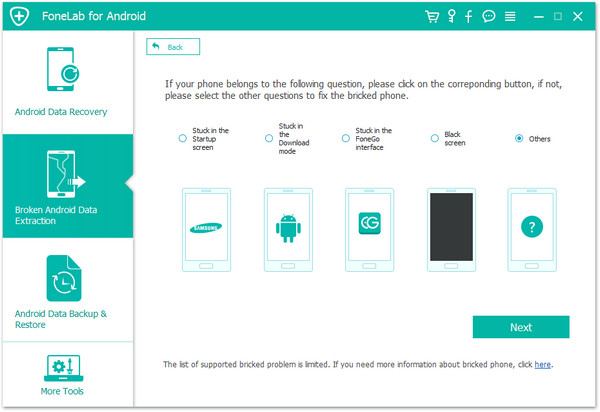
If you want to fix the screen-locked Samsung phone at first,please click “Fix Device” and click “stuck in the startup screen”.

fix Samsung locked screen

Step 2. Choose Your Phone Name and Model
In this step, you should choose your phone name and model correctly, tap “Confirm” to the next part.

chooese phone model

Step 3. Enter Your Galaxy S6 into Download Mode
Please follow the steps to let the device into Download Mode.
1).Turn off your device;
2).Press and hold Volume down, Power and Home button simultaneously;
3).Press the Volume up button.

put your broken S6 into download mode

Step 4. Star to Fix the Screen-Locked Samsung S6 to Normal
Once the phone enter the Download Mode, it will download the Recovery Package automatically. It will start fixing your device. After fixing, it will scan your S6 for all exiting and lost files.

fix samsung locked screen to normal

Step 5. Recover Photos from Galaxy S6 When Forget the Password
After scanning, you can have a preview on the your data. You can select the “Photos” file your want restore and click “Recover” to get them back on your computer.

recover lost photos from Galaxy S6 with locked screen

In this simple way you can unlock your Samsung phone when you forget your password without data lost.

d_win d_mac

Related Articles:

Easy Way to Unlock Samsung Phone with Broken Screen(Galaxy S6/S7)

2 Methods to Recover Lost Data from Samsung with Broken Screen

Forget Android SIM Card Lock PIN and How to Remove it

How to Recover Data from Samsung Phone with Broken Screen

Photos Missing after iOS 11 to iOS 10 Downgrade

How to Recover Lost iPhone Photos with iOS 11 Downgrading
“My iPhone 7 upgrade to iOS 11 itself and I found that this new version is not so easy to use, so I perform downgrading my iPhone 7 from iOS 11 to iOS 10. But my data all gone after downgrading. There are some pictures are very precious which is shot by my dead grandpa. Is there any way to help me recover the deleted iPhone photos?”

downgrade ios 11

Are you cheering for the new iOS 11 system released at the WWDC? Are you happy on the Dark Mode which happened in the new iOS 11? Yes. As an Apple, we were pleasantly surprised by the characteristics of the new system, and can’t wait to upgrade to iOS 11. Once you upgrade your iPhone 6S from iOS 10.3 to the iOS 11, you will felt a bit different from you expect. You will found the operation system run slower than before or some apps you can use. Because the new version will always has some bugs. Once you choose to downgrade from iOS 11 to iOS 10, the downgrade process will erase your device, you will lose all your photos, notes, apps, documents, contacts, text messages, etc. How can you retrieve lost photo from your iPhone after downloading iOS 11 to iOS 10?

recover photos ios 11 downgrade

You may want to read: How to Downgrade iOS 11 Beta to iOS 10 on iPhone/iPad without Data Loss

Part 1: Directly Recover Missing Photo after iOS 11 Downgrade

iPhone Data Recovery is software that really can help you to recover lost photos on iPhone after iOS 11 downgrade. It is design for helping to recover data including contact, message, photo, video,music, third-party Apps’ chat history and attachment, note, reminder and more. You have backup it to iTunes or iCloud before you data lost, you also can use this software to recover in a simple way. More importantly, it also has the function of fixing the iOS system to normal. Once your iOS device stuck on the black screen, white screen, Apple Logo or even in the recovery mode or any looping issues, this program can help you, too. The feature of destroy iOS fixing is that you do not have to worry about losing any data when using it to fix your system. This iPhone Data Recovery works well with the latest iPhone X, iPhone 8, iPhone 7, iPhone 7 Plus, iPhone 6S, iPhone 6S Plus, iPhone 6, iPhone 6 Plus, iPhone SE, iPhone 5S/5C/5, iPhone 4S and iPad Pro, iPad Mini/Air.

d_win d_mac

After downgrading iOS 11 to iOS 10, did your iPhone been through data lost? If yes, please follow the steps below for data restore.If you don’t know where to find your data,please click “Smart Recovery” mode,which can help you find your data quickly, depending on the file type and the situation in which you lost it.

smart recovery

Step 1. Connect iPhone 7 with Computer
Launch iPhone Data Recovery on your computer. Connect your iPhone 7 to computer with USB cable. The iPhone Data Recovery will detect your device and show the window for “Recover from iOS Device”.

connect iPhone to computer

Step 2.Select Photo File Types
This article teach you how to recover deleted photos from iPhone after iOS 11 downgrading,if you just want to recover the lost photos,please select “Photo” and “App Photo” and click “Next” button,if you want to recover all the lost data at once,please choose “select all” and then click “Next”.

select iPhone photo file to scan

Step 3. Scan the iPhone 7
In this step you can choose the file type to scan and recover. First click the “Start Scan” button to search for your deleted data, then the program begins scanning your device automatically for lost/deleted data in some minuets.

scan lost photos from iPhone after iOS 11 downgrade

Step 4. Preview the Scanned Photos
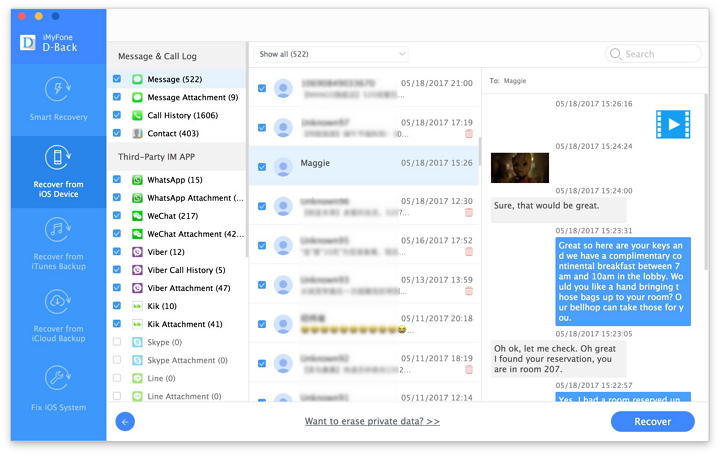
After scanning, you will have a see on the scan result. Data both lost and existing on your device are show in categories. You can only see the lost data the by turn on the option “Only display the deleted items”. By clicking the item “Photo”, you can preview the pictures in detail.

preview and select the scanned photos

Step 5. Restore Missing Photo from iPhone with iOS 11 Downgrading
Once you have selected the item “Photo” you need to restore, click the “Recover” button. Then the photos will be saved to your computer.

recover missing photos after ios 11 downgrade

Download the iOS Data Recovery for Windows or Mac and try to get back your missing pictures files from iOS 11/10 devices.

d_win d_mac

Part 2: Backup iPhone Data before iOS 11 Downgrade

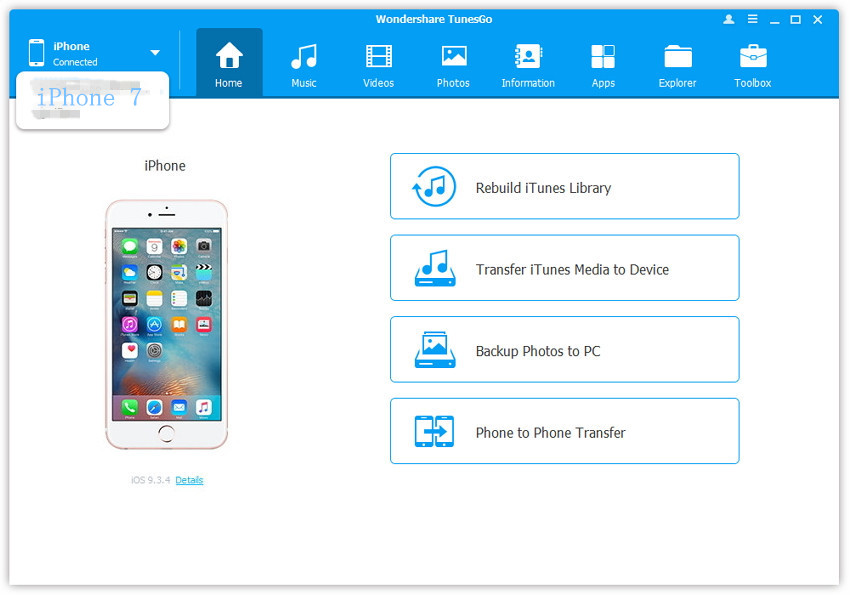
To avoiding data loss after downgrading your iPhone 7/6S/6/SE/5S from iOS 11 to iOS 10.3.3/10.3.2/10/iOS 9,you must to backup your iPhone to the computer with the help of iPhone Manager & Transfer tool or iPhone Data Backup Restore tool,including photos, videos, contacts, messages, notes, music, WhatsApp chat history and more.

iphone manager transfer backup iPhone

Related Articles:

How to Recover Lost Data from iPhone After iOS 11 Downgrade

How to Recover Lost Photos from iPhone After iOS 11 Update

How to Retrieve Lost Text Messages on iPhone After iOS 11 Update

How to Restore Lost Contacts from iPhone After iOS 11 Upgrade

Two Ways to Backup and Restore Data from iPhone

[Fixed]iOS 11 Stuck at Apple Logo

How to Fix iPhone Stuck in Recovery Mode after iOS 11 Update

Fix iPhone Stuck on Connect to iTunes Screen after iOS 11 Update

Recover Photo/Video from Galaxy S6/S5 with Broken Screen

“Last night I was running alone in the park, accidentally fell to the ground and my Galaxy S6 also thrown out of my pocket. I picked up the phone to have see, found the whole screen was crush, and touched the screen with no response. I try a lot of ways to woke up the S6, but it doesn’t work. I just want to restore my photos and video back? How can I do?”

No matter how high quality for the overall process of a Samsung phone is done, the screen is always the most vulnerable part. It is the most fragile and can easily get damaged. The fact is we already received a lot of reports from our readers and most of them are seeking help how to retrieve data from their devices that have cracked screens. Breaking the screen in many situation is always an accident. When the screen is broken and there is no response, what can we do to recover the photo and video we need in the broke phone?

There is always a way to help you solve the problem. We suggest you download Broken Samsung Data Recovery. This wonderful program can help you fix your Samsung phone to normal without data lose while you can recover photos and videos from broken screen Galaxy S6/S5, as well as contact, call logs, music, WhatsApp and it’s attachment and other files in a simple way. This software can not only repair data from the phone with broken screen , but it can also work well in those situation below: virus attack, system crash, phone frozen, phone drown and password forget. Though the “fix to normal” function only for Samsung phone(GalaxyS8/S7/S6/S5/S4, Galaxy Note 5/Note 4/Note 3, Tab Pro 10.1), if you device is other brands like HTC, Motorola, LG, Sony, Huawei, ZTE, Google Nexus, Google Pixel, ZTE, Xiaomi, Sharp, Windows phone, you can use this program to backup you phone data to computer when the device is work well.

d_win d_mac

Step on Recover Photo and Video from Galaxy S6/S5 with Broken Screen

Step 1. Download and launch the Program

Download and launch the Broken Samsung Data Recovery. Connect your Broken S6/S5 to computer and at the “Broken Android Phone Data Extraction” click “Start” to the next page.

connect broken galaxy s6 to pc

Step 2. Select the Name and Model of Your Phone

Then select the device name and mode of your phone, like S5 or S6. And click “Next”.

select device model

Step 3. Let your Broken S6/S5 Enter the Download Mode

Please follow the step below, to let your Galaxy S6/S5 into the Download Mode. Power off the phone > press and hold three buttons: “Volume Down”, “Home” and “Power” > press the “Volume Up” button to enter the “Download mode”.

put your broken samsung phone into download mode

Step 4. Start to Fix S6/S5 With Broken Screen to Normal

Once the device enter the Download Mode, it will download a recovery package automatically. It will start to fix your phone itself.

fix samsung with broken screen

Step 5. Recover Photo and Video from S6/S5 with Broken Screen 

After the recovery is done, the software will scan the device. Then you can have a preview on your phone data. Tap “Gallery”, “Picture Library”and “Video” item. Finally, just click “Recover” to extract the pictures and videos from your broken-screen Samsung Galaxy S6/S5.

recover data from broken screen galaxy s6/s5

d_win d_mac

Related Article:

How to Recover Photos from Broken Samsung Phone

How to Restore Contacts from Broken Screen Samsung

How to Recover Data from Water Damaged Samsung Phone

How to Recover Contacts from Broken Samsung Galaxy S6/S7

How to Recover Lost Data from Locked Samsung Phone

How to Recover SMS from Broken Samsung Galaxy S6/S7

Restore Lost SMS/MMS/iMessage after iOS 11 to iOS 10 Downgrade

“I lost my data including all the message from my iPhone 6 plus after downgrade to iOS 10.3, I have an iTunes backup, but I can not find the lost data I wanted from iTunes backup, whether I can get back my lost message including SMS, MMS and iMessage from my iPhone? Anyone who can help, please?” Jackie ask.

There’s lots of new stuff in iOS 11. However, things have a changed doesn’t mean they’re will be better. So if you’ve updated to Apple’s latest OS but think it wasn’t for you, you’ll be happy to know that you can still go back to iOS 10.3.2. Even if you have made full preparation for the iOS 11 downgrade to iOS 10, you still may lose some important iOS data like contacts, messages, photos, and other contents. What will you do when you encounter such a situation?

As always, there is the alternative of using third-party software to solve those problems and one such program called iPhone Data Recovery is highly recommended. It is a data recovery software which can recover contacts, photos, text messages, third-party Apps chat history and attachment and more than 10 types of files from your iPhone or iPad. If your phone encounters the following questions:Important files deleted or lost by accident, iPhone lost, damaged or broken, Devices attacked by viruses, iPhone jailbreak, iOS upgrade/downgrade or factory reset, iPhone locked by forgotten password you can use this software to solve the problem.

d_win d_mac

How to Restore Lost SMS/MMS/iMessage after iOS 11 to iOS 10 Downgrade

Once your had downgrade your iPhone and your lose all your data, don’t worry, download the iPhone Data Recovery and launch it on your computer, then follow the steps below, you will solve your problem in a simple way.

smart iphone data recovery

Step 1. Choose How You Lost Your Data

After launch the program, connect your iPhone 6 to the computer. You will see there are some option to choose at the first interface. Choose “Start”. Then it will turn to “Recover Data from iOS Device” Mode.

connect iphone with computer

Step 2. Choose the Lost File Type

Here, you should choose the file you want to recover. Tap the button “Messgae” and to the next.

select contacts to recover

Step 3. Scan your iPhone 6 for Lose Data

Click “Start Scan”, it will start to search for your deleted data, it will cause some minuets depend on how much data you choose.

scan iPhone and search lost messages

Step 4. Preview and Restore the SMS/MMS/iMessage from iPhone after iOS 11 Downgrade

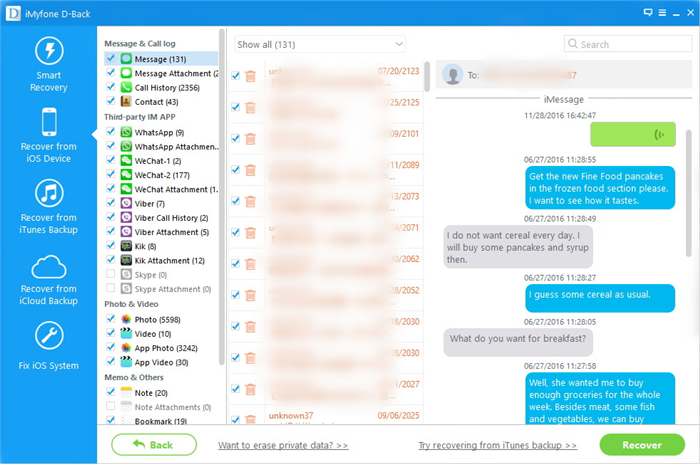
After scanning your phone, you can have a preview on the data your choose before. Select the “Message” files which you want to recover, and then click “Recover” at the right bottom corner.

recover sms from iphone after downgrade ios 11 to ios 10

It will take only a few minutes to finish the recovery.

d_win d_mac

Related Article:

How to Restore/Downgrade iOS 11 to iOS 10

Get Missing Contacts Back from iPhone with iOS 11 Downgrade

How to Restore Deleted Call Logs from iPhone 7/6S/6

How to Recover Deleted iPhone Data after iOS 10.3 Update

Get Missing Contacts Back from iPhone with iOS 11 Downgrade

“My iPhone 7 contacts disappear after I downgrade iOS 11 to iOS 10.3, and I haven’t backup yet. All of my data in that phone is gone. But now, I just want my contacts because there so many colleague number in it, I should make a phone call to them for the company annual meeting. Is there any way to get the contacts back quickly?” One iPhone user asked on the forum.

At this year, WWDC had released the new system iOS 11, there are many users want to explore a variety of new skills and they may upgrade their phone system. After a period of time, they may feel that such a system is not suitable for their own, this time we want to downgrade. So, in the process of degradation caused by the loss of contacts, and how to recover?

The best way for you to recover missing contacts back from iPhone with iOS 11 downgrade is download the iOS Data Recovery. It’s a very professional data recover tool offer you three mode to retrieve data: recover from iOS device directly, recover from iTunes backup, and recover from iCloud backup. It can recover most of the data including contacts, SMS, iMessage, call logs, photo, video, third-party App chat history and attachments, note, Safari history and other files. In the case that your phone system goes wrong or in this situation: broken screen, blank/black screen, iPhone stuck in Apple logo,virus attacked, you can also use this useful tool to fix your iPhone to normal. The program is compatible with almost all Apple device, including iPhone 8 and iPhone 7/7 Plus, as well as iPad and iPod.

d_win d_mac

Guide to Recover missing contacts from iPhone after Downgrade iOS 11 to iOS 10

Step 1. Download and install the program

Launch iOS Data Recovery on your computer. Connect your iPhone to computer. You can see the “Recover from iOS Device” of the interface on the left. The iOS Data Recovery will detect your device automatically.

connect iphone with computer

Step 2. Scan the iPhone

In this step you can choose the file type to scan and recover. First click the “Start Scan” button to search for your deleted data.

select contacts to recover

Step 3. Preview and select the Scanned Data

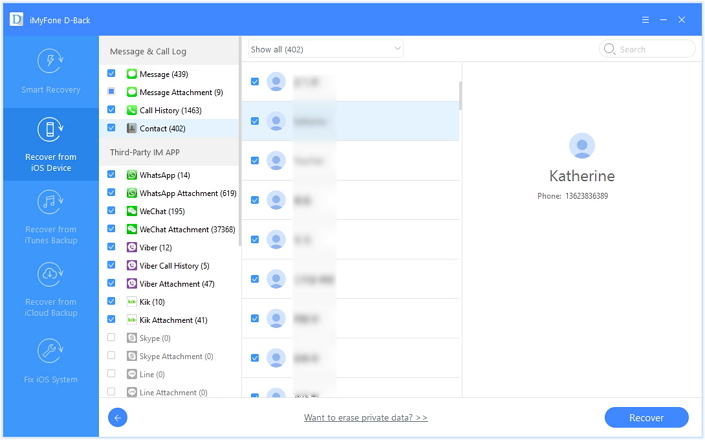
After scanning, you will have a see on the scan result. Data both lost and existing on your device are show in categories. By clicking the item “Contact”, you can preview the contacts in detail.

scan iPhone and search lost data

Step 4. Recover Missing Contacts from iPhone after Downgrading iOS 11 to iOS 10

Once you have selected the item “Contact” you need to restore, click the “Recover” button. By default, the recovered contacts will be saved to your computer.

recover missing contcts from iphone after ios 11 downgrade

d_win d_mac

Read more:

How to Downgrade iPhone from iOS 10 to iOS 9 without Data Loss

How to Restore/Downgrade iOS 11 to iOS 10

Install IPSW File on iPhone iPad with/without iTunes

How to Recover Lost Photos from iPhone after iOS 10 Update

Recover Photos Videos from Galaxy S6/S5 Black Screen

[Summary]: Samsung Galaxy S6/S6 Edge/S5 stuck in blank/black screen of death?This article teach you how to use Broken Android Data Recovery – Broken Android Phone Data Extraction to fix your bricked Galaxy S6/S5 to normal and extract photos, videos, contacts, messages and WhatsApp data for backup on computer.

“So few days ago, my Samsung Galaxy S5 shut off suddenly and is unresponsive. It became black screen. Although I have a plan to switch the old phone to new Galaxy S8, I should still get my photo and videos recover from the S5 cause it has record some important moment for me. How can l do for recover photos and videos from S5 with black screen?” said by Bill.

As far as we know, Samsung phone users has occupied most of the world market. In particular, Samsung Galaxy S6 has been considered a good quality, high technology phone, but sometimes there will be some problems when we use it. Such as Samsung Galaxy photos and videos lost when the Samsung Galaxy get black screen.To recover photos and videos from Samsung Galaxy when stuck in black screen,you can use a third-party broken Android phone data recovery tool.

No matter what happened to your Samsung phone that caused data lost, Broken Samsung Data Recovery can help you solve those problem without hesitation. This software can not only help you recover contacts, messages, photos, videos, call logs, WhatsApp messages, documents, and etc., when your Samsung phone stuck in black/blank screen, Samsung logo screen, or touch the screen have no responsive,or the screen broke. But also can help you backup you important data when your device is normal, even it’s not a Samsung phone. At the same time, it also work in many others situation: bricked Android, system crash, locked screen, debugging failed, virus damaged etc.

d_win d_mac

Note! This software can’t fix the other device to normal like HTC, Motorola, LG, Sony, Huawei, ZTE, Google Nexus, Google Pixel, ZTE, Xiaomi, Sharp, Windows phone, except the bricked Samsung(Galaxy S6/S5/S4, Galaxy Note 5/Note 4/Note 3, Tab Pro 10.1).

Kind Tips: If you seek a reliable YouTube to MP3 Converter, 4kFinder YouTube Music Downloader is the tool that allows you to download YouTube videos and music as MP3 or M4A files faster with better quality. Then, you can offline enjoy YouTube music on any MP3 player, iPhones, Android phones.

Best Way to Recover Photos and Videos from S6/S5/ with Black Screen

Step 1. Connect Your Galaxy S6/S5 with Black Screen to Computer
Download and launch the Broken Samsung Data Recovery on the computer, then connect your Galaxy S6 to computer via USB cable. And then click “Broken Android Phone Data Extraction” and “Start” button, and to the next part.

connect the blank screen Galaxy S6/S5 to computer

Tips:You can also click “Fix Device” to fix your Samsung Galaxy S6/S5 blank screen to normal,and then switch to “Android Data Recovery” function to get missing photos and videos back from the bricked phone.

fix Samsung phone blank screen

Step 2.Choose your Phone Name and Model
Then choose the device name and model of your phone, select S6/S5 in here. And click “Next”.

choose phone name and model

Step 3.Enter your Galaxy S6/S5 into Download Mode
Please follow the steps make the phone into download mode.
1.Turn off your device;
2.Press and hold Volume down, Power and Home button simultaneously;
3.Press the Volume up button.

get into download mode

Step 4.Begin to Analyze and Scan Your Galaxy S6/S5 with Black Screen
After entering the Download Mode, the program will download the Recovery Package automatically. It will start fixing your device. After fixing, it will scan your S6/S5 for all exiting and lost files.

analyze and fix Samsung Galaxy blank screen

Step 5.Preview and Recover Deleted Photos and Videos on Galaxy S6/S5 with Blank Screen
After scanning, you can have a preview on the photo and video. Then select the file “Gallery”, “Picture Library” and “Video” and click “Recover” button to get them back on your computer.

recover data broken samsung galaxy

Follow this simple steps can help you extract you data safety and immediately.

d_win d_mac

Recover Lost iPhone Data after iOS 11 to iOS 10 Downgrade

Summary: Downgrade your iPhone from the iOS 11 beta to iOS 10 cause losing photos, contacts, text messages, notes, WhatsApp messages and other important data on the iOS 10 device? This article will teach you two solutions to recover lost data from iPhone after downgrading from iOS 11 to iOS 10.

In the WWDC 2017, the new iOS 11 officially debut. In this conference, it had introduced the characteristics of the new iOS 11. The features of the new system make an impression, so after the iOS 11 Beta show to us, there are many Apple users update their iPhone system. Because the iOS 11 Beta is not yet perfect, it leads to some problems like the system running more slowly than before , some apps you relay on not work and so on. So some users regretted to upgrade their system, and want to downgrade to iOS 10. However, downgrade from iOS 11 to iOS 10 has a large risk of losing information. If you don’t back up your data and downgrade directly, you may lost all you iPhone data. In this time, it’s to late. What should we do when we encounter this problem?

recover iPhone data after ios 11 downgrade

Losing Data after Downgrading iOS 11 to iOS 10

“Last week, I upgrade my iPhone 6S to iOS 11. And I found it has many problems when device running, then I downgrade iPhone from iOS 11 to iOS 10. It’s horrible, all my data in the iPhone 6S were gone. How can I solve this problem? How to recover my lost photos, videos, messages and notes after iOS 11 to iOS 10 downgrade?”

Tips:How to Downgrade from iOS 11 to iOS 10 without Losing any Data

I felt so sorry too hear that. There are so many data lost happen because iOS downgrade, whether downgrade iOS 11 to iOS 10 or downgrade iOS 10 to iOS 9. How can the users recover lost data after iOS 11 to iOS 10 downgrade? The best solution is use iOS Data Recovery. The iOS Data Recovery is a useful all-in-one iPhone/iPad/iPod data recovery software,which designed for recover lost data after iOS 10/11 downgrade or update. It can retrieve data up to 18 types like photos, videos, contacts, messages, notes, call log, voice mail, voice memos, calendars, reminders, etc. It support all iPhone/iPad/iPod devices.
It also have other useful features:

d_win d_mac

This efficient iPhone data recovery software to recover all your lost data from iPhone, iPad and iPod under various tough circumstances:

-Lost or deleted files on your iPhone, iPad and iPod touch by accident.
-Your iPhone lost, damaged or broken.
-iDevices attacked by viruses.
-iPhone jailbreak, iOS upgrade or factory reset .
-iPhone locked by forgotten passcode.
-iPhone Stuck at Apple logo, recovery mode loops, black screen, DFU mode, iTunes screen,etc.

Method 1: Restore iPhone Lost Data from iTunes after Downgrading iOS 11 to iOS 10

Missing files after downgrading from iOS 11 to iOS 10? Smart Recovery can help you find your data quickly.When launch the iOS Data Recovery on your Windows computer or Macbook,then click “Smart Recovery”,you will get a new Windows as below.

smart recovery

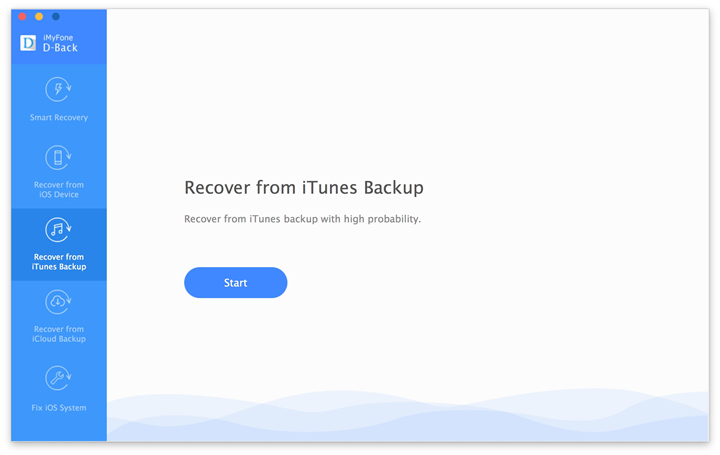
Step 1. Click Smart Recovery Mode and Switch to iTunes Recovery Mode
You know the data loss due to iOS 11 downgrading,then click “Factory reset, jailbreak or iOS upgrade” on the main interface,then the program will switch to “Recover from iTunes Backup” mode to find the lost data from iTunes backup.

iTunes recovery

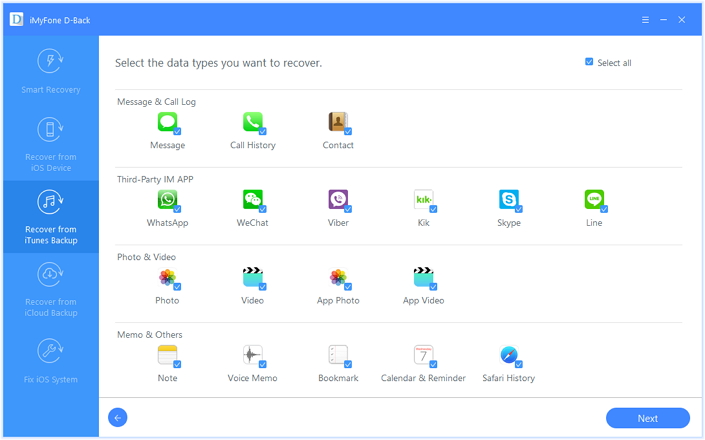
Step 2.Select File Types Your Want
In this step,please choose the file types you need,such as Messages, Call History, Contacts, WhatsApp, Photos, Videos, Notes and more,and then click “Next” button to continue.

select file types

Step 3.Select the Backed Up History
If you have synced your iPhone with iTunes before iOS downgrading or upgrading,the iTunes will help you backup your iPhone automatically,at this time the program can help you find all previous data and save on the computer.

choose iTunes backed up history

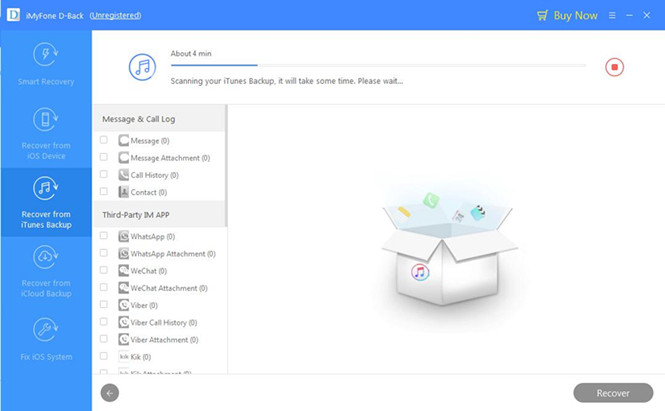
Step 4.Begin Analyzing your iTunes Backup
Then the program start to scanning your iTunes backup files,it will take some time,please wait…

scan itunes

Step 5.Preview and Recover Lost iPhone Data from iTunes Backup After iOS 11 Downgrade

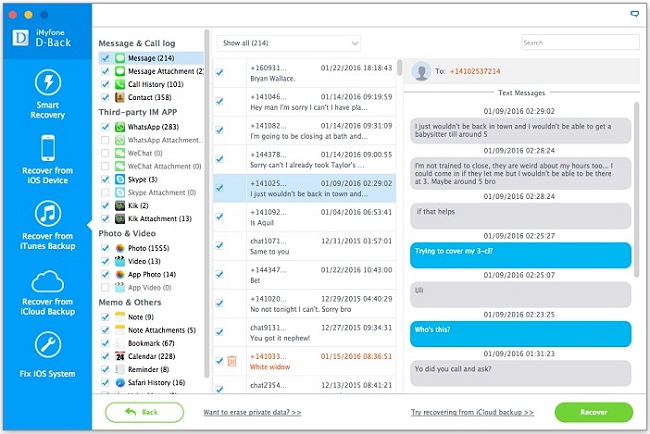
Once the analysis is complete, all existing data on the iTunes backup will be displayed here.
To extract existing data from the backup, choose “Only show the existing files” from the drop down menu marked “Show All”; To recover deleted files from the backup, choose “Only show the deleted files”.Finally,just click “Recover” to recover lost iPhone data and save the recovered data to your computer.

recover iPhone SMS from iTunes bakcup after iOS 11 downgrade

Free download the iOS Data Recovery and try to extract lost iPhone data from iTunes backup after downgrading from iOS 11 to iOS 10.

d_win d_mac

Method 2: Directly Recover Lost Data from iPhone after Downgrading iOS 11 to iOS 10

Step 1. Connect iPhone with Computer
Launch iOS Data Recovery on your computer. Connect your iPhone to computer with USB cable. The iOS Data Recovery will detect your device and show the window for “Recover from iOS Device”.

connect iPhone to computer

Then select the contents you want to recover from iPhone.

select iPhone files

Step 2. Scan iPhone for Lost Data
In this step you can choose the file type to scan and recover. First click the “Start Scan” button to search for your deleted data,then the program begins scanning your device automatically for lost/deleted data in some minuets.

scan lost data from iPhone after iOS 11 downgrade

Step 3. Preview the Scanned Data
Once it’s done, you can see the scan result list. Data both lost and existing on your device are show in categories. You can swipe the option “Only display the deleted items” ON to filter out the lost data on your device. By clicking the file type in the left side, you can preview the found data in detail.

recover lost contacts after iOS 11 downgrading

Step 4. Recover Lost Files from iPhone after Downgrading iOS 11 to iOS 10
Once you have selected the data you need to restore, click the “Recover” button. Then the recovered data will be saved to your computer.

recover iPhone photos after iOS 11 downgrading

Follow this simple steps, you can recover you data including contacts, SMS, call logs, photos, video,and other information you need.

d_win d_mac

Tips to Avoid Data Loss Before iOS Upgrade or Downgrade

You can only prevent data loss through regular backups. It is often a good idea to backup your iPhone data weekly on iTunes, iCloud or iPhone Manager Transfer tool. Here,we recommend you should backup your iPhone to computer before downgrading from iOS 11 to iOS 10.But if you have a lot of data, you can use this powerful iOS Data Recovery for Windows or Mac to recover lost contacts, SMS, iMessages, photos, videos, notes, call logs and more from iPhone or iTunes/iCloud backups.

Related Articles:

How to Downgrade iOS 11 Beta to 10.3.2 without Data Loss

How to Export Data from iPhone to Computer

Best iPhone Manager: Transfer and Manage iPhone Files on Computer

3 Ways to Recover Lost Data after Upgrade to iOS 11

3 Ways to Get Missing Pictures from iPhone iPad after iOS 11 Update

How to Fix iPhone Stuck in Recovery Mode after iOS 11 Update

How to Fix An iPhone iPad Stuck on Apple Logo after iOS 11 Update

Best iPhone 8 Manager: How to Transfer Files to iPhone 8

“Have you ever heard about the news that the iPhone 8 will be released in September? I do and I am so expect on it. And I will buy it once it is released. But there is a question disturb me a long time. What can i do for manage my iPhone 8? I have been use iTunes to manage my iPhone 6s, but it is useless cause it is too difficult to understand that software. Is there some ways can help?” said Mandy.

As a gift for the tenth anniversary, iPhone 8 will bring too much expectation. As we all know, iPhone 8 will be released in September this year. The new operating system – iOS 11 is also a bright spot. It is said iPhone 8 will have a lot of innovation, and Apple users will be greatly increased. How to manage your iPhone 8 data? I believe many people will have this confusion when they switch to the new iPhone 8 device from old iPhone or Android phone. This article gives you a detailed and comprehensive overview of iPhone 8 data management skills, such as music, photos, videos, apps, contacts and messages and so on.

You can effortlessly manage your iPhone 8 with iOS Data Manager. It is a professional software for managing your iPhone 8 data on Windows PC or Mac computer. As an iTunes alternative, iOS Data Manager can help you export/backup iPhone 8 contents to computer, or import music, photos, videos, playlists, tv shows, podcasts, iTunes U, audiobooks, and contacts from computer to your iPhone 8 device. Plus, the software is compatible with the latest iOS 11, supporting iPhone 7 and iPhone 7 Plus, iPhone 6s(Plus), iPhone 6(Plus), iPhone 5s/5c/5, iPhone 4s/4, iPad Mini/Pro/Air, iPod touch 5/6, etc. If you are interesting on it, just read the following.

d_win d_mac

Best iPhone 8 Manager: Transfer Data from Android/iOS to iPhone 8

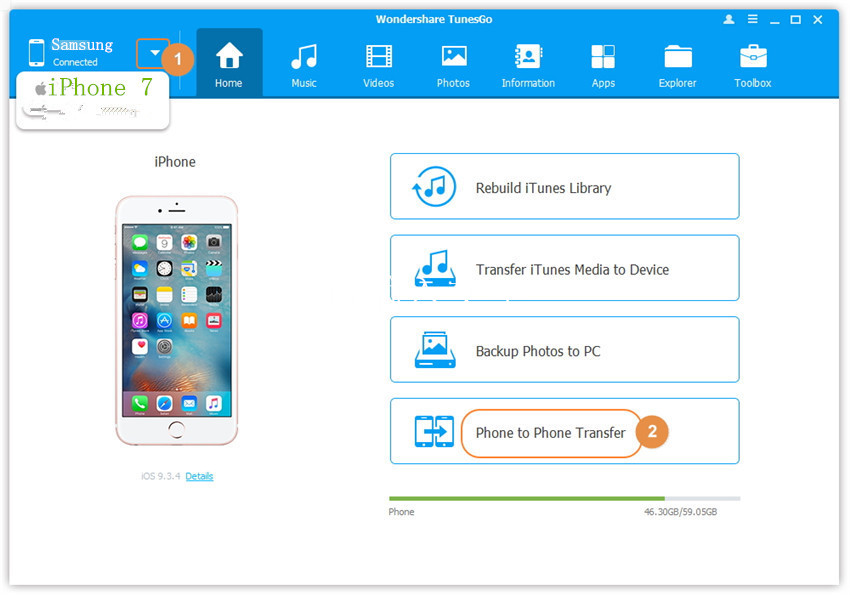
iOS Data Manager helps you to one click transfer data between old phone and iPhone 8, including photo, music, contacts, videos and etc. Even in different system, like iOS for iPhone 7/7 plus/6s plus/6s/6/6 plus/5s, iPad mini/Pro/Air, Android OS for Samsung S/Note/A/Ace, HTC 10/9/8, LG G5, Sony, Motorola, Huawei Mate/P8/Nova, Blackberry, Nokia, it also can do a good job in managing your iPhone 8 data on the computer. With this software, you can transfer data between two devices by one click.

Firstly, launch the program and connect your old iOS/Android phone and iPhone 8 with the computer. Then select Phone to Phone Transfer option on the main interface. What you need to do is select your target device and choose data you want to transfer to new iPhone 8, your selected data will be transferred to iPhone 8 in a simple click after hitting the “Transfer” button.

ios android manager main page

d_win d_mac

Best iPhone 8 Manager: Transfer and Manage Music on iPhone 8

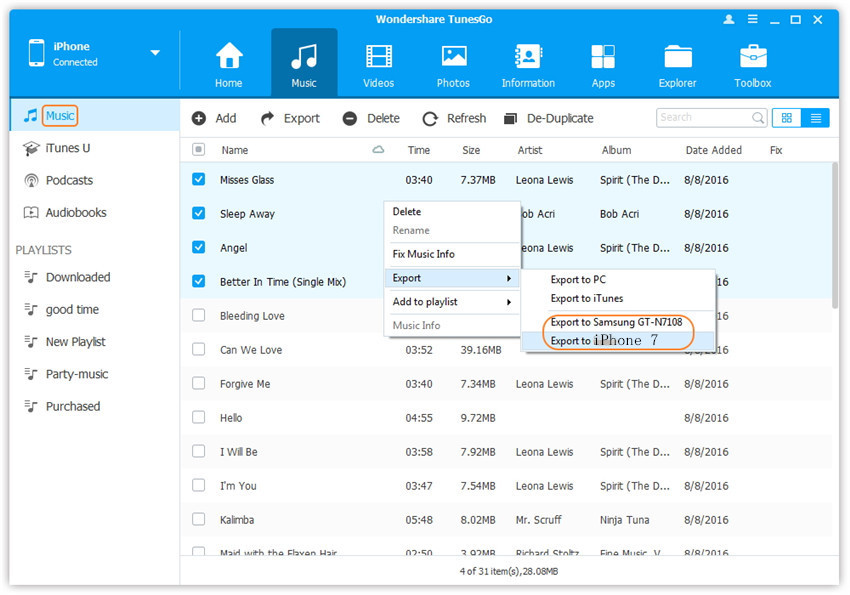
If you want to manage iPhone music files without iTunes, iOS Data Manager also enables you to import/export, transfer, delete your iPhone 8 music files on computer. Both Windows and Mac version of iOS Data Manager can help you to manage iPhone 8 music easily. Here’s how the software helps you manage your music files:

* Easily manage music on your iPhone, iPod, and iPad with just one click.
* Manage music with multiple features, including adding, deleting, de-duplicating, etc.
* Automatically convert music files to compatible format before transferring.
* One click transfer iTunes music to iOS device or Android phone.
* Back up music or other files to your PC or Mac computer easily.
* Fully compatible with iOS 11, iOS 10.3, iOS 10.2.

export music to devices

d_win d_mac

Best iPhone 8 Manager: Transfer and Manage Photos on iPhone 8

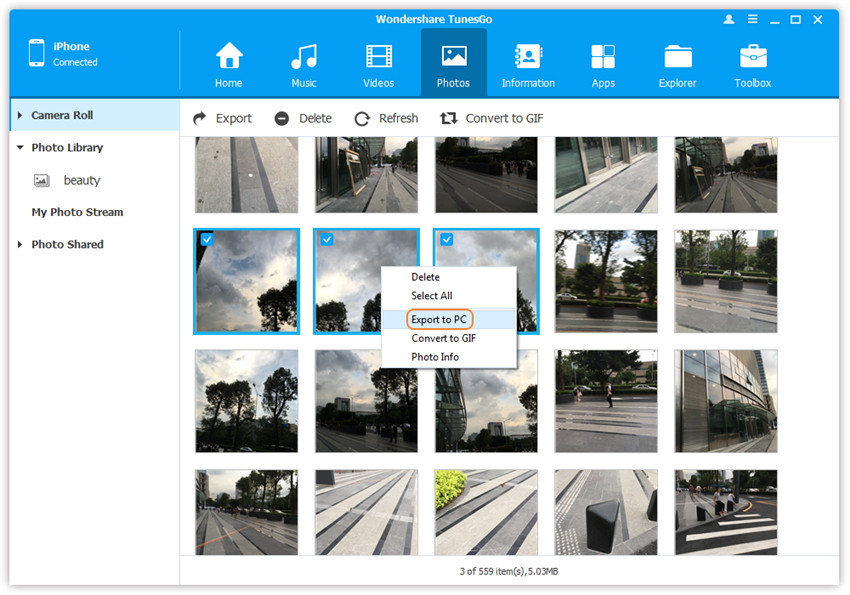
In the interface of the software, you can select “Photo” tab, then you can add new photos to you iPhone 8, export photos from iPhone 8 to computer or delete in your favorite. It also has a function “Convert to GIF”, it means to get some photos to be a dynamic picture. The following is a brief overview of this software can help you in managing iPhone 8 photos.

* Directly and selectively export photos, videos from iPhone 8 to PC.
* Easily adds pictures and videos from computer to iPhone 8.
* One click transfer iPhone 8 photos, audio and videos to any iOS or Android phone.
* Delete photos by batch with a single click.
* Make any photos and videos from iOS devices to GIF images.

export iphone 8 photo to pc

d_win d_mac

Best iPhone 8 Manager: Transfer and Manage Contacts on iPhone 8

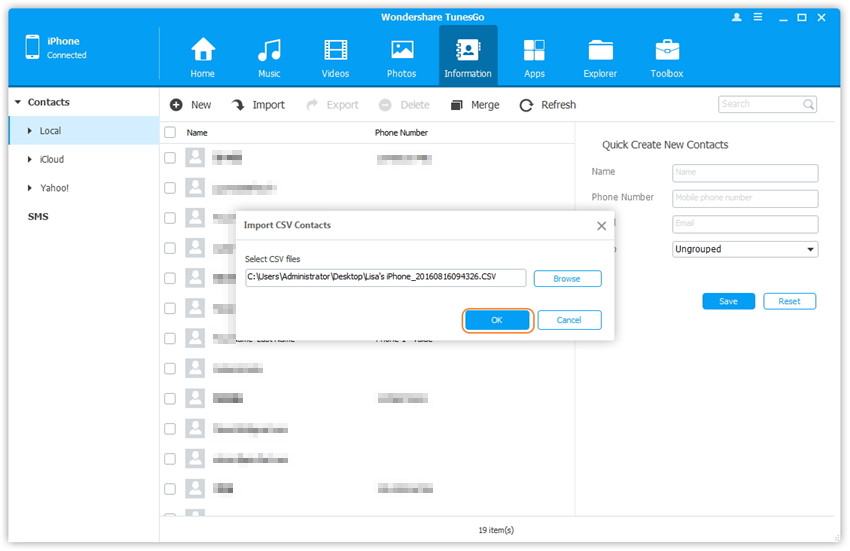
This program allows managing contents on your iPhone without any need for iTunes. Using it, you can manage iPhone 8 contacts by importing, exporting, deleting duplicates, and editing. The software also allows you to transfer iPhone contacts to other iOS devices or Android phones. Below is what the iOS Data Manager can help you on managing iPhone 8 contacts:

* De-duplicate the repeated contacts.
* Export & Backup contacts from iPhone 8 to other iOS device to Android phone.
* Import & Export contacts from major address books.
* Removing duplicate contacts on iPhone

transfer contacts from computer to iphone 8

d_win d_mac

Best iPhone 8 Manager: Transfer and Manage SMS on iPhone 8

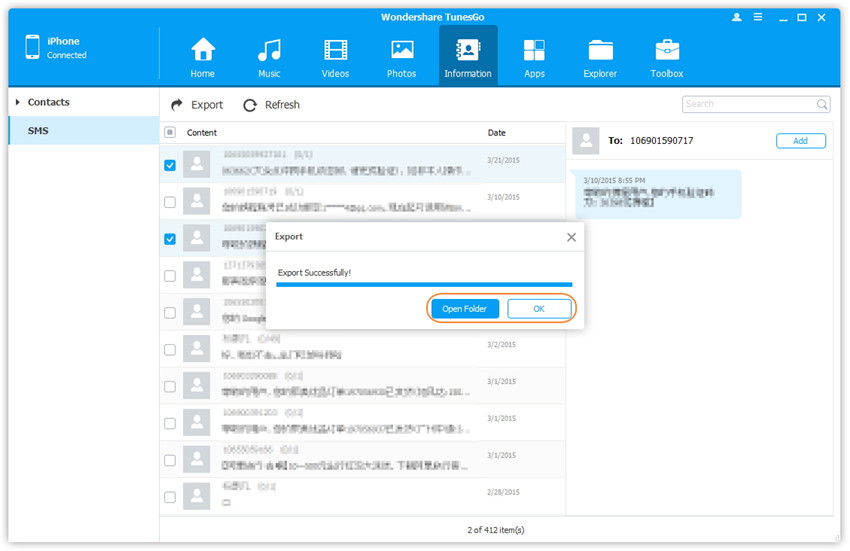
You can use this iOS Data Manager software to export and backup you iPhone 8 text message on computer. Of course, you can also import and restore to your iPhone 8 from the backup whenever you like. When you export you SMS from you iPhone 8 to computer, you should select CSV or HTML file on your computer. With the program, you can

* Transfer all instant messages from iPhone 8 to PC.
* Delete the messages from your iPhone 8 device without restoring.
* transfer messages in the form of CSV, HTML, and TXT.

export sms from iphone to computer

How easy it is to manage iPhone 8 data! The above is the characteristics of this software. After reading this article, you will understand the benefits of this software. If you want to know more details, please keep an eye on us.

d_win d_mac

A Powerful Data Manager for iPhone 8

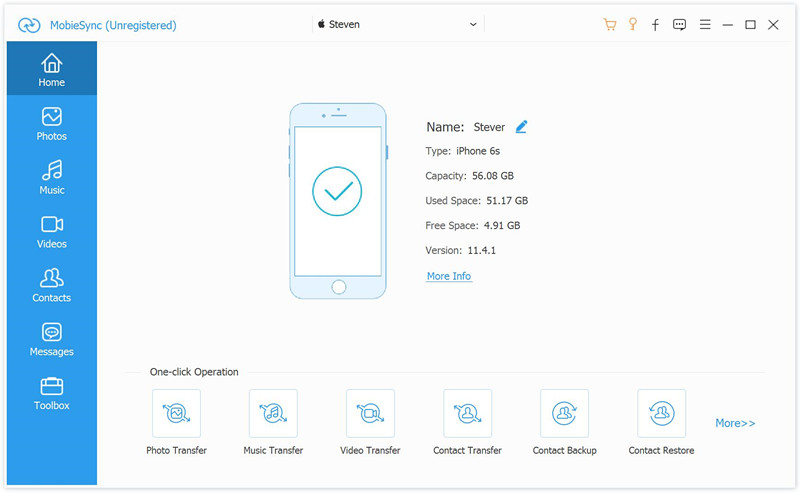
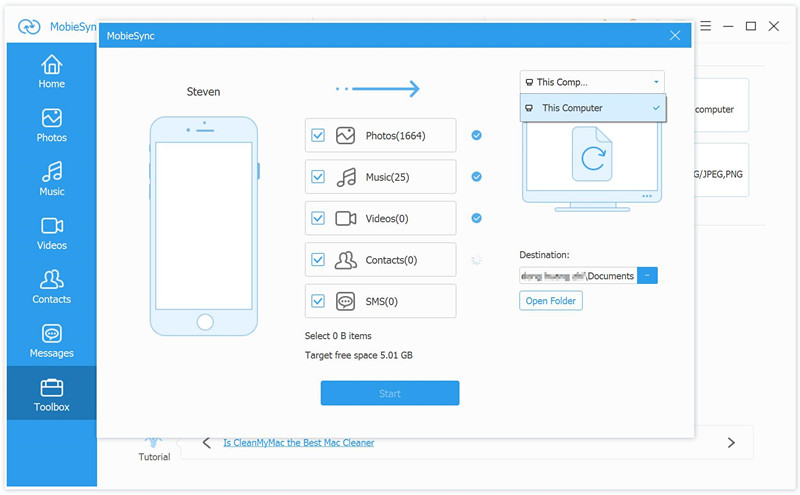
There is another super iPhone manager here we recommend for you, which is Mobile Sync. This program has the capability to directly transfer various iOS files between iPhone/iPad/iPod and computer, including pictures, videos, music, contacts or other data. Mobile Sync can always be a great helper help to manage iOS data on the computer with a safe solution. Moreover, it allows you to create your own ringtones for iOS device, and features with HEIC to JPEG/PNG Converter. Supported all iOS models, including iPhone 8(Plus), iPhone X, iPhone 7(Plus), iPhone 6S(Plus), iPhone 6(Plus), iPhone SE, iPhone 5S/5; iPad and iPod.

Read More:

How to Transfer iPhone Photos to iPhone 8

How to Recover Deleted Photos on iPhone 8

How to Transfer Android Photos to iPhone 8

How to Transfer Samsung Contacts to iPhone 8

How to Transfer WhatsApp Chats History to iPhone 8/7/6S

How to Transfer Samsung SMS to iPhone 8

Best iPhone 8 Manager