All posts by DHZ

How to Restore Lost Contacts from iPhone 8

Summary: Deletion by accident, lost phone, corrupted data, damaged phone, reformatting, perform iOS update, perform iOS jailbreak and other causes will lead to data loss on iPhone. This post will guide you 4 ways to restore lost contacts from iPhone 8.

Lost Contacts from iPhone 8

We can easily lost data from iPhone under many situations,the most common cases including deleted mistaken,iOS system update,iOS system jailbreak,factory reset restore,device damaged,device lost,etc,.How would you evaluate the cost of losing an iPhone? The answer may be based on your usage but it’s a common view that the contacts,photos, messages, music and other personal data on iPhone are more valuable than the device itself.This page is aim to recover contacts and other kinds of data from iPhone 8 after losing data for any circumstances.

Recover Lost Contacts on iPhone 8

In order to recover lost data on iPhone,we introduce this iPhone Data Recovery to you,which is famous for recovering lost data on iPhone 8,you can use it to restore lost contacts on iPhone 8,as well as other iPhone,such as,iPhone X/7/6S/6/5S/5, iPad and iPod.The recoverable data including contacts,messages,photos,video,note,call logs,apps data(WhatsApp,WeChat,Viber,Skype,Kik).iPhone Data Recovery provide you three recovery modes:directly recover from device,recover from iTunes backup,recover from iCloud backup.


d_win d_mac

Part 1:Directly Recover Lost Contacts from iPhone 8

Step 1.Connect iPhone 8 to the Computer and Select Recovery Mode
Firstly please connect your iPhone 8 to the PC/Mac,select “Recover from iOS Device” mode in the home page of program.Click “Start” to start the data recovery process.

iPhone data recovery home page

Step 2.Select Lost iPhone Contacts File to Scan by Program
To directly recover lost contacts from iPhone 8,you should select the type of lost data to be scanned by program.You are allows to select more than one files to be scanned by program,then click “Next”.For contacts recovery,you should click “Contact“.

select contact file to recover

Now the program will start to scan your device automatically for lost data with a little time while.

scan iPhone for lost data

Step 3.Preview and Directly Recover Lost Contacts from iPhone 8
Once the scanning is completes,you are allows to preview and directly recover the lost iPhone contacts.Select the data you want and click “Recover” to save the selected data to the computer.
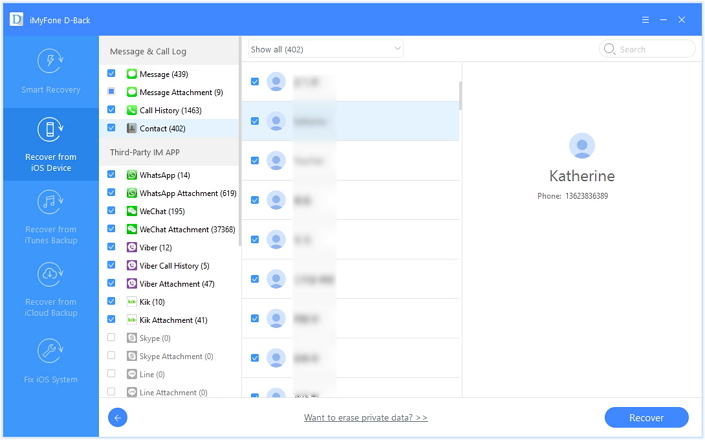
recover contacts from iPhone

d_win d_mac

Part 2:Recover Lost Contacts on iPhone 8 with iTunes Backup

Step 1.Run Program and Extract iTunes Backup File to Scan
Launch iPhone Data Recovery on computer,you’ll be lead to the “Recover from iOS Device” mode (the default mode).Switch to the “Recover from iTunes Backup” mode in the home page of program to extract backup file from iTunes.

All the iTunes backup files of your iOS device which has ever synced with iTunes on computer will be automatically found and listed here.Select the one you need and click “Scan” to begin iTunes backup file extracting.

select iTunes backup file

Step 2.Preview and Recover Lost iPhone Contacts from iTunes
When the scanning completes,all your iTunes backup files can be found and displayed in categories.You are allow to preview it one by one before data recovery.
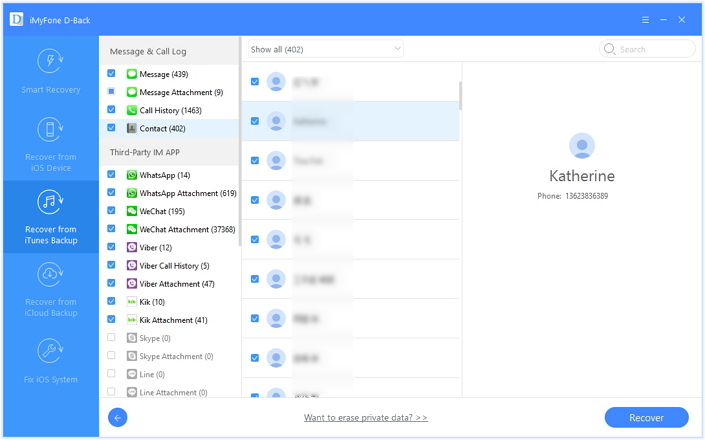
recover contacts from iTunes

Now you could select the detail contacts data to preview and click “Recover” to extract the selected data to your computer.

Tips:Please not to sync your device with iTunes after losing data from your device,or the iTunes backup file will be updated after the syncing.

d_win d_mac

Part 3:Recover Lost Contacts on iPhone 8 with iCloud Backup

Step 1. Select Recovery Mode and Select Contact File
Select “Recover from iCloud Backup” in the primary window and then click “Start“. Ensure that “Contact” is selected in the next window and click “Next” to continue.
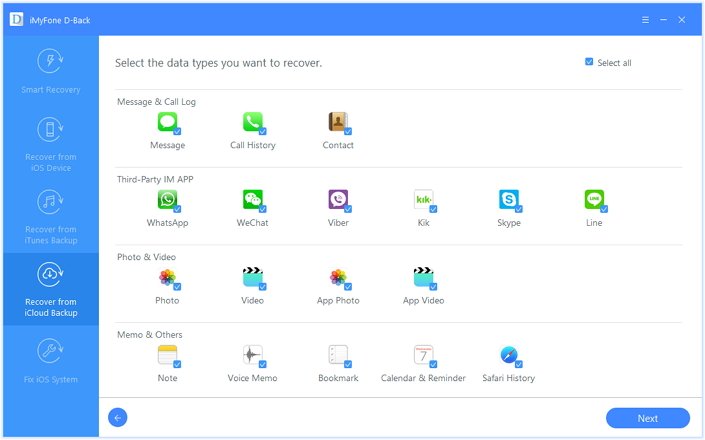
select contact file iCloud backup

Step 2. Sign in to iCloud and Select iCloud File
Sign in to iCloud and then select the most relevant iCloud backup file from the list. Click “Next” to analyze the selected file.
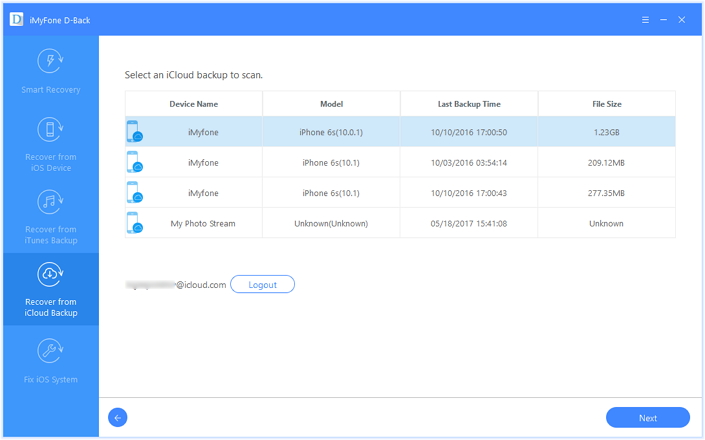
download iCloud backup

Step 3. Recover Contacts from iCloud File
From the scan results page, select the deleted contacts and then click “Recover” to save them to your computer.
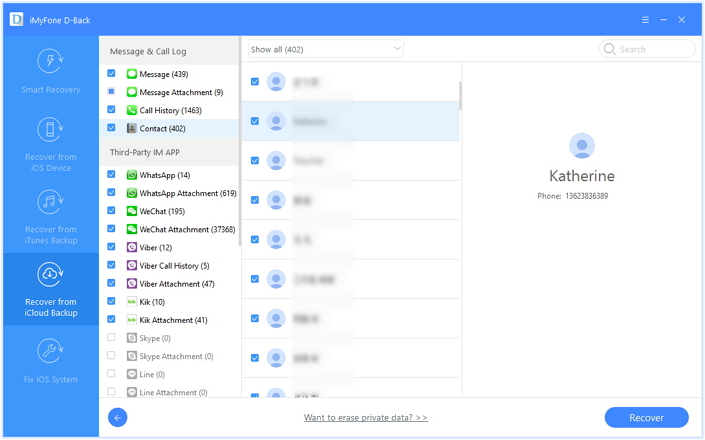
recover iPhone contact from iCloud backup

d_win d_mac

Part 4:Recover Lost iPhone 8 Contacts from Google Contacts or Other Cloud Services

If you’ve synced the contacts to your Google account or other Cloud Services, follow these steps to restore them to your iPhone.

Step 1. Tap on “Settings” > “Mail, Contacts, Calendars” > “Add Account” > “Google” or other Cloud Services.
Step 2. Enter your Google email address and password. Then “Sign in” and tap “Allow”.
Step 3. Turn on the “Contacts” switch and tap “Save” in the top right corner.

retrieve iphone contacts from google contacts

Part 5:The Best Ways to Backup Contacts for iPhone 8

Method 1: Backup & Restore iPhone 8 with iOS Backup & Restore
iOS Backup & Restore is one of the best backup & restore tool for safely backup & restore iPhone 8 on the computer. More than 19 types of iOS data can be backup and restore, including contacts, text messages, call logs, photos, WhatsApp messages, documents, etc,. This program will not ease the existent data saved on your iOS device. Supports to all iOS device under any iOS system.
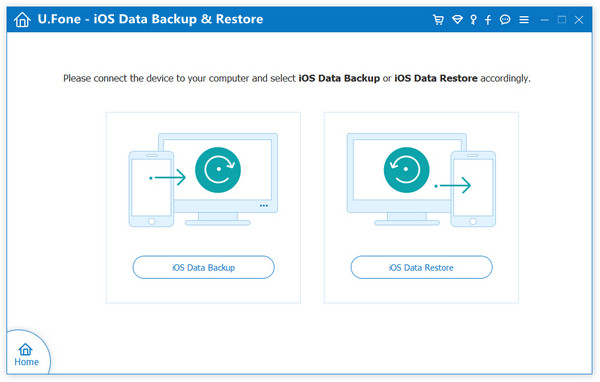
unfone ios backup restore

Free Download iOS Backup & Restore:

d_win d_mac

Method 2: Backup & Restore iPhone 8 with iOS & Android Manager
iOS & Android Manager is a data manager tool for transferring & managing files of iOS device or Android device. It could be used to easily transfer files between iOS device and computer, transfer files between iOS device and iTunes, transfer files between iOS device and iOS device/Android device. The transferable types of files including contacts, SMS, music, videos, photos, playlists. Supports to all iOS device under any iOS system.

iOS manager main page

Free Download iOS & Android Manager:

d_win d_mac

Related Articles:

How to Recover iPhone Contacts from iTunes, iCloud

How to Recover Deleted Data from iPhone 8

How to Transfer Android Data to iPhone 8

How to Transfer iPhone Data to iPhone 8

How to Transfer Videos/Music/Photos to iPhone 8

How to Transfer & Manage Files for iPhone 8 on the Computer
Recover Lost Contacts from iPhone 8

How to Transfer Photos from Samsung to Huawei

Beijing time on March 2 news, at this year’s MWC conference, Huawei released the latest flagship – Huawei P10. In view of last year’s P9 sales of more than 10 million, as the successor of the P10 naturally concern. As the main models of this year, P10 in the design and camera performance, etc. have significantly improved in the absence of Samsung’s flagship MWC Conference can be described as the limelight.

Huawei P10 with 5.1-inch 1080P display, the surface covered the 5th generation of gorilla glass; equipped with the latest unicorn 960 eight-core processor, 4GB memory +64 GB body storage; back with 12 million pixel color +2000 million pixel black and white Leica dual camera combination , In the screen clarity, color reproduction and other aspects are better than the previous generation; front 8 million pixel F1.9 aperture Leica lens, with twice the zoom capability, the self-timer effect is also very worth the wait.

In general, the biggest highlight of Huawei P10 is still a super camera function, while the appearance and system, there are some innovative design, giving the overall impression is good.

If you use Samsung Galaxy S or Note smartphone,but soon you will find there are too many pictures which nibbling your Samsung phone’s storage. When you have got a new Huawei P10, P9 or Huawei Mate 9/Mate 8,how can you transfer pictures from Samsung to Huawei phone?And this article will show you the best solution to move photos, videos and music from Samsung Galaxy to Huawei phone on Windows computer or Macbook.

HUAWEI Transfer – One Stop Solution to Switch Everything from Samsung to Huawei

To transfer Samsung photos to Huawei photos,the Samsung to Huawei Photo TransferAndroid Manager tool and Phone to Phone Transfer,both are useful Huawei desktop manager tool to transfer pictures from Samsung Galaxy S8/S7/S6/S5/S4/S3/Note,etc to Huawei P/Mate/Honor/Nova/G/Y/Ascend smartphone directly,it also enables Huawei users backup photos from Huawei to computer, Dropbox or other devices for space-saving and safe-keeping.What’s more,the Android Manager tool also can help users transfer Samsung data,like contacts, messages, Apps, call logs, photos, videos and music to Huawei phone easily,it works well with other Android phones and iOS devices.

d_win d_mac

Huawei Transfer & Manager Key Features:

Backup Huawei music, pictures, videos, contacts, messages,apps etc. to computer and restore them easily.
Manage, export&import Huawei Contacts and SMS, deduplicate Contacts, reply SMS with computer.
One-click Root Huawei- Root your Huawei phone and taking full control of your Android phone.
Huawei Phone Transfer – Copy music, photos, videos, contacts, SMS between two mobiles (both Android and iPhone are supported).
Huawei App Manager – Install, uninstall, import or backup Apps in batch.
Photos to Gif Converter – convert photos, motion photos, videos to GIF formate
iTunes to Huawei Music Transfer – Transfer music between iTunes and Huawei
Works well with almost all Android devices(Android 2.2 – Android 7.0),such as Samsung Galaxy, Google Pixel, Nexus, LG, HTC, Huawei, Motorola, OnePlus, Xiaomi, Meizu, Sony etc.

How to Transfer Photos Files from Samsung to Huawei Mate 9?

Got the new Huawei Mate 9? And, now you can use the phone manager tool to transfer the contacts, photos, music, SMS, or videos from your old Samsung Galaxy S6 to your new Huawei Mate 9.

Step 1.Connect Huawei and Samsung to Computer
Launch the phone manager on your computer and connect the old Samsung S6 phone and the Huawei Mate 9 to your PC. The two devices will be recognized and displayed on the primary window. Choose the old Samsung phone as your source device. From the four options displayed on the primary window, click the last one – “Phone to Phone Transfer”.

samsung to huawei transfer,manager

Step 2.Setting Source Device and Target Device
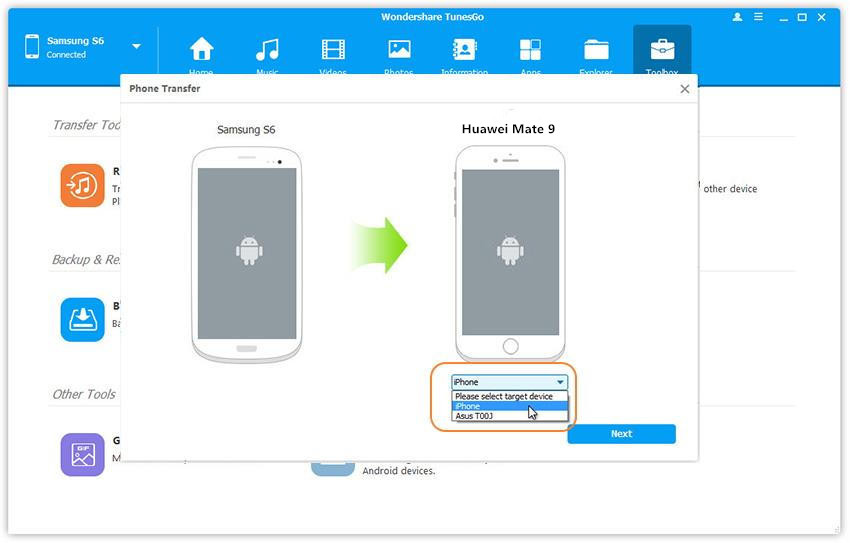
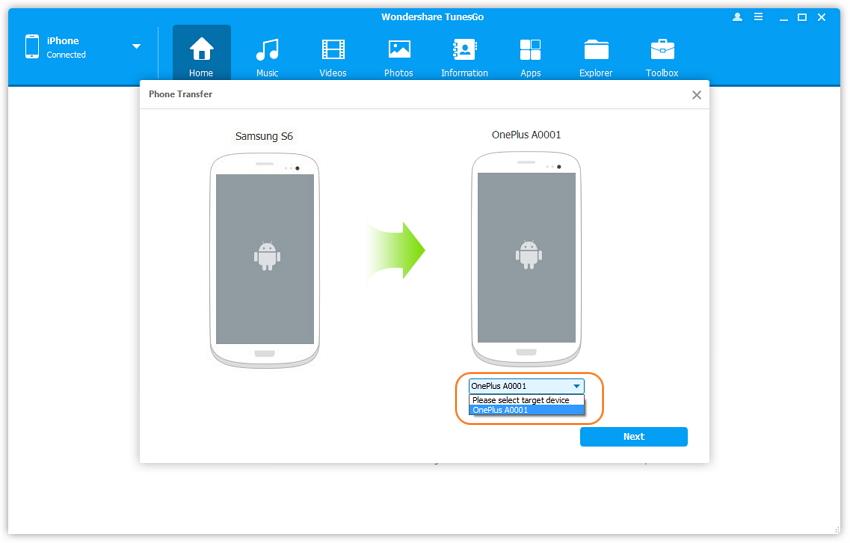
Then on the right-bottom side of the primary window, the Samsung devices will be shown on a drop down list. Choose Huawei Mate 9 as your target device,the Samsung Galaxy S6 as source device and click “Next.”

transfer samsung photos to huawei

Step 3.Select Samsung Photos and Transfer to Huawei Mate 9
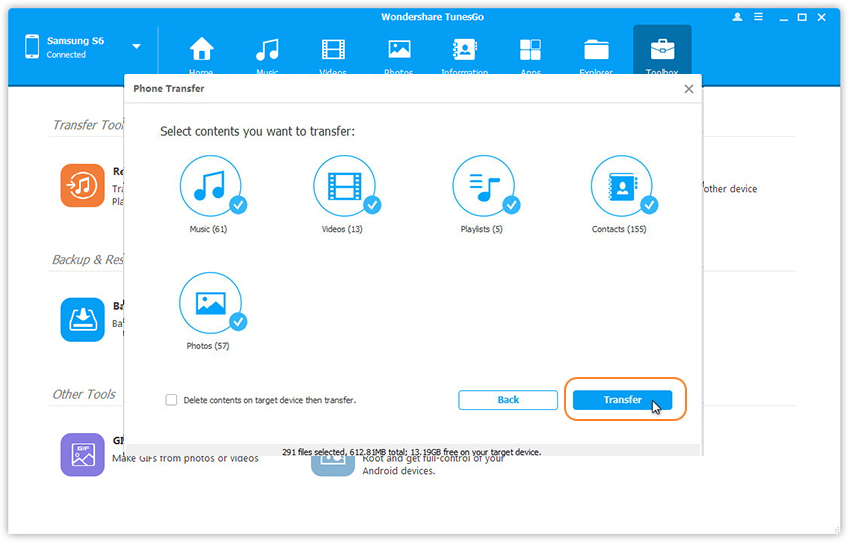
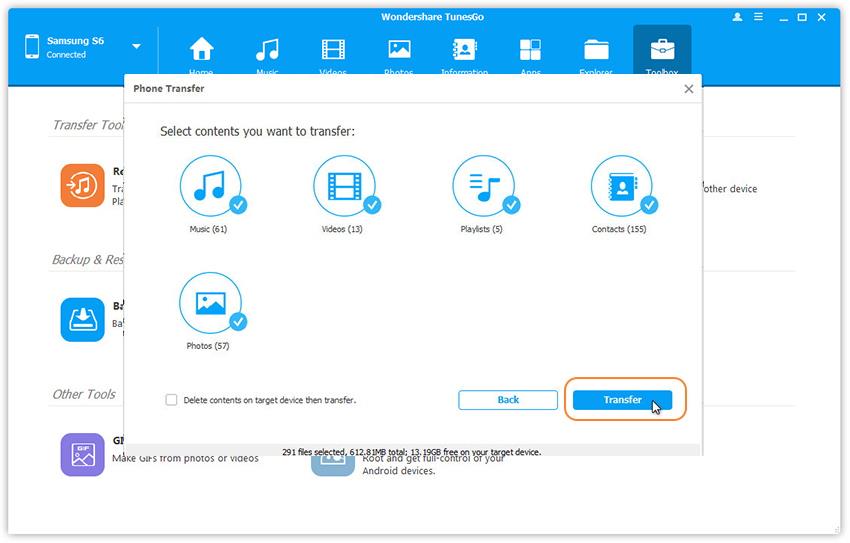
After setting the Samsung on a drop down list(source device),all the data that can be transferred by this Samsung to Huawei Transfer tool,including photos, videos, music and other text files.If you just want to switch Samsung photos to Huawei phone,please select “Photos” item,then hit “Transfer” to begin transferring photos files from Samsung Galaxy S6 to Huawei Mate 9. When the transfer is finished, hit “OK” .

transfer samsung pictures to huawei mate 9

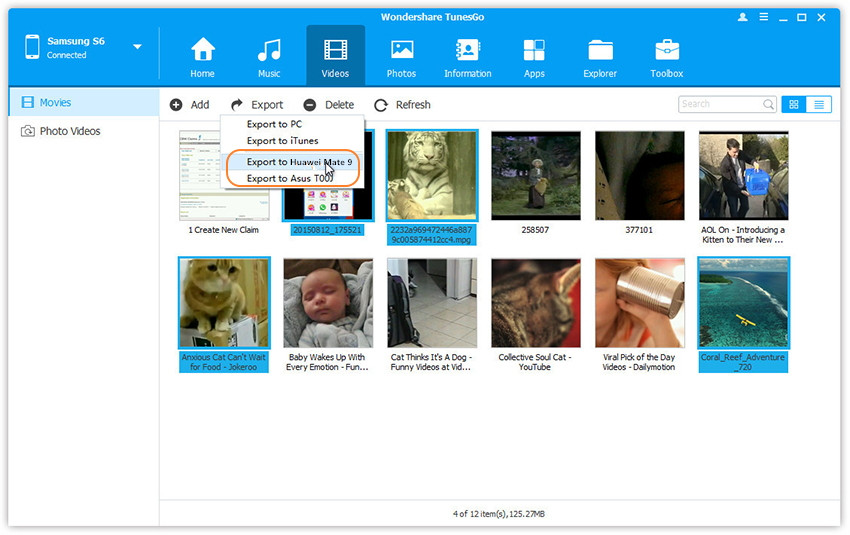
You also can Directly Export Samsung Photos to Huawei Mate 9 by clicking “Music” ,then select the photos you want to transfer,finally,click “Export to Huawei Mate 9“.

export samsung S6 photos to huawei mate 9

Tips:The Phone Manager tool also can help you backup data from Android/iPhone to computer and then restore the backups to new Huawei phone. A backup is important in case you lose some data. You can rely on the backup to get it back.

d_win d_mac

Related Articles:

How to Root Huawei Mate 9

How to Transfer Contacts from Samsung to Huawei

How to Transfer SMS from Samsung to Huawei

How to Manage Huawei Mate 9 on Computer

How to Recover Deleted Photos from Huawei

How to Transfer Photos,Videos,Music from iPhone to Huawei

How to Root Huawei P10/P9/P8 on Computer

How to root my Huawei P10 phone on computer safely?I want to get the best performance for my device,play more games,download more apps without limited.”

Rooting Huawei Android phone is a wonderful way to make it more fun and work better.There is no advantage to root your phone unless you want to customize your phone using apps which require root or you want to improve the performance of your phone by removing unnecessary stock apps (bloatware).To be honest,it is highly recommended that you backup data on your Android device before rooting.This page shows you how to root Huawei Android phone on computer safely via Android Manager tool.

Part 1:How to Backup Huawei P10/P9/P8 before Rooting

Android Manager is your ideal data for transferring & managing data for Android devices on computer.With the help of this smart program,you are allow to backup Huawei data to computer safely,as well as restoring data from backup to Huawei on computer completely.The supported data including music,videos,photos,apps,contacts,SMS.What’s more,Android Manager enables to transfer data between Android and iTunes,transfer data between Android and iOS devices.Android Manager works well for almost all Huawei phones,including Huawei P10/9/8, Huawei Mate 9/8/7/S, Huawei Honor V9/Honor 8/7/6/6X/5X, Huawei Ascend/G/Y/Nova and other series.

d_win d_mac

backup huawei to computer

Part 2:How to Root Huawei P10/P9/P8 on Computer Safely

Android Manager support to root Android device on computer with one click,you can rely on Android Manager to root Huawei P10/P9/P8 on computer safely without data loss.Not only Huawei,but also most of Android devices are applicable to Android Manager,such as,Samsung Galaxy S7/S6,Note 5,Google Pixel,Google Nexus,Motorola,LG,Sony,ZTE,HTC,etc,.Only one click,you are allow to enjoy your Android freely without limited anywhere anytime.

d_win d_mac

Step 1.Run Program and Connect Device
If you have installed the Android Manager on your PC/Mac,just launch it and then connect the Huawei phone to the computer using a USB cable.The program will detect your phone if it is connected successfully and display it on the primary window.

android manager main page

Step 2.Select Rooting Mode
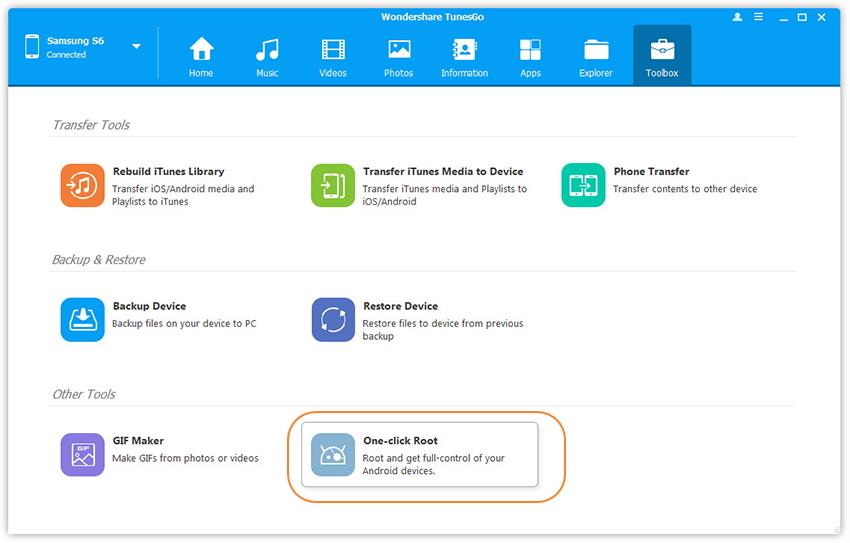
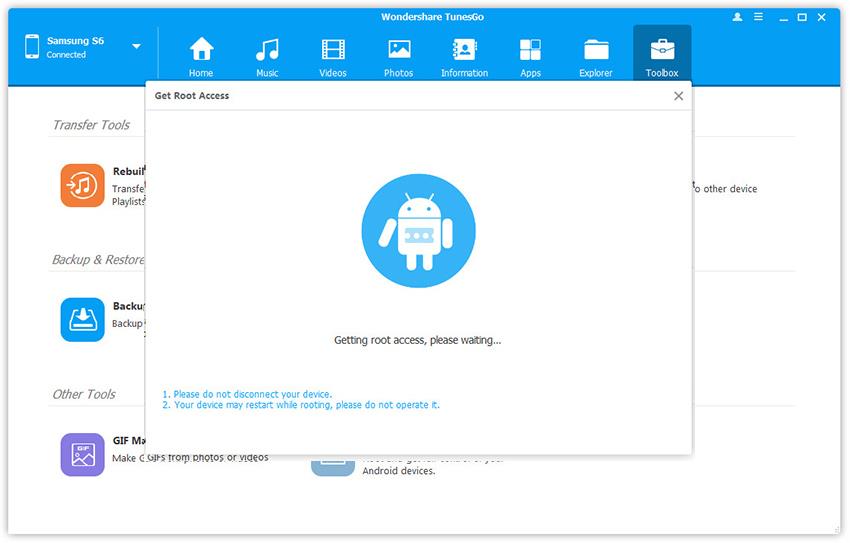
Click the “Toolbox” tab in the top menu on the primary window of the program.Three main sections will be displayed under the “Toolbox” option.Go to the “Other Tools” section and from the two subsections that will be shown,choose “One-click Root” to gain full control of your Huawei.

one click root huawei

Step 3.Root Huawei Safely without Data Loss
A warning message will be displayed saying that after rooting you will gain full access to your phone system and that rooting may affect your device warranty.Just click “Root” from that warning box to continue rooting your Huawei.

root huawei safely

You should not disconnect your device while the root is processing.The phone may restart during the root process,but you should not operate it.Once the root process is finished, you will get a prompt message.Done.

d_win d_mac

Related Article:

How to Sync iTunes Music to Huawei P10/P9/P8

How to Transfer Data from Samsung to Huawei P10/P9/P8

How to Recover Data from Huawei Phone

How to Backup and Restore Huawei Phone

How to Sync Music from iTunes to Huawei Phone

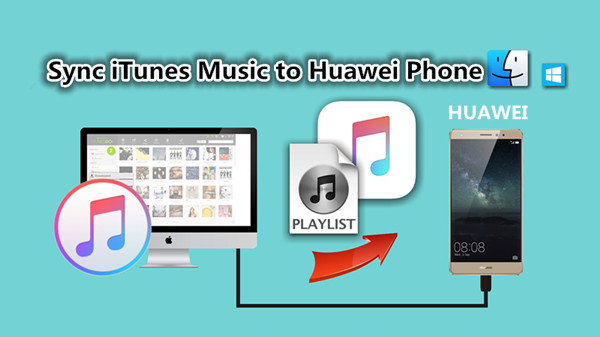
Summary:Looking for a solution to transfer iTunes music to Huawei Android phone?Read this guide you would get two solutions to sync iTunes Music and playlist to Huawei Mate/P/Honor/Nova/G/Y/Ascend with easy steps,such as Huawei Mate 9/Mate 8, Huawei P10/P9, Honor /V9 and more.

sync iTunes music to huawei

Transfer iTunes Muisc to Huawei Android Phone

If you use iPhone, iPad and iPod before,you may purchase your favorite music on iTunes store,and then sync the music from iTunes to iOS devices easily.If you have got a new Huawei Mate 9/P10/P9, you can easily download something from Play Store on Huawei Android,but how you can transfer the purchased songs from iTunes to Huawei?As we all know that the iTunes cannot run on Android as it not supported by Android,may new Android phone users want to sync music from iTunes to Android, like Samsung Galaxy, Huawe Mate/S, HTC One, Google Pixel, Sony, LG, Moto, etc.What to do if we would like to sync iTunes music to Huawei Android phone? Well,today we’ll recommend you a useful iTune to Android Transfer tool to transfer music and playlist from iTunes to Huawei Android directly.

To sync songs from iTunes to Huawei phone,you can use this iTunes Music to Huawei TransferiOS & Android Manager,which is a basic phone desktop manager app for both Windows and Mac PC, it supports to transfer all of your iTunes music to Huawei Android phone and tablet with only one click, such as Huawei Mate 9/8/7/S, Huawei P10/9/8, Huawei Honor V9/Honor 8/7/6/6X/5X, Huawei Ascend/G/Y/Nova and other serise.What’s more,the phone manager also can help you transfer music, videos, photos, contacts, text messages and more from iPhone/Android to Huawei phones or tablets.

Download and install Syncios Data Transfer. Then, double click to launch it.

d_win d_mac

Part A: Sync iTunes Music with Huawei Phone via iOS & Android Manager

Step 1.Connect Huawei to Computer
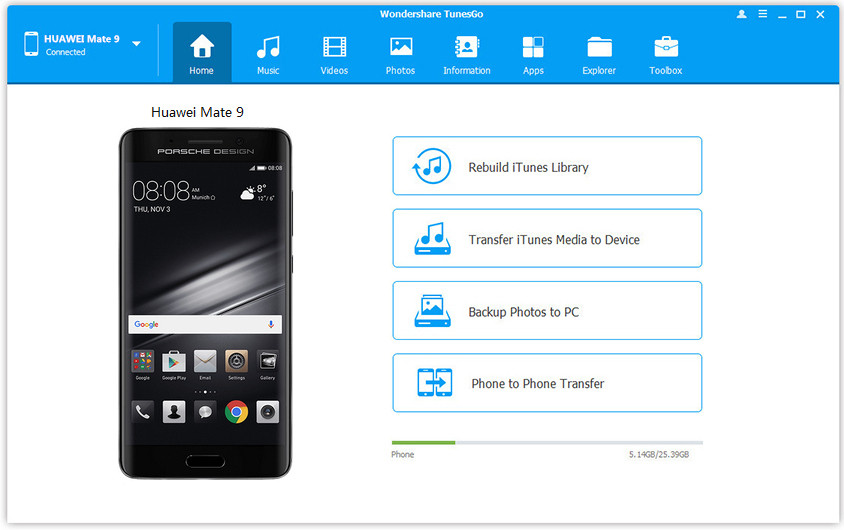
First of all,please download and install the iTunes to Android Transfer – phone manager on your PC.Then connect your Huawei phone to computer via USB cable.

connect Huawei to pc

After you have connected your phone, the software will show that your Huawei device is connected,it will shows your phone mode as it can be seen in the picture shown above.

Step 2. Transfer iTunes Media to Device
To sync your iTunes music and playlist to Huawei Android phone,please click “Transfer iTunes to Device” feature,then program will scanning the iTunes library and pop up a new windows,you can see how many songs, movies in iTunes library,then select “Music” item and go to next steps.

transfer iTunes music to huawei

Step 3.Begin Transfer Music from iTunes Library to Huawei Phone
Finally,please click “Transfer” button,after you have clicked transfer wait for a moment till the program sync iTunes music to your Huawei device.Only few minutes,all of your iTunes music synced to the Huawei Android phone,now you can play iTunes music on Huawei and have fun.

sync itunes music to huawei phone

Follow the above easy steps you can move music from iTunes to you Huawei phone with the help of iTunes to Android Transfer,You can also use this iOS & Android Manager tool to transfer SMS, contacts, call logs, music, videos pictures, etc. from iOS/Android devices to Huawei phone with three simply steps.

Free download the iOS & Android Manager and have a try.

d_win d_mac

Part B: Convert Apple Music and Play on Huawei Phone

Apple Music Converter is a terrific program allows to convert Apple music from M4P to MP3 format and play on Huawei phone for free without limitation.Apple Music Convert is an iTunes M4P to MP3 converter which allows you to easily remove Apple music songs in M4P DRM and convert M4P to MP3 at 16X speed. This M4P to MP3 converter also could helps you convert iTunes M4P songs, Audiobooks and Audible Audiobooks to DRM free formats. Not only Huawei phone, but also more Android devices are compatible to the Apple Music Converter, such as, Samsung, HTC, Motorola, LG, Sony, Google Pixel, etc,.

Here are the links for downloading Apple Music Converter:

d_win d_mac

You may be interested in:

How to Play Apple Music on Huawei Phone

Step 1. Run Apple Music Converter on the Computer
First of all, please run Apple Music Converter program on the computer.

launch apple music converter

Step 2. Select the Apple Music to Convert
Select the Apple music you need to convert, including music, playlists, Audiobooks, M4P Audio, iTunes movies and TV shows. Then click “Download“.

Step 3. Select Output Format to Convert – MP3
Select the format for the converted music, here we suggest you to choose “MP3”.

Step 4. Convert Apple Music to MP3 for Huawei Phone
Click “Start Convert” to begin to convert selected music on the computer.

convert itunes music to mp3 for huawei

Step 5. View the Converted Apple Music
Once the conversion is finish, you could explore the output files and folders by clicking “Open Output File” button to view the converted music file on the computer.

Step 6. Transfer Converted Apple Music to Huawei via iOS & Android Manager
In the last step you should transfer the converted music to your Huawei Phone  via iOS & Android Manager.

Related Articles:

How to Transfer Music from Samsung to Huawei

How to Transfer Music from Huawei to Huawei

How to Transfer Music from iPhone to Huawei

Import Music and Videos from Computer to Huawei Mate 9

How to Recover Lost Data on Huawei P9

How to Transfer Music from Samsung to Huawei

How to transfer music from old Samsung Galaxy S6 to Huawei Mate 9?There are about 500 songs in my old Samsung phone, these are my favorite songs, I want to sync all the music to my new Huawei Mate 9

I have bought a new Huawei P10 yesterday,I want to transfer music from Samsung Note 4 to Huawei Android phone,is it possible to switch Samsung music to Huawei P10?Thank you!

If you want to know how to transfer music from Android to Android, here we will elaborate a easy methot to transfer music, videos, photos and other media files between two Android phones quickly.

If you want to transfer music to Huawei Mate 9/Mate 8/P10/P9, I will introduce you Android to Android Music Transfer – Huawei Music Transfer,which not only can help you transfer music, videos, photos, contacts, SMS, Apps, call logs and more from Android to Huawei phone directly,but also allows you transfer music from iTunes, iPhone/iPad/iPod to Huawei Mate/P/Honor/Nova/G/Y/Ascend without backup.What’s more,the Android Transfer & Manager tool enables you import and convert music and video to Huawei friendly formats from comptuer or any devices.

d_win d_mac

Tips:The program also allows you transfer music from Android/iOS/iTunes/PC/Mac to Samsung Galaxy S8/S7/S6/S5/Note 5/Note 4,etc.

How to Transfer Music and Playlist from Samsung to Huawei

Step 1.Connect Samsung and Huawei Phone to Computer
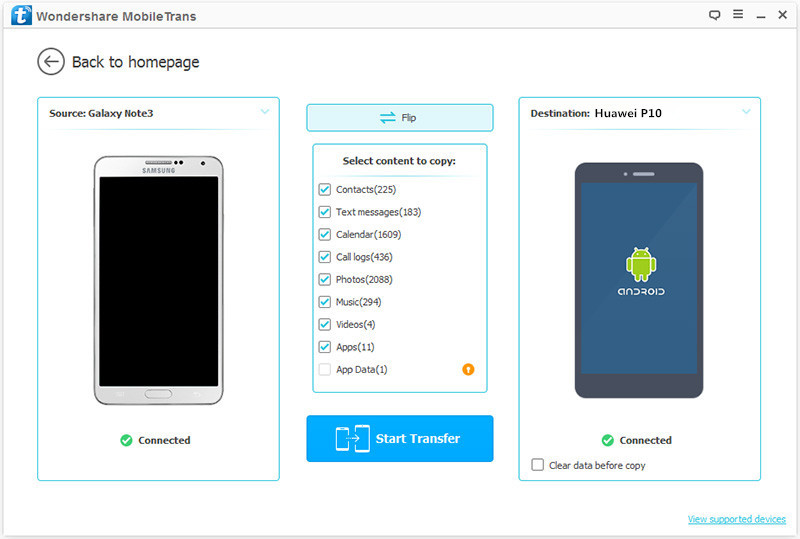
Launch Android Manager and connect your Samsung phone & Huawei phone to PC using USB cables. Then switch the Samsung phone as the source device from the upper left corner. You will find multiple options. Choose “Phone to Phone transfer” from the list offered.

huawei music transfer

Step 2.Select the Target and Source Devices
To transfer music from Samsung to Huawei,please make sure your Samsung phone as source device in the left side.And the Huawei phone as target devices.

select music

Step 3.Begin Transfer Songs from Samsung to Huawei
To transfer music, videos, photos and other media files from Samsung to Huawei. By default, all data on your source Samsung device that can be transferred are ticked, namely contacts, photos, playlist, music and videos.If you just want to move music to the Huawei phone,please select “Music” item,then click “Transfer” button start the transfering process. In the whole transfer process,please keep connecting both two phones with computer.

transfer samsung music to Huawei P10/p9/Mate 9

Well done! You have switch alll music and playlist from Samsung to Huawei phone in few minutes.You can also follow the same steps to move contacts, text messages, call logs, photos, videos, audios, Apps and more between Samsung and Huawei deivces.

d_win d_mac

What’s More about Phone Manager

The Phone Manager is a helpfull manager tool for Android and iOS deivces,you can eaisly manage your mobile phone on PC or Mac; Import files to your phone; Root your Android phone; Backup your music, photos, videos, contacts, SMS etc. to computer and restore them easily; Sync iTunes Music to Android or transfer music from Android to iTunes; Manage, export&import your Contacts and SMS, deduplicate Contacts, reply SMS with computer.The Phone Manager supports almost all Anndroid devices (Android 2.2 – Android 7.0) from Samsung, Google phone, LG, HTC, Huawei, Motorola, ZTE, Xiaomi, OnePlus, Sony etc.

Related Articles:

How to Manage Huawei Mate 9 on Computer

Best Huawei Manager tool to Manage Huawei P9

How to Transfer Contacts from iPhone to Huawei

How to Transfer Data from Samsung to Huawei

How to Transfer Music from iTunes to Huawei Mate 9

Transfer Music from Computer to Samsung Galaxy S6/S7/S8

How to Transfer iTunes Music to Huawei P10/P9/P8

Summary:This article not only teach you how to transfer songs and playlist from iTunes librarty to Huawei smartphone,but also recommend you a Apple Music to MP3 Convert for you remove DRM from Apple music and convert Apple Music to DRM-free MP3 for playing on Android Huawe P10/P9/P8 forever after you cancel the subscription.

“I recently bought a Huawei P9 to replace my old mobile phone mainly for the purpose of enjoying its powerful features. But now I’m having a problem with iTunes songs since I can’t seem to copy the original iTunes music to Huawei P9 for listening. Any solution?”

If you are an iPhone 3GS/4/4S/5/5C/5S/6(Plus)/6S(Plus)/SE/7 user, who wants to switch to a great Android high-end flagship Huawei P10/P9/P8, you are certainly interested in how to sync music to a new Huawei smart phone. As an iOS uer, there’s a good chance that your entire music collection will be stored within iTunes. And this tutorial is here to help you easily switch your iPhone to the new Huawei P10, P9, P8, that is, transferring iTunes music to the new Huawei P10/P9/P8 even if they are running different system.

transfer itunes music to Huawei P10,P9

How to Transfer Music and Playlists from iTunes to Huawei P10/P9/P8

Taking your iTunes library out with you on an Android smartphone – Huawei P10/P9/P8 is no longer the impossible mission it used to be – with the help of iOS & Android Manager, you can easily copy the whole iTunes music to Huawei P10, P9, P8 or other Android phones or tablets such as Samsung(Galaxy S8/S7/S6, Galaxy Note 5/4), HTC(10, One X), Huawei(Mate 9/8, Nova/plus, Honor V9/8, Y), Google, LG(g5, g4), Moto, etc. As a professional data management program, it can be used to add/export/transfer/delete data(music, photos, videos, contacts, text messages, apps) between computer and iOS, Android phones.

Now, let’s see how to move iTunes music to Huawei P10/P9/P8 phone.

d_win d_mac

Easy Steps to Sync Music from iTunes Library to Huawei P10/P9/P8

Download and install iOS & Android Manager on your computer and then connect your Huawei P10/P9/P8 to computer via USB cable.

Step 1. Select Transfer iTunes Media to Device Section

Simply click “Transfer iTunes Media to Device” on the main interface. Or click on the “Toolbox” option from the top panel of the program and find out the Transfer iTunes to Device option.

run iTunes to Huawei Transfer

Step 2. Select Music Files to Transfer

All the iTunes media files will be shown under different categories like music, movies, podcasts and others. By default, all the file types will be selected. If you want to transfer the music files, you can uncheck others and click “Transfer” button.

select itunes music to huawei

After the transfer is complete, you will now be able to access all of your iTunes music on your new Huawei P10/P9/P8. Click “OK” to end it.

transfer itunes music to huawei p10

What’s more, the program can scan the iTunes Library and allow you to transfer the whole playlist. Actually, you are able to copy the selective songs to Huawei P10/P9/P8 with ease.

Selectively Transfer iTunes Music to Huawei P10/P9/P8

As you have entered “Music” category, please move towards “Add” > “Add Files”. You can choose one or more songs from iTunes folder.

d_win d_mac

Part 2: How to Convert Apple Music and iTunes M4P Playlists to Huawei Phone

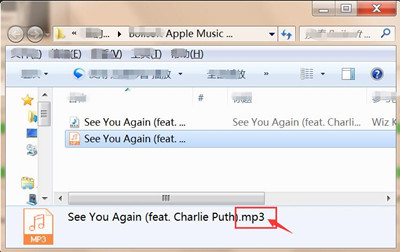
I recently bought a Huawei P10 to replace my old iPhone 6,I have purchased Apple music on iTunes and listening with my old iPhone 6. But now I’m having a problem with iTunes music songs since I can’t play to copy the original iTunes music with .m4p extension to Huawei P10 for playing. How I can convert Apple music in M4P to MP3 for playing on Huawei P10 smartphone? Thank you for helps

Do you want to enjoy Apple Music from iTunes library forever?Wanna transferring iTunes Music or playlist to any music players even though you have cancled the subscription service?When you have purchased a new Android Huawei mobile phone,in order to playing Apple music on Huawei mobile phone,you need to convert Apple Music to MP3 for Huawei Huawei P10/P9/P8, Huawei Mate 9/Mate 8/Mate 7,etc.

Apple Music Converter is one of the best iTunes DRM remover and converter,it supports remove the DRM protection from Apple Music songs and convert them to DRM-free file format like MP3, AAC, WAV, or FLAC.for playing on any devices for free forever,even though the subscription service is canceled.So that you can transfer the converted Apple music in DRM-free MP3 to any Android phones or tables,like Huawei, Samsung Galaxy, HTC One, Sony, Motorola, LG, Xiaomi, Meizu,as well as other devices,such as iPhone, iPod, PS4, MP3 player, Car player etc.

d_win d_mac

Easy Steps to Convert Apple Music M4P to Huawei Phone

Step 1. Install Apple Music Converter on Mac or Windows
Firstly download and install the application on your computer.

Step 2. Select or Add the offline Apple Music Tracks
After running the Apple Muisc Convert on the computer,the iTunes will be opened automatically.You can see all your iTunes library playlist on the left side of the program. If you haven’t found the music you want, please add the Apple music tracks or playlists to iTunes library first. Then, refresh the program. Just click the playlist that contains the Apple Music songs you want to play on Huawei phone. Tick the box before each tracks to select them.

run apple music converter on mac

Step 3. Choose MP3 as Output Format
After adding the Apple Music songs and playlist to the program,you should select the output format from the “Output Format” button at the bottom left of the conversion window. You can see the program supports convert Apple Music from DRM-protected M4P to MP3, AAC, M4A, FLAC, M4B, WAV as output formats.Here,please select MP3 as output format for the Huawei devices.

select output format

Step 4. Remove DRM from Apple Music and Convert to MP3
Finally,please click “Convert” button start to converting the Apple Music songs to DRM-free .mp3 formats at 16X faster speed.During the converting process,the program will unlock DRM from Apple Music tracks and convert them to MP3 formate without DRM encryption,once it done,all the converted Apple music songs saved on the computer as free local music.

convert Apple Music to MP3 for Huawei

click “Open Output File” button to find the converted .MP3 music files.

Apple music in MP3 format

Step 5.Transfer Converted Apple Music to Huawei Phone
Once the conversion completes, you can use this Android Transfer or Android Manager to import the converted DRM-free Apple Music songs from computer to Android Huawei P/Mate/HonorNova/G/Y/Ascend,etc. for playback at anytime with with more freedom and convenience you like.
Read this tutorial: How to Transfer Music from Computer to Android

Wanna to play Apple music on your Huawei phone for free forever?Just download the Apple Music Converter(Mac/Windows) to convert iTunes music to DRM-free music songs for Huawei phone at first.

d_win d_mac

Related Articles:

How to Transfer Music from iTunes to Huawei Mate 9

How to Transfer Music from iPhone to Huawei P10/P9

How to Transfer Music from iTunes to Samsung Galaxy S8

How to Transfer SMS from Samsung to Huawei P10/P9

How to Export Media Files from iPhone to Huawei P10/P9

Transfer iPhone Photos to Huawei Mate/P/Honor/Nova/Y

How to Transfer Text Messages from Huawei to Mac

More and more people use Huawei smartphone,we can use Huawei phone send and receive messages with our families, friends, and more every day, with a long time to use the phone, a lot of important SMS stored in the phone,we want to preserve forever.

Before update, restore factory setting, root the Huawei phone,we must to backup text messages from Huawei to computer.For Macbook users,it’s different to make Samsung SMS backup on Mac,as we all know that the Huawei running Android OS and the Mac is base on macOS,if you want to transfer SMS from Huawei to Mac,you need to use third-party Huawei Data Backup tool.

Here is how to copy SMS from Huawei to your Mac with Android & iOS Manager, Android Transfer, Android Data Recovery, Mobile Transfer, and HiSuite.

HiSuite backs up and saves messages as a message.sme file,but this file type is unreadable and can only be used to restore. However, if you want to backup SMS from Huawei to Mac for readding or print them on Mac.We recommend you use the SMS backup software for HuaweiAndroid Manager tool,which allows you backup messages, contacts, photos, videos, music from Huawei phone to Mac easily and conveniently. What’s more,this Phone Manager tool also can help you transfer SMS from Android to Huawei, iPhone to Huawei, Huawei to Huawei,as well as contacts, photos, videos, songs, call logs,etc. supported moved between two phones.The Mac version works almost the same as the Windows version does.

d_win d_mac

-One click Backup & Restore Huawei SMS
-Backup your music, photos, videos, contacts, SMS etc. to computer and restore them easily. Manage, export&import your Contacts and SMS, deduplicate Contacts, reply SMS with computer. One-click -Root Huawei – Root your Huawei phones to take full control of your device.
-Huawei Phone Transfer – Transfer music, photos, videos, contacts, SMS between two mobiles (both -Android and iPhone are supported).
-Manage Huawei Apps – Install, uninstall, import or backup Apps in batch.
-Gif Maker – Create Gif from photos, motion photos, videos.
-Sync iTunes to Huawei – Sync Music from iTunes to Huawei or transfer music from Android to iTunes
-Fully compatible with 3000+ Android devices (Android 2.2 – Android 7.0) from Google Pixel/Nexus, Samsung Galaxy, LG, HTC, Huawei, Motorola, Sony etc.

Part 1: How to Transfer SMS from Huawei to Mac

If you want to back up text messages from Huawei phone to Mac,please download the Android Manager for Mac,for Windows computer users,please download the Android Manager.

d_win d_mac

Step 1.Connect Huawei Phone to Mac
After download and run the Phone Manager on your Mac,then use a USB cable to connect your Huawei phone to the Mac.Once connected, your Huawei phone will be shown in the primary window.

huawei backup and restore

Step 2.Backup Mate 9/P 10/Honor 8/Nova/G/Y/Ascend and More
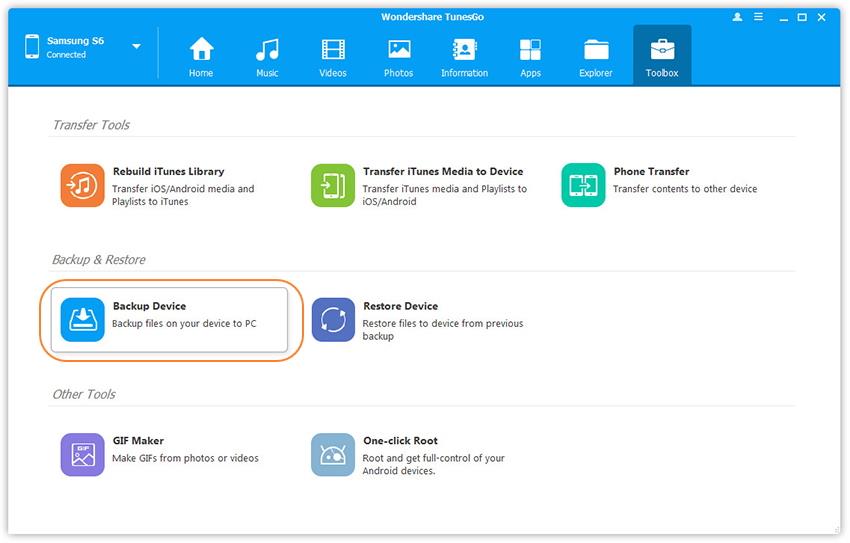
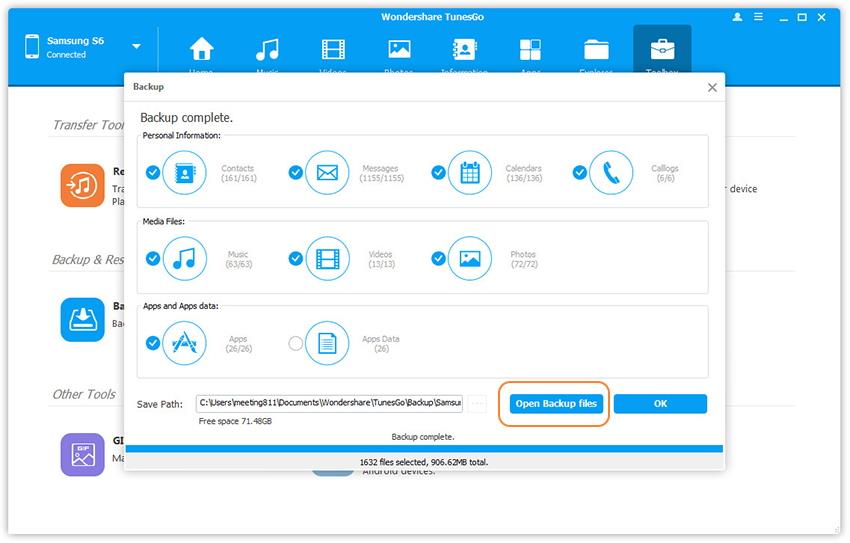
Click Toolbox >> Backup Device,this function helps you backup all contents from your Huawei phone to Mac

backup huawei sms to mac

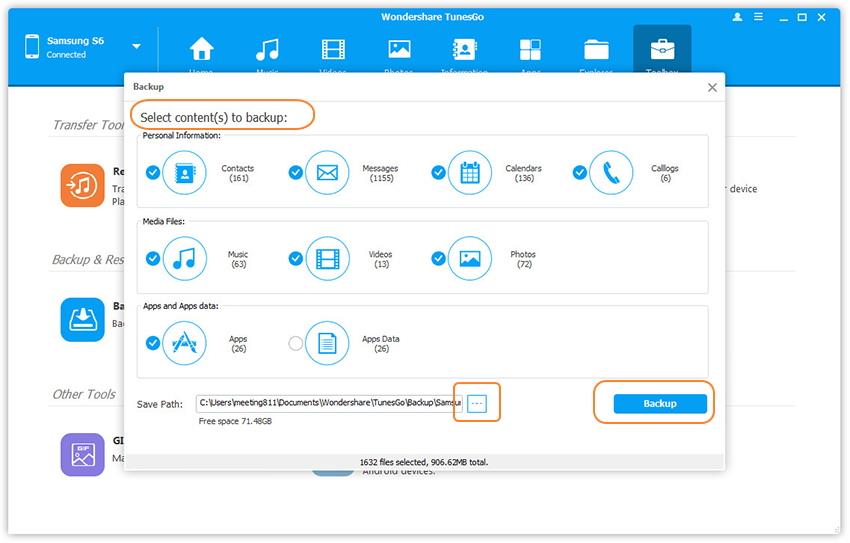
If you only want to backup Huawei text messages to mac,please select “Messages

Tips: You can also click Information tab. Click SMS on the left panel. All messages will be shown on the right,then select the messages you want to backup.

Step 3.Begin Backup SMS from Huawei to Mac
After selecting the Messags item you want to backup.Finally,please click the “Backup” button start to transfer all messags from your Huawei phone to Mac,only few minutes all of your Huawei SMS backed up and save on the Mac,then you can view them on your Mac,or printing the backed up text messags easily.

backup sms from huawei to mac

Tips:You can select the backup format from the two options: Export to HTML or Export to CSV. This brings up the file browser window. Find your desired place to backup and save the SMS.

Part 2: How to Restore Text Messagse to Huawei from Mac

If you have make Huawei messages backed up before as above tutorial,now you can easily restore Huawei Mate 9/Mate 8/Mate 7/ Mate S, Ascend P6, P10, P9, P7, Ascend Y,/G and More from the backup file on Mac.

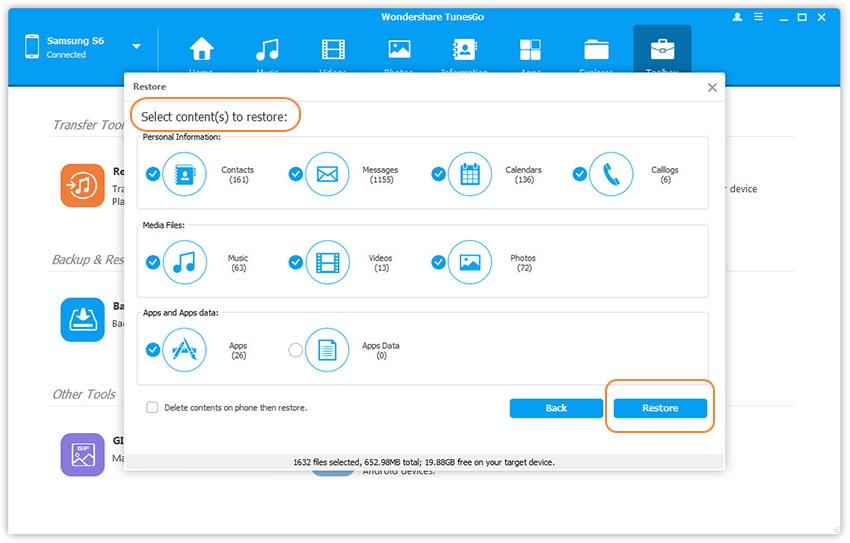
On the top panel, click Super Toolbox > Restore Device. And click “Open Backup Files” and the Restore window pops up.

restore sms to huawei from Mac

All backups you have made with the Android Manager are listed out. Tick the “Messags” and click “Restore” button to restore SMS to Huawei phone on computer.

restore text messages to huawei android

Free download the Phone Manager to backup and restore Huawei phones:

d_win d_mac

Make SMS Backup from All Huawei Phones

Huawei Mate: Huawei Mate 9,Huawei Mate 9 Pro,Huawei Mate 9 Porsche Design,Huawei Mate 8,Huawei Mate 7,Huawei Mate S

Huawei P: Huawei P10,Huawei P10 Plus,Huawei P9,Huawei P9 Plus,Huawei P8,Huawei P8max,Huawei P8 Lite

Huawei Honor: Huawei Honor V9,Huawei Honor 8,Honor 8 Pro, Huawei Magic,Huawei Honor 7/6, Huawei Honor 6, Honor 6X , Huawei Honor 5X,Huawei Honor 4c/3c, Huawei Honor 4x

Huawei Nova:Huawei Nova,Huawei Nova Plus

Huwei G: Huawei G9,Huawei G9 Plus,Huawei G9 Lite,Huawei G8,Huawei G7 Plus,Huawei GR5 2017, Huawei GT3, Huawei GR5, Huawei GR3, Huawei Ascend G7

Huawei Y: Huawei Y5 2017, Huawei Y6II, Huawei Y5II,  Huawei Y3II, Huawei Y6 PRO

Ascend:Huawei Ascend P8,Huawei Ascend G7,Huawei Ascend Mate 7,Huawei Ascend Mate 6

Related Articles:

How to Transfer SMS from iPhone to Huawei

How to Transfer Text Messages from Samsung to Huawei
How to Transfer Messages from Huawei to Huawei

How to Manage your Huawei Phone on Computer

How to Transfer Videos between Huawei Phones

The Mate line from Chinese Android brand Huawei was a direct response to the popularity of the phablet. In particular, Samsung’s Note line of phablets. And now, with the Note 7 having gone out in a ball of flame, the market is ripe for the 5.9” Mate 9 to become the go-to choice for those who want a big screen.The Huawei Mate 9 is a good looking phone. Although there’s nothing that really stands out about the design- as I’ve stated before, what more can we really iterate with a metal slab- the phone looks nice. It has a 5.9” display which sports a resolution of 1920×1080 at 373 pixels per inch and thought that’s a lower resolution than some of my current favorite phones, it wasn’t a hindrance at any time.

Nowadays,more and more mobile phone users choose Android phones replace iPhone,such as Huawei,Motorola,Lenovo,Samsung,Sony,and so on.Take the Huawei phone for an example,Huawei phones become the one of the hot phones among Android device.If you need to transfer videos and other media files between Huawei Android phones,you can read the follow steps for reference,which are the best ways to transfer media data between Huawei Android phones directly.

Directly Transfer Videos between Huawei Phones

Android Manager is aim to manage & transfer files between Android phones directly.With it you can transfer videos between Huawei phones,as well as music,photos,apps,contacts.This program assists you to make your goal come true with simple clicks. Besides,Android Manager allows to transfer files between Android and computer,transfer files between Android and iTunes.Almost all Huawei Android phones are applicable to this super program,for instances,Mate series(Mate 9/Mate 8/Mate 7),P series(P10/P9/P8),Honor series(Honor 9/Honor 8/Honor 7),Huawei Nova(Plus).

d_win d_mac

How to Directly Transfer Videos between Huawei Phones

First of all,Launch Android Manager and connect your Huawei phones to the computer.Your Android devices will be detected and displayed in the primary window soon.

Step 1.Run Program on Computer
Launch Android Manager and connect both Huawei devices to PC/Mac.

android manager main page

Step 2.Select the Source Device
Select the source device from which you want to transfer videos.

Step 3.Transfer Videos between Huawei Phones
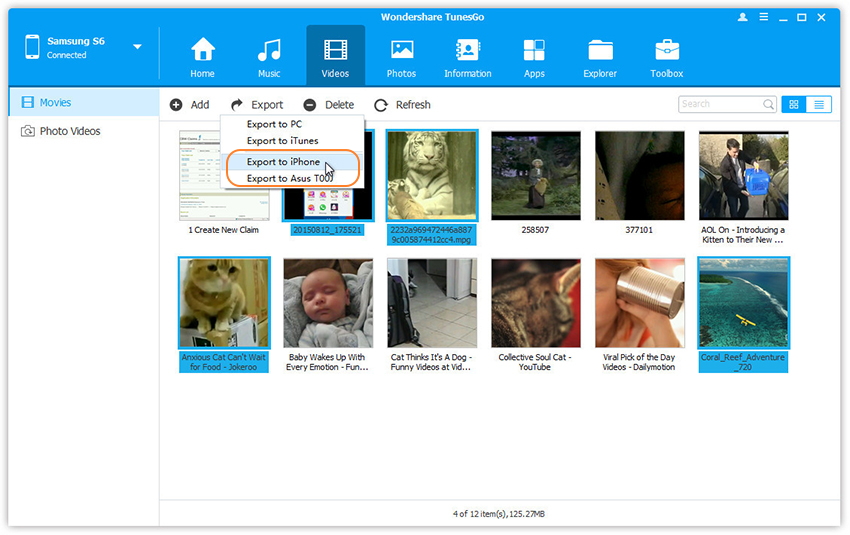
Click Videos tab.Choose your wanted videos and click Export.Select another device from the list.For example, you can transfer videos between Huawei phones by selecting Export > Export to Huawei directly.

transfer videos between huawei phones

d_win d_mac

Related Article:

How to Transfer Data between Huawei Phones

How to Transfer Contacts/SMS Between Huawei Phones

How to Transfer Photos between Huawei Phones

How to Transfer Music between Huawei Phones

How to Transfer Call History Between Huawei Phones

How to Transfer Data from Samsung to Huawei Phone

How to Recover Data from Huawei Phone

How to Backup and Restore Huawei Phone

How to Transfer Pictures, Videos from iPhone to Huawei P10/P9

The camera module on the P9 Plus is quite interesting and adorable as it features dual 12MP camera rear with Hybrid autofocus delivered by Leica. Compared with Huawei P9, the new flagship – P10 comes with an upgrade on design, display, chipset and the dual cameras. The new Huawei P10 has one 12-megapixel colour camera on the back paired with a 20-megapixel monochrome camera, which work together to boost the amount of light and detail captured in each image, as well as providing a lossless 2x zoom.

“A few days ago, I replaced a new Huawei P10 with my old iPhone 6. Getting my hands on a new phone meant I had to move all contents to the new smart phone. Photos and videos are particularly important, which records my good memories. Is there a simple way to make me a key to transfer photos and videos to new Huawei P10 from iPhone without quality damage?” — Eartha.

If you would like to switch from iPhone 3gs/4/4s/5/5c/5s/6/6s/SE to Huawei P10 handset like Eartha, undoubtedly, it could be tough to transfer your precious data like pictures and videos from iPhone to P10/P9 device since they are different platforms. Here is a tutorial about how to transfer photos & videos from iPhone to Huawei P10/Plus ,P9/P8, Mate S/7/8/9, Nova/Plus, Honor V9/8, G8, 6P, etc.

Mobile Transfer, a great handy tool, helps you sync photos and videos between iPhone and Huawei P10/P9/P8 without quality damage. It also allows you to copy other contents such as contacts, call logs, text messages, music, apps, etc from phone to phone. The program works perfectly with iPhone 7/SE/6S(Plus)/6(Plus)/5s/5, iPad, iPod touch, Samsung Galaxy S5/S6/S7/S8/Note, HTC 10/One X, LG G5, Sony, Google, Oppo, Motorola, ZTE, Windows 10/8/7, BlackBerry Priv and more smartphones and tablets. Besides, there are more features, such as restore iTunes playlist and iTunes&iCloud backup to your phone.

d_win d_mac

Kind Tips: Want to download HD videos from YouTube? 4kFinder Online YouTube Downloader is the ultimate one-click downloader that can easily download YouTube HD videos to MP4 format without quality loss. 4kFinder supports batch download and faster download speed. With its help, you can play YouTube videos offline on any HD media player. Other than YouTube, it also supports Facebook, Twitter, Dailymotion, Bilibili, NicoNico and many other sites.

Guide: How to Copy iPhone Contacts to Huawei P9/P10

Step 1. Download and Install Mobile Transfer on the Computer

Please check the above download buttons to get the right version, then install it on your compute. Launch it and click “start” button under “Phone to Phone Transfer” section if you want to copy photos and videos from iPhone to Huawei P9/P10.

run the program and select phone to phone transfer

Step 2. Connect iPhone and P9/P10 to the Computer
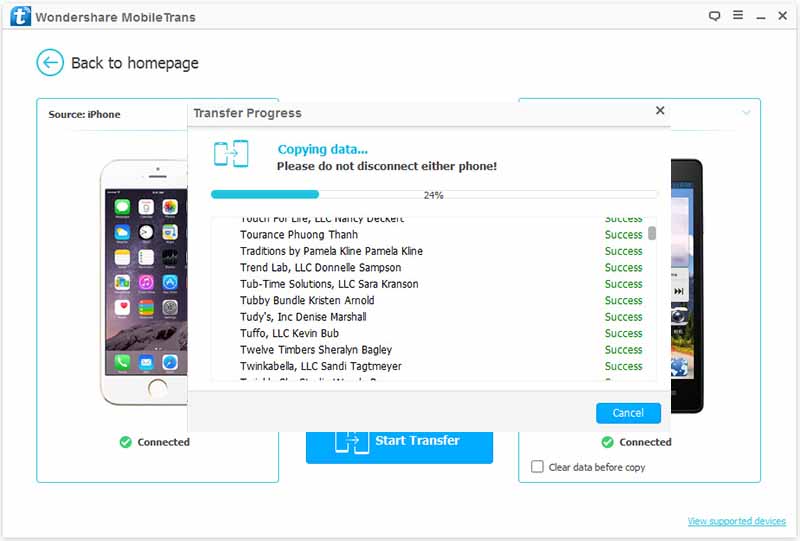
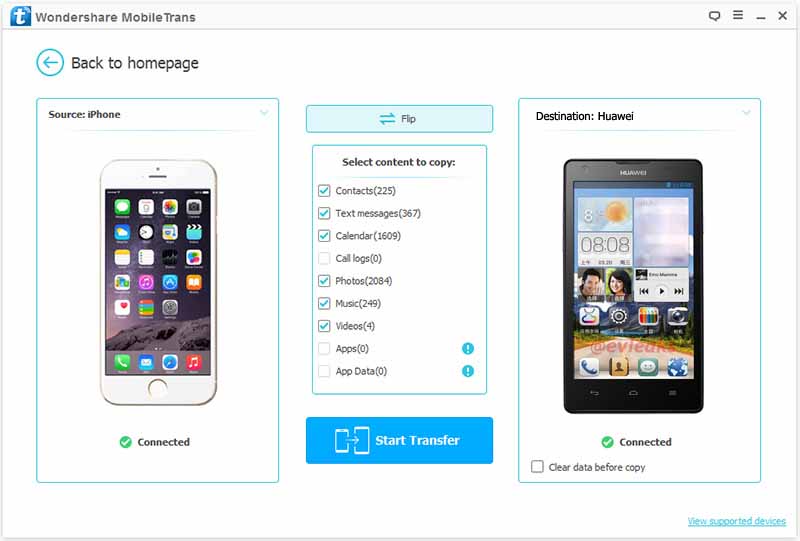
Now connect your iPhone and Huawei phones to your computer via USB cables. Once the devices are connected successfully, the device model name will be displayed on software interface.

connect iphone and huawei p10 to pc

Note: The iPhone would be showed in left panel and Huawei P10/P9 could be detected as target phone, otherwise, you can click on “Flip” button to exchange the source and target device.

Step 3. Select Data for Transferring from iPhone to Huawei P10/P9

Select “Gallery“, “Videos” or other data types, then click “Start Transfer” to begin the process of transferring pictures and videos from iPhone to Huawei P10/P9/P8 device.

select photos and videos and copy to huawei p10

Now, you can see the iPhone videos, photos on Huawei P10. Download the handy tool and follow the steps to transfer data from iPhone to new Huawei P10/P10 Plus, or Huawei P9, P8.

d_win d_mac

Related Articles:

How to Transfer Music from iPhone to Huawei P10/P9

How to Transfer Photos from Huawei to Huawei P10/P9/P8

How to Transfer iPhone Photos to Huawei Mate/P/Honor/Nova/Y

How to Transfer Samsung Contacts to Huawei Mate 9/P10

How to Transfer Contacts & SMS between Huawei Phones

How to Backup and Restore Huawei SmartPhones

How to Transfer Text Messages from Samsung to Huawei

[Summary]: Don’t know how to transfer SMS from old phone to Huawei phone by Phone Clone? This article teach you a more easier method to transfer text messages from Samsung Galaxy S/Note/J/Ace/F to Huawei Mate/P/Nova/G/Y/Ascend, such as Mate X, Mate 20 and P20, etc.

“Hey, I am going to change my Samsung Galaxy S6 to the new Huawei Mate 9 Pro,there are many important messages on the Galaxy S6,how can I transfer SMS from Samsung S6 to Huawei Mate 9 Pro? I need help.

I have got a new Huawei P10 and I used Samsung Note 5 before,is it any solution to switch text messages from Samsung to Huawei P10?Any help would be greatly appreciated.

I used Galaxy S7 for more that two years, today, I have purchased an new Huawei Mate X, I want to copy all old messages from the old phone to new phone, how to transfer text messages from Samsung Galaxy S7 to Huawei Mate X?

To move messages from Samsung to Huawei Android phone, here Android to Android SMS Transfer and Android & iOS Manager tool,both are highly recommended. It is a professional phone to phone transfer tool that allows you transfer SMS from Samsung Galaxy S or Note phone to Huawei phone within few simple clicks. Connect both two Android phones to computer,then use the program switch SMS from Samsung to Huawei Mate 9/8/7/S, P10/P9/P8, Honor V9/8, Nova/G/Y/Ascend,etc.What’s more,the Phone Transfer also supported transfer music, photos, videos, contacts, call history, Apps and more from Android to Android with three simple steps.

d_win d_mac

Detail Steps on How to Transfer SMS from Samsung to Huawei

Step 1: Connect Huawei and Samsung to Computer

First of all,please download and run the Phone Trnasfer on computer,then click “Phone to Phone Transfer” feature.Connect your both Huawei phone and Samsung Galaxy phone to the computer via USB cables.

Android to Android SMS Transfer

Step 2: Select SMS to Transfer from Samsung to Huawei

When your two phones deletected by the program,then choose “Messages” item from the listed file types,if you just want to switch SMS from Android to Android.

select messages

Step 3: Transfer Text Messages from Samsung to Huawei

Click the “Start Transfer” to copy SMS from the old Samsung phone to the enw Huawei phone. When it is done, you will see your old Samsung SMS in the new Huawei phone’s mailbox.

transfer SMS from samsung to huawei

Free download the Phone Transfer for Windows or Mac,then transfer SMS between two Android phones on PC/Mac.

d_win d_mac

What’s More About Android to Android Transfer:

This powerful Android to Android SMS Transfer tool supported transfer contacts, SMS, photos, videos, call logs, music and App data between all popular Android phones and tablets,such as Samsung Galaxy S3/S4/S5/S6/S6 Edge/S7 Edge/S7/S8/S8 Plus, Galaxy Note 2/Note 3/Note 4/Note 5, Galaxy A9/A8/A7/A6/A5, Galaxy Y, Galaxy Nexus, Huawei Mate/P/Honor/Nova/G/Y/Ascend and more.

Related Articles

How to Transfer SMS Messages from iPhone to Huawei

How to Transfer Contacts from Android to iPhone

How to Recover Deleted Data from Huawei Phone

How to Sync Music from iTunes to Android