All posts by DHZ

How to Transfer iTunes Music to Google Pixel 3A/3/2/1(XL)

[Summary]: Want to play iTunes music includs Apple Music songs on Google Pixel phone? Here we will teach you how to sync music and playlist from iTunes library to Google Pixel 3A/3/2/1(XL); how to transfer music from Pixel phone to iTunes Library; and how to transfer Apple music to Google Pixel, so you can offline playing Apple Music on Pixel phone after you cancel the subscription.

Most people have a myriad of music collection with iTunes,but struggle with the idea of moving it all to mobile device such as the Google Pixel phone.If you’re a newly Google Pixel phone owner and love listening music,then you might be trying to figure out simple ways to transfer music from iTunes to the shiny new Google Pixel smartphone.We’re going to discuss outline the options available way to get Apple Music and iTunes Music on Google Pixel.If you want to do it manually with the possible solutions,you can read this whole tutorial and follow the steps to complete the transfer task on your own.
transfer itunes music to Google pixel-2

* How to Transfer Android File to Pixel

* How to Manage Google Pixel on Computer

Transfer Music from iTunes Library/iOS Device/Android Device to Google Pixel

Android & iOS Manager and iTunes to Android Transfer,both are your best choice to transfer music(songs,playlists) between iTunes library and Google Pixel phone,it also work well for transferring music between iOS device/Android device and Google Pixel phone.What’s more,this program support to transfer music between computer and Android device,freely manage Android music playlists,delete music on Android.Various of Android devices are compatible with Android Manager,for example Google Pixel,Google Nexus,Samsung,Motorola,HTC,LG,Sony,ZTE,etc,.


d_win d_mac
d_win d_mac

Part 1:Export iTunes Library Music to Google Pixel Phone

Launch Android Manager and connect your Google Pixel phone to computer.Your Android device will be detected and displayed in the primary window very soon.
Step 1.Simply click Transfer iTunes Media to Device on the main interface.Or find the Transfer iTunes to Device option under Toolbox > Transfer Tools section.
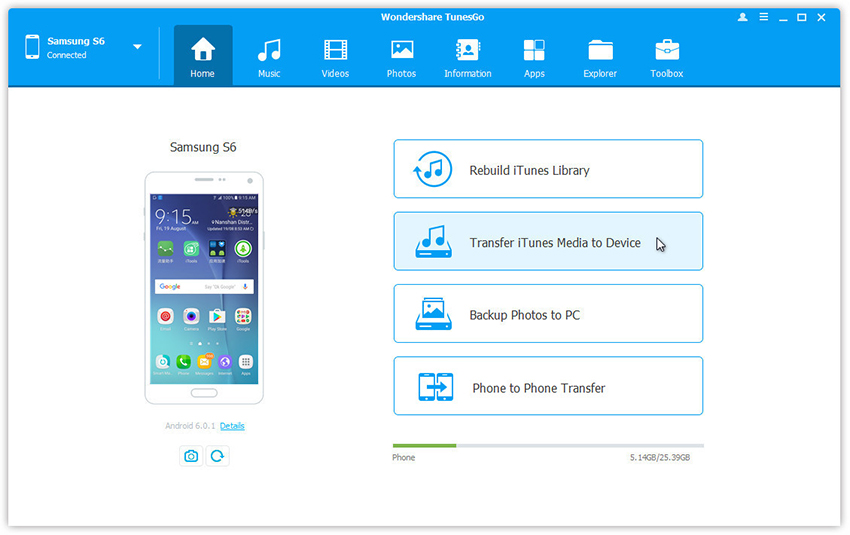
transfer-itunes-music-to-pixel

Step 2.Check options and start to copy media from iTunes to Google Pixel.All the iTunes files will be scanned and will be shown under different categories like music, movies, podcasts and others.By default,all the file types will be selected but to transfer only the music files,you can uncheck the others.Click Transfer to start transferring.

select-itunes-music-to-pixel

transfer-itunes-music-to-pixel

Part 2:Transfer Music from Google Pixel Phone to iTunes Library

Launch Android Manager and connect your Google Pixel phone to computer.Your Android device will be detected and displayed in the primary window very soon.

android-transfer-mian-page

Step 1.Select Music tab.

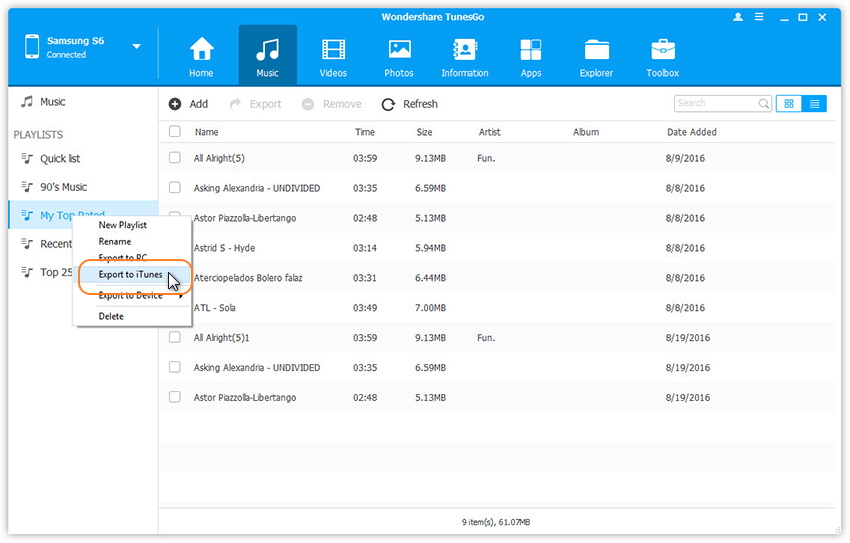
Step 2.Once your media loads,choose your wanted songs and click Export > Export to iTunes.
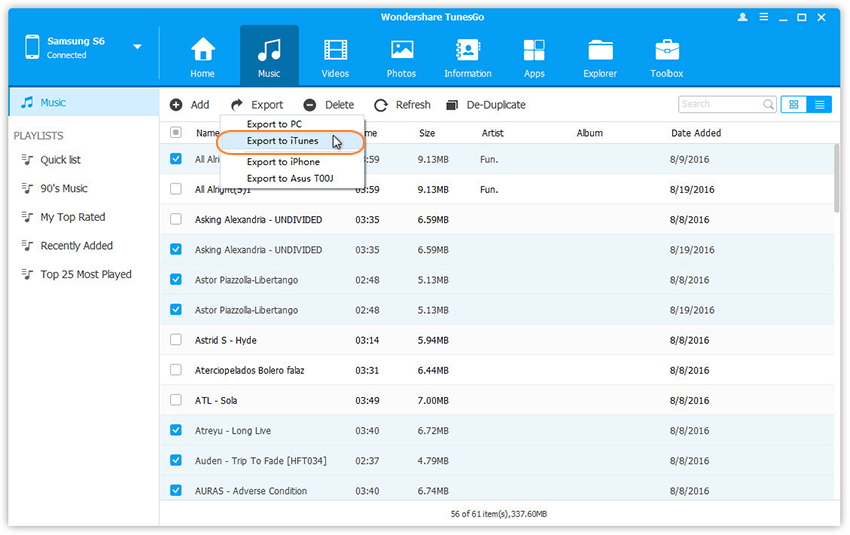
select-music-transfer-from-pixel-to-itunes

You can also transfer the whole music playlist from Google Pixel to iTunes Library in one click.
transfer-pixel-music-to-itunes

Part 3:Transfer Music between iOS Device,Android Device and Google Pixel Phone

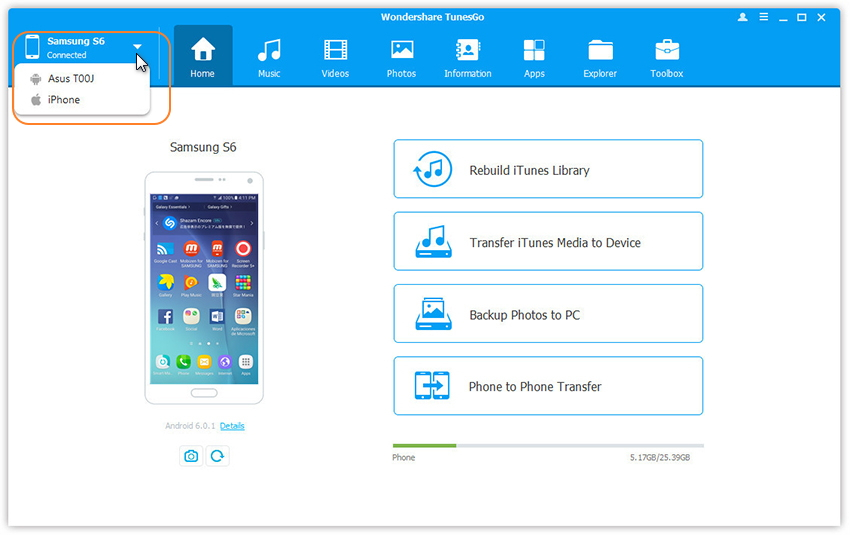
Step 1.Launch Android Transfer and connect both iOS device or Android device and Google Pixel phone to PC.

Step 2.Select the source device from which you want to transfer music files.
connect-devices

Step 3.Click Music tab.

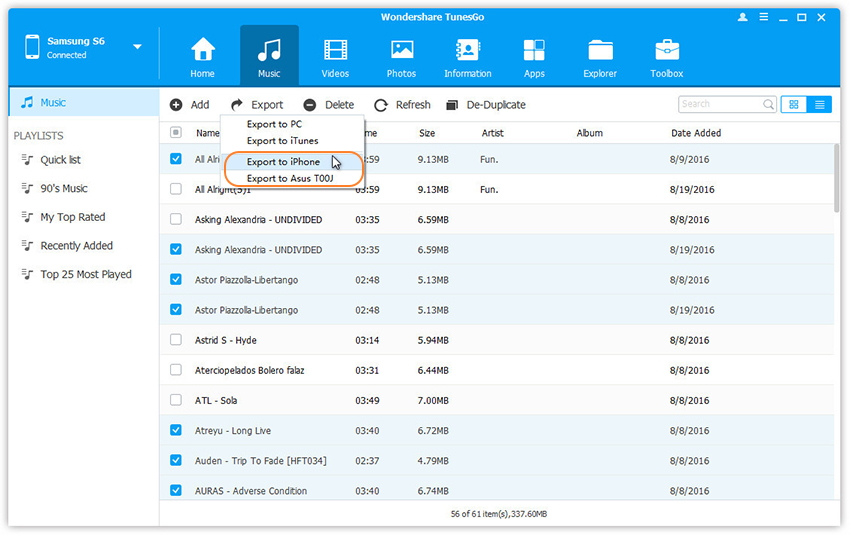
Step 4.Choose your wanted songs and click Export.Select another device from the list.For example,you can transfer music from Pixel phone to iPhone by selecting Export > Export to iPhone directly.
select--music-transfer-from-pixel-to-iphone

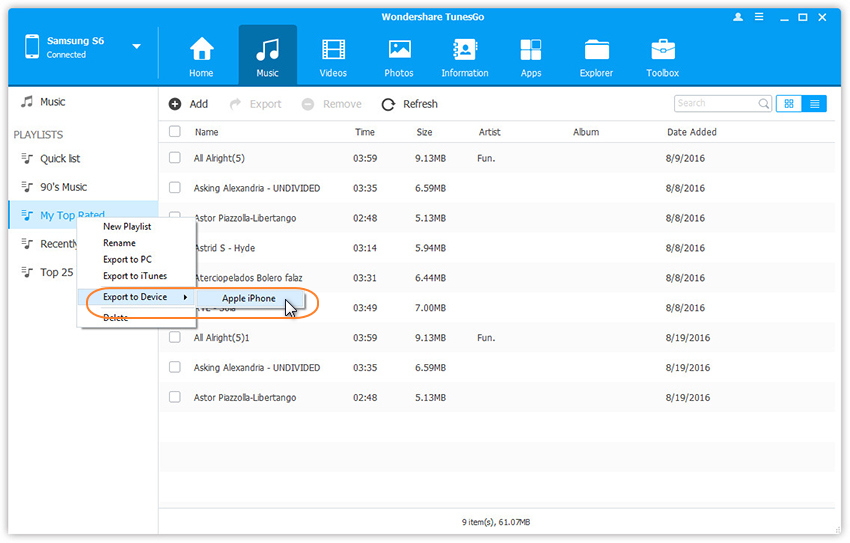
You can also transfer the whole music playlist from Pixel phone to other devices in one click.
transfer-pixel-music-to-iphone

d_win d_mac
d_win d_mac

Part 4.Transfer Music between iOS Device and Google Pixel via Quick Switch Adapter

Step 1.Connect your old iPhone to your new Pixel with the Quick Switch Adapter.
Turn off iMessage before you remove the SIM on your old iOS device by going to “Settings,” tap “Messages” and set iMessage to off. Then, go to back to “Settings,” tap “FaceTime” and set FaceTime to off.

Note:If you have already removed the SIM, you can request that Apple deregister your phone number with iMessage.

Step 2.Sign in to your Google Account.
If you don’t already have one, you’ll be asked to create one.

Step 3.Transfer data from iPhone to Google Pixel
Once you’ve signed in to your Google Account, choose what you want to move, like your apps, contacts, calendar events, photos, videos, music, SMS messages, iMessages and more.Then the data transfer task will complete soon.
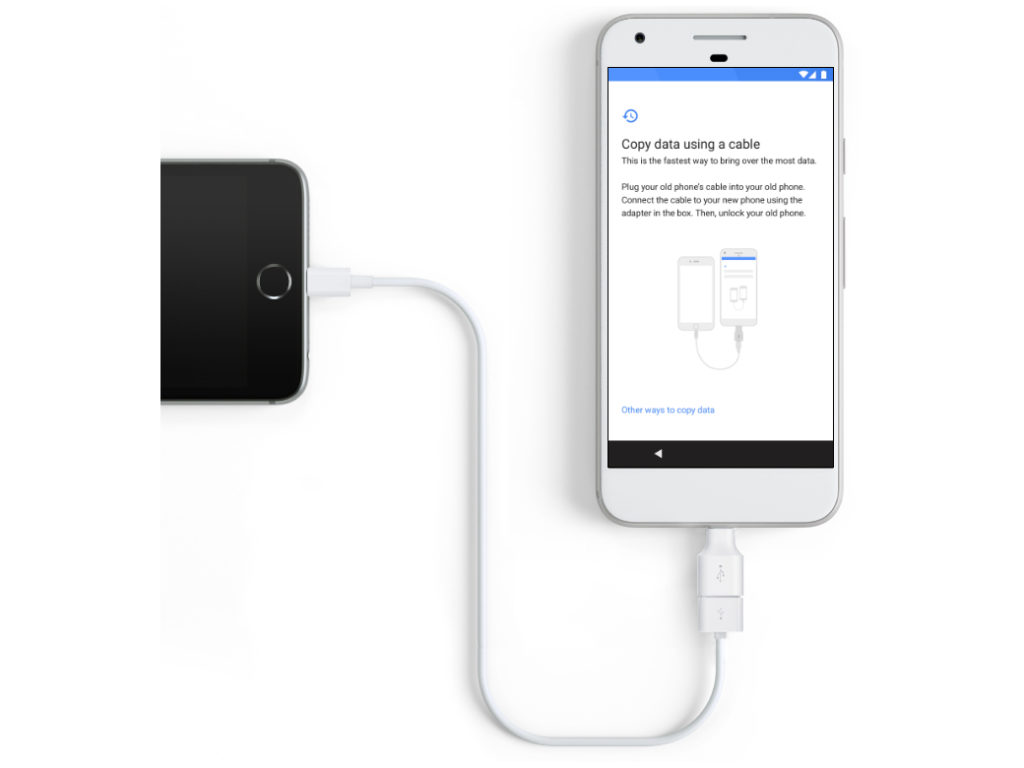
quick switch adapter

Done.

Supported devices include:
-iPhone or iPad running iOS 8 and up

Part 5: How to Sync Apple Music to Google Pixel

We can purchased and downloaded Apple music for playing on iTunes or iOS devices,when you have got a new Google Pixel phone,how you can play Apple music on Google Pixel/XL after canceling the subscription service even though you have downloaded them?As we all know that the Apple Music protected by DRM encryption with M4P formate,in order to playing iTunes M4P playlist on Google Pixel,you must to remove DRM from Apple Music songs and convert to DRM-free MP3 for Android Google Pixel phone.

Apple Music ConverteriTunes M4P to MP3 Converter is a useful Apple Music Removal and Converter,which could helps you remove Apple music with DRM protection and convert them to plain formats like MP3, AAC, WAV, or FLAC. for free playing on any media players like Google Pixel, Samsung Galaxy, MP3 Players, Car Players, iPod, Huawei, iPhone, etc.

Let’s teach you how to remove DRM protection from Apple Music songs/iTunes music and convert them to MP3 for playing on Google Pixel/XL.

d_win d_mac

Step 1.Run Apple Music Converter and Choose Apple Music tracks
First of all,please download, install and launch Apple Music Converter for Windows or Mac on your computer.iTunes will be opened automatically,then select the Apple music songs you want to convert to MP3 and transfer to Google Pixel phone.

convert Apple Music to Google Pixel

Step 2.Select MP3 as Output Format
As we all know that the Google Pixel phone supports playing MP3 audiao format,so you need to convert Apple music to MP3.In the bottom of “Output Settings“,please select MP3 as output format.

select MP3 format for Google Pixel

Step 3.Convert Apple Music to MP3 for Google Pixel
Finally, just click “Convert” button to start convert Apple Music from M4P to MP3,during the conversion process,the program will remove the DRM encryption as well.After it done,you can play all converted Apple Music in MP3 formate on any music players with more freedom and convenience,even you have canceled the Apple Muisc subscription service.

convert Apple Music to MP3 for Google Pixel

Step 6.Transfer Converted Apple Music to Google Pixel
Now all the converted Apple Music converted and saved on the computer as DRM-free MP3,in this step,you need to import converted Apple Music in MP3 to Google Pixel phone.
1.Connect Google Pixel to your computer via a USB cable.
2. Using iOS Android Manager or Android Transfer to transfer the converted Apple Music tracks from your computer to Google Pixel phone directly.
Learn More: How to Transfer Music from Computer to Google Pixel

Related Article:

How to Transfer iPhone Data to Google Pixel Phone

How to Backup & Restore Data on Google Pixel Phone

How to Restore Deleted Data on Google Pixel Phone

How to Transfer Music from Computer to iPhone

How to Transfer Music from Android to iPhone/iPad/iPod
Sync iTunes Music to Google Pixel

How to Restore iPhone in Recovery Mode with/without iTunes

“Hello.I’m Lily.My iPhone was get into the Recovery Mode when I was updated iOS 10 on it,then I opened the iTunes and try to get my iPhone out of the Recovery Mode,but it was failed.What’s wrong?Can someone tell me the true?And please tell me the way to restore iPhone in Recovery Mode without iTunes.Thanks advance.”-Lily Ann

It’s pretty common that iPhone get into Recovery Mode and stuck in the loop.It is a state of iBoot when iPhone users are applying updates,restoring data or performing other operations on device.What’s worse,the phone can not return to normal state unless something is done to solve this problem.When your iPhone stuck in Recovery Mode it can be quite frustrating.It is equally as confused when you don’t know how to get iPhone out of Recovery Mode.There are actually several ways you can get your iPhone out of Recovery Mode.Now we are providing you two solutions available to restore iPhone in Recovery Mode with/without iTunes separately.

Part 1:Restore iPhone in Recovery Mode via iTunes

Follow these simple steps to restore your iPhone in Recovery Mode with iTunes.

Note:Restore iPhone in Recovery Mode with iTunes will lead to data loss on your device,all your personal file will be erased after this operation.Remind you doing backup for your iPhone to protect data.

Extra tips:How to Restore Deleted Data from iPhone after getting out of Recovery Mode with iTunes

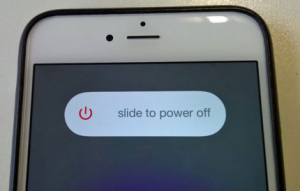
Step 1.First,ensure that iTunes is updated on your computer.Please connect the USB cable to your computer but don’t connect it your iPhone just yet.Instead,power off your iPhone.

power off iphone

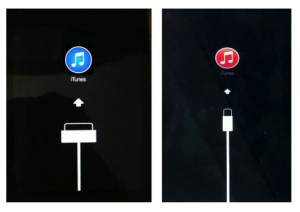
Step 2.keep holding the home button and connect the USB cable to the iPhone.The Apple Logo will appear and then quickly change to the “Connect to iTunes” logo.

connect iphone to itunes

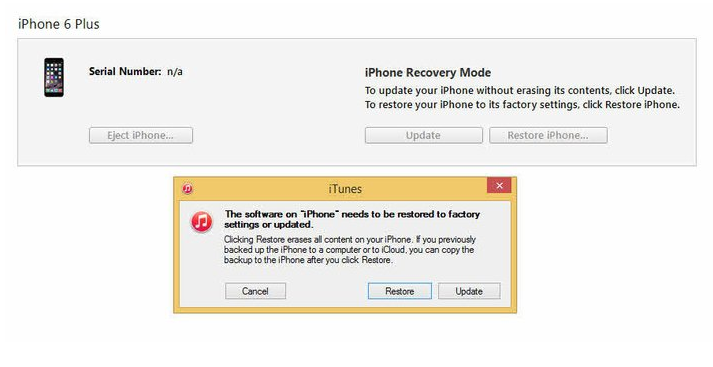
Step 3.Release the home button now and your iPhone should be into Recovery Mode.iTunes will display a message confirming this.You can then click on “Restore” to restore a previously saved iTunes backup file.

get iphone out of recovery mode via itunes

Part 2:Restore iPhone in Recovery Mode via iOS System Recovery without Data Loss

One of the most effective program to get iPhone out of Recovery Mode without data loss is iOS System Recovery.With this iOS System Recovery program, you are allow to easily restore iPhone to normal state without iTunes in minutes.Mostly importantly, it won’t lost data during the whole repairing process.

d_win d_mac

Focus on the Features of iOS System Recovery:
-Fix with various iOS system issues like Recovery Mode,white Apple logo,black screen, looping on start screen,etc,.
-Only fix your device out of abnormal mode, no data loss at all.
-Work for all models of iPhone, iPad and iPod touch including iPhone 7,iPhone SE.
-Fully compatible with Windows or Mac, iOS 10 or lower.

Step 1.Run iOS System Recovery on Computer and Select Recovery Mode
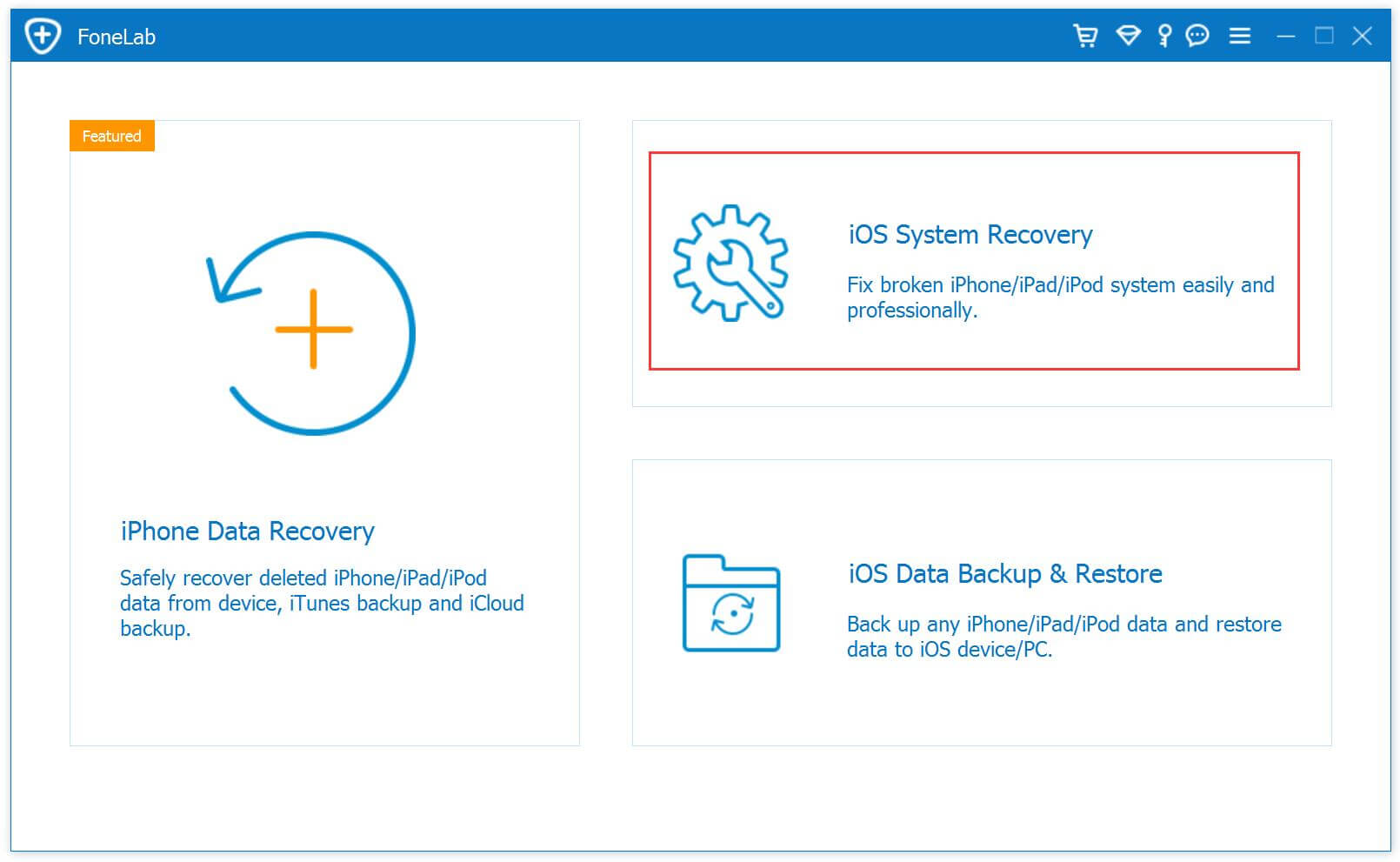
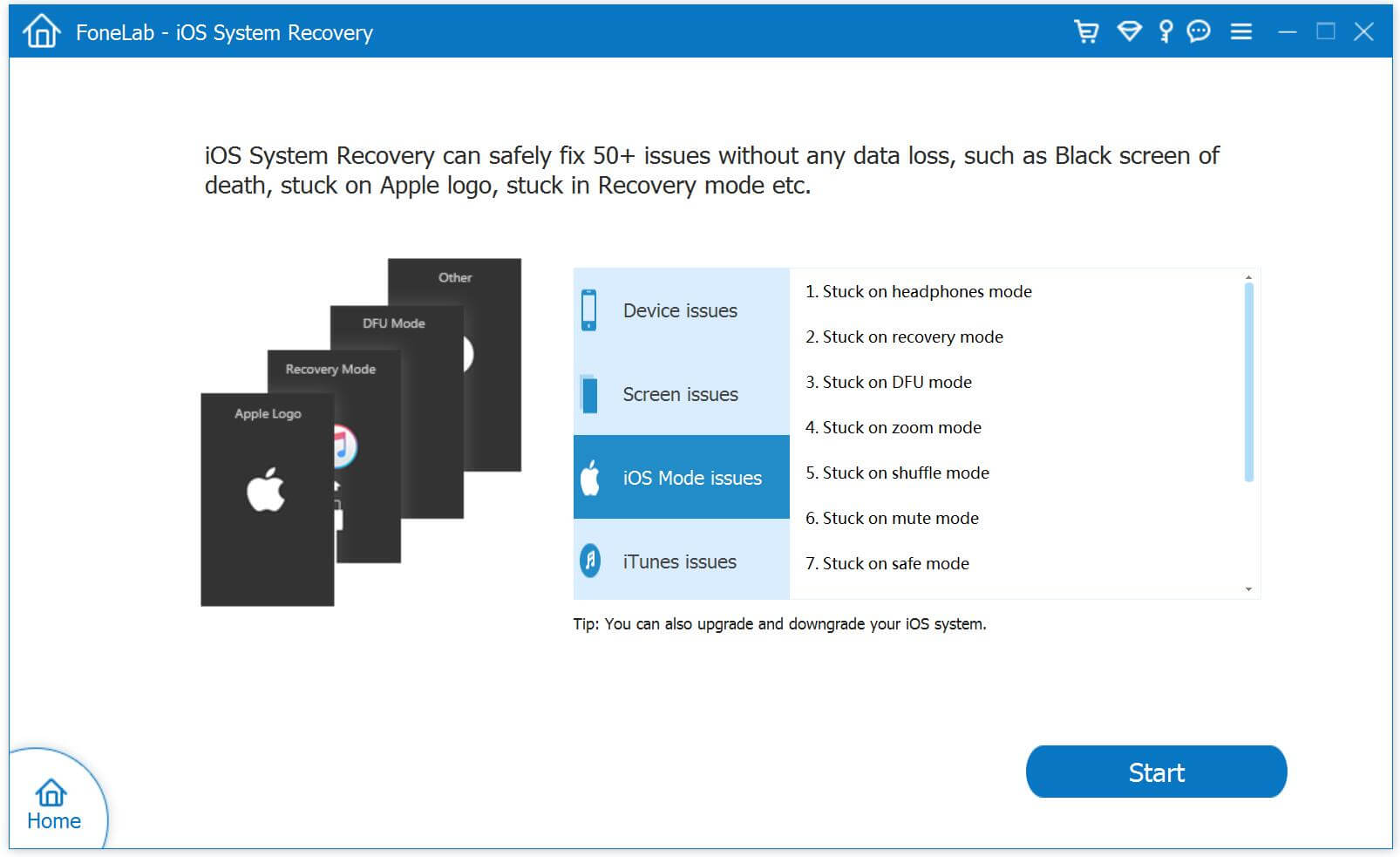
Launch iOS System Recovery on your computer.In the primary interface window,click “More Tools”,choose “iOS System Recovery” and then connect your iPhone to your computer using USB cable.Your iPhone will be detected soon.Click on “Start” to begin.

iOS System Recovery main page

restore iphone in recovery mode without itunes

Step 2.Download the Firmware for iPhone
In order to fix iPhone stuck in Recovery Mode,you will need to download the latest firmware for restoring.The program will offer the latest iOS version for you to download.Just click on “Download” and the program will download it automatically.

select your iPhone model

download the firmware for iPhone

Step 3.Get iPhone Out of Recovery Mode without iTunes
Once the download is complete,iOS System Recovery will start to repair the iOS system of your iPhone and easily get it out of Recovery Mode without iTunes.

restore iphone in recovery mode without itunes

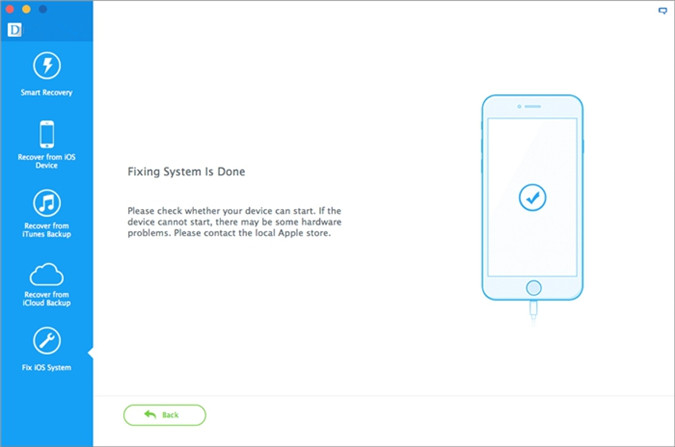
Then your iPhone will restart in normal mode after iOS System Recovery has completed the process.The whole process will take you less than 10 minutes.

restore iphone in recovery mode without itunes

Pros/Cons:Your iPhone will be updated to the latest iOS version.If your iPhone is jail-broken,it will be updated to before it was jail-broken and the device will be re-locked if it was unlocked before the restoring via iOS System Recovery.

d_win d_mac

Related Article:

How to Enter & Exit iPhone Recovery Mode

How to Restore iPhone System to Normal without Firmware Update to iOS 10

How to Get iPhone 7/SE/6S/6/5S/5 out of Recovery Mode

How to Fix Bricked iPhone after iOS 10,iOS 9 Update

How to Fix iOS 10 System Update Failed

How to Downgrade iPhone or iPad from iOS 10 to iOS 9.3.5

How to Transfer Music from Computer to Google Pixel

[Summary]: Have got an new Google Pixel phone and want to listen to music with it? This article teach you how to import music from PC/Mac to Google Pixel phone, you can also learn how to transfer music from iPhone/iPod/iPad and other Android phone to Google Pixel 3/2/1(XL).

Google Pixel 3 XL and Pixel 3 is the larger of the two flagship phones from Google in 2018. The Google Pixel 3 XL is a moderate upgrade over its predecessor, the Pixel 2 XL. It of course brings Android 9 Pie, which itself has many upgrades, but that software is also coming to all other Google Pixel owners. Google Pixel 3 will come with the new Android 9.0 OS. On the hardware side of things, we expect to see the return of the Pixel Imprint fingerprint sensor and the squeezable Active Edge to activate the Google Assistant. This year, though, the Pixels will finally add wireless charging to the mix — as well as a dock called the Pixel Stand to support that.

You may want to know:

* How to Transfer Data from iPhone to Google Pixel

* How to Convert Apple Music to Google Pixel

Keep Apple Music Free Forever after 3-Months-Free-Trial without Paying

Since the new production of the Google,Google Pixel phone is released around the world. The method for transferring music from computer to the Google Pixel phone has changed.Follow this guide for step-by-step instructions on how to get your music from computer to your phone.

Nowadays people like to enjoy music on their Android phone. They can listen to music on the Android phones and share music with friends, there is a need for you to transfer music from computer to Android phone so that you can listen to your favorite music anywhere and anytime.You might backup your lovely music to computer from iTunes, iCloud or other Internet service account and now want to get the music to your Android phone, for example the Google Pixel 2XL.

How to Add Music from Computer to Google Pixel

There are many music transfer programs available to transfer music between computer and Android phone.To perfectly transfer music from computer to Google Pixel,you are recommend the “Android Transfer”,which help to completely or selectively transfer music from computer to Google Pixel,including the songs,playlists,attachments.Android Transfer is a powerful music management,allows you transfer music to and from computer,export and import music to and from iTunes Library, and transfer music between iOS device/Android device directly.Android Transfer works well for most Android devices,such as Google Pixel, Google Nexus, Samsung Galaxy, Huawei Mate/P, HTC, Lenovo, LG, ZTE, Motorola, etc.

d_win d_mac
d_win d_mac

Part 1:Export Music from Computer to Google Pixel

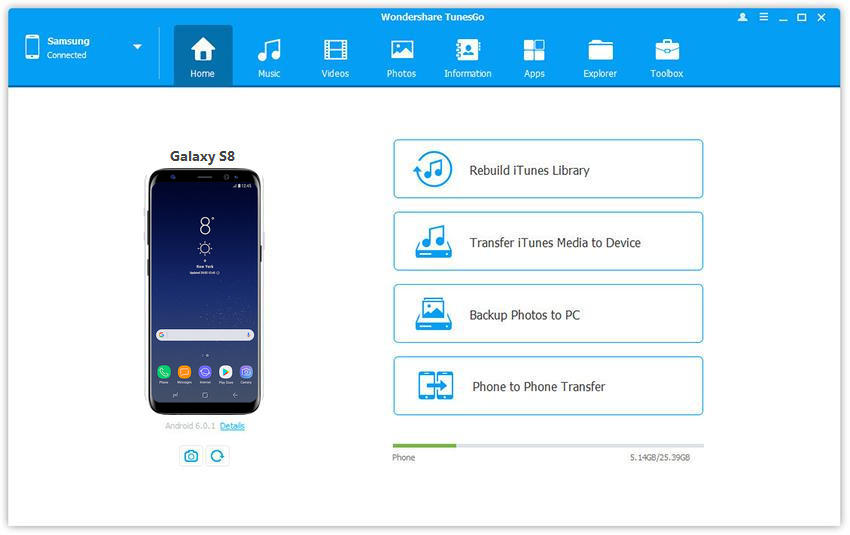
Launch Android Transfer and connect your Pixel Phone to PC.Your device will be detected and displayed in the primary window.

android-transfer-mian-page

Step 1.Select Music File to Transfer
Select Music tab.Once your media loads, click Add > Add File or Add Folder.

sync-music-from-pc-to-pixel

Step 2.Sync Songs from Computer to Google Pixel Phone
This brings up your file browser window, from which you can select songs to export from your computer.And you can also create new playlist by right clicking Music to save the imported songs.You are allow to simply Drag and Drop music files from computer to your Google Pixel phone.

Part 2:Transfer Music from Google Pixel to Computer

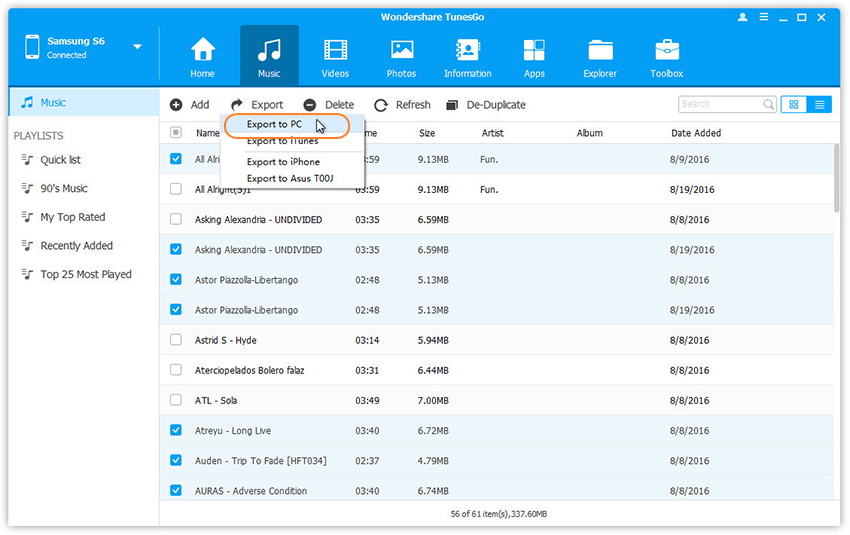
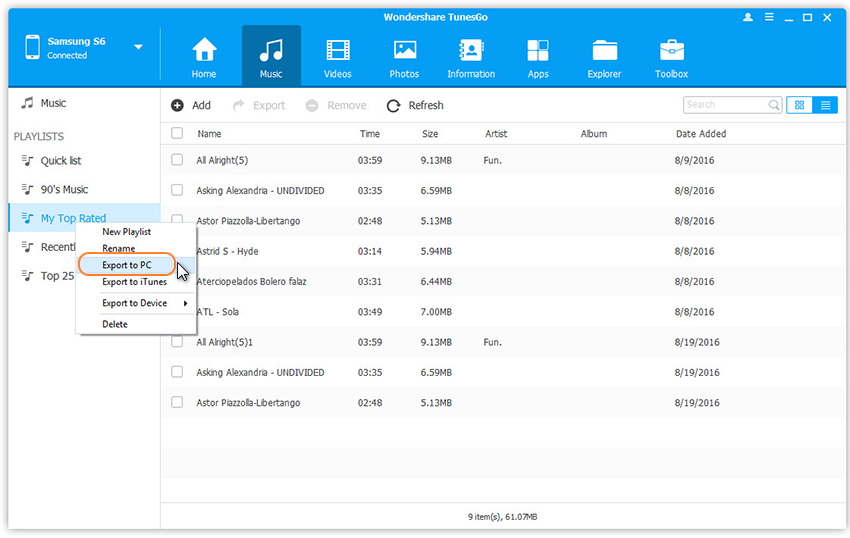
Step 1.Select Music tab.Once your media loads,choose your wanted songs and click Export > Export to PC.
select-music-from-pixel-to-pc

Step 2.This brings up your file browser window,choose a save path to save songs from your Google Pixel device to computer.

You can simply Drag and Drop music files from Pixel phone to computer.

You can also transfer the whole music playlist from Pixel phone to PC in one click.

export-pixel-music-playlist-to-pc

d_win d_mac
d_win d_mac

Part 3:Transfer Music from Another iPhone/Android Phone to Google Pixel

If you are wondering which Android phone is worth buying, the Pixel and Pixel XL can be a very good option. When you finally switch your old iPhone or Android device to the Pixel and Pixel XL, the next important thing is moving your old phone data to the Pixel/Pixel XL effortlessly. No hurry, the best method is here.

This handy tool allows you to transfer all your content such as contacts, call logs, messages, photos, music, videos, etc to Google Pixel/Pixel XL from HTC One, Huawei Mate/P/G/Nexus, Samsung Galaxy S7/S6/Note 5, iPhone 7/6s/6, iPad Pro/mini and more.

Step 1.Launch Android Transfer and connect both iOS device or Android device and Google Pixel phone to PC.

Step 2.Select the source device from which you want to transfer music files.

connect-devices

Step 3.Click Music tab.

Step 4.Choose your wanted songs and click Export.Select another device from the list.For example,you can transfer music from Pixel phone to iPhone by selecting Export > Export to iPhone directly.
select--music-transfer-from-pixel-to-iphone

You can also transfer the whole music playlist from Pixel phone to other devices in one click.

transfer-pixel-music-playlist-to-iphone

d_win d_mac
d_win d_mac

How to Sync Music from iTunes to Pixel Phone

Most of iPhone/iPad users have found that iTunes songs can’t be played by Google Pixel phones directly. Don’t worry. This Android Transfer program can also help you sync songs, playlist,videos from iTunes Library to Google Pixel Android easily.If you have purchased a new Google Pixel phone and have synced your iPhone,iPad music to iTunes before,learn this tutorial to transfer all backed up music and videos from iTunes to Google Pixel,as well as other Android phone,like Samsung Galaxy S9/S8/S7/S6/S5/S4, Note 9/8/5/4/3, HTC, HUAWEI phone, Sony, Motorola, Nexus,etc.

transfer itunes music to google pixel

Related Article

How to Stream Apple Music on Android for Offline Listening?

How to Transfer Music from Computer to Samsung Galaxy

How to Transfer Photos between Computer and Samsung Galaxy

How to Transfer Music from Computer to iPhone

How to Transfer Music from Android to iPhone/iPad/iPod
How to Transfer Files between Samsung and Computer

Transfer Photos between Computer and Samsung Galaxy S7/S7 Edge

“Last night my best friend Anna send me some interesting photos on computer,I try to transfer the photos to my Samsung Galaxy S7 but failed.What’s going on?Anybody help to solve this problem?Thanks.”-Peter Guan

Samsung Company was the biggest camera mobile producer around the world and it provides mobile phone more than camera in a year.There 3 years,Samsung released several phone series that are powerful and advanced photographing capability,which are favored by most mobile phone users.Anyway,anything is unable to stop young fellows to pursue the funny life for taking photos all the time.Most of us need to share photos with others.The storage of Samsung phone is limited.So it’s inevitable to manage photos on computer timely.This page is showing the solutions about exporting photos from computer to Samsung,sync photos from Samsung to computer,transfer photos between iPhone/iPad/iPod/Android and Samsung.

Transfer Photos between Computer and Samsung Galaxy

Android Transfer-A phone manager that lets you manage your entire mobile lifestyle in one convenient place,help to organize,enjoy and share photos(albums,photo videos) you take everywhere and everytime.Export photos between Android and computer,quickly and easily create a backup of your entire photo library.Add photos from PC/camera/camcorders to your Android phone,transfer photos between iOS device and Android device.Android Transfer is an Android device management systems are great features to have.Almost all brands of Android device are supported,including Samsung,Motorola,HTC,LG,ZTE,Sony,Google,etc,.

d_win d_mac

Part 1:Transfer Photos from Computer to Samsung Galaxy S7/S7 Edge

Launch Android Transfer and connect your Samsung Galaxy S7/S7 Edge to PC.Your Samsung device will be detected and displayed in the primary window.

samsung galaxy s7 manager

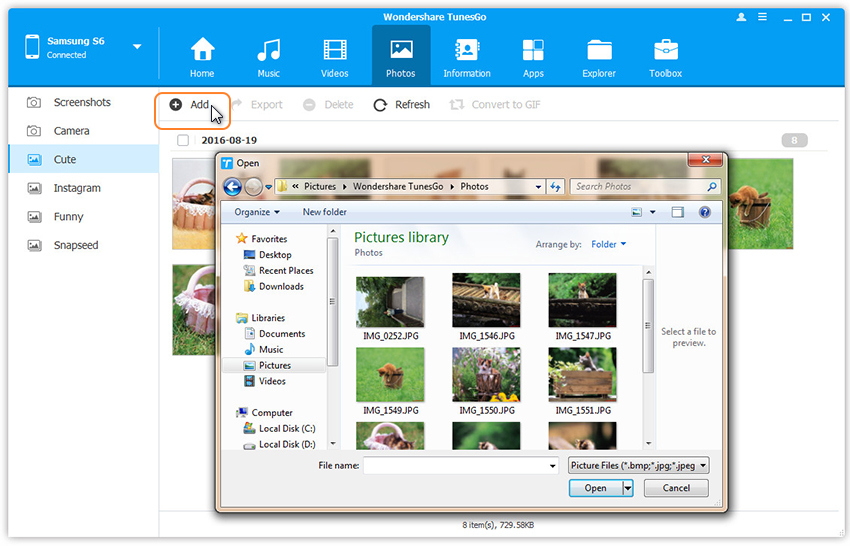
Step 1.Click Photos tab.All the albums will be displayed on the left.Select one to import photos from PC to selected Samsung photo album.
Step 2.Click Add > Add File or Add Folder.

add-photos-from-pc-to-samsung

If you only want to select some photos,then click Add File.You can create new albums and add photos in it. Simply right-click the photos category on the left panel, then click New Album.

If you want to transfer all the photos in one folder,then click Add Folder.

Step 3.Select photos or photo folders and add to your Samsung Galaxy S7/S7 Edge.Hold down Shift or Ctrl key to choose multiple photos.

d_win d_mac

Part 2:Transfer Photos from Samsung Galaxy S7/S7 Edge to Computer

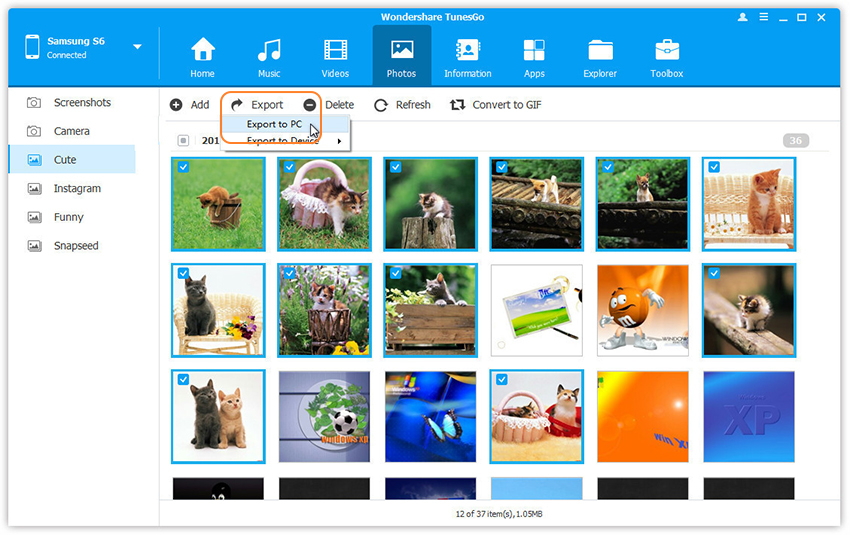
Step 1.In the photo management window,choose your desired photos and click Export > Export to PC.

transfer-photos-from-samsung-to-pc

Step 2.It brings up your file browser window. Select a save path to store the photos from your Samsung Galaxy S7/S7 Edge to computer.
You can transfer the whole photo album from Samsung Galaxy S7/S7 Edge to PC.

transfer-photo-from-samsung-to-pc

You can also backup all Samsung Galaxy S7/S7 Edge photos to PC in one click.

android-transfer-mian-page

d_win d_mac

Part 3:Transfer Photos Between iPhone/iPad/iPod/Android and Samsung Galaxy S7

Step 1.Launch Android Transfer and connect both devices to PC.

connect-multiple-devices

Step 2.Select the source device from which you want to transfer photos and albums.

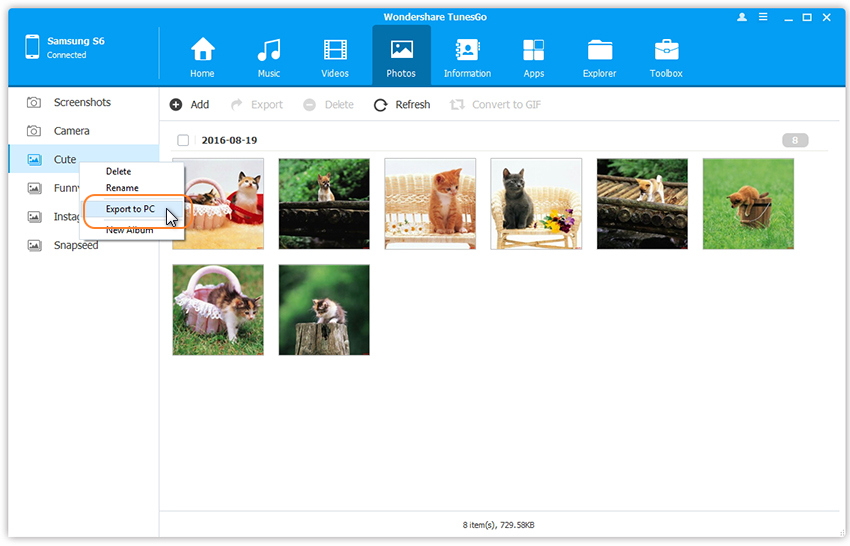
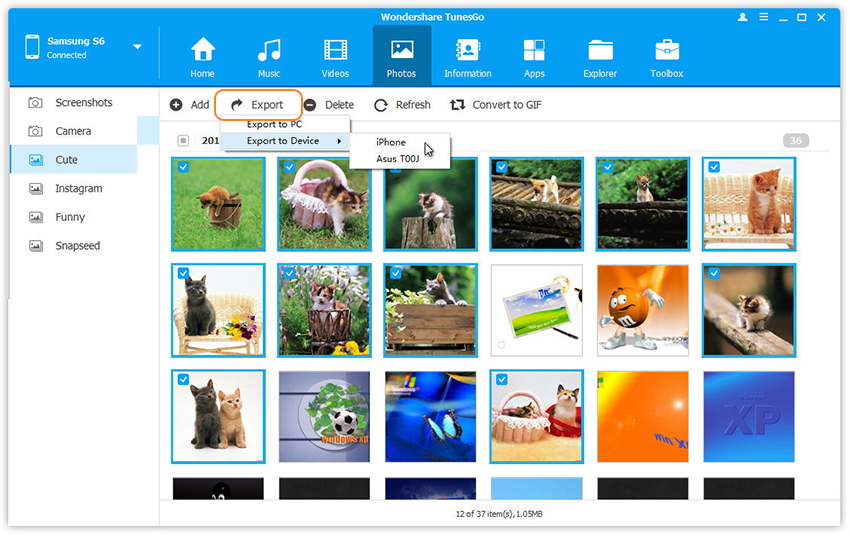
Step 3.Click Photos tab.Choose your wanted photos and click Export.Select another device from the list.For example,you can transfer photos from Samsung Galaxy S7 to iPhone by selecting Export > Export to Device > iPhone directly.

transfer-photos-from-android-to-iphone

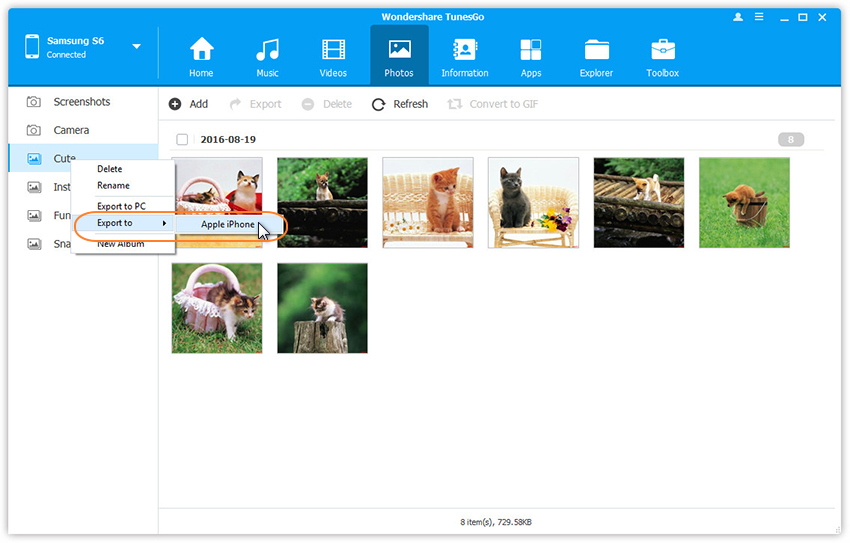
You can also transfer the whole photo album from Samsung Galaxy S7/S7 Edge to other devices in one click.

transfer-samsung-photo-album-to-iphone

d_win d_mac

Related Article:

How to Transfer Music from Computer to Samsung Galaxy S6/S7

How to Transfer Videos from Computer to Samsung Galaxy S6/S7

How to Transfer Music from Android to iPhone/iPad/iPod
How to Convert and Play DVD Movies on Samsung

How to Transfer Files between Samsung and Computer


How to Restore SMS on Bricked Samsung

Summary:There are many circumstances may lead to get brick on your bricked Samsung device.The most common factor due to brick for device is rooting your Samsung.Well,when your device get brick,the most disturbing you is the data loss problem.This post will show you how to rescue data from a bricked Samsung smartphone.Please read it if you are in need.

Are you looking a simple and effective way to restore data on your bricked device like messages,contacts,photos,videos and more?If you’ve tried a lot of methods but failed,just pay attention,you are never too late to use the Broken Android Data Recovery to rescue your data.

Broken Android Data Recovery perfectly helps to restore SMS from bricked Samsung without losing data,besides SMS,it enable to restore various of data on bricked Samsung such as contacts,photos,videos,audio,call logs,WhatsApp Messages & attachment,documents.Broken Android Data Recovery helps to restore data from almost all models of bricked Samsung device,including Samsung Galaxy S, Galaxy Note, Galaxy A, Galaxy J, Galaxy Tab and so on.The Program allows you restore data which lost due to deleted, system crash, SD card issue, rooting error, ROM flashing, OS update, of course including the bricked Samsung.

d_win d_mac

How to Restore SMS from Bricked Samsung

Step 1.Launch and Run Broken Android Data Recovery on Computer
Download and install Broken Android Data Recovery on computer.Launch and run it properly and choose “Android Broken Data Recovery” mode.

connect bricked samsung to pc

Select the type of files you wanna restore and press “Start” button to enter next step.For SMS recovery,you should click “Messaging”.

scan data bricked samsung

Step 2.Choose the Correct Fault Type of Your Bricked Samsung
Firstly,there are two fault types.One is “Touch doesn’t work or cannot access the phone” and the other is “Black/broken screen”.Just choose the correspond one which matches your bricked device state.Click “Next” to go on.

choose samsung broken types

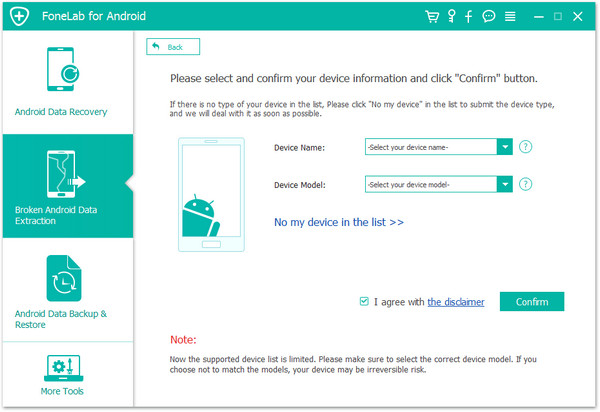
Secondly,you should select “Devise Name” and “Devise Mode” for your phone on the new window.Currently this function only works for some of Samsung devices in Galaxy S, Galaxy Note and Galaxy Tab series.Then click “Next” to go on.

select bricked samsung model

Step 3.Enter Download Mode on the Bricked Samsung
Follow the illustration on the program to enter your phone into the Download Mode.

1. Power off your Samsung phone.
2. Press and hold Volume “-“, “Home” and “Power” button on the phone.
3. Click “Volume +” button to enter download mode.

enter download mode bricked samsung

Step 4.Analyze and Scan Data on Bricked Samsung
Connect your bricked phone to the computer.And then the program will analyze and scan data on your phone automatically.

download recovery package for bricked samsung

Step 5.Preview and Restore SMS from Bricked Samsung
Once the scanning completes,all data from your device will display by categories on the screen.You are allow to check and preview them.Select the data in detail you want and click “Recover” to save all of them on the computer.

recover sms bricked samsung

d_win d_mac

Related Article:

How to Fix Bricked Samsung

How to Restore Data from Bricked Samsung

How to Restore Picture from Bricked Samsung

How to Restore Contacts from Bricked Samsung

How to Recover Files on Bricked Android

“My Samsung phone is bricked when I was try to update the new Android system on it,I am eager to get the solution to get back my data,contacts,photos on the Android of this abnormal state.Help please.”Ashley Wu

bricked android

What does the bricked Android mean?A bricked Android means: your phone won’t turn on in any way, shape or form. It is, for all intents and purposes, as a brick. Why does your device become bricked?I may due to several reasons,generally the hard brick and the soft brick respectively.These are totally different and at least for one of them, you can still have chance to save your bricked device.When Android get bricked, it means that it encountered an error and it cannot boot anymore, but do not fear,here we are showing you the best way to rescue your personal files from the bricked Android device.

Extra Tips:How to Fix Bricked Android and Restore it to Normal

A New Way to Restore Files on Bricked Android

Broken Android Data Recovery offers you a simple and safe way to restore data from bricked Android such as contacts,messaging,photos,videos,audio,call logs,WhatsApp messages & attachments,documents.As a specific Android data recovery software, this program allows to recover files for most popular Android brands including Samsung,ZET, Huawei, HTC, LG, Sony, Motorola, etc,.This program helps to restore data from bricked Android under various of circumstances as follows:Android stuck at start screen,Android stuck in Recovery Mode,Android stuck in DFU Mode,Android stuck on black/white screen and so on.

d_win d_mac

How to Restore Data on Bricked Android

Step 1.Launch and Run Broken Android Data Recovery on Computer
Download and run Broken Android Data Recovery on computer.Choose “Android Broken Data Recovery” option.

connect-bricked-android-to-pc

Select the type of files you need to restore and press “Start” .

scan-data-bricked-android

Step 2.Choose the Correct Fault Type of Your Bricked Android
Here two fault types are provided.One is “Touch doesn’t work or cannot access the phone” and the other is “Black/broken screen”.Choose the one which matches your bricked device state and click “Next” to go on.

Choose-android-Broken-Types

Now you should select “Devise Name” and “Devise Mode” for your phone on the new window.Then click “Next” to go on.

select-bricked-android-model

Step 3.Enter Download Mode on the Bricked Android
Follow the illustration on the program to enter your phone into the Download Mode.

1. Power off your Android device.
2. Press and hold Volume “-“, “Home” and “Power” button on the phone.
3. Click “Volume +” button to enter download mode.

enter-download-mode-bricked-android

Step 4.Analyze and Scan Data on Bricked Android
Plug your bricked Android to the computer,the program will detect Android,analyze and scan data on your device automatically.

download recovery package for bricked android

Step 5.Preview and Restore Data from Bricked Android
Once the scanning completes,all data from your device will display by categories on the screen.You are allow to check and preview them.Select the data in detail you want and click “Recover” to save them on the computer.

restore-data-bricked-android

d_win d_mac

Related Article:

How to Recover Picture from Bricked Android

How to Restore Data from Bricked Samsung

How to Restore Picture from Bricked Samsung

How to Restore Lost Data from Rooting Android


How to Recover Picture from Bricked Android

Expect the iOS device,Android device is the most popular device among the mobile device for its high-tech.Nowadays there are more and more mobile device of Android operating system released.However,Android device may get bricked by mistake when overwriting their firmware and other low level system software.Furthermore, majority of the user want to upgrade the Android operating system for example via rooting or installing custom Rom’s, during this process there might be chance that your device may get bricked.In such situation, your phone will not boot or display any information.

How to Restore Picture on Bricked Android

Unluckily,most of the Android users are confuse that is it possible to fix and restore bricked Android.If the bricked issues occurs on you,just take it easy.Here we are going to discuss how to get back data from bricked Android completely.We shows a marked preference for Broken Android Data Recovery.

No matter how your Android is bricked,you can effortlessly fix the device and restore file from it with the help of Broken Android Data RecoveryAndroid Data Extraction(Damaged Device),especially restoring picture from bricked Android,allow to restore various of data on bricked Android including picture,videos,audio,contacts,messaging,call logs,WhatsApp messages & attachments,documents.This program is compatible with all versions of Android OS.Google Pixel,Google Nexus,HUAWEI,Motorola,HTC, Sony, ZTE, LG, and more Android device are supported by this terrific program.

d_win d_mac

How to Recover Picture on Bricked Android

Step 1.Launch and Run Broken Android Data Recovery on Computer
Download and run Broken Android Data Recovery on computer.Choose “Android Broken Data Recovery” option.

connect-bricked-android-to-pc

Select the type of files you need to restore and press “Start” .For picture recovery,you should click “Gallery”.

scan-data-bricked-android

Step 2.Choose the Correct Fault Type of Your Bricked Android
There are two fault types.One is “Touch doesn’t work or cannot access the phone” and the other is “Black/broken screen”.Choose the one which matches your bricked device state and click “Next” to go on.

Choose-android-Broken-Types

Now you should select “Devise Name” and “Devise Mode” for your phone on the new window.Then click “Next” to go on.

select-bricked-android-model

Step 3.Enter Download Mode on the Bricked Android
Follow the illustration on the program to enter your phone into the Download Mode.

1. Power off your Android device.
2. Press and hold Volume “-“, “Home” and “Power” button on the phone.
3. Click “Volume +” button to enter download mode.

enter-download-mode-bricked-android

Step 4.Analyze and Scan Data on Bricked Android
Connect your Android to the computer,the program will analyze and scan data on your device automatically.

download recovery package for bricked android

Step 5.Preview and Restore Picture from Bricked Android
Once the scanning completes,all data from your device will display by categories on the screen.You are allow to check and preview them.Select the data in detail you want and click “Recover” to save them on the computer.

restore-gallery-bricked-android

d_win d_mac

Related Article:

How to Fix Bricked Android

How to Recover Data from Broken Android

How to Restore Photos from Broken Android

How to Recover Data from Android

How to Recover Pictures from Broken Android Tablet

How to Restore Data from Bricked Samsung

How to Restore Contacts from Bricked Samsung

Before we talking about “How to restore data from bricked Samsung”, let me clear something with all you guys, most of the people don’t know what a bricked phone actually is.A bricked phone means – your phone stuck at the abnormal state,such as stuck at the black screen,stuck at the game screen when you are playing,in conclusion that the device won’t turn on at all.If your phone is actually bricked that means it won’t work as usual.However if you are able to boot it into recovery mode by using an USB,then there is chance to restore it to normal state,or else you should consider to sent your bricked device to the repair store.

It’s Possible to Restore Contacts from Bricked Samsung

If your Samsung phone is bricked,you may eager to get back all important data like contacts from this bricked device especially when you didn’t backup on it.The phone number,E-Mail address,house address ,birthday date are the privacy for everybody.To prevent the personal data leak to someone,you’d better extract the file from your bricked Samsung device before sending it to repairing or giving it up.

In order to restore contacts on bricked Samsung,you should try this Broken Android Data RecoveryAndroid Data Extraction(Damaged Device),it can help to restore data from bricked Android device without data loss.Contacts,SMS,photos,videos,audio,calendars,call logs,apps(WhatsApp/Viber/Kik/Line),apps data(text,videos,attachments),are included.Broken Android Data Recovery is available for restoring data from broken Android due to any circumstances,like bricked Android,Android stuck on start screen,Android stuck in download mode/recovery mode,black screen Android,broken screen Android,water damaged Android,etc,.It supports not only Samsung,but also HTC, Sony, Google Pixel,Google Nexus,HUAWEI,Motorola, ZTE, LG, and more Android device.

d_win d_mac

How to Restore Contacts on Bricked Samsung

Step 1.Launch and Run Broken Android Data Recovery on Computer
Download and install Broken Android Data Recovery on computer.Launch and run it properly and choose “Android Broken Data Recovery” mode.

connect bricked samsung to pc

Select the type of files you wanna restore and press “Start” button to enter next step.For contacts recovery,you should click “Contacts”.

scan data bricked samsung

Step 2.Choose the Correct Fault Type of Your Bricked Samsung
Firstly,there are two fault types.One is “Touch doesn’t work or cannot access the phone” and the other is “Black/broken screen”.Just choose the correspond one which matches your bricked device state.Click “Next” to go on.

choose samsung broken types

Secondly,you should select “Devise Name” and “Devise Mode” for your phone on the new window.Currently this function only works for some of Samsung devices in Galaxy S, Galaxy Note and Galaxy Tab series.Then click “Next” to go on.

select bricked samsung model

Step 3.Enter Download Mode on the Bricked Samsung
Follow the illustration on the program to enter your phone into the Download Mode.

1. Power off your Samsung phone.
2. Press and hold Volume “-“, “Home” and “Power” button on the phone.
3. Click “Volume +” button to enter download mode.

enter download mode bricked samsung

Step 4.Analyze and Scan Data on Bricked Samsung
Connect your bricked phone to the computer.And then the program will analyze and scan data on your phone automatically.

download recovery package for bricked samsung

Step 5.Preview and Restore Contacts from Bricked Samsung
Once the scanning completes,all data from your device will display by categories on the screen.You are allow to check and preview them.Select the data in detail you want and click “Recover” to save all of them on the computer.

restore contacts bricked samsung

d_win d_mac

Related Article:

How to Fix Bricked Samsung

How to Restore Data from Bricked Samsung

How to Restore Picture from Bricked Samsung

How to Restore Data from Broken Samsung

How to Fix iOS 10 System Update Failed

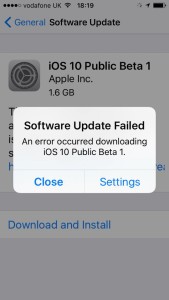
“I can’t successfully update my iPhone 6S to iOS 10. I tried several times with the same result.It gets the message “Software Update Failed An error occurred downloading iOS 10″.Anyone know how to solve it?Thanks advance”-Janie Pan

ios 10 update failed

Getting the “Software Update Failed” messages that prompt on your iPhone when you trying update iOS 10 system on device?It’s exciting to install a new firmware on your iOS device but you may sometimes encounter a problem like Janie that will make you disappointed.An example is the “Software Update Failed” error that pop up when installing iOS 10 on device.It is one of the most common iOS system issues that users face when updating to a new iOS firmware.The error has occurred on iOS 8 and iOS 9 as well.If you are facing the problem like this,luckily here we are talking about solutions to fix it completely.

Part 1:Backup iPhone Data before iOS 10 Update

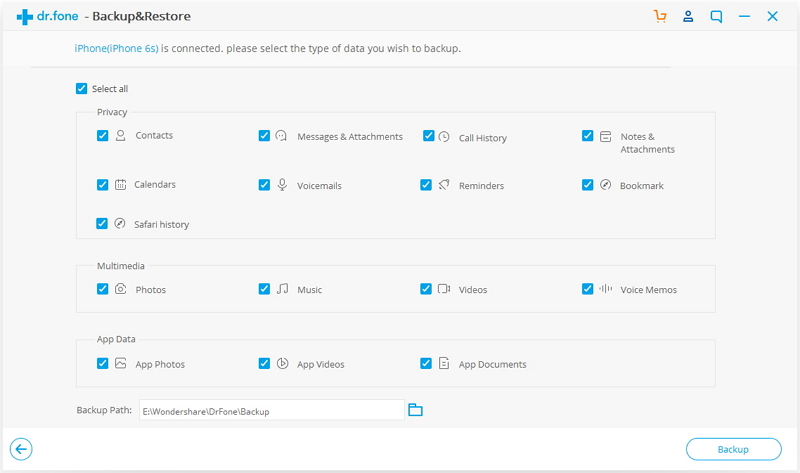
First of all,please do backup on iPhone before updating to iOS 10,in order to protect your personal data on device,you’d better keep your iPhone files safety.If you lost data from iPhone after iOS 10 update,you should restore backup to your iOS 10 device without data loss via iOS Backup & Restore tool.

d_win d_mac

Tips:How to Backup iPhone before iOS 10 Update

backup-iphone-before-ios10-update

Part 2:iOS 10 Software Update Failed,How to Fix it

1.Wait for a Few Hours
As we said,Apple servers simply can’t handle the level of traffic.So wait for a few hours or several days and it will be much smoother to download iOS 10 on your device.

2.Restart iPhone and Try it Again
When you get the message that prompt “An error occurred downloading iOS 10”, just ignore the message and reboot your iPhone.Waiting for a moment and then tap on “Download and Install” again.

3.Reboot WiFi and Reset iPhone Network Settings
Reboot your iPhone and your WiFi to make sure your internet connection is working well.On your iPhone, go to Settings > General > Reset >Reset Network Settings to reset the network settings.Waiting for a little while and then tap on “Download and Install” again.

4.Update iOS 10 with iTunes
If you still fail to complete the iOS 10 update task on your device via the methods above,the last one you should try is to update iOS 10 on device with iTunes after connecting iPhone to computer via USB.

Part 4:Restore Deleted Data on iPhone after iOS 10 Update

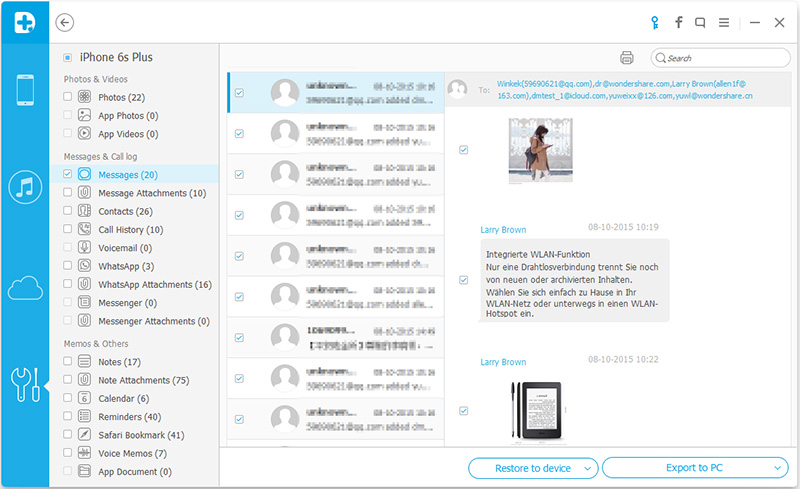
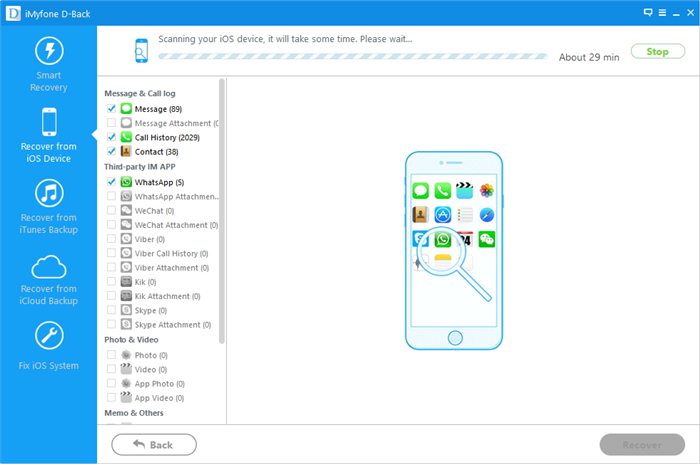
iOS 10 update on iPhone may lead to data loss under various of circumstances,but you can restore backup on iPhone after iOS 10 update,even directly restore deleted data from iPhone after iOS 10 update without backup via iOS Backup & Restore tool.No matter what kinds of data you wanna restore on device,this reliable data recovery tool help you to solve the restoring perfectly.

d_win d_mac

Tips:3 Ways to Restore Deleted Data on iPhone after iOS 10 Update

Restore Data on iPhone from Backup:

restore backupto iPhone after ios 10 update

Directly Restore Data from iPhone:

restore data from iphone after ios 10 update

Related Article:

How to Fix iPhone Freezes During/After iOS 10 Update

2 Ways to Fix iPhone Stuck in Recovery Mode After iOS 10 Update

Fix iPhone Stuck on iTunes Logo After iOS 10 Update

How to fix Bug on iPhone after iOS 10 Update

How to Fix iOS 10 iPhone Running Slow Issue

How to Jailbreak iOS 10 on iPhone without Losing Data

How to Downgrade iPhone or iPad from iOS 10 to iOS 9

Fix iPhone Stuck on Apple Logo after iOS 10 Update

”My iPhone 6 stuck on apple logo after iOS 10 update. I tried restoring with iTunes but it just gets stuck.Help please.” Donald Vinson

Summery:iPhone stuck on Apple logo during/after iOS 10 update?This tutorial is showing you some basic tips to perfectly fix this issue and more other iPhone stuck issues.

fix iphone stuck on apple logo

There are lots of iPhone users are annoying about their iPhone stuck on Apple logo after iOS 10 update,most of them search the methods on the Internet then get nothing.If you are looking for best iPhone stuck issues solutions then we have the best collections of it.There are various things we can do before we come to the conclusion that our iPhone has simply died and has to be replaced.The most common situation that the iPhone can’t get rid of the Apple logo screen.The following passages are some of the useful steps that you can take to fix iPhone stuck on Apple Logo issue.

Part 1:Fix iPhone Stuck on Apple Logo by DFU Mode

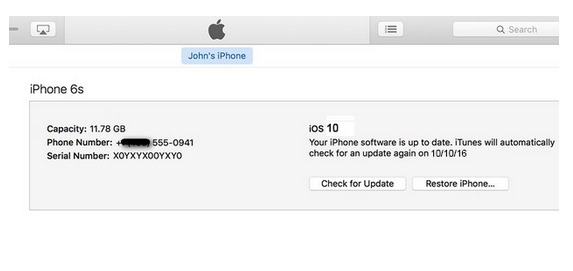
DFU (Default Firmware Update) is an simple way to get iPhone out of stuck on Apple logo and then work normally as usual.To do this, you have to connect your iPhone to your PC (that have iTunes installed on it). You should press the home button and power button for about 10-15 seconds.After 10-15 seconds you can leave the power button, but you should not leave the home button that you are holding.After few seconds,the iTunes will pop up saying that it has detected an iPhone in DFU mode.This will reset and restore the firmware completely.

enable DFU mode

Note:Setting iPhone enter the DFU mode that there is a high chance of losing all your iPhone files.You can try the recovery software to restore deleted data from iPhone after losing data due to enter DFU mode.

Part 2:Reset iPhone to Factory Settings to Fix iPhone Stuck on Apple Logo

Not only can iTunes sync data between your device and computer, but also allows you to fix iPhone stuck on Apple logo by factory restore mode.However,it may cause data loss also because all the data and settings will be erased from device before system restoring process.

factory reset on iphone

Step 1.Run the latest iTunes and connect your iPhone to computer.

Step 2.A message will pop up and prompt that your iPhone is in recovery mode and needs to be restored.

Step 3.Click your iPhone device icon on iTunes interface and go to Summary tab.

Step 4.Click Restore button to restore your device to its previous settings.

Part 3:Fix iPhone Stuck on Apple Logo by Hard Reset

This is one of the simplest methods that will help you to restore your phone system in most of the cases.But this method didn’t work for most iPhone,and I cannot promise about that though you can give a try.The method is very simple.You just have to take your iPhone in your hand.Hold the home button and the power button for 15-30 seconds.If you are lucky,this is going to work like a charm.If these methods doesn’t your ideal choice,please just follow the most useful solution mentioned below.
hard reset on iPhone

Part 4:Fix iPhone Stuck on Apple Logo by iOS System Recovery

To be honest,the three ways above we are talking about may lead to data loss on your device while/after the iOS system restoring.Take it easy,as its said that the best thing will appear at the last moment.Now we are strongly recommend this helpful impeccable tool for you all- iOS System Recovery.

iOS System Recovery enables to restore iPhone system to normal state under any abnormal circumstances as its name,especially fixing iPhone stuck on Apple Logo after iOS 10 update without data loss.iOS System Recovery perfectly solve all kinds of iPhone system stuck issues,such as iPhone stuck in Recovery Mode,iPhone stuck in DFU Mode,iPhone stuck at “Connect to iTunes” screen,iPhone bricked issues(black/white screen),etc,.Additionally,this famous recovery support to restore deleted data from iPhone after iOS 10 update with three recovery modes,it must do you a favor for your iPhone restoring.Just download and try this program right now.

d_win d_mac

Step One.Download and Install iOS System Recovery on Computer
Download and install iOS System Recovery on your computer and then connect your phone to your computer using USB cable.

iOS System Recovery

Step Two.Select Repair Mode of iOS System Recovery
On the main page,click on “Fix iOS to Normal” and the program will detect your device,once the device has been detected click on “Start”.

fix iphone stuck on apple logo after ios 10 update

Step Three.Download Official Firmware for iPhone
Click on “Download” when the program provide the latest version of firmware for your iPhone in order to fix your device.Wait for the download to complete.

select your iPhone model

download the firmware for iPhone

As soon as the download is complete.The program will begin to restore iPhone normal system.The whole repair process of your device should take no more than 10 minutes.Then you will get a message prompt that your device will now restart normally.Just ensure that your device remains connected to your computer during the entire process.

fix iphone stuck on apple logo after ios 10 update

fix iphone stuck on apple logo after ios 10 update

iOS System Recovery makes the restoring process so easy you could be able to fix your iPhone stuck on Apple logo effectively and enjoy the funny trip on your iOS device.

d_win d_mac

Related Article:

How to Fix iPhone Freezes During/After iOS 10 Update

2 Ways to Fix iPhone Stuck in Recovery Mode After iOS 10 Update

Fix iPhone Stuck on iTunes Logo After iOS 10 Update

How to Fix Bricked iPhone after iOS 10 Update

How to fix Bug on iPhone after iOS 10 Update

How to Fix iOS 10 iPhone Running Slow Issue