All posts by DHZ

How to Transfer Photos to iPhone 7

“I try to copy the birthday photos from computer to my new iPhone 7 but it was failed.I don’t know why.Anybody give me some extra advice to transfer the photos to my device conveniently?”Emma

Simple as it sounds,I guess a lot of people are confused about this:How to easily transfer photos to iPhone whatever from computer,iTunes library or other mobile devices.So we thought we’ll get this right. It’s a page that guide you to transfer photos to iPhone 7/SE/6S/6 correctly.Most of us are like to take photos everywhere and are accustomed to browse photos on device or share it with others anytime.However,a part of person reflect that the make some problems when try to transfer photos from computer/mobile device to iPhone 7.Now we are going to share the solutions available to complete the photos transfer task on iPhone 7.

How to Export Photos to iPhone 7 without Complication

There is no more better than use iOS Manager to export photos to iPhone 7/SE/6S/6,it’s an useful program to transfer photos between computer and iPhone/iPad/iPod,transfer photos between iOS/Android device and iPhone/iPad/iPod.Furthermore,this program support to transfer & manage videos and music for iOS device.Not only iPhone 7,all the functions of iOS Manager is applicable to all models of iOS devices,such as iPhone SE,iPhone 6S/6/5S/5,iPad & iPod.


d_win d_mac

Part 1:How to Transfer Photos from Computer to iPhone 7

Step 1.Launch iOS Manager and connect your iPhone 7 with the computer.

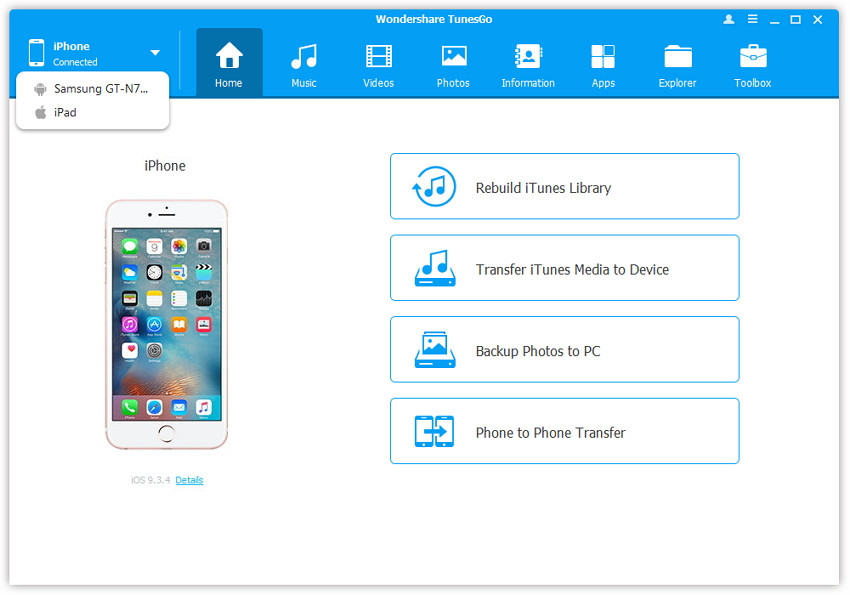
iOS manager main page

Method 1:Transfer Photos by Tapping Buttons

Step 2.Add photos from your computer to your iPhone 7
Click Photos icon at the top of the main interface, then select the specific option Photo Library. Please note that Camera Roll, Photo Stream and Photo Shared are not available to add photos.
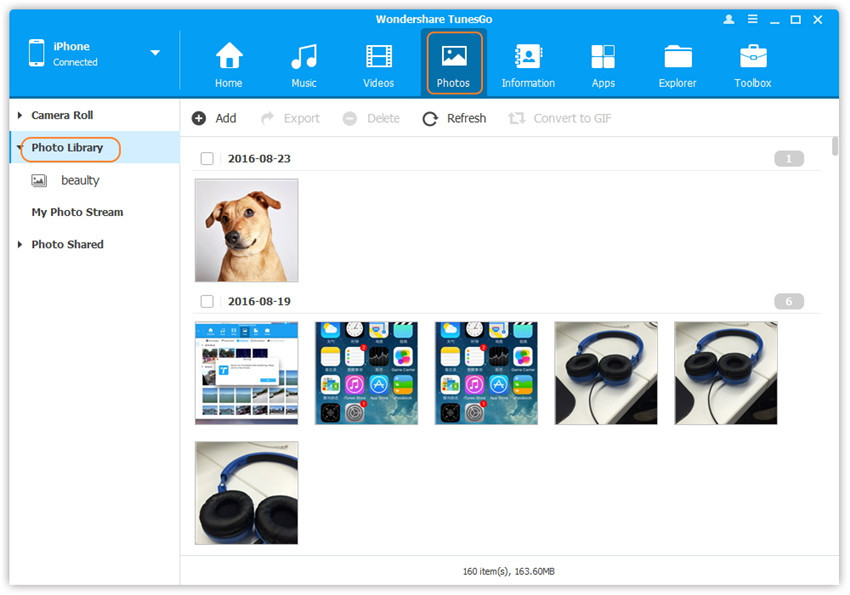
transfer photos from photo library

Later,click Add and then select Add File or Add Folder to add photos from your computer.If you only want to select some photos,then click Add File, and then hold down Shift or Ctrl key to choose multiple photos; if you want to transfer all the photos in one folder, then click Add Folder. After that, click Open to import the selected photos. Here we only add photos to iPhone 7 by clicking Add File for example.
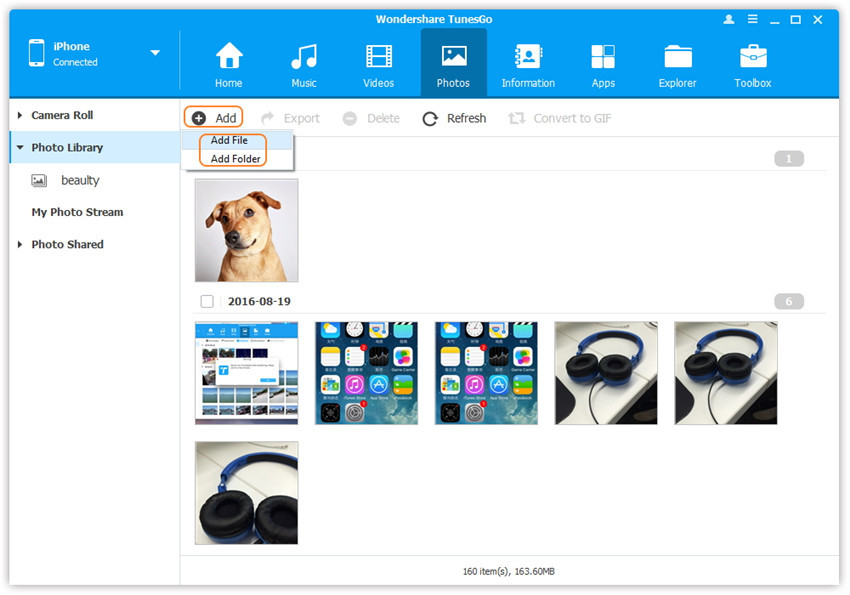
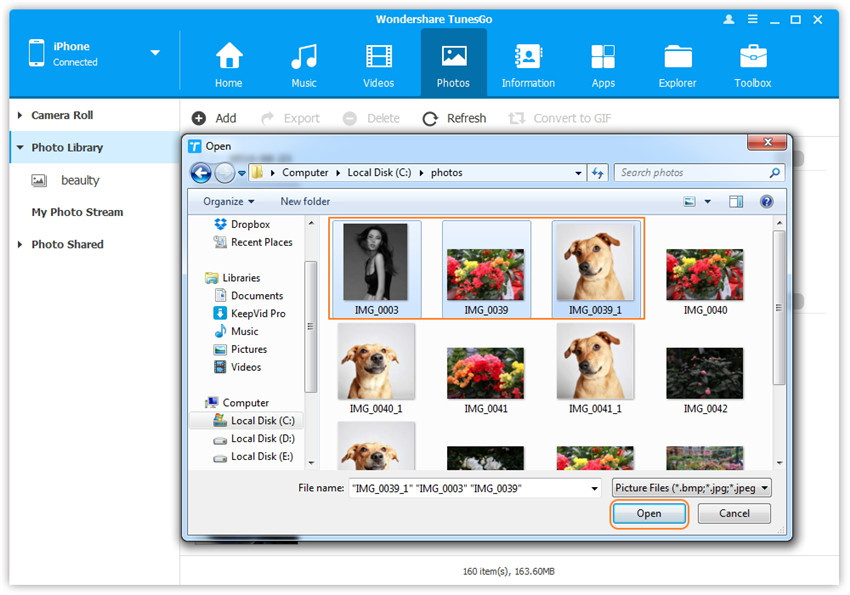
add file to transfer

select photos to transfer to iphone 7

Method 2:Transfer Photos by Drag and Drop

Step 2. Find photos on your computer.
Find and open the photo folder on your computer which includes the photos that you wish to transfer to iPhone 7.
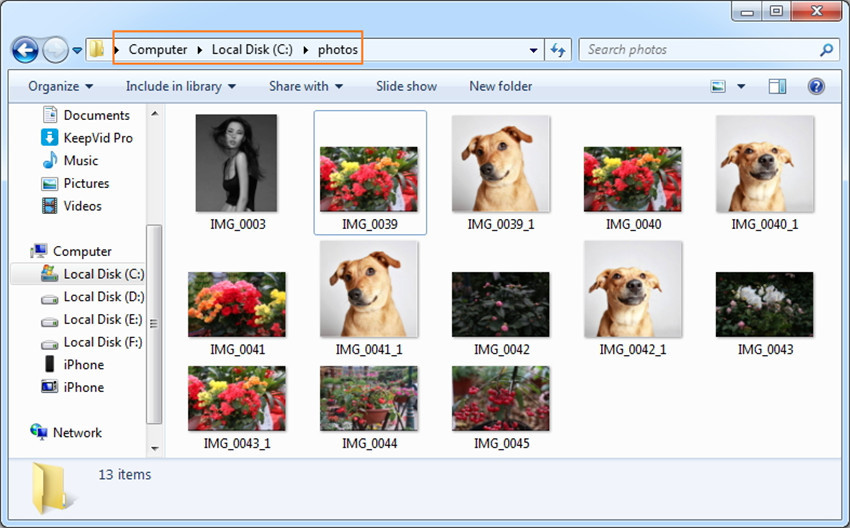
open the photo folder on pc

Step 3.Export the photos to iPhone 7 by Drag and Drop
Click Photos icon on the main interface of iOS Manager,then go to the Photo Library window.Drag and drop the selected photos from your computer to the Photo Library window of iOS Manager.
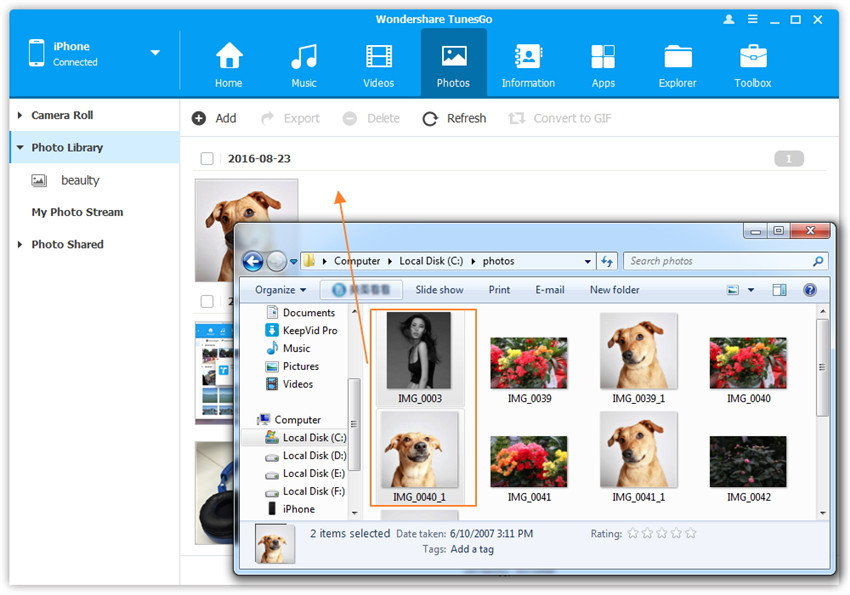
drap and drop the selected photos

Note:With the two methods above, you can also select to add photos to one of the photo albums under Photo Library.
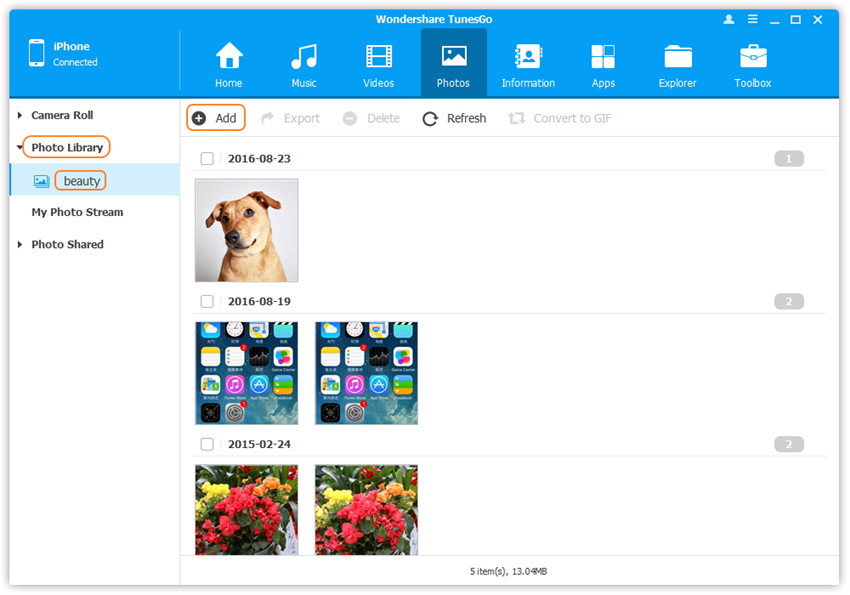
selected photos from photo albums

d_win d_mac

Part 2:How to Transfer Photos from iPhone 7 to Computer

Method 1: Transfer All The Photos With One Click

Step 1.Launch iOS Manager and connect your iPhone 7 with the computer

iOS manager main page

Step 2. Backup photos to the computer
If you use Windows PC:
Click Backup Photos to PC icon on the main interface. From the pop-up window, browse and select the destination folder for photos, click OK to start the export.
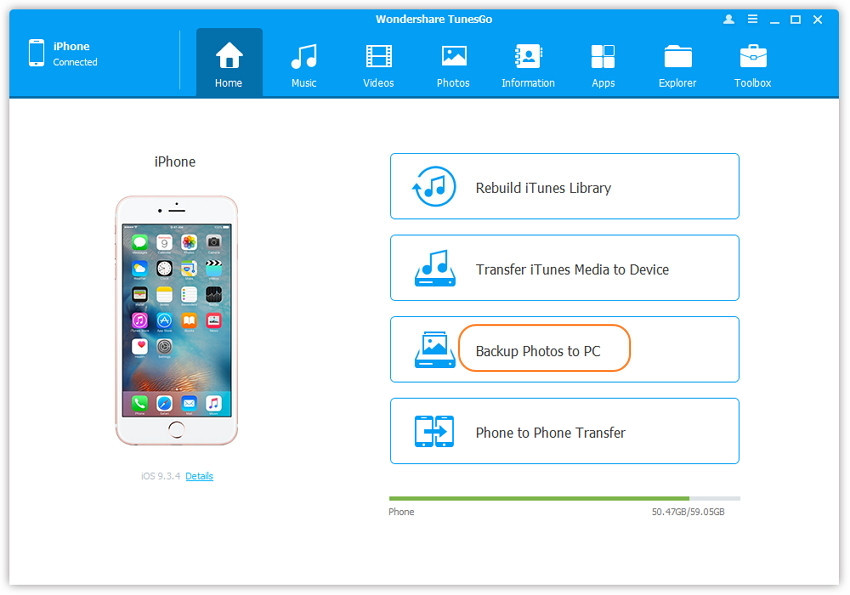
1-click-backup-photos-to-pc

backup-photos-to-pc

If you use Mac:
Click Backup Photos to Mac icon on the main interface. From the pop-up window, browse and select the destination folder for photos, click Save to start the export.

1-click-backup-photos-to-mac

transfer-photo-to-computer

Step 3. Export Photos to Computer
Click Open Folder to see the exported photos on the selected path of your computer, or click Finish to close the dialog.

finish-transfer-photo-to-computer

Method 2: Selectively Transfer Photos by Tapping Buttons

Step 1. Launch iOS Manager and connect your iPhone 7 with the computer. Then click Photos icon at the top of the main interface, you will enter the default photo type: Camera Roll.

transfer iphone 7 photo from camera roll

Situation 1.Transfer Photos from iPhone 7 to Computer Selectively
Step 2. Export photos from your iPhone 7 to the computer.
a. Select a specific photo type: Camera Roll/Photo Library/ Photo Stream/Photo Shared( Camera Roll is the default type), all the photos under this type will be shown on the right panel. Optionally, you can select one specific album under one photo type to enter the album window, then all the photos in this album will be shown on the right panel. Later, check the photos you want to transfer to your computer, and click Export > Export to PC or right-click on the selected photos and then select Export > Export to PC from the drop down list. Here we only make photos under Camera Roll type for example.

export photos from iphone 7 to computer

export-iphone 7-photo-to-pc

b. Browse and choose the target folder on the computer to export. And click OK to start the export process.

click-ok-to-start-process

Step 3. Export successfully
Click Open Folder to see the exported photos on the computer or click OK to close the dialog.

export-complete

finish-photo-transfer

Situation 2. Transfer All The Photos in One Photo Type from iPhone 7 to Computer
Step 2. Select a specific photo type: Camera Roll/Photo Library/ Photo Stream/Photo Shared, right-click on it, and choose Export to PC from the drop down list. After that, browse and select the target folder on your computer to export. Please see the screenshot to transfer all the photos in Photo Library below for reference.
export-photo-library-to-pc

Situation 3. Transfer All The Photos in One Photo Album from iPhone 7 to Computer
Step 2. Select a specific photo album under Camera Roll, Photo Library, Photo Stream or Photo Shared, right-click on it, and choose Export to PC from the drop down list. After that, browse and select the target folder on your computer to export. Please see the screenshot to transfer all the photos in the “beauty” album under Photo Library below for reference.

transfer-photos-from-photo-album-to-pc

d_win d_mac

Part 3:How to Transfer Photos between iOS/Android Device and iPhone 7

Method 1: Transfer All The Photos

Step 1. Launch iOS Manager and connect iPhone 7 with the computer
Launch iOS Manager and connect more than one iPhone/iPad/iPod/Android device with the computer, here we name the connected devices: A, B, C.

iOS manager main page

Step 2. Select the source device from which you want to transfer contents
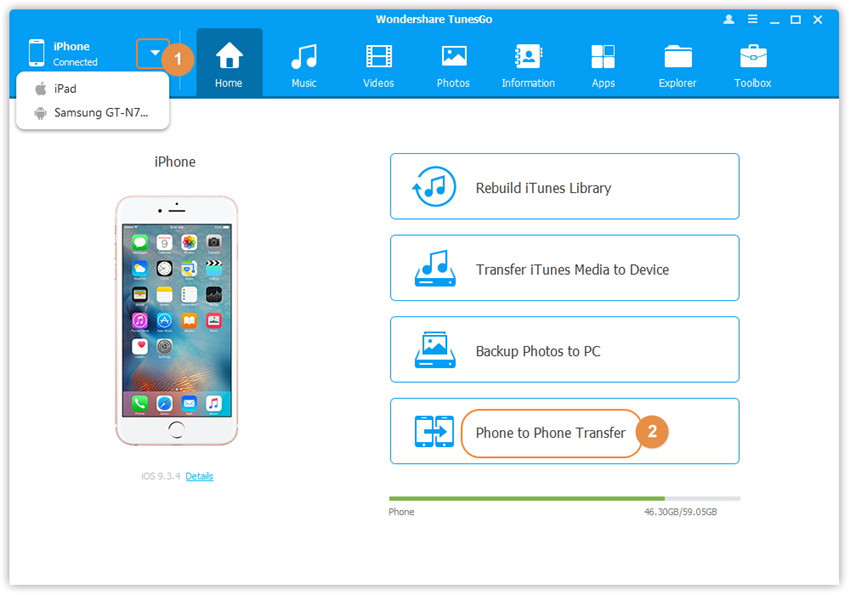
Select the source device A, and click Phone to Phone Transfer option on the main interface. Then a new window will pop up.

phone to phone transfer option

Step 3. Select the target device to which you want to transfer contents
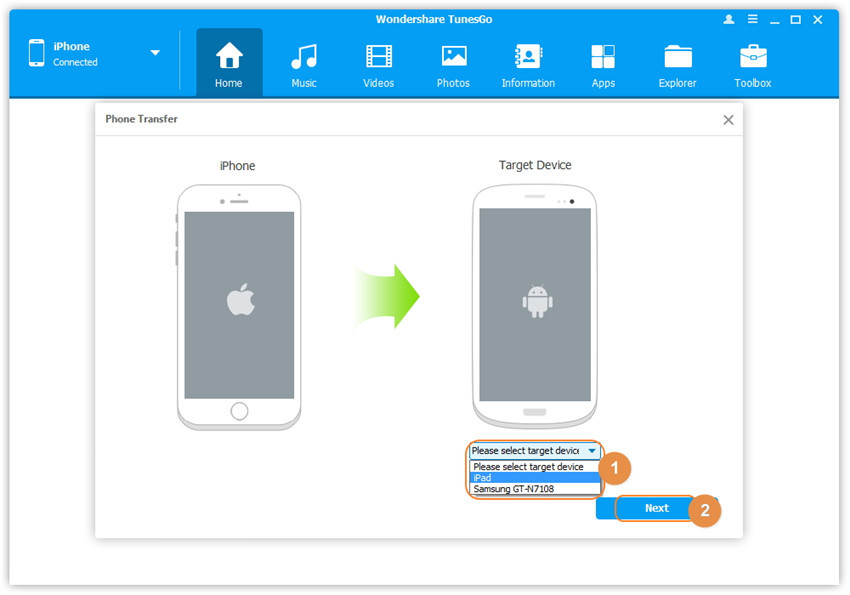
From the pop-up window, select the target device B or C from the drop-down list and click Next.

select target device

Step 4. Transfer contents from one device to another
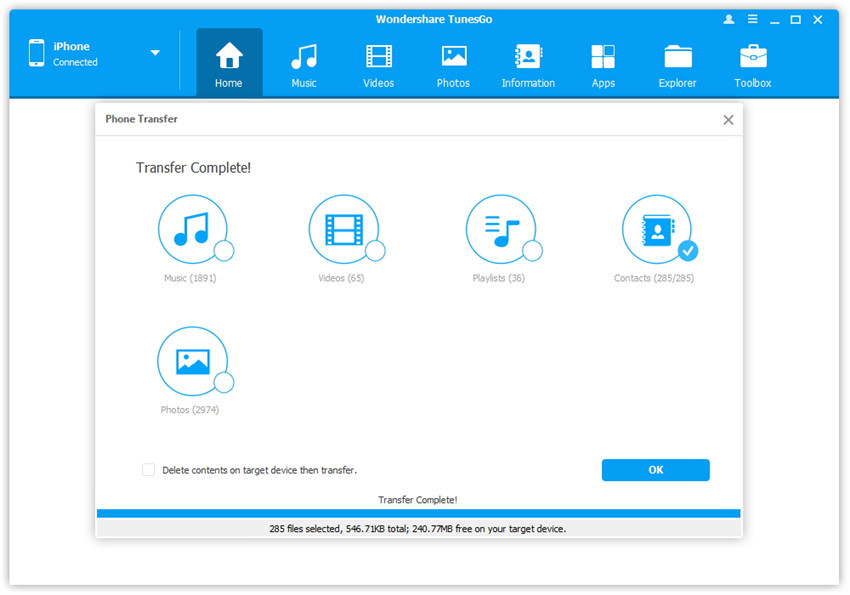
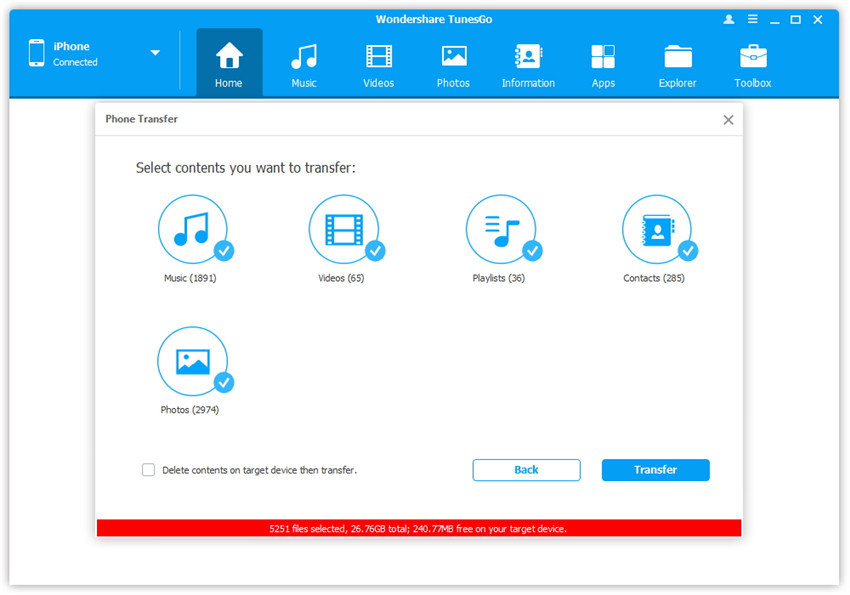
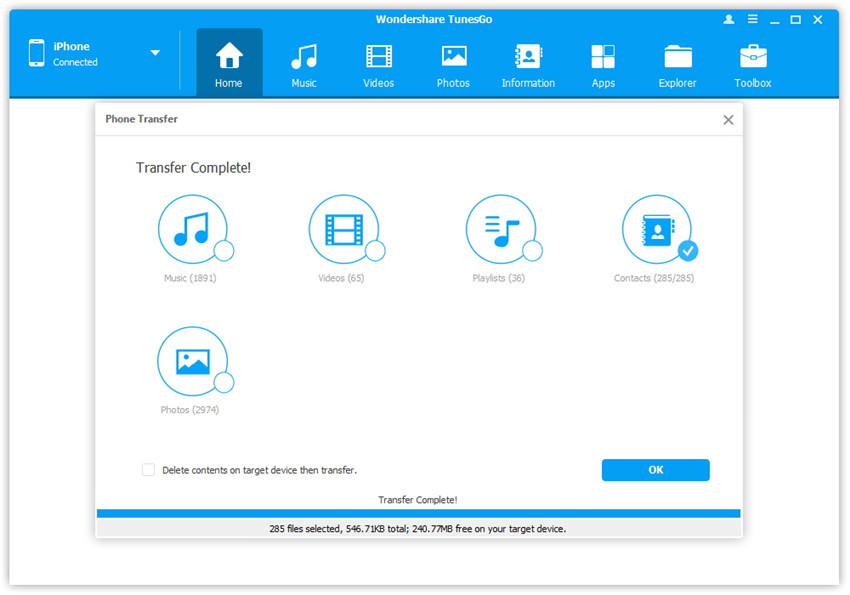
By default, all the content on your source device A that can be transferred are checked, namely Music and Videos, Playlists, Photos, Contacts( Note: Contacts are not supported by Mac version). You can uncheck the contents which you don’t want to transfer. Then, click Transfer. In the whole transfer process, DO NOT disconnect either of the devices. When the transfer completes, click OK.
start transfer process

transfer complete

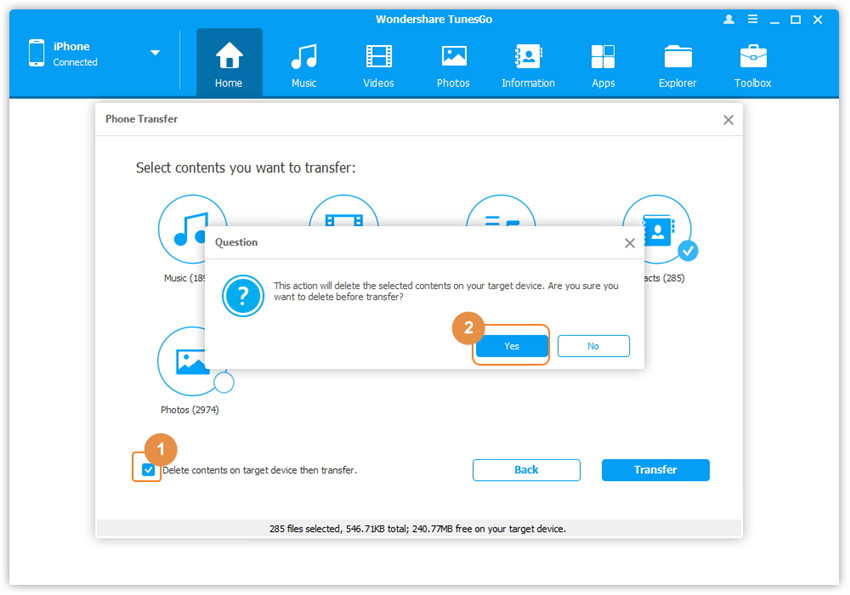
Note: Only for Windows version, you’re enabled to tick the option: “Delete contents on target device then transfer” before clicking Transfer button, then the selected contents on the target device will be deleted firstly before the transfer.

delete contents on target device then transfer

Method 2: Transfer Photos Selectively

Step 1. Launch iOS Manager and connect iPhone 7 with the computer
Launch iOS Manager and connect more than one iPhone/iPad/iPod/Android device with your computer, here we name the devices: A, B, C.
connect-iphone 7-other-devices

Step 2. Select and transfer photos between devices
Select the device A from which you want to transfer photos, and click Photos icon at the top of the main interface, then select a specific photo type: Camera Roll/Photo Library/ Photo Stream/Photo Shared( Camera Roll is the default type), all the photos under this type will be shown on the right panel. Optionally, you can select one specific album under the photo type to enter the album window, then all the photos in this album will be shown on the right panel. After that, check the photos which you want to transfer from A to B or C, then click Export > Export to Device > B or C. As for the following screenshot, the selected photos in “beauty” album under Photo Library on the iPhone 7 can be transferred to the Samsung Phone or another iPad.

select-photo-transfer-to-devices

Note: Here you can right-click on the selected photos and then select Export to Device > B or C as well.

export-photos-to-devices

d_win d_mac

Related Article:

How to Transfer Music from Computer to iPhone 7/SE/6S/6

How to Sync Videos from Computer to iPhone 7/SE/6S/6

How to Transfer Photos from Computer to iPod

How to Transfer Music from Android to iPhone/iPad/iPod

How to Transfer Music from iTunes Library to iPod

How to Transfer Music (Apple Music) to iPhone 7

Summary:Check out this article here we will teach you easy methods to transfer music/songs from computer/iTunes/Android/iOS devices to iPhone 7/7 Plus,we also recommend you Apple Music Converter to remove DRM from Apple Music songs and transfer to your iPhone/Android devices for playing for free with more freedom and convenience,once the subscription service is canceled.

As cool as the new iPhone 7 is, one thing that lots of people didn’t find cool was the fact that Apple ditched the 3.5mm headphone port. This meant that to use your old headphones you had to resort to an adapter. The catch is that if you want to listen to music with the headphone adapter and needed to charge your device at the same time, you had to choose one or the other.However,even though the iPhone 7 is a bit different from the previous iPhone,most iPhone fans like to enjoy music on it,for its advanced music system design.

iPhone 7 is a fully-featured music player.To add music to iPhone 7, you can purchase it from iTunes,add music files from computer to device,even share songs between mobile devices and iPhone 7.In order to freely listen to music on iPhone 7 anywhere anytime,here we are going to introduce three solutions selectively to transfer music to iPhone 7 that will cost you a little time.

How to Export Music to iPhone 7

iOS Manager,which is strongly recommended for you to transfer music between computer and iPhone 7,transfer music between iTunes library and iPhone 7,transfer music between iOS/Android device and iPhone 7,manage music playlists on iPhone 7,find and remove duplicate music files,fix Music ID3 tags for iPhone 7,delete music on iPhone 7.In addition,iOS Manager help to transfer & manage videos and photos for iPhone 7.Not only iPhone 7,all the functions of iOS Manager is applicable to all models of iOS devices,such as iPhone SE,iPhone 6S/6/5S/5,iPad & iPod.

d_win d_mac

Part 1:How to Transfer Music from Computer to iPhone 7

Step 1. Launch iOS Manager and connect your iPhone 7 with the computer.

iOS manager main page

Method 1.Transfer Music Using Buttons

Step 2. Add music from your computer to iPhone 7.
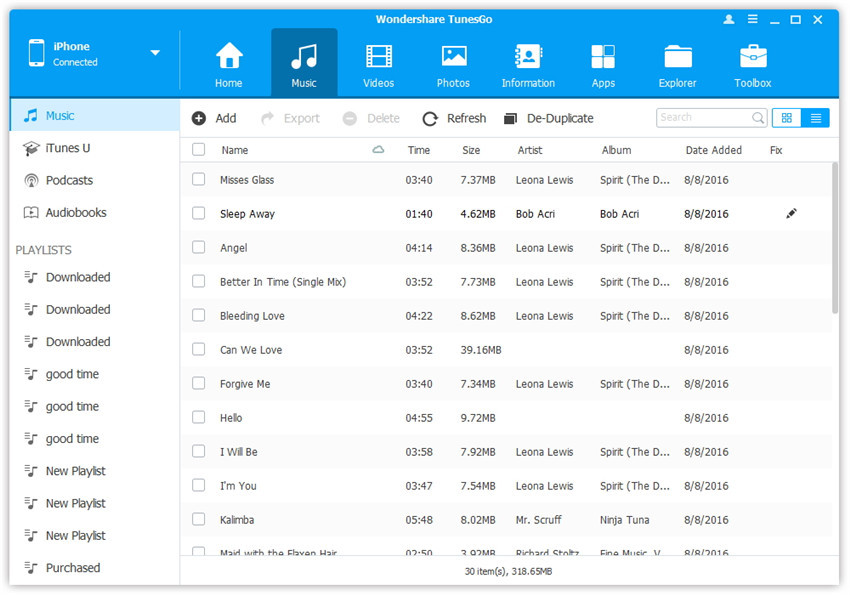
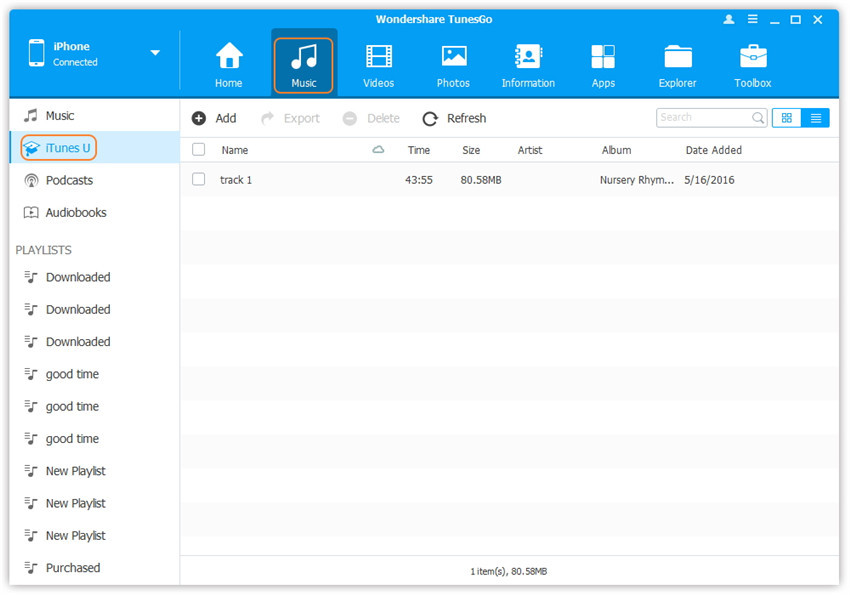
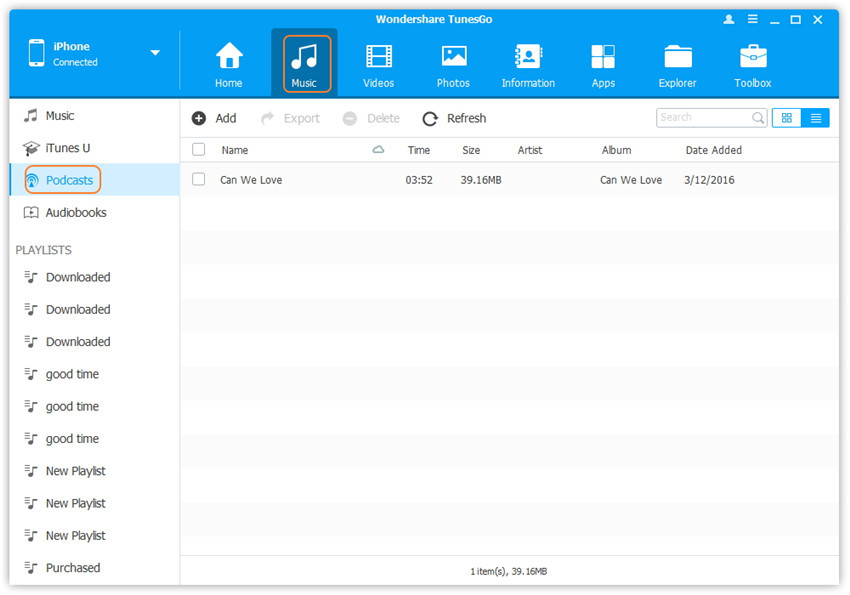
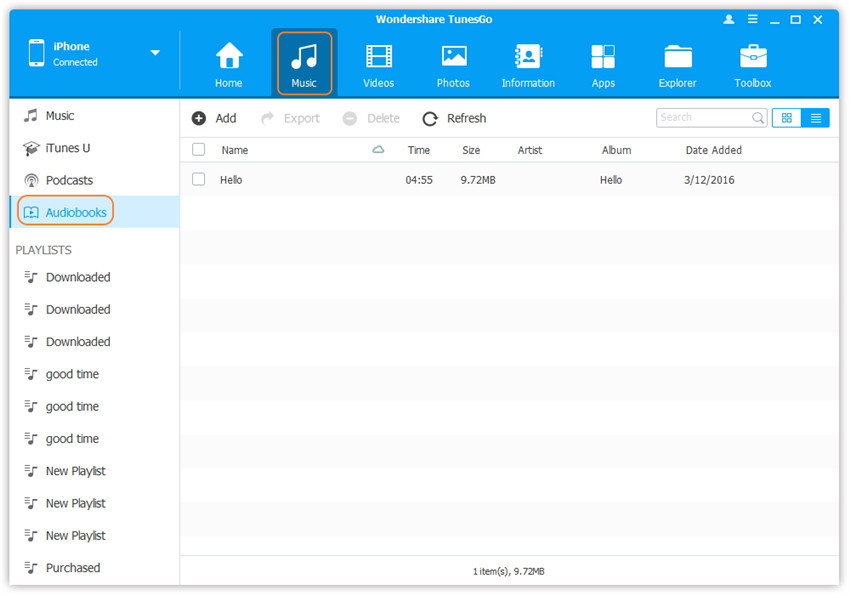
Click Music icon at the top of the interface, then select the specific option Music (Music is the default option). Please note that iTunes U/Audiobooks/Podcasts is available to select here too.

select music to transfer

select-itunes-u-music

select-podcasts-music

select-audiobooks-music

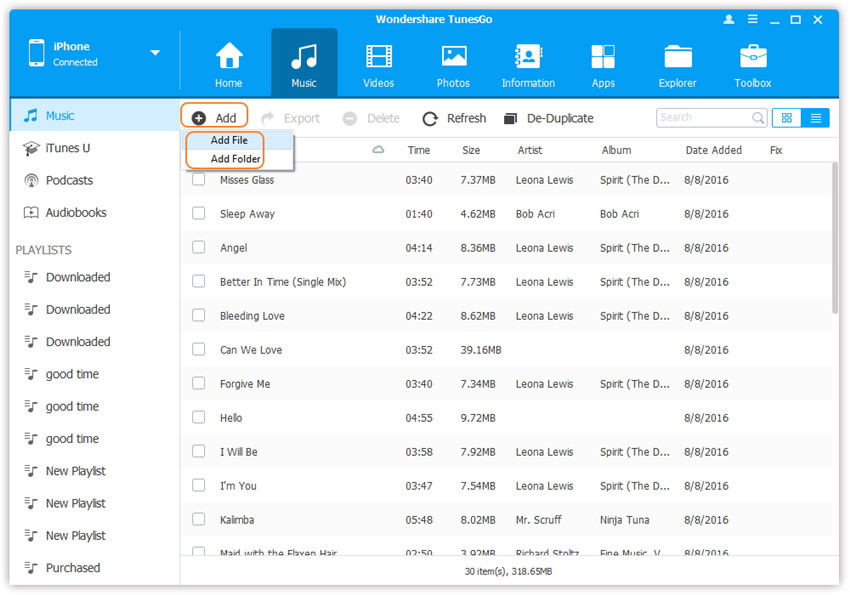
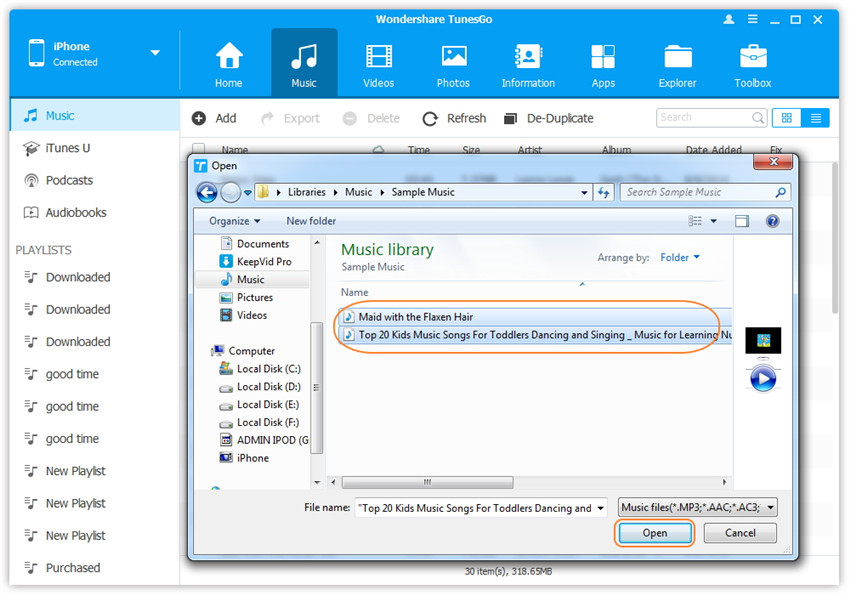
Later, click Add and then select Add File or Add Folder to add music files from your computer. If you only want to select some music files, then click Add File, and then hold down Shift or Ctrl key to choose multiple files; if you want to transfer all the music in one folder, then click Add Folder. After that, click Open to import the selected music. Here we only add music to iPhone 7 by clicking Add File for example, others are with the similar steps.

Add Folder to add music files

export-music-file-from-computer

Method 2: Transfer Music by Drag and Drop

Step 2. Find songs on your PC/Mac.
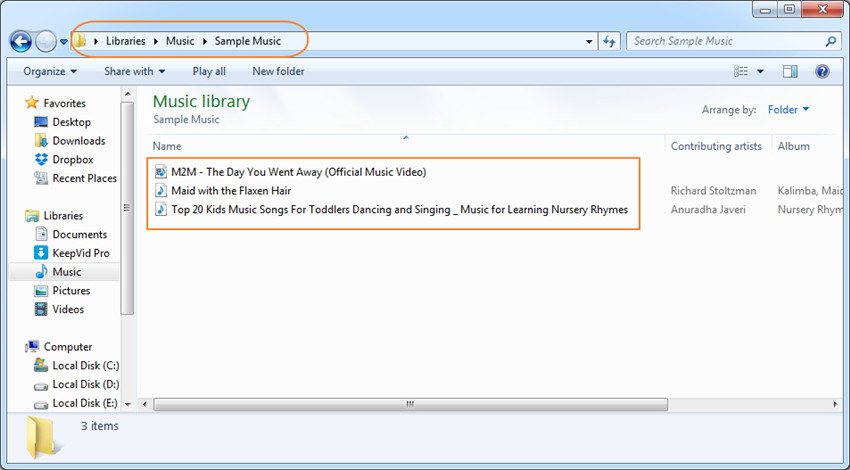
Find and open the music folder on your PC or Mac which includes the music files that you wish to transfer to iPhone 7.

open the music folder on computer

Step 3. Export the songs to iPhone 7 by Drag and Drop.
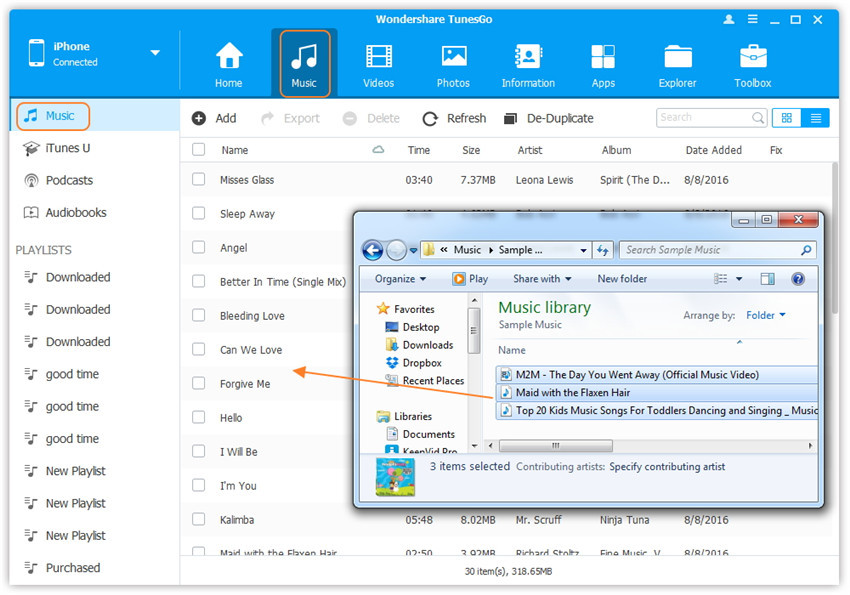
Click Music icon on the main interface of iOS Manager,it will go to the Music window by default. Drag and drop the selected music from your PC or Mac to the Music window of iOS Manager.

Export the songs to iPhone 7 by Drag and Drop

Tips:iOS Manager also supports to add Podcasts, iTunes U, Audiobooks from PC/Mac to iPhone 7 with this method too. The only change while adding these media files is to select one of the options: Podcasts, iTunes U, Audiobooks instead of Music.

d_win d_mac

Part 2:How to Transfer Music from iTunes to iPhone 7

Method 1: With 1-Click File Transfer

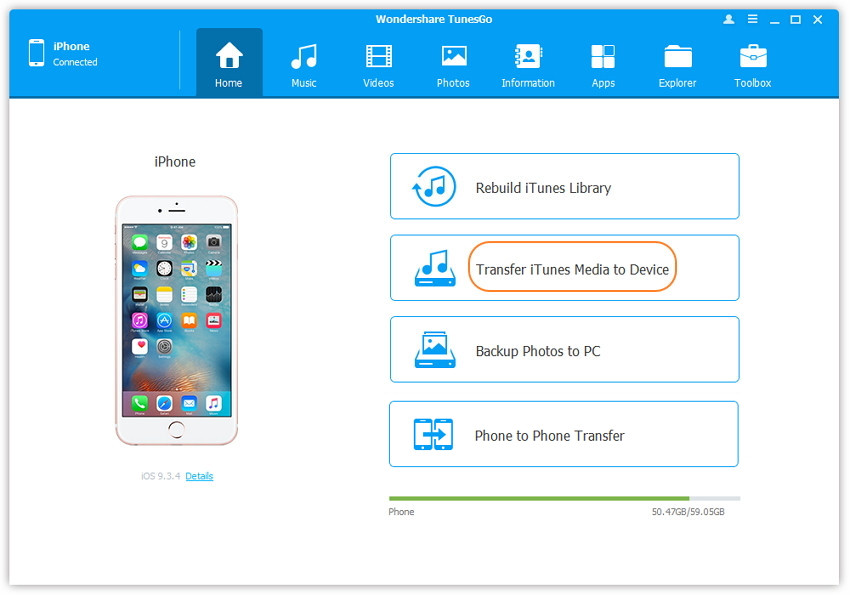
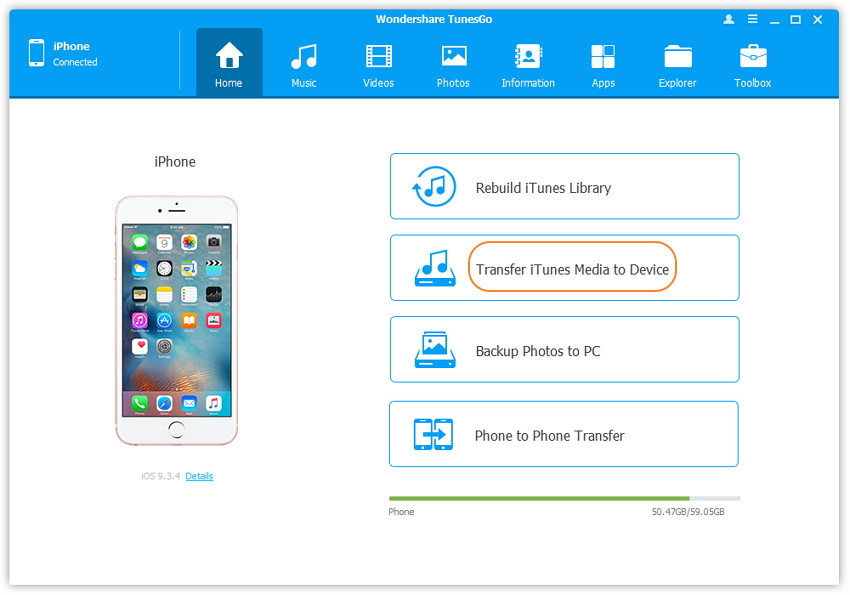
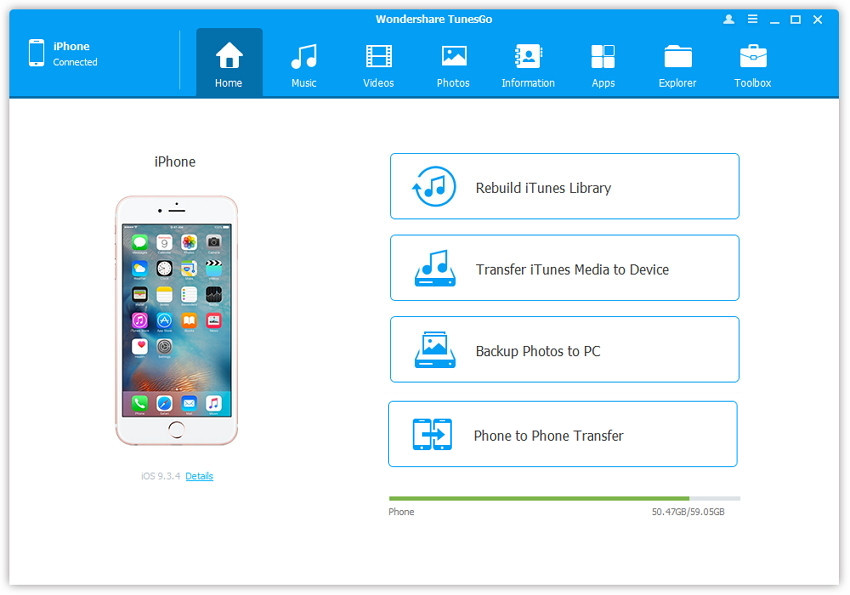
Step 1. Launch iOS Manager and connect your iPhone 7 with the computer. Then click Transfer iTunes Media to Device icon on the main interface.

Music from iTunes Library to iPhone 7

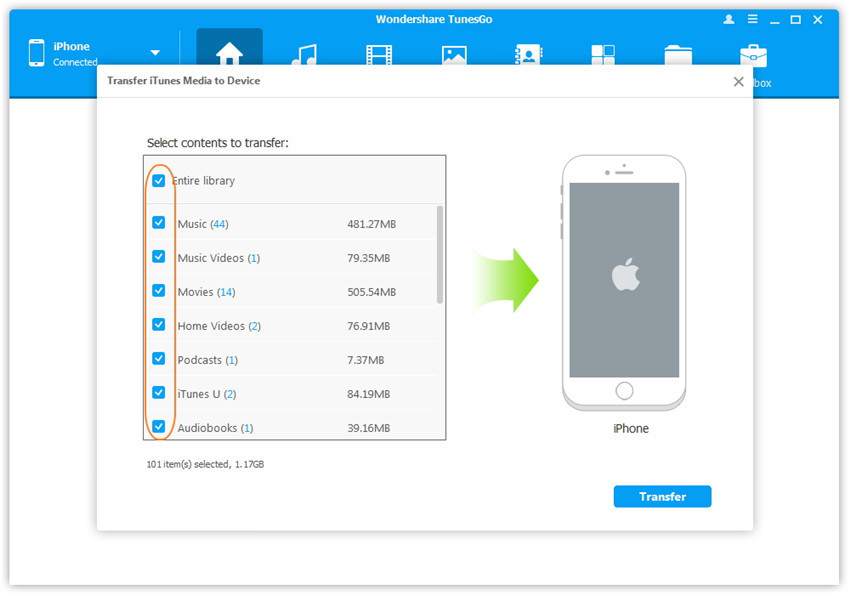
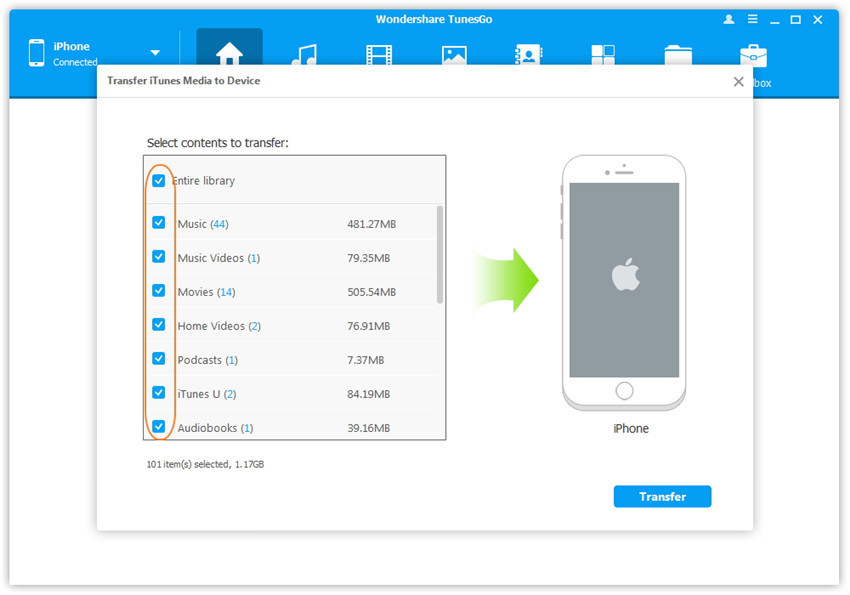
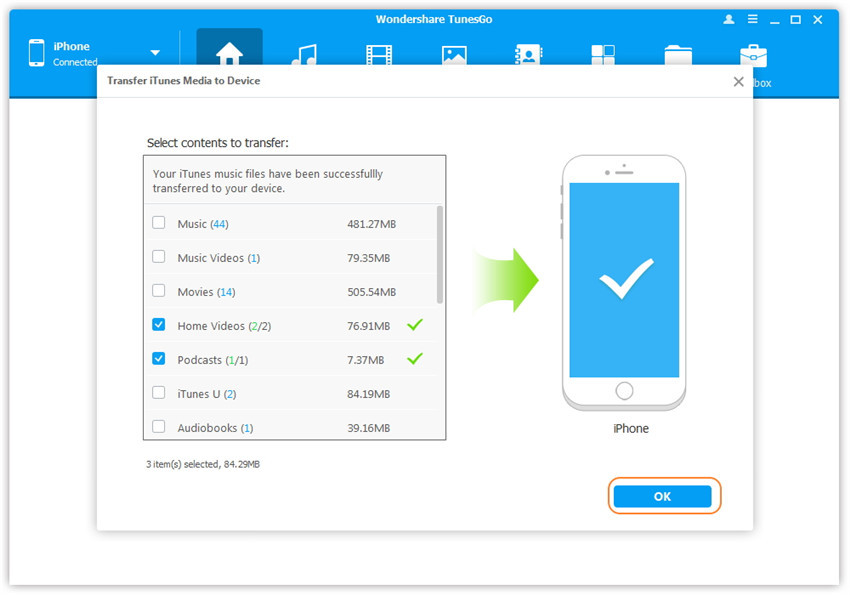
Step 2. iOS Manager will detect all the media files in iTunes and show them by list on the pop-up window. By default, the entire library has been checked. But you can uncheck some items that you won’t transfer to your iPhone 7.

transfer iTunes Music to iPhone 7

Step 3. Transfer media contents to your iPhone 7
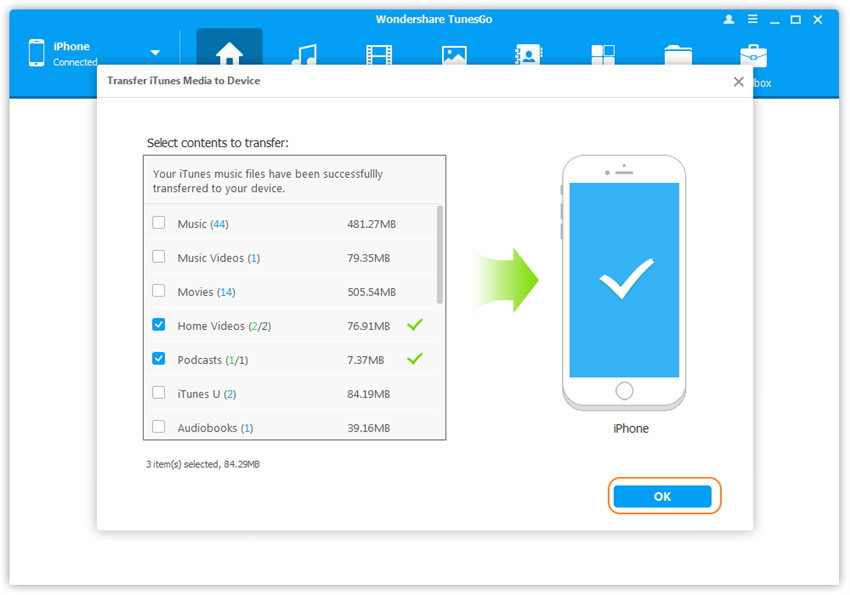
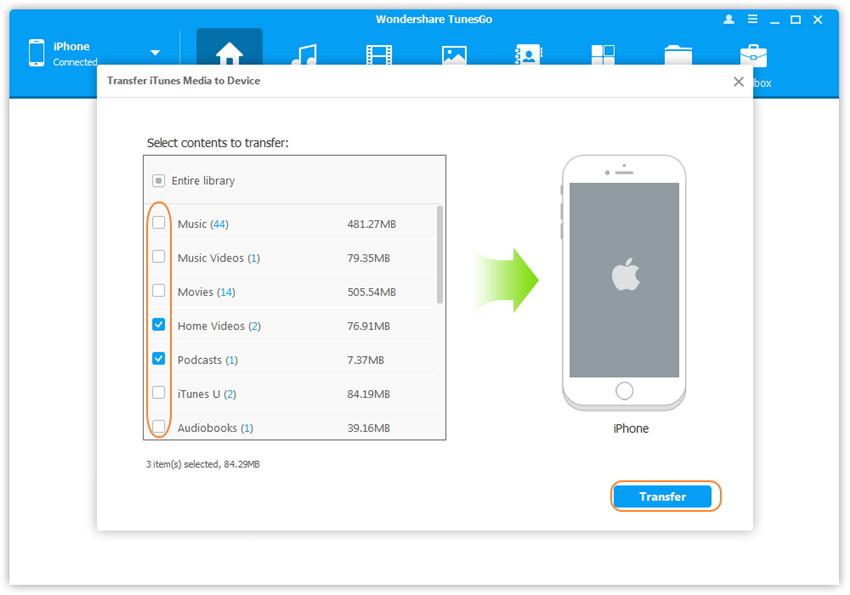
Click Transfer to start transferring selected files to your iPhone 7 and then click OK to complete the process.

Note: There is no worry about duplicate files as iOS Manager enables to automatically detect the duplicates and only transfer the exclusive contents from iTunes to iPhone 7.

transfer iTunes Music to iPhone 7

sync iTunes music to iPhone 7

Method 2: With Toolbox

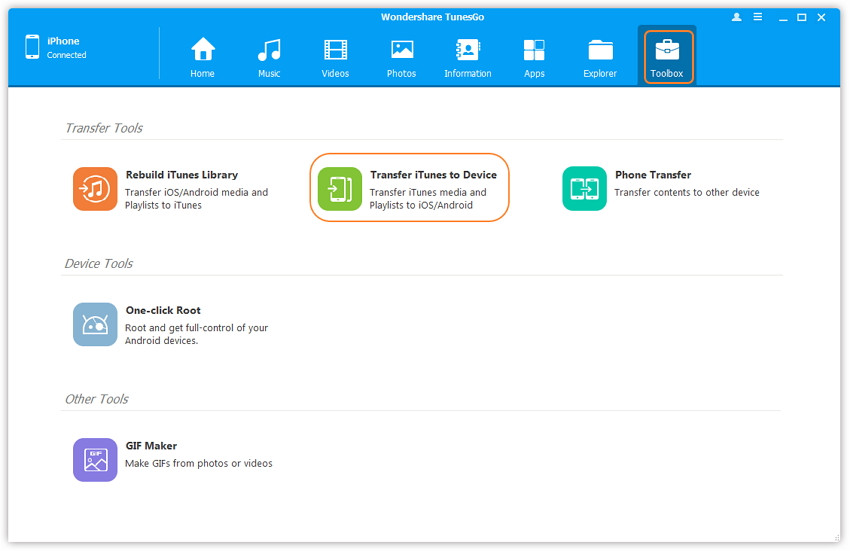
Step 1. Launch iOS Manager and connect your iPhone 7 with the computer. Then go to Toolbox > Transfer iTunes Media to Device on the Toolbox interface.

tool box main page

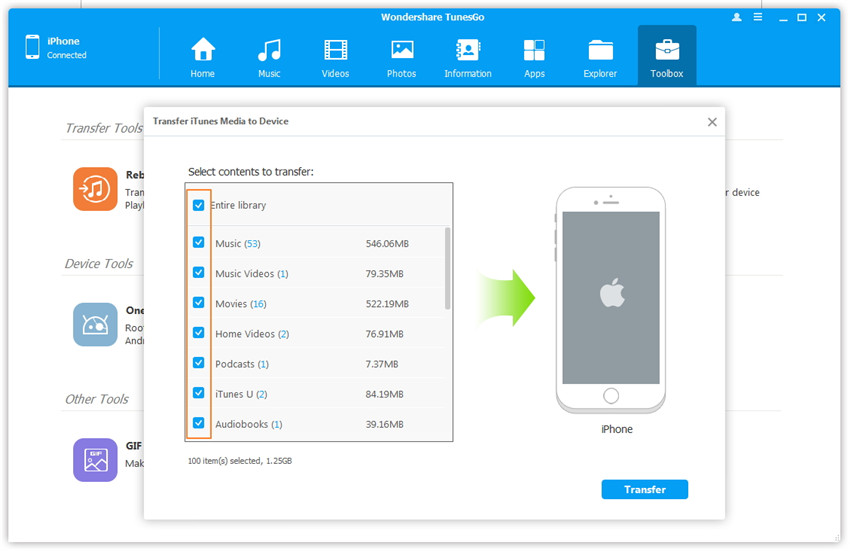
Step 2. iOS Manager will detect all the media files in iTunes and show them by list on the pop-up window. By default, the entire library has been checked. But you can uncheck some items that you won’t transfer to your iPhone 7.

select-music-file-transfer

Step 3. Transfer media contents to your iPhone 7
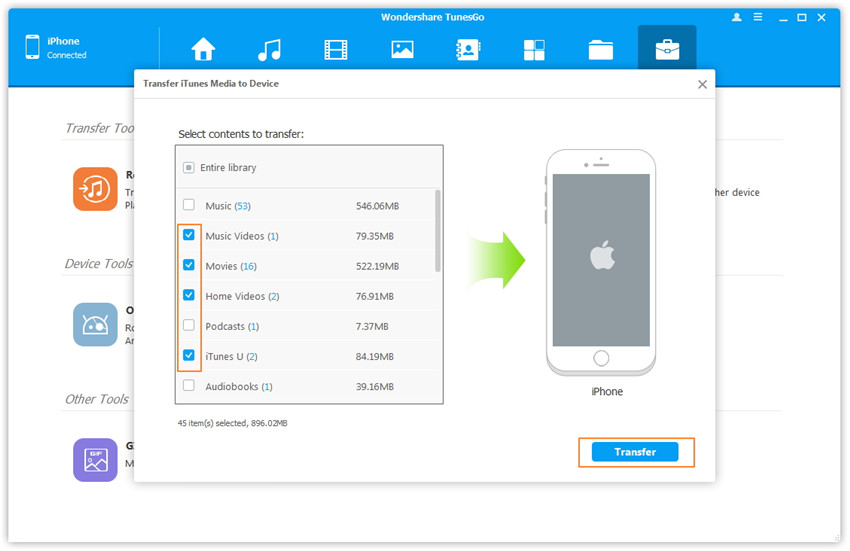
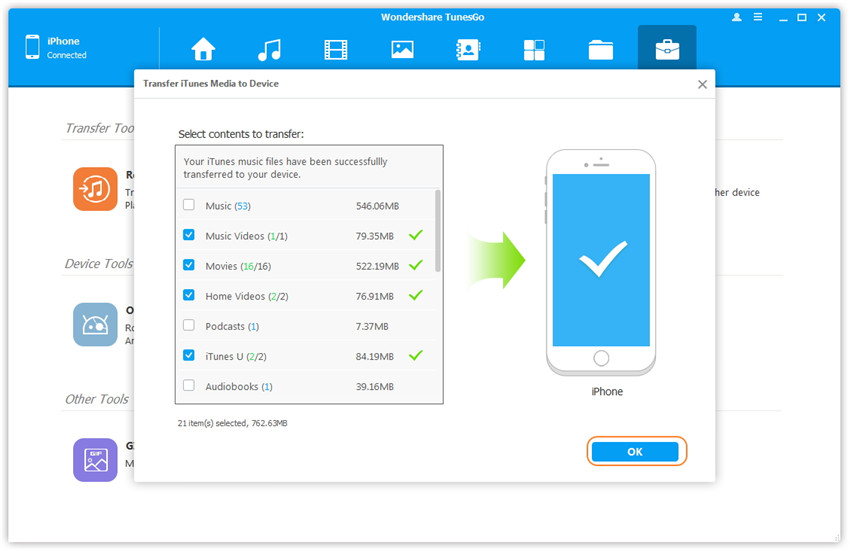
Click Transfer to start transferring selected files to your iPhone 7 and then click OK to complete the process.

Note: iOS Manager enables to automatically detect the duplicates and only transfer the exclusive contents from iTunes to iPhone 7.

click transfer to begin

transfer itunes music to iphone 7 complete

d_win d_mac

Part 3:How to Transfer Music between iOS/Android Device and iPhone 7

Method 1: Transfer All The Music and Playlists

Step 1. Launch iOS Manager and connect your devices with the computer.
Launch iOS Manager and connect more than one iPhone/iPad/iPod/Android device with the computer, here we name the connected devices: A, B, C.

transfer songs from Samsung to iPhone 7

Step 2. Select the source device from which you want to transfer contents
Select the source device A, and click Phone to Phone Transfer option on the main interface. Then a new window will pop up.

select devices to transfer

Step 3. Select the target device to which you want to transfer contents
From the pop-up window, select the target device B or C from the drop-down list and click Next.

select device to transfer

Step 4. Transfer contents from one device to another
By default, all the content on your source device A that can be transferred are checked, namely Music and Videos, Playlists, Photos, Contacts( Note: Contacts are not supported by Mac version). You can uncheck the contents which you don’t want to transfer. Then, click Transfer. In the whole transfer process, DO NOT disconnect either of the devices. When the transfer completes, click OK.

select media file to transfer

1-click-phone-to-phone-transfer
Note: Only for Windows version, you’re enabled to tick the option: “Delete contents on target device then transfer” before clicking Transfer button, then the selected contents on the target device will be deleted firstly before the transfer.

confirm to delete data on target device

Method 2: Transfer Music Selectively

Step 1. Launch iOS Manager and connect your iPhone 7 with the computer.
Launch iOS Manager and connect more than one iPhone/iPad/iPod/Android device with your computer, here we name the devices: A, B, C.

transfer songs from iPhone 7 to device

Step 2. Select and transfer music between devices.
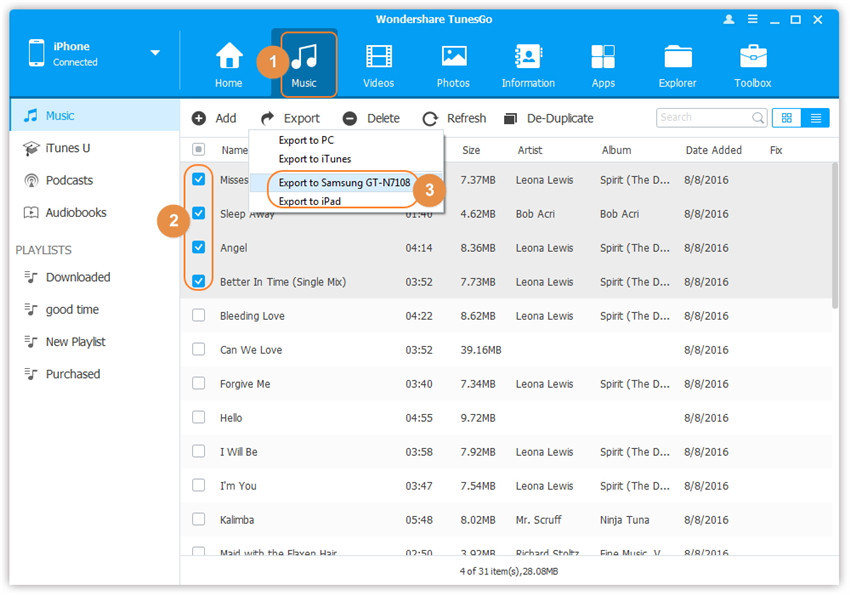
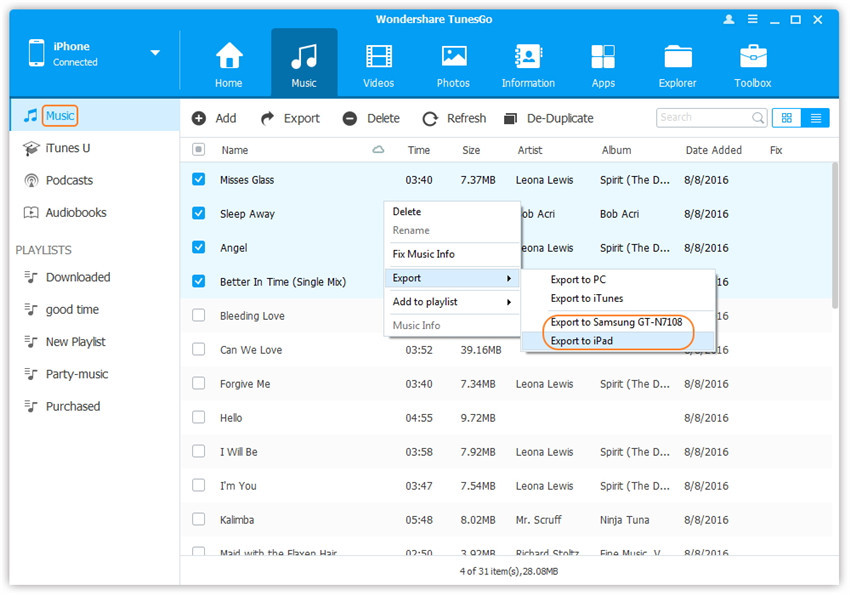
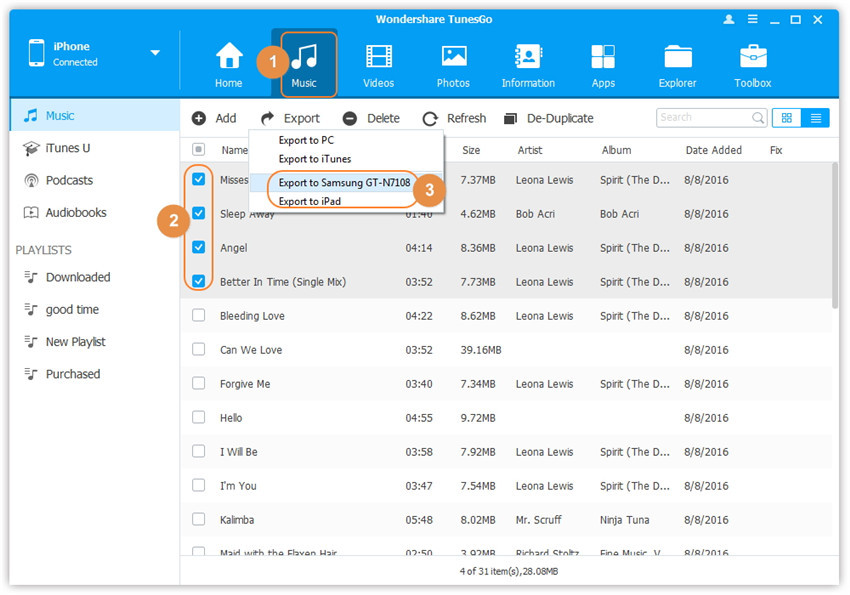
Select the device A from which you want to transfer music, and click Music icon at the top of the main interface, check the songs which you want to transfer from A to B or C, then click Export > Export to B or Export to C. As for the following screenshot, the music on the iPhone can be transferred to the Samsung phone or the iPad.

Transfer Music from iPhone 7 to device

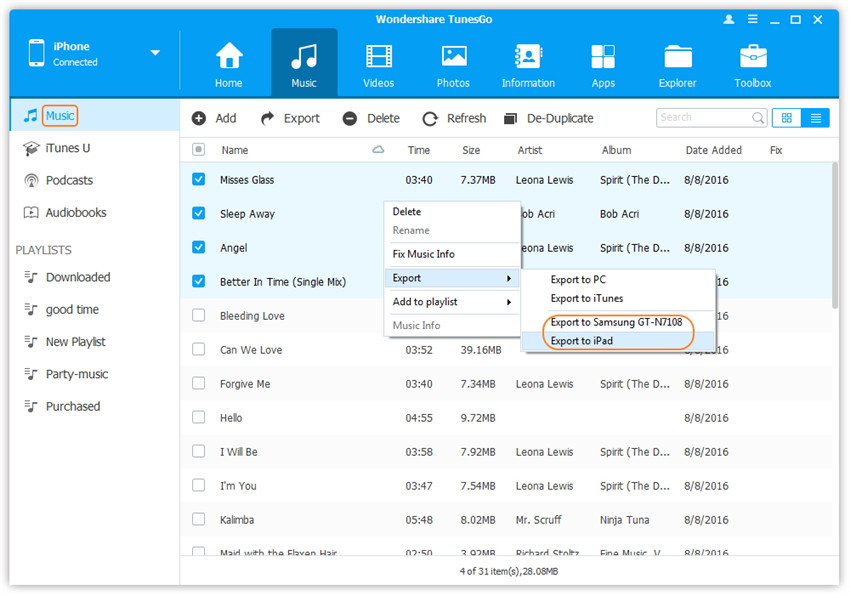
Note: Here you can right-click on the selected music and then select Export > Export to B or Export to C as well.

Transfer Music from iPhone to iPhone 7

d_win d_mac

Part 4: Convert Apple Music M4P songs to DRM-free MP3 for Playing on iPhone for Free

Once you cancel the Apple Music subscription service, you can’t access it on your iOS devices. Even though you have downloaded the songs from Apple Music catalog,because of the DRM protected and with .m4p extension.However,how to remove Apple Music DRM for playing them on any music players like iPhone 7/6S/6/SE/5S/5, MP3 players, Car players, Android phone and more? The answer is yes,what you need to do is removing DRM from Apple Music songs and convert them to DRM-free file formats.

This Apple Music Converter for Mac and Windows,both is a professional Apple Music DRM removal and converter software,which could helps users remove DRM from Apple Music songs without downloading them. It also convert Apple Music M4p songs to MP3 for playing on iPhone,as well as more popular formats such as AC3, AIFF, FLAC, etc.When the conversion is done,you can remove the limitation and keep Apple Music as long as you like

d_win d_mac

Step 1.Download and Run Apple Music Converter on PC or Mac
When running the Apple Music Converter on the computer,the iTunes will be launched automatically.On the interface, you will see the entire iTunes library is loaded.

launch apple music converter

Note
: You don’t need to download the Apple Music songs you want to remove DRM from. Just add them to your iTunes Library or Playlists and the program will detect them automatically and show them on the interface. iTunes will play the songs mutely in the background during the DRM removal process, so just make sure your internet connection is OK.

Step 2.Choose Apple Music You Want to Remove DRM and Convert from
When the iTunes library loaded on the program interface,you will find all Apple Music songs and playlists that you have added to iTunes,please select the Apple Music songs you want to remove DRM and convert as DRM-free MP3 files from. You can also quickly find the songs you want with the search feature.

select apple music to convert

Step 3.Choose Output Format You Want to
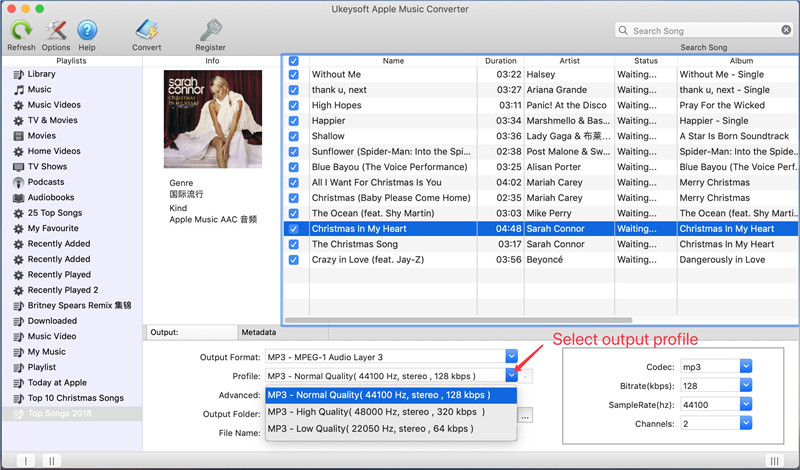
In this step,please choose an output format “Output Settings” section,such as MP3, M4A, FLAC and AC3 before removing DRM from M4P files.Because of most music players (iPhone/iPod devices) support MP3 files,here we recommend you select MP3 as output format.

select mp3 output profile

Step 4.Start Remove DRM from Apple Music and Convert M4P to MP3
Finally,please click start “Convert” button and you will get DRM-free Apple Music songs in MP3 format on the computer after the conversion. Now you can play them without iTunes on Mac or Windows computer.

convert apple music from m4p to mp3

Step 5.Import Converted Apple Music to iPhone 7
In order to playing the converted Apple music on our iPhone 7 for free forever,ever after the subscription service is canceled,you can transfer the converted Apple Music songs from computer to iPhone 7 for offline playback without DRM limitation.
Read More: How to Transfer Music from Computer to iPhone 7

Free download the Apple Music Converter and try to convert Apple Music songs to iPhone:

d_win d_mac

Related Article:

How to Transfer Music from Computer to iPhone 7/SE/6S/6

How to Sync Videos from Computer to iPhone 7/SE/6S/6

How to Transfer Music from Android to iPhone/iPad/iPod

How to Transfer Music from iTunes Library to iPod

Samsung Galaxy S7 Exploding Accident Analysis

Why are Samsung Galaxy S7 Edge phones exploding?

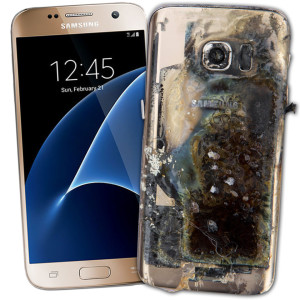
Samsung has already been forced to recall the Note 7 mobile device due to the exploding accident. The fault cause to a problem with the batteries, which caused the phone to overheat and in some cases burst into flames and leak dangerous chemicals.

American Daniel Ramirez was badly burned when his S7 Edge exploded in his pocket – prompting him to sue Samsung for £11,000.But the South Korean tech giant has say there aren’t any confirmed issues with the S7, and there are no plans to recall the device as there have only been a handful of incidents.

samsung galaxy s7 fire burning

It is possible the explosion cases could have been caused by malfunctioning batteries – an issue which can be caused by using cheap charging cables.Replacing your charger cable with an unofficial alternative can cause damage to your phone’s battery – as often, the electricity supply they provide is unstable.

Note:It’s a problem you won’t be able to notice until it’s too late and your phone has overheated – so phone manufacturers recommend only using the charger that came in the box, or a reputable replacement.

Samsung is reportedly telling S7 owners their phones are safe because the Galaxy is confusing

Amid its full-scale recall of the Galaxy Note 7, Samsung is reportedly reminding owners of other devices with “7” in the name that their phones are still safe to use. A staff member for tech blog TechnoBuffalo reports receiving a push notification on a Galaxy S7, apparently from Samsung, that specifies that the phone “is not an affected device” and is not subject to recall. It’s not yet clear whether Galaxy S7 Edge owners are also receiving these messages, nor whether owners of older Samsung phones are getting them.

While the S7, the S7 Edge, and the Note 7 are all markedly different phones, the messages may come in handy for people who have heard about the spontaneously combustions and the subsequent recall, but only know they have “a Samsung Galaxy” phone. They may also go some way to repair Samsung’s brand reputation among its customers, which is likely to be tarnished by both the company’s failure to spot the Note 7 problems before bringing the phone to market, and the failure to fix it once devices were in consumer hands. The company’s finances have already taken a hit from the recall — Samsung decreased its expected profits by a third yesterday.

Conclusion:The big question at the moment is, how many explosions does it take before a manufacturer feels it necessary to carefully re-examine a smartphone it designed and had built? Thanks to heavy media attention, consumers are taking note (no pun intended). One survey shows that 40% of those who own a Samsung handset will never again to buy another Samsung smartphone.

Read More:

How to Backup & Restore Data on Samsung Galaxy S7

How to Backup Samsung Galaxy S7 Data to Computer with Samsung Kies

How to Transfer Samsung Data to iPhone 7

How to Transfer WhatsApp Messages from iPhone to Google Pixel

WhatsApp is one of the most popular message communication app and most of the mobile users like to use it to chat with others.Recently, one of our reader asked us a question that how to move his WhatsApp messages to his new Android Google Pixel phone.Lately it’s common to switch devices,there are a part of iPhone users switch to a new Android device to replace the mobile OS system.

While changing phones within the same ecosystem,most iPhone and Android users can use iCloud or Google Drive to backup and restore WhatsApp data. But if you are moving from iPhone to Google Pixel phone, the Google Drive integration is also limited to Pixel phone and there is no official announcement if the feature will ever be added to iOS.Here is the completed guide to transfer WhatsApp chat history between iPhone and Android devices.The process is quite simple and it will cost you just minutes.Let’s see how to transfer Whatsapp messages to Google Pixel phone from iPhone with easy steps.

How to Export WhatsApp Messages from iPhone to Google Pixel

This iOS ToolKit – iOS to Android WhatsApp Transfer  is one of your great helper app to export WhatsApp chat history from iPhone to Google Pixel with one click.with iOS Transfer,you are able to simply transfer WhatsApp data(including WhatsApp text,WhatsApp videos,Whatspp photos,attachments) between iOS devices and Android devices.Not only WhatsApp data,but also contacts,messaging,gallery,videos,call logs,calendars,and document files are supported to switched by this program.Additionally,various of Android devices are compatible with iOS Transfer,such as Google Pixel,Google Nexus,Samsung,HTC,Lenovo,LG,Motorola,etc,.

d_win d_mac

Part 1:How to Transfer WhatsApp Messages from iPhone to Pixel Phone with iOS Transfer

Step 1.Choose the Mode on iOS Transfer
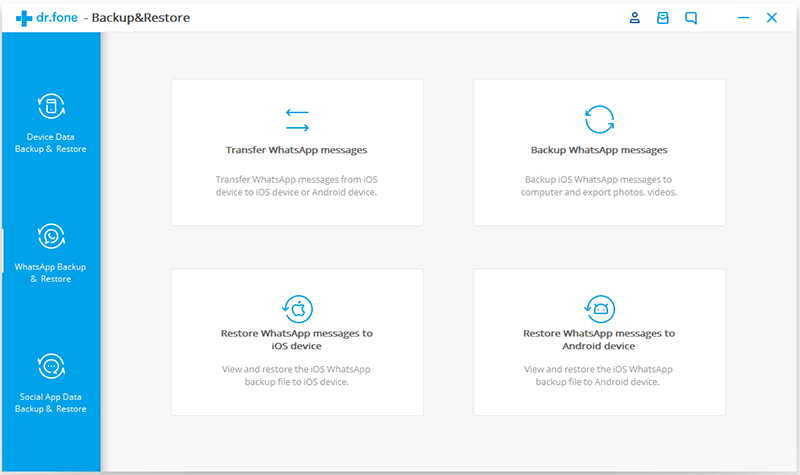
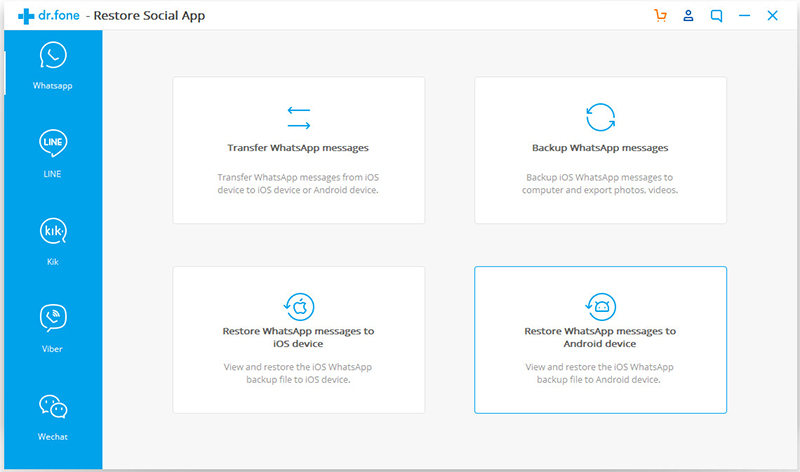
Select “More Tools” in the main page after running iOS ToolKit program on computer.Then you can click the option “iOS WhatsApp Transfer,Backup&Restore” on it.

transfer whatsApp conversation to samsung from iphone

Now select the option”Transfer WhatsApp messages”.It will allow you to transfer WhatsApp history from iPhone to Pixel phone.

transfer iphone whatsApp conversation to pixel phone

Step 2.Connect iPhone and Pixel Phone to PC
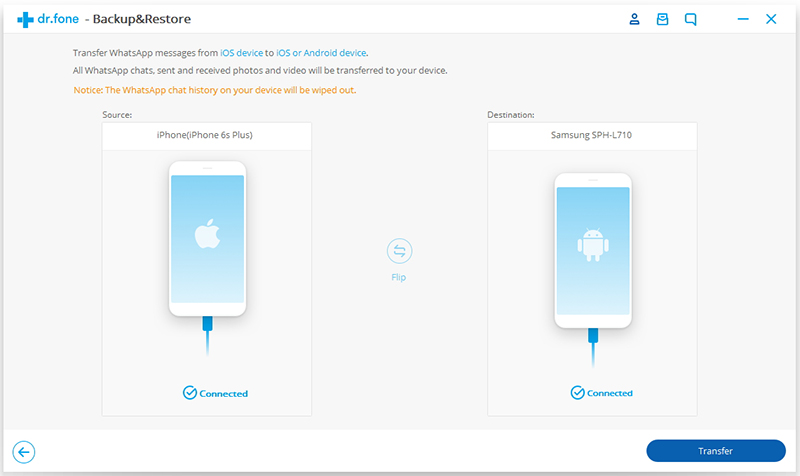
Now connect both iPhone and Pixel phone with computer and trust the computer.Then enable USB debugging on Pixel phone.Note that iPhone should be connected as source device while the Pixel phone is the destination.

switch whatsapp conversation from iphone to pixel phone

Step 3.Confirm Transferring WhatsApp from iPhone to Pixel Phone
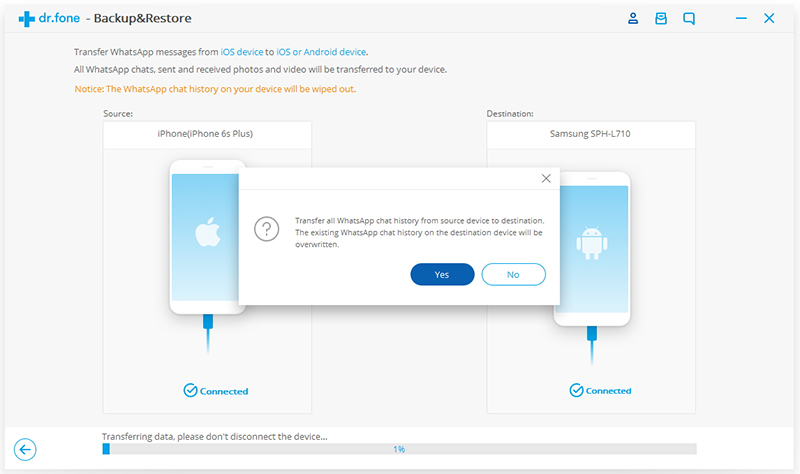
When iPhone and Pixel phone are connected,click the “Transfer” button.It will activate a pop-up note as below.Select the “Yes” button to start the transfer.iOS ToolKit program will begin to backup iPhone WhatsApp data and attachments,and install the latest version of WhatsApp on the Pixel phone.

transfer iphone whatsapp to pixel phone

Note:The WhatsApp chat history on your Pixel phone will be overwritten.You must back up all WhatsApp data before the transmission begin.

Step 4.Restore WhatsApp Data & Attachments
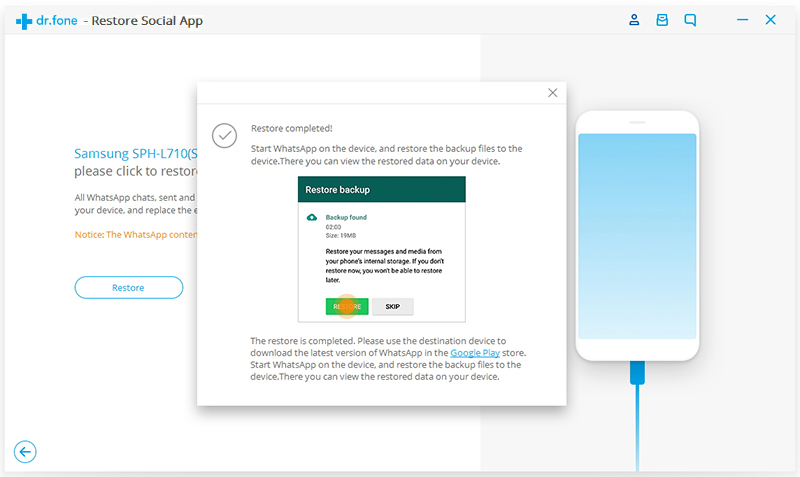
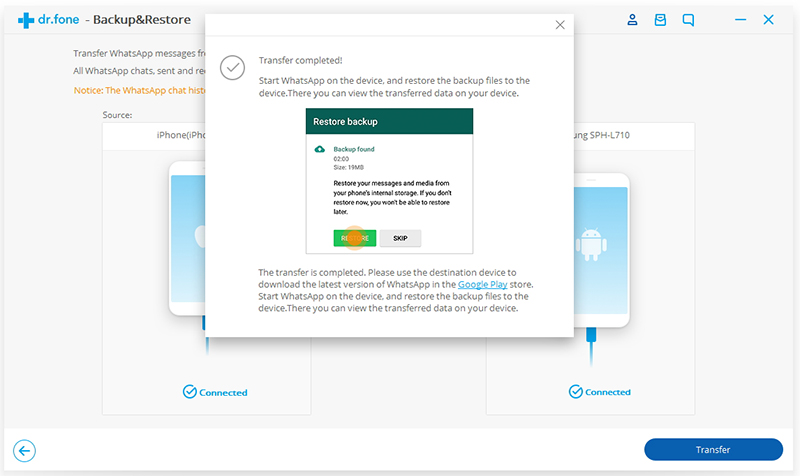
In this step,iOS ToolKit will finish the transferred process.Now you can run WhatsApp on your Android device.Then log into your WhatsApp account and restore WhatsApp conversations to Pixel phone.

transfer iphone whatsapp conversations to pixel phone

Now all WhatsApp chat history have copy to Pixel phone.

d_win d_mac

Part 2:How to Backup iPhone WhatsApp Messages to Computer

Step 1.Connect iPhone to Computer
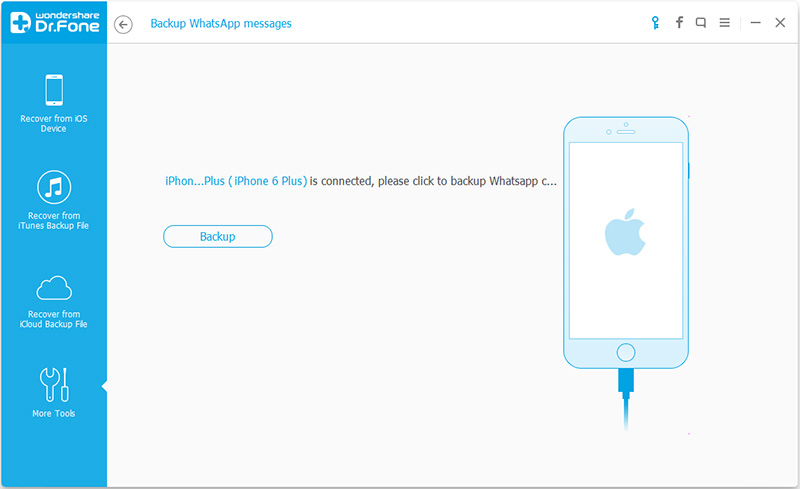
To backup WhatsApp messages from iPhone to computer,you should choose “Backup WhatsApp messages” under the “More Tools” option of iOS ToolKit.Get your iPhone connected to the computer.

iphone to android whatsapp transfer

iphone android whatsapp transfer

Step 2.Backup WhatsApp Messages from iPhone to Computer
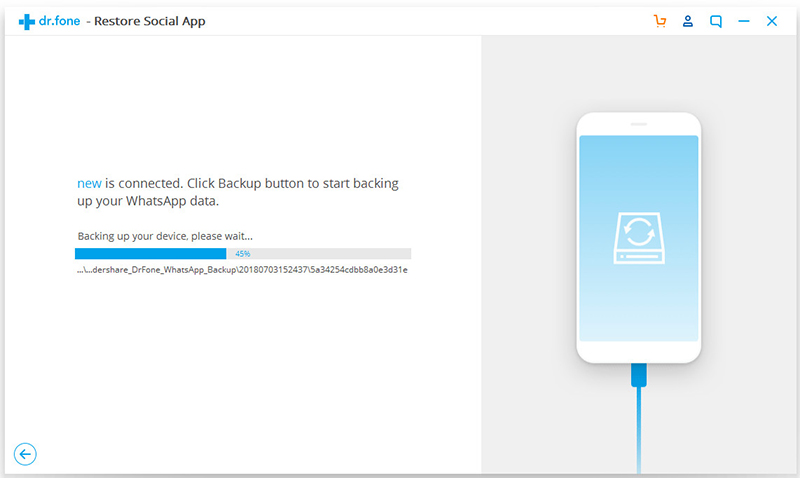
When your device is detected,you should click “Backup” to begin the process.

backup iphone whatsapp

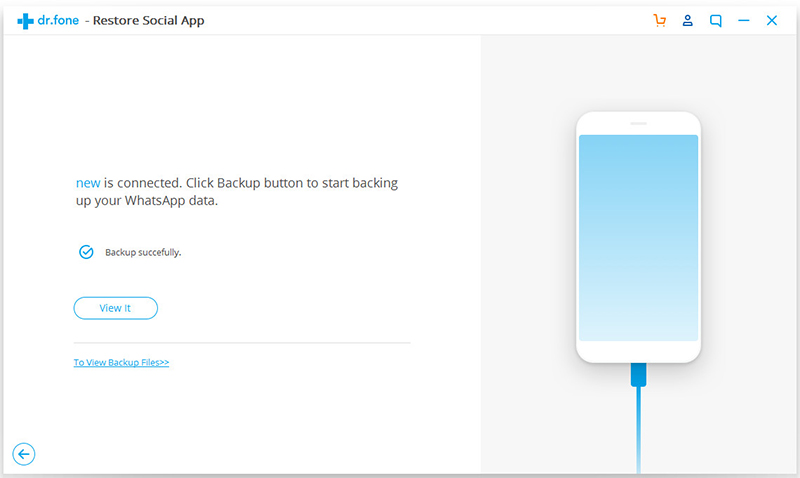
It will cost you a little while to wait until the process is end.When you’re prompt that the backup is completed,you will see the window below.Then you can click “View it” to check the backup file.

backup iphone whatsapp data

Step 3.View the Backup File and Export Data Selectively
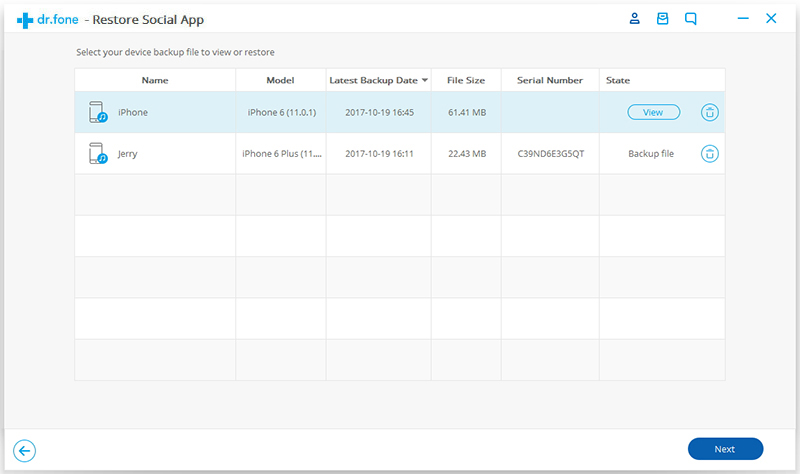
Choose the backup file that you want to view if there are more than one backup file listed.

view whatsapp backup

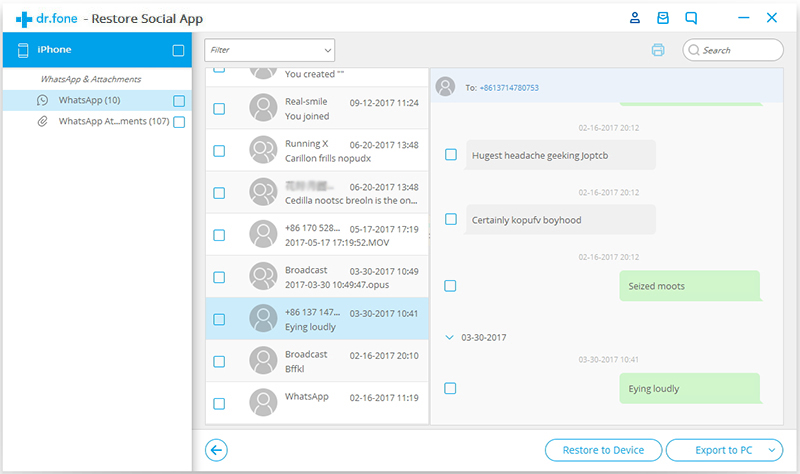
Then you will see all the details.Choose any item you want to export to your computer.

backup iphone whatsapp messages

d_win d_mac

Part 3:How to Restore WhatsApp Messages from Backup to Pixel Phone

Step 1.Connect Pixel Phone to Computer
To Restore WhatsApp messages to Pixel phone,you should choose “Restore WhatsApp messages to Android device” under the “More Tools” option of iOS ToolKit.Get your Pixel phone connected to the computer.

restore WhatsApp messages to Google Pixel

ios whatsapp transfer

Step 2.Restore WhatsApp Message Backup to Pixel Phone
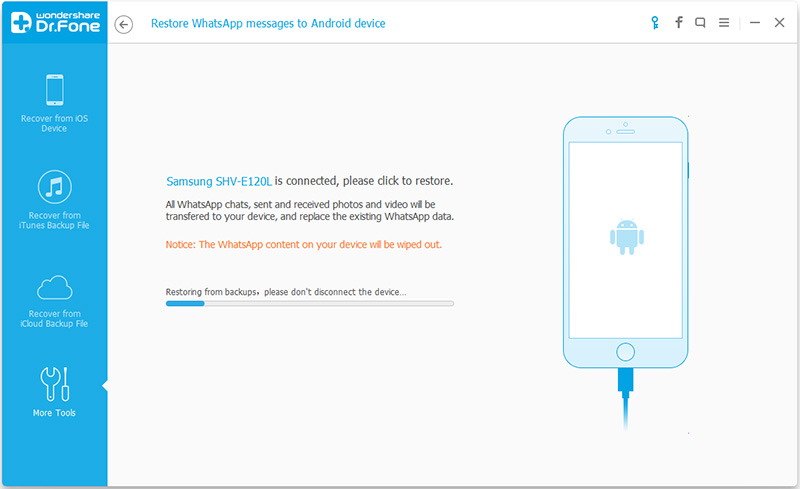
Now you can choose a backup file and click “Next” to directly restore it to your Pixel phone as follows.

restore iphone whatsApp messages to google pixel

Or you can choose to view the backup file first,and then selectively choose what you want to restore it to your device.

restore iphone whatsapp messages to pixel phone

Free download the iOS ToolKit software and have a try!

d_win d_mac

Related Article:

How to Transfer WhatsApp Chat History from iPhone to Samsung Galaxy

How to Transfer WhatsApp Messages between Android

How to Transfer WhatsApp Photos & Videos from iPhone to Android

How to Restore WhatsApp Messages Backup to Android Devices

How to Transfer iPhone Data to Pixel Phone

How to Backup & Restore Data on Google Pixel Phone

How to Set Up the New Google Pixel

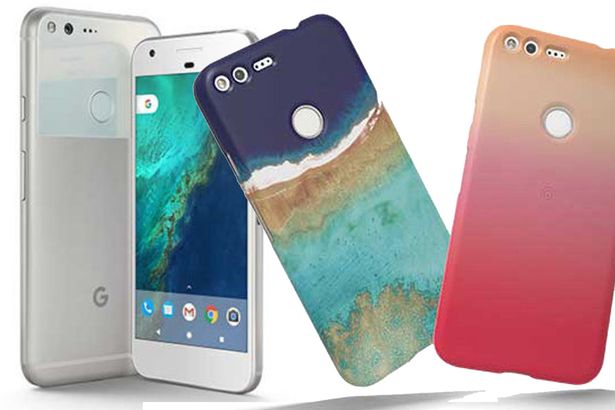
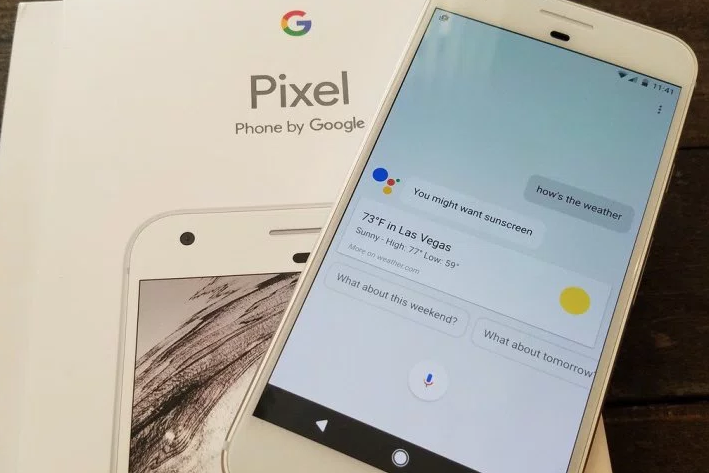
Google’s new flagship Pixel and Pixel XL smartphones are finally for sale, and new owners will need to know how to use it. In this guide we’ll explain how to setup your Pixel and share a few tips and tricks to make the process easier. Like using Google’s new phone transfer tool and more.

The Pixel is Google’s best smartphone to date, and could be the best Android phone available. Period. It’s that good. Running the latest Android 7.1 Nougat, rocking the best camera in any smartphone, stunning battery life and a premium design. It’s fast, fluid and powerful.

google pixel

Everyone uses their phone different not to mention has different wants, needs or preferences. However, our tips will transfer virtually anything and everything from your old device, including text messages and settings. Then go through some other settings, controls and tips to take advantage of everything this phone offers.

Right out of the box the Pixels run amazing. They are fast, easy to use, and just work. During the first startup you’ll be prompted to do some very important things. Like setup a fingerprint for the scanner and lockscreen measure, sign into your account, or transfer from an old device.

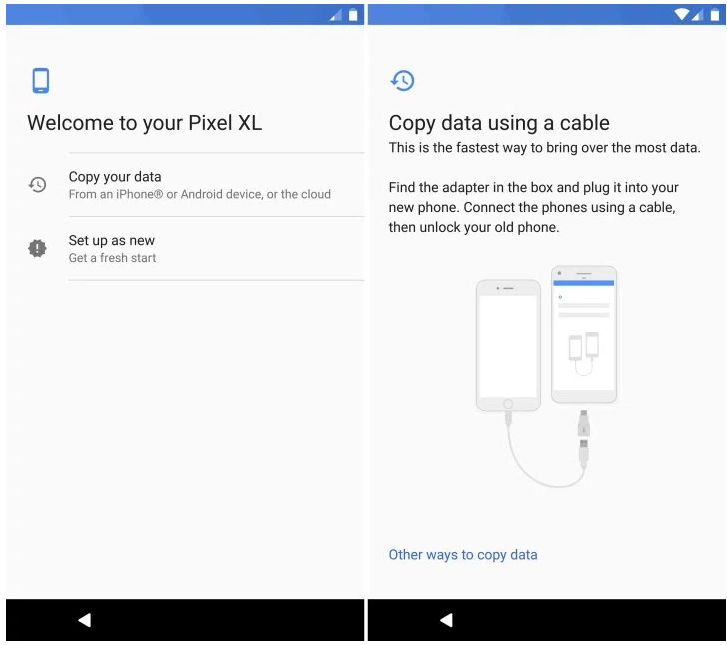
Google’s Pixel will transfer everything from an old Android smartphone, or the iPhone. Both work with the new transfer tool and the USB-to-USB Type-C dongle that’s included in the box. Don’t lose that, it’s what will make switching to your new phone as easy as possible.

Transfer Data From Old Phone

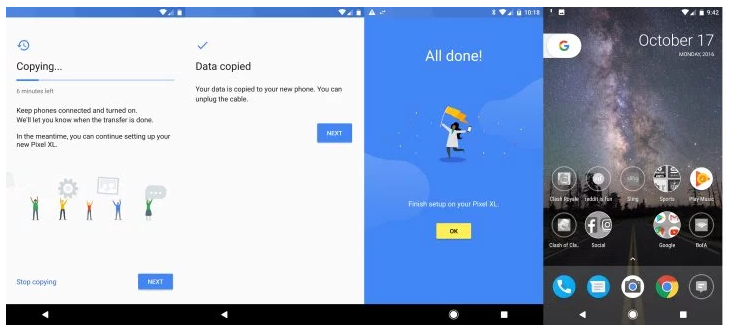
The first thing all owners will want to do is transfer data, apps, settings, contacts, calendar, icon placement, photos or video and even text messages to the Pixel. In the past this has been a difficult and painful process. That isn’t the case anymore, and you’ll be able to switch phones 100% in about 10 minutes.
transfer data to Google Pixel Phone

Simply follow the steps on the screen or our images provided. Users will need to plug the USB dongle that’s included in the box into the new Pixel phone. Then the USB cable in the box from the Pixel dongle to your old phone. The adapter goes into the new device.

This will initiate the transfer service instantly, and do literally all the work for you. Almost everything will be transferred. From everything mentioned above to even alarm pre-sets, text messages, app settings or data and more. It’s the complete transfer package similar to Samsung SmartSwitch.

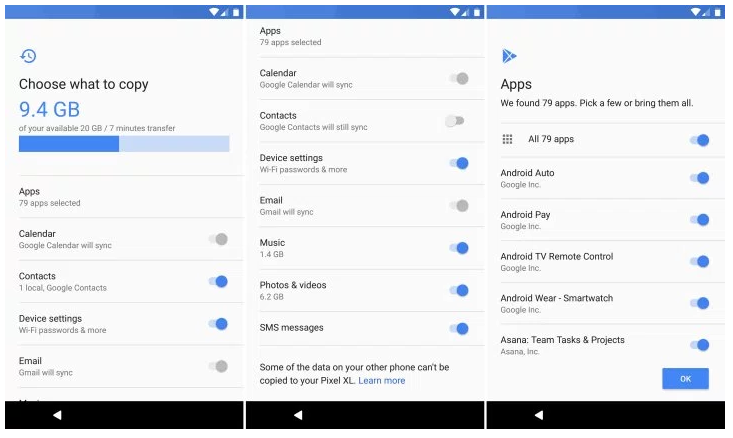
Shown below is the next step, which will tell you what and how much is being transferred, and will let you customize it as well. Clear anything you don’t want to restore to the new device one by one, then hit finish and start the process.

Switching my entire Galaxy S7 Edge and over 9GB of data took under 7 minutes. Extremely fast and easy. However, another 5-15 minutes of app downloads and updates will follow, depending on how many apps you have installed.

transfer samsung data to Google Pixel Phone
Extra tips:How to Transfer Samsung Data to Google Pixel Phone

Then the process will keep going and owners can sit and wait, or continue setting up the Pixel while everything transfers. Once it’s finished simply unplug the cable and start using your phone. Google’s transfer tool even restored all my app icons to the homescreen. Convenience at its finest.

set up lock screen
That’s it in terms of setting up your phone. Not all devices are supported, and some homescreens may not transfer. If so, just reorganize the phone and you’re all set.

Setup Lockscreen Security

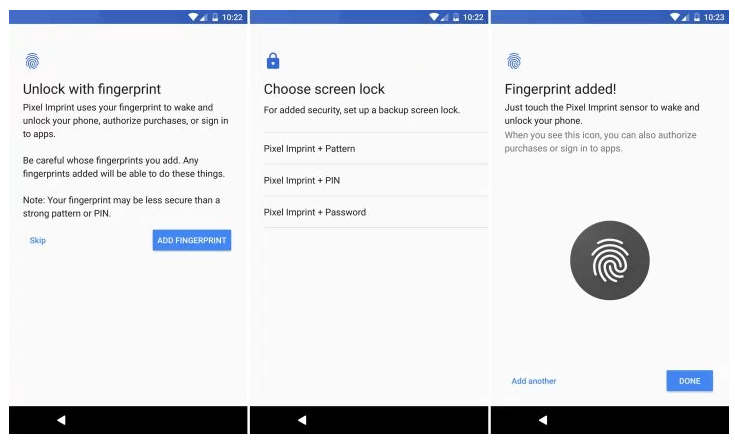
Next up is a step everyone should be familiar with, and is just common sense. Use a lockscreen password, pin, or fingerprint to keep your device safe and secure. The initial setup on the device will prompt you to finish this step, and we’d recommend you do it.

Pixel Imprint on the back of the phone is one of the best fingerprint scanners around. It’s located in an easy to tap spot, and setup is a breeze. It only takes about 20 seconds to do. Start by entering a pin, then tap your finger to the sensor six times to register a print. We’d recommend doing both index fingers for the best setup.

set up Pixel phone

The entire process is fast, easy and secure. Now your device is ready for use and will be protected from prying eyes or in case of theft.

Setup Android Device Manager

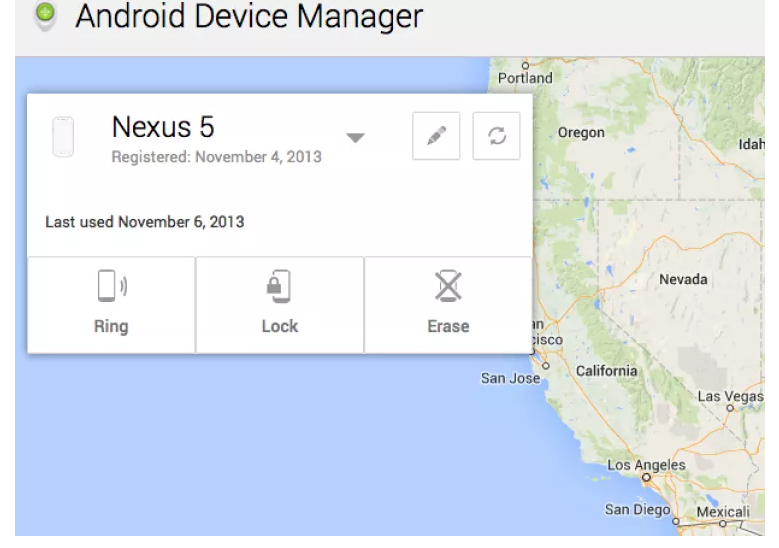
Speaking of loss or theft, the Android Device Manager is your best friend if this happens. It’s a step almost no one takes, but is extremely easy and will save you when something bad happens. Go to the Google Play Store and download the Android Device Manager.

The ADM allows owners to call, lock, or even erase the device if it’s lost, missing, or stolen. It even has an alarm feature to blast the Pixel at full volume if its lost at home. Below is a screenshot of the Android Device Manager on my Nexus 5, but it works the same on all Android smartphones and tablets.

enable google assistant
This is important in case of loss or theft. It typically can track a smartphone to within a few meters, and give you almost its exact location. Perfect for finding a lost device. Thankfully there’s also an “erase” feature if its stolen, so someone can’t access important information.

Alternatively owners can add emergency info or a phone number to call if lost right to the lockscreen. Whether this is medical information, call a family member, or a “call if found” number.

Head to Settings > Users > Emergency Info > then add details or a person to contact.

Enable and Use Google Assistant

Previously known as Google Search or Google Now, the Assistant is one of the key selling points for Pixel. Taking everything Google knows about the web, search, your location, machine learning and artificial intelligence. Then blending that into a personal assistant for every Pixel owner.

android device manager

This is shown during the initial setup as well, or can be accessed by a long-press of the round home button on the bottom middle of the screen. Train it to recognize your voice (even when the screen is off) by saying “Ok, Google” three times. It walks you through setup, then will show you all it has to offer.

Tip* Launch the Google Assistant and say “I’m Feeling Lucky” for a neat surprise. It’s better with more than one person, too.

Buy Extra Cables, Chargers or Accessories

Google’s new Pixel phones don’t use the old and outdated micro-USB port that many old phones have. It uses the new and improved USB Type-C. This is faster, cords can plug in both directions for ease of use, and you can even charge other devices from the Pixel through USB-C.

While there are two cables provided in the box, we’d recommend owners pickup a spare for other rooms of the house, or an office. And maybe even some cases and a USB Type-C car charger.

Get Unlimited Storage and Backups of Photo/Video

Google Photos has evolved into one of the best photo and video storage and viewing solutions on mobile. It automatically (or when connected to WiFi) makes a full resolution or HD copy of every picture you take, and is really smart. Ask it to show you photos from last Halloween, and it intelligently finds and shows them to you.

One perk of being the first Google Pixel phone is truly unlimited backups in full resolution, rather than resized to HD. Simply open Google Photos, go through the quick setup and enjoy it. There’s also a free subscription to Google Play Music and YouTube Red for all owners, just open Google Music and accept it.

Quick Launch the Camera

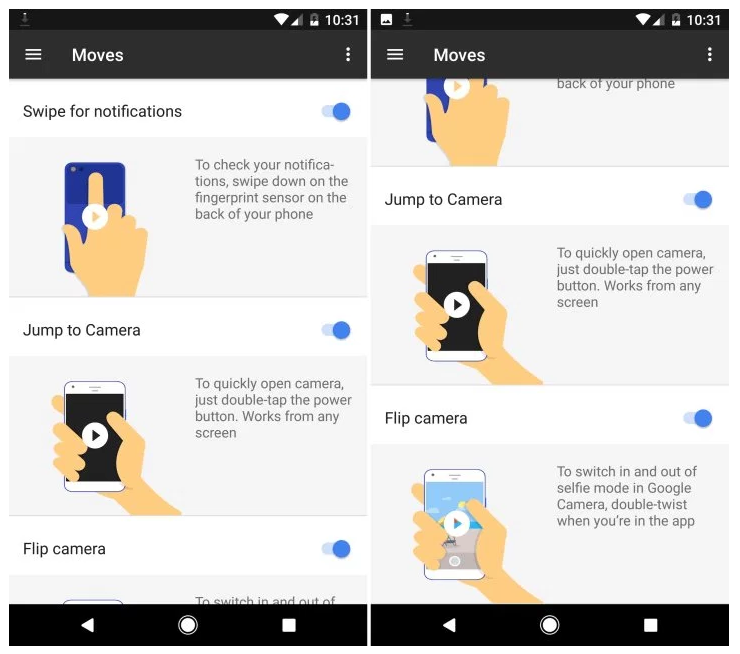
Next up you’ll want to go through and setup everything. Ringtones, call volume, alert sounds and more. However, you’ll also want to get familiar with your new phone. Head to settings and find the option listed as “Moves” and click that. Here it will show owners that a double tap on the power button will instantly launch the world-class 12.3 megapixel camera. This works if you’re in an app, when the screen is off, and everywhere.
quick launch camera

Google also added some other neat gestures like twisting your wrist to switch to the front camera for selfies, or using the fingerprint scanner to access the notification bar one-handed. Give them a try, enable what you want and enjoy.

Setup Do-Not Disturb

One of our favorite features is Do-Not-Disturb. Allowing owners to customize the phone to automatically go silent (or on vibrate) at night. Most don’t know it exists, but love it once they figure it out.

Go into Settings > Sounds > Do Not Disturb and set some rules or or times. Then the phone does everything for you, keeps the phone silent while you sleep, but still sounds an alarm come morning time. There is an option to block visual things like notifications from waking the screen, or the option to allow exceptions so select contacts can still get through. Like a significant other or kids.

Oh, another idea is to setup a feature called “Night Light”. Head into Settings > Display > and select Night Light. This turns the blue LEDs off on the screen at night, and adds a red tint to the display. This prevents eye strain, helps users fall asleep easier, and will make it so the screen isn’t so bright at night. Perfect for laying in bed. Customize it to turn on/off at certain hours of the day, or with the sunrise and sunset. I love this feature. Studies have shown this helps people fall asleep faster at night.

Setup Android Pay

While we’re at it, we’d recommend owners setup Android Pay as well. It works just like Apple Pay, and allows you to swipe your phone to make payments while out and about instead of carrying a wallet. Anywhere that Tap-N-Pay is supported will work with Android Pay.

Find the icon, launch the app, add a credit card and start enjoying mobile payments.

Use App Icon Shortcuts

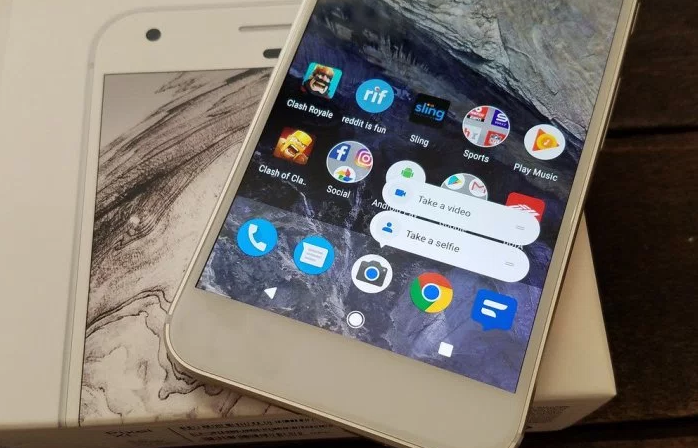
One of the best features in Android 7.1 Nougat that debuted on the Pixel is Launcher shortcuts. It works similar to the iPhone and 3DTouch, and allows specific actions and tasks to be done easier.

Rather than just pressing the camera icon on your homescreen or app tray, press and hold. You’ll instantly get suggestions to launch the camera and instantly start recording video, or take a selfie. Instead of opening the camera and switching to these options. App shortcuts are brand new to Android and only work with select Google apps for now, but more developers will fully supported this in the near future.

use app icon shortcuts

Try it with the messaging app, dialer, maps, Google Music, calendar, Google Keep, clock or alarms and much more. Allowing Pixel owners to do and get more done faster. You can even add all these shortcuts to a folder on your homescreen.

Other Thoughts

Of course everyone is a little different, and most owners will setup the Pixel to fit their own needs. Our steps above will set you up for success, secure the device, help you find a lost Pixel and teach you a few things about the phone all at once.

We’d also recommend buyers pickup a Pixel screen protector, download a bunch of their favorite apps, and explore the settings menu for everything else. If you have any questions there’s a dedicated 24/7 customer support and help line in settings. Swipe to the right and instantly call, email, or even chat with a customer support representative.

A few other ideas are to set mobile data limits, test out how great the camera is, customize the notification bar by moving icons around as you see fit, or change your wallpaper to one of the many awesome new choices pre-installed on the phone. You’re all set now, so enjoy the Google Pixel.

Read More:

How to Backup & Restore Data on Google Pixel Phone

How to Transfer Music and Videos to Google Pixel Phone

How to Transfer Music between iTunes Library and Google Pixel Phone

How to Transfer Music from Computer to Google Pixel Phone

How to Fix iPhone to Normal after iOS 13 Update

Apple Company release iOS 13 system version software update recently.According to widespread complaints across social media,a lot of iPhone and iPad users ran into installation problems.For some, the update process failed with a subsequent error message asking users to plug their iOS device into a computer for a complete restore of the operating system.Some get this circumstance that device prompt “Connect to iTunes” and can’t get out of the Recovery Mode during/after iOS 13 update,etc,.

Restore iPhone Using IPSW File without Data Loss

Since iOS 13 system hasn’t announced for a long time,it’s not as perfect as imagine,it may be still contain bugs that haven’t been fixed.As we all know, when we install iOS 13 on iPhone or iPad manually with IPSW Firmware Files in iTunes,it will cause data loss.Here we write this article to absolutely fix this bricked issues on iOS devices after iOS 10 update without iTunes(no data loss),hope it will give the best solution for you all to solve these abnormal system problems of iOS 10 devices.

How to Fix iPhone to Normal after iOS 13 Update

To be honest,it’s no more better way to fix iPhone system to normal states by using iOS System Recovery.As its name,this program help to achieve the purpose that download and install IPSW firmware files on iPhone,then restore iPhone system to normal after iOS 13 update under any abnormal states,such as iPhone stuck in Recovery Mode,iPhone stuck on Apple logo, iPhone stuck at black/white screen,iPhone get frozen suddenly,etc,.All models of iOS devices are compatible with iOS System Recovery,including iPhone XS, iPhone XS Max, iPhone XR, iPhone X, iPhone 8, iPhone 7,iPhone SE,iPhone 6S(Plus),iPhone 6(Plus),iPhone 5S/5C/5,iPad Air,iPad Mini,iPad Pro,iPod and so on.

d_win d_mac
d_win d_mac

Easy Steps to Fix iOS 13 to Normal without Data Loss

Step 1.Launch iOS System Recovery and Select “iOS System Recovery” Feature
• The menu displays to the left.Click on the tab appearing at the bottom named “More Tools”.Then click on “iOS System Recovery” to start the function.
• Connect the iPhone to the computer by using USB cable,the program will detect the device soon.
• Click on “Start” button to begin.

iPhone system recovery

fix iPhone system to normal after ios 10 update

Step 2.Download Firmware for iPhone
• To restore from an operating system failure,the latest firmware must be downloaded for iPhone.
• The program detect the model of device,asks for confirmation,and suggests the latest version of firmware to download.
• Click “Download”button.The process completes automatically.

select your iPhone model

download the firmware for iPhone

Step 3.Restoring iPhone System to Normal after iOS 10 Update
• Once the firmware is installed,the program begins fixing operating system for device and return iPhone to normal state in minutes.

restore iPhone system to normal after ios 10 update

Extra tips:This iOS System Recovery tool allow to restore deleted data from iPhone after iOS 13/12 update.

d_win d_mac
d_win d_mac

Related Article:

Restore iPhone System to Normal without Firmware Upgrade to iOS 10

How to fix Bug on iPhone/iPad after iOS 10 Upgrade

How to Fix iPhone Stuck on Apple Logo after iOS 10 Update

How to Fix iPhone Freezes During/After iOS 10 Update

2 Ways to Fix iPhone Stuck in Recovery Mode After iOS 10 Update

How to Fix iOS 10 iPhone Running Slow Issue

How to Transfer Music and Videos to Google Pixel Phone

“I would like to copy the favorite songs to my new Google Pixel phone from the iPhone 6S.But there are too many software are available,which one is the best?” – Lion

“Lately I bought a new Google Pixel phone to take a place of my old device.I synced the videos on my computer from the old phone previous,now I wanna transfer the videos from computer to my Pixel phone.Is there an easy and convenient way?Thanks” -Nick

For most people,entertainment has become an indiscerptible part of life. We would like to enjoy wonderful songs or movies using Android phones when we are traveling,resting even before going to bed.Recently Google Android Company just released the new Pixel phone.Generally,many people search the similar question that how to transfer media files to Google Pixel phone easily.

How to Export Music and Videos to Google Pixel Phone

iOS & Android Manager would be a great helper.As a powerful media files manager designed for Android,it can be used to export videos and music between computer and Google Pixel with simple steps,transfer media files between iOS/Android devices and Google Pixel completely,transfer media files between iTunes library and Google Pixel effectively,freely manage music playlists,delete music on Google Pixel.What’s more,iOS & Android Manager perfectly help to convert media files with supported formats for Google Pixel,the Google Pixel supported formats such as MP3,MP4,WAV,eAAC,etc,.Various of Android devices are compatible with iOS & Android Manager,for example Google Pixel,Google Nexus,Samsung,Sony,ZTE,Motorola,HTC,LG,and more.

d_win d_mac

Part 1:How to Export Media Files from iTunes Library to Google Pixel

Launch iOS & Android Manager and connect your Google Pixel phone to computer.Your Pixel device will be detected and displayed in the primary window very soon.
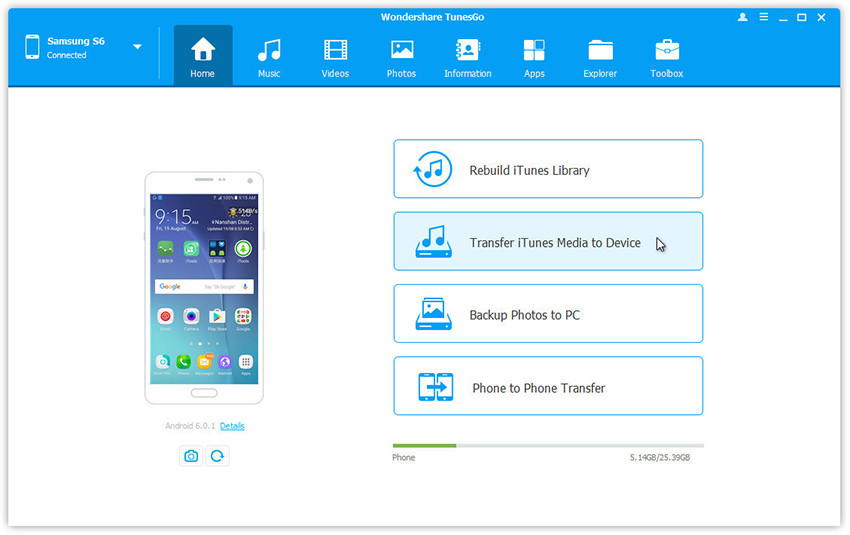
Step 1.Simply click Transfer iTunes Media to Device on the main interface.Or find the Transfer iTunes to Device option under Toolbox > Transfer Tools section.

itunes-media-to-pixel

Step 2.Check options and start to copy media from iTunes to Google Pixel.All the iTunes files will be scanned and will be shown under different categories like music, movies, podcasts and others.By default,all the file types will be selected but to transfer only the music and videos files,you can uncheck the others.Click Transfer to start transferring.

select-itunes-media-to-pixel

transfer-itunes-media-to-pixel

d_win d_mac

Part 2:How to Transfer Media Files between iOS/Android Devices and Google Pixel

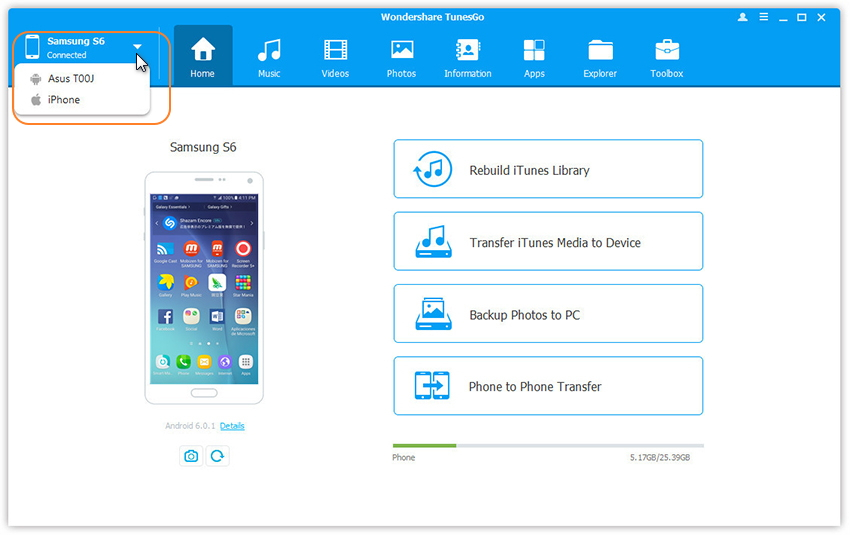
Step 1. Launch iOS & Android Manager and connect both devices to PC.

connect-devices

Step 2. Select the source device from which you want to transfer media files.

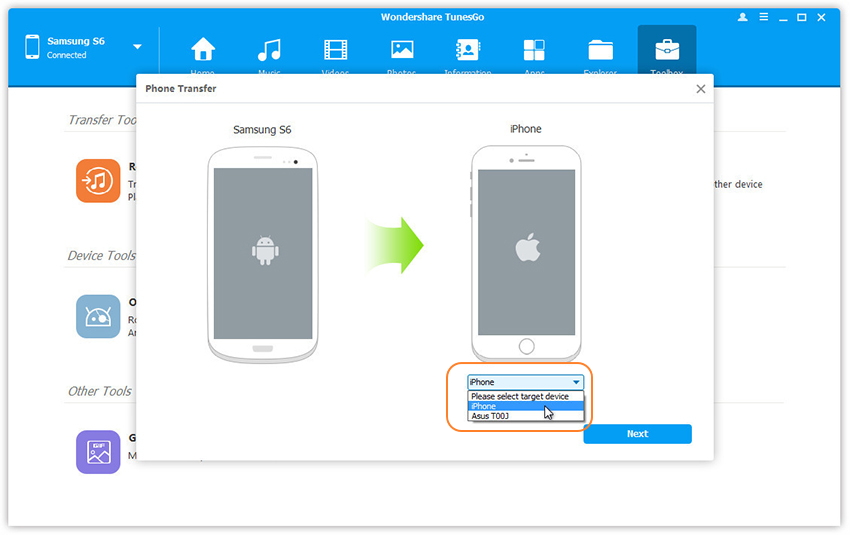
Step 3. Simply click Phone to Phone Transfer on the main interface. Or find the Phone Transfer option under Toolbox > Transfer Tools section.

Step 4. Select target device. When your devices are connected and detected by, you’ll get a window as follow. Select the target device from the drop-down list and click Next.

select-phone-transfer-device

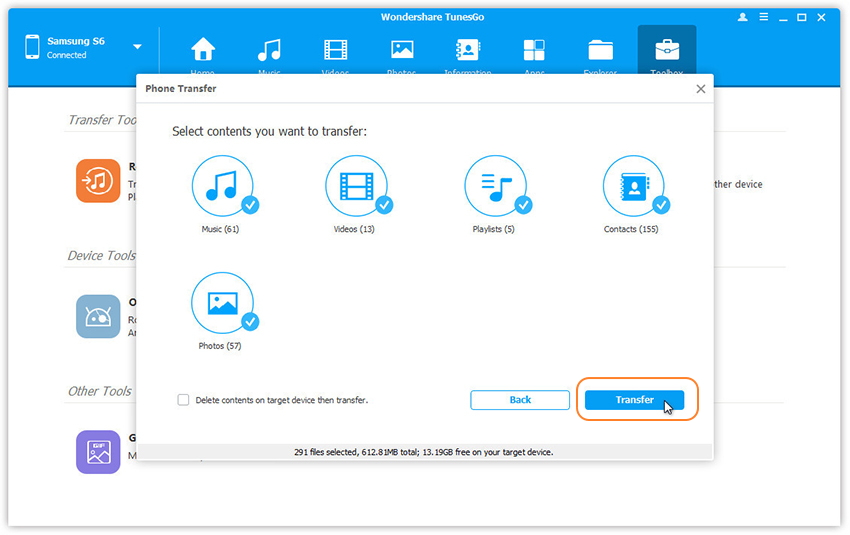
Step 5. Transfer data from one device to another. By default, all data on your source device that can be transferred are ticked, namely contacts, photos, playlist, music and videos. You can also tick your wanted data. Then, click Transfer. In the whole transfer process, DO NOT disconnect either device. When the transfer completes, click OK.

transfer media file to pixel phone

Note:
1. Contacts are not supported by Mac version.
2. Windows users can tick the option: Delete contents on target device then transfer, then the selected contents on the target device will be deleted firstly before the transfer. (Only for Windows version)

d_win d_mac

Related Article:

How to Transfer Music between iTunes Library and Google Pixel

How to Transfer Music from Computer to Pixel Phone

How to Transfer Music from Android to iPhone/iPad/iPod

How to Backup & Restore Data on Google Pixel Phone

How to Transfer Photos from Computer to iPod

”I was intend to transfer the photos from iTunes to my iPod,however,I don’t what’s happened,the iTunes just not as worked well as usual.Any others way to solve it?Thanks a lot.”-Victoria

Confused about how to sync photos to iPad?We’ve got you solutions.Do you saved a lot of photos on your computer/iTunes/mobile device or other Internet service account and want to transfer them to your iPod so that preview photos anywhere and sharing them with friends?We are going to share three ways to export photos to iPod with our readers through this article.

How to Freely Export Photos to iPod(touch)

iOS Manager is the best software which enables you to transfer photos between computer and iPod/iPad/iPhone easily in just one click without losing your previous photos,iOS Manager can easily do this tasks for you in minutes.Secondly,iOS Manager support to export photos between iOS devices and Android devices.Thirdly, iOS Manager allow to delete photos on iOS devices,manage photo albums in Photo Library,convert photos/video on iOS devices to GIF.

iOS Manager Features – Transfer & Manage Photos for iPod(touch)
-Easily transfer photos from computer to iPod.
-Easily transfer photos from iPod to computer.
-Easily transfer photos between iPhone,iPad,iPod and Android devices.
-Easily detect and delete duplicates.
-Supports all types of iOS device such as iPhone 7,iPhone SE, iPod touch,iPod nano and iPad Pro.
-Automatically detects the unsupported format of files and converts them to the supports formats according to the devices.

d_win d_mac

Part 1:How to Export Photos from Computer to iPod

Step 1.Launch iOS Manager and connect your iPod with the computer.

iOS manager main page

Method 1:Transfer Photos by Tapping Buttons

Step 2.Add photos from your computer to your iPod
Click Photos icon at the top of the main interface, then select the specific option Photo Library. Please note that Camera Roll, Photo Stream and Photo Shared are not available to add photos.

transfer photos from photo library

Later,click Add and then select Add File or Add Folder to add photos from your computer.If you only want to select some photos,then click Add File, and then hold down Shift or Ctrl key to choose multiple photos; if you want to transfer all the photos in one folder, then click Add Folder. After that, click Open to import the selected photos. Here we only add photos to iPod by clicking Add File for example.

add file to transfer

select photos to transfer to ipod

Method 2:Transfer Photos by Drag and Drop

Step 2. Find photos on your computer.
Find and open the photo folder on your computer which includes the photos that you wish to transfer to iPod.

open the photo folder on pc

Step 3.Export the photos to iPod by Drag and Drop
Click Photos icon on the main interface of iOS Manager,then go to the Photo Library window.Drag and drop the selected photos from your computer to the Photo Library window of iOS Manager.

drap and drop the selected photos

Note:With the two methods above, you can also select to add photos to one of the photo albums under Photo Library.

selected photos from photo albums

d_win d_mac

Part 2:How to Transfer Photos from iPod to Computer

Method 1: Transfer All The Photos With One Click

Step 1.Launch iOS Manager and connect your iPod with the computer

iOS manager main page

Step 2. Backup photos to the computer
If you use Windows PC:
Click Backup Photos to PC icon on the main interface. From the pop-up window, browse and select the destination folder for photos, click OK to start the export.
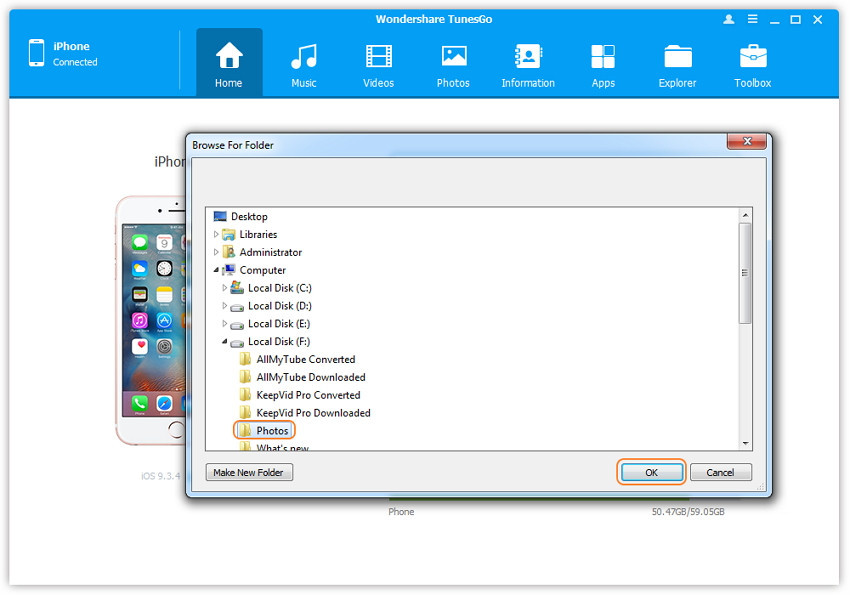
1-click-backup-photos-to-pc

backup-photos-to-pc

If you use Mac:
Click Backup Photos to Mac icon on the main interface. From the pop-up window, browse and select the destination folder for photos, click Save to start the export.
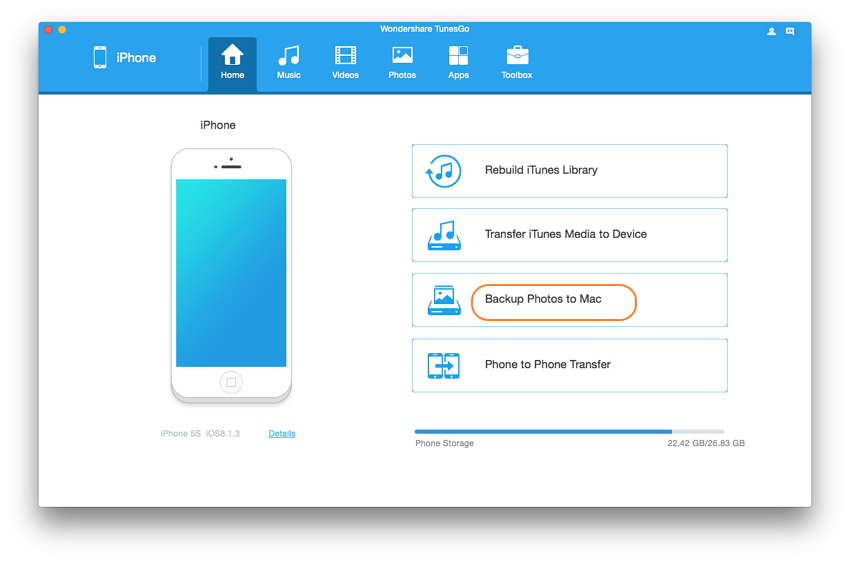
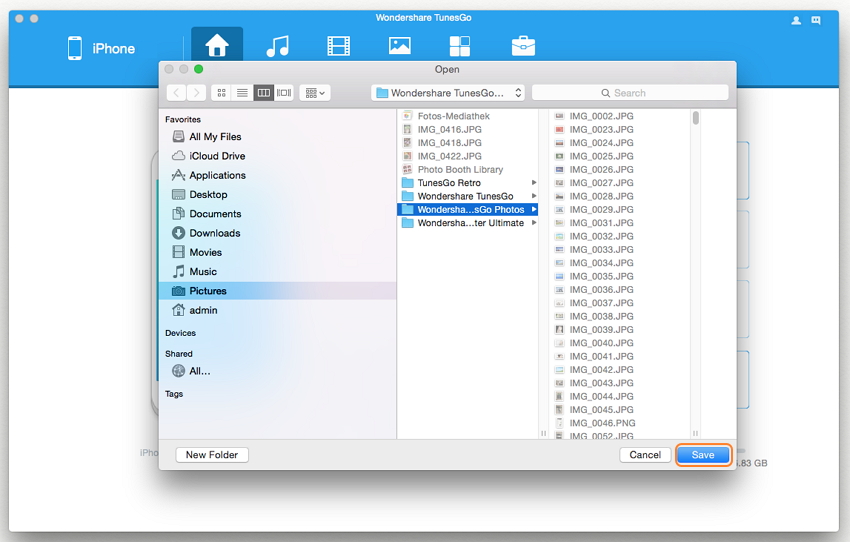
1-click-backup-photos-to-mac

transfer-photo-to-computer

Step 3. Export Photos to Computer
Click Open Folder to see the exported photos on the selected path of your computer, or click Finish to close the dialog.
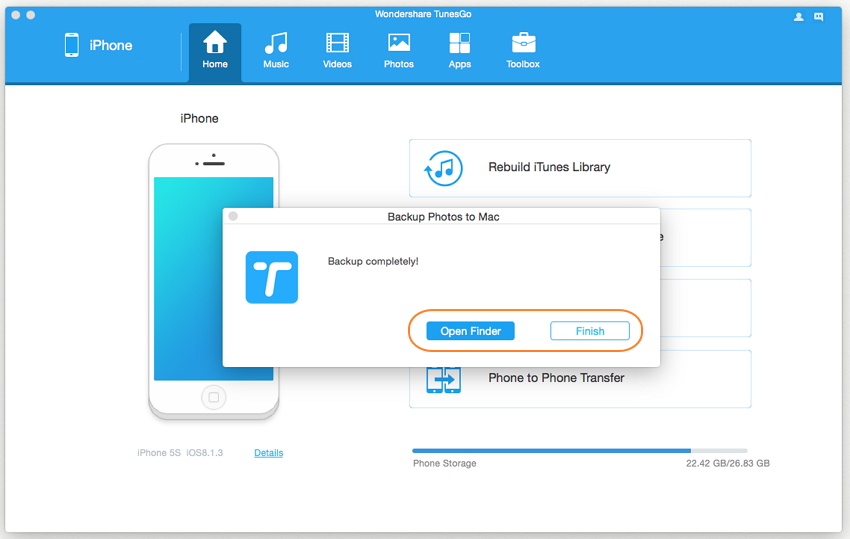
finish-transfer-photo-to-computer

Method 2: Selectively Transfer Photos by Tapping Buttons

Step 1. Launch iOS Manager and connect your iPod with the computer. Then click Photos icon at the top of the main interface, you will enter the default photo type: Camera Roll.
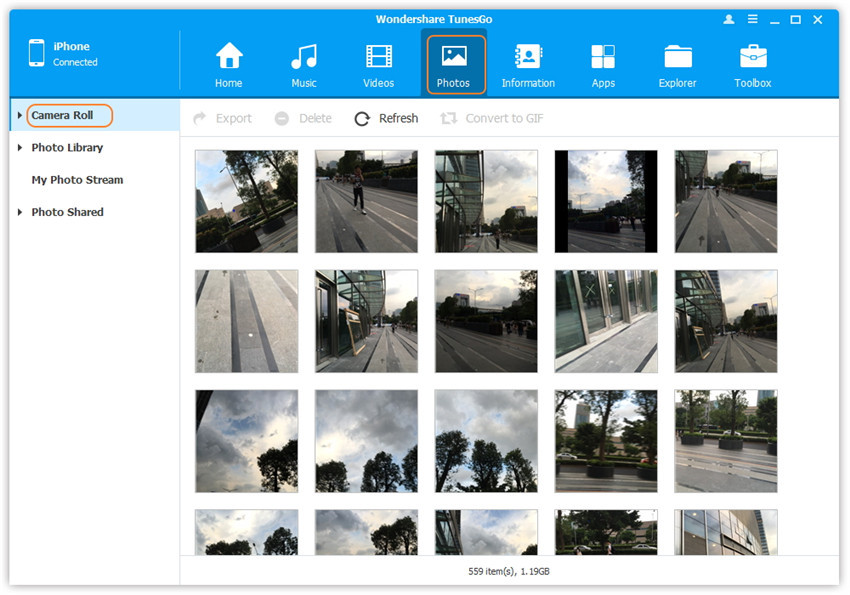
transfer ipod photo from camera roll

Situation 1.Transfer Photos from iPod touch to Computer Selectively
Step 2. Export photos from your iPod to the computer.
a. Select a specific photo type: Camera Roll/Photo Library/ Photo Stream/Photo Shared( Camera Roll is the default type), all the photos under this type will be shown on the right panel. Optionally, you can select one specific album under one photo type to enter the album window, then all the photos in this album will be shown on the right panel. Later, check the photos you want to transfer to your computer, and click Export > Export to PC or right-click on the selected photos and then select Export > Export to PC from the drop down list. Here we only make photos under Camera Roll type for example.
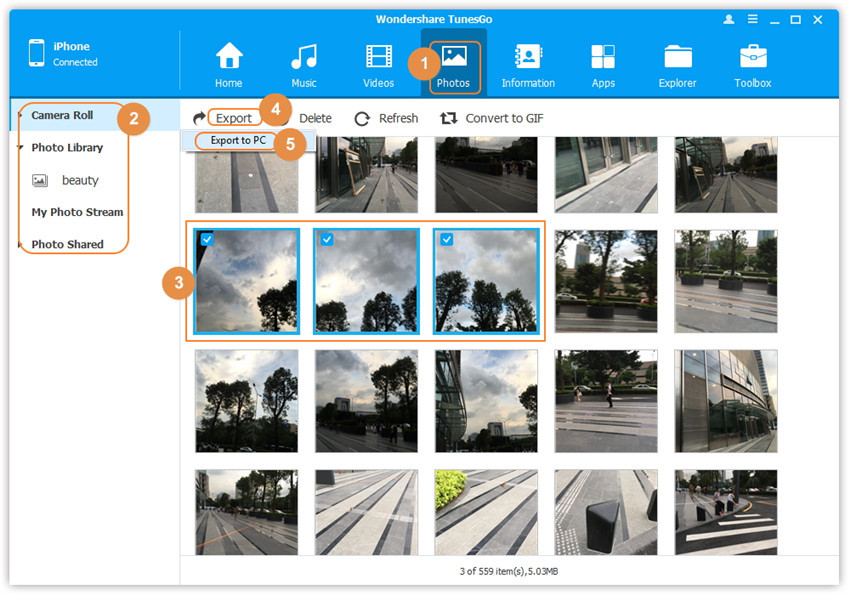
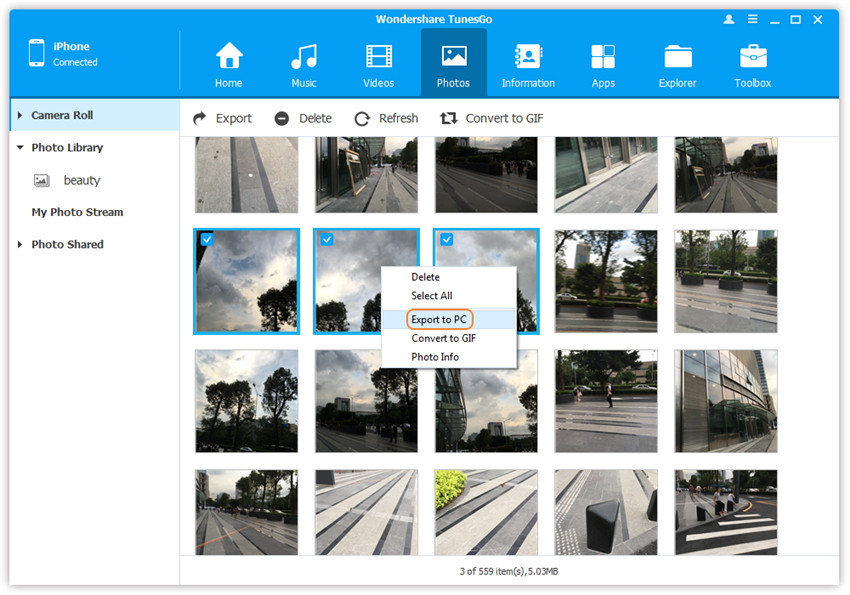
export photos from iPod to computer

export-ipod-photo-to-pc

b. Browse and choose the target folder on the computer to export. And click OK to start the export process.
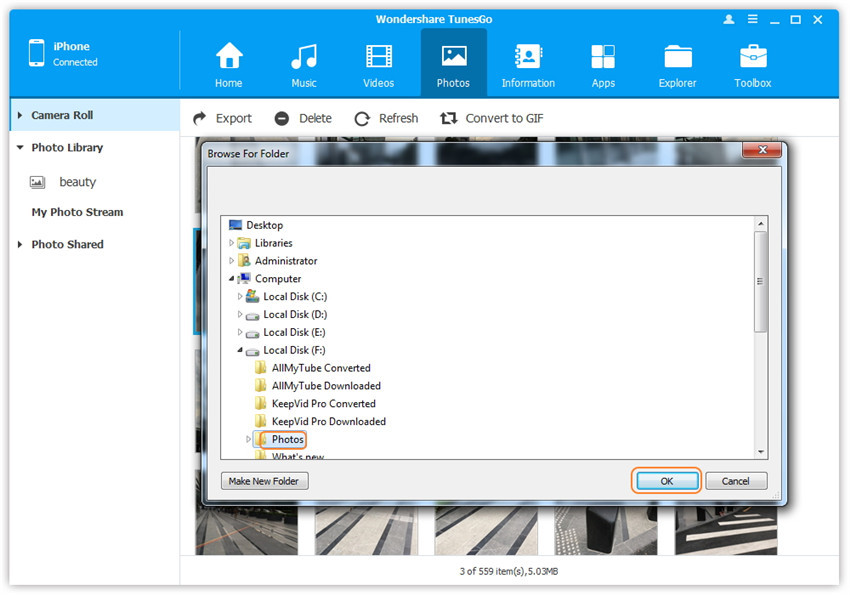
click-ok-to-start-process

Step 3. Export successfully
Click Open Folder to see the exported photos on the computer or click OK to close the dialog.
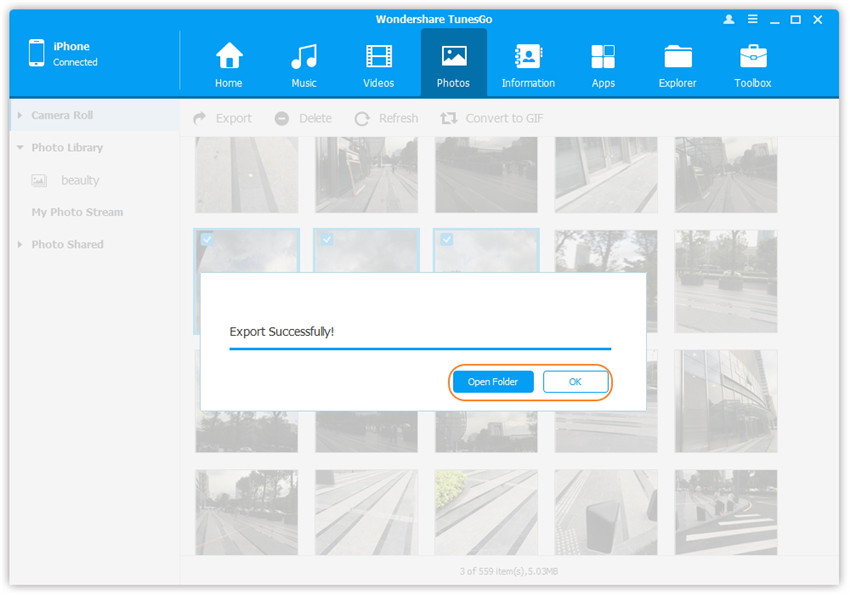
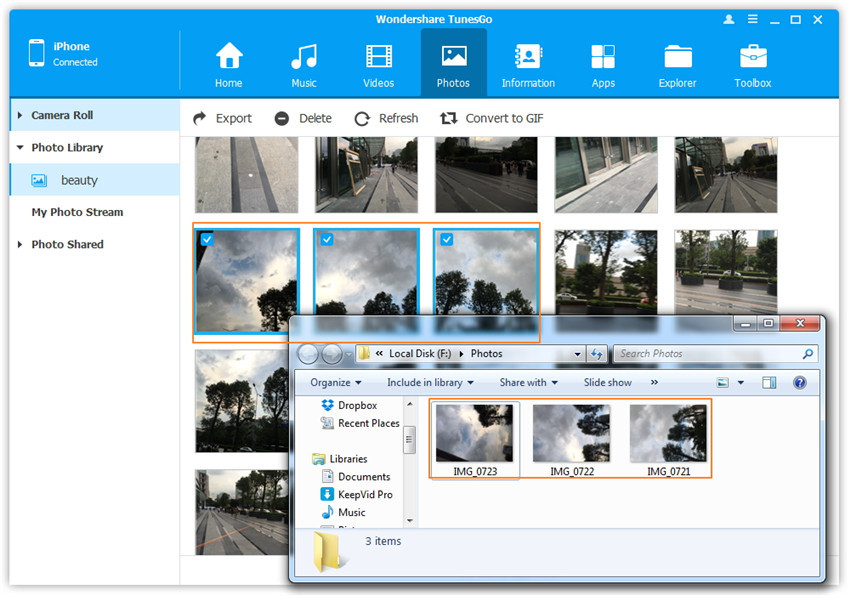
export-complete

finish-photo-transfer

Situation 2. Transfer All The Photos in One Photo Type from iPod to Computer
Step 2. Select a specific photo type: Camera Roll/Photo Library/ Photo Stream/Photo Shared, right-click on it, and choose Export to PC from the drop down list. After that, browse and select the target folder on your computer to export. Please see the screenshot to transfer all the photos in Photo Library below for reference.
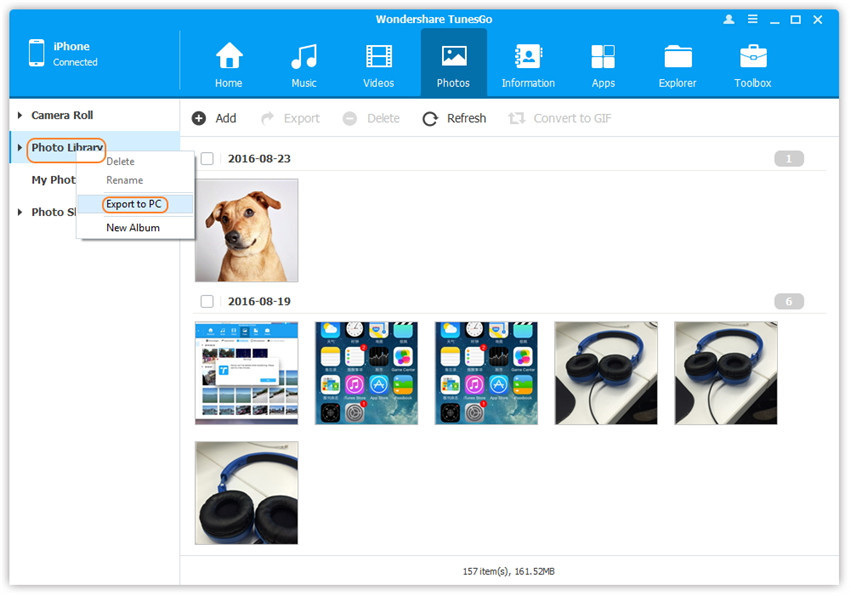
export-photo-library-to-pc

Situation 3. Transfer All The Photos in One Photo Album from iPod to Computer
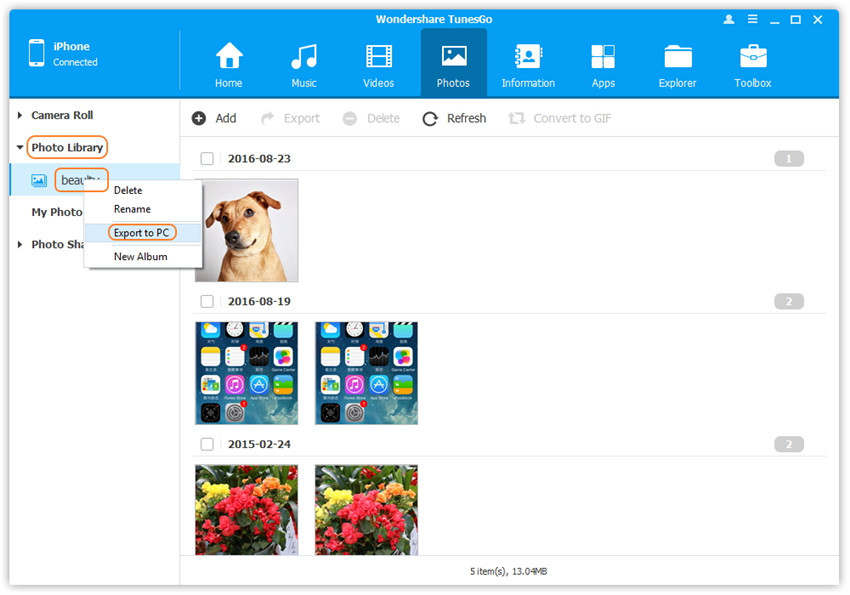
Step 2. Select a specific photo album under Camera Roll, Photo Library, Photo Stream or Photo Shared, right-click on it, and choose Export to PC from the drop down list. After that, browse and select the target folder on your computer to export. Please see the screenshot to transfer all the photos in the “beauty” album under Photo Library below for reference.
transfer-photos-from-photo-album-to-pc

d_win d_mac

Part 3:How to Transfer Photos between iPod and iPhone/iPad/iPod/Android Devices

Method 1: Transfer All The Photos

Step 1. Launch iOS Manager and connect iPod with the computer
Launch iOS Manager and connect more than one iPhone/iPad/iPod/Android device with the computer, here we name the connected devices: A, B, C.

iOS manager main page

Step 2. Select the source device from which you want to transfer contents
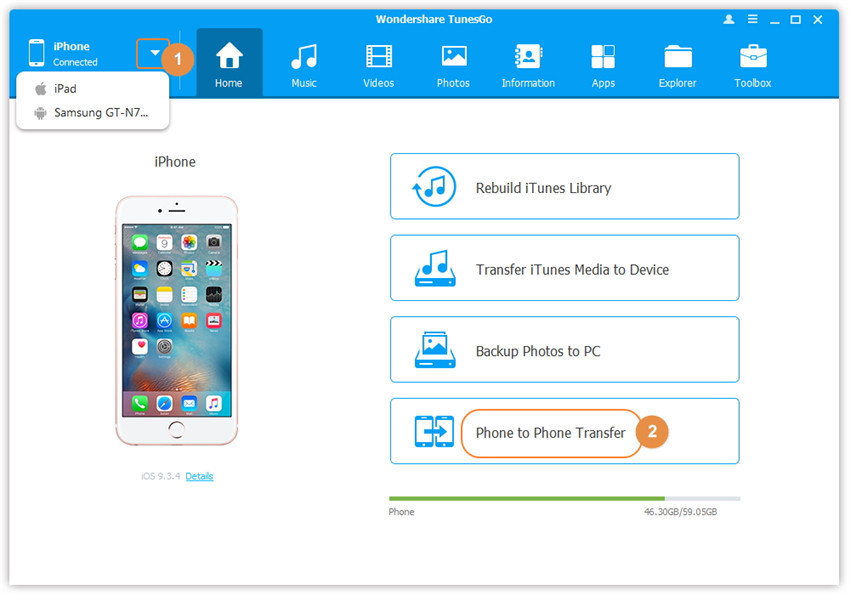
Select the source device A, and click Phone to Phone Transfer option on the main interface. Then a new window will pop up.
phone to phone transfer option

Step 3. Select the target device to which you want to transfer contents
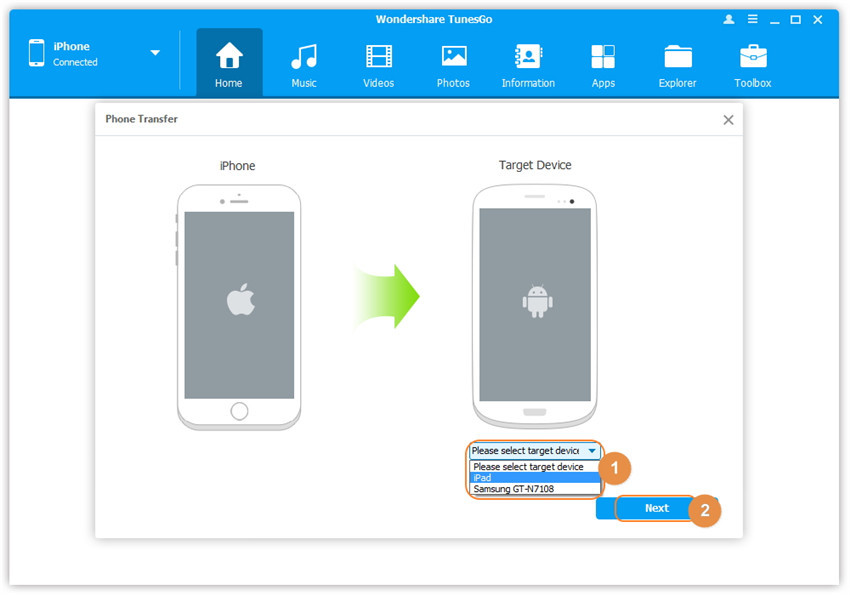
From the pop-up window, select the target device B or C from the drop-down list and click Next.
select target device

Step 4. Transfer contents from one device to another
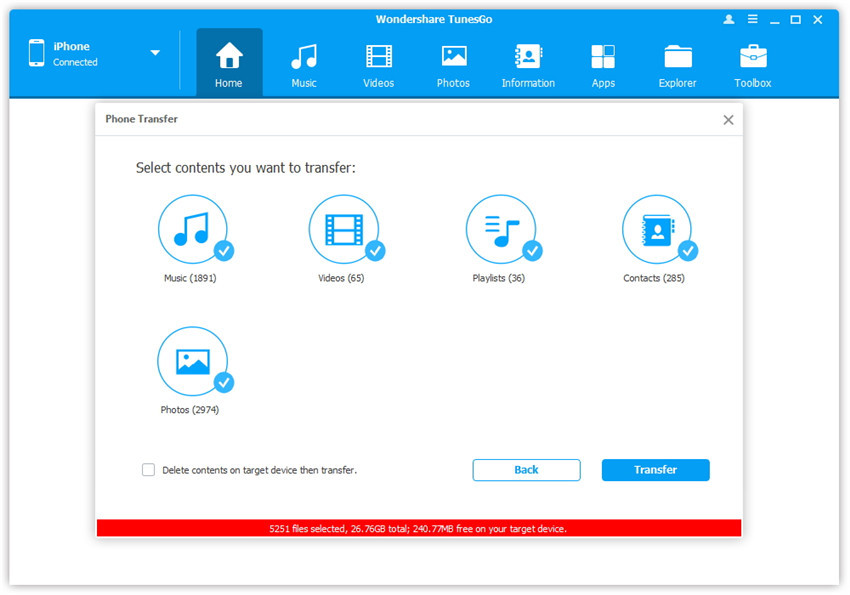
By default, all the content on your source device A that can be transferred are checked, namely Music and Videos, Playlists, Photos, Contacts( Note: Contacts are not supported by Mac version). You can uncheck the contents which you don’t want to transfer. Then, click Transfer. In the whole transfer process, DO NOT disconnect either of the devices. When the transfer completes, click OK.
start transfer process

transfer complete

Note: Only for Windows version, you’re enabled to tick the option: “Delete contents on target device then transfer” before clicking Transfer button, then the selected contents on the target device will be deleted firstly before the transfer.
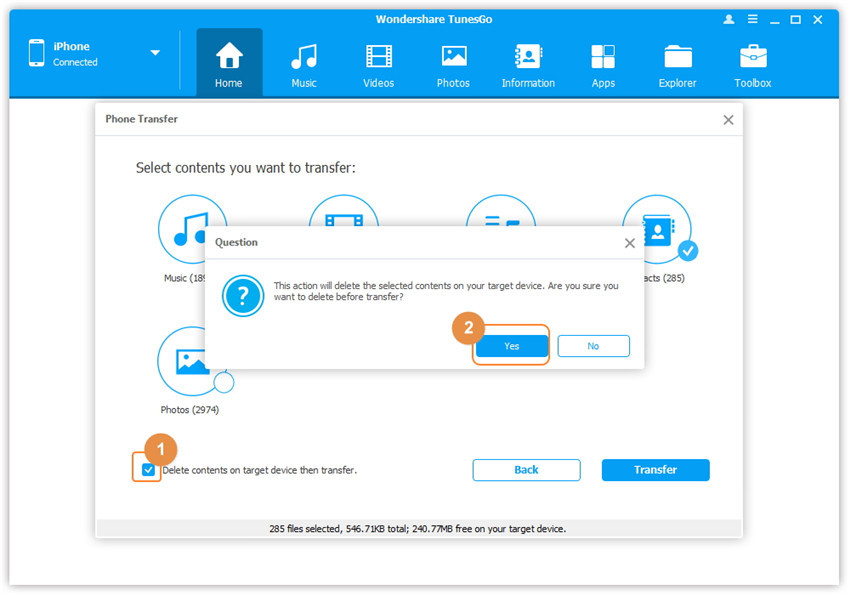
delete contents on target device then transfer

Method 2: Transfer Photos Selectively

Step 1. Launch iOS Manager and connect iPod with the computer
Launch iOS Manager and connect more than one iPhone/iPad/iPod/Android device with your computer, here we name the devices: A, B, C.
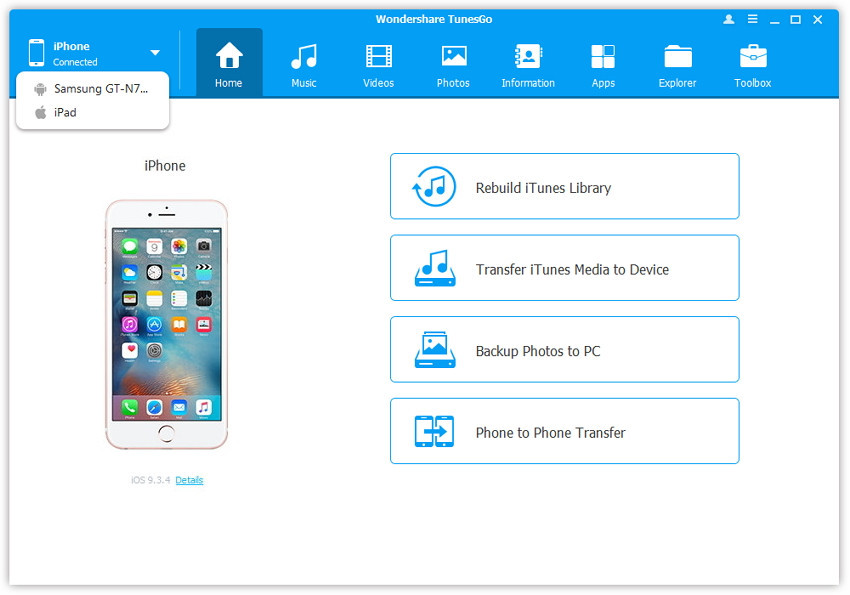
connect-ipod-other-devices
Step 2. Select and transfer photos between devices
Select the device A from which you want to transfer photos, and click Photos icon at the top of the main interface, then select a specific photo type: Camera Roll/Photo Library/ Photo Stream/Photo Shared( Camera Roll is the default type), all the photos under this type will be shown on the right panel. Optionally, you can select one specific album under the photo type to enter the album window, then all the photos in this album will be shown on the right panel. After that, check the photos which you want to transfer from A to B or C, then click Export > Export to Device > B or C. As for the following screenshot, the selected photos in “beauty” album under Photo Library on the iPod can be transferred to the Samsung Phone or another iPad.
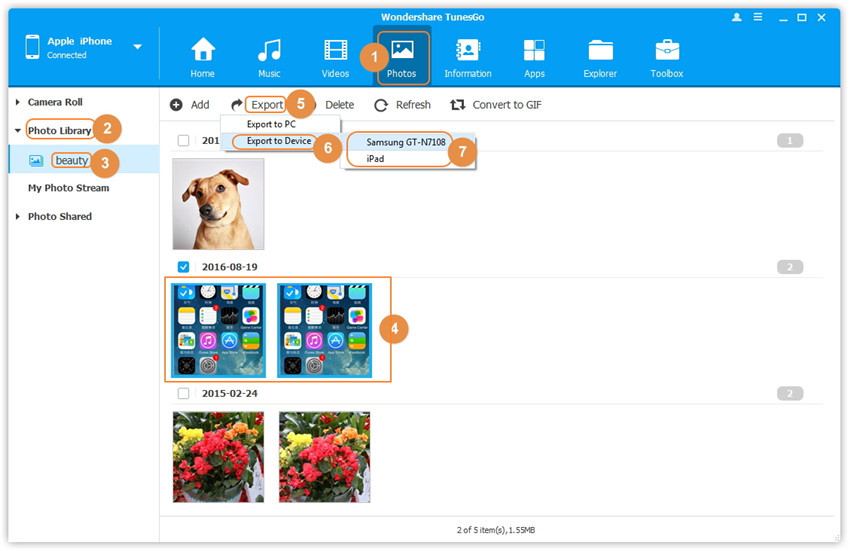
select-photo-transfer-to-devices

Note: Here you can right-click on the selected photos and then select Export to Device > B or C as well.
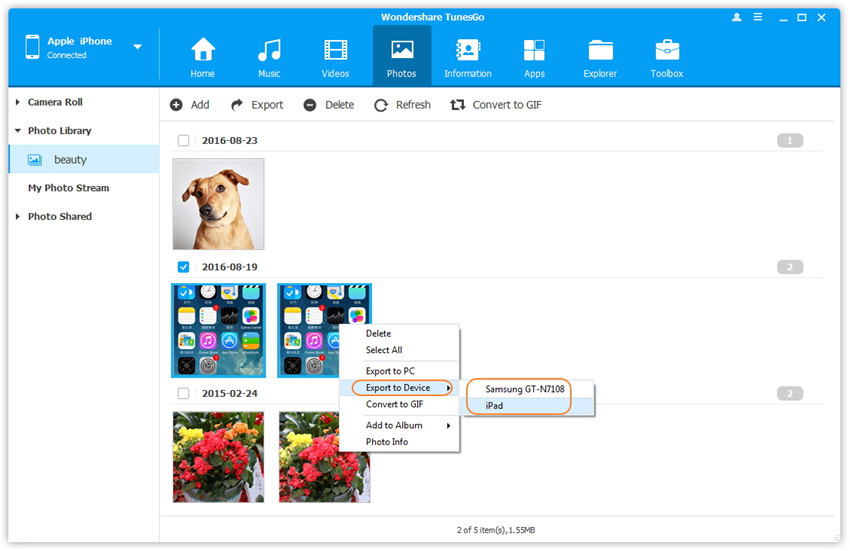
export-photos-to-devices

d_win d_mac

Related Article:

How to Transfer Videos from Computer to iPhone

How to Transfer Music from Computer to iPhone

How to Transfer Photos from Computer to Mobile Phone

How to Transfer Android Photos and Videos to iPhone

How to Transfer Videos to Samsung Galaxy S7/S7 Edge

Summary:The modern people love to play the media file on their mobile device.It’s natural idea to transfer media files(videos/audios/music/photos) to Samsung device from different sources.In this article, I’m going to show you the 3 most common methods to sync videos to Samsung Galaxy phone.

The Samsung Galaxy S7(S7 Edge) is an multimedia equipped mobile phone that designed and built by Samsung Company,which is famous for the Quad HD super AMOLED display and Dual edge 5.5” for the Galaxy S7 Edge.The Galaxy S7 phone not only surprised the mobile device market,but also enabled you to enjoy ultra high quality movie or video on it.So it’s no doubt that Samsung users often download the movie videos to Galaxy S7 device and gain the interesting experience from it many times.

How to Transfer Videos to Samsung Galaxy S7

As the specially designed for managing and transferring media files to Android devices,this superior program called Android Manager enables to copy videos from computer to Samsung Galaxy S7,export videos from iTunes to Samsung Galaxy S7,transfer videos between iOS/Android device and Samsung Galaxy S7.In addition,Android Manager allows to manage the videos(delete items) on Android devices freely.Not only Samsung device,but also most of Android devices are compatible with Android Manager,such as Google Pixel(Pixel XL),Google Nexus(5X/9),Motorola,HTC(One M8/M9),LG,Huawei,ZTE,and more.

d_win d_mac

Kind Tips: As for the online video downloader, 4kFinder Video Downloader is a time-saving and reliable solution. Copy and paste the video URL to download the video from YouTube or other popular online streaming sites (Facebook, Instagram, Twitter, Bilibili, NicoNico, BBC, Vimeo, VLive, Tumblr) to MP4 at 360p, 720p, 1080p, 1080p HD , 4K, 8K quality.

Part 1:Transfer Videos from Computer to Samsung Galaxy S7

Launch Android Manager and connect your Samsung Galaxy S7 to computer.Your Samsung phone will be detected and displayed in the primary window.

samsung galaxy s7 video transfer

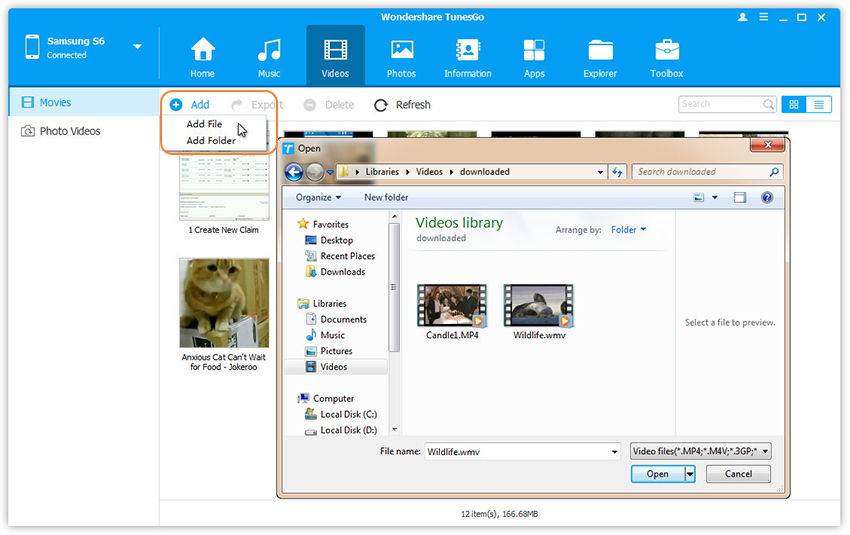
Step 1.Select Videos tab.Once your media loads,click Add > Add File or Add Folder.

add video to samsung galaxy s7

Step 2.This brings up your file browser window,from which you can select videos to import from your computer.All videos imported can be watched with the built-in player.You can simply Drag and Drop videos from computer to Samsung Galaxy S7.

d_win d_mac

Part 2:Transfer Videos from iTunes to Samsung Galaxy S7

Launch Android Manager and connect your Samsung Galaxy S7 to computer.Your Samsung phone will be detected and displayed in the primary window.

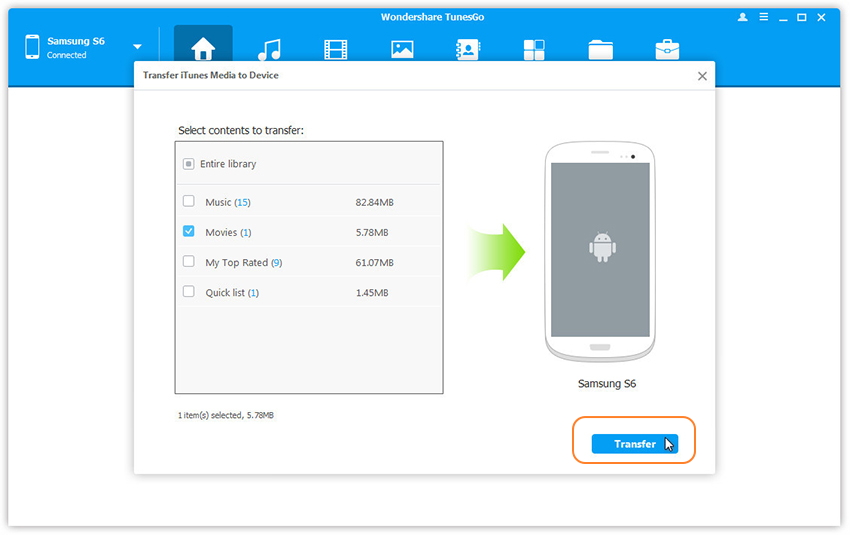
Step 1.Simply click Transfer iTunes Media to Device on the main interface.Or find the Transfer iTunes to Device option under Toolbox > Transfer Tools section.

android-manager-mian-page

Step 2.Check options and start to copy videos from iTunes to Samsung Galaxy S7.All the iTunes files will be scanned and will be shown under different categories like music, movies, podcasts and others. By default, all the file types will be selected but to transfer only the video files, you can uncheck the others. Click Transfer to start transferring.

transfer-itunes-videos-to-samsung-galaxy-s7

d_win d_mac

Part 3:Transfer Videos between iOS/Android Device and Samsung Galaxy S7

Step 1.Launch Android Manager and connect both devices to PC.

connect-devices

Step 2.Select the source device from which you want to transfer videos.

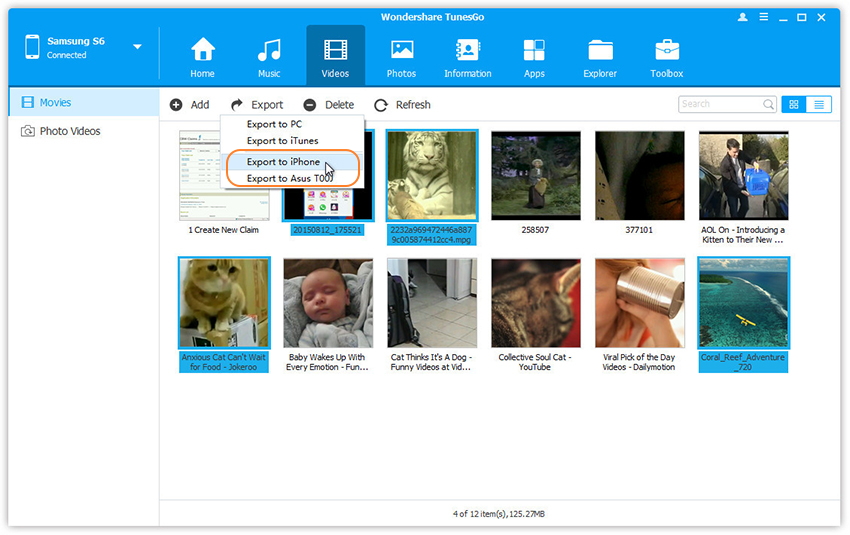
Step 3. Click Videos tab.Choose your wanted videos and click Export.Select another device from the list.For example, you can transfer videos from Samsung Galaxy S7 to iPhone by selecting Export > Export to iPhone directly.

transfer-videos-from-galaxy-s7-to-other-device

d_win d_mac

Related Article:

How to Transfer Music from Computer to Samsung Galaxy S6/S7

How to Transfer Videos from Computer to Samsung Galaxy S6/S7

How to Convert and Play DVD Movies on Samsung

How to Transfer Photos between Computer and Samsung Galaxy S7/S7 Edge

How to Transfer Music from Android to iPhone/iPad/iPod

How to Transfer Files between Samsung and Computer

How to Transfer Music from iTunes Library to iPod
Nowadays,people like listening to songs in daily life,enjoy music anywhere and anytime.Most of them download the music on the Internet,such as the Youtube.Some of them sync the songs on the iTunes library.What’s the same things is that all of them are accustomed to transfer the music to their mobile device and share it conveniently.

transfer itunes music to ipod

My best friends Tommy and Kaskade are the fans of electronic music,they always notice the newest popular electronic music everytime.They need to download the songs from iTunes Library to iPod.However,somethings was wrong,they can’t sync the iTunes songs to the iPod as usual,then they fine another way to fix this issue.This page is describing on how to smoothly export music from iTunes Library to iPod.

1 Click Transfer Music from iTunes Library to iPod(touch) without Overwriting your Previous Content

Before starting tutorial about how to sync music to iPod without iTunes, we will make a brief introduction of iOS Data Manager firstly.iOS Manager is meticulously designed for transferring & managing media file on iPod, iPhone and iPad without overwriting the previous data.What’s this program can do for you materially?It help to transfer music between iTunes Library and iPod/iPad/iPhone,transfer music between computer and iPod/iPad/iPhone,transfer music between Android device and iOS device.There is no doubt that iOS Manager provide a full solution to manage music playlists on iPod/iPad/iPhone.
Applicable iOS Device:
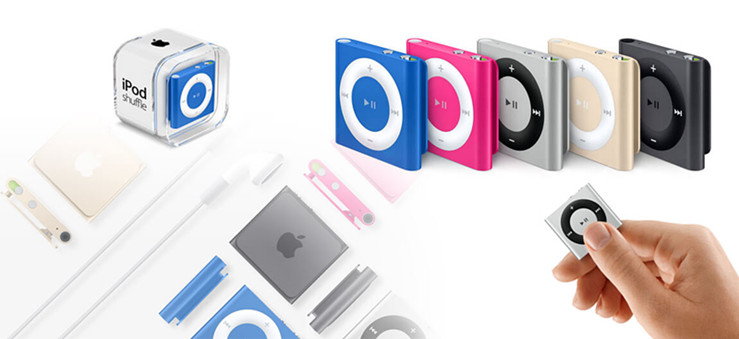
-iPod touch 6/5/4,iPod nano,iPod shuffle,iPod classic, iPod mini
-iPhone 7,iPhone 6S(Plus),iPhone 6(Plus),iPhone SE,iPhone 5S/5C/5
-iPad air,iPad pro,iPad mini,etc,.

d_win d_mac

Part 1:How to Export Music from iTunes Library to iPod
Step 1.Launch iOS Manager and connect your iPod with the computer.Then click Transfer iTunes Media to Device icon on the main interface.
ios manager main page

Step 2.iOS Manager will detect all the media files in iTunes and show them by list on the pop-up window.By default,the entire library has been checked.But you can uncheck some items that you won’t transfer to your iPod.

select transfer itunes media to ipod

Step 3.Transfer Music from iTunes Library to iPod
Click Transfer to start transferring selected files to your iPod and then click OK to complete the process.
Note:There is no worry about duplicate files as iOS Manager enables to automatically detect the duplicates and only transfer the exclusive contents from iTunes to iPod.

click transfer button

transfer music to ipod
d_win d_mac

Part 2:How to Sync Music from iPod to iTunes Library
Step 1.Launch iOS Manager and connect your iPod with the computer.

connect ipod with computer

Step 2.Export music from your iPod to iTunes library.
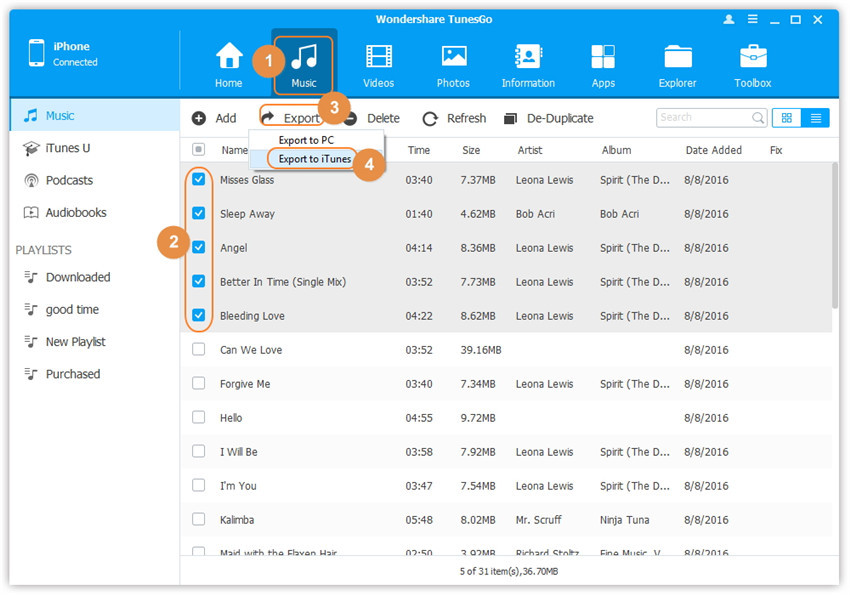
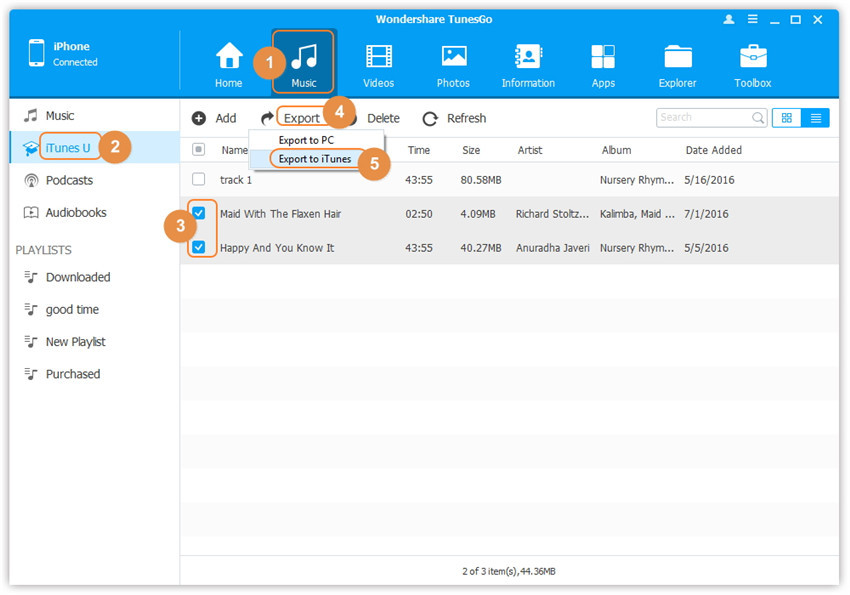
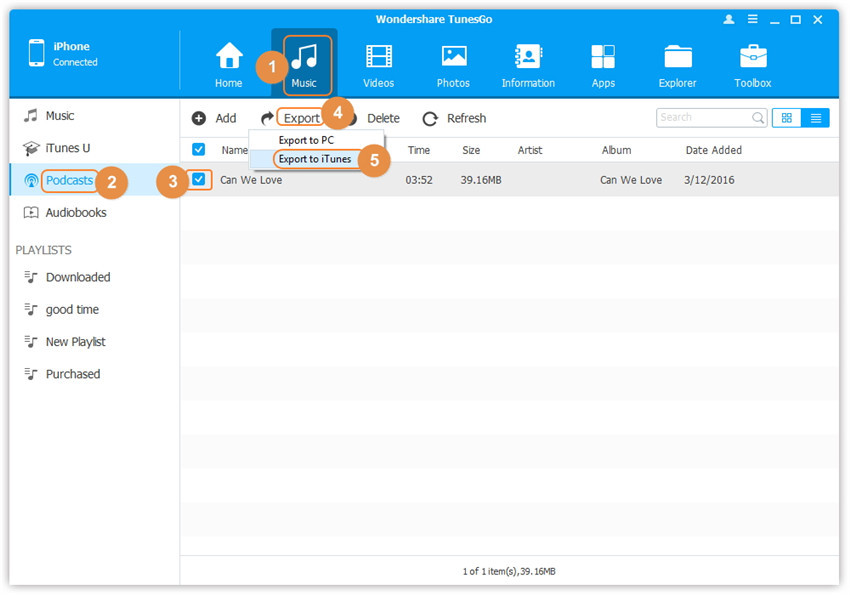
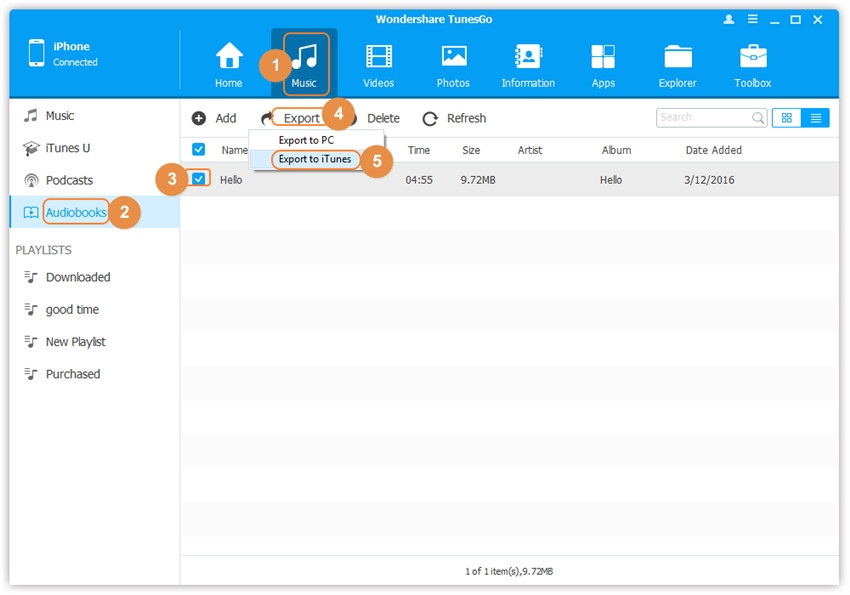
Click Music icon at the top of the interface,then select the specific option Music (Music is the default option).Please note that iTunes U/Audiobooks/Podcasts is available to select here too.Then check the files you want to transfer to iTunes,and click Export > Export to iTunes.

select music transfer to itunes

select-itunes-u-transfer-to-itunes

select podcasts music transfer to itunes

select audiobooks transfer to itunes

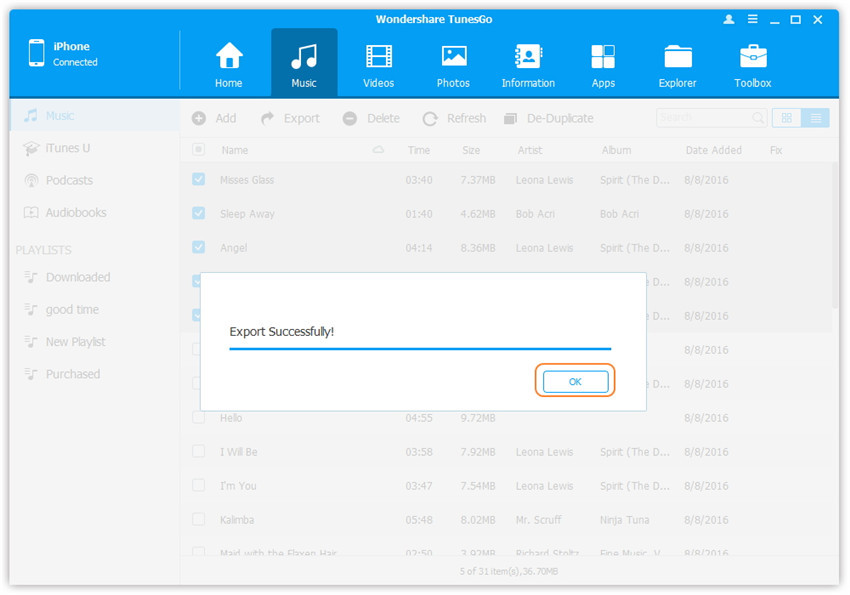
Step 3.Export successfully,click OK to finish the export process.

transfer music to itunes complete

d_win d_mac

Part 3:How to Transfer Music between Android Device/iOS Device and iPod

Step 1.Launch iOS Manager and connect your devices with the computer.
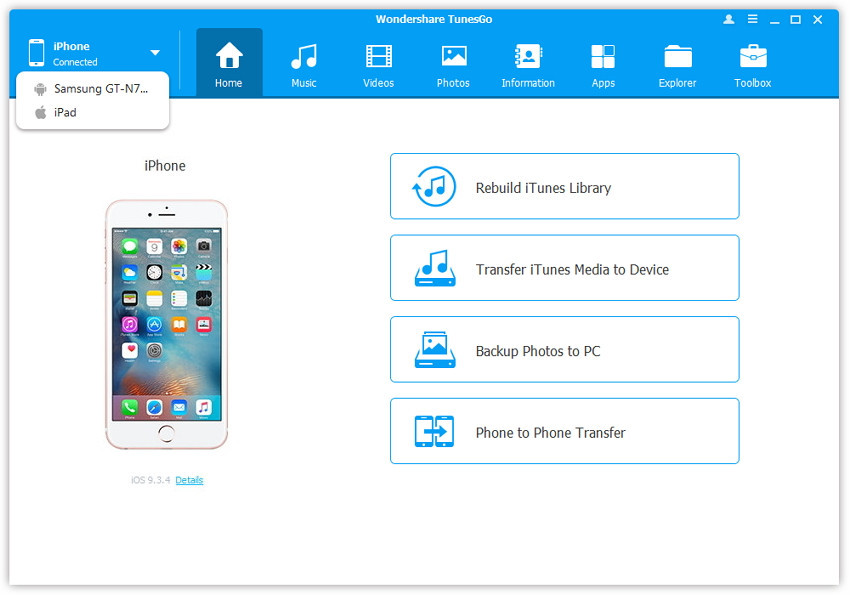
Launch iOS Manager and connect the devices(iPhone/iPad/iPod/Android device) with your computer,here we name the devices: A, B, C.

connect devices to pc

Step 2.Select and transfer music between devices.
Select the device A from which you want to transfer music, and click Music icon at the top of the main interface, check the songs which you want to transfer from A to B or C, then click Export > Export to B or Export to C. As for the following screenshot,the music on the iPod can be transferred to the Samsung phone or the iPad.

select device to export

Note:Here you can right-click on the selected music and then select Export >Export to B or Export to C as well.

export music to devices

d_win d_mac

Part 4:How to Convert and Play iTunes Music on iPod

Here is another solution we are strongly recommend for you. A powerful Apple Music Converter for Windows & Mac,which enables to convert Apple music to MP3, M4A, AC3, AU, AC3, FLAC, AIFF or MKA,and remove the DRM encryption from Apple music,you can enjoy Apple Music tracks with more freedom and convenience and play on iPod for free forever.After converting the iTunes DRM-Protected Music to MP3, you are able to play them on any computers or devices such as MP3 player, iPhone, iPod, iPad, PSP, Zune, Windows Phone, Nokia, Sharp and other Android devices.

Click here to download Apple Music Converter:

d_win d_mac

Apple Music Converter Key Features:

-Free load and convert previous purchases Apple music from iTunes to the local computer for playing at any time any place.
-Convert Apple Music, iTunes M4P songs to DRM-free MP3 and keep Apple Music as long as you like
-Play Apple Music on iPhone/iPod/iPad for Free
-Convert iTunes DRM-Protected Music to most popular mobile device
-Supports the latest iTunes 12.6.2

Click to get the steps on play iTunes music on iPod in detail:

How to Play iTunes Music on iPod

Step 1. Run Apple Music Converter on the Computer
To begin with, please run Apple Music Converter program on the computer.

launch apple music converter

Step 2. Select the Apple Music to Convert
Select the Apple music you need to convert, including music, playlists, Audiobooks, M4P Audio, iTunes movies and TV shows. Then click “Download“.

Step 3. Select MP3 Output Format for Converting
Select the format for the converted music, here we suggest you to choose “MP3” format, that is match with iPod.

Step 4. Convert Apple Music to MP3 for iPod
Click “Start Convert” to begin to convert selected music on the computer.

convert itunes music to mp3 for ipod

Step 5. View the Converted Apple Music on the Computer
When the conversion is finish, you could explore the output files and folders by clicking “Open Output File” button to view the converted music file on the computer.

Step 6. Import Converted Apple Music to iPod via iOS Data Manager
In the last step what you should do is to transfer the converted music to your iPod  via iOS Data Manager.

Related Article:

How to Transfer Music from Android to iPhone/iPad/iPod

How to Transfer Music from Computer to iPhone

How to Sync Videos from Computer to iPhone

How to Transfer Android Photos and Videos to iPhone

How to Transfer Photos from Computer to Mobile Phone