All posts by DHZ

How to Restore Contacts from Broken Screen Samsung

“My Samsung Galaxy S6 was get broken after I slipped it to the floor when I was picking up the call in the supermarket with heavy things on my hand.The phone screen was get broken.Now I can’t power on the Samsung with broken screen.Can anybody help me to restore the contacts from this broken device?Or provide me some available ways to fix it?Thanks a lot.” Franky Zhong

When your Samsung phone get broken,the most urgent thing is that you may lose contacts on your broken Samsung and you are eager to restore contacts on the broken device.The contacts main the connections with your family and friends,even the client.Most people try to get back the contacts stored on the broken screen Samsung in order to keep in touch with others.However,it is really confuse us that is there any available ways to restore the phone numbers from broken screen Samsung device?The answer is absolutely YES.

Extract Contacts from Broken Screen Samsung

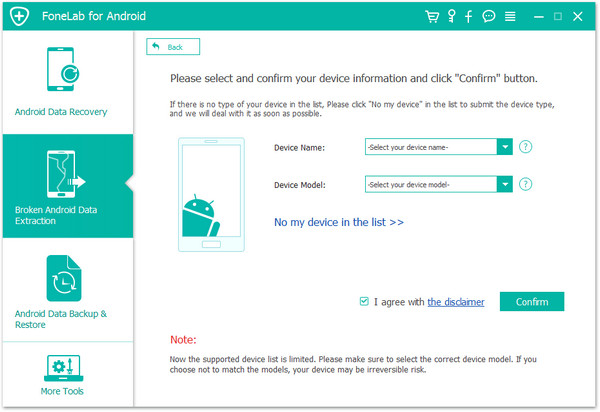
Broken Android Data Recovery Android Data Extraction enables you to restore contacts from broken screen Samsung.Broken Android Data Recovery is specially designed for these people to provide timely help,help to retrieve the data from broken Android device,such as broken screen device,black screen device,water damaged device,bricked device.No matter your phone is Samsung, Lenovo,ZTE,Motorola,HTC, LG, Sony,etc,.The recoverable data type including contacts,photos,videos,messages,call logs,audio,WhatsApp messages & attachments,documents.

d_win d_mac

How to Restore Contacts on Broken Screen Samsung

Step 1.Download and Run Program on Computer
Download,install and run Android Data Extraction on your computer.In the main page of program, click on “Scan it” located next to “Android Data Extraction” option.

connect samsung to pc

Step 2.Select Scanned Data on Broken Screen Samsung
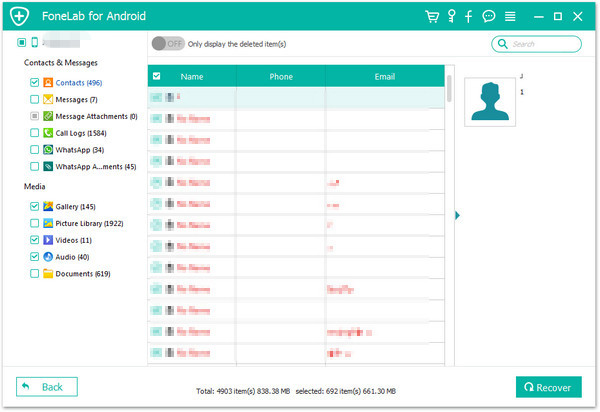
In the next window, you will be required to select the type of files to scan for.Since you want to restore contacts, check “Contacts” and then click on “Next” to continue.

scan samsung

Step 3.Select Broken Type of Samsung
A new window will appear requesting you to choose why you can’t access the device.Because the device’s screen is broken, choose “Black/broken screen”.

choose samsung broken types

Step 4.Select the Model of Your Broken Screen Samsung
In the next window, you should select the model of the your broken Samsung device.If you don’t know your device’s model, click on “How to Confirm the device model” to get assistance.

select broken screen samsung model

Step 5.Get Samsung into Download Mode
You will be provided with instructions on how to enter your broken device into “Download Mode.” Simply follow the instructions on the next window. Once the device is in “Download Mode” connect it to your computer using USB cables.

broken screen samsung download mode

Step 6.Download the Recovery Package for Broken Screen Samsung
Android Data Extraction will begin an analysis on your device and downloading the recovery package for it.

download recovery package for broken screen samsung

Step 7.Restore Contacts on Broken Screen Samsung
Once the recovery package has been successfully downloaded,the program will begin to scan your broken Samsung for the contacts stored on the device.

restore contacts broken screen samsung

The contacts on the device will be displayed in the next window when the scanning process is complete.Selectively check the contacts in detail you want to restore and then click on “Recover” to extract it to your computer.Done.

In addition,Broken Android Data Recovery contain the function that allow to restore deleted data from Samsung,if you want to know more about the Android recovery tips,please read more related article in the homepage,thanks.

d_win d_mac

Related Article:

How to Recover Data from Broken Screen Samsung

How to Recover Data from Broken Samsung Phone

How to Recover Data from Broken Screen Android

iPhone 7 Plus vs. DSLR: Is Apple’s new portrait mode as impressive as it seems

When Apple unveiled its new iPhone 7 and iPhone 7 Plus earlier this month at its bug press conference in San Francisco, it was immediately clear that the larger iPhone 7 Plus model is the star of the show this year. Both new phones are impressive, of that there is little doubt. But the bigger iPhone packs a class-leading new dual camera setup that is arguably the best smartphone camera the world has ever seen.

iphone7 vs dslr

Among the new features shown off by Apple was a “portrait mode” setting that creates a “bokeh” effect on photos similar to what you might see in photos captured by a DSLR. In fact, Apple has mentioned DSLR cameras a few times when discussing the new iPhone 7 Plus camera. Is it fair to mention Apple’s new dual lens camera system in the same breath as a DSLR, or is Apple just overhyping its latest iPhone? It’s time to find out.

First of all, let’s briefly recap the nifty new tech Apple used in its iPhone 7 Plus camera. In a nutshell, the phone includes a standard 12-megapixel wide-angle camera and a second 56mm telephoto camera positioned right next to it. This accomplishes two main things: first, the user can tap a zoom button to switch to the telephoto lens as the primary camera, which effectively provides 2x optical zoom on a smartphone camera. That in itself is pretty awesome, but Apple’s upcoming iOS 10.1 update also includes a new feature called portrait mode.

Portrait mode allows the user to capture a photo that uses the wide-angle lens as the primary lens, but also integrates depth data from the secondary telephoto lens to keep the subject in focus while blurring the background. The resulting photo features the appearance of a photo that was captured by a DSLR camera. The question is, does the quality of these portrait mode photos actually approach DSLR quality or is this just a gimmick?

The answer, it would appear, lies somewhere in the middle. Portrait mode is hardly just a gimmick, but the quality of photos captured by the iPhone 7 Plus doesn’t really compare to the quality of photos taken on a DSLR camera.

Reddit user “xenonsupra” posted a comparison shot that does a good job of illustrating the differences in a single pair of pictures.

Here’s a shot captured by the iPhone 7 Plus with portrait mode (beta) enabled:

1

And here’s the same shot from a Nikon D800:

nikon d800

The difference is significant — check out both full-size images at this link.

There’s no question that the photo from the 7 Plus is impressive, but there’s simply no way to achieve DSLR levels of clarity, color reproduction and light in a tiny little smartphone camera module. The iPhone 7 Plus gets closer than any phone camera has before it, but the technology still isn’t quite there.

How to Transfer WhatsApp Photos & Videos from iPhone to Android

“I used the iPhone 5 for 2 years,last day I upgraded my iPhone to an new Android.The WhatsApp Photos and videos still on my old iPhone.I have no idea to copy the WhatsApp history to the new device.But the photos and videos are meaningful a lot.What can I do?Thanks advance.”-Grace Choi

transfer iphone whatspp photo to android

It is common that mobile users keep the WhatsApp chat history which stored on device,including the WhatsApp text,photos,videos and attachments.However,there is no a perfect solution to copy all your WhatsApp conversation via the Internet account service with one click.It’s means that you must complete the WhatsApp data transfer task through the thirty-party data transfer tool.

Sync iPhone WhatsApp History to Android

So it is never been a troubling thing for us to deal with the WhatsApp data transfer problem when we upgraded iPhone to Android by using this superior app: iOS ToolKit – iOS WhatsApp Transfer.This outstanding program provides all needed solutions,including transfer WhatsApp photos & videos from iPhone to Android,transfer iPhone WhatsApp messages to Android,transfer iPhone WhatsApp photos & videos to iPhone,transfer iPhone WhatsApp messages to iPhone;backup WhatsApp data from iPhone to computer,restore WhatsApp backup to iPhone;restore WhatsApp backup to Android.

Then you can follow the 3 steps below to freely transfer your WhatsApp photos & videos from iPhone to Android device after downloading iOS WhatsApp Transfer:

d_win d_mac
d_win d_mac

Kind Tips: As for the online video downloader, 4kFinder Video Downloader is a time-saving and reliable solution. Copy and paste the video URL to download the video from YouTube or other popular online streaming sites (Facebook, Instagram, Twitter, Bilibili, NicoNico, BBC, Vimeo, VLive, Tumblr) to MP4 at 360p, 720p, 1080p, 1080p HD , 4K, 8K quality.

How to Copy WhatsApp Photos & Videos from iPhone to Android

Step 1.Run Program and Select Transfer Mode
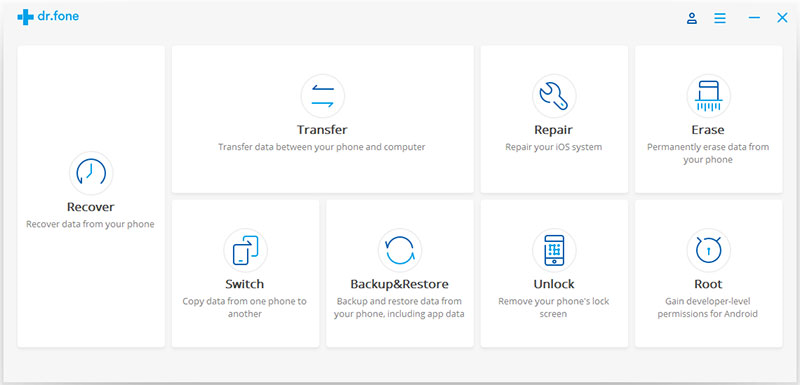
Run iOS WhatsApp Transfer on your computer.Then click and select “More Tools”.After that,you will have four options.Select “iOS WhatsApp Transfer,Backup & Restore” and click the “Install” button to install this tool.

ios whatspp transfer main page

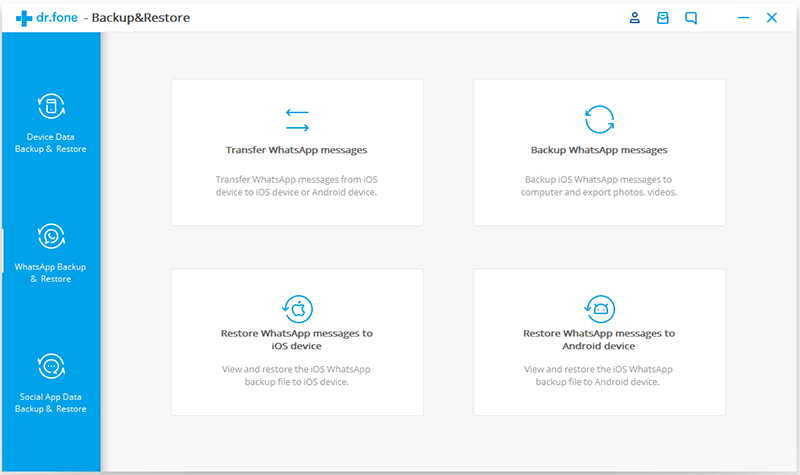
When installation is completed, you will have the interface as below. Select “Transfer WhatsApp messages”.

transfer whatsapp data feature

Step 2.Connect iPhone and Android to Computer
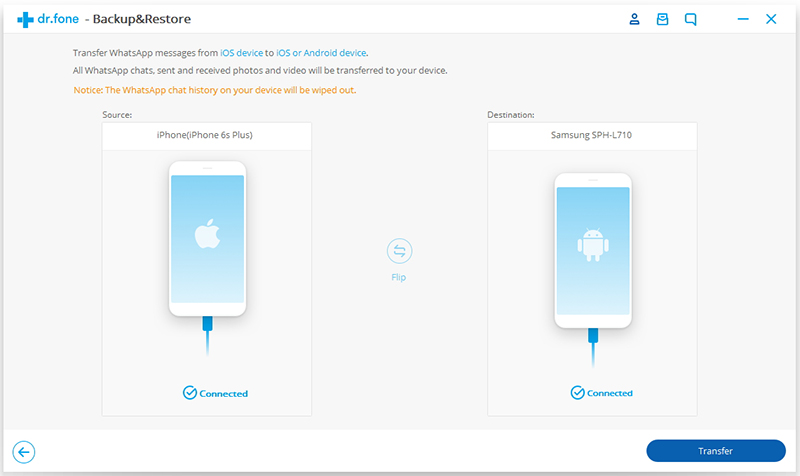
Now connect your iPhone and Android to the computer with USB cables.Then tap and trust the computer.

switch whatsapp photos videos from iphone to android

Step 3.Transfer WhatsApp Photos and Videos to Android
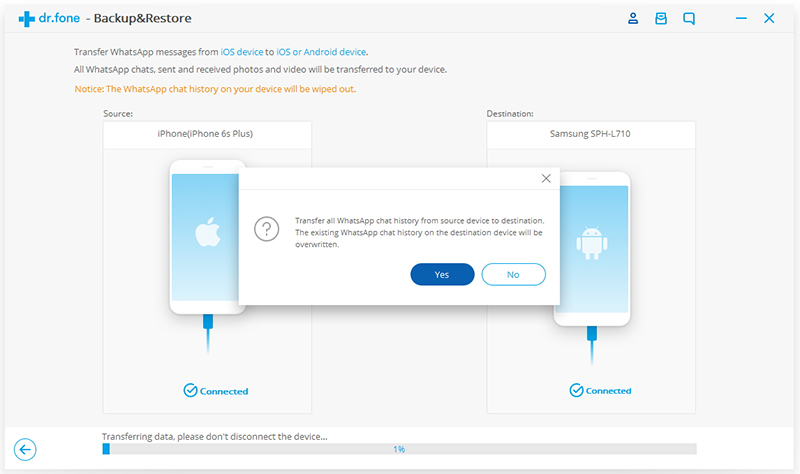
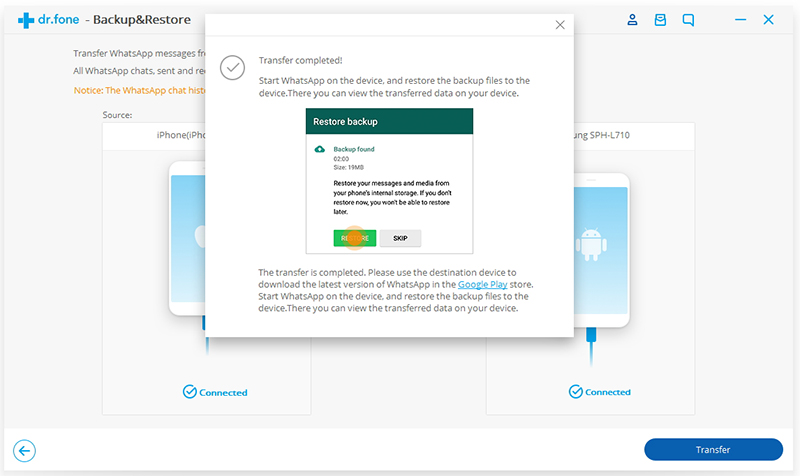
When connection is detected,click the “Transfer” button.There should be a pop-up note that asks you to confirm the transmission.Select the “Yes” button.All WhatsApp photos and videos will be transferred to your Android.However, existing chat history on the Android phone will be erased.

transfer whatsapp photos videos from iphone to android

Transfer completed.Now start the WhatsApp on your Android phone.Sign into your WhatsApp account and restore WhatsApp photos & videos from the backup.

transfer whatsapp photos videos from iPhone to android

Done.

d_win d_mac
d_win d_mac

Related Article:

How to Transfer WhatsApp Chat History from iPhone to Samsung Galaxy

How to Transfer WhatsApp Messages from Android to iPhone

How to Transfer WhatsApp Messages between Android

How to Restore WhatsApp Messages Backup to Android Devices

How to Transfer WhatsApp Messages to iPhone 7

How to Transfer WhatsApp Messages between Android

“Recently I had switched to the Samsung Galaxy S7 phone,I have thousands of chatting messages, photo, video, and audio attachments on my WhatsApp app of the old Android.I am now asking for help that getting the best solution to transfer WhatsApp messages between Android.Thanks a lot.”-Alvin Lin

WhatsApp,a social app most mobile device users use for chatting in daily life,is equally important as some built-in apps on Android.When updating from an old Android to a new one,you may need to transfer WhatsApp chat conversation between Android phones so that you can keep them on your new Android.However,there are lots of transfer tools in the market which don’t supporting transfer app data.Lately, a friend was faced with the same problem, which inspired me to write the tutorial and help others like him out there striving to transfer WhatsApp messages between Android in easy way.

Part 1:Transfer WhatsApp Messages between Android via Phone Transfer

Phone Transfer is good at transferring data between two Android devices and it is worthy of trusting,completely transfer WhatsApp messages between Android,including all WhatsApp data,such as WhatsApp text,WhatsApp photos,WhatsApp videos.Except WhatsApp app,Phone Transfer help to transfer contacts,SMS,photos,videos,music,call logs,apps,apps data,calendars between Android device with once click.Various of Android device are applicable to this program,for example Samsung,HTC,LG,Motorola,ZTE,Huawei,Xiaomi,etc,.Sounds so great.Isn’t it?Just download it and have a try right now.

Free download Phone Transfer:

d_win d_mac
d_win d_mac

Step 1.Launch Phone Transfer on Computer
Firstly, download and install Phone Transfer on computer,and launch it.Then you will see and interface as below.Select the “Phone to Phone Transfer” mode.

phone transfer main page

Step 2.Connect Android Phones to Computer
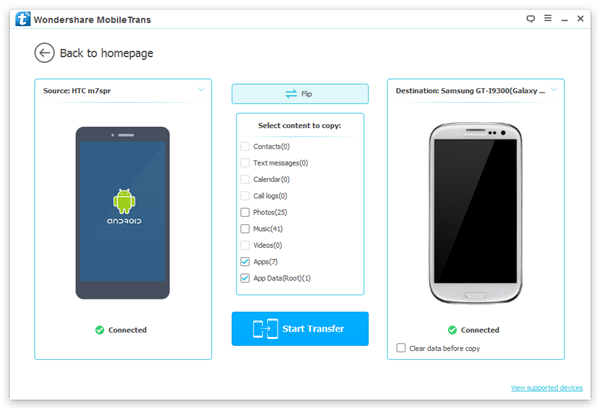
Connect your Android devices to the computer, and wait until the program detects your devices.Once detected, both Androids will display in the interface as follow. Make sure that the devices are in the right position.For example,if you want to transfer LG WhatsApp messages to Samsung phone,just put the LG phone in the Source section and the Samsung in the Destination section.(The “Flip” button in the middle can be used to change their places.)

transfer-whatsapp-android
Step 3.Select App Data to Transfer
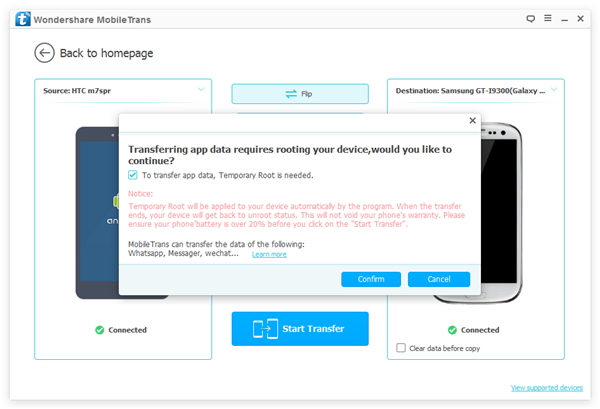
Click “App” and “App Data”,click “Start Transfer” and a message prompt “Transferring app data requires…” will show up asking you to confirm the action to root your device.Select “To transfer app data…” > “Confirm” > “Start Transfer” to continue. Do not select the “Clear data before copy” option during the process.

transfer-whatsapp-between-android

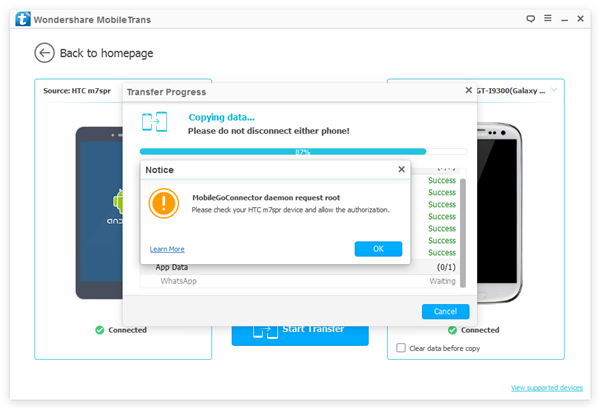
When the program is in the middle of transferring app data, a notice will pop up and ask you to authorize again to let the program to root your device. Click “OK” to move on.

root-android-before-whatsapp-transfer

Step 4.Transfer WhatsApp Messages between Android
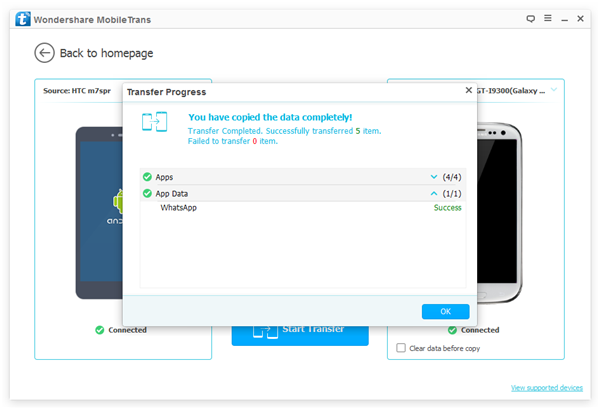
After that,the program will automatically transfer all apps and app data from your Android phone to another. When it is completed,you will get the prompt that “You have copied the data completely!”,and then tap on “OK” to end the process.

successfully-transfer-whatsapp-android
Free download Phone Transfer:

d_win d_mac
d_win d_mac

Part 2:Backup WhatsApp Messages from Android to Computer

Android Toolkit – Restore Social App – an useful App data manager, which is your best choice to backup WhatsApp messages(text,sticker,photo,voice and video messages) from Android to computer,and completely restore WhatsApp messages to Android from backup.Not only the WhatsApp chat history are supported to backup and restore,but also the other applications data,such as SCR Pro,AASTOCKS.Almost all brands of Android are supported,such as Samsung,HTC,LG,Lenovo,Motorola and more.

Free download Android Backup & Restore:

d_win d_mac
d_win d_mac

Step 1.Run Android Backup & Restore and Connect Android to Computer
Please run Android Backup & Restore on computer,connect Android with computer and enable debugging on Android.Click “More Tools” in the homepage of program.Then,continue with “Backup” button under “Backup & Restore” option ,select “WhatsApp” of “Application” and “Application data”.

android backup restore

Step 2.Backup Android WhatsApp Messages to Computer
Clicking the “Backup” button,then the program will begin the backup process.When the processing bar shows you the ending of backing up,you are allow to view on the backup history of the app.Note:Although you can’t see the details about the WhatsApp data but you can know the size of it.

backup android whatspp data

Part 3:Restore WhatsApp Messages to New Android from Backup

Note:Here you are allow to restore the WhatsApp backup file to the previous backup Android or another Android device.

Step 1.Run Android Backup & Restore and Connect Android to Computer
First of all,run Android Backup & Restore on computer,connect Android with computer and enable debugging on Android.Click “More Tools” in the homepage of program.Then,continue with “Restore” button under “Backup & Restore” option.

android backup restore

Step 2.Extract and Restore WahtsApp Backup File for Android
Now you will see all backup files of your Android device,choose one you want to check and click on the “View” button.

view android backup

Step 3.Restore Backup File on New Android
When the scan stops,you should click “Restore” to restore the backedup file contain your wanted WhatsApp messages to your new Android.

restore whatsapp backup android

Free download Android Backup & Restore:

d_win d_mac
d_win d_mac

Related Article:

How to Transfer WhatsApp Chat History from iPhone to Samsung Galaxy

How to Transfer WhatsApp Messages from Android to iPhone

How to Backup & Restore Samsung WhatsApp History on Computer

How to Restore WhatsApp Messages Backup to Android Devices

How to Backup/Restore App Data on Android Phone

How to Transfer WhatsApp Messages from Android to iPhone

How to transfer WhasApp messages from Android Samsung to iPhone XS?
I often chat online by WhatsApp app on my previous Samsung Galaxy S7, now I have got an new iPhone XS, is it possible to move WhatsApp messages from Galaxy S7 to iPhone XS without Move to iOS app?” – Suerong

How to transfer WhatsApp chat history from Android Huawei to iPhone X?
“I just bought the new iPhone X last day for its bright features,I am so glad to switch from my old Android phone to the new one.However,what actually disturb me is that I am wondering how to transfer the WhatsApp messages from Huawei P10 to iPhone.I search the ways on the Internet but I find no best answer.So I ask you guys for help.” -Winnie Tung

WhatsApp is a messaging App that provide the convenient way of communication for people around the world.It allows you to send messages, photos, videos instantly for each other. It is no doubt that there are many Android users and iPhone users who are using this app in daily life.A part of people encounter the problem that can’t
successfully transfer the WhatsApp messages between mobile device,the most common situation is between the Android phone and iPhone.In this article,we will show you a available way on how to transfer WhatsApp messages from Android to iPhone without complicated steps.

Backup Android WhatsApp Messages to Computer

The top Android WhatsApp data backup tool is called – Android Backup & Restore,it’s such a professional manager tool which is specifically design for backup WhatsApp messages from Android to computer,perfectly help to sync Android WhatsApp messages,WhatsApp photos,WhatsApp videos and attachments to computer.In addition,this program enable to backup & restore data on Android,including contacts,gallery,videos,notes,call logs,messages,calendars,Application,Application data(WhatsApp,Viber,Line,Kik),etc,.

Free download Phone Tookit – Backup & Restore and try to backup your Android data, including WhatsApp messages, photos and videos.

d_win d_mac

Restore WhatsApp Messages Backup to iPhone

To restore WhatsApp messages from backup to iPhone,you are strongly recommend this wonderful tool- iOS WhatsApp Transfer, Backup & Restoretool,empower to restore WhatsApp messages from backup to iPhone completely,the WhatsApp text,photos,videos,attachments are included.What’s more,this program support to safely backup iOS WhatsApp messages to computer.Almost all models of iPhone are applicable to iOS WhatsApp Transfer tool,such as iPhone XS, iPhone X, iPhone 8, iPhone 7,iPhone SE,iPhone 6S(Plus),iPhone 6(Plus),iPhone 5S/5C/5.

Part 1:How to Sync Android WhatsApp Messages to Computer

Step 1.Run Android Backup & Restore and Connect Android to Computer
Please run Android Backup & Restore on computer,connect Android with computer and then allowing enable the debugging on Android.Click “More Tools” in the homepage of program.Then,continue with “Backup” button under “Backup & Restore” option,select “WhatsApp” of “Application” and “Application data”.

backup android whatsapp to computer

backup android whatsapp to computer

Step 2.Backup WhatsApp Messages on Android
Once clicking the “Backup” button,program will start the backup process.When you are prompt that the backup task is completed,you can move to view on the backup history.Although you can’t see the details about the WhatsApp data but you can know the size of it.

backup android whatsapp to computer

d_win d_mac

Part 2:How to Restore WhatsApp Messages from Backups to iPhone

Step 1.Run iOS WhatsApp Transfer and Connect iPhone to Computer
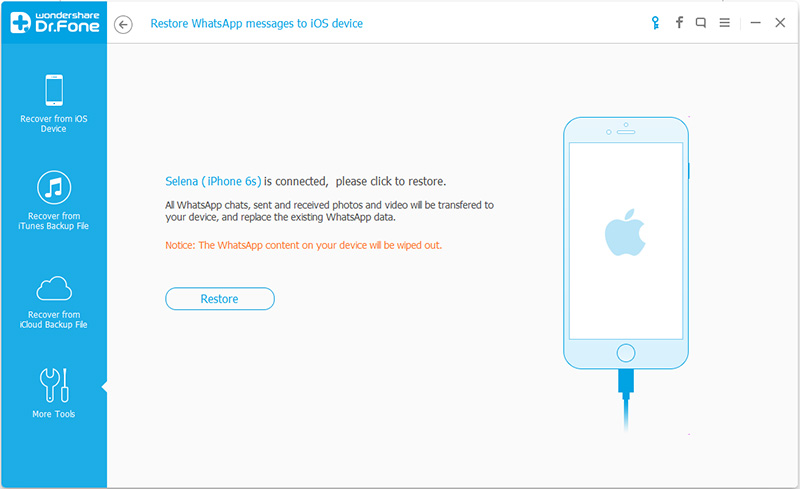
To restore WhatsApp messages from backup to iPhone,you should choose “Restore WhatsApp messages to iOS device” under the “More Tools” option of iOS WhatsApp Transfer tool.Get your iPhone connected to the computer.Then you’ll see all your backup files listed.

restore whatsapp backup to iphone

restore whatsapp backup to iphone

Step 2.Restore WhatsApp Message Backup to iPhone
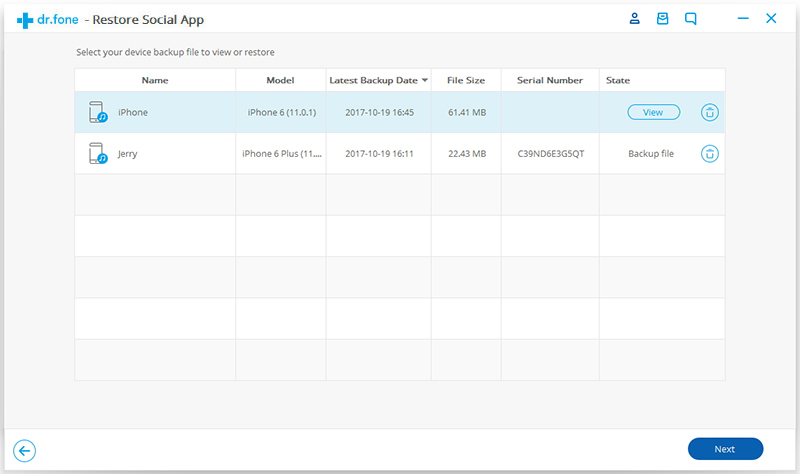
You should choose a backup file and click “Next” to directly restore it to your iPhone as follows.

restore whatsapp backup to iphone

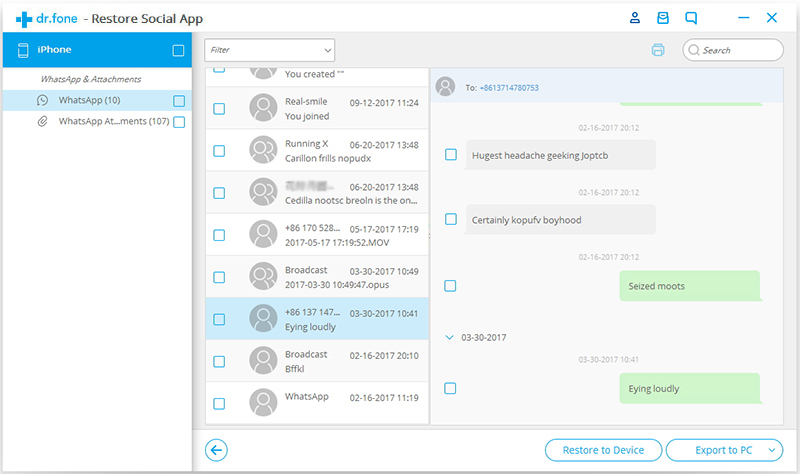
Or you can choose to view the backup file first,and then selectively choose what you want to restore it to your device by clicking “Restore to device”.

restore whatsapp backup to iphone

d_win d_mac

Related Article:

How to Transfer WhatsApp Chat History from iPhone to Samsung Galaxy

How to Restore WhatsApp Messages Backup to Android Devices

How to Backup,Restore and Transfer WhatsApp Messages on iPhone

How to Transfer WhatsApp Messages to iPhone 11/XS/XR/X/8/7

“I am a user switched from an iPhone 7 to the new iPhone 11. I would like to continue with my WhatsApp old chats on the new phone.So my question is there any ways to transfer WhatsApp messages from my old iPhone to the new one? Has anyone else dealt with this problem?” -Nancy Gu

Have the same problem as this buddy? Old conversions don’t automatically come with you when you switch to the new mobile device.Luckily, we’ll try to provide you an convenient way to transfer WhatsApp chats from iPhone to iPhone 7. Hope to make your switch a pleasant experience.The following guide is applied for transferring WhatsApp data from iPhone SE/6S(Plus)/6(Plus)/5S/5C/5/4S to 11/XS/XR/X/8/7 efficiently.

Restore Social App – iOS WhatsApp Transfer is a part of iOS Toolkit, which is recommend for you to fix WhatsApp chat history transfer issue between iOS device,you can use it to easily transfer WhatsApp messages from old iPhone to new iPhone 11/XS/XR/X/8/7,including WhatsApp text,photos,videos and attachments.What’s more,this program support to backup and restore WhatsApp data on mobile phones efficiently.Export WhatsApp messages and WhatsApp message attachments to computer and restore the backup to device.Besides,allow to transfer WhatsApp messages to Android devices with simple steps.

d_win d_mac
d_win d_mac

Part 1:Transfer WhatsApp Messages between iPhone with iCloud Backup

Step 1.Connect your old iPhone to a Wi-Fi network.

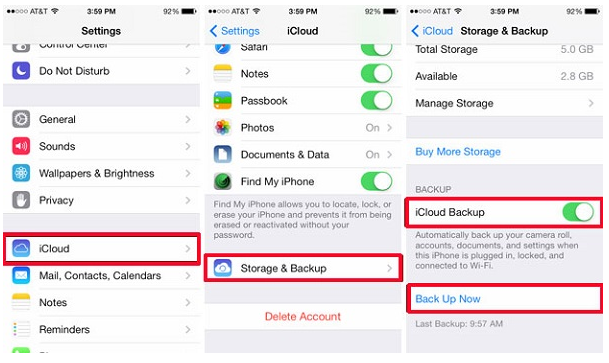
Step 2. In iOS 8 or later, tap Settings > iCloud > Backup.

Step 3. Tap iCloud Backup to turn it on.

Step 4. Tap Back Up Now. Wait till the backup process is finished. (It may be take you a little while.)

sync whatsapp with icloud

Step 5. Make sure the backup finished by tapping Settings > iCloud > Storage > Manage Storage. The backup you just made should appear with the correct date and backup size.

Step 6. Start your iPhone 7 and restore it from the iCloud Backup your just have created. After that your messages will be available in WhatsApp installed to the target iPhone.

Note: If you have some data on your new iPhone, when you choose “Restore from iCloud Backup” from the old iPhone, you’ll lose the existing data on the new one. Therefore, before restoring the target iPhone from backup, I strongly recommend you to backup photos, music, videos, contacts, etc. to your computer first.(Extra tips:How to backup iPhone data to computer)However,how to transfer WhatsApp history between iPhone without recovered?Just go on to read please.

Part 2:Transfer WhatsApp Messages from Old iPhone to iPhone 7 with iOS WhatsApp Transfer

Step 1.Connect Device to Computer
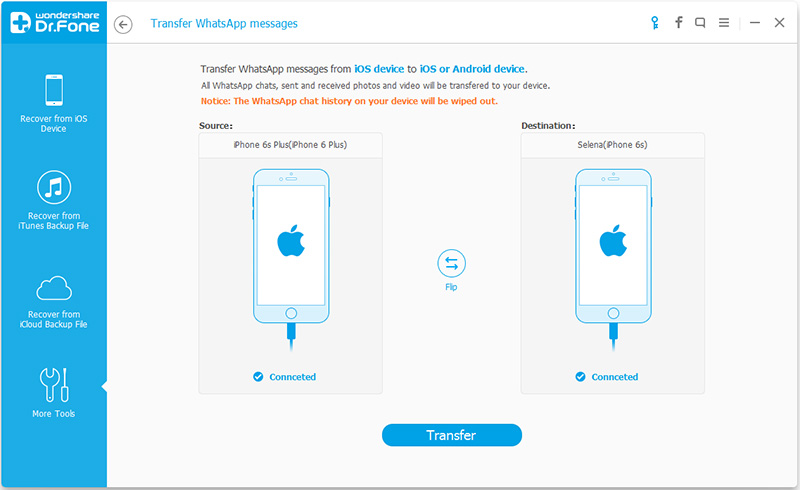
To transfer WhatsApp messages from old iPhone to iPhone 7,you should click “Transfer WhatsApp messages” under the “More Tools” option of iOS WhatsApp Transfer tool.Then connect your iOS devices to the computer.Once the program detects them, you will get the window as follows.

 iPhone 7 WhatsApp data transfer

Transfer WhatsApp messages from iOS device to iOS device:

transfer-whatsapp-to-iphone-7

Step 2.Transfer WhatsApp Messages between iPhone
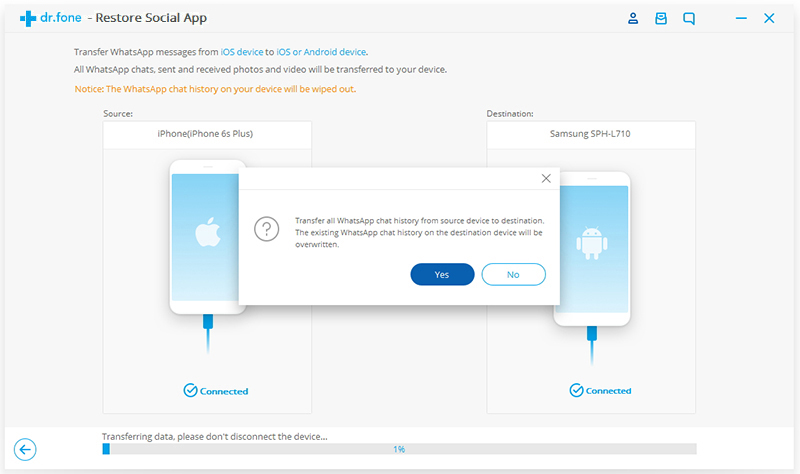
Click “Transfer” to begin the WhatsApp message transfer process.Since the transfer process here will erase existing WhatsApp messages from the destination device,you need to click “Yes” to confirm this action if you want to move forward.

transfer whatsapp chat history to iphone 7

Then the transfer process starts.

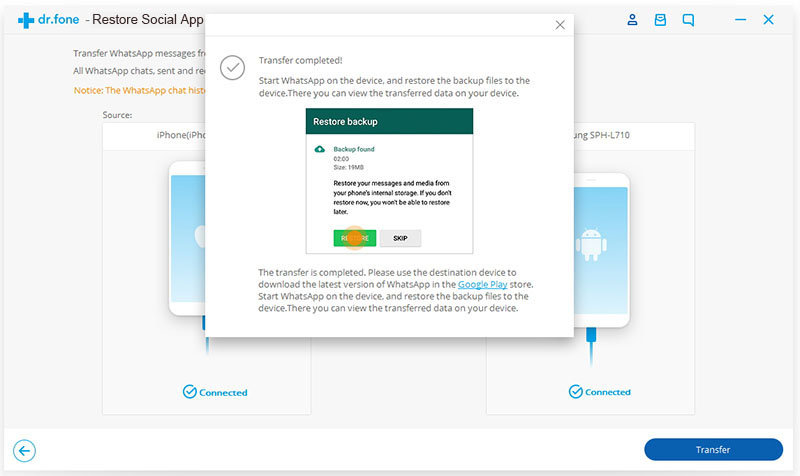
Wait until the WhatsApp messages transfer task is completed.During the transfer process,you just need to keep your devices are connected well.When you see the window below,you can disconnect your device and view the transferred data on your iPhone 7.

transfe whatsapp messages to iphone 7

d_win d_mac
d_win d_mac

Part 3:Backup WhatsApp Messages from iPhone 7 to Computer

Step 1.Connect iPhone 7 to Computer
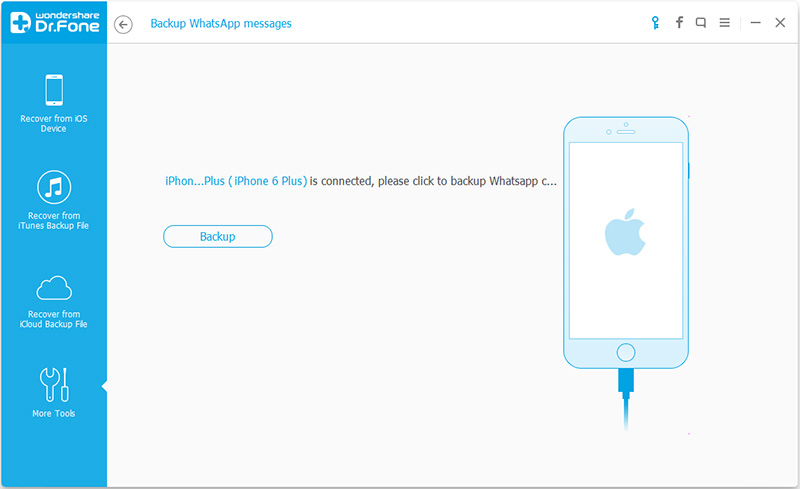
To backup WhatsApp messages from iPhone 7 to computer,you should choose “Backup WhatsApp messages” under the “More Tools”option of iOS WhatsApp Transfer, tool.Get your iPhone 7connected to the computer.Then you’ll see the window of the program as follows.

whatsapp-transfer-tool

backup-iphone-7-whatsapp-computer

Step 2.Backup iPhone 7 WhatsApp Messages to Computer
Once your device is detected,you should click “Backup” to start the process.

backup-iphone-7-whatsapp-computer

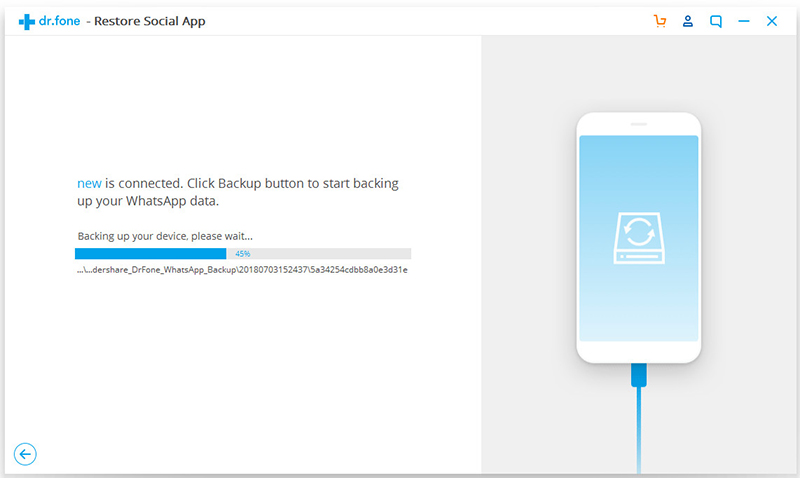
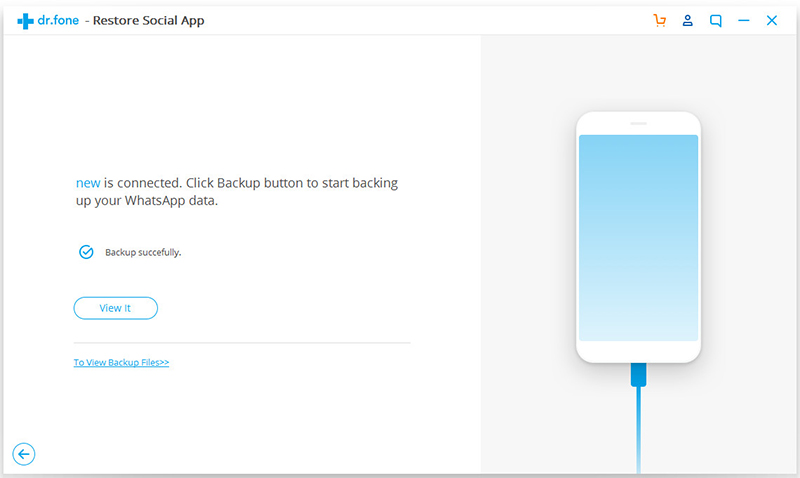
When the backup begins,wait a little while.The program will finish the process automatically.When you’re told that the backup is completed, you will see the window below.Here, you can click “View it” to check the backup file.

view-whatsapp-backup

Step 3.View the Backup File and Export Data Selectively
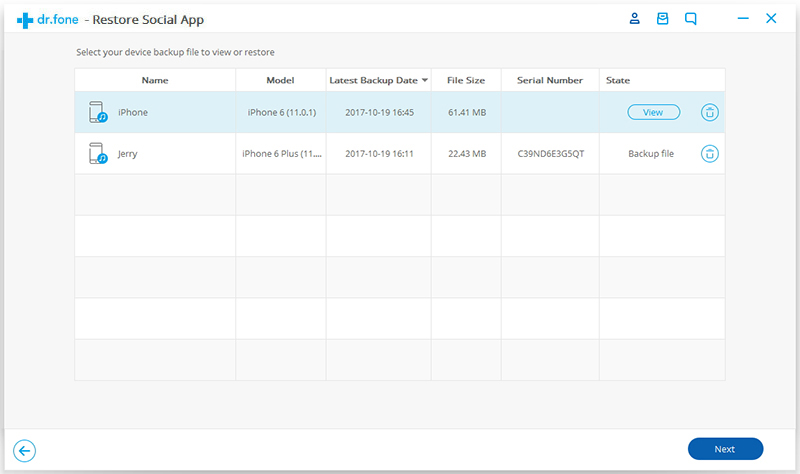
Choose the backup file that you want to view if there are more than one backup file listed.

view-whatsapp-backup

Then you will see all the details.Choose any item you want to export to your computer.

export-whatsapp-to-computer

d_win d_mac
d_win d_mac

Part 4:Restore WhatsApp Messages to iPhone 7 from Backups

Step 1.Connect iPhone 7 to Computer
To restore WhatsApp messages to your iPhone 7,you need to choose “Restore WhatsApp messages to iOS device” under the “More Tools” option of iOS WhatsApp Transfer tool.Get your iPhone 7 connected to the computer.Then you’ll see all your backup files listed.

whatsapp-transfer-tool

restore-whatsapp-from-backup

Step 2.Restore WhatsApp Message Backup to iPhone 7
You should choose a backup file and click “Next” to directly restore it to your iPhone 7 as follows.

restore-whatsapp-to-iphone-7from-backup

Or you can choose to view the backup file first,and then selectively choose what you want to restore it to your device by clicking “Restore to device”.

restore-whatsapp-to-iphone-7from-backup

d_win d_mac
d_win d_mac

Related Article:

How to Backup,Restore and Transfer WhatsApp Messages on iPhone 7

How to Transfer Everything from Old iPhone to iPhone 7

How to Transfer WhatsApp Chat History from iPhone to Samsung Galaxy

How to Backup and Restore Contacts,SMS,WhatsApp Messages on iPhone 7

How to Backup Data before Recalling Samsung Galaxy Note 7

News about Recalling Samsung Galaxy Note 7
Samsung has finally revealed details about its Galaxy Note7 safety recall.As previously reported, all customers are entitled to a replacement, repair or refund. Yes, this includes eBay purchases, postpaid mobile plans and grey market imports.

In the unlikely event that you missed the news, Samsung Galaxy Note7 smartphones have been bursting into flames in an alarming fashion when customers attempt to charge them.So far, there have been less than one hundred reported incidents out of more than one million units sold. Nevertheless, the company has deemed the issue serious enough to prompt a worldwide product recall.

note7-recall

The issue is caused by the Note7’s new 3500mAh battery; specifically an unintended meeting of the battery cells’ terminals which can potentially cause the device to explode. Needless to say, customers have been advised to immediately stop using their phones.

Backup Data on Samsung Galaxy Note 7 before Recalling

After the Note 7 burning accident happened,most of Note 7 users ate attend to recall their device to Samsung company.However,before recalling Note 7 you should do backup job on it to protect your personal data and avoid to leak the privacy to anyone.

Android Data Backup & Restore Tool is your No.1 ideal helper to safely backup everything on Samsung Galaxy Note 7 before recalling,contacts,photos,videos,audios,messages,notes,calendars,application data(WhatsApp,Viber,Line,Kik),call logs are included.What’s more,this useful program allow to restore data on Android device from backup,you can restore all backup files stored on computer to your Samsung or other Android phone.Almost all models of Samsung are applicable to Android Data Backup & Restore Tool.Except Samsung,other Android device are supported too,such as HTC,Motorola,Lenovo,Huawei,Xiaomi,LG,Sony,ZTE.


d_win d_mac

Part 1:Backup Samsung Galaxy Note 7 before Recalling with Samsung Cloud

With the Samsung Note 7,Samsung introduced the Samsung Cloud to you as a way to backup your phone.Auto backup happens every 24 hours, but for it to take place your Note 7 needs to charging with the screen off for 10 minutes.However, you can also do a manual backup with Samsung Cloud prior to returning your Note 7.

Open the Settings on your Note 7 > Cloud and accounts > Samsung Cloud > Back up my data > tap the Back up now button at the bottom of the screen.

Samsung Cloud provides a comprehensive backup of your Note 7 device.In addition to your Samsung account’s Contacts and Calendar, Samsung Cloud will also backup keyboard data, gallery,notes, and internet bookmarks etc. Using Samsung Cloud will also backup your phone logs, clock settings, apps, home screen layout including widgets and wallpapers, messages, music, device settings, including ringtones, and documents.

Part 2:Backup Samsung Galaxy Note 7 before Recalling with Google Account

Open the Settings on your Note 7 > Cloud and accounts > Accounts > Google. Ensure sync is enabled for your contacts, calendar, etc,.

In the Settings again > tap Cloud and accounts > Backup and reset. Under the Google account section, ensure Back up my data is enabled.

Part 3:Backup Samsung Galaxy Note 7 before Recalling with Android Backup & Restore

Step 1.Connect Note 7 to Computer and Run Program
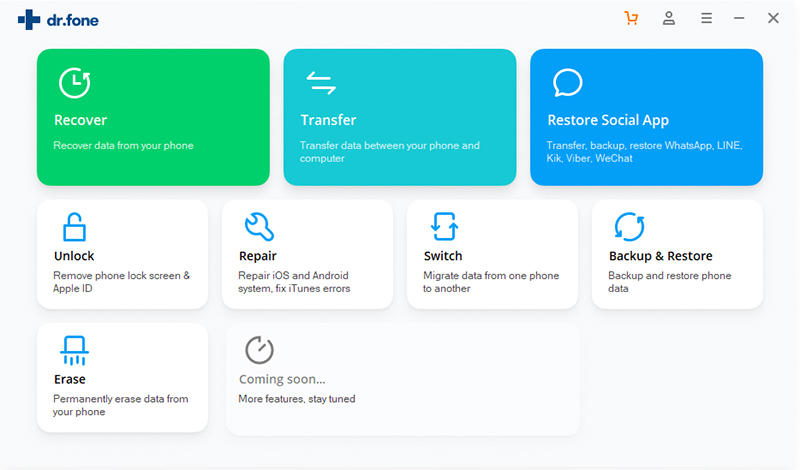
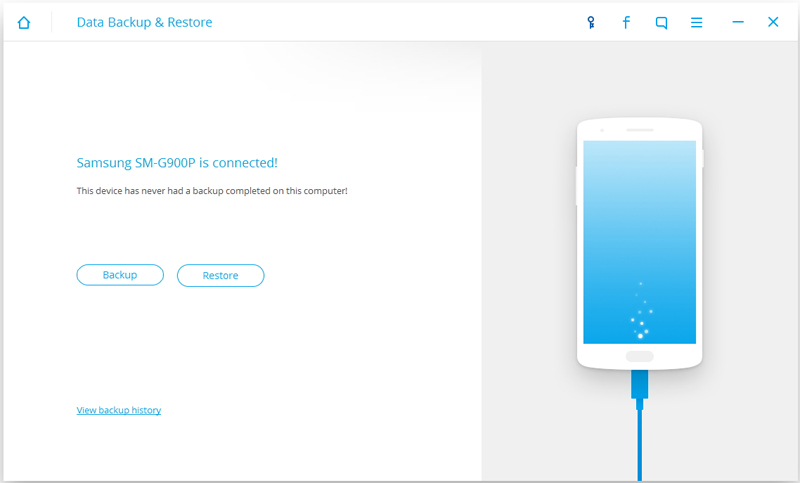
Launch Android Data Backup & Restore Tool and from the “More Tools” section,select “Android Data Backup & Restore” option.Then connect the Samsung to your computer using USB cables.The program will detect the device soon.
backup note 7 before recalling

backup note 7 before recalling

Note:If you have other Android management program on your computer,make sure none of them is running.

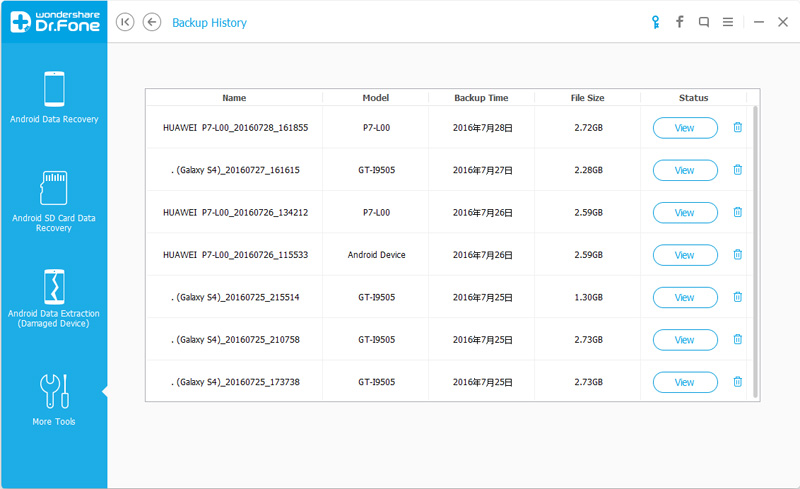
Tips:If you have used this program to back up your device previous,you are allow to view your past backup by clicking on “View backup history”.

Step 2. Select File Types to Backup
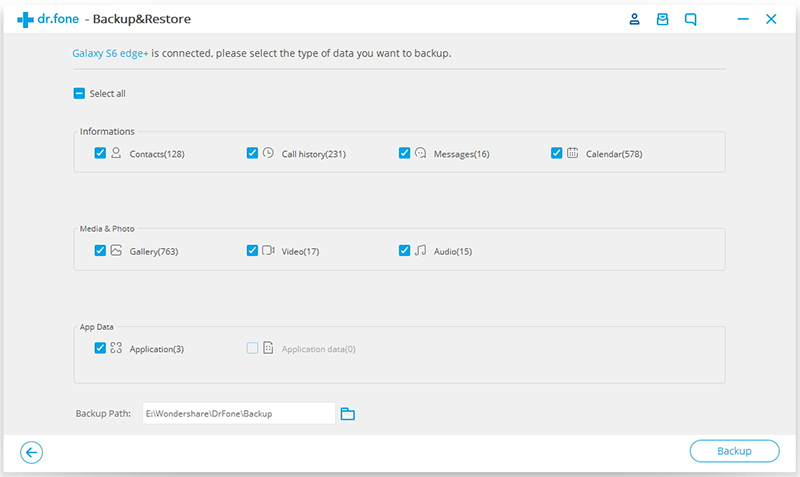
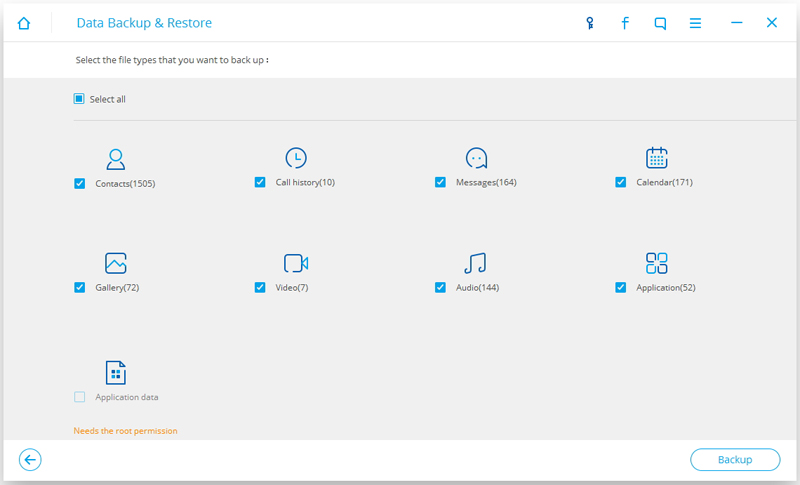
Once program has detected your device,click on “Backup” to select the data you want to backup(include in the past backup).Android Data Backup & Restore Tool can be used to back up 9 different file types including messages, call history, calendar, gallery, audio, video, applications and application data.Please note that to backup app data requires your Android device to be rooted.
select note 7 data to backup

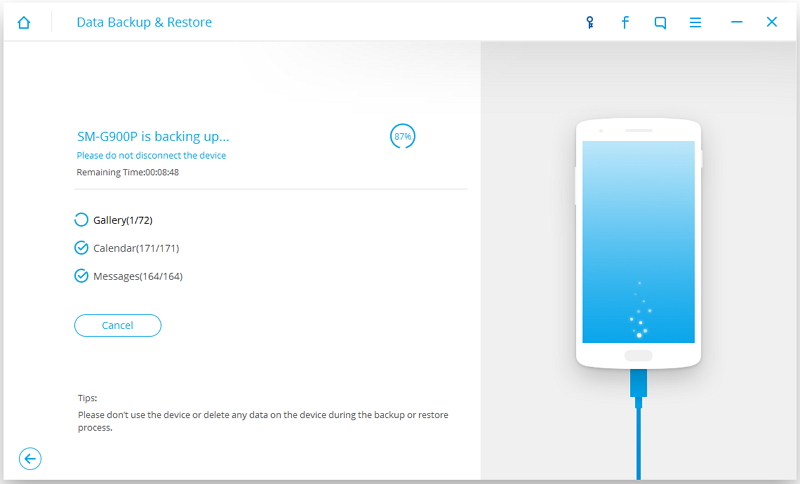
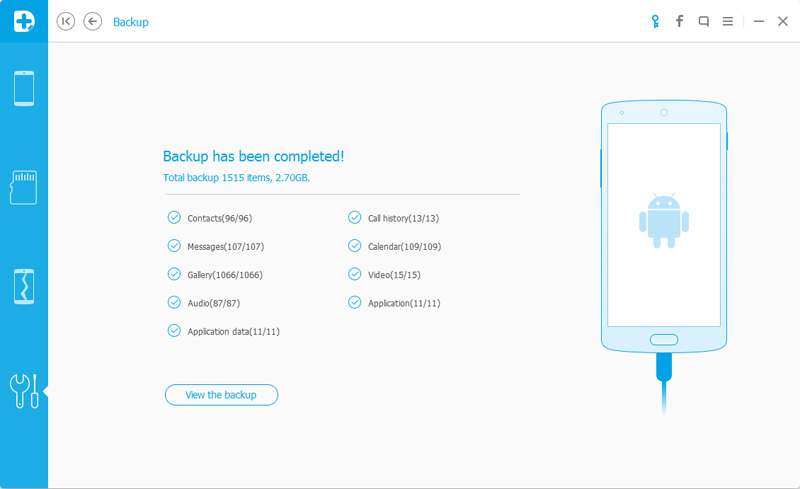
After you have selected the file which you want to backup,click the button “Backup” to start the process.The entire process will take no more than a few minutes.
backup note 7 before recalling

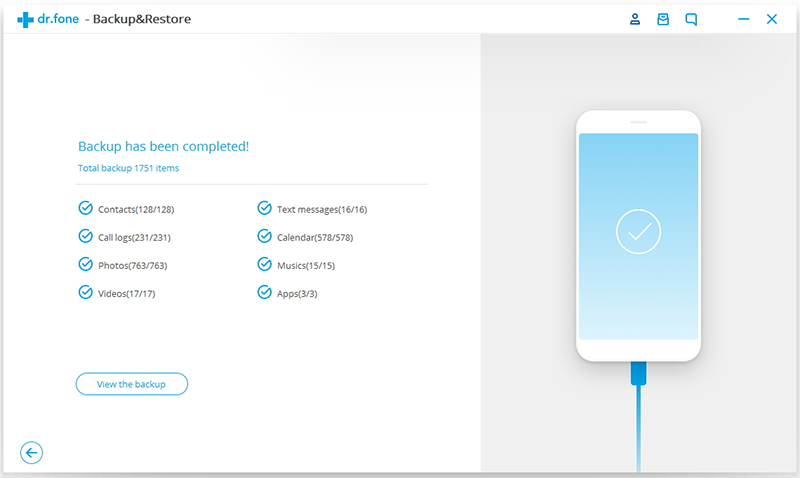
When the backup is complete,you can click on “View the backup” on the lower left corner of the window to see the details of the backup file.
backup note 7 before recalling

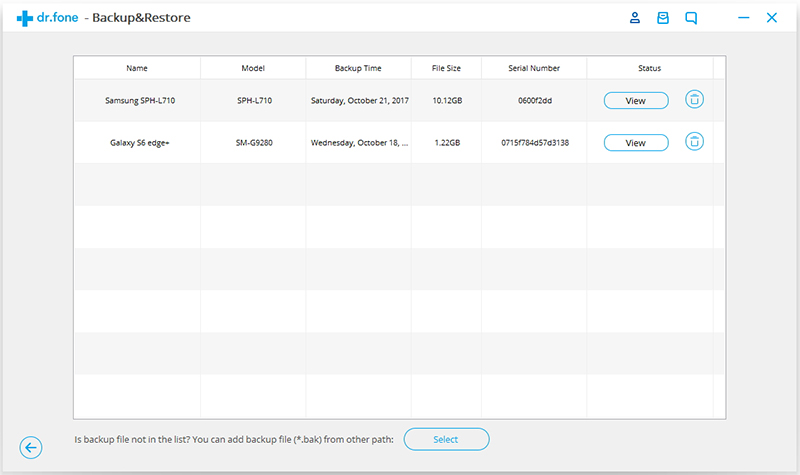
Now you can view your backup file by clicking on “View”.
select backup note 7 data to view

d_win d_mac

Part 4:Restore Backup Data to Another Android Device

Step 1.Connect Android Device to Computer and Run Program
Launch Android Data Backup & Restore Tool and from the “More Tools” section,select “Android Data Backup & Restore” option.Then connect the Android device to your computer using USB cables.The program will detect the device soon.

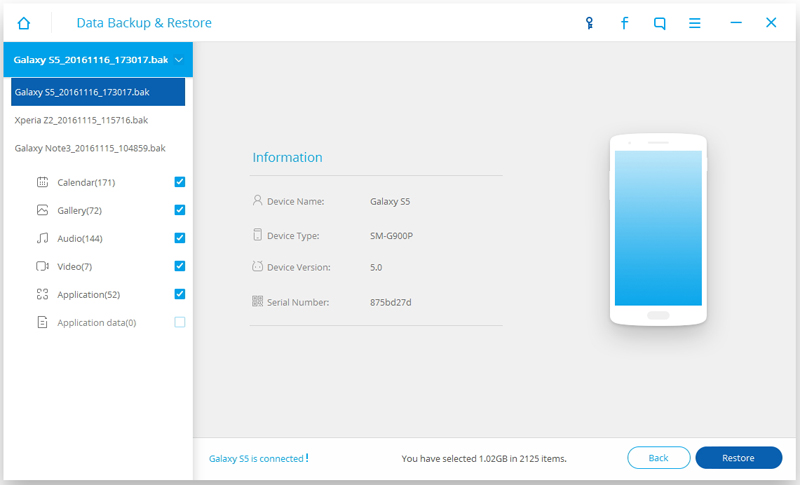
Click on “Restore” and choose from the older backup file on your computer. These backups can either be of this Android device or any other device.
restore data to android from backup

restore data to android from backup

restore data to android from backup

Step 2.Select Backup Data to Restore on Android
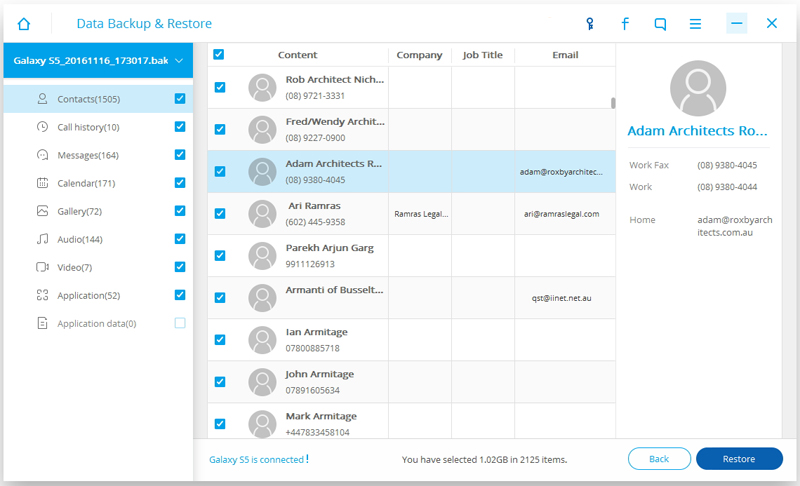
You are allow to selected the data you want to restore.Select the different file types on the left and then select the files you want.Click on “Restore” to start.
restore data to android from backup

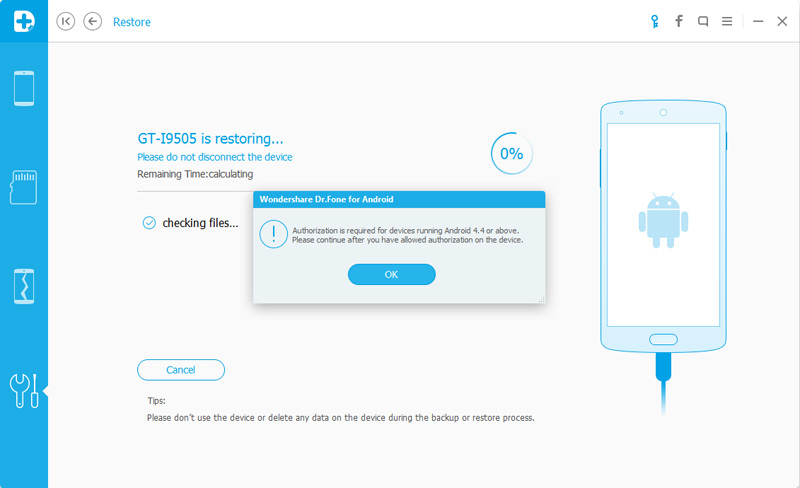
On restoring process,Android Data Backup & Restore Tool will require authorization during the restore process.Allow authorization and then click “OK” to continue.
restore data to android from backup

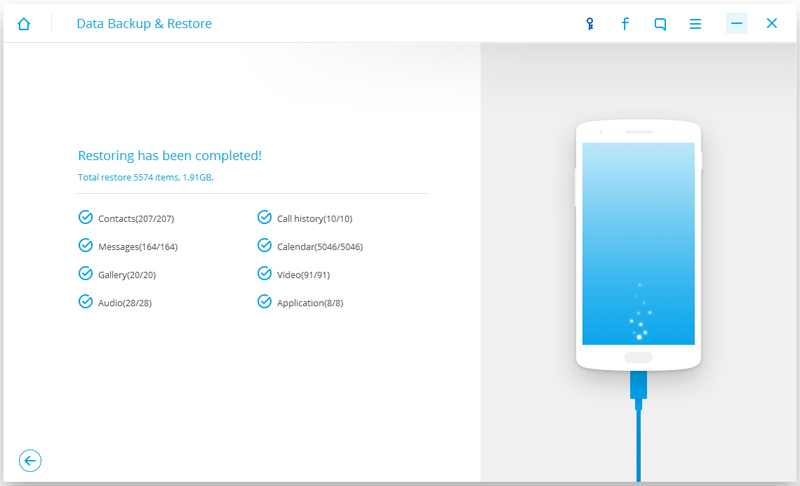
The whole process should last only a few minutes,Android Data Backup & Restore Tool will prompt you that the restore process has been completed along with a detailed account of which types of data have been successfully restored and which ones have not.
restore data to android from backup

d_win d_mac

Part 5:Factory Reset on Samsung Galaxy Note 7 to Erase Data before Recalling

To delete all of your files data and settings from your Samsung Galaxy Note before returning, from the Home screen, touch Apps > Settings > Backup and reset > Factory data reset.

Read the information provided, and then touch Reset device. If you have a security lock set up on the device, you will be prompted to enter the lock information before proceeding. Touch Delete all to delete all information and downloaded applications.

The factory reset process may takes you a few minutes while your Samsung data and settings are all removed.However,I have to remind you that do the factory reset on Samsung is just simply delete data and settings on device instead of permanently erasing data on it.To wipe data from your Samsung device without restoring,you should get help of Android Data Eraser.Please keep on reading.

Part 6:Permanently Erase Data on Samsung Galaxy Note 7 before Recalling

When you finished backed up Samsung Galaxy Note 7 to computer,the next you should do is to permanently erase all data and settings on Samsung Galaxy Note 7 before recalling.As we know,only do factory resetting on device can’t remove data completely from device,the deleted data can be restored by some professional data recovery.To wipe all data from your Samsung surely,here we strongly recommend for you this trustworthy data removal tool-Android Data Eraser,which help to erase existing data,wipe off everything on Android Samsung phone:erase all deleted data from Samsung Galaxy Note 7without recovery,including contacts,messages,photos, videos, call logs, Apps and other private data.It supports all Android devices ever created,such as Samsung, Sony, HTC,LG,Motorola,ZTE, Huawei and so on.

d_win d_mac

Step 1.Run the Android Data Eraser on Computer and Connect Note 7 with it
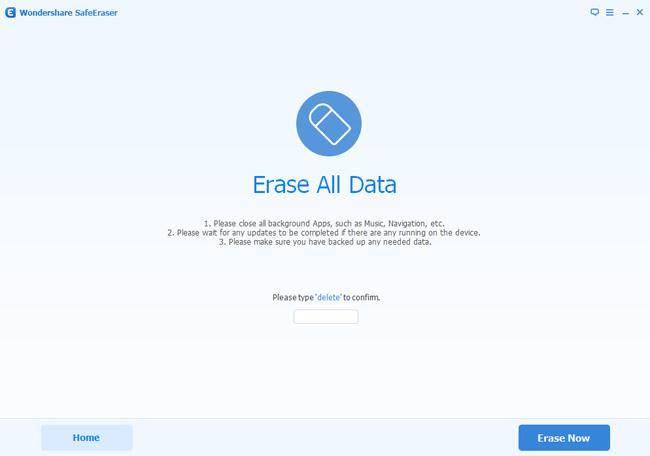
Step 2.Click “Erase All Data” Option
Step 3.Begin to Erase All Data from Samsung Galaxy Note 7
Step 4.Factory Reset on Your Note 7
wipe-note-7-data-before-recalling

Detail tutorial:How to Permanently Remove Data on Samsung Galaxy Note 7 before Recalling

Related Article:

How to Backup and Restore Samsung Galaxy Note 7

How to Backup and Restore Contacts on Samsung Galaxy Note 7

How to Backup and Restore Android on Computer

How to Backup Android Phone or Tablet Data to Computer

How to Unlock the Screen Lock on Samsung Galaxy

How to Unlock the Screen Lock on My Samsung Phone?
Help!What do I do if I forget the screen lock password on my Samsung Galaxy S6?How to unlock my phone’s locked screen remotely on the Find My Mobile web page?

* How to Unlock Samsung Phone with a Broken Screen

* How to Recover Lost Data from Samsung Phone with Broken Screen

Unlock the Screen Lock on Samsung Galaxy

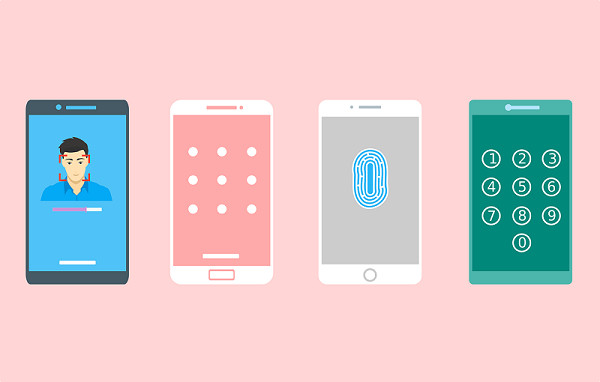
Most of the times that we key in new security details on our phones in order to prevent our personal data on device and avoid leak to anyone.A good number of us tend to forget the passwords, and in most cases, the patterns. With the patterns forgotten and passwords lost, we’re usually locked out, and can’t access our device without password.In this article, we are going to take a look at the solution with detail procedures to unlock Samsung without password.I hope that the three methods is useful for you that perfectly suits your needs.

Method 1: Remove Samsung Locked Screen without Password(No Data Loss)

Android Lock Screen Removal is your ideal choice to unlock Samsung without password in minutes,no more series steps,no more security problems.This helpful program is used to solve Android locked screen problems effectively.Now the latest version currently supports Samsung devices only.It can help Samsung users disable the password and pattern lock issues on Samsung device without data loss,afer remove the phone’s locked screen,you can access your contacts, SMS, pictures, emails or other important data.The program applicable Samsung device including Samsung Galaxy S9/S8/S7/S6/S5/S4/S3,Note 5/4/3,etc.

d_win d_mac

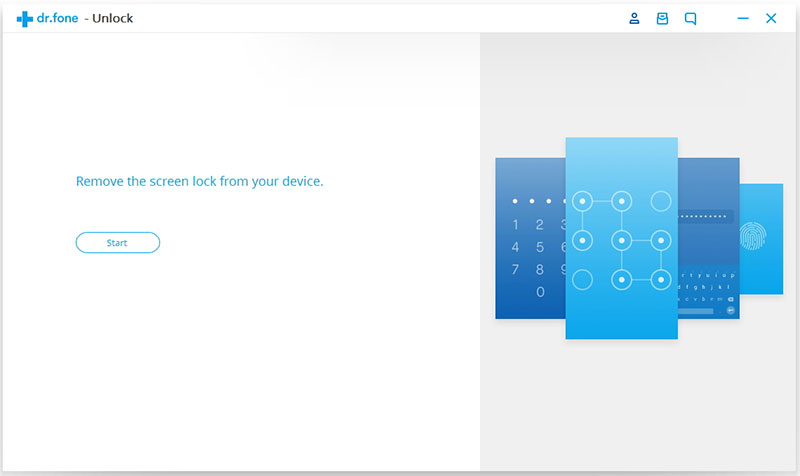
Bypass Samsung Lock Screen Pattern, Password, Pin and Fingerprint Without Data Loss

Step 1. Run Android Toolkit on Computer
Download and install Android Lock Screen Removal & Data Recovery program on your computer.Then run the program,and then click “Android Lock Screen Removal” option.

remove samsung locked screen

Step 2. Begin the Removal Process
Click the Start button to start the removal process.

select mode

Step 3. Connect Samsung to the Computer
Once you see the prompts below, connect your Samsung to computer via USB cable. Note that the USB debugging mode on your device should be turned on before.

Step 4. Download Recovery Package for Samsung
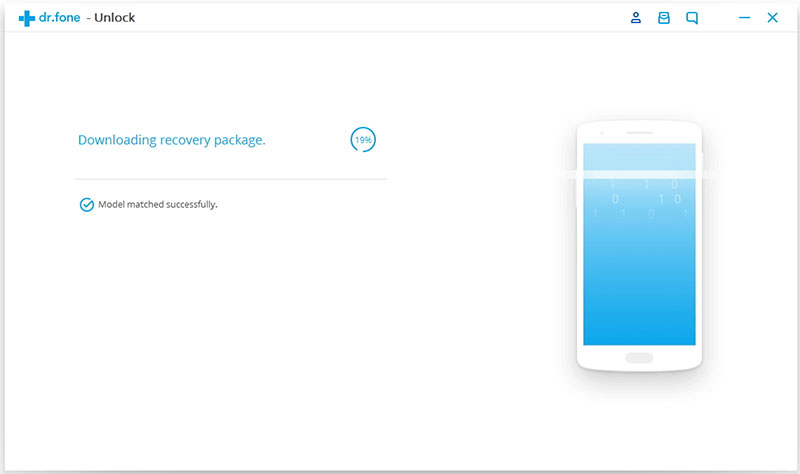
Android Lock Screen Removal & Data Recovery is downloading recovery package for device and match the phone model after checking the agreements. Then it will begin to restore your device. Please wait until this restoring process is complete.

downloading recovery package for samsung

Step 5. Remove Password on Samsung Completed
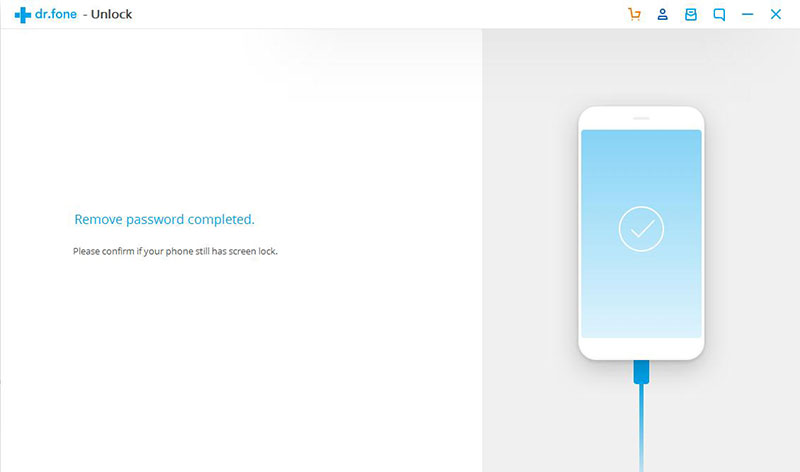
Now Android Lock Screen Removal & Data Recovery has unlocked your Samsung without password.You can go to your phone and confirm if your device still has a password for the screen lock or not.

remove samsung locked screen

The whole removal task is so easy,isn’t it? In addition,the Android Lock Screen Removal also enables to restore deleted data from Android device after losing data under any circumstances,it allow to restore data from Android SD card/Android memory card as well.

d_win d_mac

Method 2: How to Unlock the Screen Lock on Samsung Phone Remotely

If you forgot your screen lock password,you can also unlock Samsung Galaxy phone locked screen remotely on the Find My Mobile web page.Let’s teach you how to unlock your Samsung phone’s locked screen remotely on your computer.

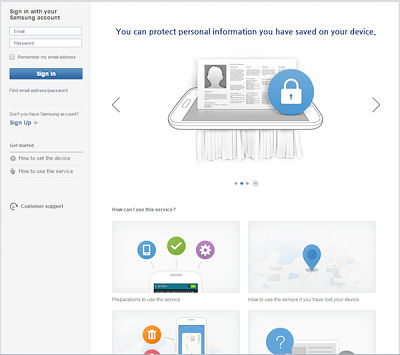
Step 1.Go to Find My Mobile web page: http://findmymobile.samsung.com and log in with your Samsung account details.

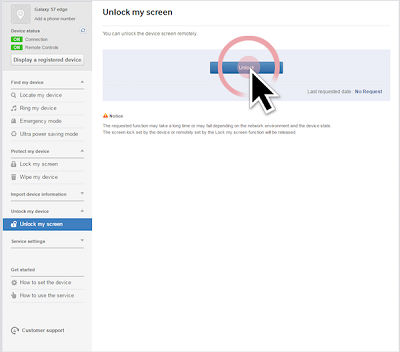
find my mobile page - unlock screen

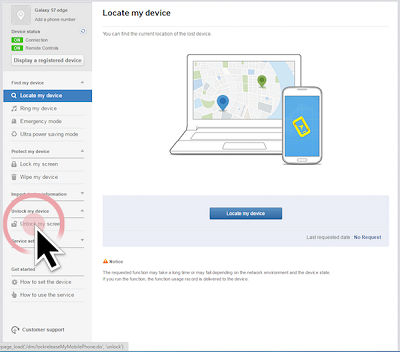
Step 2.After logging in to your Samsung account successfully, find the “Unlock my screen” option on the main page and click it.

Unlock my screen

Step 3.Step 3.Click “Unlock” button start to unlock your phone screen.

unlock samsung screen

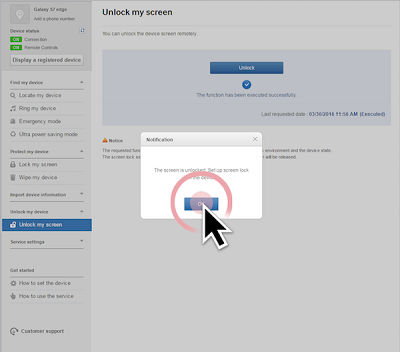
Step 4.Select OK when you receive a Notification on your computer saying your screen is unlocked, you can unlock your Samsung phone screen remotely on computer.

unlock Samsung phone screen remotely

Method 3: Unlock Samsung Screen Locked by Hard Reset(Data Loss)

To bypass Samsung lock screen pattern, Pin, password and fingerprint by yourself at Home,the free way is Factory / Hard Reset your phone.But after performing factory / hard reset the phone,it will will erase all data and personal information from the phone,your phone will back it to its original factory state.Please carefully consider whether to perform hard reset and bypass the security.

Step 1.Turn off your Samsung phone at first.
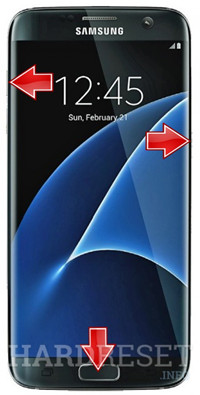
Step 2.Press and hold Volume UP,Home and Power keys at the same time.

hard reset s7

Step 3.When you see the Samsung logo appear,please release the Power key but continue to hold the Volume Up key and the Home key.
Step 4.When you see the Android System Recovery screen appears,please release all keys.
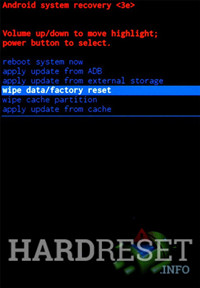
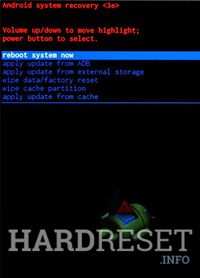
Step 5.Use the Volume Up/Down keys for navigation and the Power On key for OK.
Step 6.Choose “wipe cache partition

hard reset galaxy s7

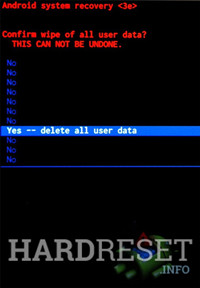
Choose “Yes — delete all user data” option

samsung hard reset

Finally,choose “reboot system now” to reboot the Android system and hard reset your phone now.

hard reset samsung s7

Note:During the hard reset process,all of your data will be erased,so we recommend you use the Android Lock Screen Removal to unlock your phone,it will not erase your data.What’s more,this Android Tool Kit also can help you recover lost/deleted data from Android; extract files from Android with broken screen, locked screen and black/blank screen; backup and restore Android data; Unlock Android phone SIM Card in minutes.

Download the Android Toolkit – Android Lock Screen Removal and solve your phone problem at Home now:

d_win d_mac

Related Article:

How to Unlock Android Locked Screen

How to Recover Lost Data from Samsung with Locked screen

Forget Android SIM Card Lock PIN and How to Remove it

How to Set the Smart Lock of Samsung Phone

Forget iPhone Locked Screen Password and How to Remove it

Unlock the Screen Lock on Samsung

How to Restore LINE Photos & Videos on iPhone

Line is an useful chat application that use for free to send text,photos,videos,audios to others on mobile device.It’s a little bit trouble if someone accidentally deleted the LINE chat history, especially the Line photos and videos.But later request a restore is not as simple as you think, because LINE won’t store any deleted data and files.Once the Line messages got deleted, that are completely removed from the LINE app.

line-app

How to Undelete Line Photos & Videos from iPhone

It’s really no more easier than restoring Line photos & videos on iPhone with iOS Data Backup & Restore Tool,Line messages,audios,contacts,call logs are supported additionally.What’s more,iOS Data Backup & Restore Tool allow to backup Line data(chat history) with attachments from iOS device to computer without data loss.
Here list the applicable iOS device:iPhone 7,iPhone SE,iPhone 6S(Plus),iPhone 6(Plus),iPhone 5S/5C/5,iPad Air,iPad Pro,iPad Mini,etc,.

d_win d_mac

Part 1. Restore Line Photos & Videos on iPhone without Backup

If you have a backup copy your iOS Line chat history, it is very easy for you to restore the data on iPhone or other iDevice.But if you don’t, you can try the first solution to begin restore with iOS Data Back & Restore Tool.

Step 1.Connect iPhone to Computer
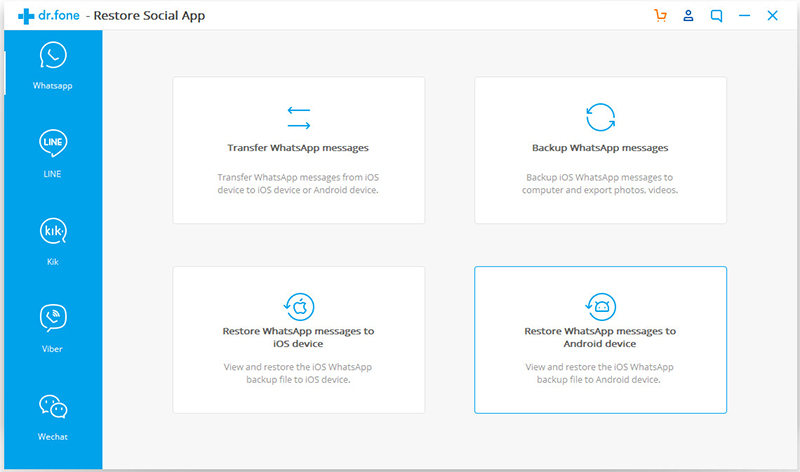
First of all,please install the program and launch it on computer.Then select “Recover from iOS Device” on the left pane and connect your device to computer via USB cable that is matched.Now you should go to your device and tap “Trust” on the pop-up window so that the data can be accessed.

Step 2.Choose the Data Types to Restore
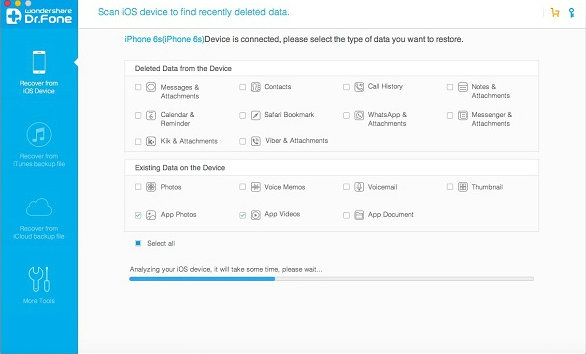
When your iPhone is connected successfully,you can see the interface that shows different data types on your device.Here need to choose “App Photos” and “App Videos” and start to scan the LINE data.

choose-line-file-to-scan

Tips:
1. You are allow to recover the deleted data as well as restore existing data to computer. But please notice that the two different types of data recovery support different data types. You can check it on the interface of the program above.
2. For LINE chat history, you couldn’t find the data type on the page. But just choose “App Photos”, “App Videos” or “App Document” and the program can access the App data like LINE, Viber and so on.

Step 3.Preview the LINE Chat History and Export to Computer
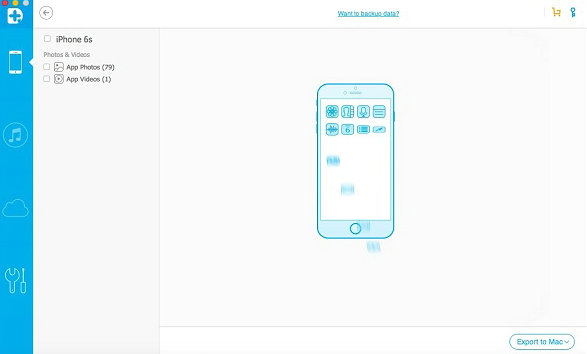
The scanning may cost you a little while, please wait for a moment. Once the scanning is done, you can preview the App data.

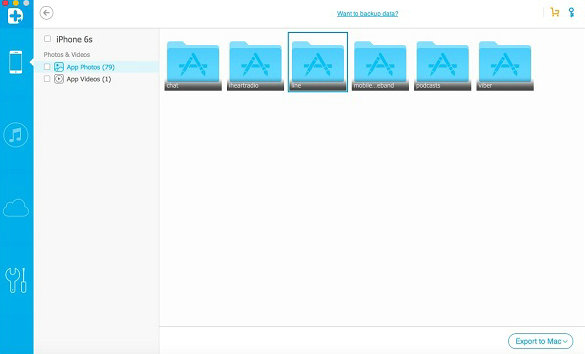
line-data-recovery-preview

Just click “App Photos > line” to check the photos from LINE chat history. And now you are allow to view the videos in the same way. Please select the photos and videos you wanna restore and click “Export to Mac” or “Export to PC”.

line-data-recovery-export

Step 4.View the Exported Photos and Videos
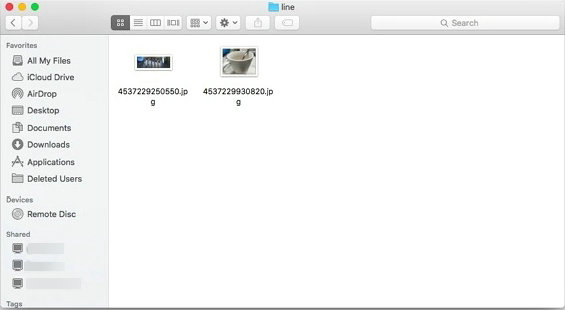
You are allow to check the exported data on your computer now.

view-line-recovered-data

d_win d_mac

Part 2. Recover Line Photos & Videos on iPhone from Backup

Step 1.Run Program and Connect iPhone to Computer
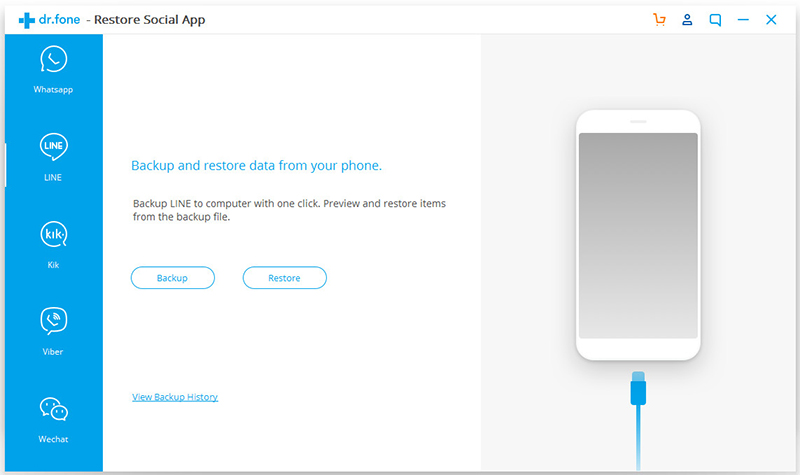
Please click “More Tools” and connect your iPhone to computer via USB cable.

restore-line-photo-video

Step 2.View the Previous Backup Data
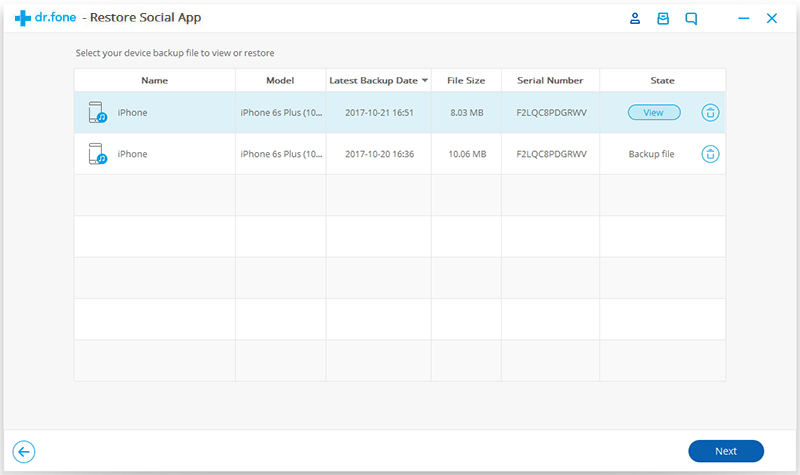
Once your device has been connected, you can see the interface above. Please click “To view the previous backup file” in blue. Now you can see the backup history. Choose the history you need to restore and click “View”.

view-line-backup-file

Note: You are allow to check the details of the backup history including name, model, latest backup data, and file size on the page. It would be easier for you to find out the one you want to restore.

Step 3.Restore the LINE Photos & Video
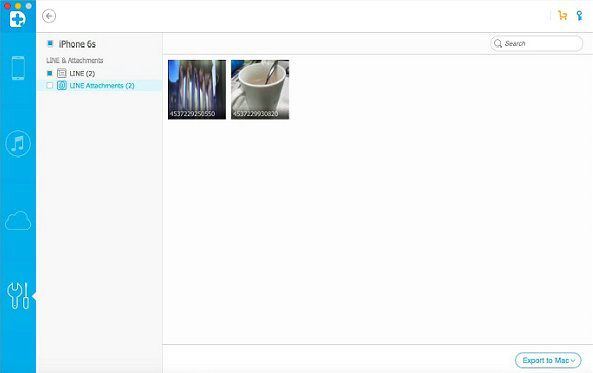
You can check the Line chat history here. Choose “LINE Attachments” and you can see all the photos and videos are show on the page. Select the ones you wanna restore and click “Export to Mac” or “Export to PC”.

restore-line-photos-videos

As you see, iOS Data Back & Restore Tool support to almost all the data types like contacts, messages, call history, photos, and App data on iOS device.Just download it right now and try to undelete your data on device.

d_win d_mac

Related Article:

How to Backup and Restore Line Chat History

How to Backup and Restore iOS Kik Messages

How to Backup and Restore iOS Viber Messages

How to Backup and Restore iOS WhatsApp Messages

Transfer Videos from PC/Mac to iPhone(iPhone XS/XS Max/XR Included)

Are you excited about updating to iPhone XS Max? Then be bother to export your fantastic videos from computer to the new device? Searching the simple ways to transfer media file to iPhone X without iTunes but still no best answer? Take it easy,here you came to the right place, we are going to offer you the most effective solution, which will perfectly solve your problems in just a coffee time.

You should get the approachable tutorials on how to transfer videos between computer and iPhone with iOS Transfer,including Movies, Music Videos, Home Videos, TV Shows, iTunes U and Podcasts.You can fully enjoy movies or videos on your iOS devices anytime anywhere.With this program, you are able to manage your media files on iPhone/iPad/iPod freely.iOS Transfer allow to sync videos,music,contacts,SMS from computer to iPhone 7 in a simple click.To sum up,transfer music, photos, videos and playlists from iPhone, iPad& iPod to iTunes Library& PC and vice versa, manage iOS device music, photos, contacts and SMS easily. iPhone X/XS/XS Max/XR, iPhone 8(Plus), iPhone 7,iPhone 6S(Plus),iPhone 6(Plus),iPhone SE,iPhone 5S/5C/5,iPad,iPod are applicable for iOS Transfer.

Features of iOS Transfer:
-Transfer Videos from Computer to iPhone/iPad/iPod
-Transfer Videos from iPhone/iPad/iPod to Computer
-Transfer Videos from iPhone/iPad/iPod to iTunes Library
-Transfer Videos from iTunes Library to iPhone/iPad/iPod
-Transfer Videos Between iPhone/iPad/iPod/Android Devices
-Delete Videos on iPhone/iPad/iPod

d_win d_mac

Part 1:How to Sync Videos from Computer to iPhone 7
Step 1. Launch iOS Transfer and connect iPhone 7 with the Computer
iOS Transfer main page

Method 1: Transfer Videos Using Buttons

Step 2. Find video type on iPhone 7
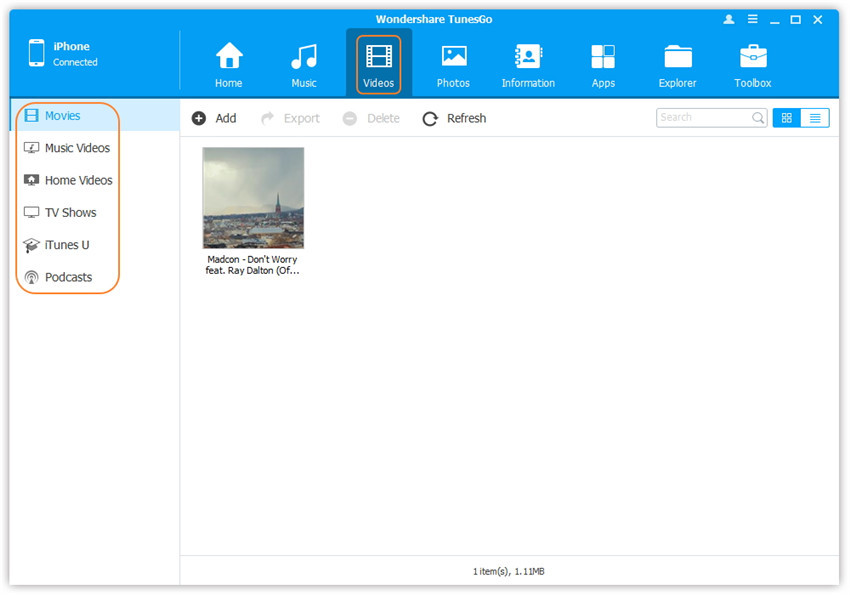
Click Videos icon at the top of the main interface. Select a specific option Movies/Music Videos/Home Videos/TV Shows/iTunes U/Podcasts to transfer( “Movies” is the default option).

select videos to transfer

Step 3. Select and Add Videos from PC/Mac to iPhone 7
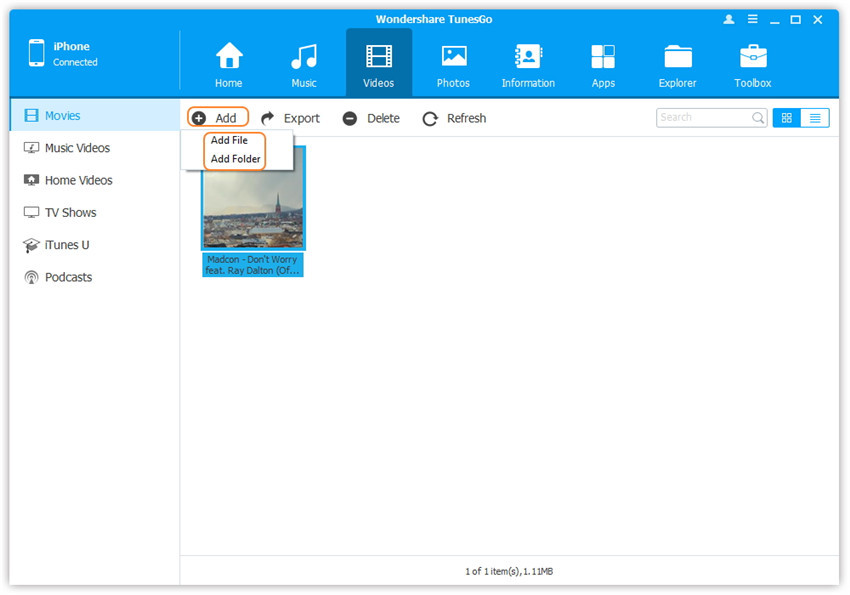
Later, click Add and then select Add File or Add Folder.
Note: If you need to select a few videos,then click Add File, and then hold down Shift or Ctrl key to choose multiple videos; if you want to transfer all the videos in one folder, then click Add Folder.

select Add File or Add Folder

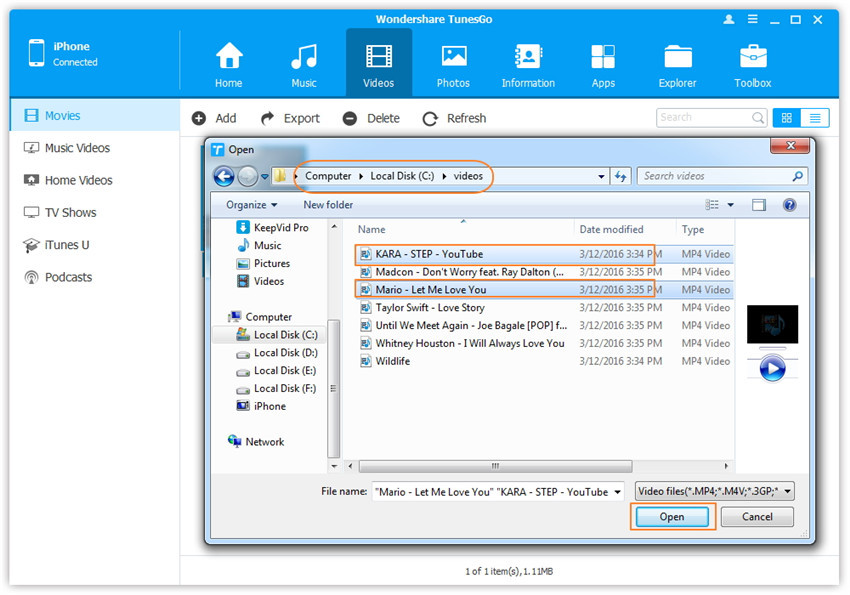
From the pop-up window, browse and choose the target video(s) from your computer. And click Open. Then, the selected videos will be imported to the iPhone 7.

open the video older

Method 2: Transfer Videos by Drag and Drop

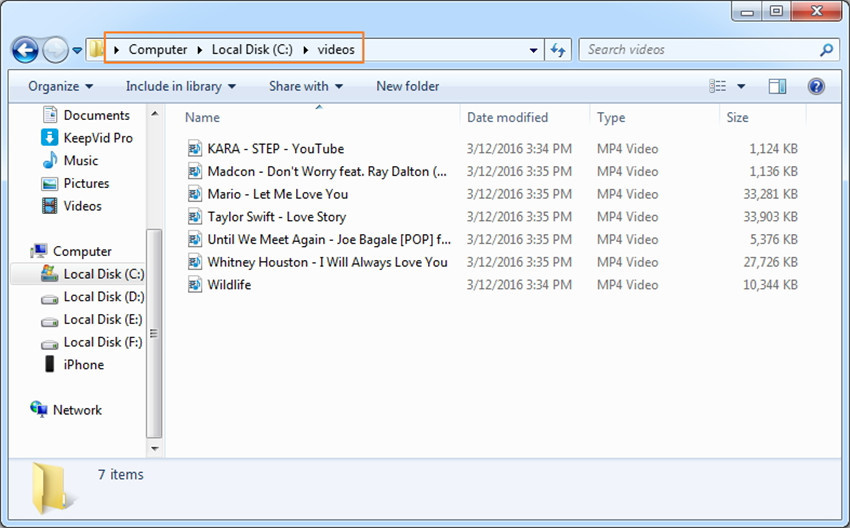
Step 2. Find videos on your PC/Mac
Find and open the video folder on your PC or Mac which includes the videos that you wish to transfer to your iPhone 7.

Find videos on computer
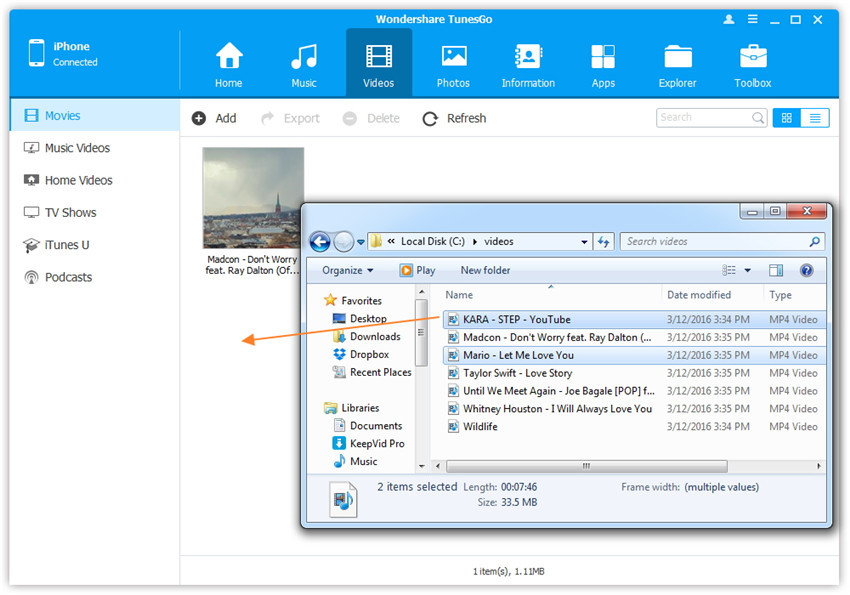
Step 3. Export the Videos to iPhone 7 by Drag and Drop
Click Videos icon on the main interface of iOS Transfer,it will go to the Movies window by default, Music Videos, TV Shows, iTunes U and Podcasts are available here too. Drag and drop the selected videos from your computer to the Movies window of iOS Transfer.
Export videos to iPhone 7 by Drag and Drop

d_win d_mac

Part 2:How to Transfer Videos from iPhone 7 to Computer
Step 1. Launch iOS Transfer and connect your iPhone 7 with the computer.
iOS Transfer main page

Step 2. Export videos from iPhone 7 to computer
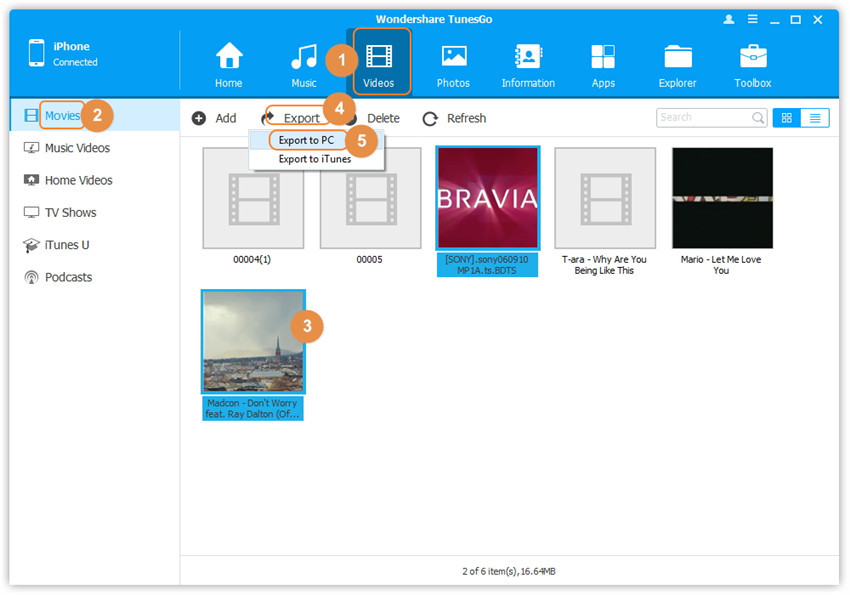
a. Click Videos icon at the top of the main interface, then select a specific option Movies/Music Videos/Home Videos/TV Shows/iTunes U/Podcasts to transfer( “Movies” is the default option). Later, select the videos (Note: Hold down Ctrl or Shift Key to select multiple videos) you want to transfer to the computer, and click Export > Export to PC.

select videos to transfer

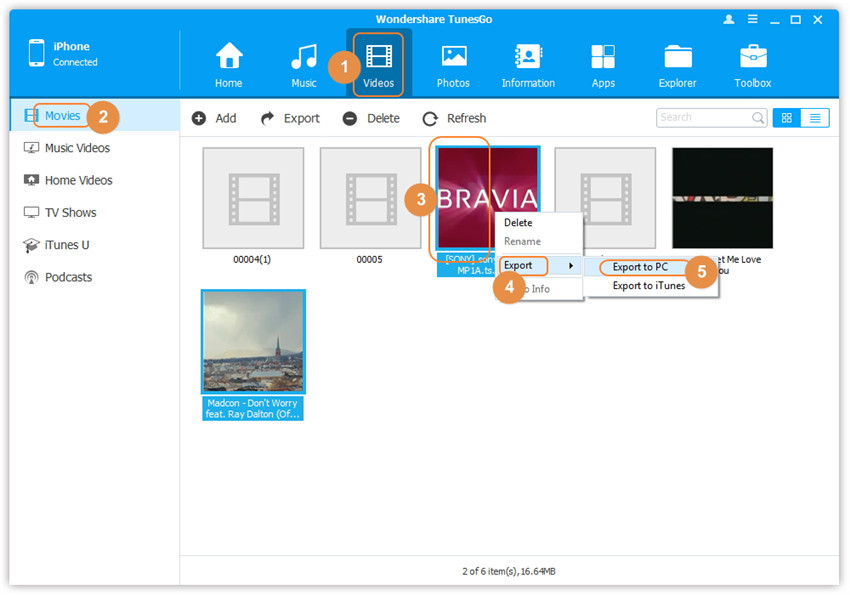
Note: Here you can right-click on the selected videos and then select Export > Export to PC as well.

export video to pc
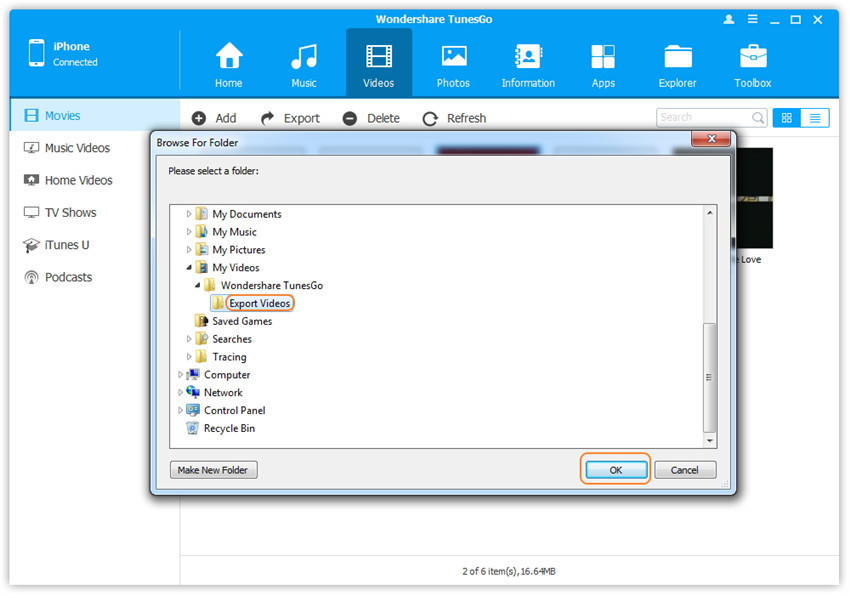
b. Browse and choose the target folder on the computer to export. And click OK to start the export process.

click ok to confirm

Step 3. Export videos to computer completely
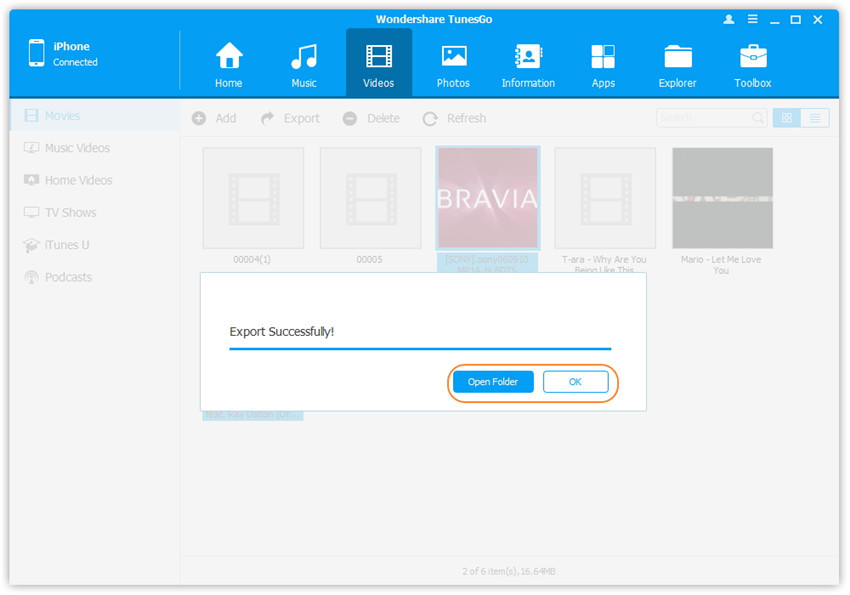
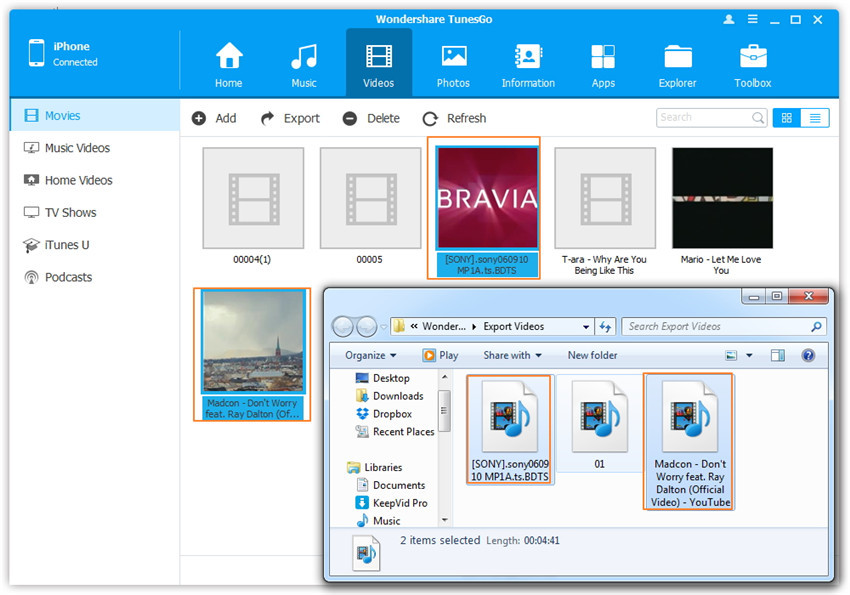
Click Open Folder to see the exported files on the computer or click OK to close the dialog.

export video completed

view transferred videos

d_win d_mac

Part 3:How to Transfer Videos from iTunes to iPhone 7

iOS Transfer provides two solutions to transfer videos from iTunes to iPhone 7, include Movies, Music Videos, TV Shows, iTunes U and Podcasts.

Method 1: With 1-Click File Transfer

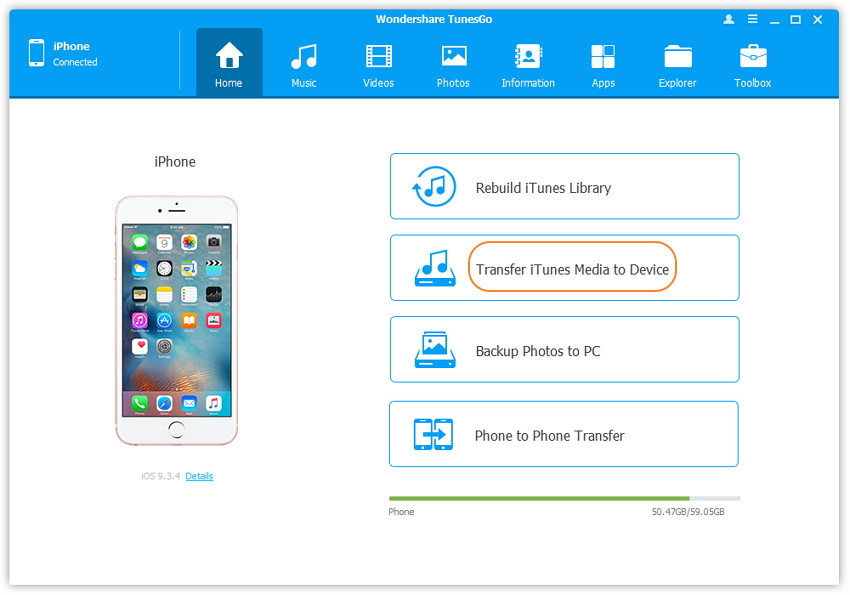
Step 1. Launch iOS Transfer and connect your iPhone 7 with the computer.Then click Transfer iTunes Media to Device icon on the main interface.

ios transfer main page

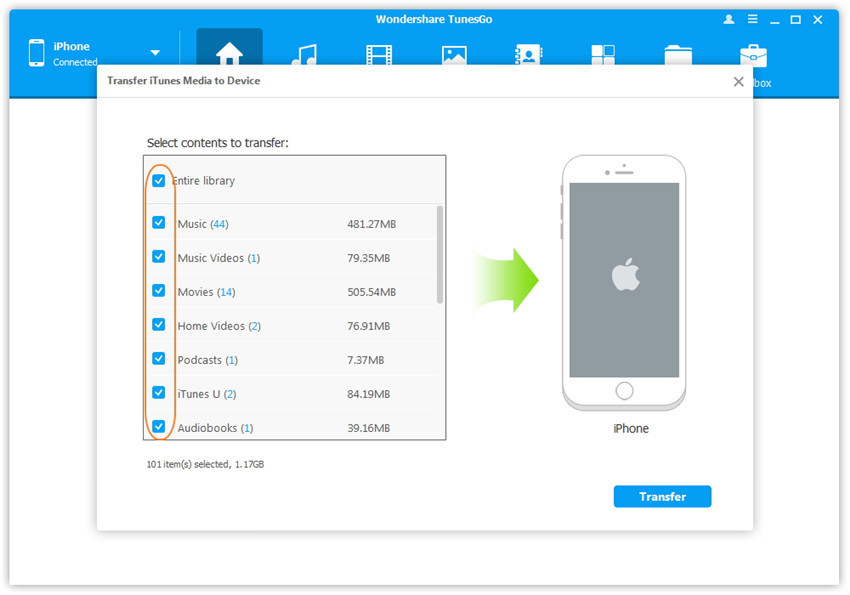
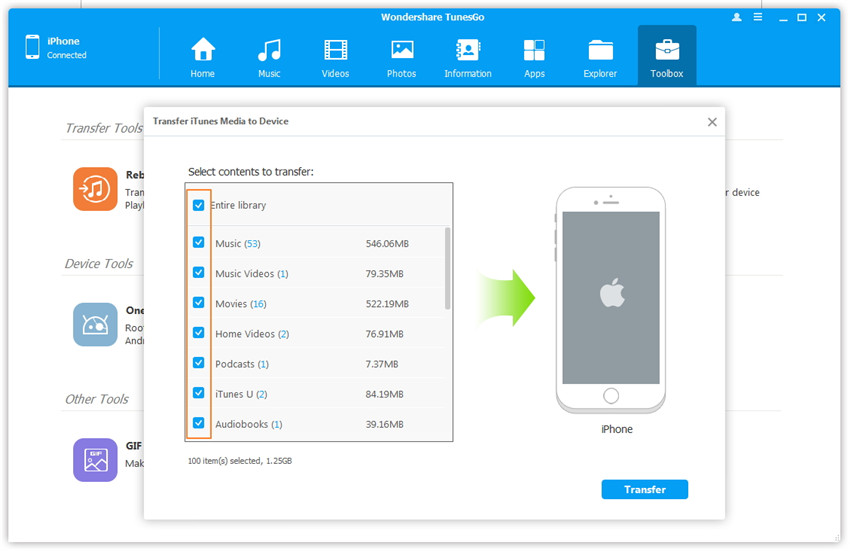
Step 2. iOS Transfer will detect all the media files in iTunes and show them by list on the pop-up window. By default, the entire library has been checked. But you can uncheck some items that you won’t transfer to your iPhone.

select transfer videos to iphone 7

Step 3. Transfer media contents to iPhone 7
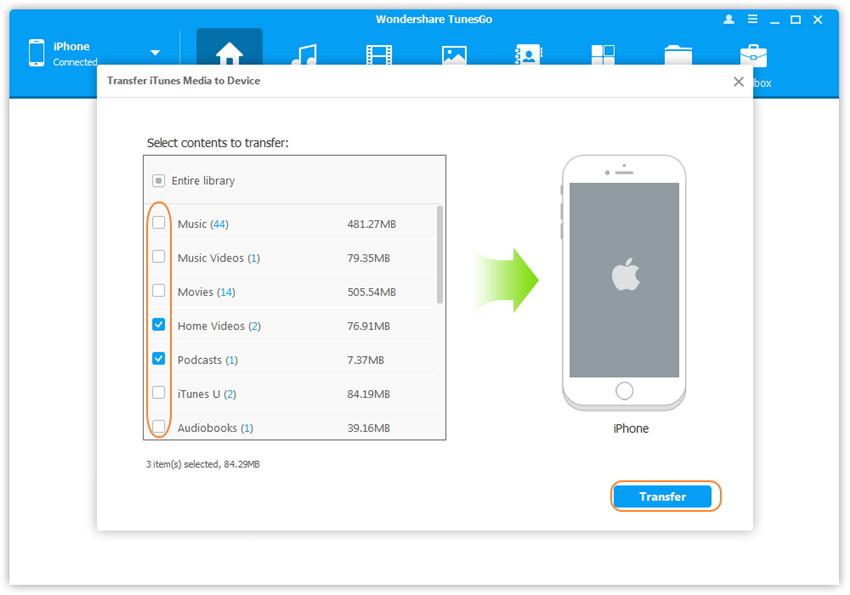
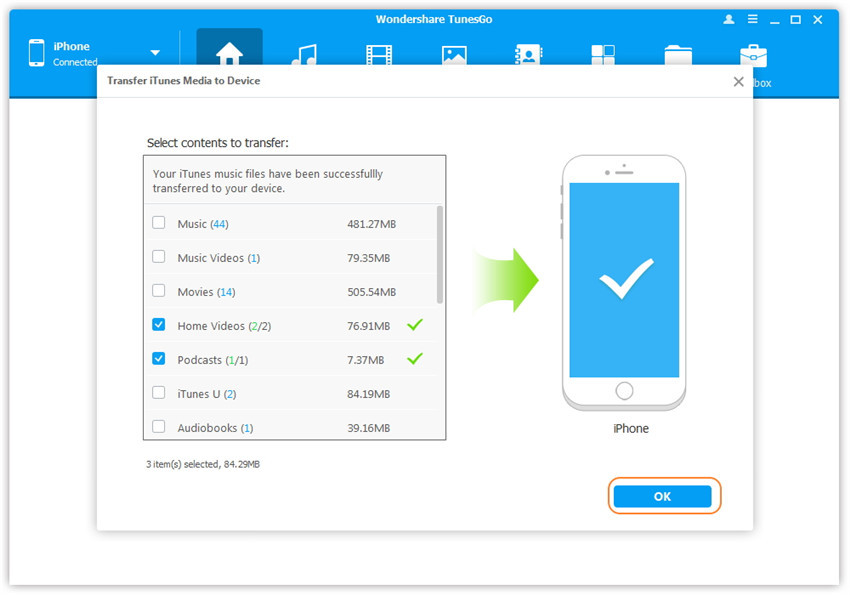
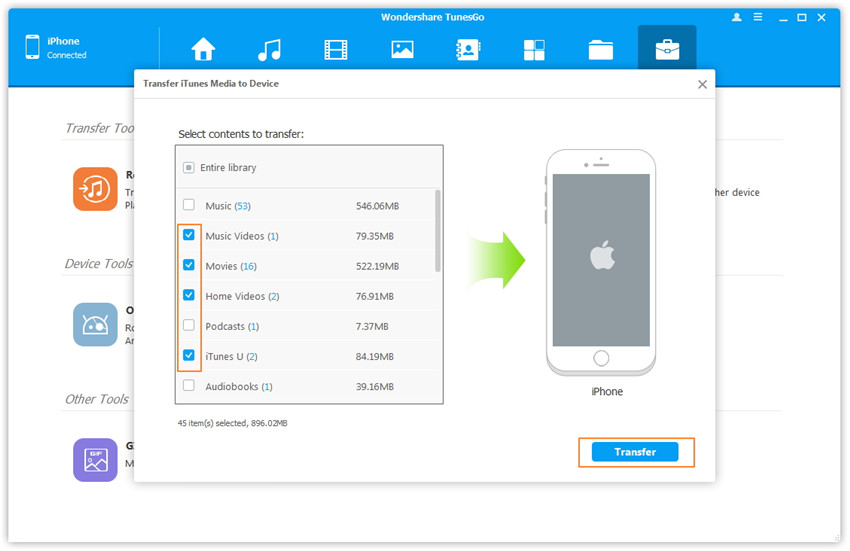
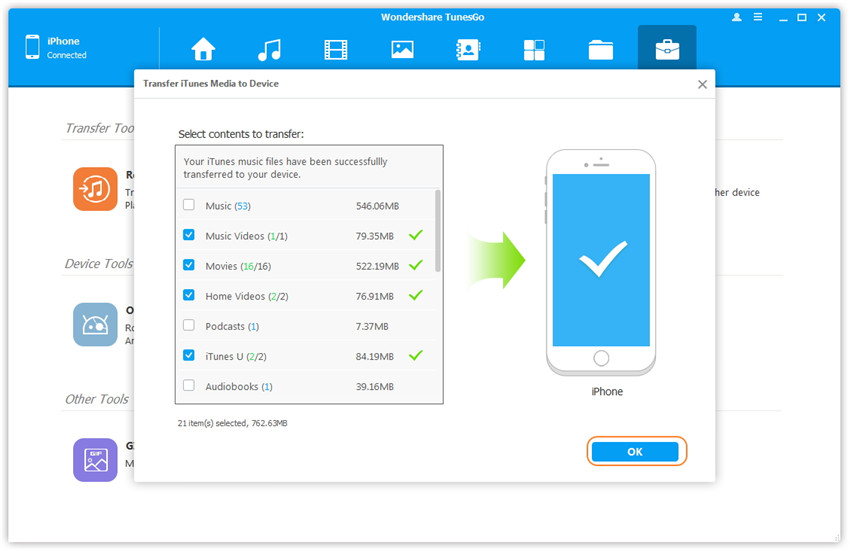
Click Transfer to start transferring selected files to your iPhone and then click OK to complete the process.
Note: iOS Transfer enables to automatically detect the duplicates and only transfer the exclusive contents from iTunes to iPhone 7.

click transfer button

transfer music to iphone 7

Method 2: With Toolbox

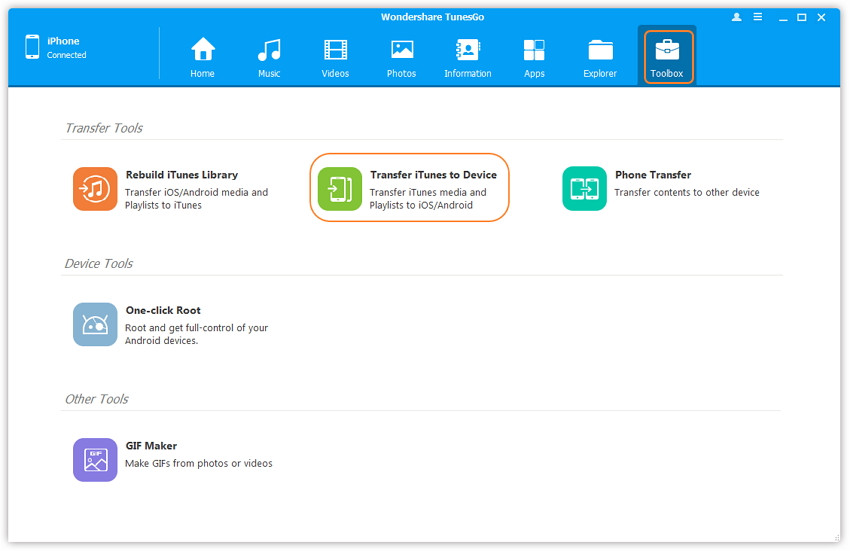
Step 1. Launch iOS Transfer and connect your iPhone 7 with the computer. Then go to Toolbox > Transfer iTunes Media to Device on the Toolbox interface.

tool box main page
Step 2. iOS Transfer will detect all the media files in iTunes and show them by list on the pop-up window. By default, the entire library has been checked. But you can uncheck some items that you won’t transfer to your iPhone.

select video file transfer

Step 3. Transfer media files to your iPhone 7
Click Transfer to start transferring selected files to your iPhone 7 and then click OK to complete the process.
Note: iOS Transfer enables to automatically detect the duplicates and only transfer the exclusive files from iTunes to iPhone 7.

click transfer to begin

transfer itunes videos to iphone 7 complete

d_win d_mac

A Media File Transfer for iPhone 7

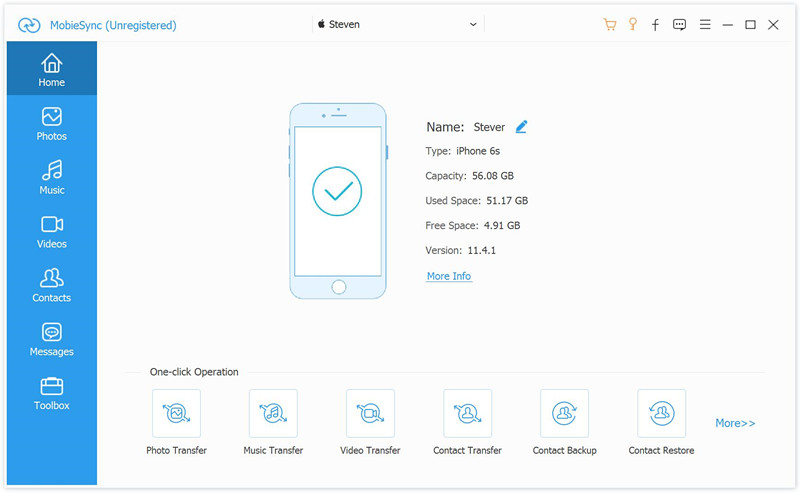
Another iOS media file manage here we strongly suggest you use is Mobile Sync. It is the best tool for sync iOS data between iOS device and computer, it has several features like PC to iOS Transfer, iOS to iOS Transfer, add files to iOS, or vice versa. Mobile Sync is a professional iOS data manage & transfer software, it is designed for syncing data between iPhone/iPad/iPod and computer. With the help of Mobile Sync, you can efficiently transfer videos from the computer to iPhone 7 easily. The iOS data sync job can be done with easy steps: Launch Mobile Sync and then connect your iOS device to it with USB cable; select specific iOS files on the preview window; start the transferring. Only three simple steps, you can finish the iOS data sync job.

mobile sync home page

Related Article:

How to Transfer Music from Computer to iPhone 7

How to Transfer Photos from Computer to Mobile Phone

How to Transfer Video from Computer to Samsung

How to Transfer Music from Android to iPhone/iPad/iPod

Transfer Videos from Computer to iPhone 7