All posts by DHZ

How to Transfer Music from Computer to iPhone without iTunes?

[Summary]:Finding a way to enjoy music and Apple Music songs on your iPhone?This article not only teach you how to import music from computer, iTunes library, old mobile phones to iPhone X and iPhone 8/7/6S/6(Plus) directly,but also shows you how to remove DRM from Apple music and convert to DRM-free MP3 for playing on iPhone/iPod for free forever,even your canceleted the Apple Music subscription service.

“I got an iPhone X,now I should resell my old Samsung phone.Then I completed contacts,photos,messages transfer task.However,I have no idea to copy the favorite songs from computer to iPhone X.Could anyone tell me some available ways?Thanks”—–Garry Lee

Transfer iPhone 7 music

You May Like to Read:

* How to Play Apple Music on iPhone/iPod/iPad for Free

* How to Transfer Data from iPhone to iPhone

iPhone X/8 – the newest models of iPhone now is release around the world.For the funny features of iPhone 8,you must can’t hold yourself to get one.When you need to switch your old device to the new iPhone 8,the first thing you wanna do may be add some file to your new iPhone 7 device.Probably you are consider how to transfer favorite music from computer to iPhone 8/8 Plus. In addition to the traditional iTunes way, this article also help to transfer music to iPhone 8/X with an iPhone Data Transfer tool.

The iPhone Music TransferiOS & Android Manager provides you with 1-click solution to export music on computer to iPhone 7 easily,Songs, iTunes U, Audiobooks, Podcasts are included.Meanwhile,it also allow to transfer videos,photos,contacts,SMS from computer to iOS device (such as iPhone X and iPhone 8/7/SE/6S/6/5S/5) without complicated steps.In conclusion,transfer music, photos, videos and playlists from iPhone, iPad& iPod to iTunes Library& PC and vice versa, manage music, photos, contacts and SMS freely.


d_win d_mac

Let’s learn how to transfer music to iPhone X/8/7/7 Plus:

How to Copy Music from Computer to iPhone X/8/7

Free download and launch the iOS & Android Manager on your Windows computer or Mac:

d_win d_mac

When running the iOS & Android Manager on your computer,you can see the main interface as below.
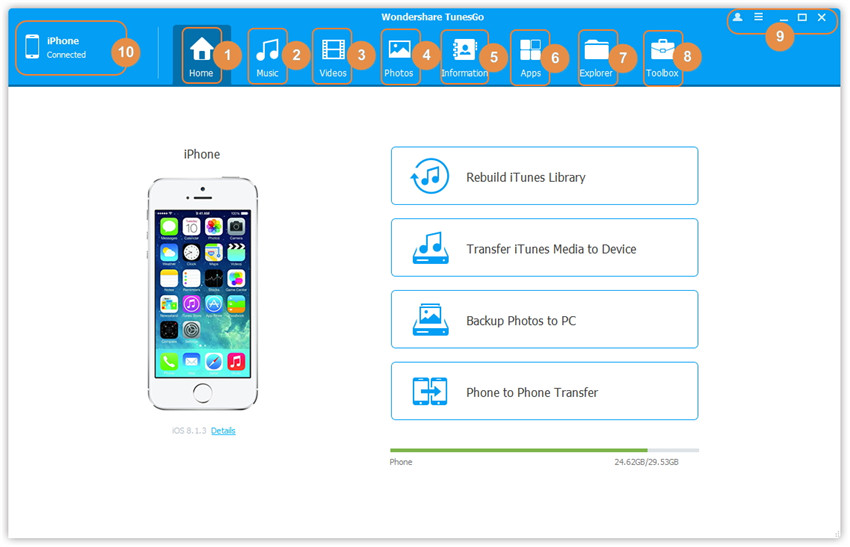
iPhone Music Transfer

Step 1.Launch iOS & Android Manager and connect iPhone 7 with the Computer

iOS Transfer main page

Method 1:Transfer Music Using Buttons

Step 2.Add music from Computer to iPhone 7
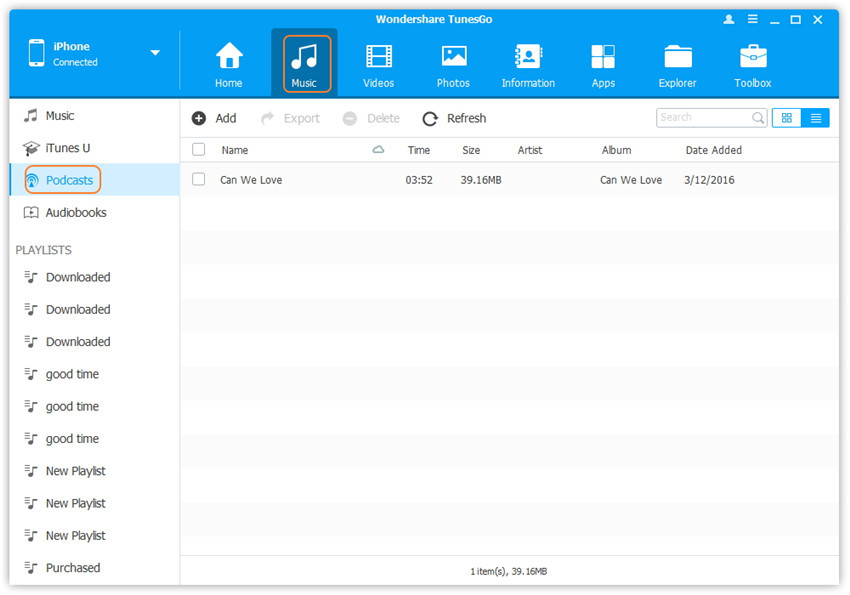
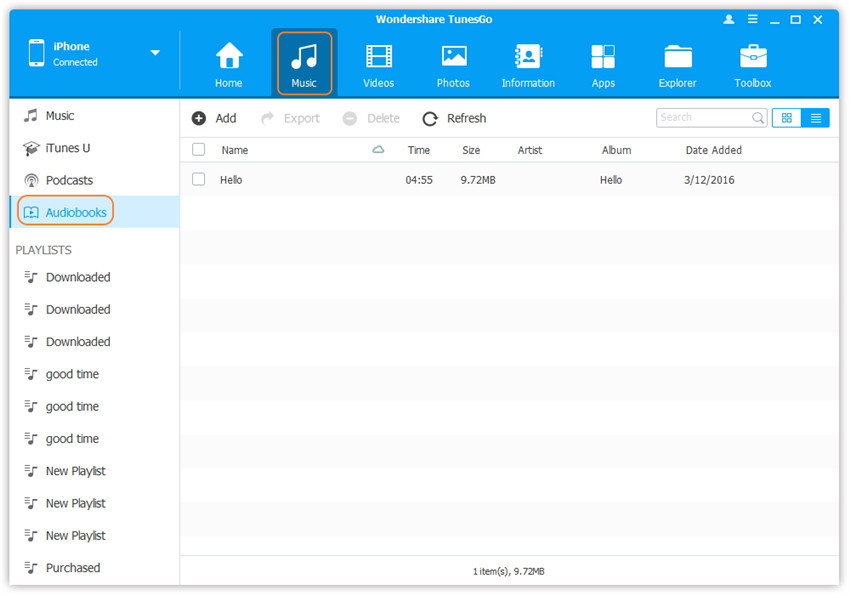
Click Music icon at the top of the interface,then select the specific option Music (Music is the default option). Please note that iTunes U/Audiobooks/Podcasts is available to select here also.
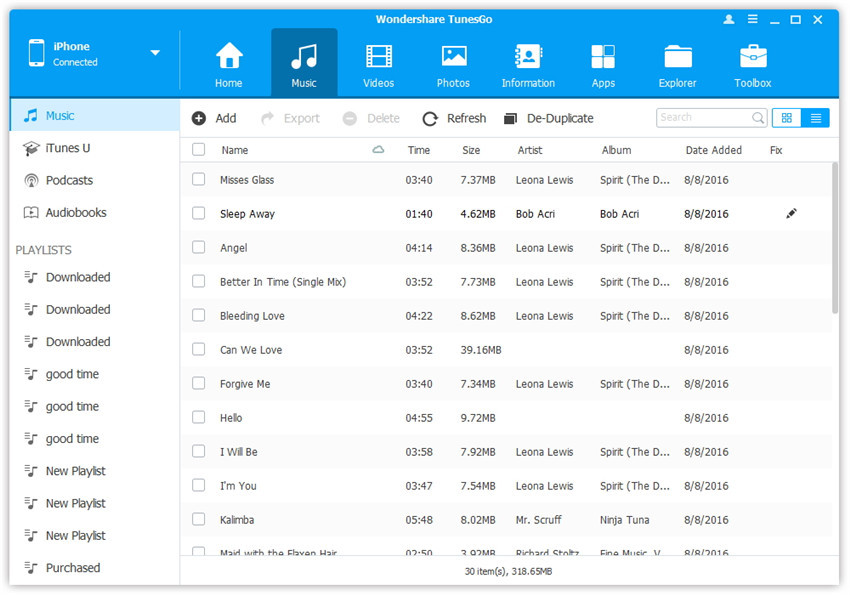
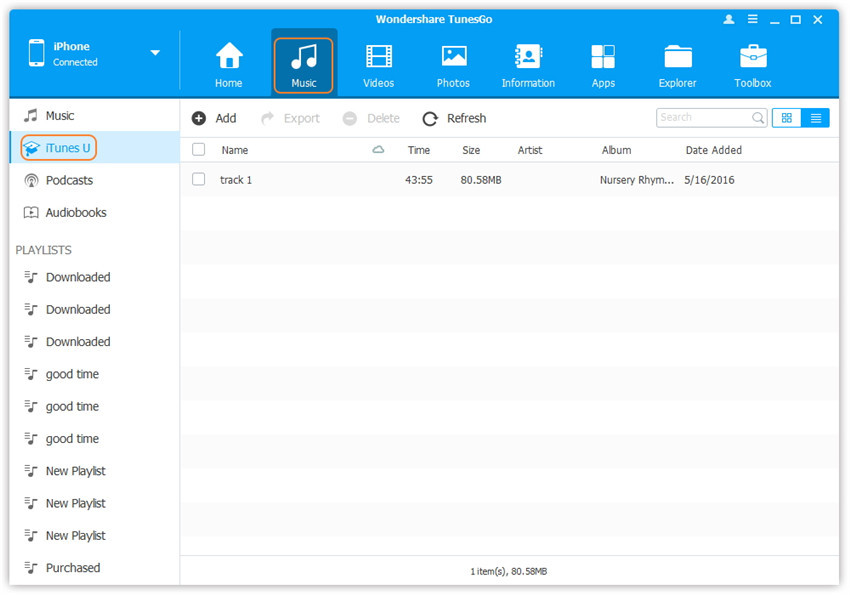
select music to transfer

select-itunes-u-music

select podcasts music

select audiobooks music

Then you should click Add and then select Add File or Add Folder to add music files from your computer. If you only want to select some music files, then click Add File, and then hold down Shift or Ctrl key to choose multiple files; if you want to transfer all the music in one folder, then click Add Folder. After that, click Open to import the selected music. Here we only add music to iPhone by clicking Add File for example, others are with the similar steps.
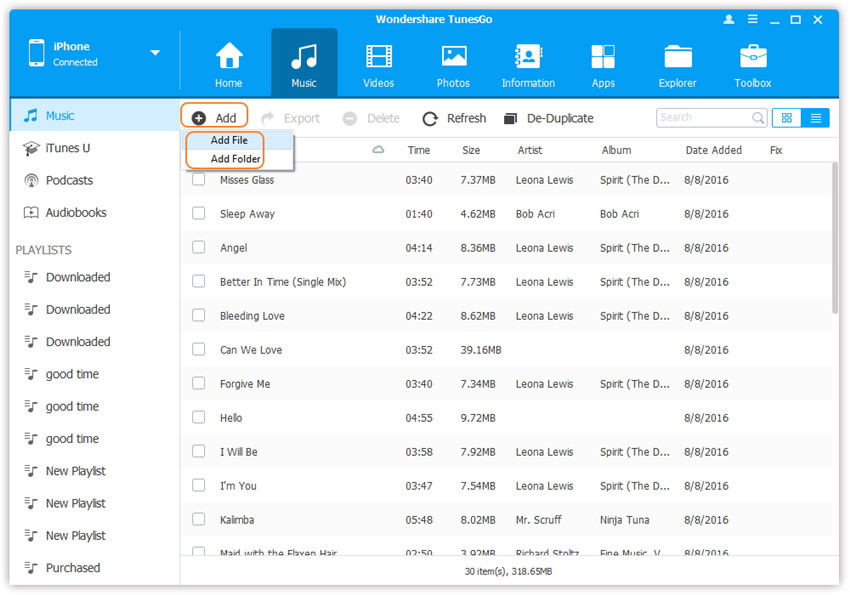
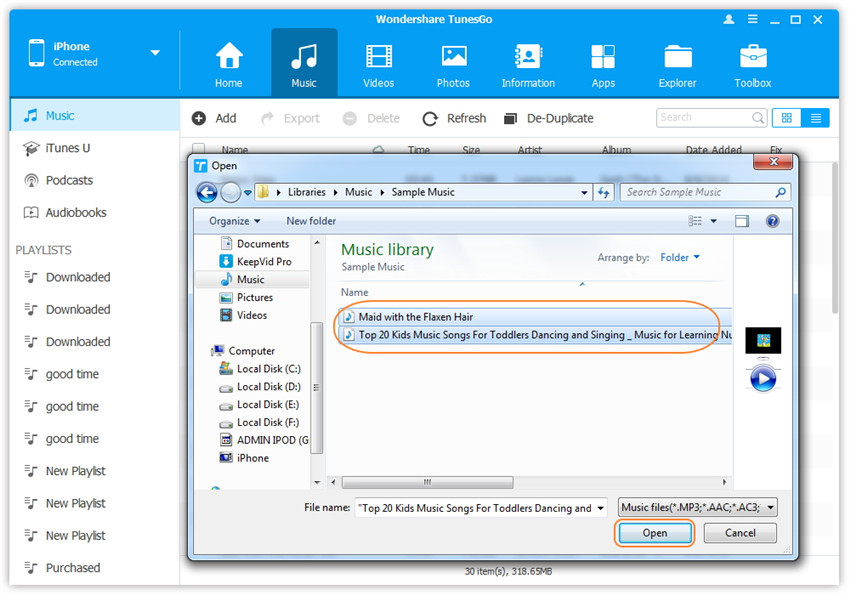
Add Folder to add music files

transfer music file from computer to iPhone

Method 2:Transfer Music by Drag and Drop

Step 2.Find Songs on Computer
Find and open the music folder on your PC or Mac which includes the music files that you wish to transfer to your iPhone 7.
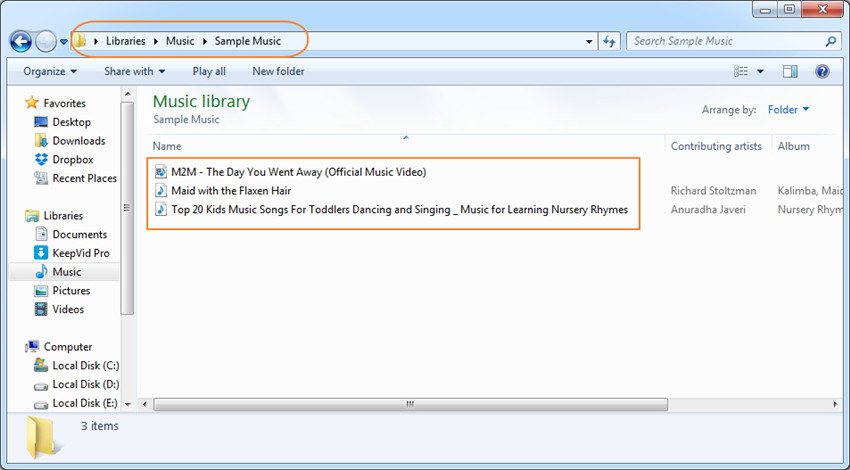
open the music folder on computer

Step 3.Export Songs to iPhone 7 by Drag and Drop
Click Music icon on the main interface of iOS Transfer,it will go to the Music window by default.Drag and drop the selected music from your computer to the Music window of iOS Transfer.
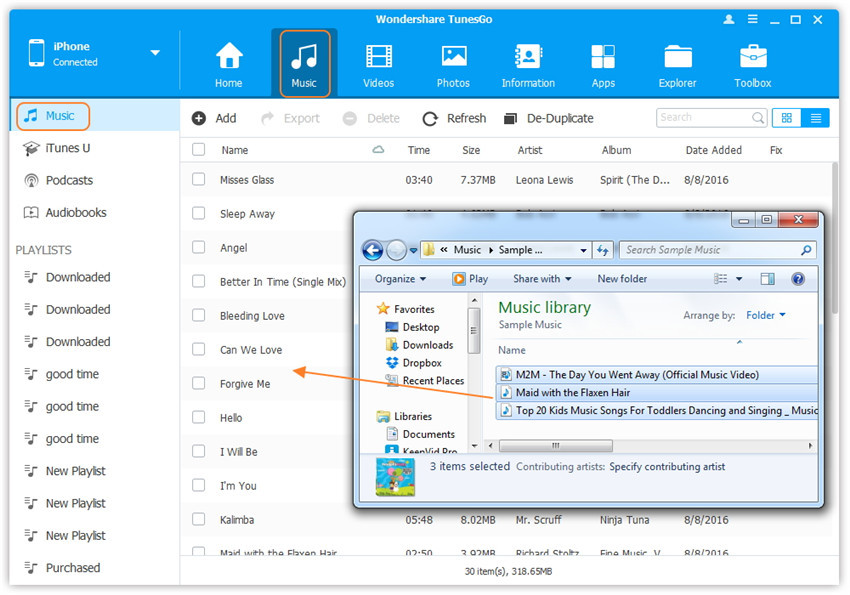
Export the songs to iPhone 7 by Drag and Drop

Tips:iOS Transfer additionally supports to add Podcasts, iTunes U, Audiobooks from PC/Mac to iPhone/iPad/iPod with this method too. The only change while adding these media files is to select one of the options: Podcasts, iTunes U, Audiobooks instead of Music.

Part 2: How to Transfer Music from other Android/iOS devices to X/8/7

iOS & Android Manager not only can help you transfer music between iPhone and computer,but also allows you transfer music from old iPhone, iPad, iPod to iPhone X/8/7; sync music from Android to iPhone 7/7 plus,like Samsung Galaxy S7/S7 Edge/S6/S6 Edge/S5, HTC One M9/M8, Google Pixel, Motorola, Sony,etc.It is a simple yet effective solution for transferring data between different devices, like Phone to Phone Transfer software.Let’s teach you how to use this powerful iPhone Data Transfer to transfer all your music files from other devices like iPod, iPad, old iPhone,Android phone to new iPhone 7/7 Plus by one click without quality loss.

Step 1. Launch the iOS & Android Manager and connect your iPhone 7 and the source device to the computer via USB cables.
Launch iOS & Android Manager on computer,if you use Macbook,we also provides you the iOS & Android Manager(Mac) version,and connect your iPhone 7 and the old iOS/Android device with your computer, here we take transfer music from Samsung to iPhone 7 for example.
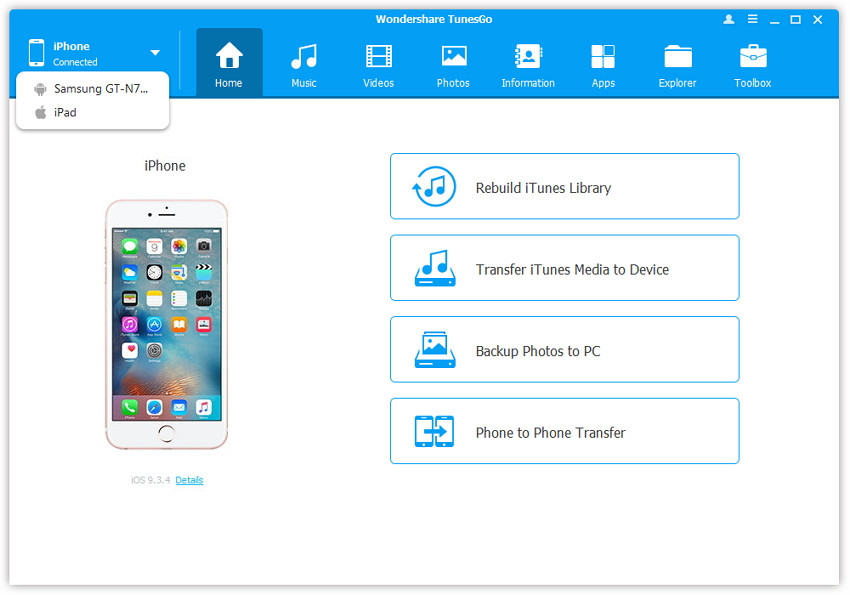
transfer songs from Samsung to iPhone 7

Step 2. Select the Songs you want to Transfer from Samsung to iPhone 7
Select the iPhone 7 device from which you want to transfer music, and switch to “Music” item at the top of the main interface, then select the musics which you want to transfer from Samsung to iPhone 7, then click “Export > Export to iPhone 7”. As for the following screenshot, the music on the Samsung phone can be transferred to the iPhone 7.Also, the songs informations such as artist, album, lyrics, cover, time, etc was transferred to your iPhone 7.
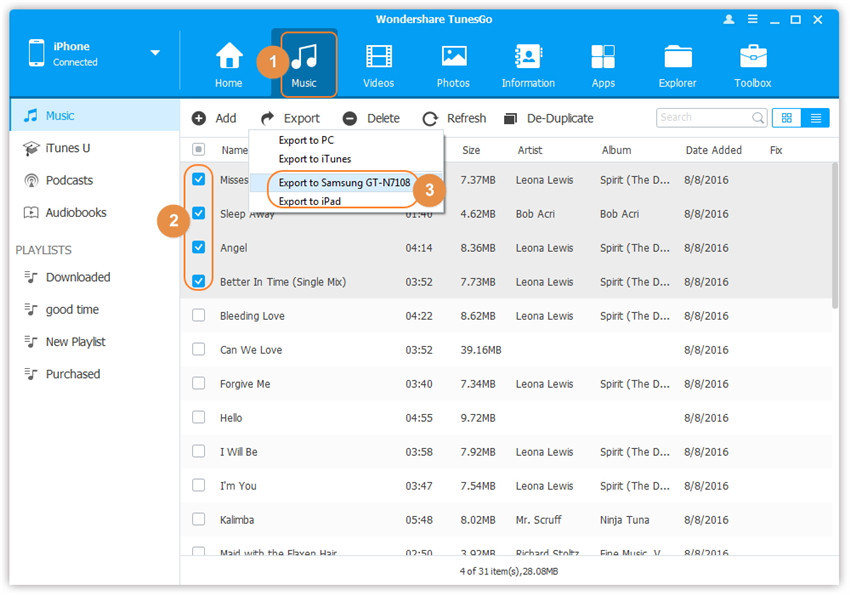
Transfer Music from Android to iPhone 7

Note: Here you can right-click on the selected music and then select Export > Export to B or Export to C for transferring your iPhone 7 music to other devices as well.

Step 3.Complete Sync Music from Android to iPhone 7
Now,you have complete transferring music from old phone to iPhone 7,open the Music App on your iPhone 7 and enjoy listening songs on your iPhone 7 in anywhere at any time
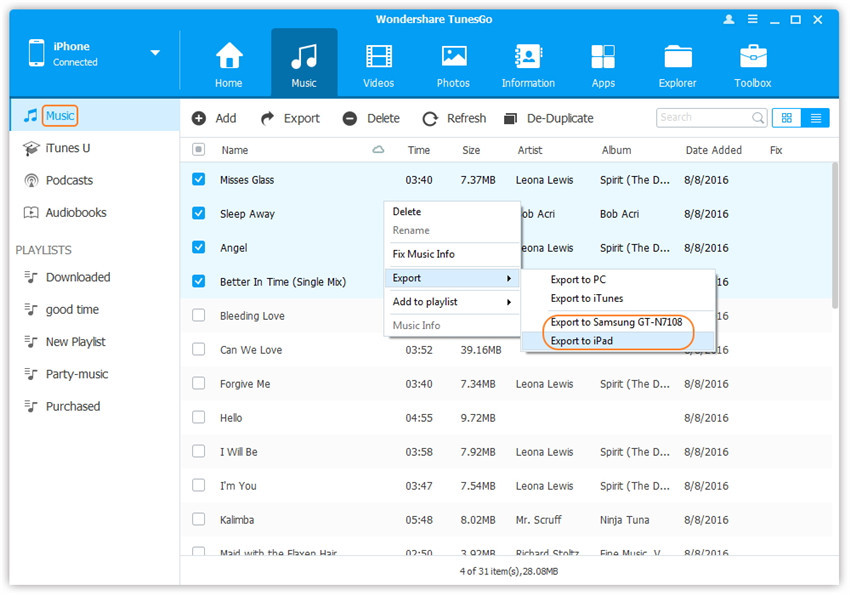
Transfer Music from iPhone 6/5s to iPhone 7

Part 3: How to Transfer Music from iTunes to iPhone X/8/7 without iTunes

Some iOS users may ask “Why Doesn’t Syncing from iTunes to iPhone X/8/7?”,”How to sync iTunes music to iPhone without erase the previous data?” Actually,you can transfer iTunes music to iPhone/iPad/iPod without iTunes program,many people may have bought lots of songs on iTunes store,or synced music from old iPhone 6s/6/SE/5s/5/4s/4 to iTunes,when you have got a new iPhone 7,the first you will transfer songs, playlist from iTunes library to iPhone 7.The iOS & Android Manager also as an iTunes to iOS/Android Transfer for you transfer songs from iTunes to iPhone 7, Samsung Galaxy S7/S6, HTC One, Google Pixel/Nexus and other Android phone with 1 click.
Let’s teach you how to use this iOS & Android Manager to transfer music from iTunes to iPhone 7/7 plus without overwriting your previous music and other content in your devices. In just one step, your iTunes media files could be transferred to your iPhone 7 without data losing.

Step 1. Launch the iOS & Android Manager and connect your iPhone 7 to computer via USB cable. Then click the “Transfer iTunes Media to Device” feature on the main interface,the program will pop up a new windows for you.
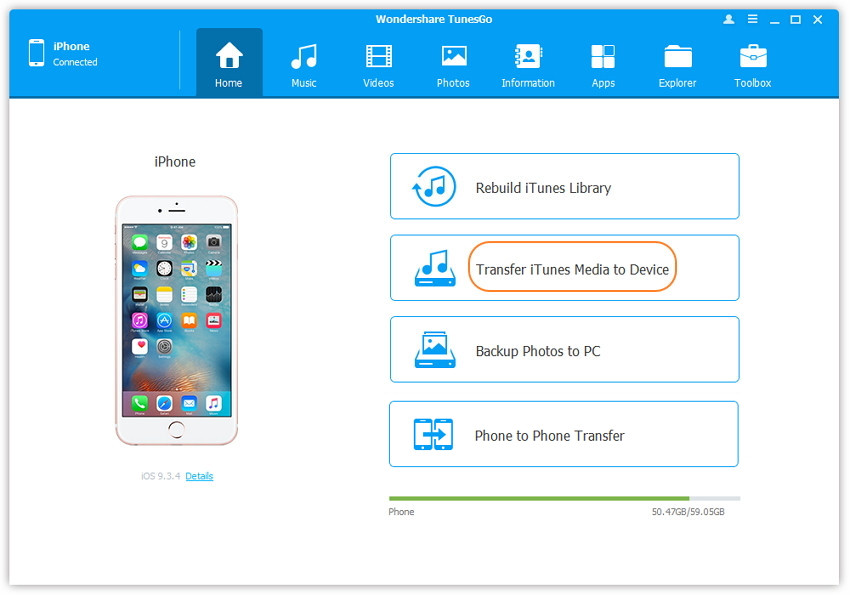
Music from iTunes Library to iPhone 7/7 plus

Step 2.Select the Music items you want to Transfer to iPhone 7
The program will detect all the media files in iTunes,including Music, Entire library, Music Videos, Movies, Home Videos, Podcasts, iTunes U, Audiobooks,if you just want to sync iTunes music to your iPhone 7,please select the “Music” items and click “Transfer” button begin to sync iTunes music to your iPhone 7 directly.
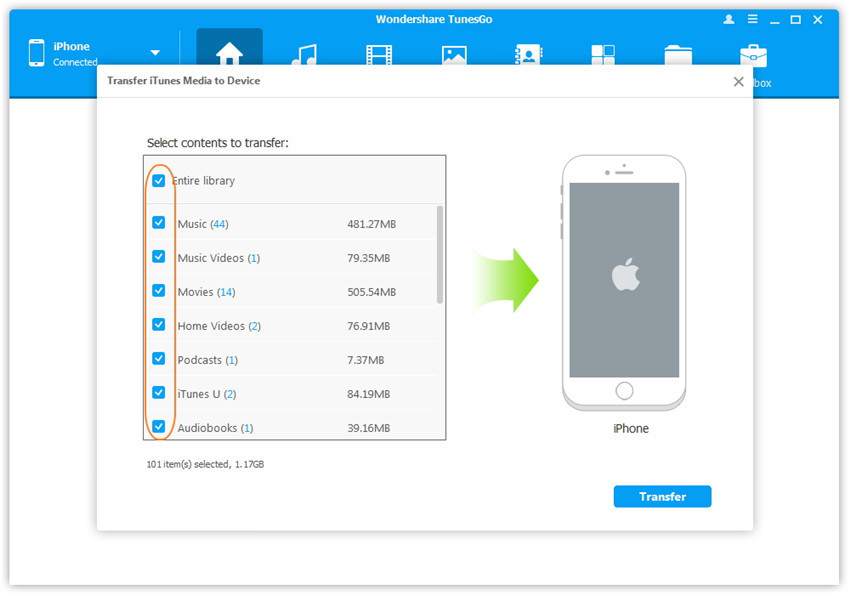
transfer iTunes Music to iPhone 7

Step 3. Finish Transfer Music to your iPhone 7 and Play Music on iPhone 7
Only few minutes,the program helps you sync songs from iTunes library to your iPhone 7,and then click “OK”to complete the process.Then open your iPhone 7 Music app you can found all the music transferred to your phone,including the previous music still on your iPhone 7.
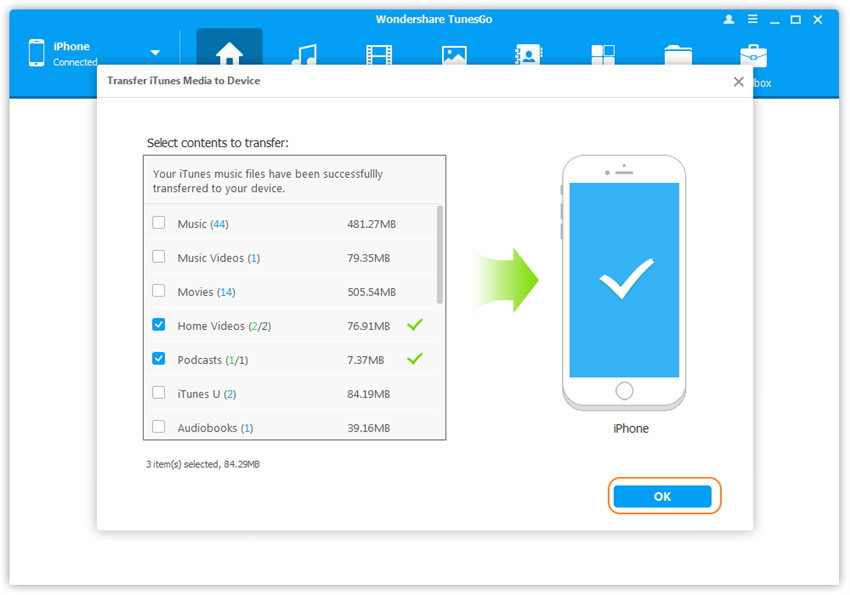
sync iTunes music to iPhone 7

Recommend: You can use this iOS & Android manager to transfer music from iTunes to new Samsung Galaxy S7/S7 Edge/S6/S6 Edge, just follow the tutorial as above and choose iTunes music and playlists, then click Start Transfer. After a while, the music will appear in your Samsung Galaxy S7/S6,as well as other Android and iOS devices.

d_win d_mac

Part 4: Free Music and Videos Downloader for iPhone 7/7 Plus

Finding top free Music Download Tools for iPhone 7 to get music and play on iPhone 7, iPhone 7 plus? TunesGo is the best Music and Videos download tool for iOS/Andriod users fast download free music to iPhone 7/6S/6/SE, Samsung Galaxy S7/S6/S5/Note 5/Note 4 and other Android devices with originally audio quality,you can also directly transfer the downloaded music & videos to your devices,and enjoying music on iPhone iPad Android devices.
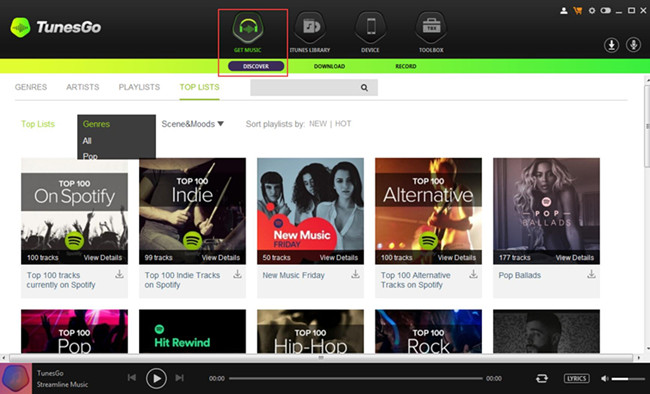
download music video to iPHone 7

d_win d_mac

iOS & Android Music/Videos Downloader Key Features:

-Transfer music and playlists between iPhone,iPad and iPod(touch)
-Transfer music and playlists between iOS devices and Android devices
-Transfer music and playlists between iPhone,iPad/Android devices and iTunes library
-Backup photos,videos,music from iPhone/iPad/iPod/Android to computer
-Free download any music, album, movie, video, TV shows, 4K UHD videos from 300+ sites, including YouTube, Dailymotion, Facebook, Vevo, Vimeo, etc, without ads and virus
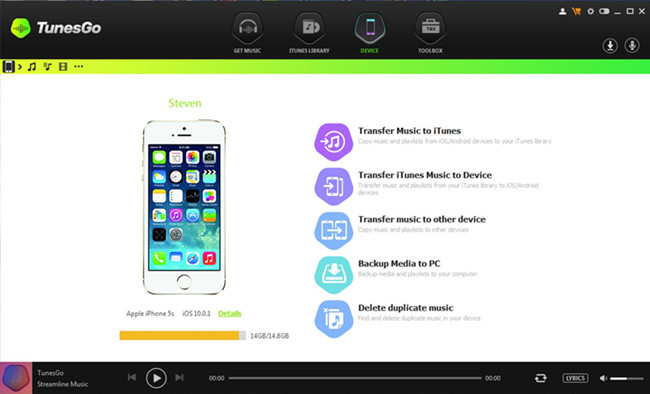
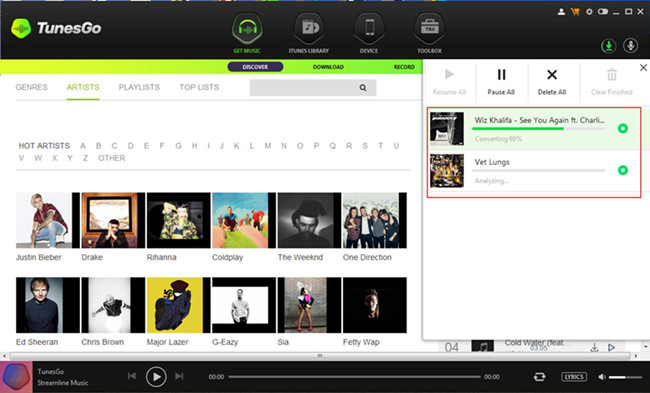
download free music to iPhone 7/7 plus

Download Music on iPhone 7

Part 5: How to Get Apple Music on your iPhone, Mac and PC for Free

Want to get free Apple Music forever and playing on your iPhone 7 for free forever once the subscription service is canceled?

Apple Music Converter helps Windows and Mac users easily convert Apple Music M4P songs to DRM-free MP3 without downloading them,so that you can keep your purchased Apple Music as long as you like.What’s more,the Apple Music Converter also could helps you remove DRM from Apple Music and output as DRM-free MP3, M4A, AC3, AIFF, FLAC, etc. for playing on any music players,such as iPhone 7/6S/6/SE/5S/5/4S/4, iPod(touch), MP3 player and Android mobile phones, etc.Let’s teach you how to convert Apple music to iPhone on Mac for example.

Free download the Apple Music Converter for Mac or Windows:

d_win d_mac

Make Apple Music Playable on iPhone for Free Forever

Step 1.Run Apple Music Converter on PC or Mac
After download and run the program on your computer.,the iTunes will be opened automatically.

run apple music to iPhone converter

Step 2.Select Apple Music to Remove DRM and Convert to MP3
In this step,you can see all your iTunes library playlist on the left side of the program.Please choose the iTunes music you want,please add the Apple music tracks or playlists to iTunes library first. Then, refresh the program to select them and import the the program.

select iTunes music to convert

Step 3.Select MP3 Output Settings
For playing Apple music on your iPhone devices,please choose MP3 and M4A as output format.Then, you can adjust the bitrate, sample rate, etc. according to your preference.
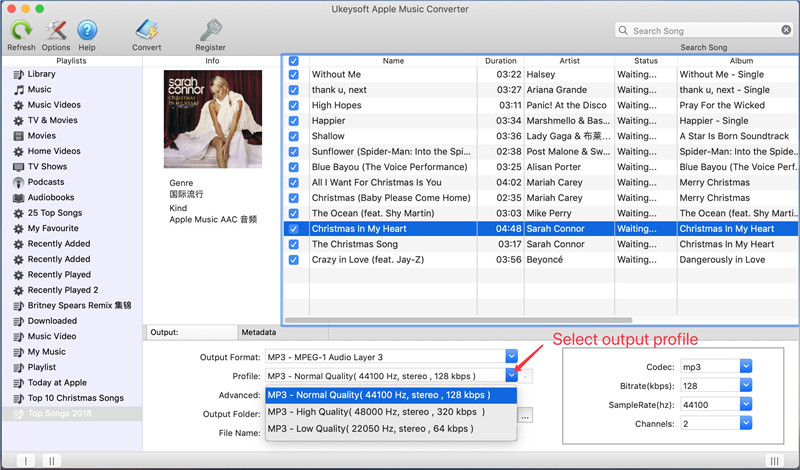
select mp3 output profile

Step 4.Remove Apple Music DRM and Convert to DRM-free MP3
After select the .mp3 as output format,finally please click the “Convert” button start to bypass iTunes DRM and DRM-protected Apple Music tracks and convert them to MP3.After conversion,you can enjoy all converted Apple music in MP3 without iTunes or iOS devices.

convert apple music from m4p to mp3

Step 5.Transfer Apple Music Tracks to iPhone
After conversion,you can transfer the converted Apple Music songs to iPod/iPhone for offline playback without DRM limitation., you can play Apple Music on iPhone or iPod with more freedom,even the Apple Music subscription service is canceled.

transfer converted Apple music to iphone

Learn more: How to transfer music from computer to iPhone

Free download the Apple Music Converter for Mac or Windows and try to make your Apple music as free local music files.

d_win d_mac

A Smart Media Files Transfer for iOS

If you need to transfer media files between iPhone and computer, like music, you are recommended to try this iOS Media Files Transfer – Mobile Sync. It can do you a great help for you to transfer music from computer to iPhone X/8/7/6S/6(Plus) with ease. Besides music, other types of files are supported to be transferred, insist of videos, photos, contacts, messages and others. It is made of five functions, including add files from computer to iOS device; transfer iOS files to computer; transfer data between iOS devices; ringtone maker and HEIC converter.
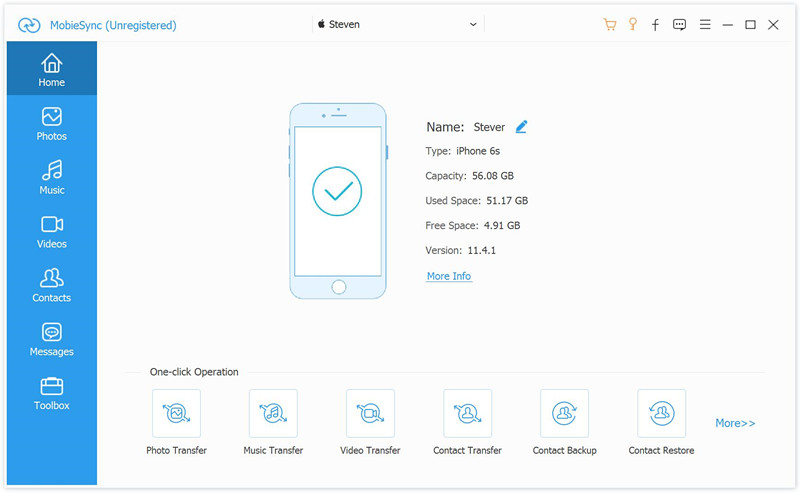
mobile sync home page

Related Article:

How to Transfer Photos from Computer to Mobile Phone

How to Transfer Video from Computer to Samsung

How to Transfer Music from Android to iPhone/iPad/iPod

Transfer Music from Computer to iPhone

How to Jailbreak iOS 10 on iPhone without Losing Data

Summary:iOS 10 is officially out and now Pangu finds itself in the limelight. After showcasing that celebrated iOS 10 jailbreak at MOSEC 2016 back in July, Apple has repeatedly found ways to thwart attempts to hack their mobile operating system, Yahoo reported.Read this article and get tips of jailbreaking iOS 10 on iPhone/iPad without data loss and make full use of iOS 10 freely.

ios-10-jailbreak-iphone

Part 1:Backup Data on iOS 10 iPhone

Before jailbreak iOS 10 on iPhone,you should backup data before the jailbreak task begin to avoid data loss on device.Here we are going to offer 3 ways to backup your iOS 10 data via iTunes,iCloud,PC.

Way 1:Backup iOS 10 Data to iCloud

Step 1. Turn on WiFi, tap Settings > iCloud;
Step 2. Scroll down and tap Backup > tap Back Up Now;
Make sure that iCloud Backup is turned on. And device should stay connected to the WiFi until the process is completed.
Step 3.Once the process is finished, you can tap Settings > iCloud > Storage > Manage Storage and make sure the backup is finished. You can also check the details of backup file .

Way 2:Backup iOS 10 Data to iTunes

Step 1. Update the newest version iTunes on your PC,run iTunes and connect iPhone with PC;
Step 2. Follow the onscreen steps to enter your device password or to choose Trust This PC;
Step 3. Select your iPhone when it appears in iTunes;
Make sure that Summary tab at the top of iTunes is selected;
On the device’s tab,check Prevent iPods,iPhones and iPads from syncing automatically.
Step 4. Tap Backup to this computer under the backup section.

Way 3:Backup iOS 10 Data to PC

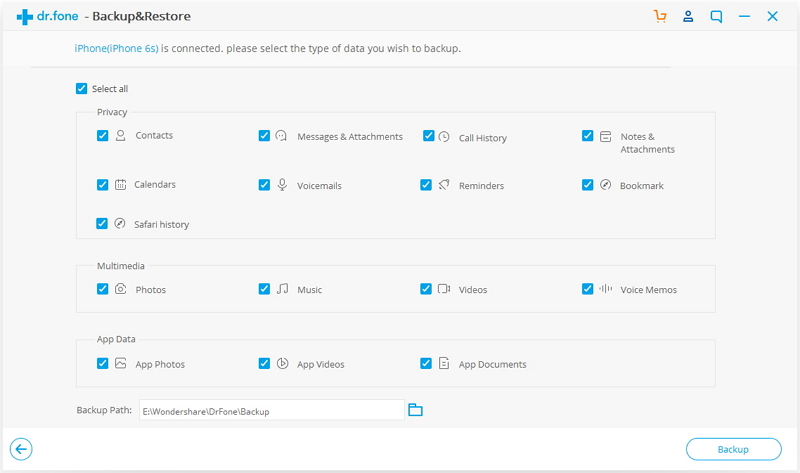
iOS Data Backup & Restore Tool is your first choice to completely backup iOS 10 data on iPhone to computer,restore backup data to iPhone without data loss.It’ no more easier than backing up iPhone data to PC with iOS Data Backup & Restore Tool in only a few clicks,including contacts,photos,videos,messages,notes,call logs,calendars and so on.Applicable iOS device are listed:iPhone 7,iPhone SE,iPhone 6S/6,iPhone 5S/5,iPad Air,iPad Pro,iPad Mini,etc,.

d_win d_mac

Step 1:Run Program and Select “More Tools”
Step 2:Select iOS 10 File to Backup
Step 3:Begin to Backup iPhone Data to PC

backup device

Part 2:How to Jailbreak iOS 10 on iPhone without Losing Data

Once finish the backup task on iOS 10 iPhone,now you should start to jailbreak iOS 10 on your iPhone safely.Follow the detail steps below and try to jailbreak iPhone with iOS 10 on your own.

Step 1. Turn on Safari on your iOS 10 iPhone with iOS 10 firmware running;
Step 2. Search the URL:download pangu.org and tap on the webpage degined for Pangu iOS 10 app icon;And download it on your iOS 10 device;
Step 3. Go to the bottom of your iPhone and tap on the Up arrow as shown there when the page loads up;
Step 4. Select Add to HomeScreen in the next screen and tap to proceed;
Step 5. Rename the app icon as Pangu and tap Add;
Step 6.After installing Pangu app on your iOS 10 device, tap on the icon and get the latest of Pangu iOS 10.

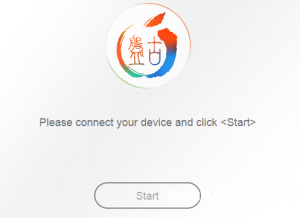
ios 10 jailbreak pangu

Then you run Pangu and follow the onscreen guidelines to complete the jailbreak process on your iOS 10 iPhone without data loss.

Part 3:How to Restore Data on iPhone after iOS 10 Jailbreak

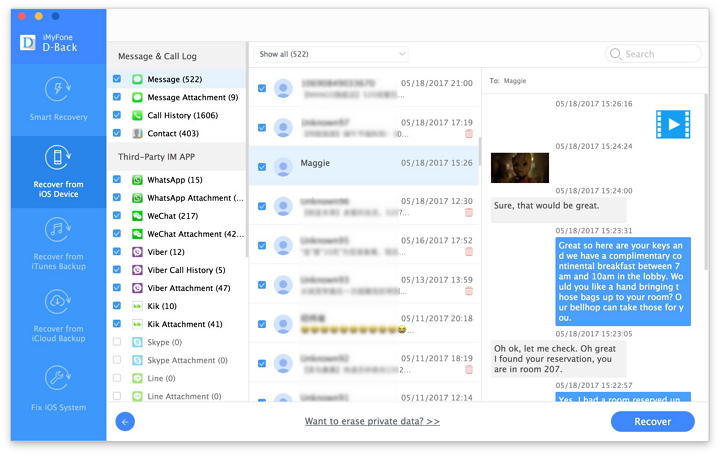
Many people know that it will loss data when iOS 10 jailbreak on iPhone/iPad failed,how to solve the data restoring issue in no worries?Just give a try on the iOS 10 Data Recovery,which is a professional iOS data recovery tool to perfectly restore data on iPhone after iOS 10 jailbreak without losing data,such as contacts,photos,videos,messages,notes,call logs,calendars and more.It allow to restore deleted data on device with three modes:directly recover from iPhone,recover from iTunes backup file,recover from iCloud backup file.Just select one and retrieve deleted data on device effectively.

d_win d_mac

Step 1:Run Program and Select Recovery Mode
Step 2:Select File to Restore
Step 3:Restore Selected Data on Device

recover iphone data after ios 10 jailbreak

Extra tips:How to Restore Deleted Data on iPhone after iOS 10 Jailbreak

Read more:

How to Downgrade iPhone or iPad from iOS 10 to iOS 9

How to Fix Bricked iPhone,iPad when iOS 10 Update/Downgrade

How to Get iPhone Out of Recovery Mode When Update to iOS 10

Top 3 New Features in iOS 10 You Should Know

Some new iOS 10 features now are supported on iOS device after iOS 10 successfully update.After users upgrade device to iOS 10,they won’t be able to take full advantage of some new features on device.Here I’m going to talk about the three most hot feature of iOS 10 you should know,in order to help you to make full use of your iOS 10 device in daily life.

top 3 feature ios 10

Part 1:Top 3 Useful Features of iOS 10

1. Know Who’s Calling
This is a handy little feature that is a welcome addition especially when one is driving. Siri is now equipped to announce not only the name,but also the number of the incoming call.

To enable the feature, simply do the following:
Go to Settings > Phone > Call > Announce Calls.
Choose any of the options: whether you want Siri to announce the calls when connected to CarPlay and when the earphones are on, or when the headphones are on, or if you never/always want Siri to announce the incoming call.

2. Hail A Ride
Booking a ride on Lyft or Uber now gets simpler thanks to Siri. You don’t even need to access the ride-hailing apps! Simply instruct Siri to “Book me an Uber” or “Order a Lyft.”

If you ask Siri to book an Uber, it will follow up and ask you which category you prefer, UberGo or UberX. Once you make your preference clear, Siri detects your location and alerts you of the nearest available cab as well as the estimated fare to your destination. You can then confirm the booking request or cancel it.

Just ensure that the Uber or Lyft app is updated to the latest version that supports iOS 10!

3. Retrieve Photos Easily
This feature is also pretty handy, especially if you find it annoying to sift through realms and realms of images in your photo gallery just to locate a particular snapshot.
Siri now makes life easier and is able to search for a picture from a particular date on iOS 10. For example, if you want Siri to seek out a picture taken on your birthday in March, simply issue the voice command “Show me photos from March 11.” It really is that easy! No more scrolling through a massive library!

That’s not all. You can even instruct Siri to look up images from “last week” or “yesterday” or even “last month.” You can even issue commands to find videos in your photo library.

We know we said top 3 features in the passages above, but there are more funny features you can extra focus on.

Part 2:How to Restore Deleted Data on iPhone after iOS 10 Update

Although iOS 10 contain so many surprise new features,but it is not perfect as you think for its bugs.We’ve received the report which came from iPhone users,they claim that their lost data from iPhone after iOS 10 update,some data just disappear after upgrading to iOS 10,for no more reasons.And then ask us for help.

In this case,we are strongly recommend a helpful tool-iOS 10 Data Recovery,which is a wonderful data recovery to restore deleted data from iPhone after iOS 10 update.Supported data types:photos,videos,contacts,messages,call logs,notes and so on.In addition,iOS 10 Data Recovery usefully help to restore iPhone data due to any circumstances,such as iOS update,iOS jailbreak,device broken/damaged,deleted mistaken,etc,.Available iOS devices:iPhone 7,iPhone SE,iPhone 6S(Plus),iPhone 6(Plus),iPhone 5S/5C/5,iPad Air,iPad Pro,iPad Mini and more.

Easy Steps to Recover iPhone Data after iOS 10 Upgrade:
Step 1:Run iOS 10 Data Recovery and Connect iPhone
Step 2:Select Data to Restore
Step 3:Start the Restore Process

recover data from iPhone after iOS 10 update

Related Article:

How to Recover Data from iPhone/iPad with iOS 10

How to Safely Backup iPhone/iPad before iOS 10 Update

How to Backup and Restore iPhone/iPad Files after iOS 10 Upgrade

How to Upgrade iOS 9 to iOS 10 on iPhone/iPad

Samsung Galaxy Note 7 Catching Fire Accident

The Port St. Lucie Police Department released this video of a car fire on Sept. 13. The driver told investigators he was charging his Samsung Galaxy Note 7 when it burst into flames. How could this have happened? Simple: your phone is a Samsung Galaxy Note 7 — and it’s one of over a hundred that have spontaneously burst into flames.

samsung note 7 catch fire

Part 1:Why Samsung Galaxy Note 7 Phone are Catching Fire

After 35 reported incidents of overheating smartphones worldwide, Samsung made the unprecedented decision to recall every single one of the Galaxy Note 7 smartphones sold.That’s said to be 1 million of the 2.5 million that were manufactured. (Since the recall was first announced, the number of explosive Note 7s has nearly quadrupled.)The company says it’s stopped all sales and shipments of the Note 7 and is working with government agencies and cellular carriers around the world to provide refunds and exchanges for the phone.

In every country, the message is the same: return your Samsung Galaxy Note 7 now, just in case something bad might happen to you.

The Note 7 battery fiasco is a huge black eye for Samsung, made worse by the fact that it’s playing out just as the company’s archrival, Apple, is releasing its new iPhone 7 and iPhone 7 Plus.

But how bad is it, really? What causes a phone to explode this way, and why this specific Samsung phone?

Here’s what we know about Samsung’s battery woes.

Why didn’t the phones catch fire immediately?

When Sadoway explains these theories, one thing doesn’t seem to add up. Today’s cell phone batteries generally charge faster (and get hotter) when they’re first plugged into the wall, not at the end when they’re trickle-charging the last few percent to reach their maximum capacity.

But these Note 7 phones didn’t explode right away. In practically every reported instance of a Note 7 catching fire or exploding, it happened after the phone was plugged in and left charging, sometimes overnight.

Then, there’s the little matter of how Samsung plans to make these phones safer — by issuing a firmware update that keeps the Galaxy Note 7 from charging to more than 60 percent of its full capacity. How could that possibly help, if things heat up the moment a phone is plugged into the wall?

Sadoway has a theory — albeit one without proof. What if only part of the battery was squished improperly, so that the phone couldn’t tell when it was 100 percent charged, and kept on charging the cell?

When lithium ion batteries are continually trickle charged, the lithium ions can start to cover the surface of the negative contact in a coating of lithium metal through a process called “plating.” And in extreme conditions, that lithium metal can form tiny spikes (called “dendrites”) that can poke right through the separator, creating — you guessed it — a short circuit.

That would seem to line up with the “variations in tension” Samsung says it found inside the defective battery cells.

“My guess is by backing off to 60 percent charge, they’ll be well below the threshold where these things happen,” says Sadoway. “Imagine we’re trying to fill our gas tank, we don’t have a really good regulator, and we don’t want to spill the gas all over our shoes. We want to make sure we’re cutting off the flow well before this thing gets to overflow conditions.”

Samsung didn’t immediately respond when asked for comment on the theory.

Part 2:How to Backup Samsung Galaxy Note 7 Data

You may lost data on Samsung Galaxy Note 7 under several unexpected circumstances since Samsung Galaxy Note 7 phone is still not perfect enough,such as deleted mistaken,restore device to factory settings,iOS upgrade/jailbreak,device broken/damaged,device lost,even get burned or more other situations,you ought to backup data on Samsung Galaxy Note 7 to protect your personal data.

To completely backup Samsung Galaxy Note 7 data to computer,you should try this Android Backup & Restore Tool,this terrific program enable to backup data on Samsung Galaxy Note 7,additionally allow to restore backup file to Samsung Galaxy Note 7 effectively without complicated steps.Available data types including contacts,messages,photos,videos,call logs,application (data),calendars,audio,etc,.Most Samsung models are supported by Android Backup & Restore Tool,such as Samsung Galaxy Note 5/4/3,Galaxy S8/S7/S6/S5.

d_win d_mac

Detail simple steps:
Step 1:Download and Run Android Backup & Restore Tool,Connect Samsung
Step 2:Select Data to Backup from Samsung to Computer
Step 3:Start the Data Backup Process

Extra tips:How to Backup & Restore Data on Samsung Galaxy Note 7

backup data on samsung galaxy note 7

Part 3:How to Restore Lost Data on Samsung Galaxy Note 7

You must feel worry about losing data on Samsung Galaxy Note 7 after hearing the different news about it,especially the reclamation after the fire catching happened.Actually,your worrying is unnecessary.Android Data Recovery program can solve your problem.

Android Data Recovery is a secure and powerful tool that can be used to restore lost data from Samsung Galaxy Note 7 no matter any accident happen,including photos, videos,contacts,messages,call logs,notes,and more kinds of Android data.What’s more,this magic program also allow to restore data from Android SD card,Android memory card.

d_win d_mac

Step 1:Run Android Data Recovery and Connect Samsung
Step 2:Select Data to Restore
Step 3:Begin to Restore Samsung Data

Extra tips:How to Restore Lost Data on Samsung Galaxy Note 7

Read more:

How to Backup & Restore Data on Samsung Galaxy Note 7 with Phone Transfer

How to Backup Samsung Data to Computer

How to Transfer iPhone Data to Samsung Galaxy Note 7

How to Transfer Samsung Data to Samsung Galaxy Note 7

How to Transfer Android Data to Samsung Galaxy Note 7

How to Backup and Restore Media File on Android

[Summary]: Want to backup your Android data to computer?Here is a quick guide teach you to how to backup & restore Android media files including photos, pictures, videos, audios and app media files.

“I wanna backup my Android photos and videos files in a safe way.But which methods is better?And how?”-Candy Tung

Most people like to take thousands of photos,videos,audios on Android device,in order to mark the excited moment in life,then share it with friends or upload to Internet applications.However,most of them don’t realize that they need to backup the media files for their device.There are many solutions developed to backup and restore Android media file.

backup-android-media-file

The solution that we are going to talk about today is especially designed for Android device.And we’ll focus on one of the most common situation: backing up and restoring media files on Android via the best tool-Android Backup&Restore Tool.Simply backup Android photos,videos,audios to computer and even selectively restore backup media file to Android device.Support to backup and restore almost all kinds of Android data type,such as videos,photos,audio,contacts,messages,calendar,call logs,playlists info and applications.With this program,you are allow to complete the file manager task in just a few clicks without costing lots time.

d_win d_mac

Part 1:How to Backup Android Media File to Computer

Step 1.Run Program and Get Connected
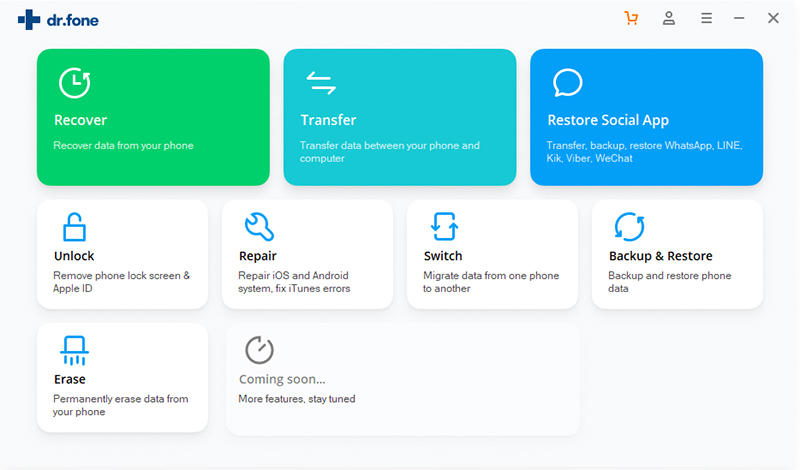
Firstly,please run Android Backup&Restore Tool and from the lower left panel,tap on “More Tools”.And then,select “Android Data Backup & Restore”.Right now,you should connect your Android to computer via USB cable.

Note that if it fails to connect Android to PC, try to enable USB Debugging on your device to continue.

backup restore android phone

Step 2.Select Multiple Media Files and Get Backed up
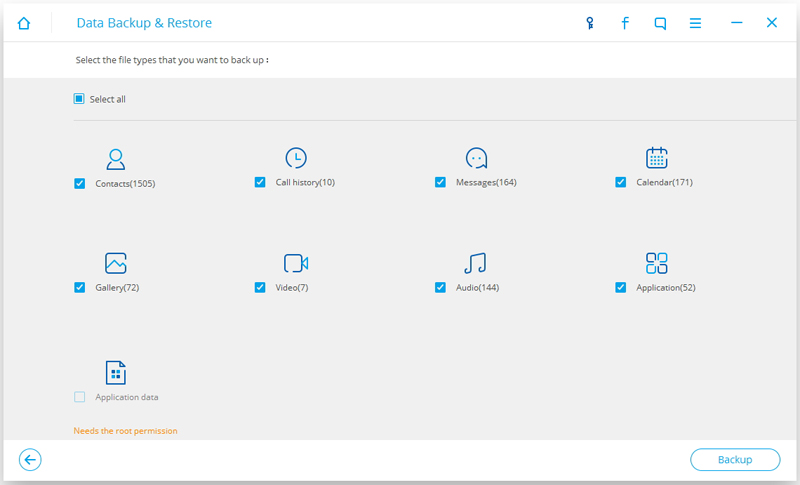
Click on the “Backup” button when your device successfully gets connected.Next,select “Gallery”, “Video” and “Audio”, and then click the “Backup” button to start the backup process.It will be finished in a short time.Also,you are able to view previous backups and selectively restore them with ease.

Note that there are more types of data available,such as Call history,Contacts,Messages,Calendar,App and App data.

select android media file to backup

d_win d_mac

Part 2:How to Restore Media File to Android from Backup

Step 1.Connect Android Device to Computer and Run Program
Launch Android Backup&Restore Tool and from the lower left panel,tap on “More Tools”.And then,select “Android Data Backup & Restore”.Right now,you should connect your Android to computer via USB cable.The program will detect the device soon.

Click on “Restore” and choose from the older backup file on your computer.These backups can either be of this Android device or any other device.

restore media files to android from backups

restore android media file to android

Step 2.Select Media Files to Restore on Android
You are allow to selected the data you want to restore.Select the different file types on the left and then select the files you want.For media file recovery,you should select “Gallery”,”Audio”,”Video”.Click on “Restore” to start the restoring.

restore android media file to android

The restore process will last only a few minutes,just wait until it is finish in a little while.

restore android media file to android

d_win d_mac

Related Article

How to Backup & Restore Messages for Android

How to Backup and Restore your Android on Computer

How to Backup and Restore Android Phone or Tablet

Backup and Restore Android Files

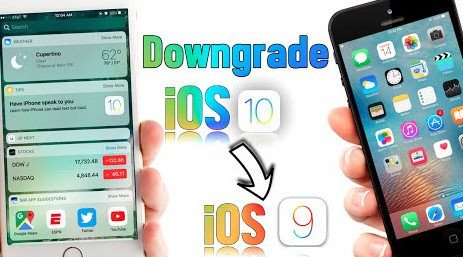
How to Downgrade iPhone or iPad from iOS 10 to iOS 9.3.5

iOS 10 now is released around the world.However,even though iOS 10 bring many new features but it still not the perfect iOS system for some iOS device.Some iPhone users reported that their iPhone was get bricked after iOS 10 upgrade,some of them were complained that iPhone got something wrong for bugs after updating to iOS 10,others reflex that iPhone was not as useful as previous.So a part of iOS user need to downgrade their iOS device to iOS 9.3.5 from iOS 10.

downgrade iPhone from ios 10 to ios 9

Officially Apple does not provide a way to downgrade iOS system,but there is easy ways to do this available for a short time.Apple closed the option to downgrade to iOS 9.3.5,however thanks to a security hole,you are able to downgrade iOS 10 iPhone to iOS 9.3.5.Here are the detail ways to downgrade iPhone from iOS 10 to iOS 9.3.5.I’m going to show you how to downgrade iPhone to iOS 9.3.5 from iOS 10.0.1 in the following tutorial.Check out the two methods and see how it work.

2 Ways to Downgrade iOS 10 to iOS 9.3.5 on iPhone, iPad or iPod Touch

Part 1:Downgrade iPhone from iOS 10 to iOS 9.3.5 with iTunes(Free but data loss)

Before starting the iPhone system downgrade process,it is very important that you do a backup your iPhone before iOS 10 downgrade.In case someday to restore iPhone from a backup you created after losing data.

Step 1:Begin by downloading the iOS 9.3.5 IPSW file for your device.You can download it to click here:download iOS 9.3.5 IPSW file.Save this file on your computer.It is also important that you make sure the IPSW file matches the device model to avoid getting an error in iTunes.

Here,you can download iPhone iOS firmware file(iOS 8,iOS 9 and iOS 10.0.1)

iphone-Firmware-Files

iOS firmware file for iPhone
iOS firmware file for iPad
iOS firmware file for iPod touch

Step 2:Now,run iTunes and then connect iPhone to your computer via USB cable. Select the device and then go to the Summary Page and hold the Option Button (Mac OS X) or Shift Key (Windows) and click the “Restore iPhone” button.

restore-iphone-system-itunes

Step 4:Next find the IPSW file that you had downloaded earlier and choose “Update”.This will erase the device and downgrade your device from iOS 10 beta to iOS 9.3.5.You can then restore from your backup once the downgrade is complete.

Please be attention:Downgrading iPhone with iTunes may wipe all data and settings on your iPhone,in order to protect your device data,I’m going to introduce to you another better method to downgrade iPhone to iOS 9.3.5 from iOS 10.Please keep on reading patiently.
(Tips:How to Restore Lost Data from iPhone after iOS 10 Downgrade)

Part 2:Downgrade iPhone from iOS 10 to iOS 9.3.5 by iOS 10 System Recovery(not data loss)

iOS 10 System Recovery,which is a wonderful iOS data manager tool to restore iOS 10 to iOS 9 on iPhone without any data loss,perfectly help to downgrade your iPhone /iPad from iOS 10 back to iOS 9.3.5 smoothly.iOS 10 System Recovery rolls out the feature “Fix iOS to normal” for restoring iPhone system to normal after downgrading iOS 10 to iOS 9.3.5,making it easy for users to get iPhone,iPad out of white/black screen,recovery mode,Apple logo,connect to iTunes screen,etc;help to fix the issues on iOS device perform abnormally.

d_win d_mac

Easy Steps to Restore iOS 10 to iOS 9.3.5 on iPhone

Step 1.Run the iOS 10 System Recovery and Connect iPhone to PC/Mac
Download and install iOS 10 System Recovery(Windows&Mac) on computer.When the installation is complete,connect your iPhone to computer with USB cable and launch the program.

iOS 10 System Recovery

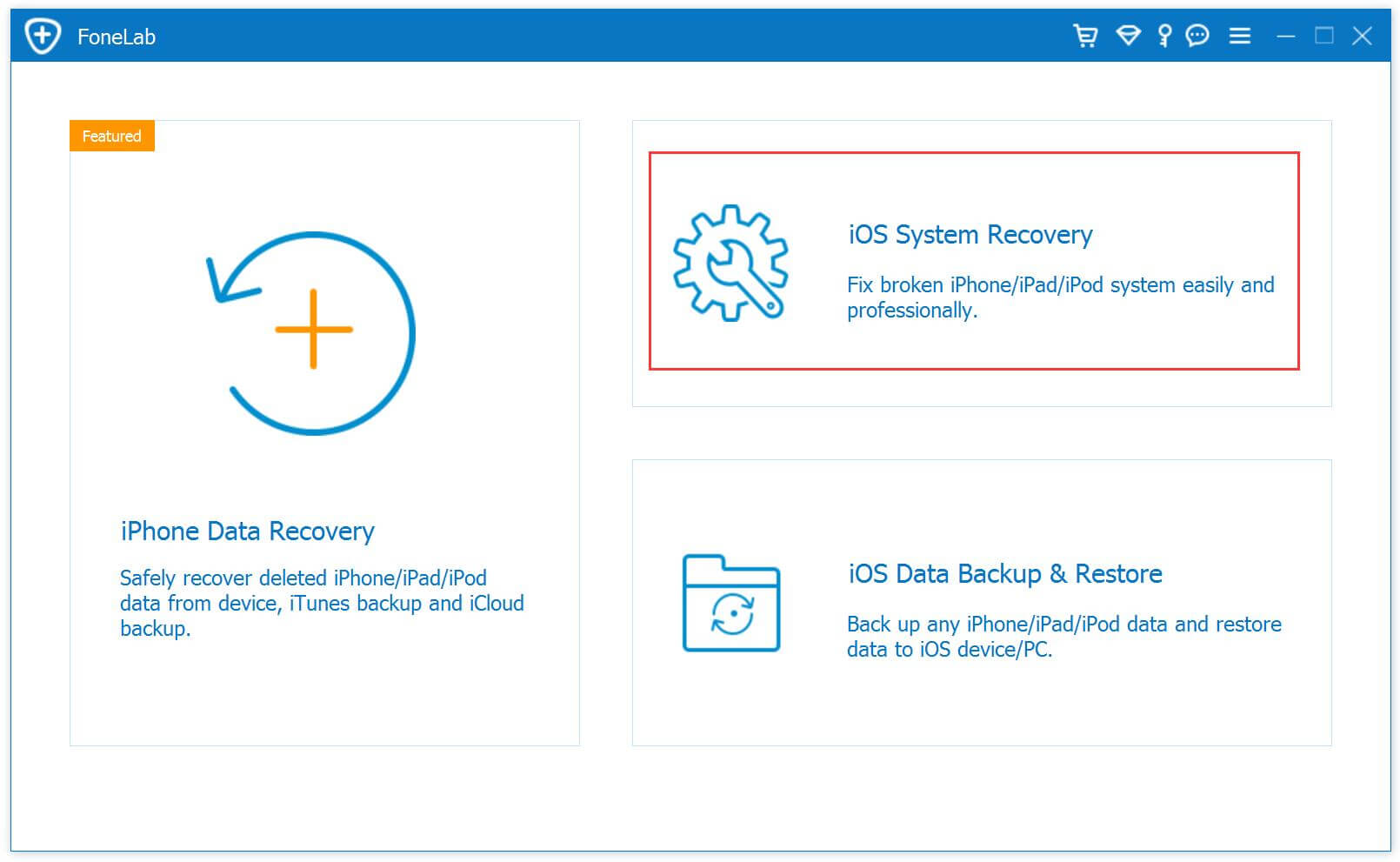
Step 2.Select “iOS System Recovery” Option
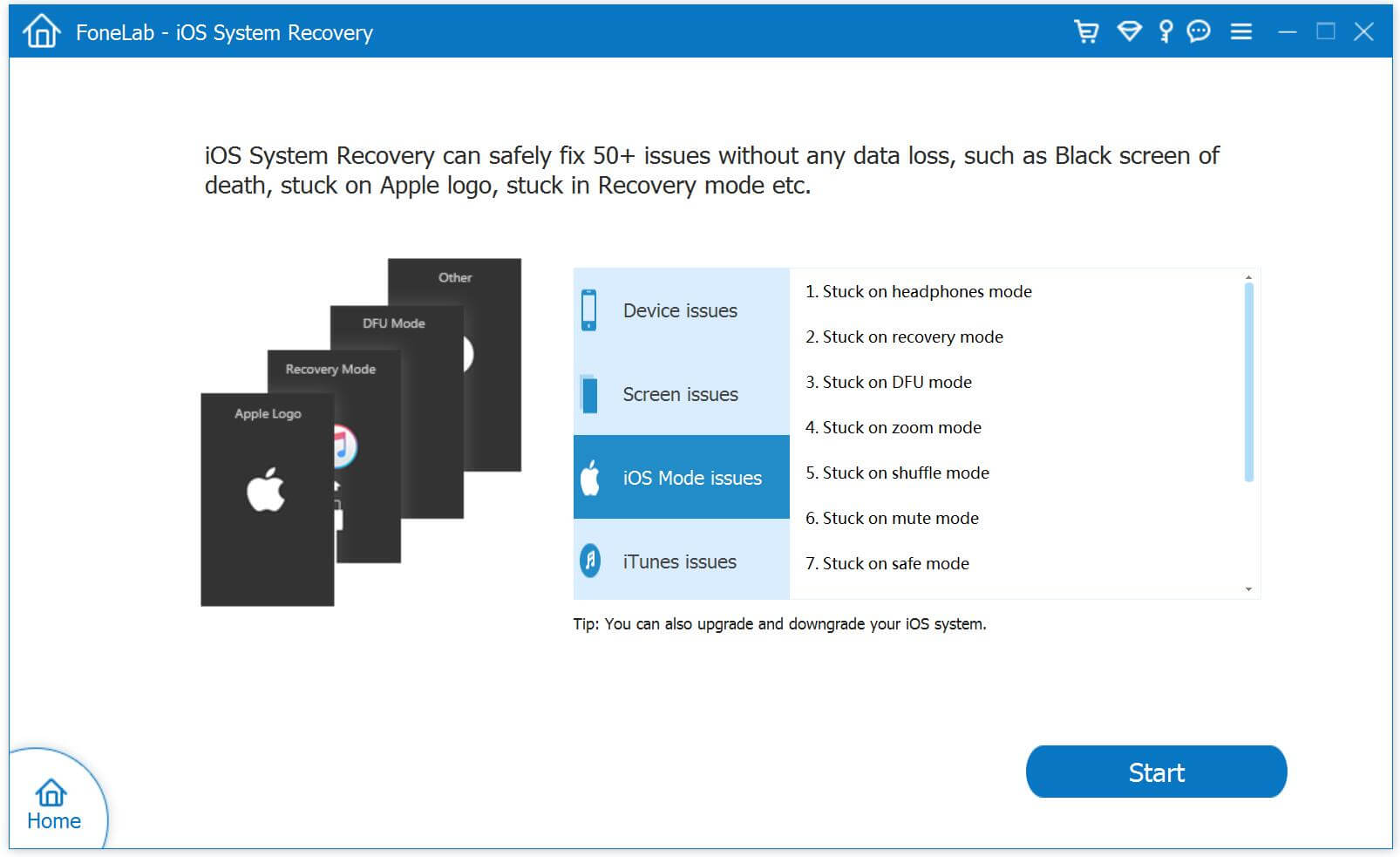
From the main window,please select “Fix iOS to Normal” located at the top right of the screen.Wait for iOS 10 System Recovery to detect your iPhone.Click “Start” once the device has been detected.

restore iPhone from ios 10 system to ios 9

Step 3.Put iPhone into Recovery Mode
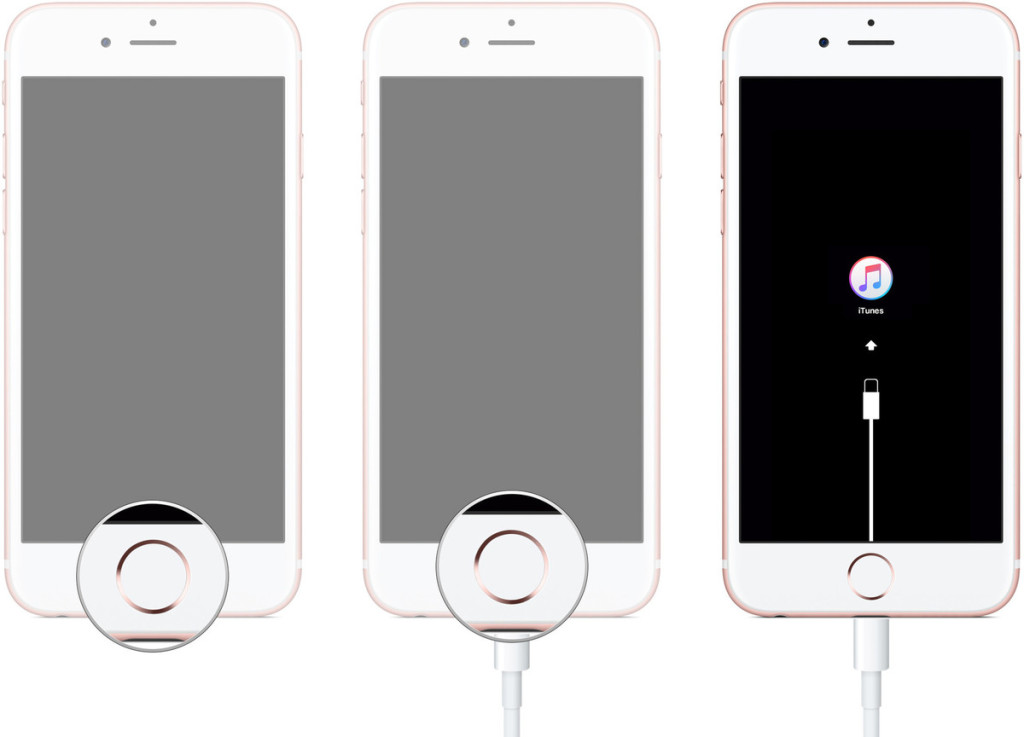
1)First, disconnect the cable. Shut down the iPhone
2)After the shutdown, press the “HOME” button to remain intact, connect your iPhone to Mac or Windows PC and make sure iTunes is running.
3)Release the HOME button,and you can see the “Connect to iTunes screen” on the iPhone,it means you have enter iPhone to recovery mode successfully.

enter iphone into recovery mode

Tips: Run the iTunes software,at this point iTunes should display an alert saying it’s detected an iPhone in recovery mode, and will let you restore your iPhone device.

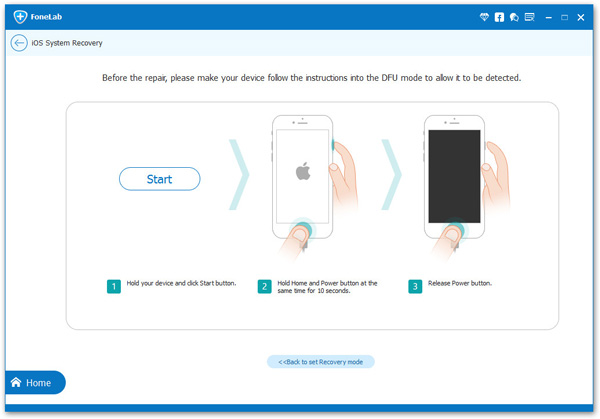
Other way enter recovery mode:If you are unable to set the iPhone,iPad into recovery mode,please learn as below tutorial to enter DFU mode.

enter iPhone into DFU mode

Step 4.Download the iOS 9.3.5 Firmware Package for iPhone
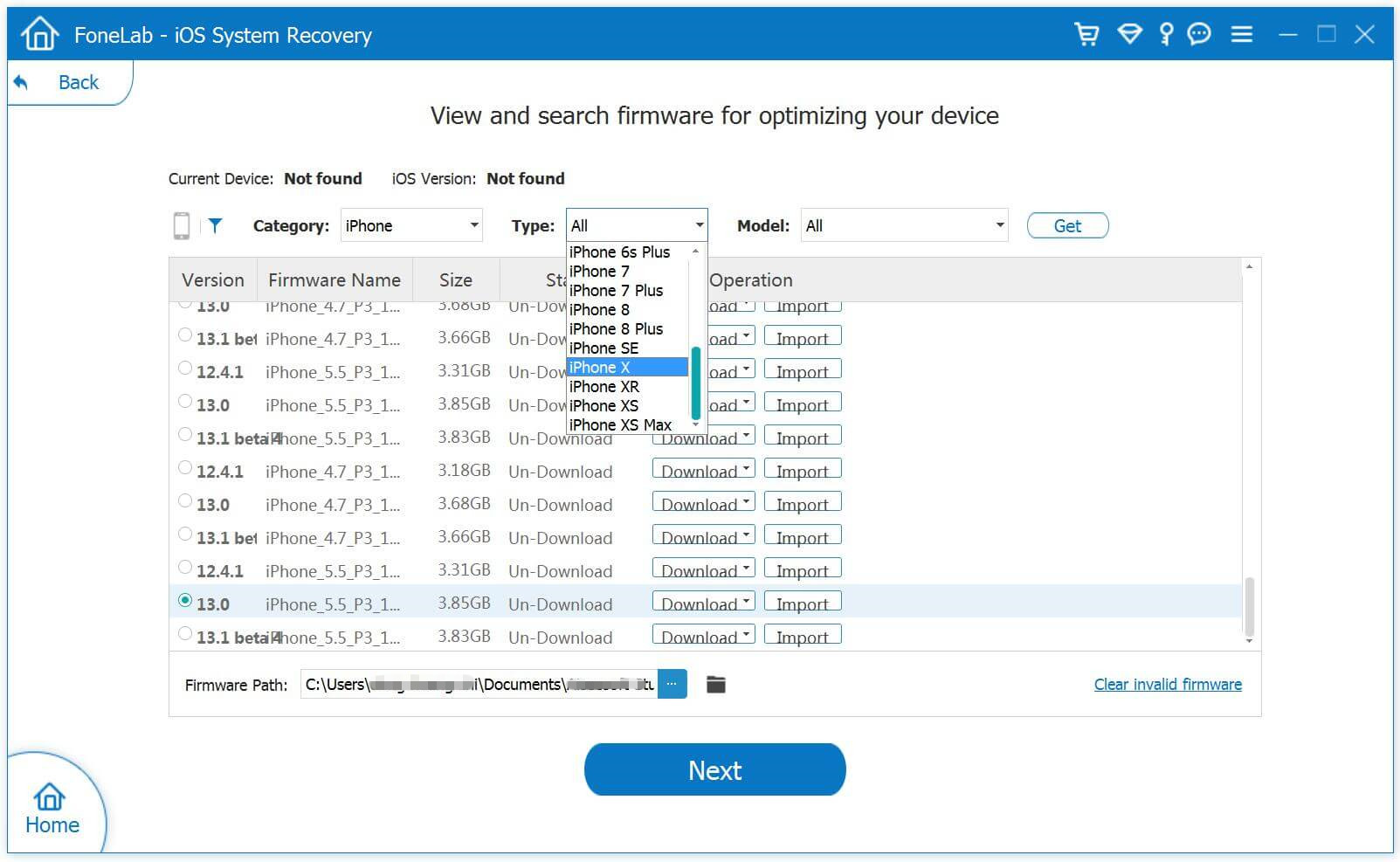
In this step,you need to confirm your iPhone model and select the iOS 9.3.5 firmware to download.
To downgrade iPhone from iOS 10 to iOS 9.3.5,iOS 10 System Recovery will offer the latest version of iOS firmware package for your selection.Choose “iOS 9.3.5”,then click “Download” and wait for the download to complete.

download iOS 9.3.5 Firmware to iPhone

Tips:Now,the program provides iOS 10.1.1 firmware package for users download,if you want to downgrade iOS 10 to iOS 9,like iOS 9.3.5,please download the iOS 9.3.5 package and save them on your computer at first,then select and install the .IPSW files on your iPhone via iOS 10 System Recovery(no data loss).
(Note: If you installing it via iTunes program,it will erase your contents.)

Free links to download the .IPSW files:

iOS firmware file for iPhone
iOS firmware file for iPad
iOS firmware file for iPod touch

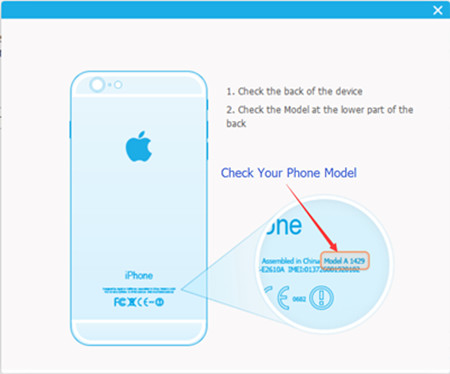
How to check and comfirm your iPhone model?Please see as below:

check and comfirm iphone model

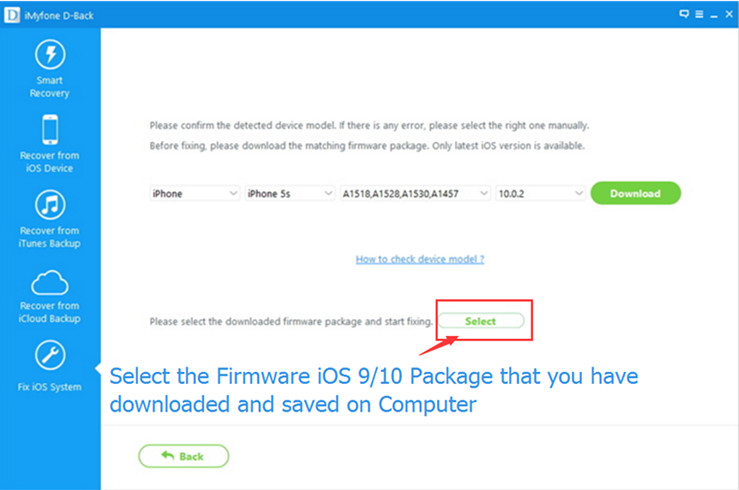
After downloading the iOS 9.3.5 IPSW files and saved on your computer,then click the “Select” button the import the files to the iOS 10 System Recovery and go to next step.

download-ios-firmware-package

Tips:If you want to install iOS 10.1.1 on your iPhone, iPad or iPod touch,please select,download and install it on your iOS devices directly,during the installing process,it won’t cause data losing.

Locate the iOS 9.3.5 IPSW file you downloaded and select it:

downgrade iphone from ios 10 to ios 9

Step 5.Start to Restore iPhone to iOS 9.3.5 from iOS 10 and Return to Normal
As soon as the download completes,iOS 10 System Recovery will start begin the iOS downgrade process without any data loss and restore your iPhone to normal state.In less than 10 minutes,you will get a message prompt that your iOS device has restored to normal state,and it will reboot into iOS 9.3.5.

restore iphone from ios 10 to ios 9

Note: After finish restoring device via iOS 10 System Recovery,your iPhone/iPad/iPod Touch will be updated/downgraded to the iOS version which you select. And if your iOS device is a jailbroken one, then it will be updated to non-jailbroken.
d_win d_mac

Extra tips:iOS 10 System Recovery support to fix iPhone stuck issues and restore iPhone system to normal under various of unexpected circumstances,such as fix iPhone stuck in DFU Mode/Recovery Mode,fix iPhone stuck on Apple logo,fix iPhone stuck on black/white screen,etc,.What’s more,it also can help you recover deleted data from iPhone,iPad with iOS 10 update in three recovery modes:directly recover data from iOS 10 devices; restore lost data from iTunes or iCloud backups after iOS 10 updating.Don’t hesitate to share this powerful program with your dear friends after using it.

Related Tutorial:

Get iPhone Out of Recovery Mode after Update to iOS 10

Fix iOS 10 Update Bricked iPhone With iTunes Screen

Fix Bricked iPhone,iPad when iOS 10 Update/Downgrade

Recover Deleted Data after Nexus 9 Android 7.0 Upgrade

Android 7.0 Nougat is Released Now
Google is pushing Android 7.0 Nougat to Android One devices. The update comes just two weeks after the availability of Android N on Nexus devices.Google often pushes the latest Android update first to Nexus range and then seeds the same to compatible Android One devices. This time around, the update has come in just two weeks time.Google had followed similar approach last year with Android 6.0 Marshmallow.GSMArena reports a Cherry Mobile G1 user to have gained access to the update. Android One devices get latest Android a day after Google releases the Nexus factory images.

nexus 9

Android 7.0 Nougat is a significant update over Marshmallow.Android 7.0 Nougat follows on the successful material design first seen with the launch of Marshmallow but adds new design elements to notifications.The single major update with Android 7.0 Nougat is the split-screen multitasking feature.The feature works only with handful of apps but should add support for all apps very soon.The feature is ideal for surfing the web and chatting with your friend on WhatsApp. However, some Google apps lack support for this feature.

Check the lists in the following part to confirm whether Android 7.0 Nougat update is available for your current device.

1.Nexus 6,Nexus 5X,Nexus 6P.
2.General Mobile 4G phone.
3.Nexus 9 Tablet, Pixel C Tablet.

Android 7.0 Nougat has finally started rolling out to devices, and many people are no doubt wondering if it’s a worthwhile upgrade.However,upgrade Nexus to Android 7.0 may lead to delete data when it was failed or met something wrong.Please take it easy.Here we will introduce you powerful Android data recovery software and shows you step by step to use it to restore deleted data on Nexus after Android 7.0 Nougat update.

How to Recover Data after Android 7.0 Nougat Upgrade

Android 7.0 Data Recovery software is a reliable tool that you can use to restore deleted data on Nexus 9 after Android 7.0 Nougat upgrade.It allows you to recover deleted files such as contacts, videos, photos, text messages, documents from Nexus 6,Nexus 5X,Nexus 6P,Nexus 9 Tablet,Pixel C Tablet and general mobile 4G phone after Android system(Android 7.0,Android 6.0) update.Now you can read the detailed guide to learn how to perform the data recovery task.Additionally,this program support to restore Android data after losing data due to Android system upgrade,Android system rooting,restore Android to factory resetting,etc,.

d_win d_mac

Restore Deleted Data after Nexus 9 Android 7.0 Update

Step 1.Install and Launch Android 7.0 Data Recovery
Install and launch Android 7.0 Data Recovery on your computer and then connect your Nexus 9 with the PC via USB cable.

recover nexus 9 data after android 7.0 upgrade

Step 2.Enable USB Debugging on Nexus 9
There are different modes are provided to different Android users using the different operating system.You are allow to select the mode as your Nexus Tablet operating system as bellow.

recover nexus 9 data after android 7.0 upgrade

Step 3.Scan Data on Nexus 9
Once Nexus USB debugging enabling completes,the program will detect your phone automatically.Now you should select file for scanning.After that,you should click “Next” to allow the program to scan your Nexus before recovery.

Note:You should make sure that your Tablet is at least 20 % off battery.

recover nexus 9 data after android 7.0 upgrade

Step 4.Allow Program to Analyze Data on Nexus 9
If you have rooted your phone before,you should allow the program Superuser Authorization on the screen of your phone before the scanning.You should click on “Allow” button when message pop-ups on your Tablet screen.

recover nexus 9 data after android 7.0 upgrade

Now this program will begin to analyze data on Nexus 9.

recover nexus 9 data after android 7.0 upgrade

Step 5.Preview and Restore Deleted Data on Nexus 9 after Upgrading
Preview and recover data from Nexus 9.It will take some time to scan the deleted data on Nexus 9.After that,you are allow to preview the restored data found in the scan result.Finally,select the data and click on “Recover” button to save the selected data to your computer.

recover nexus 9 data after android 7.0 upgrade

d_win d_mac

Related Article:

How to Restore Deleted Data after Nexus 5X Android 7.0 Upgrade

How to Recover Lost Data after Nexus 6 Android 7.0 Update

How to Recover Lost Data after Android 7.0 N Upgrade

How to Recover Data after Android 6.0,Android 7.0 Update

How to Backup & Restore Messages for Android

Nowadays,Android device is pretty good for connecting people and digital entertainment.And to most Android mobile device users,sending text messages is one of the most important ways to communicate or to do business.We can back up nearly anything to the Internet service device,but messages usually go bye bye when you switch handsets or lost it under unknown circumstances.
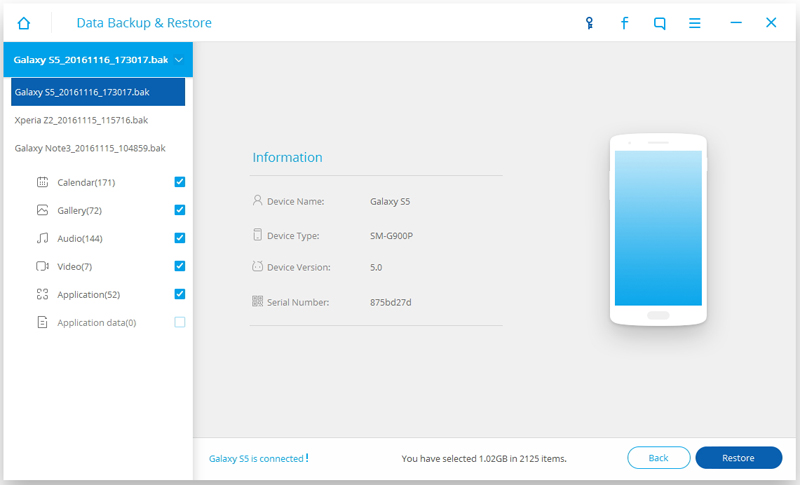
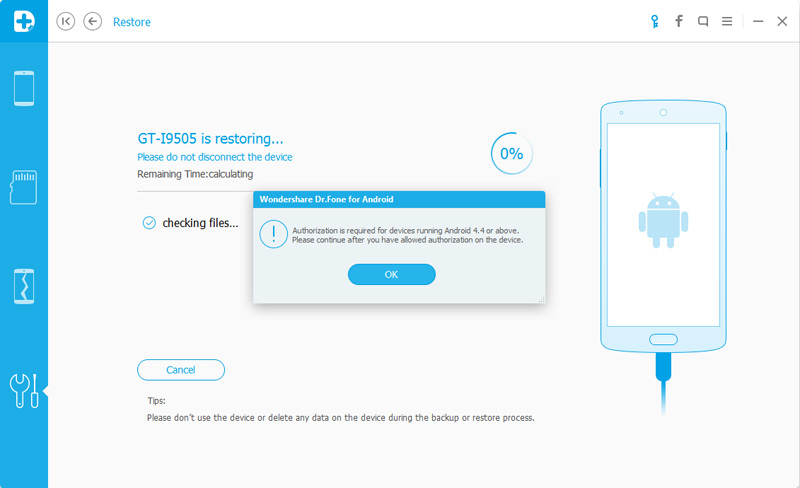
backup-android-messages-to-pc

Many messaging apps and services have the ability built right into backup function that prevent loss of your messages on Android,but that is not always the case.How to do the backup if you are using a messaging tool that does not have backup capabilities.We want to make sure that everyone is looking after their Android data.Specifically,backup Android messages to computer completely is what you should do before the accident that data loss happen.

How to Backup and Restore Android Messages

Join us as we explore the Android backup tool which is called Android Backup & Restore Tool.It is such a convenient and efficient data manager tool to backup and restore messages for Android,including SMS/MMS/iMessages/WhatsApp messages.Moreover,this program support to backup and restore almost all kinds of data on Android,such as contacts,contacts,photos,videos,notes,call logs,document,etc,.Applicable Android phone models list here for example Samsung,HTC,LG,Lenovo,Motorola,Huawei,Xiaomi.

d_win d_mac

Part 1:How to Backup Android Messages to Computer

Step 1.Install and Run Android Backup & Restore Tool
Android Backup & Restore Tool gain a good comment for its powerful features.It supports various data types for users to choose and provide a convenient operation.Now you should run this program on computer and connect your Android phone or tablet to computer via USB cable.

backup android messages

backup android messages

backup android messages

Step 2.Back up Android Messages to Computer
Select “More Tools” function in the homepage of program,then click “Android Data Backup & Restore” option.As is can be seen from the screenshot below,Android Backup & Restore Tool enables you to choose various data types to backup.Click “Messages” and then click “Backup” button to begin copying.

backup android messages

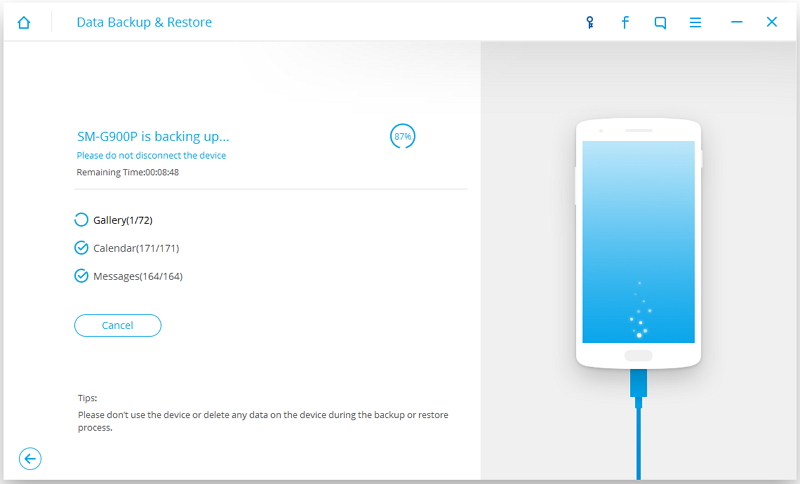
When the backup process is done,everything you select to backup is already finish copying on your Android.What is needed to pay attention is that you should not use the device or delete any data on the device during the backup process,do not interrupt the connection until it is finish.

d_win d_mac

Part 2:How to Restore Messages to Android from Backup File

Step 1.Install and Run Android Backup & Restore Tool
Run this program on computer and connect your Android phone or tablet to computer via USB cable.

Step 2.Restore Android Messages from Backup File
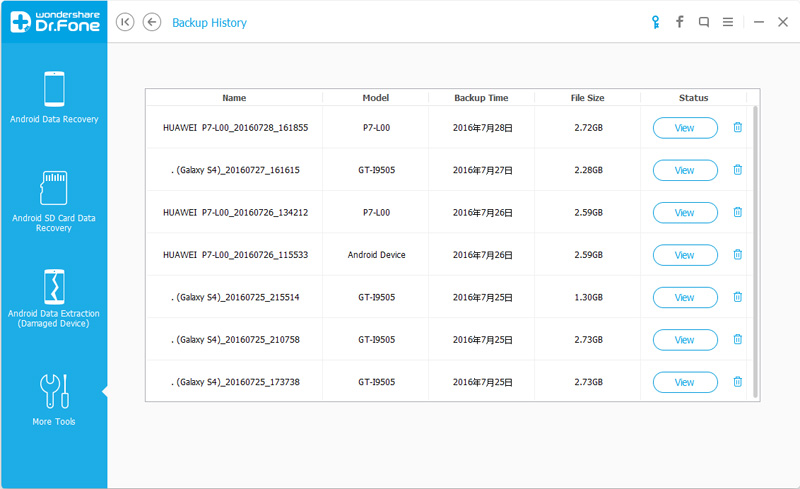
Select “More Tools” function in the homepage of program,then click “Android Data Backup & Restore” option.Since we have used Android Data Backup & Restore to do the backup before, now we can find the backup history as below. Choose one file you want to restore and start.

restore android messages

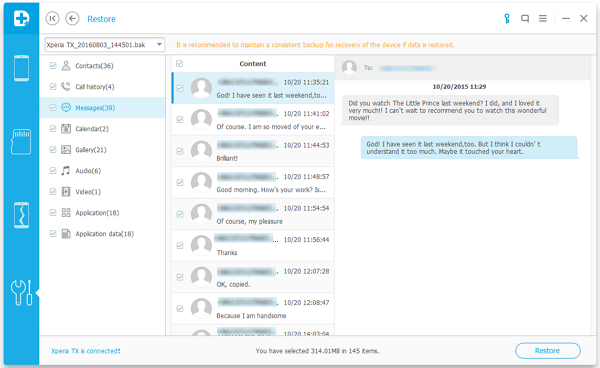
After entering the recovery interface, you can select “Messages” from the file list and click “restore” to start copying data to your Android device freely.

restore android messages

restore android messages

d_win d_mac

Related Article:

How to Backup and Restore WhatsApp Messages for Android

How to Backup and Restore Android Data

How to Backup and Restore Samsung Data

How to Restore WhatsApp Messages Backup to Android Device

How to Recover Deleted Text Messages from Android Phone

Restore Deleted Data after Nexus 5X Android 7.0 Upgrade

Android 7.0 Nougat is officially available for the Nexus 6, Nexus 5X, Nexus 6P, Nexus 9, Nexus Player and Pixel C (and the General Mobile 4G Android One).If you don’t have a Nexus,you can get a feel for when (or if) your phone will get Nougat based on our expectations.But there are some caveats you need to know about upgrading Nexus phone to Android 7.0,so read on to find out what you need to know.

Delete Data on Nexus 5X after Android 7.0 Upgrade
A lot of people later found that their devices seem to be back to factory settings, the photos, some apps, music, documents and even contacts are deleted and disappeared after updating.Losing data on Nexus 5 after Android 7.0 upgrade become a real headache.How to deal with the data loss problems in this case?

Recover Deleted File on Nexus 5X after Android 7.0 Upgrade

Android 7.0 Data Recovery is available for restoring deleted data on Nexus after Android 7.0 upgrade,such as contacts,photos,videos,messages,call logs,notes,WhatsApp messages,document and so on.In addition,this wonderful program allow to restore deleted data on Android device after Android system upgrade(Android 7.0,Android 6.0),Android rooting,Android device broken/damaged,and more data loss circumstances.Supported devices:Nexus 5X,Nexus 6,Nexus 6P,Nexus 9,etc,.

d_win d_mac

How to Restore Deleted Data from Nexus 5X after Android 7.0

Step 1.Install and Launch Android 7.0 Data Recovery
Install and launch Android 7.0 Data Recovery on your computer and then connect your Nexus 5X with the PC via USB cable.

recover nexus data after android 7.0 upgrade

Step 2.Enable USB Debugging on Nexus 5X
There are different modes are provided to different Android users using the different operating system.You are allow to select the mode as your device operating system as bellow.

recover nexus data after android 7.0 upgrade

Step 3.Scan Data on Nexus
When Nexus USB debugging enabling completes,the program will detect your phone automatically.Now you should select file for scanning.After that,you should click “Next” to allow the program to scan your device before recovery.

Note:You should make sure that your phone is at least 20 % off battery.

recover nexus data after android 7.0 upgrade

Step 4.Allow Program to Analyze Data on Nexus
If you have rooted your phone before,you have to allow the program Superuser Authorization on the screen of your phone before the scanning.You should click on “Allow” button when message pop-ups on your phone screen.

recover nexus data after android 7.0 upgrade

Now this program will begin to analyze data on Nexus 5X.

recover nexus data after android 7.0 upgrade

Step 5.Preview and Restore Deleted Data from Nexus after Upgrading
Preview and recover data from Nexus.The program will take some time to scan the deleted data from Nexus.After that,you are allow to preview the recovered data found in the scan result.Finally,select the data and click on “Recover” button to save the selected data to your computer.

recover nexus data after android 7.0 upgrade

d_win d_mac

Related Article:

How to Recover Lost Data after Nexus 6 Android 7.0 Update

How to Recover Lost Data after Android 7.0 N Upgrade

How to Recover Data after Android 6.0,Android 7.0 Update

How to Recover Data from Samsung after Upgrading to Android 6.0

How to Backup and Restore Samsung Contacts

“I am ready to upgrade my Samsung phone to Android 7.0 N system,but I heard that it may lead to data loss on device when the upgrade failure,so now I wanna backup my Samsung contacts before Android system upgrade.But how?”-Rose Cui

We all know that the accident may happen under the unexpected circumstances,there is a very big chance to lose data on device due to device upgrade,device rooting,device lost/broken or other mistake operations. It reminds me badly that data backup is a very crucial task for everyone,especially the contacts.To manage phone contacts, we need to draw support from third-party software, a tool that can help us to manage Samsung data on computer.

How to Backup and Restore Contacts on Samsung

Android Data Backup & Restore Toolkit is a nice desktop app developed for Android users.With Android Data Backup & Restore Tool,you are allow to backup & restore contacts on Samsung in an easy and safe way.The main purpose of this app is to help Android owners manage their devices more easily and efficiently.There are only a few steps to back up Samsung data to computer including contacts,text messages, photos, music, videos and even apps.Supported Samsung Smartphone:Samsung Galaxy Note 9/8/5/4/3/2,Galaxy S9/S8/S7/S6/S5/S4/S3 and so on.

d_win d_mac

Part 1:How to Backup Samsung Contacts to Computer

Step 1.Connect Samsung Device to Computer and Run Program
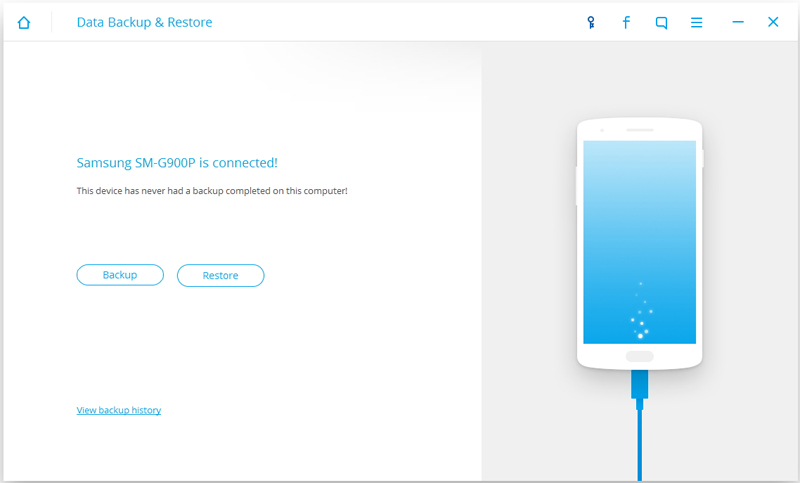
Launch Android Data Backup & Restore Tool and from the “More Tools” section,select “Android Data Backup & Restore” option.Then connect the Samsung device to your computer using USB cables.The program will detect the device soon.

backup restore samsung contacts

backup and restore samsung contacts

Note:If you have other Android management program on your computer,make sure none of them is running.

Tips:If you have used this program to back up your device previous,you are allow to view your past backup by clicking on “View backup history”.

Step 2. Select File Types to Backup
Once program has detected your Samsung,click on “Backup” to select the data you want to backup(include in the past backup).Android Data Backup & Restore Tool can be used to back up 9 different file types including contacts,WhatsApp messages/SMS, call history, calendar, gallery, audio, video, applications and application data.If you just need to backup contacts,select “Contacts” only.

Please note that to backup app data requires your Samsung device to be rooted.

backup samsung contacts to computer

After you have selected the file which you want to backup,click the button “Backup” to start the process.The entire process will take no more than a few minutes.

backup samsung contacts to computer

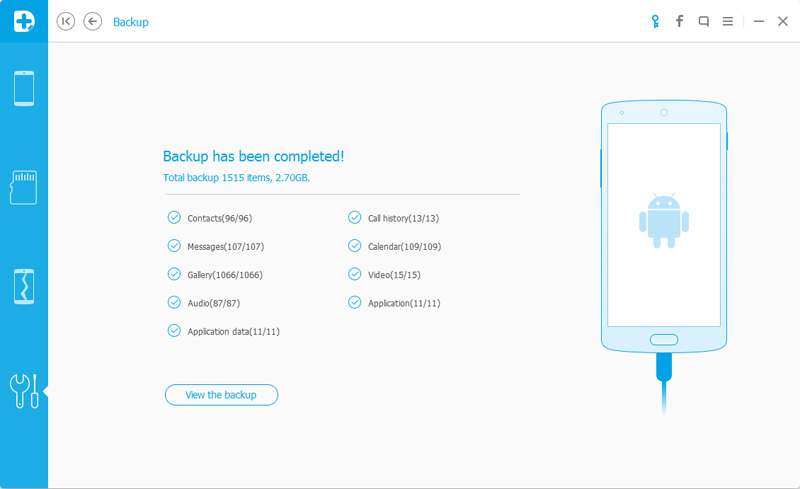
When the backup is finish,you are allow to click on “View the backup” on the lower left corner of the window to see the details of the backup file.

backup samsung contacts to computer

Now you can view your backup file by clicking on “View”.

select backup data view

d_win d_mac

Part 2:How to Restore Contacts on Samsung from Backup File

Step 1.Connect Samsung Device to Computer and Run Program
Launch Android Data Backup & Restore Tool and from the “More Tools” section,select “Android Data Backup & Restore” option.Then connect the Samsung device to your computer using USB cables.The program will detect the device soon.

Click on “Restore” and choose from the older backup file on your computer. These backups can either be of this Samsung device or any other device.

restore backup contacts to samsung

restore backup contacts to samsung

restore backup contacts to samsung

Step 2.Select Backup Data to Restore on Samsung
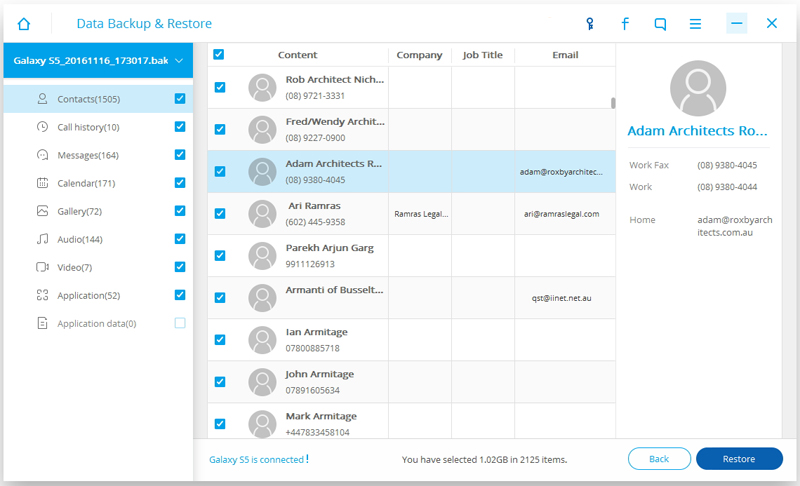
You are allow to select the data you want to restore.Select the different file types on the left and then select the files you want.For Contacts recovery,select “Contacts”.Click on “Restore” to start.

restore backup contacts to samsung

On restoring process,Android Data Backup & Restore Tool will require authorization during the restore process.Allow authorization and then click “OK” to continue.

restore backup contacts to samsung

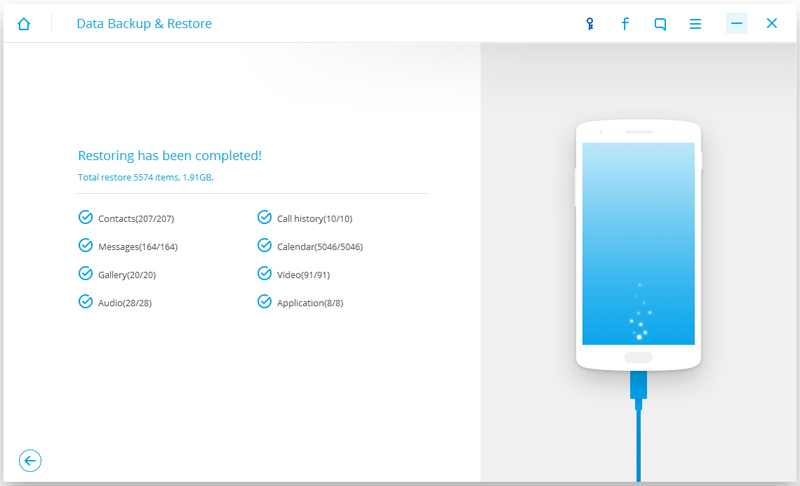
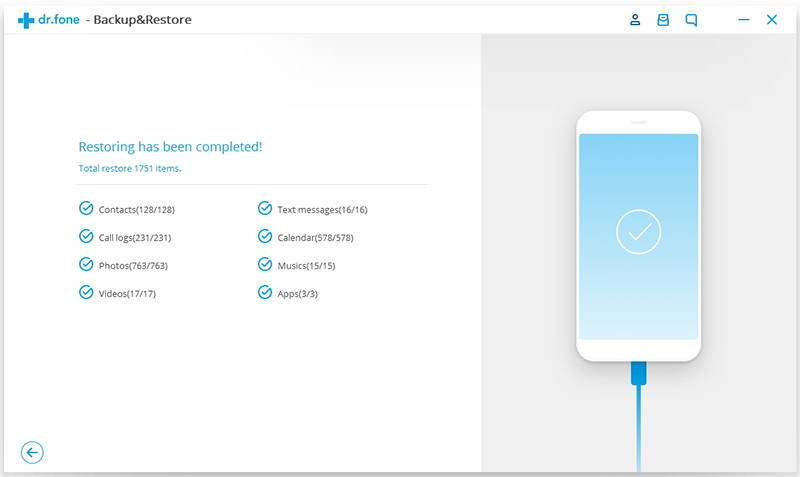
The whole process should last only a few minutes,Android Data Backup & Restore Tool will prompt you that the restore process has been completed along with a detailed account of which types of data have been successfully restored and which ones have not.

restore backup contacts to samsung

d_win d_mac

Related Article:

How to Backup & Restore Samsung WhatsApp History on Computer

How to Backup and Restore Samsung Galaxy Data with Samsung Kies

How to Backup and Restore Samsung Data

How to Backup and Restore Android Data